Vue normale

Il y a de nouveaux articles disponibles, cliquez pour rafraîchir la page.
Aujourd’hui — 11 juillet 2026Flux principal

Microsoft’s emissions just jumped 25% because AI datacenters are exploding in size, and dropping renewable credits finally exposed how much power the company is burning to fuel its AI ambitions

Microsoft’s latest sustainability report sparked claims that the company produced 34 million metric tons of carbon emissions in a single year. That figure was never reported by the company. What the report actually shows is a 25 percent year‑over‑year increase driven by AI datacenter expansion and Microsoft’s decision to stop buying unbundled renewable energy certificates.

The Microsoft Environmental Sustainability Report shows a complicated progression of rising emissions caused by AI datacenters, controversial "greenwashing" tactics, and enough wiggle room to leave space for debate.

Real emissions vs estimated emissions

When I first read the coverage surrounding the Microsoft Environmental Sustainability Report, it seemed like a clear case of AI hurting the planet and a tech giant callously damaging the environment. I was ready to write a piece calling out Microsoft for setting carbon neutral goals and then increasing carbon emissions by 25% in a single year.

But as I do with any story I cover, I went to the source material and did some digging. What surprised me is that the Microsoft Environmental Sustainability Report does not indicate unbridled burning of fuel to power AI datacenters. Instead, it shows efforts to reduce emissions and make meaningful changes.

I want to be clear, AI datacenters do create high carbon emissions. Microsoft is not faultless when it comes to energy use or pollution. I think there is a lot more the company could do to help the environment. I also think there's some misunderstood data seeping onto social media and throughout the web.

A chart from the Microsoft Environmental Sustainability Report illustrating emmissions and hypothetical emission rates.

The most recent Microsoft Environmental Sustainability Report shows the actual emissions of the company (solid line) compared to the estimated emissions if Microsoft had not taken steps to reduce its emissions. (Image credit: Microsoft)

The above chart from the Microsoft Environmental Sustainability Report shows Microsoft's actual reported emissions over the years and the estimated emissions without select interventions. The footnote on the chart directs to a clarifying statement on the estimate. I'll include the full footnote here but highlight the most relevant text:

"The solid line represents Microsoft’s reported greenhouse gas emissions (Scopes 1, 2, and 3) for FY20–FY25, prepared in accordance with GHG Protocol and management’s criteria, and uses a market-based emissions approach. The dotted line represents an illustrative counterfactual scenario of estimated emissions had select, discrete carbon reduction initiatives not been undertaken. These initiatives include energy efficiency improvements for XBOX consoles, renewable energy purchases, sustainable aviation fuel (SAF) and sustainable marine fuel (SMF) certificates, and supply chain decarbonization of Surface devices. The difference between the two lines is an estimate of emissions avoided through these specific initiatives relative to a scenario without those initiatives occurring. This estimate is directional in nature, does not represent the full scope of Microsoft’s decarbonization efforts, and is not part of our reported greenhouse gas inventory. It should not be interpreted as a comprehensive measure of total emissions reductions or as additive to other carbon reduction or removal claims."

Basically, the chart shows Microsoft's actual emissions and then a rough estimate of how much the company would have emitted had it not taken steps to reduce its carbon footprint. But Microsoft did take those steps. Microsoft did not have 34 million metric tons of carbon emissions in the last year. The actual emissions figure is 20 million metric tons.

That's still a massive amount of emissions, and 20 million metric tons is a 25% increase year-over-year, but there's some needed context.

What are unbundled renewable energy certificates?

Climeworks facility in Iceland

Microsoft has several plans to reduce carbon emissions, including a 10-year partnership with Climeworks for direct air capture. (Image credit: Windows Central | Jez Corden)

Microsoft's carbon emissions increased by 25% in a single year. The increase was driven primarily by Microsoft's expansion of datacenter infrastructure and the fact that the company paused the purchase of unbundled renewable energy certificates.

In February 2025, Microsoft announced that it "ceased purchasing non-additional, unbundled renewable energy certificates." That decision led to the massive jump in emissions seen in the recently published sustainability report (in conjunction with AI datacenter infrastructure expansion).

Renewable energy certificates (RECs) represent the legal ownership of the "renewable-ness" of generated electricity. Unbundled RECs are sold separately from the electricity itself.

The United States Environmental Protection Agency notes that "Unbundled Renewable Energy Certificates (RECs) refer to RECs that are sold, delivered, or purchased separately from electricity. RECs provide no physical delivery of electricity to customers and as such the customer is purchasing power from a separate entity than the one selling them the REC."

The separation of generated electricity from the legal ownership of the "renewable-ness" is controversial (that phrase comes straight from the EPA).

Many, including myself, view unbundled RECs as a form of greenwashing. Microsoft or any other company can legally say they are powered by renewable electricity without actually using the electricity that was generated.

The defense is that buying unbundled RECs financially contributes to the development of renewable energies.

Microsoft did not refer to unbundled RECs as a form of greenwashing, but its statement is telling:

"While we continue to apply the carbon fee to investments in emissions reductions, we have ceased purchasing non-additional, unbundled renewable energy certificates. We are refocusing the use of these funds on more long-term, higher-impact investments across carbon reduction, carbon removal, and clean electricity procurement. These interventions are expected to more effectively help us achieve our goal of becoming carbon negative by 2030 and may take us out of carbon-neutral position."

Microsoft implied that unbundled RECs are not the most effective way to have a long-term positive impact on the environment.

The rest of the report

The Microsoft Environmental Sustainability Report is 65 pages of dense information. It links to several external resources as well. If it were a paper report, there'd be a good joke here about an environmental report killing so many trees.

A large portion of the report is dedicated to discussion about Microsoft's use of water, which is a critical component of its environmental strategy. Notably, Microsoft replenished more water than it withdrew in the year.

Because of the size of the report, I've focused on the carbon emissions of Microsoft, but I suggest people read the entire report to get perspective on what's being done and where Microsoft still falls short.

Click to join us on r/WindowsCentral

Join us on Reddit at r/WindowsCentral to share your insights and discuss our latest news, reviews, and more.
Microsoft Fairwater Datacentre

Microsoft's Fairwater Datacenter is one of the most powerful datacenters in the world. It is one of many datacenters contributing to Microsoft's spike in carbon emissions.

As physical media fades, Windows 11’s Cloud rebuild shows how tech giants should handle user choice

With Sony planning to stop making discs for games and revoke access to movies and TV shows people paid for, physical media is more important than ever. Xbox is considering a disc-to-digital program for Project Helix, proving Microsoft weighs the importance of physical media when making decisions.

But the physical media debate isn't really about discs; it's about control. People want to control the content and devices they've purchased. Microsoft's newly expanded options for resetting PCs showcase how choice and control can be given to consumers.

Like many, I've spoken out against Sony's plans and advocated for physical media to be preserved. So, it might come as a surprise to hear that I'm happy about the new option to reset a Windows 11 PC that relies entirely on the cloud and does not use a USB drive.

While I advocate for physical media to preserve ownership of games and movies, when it comes to the pure utility of fixing a broken PC, convenience wins.

A new feature called Cloud rebuild is in testing on Windows 11. It lets you restore a PC to a clean state without needing an external drive.

What is Cloud rebuild on Windows 11?

Windows 11 Recovery Drive

Microsoft has added a new option to reset your PC by using the cloud, but the previous options remain in place. (Image credit: Daniel Rubino / Windows Central)

Cloud rebuild is a feature that lets you reinstall Windows and your PC's drivers by using the internet. Rather than requiring a USB drive that's been set up, you can reset your PC entirely through the cloud.

Microsoft explained Cloud rebuild recently when the feature shipped to Insiders:

"Unlike Reset this PC, Cloud rebuild downloads both the target Windows image and the device's drivers from Windows Update, so the device comes back fully functional without USB media, without a custom image, and without depending on the health of the currently installed OS."

While Reset this PC and Cloud rebuild both let you recover your PC, they differ in important ways apart from the fact that one uses a USB drive and the other uses the cloud.

Reset this PC gives you the option to retain your personal files, which could save vital content from being lost. But even if you have an external USB install drive ready to go, you can only use Reset this PC if Windows is bootable.

The feature also requires you to have manually created a USB installer ahead of time on a working computer.

In contrast, Cloud rebuild works even if your PC refuses to boot. The downside is that it does not provide an option to maintain apps and files.

Blank Pixel

Cloud rebuild brings your PC to a clean slate with Windows working and device drivers in place.

The biggest advantage of Cloud rebuild is reliability. Cloud rebuild doesn't rely on a tool you've set up in advance or ensured was formatted correctly. It just pulls a fresh image and drivers through Windows Update.

All my files are stored on OneDrive and backed up elsewhere, so I don't need the option to retain my files. It would save a bit of time after a reset, but it's not essential.

Cloud rebuild does depend on having an internet connection, so a USB installer is still the safer option for people in low‑connectivity environments.

Let the people decide

Of course, having the option to use a USB drive or the cloud is best. While I personally prefer Cloud rebuild for restoring my PC, I want both options to be available. Many people prefer to have physical tools they know are reliable and that can run locally.

That's what the current debate about physical media comes down to: choice and control. The vast majority of game sales are digital, but people want the option to own physical media.

Windows 11 management is the same way. Some will rely on the cloud while others will have USB drives to reset their PC and SSDs stored away to back up files.

Cloud rebuild is the better option for my workflow, but the point isn’t to replace USB recovery. It’s to give people the choice and control. Just like physical media, recovery tools shouldn’t be taken away; they should coexist.

Click to join us on r/WindowsCentral

Join us on Reddit at r/WindowsCentral to share your insights and discuss our latest news, reviews, and more.
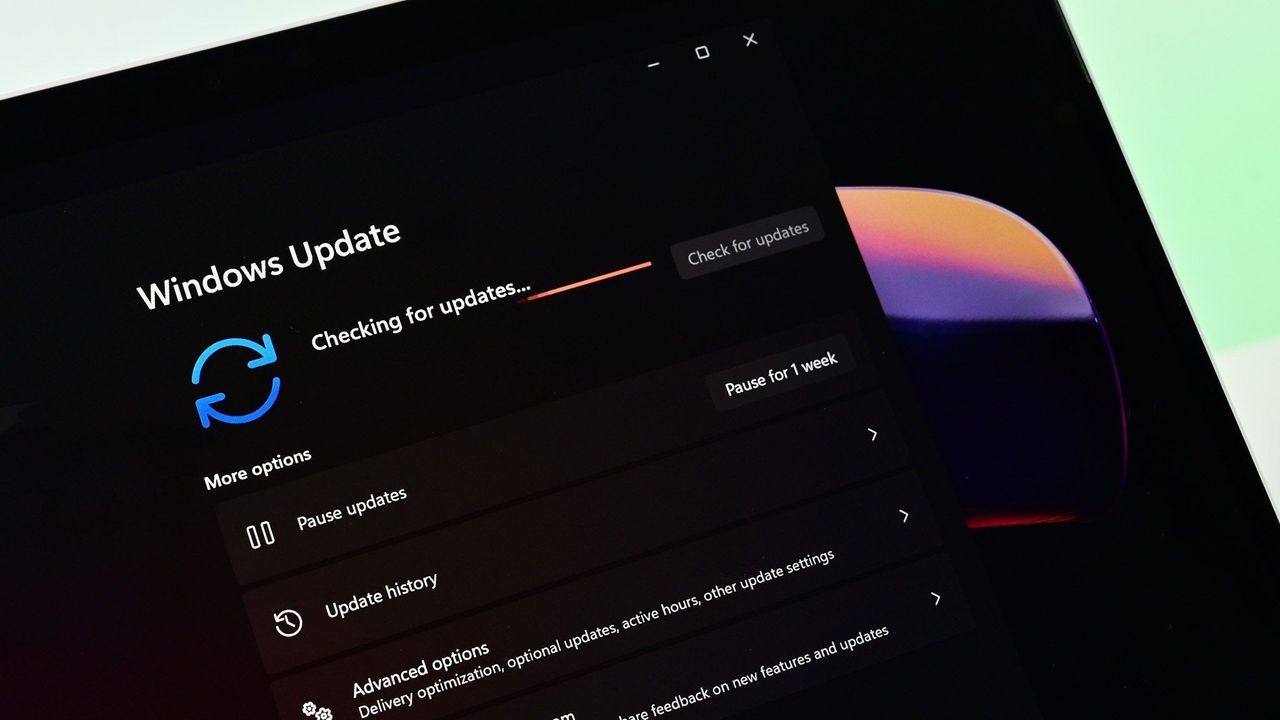
Windows 11 reset to factory settings

Windows 11 is testing a new Cloud rebuild feature to reset your PC without a USB drive.

The Windows Central Podcast breaks down the Copilot OS leaks, the latest Microsoft layoffs, and what all of this means for the future of Windows and the company’s AI strategy

The tech world is sweating, and it’s not just the summer heatwave. This week on the Windows Central Podcast, Daniel Rubino, Zac Bowden, and Jez Cordon sit down to unpack a massive wave of Microsoft layoffs. We break down Asha Sharma’s internal memo revealing a staggering 14 layers of middle management at Xbox, why the gaming division has struggled to capitalize on massive acquisitions like Fallout and Minecraft, and whether turning Xbox into an independent subsidiary is the brand's last chance for survival.

Zac walks us through the shocking Discord leak of "Project Ion," an experimental, web-native Copilot Operating System built entirely inside Microsoft Edge. Finally, we break down the quiet arrival of Snapdragon X2-powered Surface devices, the new 24 GB RAM "sweet spot," and why sources tell us the Surface Go lineup is officially dead.

  • Microsoft and Xbox Layoffs: An in-depth look at the 4,800 job cuts, why the brunt is hitting Xbox, and a critique of management's failure to capitalize on massive IPs like Fallout and Minecraft.
  • Leaked "Project Aion" (Copilot OS): Zac reveals an internal 2024 incubation project that leaked on Discord—an experimental, platform-agnostic, web-native operating system built entirely inside Microsoft Edge where Copilot replaces the traditional Start menu.
  • The Tech Industry's AI Bubble: A philosophical debate on consumer pushback against AI, the staggering cloud costs of large language models, and the lack of quantifiable productivity gains for regular users.
  • Snapdragon X2 Surface Refresh: Details on the consumer launch of the Surface Laptop 8 and Surface Pro 12, the introduction of a 24 GB RAM middle-tier "sweet spot," and lower-cost 8 GB configurations engineered to beat the RAM crisis.
  • The Death of the Surface Go Lineup: Breaking down exclusive source info confirming that the 10-inch Surface Go and the Surface Laptop Go lines have been canceled, leaving a major gap for enterprise and ultra-portable tablet fans.

Have a question you want us to answer on the podcast? Send it to us at [email protected]

Hosts:

Subscribe to the Windows Central Podcast

If you like the show, please let us know by give us a rating on your podcast platform of choice. It really helps us!

LIVE Video Podcast

You can watch the live, uncut version of the Windows Central Podcast on our YouTube channel!

Click to join us on r/WindowsCentral

Join us on Reddit at r/WindowsCentral to share your insights and discuss our latest news, reviews, and more.
Three podcasters, Zac Bowden, Daniel Rubino, and Jez Corden, talking on a live stream.

From left to right: Zac Bowden, Daniel Rubino, and Jez Corden discuss the latest on Microsoft and Xbox woes.

Windows now uses AI to find and help fix vulnerabilities, but it's not replacing humans

Microsoft is using AI to protect Windows against attackers. The development represents an arms race because AI is also being used increasingly to find vulnerabilities modern tech, as highlighted by The Hacker News.

Hackers can use AI to find and take advantage of vulnerabilities that could then be weaponized. It's not just discovery that's been sped up, reverse engineering security flaws is now a quicker process because of AI. That means attackers can find flaws and quickly take advantage of them before traditional methods of protection could take effect.

To combat those malicious actors and evolving tactics, Microsoft is deploying MDASH (Multi-Model Agentic Scanning Harness) at scale across Windows.

Pavan Davuluri, EVP of Windows and Devices at Microsoft, shared a blog post about the new methods the company is using to protect Windows.

"The fastest way to reduce customer exposure is to find issues before attackers can use them," said Davuluri. "Windows is expanding its ability across the platform to find issues earlier, accelerate the engineering work to fix them, strengthen validation, and deliver timely, high-quality updates that keep customers protected."

Using AI to identify potential flaws, prioritize fixes, and scale discovery across the codebase of Windows lets Microsoft quickly roll out protection to customers.

To scale MDASH to Windows, a dedicated cloud infrastructure was set up for scanning for potential flaws. A separate prove pipeline then is used to eliminate false positives. The Windows engineering team can then act on the most likely candidates that need addressing.

Microsoft will expand its use of AI for scanning and proving to other parts of the company.

Using AI to improve work

When Microsoft announced 4,800 layoffs across the company, its leaders emphasized that the eliminated roles are not being replaced by AI. People across a wide range of sectors are concerned about automation taking human jobs.

The approach Microsoft is using to scan for issues and streamline the selection process of candidates to address represents AI helping people rather than replacing workers.

When speaking of improving internal systems and practices, Davuluri said, "That means using AI to help identify potential issues earlier in the development process, while relying on human expertise to evaluate findings, make risk-based decisions and ensure fixes meet the quality bar customers expect."

The end result is that more security updates will be included in each security release, which should protect PCs from the growing number of attacks.

Click to join us on r/WindowsCentral

Join us on Reddit at r/WindowsCentral to share your insights and discuss our latest news, reviews, and more.
Suface Laptop for Business 8th Edition with a black keyboard and a modern design, displaying a blue abstract swirl on its screen, set against a light gradient background.

Suface Laptop for Business 8th Edition with a black keyboard and a modern design, displaying a blue abstract swirl on its screen, set against a light gradient background.

Microsoft Forms just gave me another reason to prefer it over Google Forms

Microsoft Forms just got a major upgrade thanks to Copilot. Microsoft 365 Copilot chat now lives within Microsoft Forms, adding a familiar tool to those who use AI in Word, Excel, and PowerPoint.

Copilot in Microsoft Forms can suggest improvements to your polls and forms and present insights from responses.

The Copilot integration is available now to users with Microsoft 365 commercial Copilot licenses.

Microsoft listed all the changes to Forms in a blog post:

  • Smarter suggestions & refinements: Get targeted recommendations to improve your form’s structure, clarity, and effectiveness. Copilot can also apply refinements directly to the form, so you can save time making edits – just describe what you want, and watch Copilot make it happen.
  • Deeper analysis: Copilot can now analyze your results in-depth to provide clear insights and actionable takeaways for you and your team. You can even ask follow-up questions to help parse and summarize your data and unlock your next step.
  • More settings: Review and update form settings with ease, such as applying custom thank-you messages and close dates, so your form is ready to send. You can also adjust question settings in bulk, such as making questions required.
  • Open-ended chat: Copilot chat gives you access to a broad world of capabilities, whether you’re seeking inspiration on survey topics or consulting on how to configure your form – the possibilities are broad with Copilot at your fingertips.
  • Basic branching: Apply basic branching logic directly through the agent. (Note that some complex scenarios are not yet supported, and you should continue to review your branching logic prior to sending your forms.)

I use Microsoft Forms to gather feedback from my American football team. I admit that I first tried it because my job centers around knowing Microsoft products. But after using Microsoft Forms for a while, I grew to prefer it over Google Forms.

Microsoft Forms can sync with Excel documents, making it much easier to stay on top of responses. I'm deeply entrenched in the Microsoft ecosystem, so anything that works seamlessly with the rest of my workflow gets bonus points in my book.

I also prefer some of the features of Microsoft Forms, such as question-level branching. That feature makes filling out forms feel smoother when a poll includes branching questions because it keeps you on the same page.

The layout of Microsoft Forms also presents results quicker because if you want to look at a chart, you don't need to open a separate spreadsheet.

The new Copilot experience in Forms could also be a boon to the platform, though I'll have to see it in action to judge. In my experience, Copilot as a general tool is good at suggesting improvements, performing bulk edits, and creating summaries, so it should thrive within Microsoft Forms.

Click to join us on r/WindowsCentral

Join us on Reddit at r/WindowsCentral to share your insights and discuss our latest news, reviews, and more.
Microsoft Forms results page

Microsoft Forms results page

Microsoft is making Windows 11's search box 4 whole pixels taller for some reason

It looks like Microsoft is planning to make a small but interesting (ok, maybe not that interesting) change to Windows 11 in the coming weeks, one that has us scratching our heads a bit. The company has revealed (albeit accidentally) that it's making the search box that appears on the Taskbar and in the Start menu a little taller, by 4 whole pixels.

4 pixels doesn't sound like much of a change, but it is a noticeable difference, if you can believe it. The change makes the search box appear chunkier, taking up more visible space above and below it, and bringing it closer to the top edge of the Taskbar itself and slightly pushing content down in Start.

Here's a before and after of the Start menu and Taskbar, in gif format so that it loops making the difference very easy to identify:

Comparing the new search box to the old search box.

Notice how things shift slightly when the thicker search box is enabled. (Image credit: Zac Bowden / Windows Central)

Microsoft hasn't explained why it's making this change, but if I had to guess, I'd say the change is being made to align it with the Ask Copilot search box appearance, which differs from the existing Windows Search search box.

Ask Copilot is an alternative search experience coming soon to the Taskbar on Windows 11 that incorporates Copilot chat directly into the user interface. It's currently aimed at commercial customers, and includes a thicker but narrower search box that appears on the Taskbar when enabled.

Ask Copilot is a separate UI to the standard Windows Search experience, and needs to be manually enabled before you can use it. That's why I think Microsoft is making the default search box 4 pixels taller, as the company likes the look of Ask Copilot and would like that appearance to apply to the default search box too.

Here's a closer look at the search box on the Taskbar comparing the new height to the old height. See, it is a noticeable difference! Investigative journalism at its finest on display here.

Comparing the new search box to the old search box.

Top: The new taller search box. Bottom: The current search box. (Image credit: Zac Bowden / Windows Central)

Either way, you can likely expect to see the search box in the Start menu and on the Taskbar get slightly bigger in the coming months, as Microsoft begins rolling out the change to Insiders before making it generally available to all. The change was unveiled in a changelog for a recent Windows 11 preview build, but a Microsoft engineer has since confirmed to me that the change isn't yet being previewed.

Thanks phantomofearth!

Click to join us on r/WindowsCentral

Join us on Reddit at r/WindowsCentral to share your insights and discuss our latest news, reviews, and more.
Semantic Search coming to Windows 11.

Semantic Search coming to Windows 11.

Windows 11 cleanup is finally simple with this powerful open‑source tool that strips bloat, boosts speed, and gives you real control

Windows 11 includes several built-in tools to help keep storage usage under control on your computer. Features like Storage Sense, the Temporary Files settings page, and Storage Recommendation can help you reclaim storage with ease, making third-party cleanup utilities less essential than they once were.

However, those features don't clean everything. If you want more control over temporary files, browser data, app caches, and privacy-related files, BleachBit is one tool you have to try. It's free, open source, and, unlike many PC "optimizer" apps, it focuses on cleaning unnecessary files rather than promising unrealistic performance improvements.

In this how-to guide, I'll explain what BleachBit does, how to use it on Windows 11, which settings I recommend, and which features you should avoid unless you understand exactly what they do.

What is BleachBit?

BleachBit is a free and open-source cleanup utility for Windows 11 that removes temporary files, caches, logs, browsing data, and other unnecessary files created by the operating system and many third-party apps.

Unlike many commercial cleanup tools, BleachBit doesn't include advertisements, bundled tools, or premium features. Instead, it gives you complete control over what gets removed and explains every cleaning option before you run it.

Rather than replacing the built-in cleanup tools available on Windows 11, I see BleachBit as an additional utility for users who want more control over what gets cleaned.

Why use BleachBit?

Although Windows 11 already provides several storage management tools, BleachBit adds several more capabilities.

For example, cleaning the system's temporary files as well as those junk files created by third-party apps. You can also use the tool to clean temporary browser data, such as cache, history, and downloads.

In addition, BleachBit provides secure file shredding to make recovery more difficult and wipes free storage space on supported drives.

Finally, the tool offers command-line support for scripting and automation, and there's a portable version that you can use without installation.

The biggest advantage is flexibility. Instead of cleaning everything automatically, BleachBit lets you decide exactly what should (and shouldn't) be removed.

Install BleachBit on Windows 11

Installing BleachBit is straightforward. You can download either the standard installer or the portable version, then launch the application. However, the quickest way to install the app is by running the winget install --id BleachBit.BleachBit command in Command Prompt (admin).

Command Prompt showing the winget command installing the BleachBit tool on Windows 11.

(Image credit: Mauro Huculak)

For most cleanup tasks, running it in normal mode is enough. Some system cleaning options may require administrator privileges.

Once opened, you'll notice a list of apps and cleaning categories on the left, along with a brief description of each option as you select it.

Always run Preview first

One feature I recommend using every time is Preview. Instead of immediately deleting files, the "Preview" option scans your system, estimates how much storage space can be reclaimed, and shows exactly what BleachBit intends to remove.

BleachBit for Windows 11 show preview results.

(Image credit: Mauro Huculak)

Even if you've used BleachBit before, I still recommend running the Preview option first.

Recommended cleanup options

For routine maintenance, I recommend starting with categories that are generally safe to remove.

For example, from the "System" section, some good choices include:

  • Temporary files.
  • Logs.
  • Clipboard.
  • Recycle Bin.
  • Update uninstallers.

BleachBit with recommended settings selected.

(Image credit: Mauro Huculak)

Usually, these items consume storage over time without affecting your daily workflow.

For browser cleaning, I suggest being more selective. Clearing cached files occasionally is perfectly reasonable, but deleting cookies will sign you out of websites, and removing session data will close saved browsing sessions.

Unless you're troubleshooting a browser issue or intentionally clearing your browsing activity, I usually leave those options unchecked.

The same advice applies to app caches. While they're generally safe to clear, some apps may take longer to launch the next time because they'll need to recreate those files.

BleachBit showing the General tab and highlighting the

(Image credit: Mauro Huculak)

As mentioned above, cleaning actions may require using the tool in Expert mode. If you receive the prompt, open the BleachBit main menu, select "Preferences," and choose the "Expert mode" option located in the "General" tab.

Securely delete sensitive files

BleachBit includes a built-in file shredder for permanently deleting sensitive files (and folders).

Unlike sending a file to the Recycle Bin (or even deleting it permanently with the "Shift + Delete" shortcut), secure shredding overwrites the file's contents before removing it, making recovery using standard data recovery tools much more difficult.

If you want to use this feature, open the BleachBit menu (the first icon at the top-left), choose the "Shred Files" option, then select the file to delete.

BleachBit tool with the main menu opened and the Shred Files option selected.

(Image credit: Mauro Huculak)

This feature is useful when you're deleting confidential content, financial records, or other sensitive files you don't want recovered later.

Wipe free disk space

The open-source tool can also overwrite unused space on a drive to remove traces of files that were previously deleted through the Recycle Bin.

This feature is intended primarily for drives before selling, donating, or retiring a computer, or for secondary drives.

The feature is available from the BleachBit main menu by selecting the "Wipe Empty Space" option and choosing the drive you want to clean.

BleachBit with the Wipe Empty Space option select in the main menu.

(Image credit: Mauro Huculak)

I don't recommend running free-space wiping as part of regular maintenance because it takes time and provides little benefit for everyday use.

If you're preparing a device for resale, the Reset this PC feature is generally the better approach.

One feature you won't find

One thing that BleachBit doesn't offer is a Registry cleaner.

I actually consider that an advantage. For years, Registry cleaners have been marketed as a way to improve performance in the operating system, but in practice, they rarely provide measurable benefits. Worse, removing the wrong Registry entries can cause apps or the system itself to behave unexpectedly.

Microsoft doesn't include a Registry cleaner on Windows 11, and I don't think most users should use one.

By focusing on cleaning unnecessary files instead of modifying the Registry, BleachBit avoids one of the biggest sources of risk associated with older computer optimization suites.

Does BleachBit make Windows 11 faster?

Not directly. When you delete temporary files, you can free up storage space and occasionally resolve issues caused by bad caches, but it won't make your computer faster.

If Windows 11 feels sluggish because your drive is nearly full, cleanup may help. However, performance issues are usually caused by factors such as not enough memory, older hardware, too many startup apps, malware, or software conflicts, not because your temporary files folder is too large (at least not the majority of the time).

Should you use BleachBit?

If you're comfortable with the built-in cleanup tools available on Windows 11, you may never need another maintenance utility.

However, if you want additional control over browser data, temporary files, app caches, privacy-related cleanup, secure file shredding, and other advanced maintenance tasks, you may benefit from BleachBit.

The open-source nature, easy-to-use interface, and decision to avoid questionable features like Registry cleaning make it one of the few utilities for cleaning up Windows 11 and one of the few alternatives to CCleaner.

Windows Central's Take

In the many years I've used the desktop version of Windows, I've tested and relied on countless cleanup utilities. Some of them were genuinely useful at the time, but many were eventually discontinued, acquired by other companies, or changed so much that they no longer offered the same experience.

Over time, I've become much more selective about the tools I recommend, especially when it comes to software that makes changes to the operating system.

Blank Pixel

More often than not, I recommend learning and using the built-in tools. However, BleachBit takes a different approach, and that's why I think it stands out. It focuses on cleaning files, not "fixing" the operating system, and I appreciate that it skips gimmicks like Registry cleaning that can do more harm than good.

If you decide to use it, my advice is not to treat it like a one-click optimization tool. Take advantage of the Preview feature, understand what each option does, and only clean what you actually need. If you use it that way, I think BleachBit is one of the few maintenance utilities that still deserve a spot in your toolkit.

What are your thoughts about BleachBit? Do you prefer Windows 11's built-in cleanup tools, or do you use a third-party utility? Let me know in the comments.

More resources

Explore more in-depth how-to guides, troubleshooting advice, and essential tips to get the most out of Windows 11 and 10. Start browsing here:

Click to join us on r/WindowsCentral

Join us on Reddit at r/WindowsCentral to share your insights and discuss our latest news, reviews, and more.

Windows 11 desktop and the BleachBit tool opened.

Windows 11 desktop and the BleachBit tool opened.

People want more value from Microsoft Rewards, and the new feedback portal makes that impossible to ignore

You can now provide feedback about the Microsoft Rewards Program through a new feedback portal. Similar to the new Xbox Player Voice forum, the Microsoft Rewards Feedback portal lets you suggest features, vote on feedback, and track the progress of changes.

The Microsoft Rewards Program has been around in some form for years, though it used to be under the Bing brand. You can earn points by using Microsoft services that you can then exchange for various rewards.

If you're deeply entrenched in the Microsoft ecosystem, you can earn a lot of points quickly. Over the years, I've used points to build up a library of movies. I value gift cards over other rewards, but you can also use your Microsoft Rewards points to enter sweepstakes and make donations.

I don't spend as much time earning points anymore because of the changes Microsoft rolled out this year.

Microsoft rolled out major changes to its rewards program in May, and some were received poorly. Those changes paired with the increase of the Xbox gift card cost have left plenty of room for feedback.

Generally speaking, points are less valuable than they used to be and there are fewer options for redemption. It's also harder to earn points in several ways.

I think there's a limit to how much we should complain about getting free things, but I think for many the effort to earn points is no longer worth it.

Most requested improvements to Microsoft Rewards

The Microsoft Rewards Feedback portal only launched yesterday, but a theme is already emerging. Several of the top pieces of feedback center around delivering more value to users.

"Redeem points for Game Pass subscriptions," reads the most upvoted piece of feedback. "Bring back Value for money gift cards for redemption," says another suggestion.

Other entries focus on community features, like creating a reward for people who complete 100% of a game or showing a badge on Xbox Live profiles that's related to Microsoft Rewards.

I predict requests to improve value will dominate the top of the Microsoft Rewards Feedback portal once it's given time to mature.

What changes would you like to see to the Microsoft Rewards Program? Share your thoughts in the official Microsoft Rewards Feedback portal and in our comments below!

Click to join us on r/WindowsCentral

Join us on Reddit at r/WindowsCentral to share your insights and discuss our latest news, reviews, and more.

Bold Microsoft logo with vibrant colors and a gold medal icon on the left, reflecting on a glossy floor. The scene conveys achievement and innovation.

Bold Microsoft logo with vibrant colors and a gold medal icon on the left, reflecting on a glossy floor. The scene conveys achievement and innovation.

Microsoft hit with class-action lawsuit over "unreasonable and excessive noise" from datacenter

Microsoft finds itself on the receiving end of a lawsuit about "unreasonable and excessive noise" allegedly emitting from the tech giant's Fairwater datacenter in Mount Pleasant, Wisconsin. The suit seeks compensation for damages, though the amount asked for is unspecified.

The Fairwater datacenter was unveiled in September 2025. At the time, it was the largest and most advanced datacenter. The site launched with NVIDIA’s GB200 GPUs. Each rack can process 865,000 tokens per second.

Running those GPUs makes a lot of noise. Microsoft states that the noise levels meet levels required by local ordinances, but the company has taken additional steps to reduce noise.

Microsoft shared the following update on June 18, 2026:

"Our engineering team and consultants on-site investigated the source of the sound, conducted tests, and put noise mitigations in place. Several neighbors confirmed what our independent monitoring showed: that these mitigations fully resolved the issue. We continue to work on short-term mitigation, and over the next several months, we will also install additional sound reduction components and continue to monitor sound at the site."

Despite the measures taken by Microsoft, the lawsuit about the noise from the datacenter was filed on July 1, 2026.

The lawsuit claims that Microsoft has not taken the proper steps to reduce noise in the surrounding area:

"Defendant has failed to follow proper industrial practices to prevent the offsite emission of noise, and has failed to absorb, capture, mitigate, and/or prevent noise from escaping its Data Center, thereby invading the homes and properties of Plaintiffs and the Class."

The plaintiffs of the suit claim that a "low hum" of infrasound emits from the datacenter and that the sound cannot be measured easily on the decibel scale. Our colleagues at PC Gamer highlighted that one plaintiff claimed "the constant noise [affected] his sleep." The filing states that the noise is "not only excessive, but consistent and pervasive."

Since the lawsuit was just filed within the last week, it will likely be a while before we see it reach a conclusion.

Blank Pixel

Click to join us on r/WindowsCentral

Join us on Reddit at r/WindowsCentral to share your insights and discuss our latest news, reviews, and more.

Microsoft Fairwater Datacentre

Microsoft Fairwater Datacentre

Google Chrome Just Added a Much-Desired Vertical Tabs Feature Microsoft Edge Is Still Missing

Par : Nayan
8 juillet 2026 à 16:44
Google continues to improve the Vertical Tabs experience in Chrome with a small but highly practical feature. The latest Chrome Canary build introduces a keyboard shortcut (Ctrl + Shift + L) that instantly collapses or expands the Vertical Tabs panel, making navigation much faster for keyboard users. The addition was first spotted by Leopeva64 on […]

Chrome and Edge will soon respect Windows’ “Hide pointer while typing” setting

Par : Nisha
8 juillet 2026 à 11:25
A small but meaningful quality-of-life improvement is finally making its way to Chromium-based browsers. Google Chrome and Microsoft Edge will soon respect the native Windows “Hide pointer while typing” accessibility setting, eliminating an annoyance that many users have experienced for years. The feature has already landed in Chrome Canary and Edge Canary, giving early testers […]

Bing Now Supports Sign-in with Apple and Google Accounts: A Simpler Way to Access Personalized Experiences and Microsoft Rewards

Par : Nisha
8 juillet 2026 à 04:26
Microsoft has announced a significant improvement to the Bing sign-in experience by introducing support for Apple and Google account authentication. The update eliminates one of the biggest barriers for new users by allowing them to sign in with accounts they already use every day, without creating a separate Microsoft account. The new sign-in option is […]

WSL container is now available for public preview on Windows

Par : Nishant Gola
3 juillet 2026 à 04:15

WSL container available for public previewThe WSL container is officially available for public preview. Microsoft made this announcement at the recent Build 2026. According to Microsoft, the WSL container will bring Linux container development directly into Windows through the Windows Subsystem for Linux (WSL). This will enable developers and organizations to run and manage Linux containers without relying on third-party […]

The post WSL container is now available for public preview on Windows appeared first on TheWindowsClub News.

À partir d’avant-hierFlux principal

Microsoft Brings Skills to Copilot for Excel, Helping Teams Scale Expertise Across Every Workbook

Par : Nisha
26 juin 2026 à 06:49
Microsoft Introduces Skills for Copilot in Excel to Scale Team Expertise Microsoft has announced Skills for Copilot in Excel, a major upgrade that enables organizations to capture, reuse, and scale spreadsheet expertise across every workbook. Instead of repeatedly performing the same complex tasks, teams can now package their knowledge into reusable AI-powered skills that Copilot […]

Microsoft PowerPoint Live Gets Smarter: New Sync Feature Keeps Presenters Aligned During Teams Meetings

Par : Nisha
25 juin 2026 à 07:12
Microsoft is rolling out a useful enhancement to PowerPoint Live in Microsoft Teams that aims to solve a common presentation challenge: staying synchronized with the presenter during collaborative meetings. The new “Stay in Sync” experience makes it easier for attendees who have navigated away from the current slide to quickly return to the presenter’s view, […]

❌
❌