Connexion

Windows 11 Home vs. Pro: Which should you buy in 2026?
For most people, Windows 11 Home is the version I'd recommend. It includes virtually everything you need for everyday computing, productivity, gaming, and schoolwork, and paying extra for Pro won't make your PC faster.
I personally use Windows 11 Pro, but for specific reasons. I regularly rely on Group Policy, BitLocker, Remote Desktop, and Windows Sandbox, which give me more control over Windows and aren't all available with Home.
That's ultimately the decision: Pro is worth paying for if you actually need its additional tools. Otherwise, keep your money.
In this new Windows 11 guide, I'll explain the important differences between Windows 11 Home and Pro, which Pro features I think justify the extra cost, and which edition you should buy.
Windows 11 Home vs. Pro differences at a glance
Both editions share the same foundation and offer most features regular users need for everyday tasks. The main differences can be found in advanced security, virtualization, remote access, hardware support, and business management.
The following table highlights the most important differences.
Features | Home | Pro |
|---|---|---|
Device Encryption | Yes* | Yes* |
Secure Boot | Yes* | Yes* |
Parental controls | Yes | Yes |
BitLocker Drive Encryption management | No | Yes |
Hyper-V | No | Yes |
Windows Sandbox | No | Yes |
Remote Desktop | No | Yes |
Local Group Policy Editor | No | Yes |
Active Directory domain join | No | Yes |
Microsoft Entra ID join | No | Yes |
Assigned Access (kiosk mode) | No | Yes |
Windows Autopilot support | No | Yes |
Core Windows, gaming, security and everyday features | Yes | Yes |
Maximum supported RAM | 128GB | 2TB |
As you can see, Home already includes most of the features needed for everyday computing. The Pro edition adds capabilities that become useful when you need more control over your computer.
The short answer: Which should you buy?
Choose Home if you primarily browse, work, study, stream, or play games.
Choose Pro if you specifically need Group Policy, full BitLocker management, Remote Desktop hosting, Hyper-V, Windows Sandbox, or business-management features.
If you don't know whether you need Pro, you probably don't.
Windows 11 Home vs. Pro pricing
When you buy a new desktop or laptop, Windows 11 is usually included in the price. However, if you're building a new computer or installing the operating system on an empty hard drive, you may need to purchase a product key separately.
Microsoft lists the following prices for its Windows 11 editions in the United States. The retail price of Windows 11 Home is usually $139.99, while Windows 11 Pro costs $199.99. If you already have a device with the "Home" edition, you can upgrade to "Pro" for an extra $99.99.
Prices may vary depending on the retailer and available promotions.
If your computer already runs Windows 11 Home, you can upgrade to Pro without reinstalling the operating system or losing your files and apps.
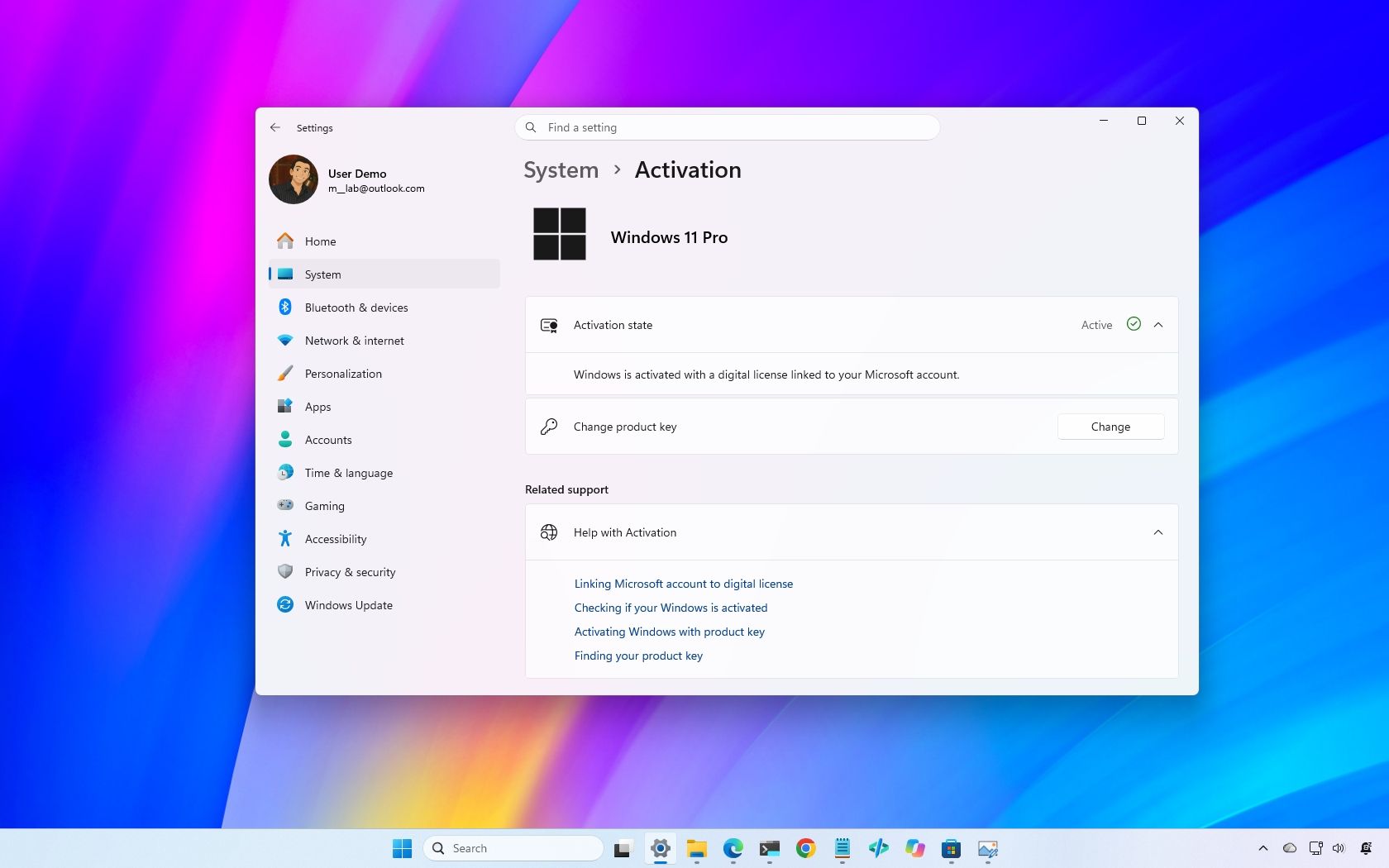
To check the available upgrade options, open Settings > System > Activation and select the option to upgrade your edition through the Microsoft Store.
One thing to keep in mind is that you don't have to buy Pro just because it's the more expensive edition. Unless you need its additional capabilities, Home is usually the better value.
What Windows 11 Pro features are worth paying for?
This is where the differences become more interesting. Windows 11 Pro includes several tools that aren't available in Home, but not all of them will be useful to everyone.
From my experience, four features make Pro particularly useful.
Group Policy Editor
The Local Group Policy Editor is one of the features I use most in Windows 11 Pro.

It provides access to advanced system settings that aren't always available through the Settings app. You can use it to configure Windows Update behavior, manage security policies, restrict access to certain features, and control other parts of the operating system.
For example, when I want to change how a feature behaves, Group Policy gives me another way to configure the system without relying on third-party apps or manually changing Registry entries.
This is particularly useful if you regularly troubleshoot the operating system, experiment with system settings, or want more control over your computer.
Windows 11 Home doesn't include the Local Group Policy Editor.
Worth it for: Enthusiasts, admins, and people frequently tweaking Windows.
My recommendation: If you're an advanced user who frequently changes system settings, Group Policy alone can make Pro more appealing. However, most everyday users won't need it.
BitLocker Drive Encryption
BitLocker is another reason I prefer Windows 11 Pro.
It lets you encrypt drives to protect your files from unauthorized access. This is especially useful if you store sensitive information on your computer or carry a laptop outside your home or office.
Windows 11 Home features "Device Encryption" on supported hardware. This feature uses the same BitLocker encryption technology, but it doesn't offer the same management options as Pro.
For example, with the full version of BitLocker, you can enable encryption and save the BitLocker key locally to retain full control. On the other hand, Device Encryption stores the BitLocker key automatically in your Microsoft account, so technically, the key isn't fully under your control.
Also, the feature gives you more control over drive encryption, including the ability to manage encryption on additional internal and removable drives.
Worth it for: People who need more control over drive encryption, particularly laptops or PCs holding sensitive files.
My recommendation: If you regularly work with sensitive files or want more control over encryption, including the ability to take full control of your decryption key, Pro is worth considering. However, don't upgrade just because you want basic drive encryption. Home already provides that capability on supported devices.
Remote Desktop
Remote Desktop is another feature I use regularly.
Windows 11 Pro allows you to connect to your computer remotely using the built-in Remote Desktop feature. This is useful when you need to access your desktop from another computer, whether you're in another room or away from home.
Windows 11 Home can connect to another PC but cannot act as a Remote Desktop host.
You can use third-party applications, such as Chrome Remote Desktop or RustDesk, as an alternative.
Worth it for: Anyone who regularly needs to remotely access the PC itself.
My recommendation: If you regularly access your main computer remotely, this is one of the clearest reasons to choose Pro.
Windows Sandbox
Windows Sandbox is another feature found in the Pro version, but I use it occasionally.
It creates a temporary, lightweight, isolated Windows 11 environment that lets you test untrusted apps, open unfamiliar files, and experiment with tools without changing your main installation.
When you close Windows Sandbox, it deletes everything inside that temporary environment.
I find this particularly useful when testing apps or checking something I don't want to install directly on my main installation.
Windows 11 Home doesn't include Windows Sandbox.
Worth it for: Enthusiasts and developers testing apps or unfamiliar files.
My recommendation: If you frequently test apps or experiment, Sandbox is a valuable addition. If you only install familiar apps, it probably isn't worth paying extra for Pro.
Windows 11 Home vs. Pro virtualization
Beyond Windows Sandbox, Windows 11 Pro includes Hyper-V, Microsoft's virtualization platform.
Hyper-V allows you to create virtual machines that run other operating systems inside Windows 11. For example, you can install another version of Windows or a Linux distribution in a virtual machine without changing your main installation.
This is useful for developers, administrators, and advanced users who need to test software or work with different operating systems.
Windows 11 Home doesn't include Hyper-V. However, both editions support Windows Subsystem for Linux (WSL), which allows you to run Linux distributions and command-line tools directly in the operating system.
If you need a traditional virtual machine on Home, you can also use third-party apps such as Oracle VirtualBox.
The important consideration is that you don't need Pro to use Linux on Windows 11. The upgrade becomes more useful when you need the built-in Hyper-V platform and Windows Sandbox.
Windows 11 Home vs. Pro hardware support
For hardware support, both editions support modern processors, graphics cards, storage devices, and other computer components. However, the "Pro" edition can support many more processing cores, memory, and server-grade hardware.
For example, Windows 11 Home supports up to 128GB of RAM, while Windows 11 Pro supports up to 2TB.
This difference won't affect most consumers. Even demanding apps, games, and productivity workloads generally don't require more memory than Home supports.
Also, given the price of memory today, few people can afford 2TB of RAM, let alone the specialized hardware needed to support that capacity.
However, the additional capacity can be useful for specialized workstations running professional applications, large datasets, and demanding virtual machines.
Also, while the Pro edition of Windows 11 supports up to 128 processing cores and up to two processors, the Home edition supports only one processor with up to 64 cores.
If you're building a regular desktop computer or purchasing a laptop for everyday use, the hardware limits of Windows 11 Home should be sufficient.
Windows 11 Home vs. Pro for gaming
When it comes to gaming, both editions offer essentially the same experience.
Windows 11 Home and Pro support modern gaming technologies, including DirectX 12, Auto HDR, and DirectStorage on compatible hardware for 4K gaming.
Also, both editions can run games from platforms such as Steam, the Microsoft Store, and other digital game stores.
Windows 11 Pro doesn't provide higher frame rates or better graphics simply because it includes additional features.
If you're building a computer primarily for gaming, Windows 11 Home is the edition I recommend. You can save the extra money and put it toward a better graphics card, additional storage, or more memory.
Windows 11 Home vs. Pro business features
Another major difference is that Windows 11 Pro includes features designed for environments where administrators need to manage computers, configure security settings, and control how users access system features.
For example, Pro supports joining an Active Directory domain or Microsoft Entra ID, allowing a computer to connect to an organization's identity and management infrastructure.
The edition also includes additional management capabilities, including mobile device management (MDM), organizational configuration policies, and Windows Autopilot support.
These tools allow businesses to configure computers, apply security settings, and prepare devices for employees.
Some of these capabilities require additional Microsoft services, subscriptions, and organizational configuration. Purchasing Windows 11 Pro alone doesn't automatically provide access to every business management service.
For the majority of home users, these features won't make a difference. However, if you're in a work environment that requires you to bring your own computer and join the company network, the Pro edition is the right choice.
Windows 11 Home vs. Pro performance
If you're wondering which edition runs faster, the short answer is neither, and they perform virtually the same.
Home and Pro share the same core foundation and offer similar performance on identical hardware.
Windows 11 Pro doesn't automatically make apps launch faster, improve gaming performance, or reduce memory usage.
The main hardware advantage of Pro is its support for more memory. For example, Home supports up to 128GB of RAM, while Pro supports up to 2TB. However, this doesn't mean upgrading to Pro will make your existing computer faster.
In my experience, the processor, available memory, storage, background apps, and system configuration have a much bigger influence on how responsive a Windows computer feels.
Unless your workload requires more memory than Home supports, you shouldn't expect a performance improvement from changing editions.
Windows 11 Home vs. Pro for college
If you plan to upgrade your laptop or desktop for college, the edition doesn't matter. If you have to choose between Home and Pro and the price doesn't increase, choose Pro. Otherwise, the Home edition provides all the tools you need to tackle virtually any task, including using productivity apps, streaming media, internet browsing, and gaming.
You also have access to Windows Subsystem for Linux, which can be useful for programming and other technical courses. However, Windows 11 Pro may be useful if your coursework requires Hyper-V, Windows Sandbox, or specific business management capabilities.
If your college requires one of these features, check the software and hardware requirements before purchasing a computer.
Otherwise, I recommend choosing Windows 11 Home and saving the extra money for other equipment or school expenses.
Windows 11 Pro for Workstations
Microsoft also offers Windows 11 Pro for Workstations, a specialized edition designed for computers with more demanding hardware and professional workloads.
This edition includes the features available in Windows 11 Pro, plus additional capabilities for high-performance workstations.
For example, it supports more memory and processors than the standard Pro edition. It includes technologies such as SMB Direct and the Resilient File System (ReFS) for supported workloads and configurations.
These capabilities are designed for specialized environments, including professional workstations that handle demanding computing tasks and large amounts of data.
The majority of regular consumers and even many professionals don't need this edition.
If you're buying a regular desktop computer or laptop, Windows 11 Home or Pro is generally the better choice.
Which Windows 11 edition should you choose?
For most people, I recommend Windows 11 Home.
Home gives you virtually everything you need for everyday computing, gaming, schoolwork, and productivity. Paying extra for Pro won't make Windows faster or improve gaming performance.
Windows 11 Pro makes sense when you can name the feature you need from it. Group Policy, BitLocker management, Remote Desktop hosting, Hyper-V, Windows Sandbox, and business-management capabilities are legitimate reasons to upgrade.
I use Pro myself because several of those features are part of my workflow, but my needs probably aren't the same as yours.
Here's my recommendation for choosing the right edition:
- Choose Windows 11 Home if you're a home user, student, gamer, or someone who uses a device for everyday tasks.
- Choose Windows 11 Pro if you need advanced security features, virtualization, Remote Desktop, Group Policy, or business integration.
- Choose Windows 11 Pro for Workstations if your hardware and professional workloads require its additional capabilities.
If you're unsure whether you need Pro, Home is almost certainly where I'd start. You can always upgrade later without reinstalling Windows. Microsoft documents upgrading an activated Windows Home installation to Pro through the Microsoft Store or with a Pro product key.
Are you using Windows 11 Home or Pro? If you paid extra for Pro, which feature made the upgrade worthwhile? Let me know in the comments!
More resources
Explore more in-depth how-to guides, troubleshooting advice, and essential tips to get the most out of Windows 11 and 10. Start browsing here:
- Windows 11 on Windows Central — All you need to know
- Windows 10 on Windows Central — All you need to know
Join us on Reddit at r/WindowsCentral to share your insights and discuss our latest news, reviews, and more.