When faced with a RAM shortage and dropping PC sales, companies have limited options. PC makers can't do much to increase the supply of memory chips in the short term, and expanding production takes time. That leaves app makers and developers under pressure to make their software more memory-efficient.Microsoft led the charge recently in optimizing apps for systems with less RAM, though Discord also made a strong effort by ditching Electron. Everything from Windo
When faced with a RAM shortage and dropping PC sales, companies have limited options. PC makers can't do much to increase the supply of memory chips in the short term, and expanding production takes time. That leaves app makers and developers under pressure to make their software more memory-efficient.
Microsoft led the charge recently in optimizing apps for systems with less RAM, though Discord also made a strong effort by ditching Electron. Everything from Windows 11 features to built-in Microsoft apps have been upgraded to use less RAM.
Microsoft is enforcing "memory budgets," such as restricting PCs with 8GB of RAM from having bloatware.
My question is, why did it take a RAM crisis for Microsoft, Discord, or any other company to care about efficiency?
Biggest News of the Week
With Microsoft and third-party developers working to make apps more efficient, PCs with only 8GB of RAM should perform better (though it's worth noting 8GB of RAM is already fine for some workflows). It's a welcome change, but I can't help but wonder why it's needed.
The latest version of Windows 11 proves that the operating system can run more efficiently than what we had even just a few months ago.
A lot of factors contributed to Windows 11 getting too bloated and RAM-hungry. The operating system has grown significantly since launch, adding features and expanding preexisting functionality. It seems that much of that growth happened without RAM overhead being a priority.
There also wasn't as much pressure to optimize apps until the RAM shortage kicked in. RAM was relatively inexpensive and many systems allowed you to upgrade later if you ever needed more memory.
Just as one example, back in 2023 we covered a deal that dropped the Corsair Vengeance 32GB 5200MHz to $180. Back then, it was noteworthy because the same module had previously cost $250. That price remained stable until about September 2025.
Now, that same RAM costs over $500.
Considering the relatively low cost of even a 32GB DDR5 RAM module back then, Windows 11 could chug along while eating up memory without affecting performance.
Now, out of necessity, Microsoft needs to optimize Windows 11 and as many apps as possible to reduce the total RAM demand across the PC industry. If companies like Discord hop on board, all the better.
Shopping with Sean
Due to the ongoing RAM shortage, it is increasingly difficult to find PCs with 16GB of RAM paired with premium specs for under $1,000. The current discount on the Acer Swift 16 AI slashes $550 off a laptop that can handle local AI workloads and creative work like video and photo editing. It also has an OLED panel our friends at Tom's Guide called its "standout feature" due to its sharp image quality and 120Hz refresh rate.
Full Release NotesBeta Preview Build 26320.9876Experimental Preview Build 26340.9882Beta (26H1) Preview Build 28020.3445Experimental (26H1) Preview Build 28120.3454Experimental (Future Platforms) Preview Build 29704.1000Windows Insiders have a bunch of new builds to check out. Microsoft released five Insider builds to wrap up the week, and they include everything from tiny changes and fixes to a massive update to Magnifier.Rather than stretching a single magnifie
Windows Insiders have a bunch of new builds to check out. Microsoft released five Insider builds to wrap up the week, and they include everything from tiny changes and fixes to a massive update to Magnifier.
Rather than stretching a single magnified view across all of your displays, Magnifier will remember distinct zoom percentages to each monitor.
Magnifier also has a new contrast theme to reduce glare. This is different from the color inversion. Magnifier's contrast theme leaves photos, charts, and videos untouched.
The build shipping to Beta channel Insiders adds a section in the Settings app that shows how much shared storage is used across your Microsoft 365 Family plan. That plan currently includes up to 6TB of OneDrive storage spread across six users. That will soon be reduced to 2TB of OneDrive storage shared across the entire family.
Windows Update (Beta)
With this update, the Beta channel moves to Windows 11, version 26H2, with the build number increasing to Build 26320. You shouldn't expect any significant change from this build number increase alone, as it's delivered via an enablement package (eKB) update.
Windows Search (Beta, Beta (26H1))
New Windows Search experience with inline actions: A new Windows Search experience built on WinUI 3 is beginning to roll out. It's faster, more efficient, and features a streamlined design that makes results easier to scan. Inline actions let you quickly complete tasks directly. Turn on dark mode or Bluetooth, adjust your screen brightness, mute your device, or arrange windows from Windows Search.
Windows Search is improving how it understands what you're looking for, including better matching for typos and synonyms. These improvements will continue to be fine-tuned over the coming weeks. For more information about the changes, check out the Windows Insider Blog.
English is the only supported language for this initial release.
Live captions (Beta, Experimental)
Live captions now gives you control over what gets transcribed. Previously, captions used system audio, with an option to add your microphone. Now you can choose system audio, your microphone, or both, so captions follow the sound you care about. Caption an in-person conversation without picking up system audio, or follow audio from your PC during a meeting or while watching a video.
Gaming (Beta)
Quick settings is coming to the Gaming Task View navigation bar in XBOX mode, giving you access to the full set of Quick settings available on the Windows taskbar without having to leave XBOX mode.
Web sign-in (Beta)
Web sign-in now works on Microsoft Entra hybrid joined devices. Before this update, it was only available on Microsoft Entra joined devices. You can sign in to Windows at the lock screen with a passwordless credential: a FIDO2 security key, a passkey on your phone, or a Temporary Access Pass (TAP). You don't need a password. Once you're signed in, Windows gets a Kerberos ticket, so on-premises file shares and internal sites keep working. For more information, see Use web sign-in to enable passwordless sign-in in Windows.
Windows Hello (Beta, Experimental (26H1)))
Windows Hello facial recognition can temporarily brighten your screen to help you sign in when you're in a dark or dimly lit room.
To turn on this feature, go to Settings > Accounts > Sign-in options > Facial recognition (Windows Hello) and turn on Automatically adjust screen brightness during face recognition.
Windows Hello (Experimental)
Sign-in and unlock now behave more consistently and give clearer guidance. You no longer have to wait for face or fingerprint recognition to finish before entering your PIN. Use whichever method works first. At certain times, such as after a restart, you'll need your PIN first. After that, biometrics work as usual.
New Windows Hello events let IT admins see how users sign in. The sign-in experience doesn't change. In Event Viewer > Windows Logs > Security, event 4628 records the Windows Hello methods a user has set up and which method they used to sign in (PIN, face, fingerprint, or no Windows Hello). Event 4629 records failed Windows Hello sign-in attempts. Both events use the existing Audit Logon policy.
For troubleshooting, events 5010 and 7010 in Event Viewer > Applications and Services Logs > Microsoft > Windows > HelloForBusiness > Operational record each Windows Hello sign-in and unlock, along with the result.
Input (Beta)
The dialogs that ask whether you'd like to turn on Sticky Keys or Filter Keys are being updated, making it easier to dismiss these prompts permanently. If you don't use these keyboard features, you can choose not to be asked again directly from the dialog, helping you continue what you're doing with fewer interruptions.
Input (Experimental)
Live captions now gives you control over what gets transcribed. Previously, captions used system audio, with an option to add your microphone. In Live captions settings, you can now choose system audio, your microphone, or both, so captions follow the sound you care about. Caption an in-person conversation without picking up system audio, or follow audio from your PC during a meeting or while watching a video.
Settings (Beta)
Windows Settings now contains shared storage usage across Microsoft 365 Family subscriptions. A breakdown for each family member is coming soon. If your subscription was purchased after October 8, 2026, you can check the view by going to Settings > Accounts > Cloud storage. If your subscription was purchased before October 8, 2026, this view will be available for you after the first subscription renewal on or after May 2, 2027. Learn more about the changes to Microsoft 365 storage.
Settings (Experimental)
Discover your account benefits in Settings. It's now easier to discover the benefits and services available with your Microsoft account, right in Windows Settings.
File Explorer
The Address Bar now supports ~, making it quicker to navigate directly to your user profile folder and subfolders, for example, ~\AppData.
File Explorer (Beta (26H1))
PDF and non-HTML files downloaded from the web can now be previewed automatically in the Preview pane.
Math equations in Braille with Narrator (Experimental)
Building on Narrator's math reading and navigation support, the experience is expanding to refreshable Braille displays. When Narrator reads supported equations in Microsoft Word, PowerPoint, Edge, or Google Chrome, Narrator Math is now shown on your connected Braille display, letting you explore them by touch while listening to Narrator.
Math is at the heart of STEM education and learning, and this update helps students and professionals independently read, understand, and explore equations, formulas, and scientific notation with confidence.
You can choose a math format in Braille without changing your default Braille output table. Supported math output formats include Nemeth (default), UEB, CMU, Vietnamese, Swedish, LaTeX, and ASCIIMath. In Narrator Math settings, you can also customize the reading language, speech behavior, and navigation preferences.
Magnifier (Beta (26H1))
More and more of the work people do happens across more than one screen. You draft on one display and keep source material open on another. You fill in a form while a reference document sits beside it. Those extra displays can be more helpful when each one can do its own job, and now Magnifier supports exactly that.
To use this update, set your monitors to Extend in System > Display, not Duplicate, so Windows treats each screen as its own space.
Every screen keeps its own view at its own zoom. In earlier versions of Magnifier, zooming in stretched a single magnified view across all of your displays, so one screen's zoom followed you everywhere and screen edges blurred together. With this update, each monitor's boundary is respected, and each monitor can have its own zoom percentage. Your writing screen can be at 300% while your reference screen stays at 150%, and the magnified view no longer spills from one display into the next. This behavior matters because different tasks and screen resolutions often require different levels of magnification to remain comfortable to read.
Setting the zoom on each screen is easy. Choose whichever method feels natural:
Move your mouse pointer onto the screen you want to adjust, then press Windows key + Plus (+) or Windows key + Minus (-), or hold Ctrl + Alt and rotate your mouse wheel.
Set the percentages directly in Accessibility > Magnifier.
Drag the Magnifier toolbar onto a specific screen to adjust that screen from its on-screen controls.
Per-monitor zoom is turned on by default. If you prefer the classic behavior where a single zoom spans all of your displays, you can turn per-monitor zoom off at any time from either the Magnifier toolbar or Accessibility > Magnifier. You can turn it back on whenever you like.
As you move your mouse from screen to screen, the magnified view naturally follows your pointer. Sometimes this might cause you to lose sight of the content that you're actively working on.
Viewport locking keeps that view in place. For example, you might be drafting an email based on a section of a document open on another display. Position that display so the paragraph you need is in view, press Ctrl + Windows key + K, and the screen holds its view steady while you move your cursor over to write. The locked screen stays fully live and interactive, so you can glance back, click, or copy from it whenever you need to, and its view stays put until you release it.
A message appears on the screen when it's locked, so you always know what's being held. To lock or unlock a screen, point your mouse at that screen and press Ctrl + Windows key + K again. To release everything at once, press Windows key + Esc to dismiss all locks. To use a different key combination, you can switch the lock shortcut to Ctrl + Alt + P in Accessibility > Magnifier.
Magnifier new contrast theme
A new contrast theme toggle for a lower-glare screen. If bright screens are uncomfortable, many people use color inversion to reduce glare. However, inversion changes everything on screen, including photos, charts, and videos. With this update, Magnifier introduces a new contrast theme toggle.
Reduce glare with a single toggle. Turn on a contrast theme directly from the Magnifier toolbar for a more comfortable viewing experience.
Choose the contrast theme that works best for you. The dark theme is applied by default, and you can choose which contrast theme the toggle uses under Settings > Accessibility > Magnifier.
Photos, videos, and charts keep their original colors. Unlike color inversion, the contrast theme recolors the interface without touching your photos, charts, or videos, so they keep their real colors.
Color inversion is still here. This isn't a replacement. If you use inversion today, it works exactly as it always has. The contrast theme is a separate, purpose-built option to reduce glare when you want a darker interface without inverting colors.
Manage camera, microphone, and location access for desktop apps (Experimental (Future Platforms)
Windows Insiders can now manage camera, microphone, and location permissions for individual desktop apps. Previously, access for traditional desktop applications was managed through a single device-wide setting.
With this update, you can review and control access on an app-by-app basis, giving you greater visibility into which apps are requesting access to sensitive resources and more control over your privacy choices. These controls make privacy permissions easier to understand and manage across the wide range of desktop apps you use every day.
What's changing
Allow or deny access for each desktop app individually.
Go to Settings > Privacy & security > Camera, Microphone, or Location to review and manage permissions.
Apps that haven't yet accessed a resource prompt for permission the first time access is requested.
What stays the same
Existing app permission decisions are preserved.
Apps previously granted access continue to have access.
Apps previously denied access remain denied.
No action is required, and no settings are reset.
Existing enterprise policies continue to function as designed. We're exploring additional management capabilities.
Notes
Most desktop apps appear with clear app attribution. However, some apps that rely on shared system components, browser-hosted experiences, or similar technologies might appear under a different name than expected.
Some desktop apps might appear as Unsigned if Windows can't verify publisher information. Only grant access to apps you recognize and trust.
Join us on Reddit at r/WindowsCentral to share your insights and discuss our latest news, reviews, and more.
A free tool with a bit of a strange name will let you know what's using the GPU on your PC. Microsoft engineer Scott Hanselman created gputaskman to show more details than Windows 11's built-in tools.Task Manager can show per-process GPU usage and memory consumption, but it provides limited insight into exactly how applications are using GPU resources. You can see more information in the Details tab, but that still fails to paint a full picture.The gputaskman ap
A free tool with a bit of a strange name will let you know what's using the GPU on your PC. Microsoft engineer Scott Hanselman created gputaskman to show more details than Windows 11's built-in tools.
Task Manager can show per-process GPU usage and memory consumption, but it provides limited insight into exactly how applications are using GPU resources. You can see more information in the Details tab, but that still fails to paint a full picture.
The gputaskman app shows information for individual processes, such as GPU usage and VRAM consumption. Rather than simply showing that GPU memory is in use, gputaskman can help pinpoint whether that memory is being consumed by an AI model, a web browser, desktop rendering, or another process.
It can also identify local AI workloads and display details about running LLMs, including information about model memory usage and related GPU resources. The app displays GPU temperature as well.
Scott Hanselman's gputaskman utility shows per-process GPU activity, VRAM usage, and local AI model information. (Image credit: Scott Hanselman)
Hanselman explained the app's purpose on the gputaskman GitHub page:
"Task Manager says '15 GB used.' This tries to answer: by what? Model weights? KV cache? Your browser? The desktop compositor? And why is so much GPU memory in system RAM?"
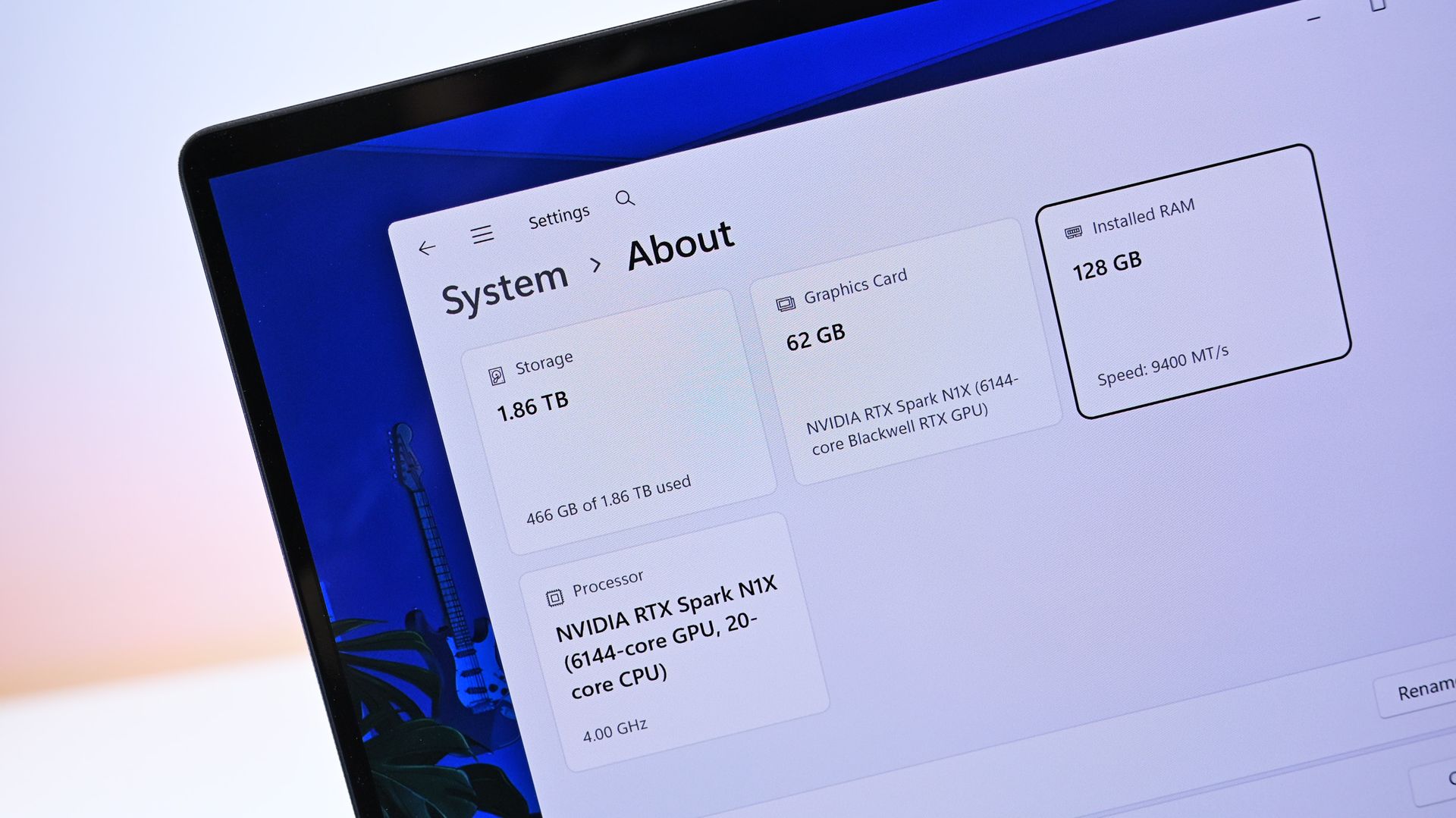
The app is still in the early stages of development. Hanselman has invited people on X to create pull requests. Right now, gputaskman supports Windows PCs with AMD or NVIDIA GPUs. Hanselman said in a follow-up post that the goal is to work on the Surface Laptop Ultra and other RTX Spark and Windows on Arm devices.
Microsoft's recently announced Hybrid intelligence initiative combines on-device AI processing with cloud-based AI services. As more AI tasks run locally on PCs, users may want better visibility into how those workloads affect GPU memory and performance. Tools such as gputaskman provide a detailed look at which processes, models, and applications are consuming GPU resources.
Join us on Reddit at r/WindowsCentral to share your insights and discuss our latest news, reviews, and more.
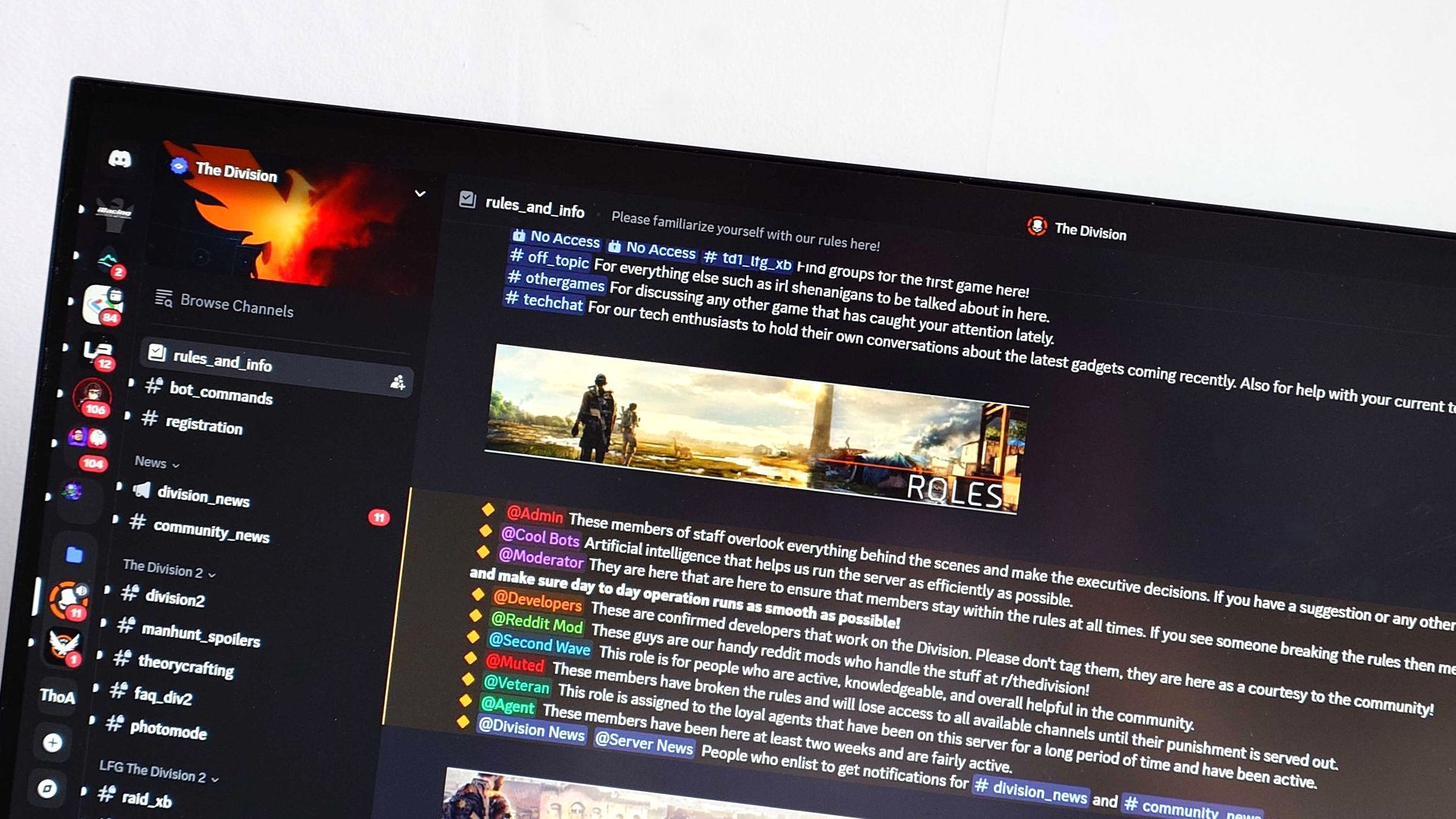
The Discord app will soon use less RAM and power, all without losing a single feature. Discord is rebuilding its desktop app in Rust, replacing the Electron-based client it uses today. Discord has used Rust in parts of its technology stack for years, but the desktop application itself has historically been built on Electron.The new app is faster and more efficient, as demonstrated by Discord CTO Stanislav Vishnevskiy. He showed the current Discord app and the new
The Discord app will soon use less RAM and power, all without losing a single feature. Discord is rebuilding its desktop app in Rust, replacing the Electron-based client it uses today. Discord has used Rust in parts of its technology stack for years, but the desktop application itself has historically been built on Electron.
The new app is faster and more efficient, as demonstrated by Discord CTO Stanislav Vishnevskiy. He showed the current Discord app and the new Rust client of Discord on a pair of Lenovo ThinkPads running Windows 11.
In that side-by-side comparison, the new Rust-based client launched more quickly than the current Electron version.
Electron apps often draw criticism because they use a lot of system memory. The apps rely on web technology, which means every single Electron app essentially ships with a mini browser. As a result, Electron apps are often more resource-heavy and less efficient than native desktop applications.
The new Discord client using less RAM is just part of the story. Clicking around feels instant, I can't go back. Check out the boot time. https://t.co/x7ayyWBVQJNovember 5, 2026
Some workloads can benefit from native code rather than web technologies, especially when performance and efficiency are priorities. That may make you question why Discord has had an Electron app for so long, but there are plus sides to the framework.
The biggest benefit of Electron is that it allows developers to use the same codebase across major platforms. Rather than maintaining separate applications for Windows, macOS, and Linux, developers can build a single application.
That advantage has kept Electron popular for years, powering everything from Discord and Slack to Microsoft Teams and Visual Studio Code. But some companies and developers have deemed the tradeoff too great and have migrated to other frameworks in pursuit of better performance and efficiency.
Discord's new app comes at a time when RAM is at a premium. Due to the ongoing RAM crisis, many people cannot upgrade to PCs. Even those looking to purchase new computers may have to pick models with only 8GB of RAM because of the increased cost of memory.
Even with Windows 11 performing better on low-RAM devices, it's nice to see Discord ditch Electron and create a more efficient app. Discord has long been criticized for eating up memory and performing slowly. The new app should fix both those issues.
Join us on Reddit at r/WindowsCentral to share your insights and discuss our latest news, reviews, and more.
Microsoft Teams meeting transcripts are about to become more profane, at least if your organization's admin enables a setting. This week, Microsoft rolled out the option to have profane words appear uncensored in meeting transcripts.Depending on your workplace culture, the change may have little impact. Other organizations may discover that their meeting transcripts suddenly become a lot more colorful.The feature applies to both live transcription and saved meeti
Microsoft Teams meeting transcripts are about to become more profane, at least if your organization's admin enables a setting. This week, Microsoft rolled out the option to have profane words appear uncensored in meeting transcripts.
Depending on your workplace culture, the change may have little impact. Other organizations may discover that their meeting transcripts suddenly become a lot more colorful.
The feature applies to both live transcription and saved meeting transcripts. Profanity filtering remains enabled by default. Live captions work differently and continue to follow each participant's existing profanity settings.
The release notes do not indicate whether meeting participants will be notified when an organization chooses to disable profanity filtering in transcripts.
Censorship can be a sensitive topic, even in professional environments in which people have worked together a long time. Many people draw different lines when it comes to profane language, so it makes sense to have individual settings as well as organization-level settings.
There are situations in which exact wording matters. Internal investigations, HR complaints, legal disputes, or compliance reviews may benefit from an unfiltered transcript that reflects precisely what was said during a meeting.
Microsoft describes the feature in more depth in its release notes for admin features:
Microsoft Teams: Admins can control profanity filtering in meeting transcripts: Teams administrators will be able to use a meeting policy to control whether profane words are masked in live transcription and saved meeting transcripts. Filtering remains on by default. When an organizer is assigned a policy that turns filtering off, profane words can appear without masking in both the live and saved transcript, while live captions continue to follow each participant's existing profanity setting.
In addition to the profanity setting, Microsoft added a feature that pops calls in a new window to improve multitasking. The company also added a way to require pre-meeting consent for all participants of a meeting.
For most Teams users, this change probably won't alter day-to-day meetings. But for organizations that rely on transcripts for records, compliance, or investigations, having the option to capture conversations word-for-word could matter far more than a few colorful words.
Join us on Reddit at r/WindowsCentral to share your insights and discuss our latest news, reviews, and more.
The OnePlus Open was one of the best foldables on the market when it launched. Its large displays and solid cameras were ahead of the competition, leading our colleagues at TechRadar to call it "the only foldable phone that doesn't compromise." So, how do you improve on what was already an excellent foldable? You put Windows 11 on it, of course.Okay, that may be taking things too far, but Windows 11 does look incredible on a folding phone. I can say that with con
The OnePlus Open was one of the best foldables on the market when it launched. Its large displays and solid cameras were ahead of the competition, leading our colleagues at TechRadar to call it "the only foldable phone that doesn't compromise." So, how do you improve on what was already an excellent foldable? You put Windows 11 on it, of course.
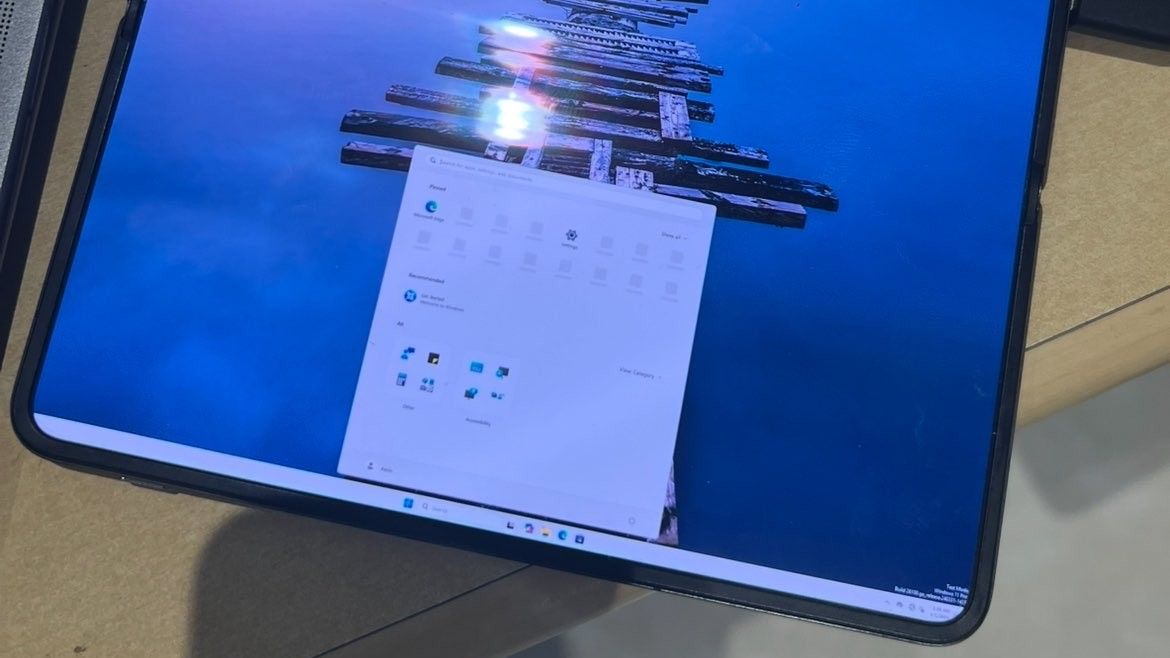
Okay, that may be taking things too far, but Windows 11 does look incredible on a folding phone. I can say that with confidence because Kevin Shroff managed to get Windows 11 to run on the OnePlus Open.
To get Windows 11 onto the OnePlus Open, Shroff removed Android entirely, dimmed the external display, and focused on the large folding screen.
The project uses a combination of Windows 11, OEM firmware, and custom components. An impressive number of features work, considering the nature of the setup.
Getting Windows 11 to boot at all on the OnePlus Open is a feat, but Shroff got touch to work as well.
Several key functions do not work, however, including audio, Bluetooth, and cellular connectivity. Even charging and Wi-Fi are listed as "in progress" on the project's GitHub page.
With projects like this, it's more about seeing how far limits can be pushed than creating a daily driver. While I'd love a dual-booting foldable that can run Android and Windows 11, that's not realistic.
What could have been with Windows Phone
Windows 11 is more adaptable to unique aspect ratios, in part because of devices like the ThinkPad X1 Fold. (Image credit: Daniel Rubino)
Whenever I see a phone forced to run Windows, my mind jumps to thoughts of Windows Phone. I imagine that's the case for many long-time readers here at Windows Central. But seeing Windows 11 on a foldable hits differently.
Windows 11 looks incredible on the nearly square inner display of the OnePlus Open. Because of folding laptops, dual screen PCs, and gaming handhelds, Windows 11 adapts well to screens with different aspect ratios.
The Windows 11 desktop almost looks built for devices like this. Compare Windows 11 on the OnePlus Open to Windows 10 on an early Lenovo X1 Fold.
Windows 10 looks awkward on foldables and squarer devices. (Image credit: Windows Central)
Windows 11's taskbar shrinks perfectly onto the nearly square screen of the OnePlus Open. When opened, the Start menu fills most of the screen but leaves enough room around the edges to make it clear you're still on the desktop.
Earlier this year, we saw what could have been for the Surface Duo through the iPhone Duo. Now, a passion project illustrates how Windows 11 could have scaled to a foldable Surface Duo if Microsoft ever went in that direction.
Join us on Reddit at r/WindowsCentral to share your insights and discuss our latest news, reviews, and more.
The Windows 11 Start menu has received a lot of updates recently, but if you want to fully customize your Start menu, you need to use an app like Start11. A major update to Start11 is now in beta, and it brings a bunch of new features.Start11 v3 adds support for widgets within the Start menu. There are 20 widgets available at launch, though most are fairly straightforward. Widgets like a clock or calendar may serve better as proof of concept than a core part of t
The Windows 11 Start menu has received a lot of updates recently, but if you want to fully customize your Start menu, you need to use an app like Start11. A major update to Start11 is now in beta, and it brings a bunch of new features.
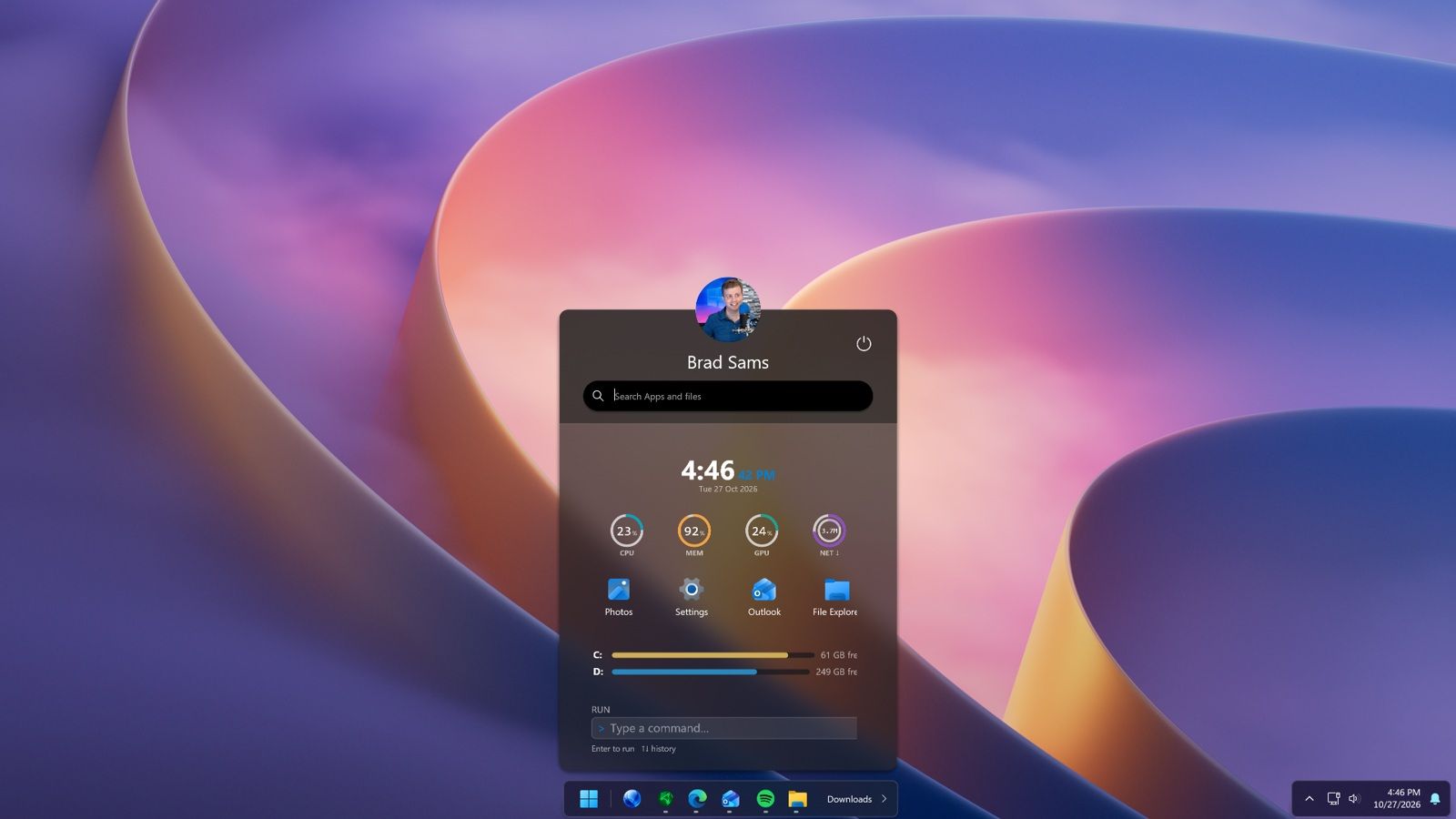
Start11 v3 adds support for widgets within the Start menu. There are 20 widgets available at launch, though most are fairly straightforward. Widgets like a clock or calendar may serve better as proof of concept than a core part of the Start menu.
The updated app also adds Taskbar Islands, which are a dock-like experience. They feel a little bit like macOS because they split the taskbar into smaller pieces that do not take up an entire section at the bottom of your screen. But the Taskbar Islands very much match the overall design and feel of Windows 11.
Start11 v3 introduces Taskbar Islands and app grouping, letting users organize related apps and create a more dock-like taskbar experience. (Image credit: Stardock)
Start11 adds support for grouping applications directly in the taskbar by holding Alt and dragging applications together. You can pin those groups as workspaces to launch multiple apps with a single click.
A new button in the taskbar provides quick access to recently closed applications, overflow items, and taskbar tools.
Stardock also added the ability to explore Start menu layouts from the community.
As much as I love apps that customize the look of Windows 11 and add new features, I only keep a few installed on my PC. Start11 is on the short list of apps I install right away, alongside PowerToys.
With Microsoft's recent improvements to the Start menu, an app like Start11 needs to do more to stand out. Start11 v3 does that with taskbar islands, widgets in the Start menu, and other new features.
(per year): was $10 now $8 Start11 lets you customize the Windows Start menu with several layouts, visual styles, and positioning options. If Microsoft's default Start menu isn't quite right for your workflow, Start11 gives you plenty of alternatives. Right now, it's on sale for $8 while v3 is in beta.View Deal
Join us on Reddit at r/WindowsCentral to share your insights and discuss our latest news, reviews, and more.
Copying and pasting continues to be an issue for those who install the latest updates from Microsoft. Just one month after an update broke functionality in Excel, October's release has caused the same issue.The latest issues are caused by the KB5002934 update for Microsoft Excel, which is for Excel 2016. That version replaces KB5002665, which included a hotfix for a copy/paste bug. Despite superseding the previous update, the KB5002934 update can also prevent you
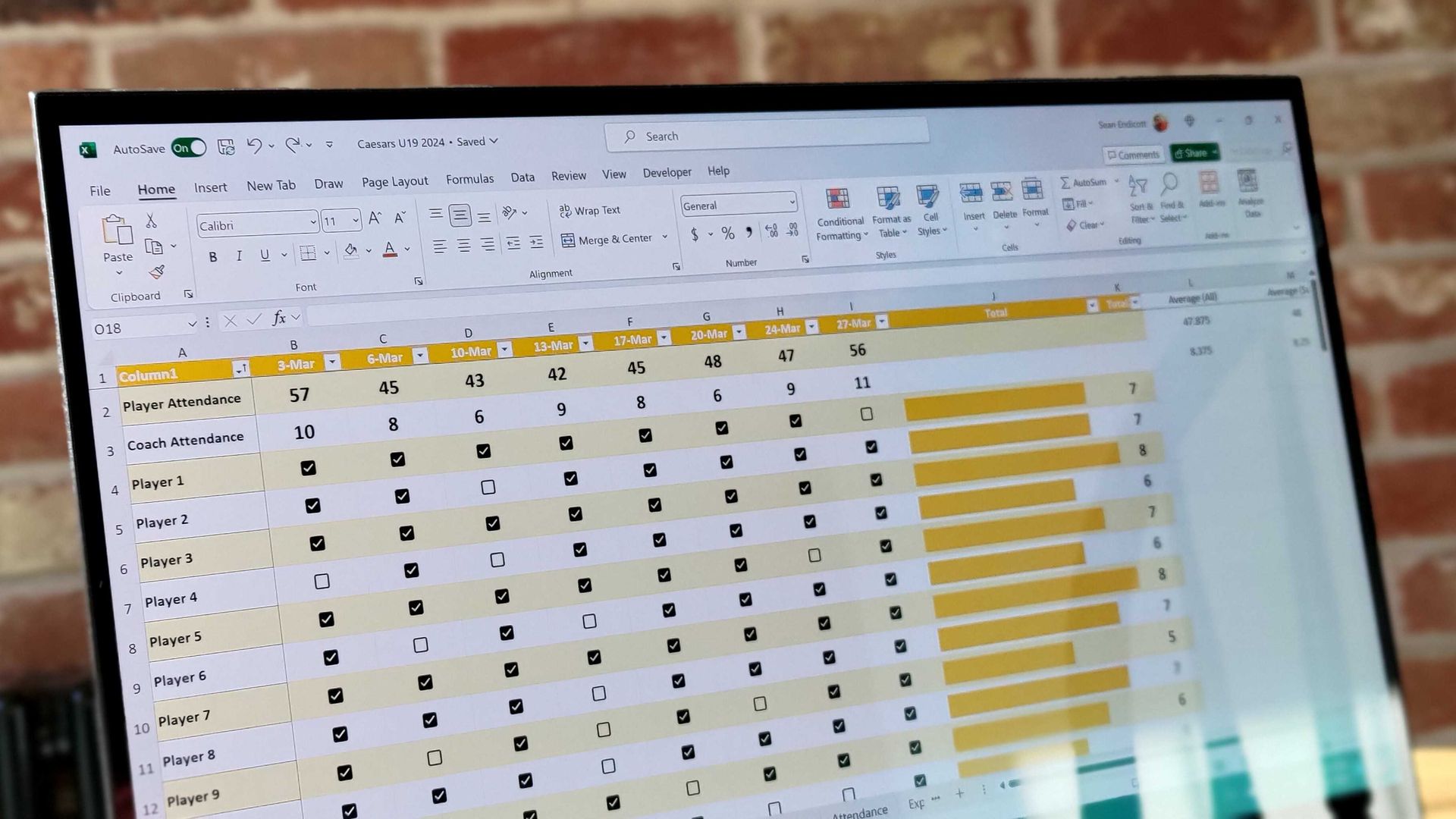
Copying and pasting continues to be an issue for those who install the latest updates from Microsoft. Just one month after an update broke functionality in Excel, October's release has caused the same issue.
The latest issues are caused by the KB5002934 update for Microsoft Excel, which is for Excel 2016. That version replaces KB5002665, which included a hotfix for a copy/paste bug. Despite superseding the previous update, the KB5002934 update can also prevent you from copying and pasting if a workbook contains conditional formatting.
Only a small set of Excel users should be affected by the bug, since it's limited to Excel 2016. Newer versions of Excel do not have the issue.
The bug appears in a way that may confuse those who run into it. Rather than Excel showing an error message or making a noise, the function simply fails.
The updates to Excel ship through Windows Update, though they aren't updates to the operating system itself. They function similarly to updates for other Microsoft apps such as Edge.
Luckily for those facing the issue, Microsoft has already fixed the bug. The company released a new build of Excel that fixes the issue. If Excel is running build 16.0.5574.1006 (or later), you should be fine.
You can check your Excel version by opening File > Account and looking under About Excel.
If for some reason you are still facing the issue, you can try these steps from Microsoft as a workaround:
On the Home tab, select the Paste dropdown list, and then select Paste Special.
In the Paste Special window, select one of the following options:
Formulas
Formulas & Number Formatting
Values
Values & Number Formatting
Link
I'm glad that Microsoft fixed the problem so quickly, but it's concerning that updates caused the same issues two months in a row.
Join us on Reddit at r/WindowsCentral to share your insights and discuss our latest news, reviews, and more.
Searching for a specific email in Outlook can prove challenging. Outlook search can sometimes return irrelevant results while missing the exact email you need. Microsoft is looking to improve that frustrating experience with a revamped search.The new search has a feature that genuinely removes the most frustrating part of Outlook for me. That phrase is thrown around a lot online and is often clickbait, but I mean it here emphatically.Outlook now handles stop word
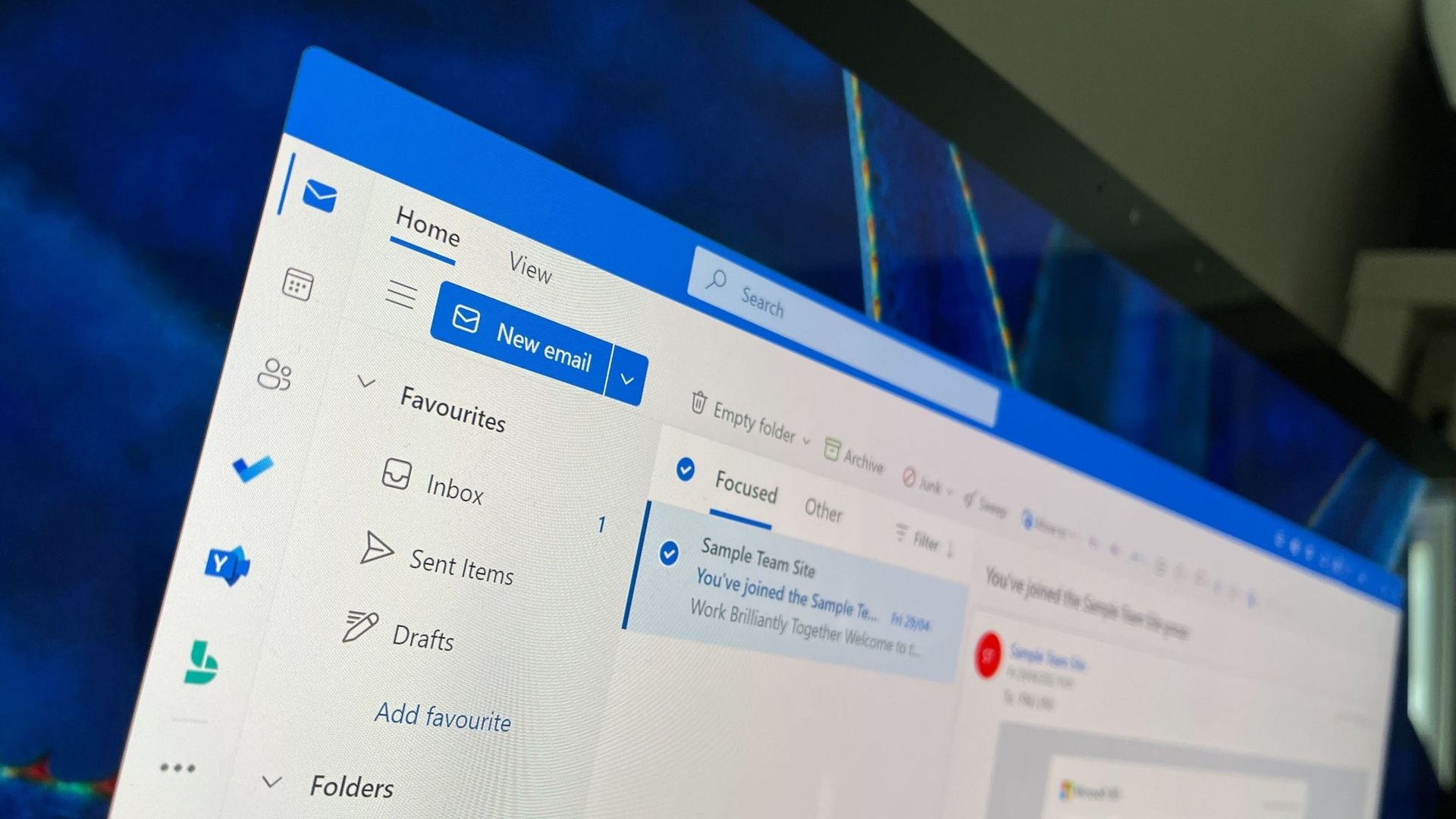
Searching for a specific email in Outlook can prove challenging. Outlook search can sometimes return irrelevant results while missing the exact email you need. Microsoft is looking to improve that frustrating experience with a revamped search.
The new search has a feature that genuinely removes the most frustrating part of Outlook for me. That phrase is thrown around a lot online and is often clickbait, but I mean it here emphatically.
Outlook now handles stop words better. Those words, such as "the," "and," and "is," often clog search results with irrelevant emails. I can't tell you how many times those tiny words have led to terrible searches that made me fish through the results that appear chronologically.
Microsoft's example from a blog post shows how drastically different the results are when searching "the FY27 budget" using the old Outlook search versus the new one.
Microsoft's example shows how Outlook's updated search ranks relevant emails higher in the results instead of surfacing messages that only happen to contain common search terms. (Image credit: Microsoft)
The improvements highlighted by Microsoft center around ranking emails better. Microsoft focused on three areas when building the new search tool in Outlook: better ranking, improved performance when connectivity is poor, and a tighter feedback loop.
When you search for an email within Outlook, you will see seven ranked results rather than three. Those emails are ranked based on recency, sender, how much the message has been interacted with, and other factors. Expanding the number of ranked messages presented should show users more relevant emails while also helping Microsoft improve its ranking systems over time.
The new ranking layout is available across several versions of Outlook, including the new and Classic versions.
There are other upgrades as well. Classic Outlook now automatically falls back to locally indexed content when connectivity is poor. That same functionality is on the way to new Outlook but will ship later.
Users of Classic Outlook should also see faster search results. Microsoft also said recent improvements reduced latency for the slowest 5% of Outlook searches.
The improved rankings in Outlook are the result of a small language model ranker built specifically for Outlook. That model is trained through distillation, meaning it is built under the supervision of a larger model.
Distillation helps Outlook search be more efficient than if it had to run a larger model just to look through and rank emails.
I'd probably be okay with using a larger model in Outlook if it cut out irrelevant results that appear simply for using an article or common verb like "is." I bet I'd still save some time that way. But I don't have to test that theory because the new Outlook search is lightweight.
Join us on Reddit at r/WindowsCentral to share your insights and discuss our latest news, reviews, and more.
We're quickly approaching XBOX's 25th anniversary. Many companies are celebrating the event with special accessories and gear, but you can also build your game library as part of the festivities. If you purchase an eligible Windows 11 PC, you can claim 25 XBOX games that have a total value of over $500.When Microsoft announced the promotion, it highlighted The Elder Scrolls V: Skyrim Special Edition, Halo: Combat Evolved Anniversary, Age of Empires II: Definitive
We're quickly approaching XBOX's 25th anniversary.Many companies are celebrating the event with special accessories and gear, but you can also build your game library as part of the festivities. If you purchase an eligible Windows 11 PC, you can claim 25 XBOX games that have a total value of over $500.
The Elder Scrolls IV: Oblivion Game of the Year Edition
Age of Mythology: Retold
Quake
Quake II
Wolfenstein: The New Order
The Outer Worlds
Rise of Nations: Extended Edition
As Dusk Falls
Battletoads
Pillars of Eternity II: Deadfire
Zoo Tycoon: Ultimate Animal Collection
Fuzion Frenzy
Gears Tactics
Crimson Skies: High Road to Revenge
BLINX: The Time Sweeper
That collection of games includes old classics like Fuzion Frenzy and recent AAA games. The bundle is a great way to grow your library or to help a friend or family member get started if you grab them a PC or gaming handheld as a gift.
Gaming handhelds are eligible
(Image credit: Windows Central)
The X25 bundle can be claimed after purchasing any eligible PC running Windows 11, but I'd argue that it's best paired with a gaming handheld PC. Those types of devices are going to be popular gifts over the coming months. They allow you to take many of your favorite games on the go and are also a comfortable way to enjoy your favorite titles around your home.
Many of the games included in the bundle support XBOX Play Anywhere, meaning you can play them on your Windows PC and XBOX consoles. Age of Empires II: Definitive Edition, Gears of War: Reloaded, and The Elder Scrolls Online all support XBOX Play Anywhere.
There are some notable games that do not support XBOX Play Anywhere, meaning their Windows and XBOX versions are treated separately. Call of Duty: WWII, Fallout 76, Halo: Combat Evolved Anniversary, and Minecraft Dungeons are the biggest games from the bundle to not support XBOX Play Anywhere.
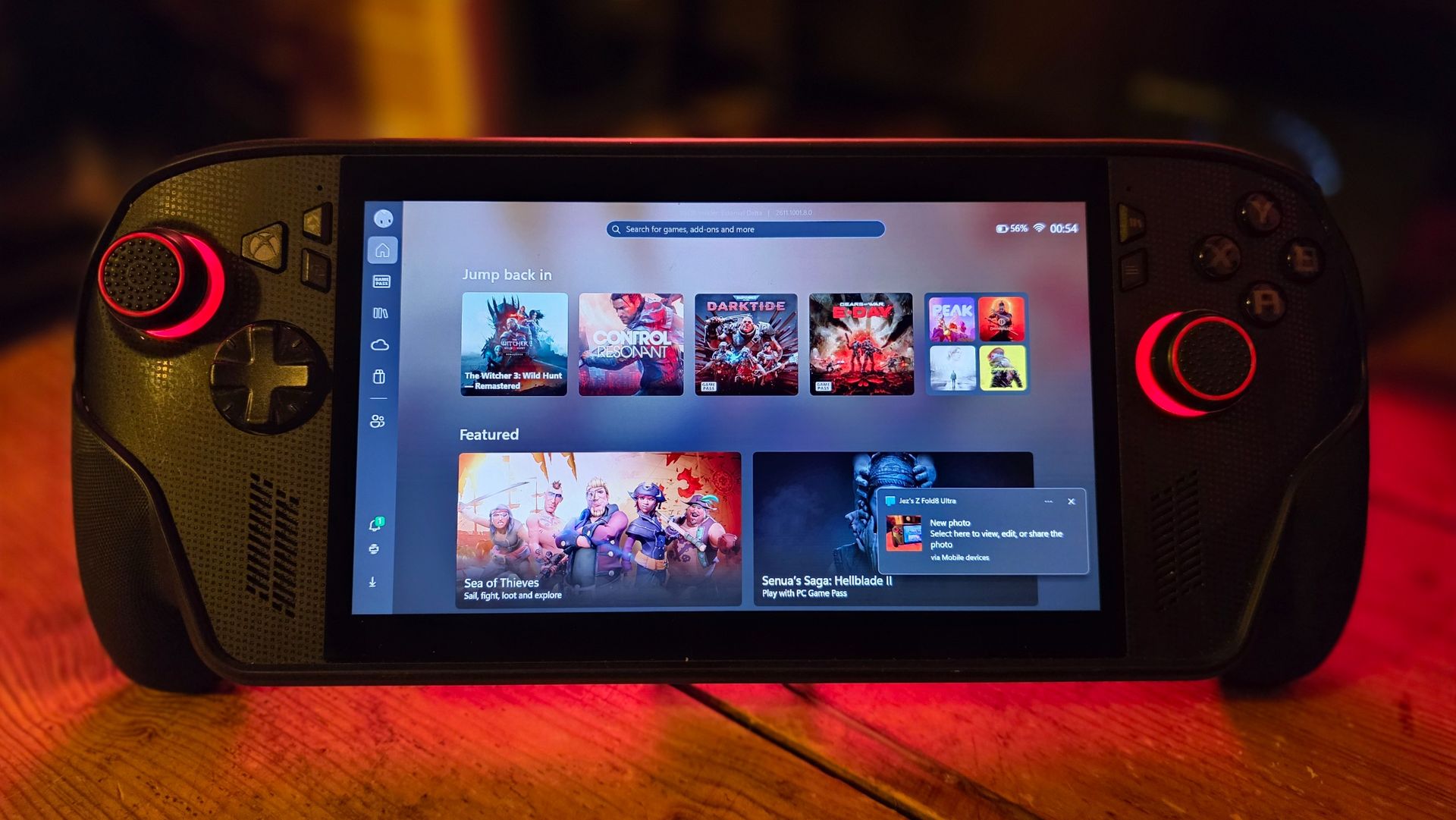
Our Managing Editor Jez Corden just re-reviewed the XBOX Ally X after using the gaming handheld for the past year. He called the gaming handheld "a fantastic device, a perfect companion for any XBOX player with a big Xbox Play Anywhere library."
That praise makes the XBOX Ally X arguably the best Windows PC to pick up when looking to claim the X25 bundle.
Terms and conditions
To get the free games, you need to purchase an eligible PC. Microsoft outlines the requirements:
"Eligible PCs include new Windows PCs and handhelds pre-installed with Windows Home and new Windows PCs pre-installed with Windows Pro running on NVIDIA RTX Spark silicon. Refurbished Windows PCs, and PCs purchased from unauthorized resellers, online marketplaces, liquidators, or auction websites, are not eligible."
The promotion runs from November 2, 2026 until December 31, 2026. You have to be in the United States to claim the games.
To claim the games, you'll have to open the Microsoft Store app on Windows 11. No later than November 30, 2026, the bundle will appear on eligible PCs and give you a chance to claim all 25 games.
Before you make any plans to purchase a PC to claim the free games then return the computer, Microsoft notes that it may revoke promotional benefits if a purchase is returned, canceled, or incomplete for other reasons.
Join us on Reddit at r/WindowsCentral to share your insights and discuss our latest news, reviews, and more.
Microsoft's plans for AI PCs include everything from laptops with only 8GB of RAM to supercomputers with over 128GB of RAM. The company's roadmap was outlined in slides shared on X by user "HXL."One slide, labeled "Windows is the home for hybrid intelligence" shows four tiers of PCs. The lowest one, Tier 0, is Windows PCs with 8GB of RAM that are powered by Intel Core Series 3 or 4, AMD Ryzen 100 or 200, and Snapdragon X or X Plus.Tier 1 covers Copilot+ PCs with
Microsoft's plans for AI PCs include everything from laptops with only 8GB of RAM to supercomputers with over 128GB of RAM. The company's roadmap was outlined in slides shared on X by user "HXL."
One slide, labeled "Windows is the home for hybrid intelligence" shows four tiers of PCs. The lowest one, Tier 0, is Windows PCs with 8GB of RAM that are powered by Intel Core Series 3 or 4, AMD Ryzen 100 or 200, and Snapdragon X or X Plus.
Tier 1 covers Copilot+ PCs with 16GB to 64GB of RAM. That tier spans a broad range of specs, from consumer-focused processors like the Snapdragon X2 Plus to the much more powerful AMD Ryzen AI MAX+ 400.
Tier 2 is builder PCs for building and running AI models locally. The hardware in that tier overlaps with the high end of Tier 1. It includes PCs powered by Intel Core Ultra Next, NVIDIA RTX Spark, and AMD Ryzen AI MAX+ 400.
The highest tier is for supercomputers designed to run frontier models locally. Those devices run on processors you'd never see in a consumer PC, such as Intel Crescent Island, NVIDIA GB300 DGX Station, and AMD Next chips.
Microsoft's roadmap is built around hybrid intelligence, with AI workloads split between local hardware and the cloud depending on the demands of each task. (Image credit: Microsoft (via user "HXL" on X))
What stands out most about the roadmap isn't the hardware itself but Microsoft's continued emphasis on hybrid intelligence. Rather than viewing local and cloud computing as competing approaches, Microsoft intends to use both.
We already knew that Copilot+ PCs required at least 16GB of RAM and that Microsoft had plans for workstations and supercomputers with top-end specs. NVIDIA's RTX Spark launched recently and powers several tier 2 PCs, such as the Surface Laptop Ultra.
Sam Altman may not be thrilled that Microsoft's AI roadmap includes PCs with more than 128GB of RAM. (Image credit: Getty Images | NurPhoto / Edit: Windows Central )
Microsoft's dream for AI computing is more like a nightmare for OpenAI CEO Sam Altman. He recently claimed that it's "actually quite terrible" for people to have RAM on their own computers. One theory is that OpenAI and other tech giants would prefer AI workloads to rely on centralized compute resources that can then be sold as a service.
Altman did not mention that specifically, but his comments suggest he views compute power as a resource AI companies have more of a right to than people do.
Microsoft has very different plans for AI in the form of hybrid intelligence. Rather than relying solely on cloud computing or local processing, people using hybrid intelligence will use a mixture of both.
We're still in the early days of hybrid intelligence, but a likely scenario is one in which users utilize the local compute power they have and then summon the cloud to complete tasks as needed. That setup would allow PCs across the entire roadmap to access AI.
Tier 0 and Tier 1 devices could perform less demanding tasks depending on their exact specs and lean more heavily on the cloud for compute-heavy workloads. Tier 2 and Tier 3 PCs would mostly stick to local processing but have the cloud as an option for exceptionally demanding projects.
Join us on Reddit at r/WindowsCentral to share your insights and discuss our latest news, reviews, and more.
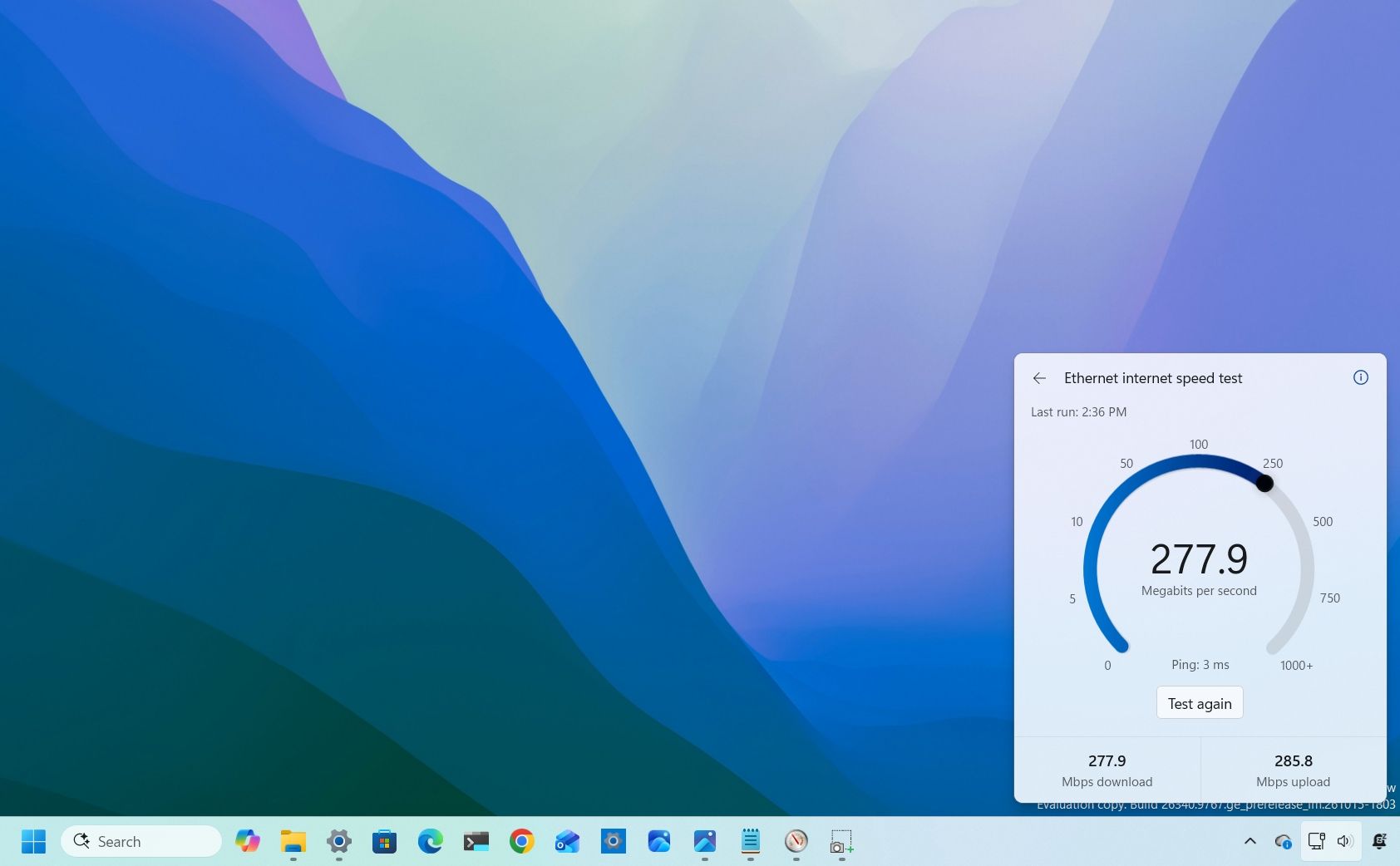
Windows 11 has a new speed test feature in the works that will allow you to check your PC's connectivity without having to open a browser or a separate app. The feature is already in testing with Windows Insiders and looks promising so far.Windows 11 already has a shortcut for testing internet speed, but it's simply a button that opens Bing's speed test in a web browser. The new speed test feature is built-in, making it feel like part of Windows 11 rather than a
Windows 11 has a new speed test feature in the works that will allow you to check your PC's connectivity without having to open a browser or a separate app. The feature is already in testing with Windows Insiders and looks promising so far.
Windows 11 already has a shortcut for testing internet speed, but it's simply a button that opens Bing's speed test in a web browser. The new speed test feature is built-in, making it feel like part of Windows 11 rather than a tacked-on browser shortcut.
The addition has been well-received and sparked positive discussions online. Our Mauro Huculak said, "Windows 11 needs more features like this," and his wish may come true.
Marcus Ash, lead of Design and Research across Windows & Devices, discussed the new speed test feature and how the tool was created. According to Ash, the new speed test feature is the result of an agentic AI workflow guided by a real person.
"This is where I see a lot of potential in AI," said Ash. "Using agentic workflows and WinUI 3 to build more integrated Windows experiences. Getting from idea to customer value faster. Without AI slop. That is the way."
AI is under heavy scrutiny for a variety of reasons. Many criticize "vibe coding," which often results in low-quality projects. But there is a place for AI in certain workflows.
After looking at Ash's comment, it's easy to see why Microsoft chose to attach the term "Copilot" to many of its AI products. The company's leaders view AI as a tool that works alongside people to streamline workflows while still leaning on the guidance of human expertise.
Considering the positive reception of the new speed test tool, it seems likely that other parts of Windows 11 will be built with a similar workflow. I'm curious to see if they will all be well-received or if some people will push back solely due to the use of AI.
What do you think about Microsoft using AI as part of its development process? Let us know in the comments!
Join us on Reddit at r/WindowsCentral to share your insights and discuss our latest news, reviews, and more.
I recently highlighted an app that allows you to click and drag the taskbar to reposition it on Windows 11. In my piece, I said that "changing [the taskbar's] position still requires digging through Settings." That phrase and other parts of my piece led to a discussion online about the nature of coverage and being positive or negative when discussing apps and features.Microsoft's Vice President of Design Diego Baca, said the phrasing in my piece was "unnecessaril
I recently highlighted an app that allows you to click and drag the taskbar to reposition it on Windows 11. In my piece, I said that "changing [the taskbar's] position still requires digging through Settings." That phrase and other parts of my piece led to a discussion online about the nature of coverage and being positive or negative when discussing apps and features.
What stuck with me wasn't whether my wording was too harsh. It was the question of how we should respond when companies explain why a feature isn't necessary, especially when history shows those same features often arrive later.
Biggest News of the Week
I want to be clear about the nature of this piece. Baca's response to my article sparked this discussion, but it's not meant to call him out or criticize him. Every interaction I've had with Baca has been positive and I appreciate how much he interacts with the community on X and other platforms.
Baca was promoted to Vice President of Design at Microsoft in August. I've noticed a distinct increase in user engagement since then from both Baca and other members of Microsoft's design team.
I would also be a hypocrite if I criticized Microsoft for not looking at feedback and then ignored feedback myself. I echo Baca's sentiment that listening to feedback is important even if someone ultimately decides to go in another direction than what's suggested. Understanding how other people think can shape how we view things in the future.
For the record, the headline of the article is and always has been "This free app makes moving the Windows 11 taskbar so much easier"I have changed the wording within the article where the quote you mentioned appears, which, again, was not the headline. But I should say that I don't agree with your take. This was not meant in a negative tone.Windows 10 users that might have heard about Windows 11's new movable Taskbar may not know that its implementation is different. "You still need" meaning that while it can be moved now, you'll still need an app to restore the same draggable behaviors that you had on Windows 10. That's just us being clear about the experience.However, I do appreciate you explaining more about how you designed the movable experience on Windows 11! I like the W11 implementation a lot. Again, I want to be clear: "You still need" never once showed up in the headline. This was only ever present beneath the header as part of the article on the page.October 31, 2026
Explaining why your product lacks a feature that's available anywhere is easy. Defending why your product does not have a popular feature seen in other products is difficult. Justifying adding a feature after arguing against its value for years is almost impossible.
We've seen this with Apple and its touchscreen MacBook. Steve Jobs famously mocked the concept of a touchscreen laptop over a decade ago. In a similar manner, Tim Cook compared devices like the Surface Pro to combining a toaster and a refrigerator only for Apple to later release the iPad Pro, which is clearly similar to the Surface Pro in design.
Years after Steve Jobs argues vertical touch surfaces were "ergonomically terrible," Apple announced a touchscreen MacBook. (Image credit: Lance Ulanoff / Future)
Relating this back to Microsoft, the company tried to justify why the taskbar was immovable when Windows 11 shipped. Back in 2022, Tali Roth, head of product of Windows Core Experiences at Microsoft, explained why that was the case:
"When it comes to something like actually being able to move the taskbar to different locations on the screen, there's a number of challenges with that. When you think about having the taskbar on the right or the left, all of a sudden the reflow and the work that all of the apps have to do to be able to understand the environment is just huge...
And when you look at the data, while we know there is a set of people that love it that way and, like, really appreciate it, we also recognize that this set of users is really small compared to the set of other folks that are asking for other features. So, at the moment, we are continuing to focus on things that I hear more pain around."
In Roth's defense, she did not claim a movable taskbar was a broken concept. But she did say the effort to make it work was huge and that only a small set of users were passionate about the feature.
I doubt the amount of effort required changed dramatically. The number of users interested in the feature has likely remained relatively consistent as well, so why was a movable taskbar a top priority in Windows K2?
That's why I'm hesitant to treat explanations for missing features as the final word. Microsoft's reasons for not prioritizing taskbar positioning in 2022 did not make users wrong for wanting the feature, and they did not make criticism of that decision invalid. If anything, the feature later becoming a Priority 0 item proves that those complaints were worth making in the first place.
High expectations, not hostility
One of my first editions of Windows Wrap focused on holding a mirror up to Microsoft. (Image credit: Future | Edited with Gemini)
I love that Microsoft is improving Windows 11. I think the Windows K2 initiative is one of the most important consumer-focused initiatives the company has had in years. I also think it's okay to be critical while also noting improvements.
I am often critical of Microsoft and its products, but it's not for kicks or clicks. It comes from a genuine hope for the OS to improve. As I said back in January:
"My frustration with Windows 11 and Microsoft doesn't come from a place of "hate" — it comes from a place of high expectations. Whether Microsoft chooses to listen to its core enthusiasts or continues its current path toward an AI-bloated future remains to be seen. In the meantime, it's worth facing a mirror toward Redmond."
I've argued since March that Windows 11 isn't doomed and that Microsoft is fixing the operating system. But much of that change was inspired by passionate, and often negative, feedback — the squeaky wheel gets the grease and all that.
So, I may think twice about being overly negative about Microsoft in the future, but after doing so I'm still likely to press "Publish" on an article calling for change.
Join us on Reddit at r/WindowsCentral to share your insights and discuss our latest news, reviews, and more.
Windows 11 finally lets you move the taskbar, but Microsoft has not fully restored functionality lost when jumping from Windows 10 to Windows 11. To help bridge the gap, developer Michał Łeptuch created an app that makes it easier to move the taskbar.The simply-named "Taskbar Location Options" lets you right-click and move the taskbar to the top, left, right, or bottom of your screen. Alternatively, you can simply click and drag the taskbar to any edge of your di
Windows 11 finally lets you move the taskbar, but Microsoft has not fully restored functionality lost when jumping from Windows 10 to Windows 11. To help bridge the gap, developer Michał Łeptuch created an app that makes it easier to move the taskbar.
The simply-named "Taskbar Location Options" lets you right-click and move the taskbar to the top, left, right, or bottom of your screen. Alternatively, you can simply click and drag the taskbar to any edge of your display once the app is installed.
The inability to move the taskbar was one of the most criticized taskbar regressions when Windows 11 launched in 2021. One of the most-requested pieces of feedback for years was restoring the ability to move the taskbar to the sides or top of a display.
Microsoft finally restored that functionality last month, but changing the location of the taskbar still requires opening Settings, navigating to Taskbar settings, and selecting a new position from a dropdown menu.
The option to move the taskbar on Windows 11 is buried in the Settings app. (Image credit: Michał Łeptuch)
Łeptuch's app brings back the option to click and drag the taskbar. That feature was available on Windows 10 and previous versions of Windows. I always found it odd that Microsoft brought back the option to move the taskbar but buried it in the Settings app.
Dragging the taskbar is often faster, especially for users who frequently switch between desktop layouts or monitor configurations.
The installation process for Taskbar Location Options requires more steps than I'd like, but that should be smoothed out in the future. At the moment, you have to download a certificate, unblock the file, then run the file with PowerShell before installing the app.
The app's GitHub page includes a download link and a guide to install Taskbar Location Options.
Microsoft deserves credit for finally restoring the ability to move the taskbar, but the current implementation feels unnecessarily tucked away. Taskbar Location Options fills that gap by bringing back the quick drag-and-drop behavior Windows users enjoyed for years.
Join us on Reddit at r/WindowsCentral to share your insights and discuss our latest news, reviews, and more.
Windows 11 and wallpapers go together like peanut butter and jelly. Many of our laptop reviews are met with comments asking about our wallpapers. Microsoft deals with the same fervor for images. I spent weeks trying to find the wallpaper shown off during the RTX Spark event.Unfortunately, like the Jedi Archives, Microsoft's publicly shared collection of wallpapers is incomplete. The company has not shared that wallpaper from the RTX Spark event, but it has shared
Windows 11 and wallpapers go together like peanut butter and jelly. Many of our laptop reviews are met with comments asking about our wallpapers. Microsoft deals with the same fervor for images. I spent weeks trying to find the wallpaper shown off during the RTX Spark event.
Unfortunately, like the Jedi Archives, Microsoft's publicly shared collection of wallpapers is incomplete. The company has not shared that wallpaper from the RTX Spark event, but it has shared several images inspired by the Surface Laptop Ultra.
The official Microsoft Surface account shared a thread with a bunch of wallpapers. The collection includes an image that looks like an x-ray of the Surface Laptop Ultra, a rendering of the engineering to make that laptop, and some more abstract artwork inspired by the PC.
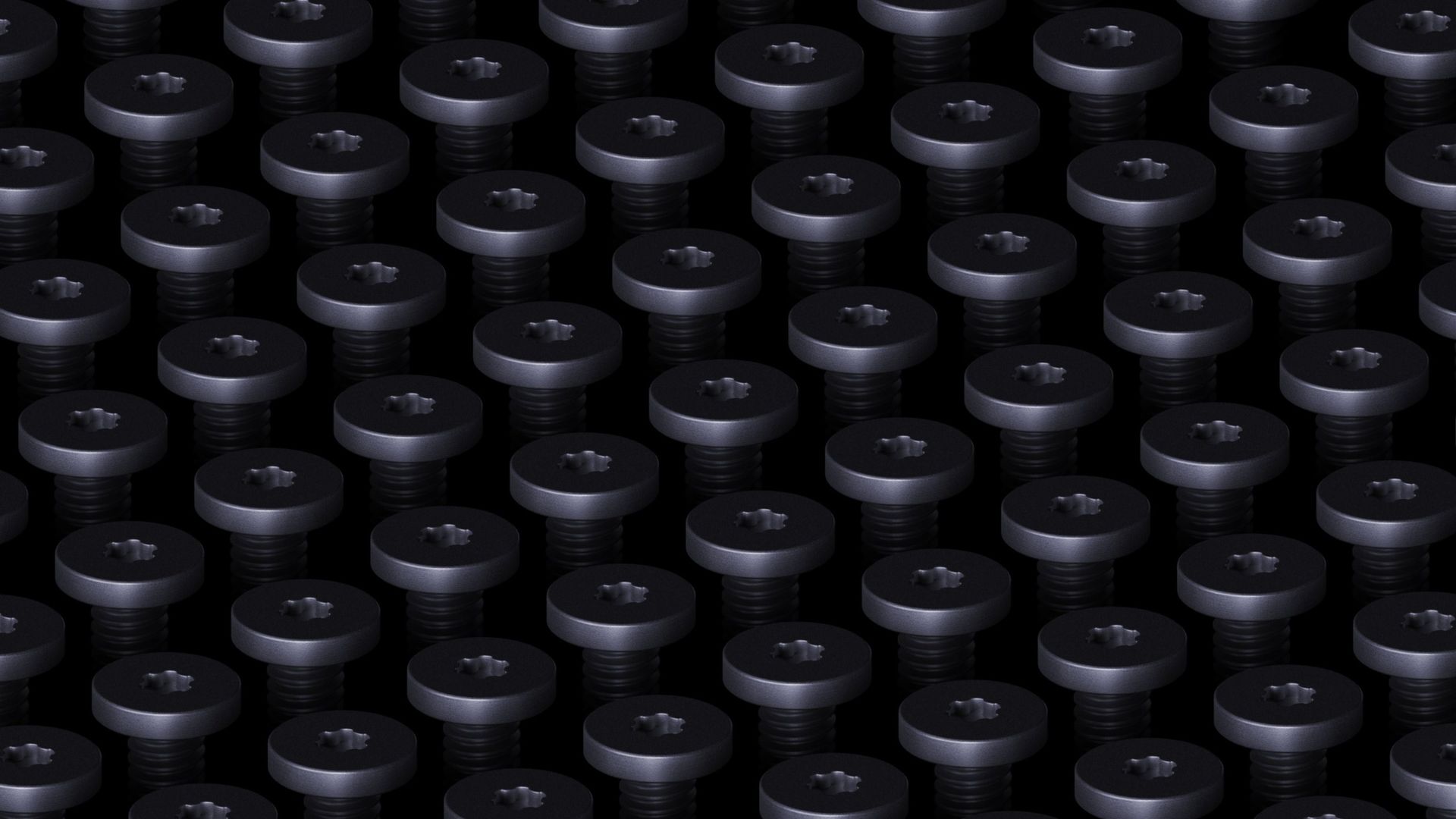
But one image immediately caught my eye. In the X post stating "It's all about the details," Microsoft shared an image of a grid of screws used in the Surface Laptop Ultra's construction.
As much as I love a good torque screw (side-eye at proprietary screws), that's not what drew my attention. What piqued my interest was that I first thought the image was the Galactic Senate from Star Wars. All it needs is a floating podium and an emergency powers vote.
Tell me I’m not the only one who saw the galactic senate at first.October 30, 2026
It turns out I'm not the only person whose brain jumped straight to Coruscant. My X post has drawn several replies and messages from people who saw the same thing.
I was tempted to make the headline of this piece something along the lines of "So this is how liberty dies, with glorious wallpapers," but I figured some people would not know the meme and assume I'm being negative.
For those who don't know, a famous scene from Star Wars Episode III sees Padmé Amidala watch the Senate cheer the rise of the Galactic Empire, prompting her famous line, "So this is how liberty dies... with thunderous applause."
In that scene, you'll see the senate chambers that Microsoft's new wallpaper resembles.
Star Wars jokes aside, the best way to download any of these wallpapers is to use the "Load in 4K" option on X. To do this, press and hold the image to bring up the share menu, then select "Load in 4K." This worked for me on iOS and I believe it's available on Android. As far as I can tell it is not an option on Windows or the web, so you'll have to grab the wallpaper from your phone and send it to your PC.
I quite enjoy the wallpapers shared by Microsoft and hope the company continues to release these types of images.
If you're similarly enthusiastic about the background of your desktop, you should check out the Microsoft Design website.
Join us on Reddit at r/WindowsCentral to share your insights and discuss our latest news, reviews, and more.
Microsoft Edge will soon launch faster on Windows 11 by using a feature no other browser has, at least for now. Accelerated app launch is a new feature on Windows 11 that streamlines the process of launching an app.In the case of Edge, the browser sees a 15 percent launch speed improvement because of the feature. If you're multitasking heavily on your PC, the app could launch up to 33 percent faster.The version of Edge with accelerated app launch support ships wi
Microsoft Edge will soon launch faster on Windows 11 by using a feature no other browser has, at least for now. Accelerated app launch is a new feature on Windows 11 that streamlines the process of launching an app.
In the case of Edge, the browser sees a 15 percent launch speed improvement because of the feature. If you're multitasking heavily on your PC, the app could launch up to 33 percent faster.
The version of Edge with accelerated app launch support ships with the October 2026 non-security update for Windows 11. That update, known as KB5127936, is available now as an optional release. It also includes the updated context menu as well as Cloud Rebuild.
Accelerated app launch requires both the app and Windows 11 to work together. Since Edge is the built-in browser on Windows 11, it should come as no surprise that Microsoft first shipped the feature to Edge.
Without accelerated app launch, clicking a link to open Edge requires Windows to determine whether Edge is already running. Doing so requires Windows to start an intermediary process that looks around for an instance of Edge. Microsoft explains that you probably won't notice sluggishness during this process on a freshly booted PC, but that you can notice things slow down when multitasking.
Accelerated app launch sends a registration request to Windows when the browser is launched initially. Windows can then find that registration quickly the next time you launch Edge through a link.
Because of how the feature works, you'll only see those launch speed improvements after Edge has already been opened and is running in the background.
The feature works in the Start menu, Taskbar, and supported links that open in Edge by default.
Not a selling point for Microsoft Edge
Microsoft is contributing the code for accelerated app launch to Chromium, so browsers such as Brave, Vivaldi, and Chrome can implement the feature. (Image credit: Windows Central)
Support for accelerated app launch is a nice addition to Edge, but it won't be a feature that convinces people to switch browsers. Microsoft is contributing its work related to the feature to Chromium, so other Chromium-based browsers can benefit from accelerated app launches on Windows.
As far as I can tell, there's nothing stopping non-Chromium browsers from doing the same thing, it would just require more work.
Microsoft is also working on opening PDF files using the feature.
So rather than an exclusive feature for Edge, accelerated app launch will help improve the overall Windows 11 experience by reducing how long it takes to open apps.
Join us on Reddit at r/WindowsCentral to share your insights and discuss our latest news, reviews, and more.
When I was a child my dad's office shelf was filled with plastic toys from McDonald's that I played with. Some of those sat there for years as a reminder of short stops on vacations for lunch. Since those days over three decades ago, McDonald's toys have evolved.Rather than a heavy plastic Grimace or another colorful mascot, McDonald's food now comes with computer accessories. That is, if you're in China.McDonald's China teamed up with Lenovo to create a wireless
When I was a child my dad's office shelf was filled with plastic toys from McDonald's that I played with. Some of those sat there for years as a reminder of short stops on vacations for lunch. Since those days over three decades ago, McDonald's toys have evolved.
Rather than a heavy plastic Grimace or another colorful mascot, McDonald's food now comes with computer accessories. That is, if you're in China.
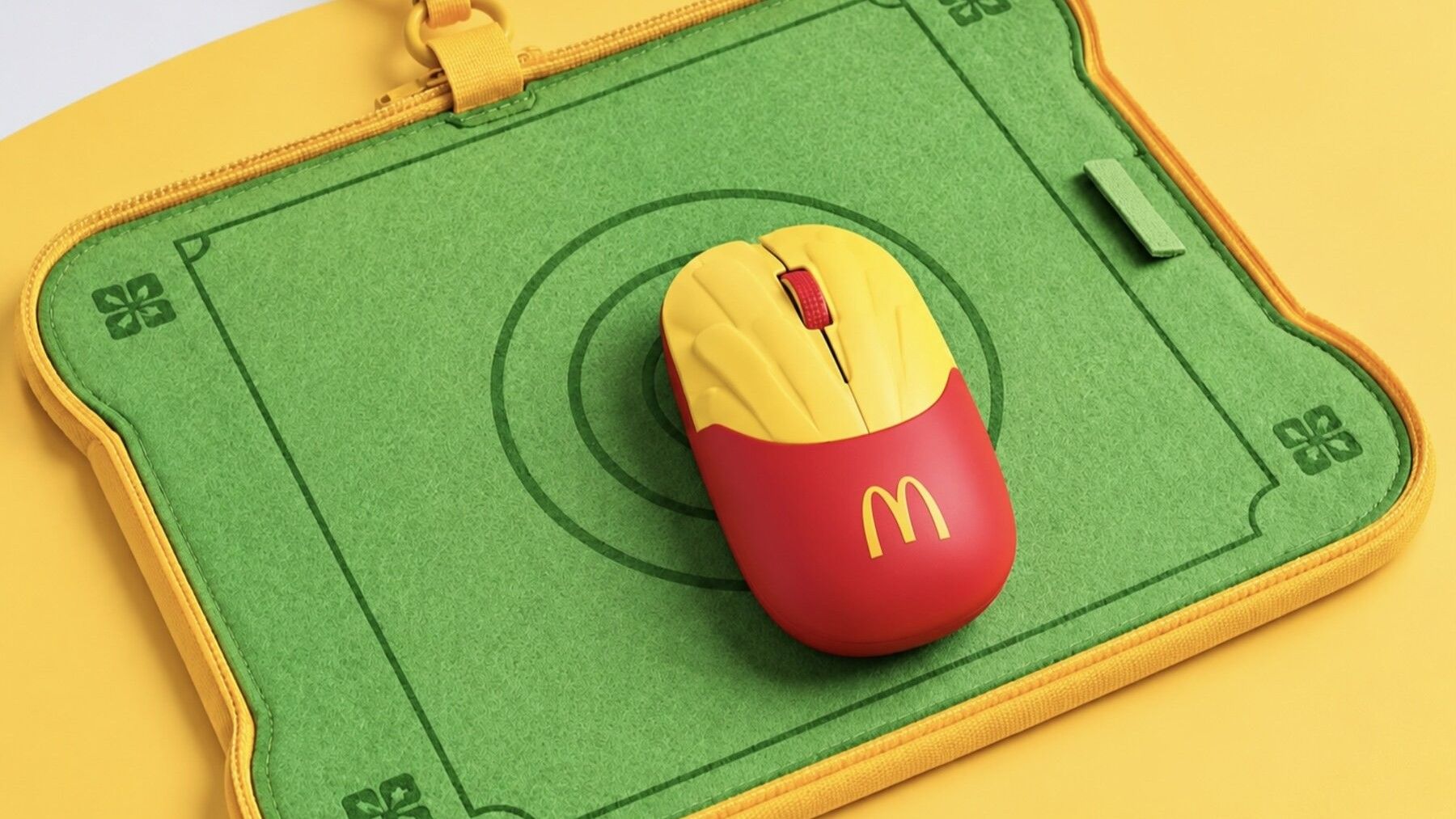
McDonald's China teamed up with Lenovo to create a wireless mouse that looks like a carton of McDonald's fries. Apart from looking like a fast food item, the mouse is rather unassuming. It features two buttons and a scroll wheel. It charges through USB-C, which is standard for mice these days.
McDonald's mice are made from around 60% recycled materials. Specifically, old Happy Meal toys were used.
The mouse comes with a carrying case that turns into a mousepad when you open it up, which is a clever design.
Unfortunately for myself and anyone else hoping to get their hands on one of the mice, McDonald's held a very limited run for the accessory. Only 4,000 units were made, and they were sold over a single weekend for roughly $14. There's also the geographic limitation of the fry mice only being made available in China.
McDonald's Moa McNuggets were dry and broke game lore, but I'd forgive those shortcomings to get a McDonald's mouse. (Image credit: Future)
My love of McDonald's is well documented. My Microsoft profile photo is me holding a Happy Meal. Call it a guilty pleasure or an occasional treat, I love a box of McNuggets or a taste of a limited-time item at McDonald's.
A new feature called Cloud Rebuild allows you to perform a full system reinstall for your Windows 11 PC without USB media or a custom image. The feature can even work without relying on the integrity of the currently installed operating system.Cloud Rebuild downloads Windows and your device drivers, allowing for a seamless install.The new feature is available through the latest non-security feature update for Windows 11, which is known as KB5127936. That update i
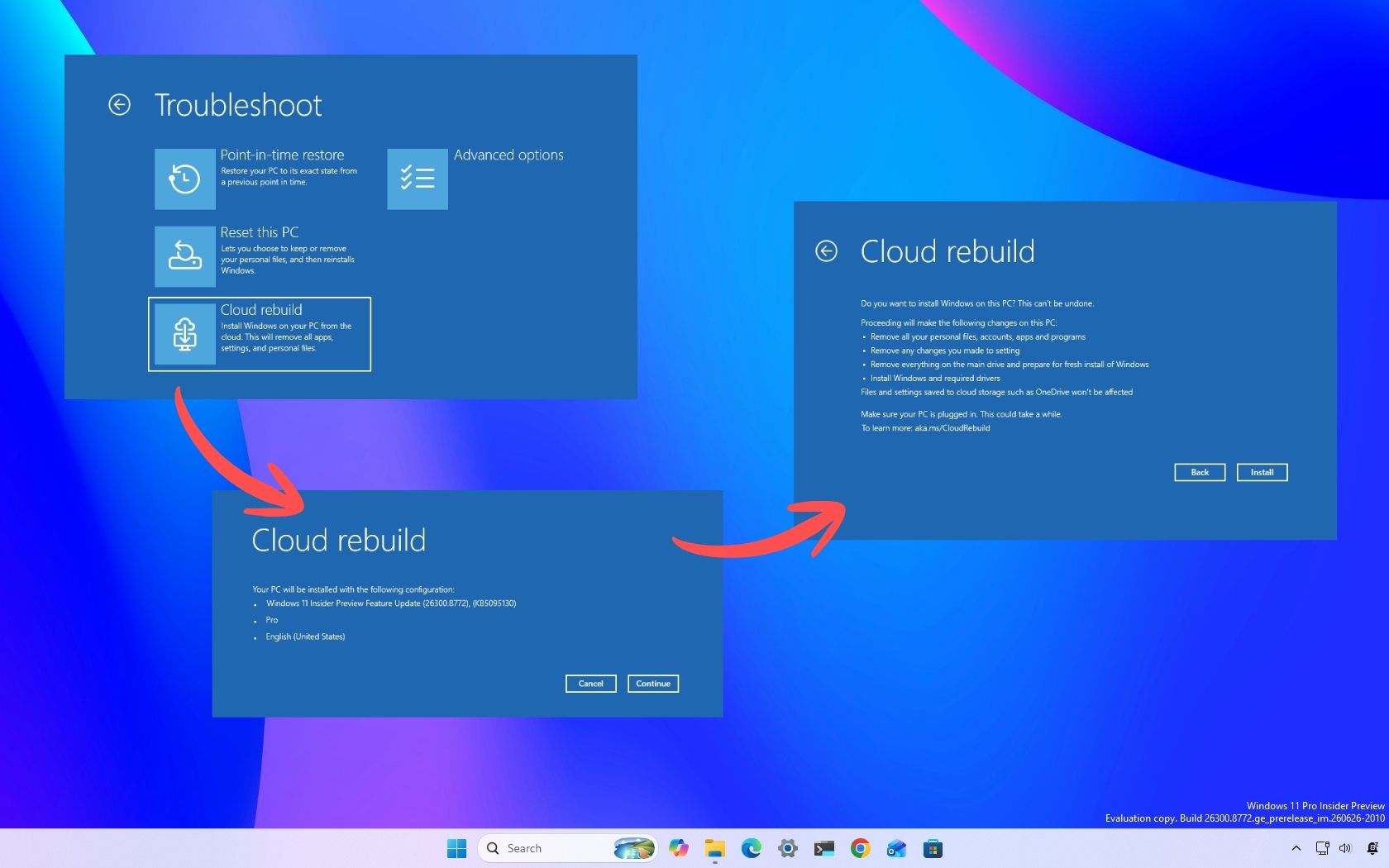
A new feature called Cloud Rebuild allows you to perform a full system reinstall for your Windows 11 PC without USB media or a custom image. The feature can even work without relying on the integrity of the currently installed operating system.
Cloud Rebuild downloads Windows and your device drivers, allowing for a seamless install.
The new feature is available through the latest non-security feature update for Windows 11, which is known as KB5127936. That update is available as an optional release. The feature should make its way to everyone relatively soon.
Windows 11 already included a Cloud Download recovery option, but Cloud Rebuild goes further by downloading both Windows and device drivers from Windows Update and by not relying on the integrity of the existing installation. Cloud Rebuild allows you to reinstall Windows 11 on a device that is unbootable.
Since Cloud Rebuild performs a full system reinstall, you should have all of your important files backed up before using it if at all possible. You also need to have your PC connected to the internet and plugged in to a power source while Cloud Rebuild runs.
For some users, Cloud Rebuild could eliminate the need to create recovery USB drives ahead of time, since Windows can now download the operating system and required drivers directly from Microsoft's servers when disaster strikes.
Because Cloud Rebuild is part of a gradual release, you may not see it right away. Going into the Windows 11 Settings app and enabling the toggle for "Get the latest updates as soon as they're available" will help you get the feature quicker, but does not guarantee you'll receive it right away.
Here's how Microsoft describes Cloud Rebuild in its release notes. You can also read more about the feature in Microsoft documentation.
Cloud Rebuild
New! This update introduces Cloud rebuild, a new recovery option that reinstalls Windows 11 using a Windows image and device drivers downloaded from Windows Update, including when Windows is unable to start. No USB media or custom image is required. Cloud rebuild includes:
Drive sanitization: Choose to remove your files or securely erase data using the storage hardware’s erase capability before Windows is reinstalled. Sanitization is irreversible.
Remote management: IT administrators can configure and start a Cloud rebuild remotely through the Recovery CSP using either the currently installed build or a specified target build.
To start Cloud rebuild:
In Windows, go to Settings > System > Recovery, and then select Rebuild PC. The device restarts into the Windows Recovery Environment and starts Cloud rebuild.
Alternatively, if Windows can't start, the device enters the Windows Recovery Environment automatically after repeated boot failures. From the Windows Recovery Environment (WinRE), select Troubleshoot > Recovery and uninstall > Cloud rebuild.
Connect to a wired Ethernet or Wi-Fi network.
Review the target Windows build, edition, and language, and then confirm the data loss warning before the rebuild begins. You can choose whether to remove files or remove and sanitize files prior to Windows reinstalling.
Join us on Reddit at r/WindowsCentral to share your insights and discuss our latest news, reviews, and more.
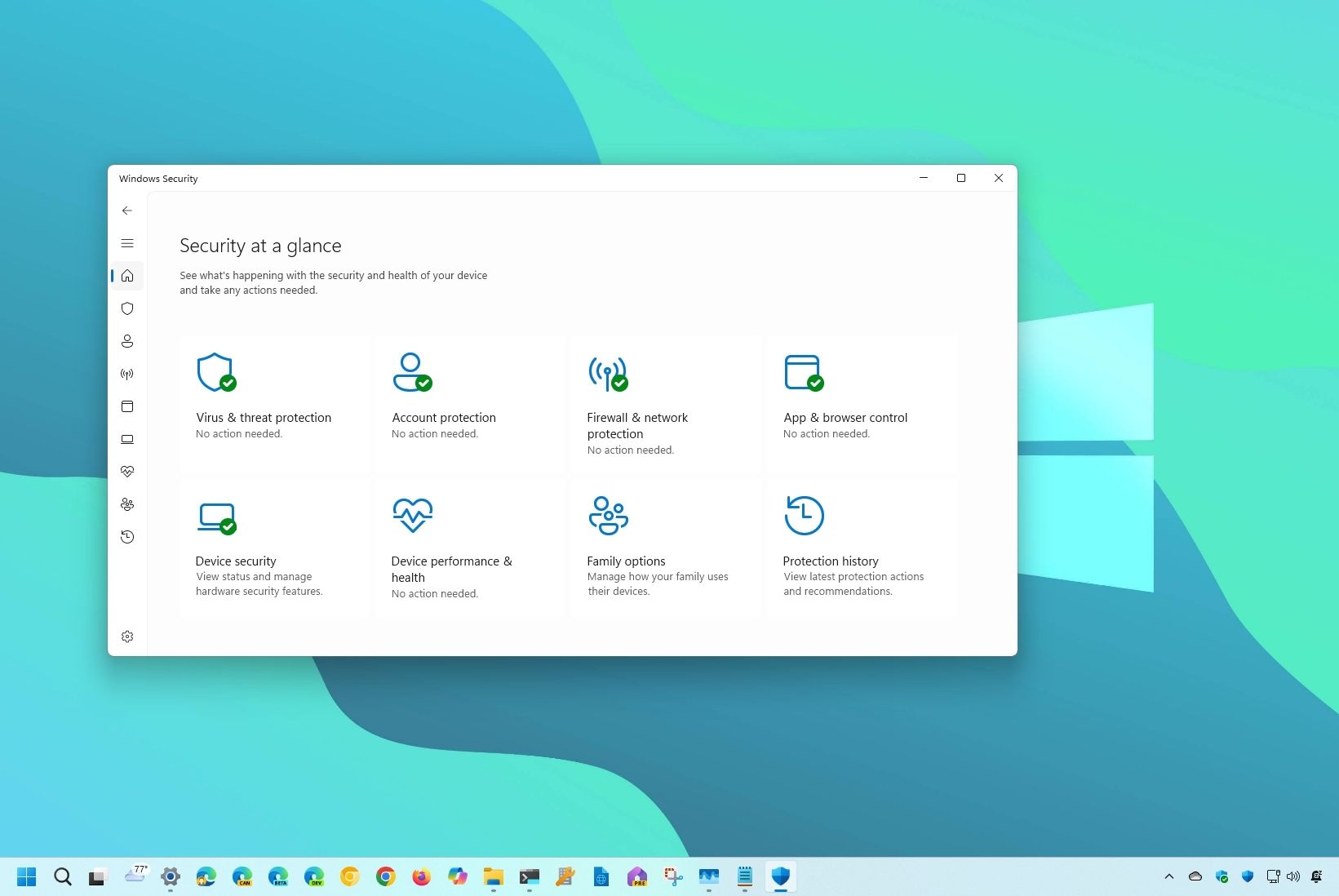
The Windows Security app is about to be redesigned to align with Windows 11. Soon, you will no longer feel like you've booted up a PC from a decade ago when managing the security features on your computer.Microsoft discussed several changes that are on the way to the app in its latest release notes. The company started sharing Insider release notes for apps earlier this year, including Calculator, Camera, and Windows Security.The change log describes several upda
The Windows Security app is about to be redesigned to align with Windows 11. Soon, you will no longer feel like you've booted up a PC from a decade ago when managing the security features on your computer.
Microsoft discussed several changes that are on the way to the app in its latest release notes. The company started sharing Insider release notes for apps earlier this year, including Calculator, Camera, and Windows Security.
The change log describes several updates to the design and user interface of Windows Security. The app already protects PCs through a collection of tools including Microsoft Defender Antivirus, Windows Firewall, and Smart App Control.
The Windows Security app is already functional and does a good job of protecting PCs. Its security tools are also updated regularly, so it's not as if the app needs to be overhauled from a security perspective.
The current version of Windows Security still relies on navigation, layouts, and visual elements that feel noticeably older than Microsoft's modern Windows 11 apps.
Here's what Microsoft plans to do with the Windows Security app, as outlined by the company:
Updated navigation and layouts: Pages throughout Windows Security now use more consistent layouts and navigation, with improved behavior across different window sizes.
Modernized controls and dialogs: Controls, status indicators, typography, spacing, colors, and other visual elements have been refreshed to provide a more consistent experience throughout the app.
Clearer status and actions: We’ve made improvements to how status information and available actions are presented throughout Windows Security.
Improved device security information: On supported managed devices, device security details now load progressively so available information can appear sooner, along with improvements to progress, error, refresh, and performance-monitoring experiences.
Those changes are already available to Windows Insiders as long as they're running version 1000.29680.0.1000 of Windows Security.
The refresh should make Windows Security feel far more at home within Windows 11, bringing one of the operating system's oldest-looking built-in apps in line with modern experiences such as Settings.
Join us on Reddit at r/WindowsCentral to share your insights and discuss our latest news, reviews, and more.
October is the spookiest time of the year, but there are ways to celebrate apart from dressing up or going to haunts. Developer Joe Finney has turned October into "Tray-tober" by releasing a system tray utility each day throughout the month. All of the projects are on GitHub and available to try for free.Rather than linking 28 separate utilities, I'll just point you to the Tray-tober page managed by Finney. It has a calendar with links to each tool.It's easy to o
October is the spookiest time of the year, but there are ways to celebrate apart from dressing up or going to haunts. Developer Joe Finney has turned October into "Tray-tober" by releasing a system tray utility each day throughout the month. All of the projects are on GitHub and available to try for free.
Rather than linking 28 separate utilities, I'll just point you to the Tray-tober page managed by Finney. It has a calendar with links to each tool.
It's easy to overlook parts of Windows 11, such as the taskbar, quick settings area, and system tray. Many people leave them set to their system defaults and only interact with them occasionally. But much like a bag on Halloween, Windows 11's system tray can be filled with goodies.
The tools shared by Finney live in the system tray, though they aren't all focused solely on productivity. For example, Tray Battleship, which brings the classic board game to the system tray, shipped on October 3.
If you agree and like small cool apps in Windows, check out my project where I launched a new Windows tray utility every day in October!https://t.co/I2LKSk1hCGOctober 28, 2026
Other tools from Finney include Tray Converter for converting units, Trayulator (a calculator), and Tray Nudge, which reminds you to complete tasks.
TrayRadar shows you a weather forecast from NOAA, and Traysky lets you scroll through Bluesky right from the system tray. Finney has created quite the library of tools to try.
Since we're close to the end of October, almost all of the system tray tools have shipped. Only three more remain, and I'm curious to see what they are. Perhaps Tray Connect 4 is on the way?
One of my favorite tools is PowerDisplay, which is part of PowerToys. It allows you to adjust the brightness of your external monitor without reaching around for physical buttons. I keep it pinned to the system tray for quick access. Now, I can sneak in a quick game of battleship after adjusting the brightness of my monitor.
Join us on Reddit at r/WindowsCentral to share your insights and discuss our latest news, reviews, and more.

 Connexion