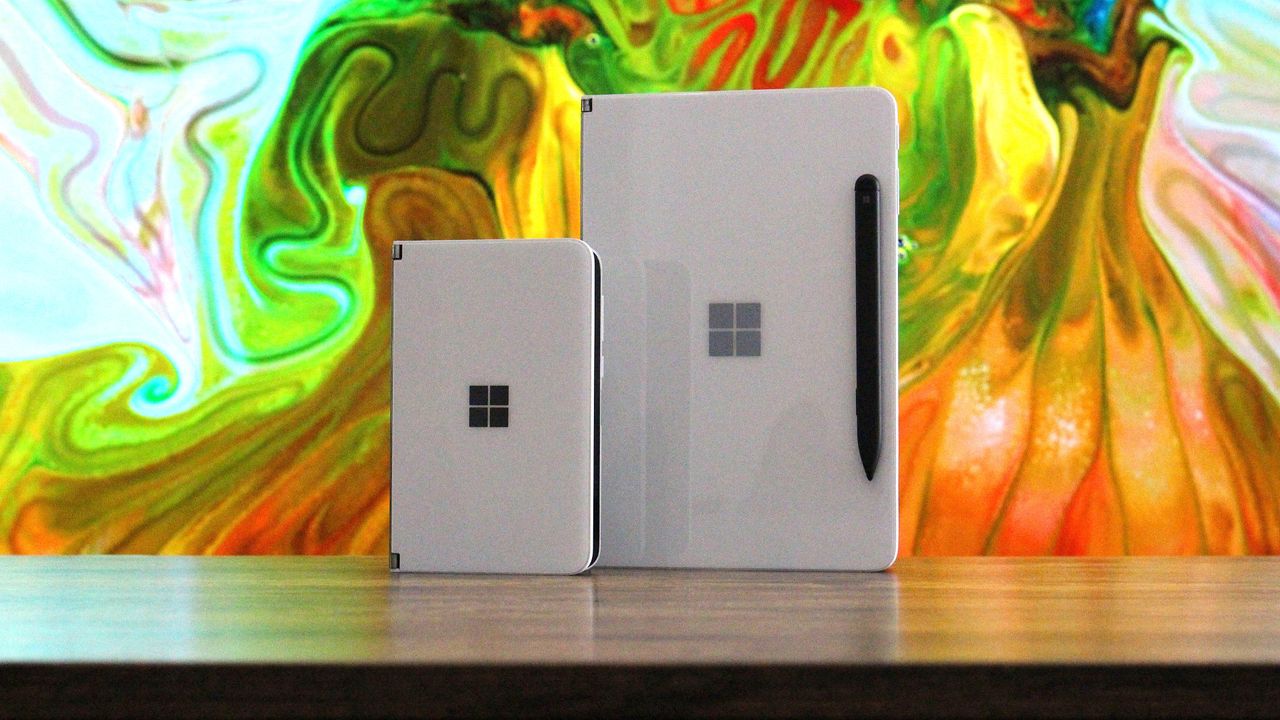
I loved my Surface Duo a lot. It was a unique folding phone with two screens instead of a single foldable display, supported pen input, and was the thinnest of its kind when it launched in 2020 (see our original review). It was a mesmerizing bit of kit, but it failed to gain any real mainstream attention. And although it never shipped, its bigger brother, the Microsoft Surface Neo PC, was also something a lot of us Windows fans were looking forward to at the time
I loved my Surface Duo a lot. It was a unique folding phone with two screens instead of a single foldable display, supported pen input, and was the thinnest of its kind when it launched in 2020 (see our original review). It was a mesmerizing bit of kit, but it failed to gain any real mainstream attention.
And although it never shipped, its bigger brother, the Microsoft Surface Neo PC, was also something a lot of us Windows fans were looking forward to at the time. A dual-screen laptop, to complement my dual-screen phone? Sign me up! In 2020, it really did seem like Microsoft was building out its own unique device ecosystem to compete with Apple, Samsung, and Google.
The Neo and Duo were clever names for these devices. Both names had dual meanings to them, too. Neo, meaning "new," referred to the form factor, as well as being a reference to "The One" from The Matrix. And Duo, obviously signifying the device's unique "duo" screen setup, but it was also a reference to the fact that it was a surprise second device in a pair, alongside Neo.
When Duo was announced, it was a true one more thing moment during the event. There had been rumors that Microsoft was working on a folding phone for years prior, but recent reporting at the time had suggested the project was dead. So when Duo was announced alongside Neo, it was a rare true surprise to those in attendance and watching online.
(Image credit: Future)
Cut to 2026, and it's all dead. Microsoft gave up on Duo after just one iteration (Surface Duo 2 review), and it never even gave Neo a chance. The company's boneheaded shortsightedness led to the death of unique Surface hardware, and now today we're left with boring laptops and tablets from the Redmond giant.
It was inevitable that the Neo and Duo would forever be relegated to the history books, a hall of fame of unique devices that tried and failed to capture the market. Now, Apple has stormed in and stolen these names for their own products, which will only serve to further bury Microsoft's efforts.
I'm sure there are some Apple fans out there who think Apple never even thought about Microsoft when it named the MacBook Neo and iPhone Duo, but I think that's a lie. Apple is clearly aware that Neo and Duo were strongly tied to the Surface brand, but decided that didn't matter, which is the correct decision.
The MacBook Neo is an almost polar opposite of the Surface Neo. While Surface Neo was supposed to be a super expensive dual-screen flagship laptop, the MacBook Neo is Apple's cheapest laptop, undercutting much of the market. I don't know why, but that feels like an F.U. to Microsoft's vision for its Neo.
And now, there's iPhone Duo. This one hits much harder, as they're both playing in the same game. Surface Duo was a thin folding phone with pen support, and the iPhone Duo is pretty much exactly that. Of course, Apple's iPhone Duo refers to the fact that it's both an iPhone and an iPad, but seeing the Duo moniker on an Apple product just stings.
The iPhone Duo is a modern day Surface Duo. (Image credit: Apple)
If anything, it's just reminded me of what was possible had Microsoft pushed through and continued to innovate on the Surface Duo. The company had started working on a third-gen Surface Duo in 2022, which was going to pivot to a single-screen folding setup not dissimilar to the iPhone Duo.
But Microsoft just can't see a good thing through. Because Surface Duo 1 sold poorly, and Surface Duo 2 sold even less than that, the company decided that it was not worth continued investment in this category, which is just wrong. Folding phones were and still are the future, but Microsoft decided to pack it all in.
Now, Apple has just stolen the crown for the Duo moniker, with a product that seemingly does everything the Duo set out to achieve, but better in every way because Apple isn't going to give up after just one iteration. I get the impression that Duo is here to stay in Apple's lineup, unlike the Duo in Microsoft's lineup.
I'm mad that Apple has stolen the Neo and Duo moniker, but frankly, they deserve it. Microsoft clearly isn't doing anything with them, and they are cool product names for devices that stand out. MacBook Neo and iPhone Duo certainly do that, even if they're not in complete harmony like the Surface Neo and Surface Duo were supposed to be.
Congratulations on the launch of iPhone Duo, Apple.
Join us on Reddit at r/WindowsCentral to share your insights and discuss our latest news, reviews, and more.
OnePlus Ace 7 series leaks reveal a 185Hz display, active cooling, huge battery tests and possible Pro hardware, with availability still unknown.
The post OnePlus Ace 7 Series: Latest Specs, Rumors, and Release Clues appeared first on TechRepublic.
Apple reportedly plans a two-year hardware push under CEO John Ternus, including a foldable iPhone, AI wearables, new Macs, iPads, and home devices.
The post Apple Reportedly Plans Major Hardware Push Under John Ternus appeared first on TechRepublic.
Microsoft’s Project Zenith brings a ready-to-code Windows experience to developer PCs, with local AI support and preconfigured tools.
The post Microsoft Project Zenith: Windows Developer PCs Will Come Ready to Code appeared first on TechRepublic.
Circular Ring 3 Slim and Pro add non-invasive glucose insights, contactless payments, haptic alerts, and up to 12 days of claimed battery life per charge.
The post Circular Ring 3 Adds Glucose Insights: Which Model Fits Your Needs appeared first on TechRepublic.
Circular Ring 3 Slim and Pro add non-invasive glucose insights, contactless payments, haptic alerts, and up to 12 days of claimed battery life per charge.
Apple may launch a 13.8-inch OLED MacBook with touch support and an under-display camera between the MacBook Air and Pro in late 2028 or early 2029.
The post Apple Reportedly Plans 13.8-Inch Notch-Free OLED MacBook appeared first on TechRepublic.
Lenovo’s $700 IdeaPad Vibe rivals the MacBook Neo with more ports, chip choices, and upgrade options, but the base 8GB RAM model has limits.
The post Lenovo’s $700 IdeaPad Vibe Takes Aim at the MacBook Neo appeared first on TechRepublic.
Find the best Labor Day tech deals for 2026 at Amazon, Walmart, and Best Buy, with savings on laptops, phones, smartwatches, and headphones.
The post Amazon, Walmart, and Best Buy Labor Day Deals: 7 Tech Picks appeared first on TechRepublic.
Lenovo's new Yoga tablets share 4K displays and seven major Android upgrades, but performance, size, battery, memory, weight, and price separate them.
The post Lenovo Yoga Tab Gen 2 vs Yoga Tab Plus Gen 2: Which Should You Buy? appeared first on TechRepublic.
Xiaomi Smart Band 11 keeps the Band 10’s display size and 21-day battery claim but adds more brightness, a thinner design, and new health features.
The post Xiaomi Smart Band 11 vs Smart Band 10: What Actually Changed? appeared first on TechRepublic.
Apple’s Sept. 9 event could bring the iPhone 18 Pro, its first foldable iPhone, and a split release schedule extending into 2027.
The post Apple’s Sept. 9 Event: What to Expect From the iPhone 18 Pro and the Reported $2,099-Plus Foldable appeared first on TechRepublic.
Google is rolling out AI-powered Battery usage summaries to Pixel 10 and Pixel 11 phones to help users understand what may be draining battery life.
The post Pixel’s New AI Feature Can Now Explain What’s Draining Your Phone appeared first on TechRepublic.
Acer’s DualPlay Mini combines gaming controls with a physical keyboard, but can the 8-inch handheld replace a travel laptop for everyday work?
The post Acer DualPlay Mini: Can a Gaming Handheld Replace Your Laptop? appeared first on TechRepublic.
Redmi Note 17 Pro and Pro Max pricing varies by country, while the Pro Max adds a larger battery, faster charging, storage, and 4K video.
The post Redmi Note 17 Pro vs Pro Max: Battery, Price and Specs Compared appeared first on TechRepublic.
OnePlus 16 camera leaks point to a 200MP main sensor, larger 50MP 3x telephoto and new ultrawide, but global availability remains unclear.
The post OnePlus 16 Camera Leak Reveals 200MP Main Sensor and New 3x Telephoto appeared first on TechRepublic.
Nobody can accuse Lenovo of lacking imagination.Over the last several years, the company has become the PC industry's unofficial concept lab, routinely showing off hardware that seems pulled from science fiction. We've seen rollable displays that grow taller, gaming laptops that transform into ultrawide displays, foldable PCs, attachable screens, rotating displays, and enough unusual form factors to make even the most adventurous laptop enthusiast pause for a mom
Over the last several years, the company has become the PC industry's unofficial concept lab, routinely showing off hardware that seems pulled from science fiction. We've seen rollable displays that grow taller, gaming laptops that transform into ultrawide displays, foldable PCs, attachable screens, rotating displays, and enough unusual form factors to make even the most adventurous laptop enthusiast pause for a moment.
Some of those ideas have remained concepts. Others have eventually become real products. The ThinkBook Plus Gen 6 Rollable (yes, they actually ship some of these!) is perhaps the best example, evolving from an eye-catching prototype into an actual shipping device. But even as Lenovo's concepts have become increasingly impressive from an engineering perspective, I've often found myself wondering how many of them actually solve a problem that regular laptop buyers have. Making a display expand is certainly cool. Convincing people they need it is the harder challenge.
That's why Project Swan immediately stood out to me.
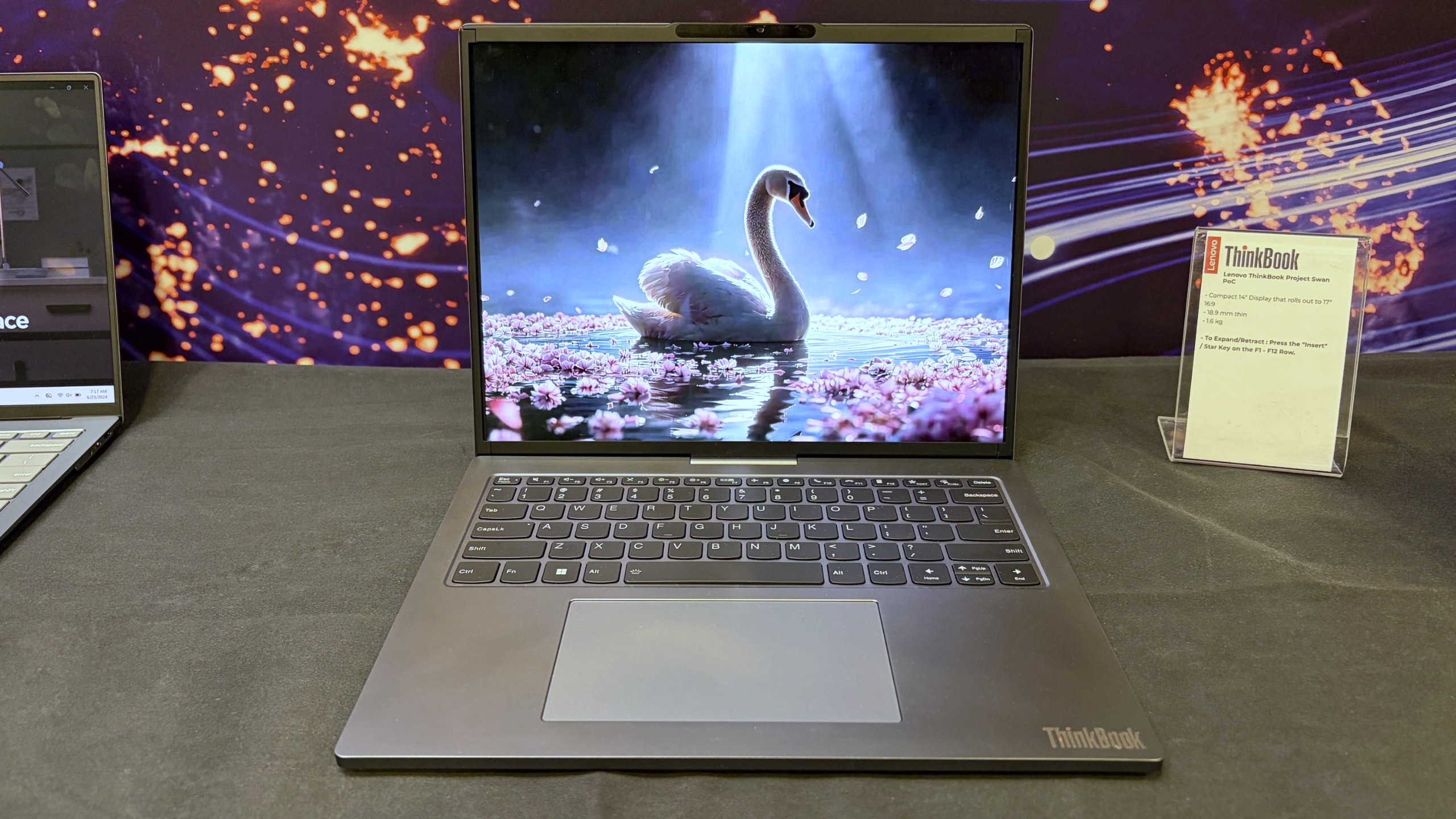
Lenovo's Project Swan laptop in "normal" mode at 14-inches. (Image credit: Future)
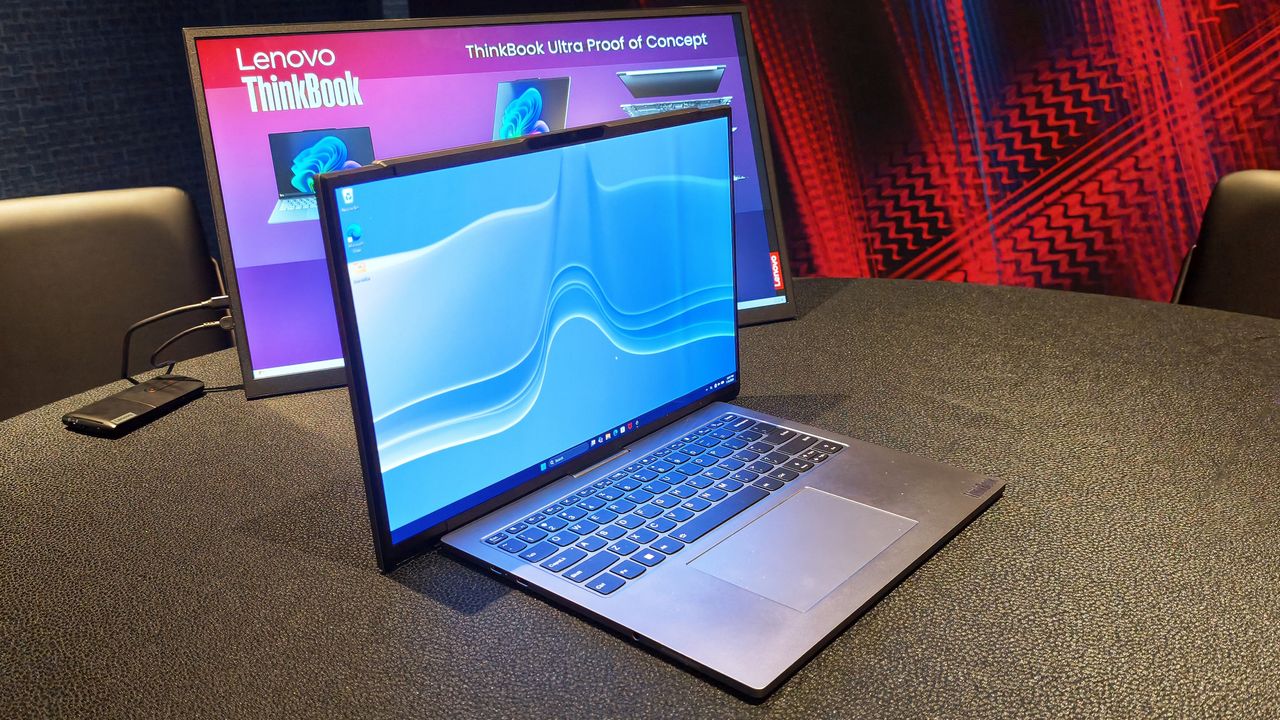
Officially, it's another Lenovo proof-of-concept device, but after spending time with it in person, I came away thinking this may be the company's most practical display concept yet. Not because it's the most ambitious, but because it's arguably the least ambitious.
And that's exactly why it works.
Lenovo finally found a sensible use for a rollable display?
The Lenovo ThinkBook Project Swan begins life as a fairly normal-looking 14-inch laptop.
At 17.9mm thick and weighing 1.6kg (3.5lbs), it isn't trying to break weight records or compete with ultra-premium featherweight notebooks (like Lenovo's new AeroBlade concept). Instead, the focus is on creating a laptop that's comfortable to carry throughout the day while offering something extra when users return to their desk, settle into a hotel room, or need more space for serious work.
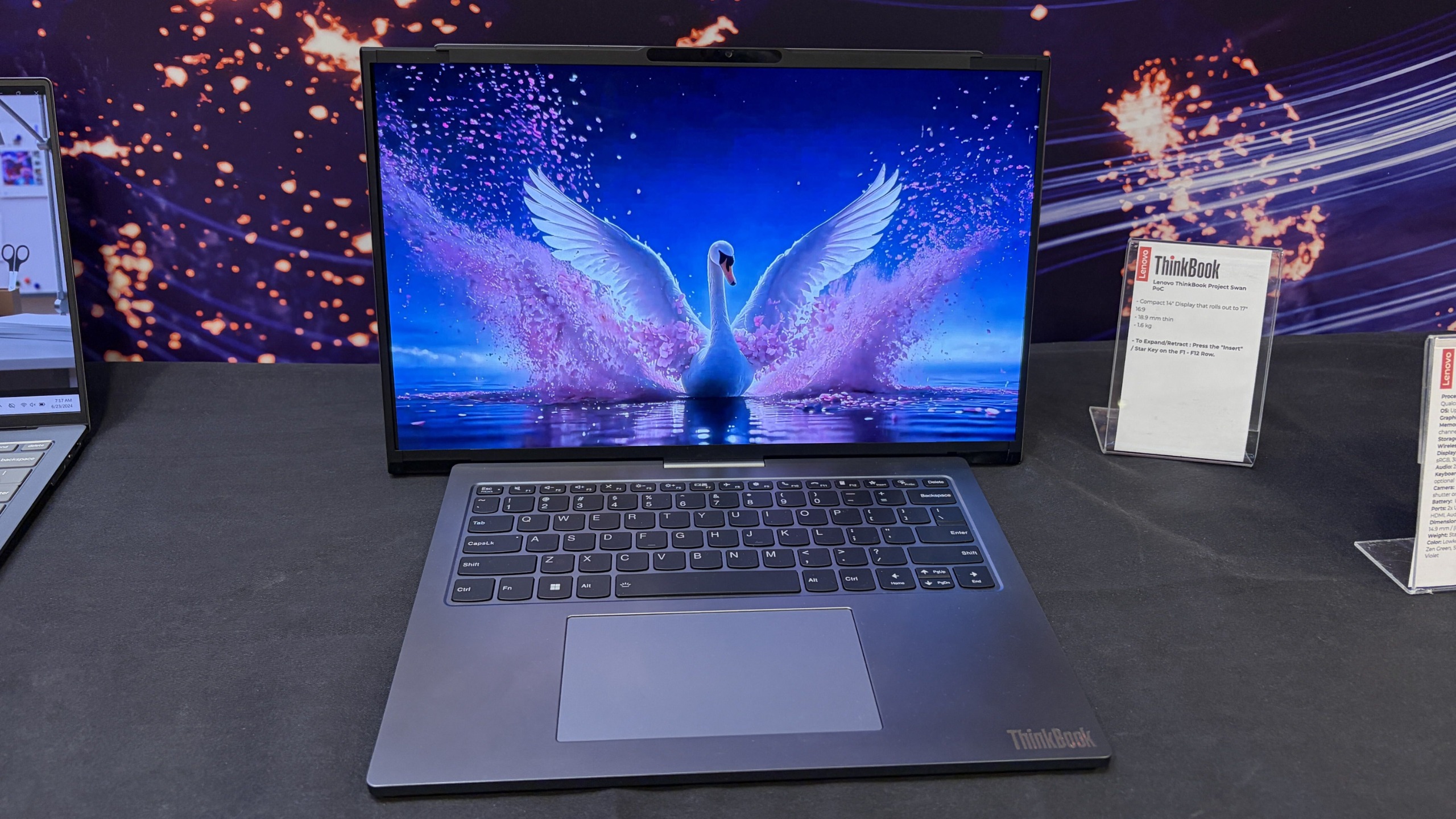
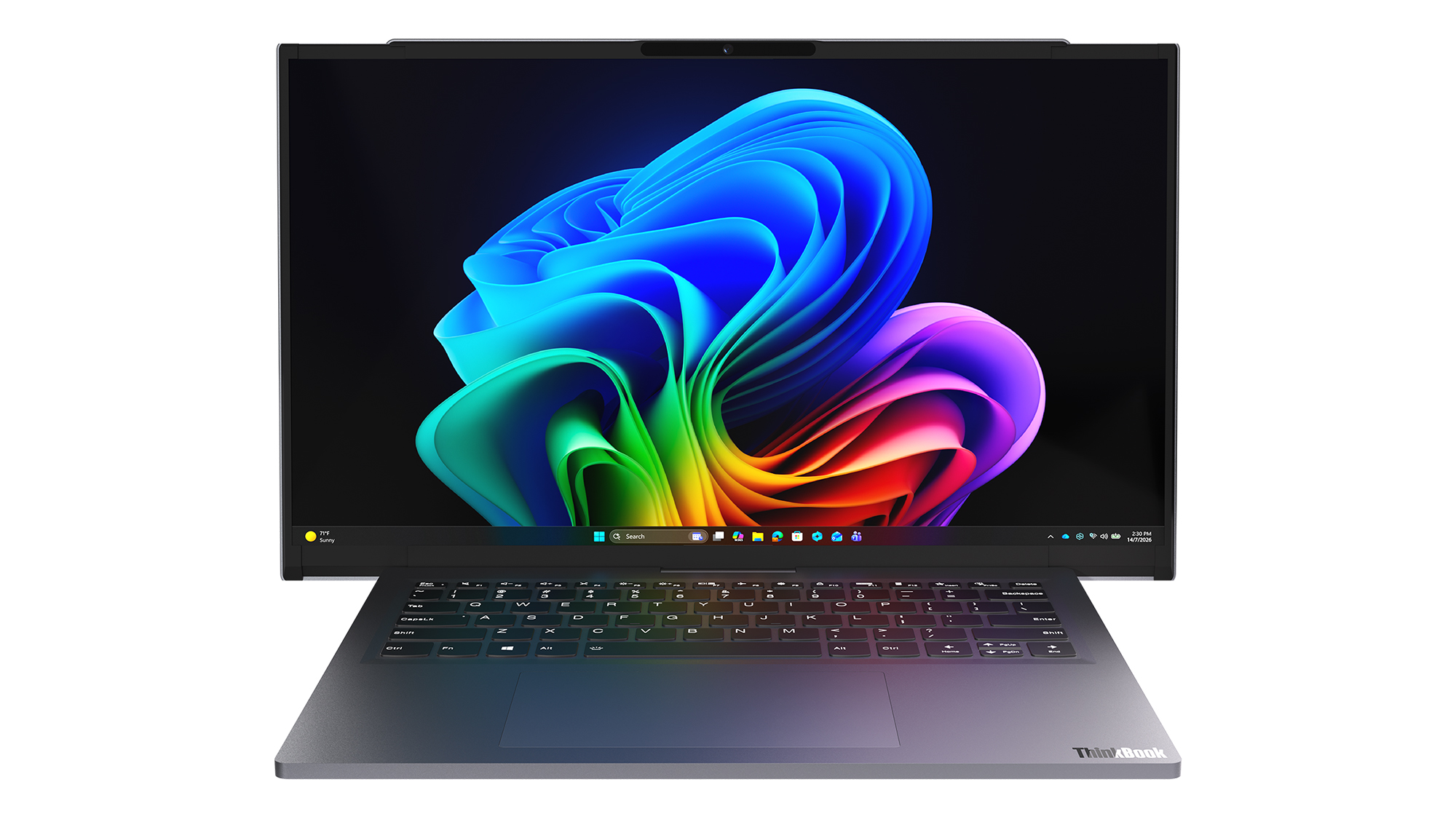
That "something extra" is a rollable display that expands horizontally into a 17-inch 16:9 workspace.
Unlike Lenovo's previous rollable designs, which generally expanded vertically, Project Swan widens itself by extending the display out to the sides. It's all done with a touch of a button (see my video below), and it only takes a few seconds.
The result feels much more like using a traditional external monitor than using an experimental form factor. You suddenly have enough room for side-by-side documents, large spreadsheets, dashboards, presentations, browser windows, Teams chats, and everything else that tends to compete for space on a 14-inch screen.
Lenovo's Project Swan laptop in extended mode, where the display reaches 17 inches. (Image credit: Future)
The transformation is dramatic enough to get attention, but conservative enough to feel practical. During my hands-on session, that was the first thing that struck me about the device.
Many of Lenovo's earlier concepts felt designed to answer the question, "Can we do this?"
Project Swan feels far more interested in answering the question, "Would people actually want this?"
That's a subtle distinction, but it's an important one.
This feels like the next step in Lenovo's display experiments
Lenovo Project Swan concept laptops side-by-side, demonstrating the screen in standard view versus expanded rollable view. (Image credit: Lenovo)
Project Swan didn't emerge in a vacuum. In many ways, it feels like the natural evolution of everything Lenovo has been experimenting with over the last few years.
The ThinkBook Plus Gen 6 Rollable demonstrated that expandable OLED displays could successfully transition from concept to commercial product. Lenovo's Legion rollable gaming laptop concept showed how flexible displays could create an ultrawide experience without requiring users to carry an enormous machine. Other projects explored foldable displays, secondary screens, and entirely new ways of interacting with PCs.
As impressive as many of those concepts were, some occasionally felt like technology showcases first and products second.
Project Swan reverses that equation.
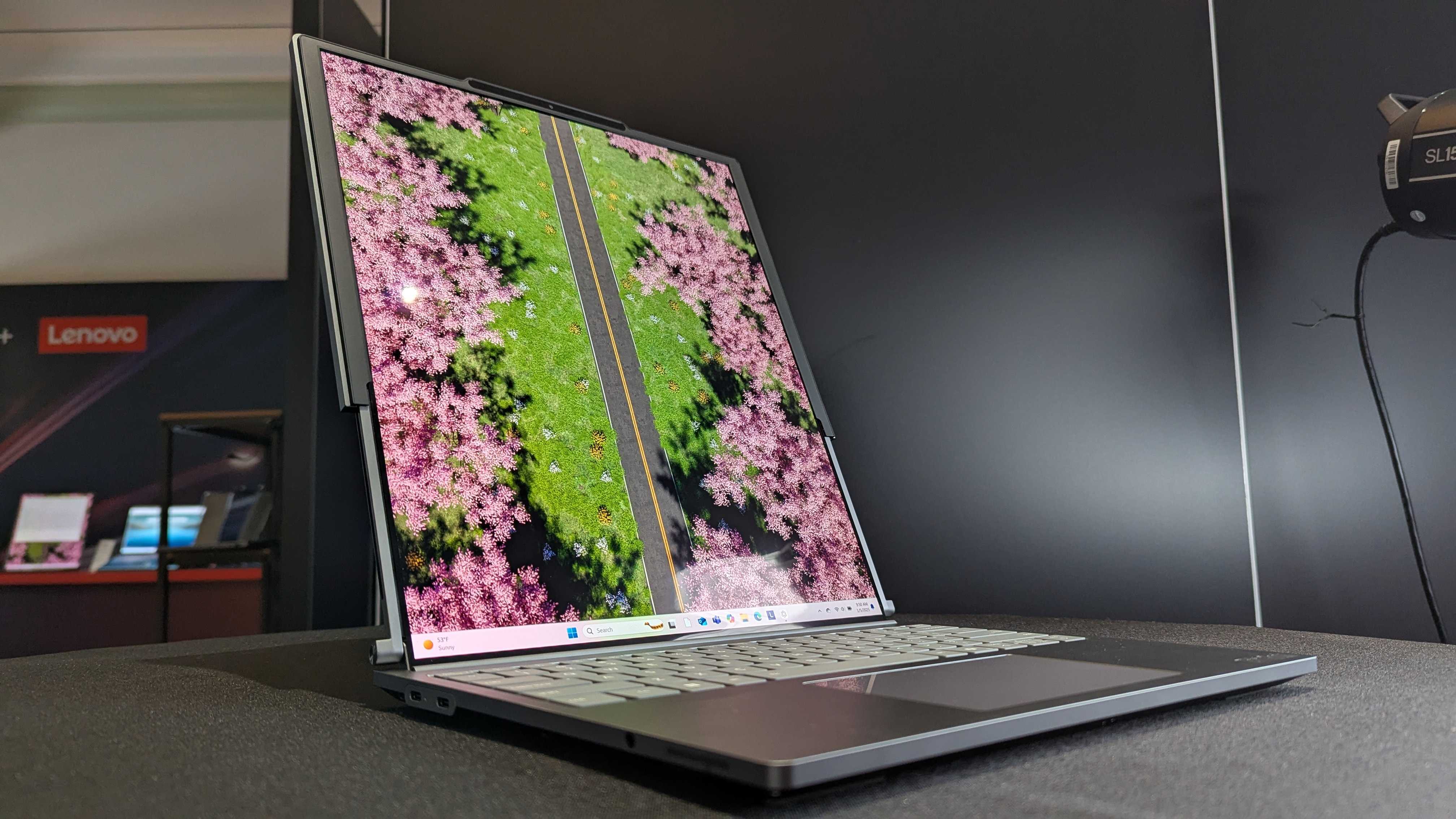
Lenovo ThinkBook Plus (Gen 6) laptop and its vertical rollable display at CES 2025. (Image credit: Windows Central | Zachary Boddy)
Rather than dramatically changing how people interact with a laptop, it simply gives them more screen real estate when they need it and gets out of the way when they don't. That's a much easier benefit for consumers to understand and, perhaps more importantly, a much easier benefit to justify paying for.
After all, most people already know the dilemma.
A 14-inch laptop is ideal for travel. A larger display is ideal for work.
Project Swan attempts to deliver both.
The idea makes sense. The challenges are obvious.
Read image of the Project Swan laptop cover and its motorized rollable display. (Image credit: Lenovo)
That isn't to say there aren't trade-offs.
The first thing I noticed when using the expanded display was that the system becomes somewhat top-heavy. That's hardly surprising given the additional display hardware housed in the lid, but it was noticeable enough that I'd expect Lenovo's engineers to still be looking at ways to refine the balance.
Pricing is another obvious concern.
Rollable OLED displays aren't cheap (it's $3,499 for the ThinkBook Plus Gen 6 Rollable), and if Project Swan ever becomes a commercial product, it's almost certainly going to carry a premium compared to a traditional clamshell laptop. The value proposition may be easier to understand than some other concept devices, but consumers still need to be convinced that expandable screen space is worth the additional cost.
Then there's the question everyone asks whenever a company unveils a rollable or foldable display.
How durable is it?
Flexible OLED technology has improved dramatically over the last few years, but long-term reliability remains an important consideration. How will the mechanism hold up after years of daily use? What happens after thousands of expansion cycles? Will buyers trust a laptop that contains moving display components?
The technology may be ready, but consumer confidence isn't something that can be engineered overnight.
The bigger question is whether people want these new form factors
That's really the challenge facing every laptop manufacturer right now.
The industry has spent years experimenting with alternatives to the traditional clamshell design. Foldable PCs promised tablet-sized displays that fit inside a laptop footprint. Dual-screen systems like the Lenovo Yoga 9i attempted to replace physical keyboards with additional displays. Rollable devices have explored several different directions entirely.
Some enthusiasts love these ideas, but many consumers remain perfectly happy with the laptops they already own.
That's what makes Project Swan so interesting to me. It isn't asking users to learn a new workflow or completely rethink how they use a PC. Instead, it's enhancing something people already understand: bigger screens are often better, but bigger laptops are harder to carry.
Whether that argument ultimately resonates with buyers remains an open question, but it's certainly the clearest pitch Lenovo has made for a rollable display so far.
Lenovo deserves credit for keeping the experimentation alive
Front view of the open grey Lenovo Project Swan concept laptop with its rollable screen expanded horizontally beyond the keyboard base. (Image credit: Lenovo)
Even if Project Swan never reaches store shelves, I appreciate what Lenovo is doing here.
The PC industry can sometimes become obsessed with processor upgrades, AI features, and specification sheets while overlooking more fundamental questions about how people actually use their devices. Lenovo's concepts consistently ask those questions, even when the answers occasionally seem, well, strange.
What's refreshing about Project Swan is that it feels grounded in reality. The company isn't trying to reinvent personal computing or create an entirely new category. Instead, it's exploring a straightforward idea that almost everyone who has worked on a laptop can relate to.
Sometimes you want a compact machine for travel.
Sometimes you wish that same machine had a much larger screen.
Project Swan is the most convincing attempt I've seen yet to bridge that gap.
I still have concerns about durability, balance, pricing, and whether consumers are truly interested in another alternative laptop design. But after trying it for myself, I'm more optimistic about this concept than many of Lenovo's previous experiments.
Ironically, that's because it feels less ambitious. Rather than trying to change how we work, Project Swan simply gives us a little more room to do it.
And that may be exactly what makes it one of Lenovo's most promising concepts yet.
Let me know in the comments what you think about Project Swan. Should Lenovo continue to push this concept of an expanding display, or focus more on other ideas (and if so, which ones)?
Join us on Reddit at r/WindowsCentral to share your insights and discuss our latest news, reviews, and more.
Competition for Apple's MacBook Neo is heating up.Just days after Dell unveiled a new 14-inch laptop designed to take on Apple's latest mainstream notebook, Lenovo is entering the fight with something considerably more interesting: a laptop that lets you express your personality instead of forcing you to settle for silver, gray, or slightly darker gray.I recently got to see Lenovo's new IdeaPad Vibe lineup in person in New York City, and while the company talked
Competition for Apple's MacBook Neo is heating up.
Just days after Dell unveiled a new 14-inch laptop designed to take on Apple's latest mainstream notebook, Lenovo is entering the fight with something considerably more interesting: a laptop that lets you express your personality instead of forcing you to settle for silver, gray, or slightly darker gray.
I recently got to see Lenovo's new IdeaPad Vibe lineup in person in New York City, and while the company talked plenty about AI, processors, and battery life, the thing that immediately stood out to me was how different these laptops look compared to almost everything else on the market.
Most PC makers treat color options as an afterthought. Lenovo is making them the product.
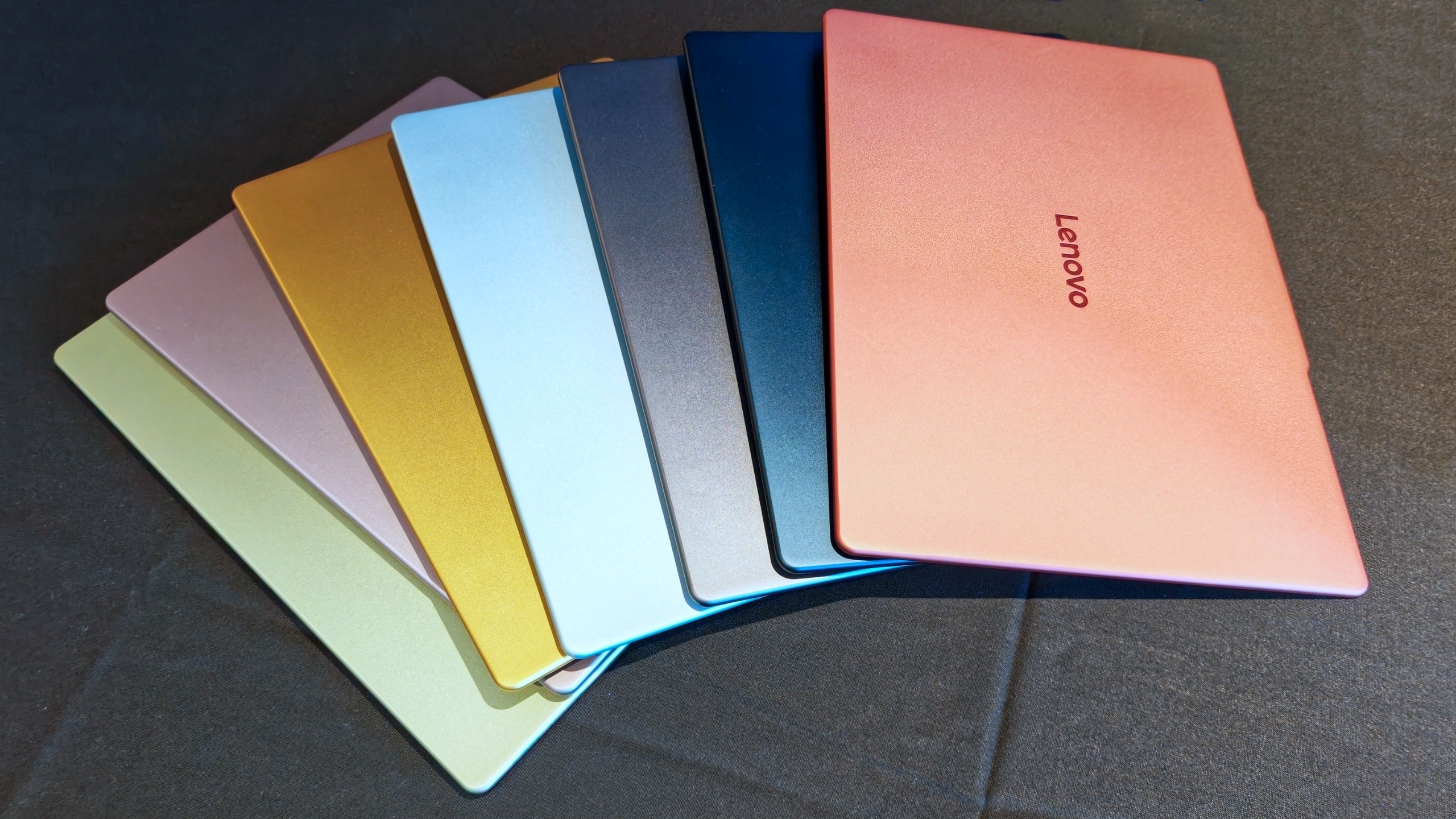
(Image credit: Daniel Rubino)
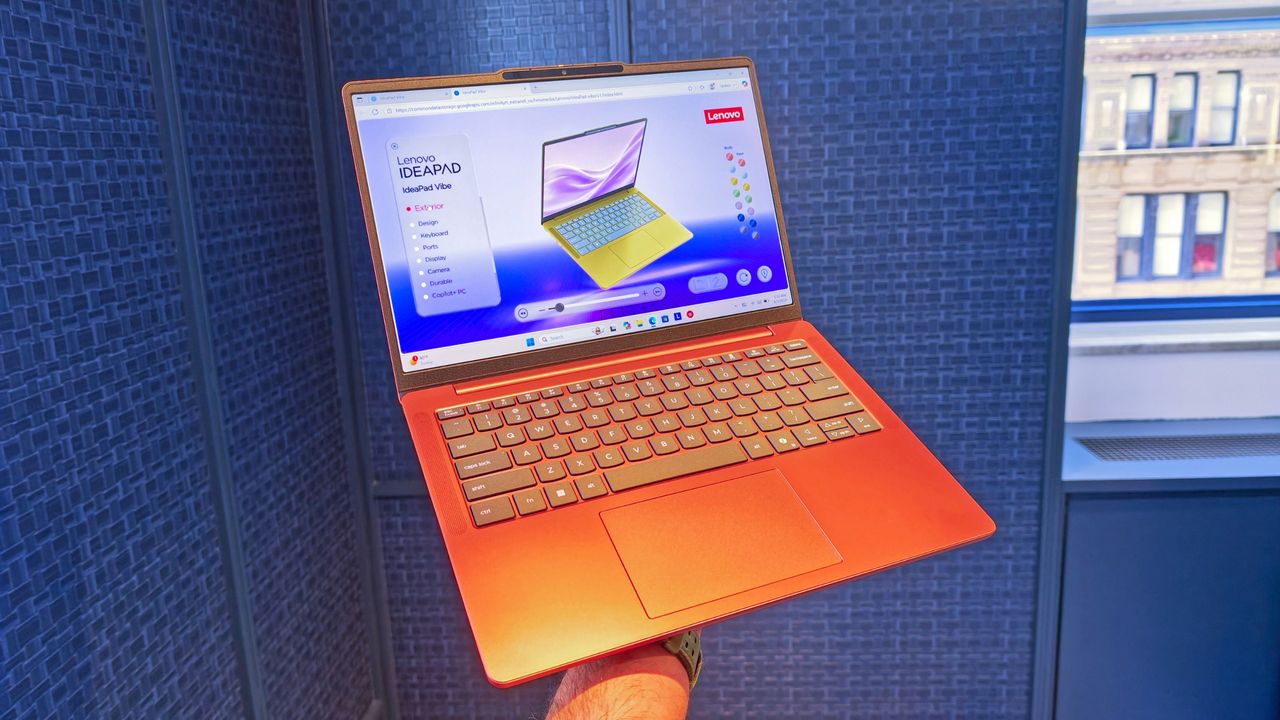
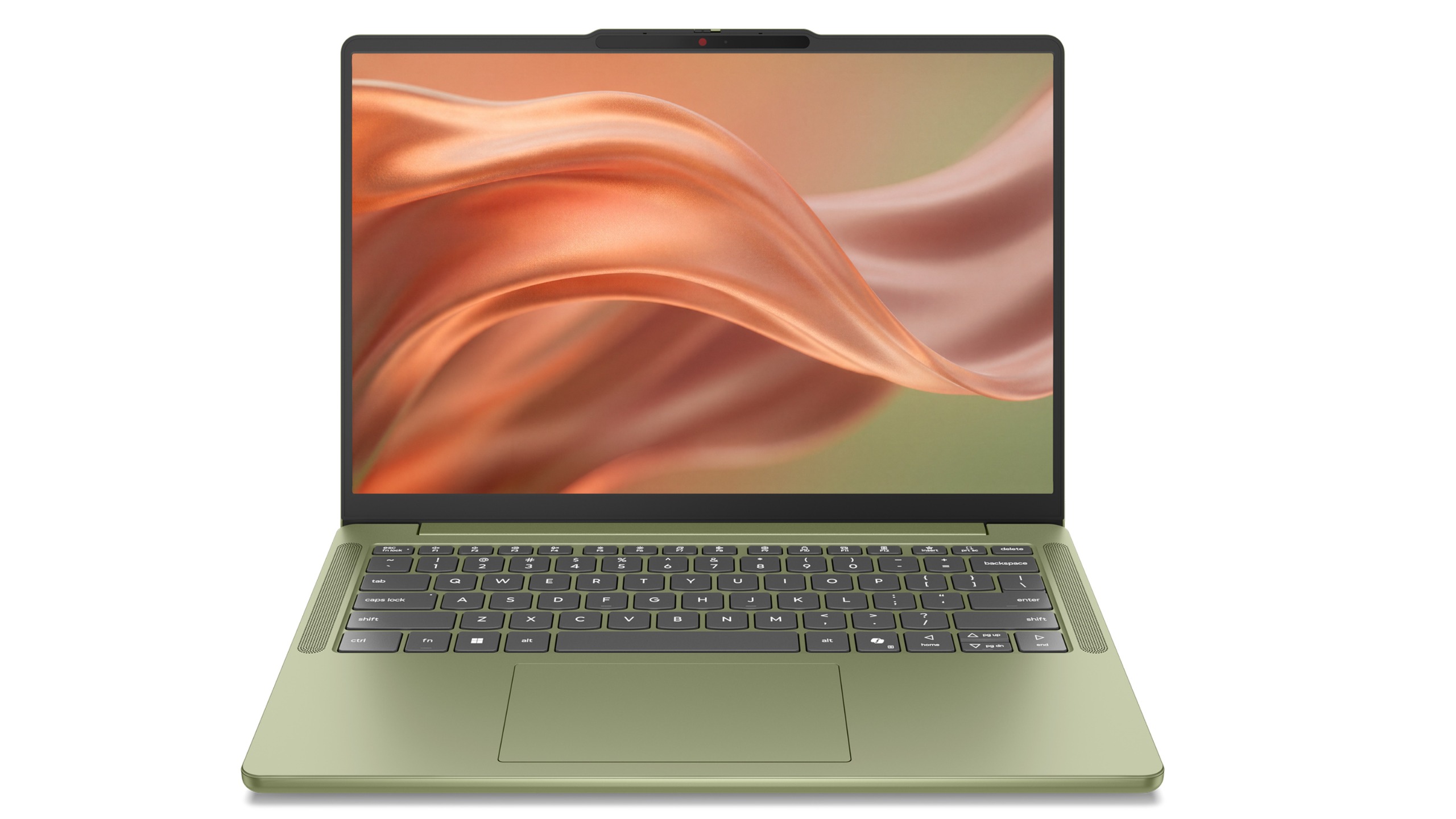
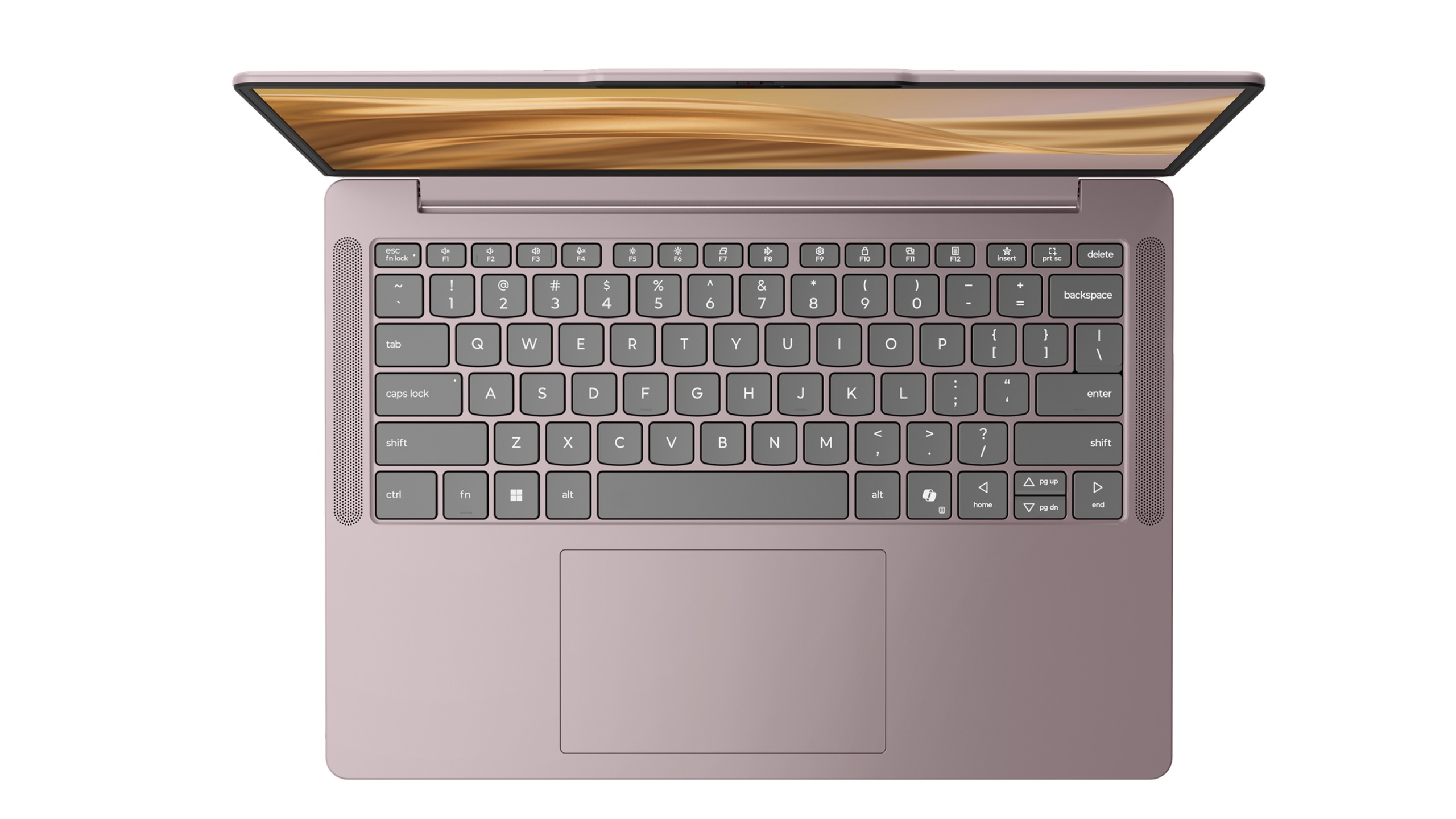
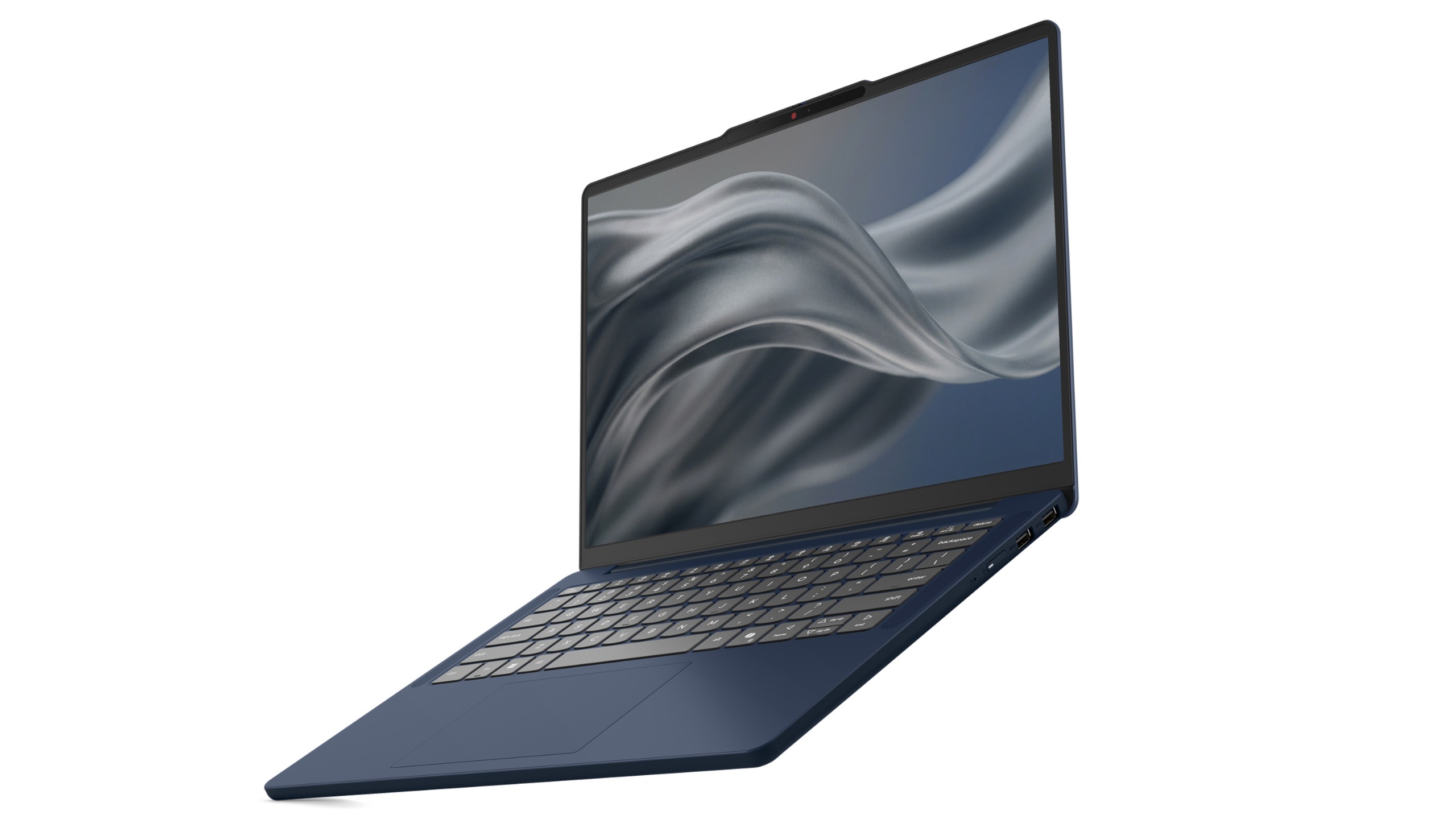
The new IdeaPad Vibe will be available in seven Pantone-developed colors, including Chill Blue, Zen Green, Spicy Gold, Radiant Coral, Dreamy Violet, Lowkey Grey, and Moody Blue. Lenovo says the colors were developed alongside the Pantone Color Institute and are designed to reflect different moods, personalities, and lifestyles.
And that's just the beginning.
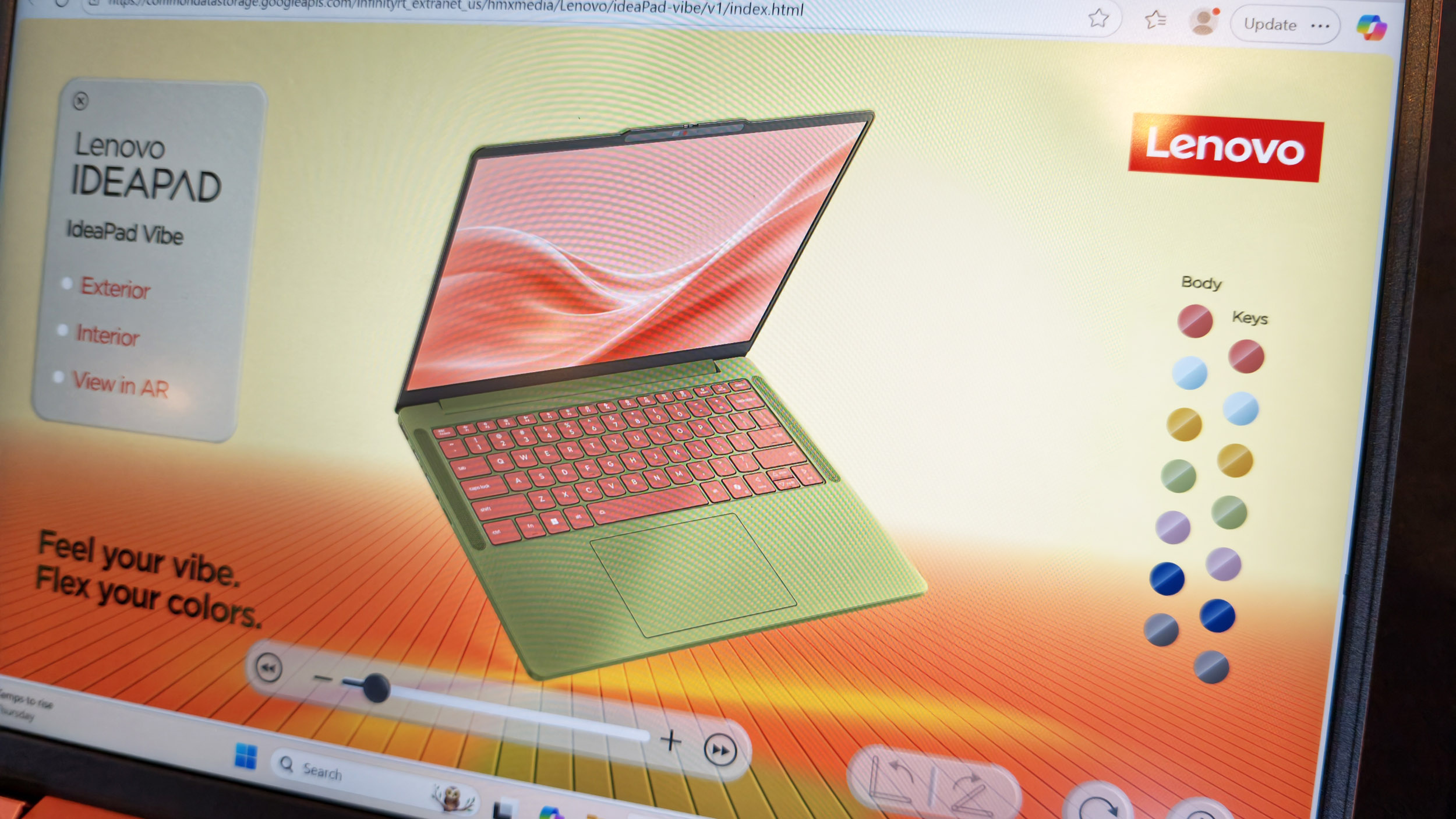
As shown in Lenovo's custom configurator (below), users will be able to mix and match chassis colors and keyboard colors to create something uniquely theirs. The company is also offering swappable custom keycaps, adding another layer of personalization that is virtually unheard of in the mainstream laptop space.
The configurator demo I saw almost felt like building a custom character in a video game rather than buying a laptop, and reminded me of the XBOX Design Lab for custom controllers.
Demo of the web creation tool to let you customize the new IdeaPad Vibe. (Image credit: Daniel Rubino)
In fact, my biggest complaint about the IdeaPad Vibe is that there might be too much choice.
That's obviously a good problem to have, but after looking through the various color combinations, shell finishes, and processor options, I could already imagine spending far too much time trying to decide which configuration to order (I know because I tried).
That's not a sentence I ever expected to write about a Windows laptop.
Lenovo IdeaPad Vibe in Zen Green and black keycaps. (Image credit: Lenovo)
Of course, a laptop can't survive on colors alone, and thankfully Lenovo seems to have put together a genuinely compelling package underneath all that personality.
The IdeaPad Vibe comes in both 14-inch and 15-inch sizes and starts at just 1.3kg (2.87 pounds) for the smaller model. OLED display options are available with up to 100% DCI-P3 color coverage, while IPS models can offer refresh rates up to 120Hz.
Lenovo is also packing in practical features including dual SSD slots, Wi-Fi 7, USB-A and USB-C ports, HDMI, a MicroSD card reader, and a 5MP IR webcam with a privacy shutter.
AMD, Qualcomm or Intel (eventually)
Lenovo IdeaPad Vibe in Dreamy Violet. (Image credit: Lenovo)
Then there's the processor selection.
For launch, buyers can choose between AMD Ryzen AI 400 series configurations and Qualcomm Snapdragon X models (we're not clear on exactly which Snapdragon X chip, or even if it's X2), while Intel-based versions will arrive later. AMD models support up to 32GB of upgradeable memory and up to 1TB of SSD storage, while Snapdragon versions offer up to 24GB of memory and the same dual-slot storage flexibility.
Personally, I'd go Qualcomm.
We've reached a point where Snapdragon X PCs consistently deliver excellent everyday performance while also offering some of the best battery life available in the Windows ecosystem. The combination of a lightweight chassis, Copilot+ PC capabilities on supported configurations, and Qualcomm's efficiency makes the Snapdragon version particularly appealing to me.
That isn't to say AMD isn't tempting. AMD's advantage here is flexibility. The Ryzen AI configurations support memory upgrades up to 32GB and offer optional 50Wh or 65Wh battery configurations, making them attractive for enthusiasts who want more control over their hardware.
What impressed me most during my hands-on time wasn't any single specification. It was how cohesive the overall package felt.
The laptops looked premium, felt solid in the hand, and didn't come across as budget systems despite their surprisingly aggressive pricing. That's important because Lenovo isn't positioning the IdeaPad Vibe as a niche fashion accessory. This is meant to be a mainstream Windows laptop that happens to have far more personality than its competitors.
And right now, that may be enough to help it stand out.
Final thoughts
Lenovo IdeaPad Vibe in Chill Blue. (Image credit: Lenovo)
Apple's MacBook Neo has clearly encouraged PC makers to rethink the mainstream laptop category. Dell has already responded with its own fresh take on the formula with its just-announced Dell 14S, and now Lenovo is bringing something completely different to the table: customization.
Instead of asking buyers which shade of gray they prefer, Lenovo is asking what their "vibe" is.
That's a much more interesting question, even if a bit on the nose and a tad cringey.
The Lenovo IdeaPad Vibe with AMD processorslaunches inOctober 2026 starting at $699.99, while Qualcomm Snapdragon X models will follow in November 2026 with the same $699.99 starting price. Intel is only listed as coming later.
And after seeing them in person, I think Lenovo may have stumbled onto something other PC makers have forgotten: technology can be personal, but it can also be fun.
Join us on Reddit at r/WindowsCentral to share your insights and discuss our latest news, reviews, and more.
I've seen a lot of concept PCs over the years.Most are fascinating engineering exercises that are never destined for store shelves. They're designed to spark conversation, generate headlines, and give us a glimpse into what might be possible someday. Some do come to market, like rollable display PCs.Lenovo's new Project AeroBlade concept feels different.Officially, it's one of the company's latest proof-of-concept devices, unveiled as part of its annual wave of e
Most are fascinating engineering exercises that are never destined for store shelves. They're designed to spark conversation, generate headlines, and give us a glimpse into what might be possible someday. Some do come to market, like rollable display PCs.
Lenovo's new Project AeroBlade concept feels different.
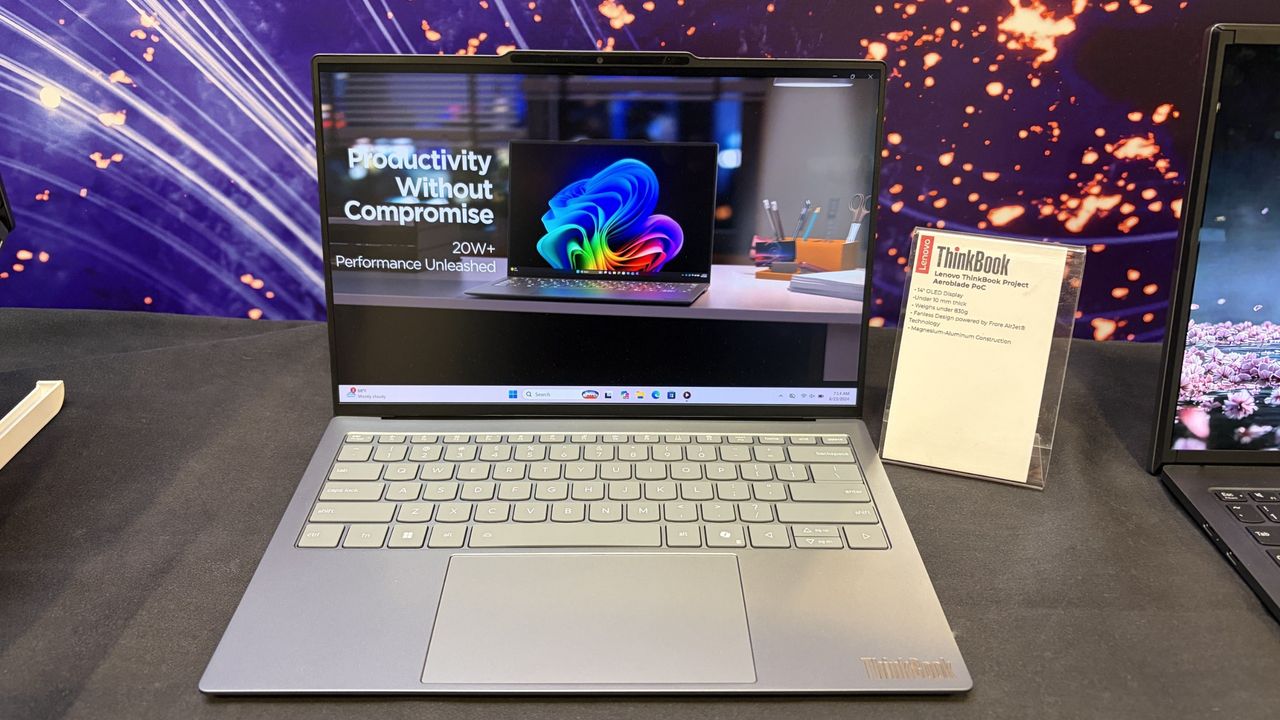
Officially, it's one of the company's latest proof-of-concept devices, unveiled as part of its annual wave of experimental hardware at IFA 2026. Unofficially? I think there's a very good chance we're looking at Lenovo's next big premium laptop platform.
After getting hands-on with AeroBlade, I walked away convinced this isn't some far-future moonshot. If you told me a shipping version appears within the next year, I wouldn't be surprised in the slightest.
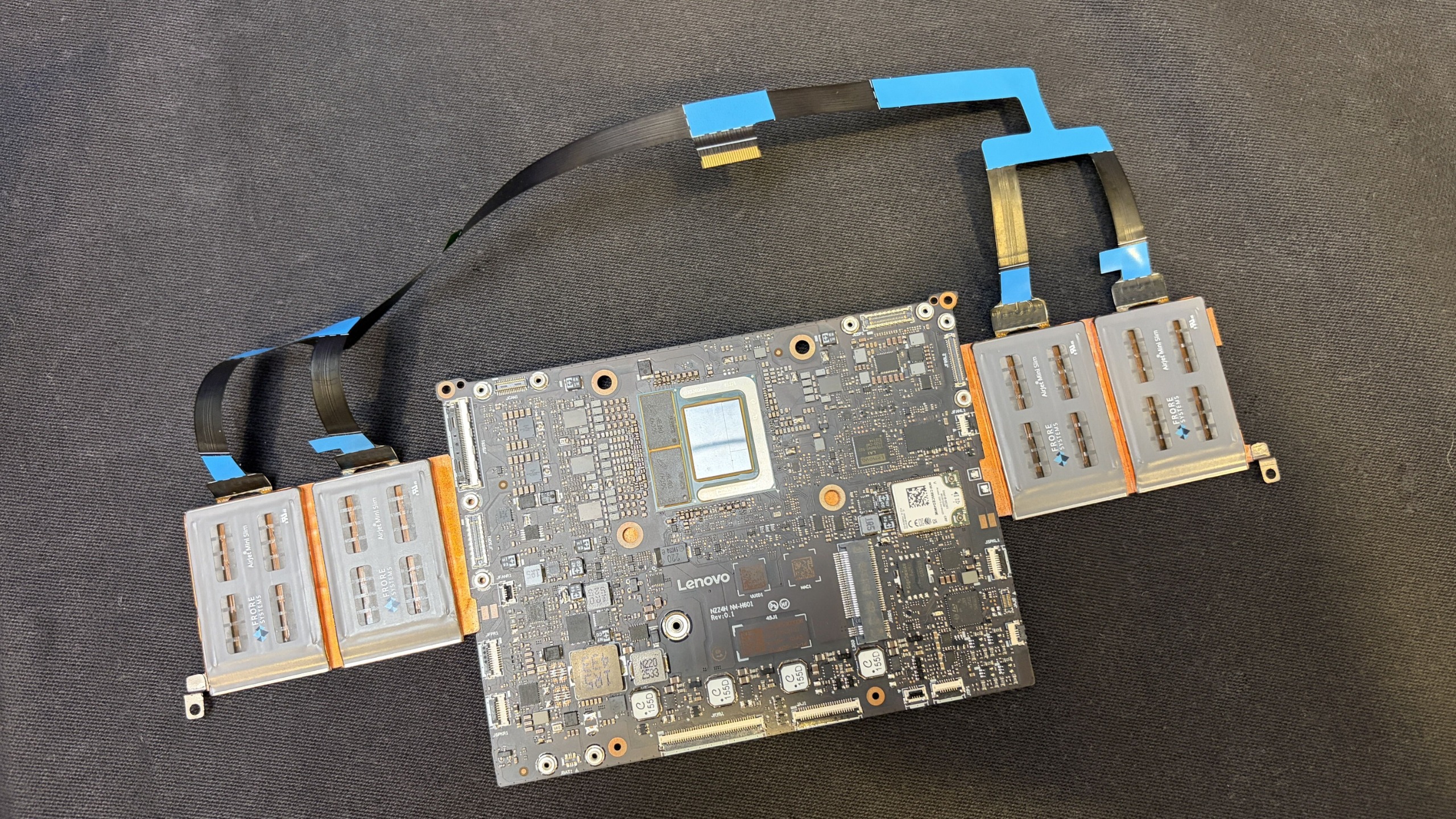
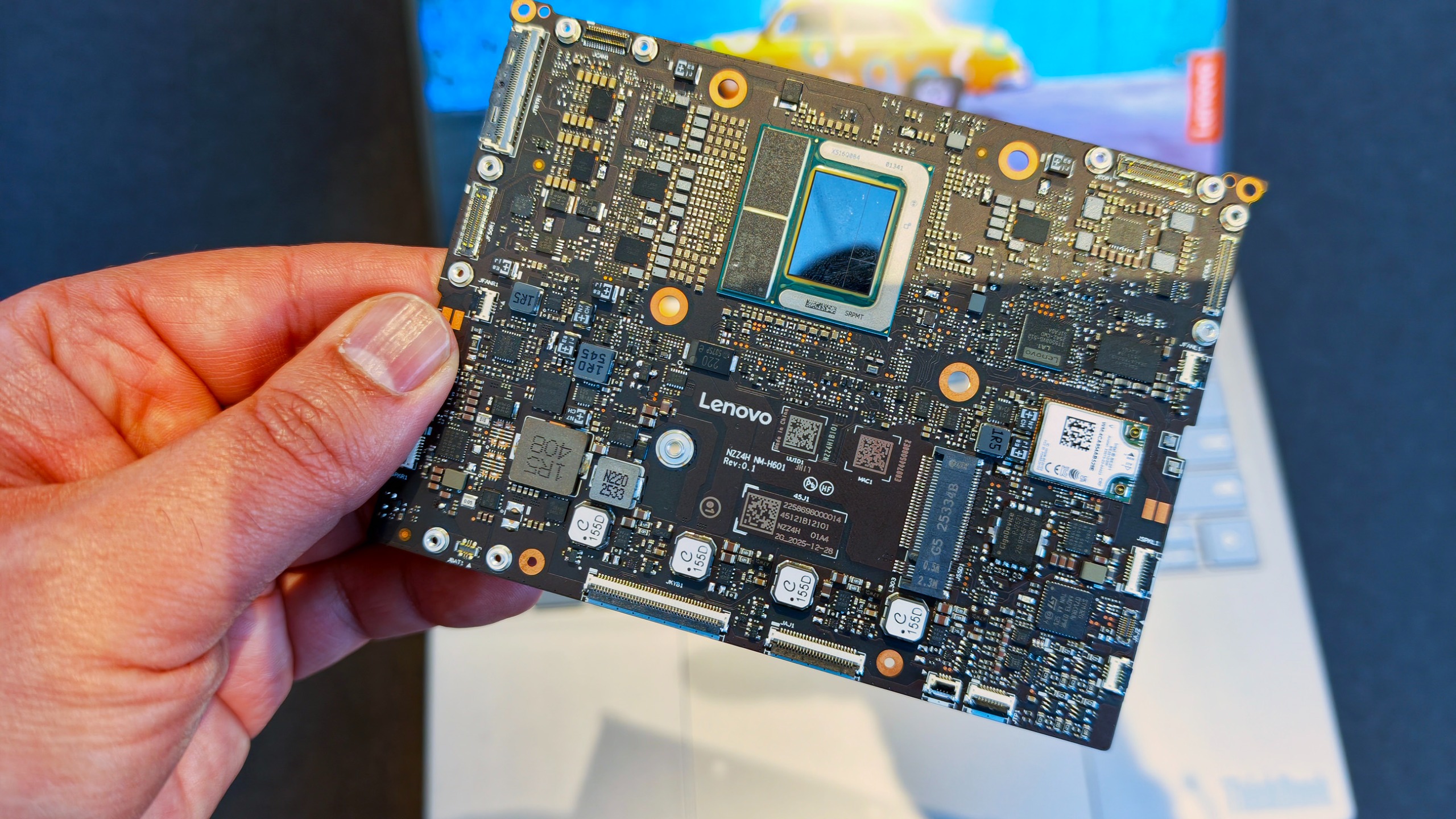
Motherboard and AeroJet cooling system. (Image credit: Future)
And it can't happen soon enough.
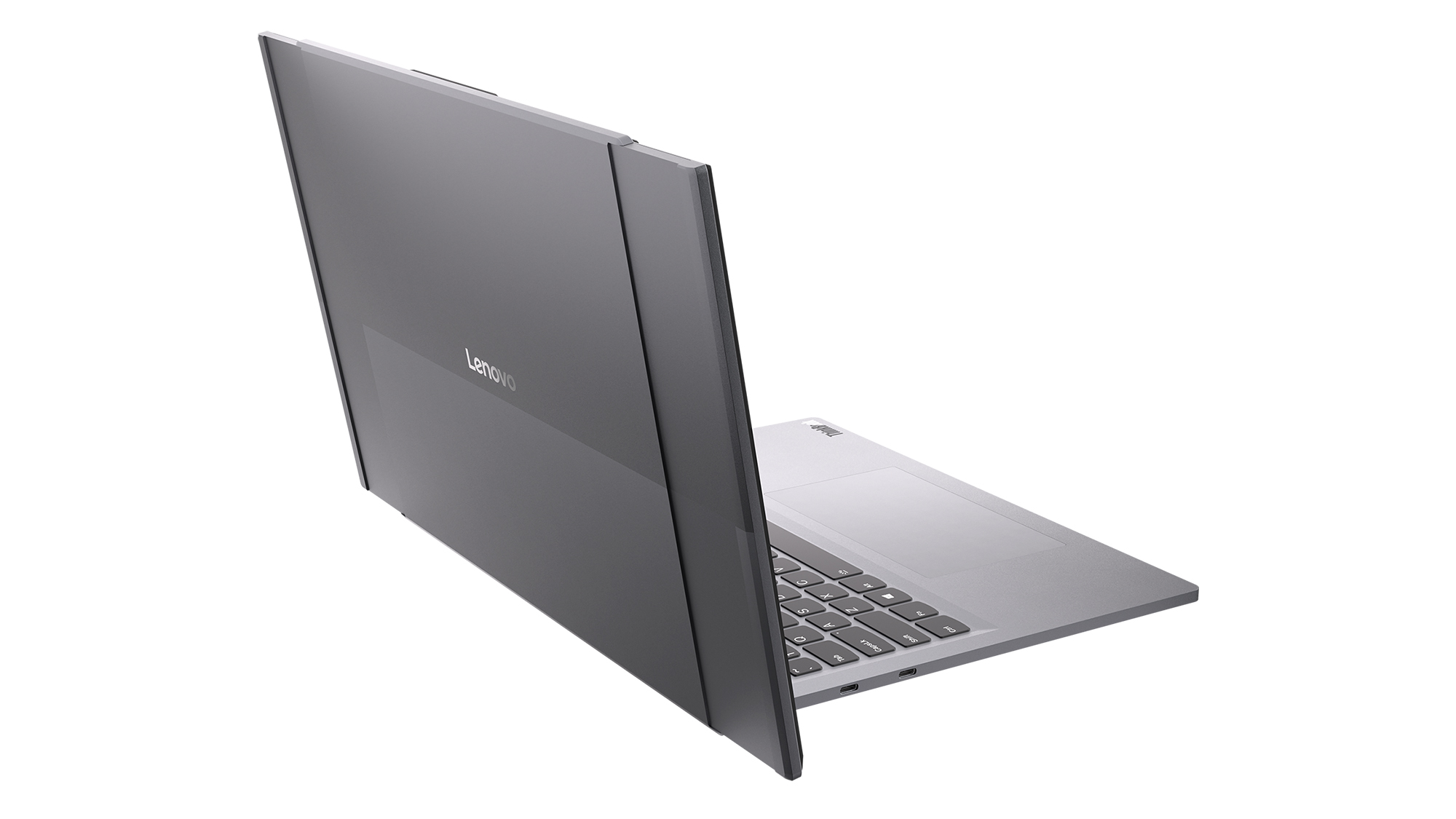
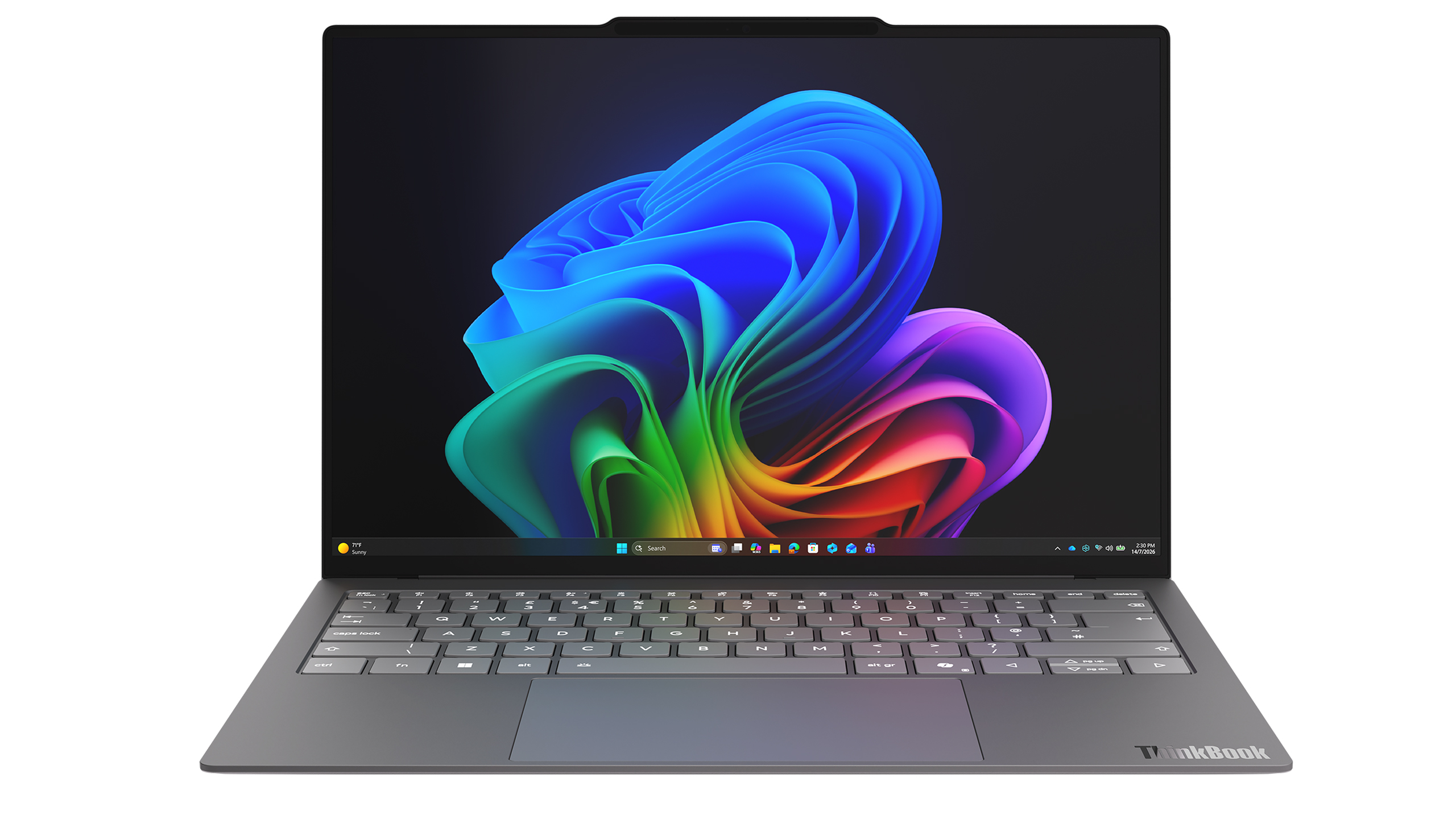
Project AeroBlade is a 14-inch laptop that measures under 10 mm thin and weighs less than 830 grams (1.8lbs). That's lighter than many tablets with keyboard covers attached, yet Lenovo claims performance remains comparable to today's ThinkPad X1 Carbon class of Intel-powered laptops. According to Lenovo, the system achieves this through a completely reimagined thermal design built around its Active Flow cooling architecture developed alongside Frore Systems.
That's the entire motherboad for this laptop👀! (Image credit: Daniel Rubino)
Those numbers don't really hit you until you pick it up.
The first thing that struck me wasn't the thickness. It was the weight. Or rather, the lack of it.
The AeroBlade almost feels unfinished when you lift it because your brain expects more mass. Premium laptops have gotten thinner over the last decade, but reducing weight has become increasingly difficult without introducing compromises. AeroBlade somehow manages to feel substantial and premium while remaining almost shockingly light.
Lenovo says the chassis uses a magnesium-aluminum construction paired with a high screen-to-body OLED display, Thunderbolt 4 connectivity, and Wi-Fi 7. On paper, it sounds like a modern flagship ultrabook. In person, it feels like somebody accidentally removed half the laptop. That's a compliment.
What makes AeroBlade truly interesting, however, isn't how thin it is; it's how Lenovo got there.
The fan is dead. Long live AirJet.
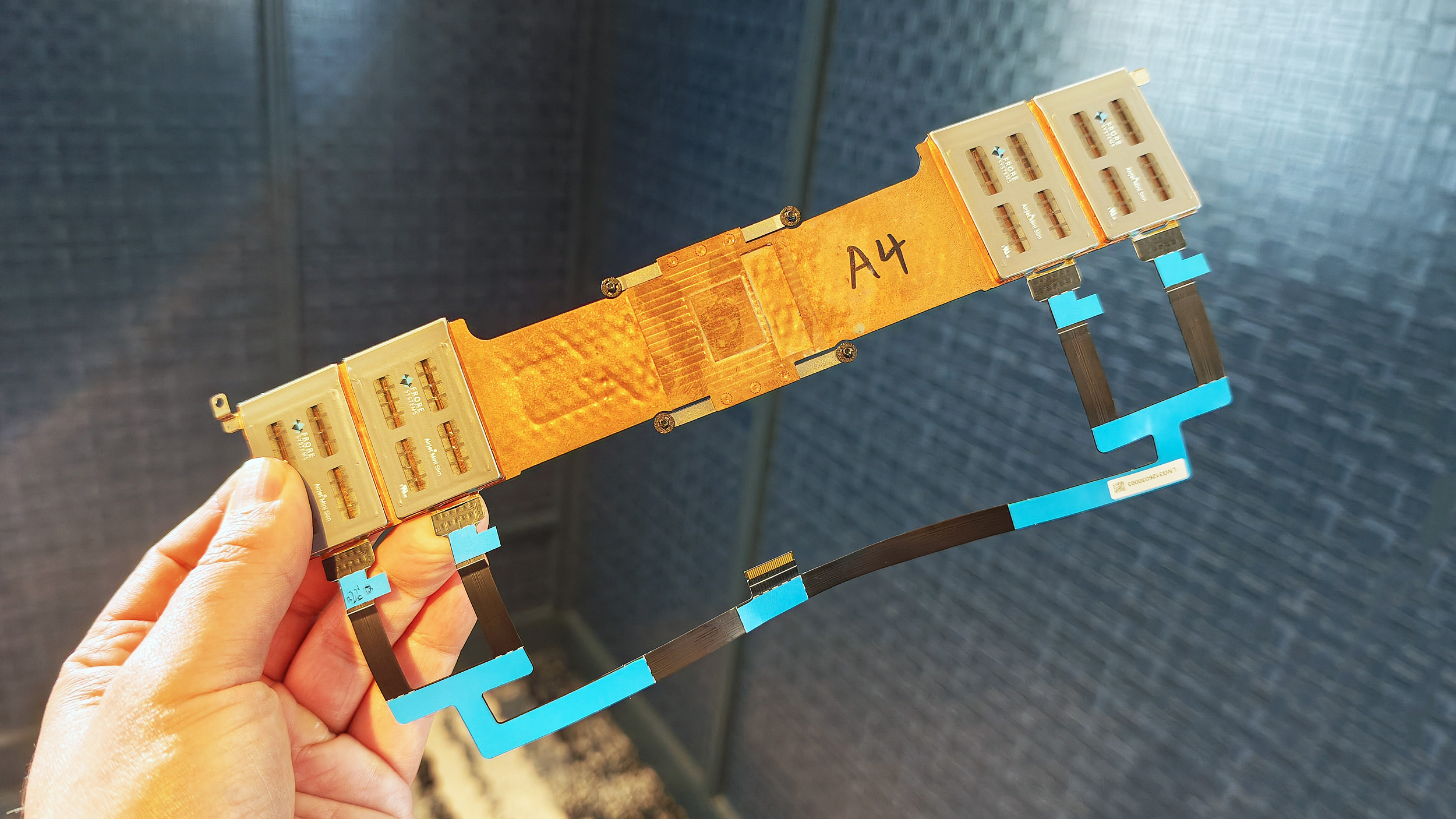
Entire Frore AirJet solid-state cooling strip assembly with copper heat sinks and ribbon cables. (Image credit: Daniel Rubino)
For decades, laptop cooling has largely followed the same formula.
A processor generates heat. Heat pipes move that heat toward a heatsink. One or more fans blow air through the system and out of vents.
The design has evolved, but the fundamentals haven't changed much.
Frore Systems wants to change that.
AirJet is a solid-state active cooling solution that replaces traditional laptop fans with tiny cooling chips that use vibrating membranes to generate airflow. Instead of spinning fan blades, AirJet creates high-velocity pulsating air jets that remove heat while operating at extremely low noise levels. Frore describes it as the world's first solid-state active cooling chip.
One AirJet Mini Slim module is only 2.65mm thick, consumes up to 1 watt of power, removes up to 5.25 watts of heat, and generates significantly higher back pressure than traditional fans. The technology was specifically designed for ultra-thin devices where conventional cooling becomes difficult or impossible.
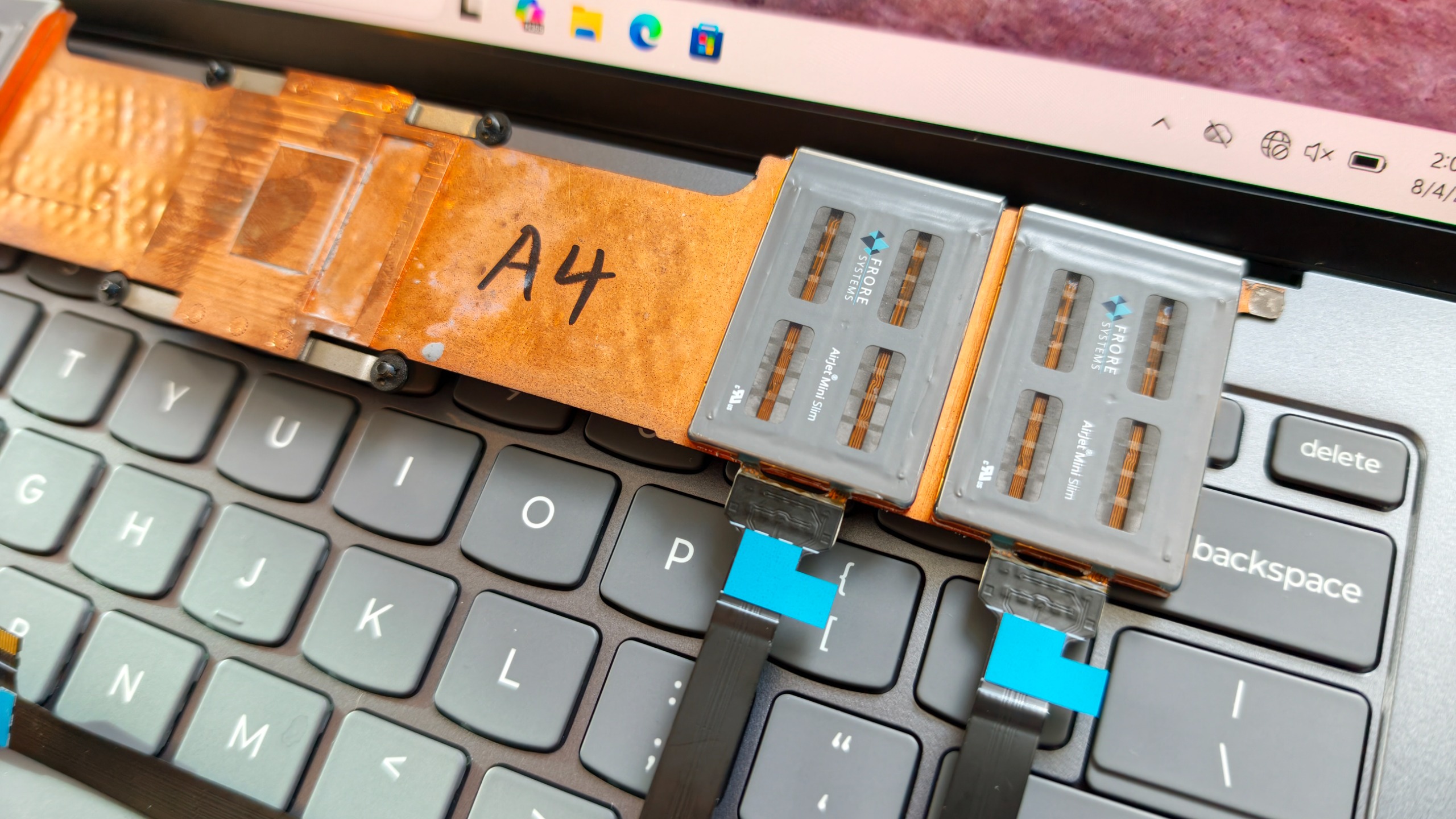
Close-up of two Frore AirJet Mini Slim solid-state cooling chips installed on a copper heat pipe strip above gray laptop keyboard keys showing how they are placed in the laptop. (Image credit: Daniel Rubino)
The clever part is that these modules don't need the large internal spaces required by traditional fans.
Instead of designing a laptop around cooling hardware, manufacturers can distribute AirJet modules throughout the chassis in different locations.
That flexibility is both the technology's greatest strength and its biggest challenge.
During conversations at the event, it became clear why we've seen AirJet demonstrations for a few years but haven't yet seen a flood of mainstream laptops using it.
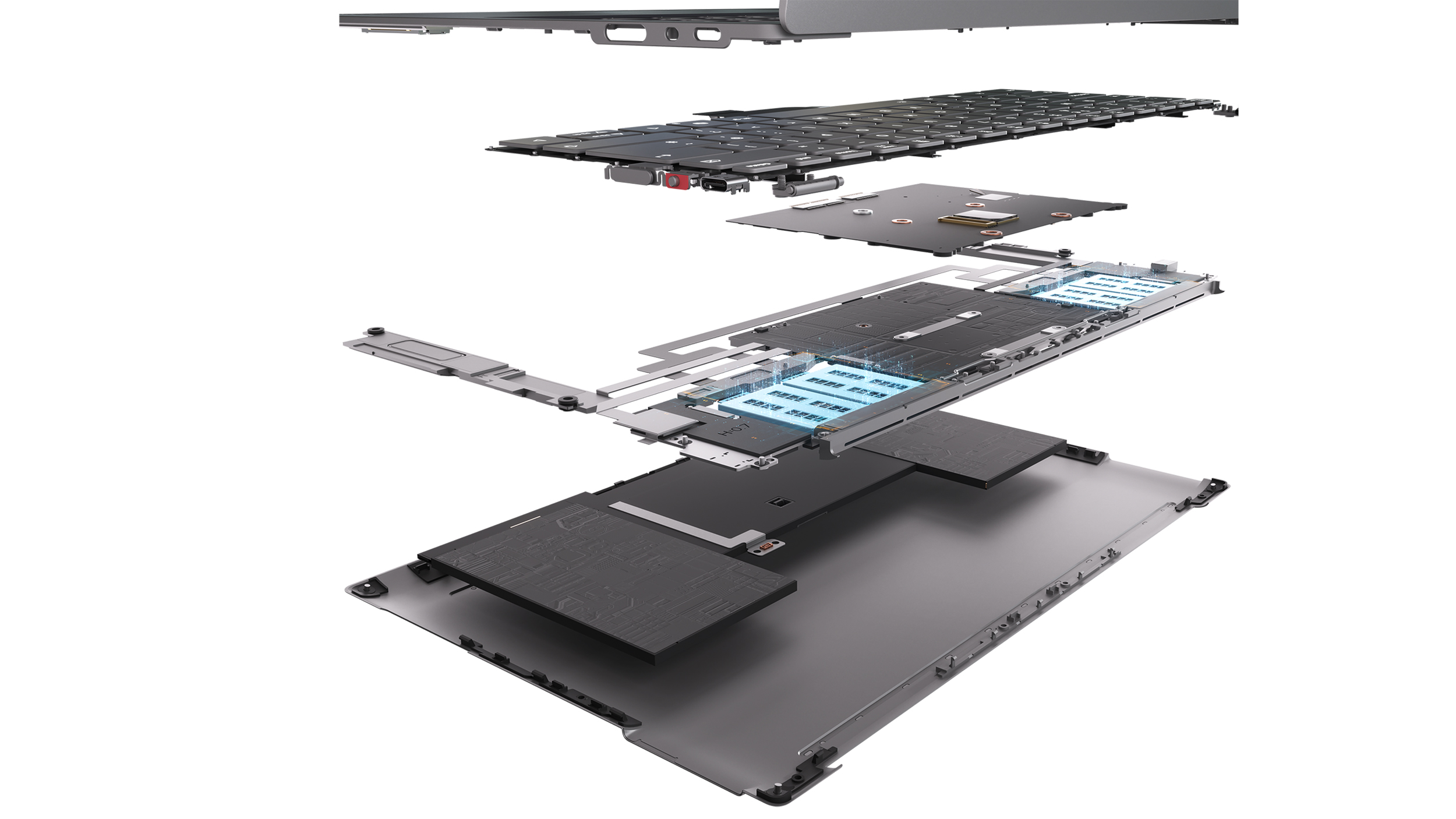
Exploded diagram revealing the internal layers, motherboard, and Frore AirJet solid-state cooling modules of a Lenovo AeroBlade concept laptop. (Image credit: Lenovo)
This isn't a simple parts swap.
OEMs have spent decades designing motherboards, thermal layouts, and internal structures around conventional fans. AirJet requires engineers to rethink much of that architecture. The cooling solution may be smaller, but integrating it properly involves substantial redesign work throughout the entire system.
That's a lot of engineering investment.
But judging by AeroBlade, the payoff might be worth it.
A laptop with almost no compromises
Rendering of the Lenovo ThinkBook AeroBlade laptop. (Image credit: Lenovo)
The most impressive thing about AeroBlade is that Lenovo doesn't appear to be treating fanless computing as a compromise.
Traditionally, when manufacturers build ultra-thin fanless systems, performance becomes the sacrifice. The device is quiet and portable, but sustained workloads eventually cause thermal throttling.
Lenovo's pitch is essentially the opposite.
Side view of an ultra-thin grey laptop standing open at a 90-degree angle, highlighting its extremely slender display and base. (Image credit: Lenovo)
The company believes Active Flow can deliver sustained AI and productivity performance without the compromises typically associated with fanless PCs. The only noise I noticed during my brief hands-on came under heavier workloads, where there was a faint whooshing sound from moving air. It was subtle enough that I had to actively listen for it.
What I didn't notice were intake vents covering the bottom of the chassis. Hooray!
That's because the cooling system works differently than traditional laptop designs. Air management has largely been pushed toward the rear of the system, creating a cleaner and more minimalist design.
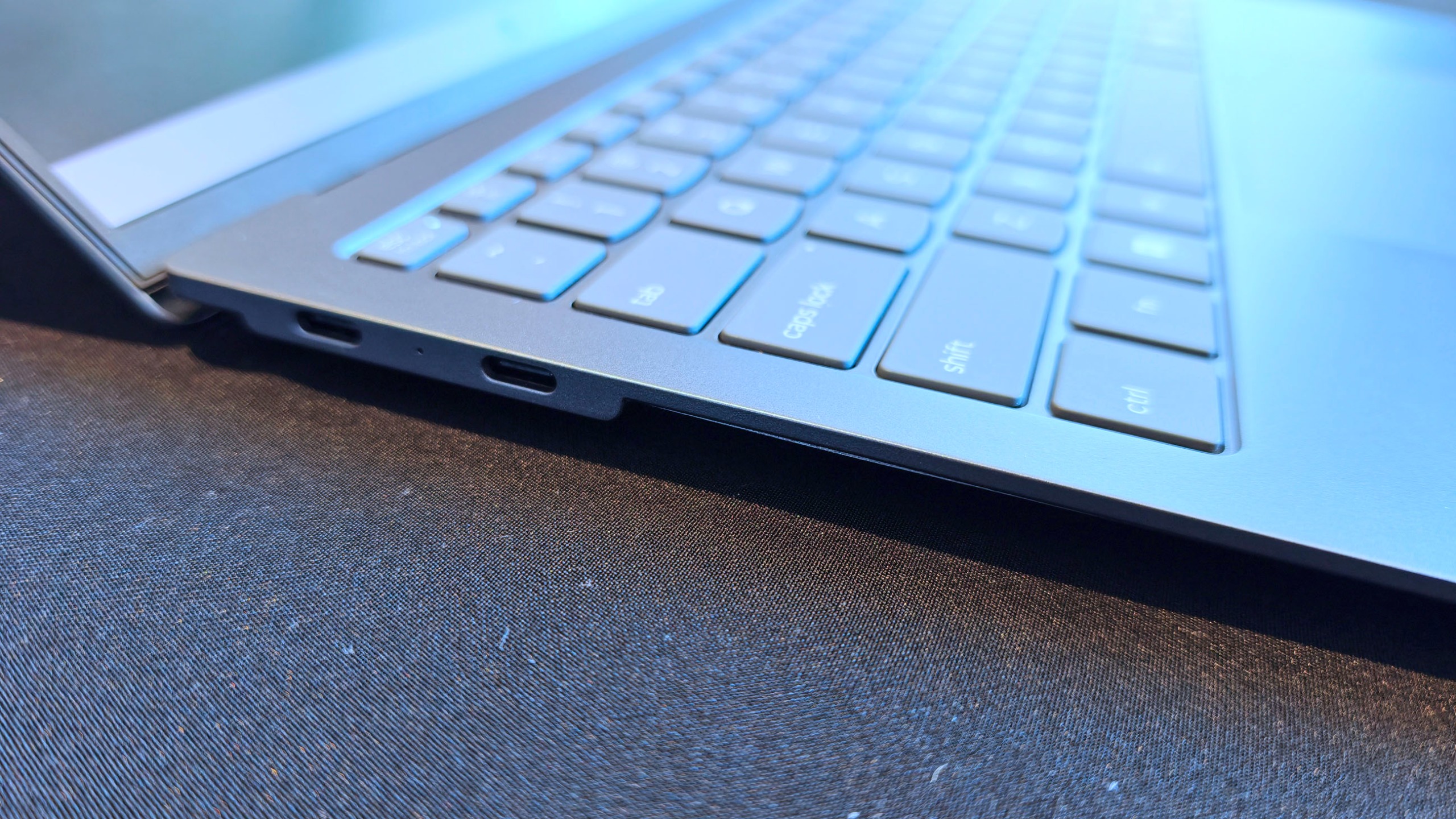
Super thin, but still room for some Type-C ports. (Image credit: Daniel Rubino)
The result is a device that feels almost impossibly refined, and that's why I think AeroBlade is a big deal.
Most laptop innovation over the last few years has focused on AI accelerators, NPUs, display tech, and silicon improvements. Those things are important, but they're largely invisible to users (well, maybe not displays, but still).
In many ways, cooling technology determines what kind of laptop manufacturers can build.
Lenovo could make impossibly thin and light (compared to what we are used to), or use that extra space for a larger battery for absurd laptop longevity. It opens a bunch of engineering doors and options.
The concept that doesn't feel like a concept
Lenovo loves showing proof-of-concept devices, and many never become products.
But the company's track record also shows that some of its most interesting concepts eventually make the jump to production after enough refinement (I'm hoping Lenovo's Legion handheld foldable concept is one of those).
AeroBlade feels like one of those projects. Indeed, this was my first question to Lenovo, as proof-of-concept is often wacky designs, rolling displays, dual displays ... things that look weird but could be useful.
Super thin and light laptop with no vents? Who wouldn't want this? I don't think we really need a focus group to see if it's a good idea!
The hardware already looks polished. The underlying technology exists. The user benefits are immediately obvious. And perhaps most importantly, the industry is constantly searching for ways to make laptops thinner, lighter, quieter, and more efficient.
AirJet checks every one of those boxes.
Will this technology replace fans in gaming laptops with RTX-class graphics anytime soon? Probably not.
But for premium ultraportables, enterprise notebooks, all-in-one desktops, handheld gaming PCs, and productivity-focused systems, I think we're looking at one of the most significant advances in PC design we've seen in years. (We've already openly wondered about Aerojet in a Steam Deck 2).
So, yeah, ironically, the biggest innovation at Lenovo's event wasn't AI.
It was airflow.
Join us on Reddit at r/WindowsCentral to share your insights and discuss our latest news, reviews, and more.
NVIDIA has confirmed new details and availability info about its upcoming RTX Spark SoC for Windows 11 devices. At IFA 2026, the company announced that it expects the first RTX Spark laptops to begin shipping as soon as next month, sometime in October depending on the OEM. Additionally, two new devices are joining the launch lineup; the Lenovo Yoga 9n laptop and Acer SFF desktop PC.Alongside availability news, NVIDIA has also confirmed configuration details for t
NVIDIA has confirmed new details and availability info about its upcoming RTX Spark SoC for Windows 11 devices. At IFA 2026, the company announced that it expects the first RTX Spark laptops to begin shipping as soon as next month, sometime in October depending on the OEM. Additionally, two new devices are joining the launch lineup; the Lenovo Yoga 9n laptop and Acer SFF desktop PC.
Alongside availability news, NVIDIA has also confirmed configuration details for the upcoming RTX Spark chips. There will be two different configurations of the RTX Spark N1X, with configurable RAM and storage based on what OEMs wish to offer. The high-end RTX Spark will be targeted at desktops and laptops, with support for up to 128GB unified memory, 20 CPU cores, and 6144 Blackwell RTX cores.
There will also be a less powerful RTX Spark configuration exclusively for laptops, which can only be configured with 24GB or 32GB unified memory, a 5120-Core Blackwell RTX GPU, and an 18-core CPU. While still a high-end chip, this should allow RTX Spark to ship in laptops that cost closer to $2,000, significantly lower priced than the high-end SoC.
Category
Specification 1
Specification 2
GPU Cores
6144-core Blackwell RTX GPU
5120-core Blackwell RTX GPU
CPU Cores
20-core Grace CPU
18-core Grace CPU
Memory
24-128 GB Unified Memory
24-32 GB Unified Memory
Form Factors
Laptops and Compact Desktops
Laptops
NVIDIA is touting RTX Spark as the best SoC for AI development on Windows. It supports NVIDIAs full AI stack, as well as the Windows Agent Framework and 120B parameter agents. It also supports hardware accelerated 4:2:2 video for video editing professionals.
While the first RTX Spark devices are expected to begin shipping in October, it's not yet clear which OEMs will be first out the gate. All major Windows hardware makers, including Dell, Lenovo, HP, ASUS, and Microsoft have all announced RTX Spark devices that are expected to ship by the end of this year. Devices like the Surface Laptop Ultra have not yet been given a release date, though Microsoft typically does aim to ship new Surface PCs in October.
We'll be sure to keep you updated on all the RTX Spark device availability as more information is revealed by OEMs. In the meantime, are you considering an RTX Spark device as your next Windows PC? Let us know in the comments!
Join us on Reddit at r/WindowsCentral to share your insights and discuss our latest news, reviews, and more.
If you're not a keen follower of the AI space, then the name Hugging Face may not mean anything to you. But the company has just been acquired by NVIDIA, which continues to reinforce its new identity as an AI company. Announced today by NVIDIA CEO Jensen Huang, Hugging Face will be joining the company in an acquisition priced at just under $13 billion. Hugging Face is an open platform that has been likened to GitHub, except for local, open AI models that anyone c
If you're not a keen follower of the AI space, then the name Hugging Face may not mean anything to you. But the company has just been acquired by NVIDIA, which continues to reinforce its new identity as an AI company.
Hugging Face is an open platform that has been likened to GitHub, except for local, open AI models that anyone can use. NVIDIA's plans are to keep Hugging Face the same as it is today but to scale. Because if you're not scaling AI these days, what are you even doing?
"Hugging Face will remain an open platform for the entire AI ecosystem. Developers will choose the models they want, the frameworks they want, the clouds and inference service providers they want and the computing platforms they want. NVIDIA compute will not be required to build on or deploy through Hugging Face.
Hugging Face will continue to support open source and open weight models from across the ecosystem, from every model builder. It will continue to support multi-cloud and multi-accelerator development and deployment, so builders can use the hardware and infrastructure that best fit their work."
Keeping personal opinions about AI aside, I'm certainly more in favor of real people being able to use AI models without having to rely on massive, un-evironmentally friendly data centers from the likes of Microsoft and OpenAI.
AI is very much here to stay, whether we choose to embrace it or not. But I'm definitely on the side of being able to use it however you want to use it and without feeding all your data to companies that don't necessarily deserve it.
NVIDIA is very much AI-first these days, though. Gone are the days we'd all look at its shiny new GPUs, and our only thoughts would be about gaming. It does make you ponder what the future holds for gamers, though.
I've got an RTX 5090, for example, and it's still overkill for gaming. But with 32GB of VRAM and a ton of compute horsepower, it's pretty damn good for local AI use. But is this where future products will be aligned first? Everything's getting more expensive, and AI is definitely to blame for a good chunk of it.
Alas, here we are. If you use Hugging Face currently, it doesn't sound like anything's going to change. But if you're a gaming customer of the company, as I am, I am starting to wonder how important we're going to be in the future.
Join us on Reddit at r/WindowsCentral to share your insights and discuss our latest news, reviews, and more.

 Connexion