Vue normale

  • ✇Yanko Design
  • The $100 Keypad That Puts Each AI Coding Tool Behind Its Own Button
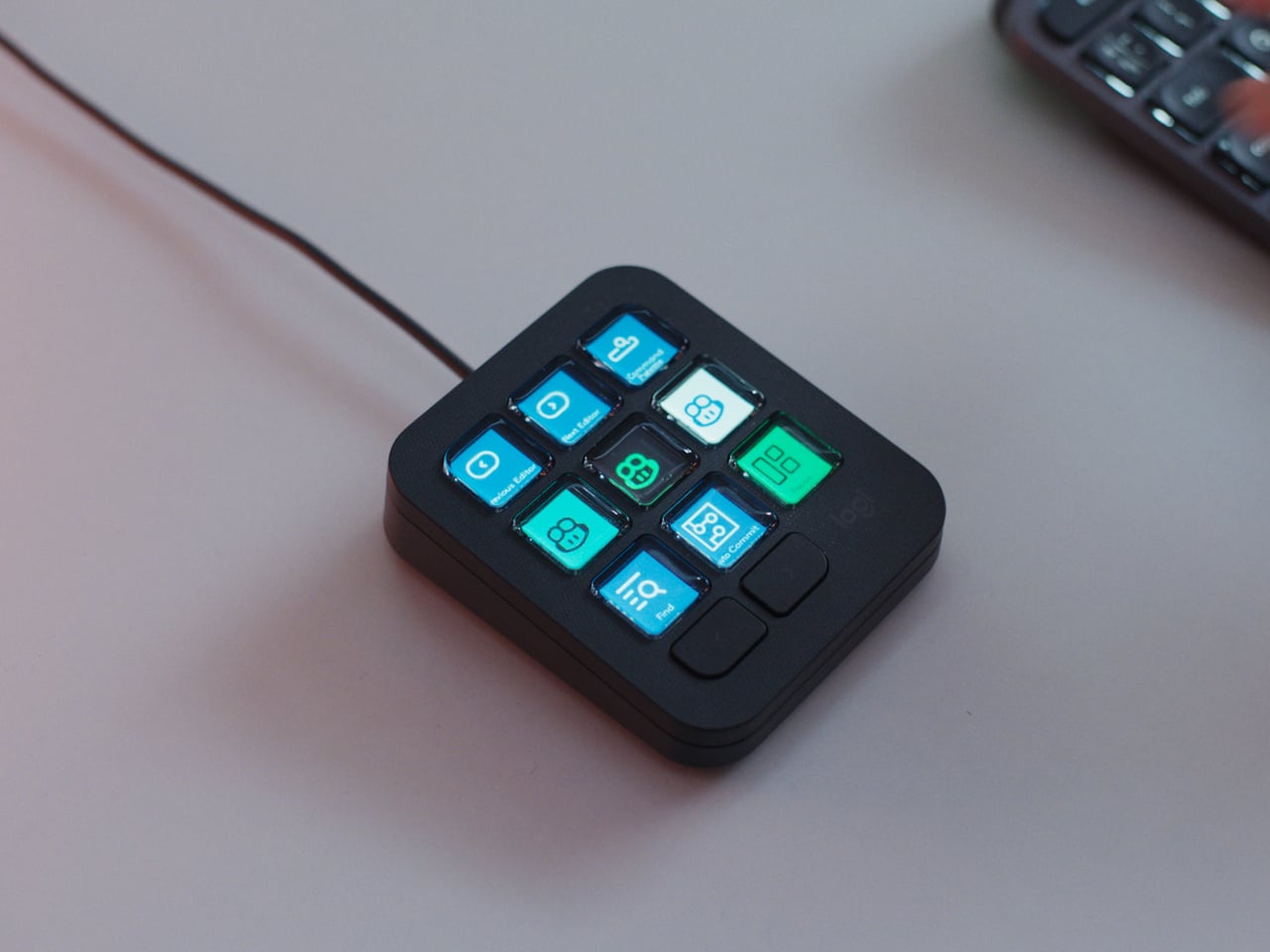
    Every developer juggling AI agents right now knows the feeling of context switching until the whole workflow blurs together. Copilot suggests something in one window, Claude Code runs a task in another, and a dozen prompts live scattered across notes and muscle memory. The Logitech MX Keypad exists to collapse all of that into nine small screens sitting next to the keyboard, each one a physical shortcut into a specific piece of that chaos. Every key on the keypad carries its own full-color LCD
     

The $100 Keypad That Puts Each AI Coding Tool Behind Its Own Button

Par : JC Torres
8 septembre 2026 à 10:20

Every developer juggling AI agents right now knows the feeling of context switching until the whole workflow blurs together. Copilot suggests something in one window, Claude Code runs a task in another, and a dozen prompts live scattered across notes and muscle memory. The Logitech MX Keypad exists to collapse all of that into nine small screens sitting next to the keyboard, each one a physical shortcut into a specific piece of that chaos.

Every key on the keypad carries its own full-color LCD display, so instead of memorizing which function key does what, you glance down and see an icon that actually represents the command underneath it. Press one, and it can refactor a function, trigger a prompt macro, or hand off a task to an AI agent entirely. That small visual feedback loop turns an abstract keyboard shortcut into something closer to a labeled button on a control panel.

Designer: Logitech

What makes the hardware worth paying attention to is where Logitech chose to draw the compatibility line. Instead of building this around one coding environment, the MX Keypad works across GitHub Copilot, Claude Code, VS Code, and IntelliJ IDEA at once. A developer bouncing between an IDE and a terminal-based AI agent doesn’t need separate tools for each, just a different page of keys pulled up on the same nine buttons.

That pattern of paging matters more than it sounds. The keypad can hold multiple profiles, so switching from a Python project running through Copilot to a JavaScript refactor handled by Claude Code becomes a single tap rather than a mental reset. Anyone who has lost a train of thought hunting through browser tabs for the right prompt will recognize the value in never breaking eye contact with the code itself.

Underneath the surface, the MX Keypad ships with prebuilt plugins that Logitech had developers test directly against real coding platforms, rather than shipping generic templates and hoping they fit. An SDK opens the door further, letting teams build their own tools around internal workflows, while a community marketplace means the plugin library keeps growing without waiting on Logitech’s own release schedule.

None of that ambition comes wrapped in bulky, wasteful materials either. The body is made with recycled plastics, keeping the hardware in line with the sustainability commitments Logitech has built into its broader MX ecosystem. It is a small detail, but for a device meant to live permanently on a desk, it matters that the object itself doesn’t feel disposable.

At $99.99, the MX Keypad occupies a strange but clarifying position in a developer’s setup. It doesn’t replace a keyboard, and it doesn’t try to be an AI tool in its own right. Instead, it works like a translator between fast-moving human intent and the growing swarm of coding agents developers now manage daily, one labeled key at a time.

The post The $100 Keypad That Puts Each AI Coding Tool Behind Its Own Button first appeared on Yanko Design.
  • ✇Yanko Design
  • An Android Drawing Tablet With 127 Layers That Still Feels Like Paper
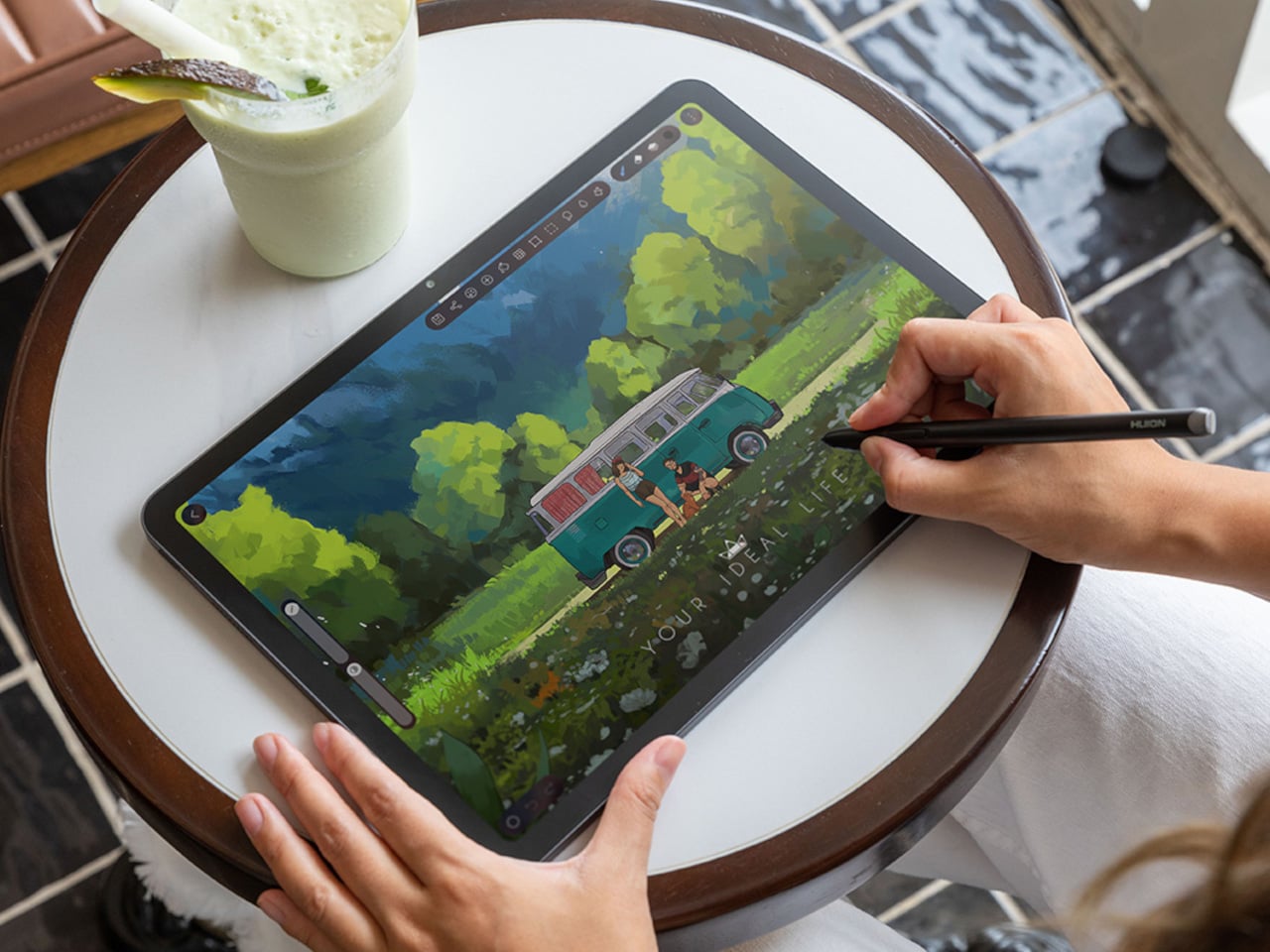
    Most Android drawing tablets make you choose between a screen that feels like paper and hardware fast enough to keep up with a real workflow. The Kamvas Pad 12 refuses that trade-off. Huion built a 12.2-inch standalone tablet around a textured, paper-like display and paired it with enough processing power to hold 127 layers open without stuttering, treating the screen as a genuine canvas rather than a stylus afterthought. That screen runs a 3:2 aspect ratio instead of the usual 16:9, and the di
     

An Android Drawing Tablet With 127 Layers That Still Feels Like Paper

Par : JC Torres
8 septembre 2026 à 09:20

Most Android drawing tablets make you choose between a screen that feels like paper and hardware fast enough to keep up with a real workflow. The Kamvas Pad 12 refuses that trade-off. Huion built a 12.2-inch standalone tablet around a textured, paper-like display and paired it with enough processing power to hold 127 layers open without stuttering, treating the screen as a genuine canvas rather than a stylus afterthought.

That screen runs a 3:2 aspect ratio instead of the usual 16:9, and the difference shows up the moment you start sketching. A wider canvas means fewer awkward crops when composing a portrait or a page layout, and it doubles as a better shape for reading documents or comics without letterboxing. Combined with a 90Hz refresh rate, linework tracks the pen smoothly instead of lagging a beat behind your hand.

Designer: Huion

Canvas Glass 3.0 does the quieter work here. The surface is nano-etched for texture, so the pen tip grips the way it would on actual paper, while a soft-light treatment and anti-glare coating keep long sessions from turning into eye strain. Setting up near a window or working outdoors doesn’t wash out the display, which matters more than most spec sheets give it credit for.

The PW600C pen leans into that same philosophy of getting out of the way. It’s battery-free, weighs just 12 grams, and snaps magnetically onto the tablet body instead of needing a separate case or loop. Someone sketching on a train can toss the pen against the tablet’s edge between stops and trust it’ll still be there, without fishing through a bag for a charging cable or a lost cap.

Underneath, an eight-core MediaTek Genio 720 chip and 8GB of RAM handle the kind of multitasking that used to choke budget Android tablets, running multiple layers and apps without the frame drops that make digital painting frustrating. At 16,384 pressure levels and 60-degree tilt support, the stylus itself translates a feather-light highlight or a bold ink stroke with the kind of nuance that used to be reserved for pricier displays.

Storage tops out at 256GB onboard with room to expand to 1TB, so a growing library of finished pieces, reference photos, and half-done sketches doesn’t force anyone into constant cleanup. Android 16 and full Google Play access mean the tablet isn’t locked into a single app either. Clip Studio Paint, ibisPaint X, MediBang Paint, and Huion’s own HiPaint all come preloaded, ready for whichever workflow fits the project at hand.

Battery life rounds out the case for treating this as a genuine mobile setup instead of a tethered accessory. An 8,000mAh cell inside a 7.8mm metal body keeps the Kamvas Pad 12 running for roughly eight hours, long enough for a full day of sketching at a café or a cross-country flight without hunting for an outlet. That kind of stamina turns a drawing tablet into something closer to a sketchbook you never outgrow.

The post An Android Drawing Tablet With 127 Layers That Still Feels Like Paper first appeared on Yanko Design.

❌