Google’s new Android app store program brings one-tap installs and automatic updates, but US users are excluded, and marketplaces face a $10,000 annual fee.
Windows 11 finally lets you move the taskbar, but Microsoft has not fully restored functionality lost when jumping from Windows 10 to Windows 11. To help bridge the gap, developer Michał Łeptuch created an app that makes it easier to move the taskbar.
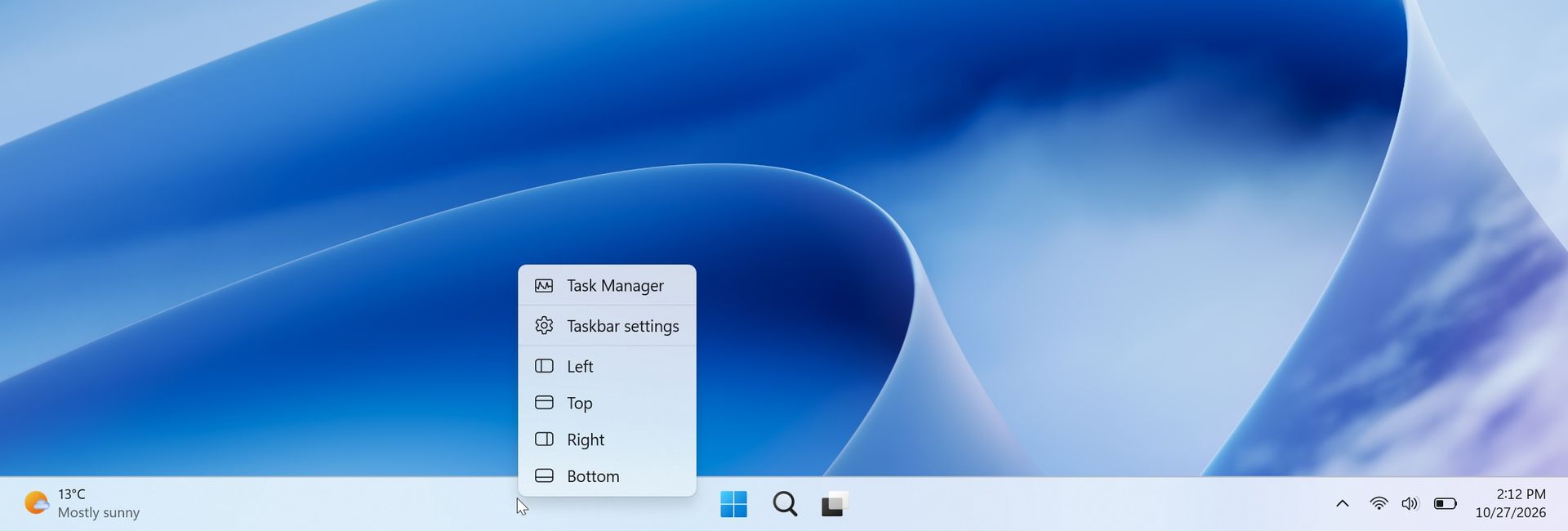
The simply-named "Taskbar Location Options" lets you right-click and move the taskbar to the top, left, right, or bottom of your screen. Alternatively, you can simply click and drag the taskbar to any edge of your display once the app is installed.
The inability to move the taskbar was one of the most criticized taskbar regressions when Windows 11 launched in 2021. One of the most-requested pieces of feedback for years was restoring the ability to move the taskbar to the sides or top of a display.
Microsoft finally restored that functionality last month, but changing the location of the taskbar still requires opening Settings, navigating to Taskbar settings, and selecting a new position from a dropdown menu.
The option to move the taskbar on Windows 11 is buried in the Settings app. (Image credit: Michał Łeptuch)
Łeptuch's app brings back the option to click and drag the taskbar. That feature was available on Windows 10 and previous versions of Windows. I always found it odd that Microsoft brought back the option to move the taskbar but buried it in the Settings app.
Dragging the taskbar is often faster, especially for users who frequently switch between desktop layouts or monitor configurations.
The installation process for Taskbar Location Options requires more steps than I'd like, but that should be smoothed out in the future. At the moment, you have to download a certificate, unblock the file, then run the file with PowerShell before installing the app.
The app's GitHub page includes a download link and a guide to install Taskbar Location Options.
Microsoft deserves credit for finally restoring the ability to move the taskbar, but the current implementation feels unnecessarily tucked away. Taskbar Location Options fills that gap by bringing back the quick drag-and-drop behavior Windows users enjoyed for years.
Join us on Reddit at r/WindowsCentral to share your insights and discuss our latest news, reviews, and more.
Browsing the web without an ad blocker is a brave adventure, especially on the mobile web. That's a big reason why I opted for Microsoft Edge and its built-in blocker on Android so many years ago; I just wanted to read articles in peace. Then again, it's sometimes an experience that's forced upon me when certain pages manage to bypass my ad blockers.
Of course, there are plenty of other browsers to choose from. Almost too many. But I'm not in a position to migrate my bookmarks, history, and logins to yet another Chromium clone just to escape overbearing ads for a while. That's why I've been leaning more on Reading Mode for the past few months or so, and it's a mostly flawless experience.
Reading Mode isn't new, but underappreciated
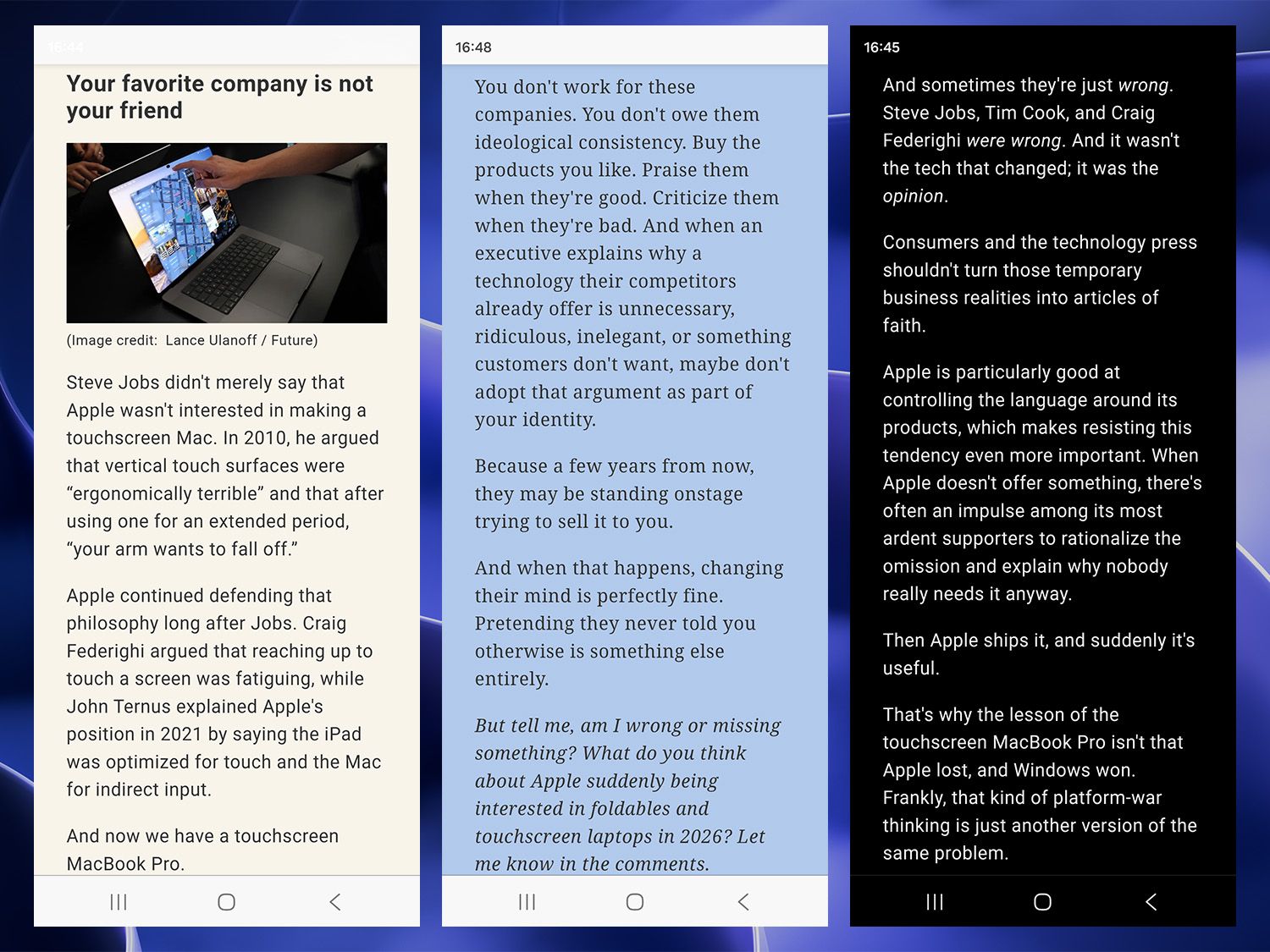
Choose from sepia, monochrome, and.. powder blue(?) (Image credit: Ben Wilson | Windows Central)
Microsoft Edge switches into Reading Mode for compatible articles with a single press of the F9 key, while Google Chrome needs a slightly more involved Alt+Shift+R shortcut. Alternatively, a tiny 'page' icon appears in the address bar on desktop browsers, while the Android app uses an 'open book' equivalent and activates the same thing.
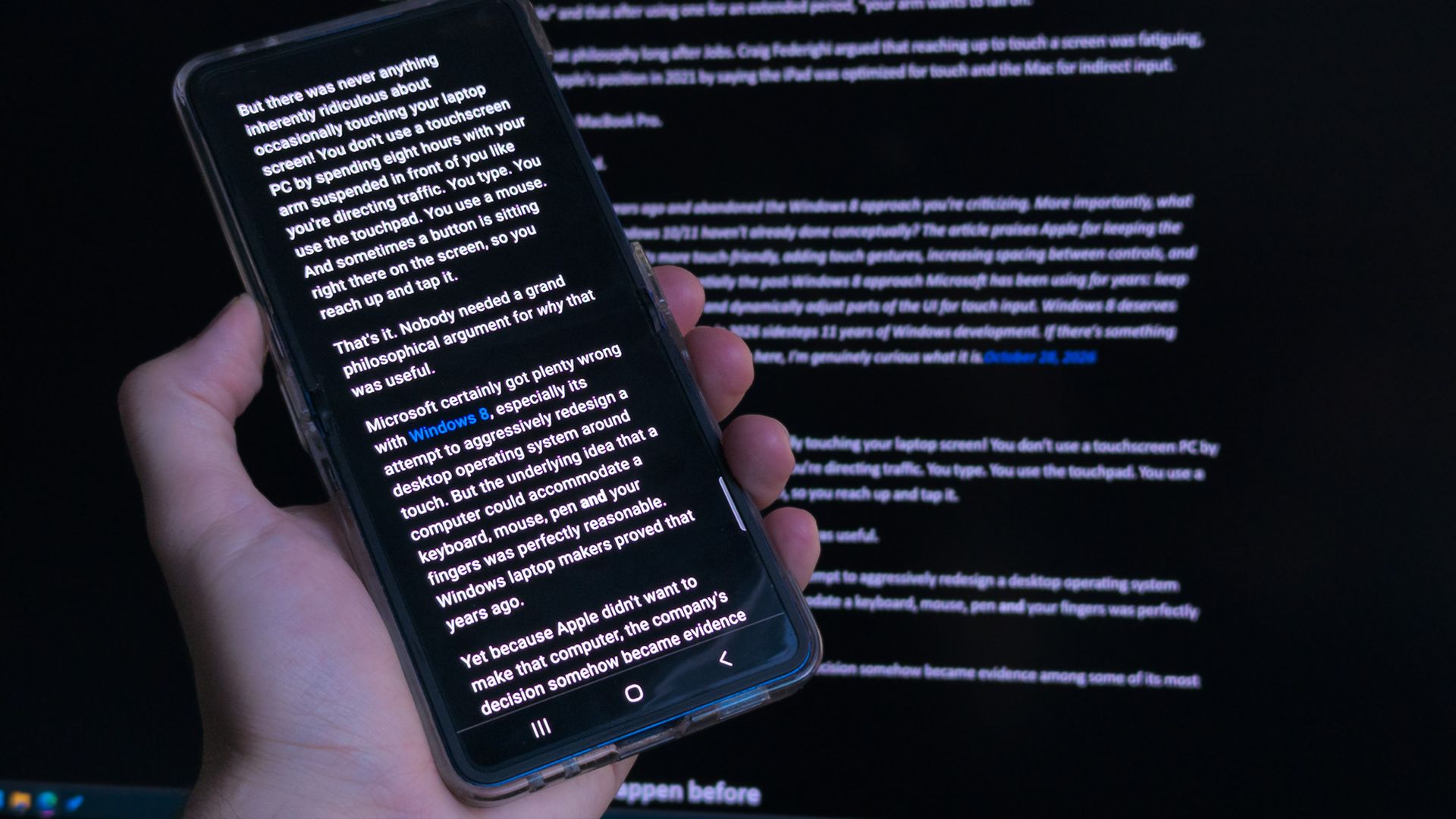
Inside, I can toggle a few customization options, like text size, paragraph width, and color themes for the entire page that go further than a simple light or dark mode. A sepia-toned background might be easier on the eyes for some, and overriding the font to serif (or sans-serif) also helps some users read dense text faster. It's designed as an accessibility feature, but it helps in other ways.
The only downside is that, occasionally, some articles are inexplicably incompatible with Reading Mode, and it doesn't work as the icon disappears completely. It's usually specific to a certain website or outlet, which is even more confusing when they're often geared toward written content. I could probably solve it with another browser plugin, but I'd sooner look for a better ad blocker.
It isn't perfect either, but it's better than ads
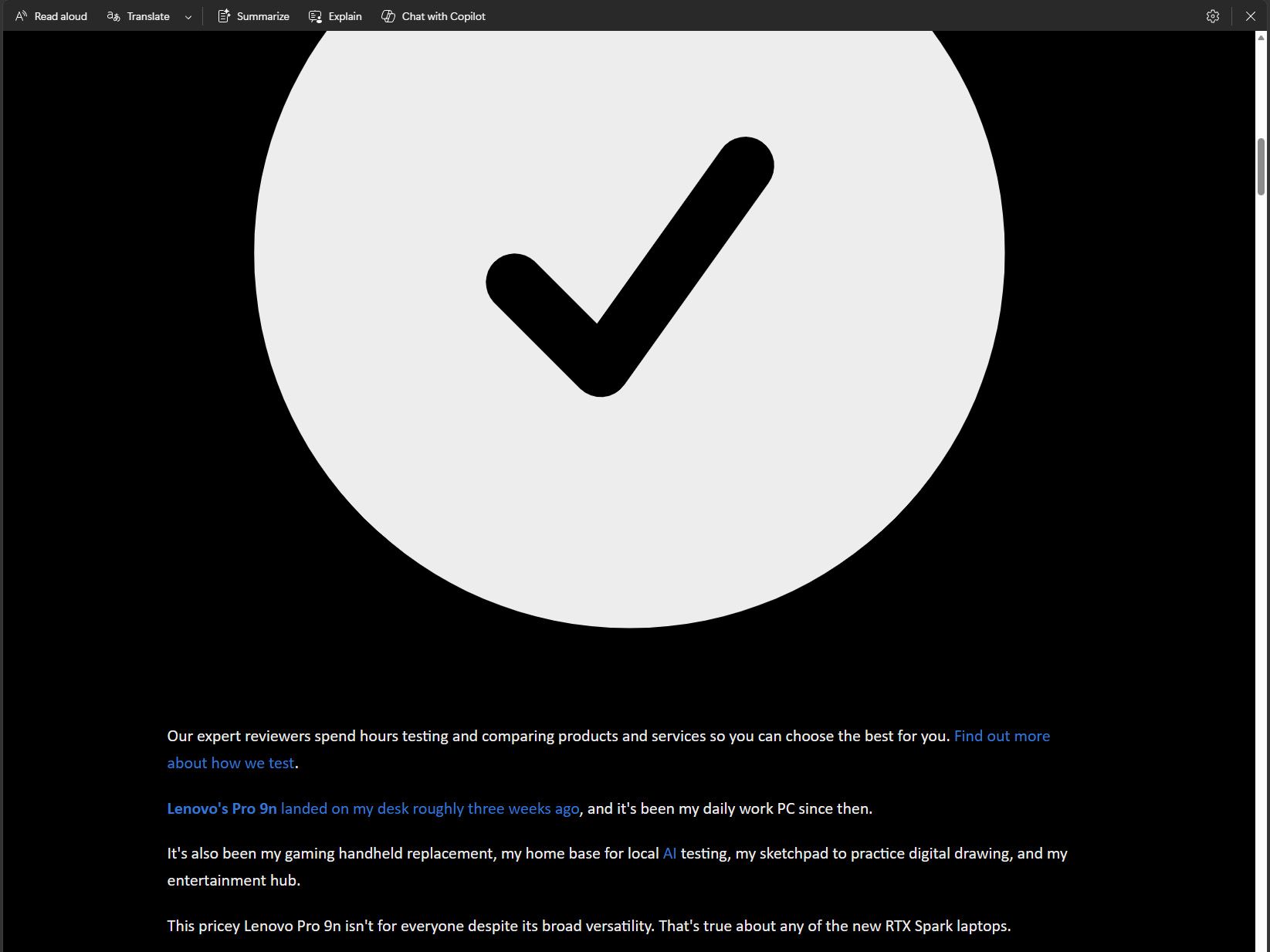
Some .svg vector images get a little overinflated. (Image credit: Ben Wilson | Windows Central)
It's a small change, but switching to Reading Mode on the regular has made the mobile web (and sometimes the desktop web) feel less cluttered and, for the most part, less annoying. Admittedly, there are still times when it goes a little haywire, blowing up tiny .svg icons into full-page eyesores, but, again, it's better than ads that follow me down the page.
Simplify any article or webpage by removing ads, sidebars, and visual clutter—so you can focus and read at your own pace.
Microsoft, describing Reading Mode
There's nothing magical or groundbreaking about it, and no implication that I struck gold on finding some hidden feature. Instead, it feels more like one of those "Huh, I should have been using this for years" kinds of moments. I already contribute to brands that I care about the most through various memberships, but for the rest of the time, I don't want to be bothered with ads.
"Yet you display ads on your website. Curious!"
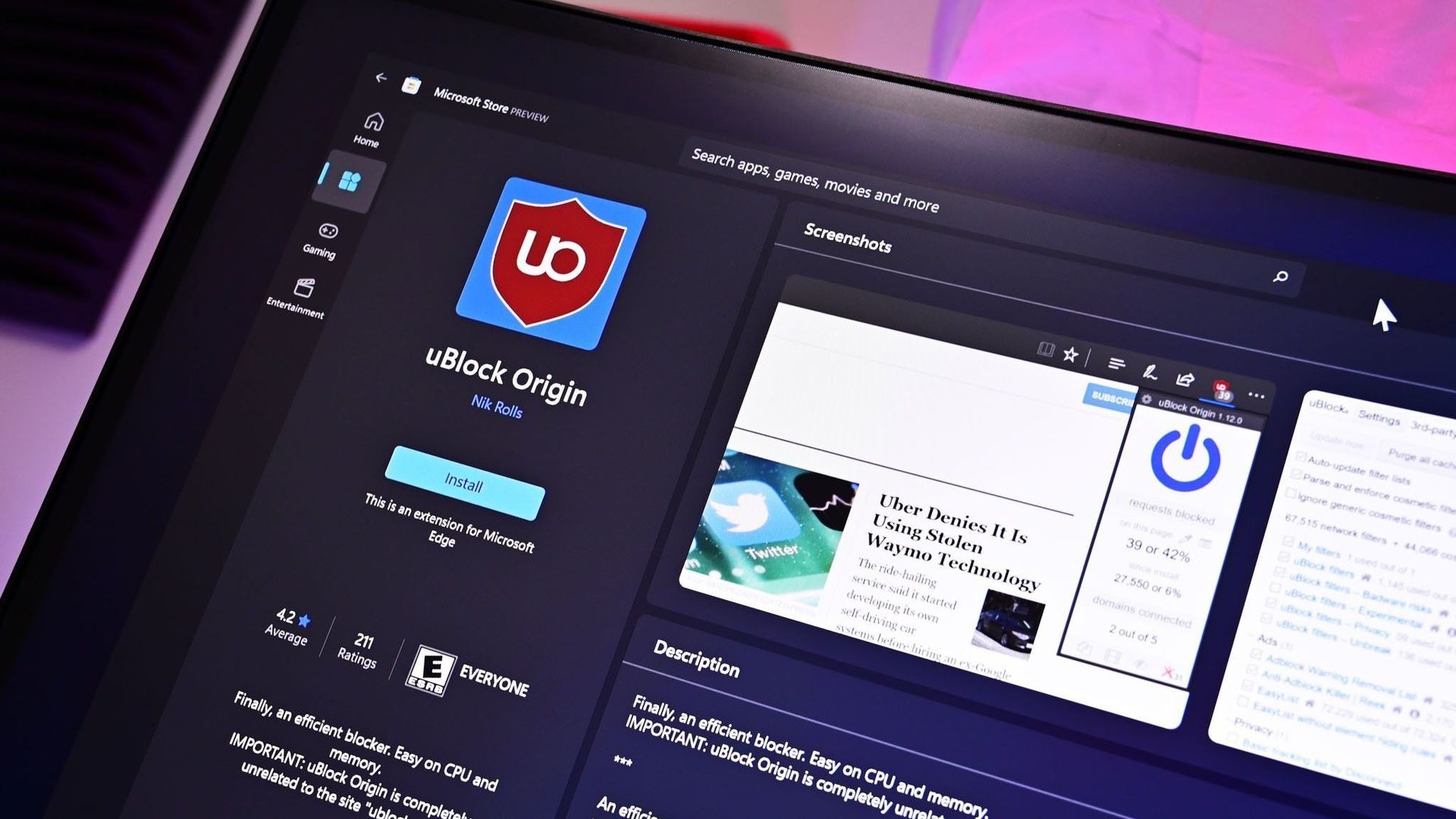
Ad blockers are practically a necessity for the modern web. (Image credit: Future)
Indeed, but you also control your own devices, and what you see generally depends on your choices. Advertising can work when it's done well, and we request ads relevant to our content, even if that doesn't always work out. In that, I'll generally only switch to Reading Mode once I've landed on a (usually long-form) article, to keep distractions to a minimum.
Ultimately, I'd much rather read some creative writing and human-driven opinions over an AI summary, and Reading Mode is proving to be the best way to do it. Again, I could consider an even better plugin as a replacement, but so far, I've been quite happy with this setup for now. Hopefully, Microsoft won't mess with it (or remove it entirely) on mobile.
Maybe you've found an even better solution? Perhaps an extension that has a little more determination to work on absolutely any article? I'm open to suggestions. Let me know in the comments if you have a setup that works for you, or what you think about reading articles on the mobile web in general. We'll always forward any feedback on our ads to the right people, too. We hear you.
Join us on Reddit at r/WindowsCentral to share your insights and discuss our latest news, reviews, and more.

 Connexion