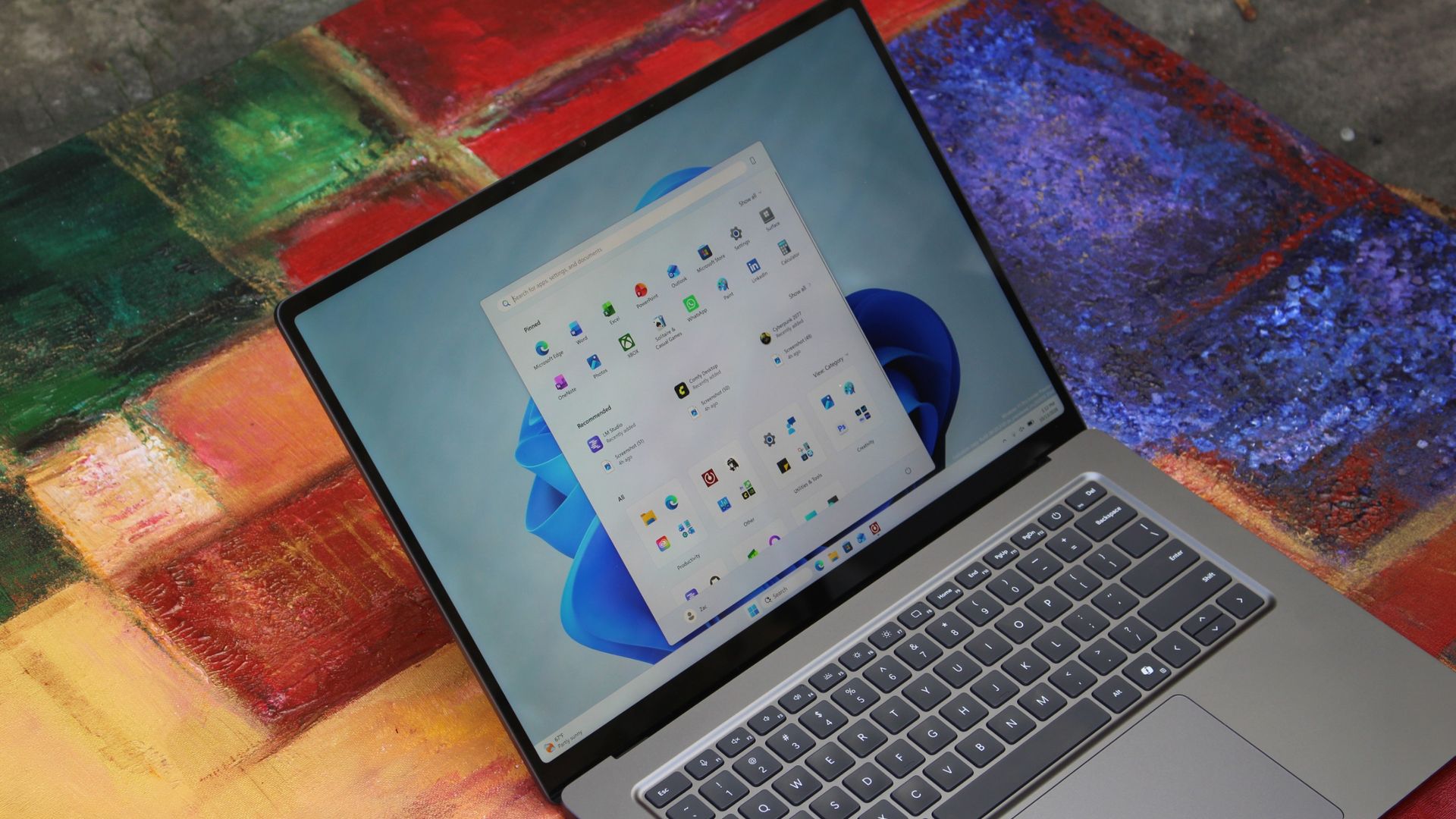
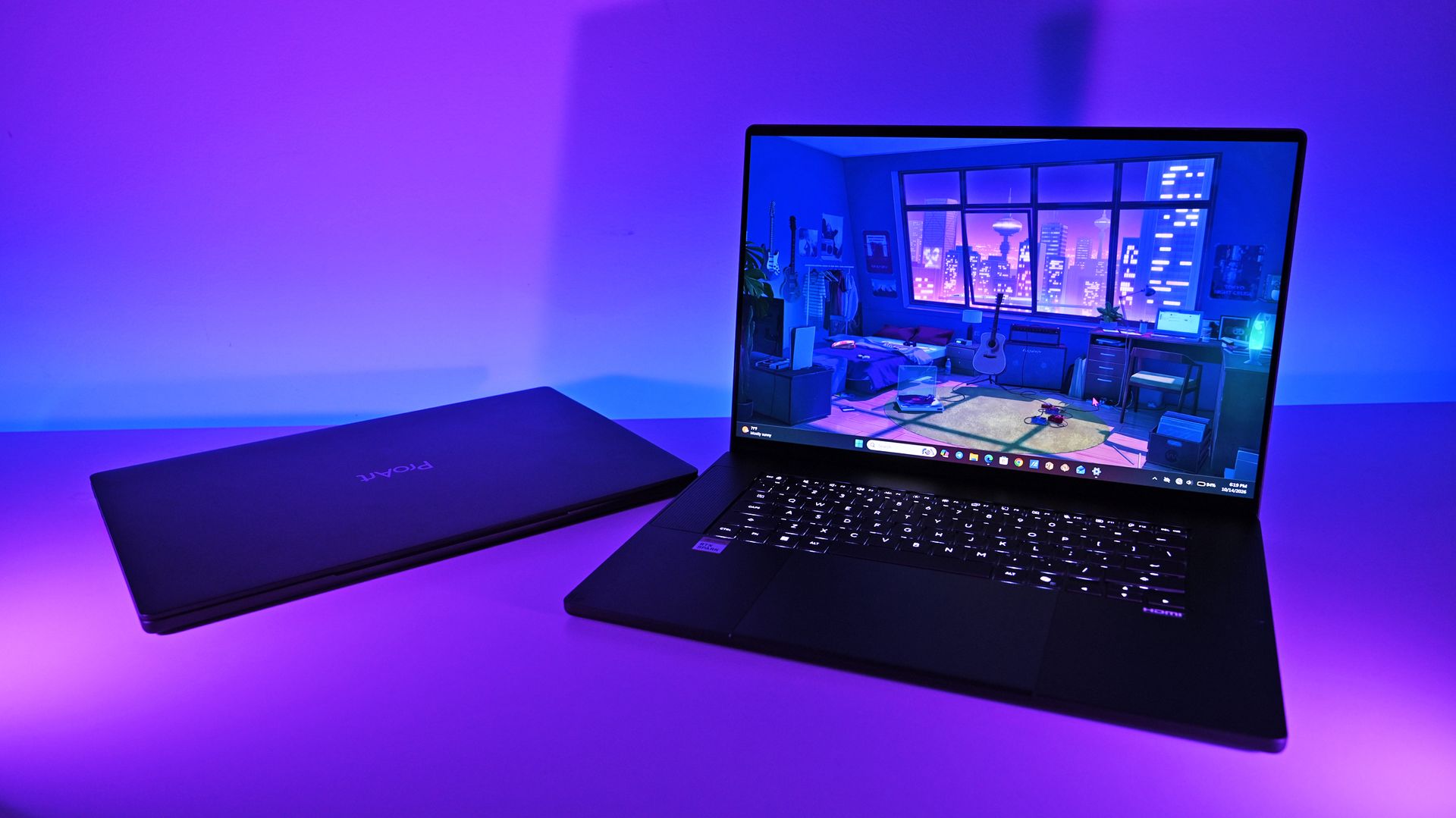
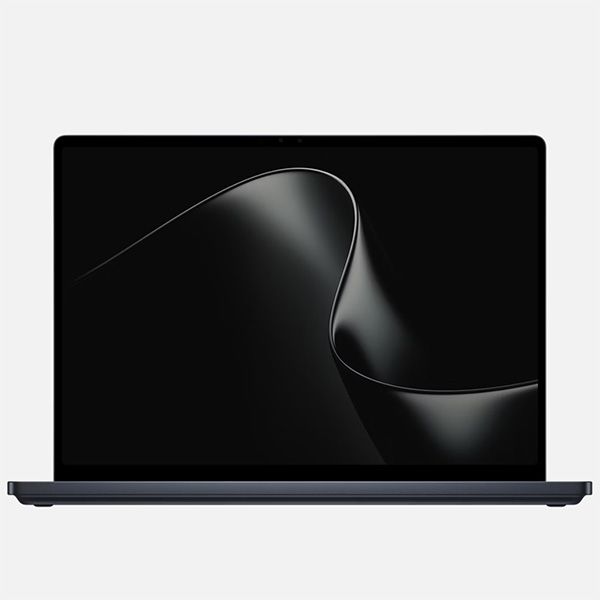
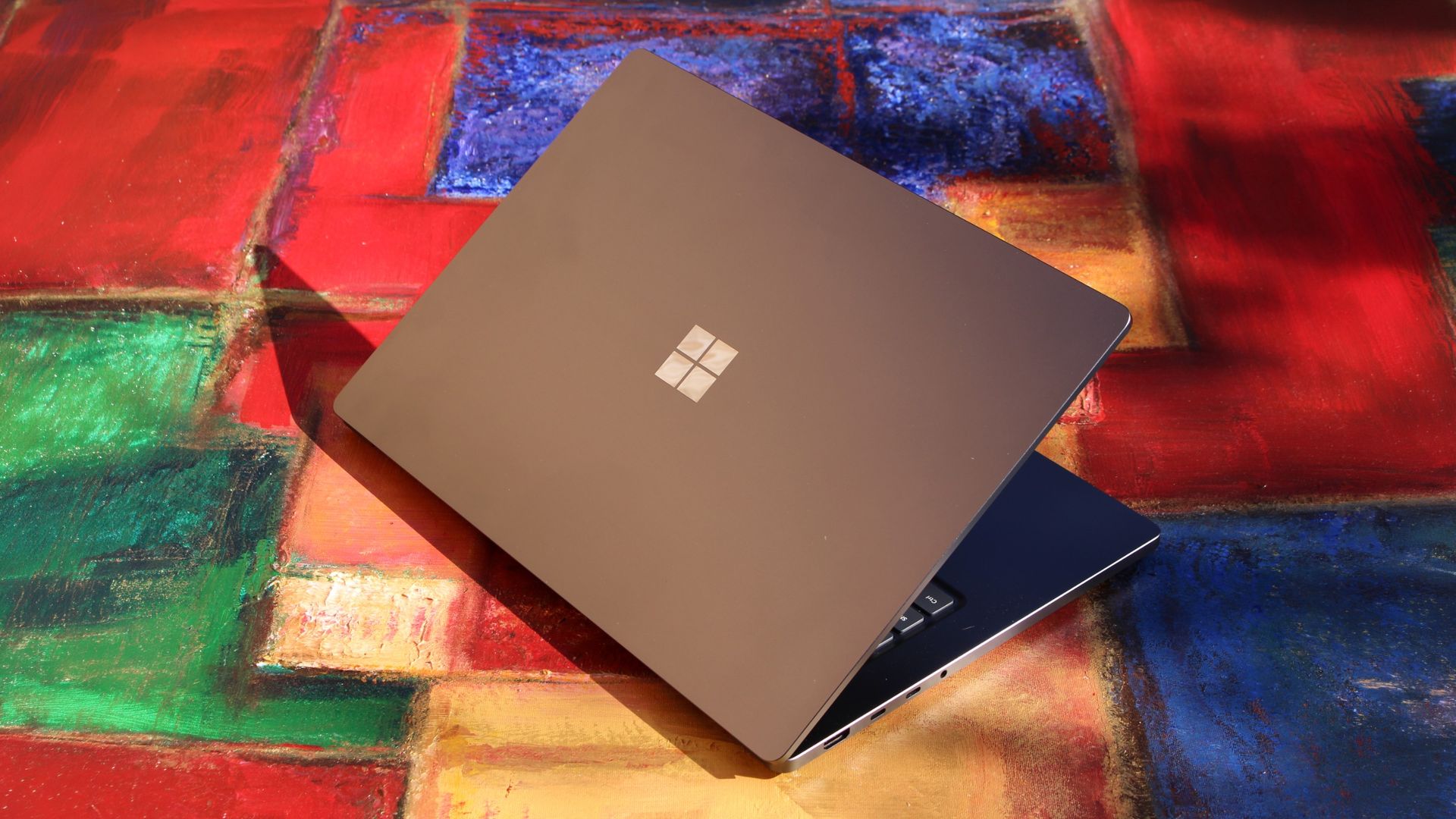
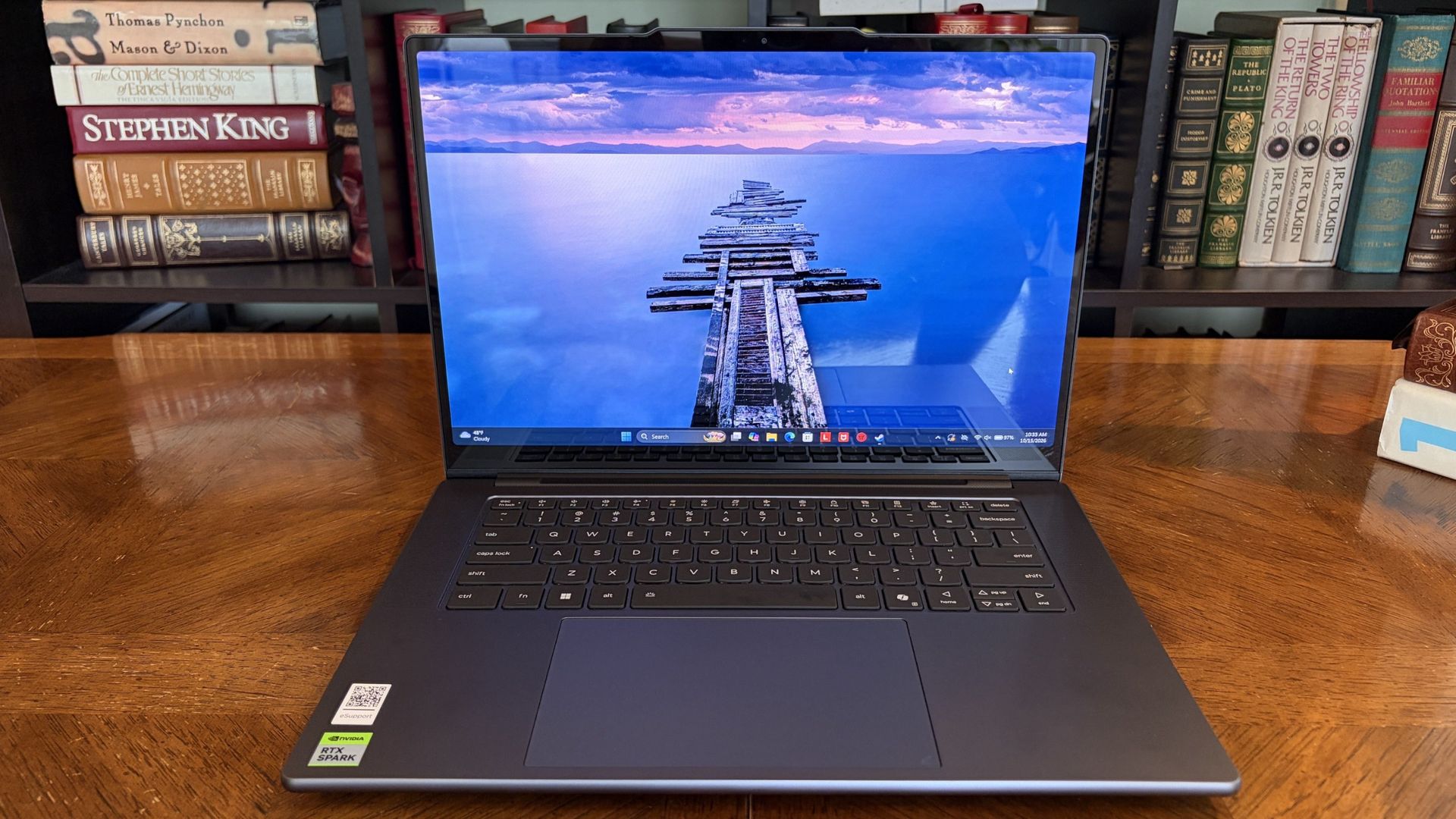
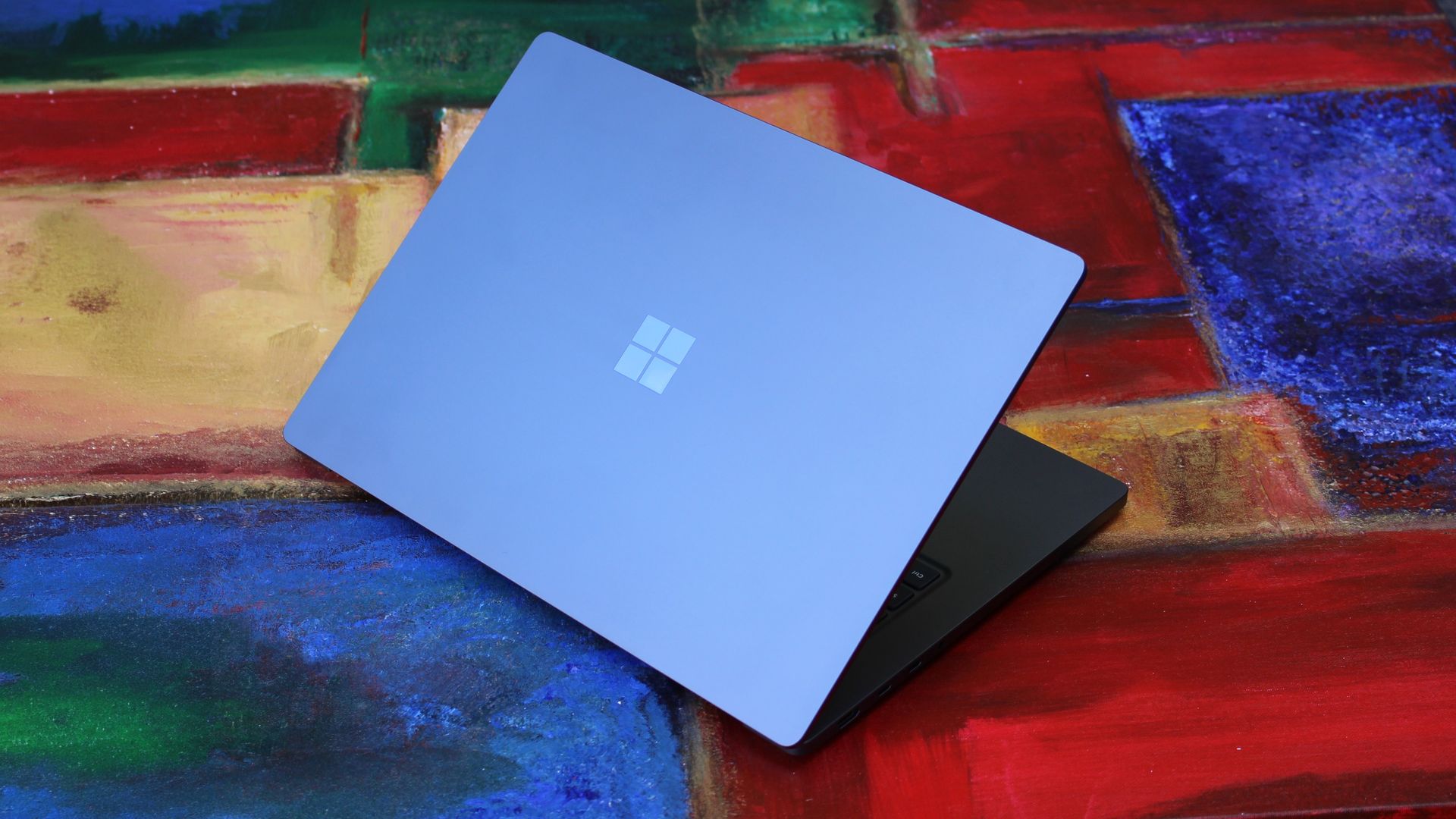
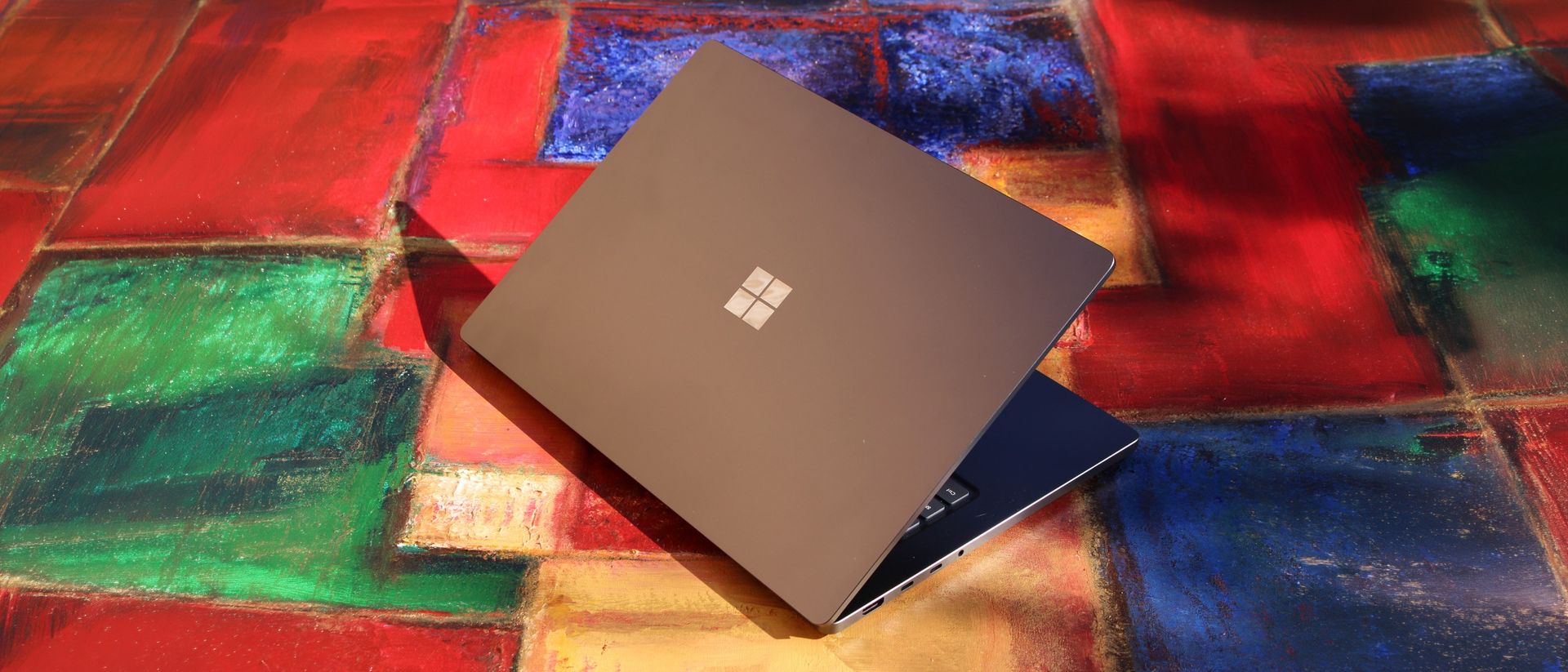
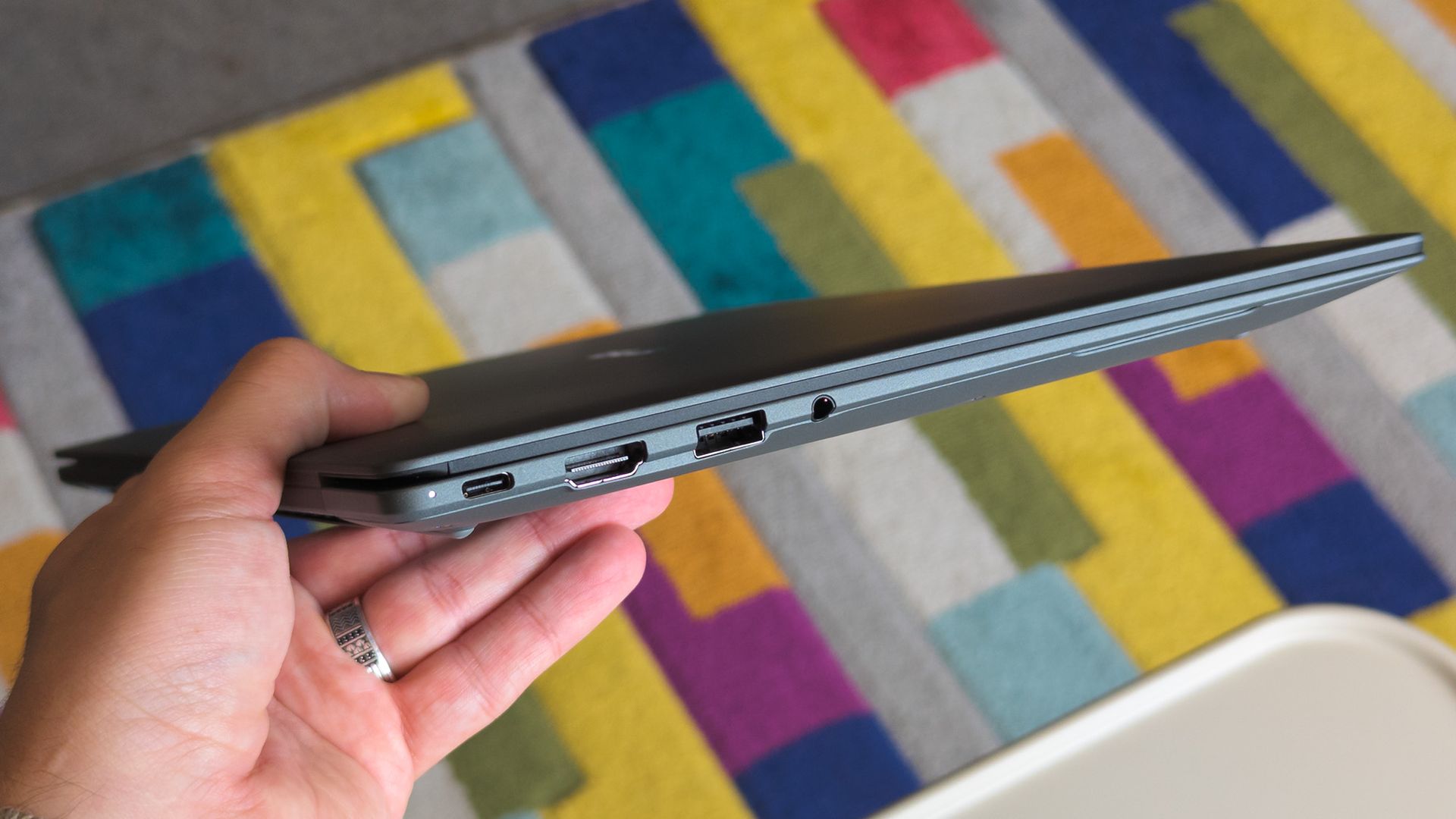
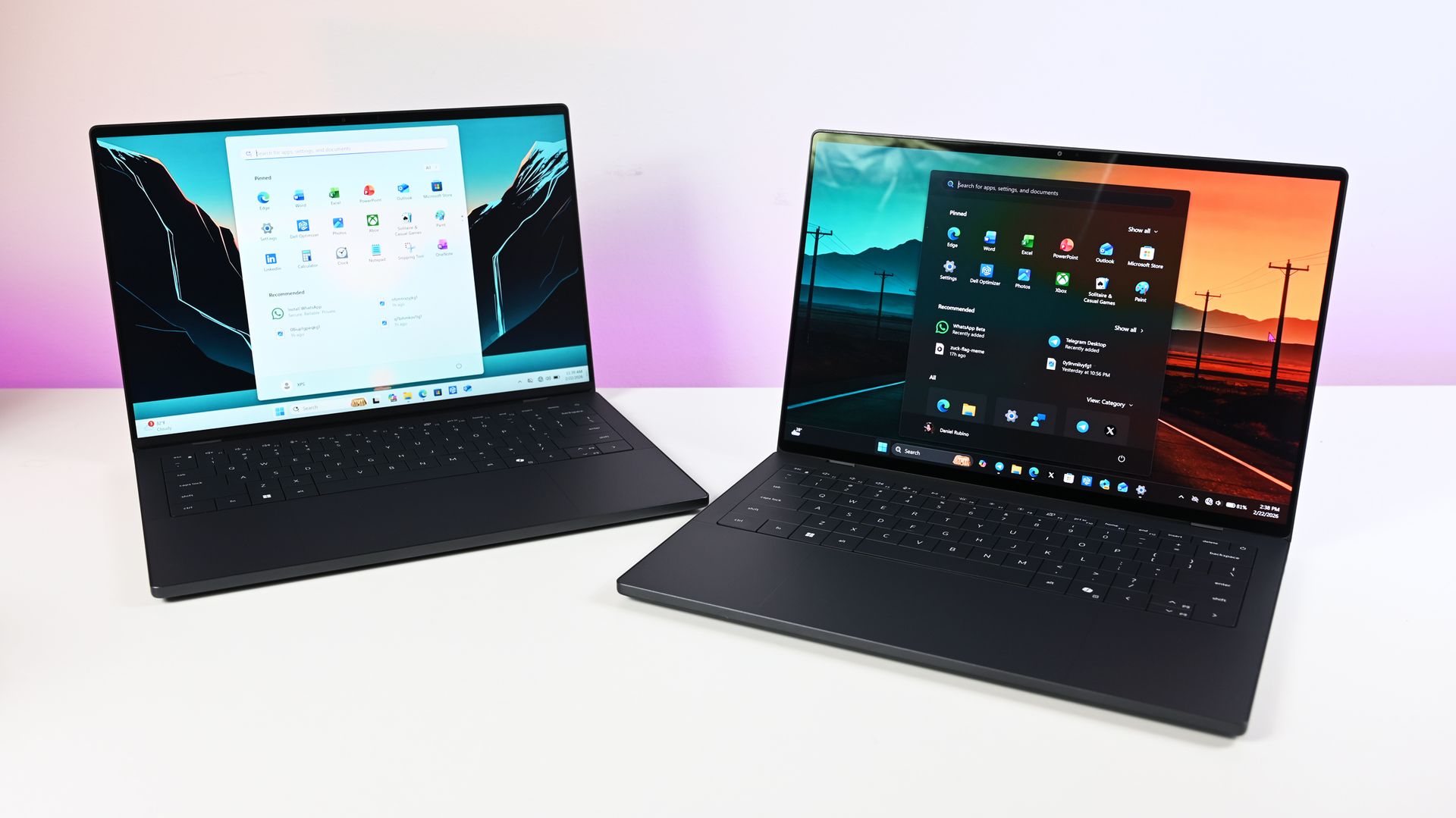
Microsoft has released its first firmware update for the new Surface Laptop Ultra that fixes a number of issues that users and reviewers have reported since launch day a few weeks ago. Namely, issues with the display and long reboot times are finally being addressed.
According to the changelog, this firmware update was released on October 22, 6 days after the Surface Laptop Ultra launched. It appears under the name "Microsoft Corporation System Hardware Update (200.0.7.0)" in Windows Update, and includes the following fixes:
Resolves an issue that could cause extended reboot times.
Resolves an issue that could cause screen flickering.
Resolves an issue that could cause unexpected restarts.
Includes additional bug fixes and general performance improvements.
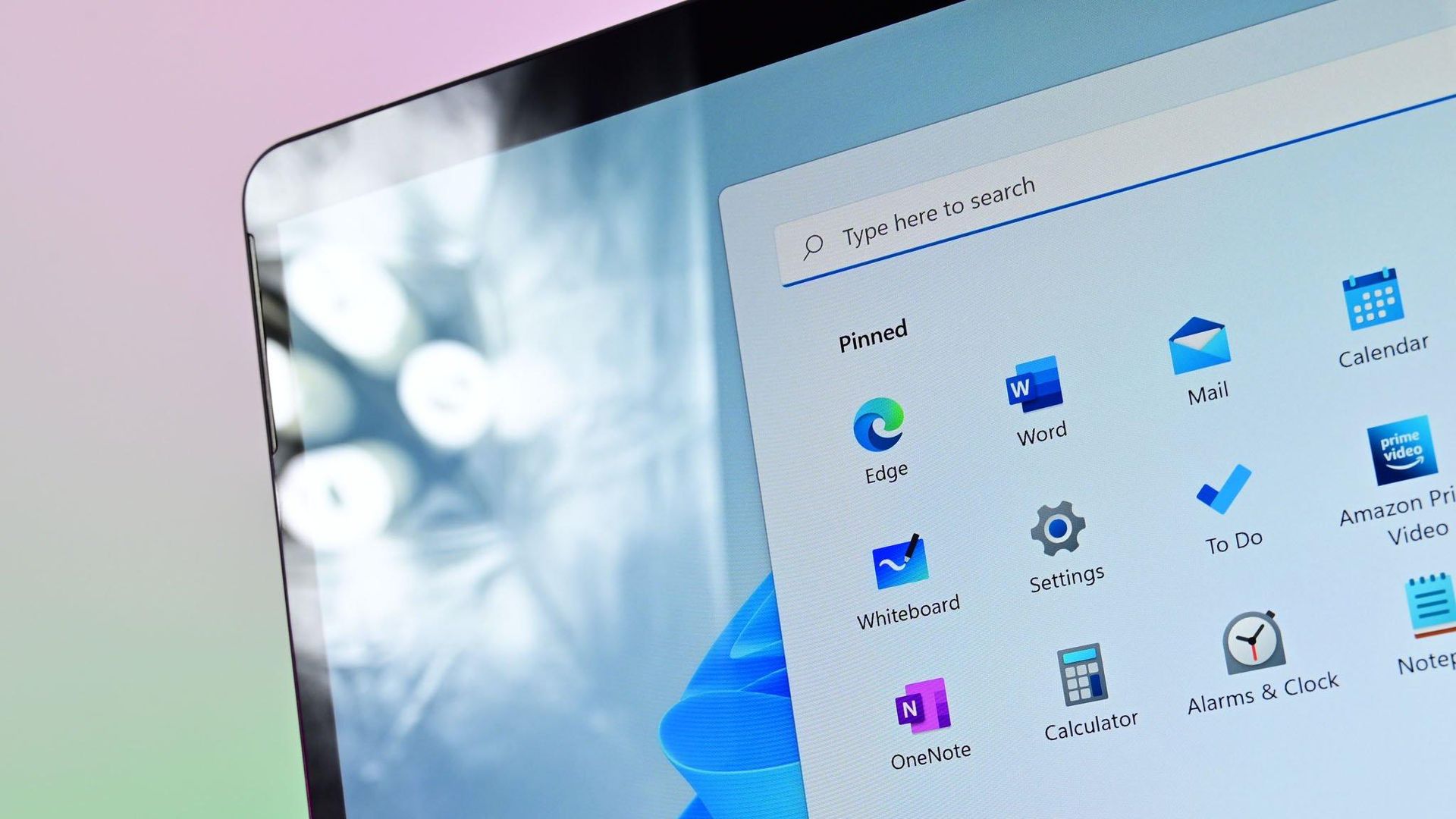
Reviewers (myself included) had noted that the Surface Laptop Ultra's Mini-LED screen was disappointing as the display suffered from ghosting and flickering. Microsoft says the flickering issue should now be fixed with this latest update, though the ghosting issue is still present.
I also mentioned in my review that the Surface Laptop Ultra suffered from really long reboot times, which made installing Windows updates and drivers a pain as it made the process take twice as long. That issue is now also fixed as of this latest firmware update.
Other fixes include performance improvements and a reduction in unexpected restarts (BSODs,) something I am yet to encounter on Surface Laptop Ultra anyway. It's good to see Microsoft moving so quickly to improve the Surface Laptop Ultra, which is expected to get firmware updates for 6 years, until 2032.
Surface Laptop Ultra is on sale now starting at $2,599. It's Microsoft's first RTX Spark powered Surface PC, which explains why there have been some teething problems with the platform. I expect Microsoft to issue more bug fixes and improvements via firmware updates over the coming weeks.
Join us on Reddit at r/WindowsCentral to share your insights and discuss our latest news, reviews, and more.
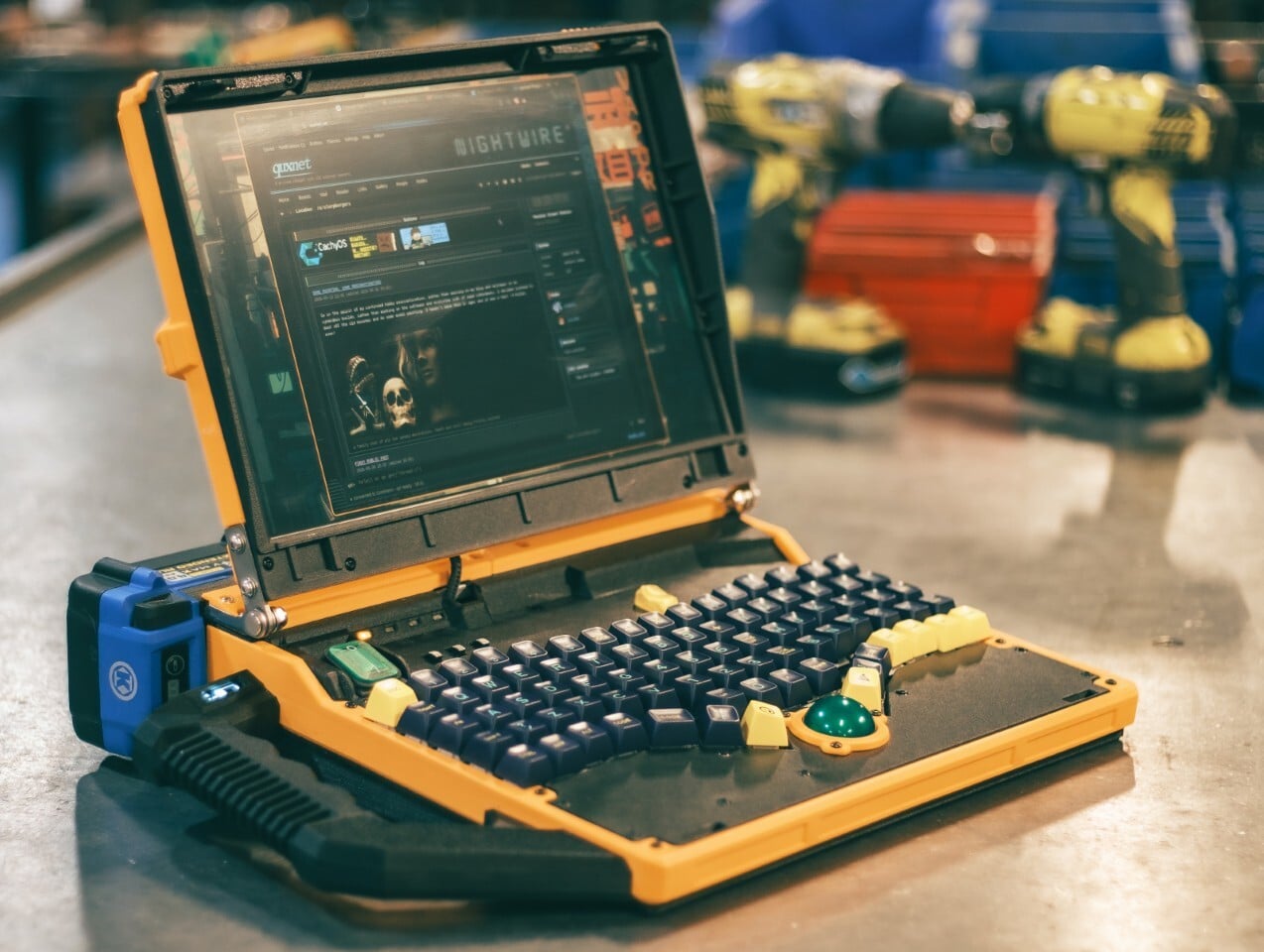
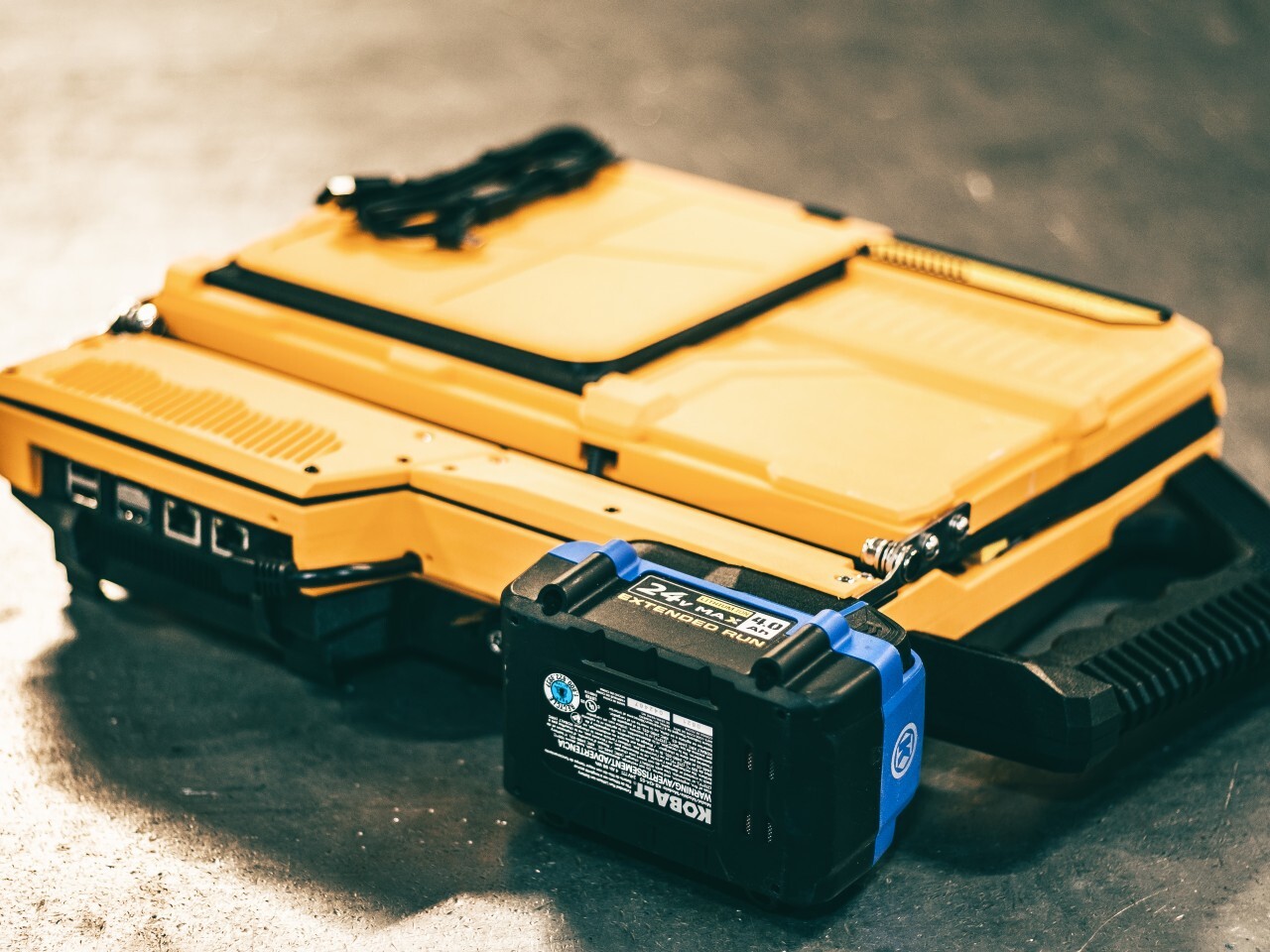
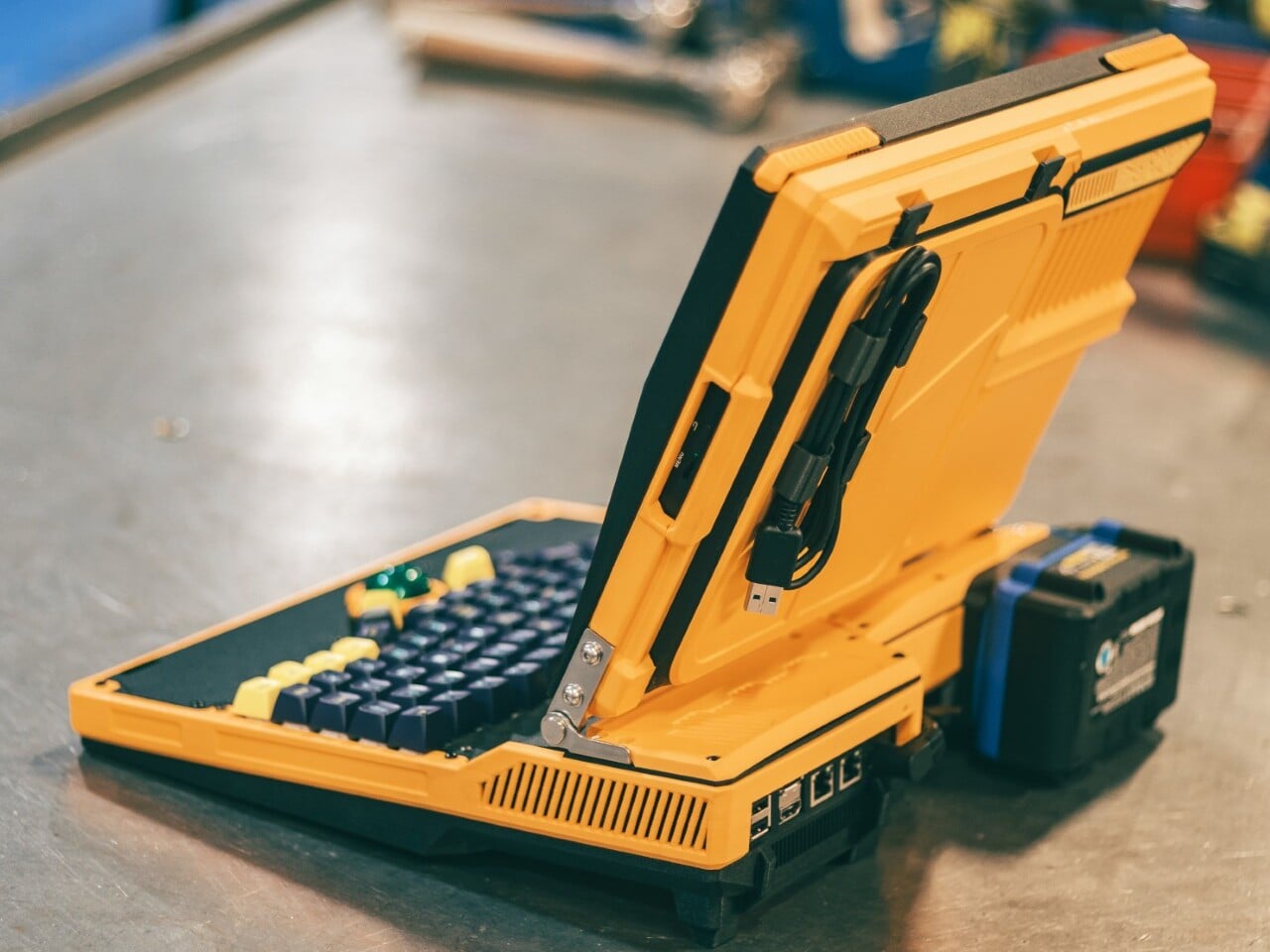
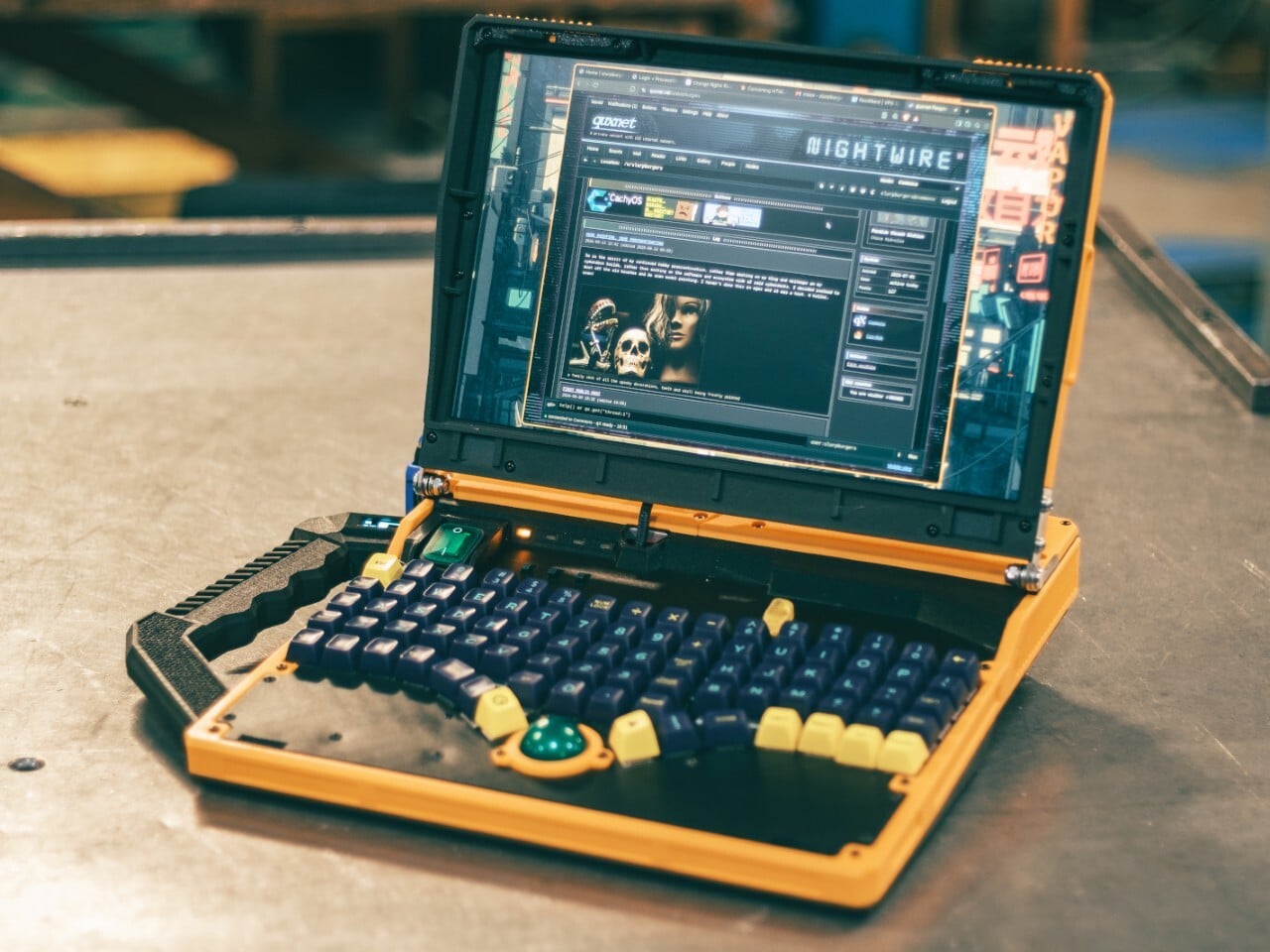
The Slurptop borrows its battery from the toolbox, and its body doesn’t bother pretending otherwise. This homemade cyberdeck wraps mini PC hardware in a chunky yellow-and-black clamshell, complete with an integrated carry handle and mechanical keys. It’s a completed personal project rather than a retail laptop, designed around coding, light design work, and controls that don’t apologize for taking up some extra space.
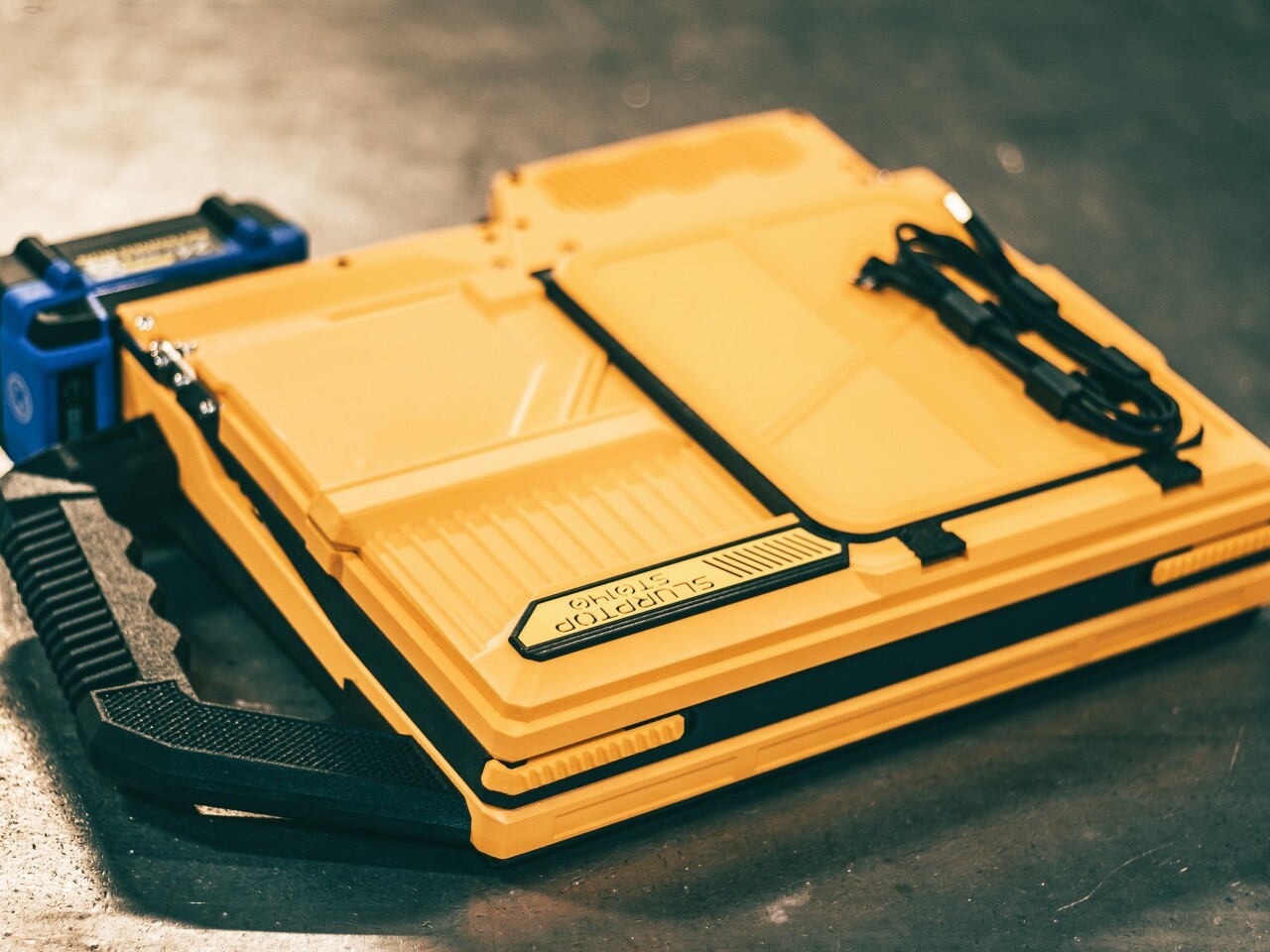
The angular, 3D-printed enclosure takes its cues from power tools, with similarly conspicuous controls. The yellow frame uses glass-fiber-filled plastic, while black components use carbon-fiber-filled filaments. An aluminum bar reinforces the hinge area, with shared bolts securing several structural layers. The handle fits between sections of the case, so assembling the housing locks it into position before its own mounting screws are added.
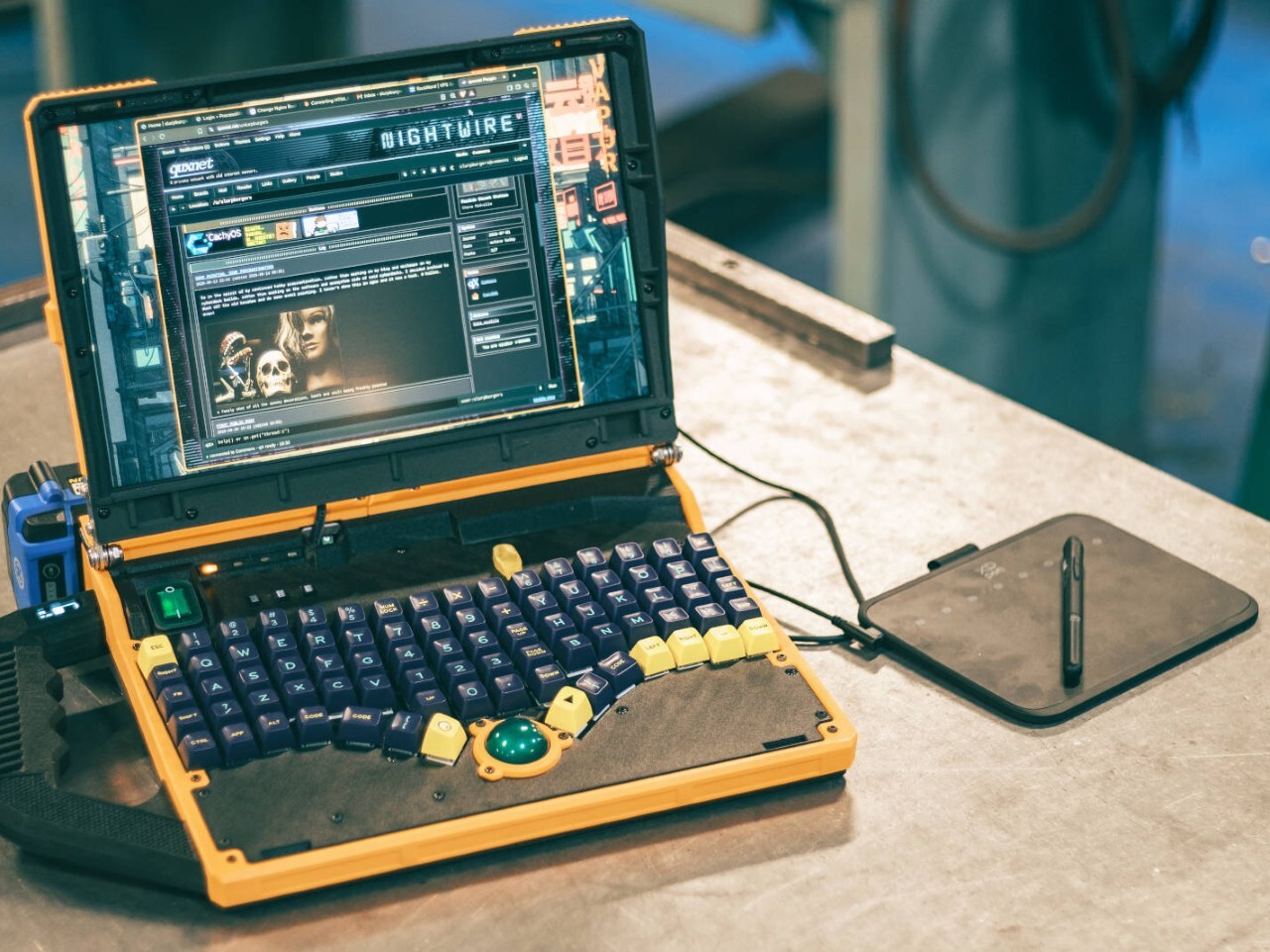
Open the lid, and the keyboard immediately takes over. Its 82 mechanical keys sit in angled groups rather than the straight rows you’d expect on a laptop, leaving a green trackball near the front center. That ball runs on three ceramic bearings above a sensor salvaged from a gaming mouse. You can move the pointer without clearing desk space for a separate mouse.
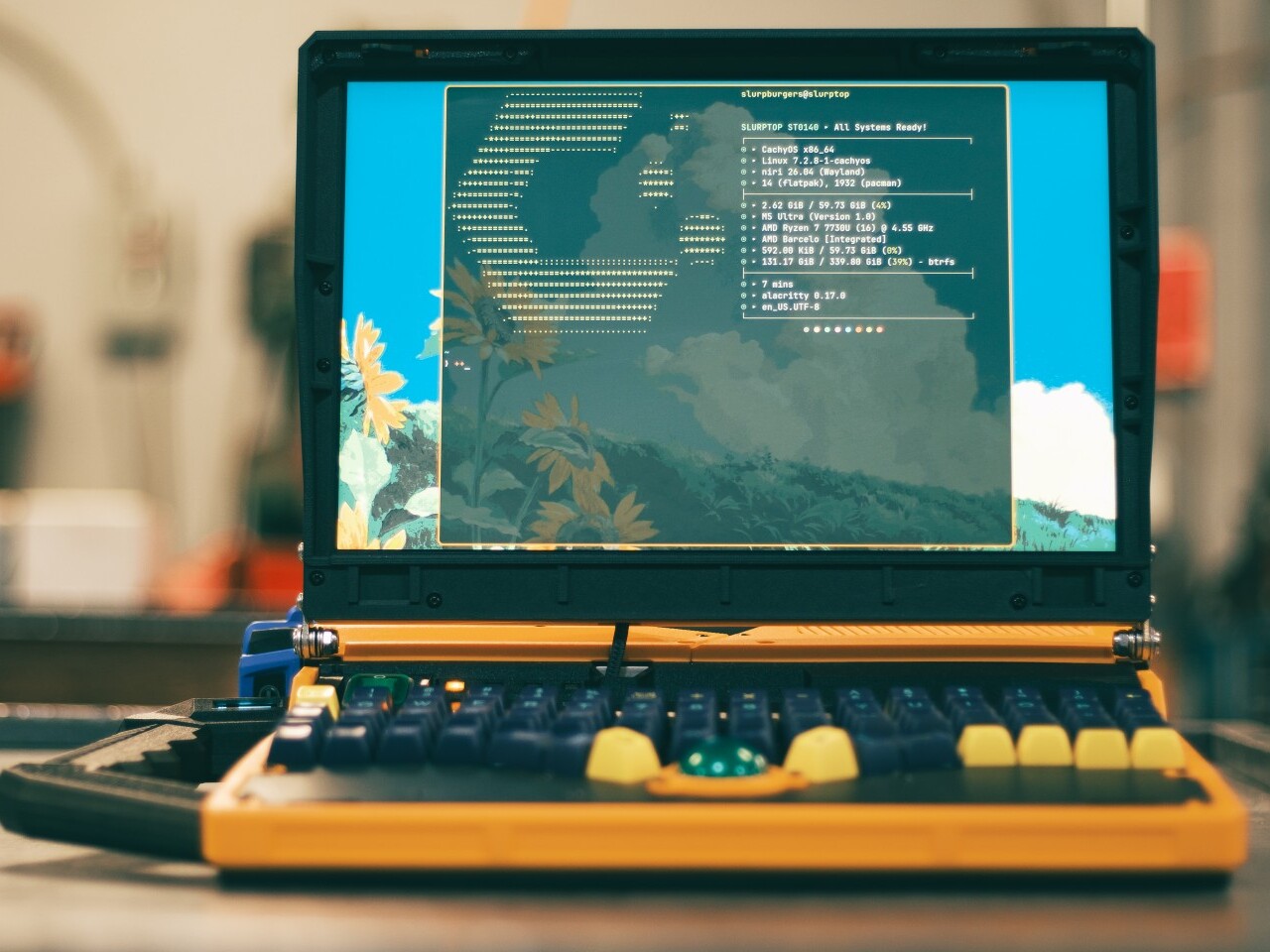
The display keeps things relatively conventional, pairing a 14-inch panel with a 1920-by-1200 resolution and a 16:10 aspect ratio. Behind the custom shell is hardware from a GMKtec M5 Ultra mini PC, including an AMD Ryzen 7 7730U processor, 64GB of RAM, and a 500GB SSD. CachyOS supplies the familiar Linux desktop, so there’s a recognizable computing environment beneath all that workshop character.
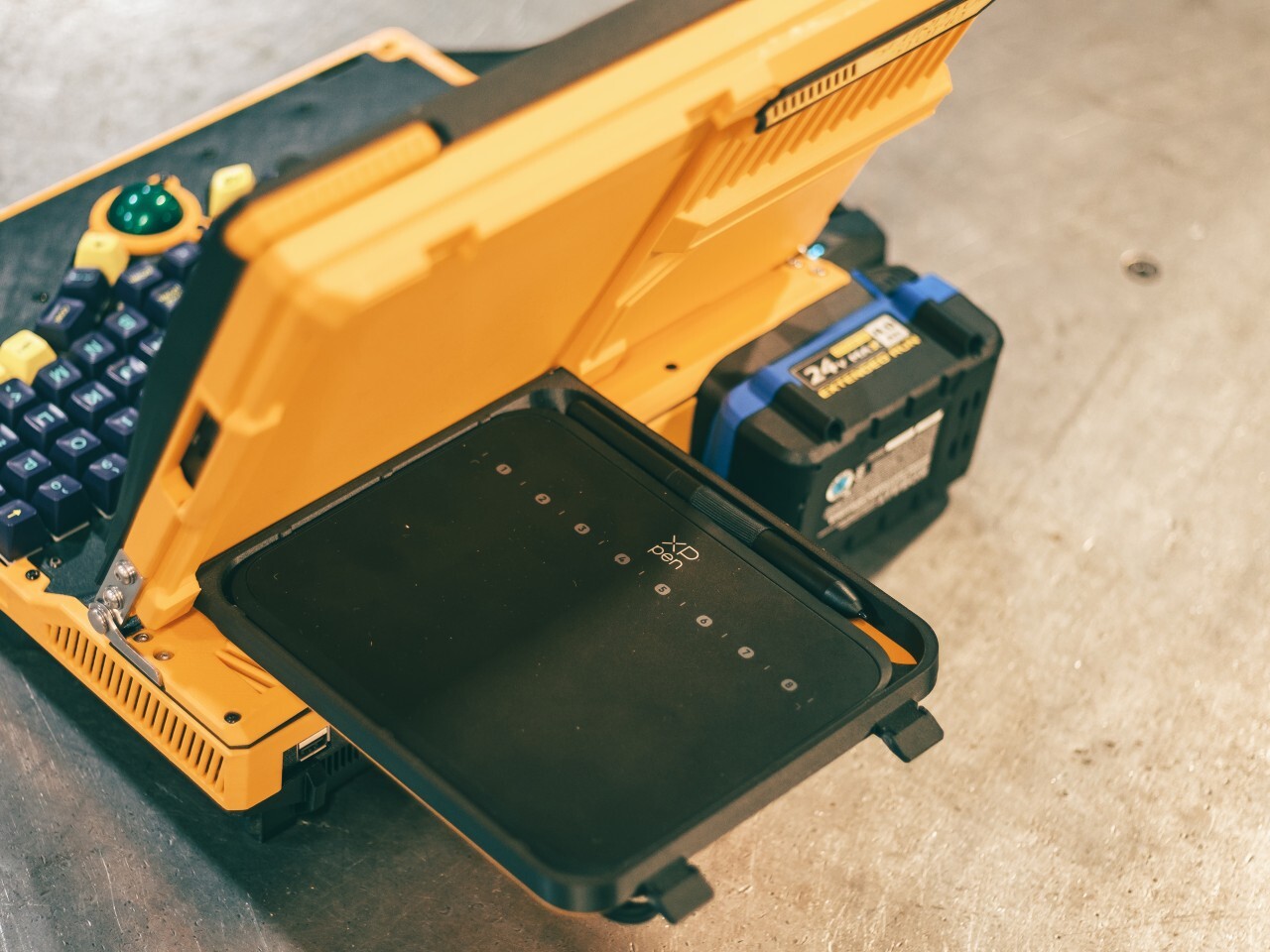
An XP-Pen drawing tablet also gets its own holder behind the display, adding pen input without displacing the keyboard or trackball. Connected beside the laptop, it provides a separate surface for sketching or editing artwork, leaving the main display free to show what you’re working on. That keeps everything together for travel, although actually drawing still calls for some extra desk space.
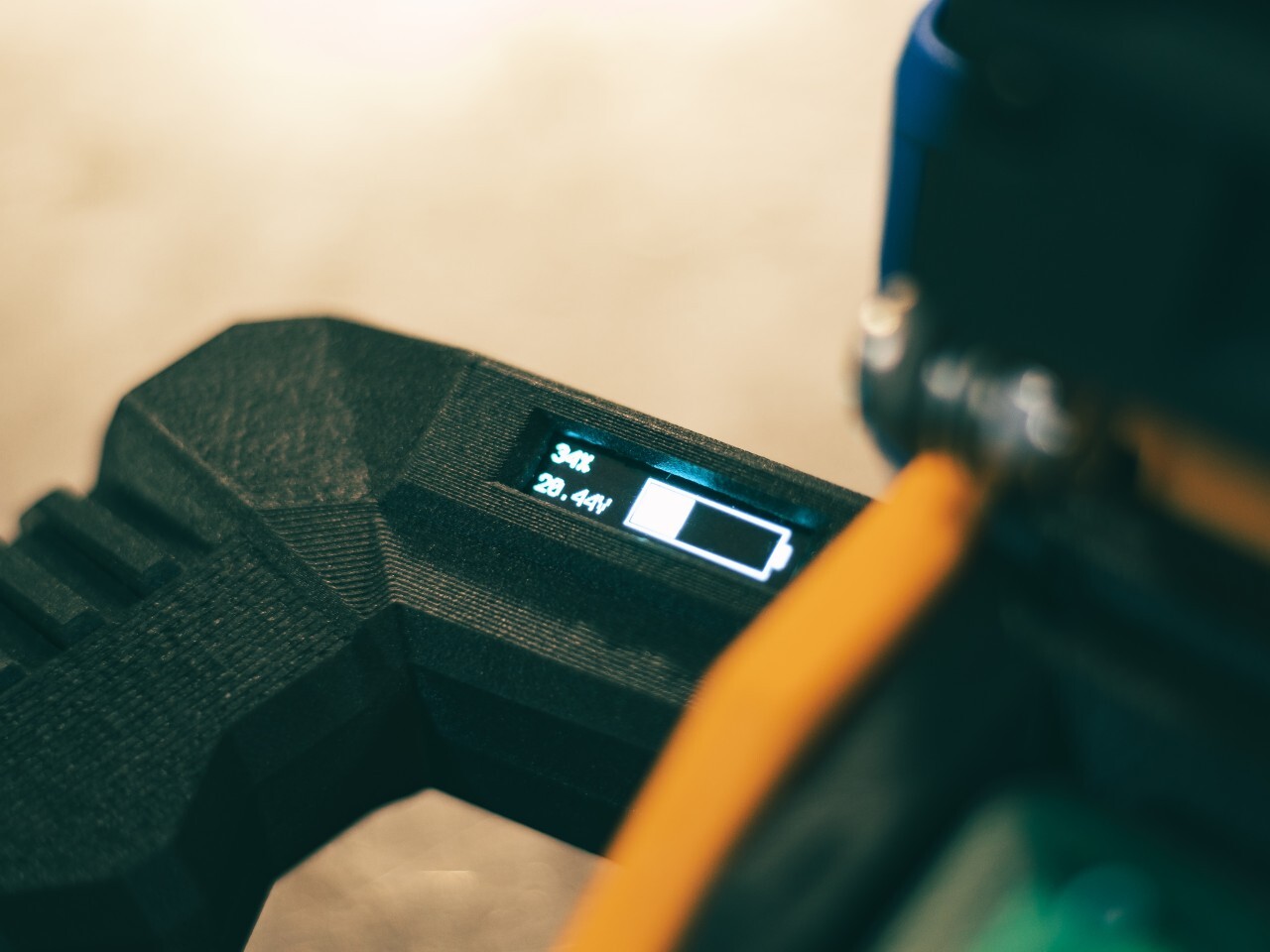
The power arrangement follows the same willingness to borrow useful parts. A 24V Kobalt tool battery supplies the machine through a converter that adjusts its output to the PC’s required 19V. A separate cutoff board guards against draining the pack too far. The battery remains an obvious external attachment, making its removal part of the operating routine instead of a repair procedure.
That decision comes with a catch, naturally. The Slurptop doesn’t charge the battery itself, so the pack has to visit its tool charger. Wall power can run the computer independently, and a switching module transfers between the adapter and battery. Keeping it plugged in lets the owner change packs without shutting down, but there’s no uninterrupted battery swap away from an outlet.
The builder reports more than four hours of writing and coding on a 4Ah battery, with some charge remaining. That’s a useful reference, not an independently measured endurance rating. The power-tool styling doesn’t come with a documented weatherproofing or drop rating, either. You can carry this homemade workstation by its handle, but treating it like a drill would be an unfortunate misunderstanding.
The ASUS ProArt P16 with RTX Spark is one of the best Windows laptops I've ever used. It's also one of the easiest to recommend to the wrong person.
That distinction matters when laptops start at $2,799.99 and go up to nearly $7,000, but I have a good reason for this caveat.
ASUS has designed this new ProArt P16 (H7607) primarily for people who create more than they consume: developers, engineers, AI enthusiasts, 3D artists, video editors, and professionals experimenting with increasingly sophisticated local AI and agentic workflows.
Indeed, NVIDIA's RTX Spark N1X combines a 20-core Grace CPU, 6,144-core Blackwell RTX GPU, native CUDA support, and up to 128GB of unified LPDDR5X memory. ASUS says the latter configuration can even run LLMs with up to 120 billion parameters.
If CUDA, local inference, LLMs, agentic workflows, GPU memory, or ComfyUI mean absolutely nothing to you, there are better laptops for your money.
If those terms interest you, even if you're just starting to learn about them, things get much more interesting, and you'll want to read on.
ASUS and NVIDIAhad no input, nor did it see the contents of this review, prior to publication.
ASUS ProArt P16: Price and specifications
(Image credit: Daniel Rubino)
I focused on two configurations for this review. My 3K Nano Black unit packs 64GB RAM and a 1TB SSD for $4,399.99, while the top model jumps to 128GB RAM, 2TB storage, and a 4K OLED for $6,999.99.
ASUS also offers Nano Black and Neo White, although configuration choices are strangely interdependent. Changing color can alter the display and Windows edition, so pay attention when ordering. ASUS currently lists Windows 11 Home and Pro, 3K and 4K OLED options, and memory capacities reaching 128GB.
But you can go even lower, as Best Buy's $2,799 model still has that 4K OLED, but 512GB of storage (you can add more later) and 24GB of RAM (obviously, RAM is the cost multiplier here in late 2026).
And don't confuse this H7607 model with the existing (and slightly older) AMD-powered ProArt P16 H7606. RTX Spark makes the H7607 a fundamentally different computer.
ASUS ProArt P16: Design and hardware
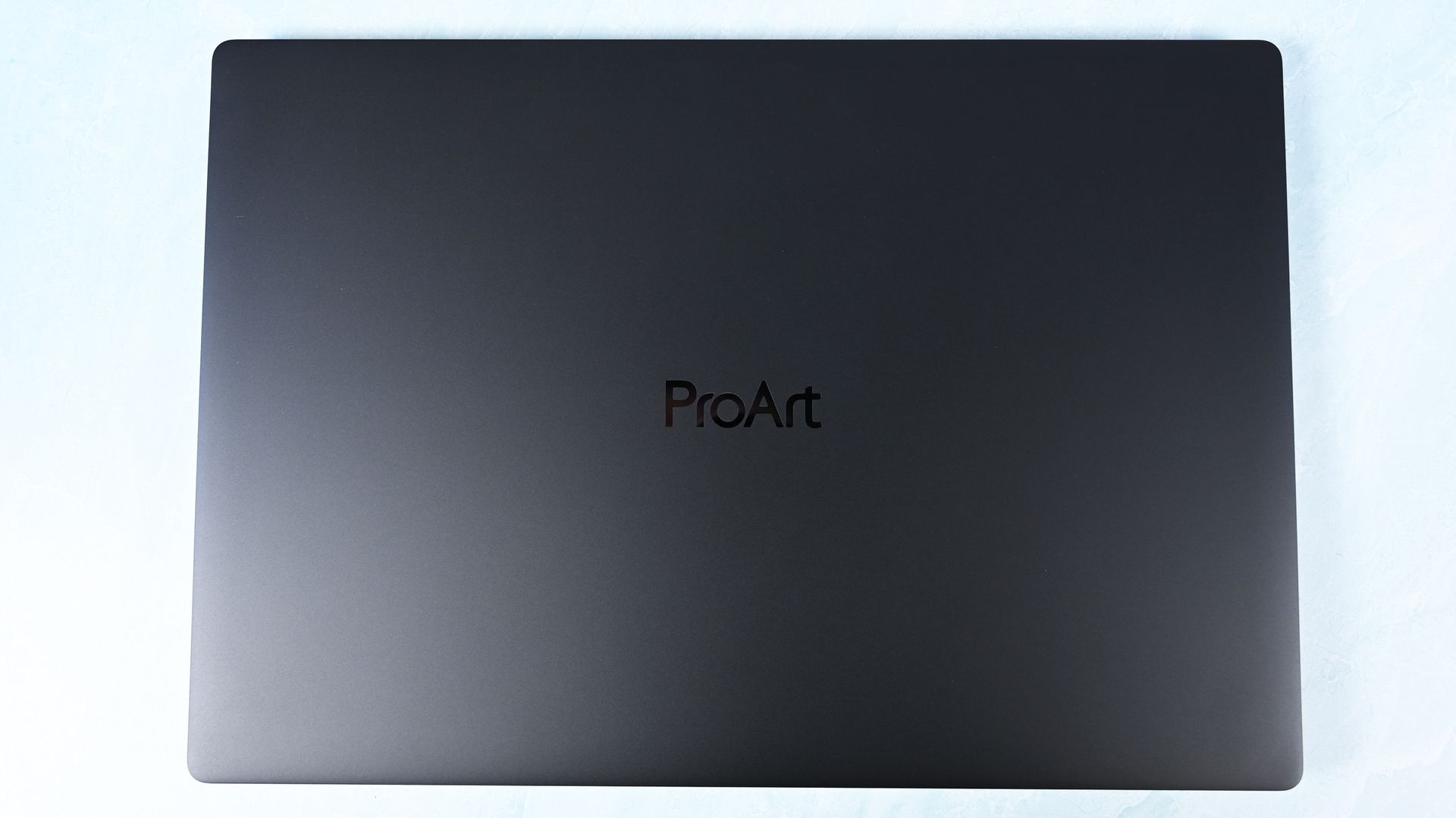
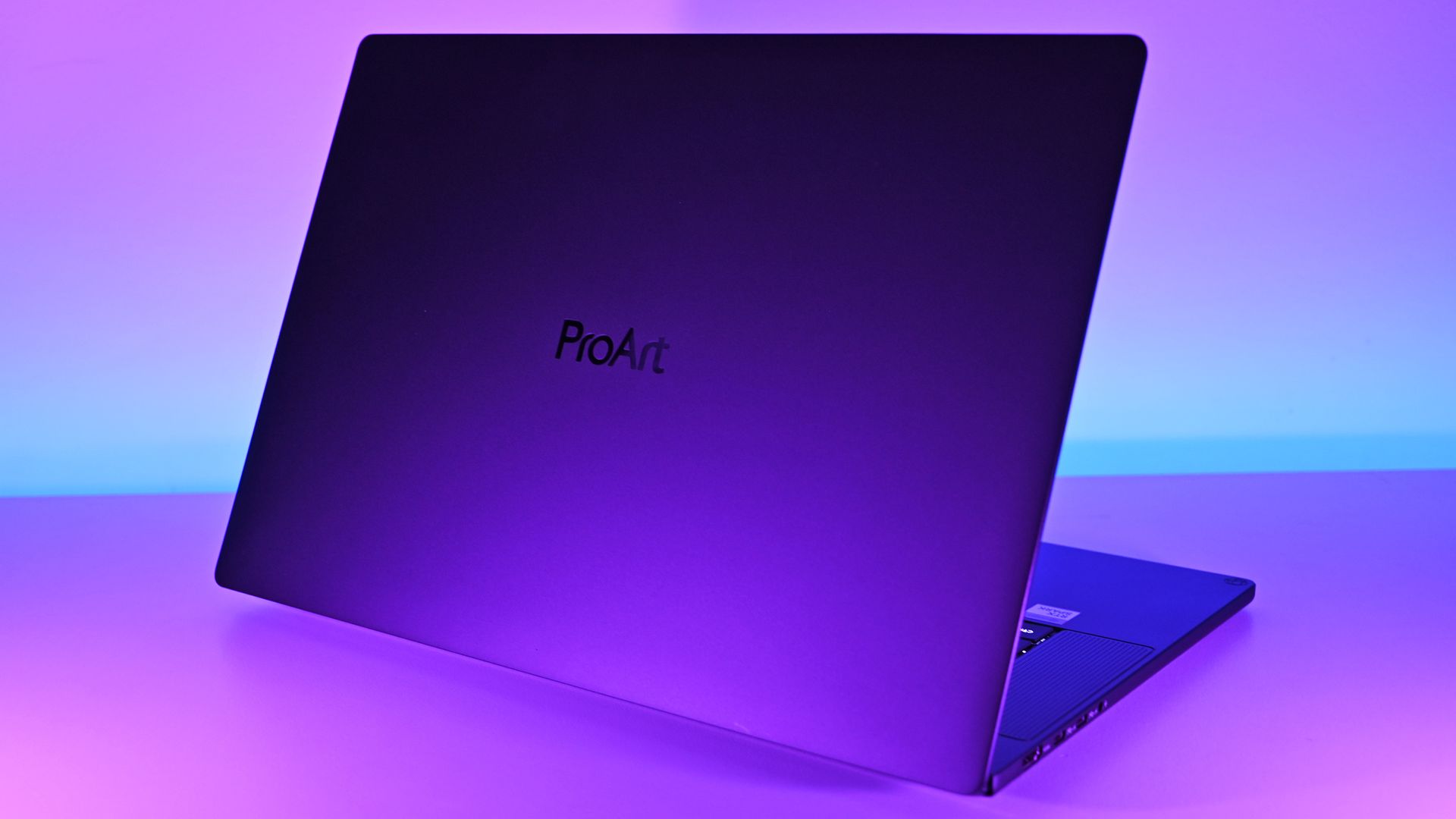
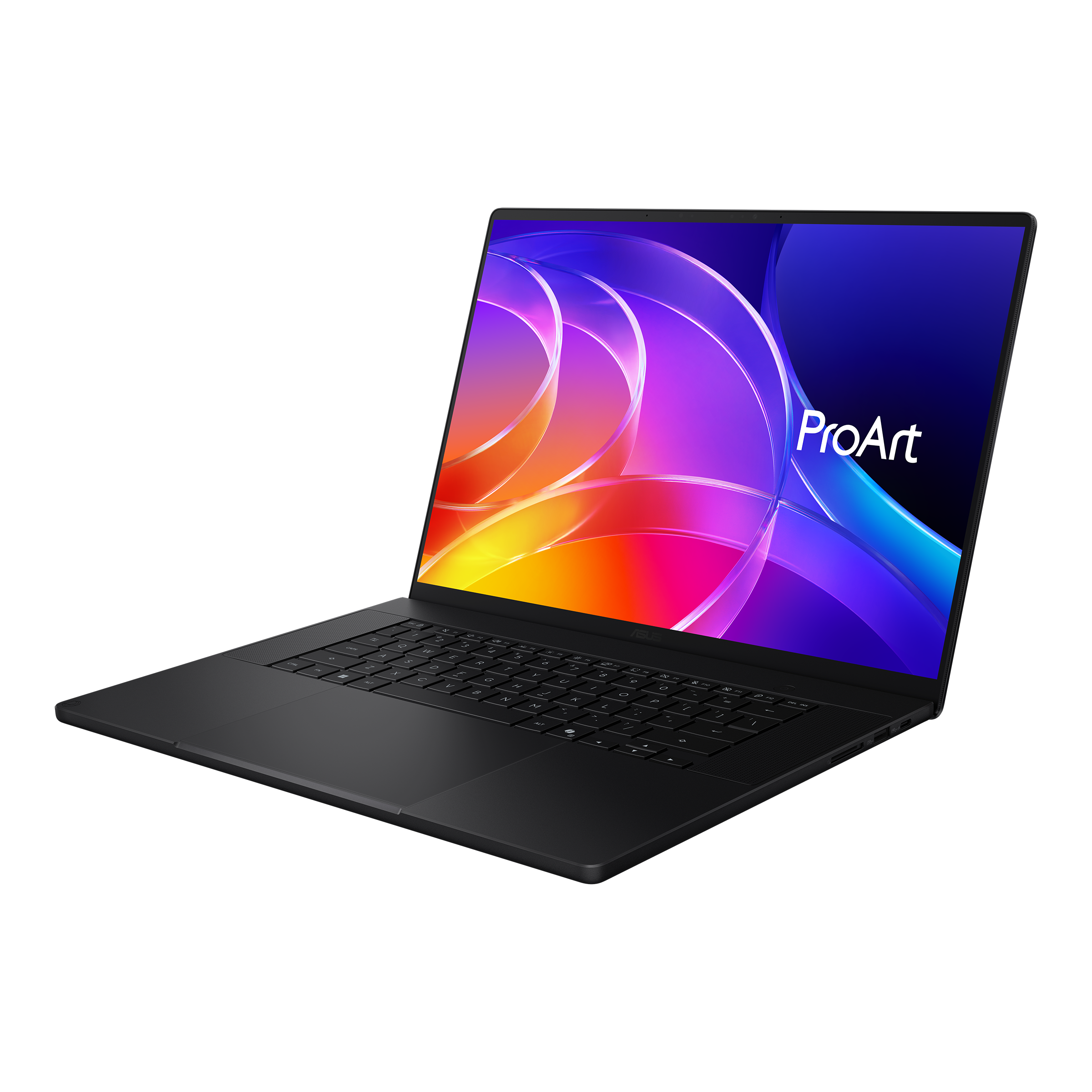
ASUS keeps it simple for the lid. (Image credit: Daniel Rubino)
This may be ASUS's greatest achievement with the ProArt P16.
At just 3.9 pounds, it's remarkably light for a 16-inch workstation, undercutting the 4.5-pound Surface Laptop Ultra, 4.7-pound 16-inch MacBook Pro, and especially HP's surprisingly hefty 4.9-pound OmniBook Ultra 16 RTX Spark.
You absolutely feel the difference.
The ProArt measures just 0.51 to 0.63 inches thick, yet ASUS still squeezes in an enormous 99.9Wh battery.
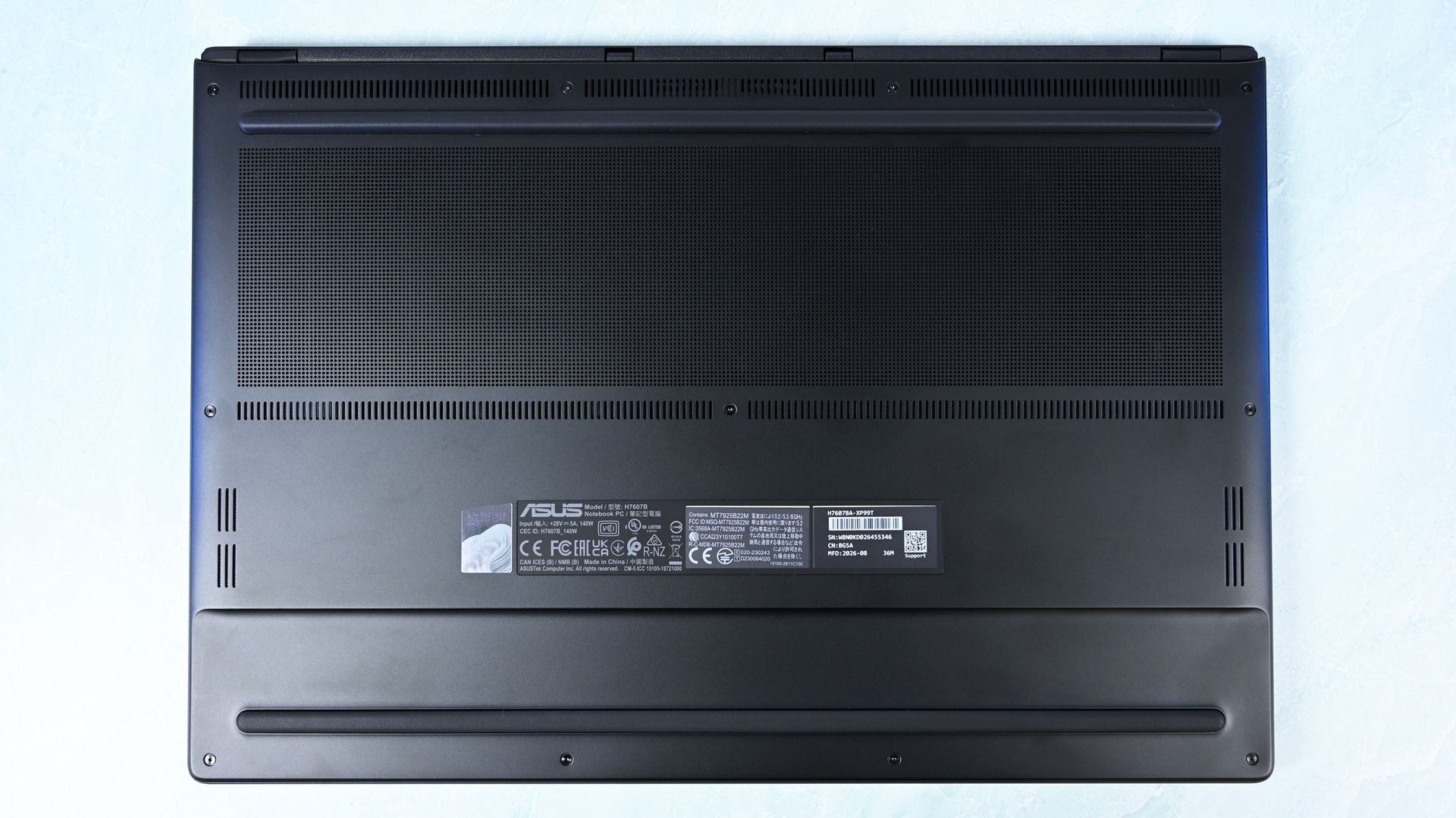
There's one giant grill on the bottom of the ProArt P16 for ventilation, followed by some smaller areas. (Image credit: Daniel Rubino)
Build quality is excellent. I'd give Microsoft and HP a very slight advantage for pure premium feel, but ASUS wins enough other categories that I hardly care. For instance, Nano Black's fingerprint-resistant coating also works surprisingly well. As someone who despises smudgy black laptops, I appreciate details like this.
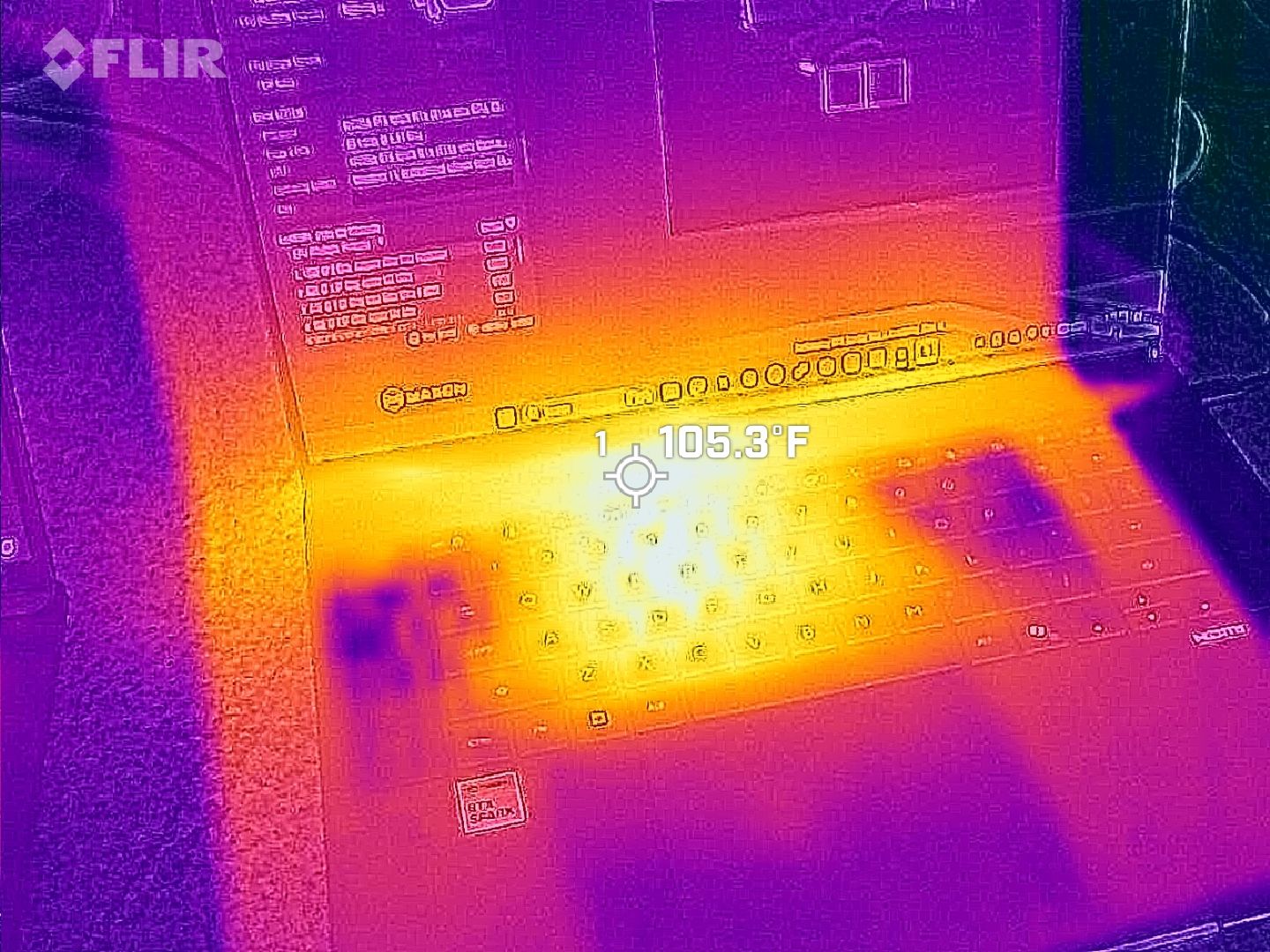
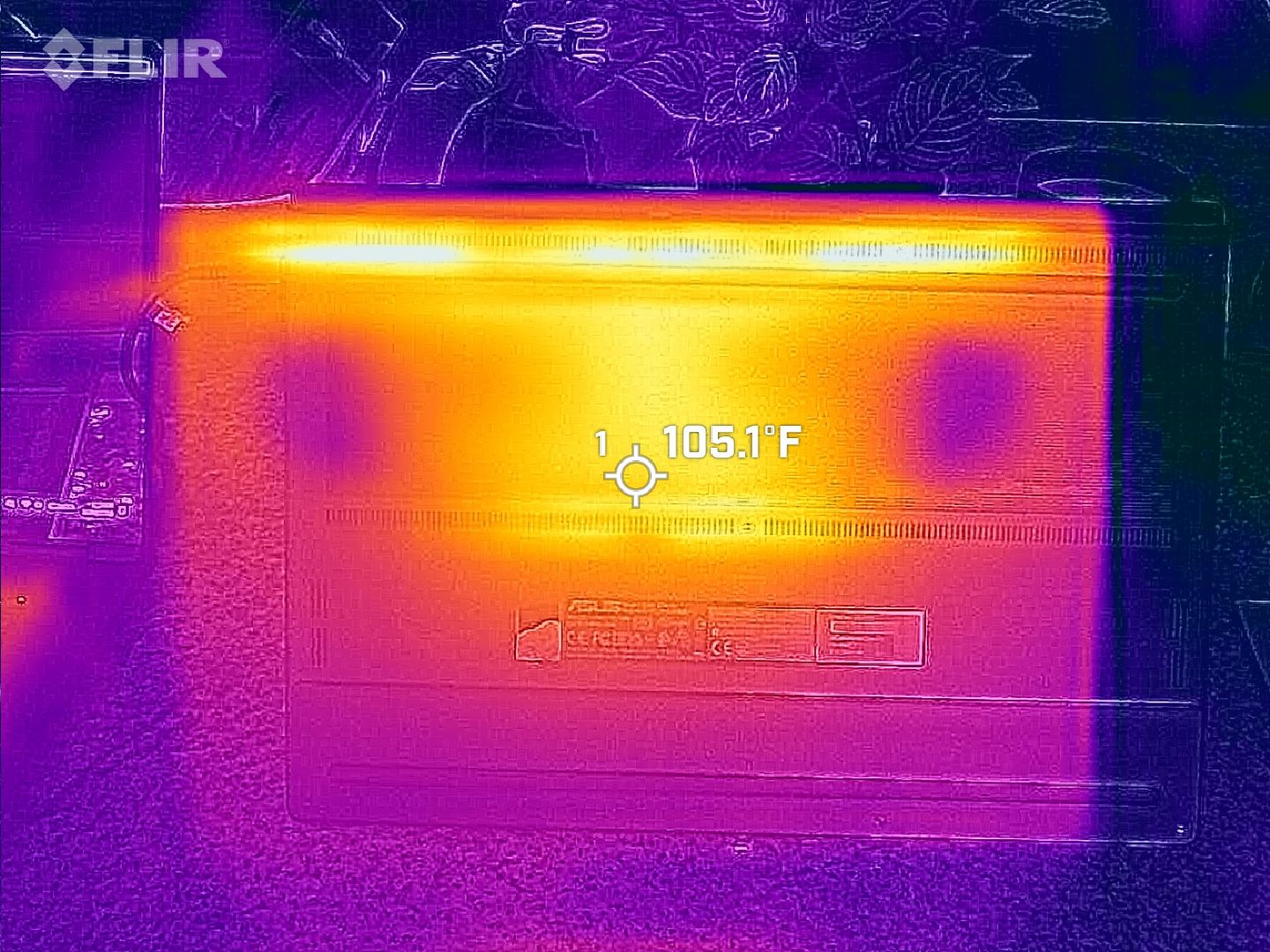
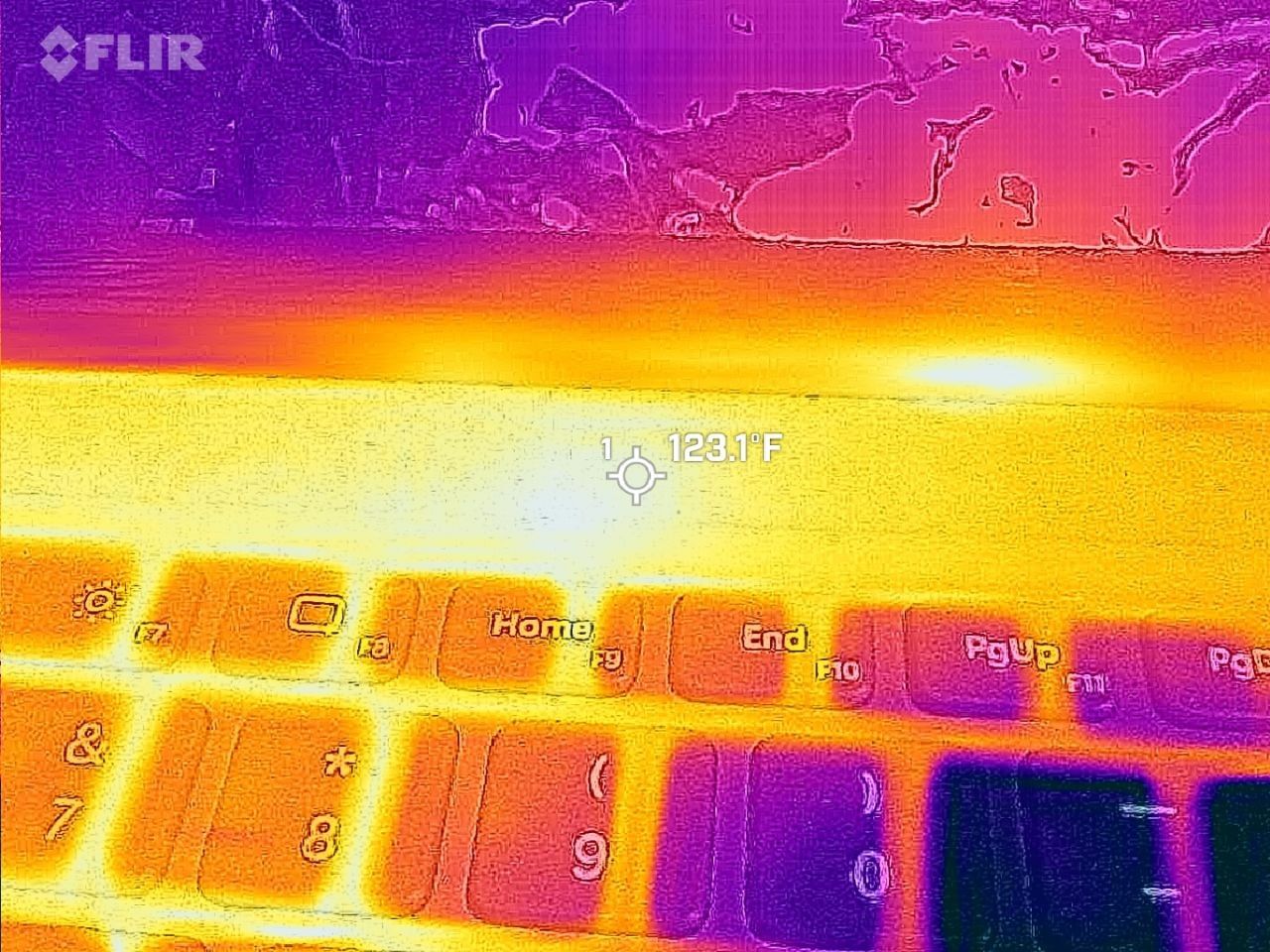
Thermals are even more impressive. Under sustained heavy workloads, my thermal camera recorded around 105°F across the keyboard deck and approximately 120°F near the rear exhaust. That's a few degrees cooler than both the Surface Laptop Ultra and HP OmniBook Ultra 16 RTX Spark in my testing. Fan noise never exceeded 50dB under extreme workloads.
For something this thin, that's outstanding, since I expected sacrifices in both areas, not the opposite.
Daniel RubinoDaniel Rubino
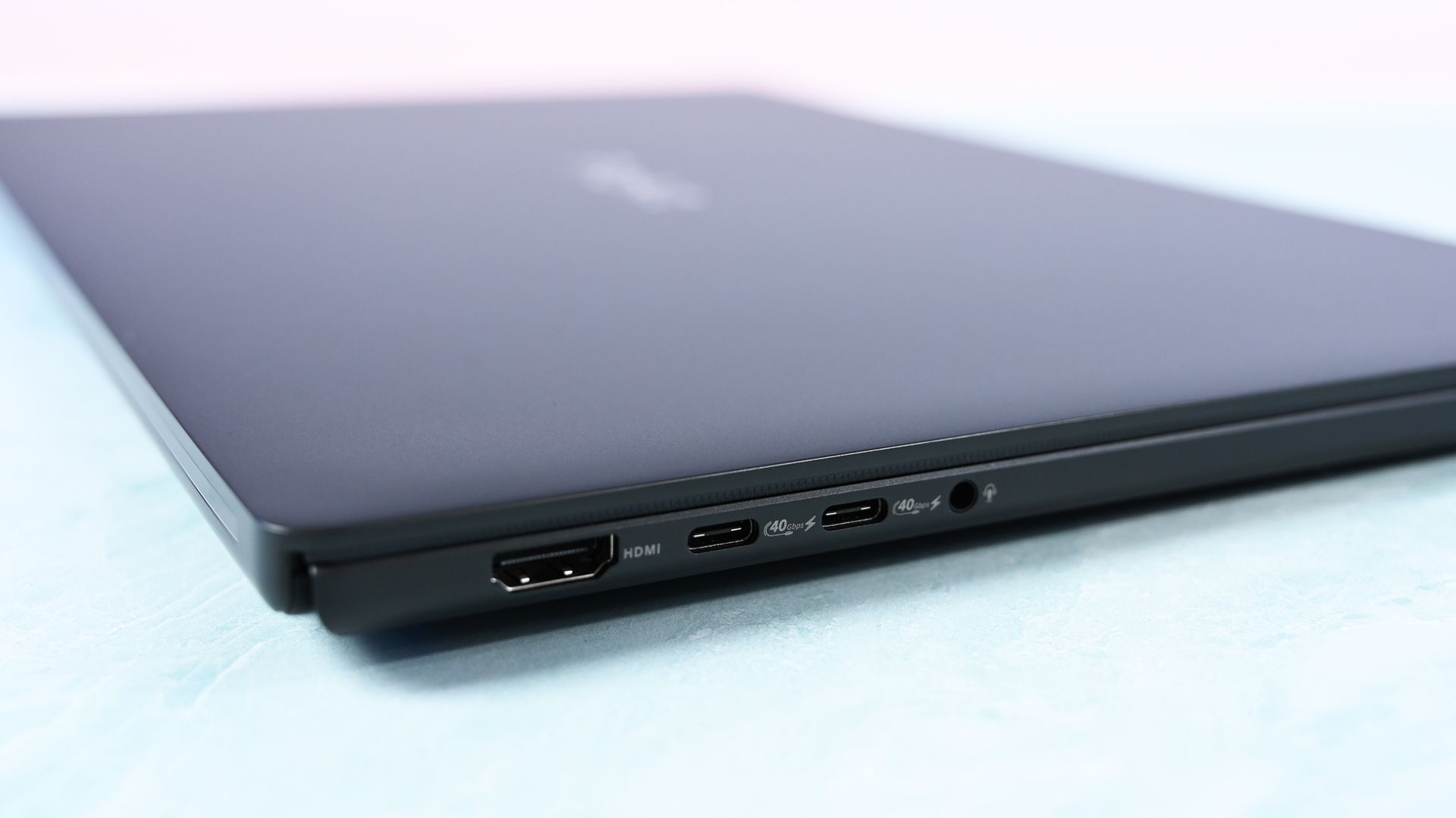
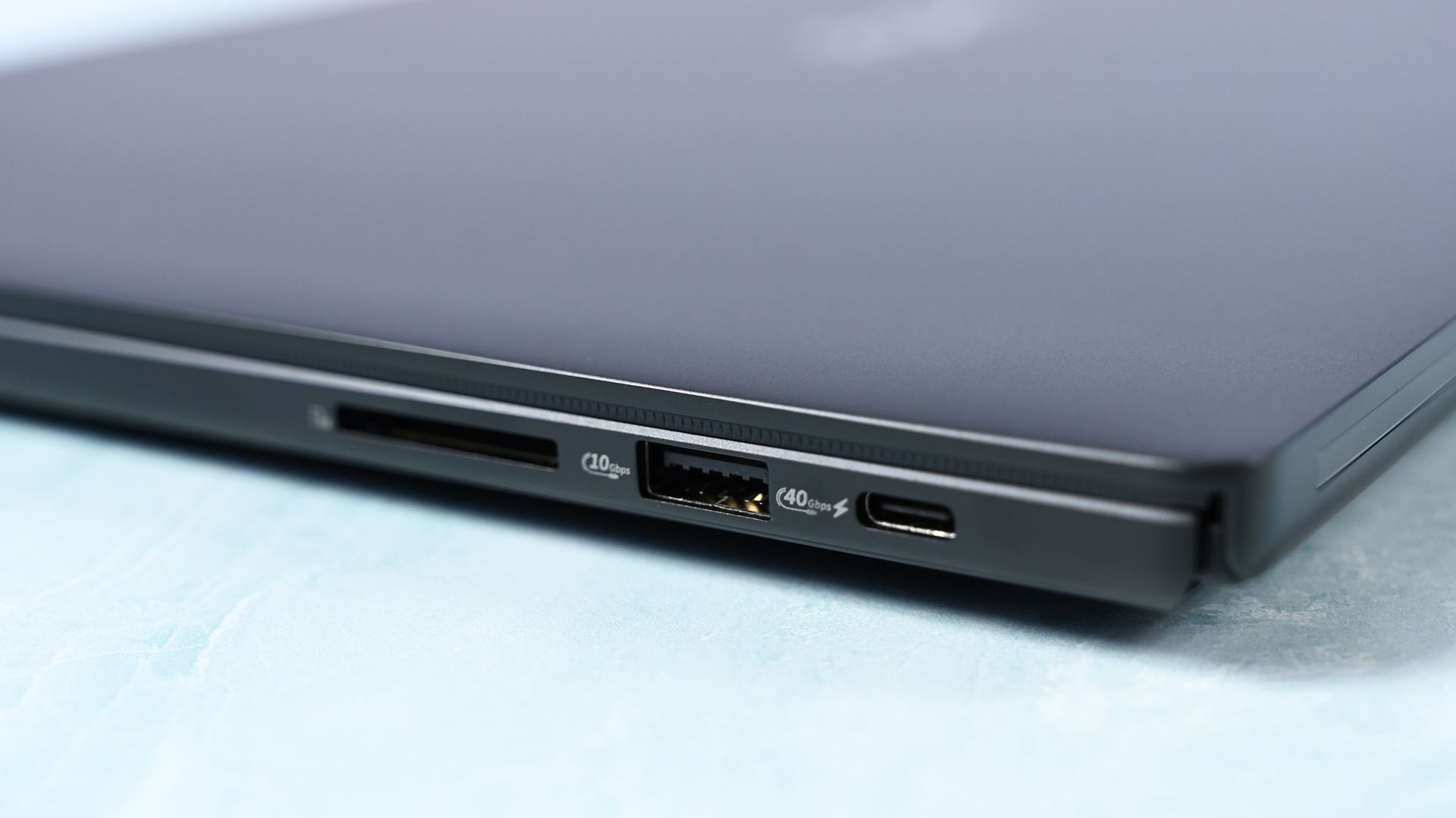
Connectivity is arguably best-in-class for RTX Spark laptops. It has three USB4 Type-C ports, with two on the left and one on the right, so I can charge from either direction, plus USB-A, HDMI 2.1b, a headphone jack, and a full-size SD card reader. To me, this is the right port configuration for this demographic on an RTX Spark laptop. I wish more companies would split Type-C ports on either side for easier charging, but some still don't.
All these small conveniences add up.
ASUS ProArt P16: Display, keyboard, touchpad, and audio
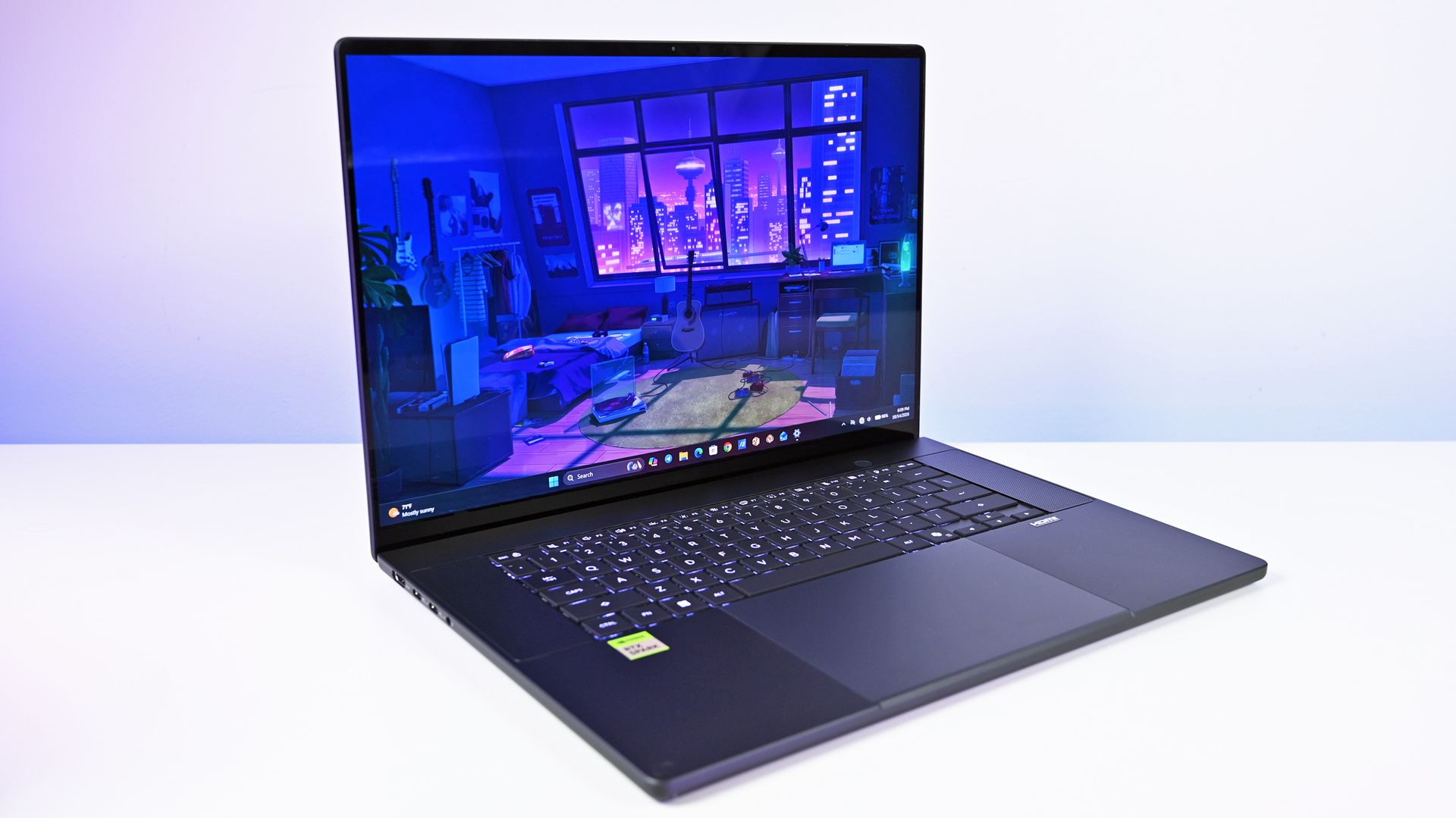
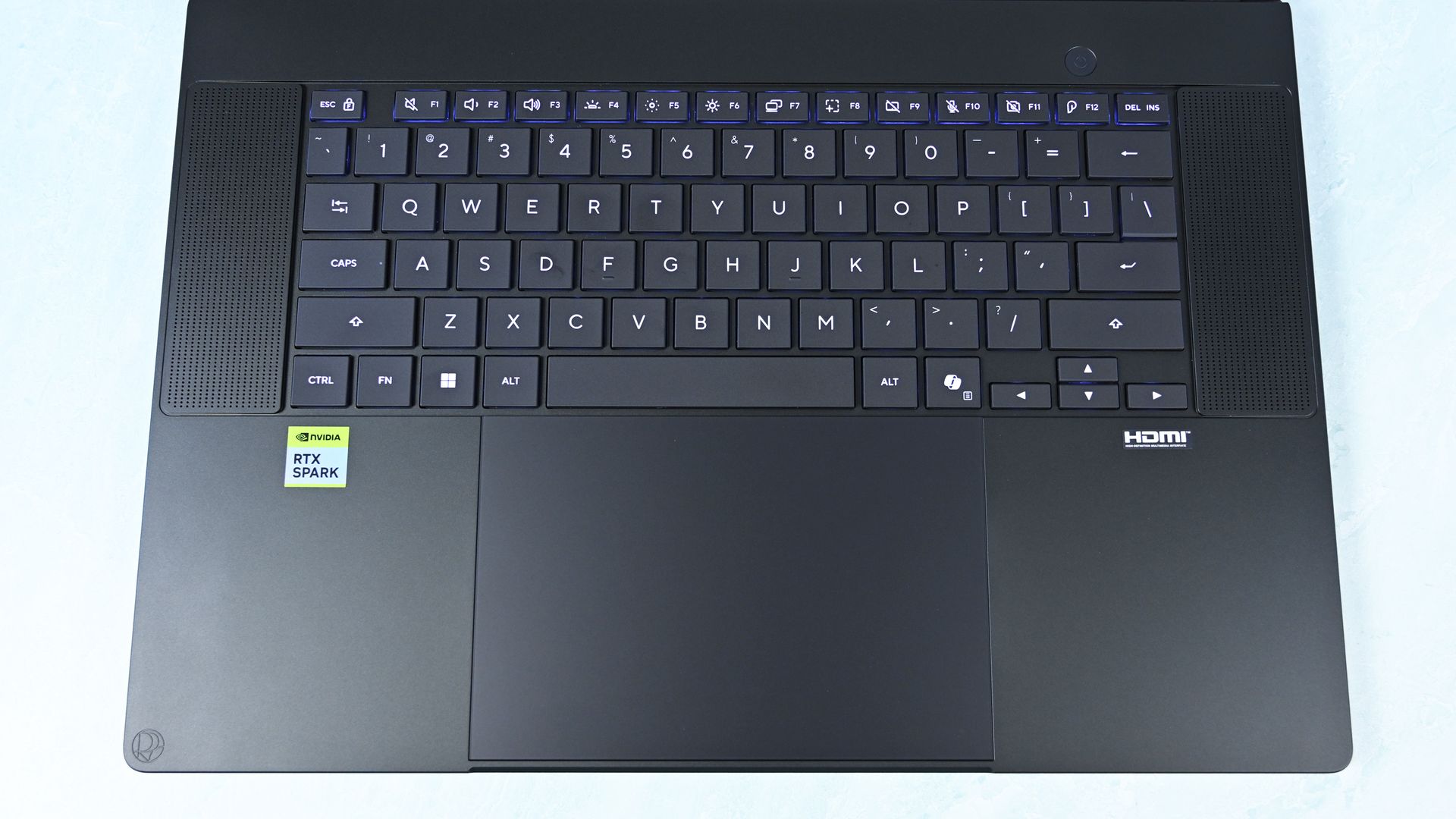
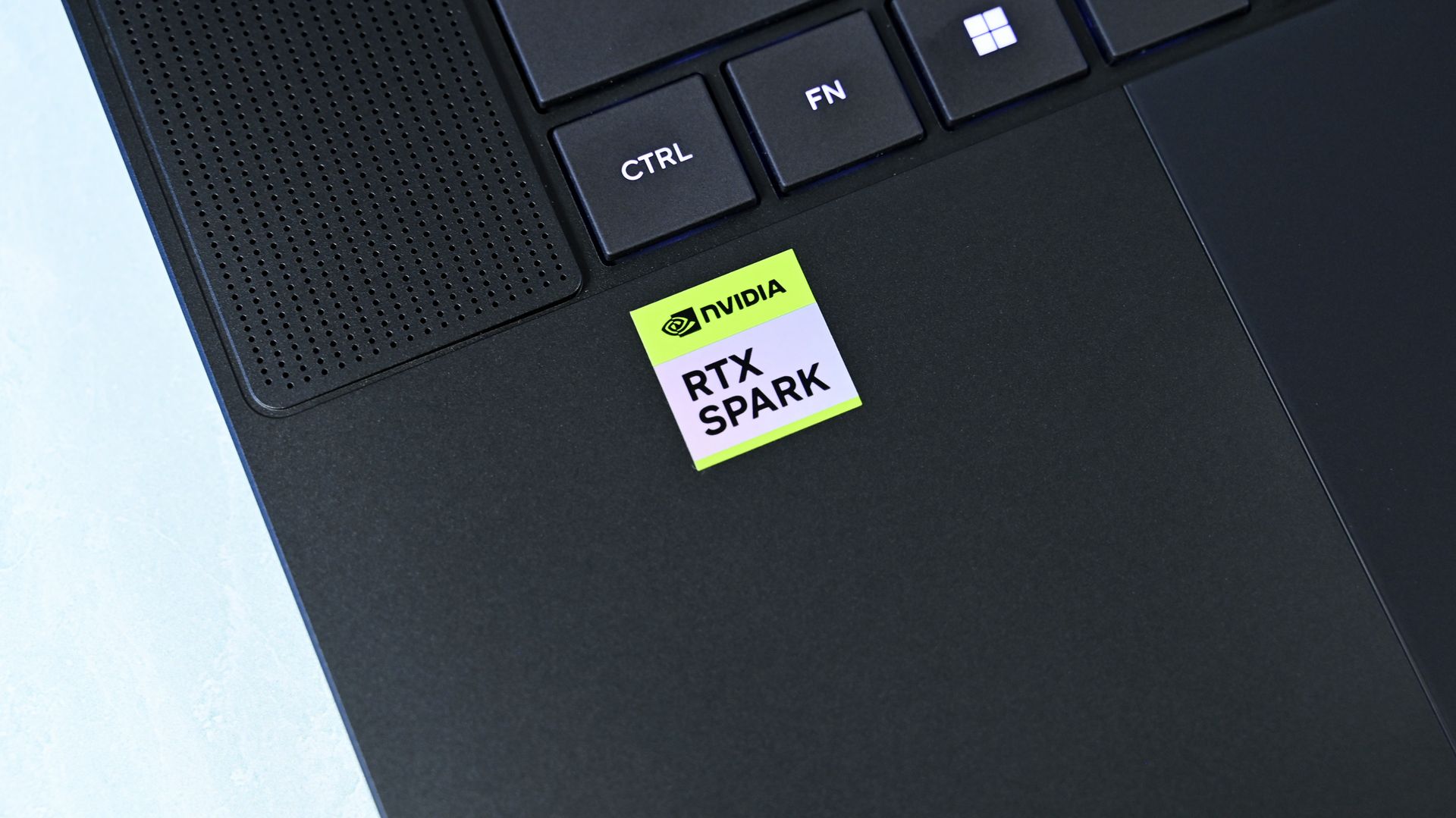
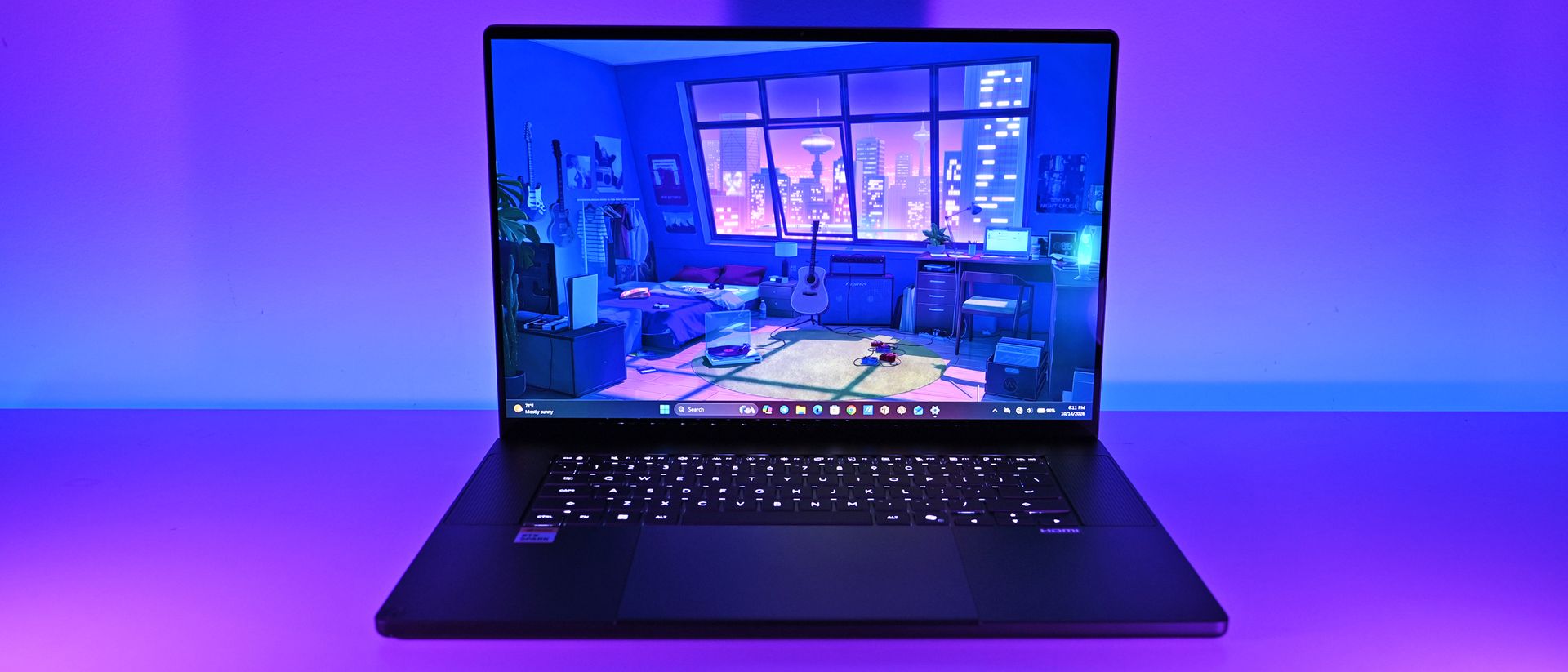
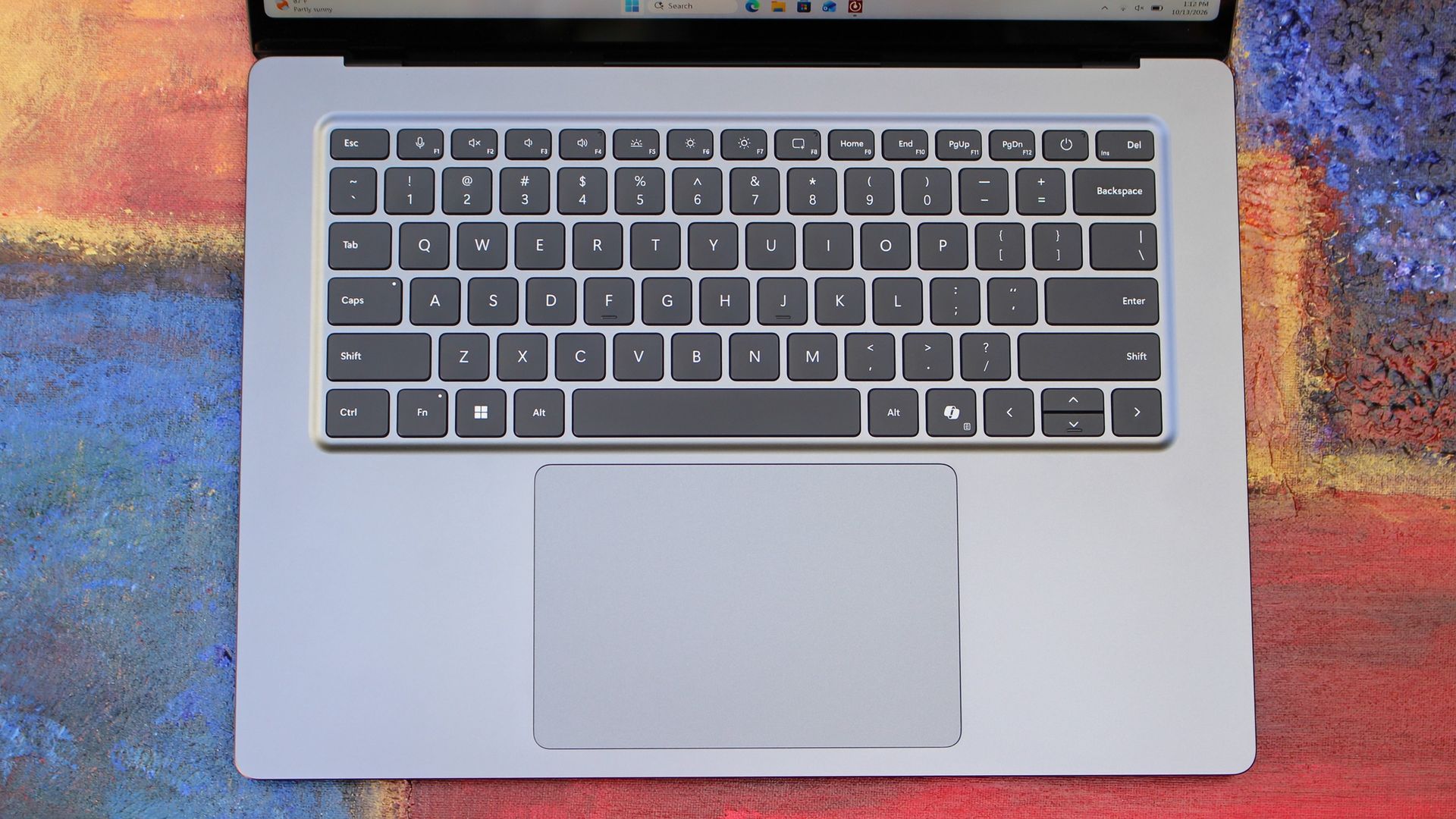
Top-down view of the ProArt 16's basic but solid keyboard deck showing flanking speaker grilles, power button, and huge touchpad. (Image credit: Daniel Rubino)
Both displays are gorgeous 16-inch OLED touchscreens with 100% DCI-P3 coverage, HDR support, and variable refresh rate from 30 to 120Hz. The 3K panel runs at 2880 x 1800 and peaks at 1,100 nits for HDR, while the 4K panel runs at 3840 x 2400, peaks at 1,600 nits for HDR, and adds ASUS's excellent anti-reflection treatment.
It's also worth noting that you get presence detection, an auto-brightness sensor, and adaptive (ambient) color, which are extra bonus display features I like to see at this price point.
Here's my controversial advice: I'd get the 3K display.
Placing both laptops together, I routinely guessed incorrectly when trying to identify them by resolution alone. Pixel peeping exposes the difference, but at normal viewing distances, 3K is plenty for 16 inches.
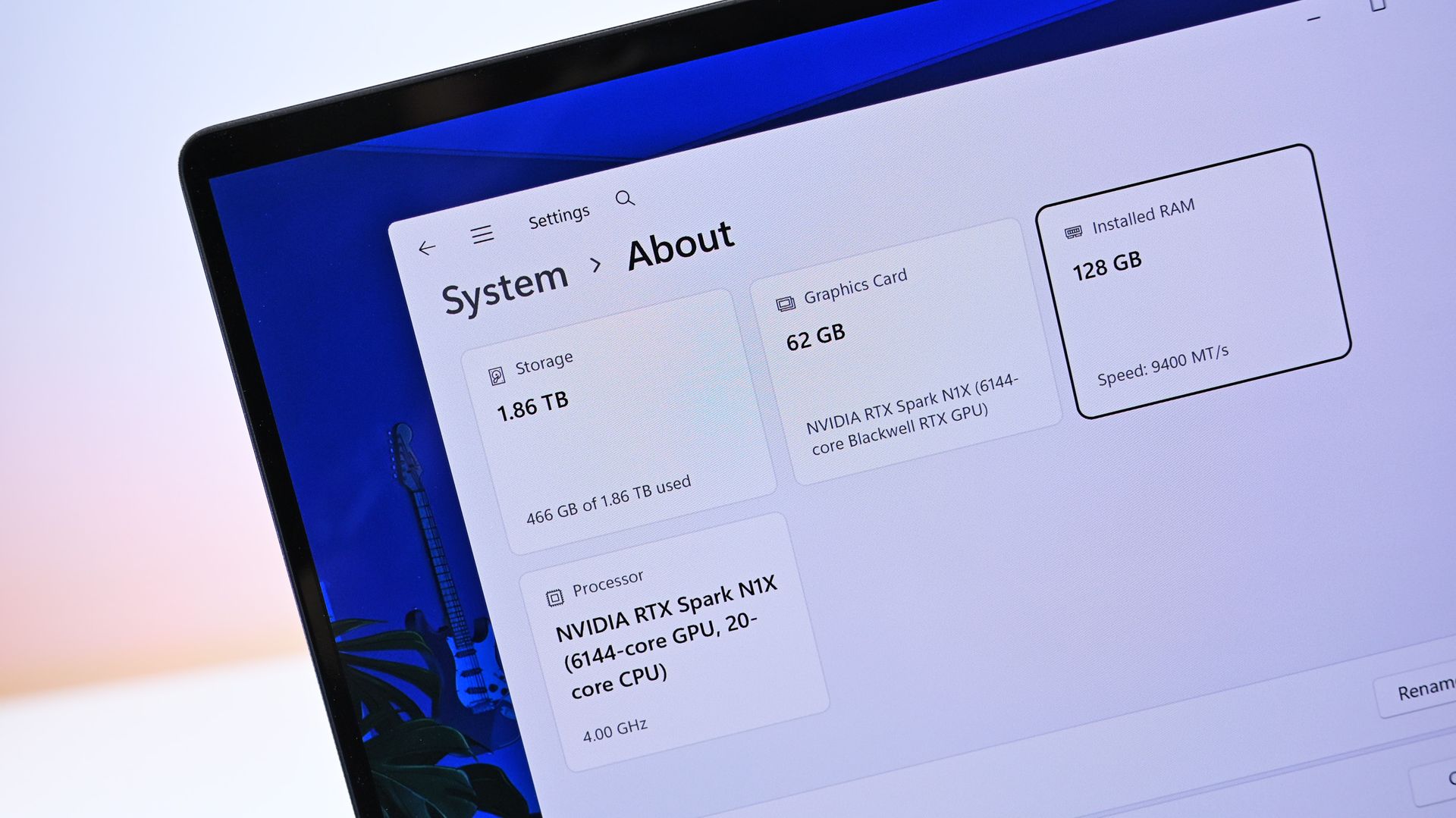
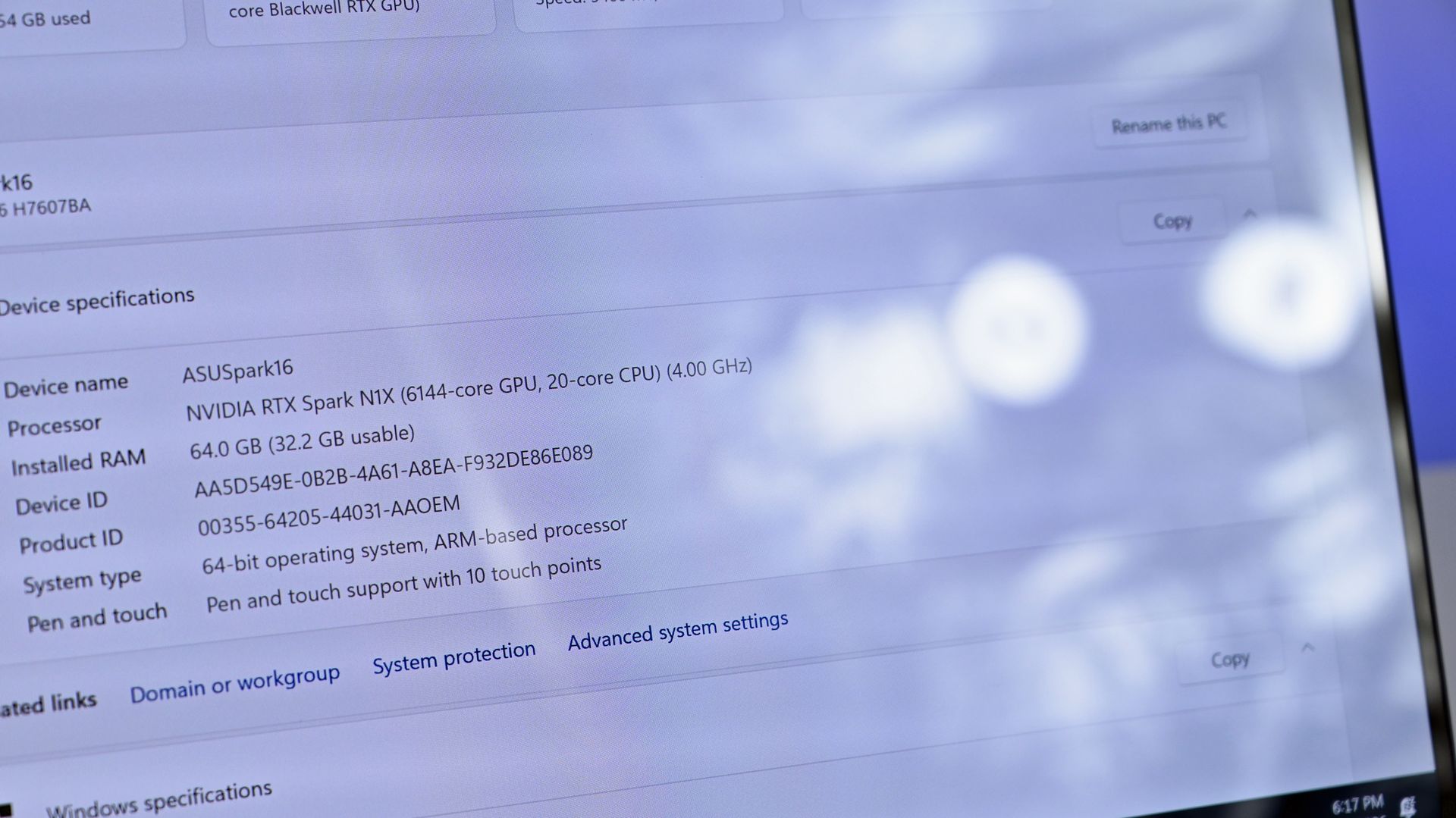
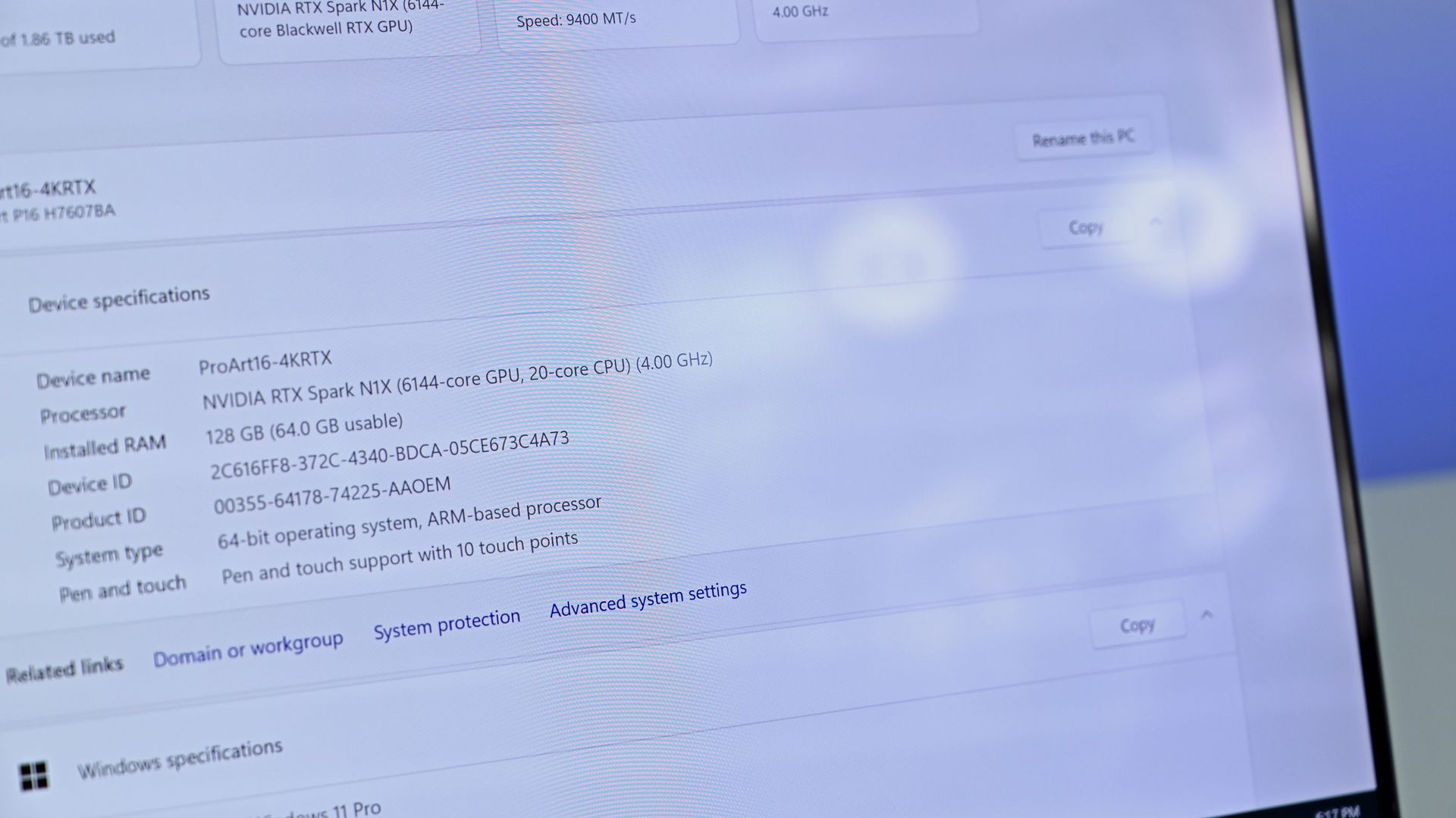
Close-up of Windows system specs showing 128 GB RAM in the $6,999 model. (Image credit: Daniel Rubino)
Unfortunately, ASUS forces the 4K configuration if you want 128GB RAM (unless you go through Best Buy, which has a 32GB model). I wish there were a 3K anti-reflective, 128GB option. That said, as someone who is a stickler for glossy displays, the 3K one is pretty good for glare, considering how much it bothers me.
I've also encountered extremely subtle flickering on my 4K unit. ASUS tells me a fix is coming, but I could also have a bum unit, so I have to have a chat with them about it.
Daniel RubinoDaniel Rubino
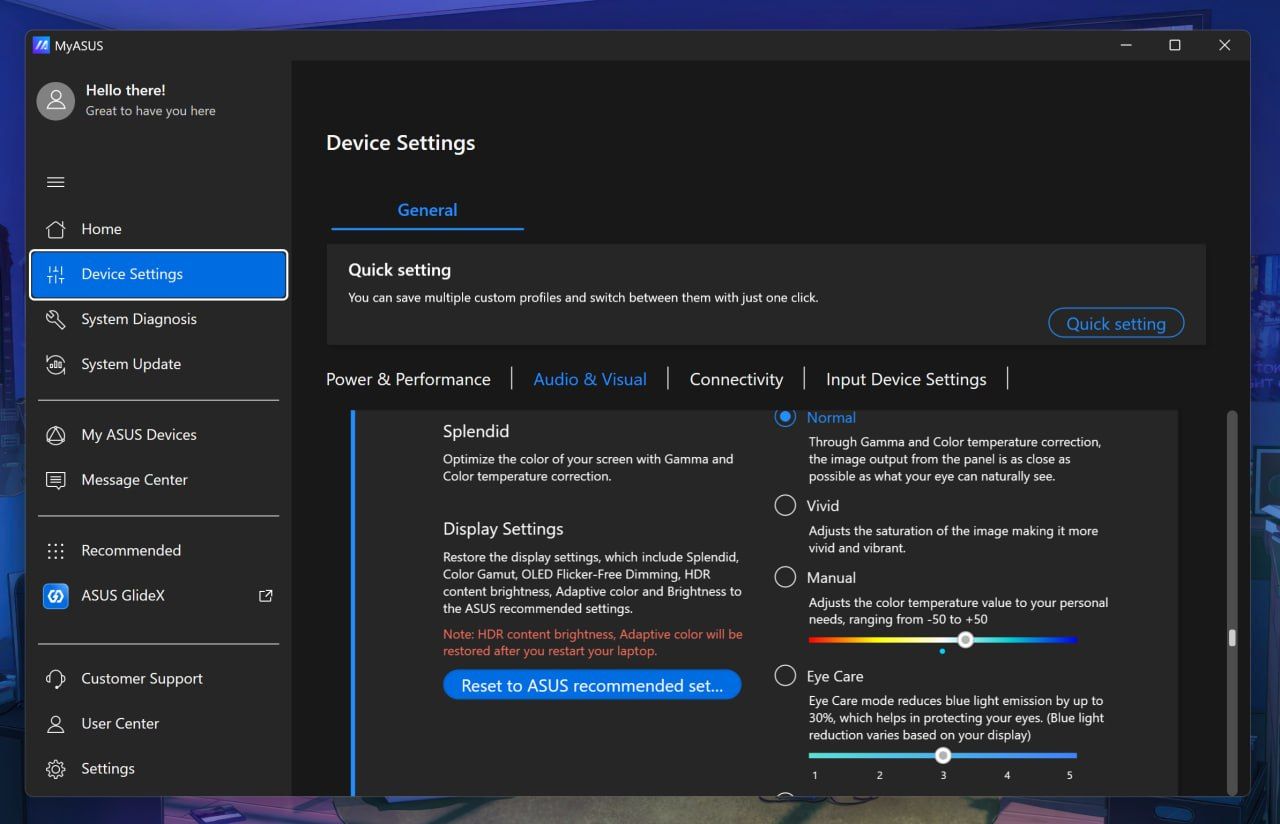
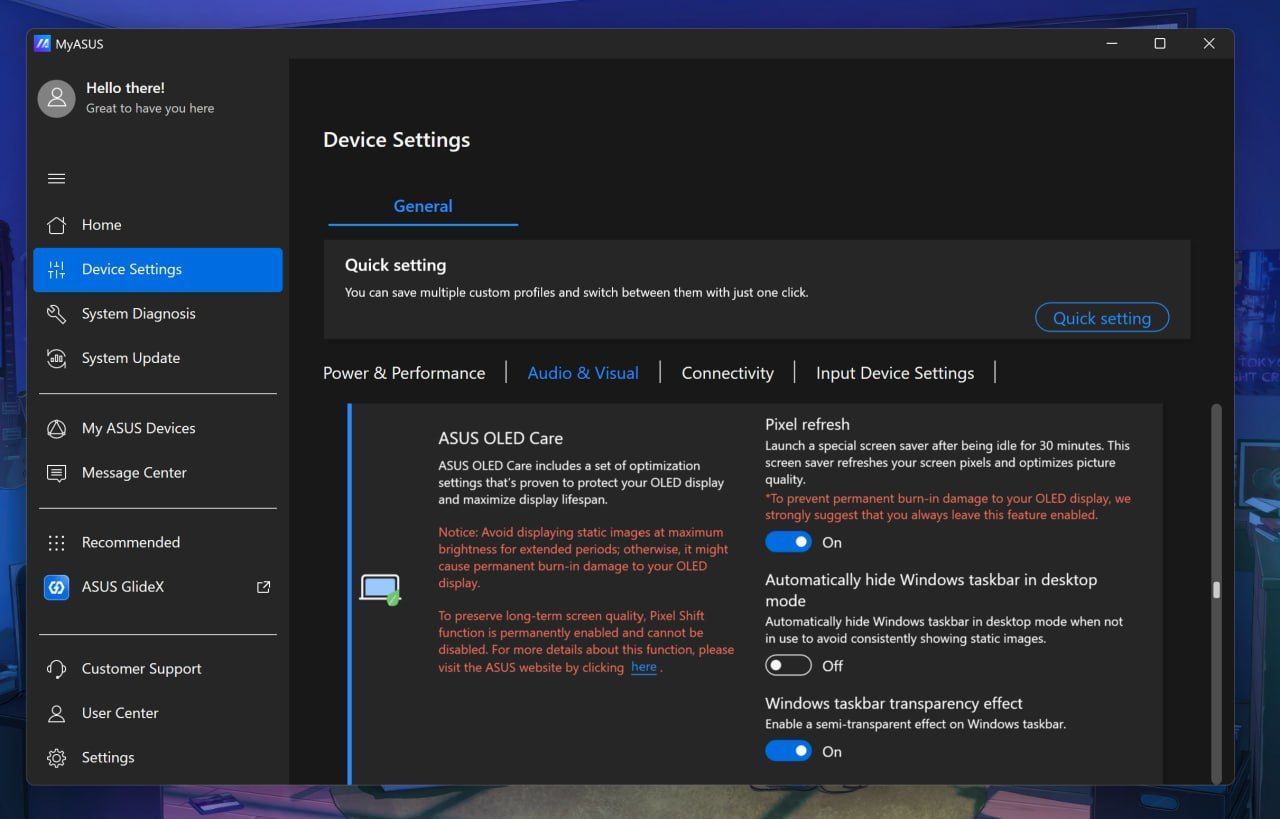
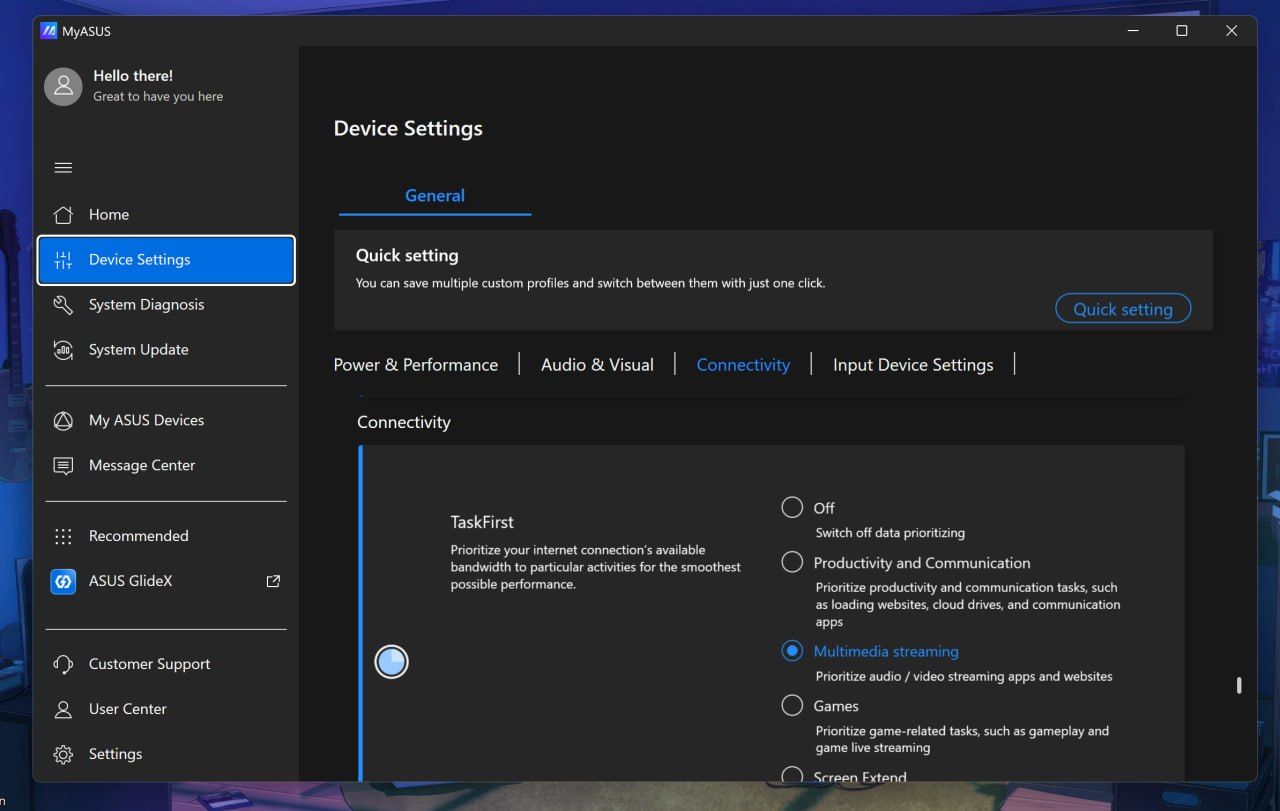
ASUS deserves enormous credit for its display controls, though. MyASUS (its main control and configuration app) provides profiles, color gamut controls, OLED flicker-free dimming, pixel refresh, burn-in mitigation, and other OLED Care options. You can even directly adjust memory allocation to the integrated GPU, which is particularly relevant on a unified-memory machine.
Daniel RubinoDaniel RubinoDaniel Rubino
Overall, I think ASUS has the best out-of-the-box software, at least compared to HP and Microsoft, with the most configuration options for audio, connectivity, display, gestures, and more, not to mention direct driver updates from ASUS, warranty info, etc. I rarely praise OEM apps, but this is the way to do it.
This is also the part where I lament some pre-installed junkware, except I didn't find any on either laptop. These are relatively clean installs (except for whatever you dislike about Microsoft's inbox apps).
3-stage, timed backlight for the keyboard is excellent. (Image credit: Daniel Rubino)
The keyboard is similarly excellent, with springy keys, 1.7mm travel, and a three-stage backlight with automatic sensing.
The enormous haptic touchpad might be even better. Haptic feedback feels superb; it supports Windows Haptic Signals, and ASUS adds gestures for brightness, volume, playback, and ScreenXpert. Those gestures are quirky, but also completely optional.
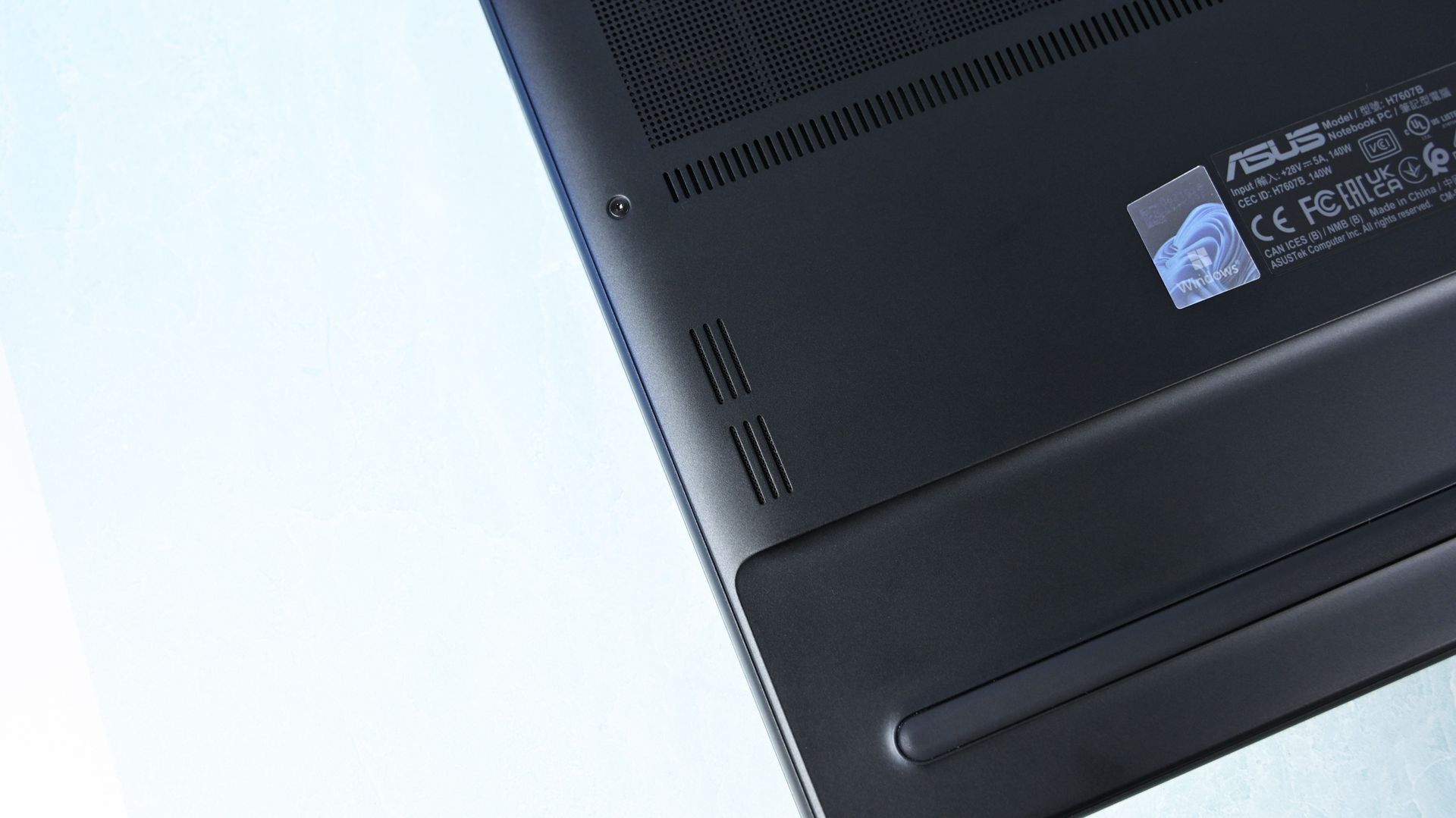
Close-up of the laptop underside corner showing downward-firing speaker cutouts. (Image credit: Daniel Rubino)
The four-speaker Dolby Atmos system is outstanding, and among the best I've heard from a Windows laptop. The 2.1MP webcam is less impressive on paper, particularly against HP's 5MP camera, but ASUS's processing produces a surprisingly sharp picture. Microsoft still wins this category with Surface.
There's even support for the optional $129 ASUS Pen 2.0. Using a pen on a traditional clamshell laptop remains awkward, but it's surprisingly handy for signing documents, marking up images, or quickly diagramming something.
ASUS ProArt P16: RTX Spark and performance
(Image credit: Daniel Rubino)
Unified memory allows the CPU and GPU to access the same large pool rather than dividing system RAM and dedicated GPU VRAM into much smaller fixed buckets. With up to 128GB available, that changes what can realistically be done locally with large AI models, complex 3D scenes, development workloads, high-resolution video, and anything else that can consume enormous amounts of GPU memory.
Then there's CUDA, NVIDIA's massively established parallel computing platform and ecosystem. For developers and creators, CUDA acceleration is fundamental to everything from AI frameworks and local inference to scientific computing and applications like Blender. Having massive unified memory alongside a CUDA-capable Blackwell RTX GPU is what makes RTX Spark particularly interesting.
I've already been experimenting with Osaurus and Hermes, combining models including Gemma 4 26B A4B, GPT-OSS-20B, Qwen3VL-8B, and Raptor 0.6 4B. I'm still learning local AI and agentic computing myself, and I'll be updating this review and writing more about that journey as I figure out what works, what doesn't, and what you can realistically accomplish locally.
FutureFuture
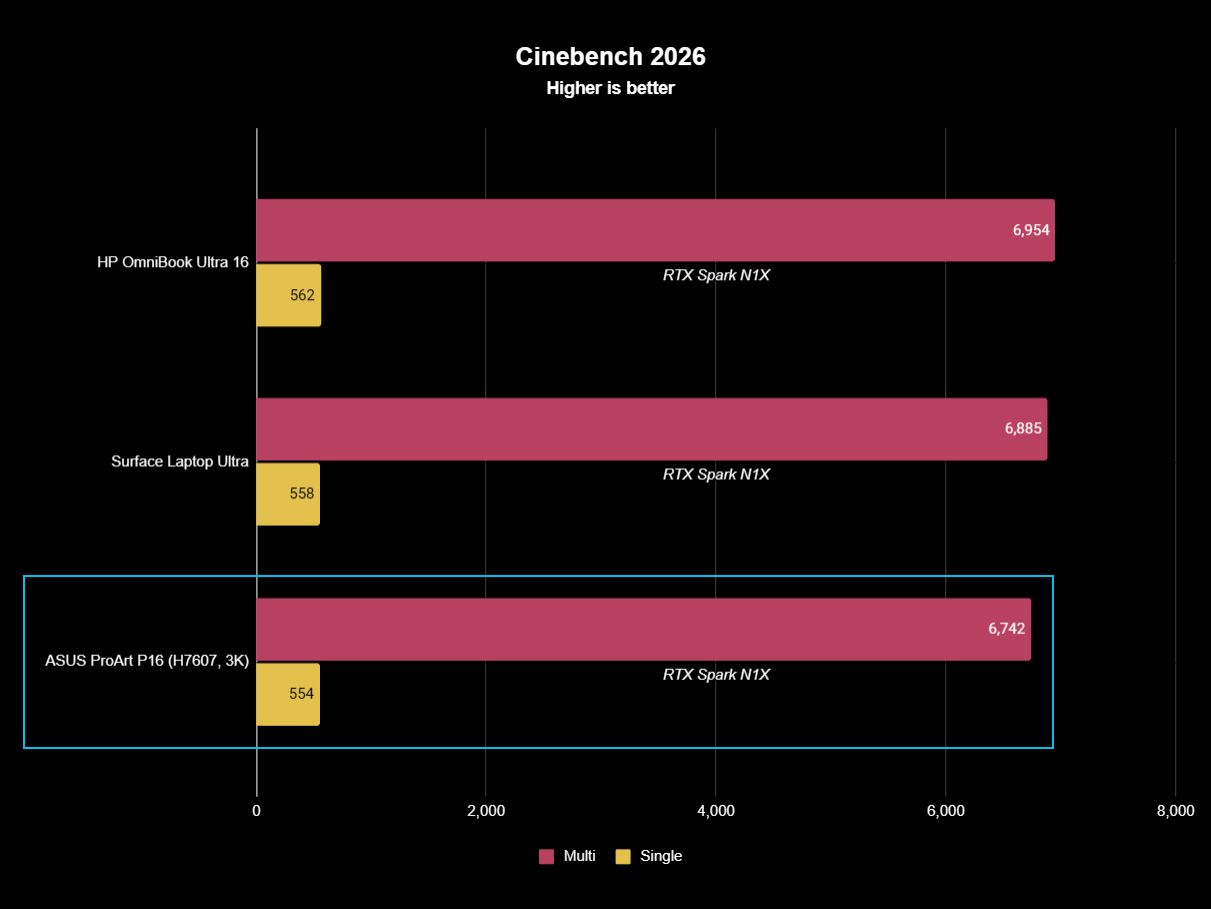
Looking across all my benchmarks, however, there's another interesting conclusion: which RTX Spark laptop you buy matters considerably less for raw performance than you might expect.
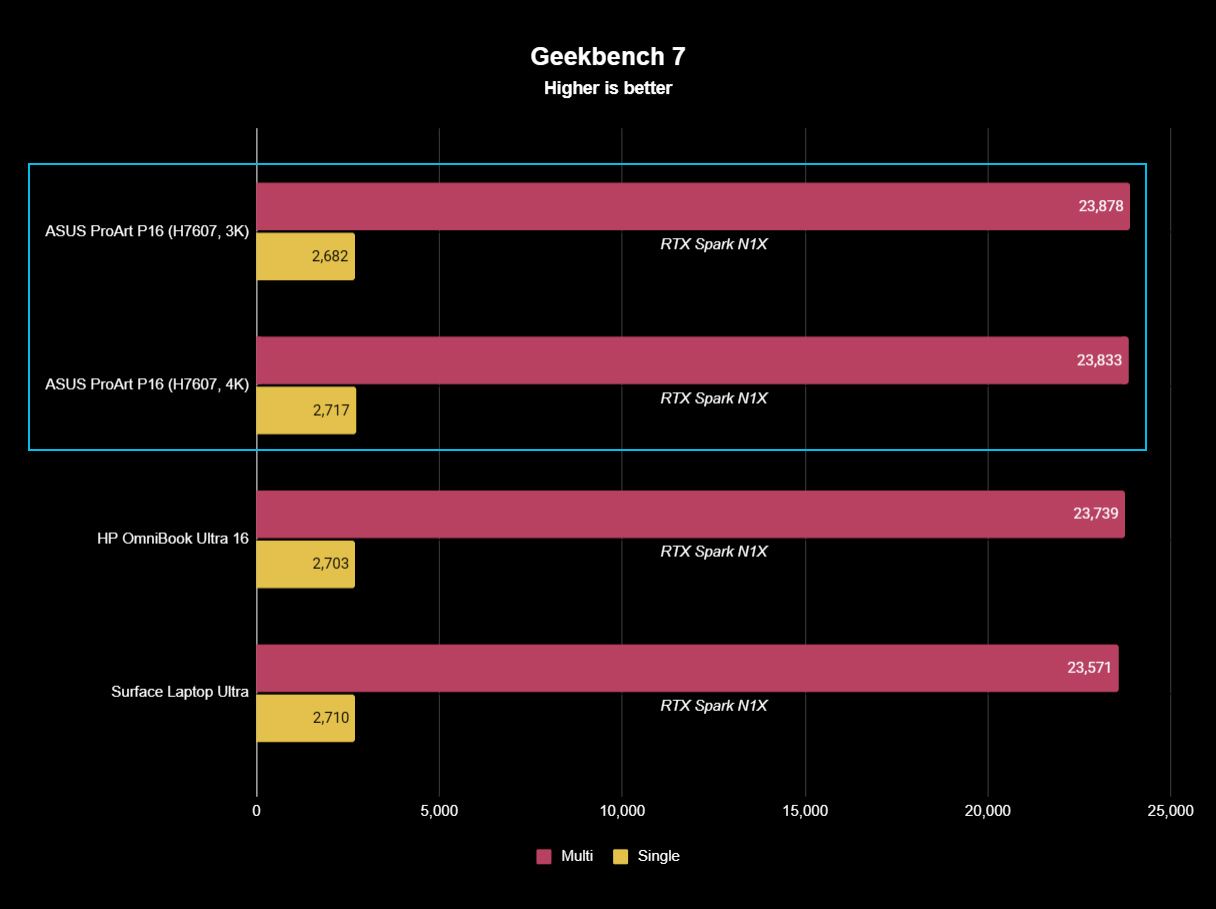
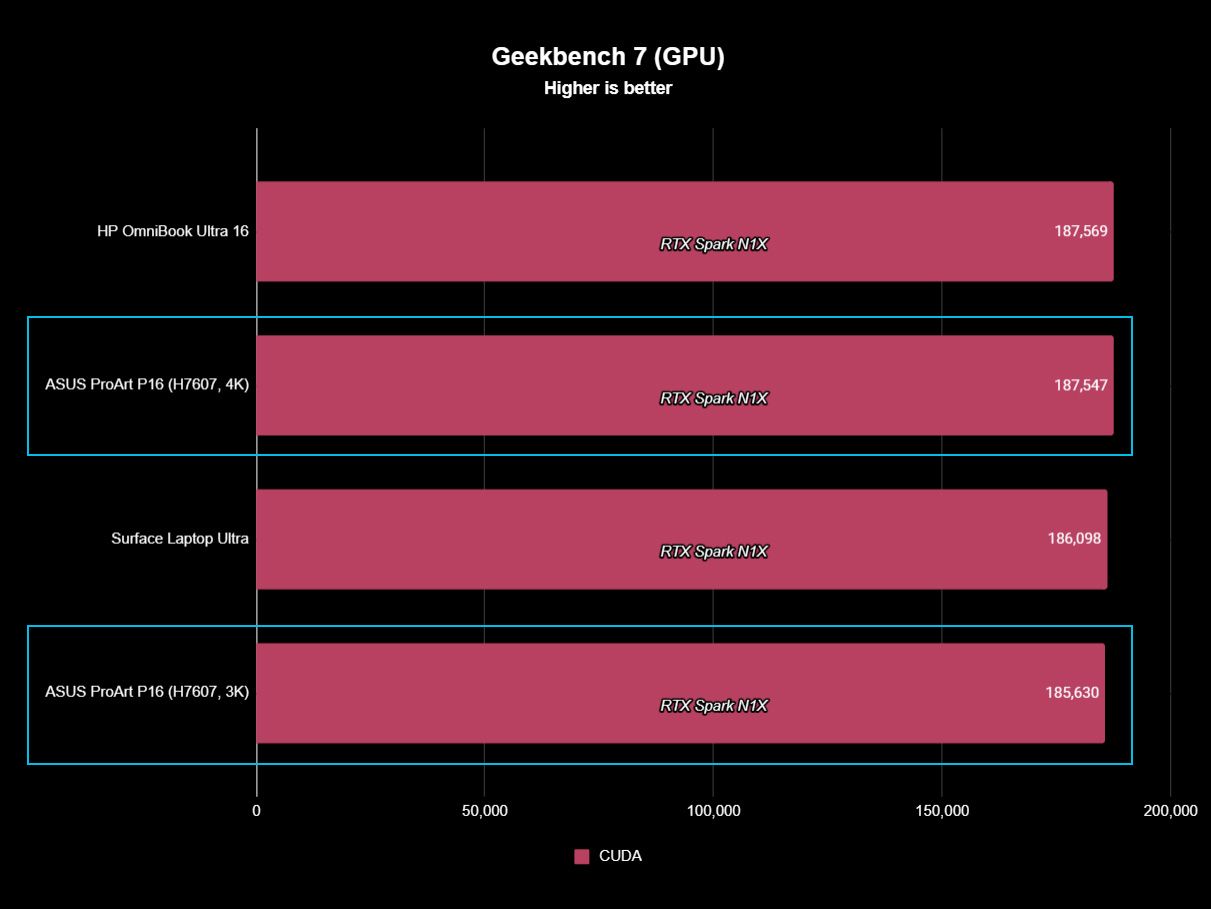
The ProArt P16, Surface Laptop Ultra, and HP OmniBook Ultra 16 (review forthcoming) trade places depending on the benchmark, but they're generally clustered surprisingly close together. In Geekbench 7, for instance, the ASUS actually posts the best multi-core result of the three, while single-core performance is separated by barely anything. CUDA testing is essentially a three-way tie. The 4K ASUS scored 187,547 against HP's 187,569, a difference so tiny it is meaningless.
That's good evidence of how consistent NVIDIA's N1X platform is between manufacturers.
FutureFutureFutureFutureFuture
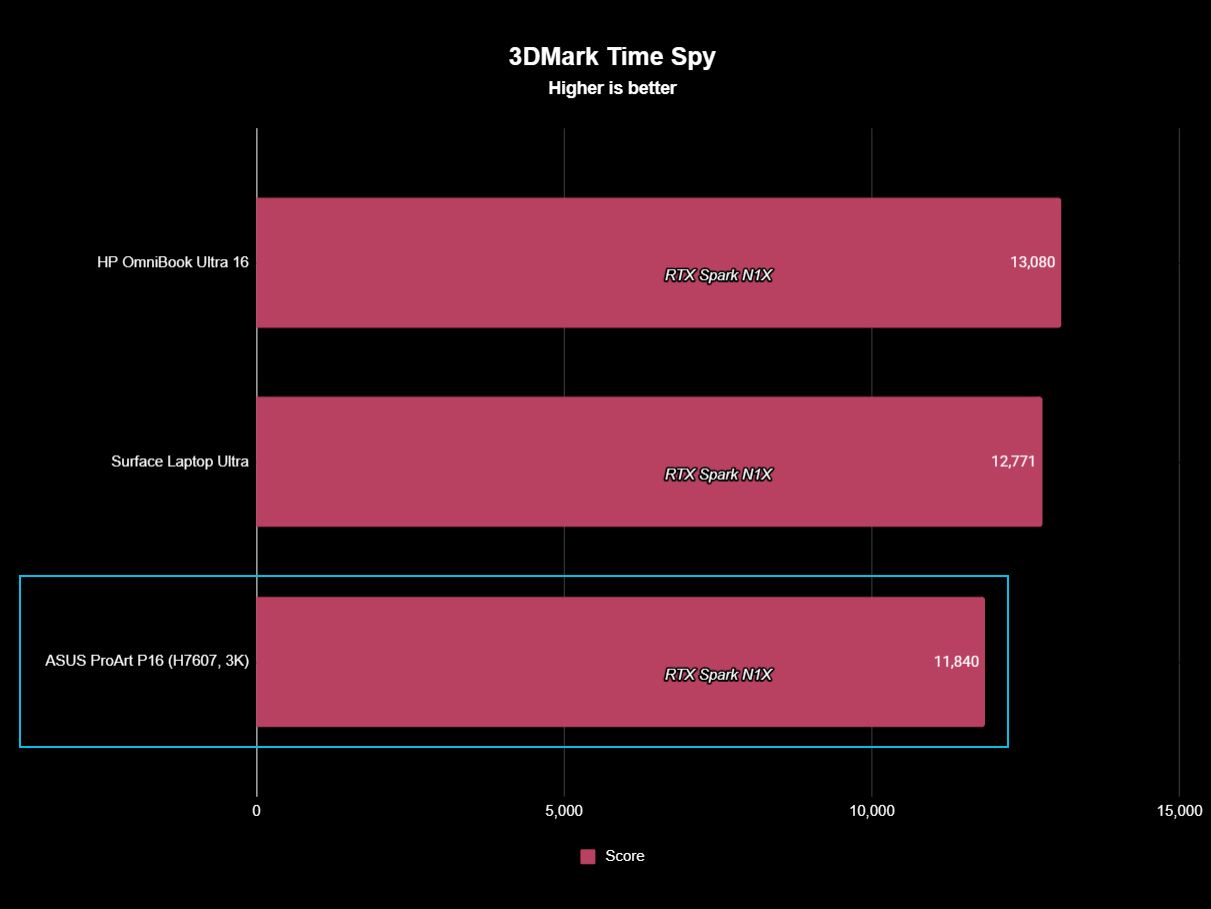
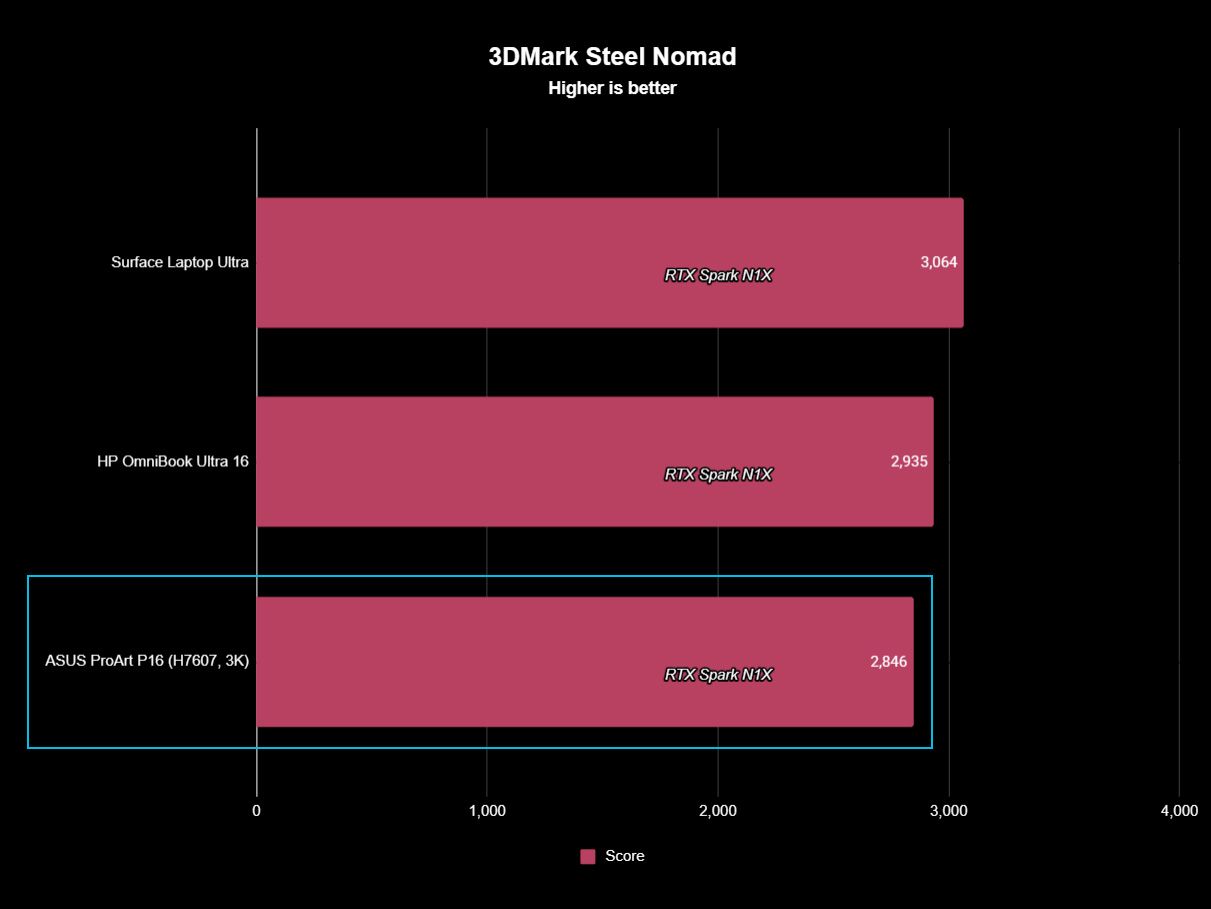
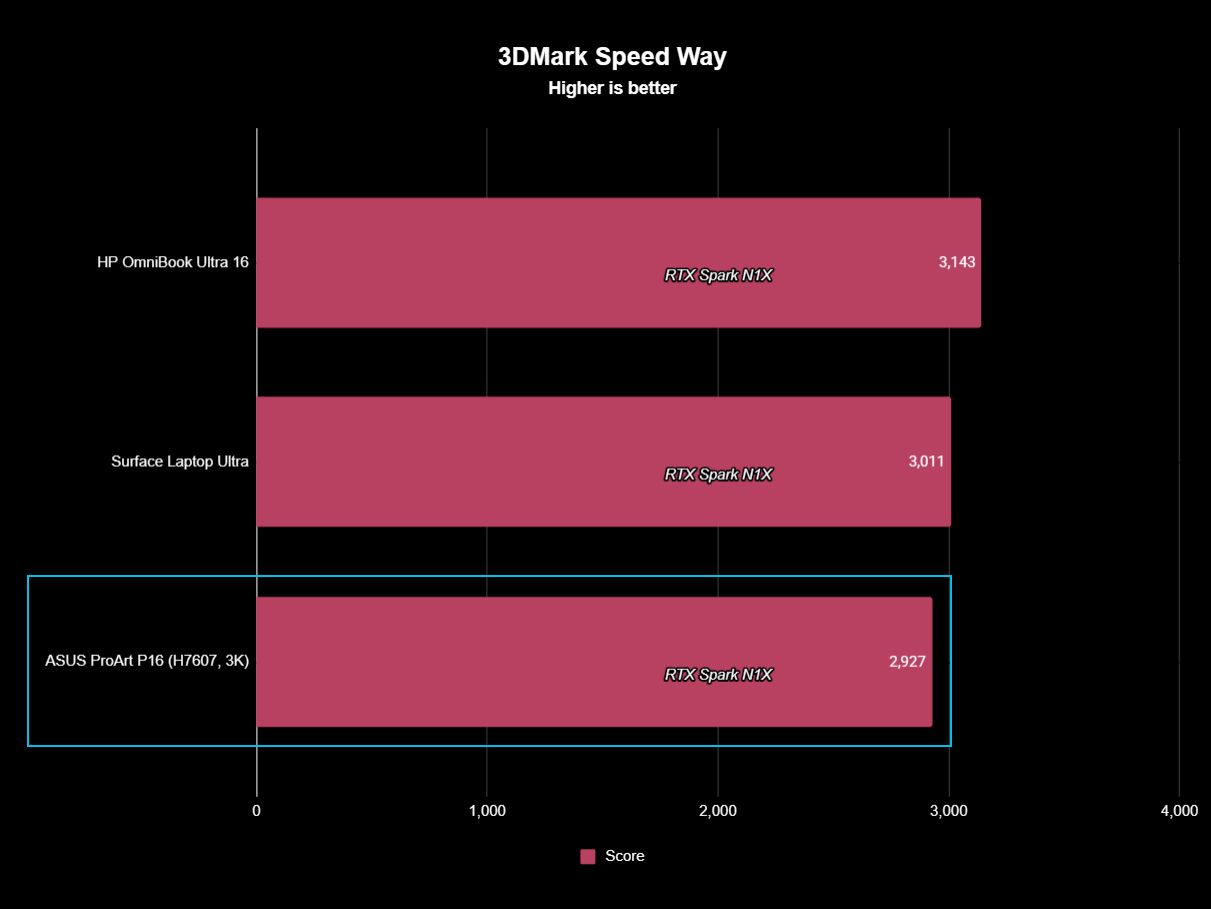
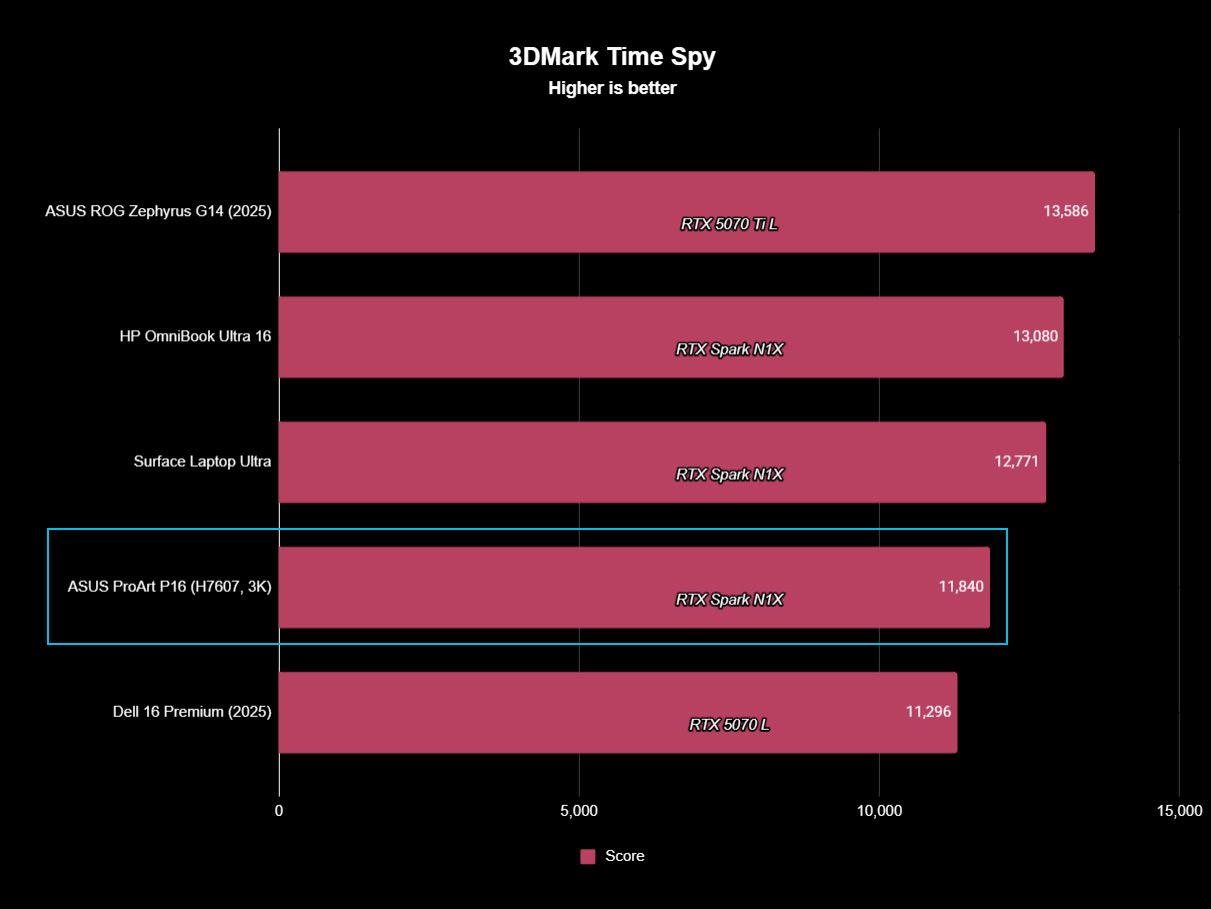
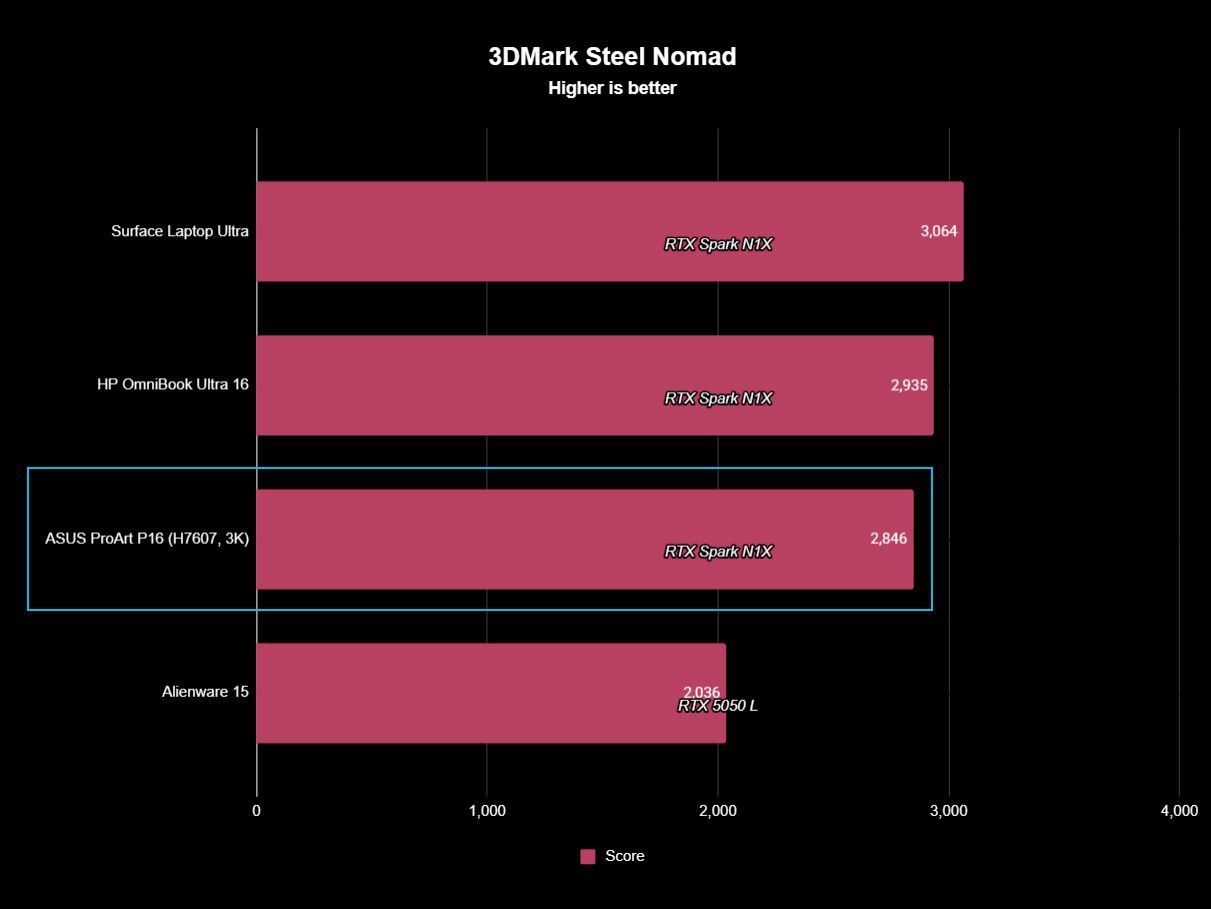
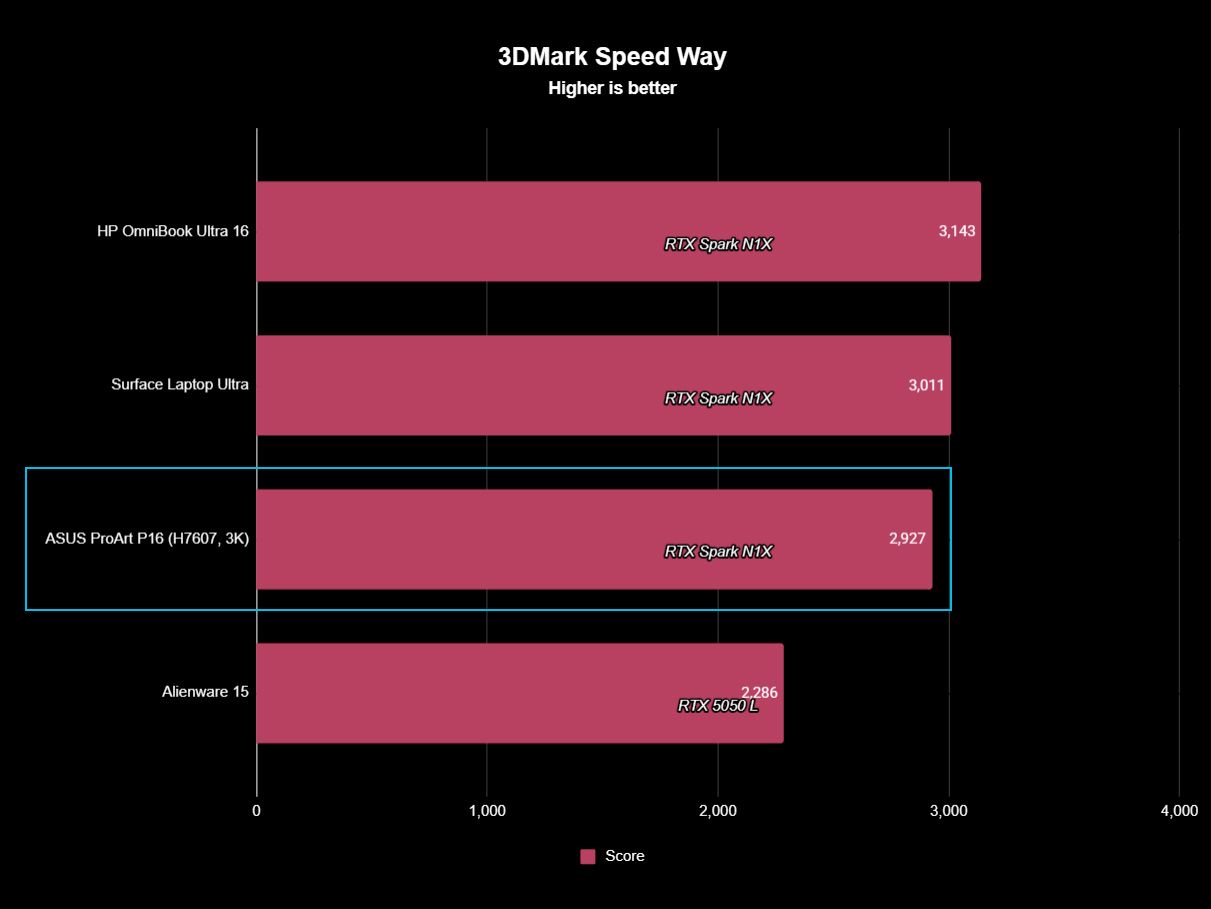
Graphics benchmarks reveal somewhat more variation. The ProArt P16's 11,840 result in 3DMark Time Spy trails the Surface Laptop Ultra's 12,771 and HP's 13,080 by around 7% and 9%, respectively. Speed Way and Steel Nomad tell roughly the same story, with ASUS usually sitting a few percentage points behind Microsoft and HP.
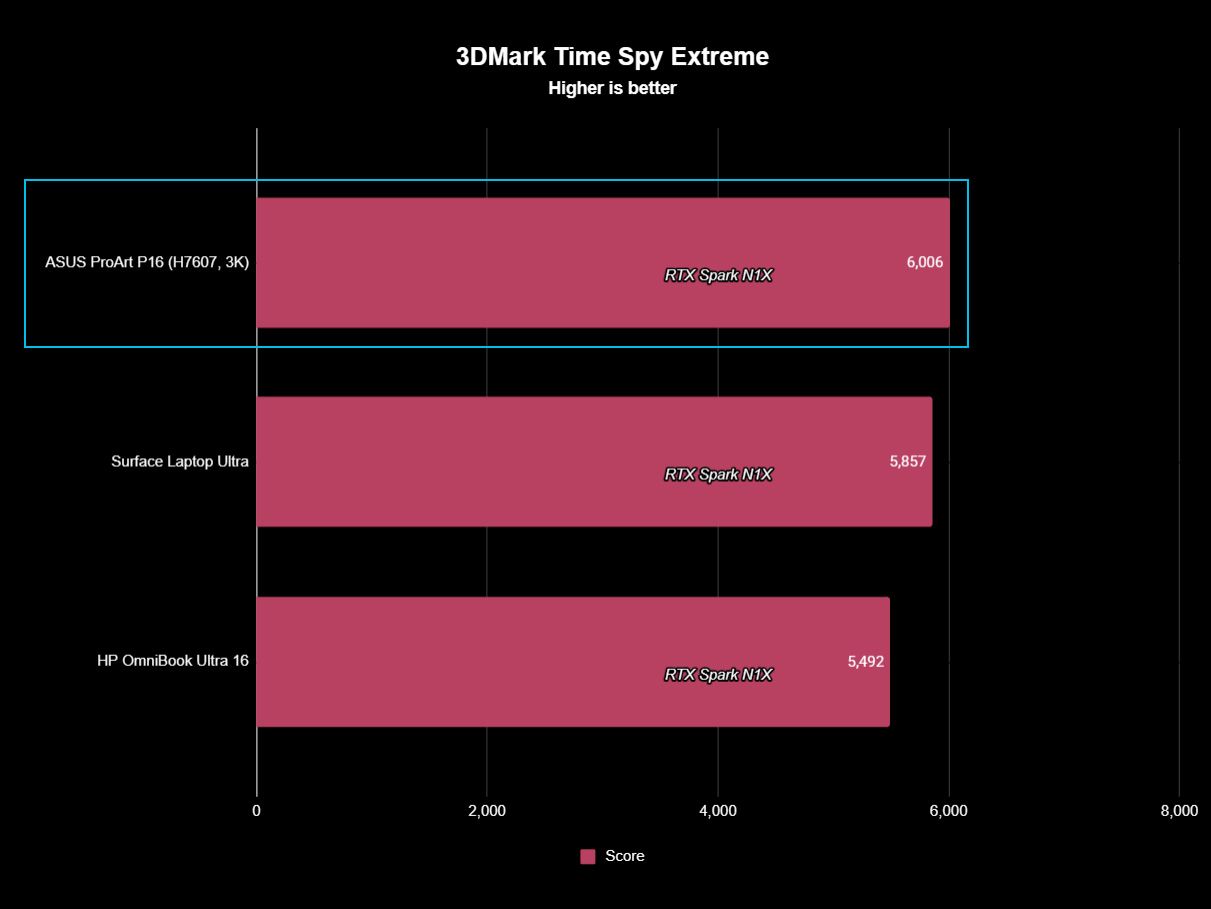
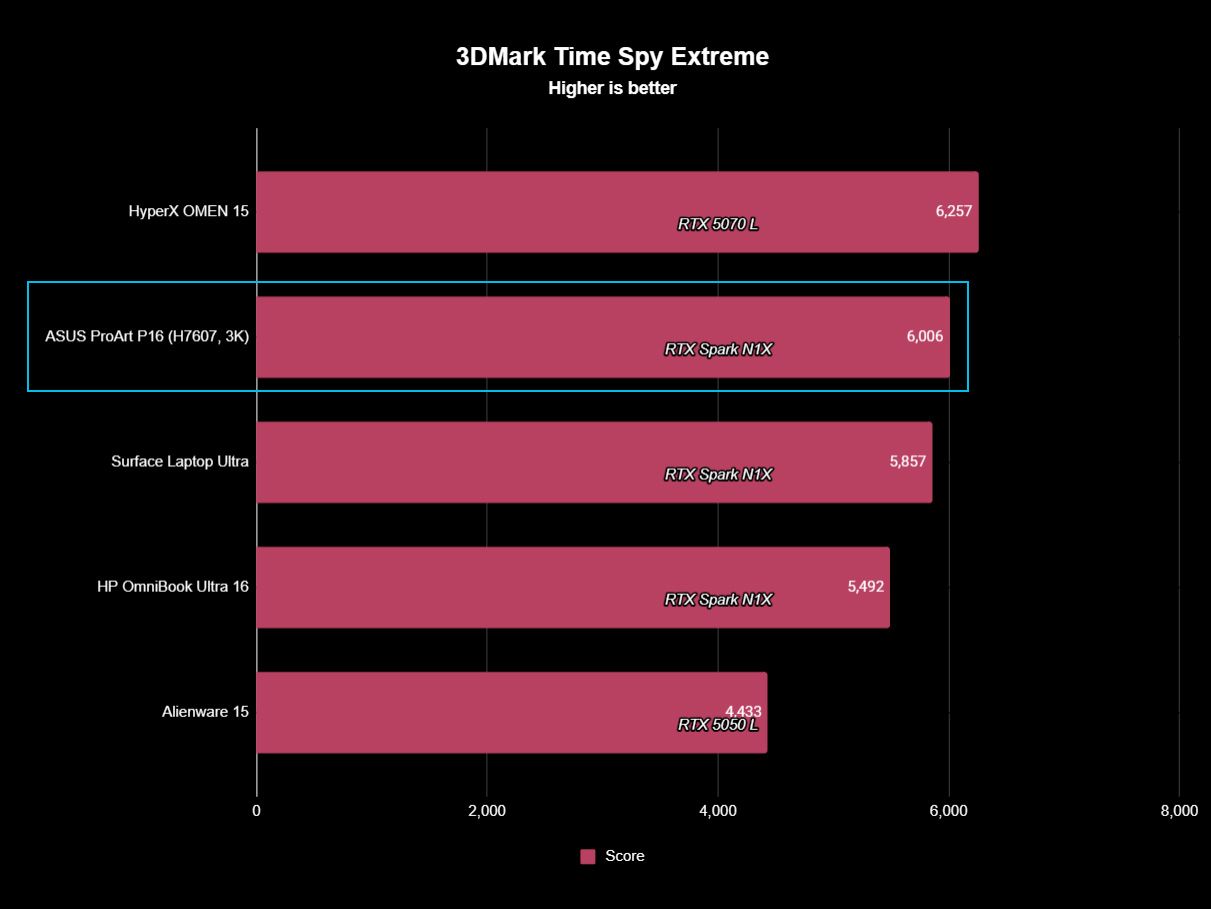
Yet even that isn't universal. In the heavier Time Spy Extreme test, the ProArt P16 actually beats both of them, scoring 6,006 compared to 5,857 for Surface and 5,492 for HP.
In other words, I wouldn't declare any of these RTX Spark laptops the definitive performance winner. We're talking about variations of the same extraordinarily powerful NVIDIA platform, and the rankings shift depending on the workload.
It's also worth remembering what ASUS has achieved physically. At 3.9 pounds and as little as 0.51 inches thick, the ProArt P16 is substantially lighter than its RTX Spark rivals while still maintaining excellent temperatures and relatively restrained fan noise. Some performance variation could plausibly be the consequence of fitting N1X into a thinner, lighter thermal envelope, but ASUS certainly hasn't compromised performance enough that I'd choose a much heavier laptop based on these benchmark differences alone.
(Image credit: Future)
The one performance result I would criticize is the SSD.
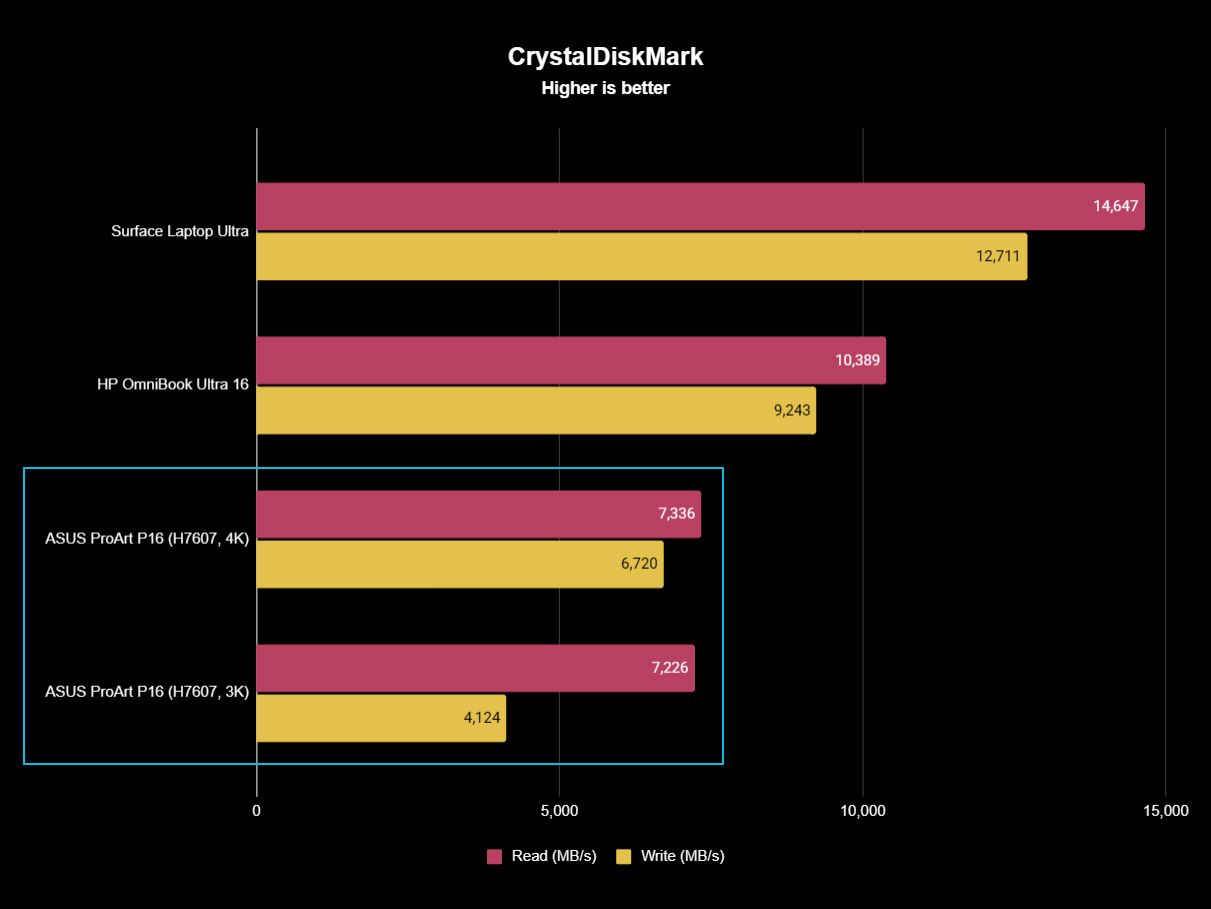
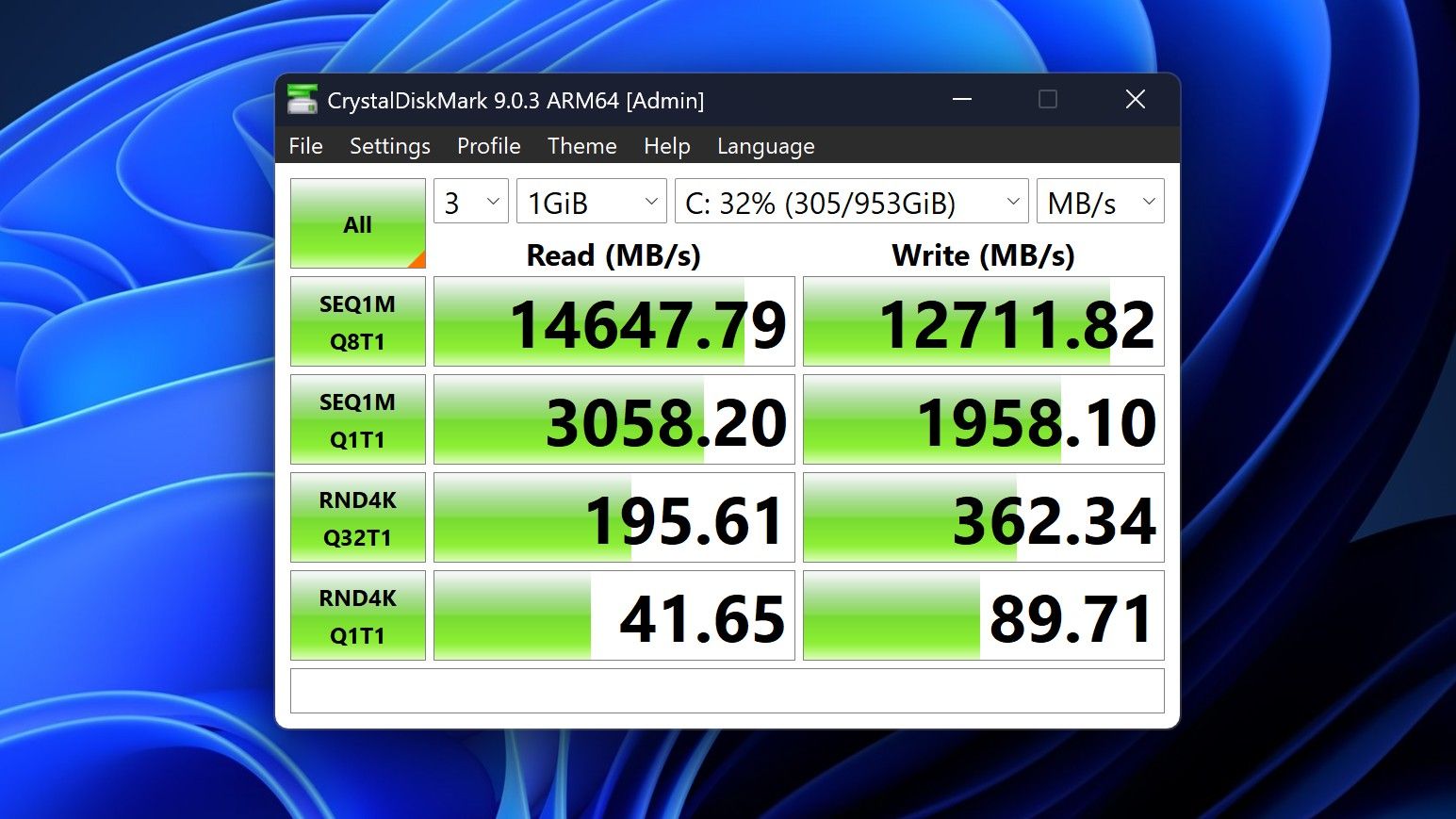
Both ASUS configurations are well behind the competition. Sequential reads hover around 7,300 MB/s, compared with 10,389 MB/s on the HP and a massive 14,647 MB/s on the Surface Laptop Ultra. Writes vary considerably between my ASUS configurations, too, from 4,124 MB/s on the 3K model to 6,720 MB/s on the 4K machine. Microsoft reached 12,711 MB/s.
Those ASUS numbers aren't slow in isolation, and Windows still feels exceptionally responsive, but this is a $2,800 to $7,000 workstation. Faster storage should come with the territory. At least ASUS provides a second PCIe 5.0 M.2 slot for expansion, so you can add a seriously fast SSD later.
Daniel RubinoDaniel Rubino
Gaming performance is also surprisingly good. I've played Gears of War: E-Day at maximum settings without issue, while Minecraft Dungeons II looked and played fantastic aside from occasional frustrating stutters. NVIDIA's latest Game Ready Driver appears to have fixed the latter on my machine, which suggests some of RTX Spark's early gaming quirks may improve as drivers mature.
And RTX Spark is legitimately fast here. Time Spy places the ProArt P16 ahead of the RTX 5070-equipped Dell 16 Premium, while Steel Nomad and Speed Way put it comfortably ahead of an RTX 5050 Laptop GPU. A conventional gaming laptop remains the smarter purchase if gaming is your priority, but RTX Spark owners certainly don't need a second computer just to play PC games.
FutureFutureFutureFuture
Ultimately, that's the performance story of the ProArt P16: ASUS gives up remarkably little despite building one of the lightest and thinnest RTX Spark laptops I've tested. Its N1X CPU and CUDA performance are right up there with Surface and HP; GPU performance is sometimes a little behind and sometimes ahead, and the only consistent disappointment is the SSD.
For a machine that's almost a full pound lighter than HP's OmniBook Ultra 16, I'll happily make that trade.
ASUS ProArt P16: Battery life
(Image credit: Daniel Rubino)
Battery life is good given what's inside (a 99.9 WHr battery, the legal limit), though Apple and Qualcomm still have an obvious efficiency advantage here, and I expect NVIDIA to improve over the coming years.
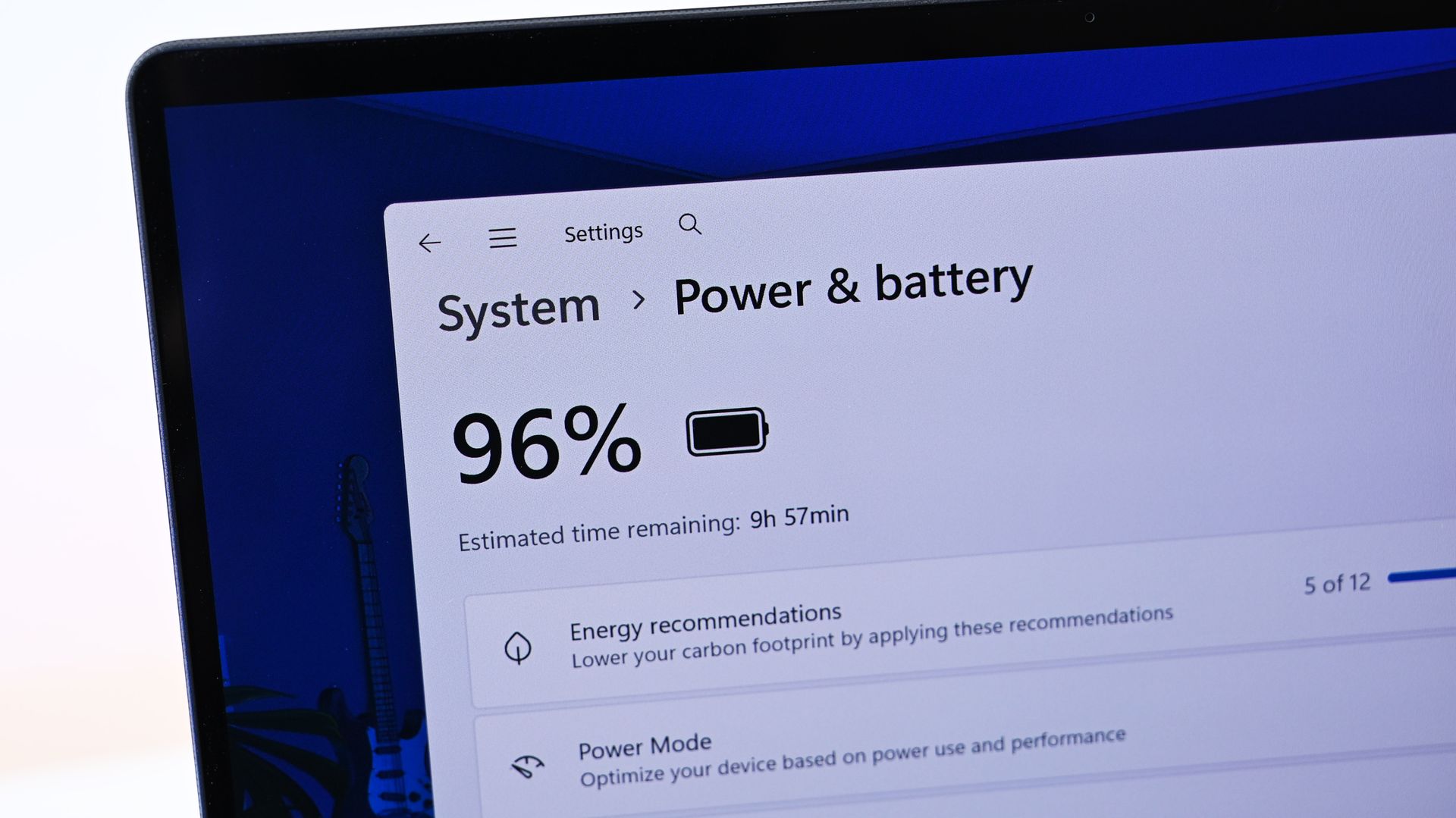
The Windows Battery Report recorded 9 hours and 58 minutes of real-world usage averaged over several weeks, including web browsing, video, messaging, and lighter creative work, basically standard laptop work with more focus on multimedia production and some lighter local AI work.
Hammer the GPU continuously with rendering, AI, or gaming and expect substantially less. Physics eventually wins.
Still, I can't say I've ever had a Windows laptop this powerful, this capable, and this thin/ligyht, and still get that kind of "regular" battery life.
Standby performance is exceptional. Leaving the ProArt P16 overnight resulted in less than 1% battery loss over 14 hours, finally making this Windows laptop behave the way I expect a modern premium portable PC to.
The included 140W USB-C charger is slightly bigger than HP's, though still compact, and ASUS gets bonus points for the excellent thick braided cable.
ASUS ProArt P16: Should you buy it?
(Image credit: Daniel Rubino)
✅You should buy this if ...
You know the benefits of unified memory and CUDA
You want the best RTX Spark laptop
You want to learn about cutting-edge agentic AI workflows
You need a light, very capable workstation for 3D creation, video editing, or coding
❌You should not buy this if ...
You think this is just a gaming laptop in disguise
You don't know what agentic AI is and don't care to learn about it
You spend most of your time consuming content instead of creating it
So, should you buy the ASUS ProArt P16 with RTX Spark? Probably not.
And I mean that as a compliment.
The ProArt P16 H7607 is a specialized workstation for people operating near the frontier of what portable Windows computers can do. Someone mainly browsing the web, writing documents, editing the occasional photo, or even gaming can get an excellent laptop for dramatically less money.
But developers, creators, 3D professionals, AI researchers, and people seriously experimenting with local models and agentic workflows finally have what Windows has desperately needed: a thin, premium laptop that combines massive unified memory with NVIDIA RTX graphics and CUDA.
That's a really big deal.
Both ASUS ProArt P16 models in 3K and 4K variations. (Image credit: Daniel Rubino)
ASUS then wraps that technology in what is arguably the best RTX Spark chassis on the market. And I mean that. ASUS has been killing it on design and features over the last 3 years.
At 3.9 pounds, the laptop almost feels impossibly light (for its class). The OLED display is beautiful, the keyboard and haptic touchpad are excellent, the speakers are outstanding, the ports are plentiful, the thermals are exceptional, and ASUS offers a level of hardware customization through MyASUS that competitors should copy.
Even the weird stuff is charming. My $4,399 3K review unit included ASUS's excellent $99 ProArt MD301 mouse and a protective sleeve, while the $6,999 128GB machine inexplicably included neither. ASUS notes that bundled accessories vary by country and territory, so your experience may differ.
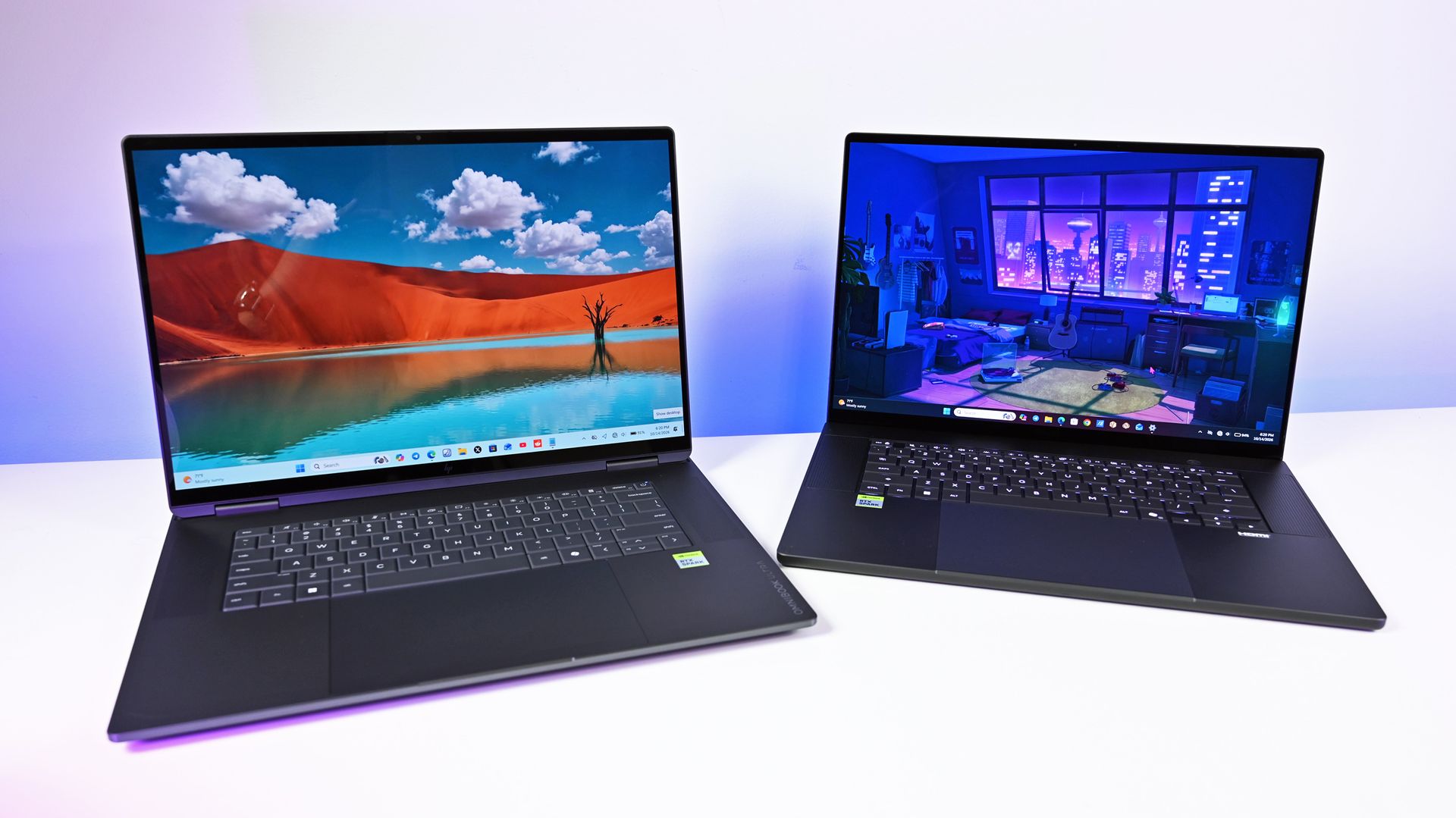
Left: HP OmniBook Ultra 16. Right: ASUS ProArt P16. (Image credit: Daniel Rubino)
One caveat: Those 24GB and 32GB Best Buy models are, I think, perfect, more general laptops for creators whowant a premium Windows 11 experience with the latest technology. That's an easy recommendation if you can afford it.
The SSD should be faster, battery life can't match the best Snapdragon X2 or Apple Silicon laptops, and $7,000 is still an extraordinary amount of money for any laptop (though about $150 cheaper than a similarly spec'd MacBook Pro 16).
Yet none of those complaints change my overall impression.
The ASUS ProArt P16 is one of the best laptops I've ever used. For the relatively small group of people who can actually exploit everything RTX Spark offers, it may also be one of the most exciting Windows PCs in years.
And if you're simply curious about local AI and want to learn where personal computing may be heading next, the ProArt P16 deserves a spot very near the top of your shortlist.
RTX Spark
ASUS
ProArt P16 (h7607)
The ASUS ProArt P16 combines NVIDIA's powerful RTX Spark platform with up to 128GB of unified memory, outstanding OLED displays, superb thermals, and a remarkably thin 3.9-pound chassis. It's an extraordinary Windows workstation, but most people shouldn't buy one.
Join us on Reddit at r/WindowsCentral to share your insights and discuss our latest news, reviews, and more.
Black Friday is inching closer, but that doesn't mean you should wait for bargains on Windows laptops built for productivity before then. Dell is offering a selection of its laptops featuring 16GB of RAM for reliable performance under load, 1TB SSDs for plenty of storage space, and a range of portable sizes to suit you.
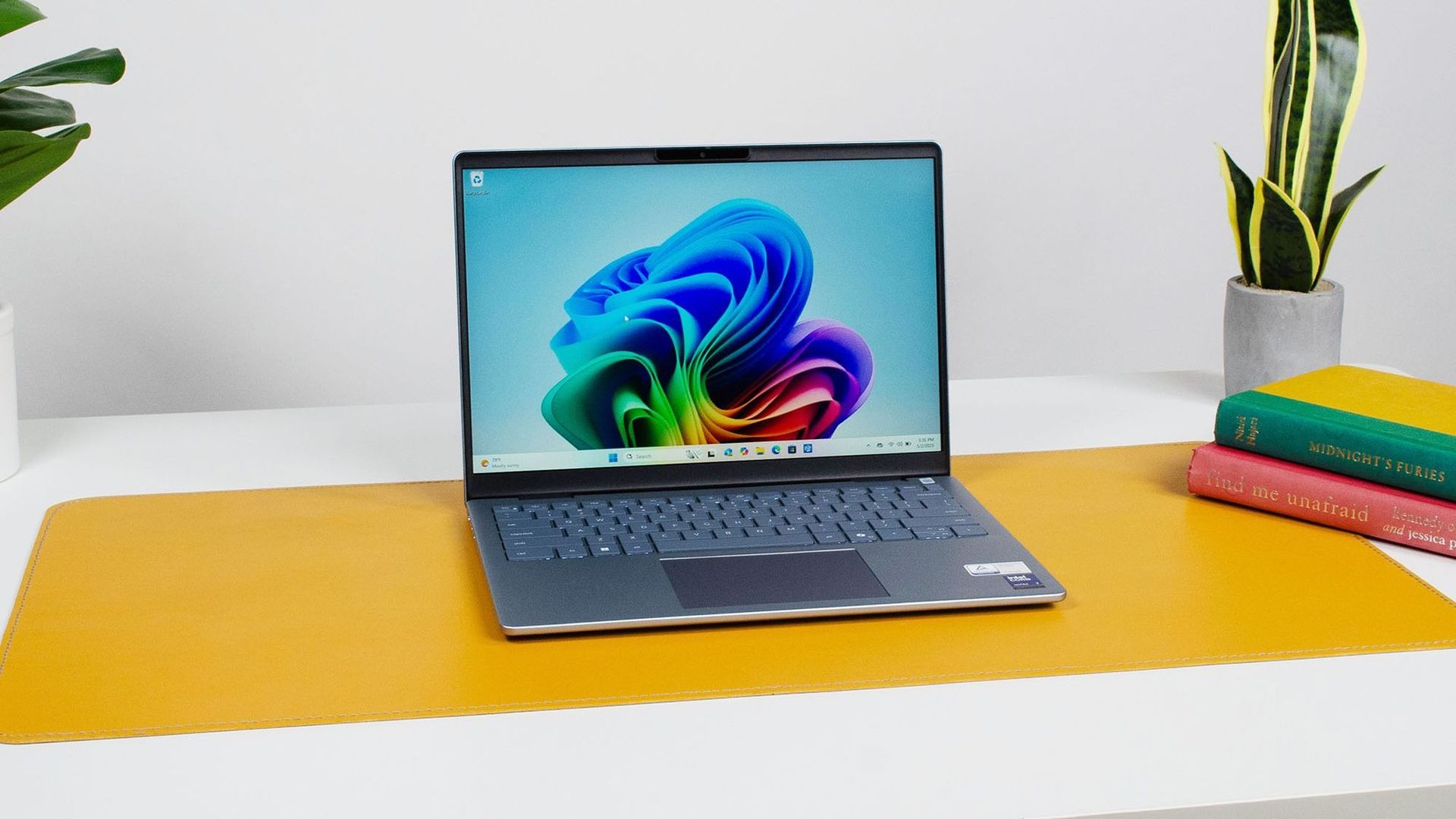
The Dell 14 Plus is the most expensive but best portable laptop in this roundup thanks to its thin and light form factor. It also comes with a crisp 14-inch non-touch QHD+ display (2560x1600), an Intel CPU, 16GB RAM, and a 1TB SSD to crush work assignments.View Deal
The Dell 16 will give you the most screen space of all the highlighted laptops with its 16" FHD+ Touchscreen display (1920x1200) while handling creative tasks with ease using its Intel Core 7 CPU, 16GB RAM, and 1TB SSD.View Deal
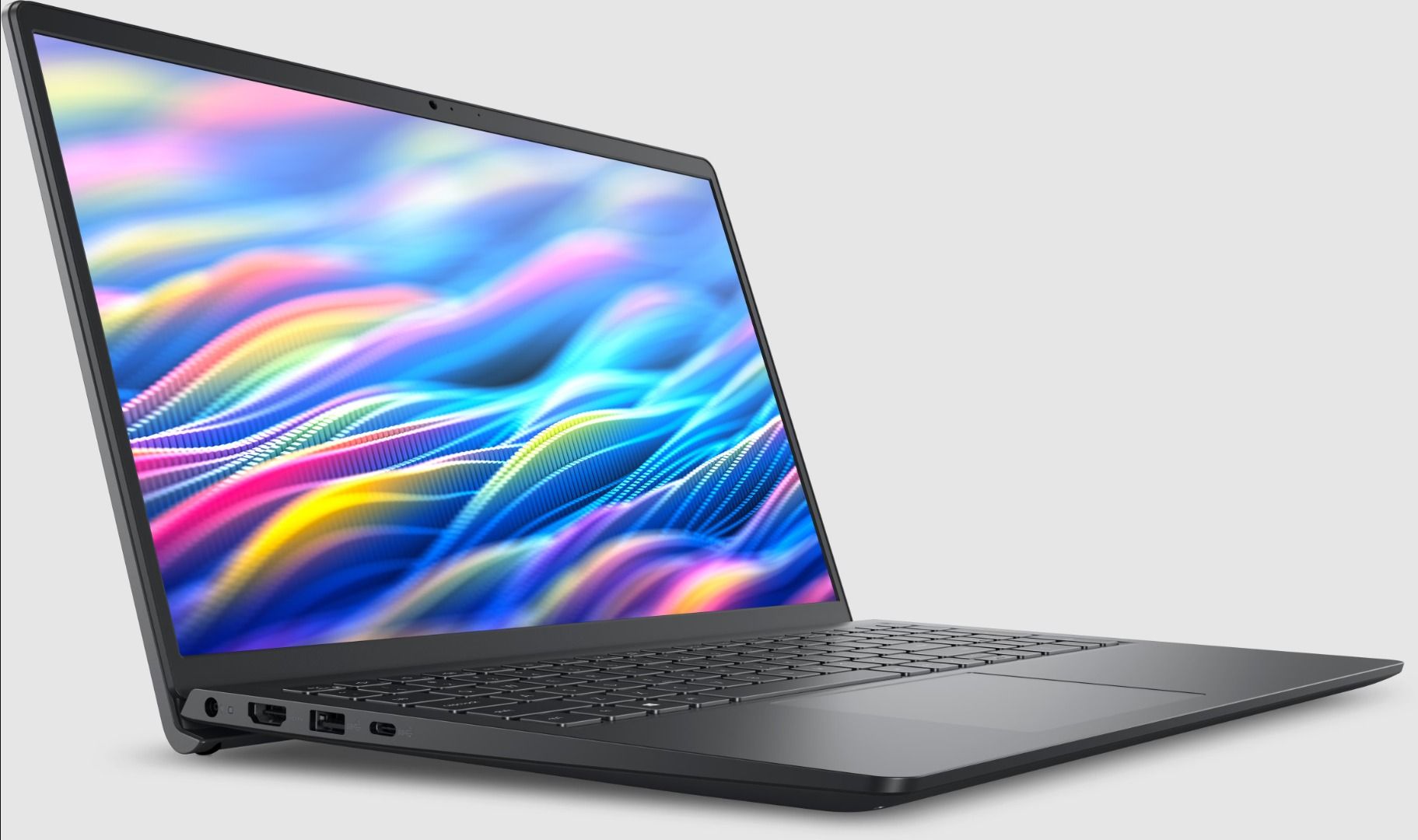
The Dell 15 handles workflows efficiently with its Intel CPU, 16GB RAM, a 15.6" non-touch FHD (1920x1080) display, and 1TB SSD, while keeping a respectable mid-range price compared to its upper-tier siblings.View Deal
Which of these Dell laptops is best for you?
The Dell 14 Plus laptop on display (Image credit: Future / John Loeffler)
If you're looking for an affordable yet capable laptop, the Dell 15 offers the best value compared to the other laptops in this roundup.
It's equipped with a 15.6" (Non-Touch) FHD display with 1920x1080 resolution and a 120Hz refresh rate to render images, videos, and writing with sharp details, so you don't have to squint at your work when typing or worry about blurry video feed when hosting stream meetings.
It comes with an AMD Ryzen 7000 7730U CPU and 16GB RAM that will make short work of Office, web browsing, and other productivity tasks while offering a ton of space to back up your precious files with its 1TB SSD.
However, if you've got the budget for more processing power, then go for the Dell 14 Plus Laptop.
It's won high praise from our friends at TechRadar for its 13+ hour battery, great portability due to its ultra-thin design, and 14-inch non-touch QHD+ display with 120Hz and Anti-glare protection.
Best of all, the Dell 14 Plus offers the best single-core performance for everyday use and heavy workloads thanks to its Intel Core Ultra 7 256V CPU, 16GB, and 1TB SSD.
Can these laptops have their RAM and SSDs replaced?
Only the Dell 15 laptop can have its RAM replaced, as it isn't soldered like the ones in the Dell 14 Plus and Dell 16 laptops. All of these laptops can have their SSDs swapped out and replaced with larger ones.
Are they good for gaming?
The Dell 15, Dell 16, and Dell 14 Plus aren't designed for gaming due to their integrated graphics cards, so they will struggle to run most games beyond extremely light titles like Minecraft. Stick to cloud gaming.
Should I wait for Black Friday for a better deal?
It depends on whether you're willing to wait until Black Friday for a bigger discount or if you're in need of a new laptop for work/casual use right now and don't have time to wait for a killer deal.
Join us on Reddit at r/WindowsCentral to share your insights and discuss our latest news, reviews, and more.
Apple finally "invented" the folding phone, bringing flexibility and multitasking to the masses. iPhone Duo reviews are in, and I couldn't help but feel a sense of déjà vu.
All the talk of passport-shaped phones, mobile multitasking, and optimized apps sent me back to the days of Microsoft's Surface Duo. A lot of the phrasing in iPhone Duo reviews could have been copied and pasted from reviews of the Surface Duo.
So, I put together a quiz to see if people can identify if a quote is from an iPhone Duo review or a Surface Duo review.
I've changed all of the quotes in this quiz as little as possible and all changes are noted with brackets. I only altered a quote if it includes something that's a giveaway like iPhone Duo, Surface Duo, Apple, or Microsoft.
I sent this quiz to a few friends and colleagues before publishing it. No one got a perfect score, and many only got 50% correct. I'm curious to see if that trend continues as more people take the quiz. Please let me know how you did in the comments!
Below are all of the reviews I used to create this quiz.
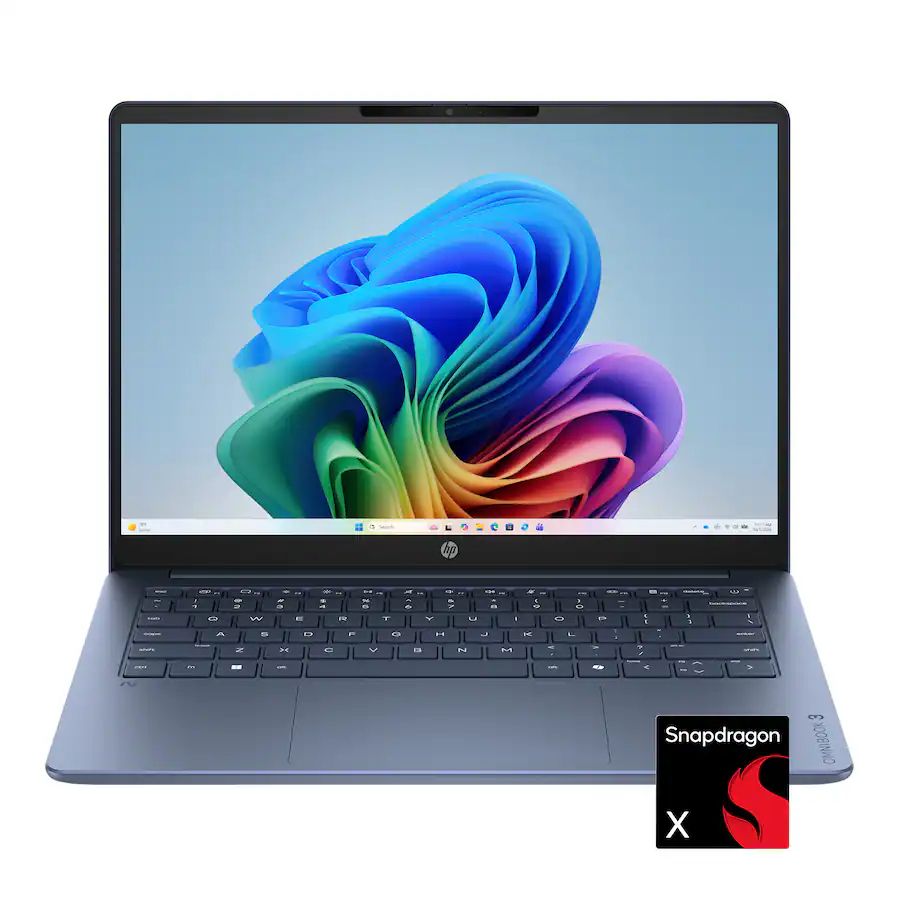
Every once in a while, Best Buy will host a lucrative deal on a reliable, mid-range laptop during its "Deal of the Day" sale, and that's especially true now, as the HP Omnibook 3 laptop is available for $599.99 at Best Buy (was $799.99), but only for today.
This laptop is a great mid-range choice for students and office workers alike, with its above-average performance, battery life, and high-contrast OLED display that will help you get through the day.
The HP OmniBook 3 is a well-made mid-range laptop that will power through homework, casual tasks, and office work with its performance-boosting Snapdragon X CPU and 16GB RAM, long-lasting battery life of 32 hours, and detailed 2K OLED touchscreen.View Deal
Why buy the HP Omnibook 3?
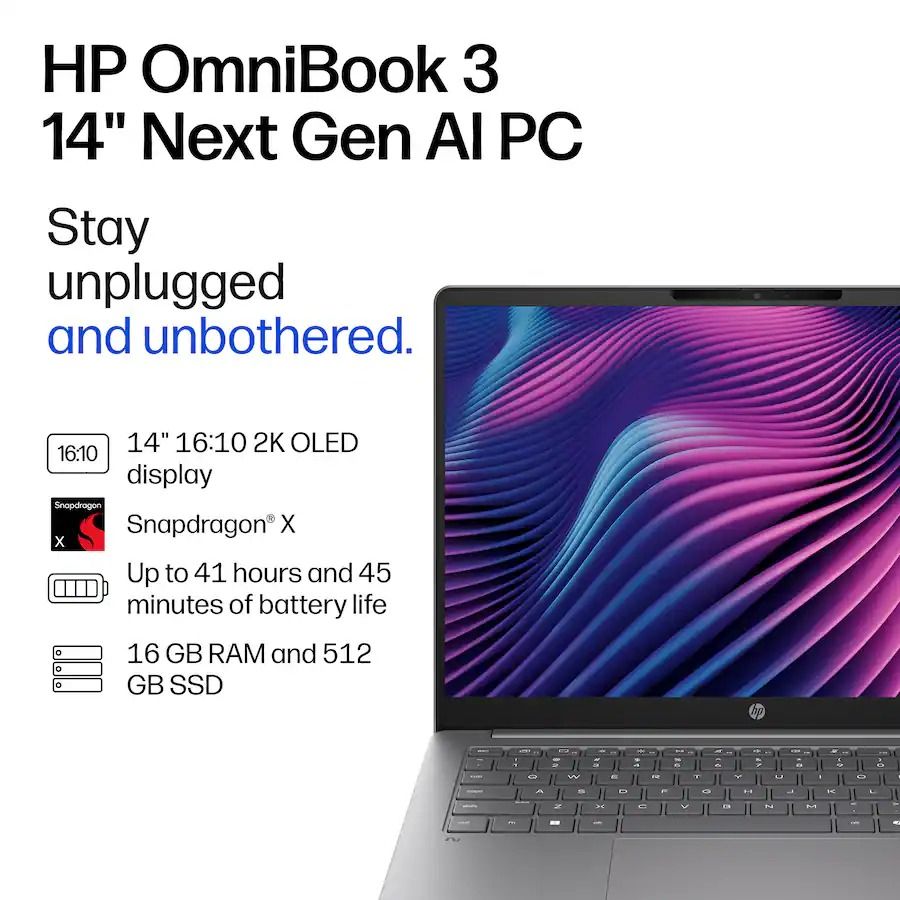
The spec highlights for the HP Omnibook 3 laptop. (Image credit: HP)
Our friends at TechRadar have praised and recommended the HP Omnibook 3 in their coverage a couple of times, and it's easy to agree with them. It's a well-made laptop for school learners or desk workers who need a reliable solution for daily homework, assignments, research, creative tasks, and casual use without breaking the bank.
This laptop is equipped with Qualcomm's (8-core) Snapdragon X CPU to give it faster and more responsive performance when running apps, 16GB of RAM to help it multitask multiple apps without slowing it down, and a 512GB SSD to store precious data.
The HP Omnibook 3 also features a 14-inch 2K OLED touchscreen that displays images, videos, and livestreams with crisp and vibrant details, and a massive battery life of potentially up to 41 hours so you won't have to worry about it shutting down during work.
Is it's RAM and SSD upgradeable?
The HP Omnibook 3's RAM is soldered, so it can't be upgraded, but its SSD can be removed via its M.2 NVMe SSD slot and replaced with a larger one up to 1TB.
Is it an AI laptop?
Yes, the HP Omnibook 3 is an AI laptop as it features Copilot+ PC integration with an NPU capable of 45 TOPS for boosted performance rates while performing local AI-related tasks.
Is it worth waiting until Black Friday?
It depends on your situation and needs. If you're not in a hurry and are willing to wait for a better price, then waiting until Black Friday on November 27, 2026, is a valid option.
However, if you desperately need a new, high-quality laptop and are concerned that laptop prices are going to get worse thanks to the RAM crisis, then we recommend taking advantage of Best Buy's 25% discount on the HP Omnibook 3, as this deal is only available for today.
Join us on Reddit at r/WindowsCentral to share your insights and discuss our latest news, reviews, and more.
2026 saw the release of the familiar Dell XPS 13, a 'new' laptop designed to be the ultimate, affordable gateway for first-time PC users thanks to its respectable performance, long-lasting battery life, high-quality build, and general reliability.
"The Dell XPS 13 returns as an excellent Windows-based answer to the MacBook Neo. It’s an excellent option for students or mainstream users who don’t need more CPU or GPU muscle." — Matt Safford, Managing Editor, Tom's Hardware
They don't make those comments lightly because the Dell XPS 13 has plenty of features to help it live up to the hype and make it an easy recommendation for beginner PC users, students, and workers.
These include a strong battery life of nearly 15 hours per charge, a 13.4" 3K Touchscreen with 2560x1600 resolution and a 120Hz refresh rate to provide crisp and detailed images and videos, and a solid, thin 0.5 inches thick chassis weighing in at 2.2lb for easy portability.
On top of that, the Dell XPS 13 has a solid and responsive keyboard, a pair of Thunderbolt 4 ports to plug in useful accessories, an IR sensor for facial recognition, great-sounding speakers, Wi-Fi 7 support for faster and more stable internet connections, and decent performance for casual use and mid-level intensive workflows thanks to its Intel Core 5 Series 3 320 CPU and 16GB of RAM.
Can it's RAM and SSD be swapped with different ones?
The Dell XPS 13 laptop's RAM can't be removed and swapped for a different one due to being soldered, so you will need to decide how much RAM it gets during checkout.
Its SSD, however, can be swapped out with a different one, and the Dell XPS 13 supports up to 4TB of storage.
Is it worth waiting until Black Friday?
In the past, we'd recommend waiting until Black Friday for a chance at a better discount, as laptops are usually discounted to their lowest by then.
However, with the ongoing RAM crisis hiking the prices of laptops further and further, who's to say that the Dell XPS 13 won't have a good price by then, even with a Black Friday discount?
With that in mind, it's still worth using Best Buy's 26% discount for the Dell XPS 13 now in case things get worse, especially if you're in a hurry for a high-quality, beginner-friendly laptop.
Join us on Reddit at r/WindowsCentral to share your insights and discuss our latest news, reviews, and more.
There have been few laptops that have completely blown us away with exceptional design, long battery life, and a smooth Windows experience quite like ASUS' Zenbook A14, and it saw a massive upgrade this year with a refresh outfitted with Qualcomm's Snapdragon X2 Elite processor.
Normally, the ASUS Zenbook A14 with its $1,349.99 price tag can seem like a hard sell compared to its cheaper (yet very capable) Snapdragon X Plus predecessor (usually $939.00 — $969.99), and its premium-grade Zenbook A16 sibling with its powerful X2 Elite Extreme CPU ($1,599.99 — $1,899.99).
Thankfully, with this 26% discount, the Zenbook A14 with Snapdragon X2 Elite is now at a smarter price of $999.99 at Best Buy, compared its siblings.
"At a glance, it might feel like the Zenbook A14 didn't change at all, but upgrading to the Snapdragon X2 Elite gave it a massive CPU performance bump." — Ben Wilson, Senior Editor
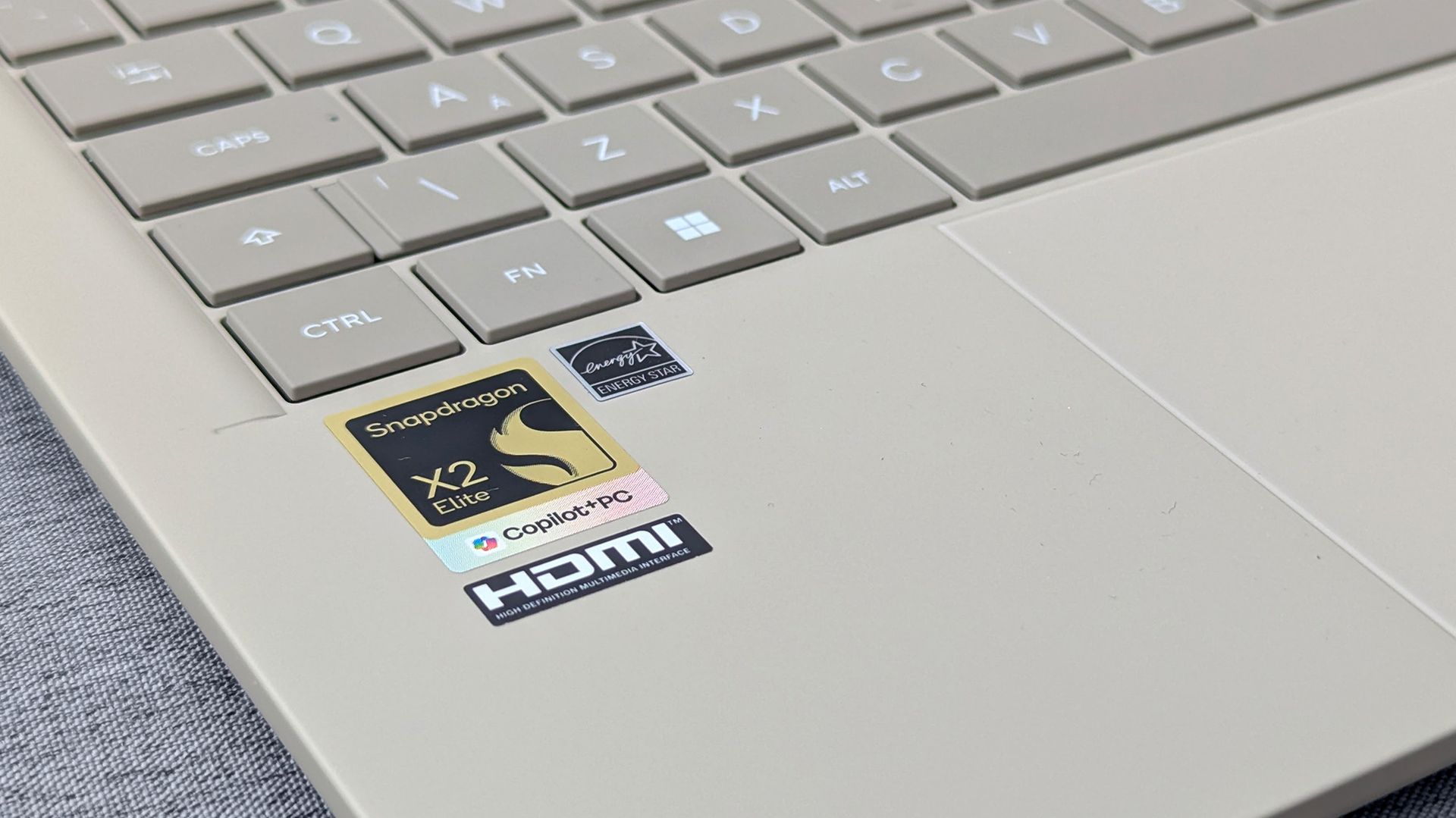
The Snapdragon X2 Elite logo on the ASUS Zenbook A14. (Image credit: Ben Wilson | Windows Central)
For starters, ASUS' Zenbook A14 laptop with Snapdragon X2 Eliteoffers vastly superior performance for casual use and heavy workloads compared to its 2025 Snapdragon X Plus predecessor, while also outperforming Apple's M5 chip.
Additionally, this laptop also earned high praise from us for its exceptional battery life of 17 hours per charge, crisp 14-inch OLED display that runs at 1920x1200 resolution with a max refresh rate of 60Hz, and vast selection of USB4, HDMI 2.1, and USB-A ports.
Plus, this version of the ASUS Zenbook A14 laptop also has Wi-Fi 7 support for faster and more stable wireless internet connections.
So, if you're looking for a lightweight, compact Windows laptop that will make mincemeat out of CPU-heavy apps and workflows, then the ASUS Zenbook A14 laptop with the Snapdragon X2 Elite CPU will serve you well in the office or school.
Will my everyday apps and old devices work with it?
Most everyday apps will function on the ASUS Zenbook A14, but older devices like legacy printers or scanners may have compatibility issues with the laptop's Qualcomm Snapdragon ARM-based processor. So make sure you check these older devices before using them on the ASUS Zenbook A14.
Is the RAM and SSD upgradeable?
The ASUS Zenbook A14's 16GB RAM is soldered, so it can't be removed and swapped with a larger one. You will need to select how much RAM it will have during checkout (16GB or 32GB). Its 512GB SSD, on the other hand, can be swapped out with a larger one up to 4TB of space.
Is it worth waiting until Black Friday for a better deal on this laptop?
It depends on your situation and wants. If you can hold out for a few weeks for a chance at a better discount, I'd recommend waiting until Black Friday.
However, if you're in a hurry for a new premium-level laptop for work and are afraid the ongoing RAM crisis will drive the price of this laptop to unaffordable levels in the future, then I'd say take the Asus Zenbook A14 now while its 26% discount is hot (and making its price slightly more on par with the 2025 model).
Join us on Reddit at r/WindowsCentral to share your insights and discuss our latest news, reviews, and more.
Linux support is progressing for Snapdragon X2 laptops, but missing drivers and hardware limitations mean buyers should check exact models before switching.
Xbox turns 25 this year, and if you're going to commemorate a quarter-century of one of gaming's most recognizable brands, slapping a green logo onto some existing hardware isn't going to cut it.
Thankfully, Razer didn't phone it in.
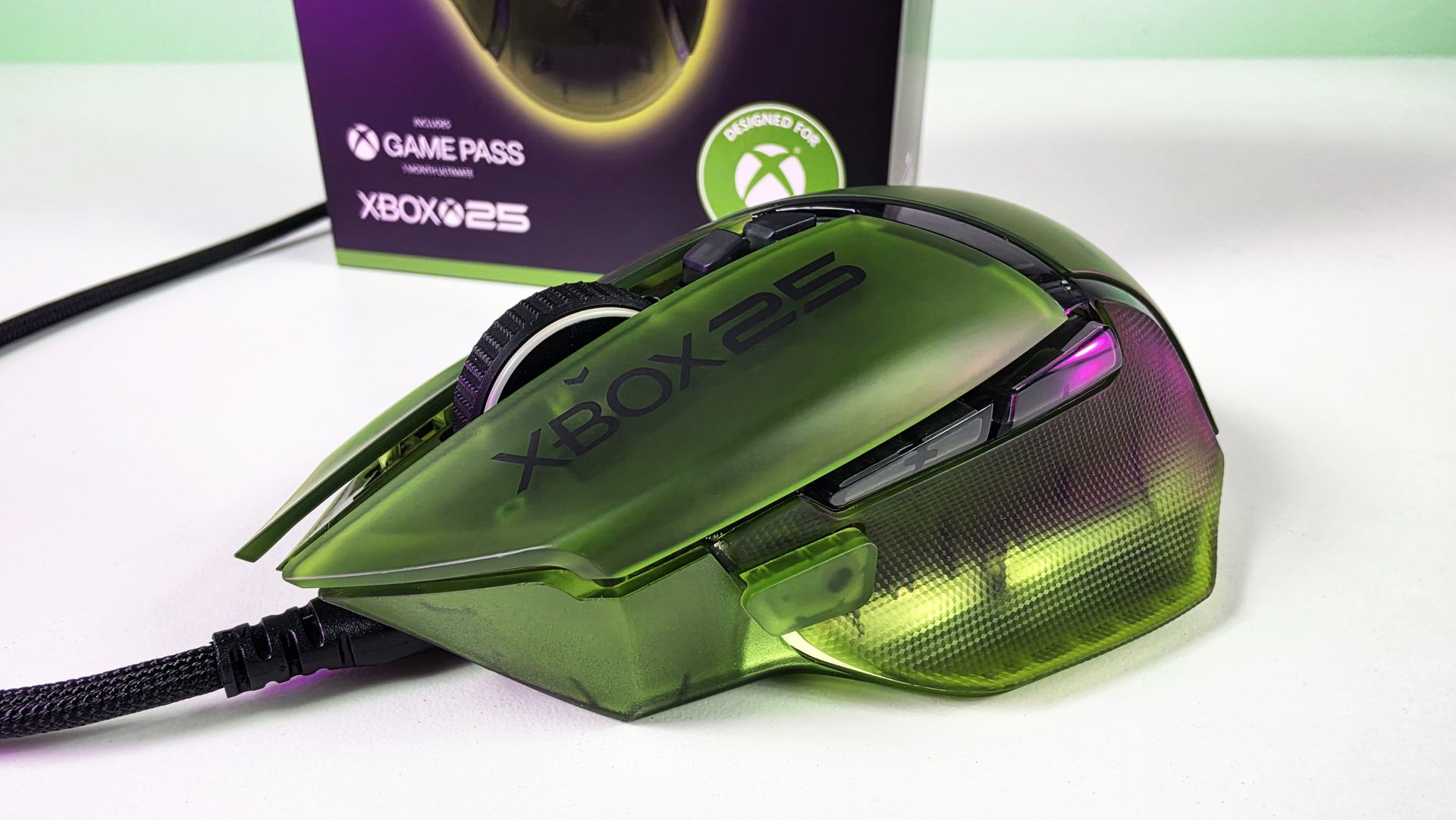
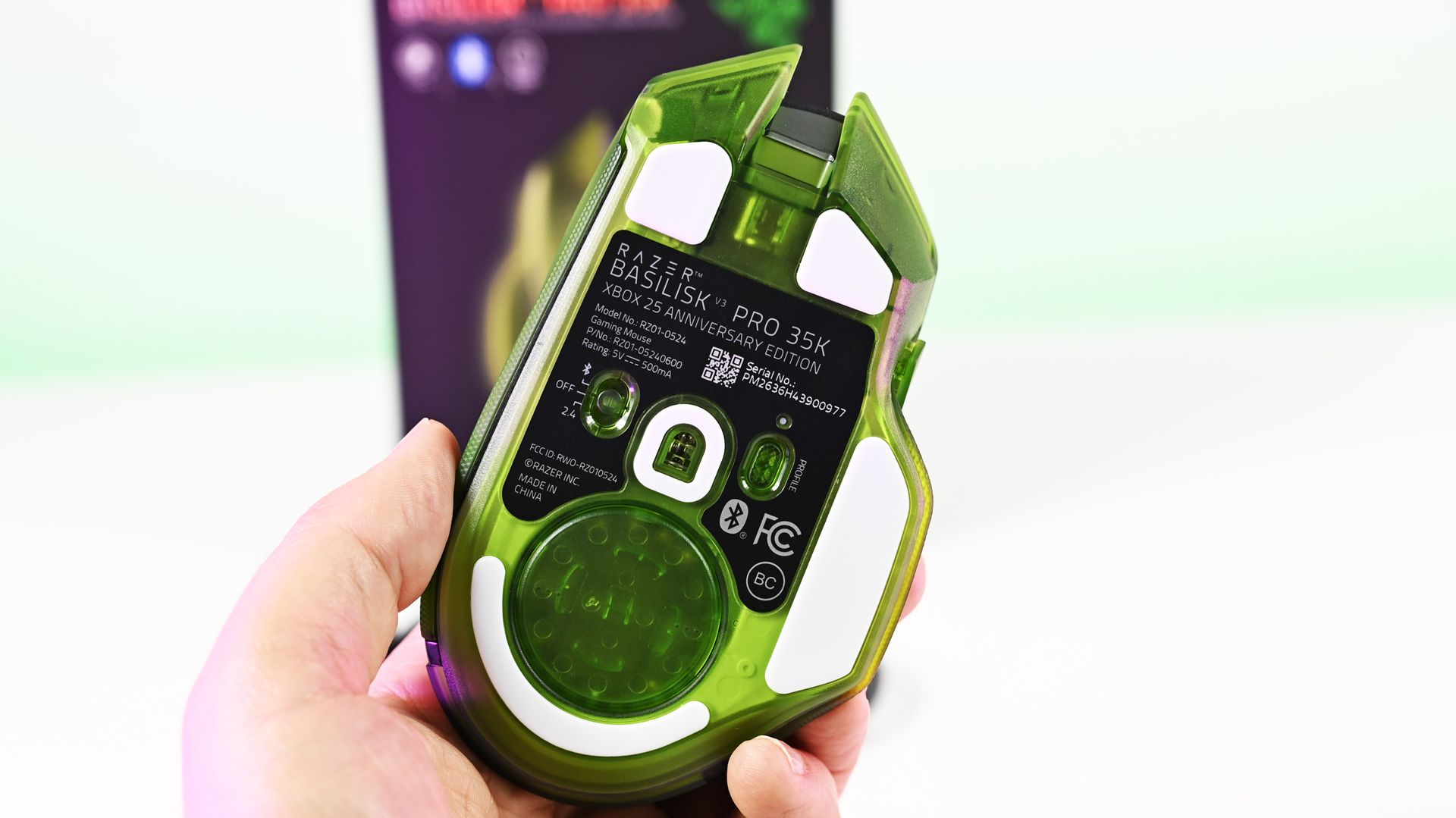
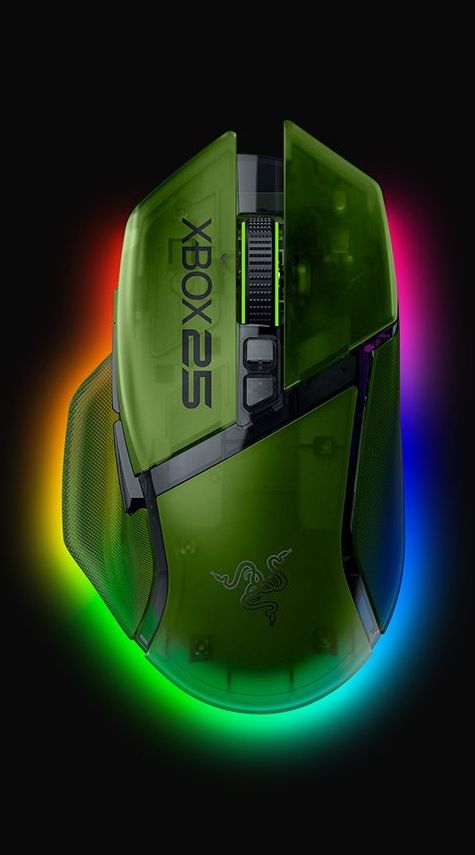
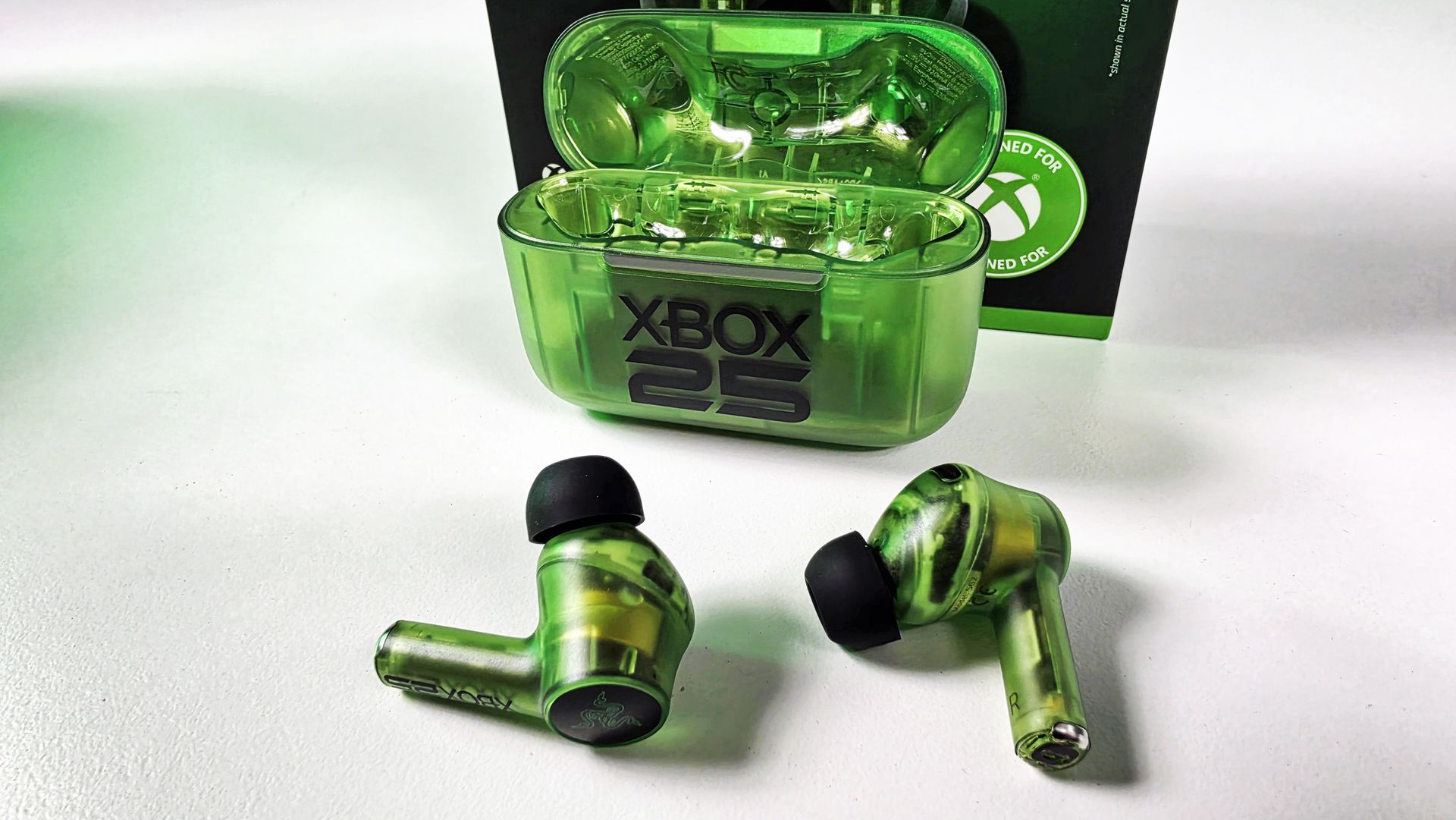
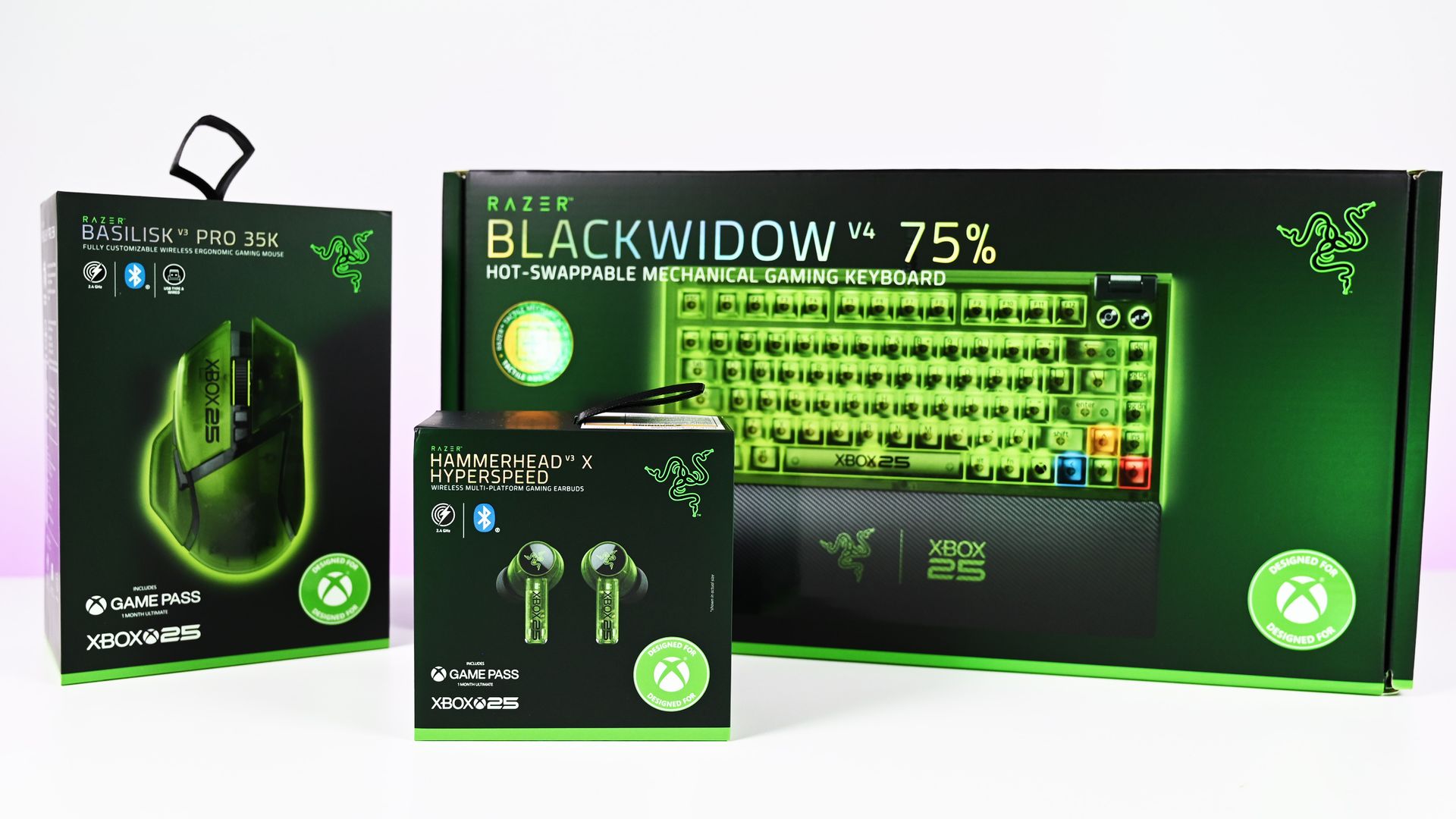
The new Razer | XBOX 25 Anniversary Collection (now available) takes three existing Razer products, the BlackWidow V4 75%, Basilisk V3 Pro 35K, and Hammerhead V3 X HyperSpeed, and transforms them with translucent green shells, Xbox detailing, and some fantastic use of RGB lighting. Razer officially announced the limited-edition collection in August, describing it as a collaboration with Xbox celebrating 25 years of the brand.
I've now spent some time with all three, and there's one product that immediately stands above the rest.
The keyboard is ridiculously good.
The BlackWidow V4 75% is the star of the show
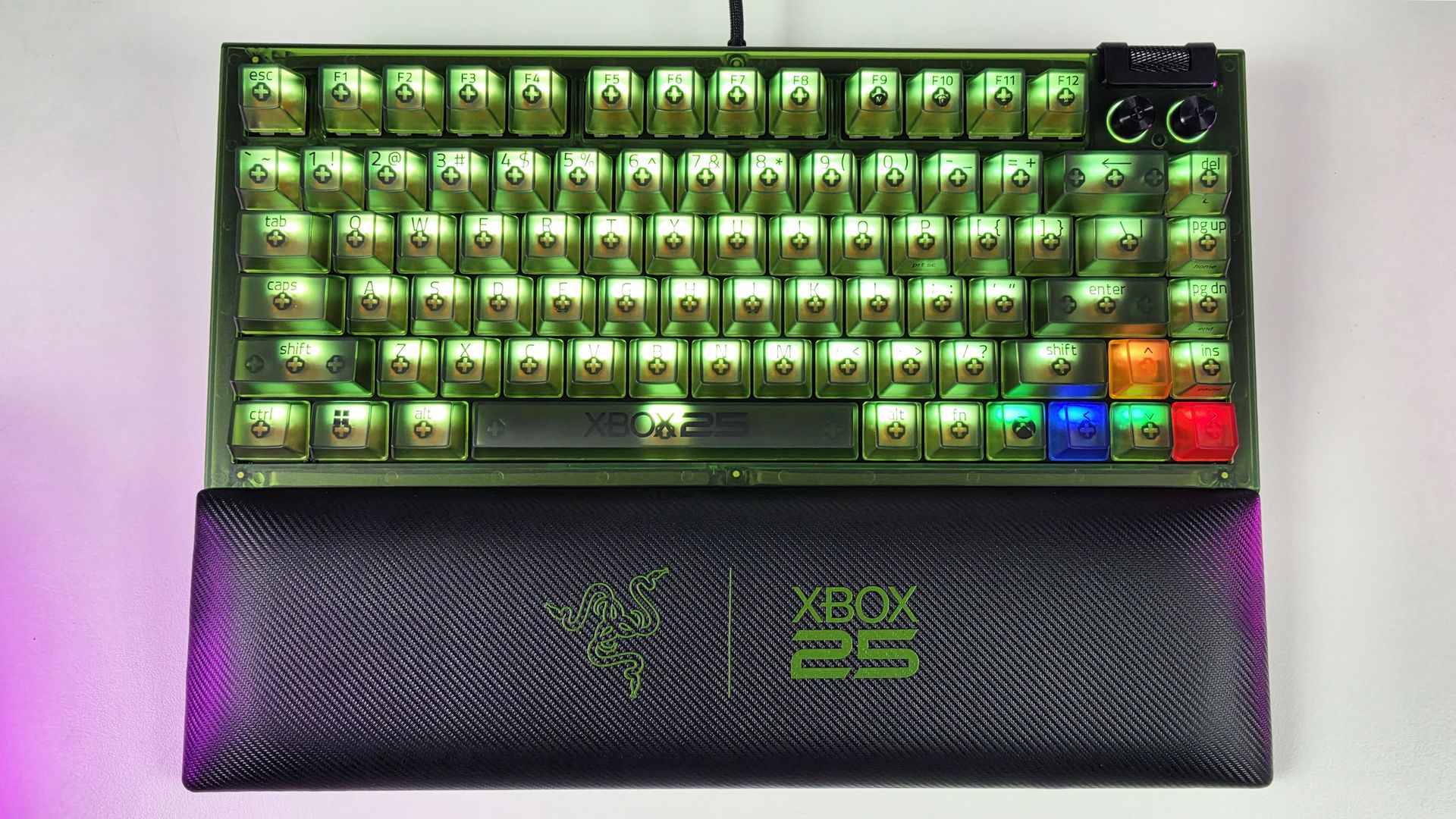
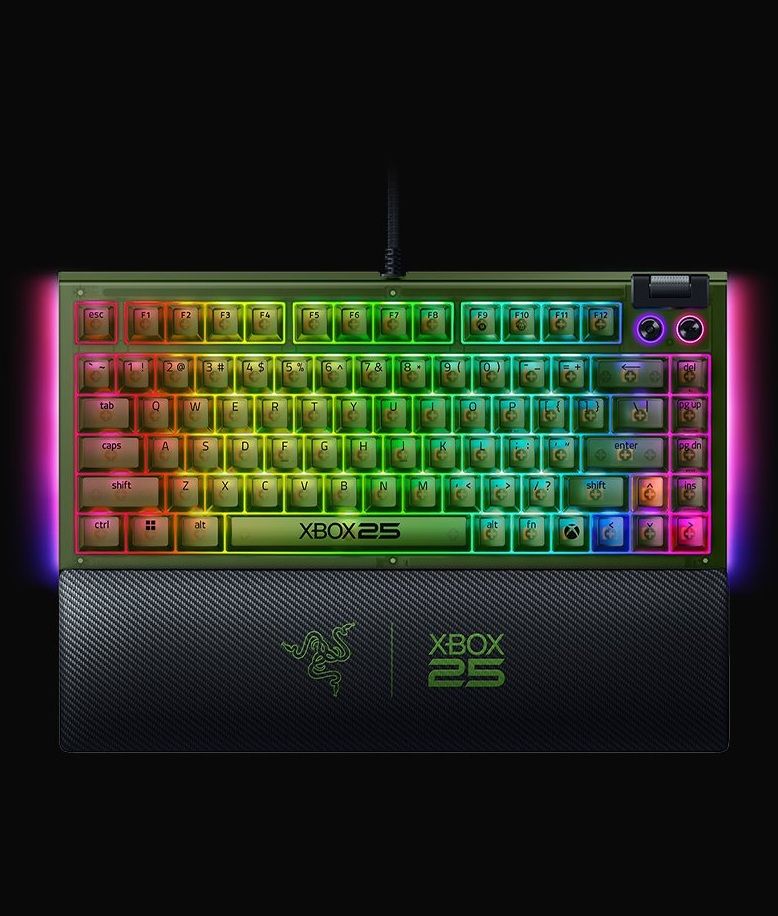
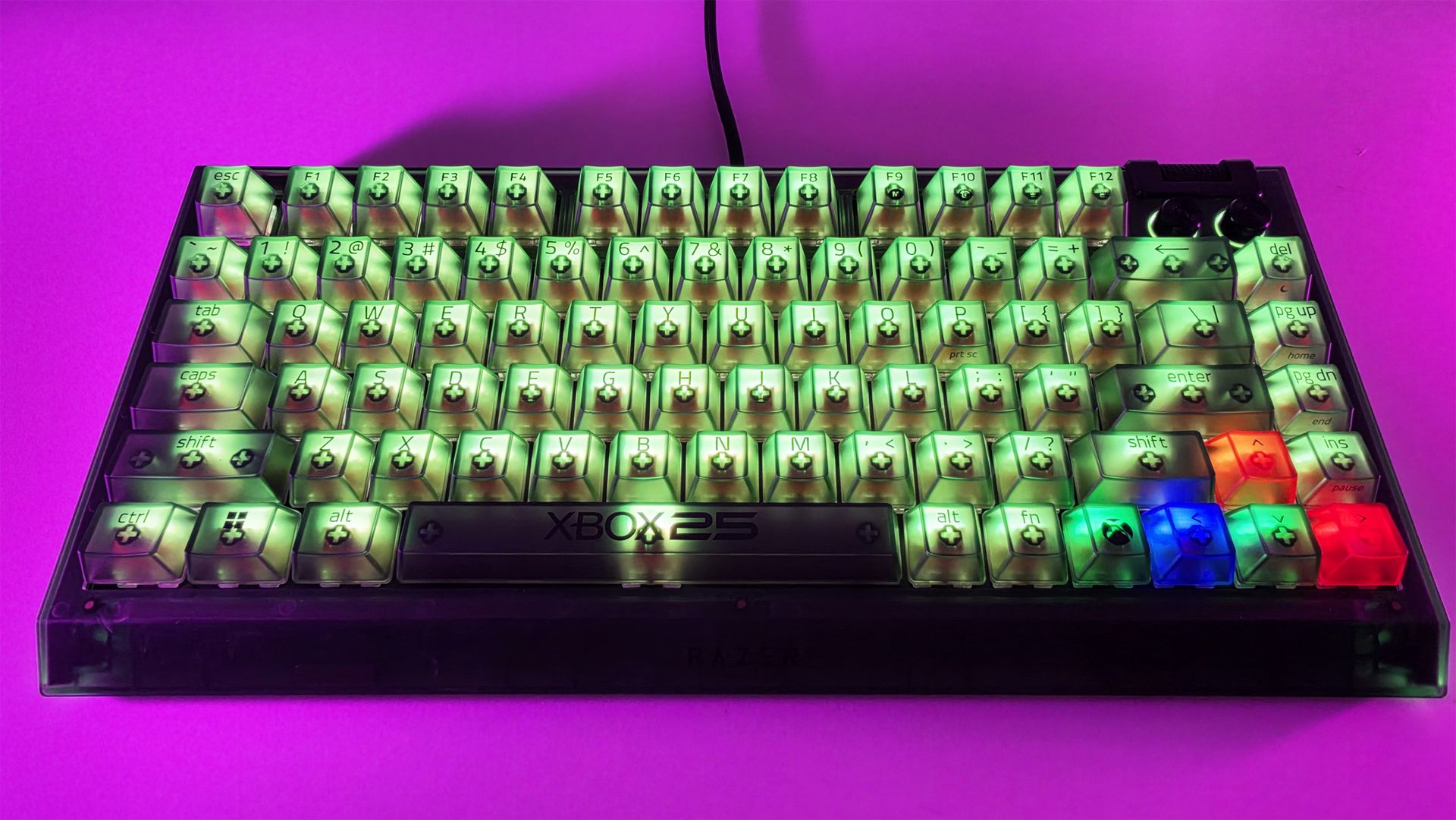
Top-down view of the Razer BlackWidow V4 75% Xbox 25th Anniversary keyboard and wrist rest. (Image credit: Daniel Rubino)
If I could only buy one thing from this collection, it would unquestionably be the BlackWidow V4 75%.
It's absolutely awesome-looking in person.
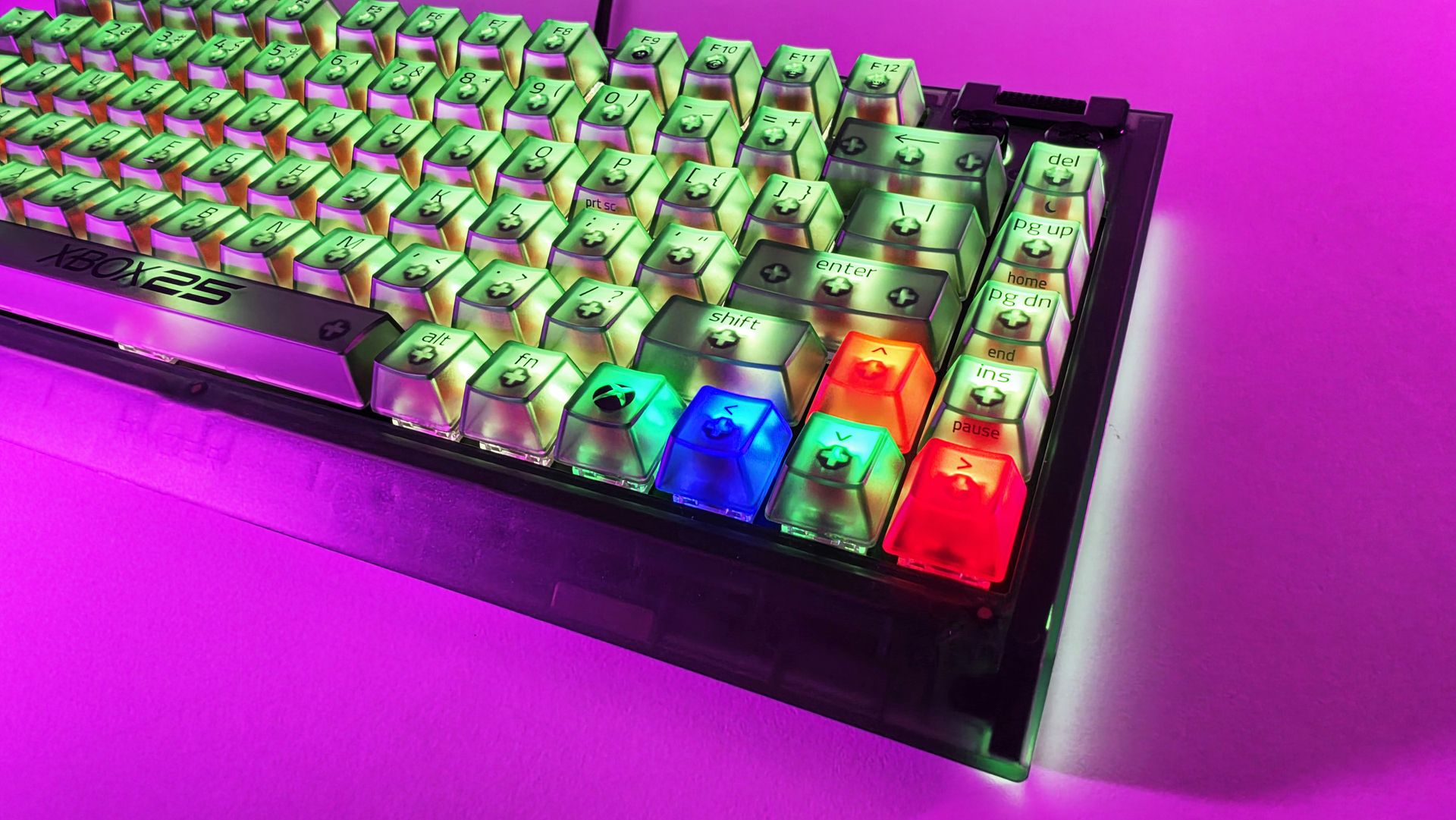
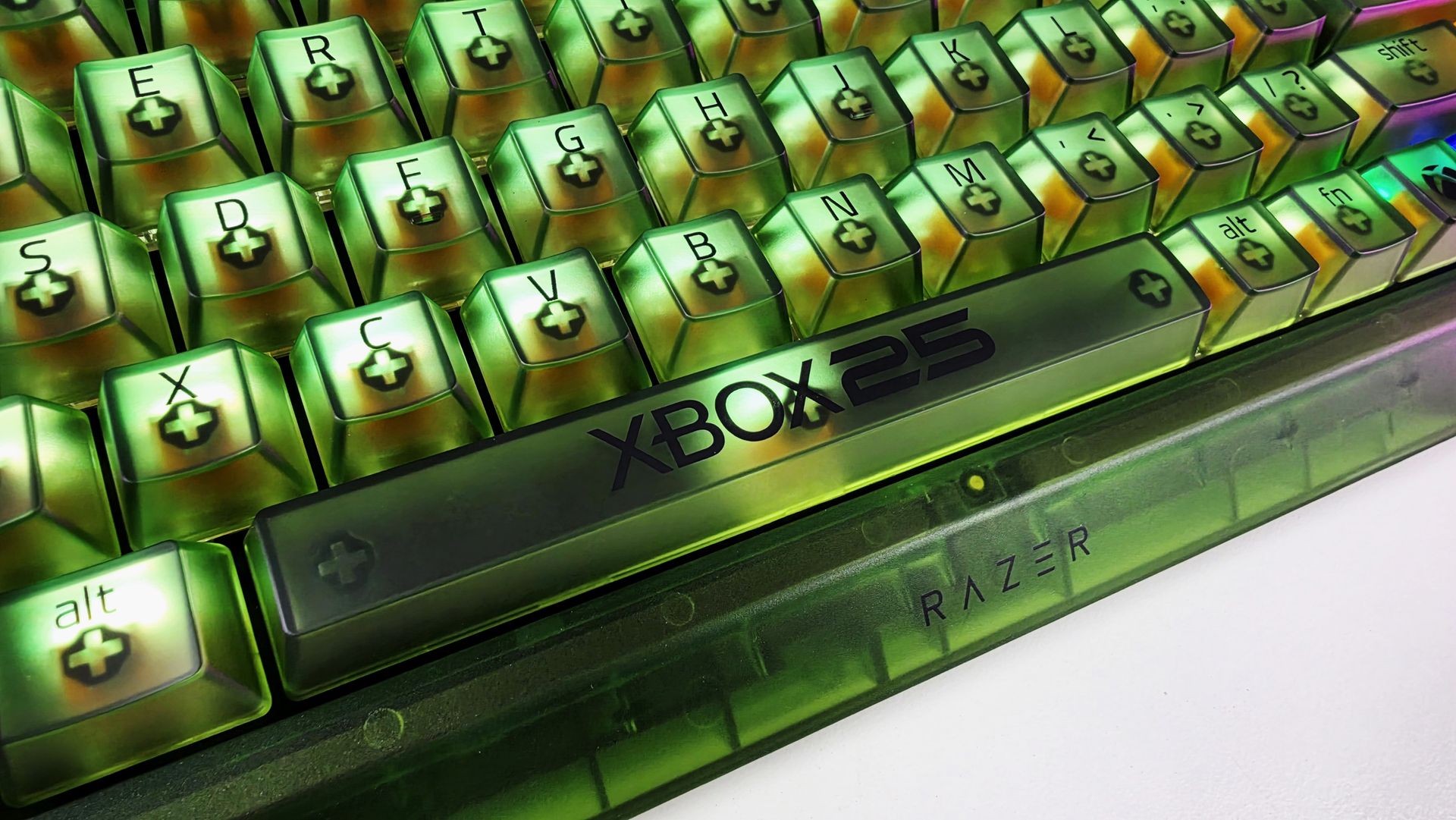
The translucent green chassis and keycaps make exceptionally good use of Razer's Chroma lighting because you're not simply seeing RGB through the legends. The light spills through the translucent structure of the keyboard itself, illuminating the switches and keys and giving the whole thing this glowing, almost radioactive Xbox-green appearance.
My photos don't really do it justice. I've generally kept mine predominantly green for obvious reasons, but you aren't locked into the Xbox color scheme. Razer Chroma gives you full RGB customization, including per-key lighting, while the keyboard also has two-sided underglow.
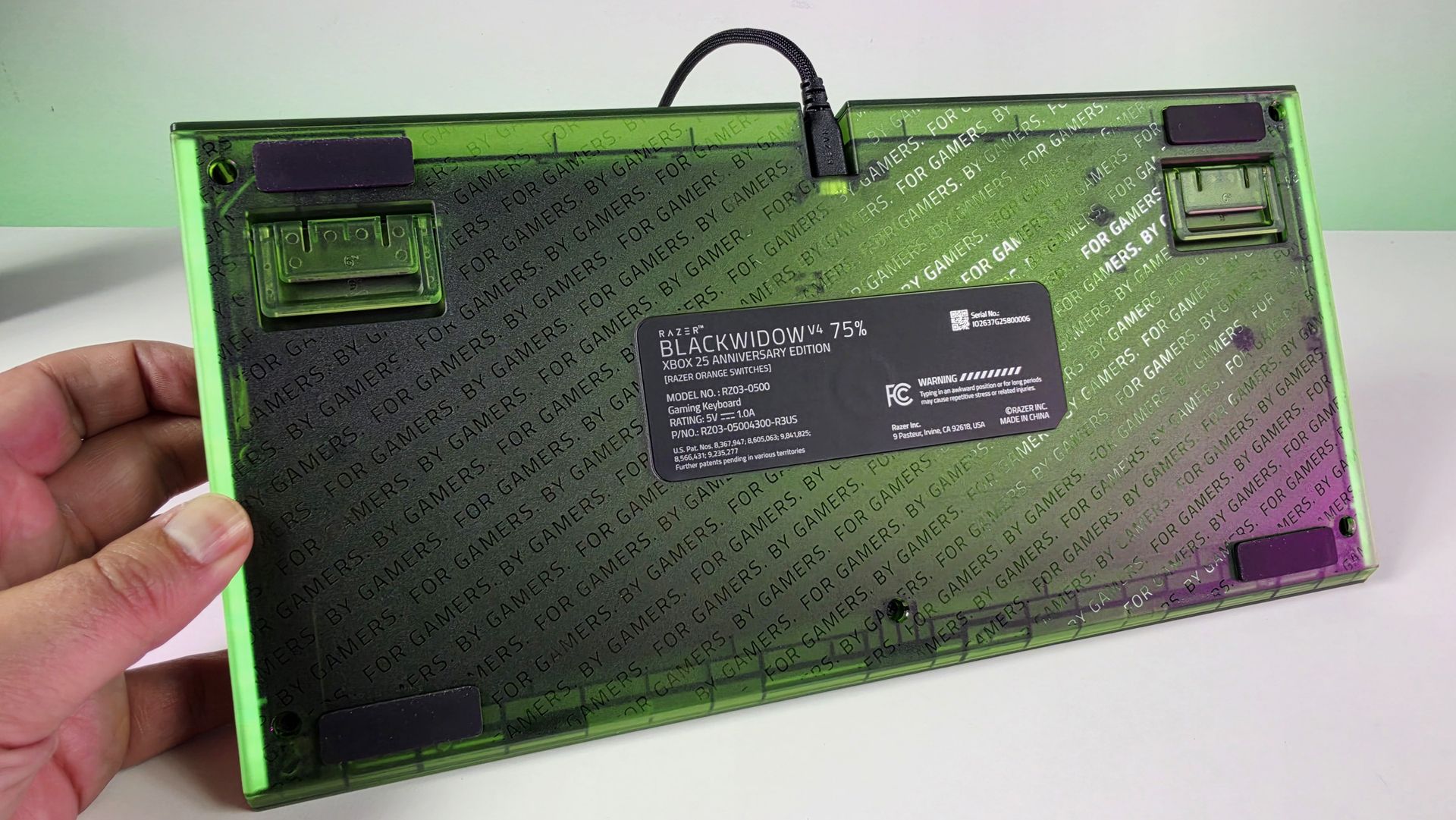
Even the bottom of this keyboard looks great. (Image credit: Daniel Rubino)
There are some lovely smaller touches, too. The spacebar carries the XBOX 25 branding; there are Xbox-inspired symbols scattered across the keycaps, and the familiar ABXY colors appear around the arrow cluster. Razer has even included a dedicated Xbox key for opening Game Bar.
But perhaps my favorite finishing touch is sitting in front of the keyboard.
Sure, you can customize the RGB using Synapse, but out of the box, I love the default color profile. (Image credit: Daniel Rubino)
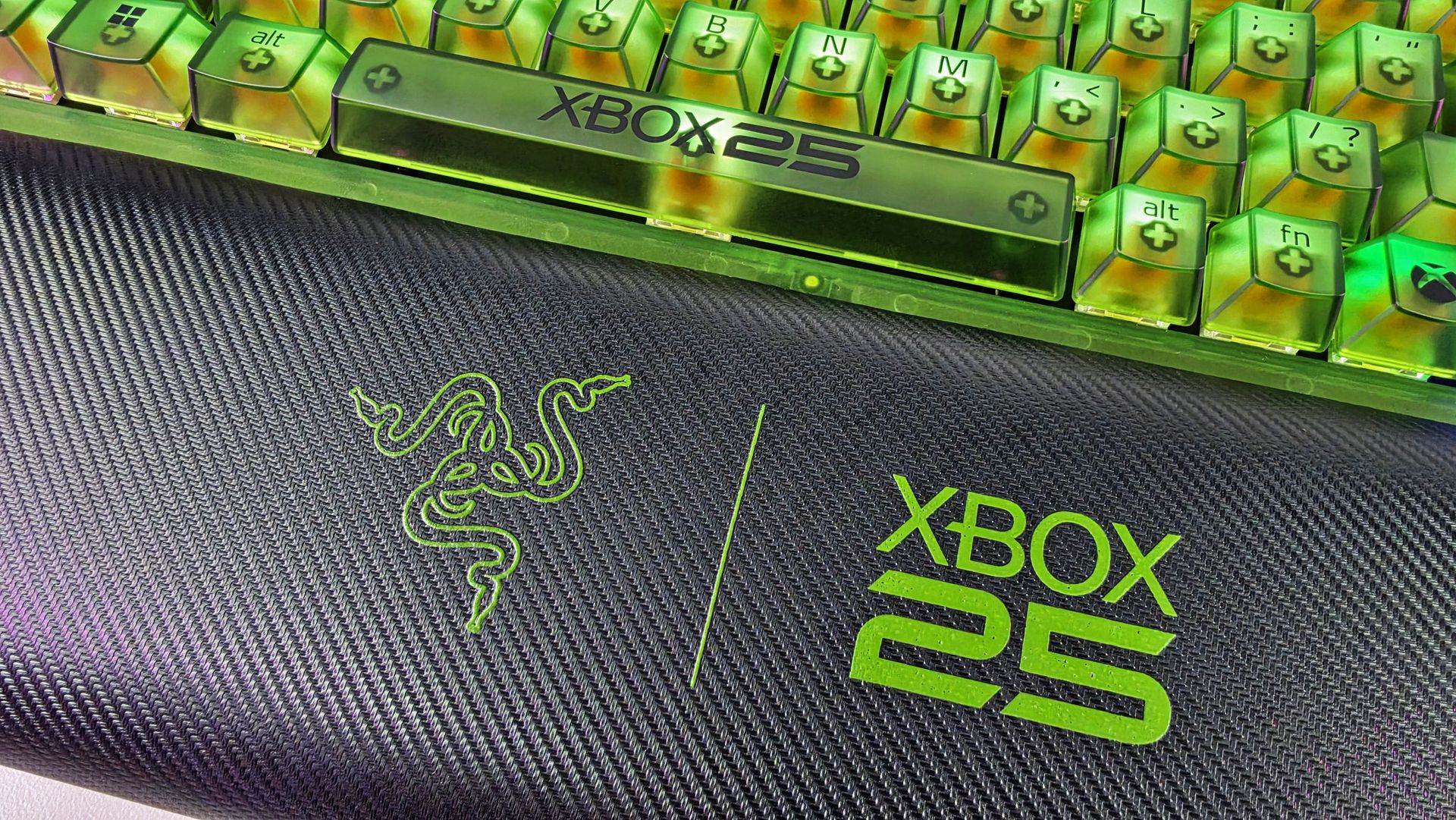
The included magnetic wrist rest has Razer and XBOX 25 branding prominently printed on it in green, and that's the type of detail that pushes this beyond feeling like a basic special-edition colorway. It completes the look.
Even the wrist rest gets some branding love. (Image credit: Daniel Rubino)
Razer uses its Orange Tactile Switches Gen-3 here, while retaining the BlackWidow V4 75%'s hot-swappable design.
At $209.99 on Razer.com, it's admittedly not cheap. But if I'm buying something specifically because it's a limited Xbox 25th-anniversary edition, I want it to actually feel special. This does.
BLACKWIDOW V4 75%: $209.99 If you’re looking for more customization and immersion, meet your XBOX enthusiast needs with a compact, hot-swappable mechanical keyboard featuring Razer Chroma RGB and Razer Orange Tactile Mechanical Switches Gen‑3.View Deal
The Basilisk V3 Pro 35K completes the look
Arguably one of the best combo gaming and ergo mice around, the Basilisk V3 Pro 35K in translucent green looks superb. (Image credit: Daniel Rubino)
I'm already a fan of the Basilisk line, and underneath the translucent green makeover, this remains a very capable wireless gaming mouse. You get Razer's Focus Pro 35K Optical Sensor Gen-2, HyperScroll Tilt Wheel, 13 customizable controls, HyperSpeed Wireless connectivity, and Chroma RGB.
Razer lists up to 140 hours of battery life over HyperSpeed Wireless as well.
However, once again, it's the execution of the anniversary design that makes the difference.
(Image credit: Future)
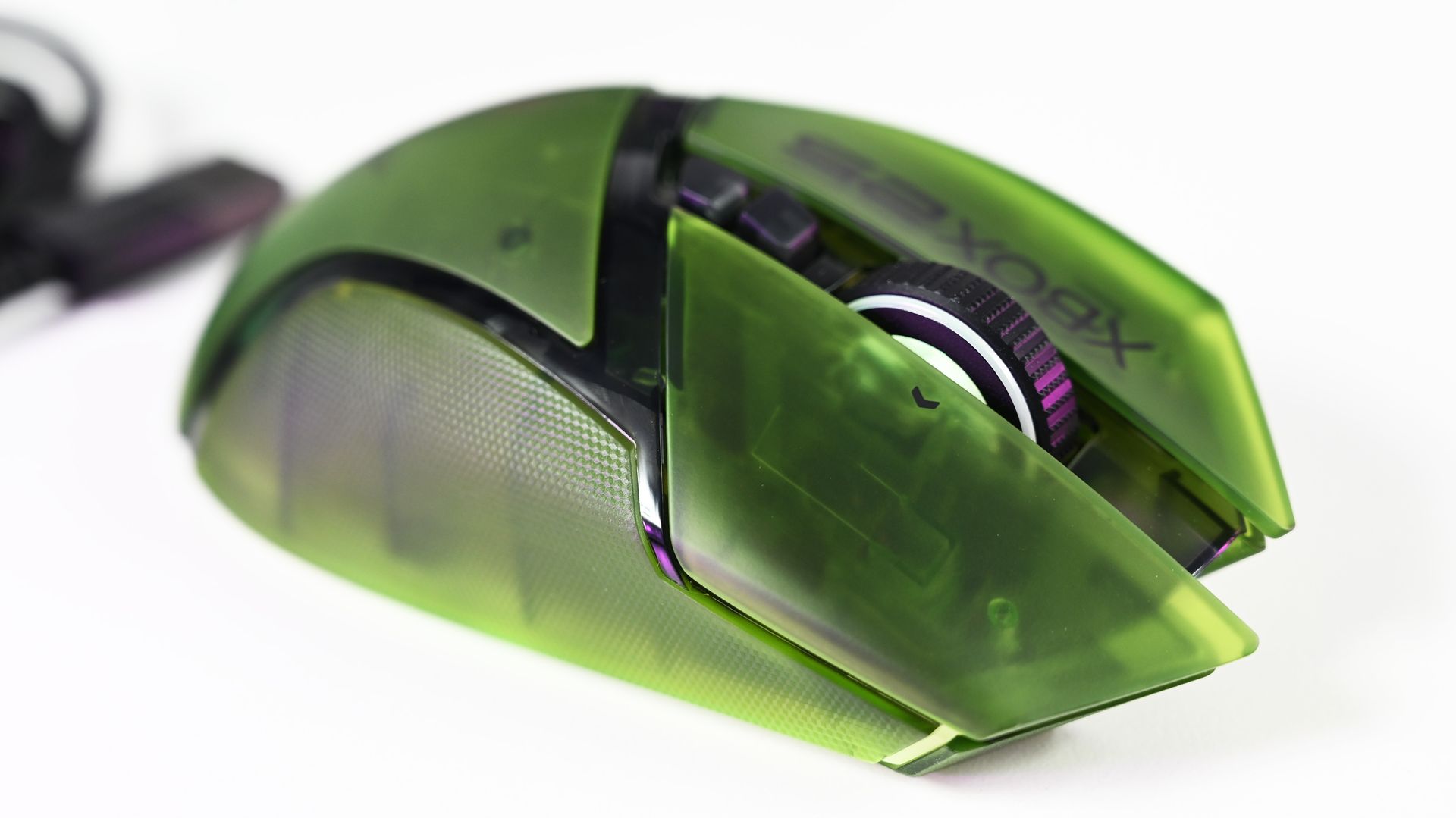
The translucent green upper shell lets you see hints of the mouse's internal structure, while XBOX 25 branding runs down the side. RGB lighting beneath the mouse creates a bright green glow that makes it look fantastic beside the BlackWidow.
Honestly, if you're getting the keyboard, you really should just get the mouse too (sorry about your wallet).
Close-up top view of the Razer Basilisk V3 Pro 35K Xbox 25th Anniversary gaming mouse featuring a translucent green shell and Xbox 25 branding. (Image credit: Future)
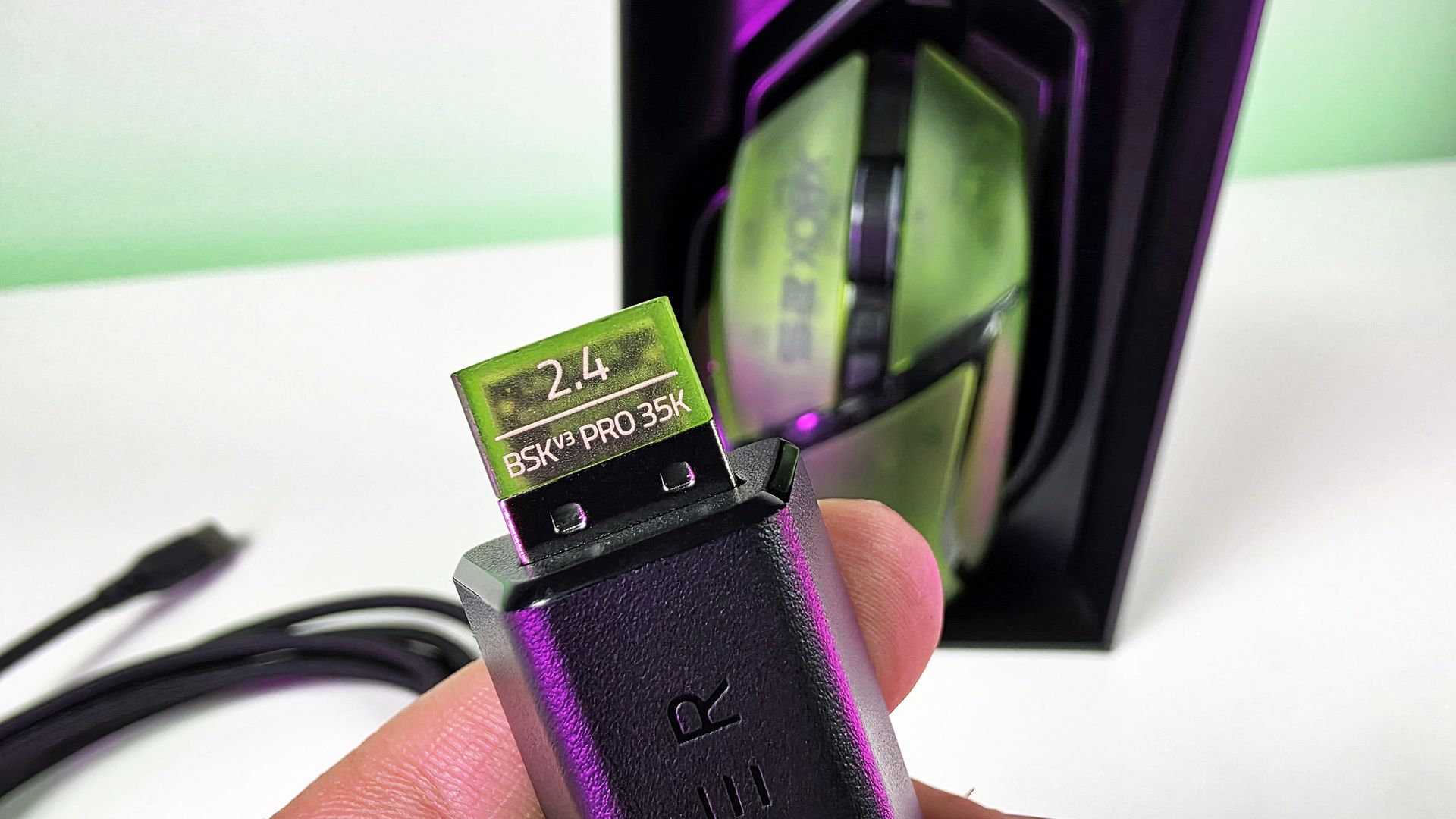
There's even a translucent green 2.4GHz wireless dongle! Nobody needed to do that. Razer did it anyway, and that's precisely my point about this collection. Everywhere I look, there's another little bit of attention to detail.
This was completely unecessary, but Razer really went all out for the theme here🫡. (Image credit: Daniel Rubino)
The Basilisk costs $179.99 on Razer.com. Yes, Razer has subsequently moved the Basilisk family forward, so you're not buying the newest generation simply because this is a new Xbox edition. But considering what you're really paying for here, namely an excellent mouse transformed into a collectible anniversary design, I'm not going to complain too much.
BASILISK V3 PRO 35K: $179.99 Packed with cutting-edge technology, unleash your full potential with an XBOX-themed RGB gaming mouse that redefines the boundaries of performance, customization, connectivity, and control.View Deal
The Hammerhead V3 X HyperSpeed does exactly what it needs to
(Image credit: Daniel Rubino)
Finally, there are the Hammerhead V3 X HyperSpeed earbuds.
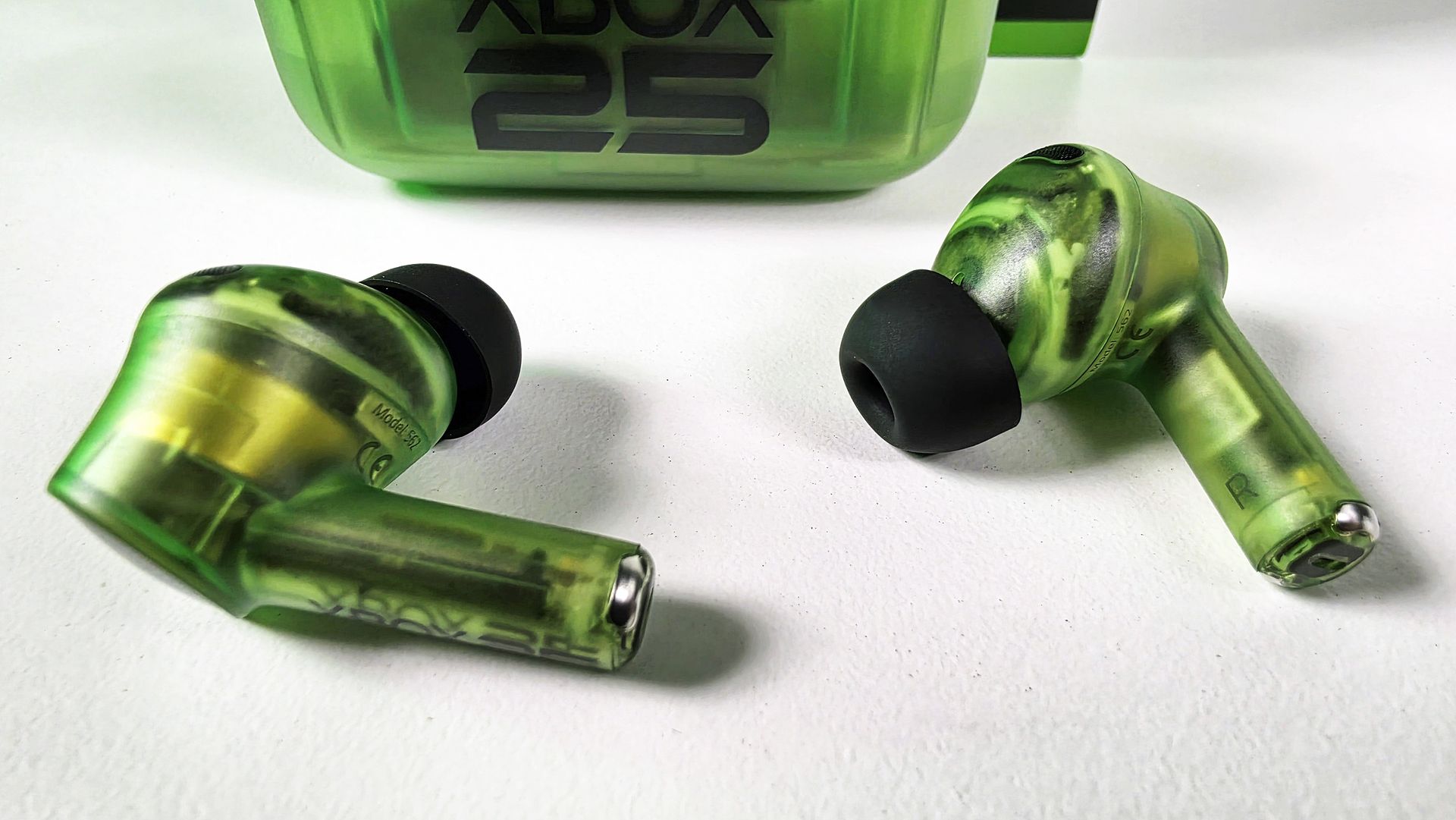
I've been using these with my ASUS Xbox Ally X, where they've made a great little companion for handheld gaming. They sound great, and the transparent green design is wonderfully nostalgic without looking cheap.
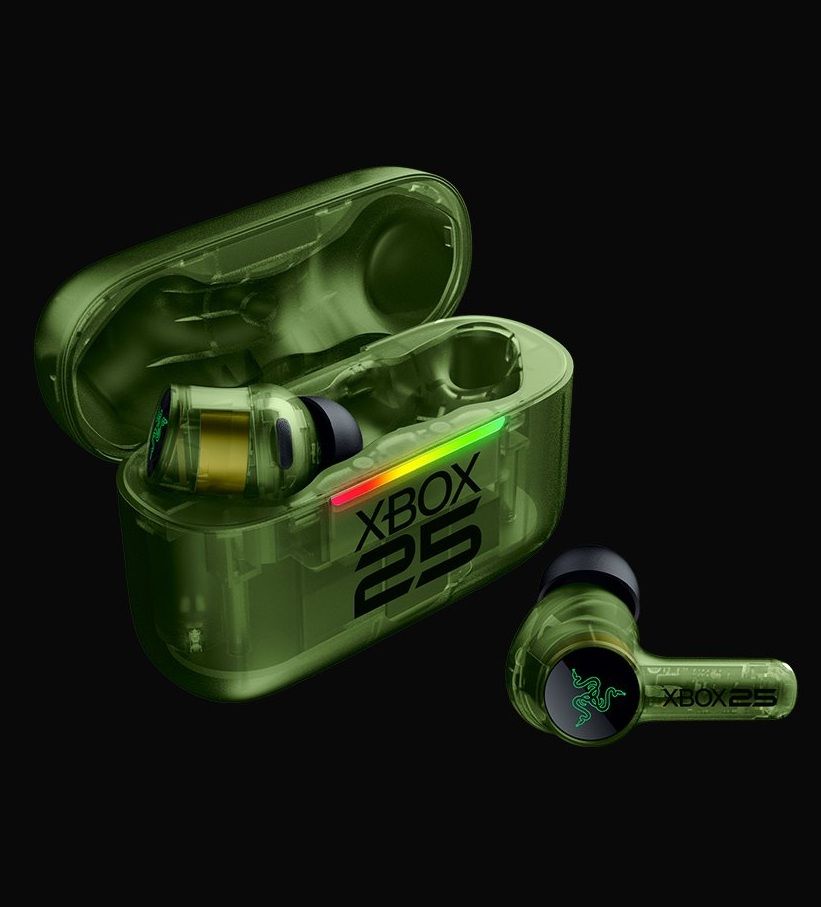
The earbuds themselves are translucent right down through the stems, while the charging case gets the same treatment with a large XBOX 25 logo across the front. It's distinctive without Razer needing to reinvent the product underneath.
(Image credit: Daniel Rubino)
To be clear, I'm not sure what else Razer could have done here.
These support both Razer HyperSpeed Wireless over 2.4GHz and Bluetooth 5.3, including Razer SmartSwitch, alongside up to 35 hours of total battery life. They're also IPX4-rated, and Razer lists surround-sound support across Xbox and PC.
At$119.99 on Razer.com, they're also the least expensive route into the collection.
HAMMERHEAD V3 X HYPERSPEED: $119.99 Experience seamless audio with the ultimate wireless gaming earbuds. Equipped with Razer HyperSpeed Wireless, Razer SmartSwitch Dual Wireless, and THX Spatial Audio, stay connected, competitive, and fully immersed on Xbox and beyond.View Deal
This is how you do an anniversary collection
(Image credit: Future)
The three anniversary models carry roughly a $10 to $20 premium over their standard counterparts, depending on the product. That's the sort of "special edition tax" I can live with when I'm actually getting something special in return.
And, in my opinion, Razer really went over the top here.
There's a consistency across all three products that makes them feel like an actual collection, rather than three unrelated products that happen to share a logo and color. Put the BlackWidow and Basilisk together on a desk, and they look fantastic.
The translucent green plastic immediately evokes Xbox, while the XBOX 25 logos, custom keycaps, ABXY colors, wrist-rest embroidery, RGB implementation, and even that ridiculous little green wireless dongle demonstrate that somebody cared about sweating the details.
🤌It's so cool looking! (Image credit: Daniel Rubino)
And that's ultimately why I like these so much.
Razer started with some of its best hardware rather than using Xbox's anniversary to dress up cheaper peripherals, and then went far enough with the aesthetic changes that they feel genuinely unique.
The Razer | XBOX 25 Anniversary Collection is available to order from October 20, with the BlackWidow V4 75% at $209.99, Basilisk V3 Pro 35K at $179.99, and Hammerhead V3 X HyperSpeed at $119.99.
These are limited edition, so don't be shocked if they sell out.
If I were choosing only one, I'd take the BlackWidow without hesitation. (But let's be honest: the keyboard and mouse belong together.)
A+ from me, Razer. This is how you do anniversary hardware.
Hit me up in the comments if you have any questions while I still have these on hand! And you can follow the rest of our XBOX 25 coverage as we round out 2026.
Join us on Reddit at r/WindowsCentral to share your insights and discuss our latest news, reviews, and more.
That document outlines how long each Surface device will receive driver and firmware updates.
The support window for the Surface Laptop Ultra is not surprising. In fact, it's perfectly in line with other Surface devices. Microsoft splits its driver and firmware lifecycle into two different categories: devices released before January 1, 2021 and devices released on or after January 1, 2021.
Devices that shipped before 2021 receive at least four years of driver and firmware updates. All Surface PCs in that category have already reached the end of the driver and firmware lifecycle.
The Surface Laptop Ultra will continue to receive driver and firmware updates until October 16, 2032. Microsoft is quite specific about its lifecycles. For context, the newly launched Surface Pro 12-inch and Surface Laptop 13-inch will only receive driver and firmware updates until October 13, 2032.
Surface Laptop Ultra owners will need to make sure their PC is running a version of Windows 11 from the prior 30 months to continue to receive driver and firmware updates.
Even when a device reaches the end of its driver and firmware lifecycle, it will continue to receive Windows 11 updates.
Firmware is low-level software built into hardware components, while drivers allow Windows to communicate with those parts. Driver and firmware updates keep everything running smoothly. They can fix hardware bugs, battery drain, and security flaws behind the scenes.
Six years is a fair time for a PC to receive driver and firmware updates. Generally, the biggest bugs and issues should be sorted by the end of the Surface Laptop Ultra's driver and firmware lifecycle.
Built around the NVIDIA RTX Spark platform with an N1X CPU, RTX GPU, and up to 128GB of unified memory, the Surface Laptop Ultra hits new performance heights for power users. It's all contained in a gorgeous chassis with a mini-LED display and tons of ports.
Join us on Reddit at r/WindowsCentral to share your insights and discuss our latest news, reviews, and more.
Black Friday is right around the corner, but that doesn't mean you have to wait for a discount on laptops if you need one to clear last-minute deadlines at work or get caught up before heading to school.
For example, the HP Omnibook X Flip 2-in-1, with its crisp 16-inch display, all-day battery, and next-gen performance, is currently on sale with a 25% discount for $1,199.99 at Best Buy.
"The OmniBook X Flip 16 is a great all-rounder. It's well built, lovely to use, and the balance of power and stamina make for a laptop that's as happy sitting on a desk as it is coming on your travels. And whether it's work or play, the OLED touchscreen is a delight." ~ Sashua Muller, freelance journalist,
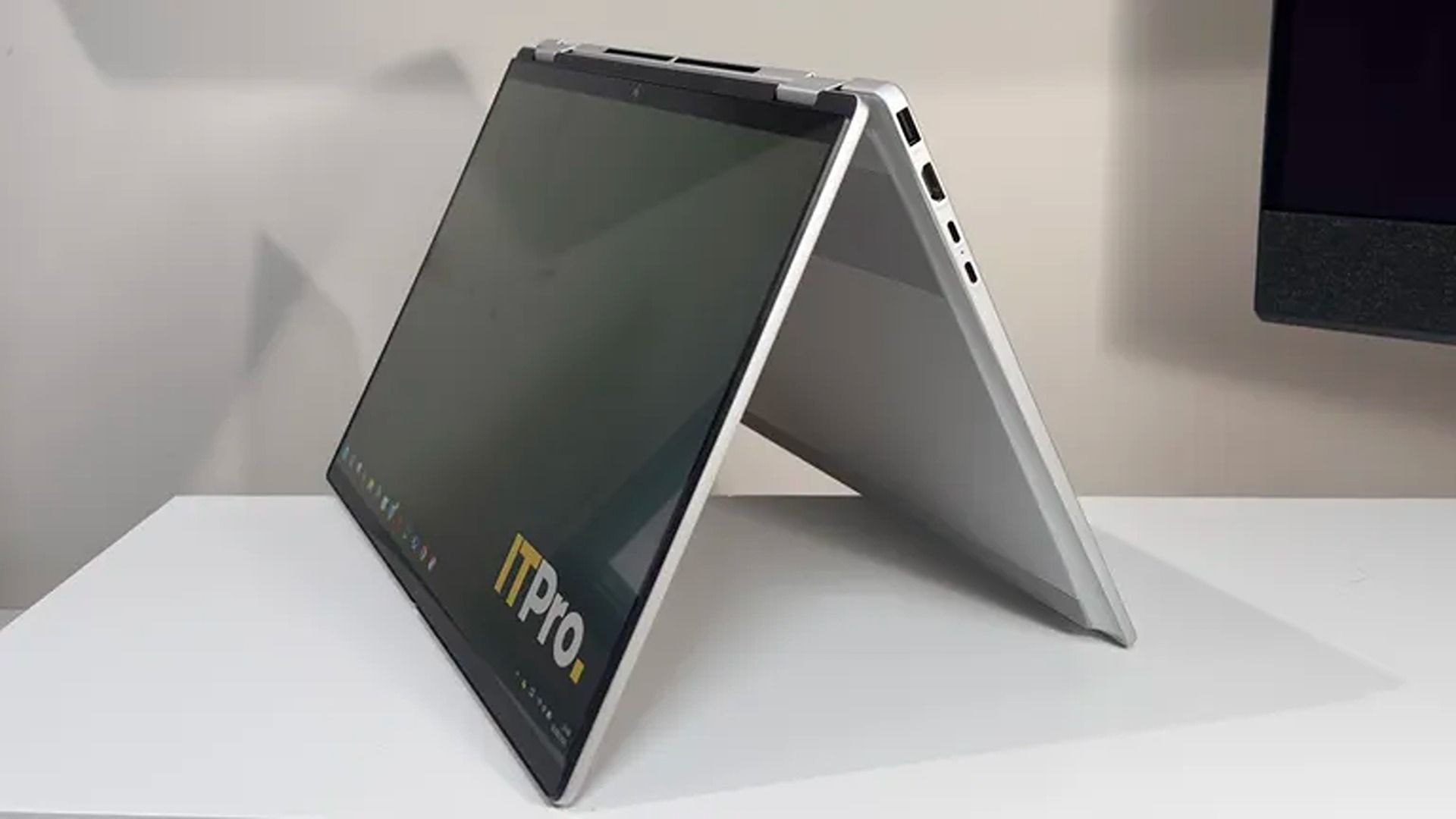
The HP Omnibook X Flip's Tent Mode (Image credit: ITPRO (Sashua Muller) | HP)
This configuration of the HP Omnibook X Flip 2-in-1 is the total package when it comes to casual use and productivity efficiency thanks to its AMD Ryzen AI 7 445 CPU, 16GB RAM, and 1TB SSD, offering fast performance when running programs, transferring files, or simply booting up.
It also features a 16" 2K OLED Touchscreen that delivers vibrant colors with 100% DCI-P3 coverage for accurate colors and 120Hz adaptive refresh rates to deliver smooth visuals.
On top of that, the HP Omnibook X Flip features an NPU with 50 TOPS to help perform local AI tasks, a smart hybrid build that can swap between laptop, tent, reverse, and tablet modes, and a massive battery life of 15 hours before needing a recharge.
Is it good for AAA gaming?
No, the HP Omnibook X Flip 2-in-1 laptop struggles to run intensive AAA games like Cyberpunk 2077 due to its limited integrated graphics card that was meant for workflow tasks rather than gaming. This isn't a gaming laptop.
Can I upgrade it's RAM?
No, the RAM is soldered into the HP Omnibook X Flip 2-in-1 laptop's motherboard so it can't be upgraded with a different one.
Should I wait until Black Friday for a better deal?
Often, I would suggest waiting until Black Friday for a chance at a bigger discount on laptops. However, with the RAM crisis constantly raising the prices of all things tech-related, there's a chance the HP Omnibook X Flip 2-in-1 laptop's price will rise so high that not even Black Friday discounts will make it affordable. With that in mind, it may be a good idea to take advantage of this discount while it lasts, if it suits your budget.
Join us on Reddit at r/WindowsCentral to share your insights and discuss our latest news, reviews, and more.
Lenovo's Pro 9n is the first RTX Spark laptop that I've been able to sit down and use as I normally would at work and at home, following several brief stints with the new class of PCs at Computex and IFA.
What I need from you...
Have some questions about the Lenovo Pro 9n not addressed in this early hands-on? Drop them in the comments section below, and I'll do my best to address them in my full review.
Lenovo is aiming its 15.3-inchPro 9n directly at creators handling demanding 3D rendering and video editing tasks. Its 2.5K OLED display with Pantone color validation, its four Dolby Atmos speakers, its pen-enabled haptic touchpad, and its newfound RTX performance all play into this direction.
Of course, thanks to NVIDIA's RTX Spark chip, it's also suited for local AI workflows, software development, and gaming.
I received the new RTX Spark-poweredLenovo Pro 9n laptop a couple of days ahead of the review embargo. I've been using it steadily since then to get some early first impressions before I start harassing it with benchmarking software. Here's what I've learned so far.
This hands-on was made possible by a review sample provided by Lenovo. The company had no input on the content of this article, nor did it see the article before it was published.
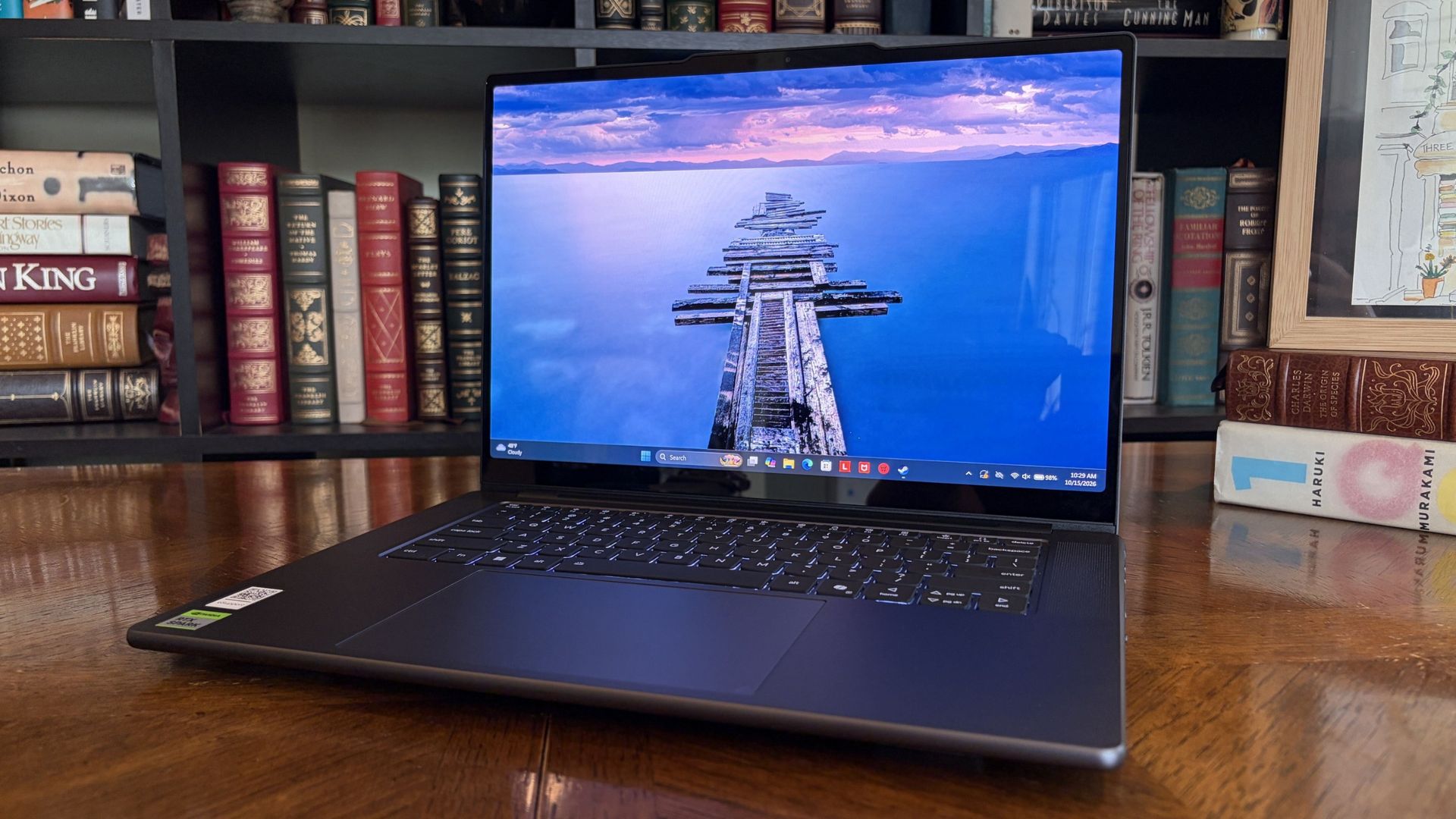
Lenovo's Pro 9n 15" is the company's non-convertible RTX Spark option, arriving with a host of premium features aimed at creators.
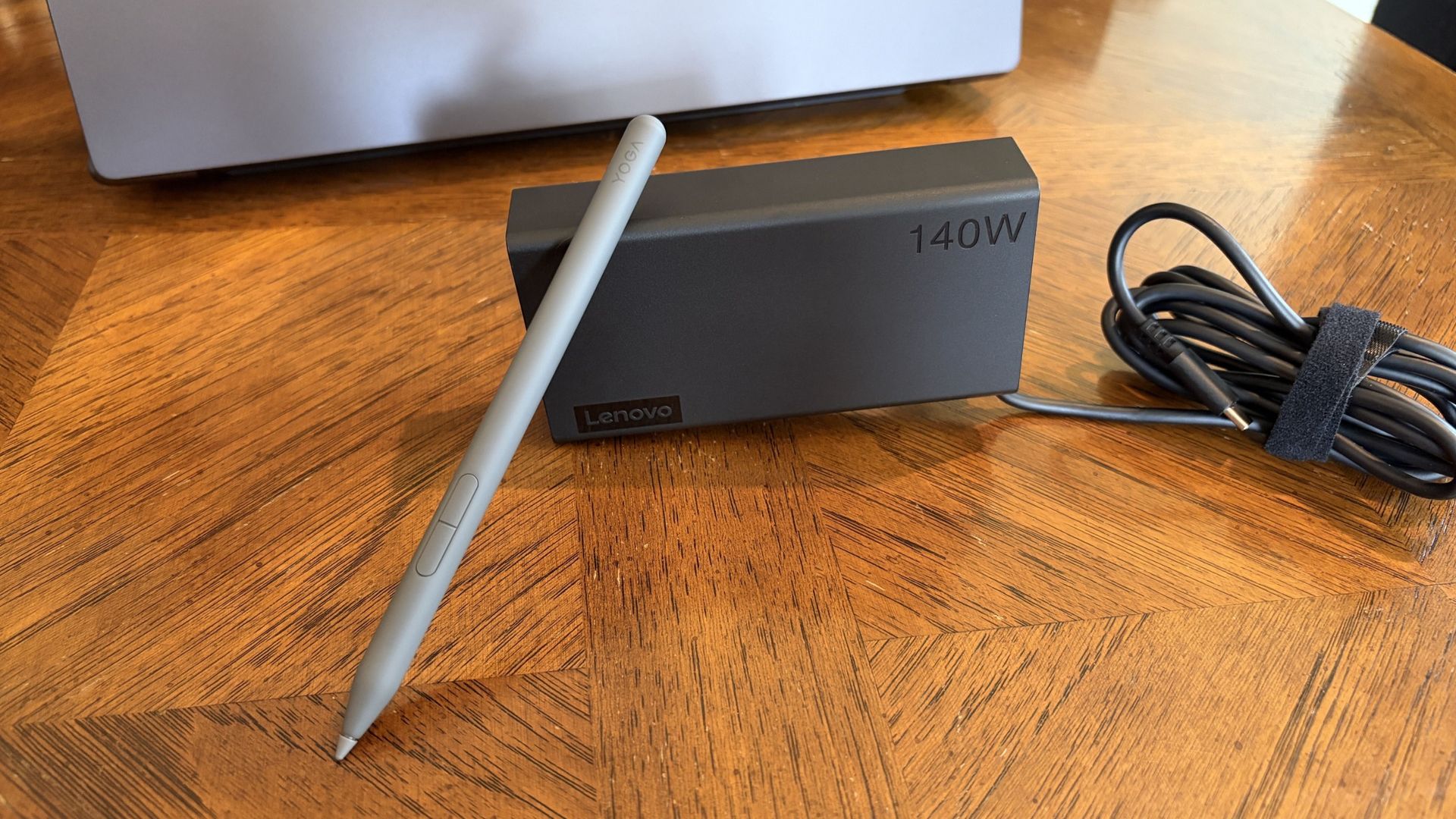
A compact 140W charger and a Yoga Pen Gen 2 come with each Lenovo Pro 9n laptop. (Image credit: Future)
The Yoga 9n laptop comes packaged — in a fully recyclable box — with a fairly compact 140W USB-C power adapter.
I haven't actually had to use it yet at the time of writing this portion, as all the downloads and puttering around I've done so far on the PC have only sapped the battery to about 35%. I talk about battery life, good and bad, in more detail below.
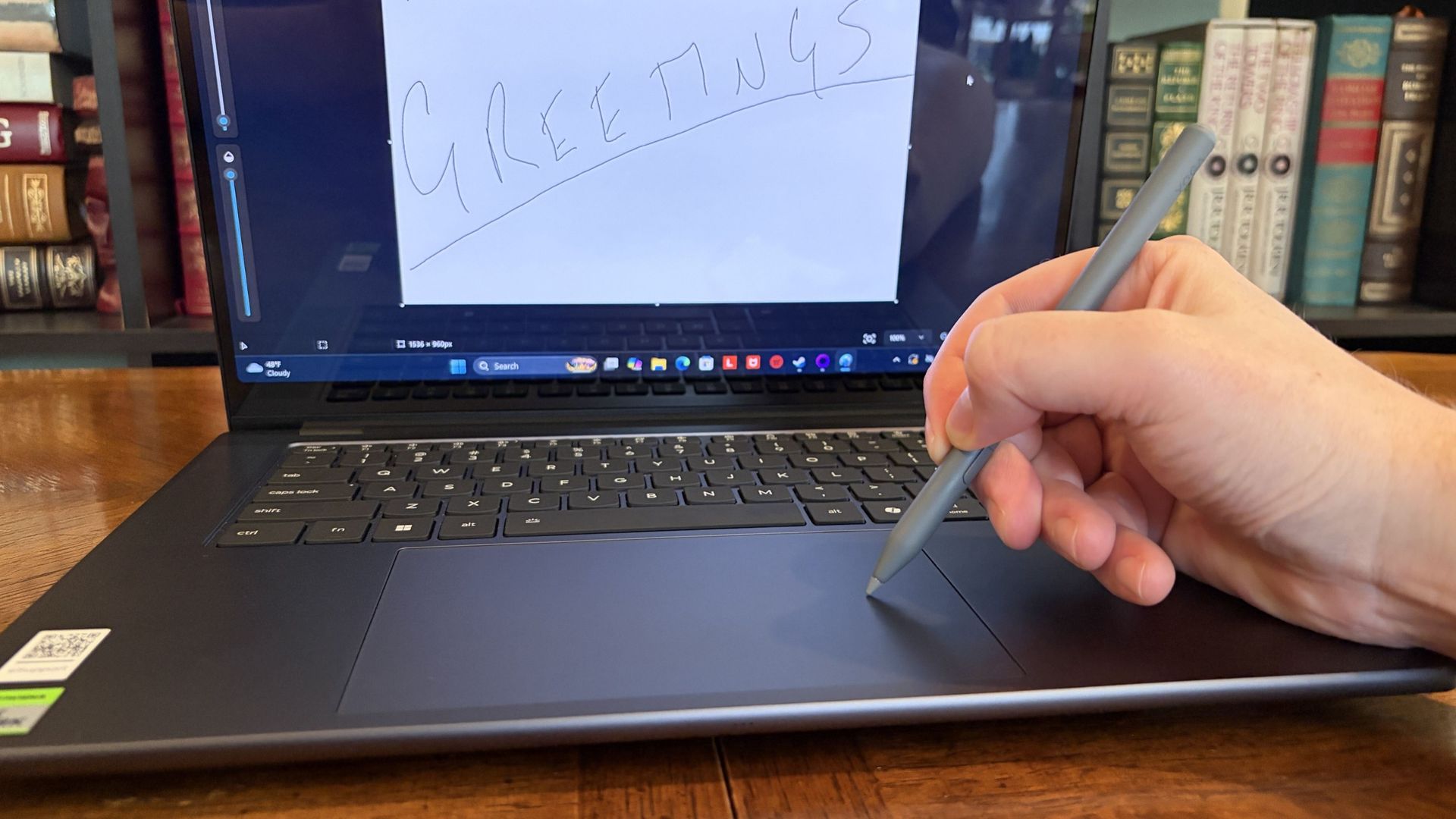
Lenovo also bundles the Yoga Pen (Gen 2) with each laptop. It's designed to work with the new pen-enabled haptic touchpad (which Lenovo calls a Force Pad), giving users plenty of space to sketch, draw, design, and write.
Lenovo Pro 9n early impressions — 3 things I already love
Lenovo's Pro 9n already has several features that stand out to me after a couple of days of use. I've rounded them up here to give you an idea of what we're working with.
I've also included some of the more concerning things I've noticed, which you'll definitely want to check out if you're thinking about buying this laptop.
Let's start with the good stuff.
Battery life seems solid ... most of the time
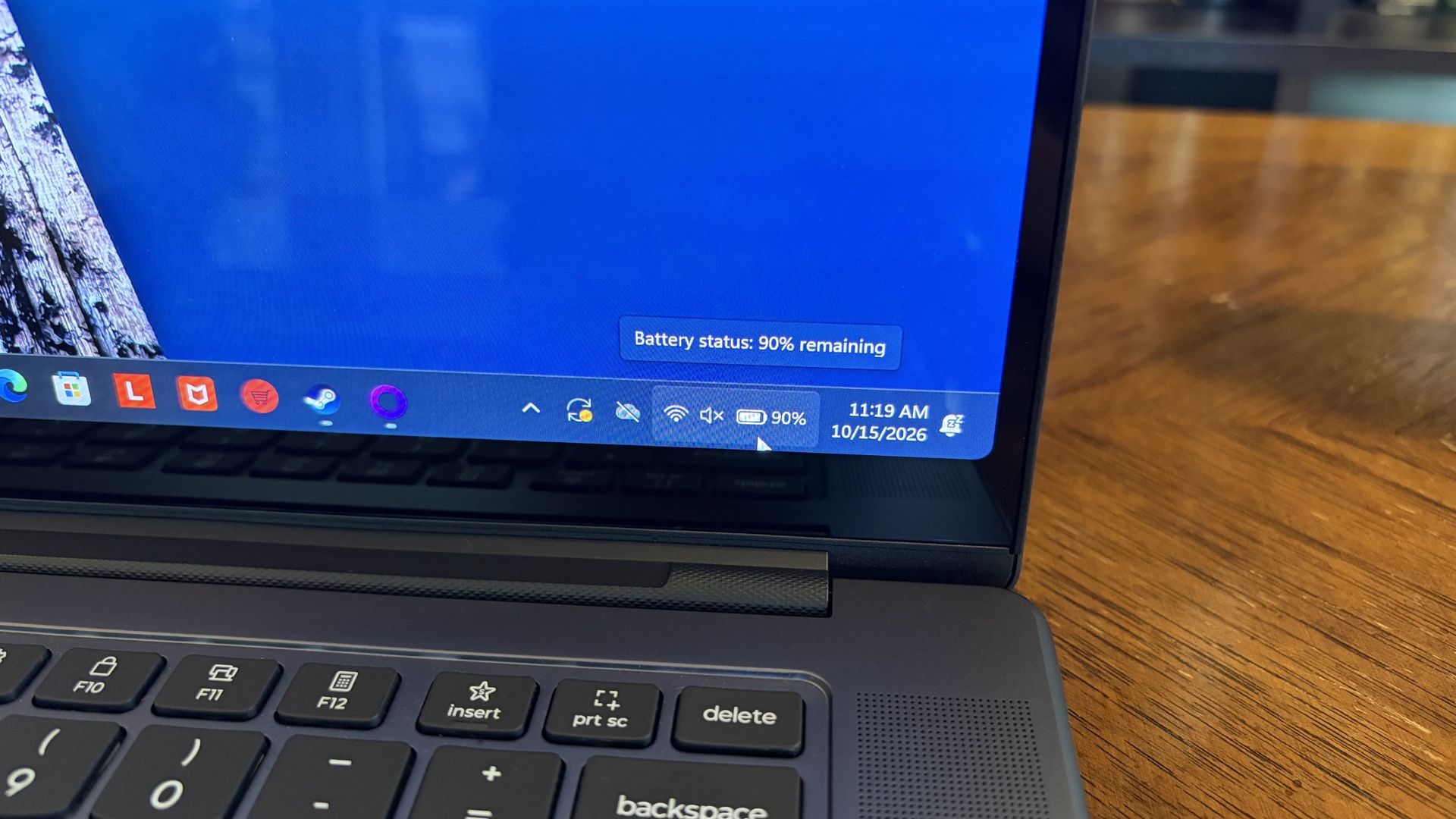
Battery life has been great so far for day-to-day use. (Image credit: Future)
Battery life falls into both categories: What I like and what I'm worried about.
First impressions are very good. As mentioned, the laptop is sitting at about 35% after a day of downloads and tinkering around. That's with the PC adjusting its own power profile depending on the task at hand.
If you aren't hammering the hardware and are instead browsing the web, streaming video, answering email, etc., I'm confident that the laptop will deliver awesome battery life for day-to-day tasks.
I explain the flipside to the battery segment below.
Inking on the haptic touchpad
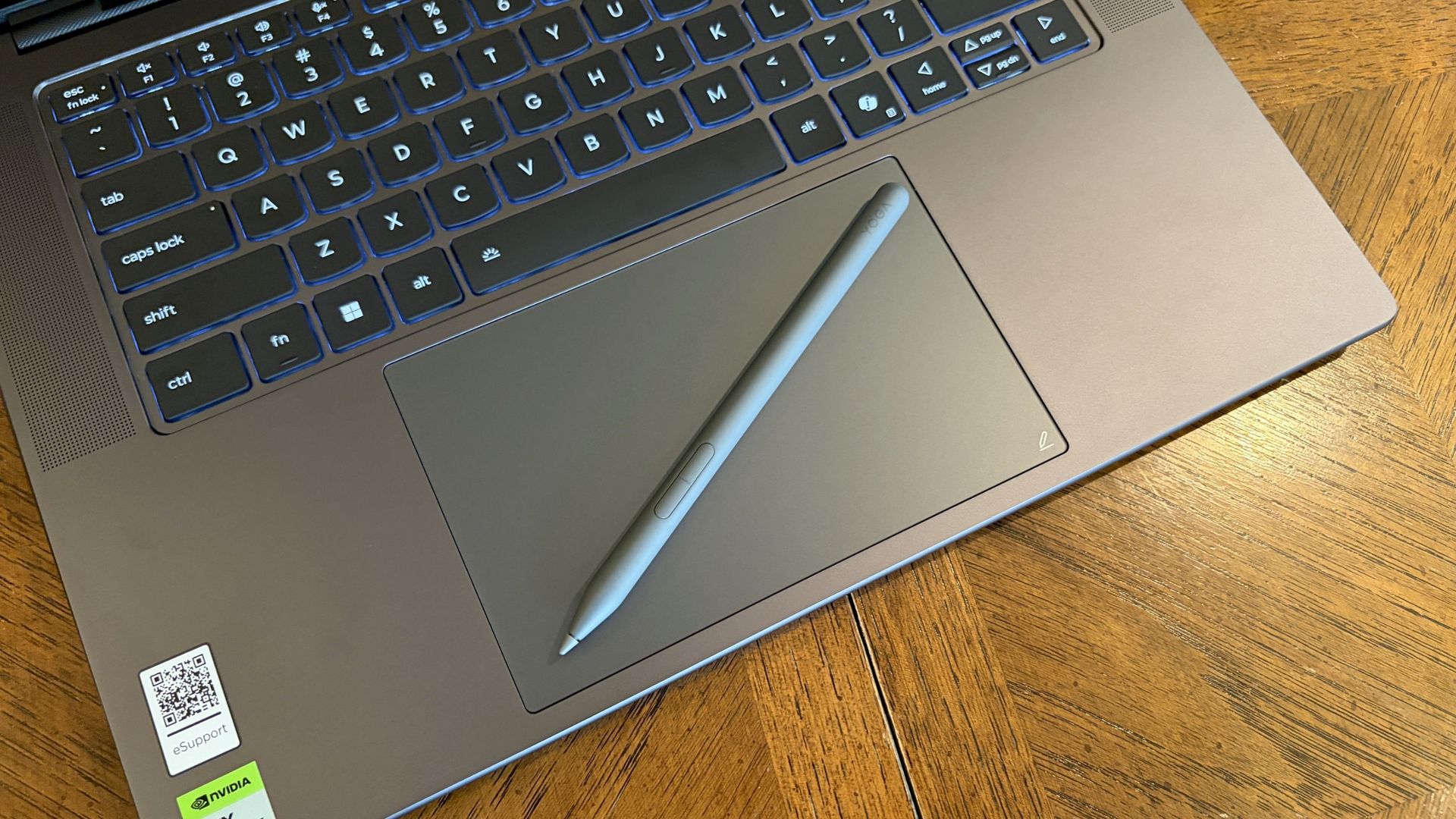
The massive touchpad has plenty of space for inking with the Yoga Pen Gen 2. (Image credit: Future)
The Pro 9n's display accepts touch input, but it does not work with the Yoga Pen (Gen 2). Instead, the Pro 9n's new haptic touchpad measuring about 3.74 x 5.9 inches (95mm x 150mm) is pen-enabled.
As someone who rarely uses an active pen on any laptop that's not at least a convertible (allowing me to rotate the display around for tablet mode), I love this change.
Writing feels natural and smooth. (Image credit: Future)
The oversized touchpad provides plenty of space to work, and the feel and sound of the pen nib on the surface come out natural. The pen has 8,192 levels of pressure sensitivity thanks to AES 3.0, far more than I'm used to.
Lining up the touchpad area and the on-screen canvas takes a bit of guesswork, but I'll try it in more apps between now and my full review.
Display quality is outstanding
The OLED display offers a 2.5K resolution and brightness up to 1,100 nits. (Image credit: Future)
The Yoga 9n's 15.3-inch display uses a "PureSight Pro" OLED panel with X-Rite Pantone calibration, ensuring it's ready for specialized design work requiring accurate color reproduction.
It might be the slim bezels, or it might be the 2560x1600 resolution; in any case, it feels a lot larger than 15.3 inches.
Lenovo wanted to deliver a screen for creators, and it certainly seems like it achieved its goal.
I haven't tested it with a colorimeter yet, but Lenovo says the screen can hit 1,100 nits peak brightness with HDR enabled. I'd wager that's about right, because this thing gets very bright and I've had only minor issues with glare.
It's super smooth too, thanks to a 165Hz variable refresh rate that can automatically lower or raise depending on what you're doing. Lenovo wanted to deliver a screen for creators, and it certainly seems like it achieved its goal.
Lenovo Pro 9n early impressions — 3 things I like less
Admittedly, these three aspects I like less could turn out to be nothingburgers once I've spent more time with the PC. In any case, here they are, including more information about battery life.
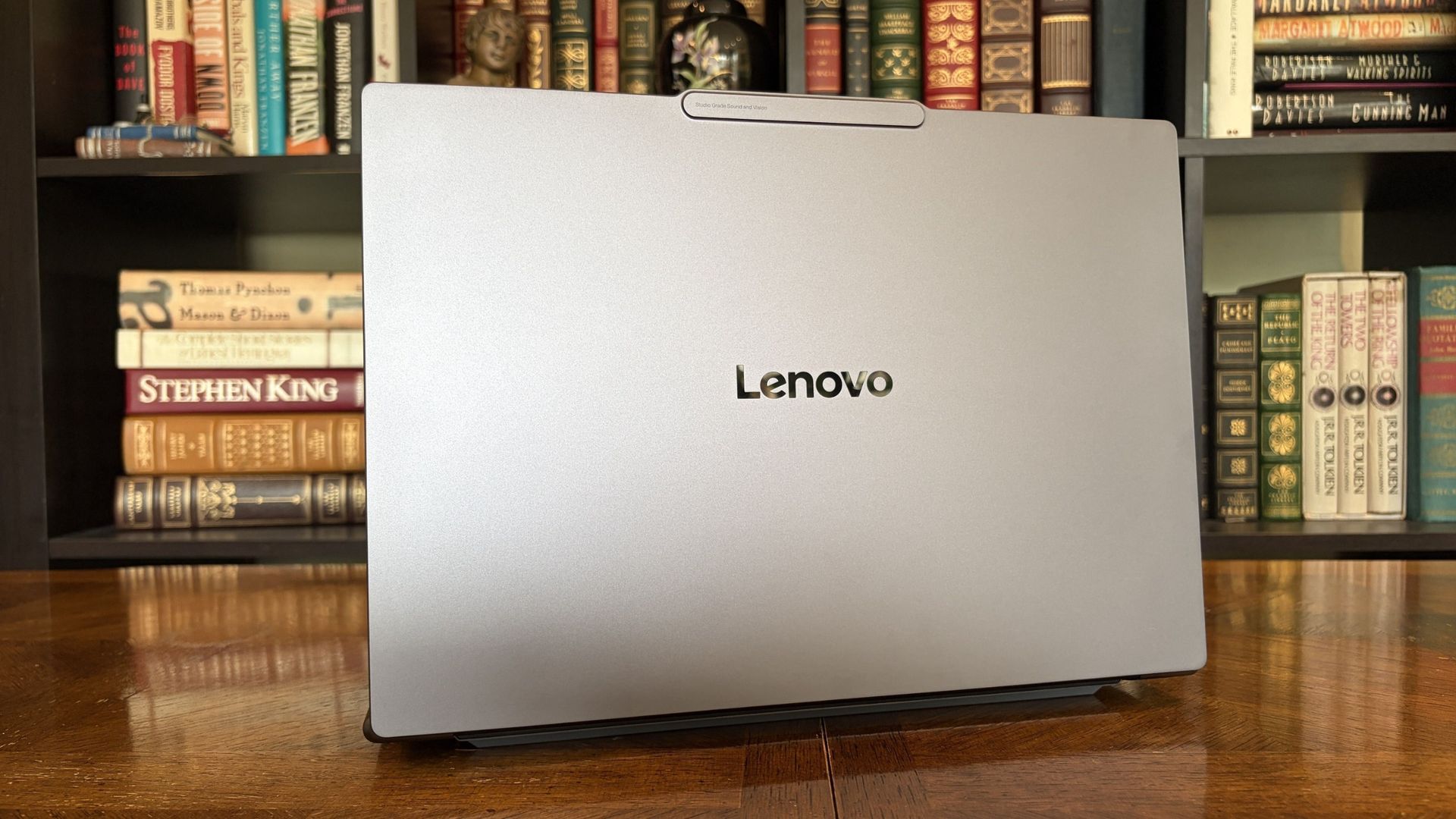
A rather plain design
The Pro 9n isn't very flashy on the outside. Disagree? Let me know in the comments below. (Image credit: Future)
The Lenovo Pro 9n's design is not exactly inspiring.
This isn't just an issue I have with Lenovo's RTX Spark PC; it's largely the same across the entire product catalog, including ASUS, Dell, HP, MSI, and Surface. I imagine second-gen devices will receive a bit more flair, especially as brands branch out into more focused approaches.
The laptop is super sleek and not nearly as heavy as I was expecting.
In Lenovo's case, with such an emphasis on modern creators, the plain design doesn't quite sit right. Let me know in the comments section below if you disagree with me or have more to add on the subject.
I will say that the laptop is super sleek and not nearly as heavy as I was expecting. It only weighs about 3.6 pounds (1.6kg), and it's well balanced. Port selection is also quite good, with dual Thunderbolt 4, dual USB-A, HDMI 2.1, SD card reader, and 3.5mm audio jack.
Will it overheat?
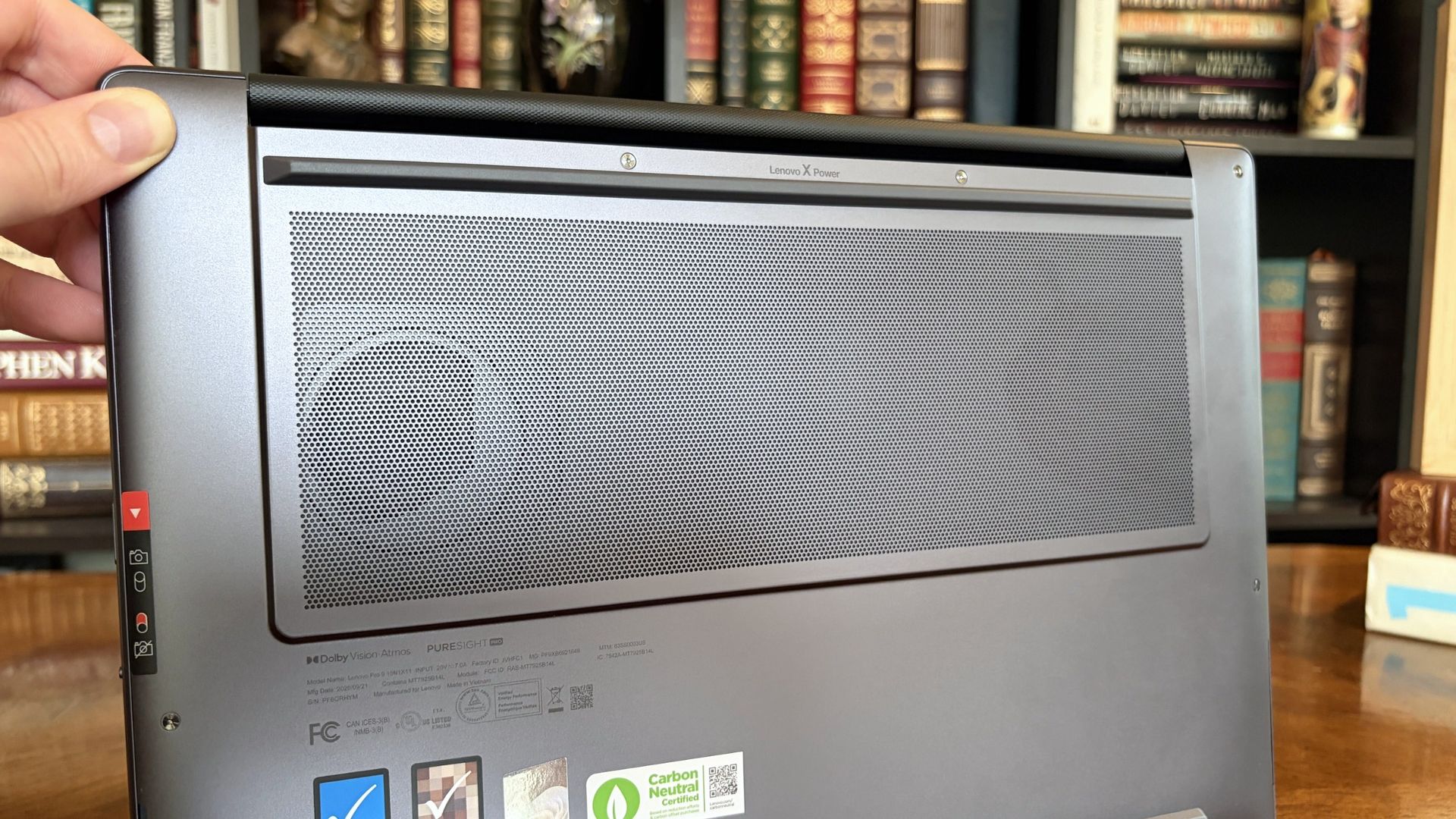
Two fans lie just beneath an oversized intake vent on the bottom of the Pro 9n. (Image credit: Future)
The first few hours with the Lenovo Pro 9n involved some noticeably hot surfaces, but that seems to have abated now that it's all set up and finished downloading/installing updates.
Playing games causes heat to rise, especially when the AC adapter is plugged in, and it will be interesting to monitor actual temperatures and whether or not the dual-fan system can keep up with sustained heavy loads.
Battery life ... again
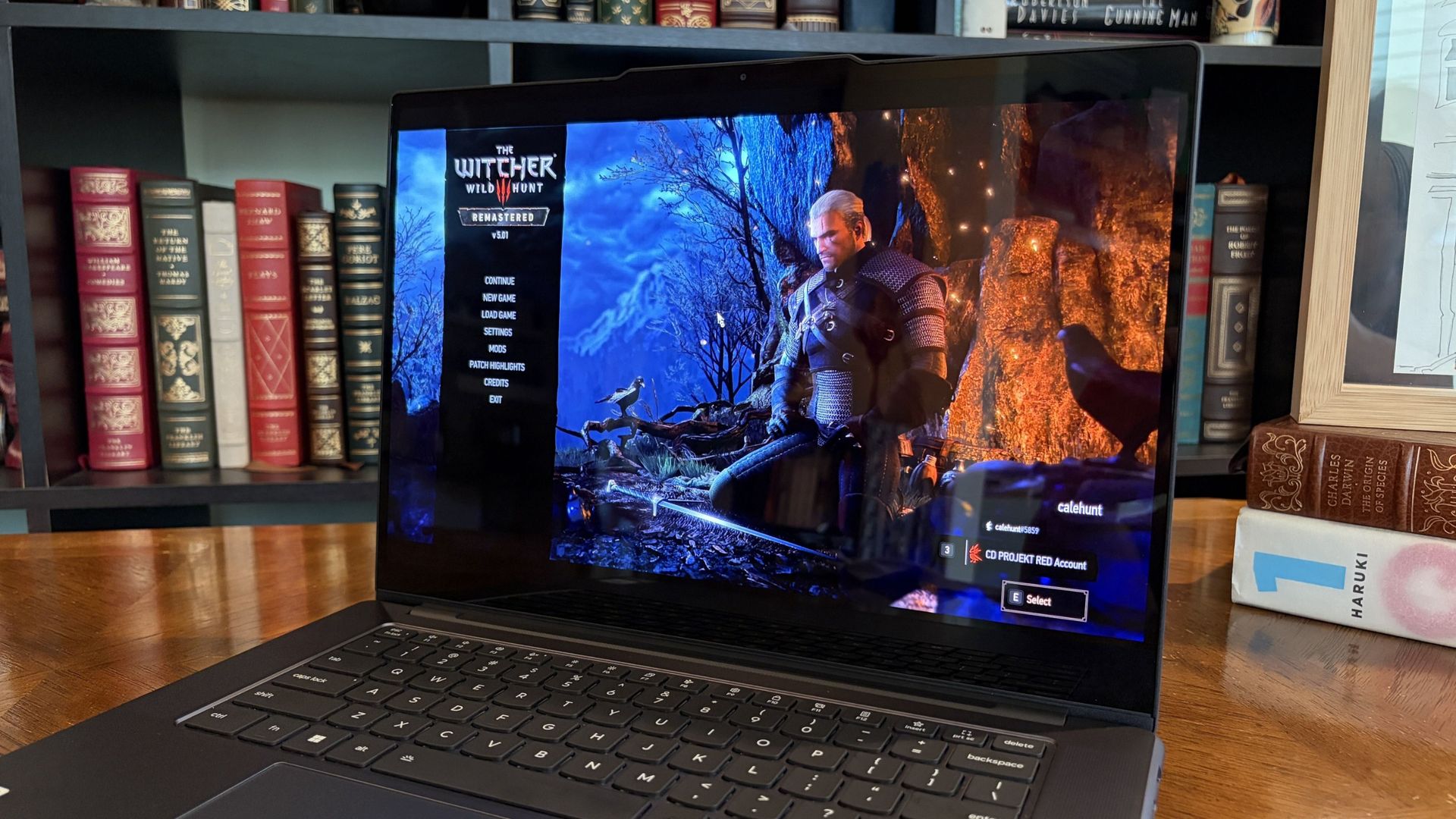
I enjoyed a bit of The Witcher 3: The Wild Hunt Remastered to get an early idea of battery life under load. (Image credit: Future)
As noted, battery life seems great when you aren't pushing the system with anything too demanding.
I need a lot more time with the laptop to get a better idea of how efficient it can be, and I am concerned about how long the battery will last when the PC is under heavy load, for AI work or for gaming.
Final thoughts on the Lenovo Pro 9n before a full review
The raised comms bar at the top of the display houses the IR sensor and webcam. (Image credit: Future)
Lenovo's Pro 9n has a lot to unpack, and I feel like I've barely scratched the surface of what this new class of PC can do. First impressions are generally positive, although, as noted, there are some concerns about battery life and heat.
Do you have any questions that need answering regarding the Lenovo Pro 9n or the RTX Spark platform in general? Drop them in the comments section below, and I'll do my best to address them in my full review.
Join us on Reddit at r/WindowsCentral to share your insights and discuss our latest news, reviews, and more.
NVIDIA's RTX Spark has arrived, and tons of laptops are quickly equipping themselves with this superchip to take advantage of its NVIDIA AI, RTX graphics, and unified memory to improve their productivity and gaming performance.
Antonline is getting in on the launch-day action by offering Microsoft Surface and Lenovo laptops packed with the RTX Spark, and we've rounded up Antonline's available RTX Spark offers for your perusal.
Do note that some of Antonline's RTX Spark laptop offers are only up for pre-order, while others are not in stock yet, so check back on its website frequently for stock updates.
This 15-inch PixelSense Touchscreen laptop comes with an NVIDIA RTX Spark N1X with a 5120-core GPU and 18-core CPU, an NVIDIA Blackwell RTX 5120-core Graphics card, 32GB of Unified Memory, and 1TB Storage.View Deal
This advanced Lenovo Pro 9n Notebook features a 15.3 WQXGA Touchscreen, 64GB RAM, 2TB Storage, and an NVIDIA RTX Spark N1X with a 6144-core GPU and 20-core CPU for improved productivity and gaming.View Deal
This configuration of the Lenovo Pro 9n laptop features its display with an OLED Touchscreen, 32GB RAM, 1TB Storage, and an NVIDIA RTX Spark with a 5120-core CPU and 18-Core CPU to help you master its Copilot+ features when conducting research, meetings, or content creation.View Deal
What is the RTX Spark?
A Lenovo Yoga laptop equipped with the RTX Spark chip. (Image credit: Cale Hunt | Windows Central)
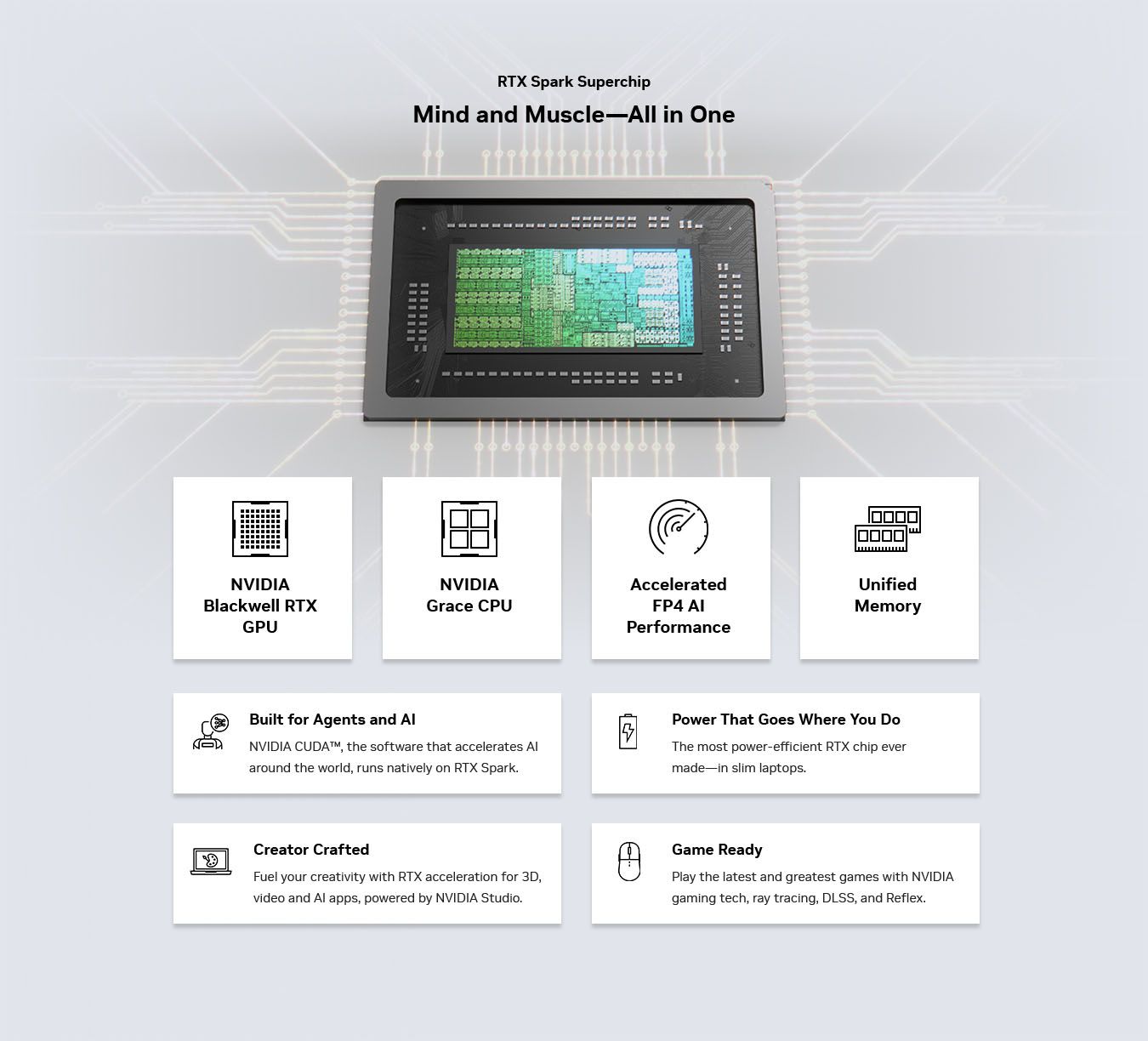
The RTX Spark is a brand-new ARM-based superchip platform designed by NVIDIA to make a PC more efficient when running high-end PC games and local AI-workflow tasks securely without compromising its performance.
The RTX Spark has an NVIDIA Grace CPU that can support up to 20 cores for boosted performance efficiency, and its Blackwell-generation RTX GPU has gaming performance rates on par with the RTX 5070 graphics card,
Additionally, the RTX Spark can support up to 128GB of unified RAM between its CPU and GPU, and it can generate up to 1,000 TOPS to boost its power when running local AI workflows.
RTX Spark selling points. (Image credit: NVIDIA)
One of our tech experts, Zac Bowden, recently benchmark-tested the RTX Spark and concluded that, and I quote, "RTX Spark is a super interesting chipset. It's forward leaning in a lot of ways, built on the Arm64 architecture that delivers serious performance and great efficiency. While its N1X CPU is just okay, its Blackwell RTX GPU really shines.
This is the first time we've seen RTX 4070-5070 level performance in an SoC that is this small and efficient. It's optimized for AI workloads, which is its strongest workflow by far. Quantized AI models run great, and with up to 128GB of unified memory, most mainstream models will fit entirely on the GPU without a hitch."
Zac also mentions that while it's great for content creators and gamers, the RTX Spark is best recommended for workers who run AI models locally all day, develop software, crunch complex data, and manage source code using thin laptops.
So, If you're one of those hard-working data crunchers in need of a powerful productivity laptop, then laptops built with the RTX Spark are for you.
Join us on Reddit at r/WindowsCentral to share your insights and discuss our latest news, reviews, and more.
Microsoft is finally ready to take on the MacBook Pro with the new Surface Laptop Ultra. From pricing to specs and design, Surface Laptop Ultra was inspired by MacBook Pro, and that's not necessarily a bad thing.
Unlike most Surface PCs we see ship these days, the Surface Laptop Ultra is a lot of firsts for Microsoft. It's the first ultra-class Surface Laptop, designed from the ground up to compete squarely with high-end professional creator or developer mobile workstations.
What I find fascinating about Surface Laptop Ultra however is that it exists because Microsoft's own developers and engineers wanted it. They built this laptop for themselves. It feels like the company got tired of looking over the fence at the MacBook Pro, and decided "why don't we just make our own version of that?"
It really is Microsoft's most powerful and most capable Surface PC ever, and a great stage for Windows. But that doesn't necessarily mean it's the best Surface PC for everyone. I've been testing the laptop over the last 8 days, and here are my thoughts on Microsoft's new flagship computer.
This review was made possible thanks to a review unit supplied by NVIDIA & Microsoft. Neither company had editorial input and did not see the contents of this review prior to publication.
Price & Availability
Microsoft
Surface Laptop Ultra
Surface Laptop Ultra is Microsoft's flagship and most powerful Windows PC. It can be configured with up to 128GB RAM, and ships with NVIDIA's new RTX Spark SoC. It's great for creative workflows and software development, and those who want to run local AI and LLMs directly on their device.
Surface Laptop Ultra is Microsoft's most expensive Surface Laptop to date. It starts at an eyewatering $2,599 for the entry-level configuration with 24GB of RAM, 512GB SSD storage, and an 18-core RTX Spark with 5,120 GPU cores. That's an expensive laptop, and it only gets worse the higher you climb up the specs ladder.
The model I've reviewed is the very top end configuration, with a crazy 128GB RAM, 1TB SSD, and a 20-core RTX Spark with 6,144 GPU cores. That model will set you back $5,899, which at these prices basically makes this a $6,000 laptop. That's an insane amount of money to spend on a laptop, but this configuration only really exists for professionals who need the extra power to run local agents and data crunching.
For video creators, gamers, and prosumers, you'll be more than well served with the lower tier models with 24-32GB RAM. All models come with the same mini LED screen, speaker setup, ports, keyboard, and trackpad. It's also available in Platinum or Nightfall colorways (aka, silver and black.)
Brightness: SDR up to 1,000 nits (typical), HDR up to 2,000 nits peak luminance
Optimised for touch interaction
Operating System
Windows 11 Home (24 GB unified memory models)
Windows 11 Pro (32 GB, 64 GB, and 128 GB models)
Ports & Connectivity
2 × USB-C® / USB4®
1 × USB-C® / USB4® with Magnetic Connect
1 × HDMI 2.1b
1 × USB-A 3.1
1 × Full-size SD card reader
1 × 3.5 mm headphone jack
Wireless
Wi-Fi 7, Bluetooth 5.4
Camera & Audio
1080p Full HD front-facing camera
Battery Life
Up to 15 hours of local video playback
Up to 12 hours of active web usage
Power Supply
Requires USB PD 115W–140W charging
Weight & Dimensions
Weight: 2.0 kg (4.41 lbs)
Chassis: Sub-18 mm thickness
Colours
Platinum, Nightfall
Base Price
Starting at $2,599
Design & Ports
MacBook Pro? (Image credit: Zac Bowden / Windows Central)
We have to start with how this thing looks, and we do need to address the fruit-shaped elephant in the room. Yes, Surface Laptop Ultra looks an awful lot like a MacBook Pro. I wouldn't blame the layman for even thinking it was a MacBook Pro from a distance. The square edges, large trackpad, and minimalist design echo the MacBook Pro from pretty much every angle.
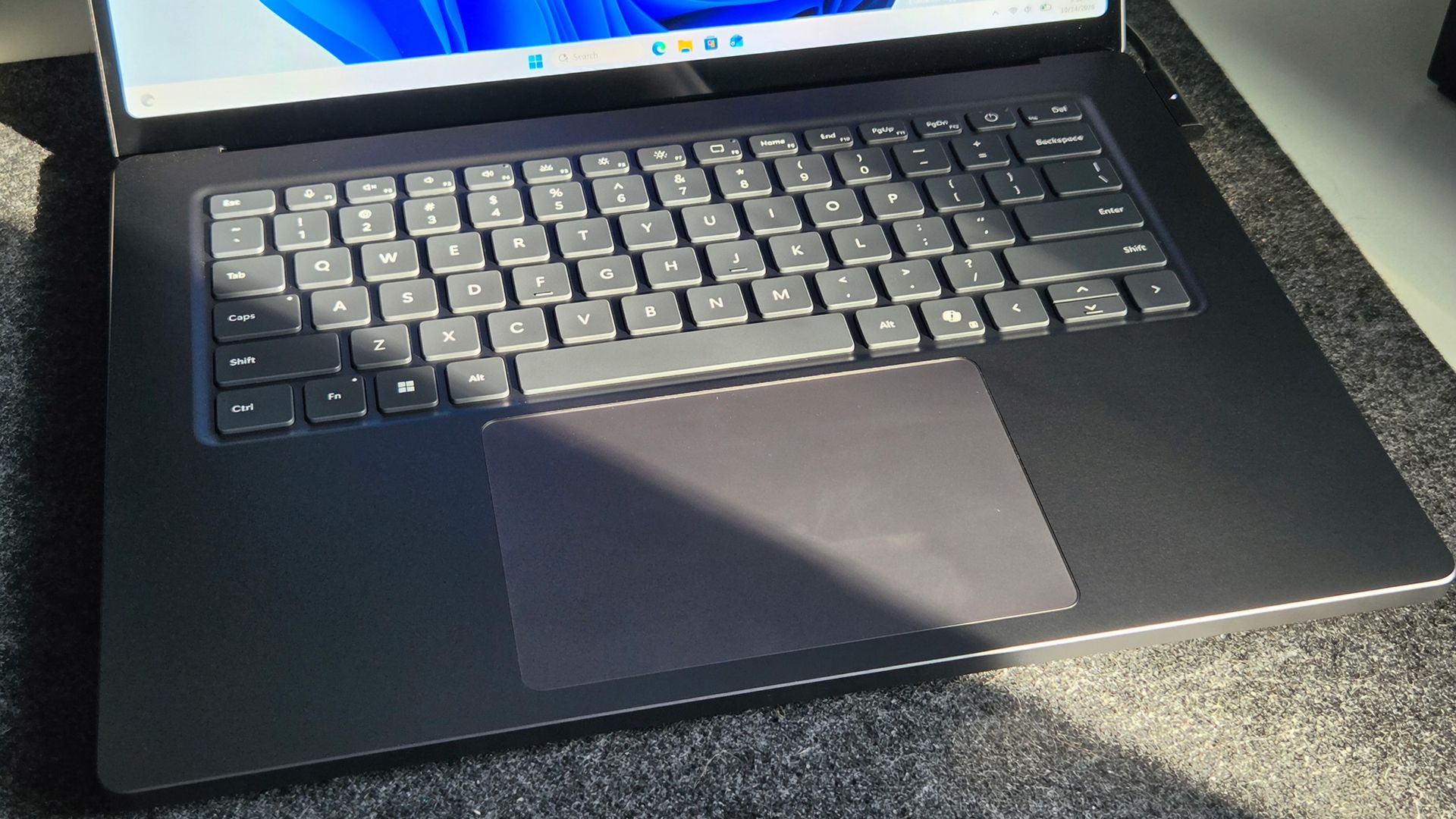
But I'm not here to tell you that's a bad thing. The MacBook Pro is a beautiful device, which is to say Surface Laptop Ultra is also very beautiful. In fact, I think it even improves upon the MacBook Pro's design in subtle ways. The keyboard deck isn't surrounded by a plastic bezel like on MacBook Pro, instead it's softly indented into the metal keyboard deck which looks lush and seamless.
The corners on Surface Laptop Ultra are also a little rounder than the MacBook Pro, a design choice that trickles down from the corners of the chassis to the keys on the keyboard, and corners on the trackpad. It's an entirely consistent and well thought out design, which I highly appreciate.
The left-side ports are good enough. (Image credit: Zac Bowden / Windows Central)
Microsoft also doesn't suffer from the godawful notch that you'll find on a MacBook Pro. Surface Laptop Ultra's display bezels are uniform along the left and right, and slightly thicker on the top to accommodate the Windows Hello IR face unlock sensors, which are much better than a fingerprint reader.
I should also mention that the display hinge on this laptop is perfectly tuned. It opens with one finger, and is perfectly balanced to provide a satisfying level of friction as you open and close it. It's also rock solid when typing, meaning it doesn't wobble around at all when on a desk.
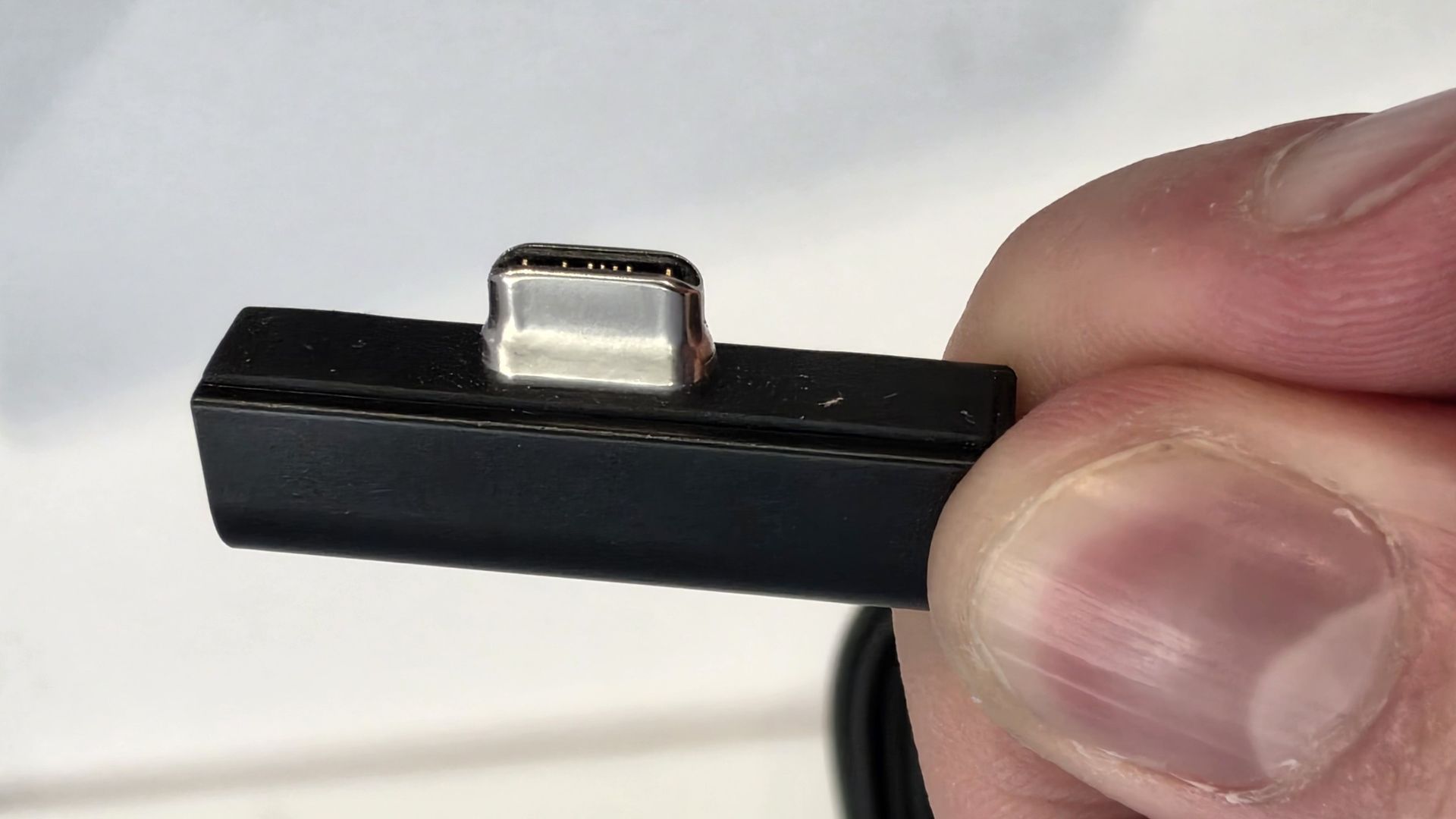
The port selection is good enough. It features three USB-C ports, a USB-A port, a 3.5mm audio jack, HDMI 2.1, and a full-sized SD card reader. Of course, the star of the show in the ports department is Microsoft's clever magnetic USB-C port, which replaces the proprietary Surface Connect charge port found on older Surface Laptops.
The special USB-C port is truly great. (Image credit: Zac Bowden / Windows Central)
It's great to see a laptop manufacturer attempting to innovate and improve on the universal USB-C standard. Here, we have a USB-C port that is compatible with all your USB-C peripherals, but it's also magnetized, and with the included charging cable, magnetically snaps to the device just like Apple MagSafe, while using the same universal USB-C port.
How did Microsoft do this? Well, most of the innovation is actually on the cable side. On the laptop itself, the only real change is that the USB-C port is slightly wider at its opening, but the rest of the USB-C port itself is typical in its design. Microsoft placed magnets on either side of the port, and redesigned the USB-C connector that's attached to the cable to allow for the magnetic connection to be seamless.
The cable's male USB-C end is shallower than a normal USB-C connection. This allows for it to connect to the USB-C port without clicking in, which is what locks a cable to a USB-C port normally. Instead, the magnets hold it in place, which enables the breakaway design that differentiates this USB-C port from the rest.
The USB-C connector is unique. (Image credit: Zac Bowden / Windows Central)
That does mean the USB-C cable that comes included only works with Surface Laptop Ultra, and only in this particular port. Microsoft realized this would be a problem, and designed the power brick that comes with Surface Laptop Ultra in a way that allows the magnetic cable to attach to the brick instead. The other end of the charging cable is a normal male USB-C end, which connects to any USB-C port you want.
So you can still use the Surface Laptop Ultra's power brick and cable on any device or any port you like, you just have to plug the magnetic end into the power brick first. It's a genius design, and proves that Microsoft really thought of everything when it comes to this unique magnetic USB-C experience. I love it, and I hope to see it on more laptops in the future.
Surface Laptop Ultra is available in just two colorways: Platinum and Nightfall. To me, I think the Platinum version looks the nicest, but the Nightfall version looks clean too. The good news is the dark color does a relatively good job at fending off fingerprints thanks to an anti-fingerprint coating that has been applied to the chassis.
Display & Features
The Mini LED display in all its glory. (Image credit: Zac Bowden / Windows Central)
Surface Laptop Ultra ships with Microsoft's first ever mini-LED display, which delivers better contrast and brighter peak brightness over your standard LCD that has been found in all other Surface Laptops to date. Unlike an LCD, the Surface Laptop Ultra's mini-LED screen packs 1,344 local dimming zones, which allows the laptop to dim darker areas of the screen that don't need as much light.
This number is not as high as the mini-LED screen on the MacBook Pro, and this results in a bit of blooming around bright elements on a dark background. If you use Windows in light mode, this will almost never bother you. But in dark mode, in a dimly lit environment, it becomes quite a bit more apparent.
The backlight also takes a fraction of a second to keep up with what's going on on your screen. If you move a bright window around on a dark background, you'll notice the backlight brightening and dimming around the edges of the window. This gives off a slight ghosting effect which degrades the 120Hz refresh rate somewhat. It isn't noticeable at all in light mode, however.
This all leads me to say I wish Microsoft had opted for an OLED panel on the Surface Laptop Ultra. I've been daily driving OLED displays for the better part of a year now, and a mini-LED panel just isn't a vibrant or contrasty as an OLED display can be. The mini LED display is good, but not the best on the market, and it's certainly no OLED.
Microsoft tells me it opted for mini LED over OLED primarily for the brightness and efficiency gains. At 2,000 nits peak brightness, it is the brightest screen ever put on a Surface. But Tandem OLED displays are also very capable of reaching similar peak brightness levels these days, and so I feel the benefits of a mini LED screen don't carry much weight here.
If you're coming from a standard LCD, the mini LED screen will be nothing but an upgrade to you. It's color accurate, very bright, and its high resolution and 120Hz make reading text and scrolling webpages look and feel great. But if you're coming from a MacBook Pro mini LED screen, or an OLED display, you will notice the downgrade in contrast and more noticeable blooming.
The display is also a touch screen, which is the case on pretty much all Surface PCs since the line began in 2012. Microsoft truly believes that touch has a place on the laptop form factor, and I agree with it. Being able to reach out to tap on a notification or hit OK on a window prompt is really nice, even if I don't use it all the time.
For pen lovers, sadly the Surface Laptop Ultra does not support pen input. Microsoft dropped pen input from the Surface Laptop with Surface Laptop 7, and the Surface Laptop Ultra has not restored it. This makes sense however, as the screen does not lay flat so drawing on it would be uncomfortable.
I also want to mention the fact that Surface Laptop Ultra features a user upgradeable SSD drive. That means you don't have to splash out on the most storage at the checkout screen. You can opt for a lower amount, and when you finally fill it, upgrade the SSD to something larger later down the line. You can't say that about the MacBook Pro.
That large trackpad is something else... (Image credit: Zac Bowden / Windows Central)
Unfortunately, Surface Laptop Ultra is missing a key quality of life feature that I have come to enjoy on other flagship Windows laptops over the last year: presence sensing capabilities. My daily driver is able to wake up and go to sleep whenever I approach it or walk away, and Surface Laptop Ultra is missing this functionality entirely. A crying shame.
It's also missing all Copilot+ PC features currently. Microsoft tells me that RTX Spark is a Copilot+ PC capable chip, but that the suite of Copilot+ PC features aren't yet ready for the platform, and to expect them to show up in the coming months. The RTX Spark has a 50 TOPS NPU that will power these experiences when they finally do arrive.
Keyboard & Trackpad
The best keyboard and trackpad I've ever used. (Image credit: Zac Bowden / Windows Central)
Surface has always delivered excellent keyboard and trackpad experiences, but Surface Laptop Ultra might be on a whole other level. This is probably the best keyboard and trackpad experience I've ever had on a Windows laptop to date. The keyboard is comfortable, tactile, and quiet, with 1.4mm key travel which is incredibly satisfying and not at all fatiguing.
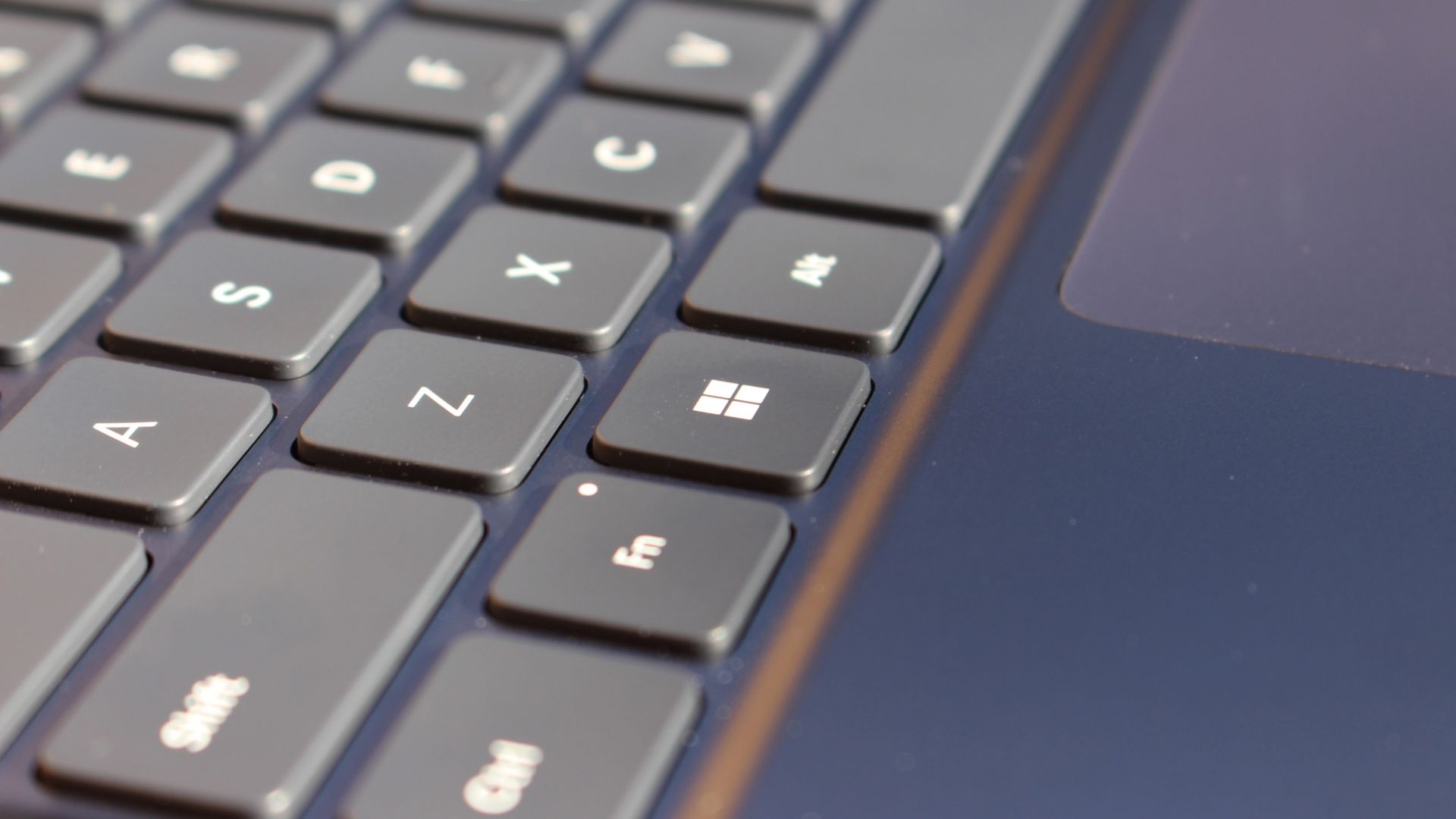
The keys themselves are slightly rounder than the keys found on Surface Laptop 8, which I think is more comfortable and looks nicer as a result. It features a three-stage backlight, a Copilot key (which can be changed,) and a dedicated microphone mute key. It's pretty much perfect in every way.
But what I really want to talk about is the trackpad. It's the largest trackpad ever fitted to a Surface, and that makes a huge difference in how easy it is to use. There's so much room for activities, and you'll never find yourself at the edge of the trackpad because you needed to drag a file and ran out of room.
The keys are so nice to type on. (Image credit: Zac Bowden / Windows Central)
Palm rejection is also very good. I never once had an issue with the trackpad being in the way when typing, which means Microsoft has done a good job at ensuring the trackpad's side isn't impeding the typing experience. The trackpad itself is haptic, and feels great to click on, with strength adjustability in Windows Settings so you can really dial in just how strong that haptic feedback is.
But the new trackpad also supports Windows 11's new haptic system, which introduces subtle haptic feedback when interacting with different UI elements across Windows. When you snap an app window, or drag files across folders, you'll feel haptic bumps under your finger in the trackpad that are different from the usual click down sensation it provides. It's genuinely great.
Camera & Audio
It's a Surface, so you can and should expect great cameras and microphones on Surface Laptop Ultra. The webcam is a 1080p shooter that looks more than fine for video calls, Teams meetings, and recorded presentations. In low light, the image does get a little noisy, but not any more than any other high-end webcams on the market.
The shining star in this department are the built-in studio mics, which are very very good. They sound studio quality, with rich bass and far-field mics that do a very good job at tuning out background noise to ensure the things that you are saying are captured clearly and well.
I also need to take a moment to talk about the built-in speakers on this laptop. They are superb. Again, probably the best I've tried in a Windows laptop to date, and give the MacBook Pro 14-inch a run for its money. There's a clear sound stage, highs are crisp and bass is rich.
Performance & Battery
It's a looker for sure. (Image credit: Zac Bowden / Windows Central)
I've already published an in-depth look at the performance of RTX Spark on Surface Laptop Ultra, which you can read here if you're interested, so there won't be raw performance benchmark numbers in this review.
The TL:DR for that however is that the RTX Spark is a powerful chip, with okay CPU performance but great GPU performance. It's capable of playing most games at 1440p high settings above 60fps, and top end configs can fit large AI models directly onto the GPU for faster processing. But it trails behind the latest high-end Apple Silicon, and is more in-line with current-gen Snapdragon X2 Elite or last-gen Apple M4 Pro in overall performance.
By default, the 128GB Surface Laptop Ultra ships with its unified memory in a 50/50 split configuration. Users are free to adjust this in the NVIDIA app, which is good for when you need to give either the system or your GPU more RAM for whatever task it is you're completing. It requires a restart to apply, which frustratingly takes a long time on the Surface Laptop Ultra.
You can expect very fast read and write speeds on 1TB models. (Image credit: Zac Bowden / Windows Central)
Performance is great for the most part. In day to day usage, it's blazing fast and is able to crunch through pretty much any workload I'd want to throw at a mobile workstation such as this. With that said, there are a couple of oddities related to performance that I feel I should mention.
Compared to other devices I have on hand, the Surface Laptop Ultra sometimes takes twice as long to restart. I'm talking over 2 minutes from hitting restart to being back on the lock screen, which is about double the amount of time it takes all the other laptops in my possession. Microsoft says they are investigating.
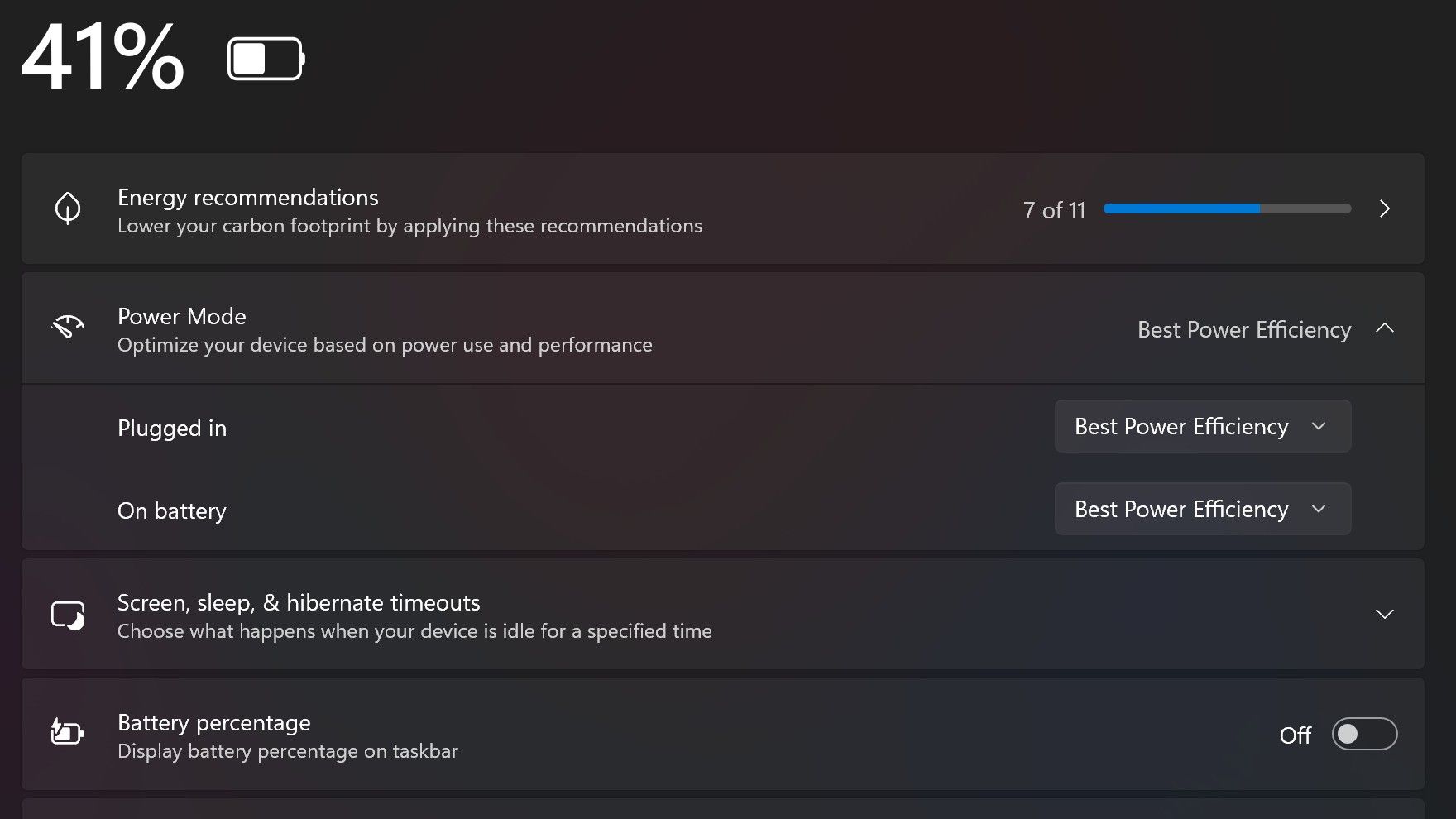
Surface Laptop Ultra also ships with the "Best Power Efficiency" profile set by default. This is unusual, as most Surface PCs ship with their power profile set to balanced. Microsoft says it does this to maximize battery life, but that does come at the cost of performance.
Make sure you change these to Best Performance for plugged in, and Balanced for battery life. (Image credit: Zac Bowden / Windows Central)
I've found that overall performance can be slashed by up to a quarter or even half when in this default mode. So if you want to make the most of your RTX Spark PC, be sure to change the power mode in Windows Settings to either Balanced or Best Performance. I usually set the on-battery mode to Balanced, and the plugged in state to Best Performance.
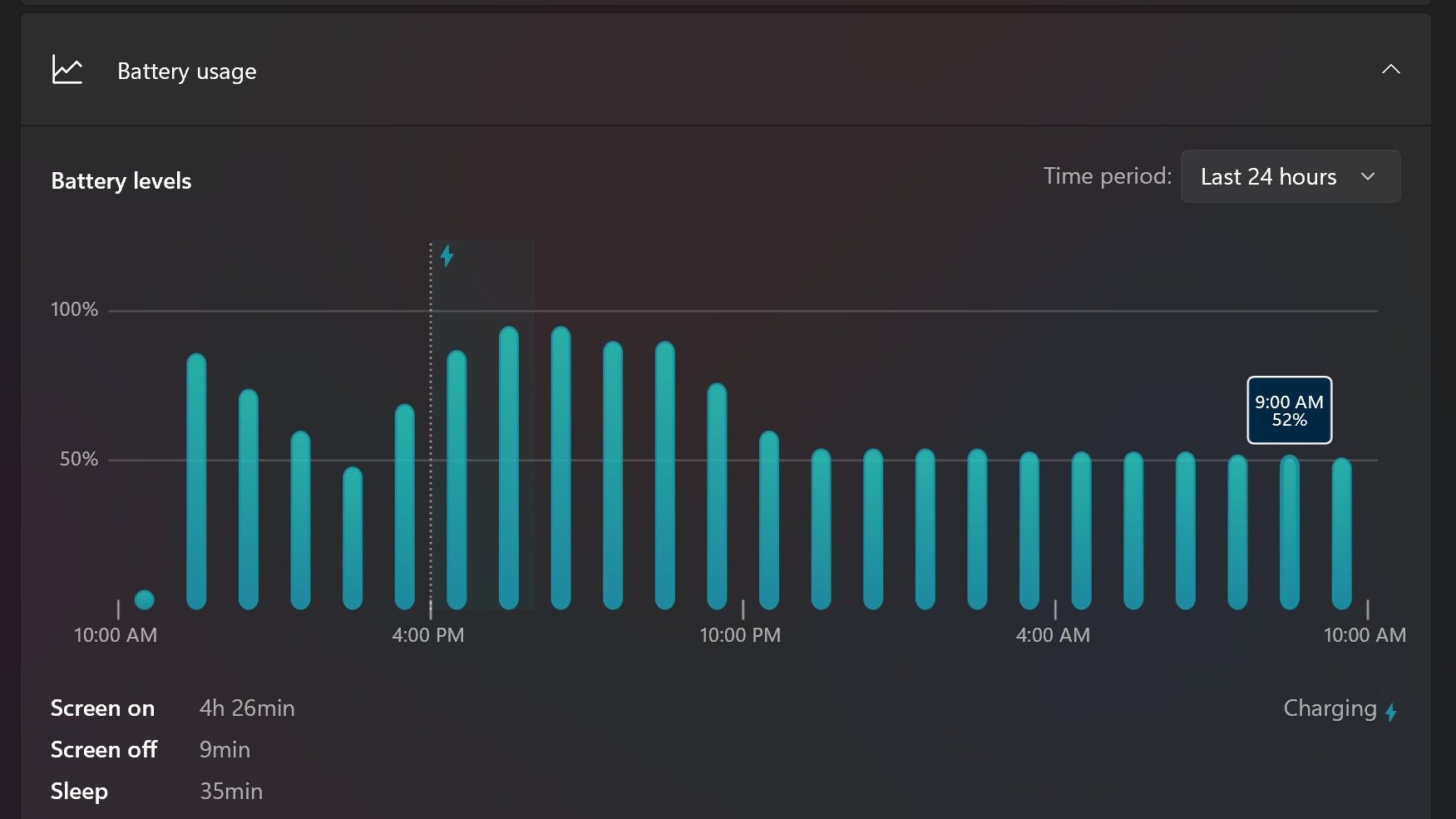
On the subject of battery life, the Surface Laptop Ultra's endurance is just fine. It's not class leading by any stretch, but I can definitely get through the work day without much fuss, though this will depend on your workload. Our Procyon battery life benchmark test lasted around 14 hours, and in real world use I was getting close to about 10.
But if your workload heavily leans on the GPU, you can expect to halve that number. The GPU is quite efficient for the power it outputs, but it's still a GPU and it's still hungry. So if you know you'll be using the GPU a lot throughout the day, you'll want to bring the charger with you.
Surface Laptop Ultra only sipped power during sleep between midnight and 9AM. (Image credit: Zac Bowden / Windows Central)
With that said, sleep endurance is very good for the level of power this laptop outputs. I put the laptop to sleep at about midnight, and open the lid 10 hours later, and it's only drained one, maybe two percent from the battery. Very good on that front!
Under max load, the Surface Laptop Ultra gets quite warm. While the keys themselves remain at an okay temperature, the top part of the keyboard deck gets very toasty. I measured 123 F at its hottest under max load, which is approaching "oh that's hot" territory.
Surface Laptop Ultra gets toasty, but doesn't seem to thermal throttle. (Image credit: Zac Bowden / Windows Central)
I also noticed quite audible coil whine when under max load on my Surface Laptop Ultra. This isn't a problem in day to day use, but whenever the GPU is being used, I can hear buzzing coming from inside the keyboard chassis. If you're sensitive to that kind of thing, it will annoy you.
Fan noise is acceptable even at max load. I measure around 42 decibels at its loudest, and that was after running a benchmark for 10 minutes. In normal use, the fans rarely come on, though it does run slightly warm on your lap as a result.
Conclusion
Surface Laptop Ultra is ultra-premium. (Image credit: Zac Bowden / Windows Central)
✅ You should buy this if ...
You are a software developer utilizing on-device AI
You live and breathe large language models and agentic workflows
You need a beefy GPU in a portable and efficient package
You need lots of RAM
❎ You should not buy this if ...
You aren't interested in AI or agentic workflows
You only need a PC for standard productivity tasks
You occasionally game or edit video (get something cheaper)
You want something thin and light
Surface Laptop Ultra is great, but it's not something I can comfortably recommend everyone go out and buy, especially at these high prices. At the base level, it doesn't offer enough to justify the added cost over a Surface Laptop 8 with 24GB RAM. You do get the more beefy GPU and "better" display, but that comes at the cost of portability and battery life.
The Mini LED screen isn't the upgrade I was hoping it would be. For those who have only ever used a standard LCD their whole life, I'm sure you will appreciate the added brightness. But the ghosting issue is annoying and I think most people will notice it. I would have much preferred an OLED on a laptop this expensive.
Battery life is also just okay, which, again, for a laptop of this size and weight, leaves something to be desired. You can get longer day to day use out of a thinner and lighter Surface Laptop 8, which I think most people would prefer over the raw power that Surface Laptop Ultra offers.
And that brings me back to my original point. This isn't a laptop for everyone. It's a laptop for those who know they need it, and it's mainly for AI developers and high-end content creators. If you find yourself leaning on local agents to complete tasks for you, or enjoy generating images and videos using AI models, this is the laptop for you.
If you're someone who just needs a laptop for productivity tasks that includes a little bit of photo and video editing, and sometimes some gaming, there are cheaper laptops out there that will do that job very well.
Is this the MacBook Pro for Windows? I think it is. But it's not the perfect MacBook Pro alternative just yet. RTX Spark isn't at the same level as high-end MacBook Pro silicon, the Mini LED screen isn't best in class, and battery life could use some improvement.
Microsoft
Surface Laptop Ultra
Surface Laptop Ultra is Microsoft's flagship and most powerful Windows PC. It can be configured with up to 128GB RAM, and ships with NVIDIA's new RTX Spark SoC. It's great for creative workflows and software development, and those who want to run local AI and LLMs directly on their device.
Those tablets aren't really direct competition to the Surface Pro, but they do have a feature I'm envious of. The nanomatte screen on one of those Amazon Alexa tablets would be perfect on a Surface Pro.
Matte displays reduce glare by diffusing light. Because the screens bounce light in different directions, the image can appear grainy. An extreme example of this is if you get a cheap matte screen protector for your phone, but even a premium PC with a matte finish can look a bit grainy.
The nanomatte display Amazon uses in its new tablets etches the screen in a way that aligns with the pixels of the display. Amazon praises the displays for providing "a first-of-its-kind cinematic viewing experience, with incredible contrast retention in bright conditions and text that feels like it’s sitting on top of the glass."
I'm not sure I agree with the claim that it's a world first. Apple's nano-texture technology is similar to what Amazon unveiled. But even if Amazon is not a pioneer in the space, it has a device with a screen I'm envious of.
Many Surface devices, including the Surface Pro 8, are glossy, making them hard to use in well-lit environments. (Image credit: Future)
Microsoft has been oddly resistant to anti-glare displays. Surface was late to the party on adding them to any device and has been selective with where it offers the screens.
Microsoft has yet to fully embrace anti-glare screens and it holds back Surface hardware.
The anti-glare display of the Amazon Alexa Tablet 12 Pro also has a texture that makes pen usage feel more natural. The screen is meant to make it feel like you're writing on paper, not a perfectly smooth piece of glass.
It's not surprising that a device made by Panay has features that would fit perfectly on a Surface. He shaped the Surface brand as much as anyone, and he took his expertise over to Amazon.
But as I mentioned earlier, the Alexa tablets are not competitors to the Surface Pro, so they can't serve as replacements either. The Alexa tablets run on Android and have access to the Google Play Store. That's a welcome change to the locked-down Fire Tablets of the past, but it's a far cry from a Windows-powered 2-in-1.
I'd love to see Microsoft replicate the nanomatte finish of the Amazon Alexa Tablet 12 Pro on a Surface Pro in the future. The finish would help those using the Surface Pro in bright settings and also improve the feel of using a stylus.
The Amazon Alexa Tablet 12 Pro features a Nanomatte anti-glare display designed to reduce reflections while maintaining detail and color accuracy. It runs Android and can access the Google Play Store.View Deal
Join us on Reddit at r/WindowsCentral to share your insights and discuss our latest news, reviews, and more.
When I first saw the ASUS ExpertBook A7, I had to double-check that it was really meant for business. This laptop immediately cuts a different silhouette compared to the usual gray rectangles that fill airport lounges and open offices. Instead of relying on harsh edges or a boxy build, the A7 projects an air of modern sophistication that feels more at home next to a designer handbag than lost in a sea of generic briefcases. It is refreshing to see a company put such clear effort into making work hardware truly attractive.
With this launch, ASUS introduces an all-new A series to its commercial lineup. Pricing in the US starts at $1,299, which places it among premium options for professionals who care about their tools’ aesthetics as much as their productivity. The combination of an aluminum body with a vivid OLED screen ensures it stands out from the crowd while still promising plenty of business features beneath the surface.
Designer: ASUS
A Work Companion Designed with Intention
From the first touch, you notice how carefully built the ExpertBook A7 feels. ASUS says this device is milled from a single block of 6000 series aluminum alloy, which is better known for its use in airplanes than office cubicles. This construction helps reduce visible seams and eliminates weak points that could otherwise catch on your bag or wear down over time. The result is a chassis that feels reassuringly solid in everyday use.
Sustainability gets its due as well. Nearly all of the aluminum used around the keys and top cover comes from recycled sources, while the bottom case uses 70% recycled material, too. That focus on sustainability does not just make environmental sense; it gives the laptop a cool touch and premium finish that plastic simply cannot match. Color choices remain subtle yet attractive. You can pick either Lunar Silver or Eclipse Black, both of which offer understated style wherever you work or play.
Measuring just under half an inch thick and weighing less than three pounds, this laptop is easy to slip into any bag without adding bulk or strain. Carrying it around feels closer to bringing along a glossy magazine than hauling old-school work equipment. For people who are always on the move, this lightweight build is more than just convenient.
Display That Draws You In
Flip open the lid, and you will immediately notice why ASUS is proud of its screen technology. The 14- inch panel offers 3K resolution at 2880×1800 pixels, using OLED technology for richer colors and true black levels. With a refresh rate of 120Hz, everything from scrolling through presentations to watching videos appears fluid and sharp.
For those who spend time editing photos or creating graphics, full coverage of the DCI-P3 color space means you get accurate color reproduction for creative work as well as daily tasks. Some versions offer an anti-glare coating to help keep reflections at bay if you often work near windows or bright lights. There is no touch input on this model. Instead, all interaction happens through a backlit keyboard and a glass haptic touchpad that gives gentle feedback with every click or gesture.
Thoughtful Features for Real Workdays
The port selection keeps you ready for any meeting or workspace setup without forcing extra adapters into your bag. Two USB-C connectors handle charging and video output while USB-A supports older accessories you might still rely on day to day. HDMI makes connecting to projectors or external monitors simple, and there is also a headphone jack when wireless audio just will not do.
ASUS includes small touches that make daily use easier than expected. For example, you can open the lid with just one hand, thanks to the carefully tuned hinge resistance. This proves surprisingly handy when juggling coffee cups or paperwork during a busy day. In my own hands-on time with the device, I found screen wobble kept nicely under control even while typing quickly.
Performance starts strong out of the box with Intel Core 5 processors available up to Core 7 models depending on your configuration needs. 16GB of memory comes standard along with 512GB of solid-state storage, so multitasking rarely slows things down.
Battery Life and Security That Keep Up
ASUS advertises up to 26 hours of battery life based on controlled video playback tests using their 65 WHr battery pack. In real-world situations filled with conference calls, dozens of browser tabs, and relentless emails, expect something less, but fast charging back up to 50% capacity in 30 minutes can help keep you unplugged longer when needed.
Security features include fingerprint sign-in support along with enterprise-level BIOS protection. Plus, regular updates are promised for five years after purchase. Buyers also receive three years of warranty coverage, which brings extra peace of mind when investing in premium hardware.
Apple’s official answer to a smudgy MacBook screen is a $9 Polishing Cloth, which, to be fair, is ten bucks cheaper than the version everyone roasted in 2021. MacPaw has a more extravagant answer. The Ukrainian company behind CleanMyMac just revealed CleanMyMac Mist, its first physical product, a screen and keyboard cleaner dressed up as a bottle of designer fragrance. One spritz on a microfiber cloth is meant to lift the fingerprints and leave your laptop smelling like a frosty pine forest. Your candles, your hand soap and your car already have signature scents, so honestly, the MacBook was overdue.
MacPaw calls the scent Frosted Juniper, picked because juniper grows both in Ukraine, where the company was founded, and in California, where the Mac was born. That’s a little sentimental, and I’m completely here for it. The notes run from camphor, ozone and citrus up top to fir needle, cedar leaf and green apple at the base, and the brief was to smell clean without smelling like a cleaning product. Pole, a design and small-batch production studio in Ivano-Frankivsk, made the glass atomizer, its metal case, and a pink box loud enough to see from across the office. Only 100 bottles exist, and they’re up for grabs via a CleanMyMac Instagram and TikTok giveaway until October 23, so don’t go hunting for a price tag.
Designers: MacPaw & Pole
Every design choice here borrows from the perfume counter instead of the cleaning aisle. A slim glass atomizer sits inside a cylindrical metal case, and its silver-and-gray finish would sit happily next to any MacBook. The box flips the mood entirely, with a hot pink tray holding the Mist, a microfiber cloth, a small brush and a scent card, which is basically a perfume blotter for your laptop. The whole package is designed to live on your desk in plain view, far away from the Windex under the kitchen sink. Le Labo pulled a similar trick with its hand-cast concrete diffuser, treating a fragrance gadget as decor first.
Apple’s own cleaning guide warns against aerosol sprays, so the Mist uses a pump atomizer, and you spritz the cloth instead of the screen. That small habit change tackles a real problem, since one in three US Mac owners in MacPaw’s survey admitted to damaging their machine while cleaning it. The product site names the usual culprits: glass cleaners that strip anti-reflective coatings, paper towels that leave micro-scratches, and the hoodie sleeve that only feels like it’s doing something. Apple Stores reportedly keep their display units spotless with WHOOSH!, so dedicated screen formulas are nothing new. MacPaw’s twist is making the formula something you’d happily smell on your fingertips afterward, though nano-texture displays should still stick to Apple’s dry cloth.
As a longtime CleanMyMac user, I find the whole thing delightfully on the nose. The app launched in 2008, has racked up 29 million downloads sweeping caches, logs and leftover app files out of Macs, and MacPaw says it cleans a million machines a day. For 18 years, “clean” was a metaphor for digital housekeeping, and now the metaphor has a nozzle and a note pyramid. MacPaw handed the physical side to Pole, a design and production center in Ivano-Frankivsk with metal, wood, ceramics and biolab workshops under one roof. Pole specializes in runs of 1 to 500 units and built elements for Ukraine’s pavilion at Expo 2025 in Osaka, so a 100-bottle drop sits right in its comfort zone.
The Mist isn’t for sale, and the only way to get a bottle is a giveaway on CleanMyMac’s Instagram and TikTok that closes at 11:59 PM EST on October 23. MacPaw will pick 10 winners on Instagram and 5 on TikTok, so the odds are slim, but every entrant still gets a 20% CleanMyMac coupon. The full scent breakdown and entry details live at cleanmymacmist.com. Millions of Mac owners already trust MacPaw with the inside of their machines, and I suspect plenty of them would buy a refill to keep the outside smelling like a snowy forest. Frosted Juniper makes a great first edition, though I’m already lobbying for a cozy sandalwood one by December.
In September this year, Google announced its 'Googlebooks' as a premium laptop counterpart to its budget-conscious Chromebooks, rather than a replacement. It wouldn't have made much of a blip on my radar if the company hadn't paired with some of my favorite OEMs to build them.
Indeed, Google isn't building any first-party devices. Unlike Chromebook, these new Android-based offerings come only from OEMs like Acer, ASUS, Dell, HP, and Lenovo. 14-inch Windows laptops have quickly become my favorite, with ASUS' Zenbook in the lead, so the $1,299 ASUS Googlebook 14 is intriguing.
I think it's a great opportunity to steal consumer windows marketshare from MS, not enterprise.
With that in mind, could I ever seriously expect the general public to adopt another operating system with fewer features than Windows, less customization than Linux, and some pricing sensibilities of Mac? Offered a chance to test-drive a sample from ASUS, I couldn't resist. Here's how it went.
ASUS Googlebook 14: What I like
Lightweight 14-inch laptops are my absolute favorite, but I'll always prefer Windows. (Image credit: Ben Wilson | Windows Central)
The ASUS Googlebook 14 looks (and feels) great, which didn't surprise me, given how much I've enjoyed the company's recent design evolutions. Its chassis is coated in a magnesium-aluminum alloy, which explicitly avoids being labeled as the same Ceraluminum as its Zenbooks, but it's extremely similar.
Perhaps most impressive is its weight; ASUS claims the Googlebook 14 starts at 0.99 kg (2.18 lbs), but my scales place it closer to 0.97 kg (2.13 lbs). I'm a big fan of this emerging trend, having adored the Zenbook A14 at 2.18 lbs. Yes, it comes with extra screen flex, but I don't make a habit of bending my laptops.
ASUS claims the Googlebook 14 starts at 0.99 kg (2.18 lbs), but my scales place it closer to 0.97 kg (2.13 lbs)
OLED displays rarely disappoint either, and sure enough, this 16:10 panel also looks great. I'm still getting used to matte screens, and frankly, I almost want to avoid touching it to prevent fingerprints. Nevertheless, it's rated for up to 450 nits of brightness and 100% DCI-P3 color gamut coverage. Good for creators.
Finally, the chiclet keyboard has a 1.5mm key travel, which is relatively deep and feels good enough. The 6-inch haptic touchpad, however, is immediately fantastic. Left-clicking works anywhere, and it responds convincingly when pressed. I'll even commend the I/O for keeping USB-A ports around.
ASUS Googlebook 14: What I don't like
Caps Lock doesn't work without the Fn key, opening a quick context menu if pressed by itself. (Image credit: Ben Wilson | Windows Central)
Before I had a chance to experience much of Googlebook OS (which can refer to itself as ChromeOS during setup), I was irked by a few user experience oddities. Granted, these are primarily related to my expectations as a Windows user, but when I pressed the Caps Lock button, I expected capital letters.
Instead, Caps Lock defaults to activating a context menu indicated by a plus (+) icon, a sort of one-size-fits-all window that resembles Microsoft's 'Emoji and more' picker. Pressing Fn + Caps Lock delivers what I really wanted, which should be no big deal, just a learning curve. But it keeps going.
Even with increased hardware prices you can just buy a full Windows laptop or a MacBook Air for that much. Only a fool would buy one of these.
Fozzy_Bear, Windows Central Community
There's no delete key, so I need Fn + Backspace for that, which I wouldn't mind if double-tapping the touchpad would drag to select multiple words, but it doesn't work that way; I can only double-tap one word at a time. I suppose I might get used to that, too. Shift + arrow keys still select full lines, after all.
Some aren't as drastic; a single haptic click at the top of an app with maintained contact allows me to drag it around, while double-tapping restores or maximizes as I'd expect. On the other hand, there's no right-click area by default, instead requiring a two-finger tap unless I toggle that touchpad tweak in Settings.
Finding apps that work best on a laptop screen is made easier with Google's app ratings.Google | Windows CentralUnfortunately, some apps fall back on their web versions, keeping you in the browser.Google | Windows CentralExpect to see an AI consent prompt when you open almost every app or feature for the first time.Google | Windows Central
Again, most of these gripes can be so easily dismissed as nothingburger preferences carried over from decades of habits formed on Windows, which is fair, but trying to carry out my daily workflow on the ASUS Googlebook 14 soon had me wondering how much broad appeal this platform will have.
Like an Android smartphone, Google supplies your apps from the Play Store. Starting with Slack shows how a Googlebook handles compatibility by dividing apps into categories ranked from best to worst: Made for desktop, Optimized for desktop, Compatible with desktop, Better on the website, and Built for mobile.
Chrome OS was already able to run android apps; it just looks like they have decided to build it on top of android instead of chrome and its only on premium apps.
Tony Holness, Windows Central Community
Slack feels like an unlucky starting place for my Googlebook adventure since it lands in the 'Better on the website' category, made worse by a message that says, "This app cannot be installed" as a PWA (Progressive Web App). Installing it anyway is, indeed, a lesser experience than using it in Chrome.
Opening the 'Compatible with desktop' Microsoft Edge brings the entire Googlebook to a strange halt, preventing even Task Manager from opening until I restart, and my chosen video editing suite, DaVinci Resolve, isn't available at all. I know it's in its infancy, but Google's OS isn't thrilling me so far.
ASUS Googlebook 14: What happens next?
A small 'Glowbar' on Googlebook lids illuminates with RGB colors, but you'll almost never see it. (Image credit: Ben Wilson | Windows Central)
All of these impressions came in the first 24 hours of having my hands on this interesting, AI-centric laptop, and there's more to see. Gemini begs me to use it at every turn, but my next step is syncing my Pixel 7 Pro or Galaxy Z Flip 7 to see how features like 'Cast my apps' actually perform.
I'm not writing it off yet, but my first impressions aren't exactly stellar. Even the RGB Glowbar gimmick offers little more than battery-life visibility; almost as frivolous as the illuminated "look what I have" logos on gaming laptop lids. On the software side, OS updates will likely fix many of my complaints.
Still, I won't ignore the outspoken Windows users who have pushed back on Copilot AI integrations in Microsoft's leading OS for the past few years, and I can only wonder who would adopt something fundamentally the same, except built by Google. Are Googlebooks perhaps only appealing to developers?
Either way, I'm impressed with ASUS but unconvinced by Googlebook. The hardware is fantastic, but it comes from the same people who built the Zenbook, so that's hardly a revelation. I'll keep using Googlebook OS for a few more days and see how it feels once the launch hype dies down.
Join us on Reddit at r/WindowsCentral to share your insights and discuss our latest news, reviews, and more.
IDC and Omdia, two major analyst firms, recently released independent reports showing massive year-over-year drops in global PC shipments in Q3 2026. IDC shows a slightly rosier 20.1% decline compared to Q3 2025, whereas Omdia reports a 21.2% decline.
Breaking that down, Omdia notes that desktop shipments dropped 23.5% and laptops 20.6% to arrive at the average.
This decline is not normal. As IDC notes, Q3 almost always beats Q2, but this year, it's dropped by 9.1% sequentially.
Is there a need to panic? Probably not, at least not more than the new normal, as RAM and storage shortages have pushed prices beyond what many users are willing to pay. Let me explain.
Why did global PC shipments fall off a cliff in Q3 2026?
Omdia's chart shows a more detailed breakdown of the year-over-year PC shipment decline in Q3 2026. (Image credit: Omdia)
Both analysts agree that the sharp drop in global PC shipments is due to vendors and supply channels buying up stock earlier in the year. IDC's Jitesh Ubrani says it's the result of "strong first half pull-in" which has "thrown off the usual seasonality".
Despite the RAM and storage crisis already digging its claws into the market in Q1 2026, global PC shipments actually rose by 3.2% on the back of panic buyers, Windows 10 upgraders, and advance vendor stockpiling.
That momentum has finally tailed off in a major way. Ubrani remarks:
Channels are now worried about carrying too much inventory into a market where high prices are suppressing demand. That could translate into promotions and some short-term relief for consumers, but we don’t expect pricing anywhere near what it was a year ago.
Jitesh Ubrani for IDC
Omdia's Research Director Ishan Dutt agrees, noting that "pull-forward activity buoyed the PC market in the first half of the year" and that the sharp drop in Q3 2026 "comes as no surprise."
Which PC brand got hit the hardest in Q3 2026?
Lenovo is one of the PC brands that got hit hardest in Q3 2026. (Image credit: Windows Central)
Omdia and IDC both provide detailed numbers as to how many shipments each major PC brand was able to send out in Q3 2026.
According to IDC, HP saw the biggest year-over-year decline at 30.9%, with Lenovo coming in second at a 22.6% decline. Omdia's numbers put HP at -31% and Lenovo at -22.9%, so not much difference.
Moving down IDC's list, Dell was hit by a 25%decline, ASUS by 8.6%, and other brands together by 14%. Despite Apple growing strongly in Q2 2026 thanks to the launch of its MacBook Neo, it also dropped off by 11.3% in Q3.
What does the drop in global PC shipments mean for regular buyers?
It's not easy shopping for a new laptop in 2026. (Image credit: Getty / Ben Wilson | Windows Central)
Basically, this sharp drop in shipments doesn't mean that you should suddenly see a return to more regular prices.
Vendors and suppliers had to buy their PCs in the first half of 2026 at a much higher price than usual, and they're not likely keen on losing money as they get rid of stock in Q4.
RAM and storage costs have not improved, and IDC's Ubrani notes that "with macro conditions worsening, the risk is that the outlook for the next few quarters gets worse before it gets better."
Offering buying advice here sort of feels futile. On one hand, yes, some vendors might realize they need to offload stock and will offer some tasty discounts that bring prices back into the realm of reality. Unfortunately, I can't guarantee that will happen any time in the near future.
On the other hand, laptops might be at their most affordable right now, and waiting for a great deal will only end up making you pay more later this year or next year. It's a frustrating predicament, to be sure.
It will be interesting to see what Q4 2026 has in store for the global PC market.
Join us on Reddit at r/WindowsCentral to share your insights and discuss our latest news, reviews, and more.

 Connexion