Microsoft Copilot has changed a lot over the past month. Microsoft recently outlined its broader plan for a unified AI experience across Microsoft 365, but it also shipped several new Copilot features users can try right now.
Microsoft rounded up the changes in a recent blog post, highlighting updates across Copilot Chat, Teams, Word, PowerPoint, SharePoint, and OneDrive. The updates expand Copilot to more services and add new features across Microsoft's software suite:
"New design and functionality for Copilot Chat
Plugins, connectors, and Work IQ enhancements to the Copilot App
Teams Phone agent for Copilot in Teams Phone
Citations and image modifications for Copilot in Word
Skills and connectors for Copilot in PowerPoint
General availability for Copilot in SharePoint
General availability for Copilot in OneDrive"
Microsoft outlined several new features, but one stood out to me: citations in Copilot responses.
Copilot can be a useful tool, but it has limits. If you've ever asked Copilot to handle a task that depends on current information, you've probably run into those limits. AI tools can also struggle when interpreting historical, legal, or highly specialized material.
Now, Microsoft Word can show its sources for specific Copilot answers. You can then click the source to confirm the information provided by Copilot.
"Citations in Copilot responses in Word let users see the sources behind Copilot’s answers. Users can view citations to relevant web and work content directly in the response," explains Microsoft.
"This provides greater transparency and helps users understand where Copilot’s information comes from."
Hallucinations are one problem, but AI tools can also misinterpret legitimate sources and present incorrect conclusions. In some cases, an AI tool can misread context and produce an incorrect response. I've had Copilot share the exact opposite of the truth before.
Citations with links allow you to check the source material and make sure Copilot understood the context of the source and extracted the correct information.
Windows Central take
I've found that Copilot (and other AI tools) can make up seemingly authentic sources of information. If you ever use the tool for meaningful work, you need to double-check original sources and assume Copilot will make mistakes.
Of course, that fact could be used to argue that you just should not use Copilot for work. But there's probably a middle ground where Copilot helps draft or gather information while a human verifies the final output.
In general chats with Copilot, you should ask for a source and press Copilot if it continues to speak in generalities. The new feature in Word simplifies that process and ensures that there's a verifiable source of content generated by Copilot.
Join us on Reddit at r/WindowsCentral to share your insights and discuss our latest news, reviews, and more.
Google's Gemini could soon access any file on your macOS device, open apps, browse the web, and perform actions without asking for permission every time. [...]
People assigned to review Copilot prompts are being shown sexually explicit images and potentially illegal content, according to a report by 404 Media. The report cites Microsoft documents, threads with messages from contractors, and guidelines from a company called Prolific that hires the contractors assigned to review prompts given to Copilot.
Copilot prompts and image uploads can be reviewed by human contractors to improve the tool.
The fact that humans review Copilot conversations should not come as a surprise. Many companies rely on people to assess and audit AI responses. There are, however, some key differences between the recently uncovered situation and other reviews of AI responses.
The people who are looking at these queries are not being asked to flag inappropriate content or help reduce sexual conversations with Copilot. Instead, the contractors are being asked if Copilot did a good job responding to queries.
There are several negative consequences that come as a result of this setup. One is the fact that people are being inundated with sexual questions and images, often without warning.
404 Media saw the contents of an internal message board discussing reviews of Copilot prompts. The thread showed that people were asked to ensure a woman's skirt had been made short enough or if a woman's breasts had been adequately enlarged.
She-Hulk images come up a lot, according to the thread seen by 404 Media. Other content includes suggestive images of young girls and making an image of Ariana Grande with anorexia.
"Who is writing these prompts and who is deciding that basically generating porn is what Copilot is now focused on? It’s hard to take things seriously when my focus has to be what model generated the appropriate bust size or which middle aged woman was put in the appropriate sexually suggestive position," said one contractor in the thread.
Copilot can be a useful work companion, but many try to use the tool to create explicit or pornographic content. (Image credit: Windows Central | Jez Corden)
Microsoft's guidance to contractors is to trust their intuition, according to documents seen by 404 Media. The company asks people to rely on their gut reaction to determine if an image meets the demands of a prompt.
In a vacuum, asking people to assess the realism of AI-generated images is fine. Humans have an uncanny ability to detect when an image feels off. But the contractors are not being asked to determine if an innocent image looks real.
Contractors are sometimes given tasks that turn out to include explicit, unsafe, or potentially illegal images, according to 404 Media. One contractor discussed being sent a collection of upskirt photos. While those types of images can be taken with consent, they often are taken without permission.
Other prompts reviewed by humans include a request to make fetish images of children's cartoon characters.
Microsoft provided a statement to 404 Media:
"Microsoft uses customer data as described in our terms of use, including to improve our products and enforce our code of conduct."
Prolific did not respond to a request for comment made by 404 Media.
404 Media breaks down the situation extensively, so I suggest reading through all of their coverage as well. The piece asks for prompt reviewers to reach out to 404 Media, so we may see more details emerge in the future.
Join us on Reddit at r/WindowsCentral to share your insights and discuss our latest news, reviews, and more.
After years of trying to get people to embrace the Copilot+ PC brand, Microsoft decided to move away from the moniker entirely. The new Surface Pro 12-inch and Surface Laptop 13-inch aren't called Copilot+ PCs even though they meet all the technical requirements to be labeled as such.
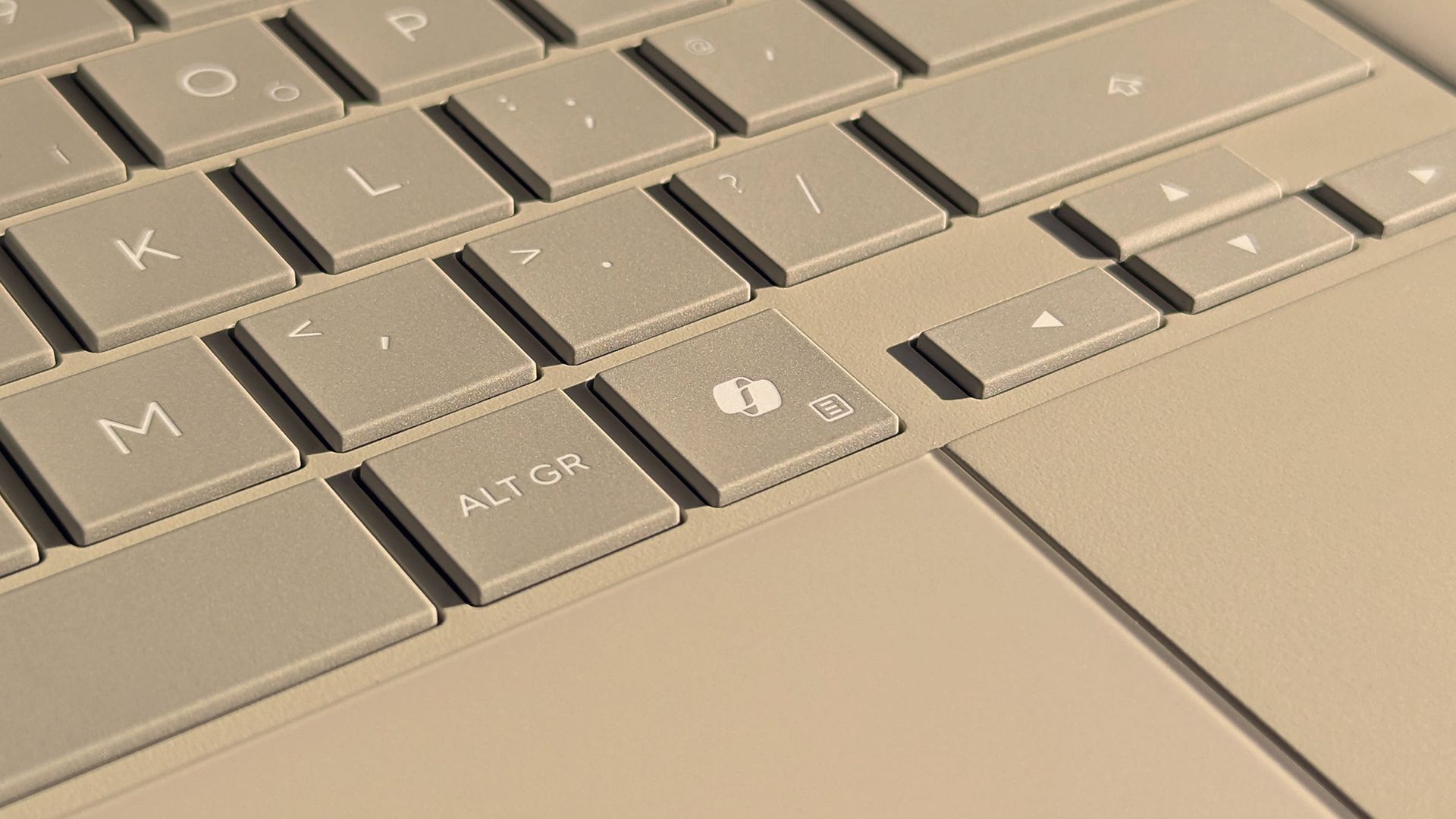
That leaves some of us in a strange spot. Many purchased Copilot+ PCs because that was the only way to get a new model of certain laptops. People can enable or disable AI features as they'd like, but Copilot+ PCs feature a Copilot key that is useless to a lot of people.
There are non-Copilot+ PCs and keyboards that feature a Copilot key. But because of the recent change regarding Copilot+ PCs, people online have complained about their Copilot+ PCs having a Copilot key, so I made this guide.
So, what can you do if you spent hundreds, or even thousands, of dollars on a laptop to get the latest specs only to find a key on your keyboard wasted? Luckily, Microsoft considered this quandary and made it possible to remap the Copilot key.
Windows 11 allows you to customize what the Copilot key does, but the options are limited. You can set the key to open Search, open Copilot, or launch an app.
If you want more control over what the Copilot key does (pun intended), you can use PowerToys to remap the key.
You can also spend a few dollars to cover up the Copilot logo and replace it with whatever you'd like to remap that key to.
How to remap Copilot key in Windows 11
This is the easiest option, but it has serious limitations.
Open the Settings app on Windows 11.
Open Bluetooth & devices.
Open Keyboard.
Click the dropdown menu next to Customize Copilot key on keyboard.
Select Search, Copilot, or Open an app.
The option to remap the Copilot key shipped to Windows 11 this year, so you need to make sure your PC is up to date to use the feature.
How to remap Copilot key with PowerToys
If you want to remap the Copilot key to do something other than launch Search, Copilot, or an app, you need to use a separate application. PowerToys includes a Keyboard Manager that does the trick.
Because the Copilot key is treated by Windows 11 as a shortcut and not as a single key, you need to use the option to remap a shortcut.
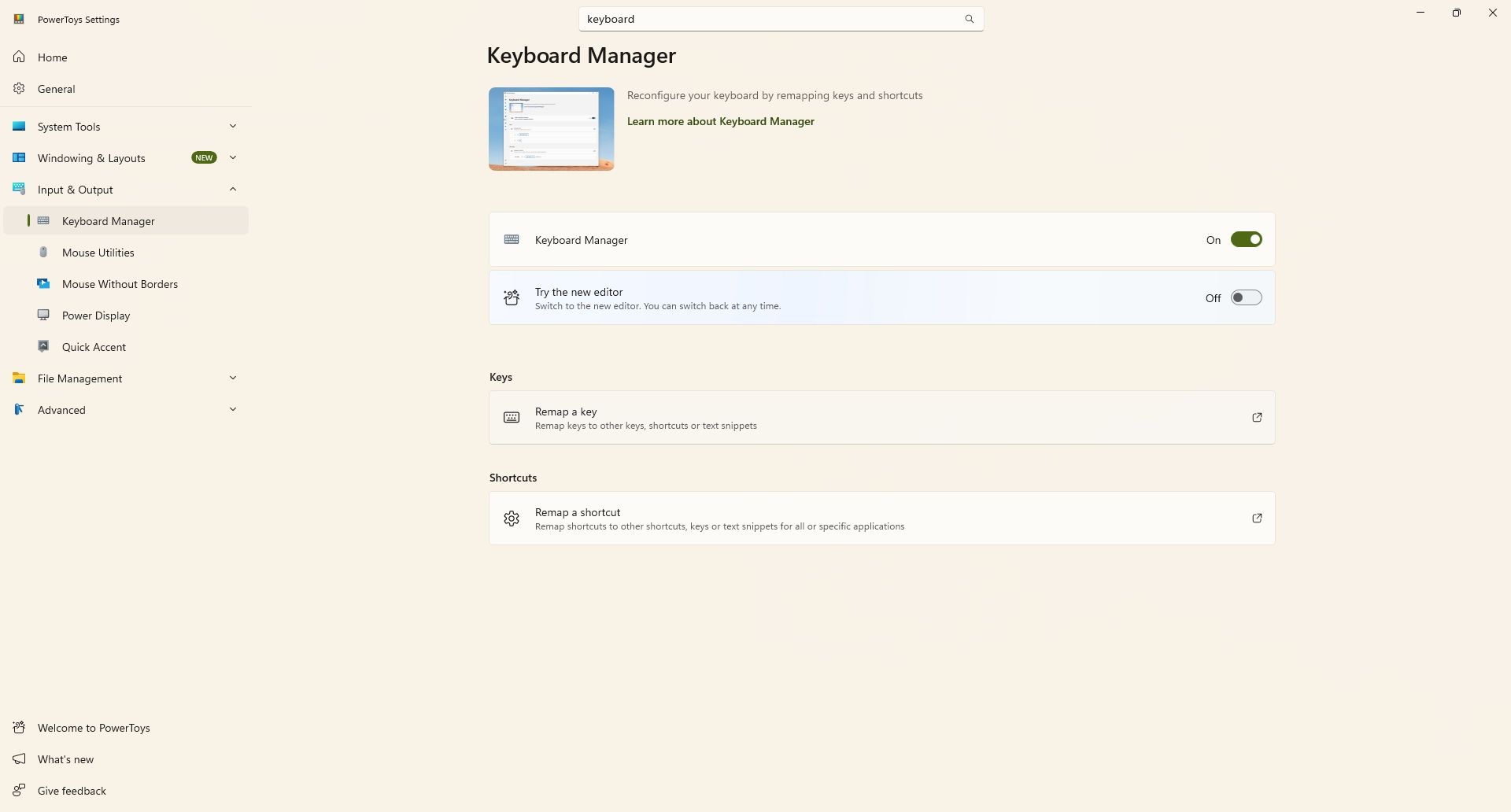
I found this process easier to complete using the classic Keyboard Manager within PowerToys. You can do this by toggling Try the new editor off.
If you are running the latest version of PowerToys, you may find it easier to use the classic editor rather than the new editor. (Image credit: Future)
Install PowerToys.
Open PowerToys.
Open the Keyboard Manager tool.
Make sure Keyboard Manager is enabled.
Select Remap a shortcut.
Select Add shortcut remapping.
Set the shortcut to Windows + Shift + Ctrl + F23.
Set the action to whatever you'd like (such as Ctrl (Right)).
Since few keyboards have an F23 key, I found it easier to use the classic editor in Keyboard Manager. Our colleagues at Tom's Hardware were the first to discover that the Copilot key is actually a shortcut using F23.
This collection of utilities includes a large library of features to enhance the Windows experience. PowerToys is designed with power users in mind, but it has handy features for people who just use their PC for everyday computing too.View Deal
How to cover the Copilot key
Even if you remap the Copilot key, the logo will still appear on your keyboard. If you dislike keys mismatching what they input on your PC, you may want to cover up the Copilot key.
Unfortunately, how easy that will be depends on the color of your keyboard. It's very easy to find keyboard stickers in black or white. This listing on Amazon includes stickers in white, black, and in various languages.
If you have a Surface with a gray keyboard or a colorful Type Cover, you may struggle to find a sticker that matches the color of your keys. You may have better luck on eBay or Etsy, but since items there are often custom made, I won't recommend a specific set of stickers.
If you find stickers to replace the Copilot key on your PC and want to make sure other people know about them, comment below or reach out to me on social media and I'll update this piece.
Join us on Reddit at r/WindowsCentral to share your insights and discuss our latest news, reviews, and more.
I know you will relate to one of these telltale moments. A meeting ends, someone gives you three useful details, and by the time you reach your desk, only one remains. The same thing happens after an interview, a doctor’s appointment, a lecture, or when someone rattles off directions while you’re already trying to keep up. We like to think we remember conversations better than we actually do.
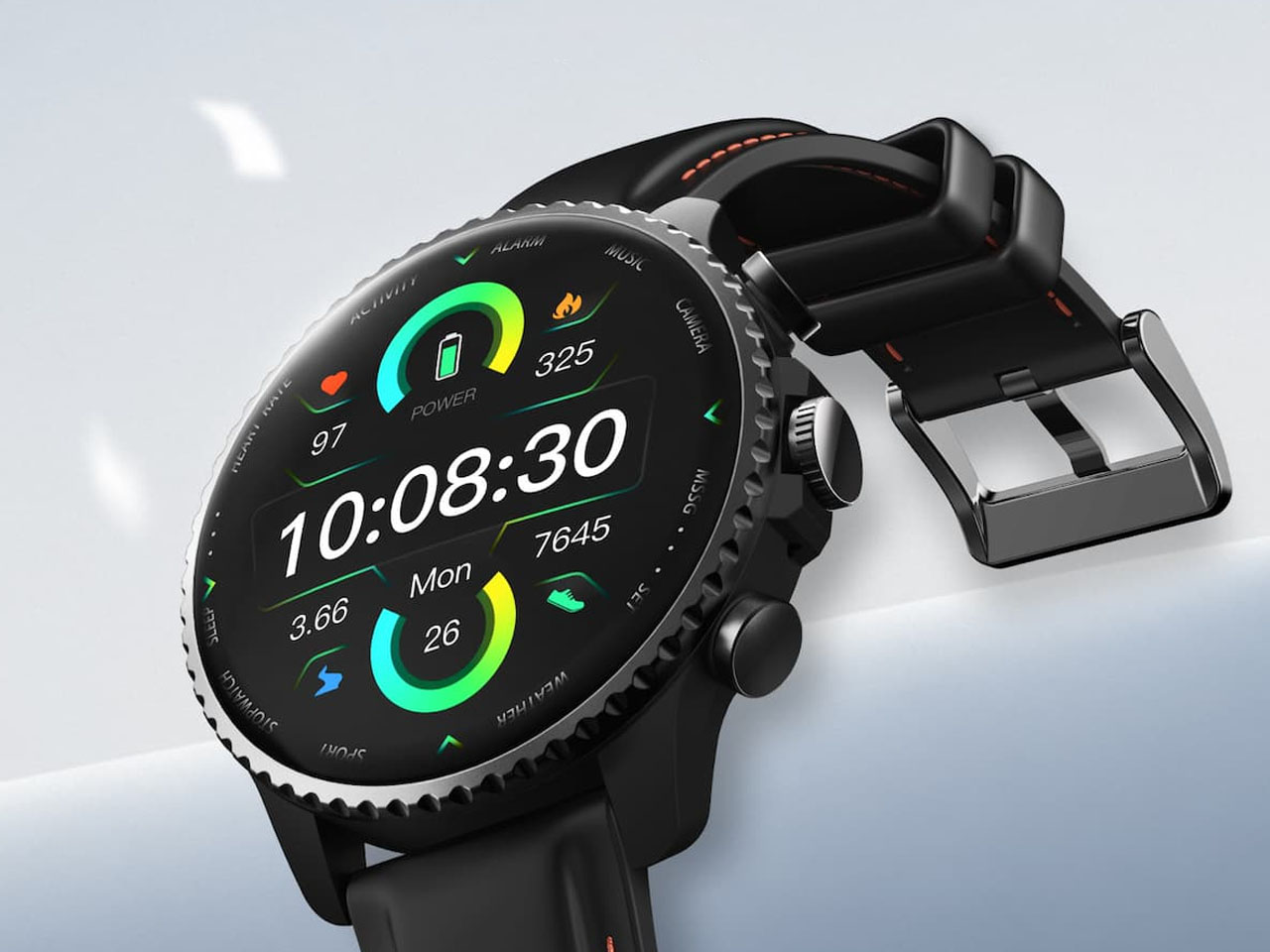
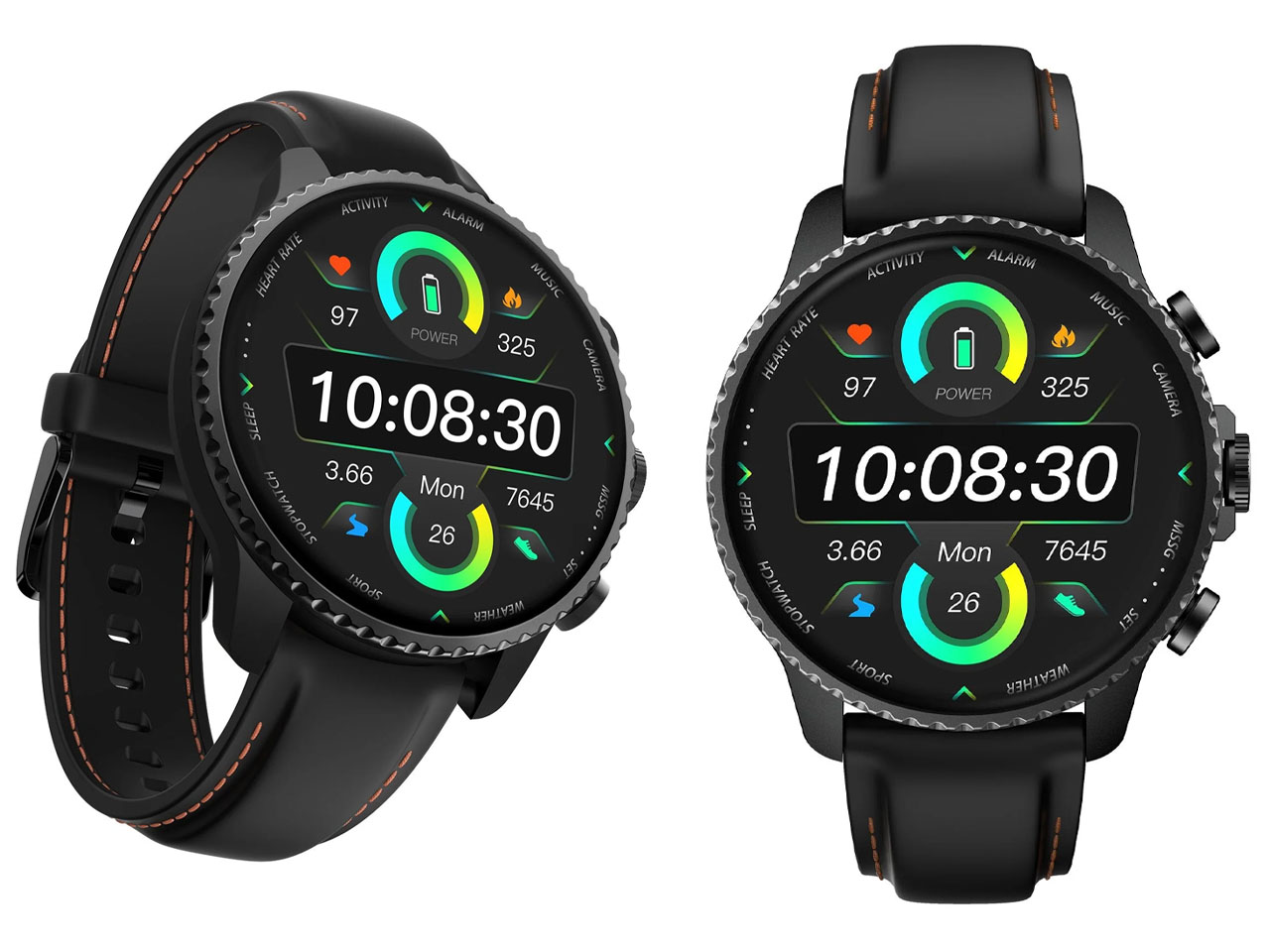
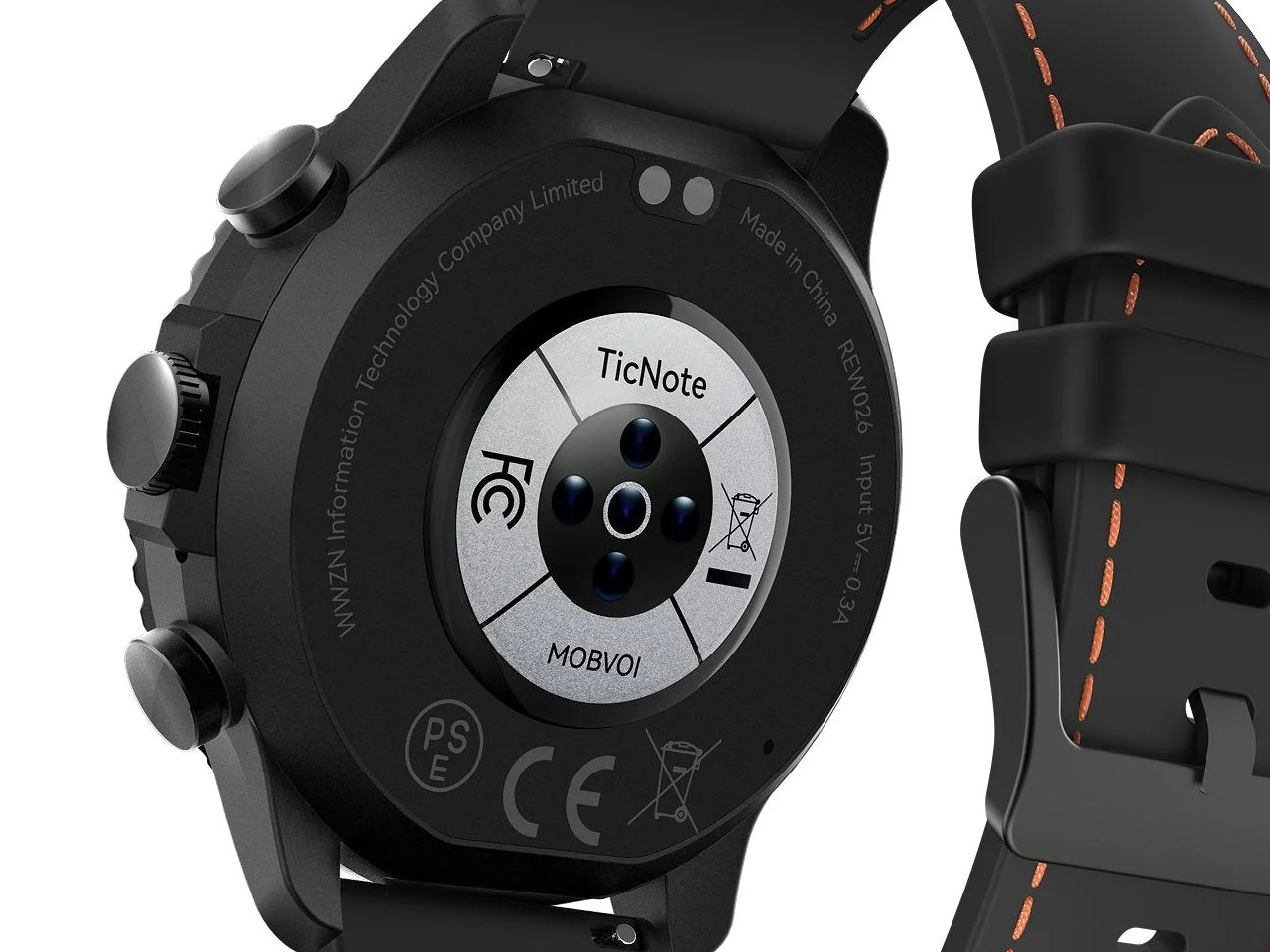
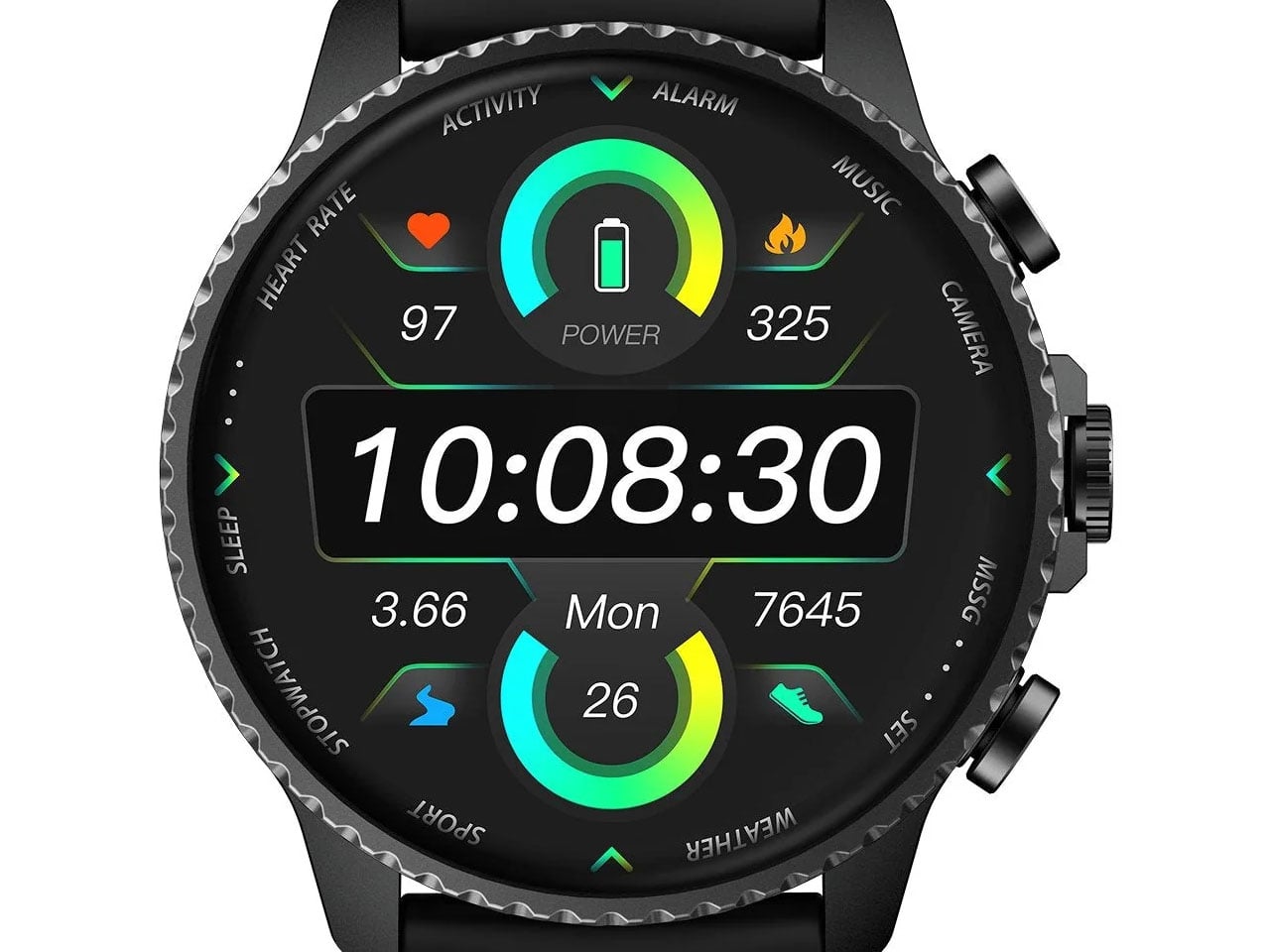
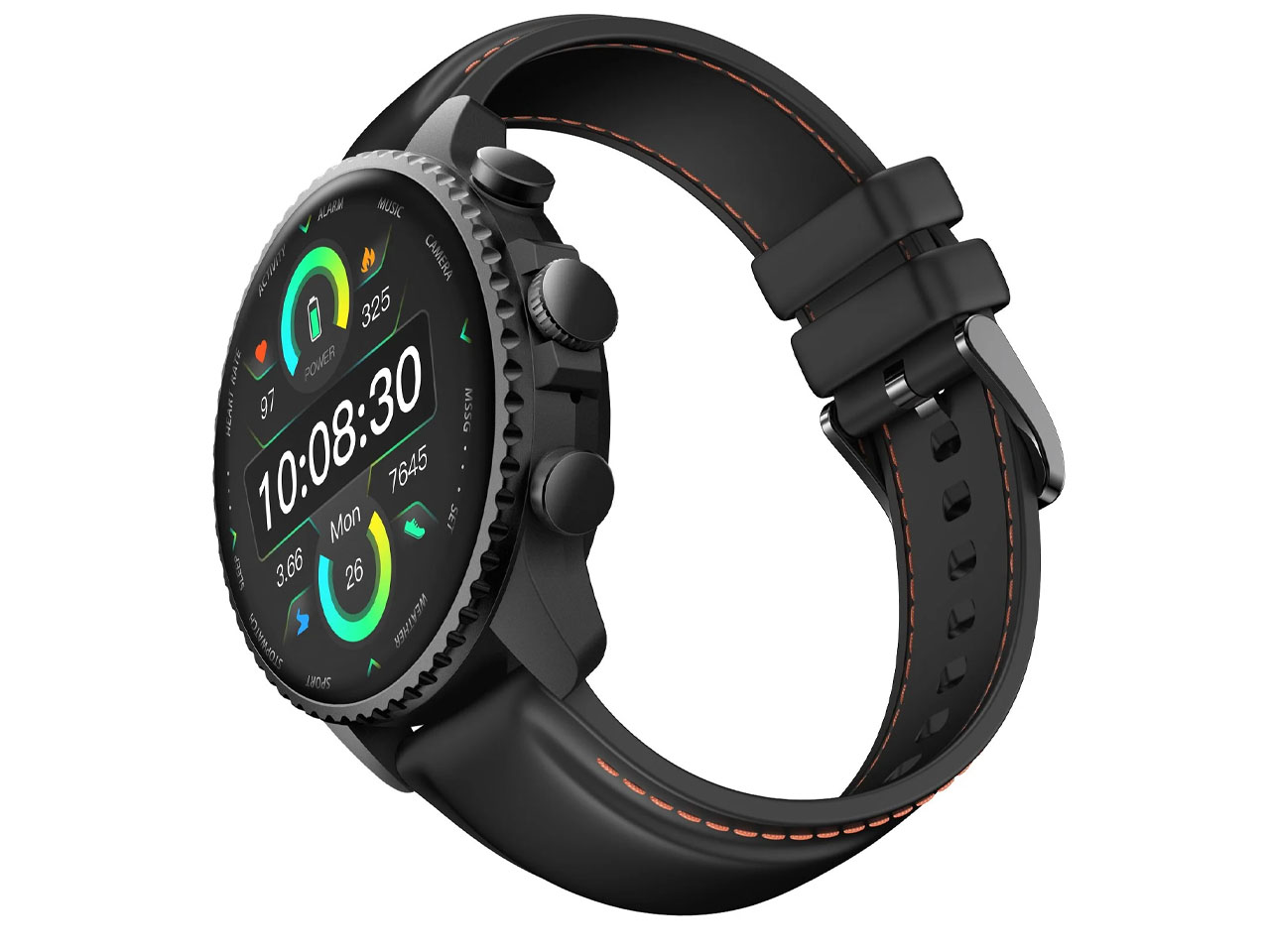
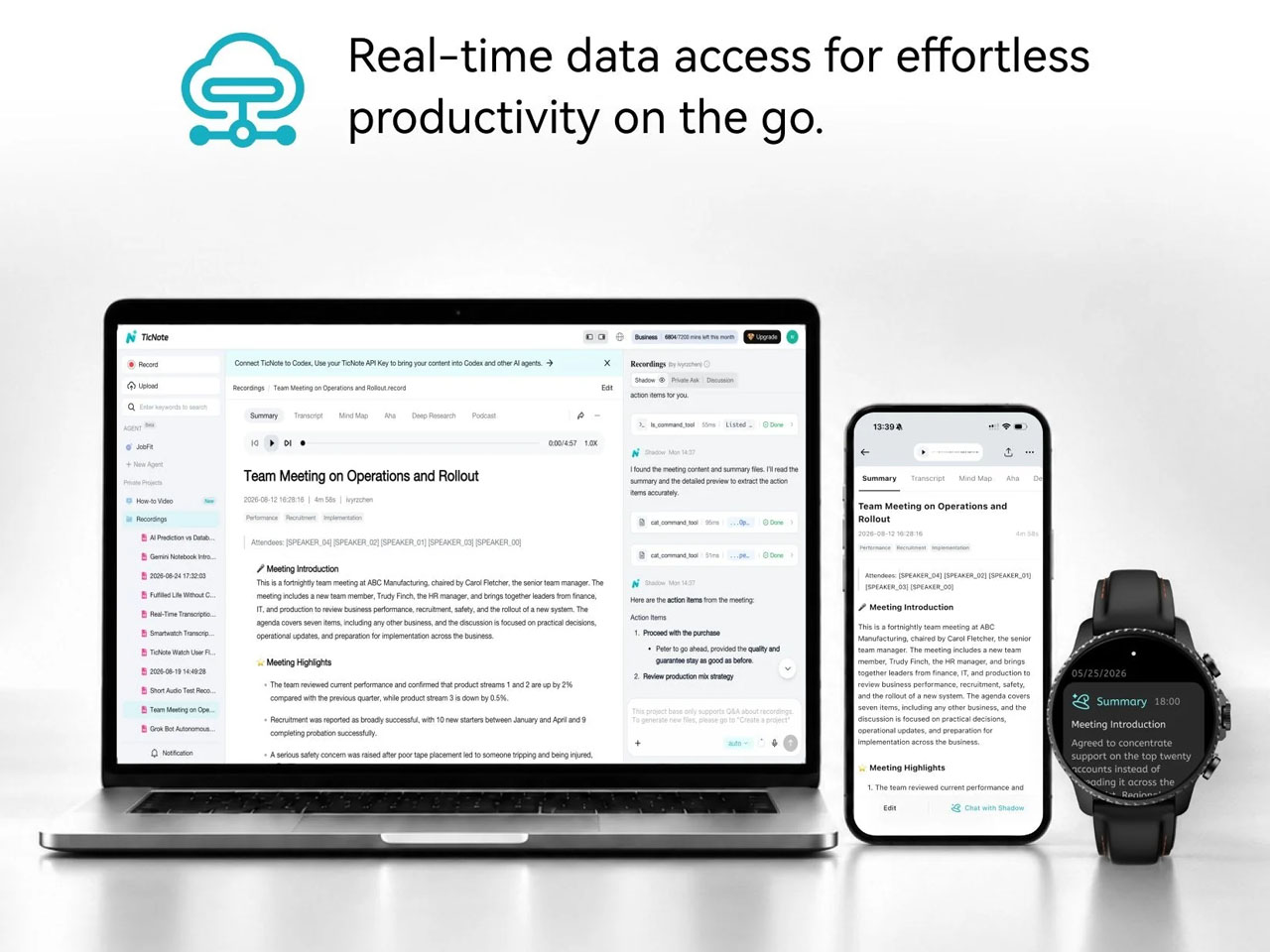
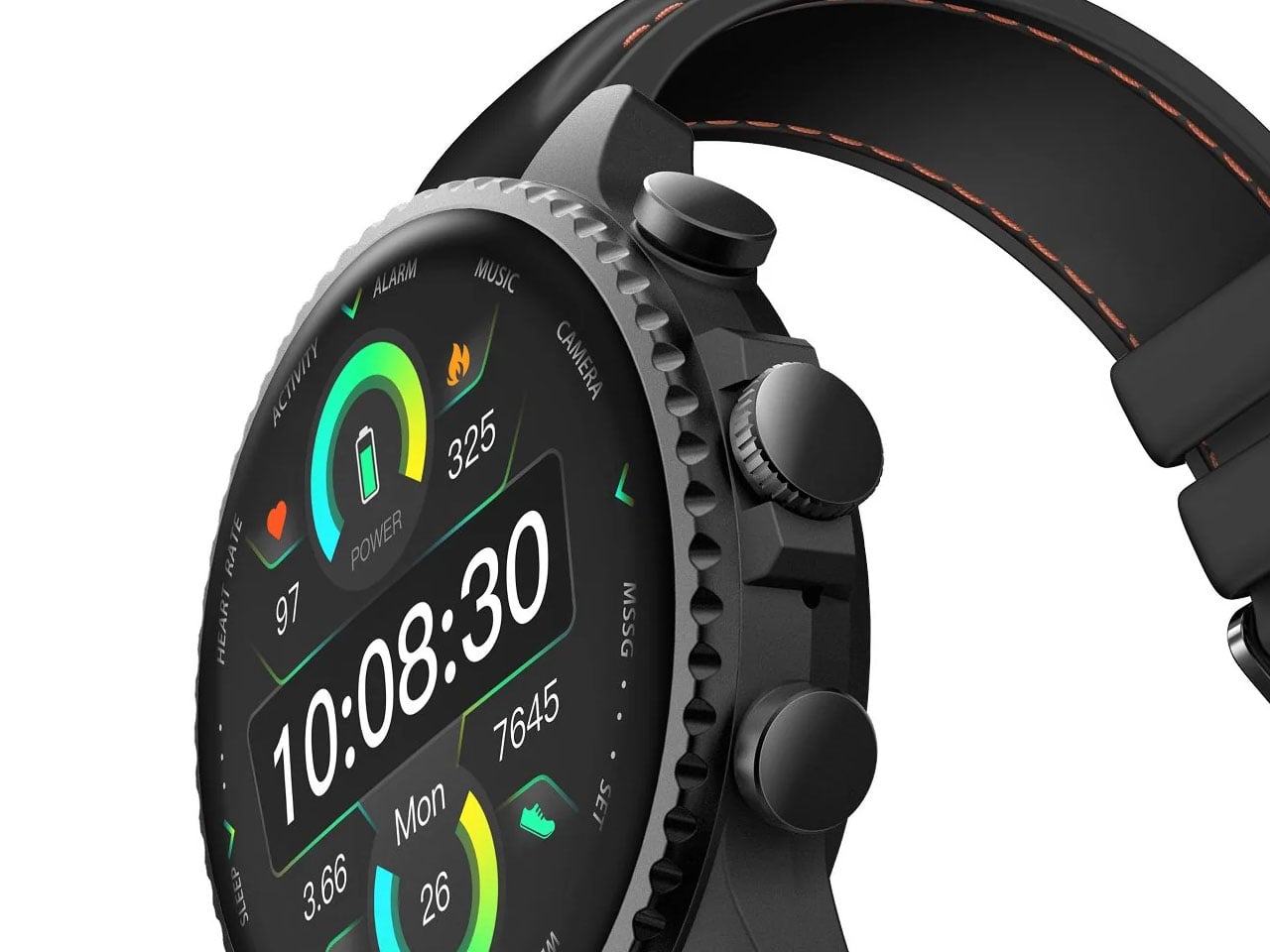
Mobvoi’s TicNote Watch is designed to cover that very human failure. Instead of asking you to open an app, find a recorder, or reach for your phone, it gives the watch a dedicated physical recording button. Press and hold it to start recording. The recording can happen without a phone and even works offline. To me, the idea seems pretty interesting for capturing my team’s briefing.
Most smartwatches are defined by everything they can do. Notifications, workouts, calls, apps, payments, music, health tracking – the list keeps getting longer. TicNote Watch is different though, as its most important interaction is deliberately narrow. Just press a button and remember what just happened. That makes the hardware control more interesting than it might initially seem. There is something satisfying about a product that behaves more like a lighter, a film camera’s shutter, or a staple gun than another miniature touchscreen computer. The action is physical and doesn’t require you to navigate an interface while somebody is still talking.
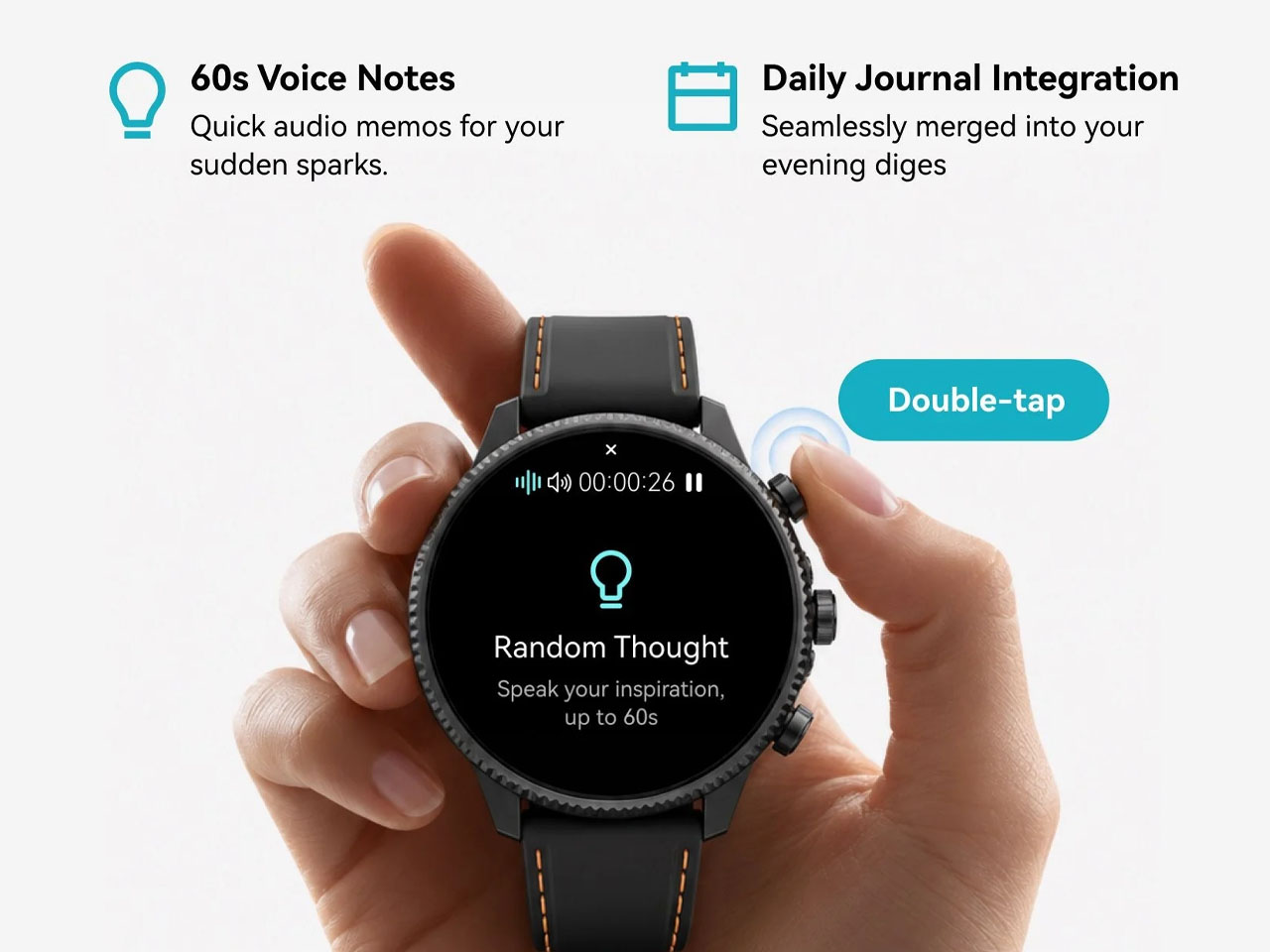
In a world where dedicated controls have increasingly disappeared behind glass, putting one back on the wrist becomes a design statement. This smartwatch isn’t trying to make every interaction smarter; rather, it aims to make one interaction nearly impossible to mess up. The double-press gesture adds a smaller version of the same idea, letting users capture a quick thought of up to 60 seconds.
Simple input, surprisingly busy output
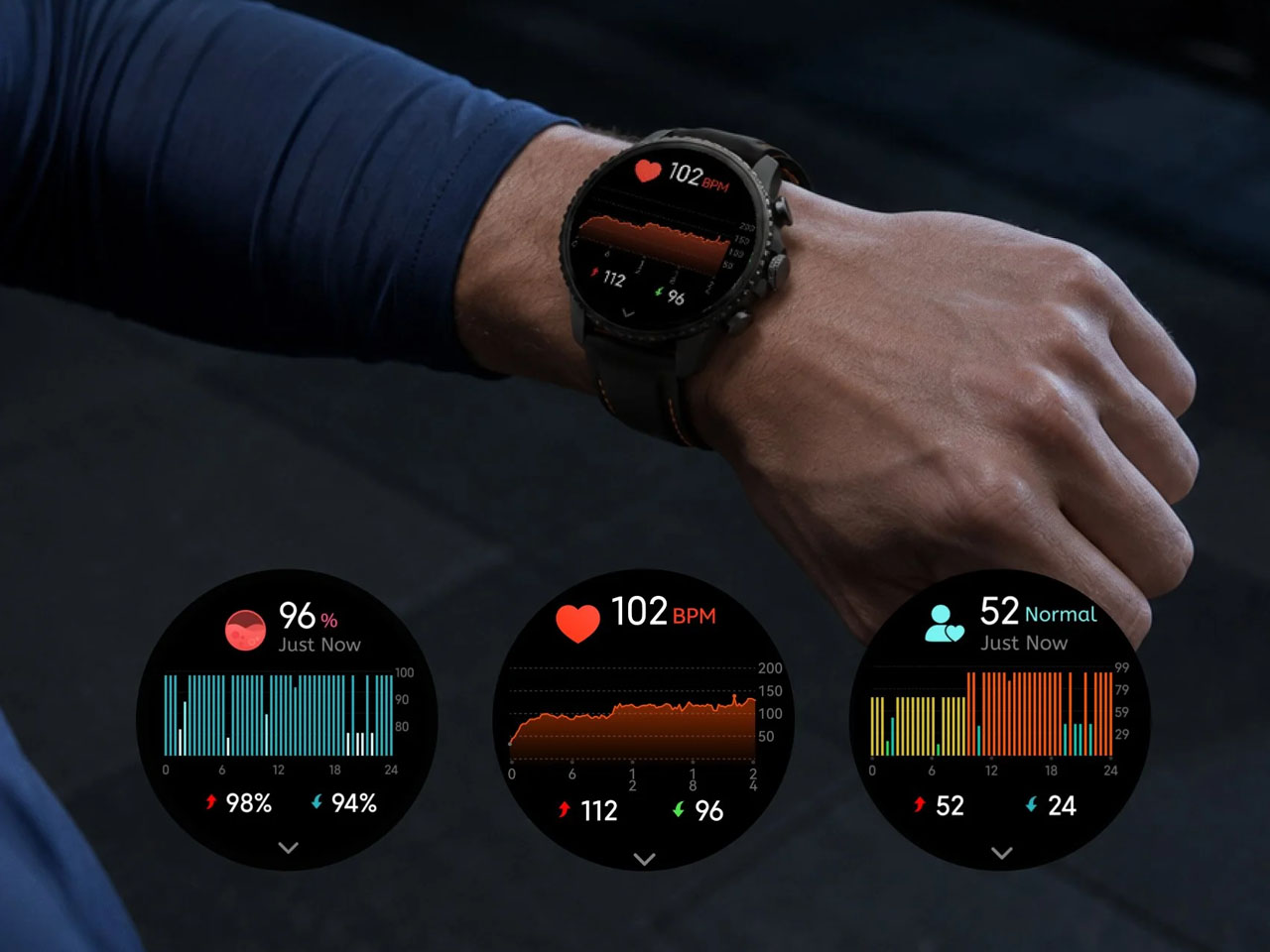
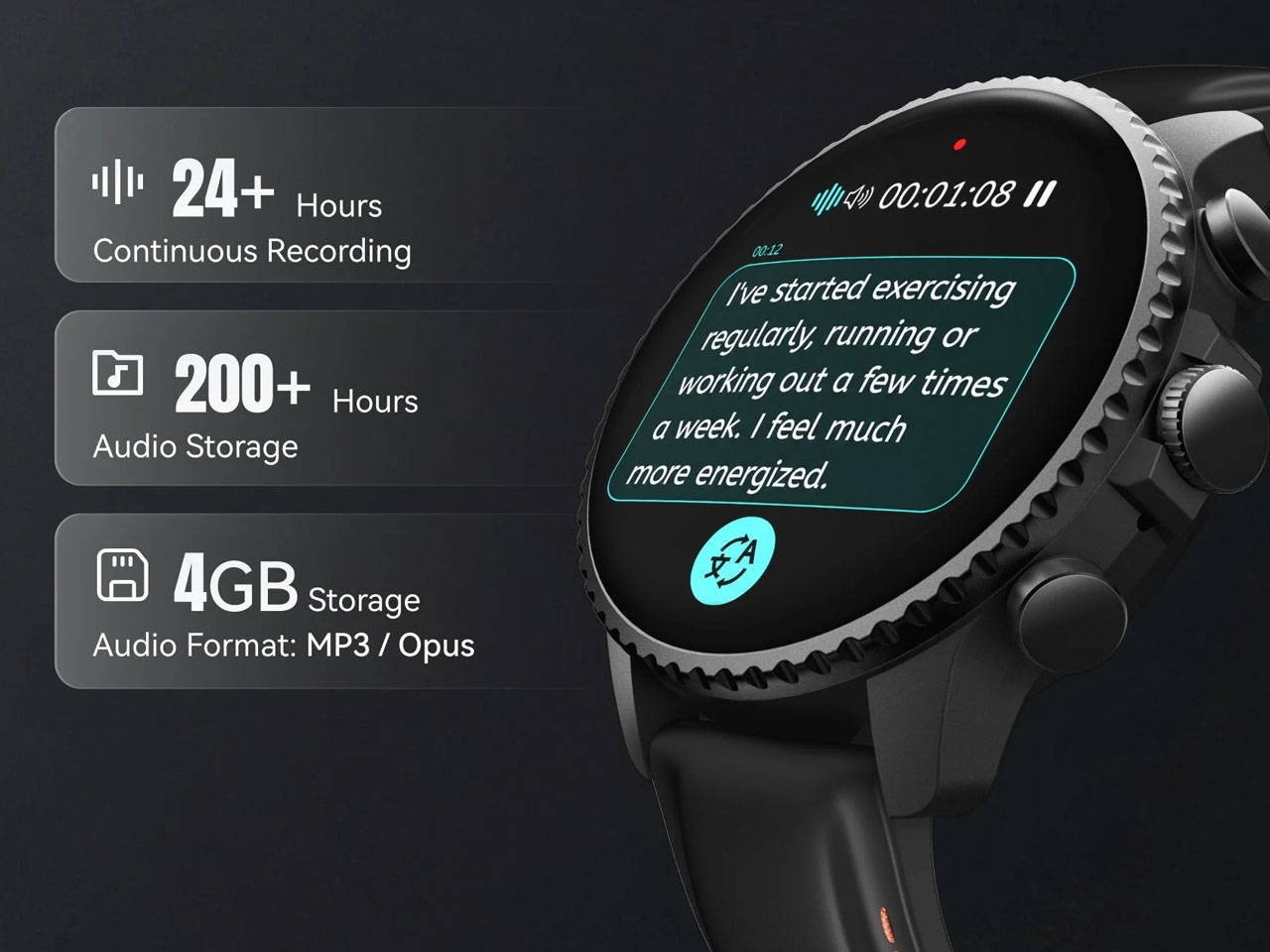
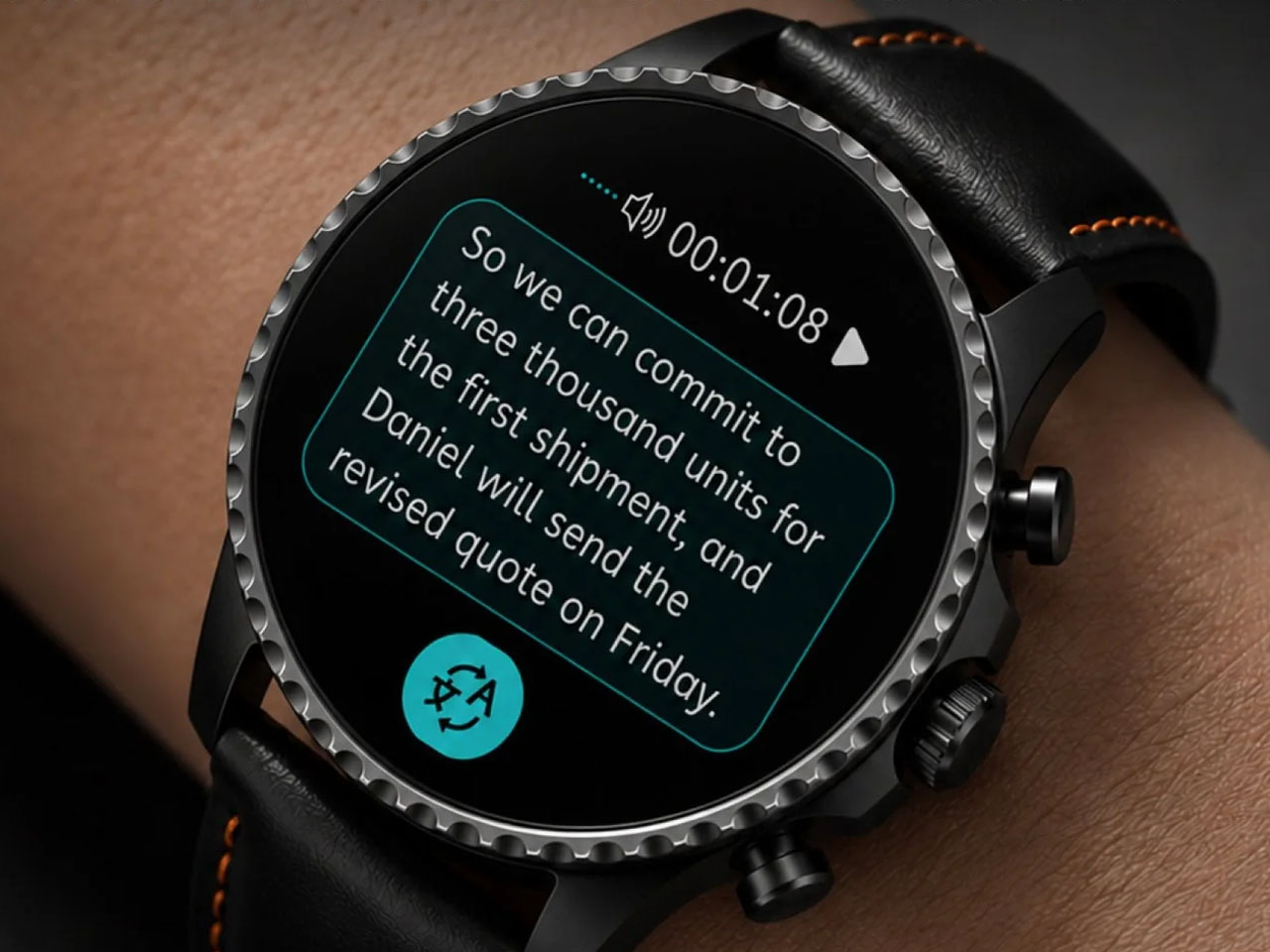
What happens after the button press is where the AI kicks in. TicNote Watch can transcribe conversations on the wrist, with live text supporting 17 languages, and users can tap to highlight important statements while a conversation is happening. Once the recording ends, the system can generate an AI summary and mind map. The intended audience for the wearable can be a journalist leaving an interview, a recruiter moving between candidates, a consultant bouncing between meetings, or a graduate student sitting through a campus lecture. For someone spending much of the day listening rather than typing, removing the act of note-taking can be genuinely useful.
There is, however, an obvious social wrinkle. A recorder that lives on your wrist is easy to reach for, but that doesn’t mean everyone around you will be comfortable being recorded. Consent and workplace etiquette matter, particularly in meetings or shared spaces. Mobvoi also claims more than 24 hours of continuous recording and up to 200 hours of local storage, so this isn’t unlimited memory in literal terms. At $249, with a limited-time introductory price of $199, TicNote Watch isn’t really competing on how many smartwatch features it can squeeze onto your wrist. It is built around a premise that doesn’t try to replace your phone, your notebook, and your entire day.
Microsoft Teams will no longer show a shortcut to the Copilot app in the Teams chat list. The change is expected to roll out in mid-to-late October and will affect the desktop and web versions of Teams.
Right now, there are two ways to navigate to Copilot within Teams and the two entry points lead to different experiences. Microsoft explained the need for the change through the Microsoft 365 Message Center (archived here):
"Today, users can access Copilot either from the Teams chat list or from the Copilot app in the Teams app bar. Beginning in October 2026, we will remove the Copilot entry point from the Teams chat list and direct users to access Copilot through the Copilot app. The Copilot app provides access to the full set of Copilot capabilities, while the chat list entry point provides a more limited experience."
The Copilot shortcut in the Teams chat list made Copilot more visible, but that entry point led to a limited experience. My guess is that some people only knew about the Teams chat list icon and ended up using a limited version of Copilot.
After October, there will be a single entry point for Copilot in Teams and those who use it will be presented with the full experience.
The mobile versions of Teams are unaffected by this change.
Copilot in flux
Microsoft wants AI to feel more natural for non-enterprise customers. "Autopilot" is a digital teammate that automates tasks and connects things across Microsoft 365. (Image credit: Microsoft)
Copilot finds itself in a state of flux. Microsoft just announced a massive shift in its Copilot strategy. A major update to Copilot flips the approach Microsoft is taking. Rather than have Copilot sprinkled across Microsoft 365, Copilot will act as a unified workspace that connects documents, conversations, data, and tasks.
Microsoft CEO Satya Nadella went as far as to call the update a new operating system. Three new landing spots for Copilot will provide new ways to interact with the tool, such as Home serving as a landing spot. Changes then permeate throughout relevant Microsoft 365 apps.
The exact features and experiences you will see will depend on what type of Microsoft 365 subscription you have.
More details about Copilot are expected at Microsoft Ignite in November. The key takeaway for now is that while Microsoft is shifting where it uses the Copilot moniker and how people access Copilot, the AI tool is very much an integral part of the company's plans.
Based on the upcoming change to Teams, it's clear that Copilot will still be accessible through apps. But Microsoft may emphasize different experiences or streamline the entry points to the tool.
Join us on Reddit at r/WindowsCentral to share your insights and discuss our latest news, reviews, and more.
"I think we are way too self-obsessed as an industry," said Microsoft CEO Satya Nadella in a recent interview about AI shared by Alex Heath of Sound Ventures. Nadella explained that AI leaders can get caught up in the wrong parts of AI and lose touch with what people need.
"I think the real world wants to know... that this is technology that they can use for their benefit, they can control, they can have an economic future." He also talked about how people need to see that data centers can lead to an economic surplus in an area and benefit the people surrounding it.
Nadella added that tech leaders should ask "what did we get wrong in the west," alluding to recent polling data that suggested AI is viewed more favorably in other parts of the world.
He emphasized the need to earn the trust of consumers and communities as well.
Nadella concluded the snippet with a warning against celebrating technology for its own sake: "Just any amount of celebrating technology for technology's sake is not working."
Windows Central take
Microsoft AI CEO Mustafa Suleyman has pushed back against critics of AI. (Image credit: Mustafa Suleyman | X)
Nadella may want to send an internal memo to Microsoft employees reiterating his comments from the interview. Microsoft's AI leadership has often been criticized for being out of touch with everyday users.
Microsoft AI CEO Mustafa Suleyman has shared several controversial thoughts and opinions that drew criticism.
"Jeez there so many cynics! It cracks me up when I hear people call AI underwhelming...The fact that people are unimpressed that we can have a fluent conversation with a super smart AI that can generate any image/video is mindblowing to me."
Suleyman is far from the only AI leader to draw criticism or be accused of being out of touch with everyday users. OpenAI's Sam Altman is often called out for similar comments. I'm curious to see how AI leaders across the industry respond to Nadella's comments.
Perhaps more important than existential threats or the creepiness of an AI knowing you intimately, many people simply fail to see a real-world use for AI. Early this year, Dell said that consumers don't care about AI PCs and that "AI probably confuses them more than it helps them."
Microsoft is quietly shifting away from the Copilot+ PC brand. Despite meeting the technical qualifications to be Copilot+ PCs, the new Surface Pro 12-inch and Surface Laptop 13-inch will not be branded with that term.
The Copilot+ PC brand failed for many reasons, but one factor is that many users do not see the real-world benefit of AI.
Nadella's recent comments show that he is aware of the gap between AI's capabilities and AI's everyday usefulness.
Join us on Reddit at r/WindowsCentral to share your insights and discuss our latest news, reviews, and more.
Anthropic has just announced a new Claude Marketplace, and it brings all AI-related tools into one place, including plugins, connectors, agents, and more. [...]
Anthropic's Claude Opus 5.5 appears to be changing how it writes, with new analysis showing fewer obvious AI writing patterns, shorter sentences, and simpler wording compared with Opus 5. [...]
Anthropic now allows you to run Claude Code via cloud sessions without signing up for the research preview, and it's offering up to $250 in free usage credits, so more users can give it a try. [...]
Today during its Copilot event, Microsoft announced a major update to said Copilot, and after going through the material myself, it’s clear the company is aiming for something bigger than a simple AI upgrade.
In a surprise to no one, Copilot is becoming the center of the Microsoft 365 experience. Instead of living inside individual apps (yes, we're all tired of that), it now acts as a unified workspace that connects your documents, conversations, data, and tasks. This shift shows how Microsoft wants AI to feel natural for everyday users, not just enterprise customers (even though the latter will benefit the most).
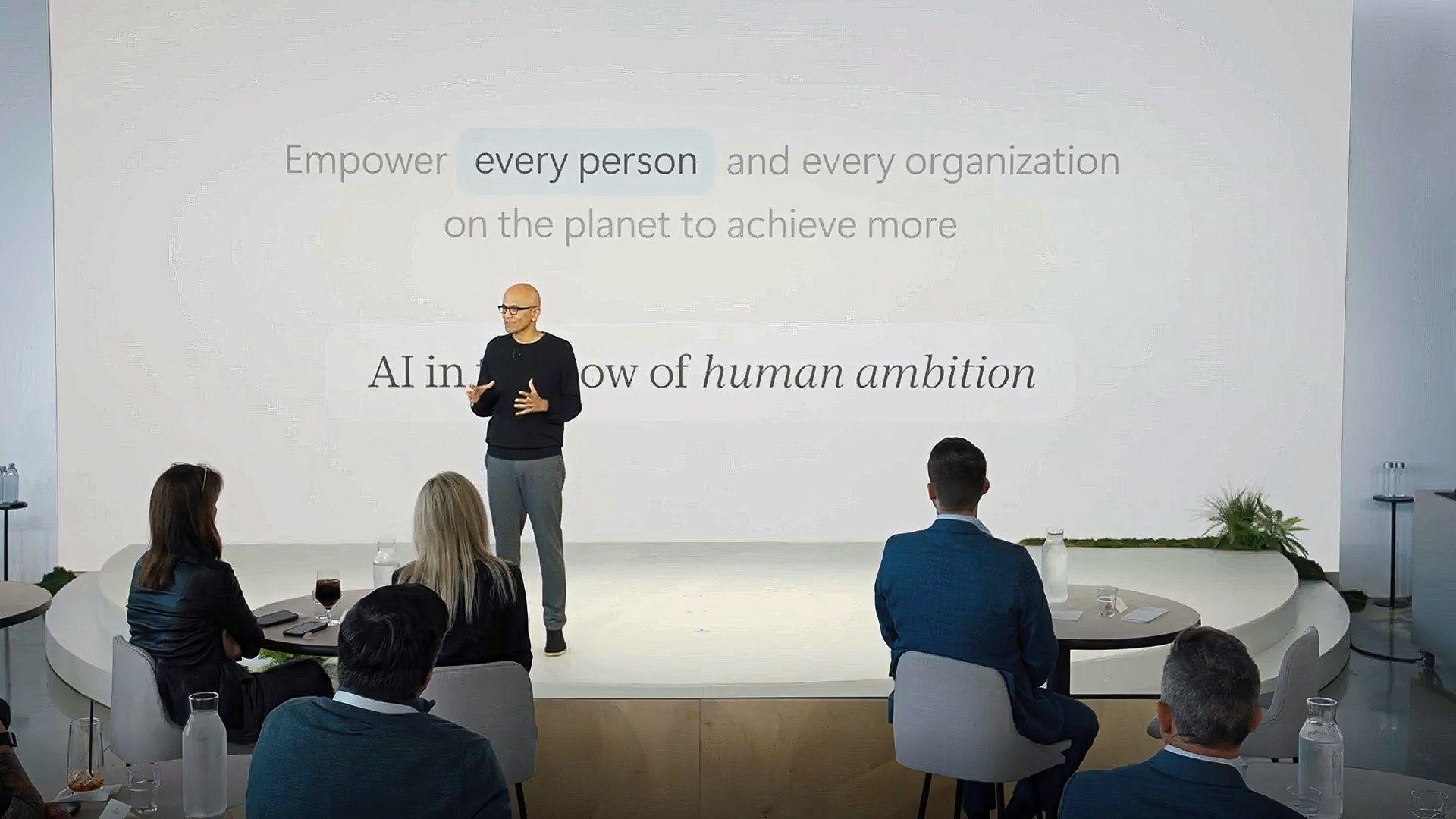
Microsoft CEO Satya Nadella set the tone for this direction in his keynote. He thanked the Frontier program participants and connected Copilot’s evolution to Microsoft’s long‑standing mission “to empower every person and every organization on the planet to achieve more.” He described this new era of AI as a continuation of that goal, shaped by two design principles. The first is keeping humans “in the flow of work,” and the second is helping organizations build systems that learn continuously. Nadella said the aim is to design AI so that people stay in control of their tools and use them to expand their own ambition and creativity.
Satya Nadella gestures on stage in front of a white slide reading "Empower every person and every organization on the planet to achieve more," facing an audience. (Image credit: Microsoft)
He also talked about how Copilot reflects a deeper shift in how Microsoft thinks about intelligence. “AI has to be shaped in such a way that it’s working for your firm to create and retain more knowledge,” he explained. That idea of compounding human expertise is central to Copilot’s design. It treats intelligence as something that grows through use and collaboration. Nadella’s framing gives the new Copilot a clear purpose. It is meant to amplify human judgment through context, automation, and shared knowledge rather than replace it. Hearing him describe it this way makes the rest of the update feel more intentional and more connected to Microsoft’s long‑term strategy.
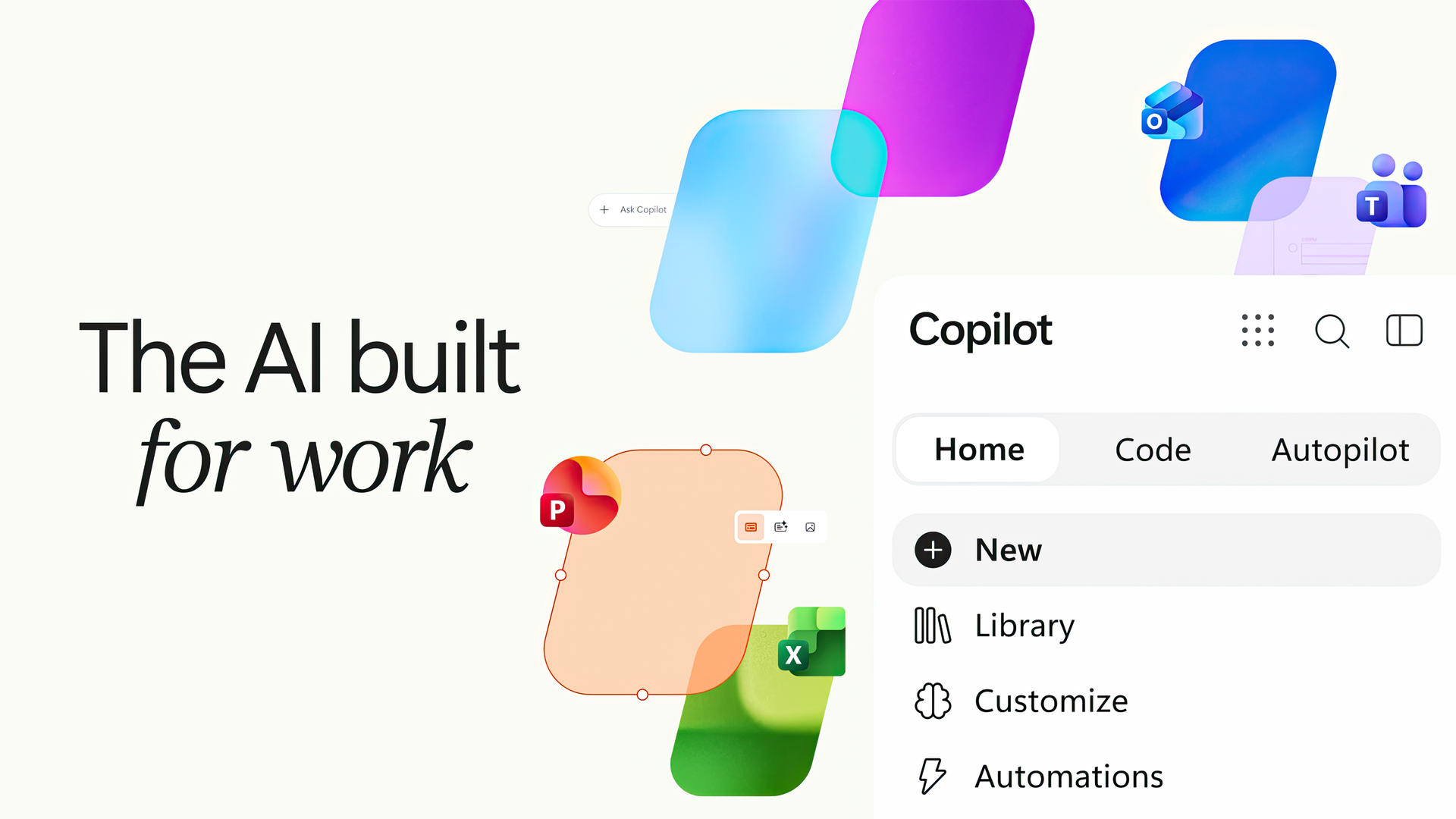
This brings us to the actual news with three new Copilot experiences called Home, Code, and Autopilot, each focused on a different part of work. Together they create a more complete picture of what Microsoft thinks productivity should look like in the AI era.
"Home", a place where work actually comes together
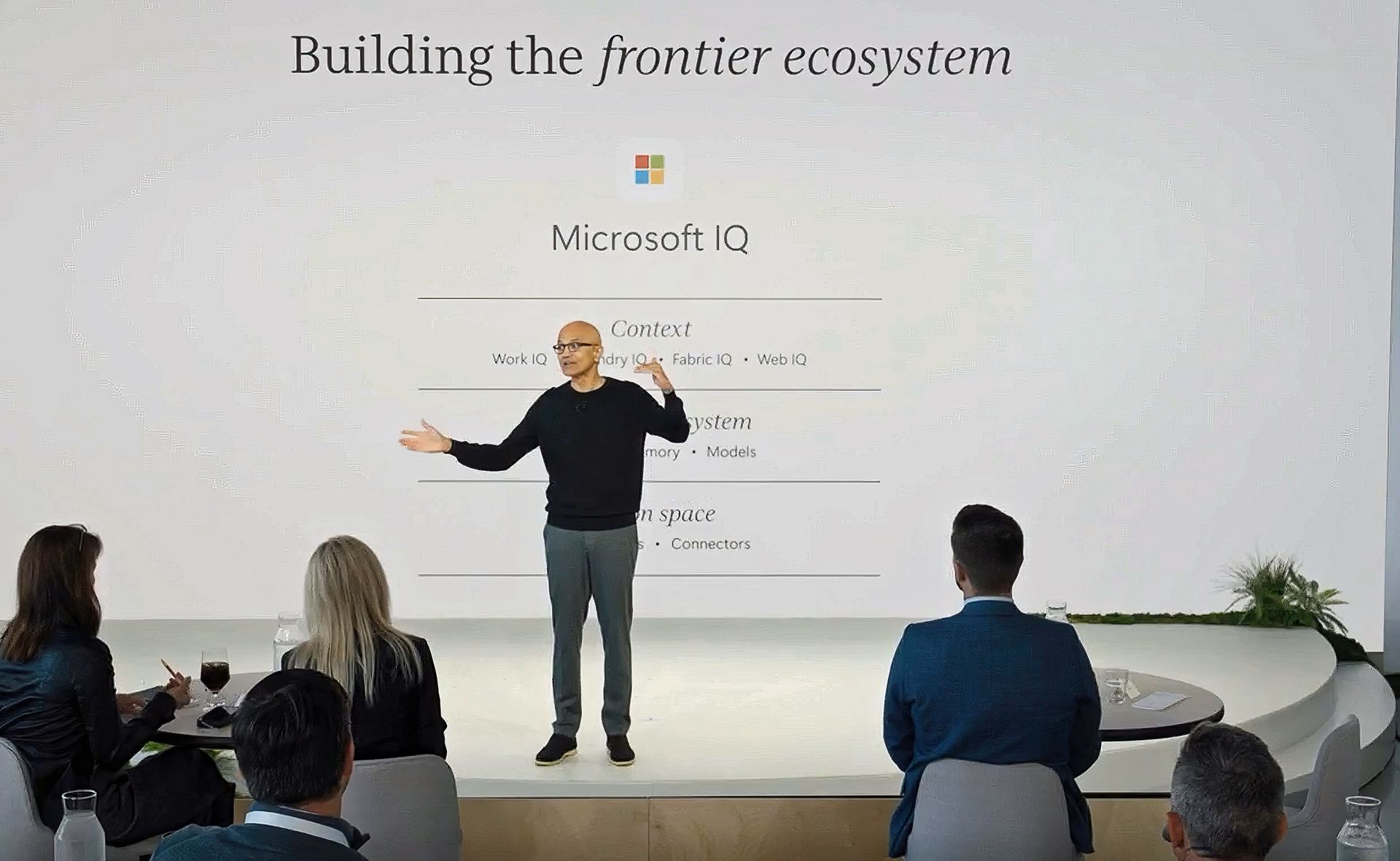
Microsoft CEO Satya Nadella thanking the frontier ecosystem and attendees. (Image credit: Microsoft)
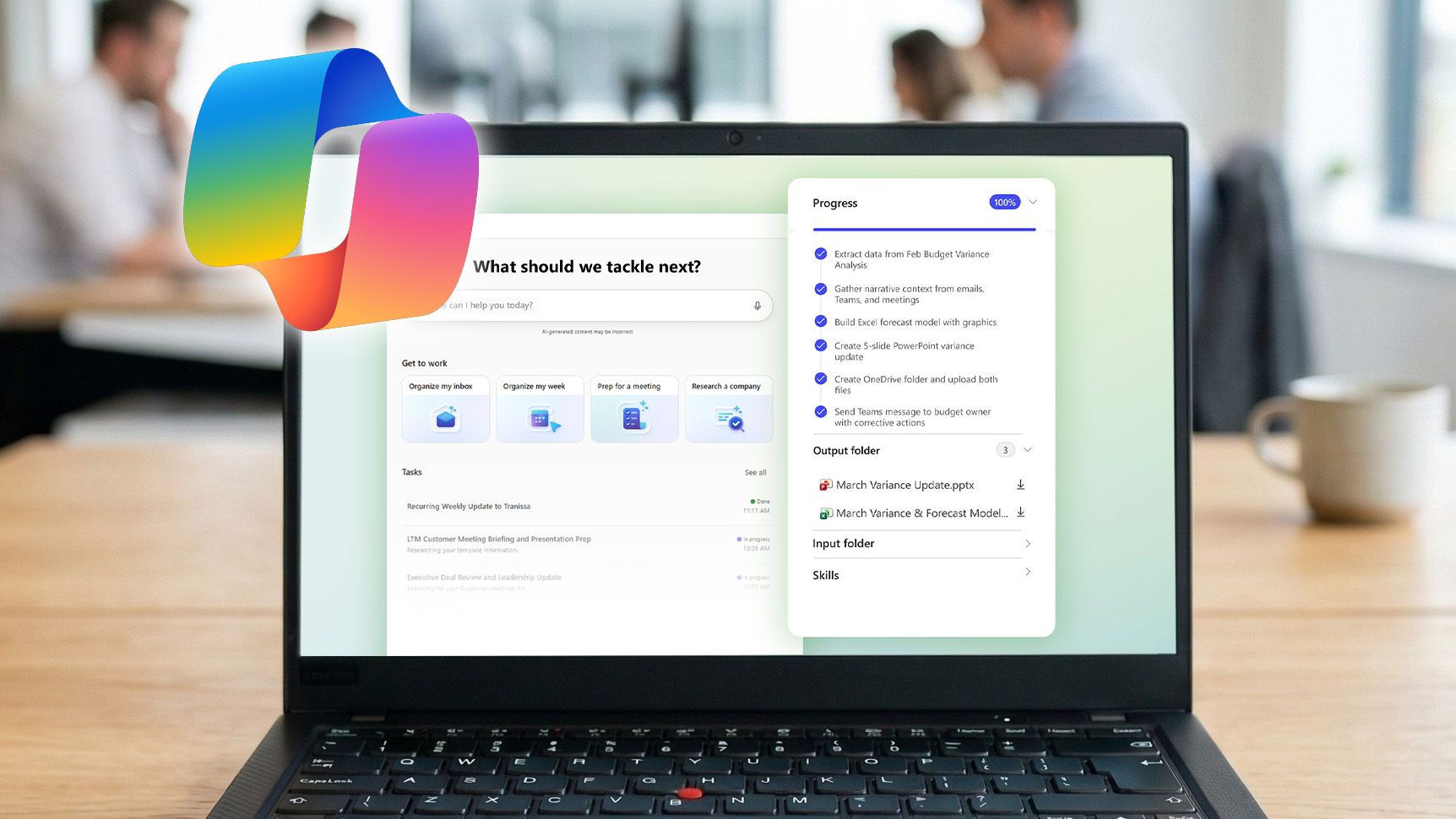
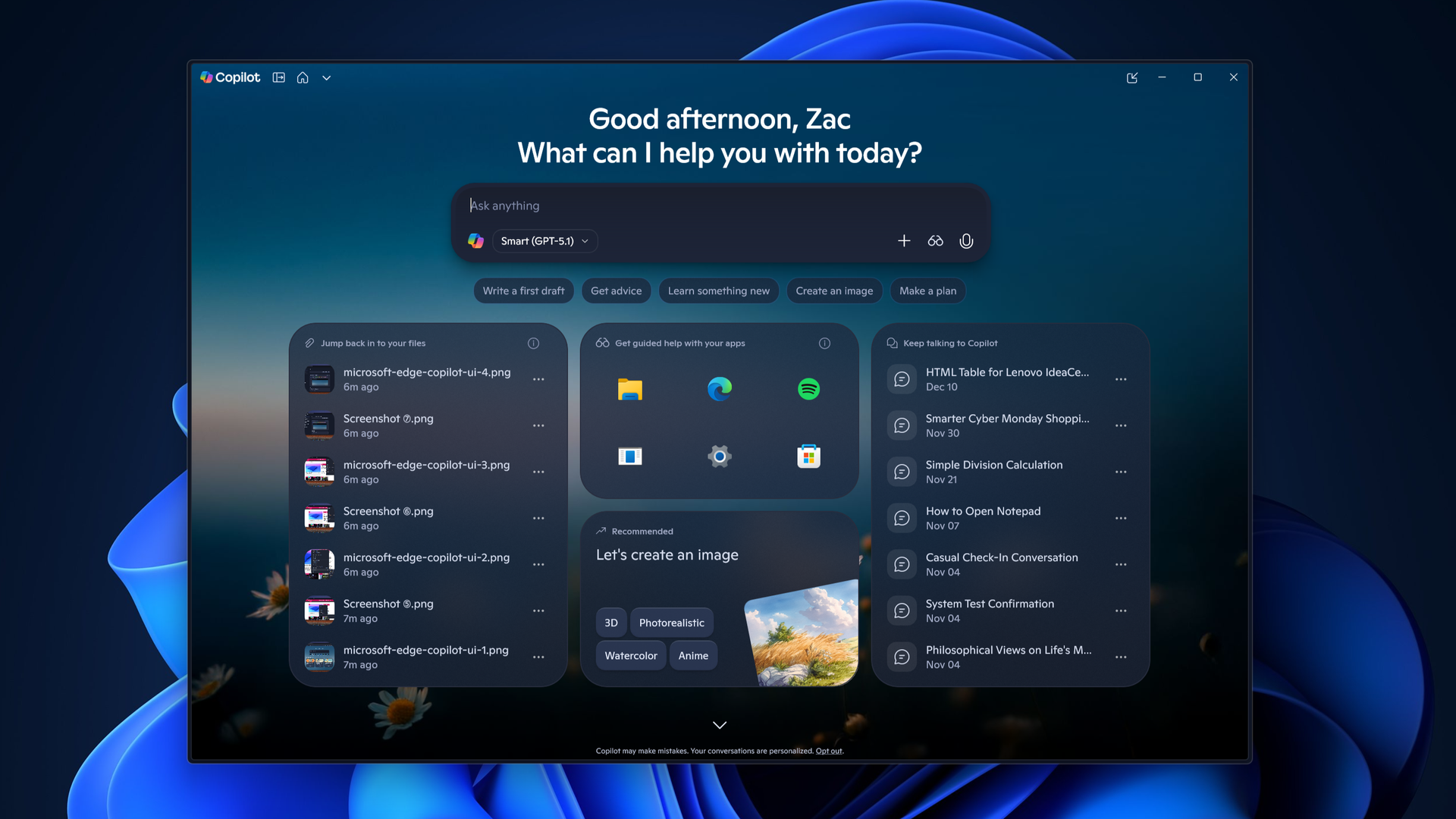
Home should be obvious. It's the new landing spot for Copilot. When you open it, you'll see your recent activity, suggestions for what to tackle next, and a clear view of the tasks Copilot can help with. It seems more like a dashboard than a chat window. You can do the usual AI stuff like asking Copilot to draft a document, summarize a meeting, or help prepare for a presentation, and everything stays connected across Word, Excel, PowerPoint, and Teams.
Microsoft is also improving how Copilot works inside those apps. PowerPoint keeps slides on brand automatically, Excel explains changes in plain language, and Word can refine a document while you collaborate with teammates. It seems to be more cohesive than before, and it makes Copilot feel like part of the workflow instead of a separate tool.
At least that's the goal here.
Home also includes a new feature called Today, which acts like a personal command center. It highlights missed emails, meetings, and tasks, and it helps you catch up quickly.
In typical Microsoft fashion, not everyone gets this on day one. Today enters private preview in October, and Microsoft plans to expand it across Outlook and Teams later this year.
"Code", a way to build without being a developer
Code" and live interface code snippets, with an audience and camera equipment in the foreground." src="https://cdn.mos.cms.futurecdn.net/Km8kgZdAwWwedYEWprjMA4-1920-80.jpg" mos="" align="right" fullscreen="1" width="2408" height="1355" attribution="" endorsement="" class="pull-rightinline expandable">
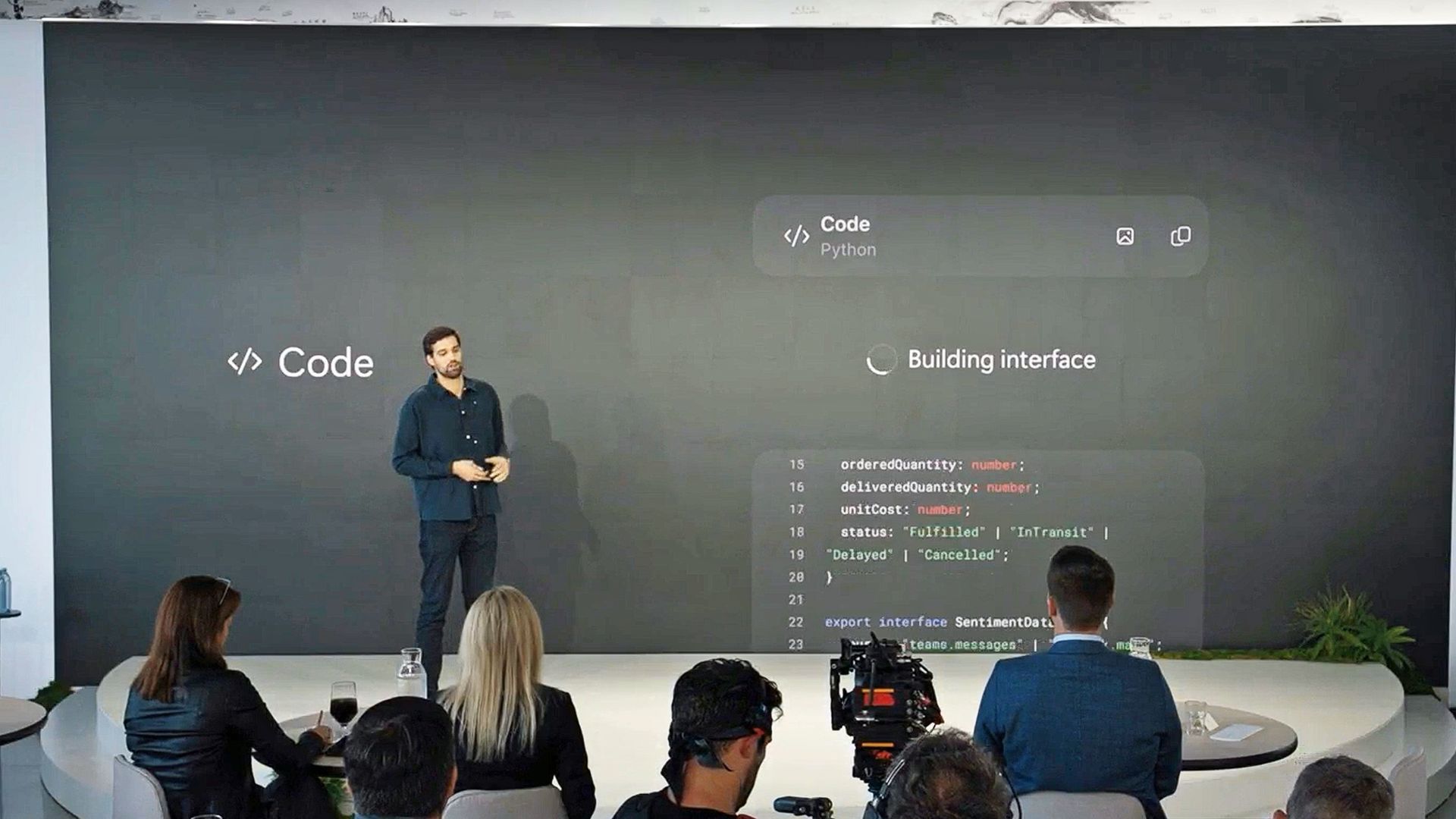
Jacob Andreou stands on stage talking about the new Copilot Code feature. (Image credit: Microsoft)
Code is one of the most interesting additions, in my opinion. It uses the same underlying technology as GitHub Copilot, but it’s designed for anyone who wants to automate something or build a simple app without writing code. Basically, I can describe what I want in plain language, and Copilot creates it inside my Microsoft 365 environment.
The result might be a dashboard, a workflow, or a lightweight app that connects to live business data.
I think this is a smart move for Microsoft because it opens up automation to people who have never touched a line of code (including myself). Developers still get deep integration with GitHub Copilot, but everyday users get a way to create tools that fit their needs. Code runs in a secure sandbox, connects to Microsoft IQ for context, and syncs with the rest of the workspace.
Basically, as noted in the event, creating apps via Code feels the same as creating (and sharing) a Word document, which is certainly intriguing.
Code enters the Frontier program later this month, with broader availability "coming soon," likely before year's end.
"Autopilot", a teammate that keeps working
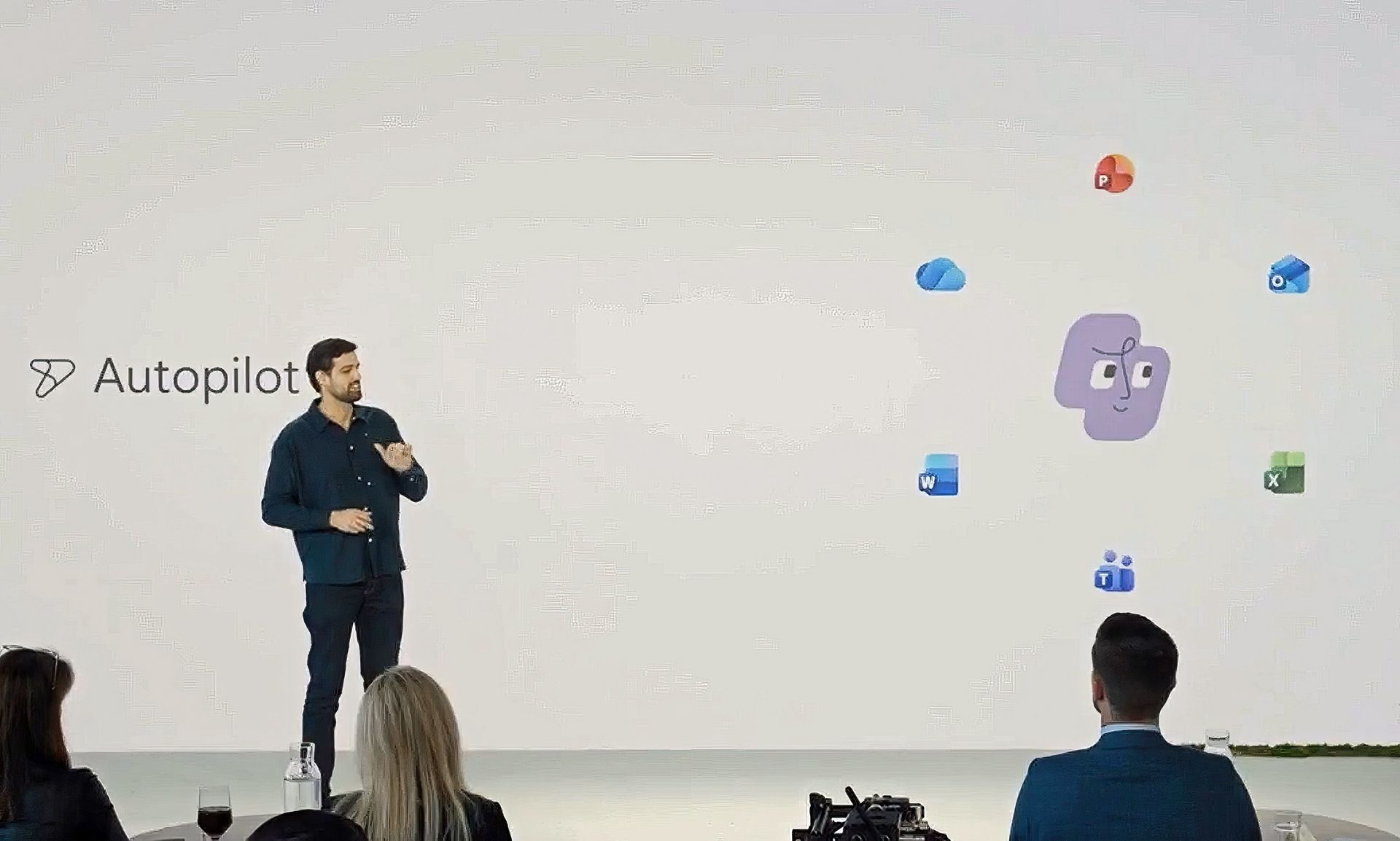
A visual representation of Autopilot is shown on stage by Microsoft's Jacob Andreou. (Image credit: Microsoft)
Autopilot, previously known as Scout, I believe, is the most ambitious part of the new Copilot. It acts like a digital teammate that manages ongoing work. I can give it a name, a role, and a goal, and it handles tasks like scheduling meetings, managing reviews, and keeping projects moving. It sounds very Meta Muse-ish, but it's better equipped for Microsoft customers, as it works across Teams, Outlook, and other apps, and it keeps going even when you are offline.
Autopilot has its own identity inside a Microsoft 365 tenant, which means it can participate in conversations, track decisions, and follow up on action items. It understands how an organization operates, and it uses that context to make smart choices.
This kind of automation could change how teams handle routine work, freeing people to focus on strategy and creativity instead of logistics.
A smarter foundation for everything
Diving into all the nitty-gritty enterprise jargon (forgive me), we can say that all of this is powered by Microsoft IQ, a unified intelligence layer that connects data, workflows, and context across the Microsoft ecosystem.
Basically, Copilot now understands not just your documents, but your business environment. With Fabric IQ and Work IQ, it can pull insights from Dynamics 365, Power Platform, and other systems, which helps break down silos and reduce the need to switch between apps.
Microsoft is also introducing a plugin registry that lets IT teams and developers extend Copilot with custom or partner-built integrations. It’s similar to an app ecosystem, but built for AI. This gives organizations more control and flexibility, and it helps Copilot adapt to different industries and workflows.
Since AI costs are becoming a real concern, Microsoft is adding FinOps for AI, a framework for managing and optimizing AI spending. Businesses can choose between fixed-cost subscriptions or usage-based billing. Copilot’s Auto mode selects the best option for each task based on accuracy, speed, and cost. It’s a practical way to keep AI powerful and predictable.
Why This Matters
Microsoft's new (new new) Copilot with slogan. (Image credit: Microsoft)
After reading through everything, it’s clear that Microsoft is treating Copilot as the future of its productivity ecosystem. I think we've always known that was the goal here, but it's taken Microsoft a few iterations and market maturity for AI/LLMs to get to this next level, based on customer feedback.
The company is blending creativity, automation, and collaboration into one experience that feels more personal and more capable than before. For small businesses, this means the same AI that powers enterprise workflows will soon feel approachable and useful in everyday tasks. For Microsoft, it’s a strategic shift that positions Copilot as the centerpiece of its long-term vision, which, let's be honest, is the right move.
What about regular non-business consumers? Well, you'll get access to some or all of this based on your M365 Premium or Pro subscription. Whether you make use of it all depends on your goals.
We’ll see more of this at Microsoft Ignite in November, but even now, the direction is obvious. Copilot is becoming the place where work happens, and Microsoft is building the tools to make that feel natural for everyone.
Join us on Reddit at r/WindowsCentral to share your insights and discuss our latest news, reviews, and more.
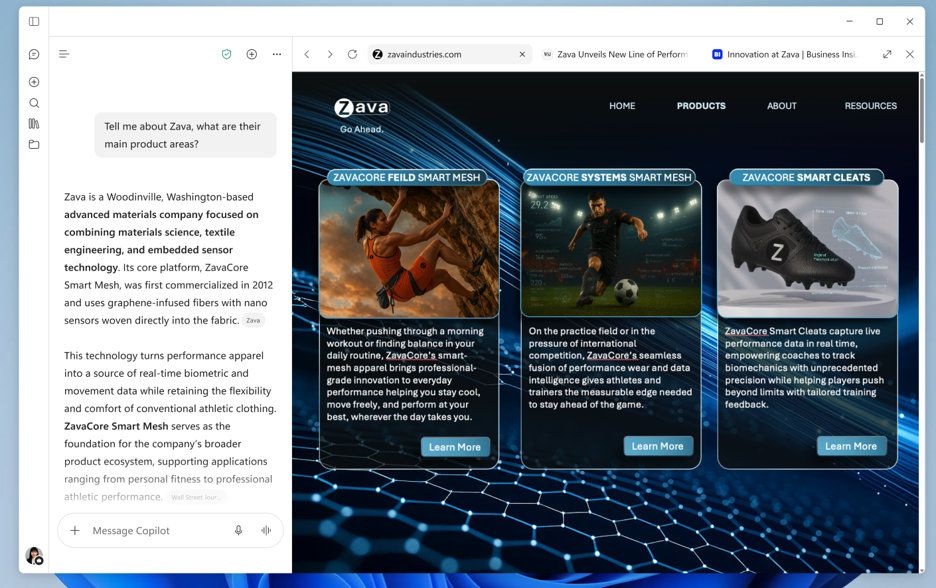
The Microsoft Copilot app will soon include a built-in browser for more users. Microsoft started testing the feature back in March, but the broader rollout of the built-in browser will begin in late November.
The idea is that when you click a link within the Copilot app, you'll stay within Copilot rather than jump into your default browser.
Microsoft described the feature through its message center (archived here):
"Microsoft Copilot app now supports in-app browsing on Windows and Mac, allowing users to open websites side-by-side with chat. Available via admin opt-in now, with broader rollout in late November 2026. Users can manage tabs, toggle full-screen, or open links externally. Data is stored locally, similar to Edge."
You can resize the Copilot conversation and built-in web browser within the Copilot app. (Image credit: Microsoft)
Copilot's behavior is similar to what you see in Microsoft Teams. It's normal to see apps open in their own browser. X, Reddit, and other popular sites do the same thing.
The question is whether Copilot having a built-in browser will change workflows. Will people start a session by asking Copilot a question and stay in the app, or will they stick with their preferred browser and use Copilot inside it?
It may seem like a distinction without a difference, but getting someone to change their default habit is a massive challenge. Google has had some luck in this area on mobile devices. I often find myself using Gemini and then browsing the web, which effectively gets me to use a different browser. I'm sure Microsoft would love to get people to do the same thing with Copilot on their PCs.
Microsoft may have better luck retaining users who already use Copilot than trying to convert Edge users by forcing Copilot into the Sidebar. The actual experiences are quite similar, but the entry points are different.
Join us on Reddit at r/WindowsCentral to share your insights and discuss our latest news, reviews, and more.
Microsoft Copilot will soon support Grok models from xAI. Word, Excel, and PowerPoint users in the Microsoft Frontier Program can test Grok models now, with general support expected to roll out in the future.
Grok models are being added to Microsoft's Online Services Subprocessor list. By offering different models as subprocessors, Microsoft can give customers access to those models without people having to switch away from the overall Copilot experience.
For example, Researcher Agent in Microsoft Copilot works with Claude AI models from Anthropic. Other Copilot experiences may use multiple AI models to complete tasks.
"Our multi-model strategy gives customers access to leading AI models while maintaining the trusted Copilot experience," said Microsoft in a Tech Community post.
For different models to appear as options, admins need to enable them through the settings of their respective organization.
During the testing period, Grok models will not be available in the European Union, European Free Trade Association, or the United Kingdom.
What is a subprocessor?
Subprocessors are third-party providers that help Microsoft deliver online services. Microsoft has an expansive list of subprocessors used for everything from powering data centers to completing tasks in Copilot.
Using Grok as a subprocessor helps Copilot tackle different tasks and provides redundancy that protects against outages or issues with other subprocessors. But users should not expect the witty or irreverent tone and style that Grok has become known for on X.
Subprocessors sit under Microsoft's system prompts and enterprise guardrails, so the generated responses will still be professional. Essentially, you get the benefit of Grok's multi-step logic and mathematical prowess but within Copilot.
Once an admin enables the integration, you can set Copilot in apps like Word, Excel, and PowerPoint to automatically pick the best model for a task, or manually pick between GPT, Claude, or Grok directly from a drop-down menu in the interface.
Join us on Reddit at r/WindowsCentral to share your insights and discuss our latest news, reviews, and more.
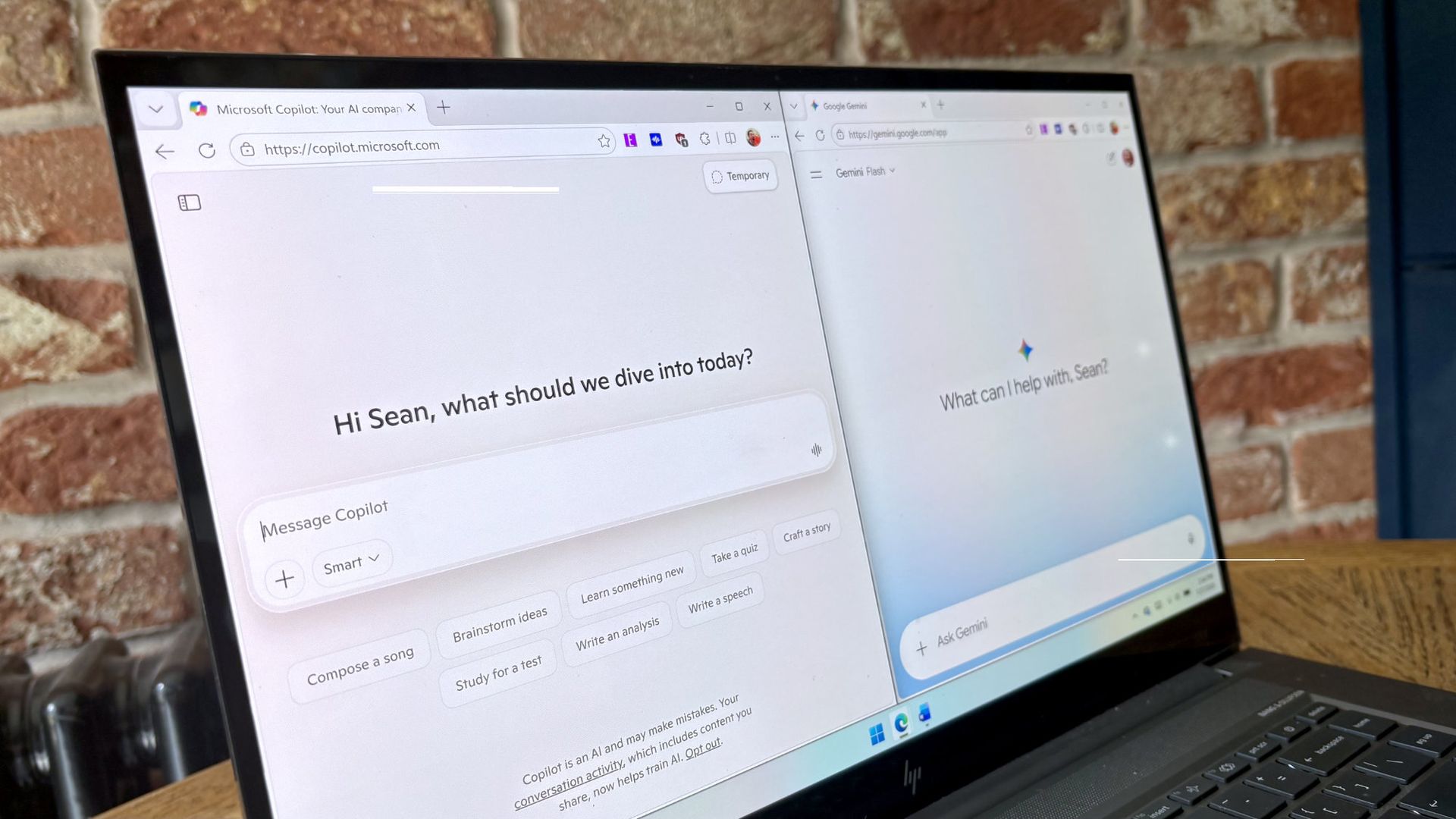
Google Gemini now competes with Microsoft Copilot for space on your keyboard. Google just released Gemini for Windows, and that app uses the same keyboard shortcut as Copilot (Alt + Space).
That shortcut is popular and those hoping to use Gemini may have to remap some shortcuts to perform other tasks. In addition to summoning Copilot, Alt + Space opens PowerToys Run.
The general functionality of the Gemini app is similar to Gemini's web experience. One key difference is that you can summon the AI tool with a keyboard shortcut, which allows you to launch it quickly.
The macOS version of Gemini supports sharing your screen and other native capabilities, such as dictating by pressing both Command keys. Google explains that more native features will ship to the Windows version of Gemini in the future.
I prefer Gemini over Copilot for many tasks. I recently swapped to Google's AI tool for a month to see how it performed as an editor. While Copilot felt more personal, Gemini was often more accurate when it came to correcting tasks.
"In my specific use case, Gemini felt like an upgraded Microsoft Editor while Copilot felt like a modern Clippy," I said a couple months ago.
Both Copilot and Gemini have their strengths and weaknesses, but Google's option is better for my workflow. Our readers disagreed.
21% of those who voted in our poll about proofreading with AI use Microsoft Editor. Another 29% of participants use Microsoft Copilot. Only 11% of voters rely on Gemini to proofread documents.
Of course, Gemini and Copilot can do a lot more than proofread documents. Google recommends the new Gemini app for fact-checking documents, coming up with titles for a presentation, and creating images and videos.
For more complex tasks, you can hand things off to Gemini Spark within the app.
Join us on Reddit at r/WindowsCentral to share your insights and discuss our latest news, reviews, and more.
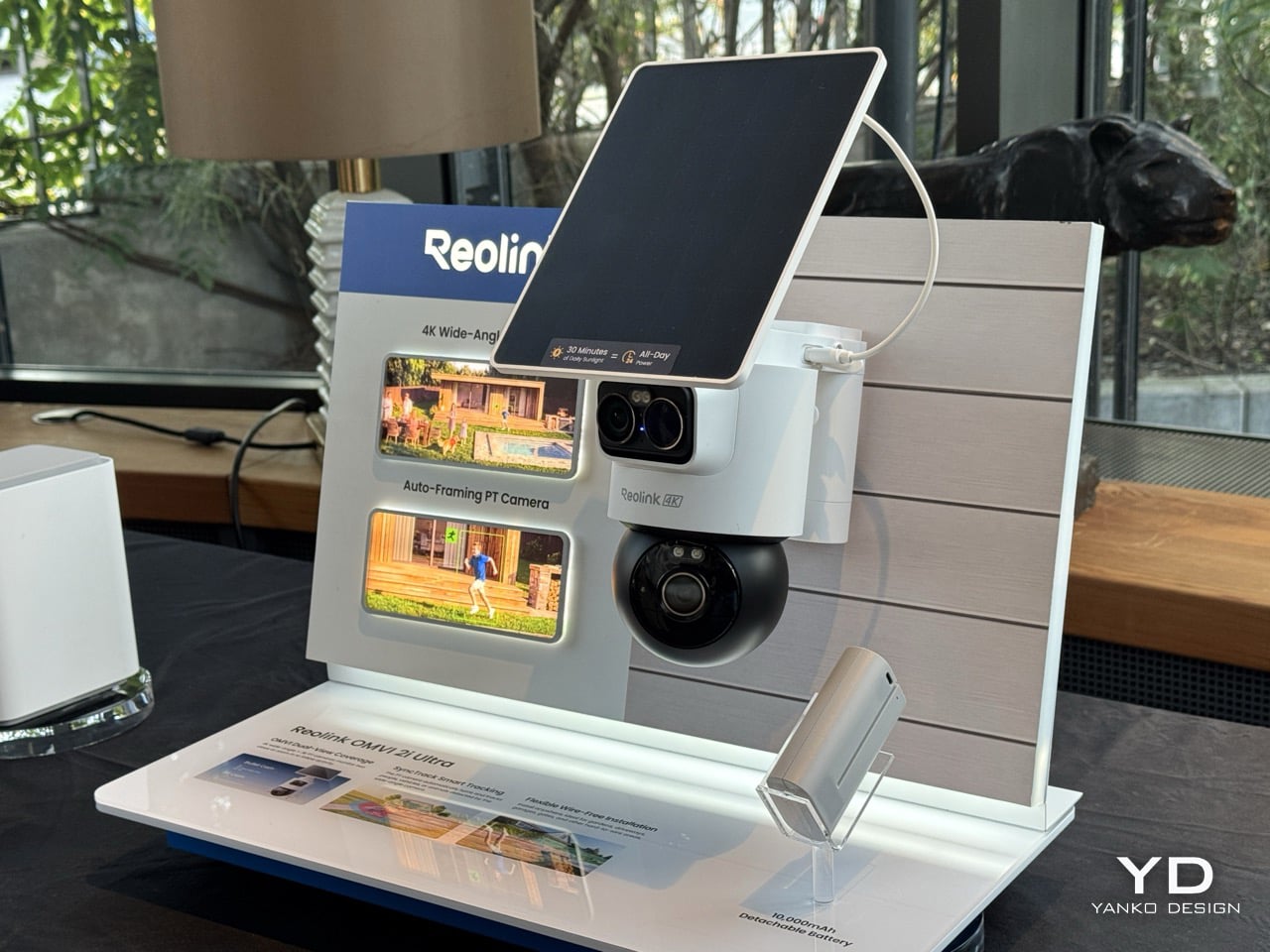
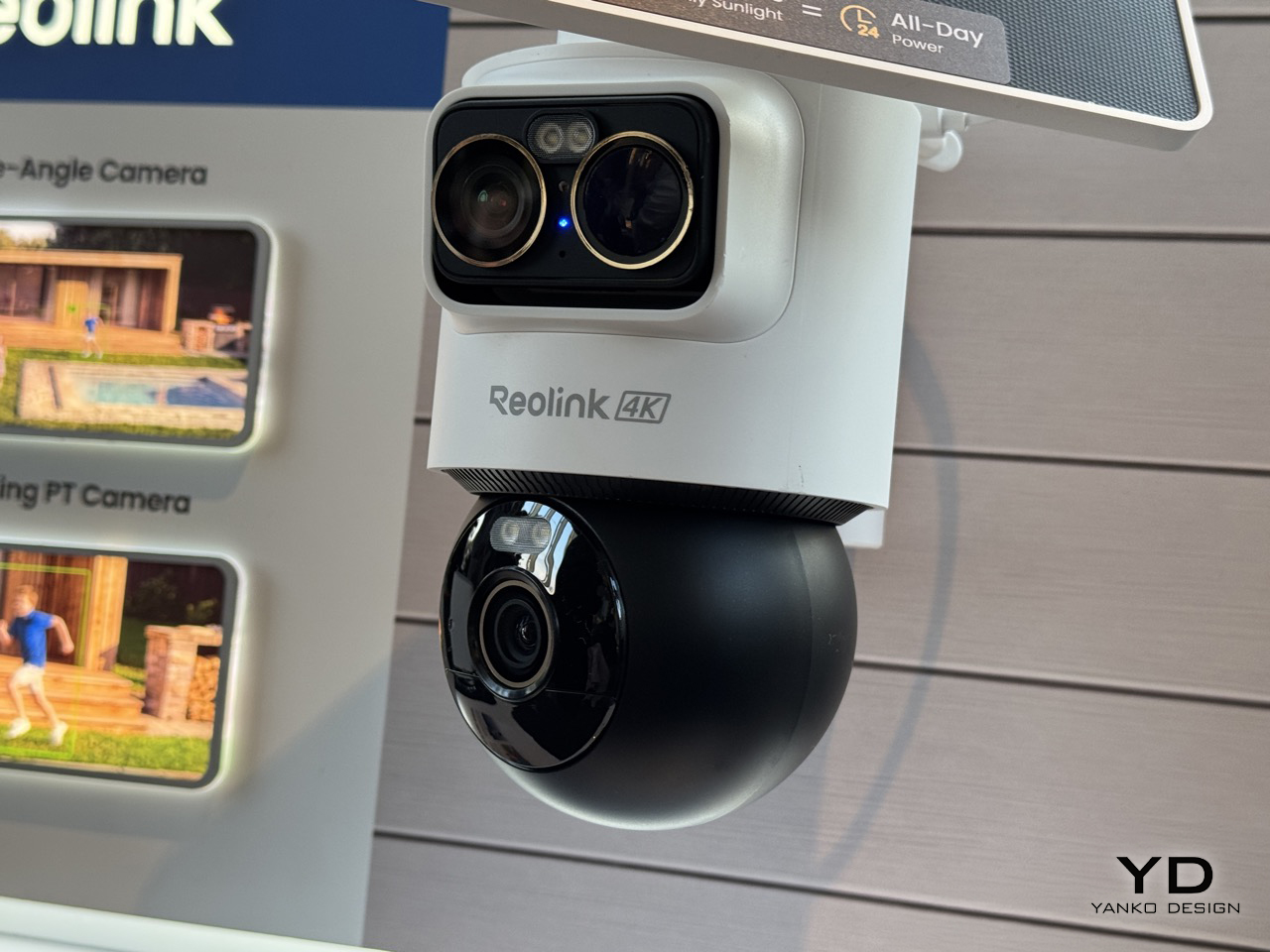
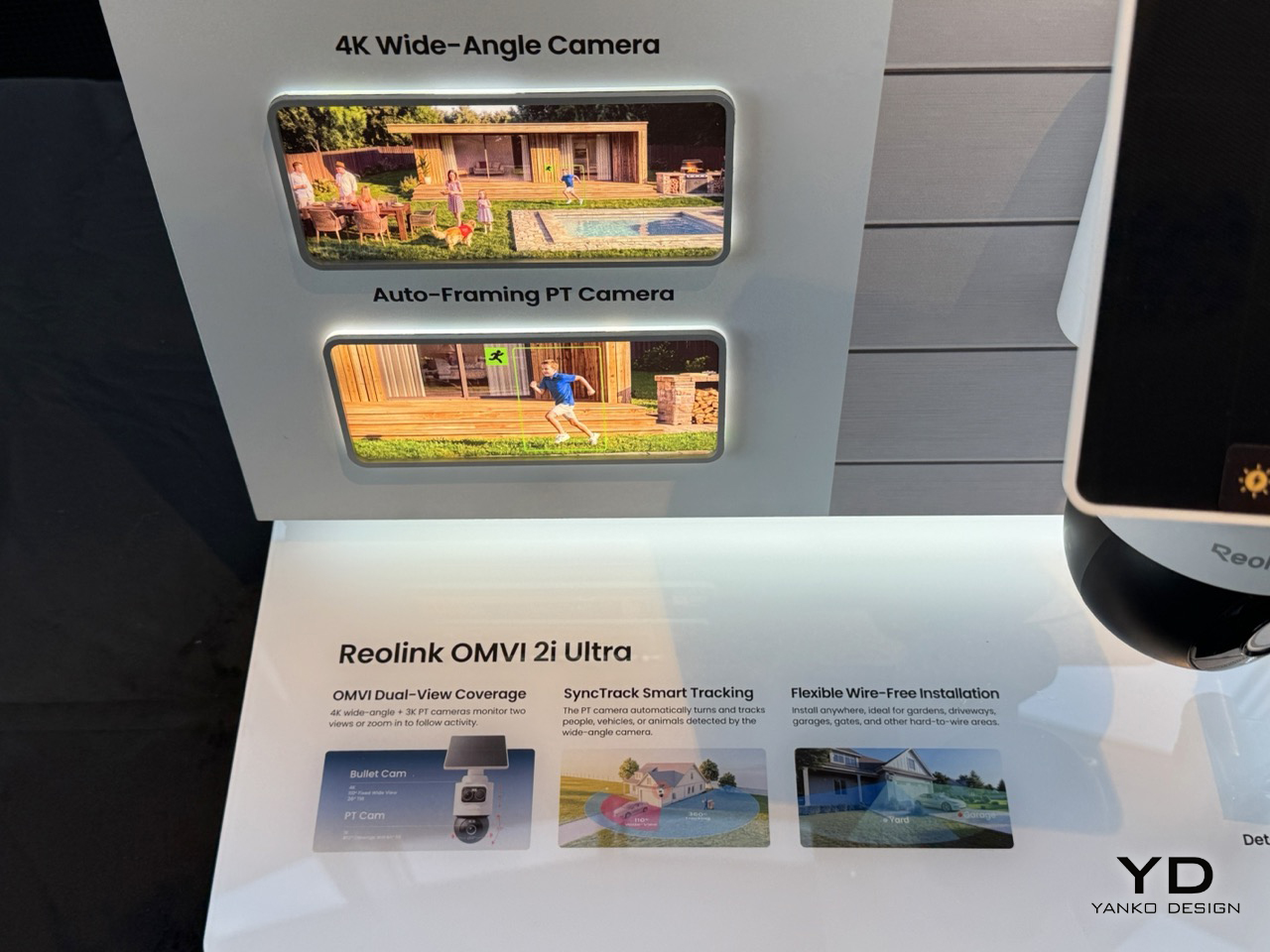
Picture a courier walking up your driveway while someone else quietly tries your side gate. A normal pan-tilt camera picks one of them and forgets the other exists. Reolink’s OMVI 2i Ultra handles it by carrying two cameras at once: a fixed 4K wide lens on top that never stops watching the full scene, and a 5MP pan-tilt ball below that spins 355 degrees to lock onto whatever the wide lens flags. Both feeds record at the same time, and you can tap anywhere on the wide view to slew the turret straight to that spot. It debuted at IFA 2026 in Berlin, ships late October, and costs between $200 and $250.
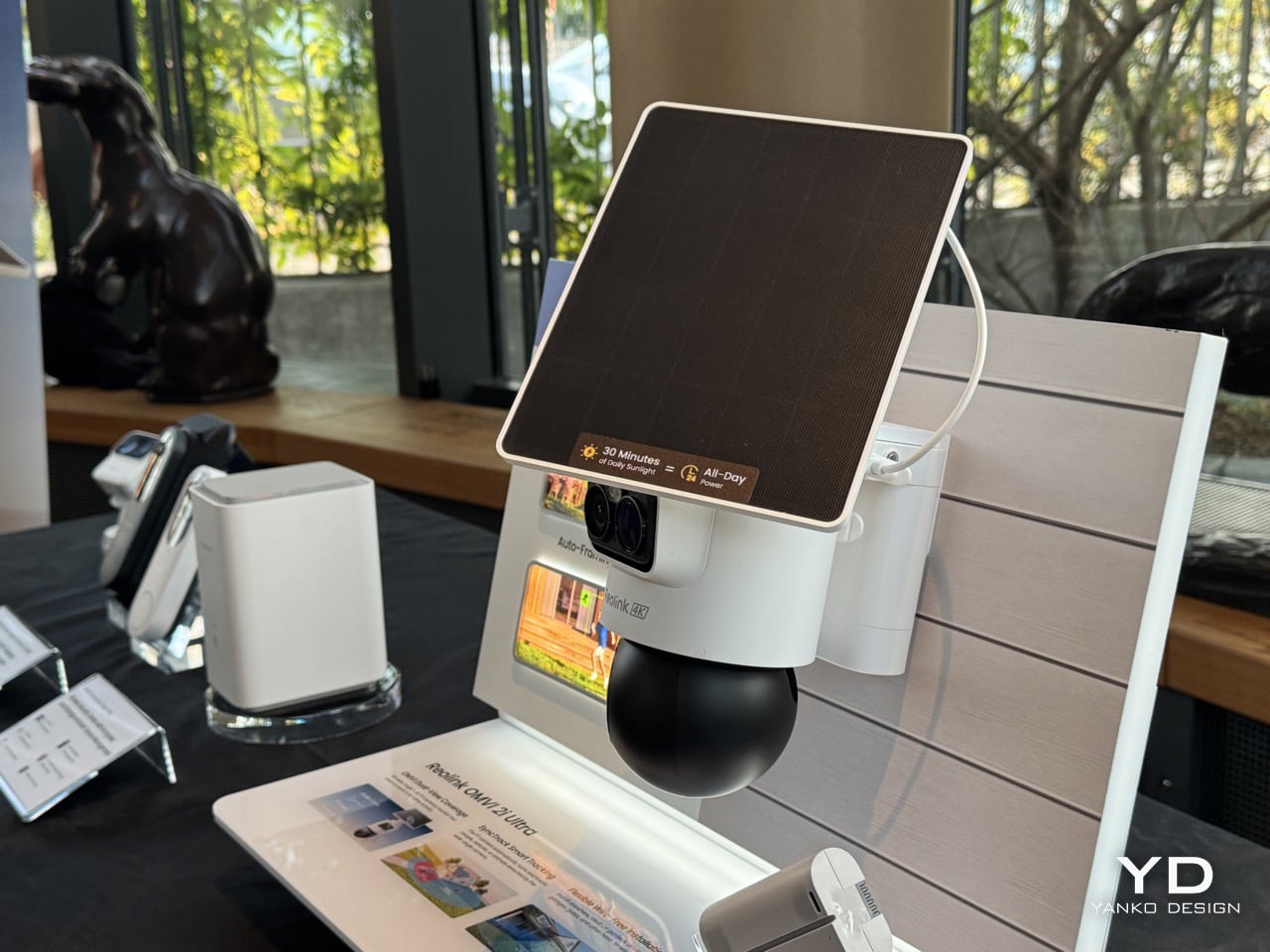
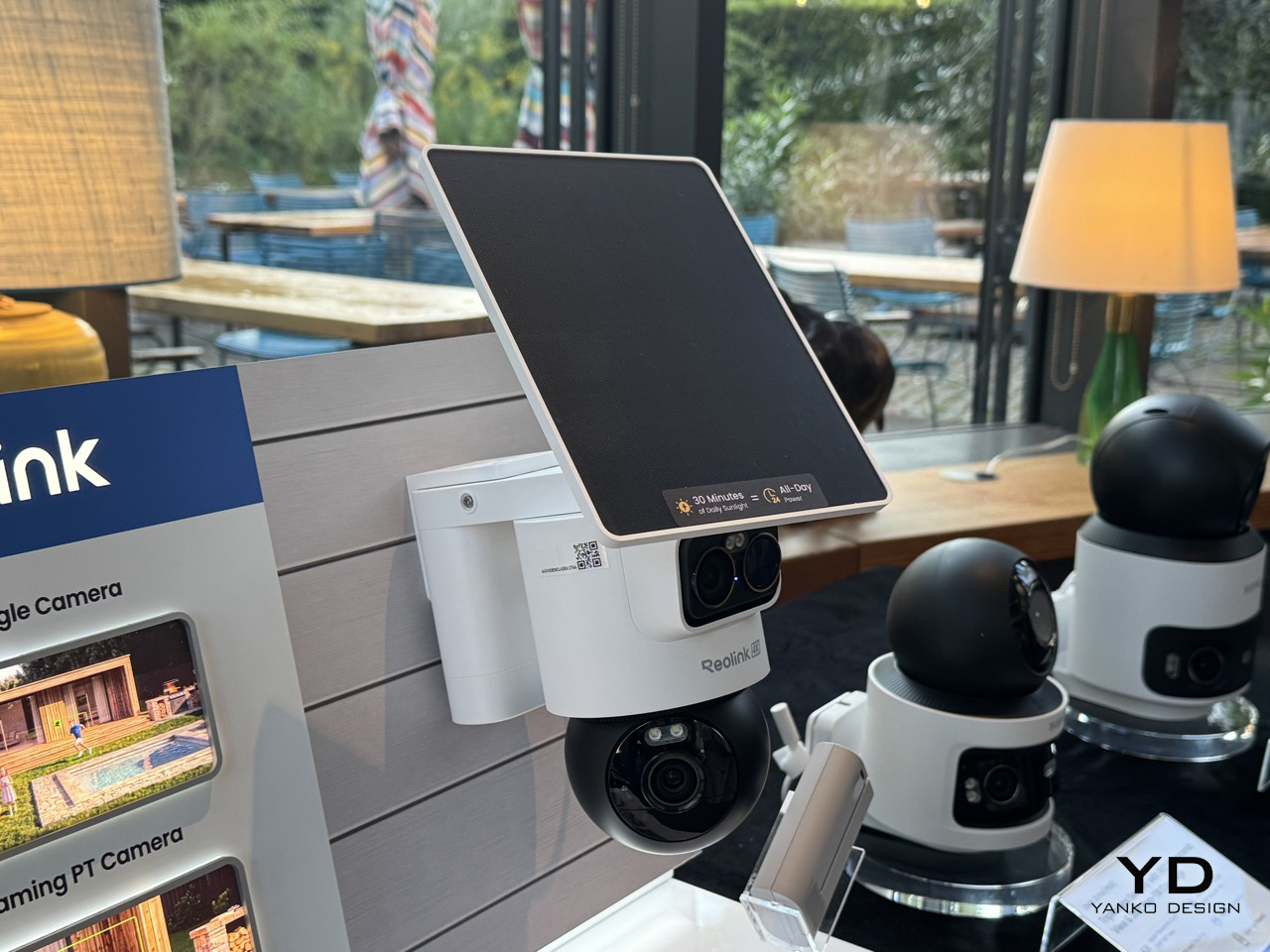
A detachable 10,000mAh pack claims six months per charge, and the 6W SolarEase panel says it needs about thirty minutes of daily sun to stay topped up, against the one to two hours Reolink quotes for rivals like Eufy’s S340 and the Tapo C675D. Those are Reolink’s own numbers, so hold them loosely until somebody leaves one on a north-facing wall through a British winter. The rest is easier to verify. Wi-Fi 6 across both bands, up to 512GB of local microSD with no subscription attached, colour night vision from twin spotlights, a siren, and IP65 sealing. At a kilogram with the bracket, it is a proper lump of hardware rather than something you tuck on a shelf.
Designer: Reolink
Pan-tilt cameras have quietly lied to buyers since the format existed. Sell someone a camera that turns to follow motion and you have also sold them a camera that stops watching everywhere else the instant it does. Reolink’s fix is embarrassingly simple once you see it. Stop asking one lens to be both the guard and the chaser, and give it a second lens that only guards. The wide 4K unit up top runs at 110 degrees horizontal and never rotates, so the scene it opened on is the scene it keeps recording no matter where the PT ball below it wanders off to. Reolink calls this SyncTrack, but the actual idea is closer to division of labour than any clever algorithm. One camera commits to context, the other commits to pursuit, and neither has to compromise for the sake of the other.
This is the third time Reolink has built this exact idea in 2026, and each version has been a slightly different argument about what matters most. The X16 landed at CES in January as a 24MP full metal flagship with 16x optical zoom, but it needs an ethernet run to function, which puts a hard ceiling on where it can live. The 3i followed in June with PoE and wired Wi-Fi options at $319.99, still asking for a nearby outlet even in its most flexible form. The 2i Ultra drops the combined resolution to 8MP plus 5MP and, in exchange, cuts the cord entirely. The trade-off is the clever bit, because being able to pop a camera on a fence or a backyard without worrying about wiring is much more convenient than haggling over megapixels.
A squared-off dual-lens head sits above a separate motorized ball, with a solar panel tilting on its own hinge overhead, and the whole assembly weighs a full kilogram once the bracket is attached. Compare that to Reolink’s own Argus MagiCam, a 108-gram cube you stick to a fridge with a magnet, and the difference in ambition is obvious at a glance. This is not a camera trying to disappear into a bookshelf. It reads more like a small piece of maritime equipment bolted under an eave, and that visible mechanical presence is doing some of the deterrence work before the siren ever gets involved.
That dual-lens design is quite literally baked into the name. OMVI reads like omni-vision, a camera built to watch in every direction at once instead of picking a lane. Arlo’s Ultra flagship still wants a wall plug or a proprietary base station to unlock its best tricks, and Nest’s outdoor cameras have quietly stayed wired-first for years now, which makes the 2i Ultra’s fully wire-free build feel like it is actually catching up to how people install things rather than how manufacturers wish they would. No drilled conduit, no hub tucked in a closet, just a battery, a solar panel, and a spot on the fence you actually wanted the camera to go.
That is the real flex against the flagships twice its price. You are not paying for a wall socket you have to plan your whole install around, and you are not paying for a bulky base station eating an outlet indoors either. You get two lenses doing genuinely different jobs, a battery that outlasts most of the category on paper, and a name that finally means something instead of just sounding techy. At $200 to $250, the OMVI 2i Ultra is the version of omni-vision security that shows up ready to mount anywhere the moment you take it out of the box.

 Connexion