Vue lecture

Microsoft is testing deeper Phone Link integration in Windows 11, but does anyone actually use it?

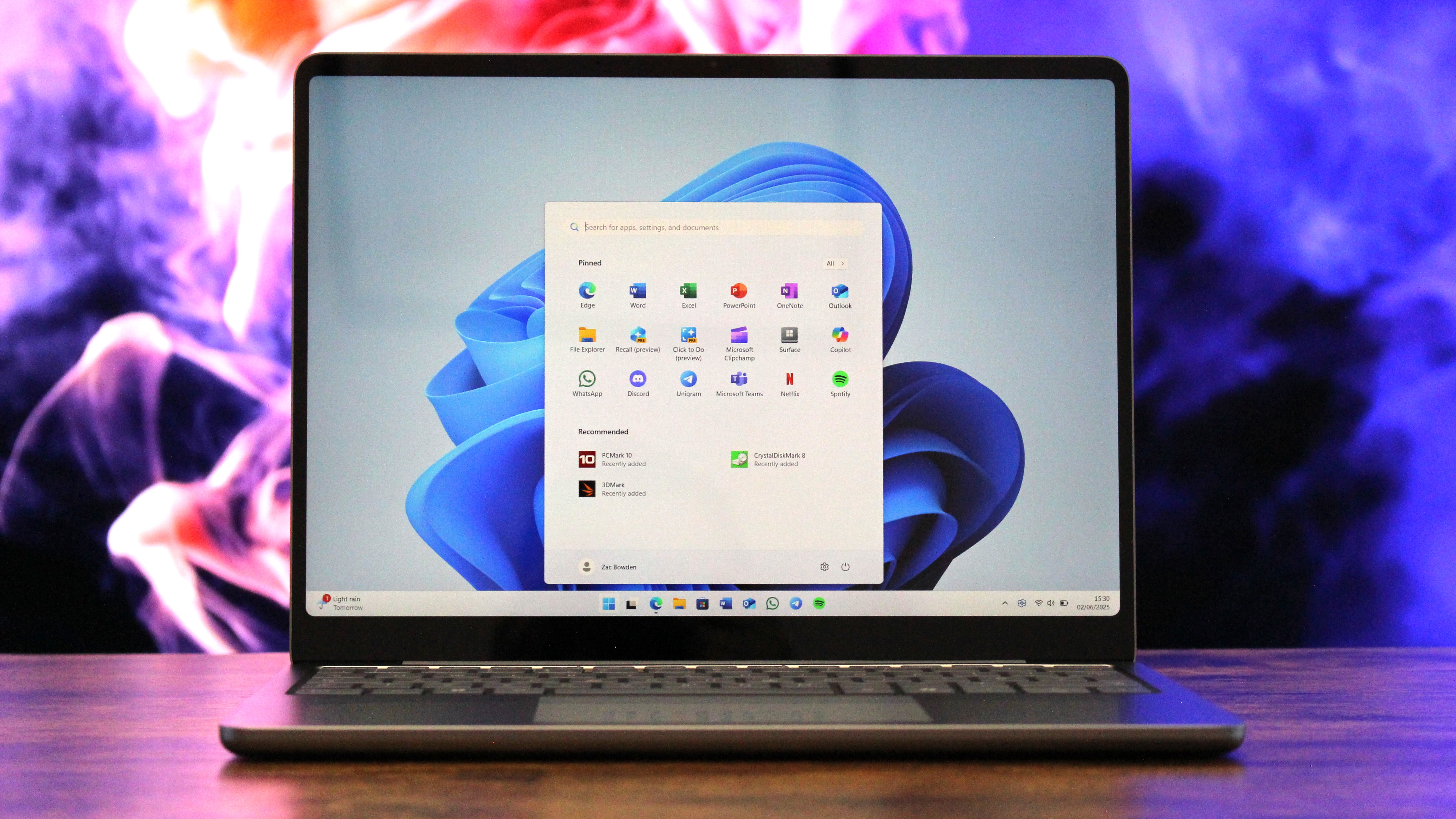
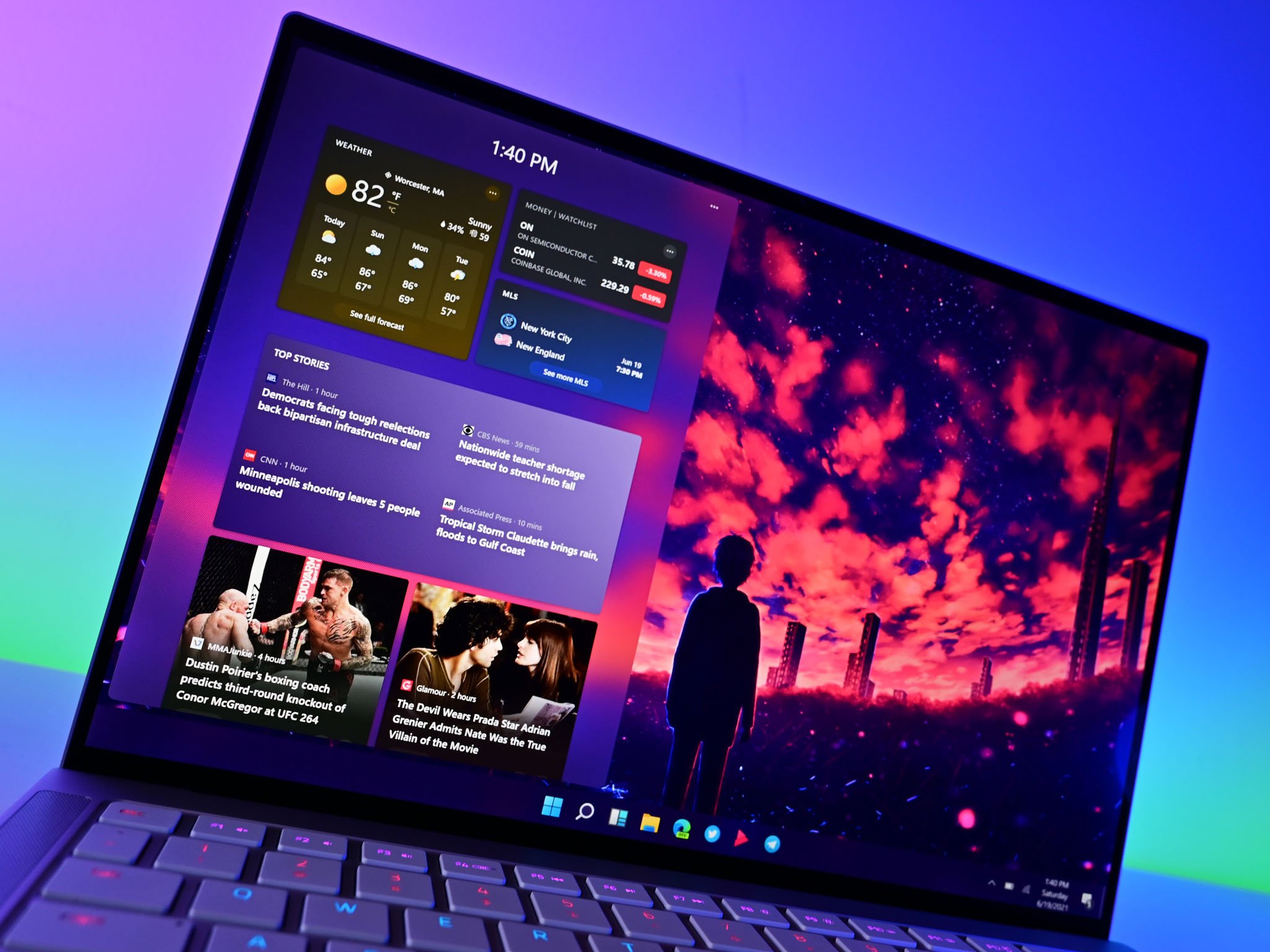
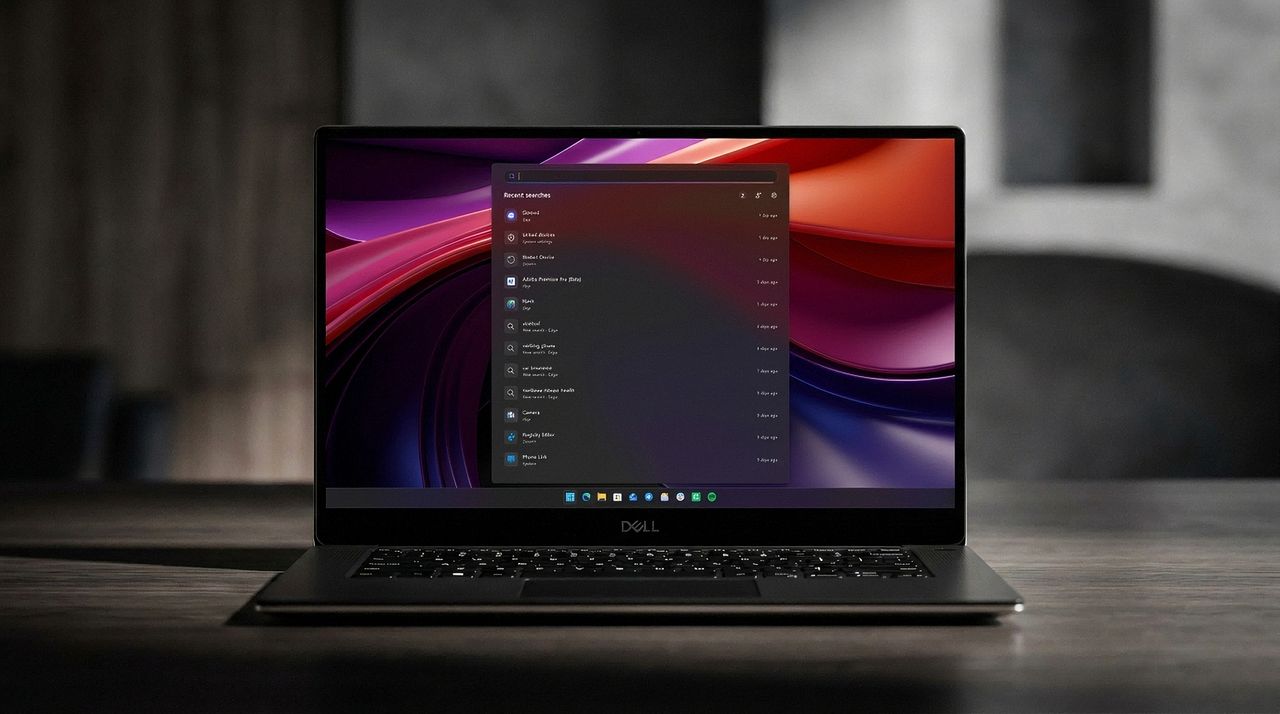
Windows Insiders have new features to try out, including improved Windows Search and an upgraded Phone Link. The changes come with Windows 11 Insider Build 26300.9032, which is now available through the Experimental Preview Channel.

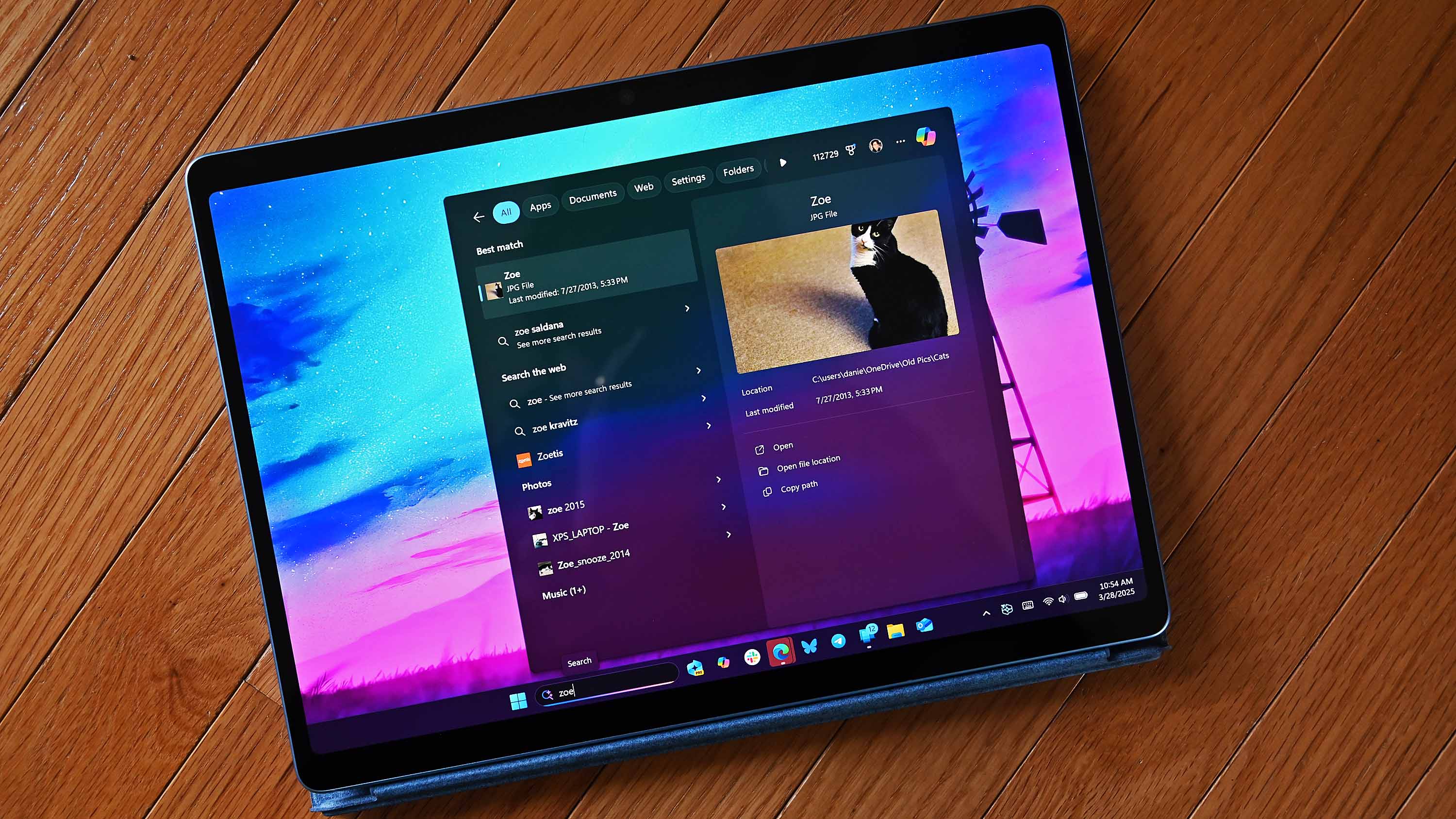
The improved Windows Search is customizable, including some options that were already available. You can enable or disable integration with your personal Microsoft account or work or school account. You can also set Search to look through your OneDrive or not search your cloud storage.

The most recent addition of automatically expanding indexing in Windows Search based on your activity can also be enabled or disabled with a toggle.

Phone Link keeps getting better

The changes to Phone Link are more significant, but I wonder how many people they will affect. Based on comments here and on social media, it feels like Phone Link is a good idea that few people actually use daily. But Microsoft continues to improve it, so there must be a healthy user base.

In the most recent Windows Insider build, Phone Link can show more activity at a glance. Hovering over a recent message or notification in the recent section of the Start menu will show a preview of content. That experience is rolling out gradually, though, so you may not see it even if you're on the latest build.

Microsoft has big plans for Phone Link and even has a dedicated Messages app in the works that will support SMS conversations. Our Senior Editor Zac Bowden reported that the new features "are being explored and prototyped internally," but that they might change or not ship.

Eventually, Phone Link may integrate with the Windows shell rather than existing as a standalone app on top of Windows 11.

Microsoft has also played around with integrating Windows 11 and smartphones directly rather than through Phone Link. There's probably a place for both, but I'm curious if you have a preference regarding how to connect a smartphone and a PC.

Blank Pixel

Windows 11 Insider Preview Build 26300.9032

Search

  • Windows Search can now automatically expand its indexing scope based on your activity, using signals like recent files and frequently accessed locations. This helps ensure that relevant files across your device are discoverable without requiring manual indexing configuration.
  • To manage this feature, go to Settings > Privacy & security > Search.

Phone Link

  • The phone companion experience in Start already helps you keep up with activity from your mobile device. With today's update, you can see even more at a glance.
  • Get more from your latest activities: Hover over a recent message or notification in the Recent section to preview its content directly in Start. There's no need to pick up your phone or open the item to see what's new.
  • Whether you're checking a message or deciding if a notification needs attention, these updates make it easier to stay informed and keep your focus.
  • This experience is gradually rolling out to Insiders on the Experimental channel with a minimum Phone Link build of 1.26021.3.0. Go to Phone Link > Settings > Start menu personalization.

Settings

  • We've improved search in the Settings app to help you discover and navigate to settings more quickly. Search now surfaces results from more areas within Settings, with improved ranking to help relevant settings appear higher in results.

Adaptive hibernate policy

  • Updates to the adaptive hibernate policy increase instances of instant-on resumes from Modern Standby and increase battery preservation at the low end of the battery. Noticeable changes include less hibernation while the battery is above 80% and hibernating sooner when the battery is below 10%.

Start menu

  • Fixed an issue causing the Start menu to crash for some Insiders recently when dragging apps.

Taskbar

  • Fixed a recent issue where, when the taskbar was in an overflow state, hovering over the preview thumbnail for an app window in the overflow area would immediately dismiss it.

File Explorer

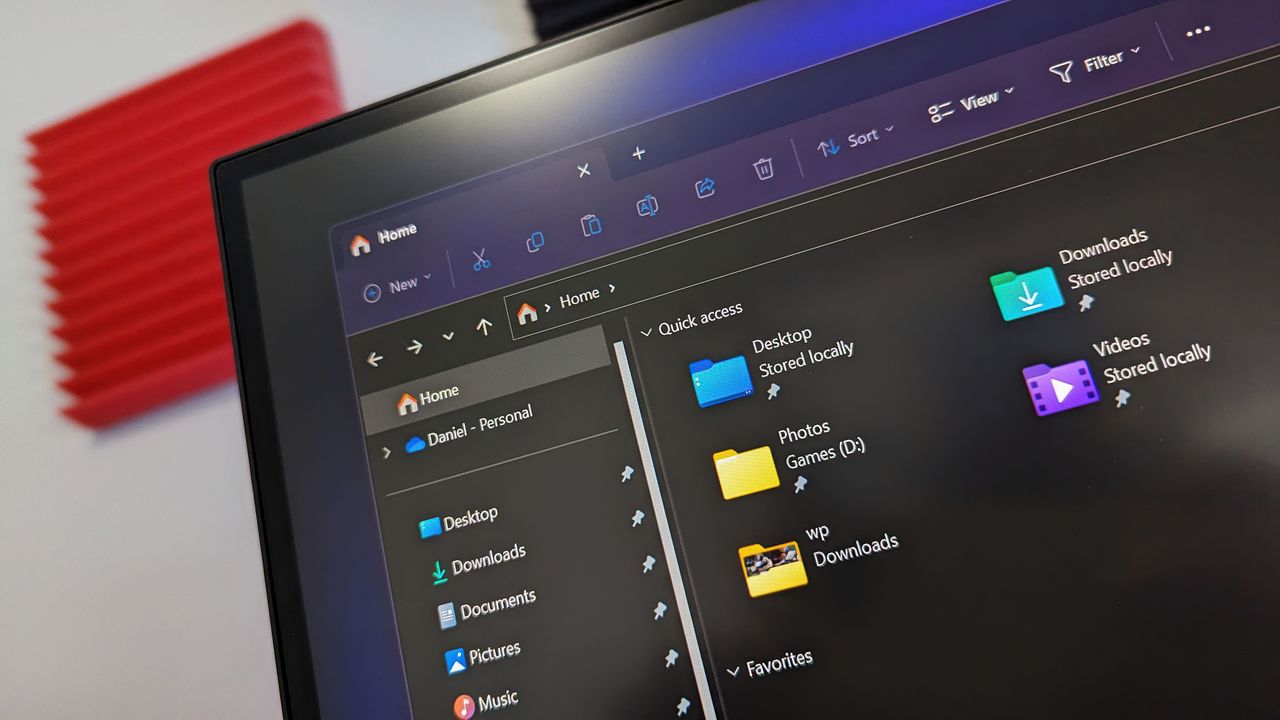
  • File Explorer Home now preserves the state of sections (expanded or collapsed), so you can pick up where you left off.
  • We've addressed an issue that caused the address bar contents to be cleared when entering edit mode by clicking near the right end of the bar.
  • We've improved the reliability of File Explorer when dragging files to a disconnected network drive.
  • This update addresses an issue where files stored on a DFS mapped drive could be incorrectly treated as originating from the internet after the device started while disconnected from the network and later reconnected. This could cause File Explorer's Preview pane to display the message, "The file you are attempting to preview could harm your computer," or cause files copied from the DFS drive to receive an unexpected Mark of the Web.

Windows Spotlight

  • Made some underlying changes to help improve reliability for Windows Spotlight on the lock screen.

Storage

  • This update fixes an issue that affects File History automatic backups to network shares using Server Message Block (SMB). Backups didn't work because Windows showed a false "invalid credentials" error when connecting to SMB shares.

Click to join us on r/WindowsCentral

Join us on Reddit at r/WindowsCentral to share your insights and discuss our latest news, reviews, and more.

Image of Phone Link on Windows.
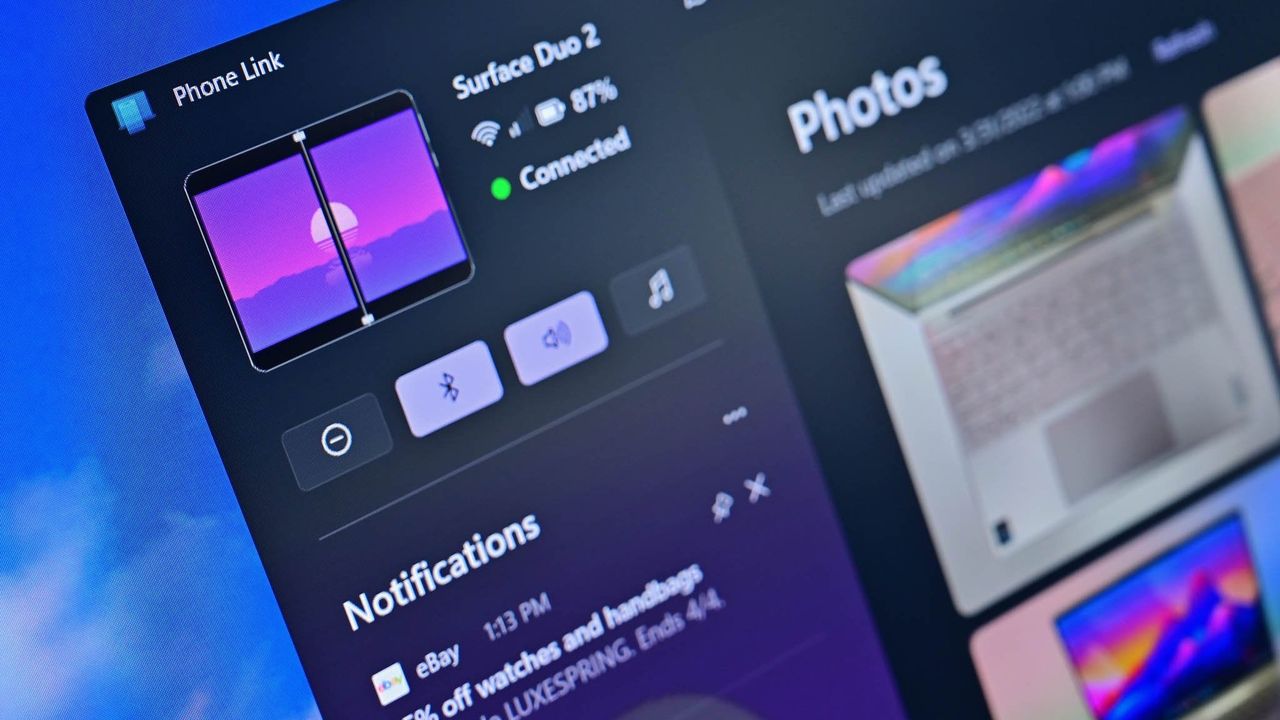
Image of Phone Link on Windows.
  •  

Microsoft promises to fix Windows 11 for 8GB PCs, but it put the cart before the horse with low-memory Surfaces

Windows Central

Windows 11 is being fixed, and that’s not just lip service. Microsoft is making meaningful changes to its operating system. Menus are being decluttered, legacy components are being revamped, and features like Xbox Mode are reshaping Windows 11.

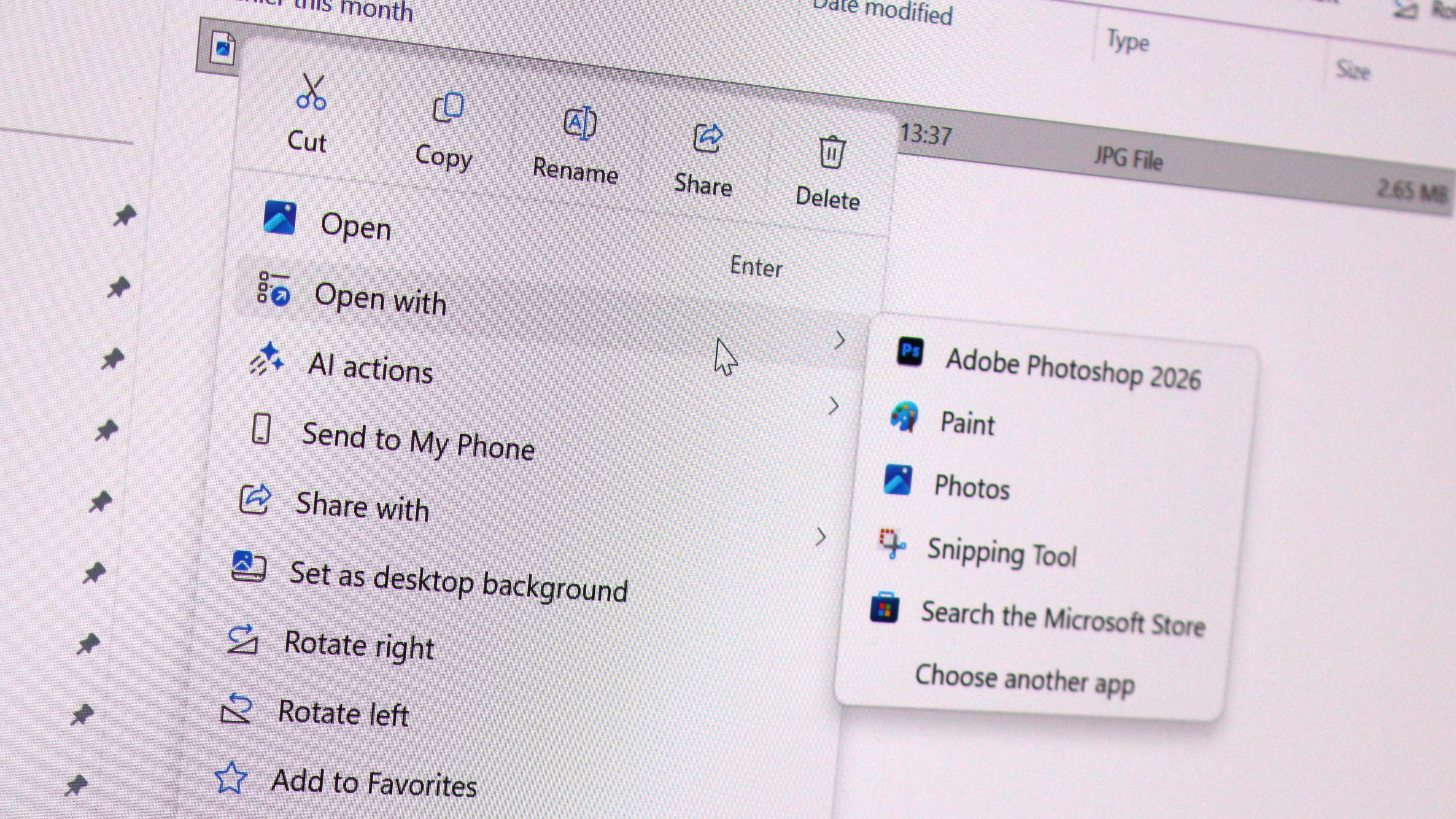
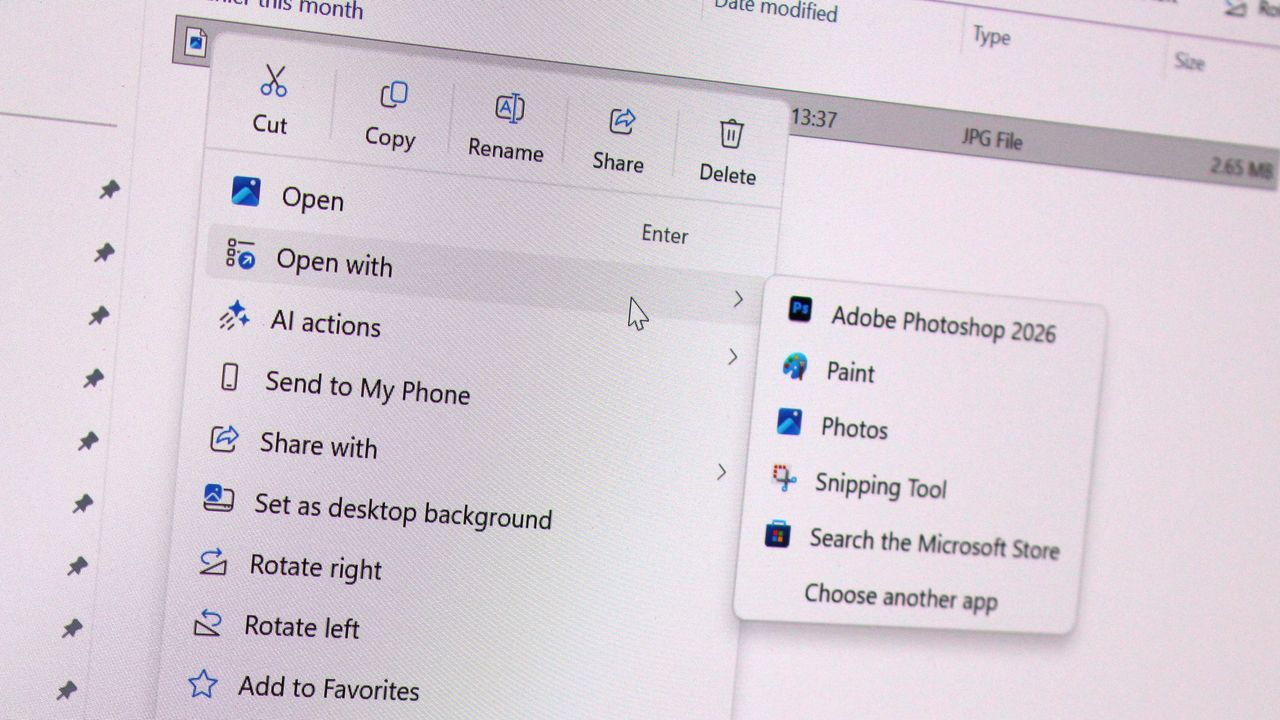
Just this week, we saw that Microsoft has plans to fix context menus on Windows 11 and get rid of the page-tall menus that plague PCs. Microsoft also committed to making Windows 11 perform better on systems with only 8GB of RAM.

I’ve talked about Windows 11's improvements several times this year in the Windows Wrap. Generally speaking, I’m happy that they’re happening but confused about Microsoft's timing. On top of questions like "Why did it take several years to make Windows 11 look nice?" There are also usability questions like "Why did Microsoft start selling a Surface with only 8GB of RAM before optimizing Windows 11 to work on that machine?"

Now, don’t get me wrong, Windows 11 can run on a system with only 8GB of RAM. I think many tests performed online are done in bad faith. Some people have dozens of Chrome browser tabs open and a bunch of apps running at once and then complain about performance.


You can get work done on a PC with that amount of memory, as proven by our own Cale Hunt, who tested Windows 11’s memory optimization by limiting his PC to 8GB of RAM.

But by Microsoft’s own admission, Windows 11 needs to be better on low-memory systems. With the cost of RAM skyrocketing and not looking like it will go down at any point in the near future, it’s more important than ever for Microsoft to optimize Windows 11.

Biggest News of the Week

Windows 11
Windows 11 context menu
Windows 11 Start Logo
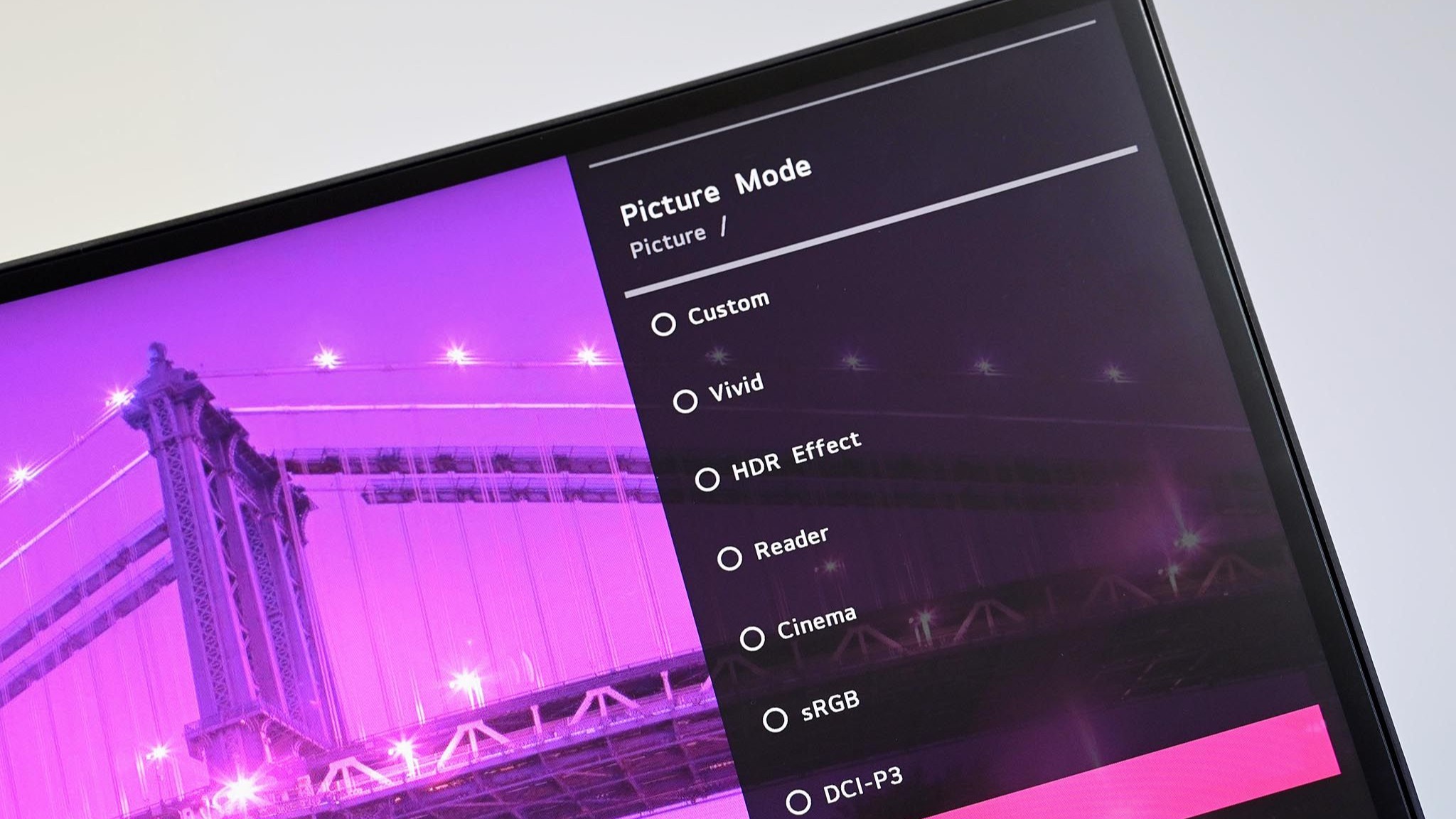
Angled close up of an LG PC monitor displaying an on screen menu for Picture Mode presets including Custom, Vivid, HDR Effect, Reader, Cinema, sRGB, and DCI-P3 over a purple cityscape background.

Earlier this year, Microsoft started selling Surface PCs with only 8GB of RAM, specifically the Surface Pro 12-inch and Surface Laptop 13-inch. I appreciate the gesture. In today’s economy, getting a PC with too much RAM or too much storage for your everyday needs can cost hundreds of dollars extra.

I covered several Surface deals this week, including some options that are up to $450 off. While that is a significant savings, those deals are all on models of the Surface Pro (13-inch) with 16GB of RAM. It’s still difficult to find that type of Surface Pro under $1,200.

Many people just want a PC that’s reliable and that can handle their everyday tasks. Even those shopping in more premium categories, such as Surface, often prioritize design and form factor over getting the highest specs. For those types of customers, an 8GB RAM Surface makes sense, but not if Windows 11 is still a problem.

Microsoft put the cart before the horse with the 8GB Surface PCs. The tech giant responded to the RAM crisis with more affordable PCs, but Microsoft failed to optimize Windows 11 for lower memory first.

To me, that shows a disconnect between the Windows and Surface teams at Microsoft.

Shopping with Sean

Until Microsoft fully optimizes Windows 11 for PCs with only 8GB of RAM, you might feel a bit of a pinch in performance with that amount of memory. The current discounts on Surface Pro get you more memory without having to pay as much of a premium.

The best Surface Pro deals are spread across Amazon and Best Buy this week.

CPU: Snapdragon X2 Elite
GPU: Qualcomm Adreno
RAM: 16GB
SSD: 1TB

This Surface Pro is both the best deal of the day and the highest spec'd configuration you can get through Amazon. It pairs the new Snapdragon X2 Elite with 16GB of RAM and 1TB of SSD storage. Plus, it has a lovely OLED screen for deep blacks and high contrast.

👉 See at AmazonView Deal

CPU: Snapdragon X2 Elite
GPU: Qualcomm Adreno
RAM: 16GB
SSD: 512GB

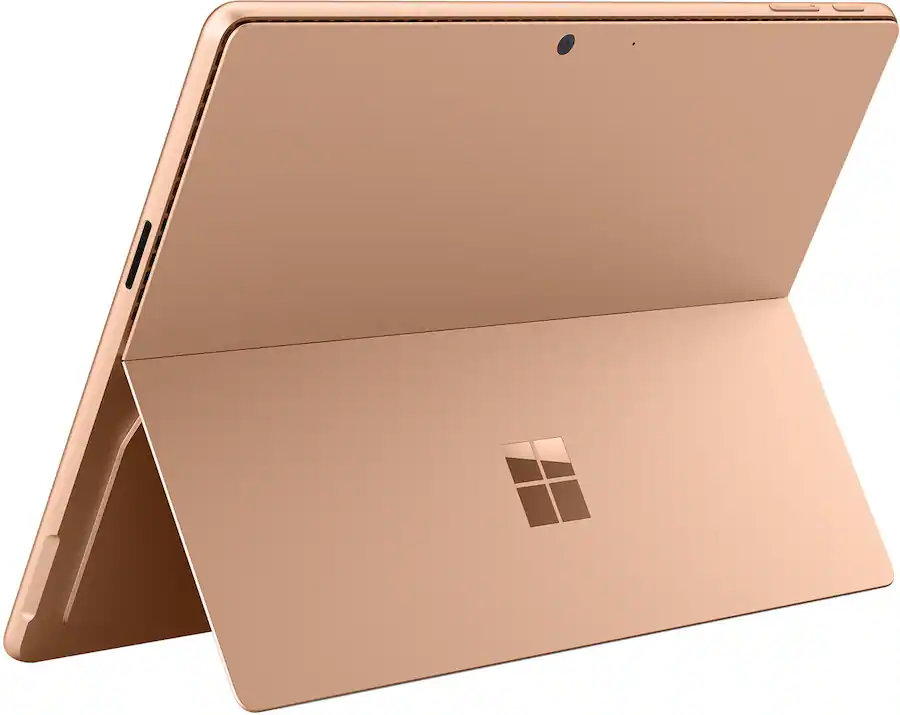
This is the Goldilocks model of the Surface Pro, balancing high-end specs like an OLED screen with value for money. At $300 off, it has the highest discount available through Best Buy. Its Dune color is stunning as well and a personal favorite.

👉 See at Best BuyView Deal

CPU: Snapdragon X2 Elite
GPU: Qualcomm Adreno
RAM: 16GB
SSD: 512GB

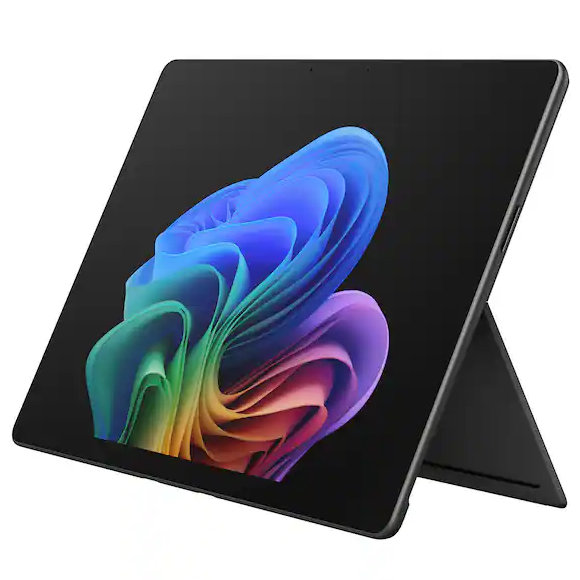
This Surface Pro has all the same specs as the Dune model highlighted above, but in a sleek black color.

👉 See at Best BuyView Deal

CPU: Snapdragon X2 Plus
GPU: Qualcomm Adreno
RAM: 16GB
SSD: 512GB

If you love the form factor of the Surface Pro but don't need the Snapdragon X2 Elite, this model is a great bargain that still features plenty of storage and RAM.

👉 See at AmazonView Deal

CPU: Snapdragon X2 Plus
GPU: Qualcomm Adreno
RAM: 16GB
SSD: 256GB

This is the most affordable Surface Pro you can grab. Its Snapdragon X2 Plus delivers snappy performance for everyday computing and you still get 16GB of RAM. Just be aware that it has only 256GB of storage.

👉 See at Best BuyView Deal

The biggest perk here is wireless functionality. You can detach the keyboard and type comfortably while keeping the tablet propped up at eye level, which is a lifesaver on cramped desks or airplane trays.

👉 See at Best BuyView Deal

Click to join us on r/WindowsCentral

Join us on Reddit at r/WindowsCentral to share your insights and discuss our latest news, reviews, and more.

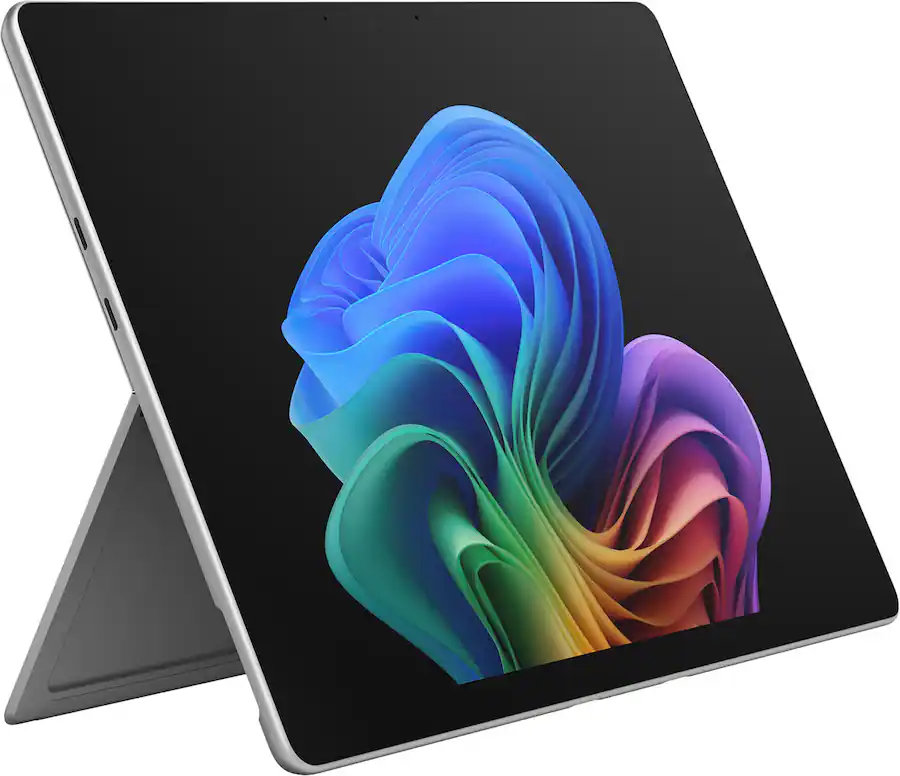
Microsoft's Surface Pro 12-inch 1st Edition (2025) powered by Qualcomm Snapdragon X Plus processor.

Microsoft's Surface Pro 12-inch 1st Edition (2025) powered by Qualcomm Snapdragon X Plus processor.

  •  

I still use Microsoft To Do — and I'm hoping one of my favorite daily Windows apps can avoid the graveyard of forgotten software

I'm a big fan of Windows apps that launch quickly and get straight to the point without draining too much of my PC's memory. It might seem like a redundant preference, but when some of Microsoft's most basic software becomes oversaturated with unusual features, like AI writing tools in Notepad (which were later scaled back), performance can feel like an afterthought.

Plus, Windows 11 is regularly under fire for its more unpopular changes and additions, while some genuinely useful inclusions are often overlooked. Even so, it's not like Microsoft To Do is the best in its class, because it really isn't. Plenty of enthusiasts would likely point me towards something like Todoist rather than Microsoft's restructured version of what was Wunderlist.

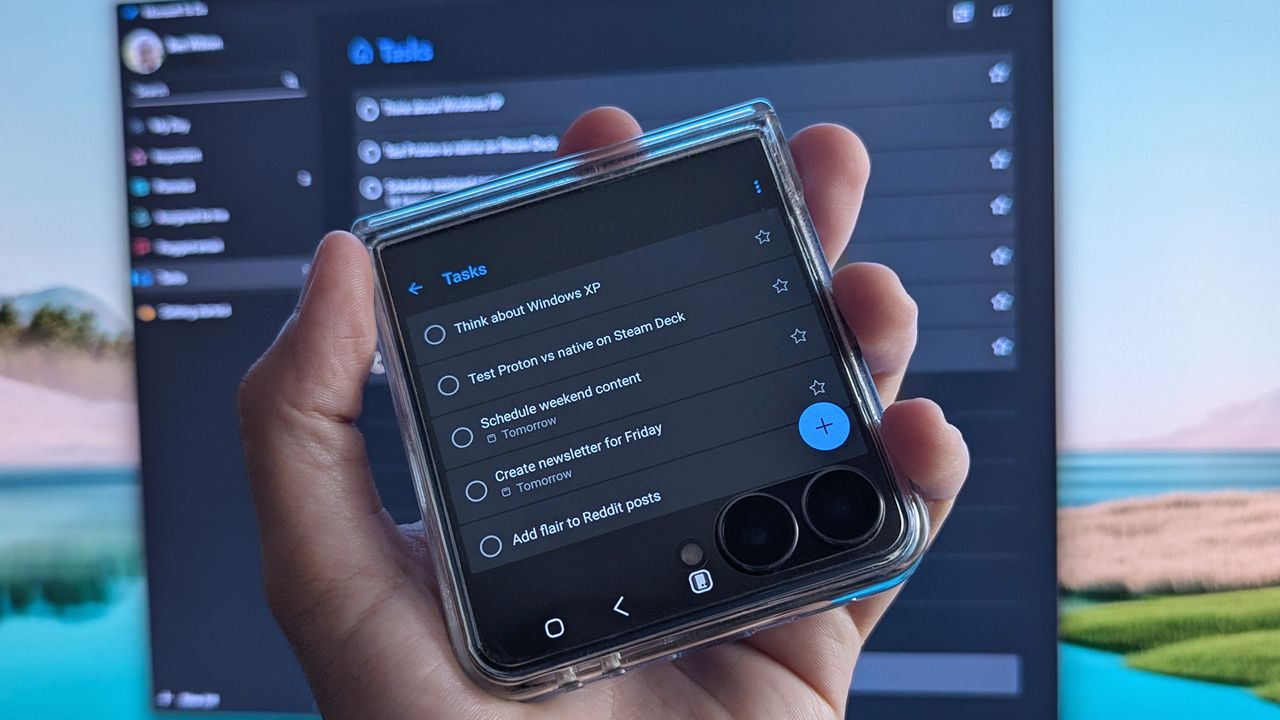
However, there's nothing inherently wrong with To Do, either. It's lightweight and runs on all my PCs — even my Android phone — with a functional widget I can add to the cover screen of my Samsung Galaxy Z Flip 7 for glanceable reminders. It pulls hints from natural language to set due dates and, more importantly, helps me remember everything in my daily workflow.

I make Microsoft's to-do list work for me

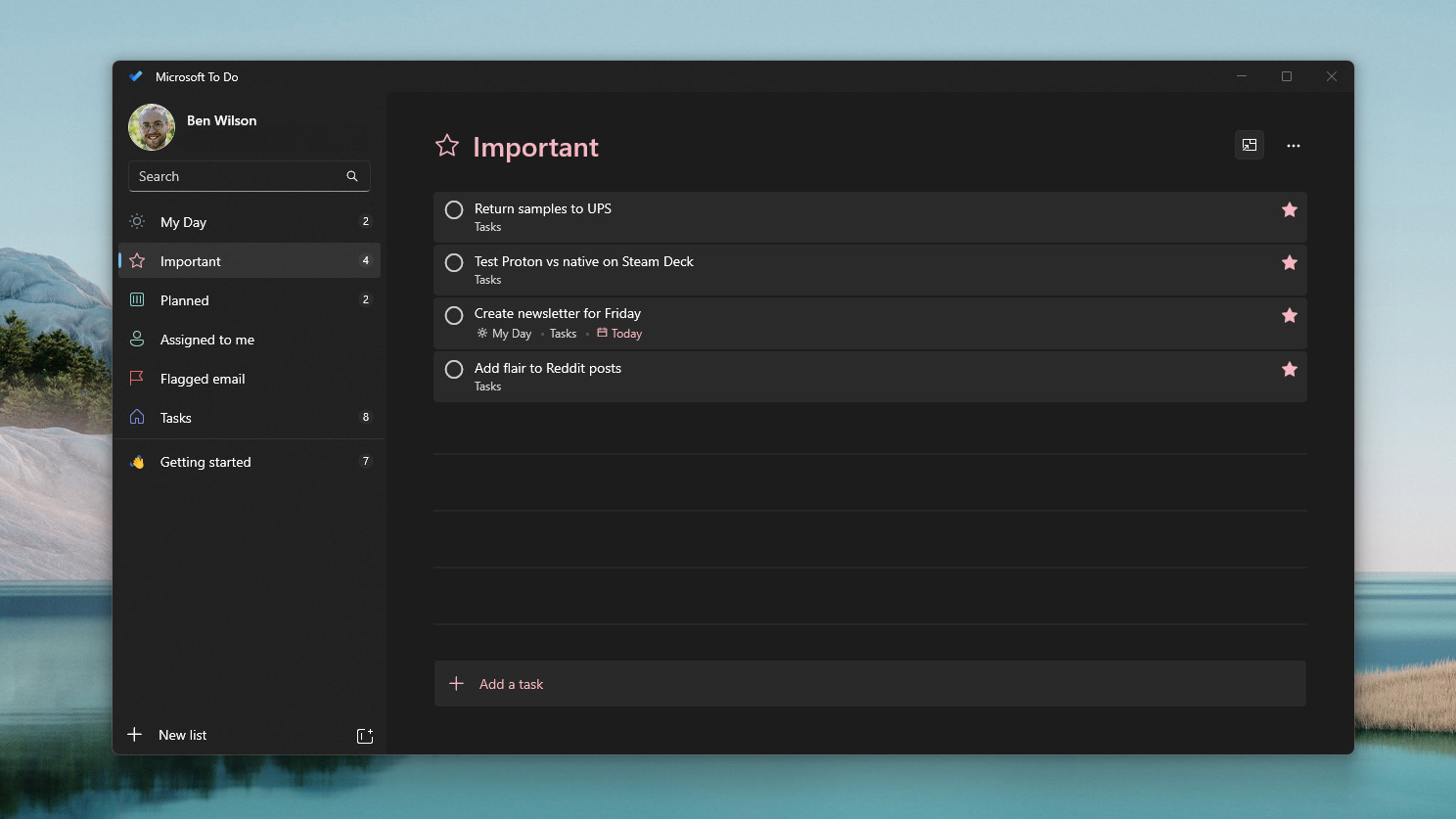
Microsoft To Do app running on Windows 11 with Important tasks highlighted

I could opt for deeper synchronization with my Outlook account, but To Do offers enough to me with just a simple list. (Image credit: Ben Wilson | Windows Central)

I find that a to-do list can either make my day much more manageable by breaking it into chunks, or it can freeze up my brain when I look at a daunting list of deadlines. It all depends on how you use it, but I've certainly found it helps me keep track of recurring tasks that pop up every day. Plus, the little 'ping' sound that plays when I mark a task as complete delivers a nice hit of serotonin.

However, part of the reason I keep Microsoft's own offering around is that it syncs so naturally across my devices. Again, there are probably third-party apps that deliver the same experience — perhaps something even better — but I'm not trying to overcomplicate a list of daily tasks. That, and my brain thinks differently as soon as I walk away from the computer, so reminders really work.

The future of Microsoft To Do seems to have two potential outcomes, though one of them is far more likely than the other. First, it could eventually be abandoned. Microsoft still has the Windows 10 icon on the app's download page, so it's hardly treated as cutting-edge among its portfolio, and its plot in the Microsoft Graveyard might already be reserved.

I just want a chance to be heard by the right person at Microsoft and let them know that their in-house apps are still appreciated.

Second, it goes the way of Microsoft Whiteboard and is absorbed into Microsoft 365, potentially renamed or adapted entirely as a feature in another app. This one feels less likely because it doesn't offer much collaborative substance to lock behind a paywall, but stranger things have happened. I'm trying to remain optimistic, but there's a small chance To Do transforms into something else.

Ultimately, this feels like the same trend as when I recently praised accessible gaming efforts with the XBOX Adaptive Joystick; I just want a chance to be heard by the right person at Microsoft and let them know that their in-house apps are still appreciated — at least when they're done right — and I'll happily use them despite there being alternatives out there.

Click to join us on r/WindowsCentral

Join us on Reddit at r/WindowsCentral to share your insights and discuss our latest news, reviews, and more.

Samsung Galaxy Z Flip 7 smartphone cover screen showing Microsoft To Do app with listed tasks and the Windows equivalent in the background displayed on a PC monitor

Walking away from my PC can be like emptying my brain's Recycle Bin, but keeping Microsoft To Do on my phone helps me stay on track.

  •  

Windows Hello vs. Enhanced Sign‑in Security: Which sign‑in method actually keeps your Windows 11 PC safer, and what's the difference?

Microsoft is expanding one of the least understood security features in Windows 11. Beginning with the August 2026 update, Enhanced Sign-in Security (ESS) now supports compatible external fingerprint readers, extending the company's most secure Windows Hello experience to devices without built-in biometric hardware.

The timing couldn't be better because Enhanced Sign-in Security has confused users ever since Microsoft introduced it. Some users assume it's simply a newer version of Windows Hello, while others think it's reserved for businesses or Copilot+ PCs.

The reality is that Windows Hello and Windows Hello Enhanced Sign-in Security use the same sign-in experience, but they protect your biometric data in different ways.

After spending time digging through Microsoft's support page, I think that's the distinction most explanations miss. Enhanced Sign-in Security isn't about making facial recognition more accurate or fingerprint sign-in faster. It's about making the entire authentication process harder to attack.

Standard Windows Hello is already one of the best security features

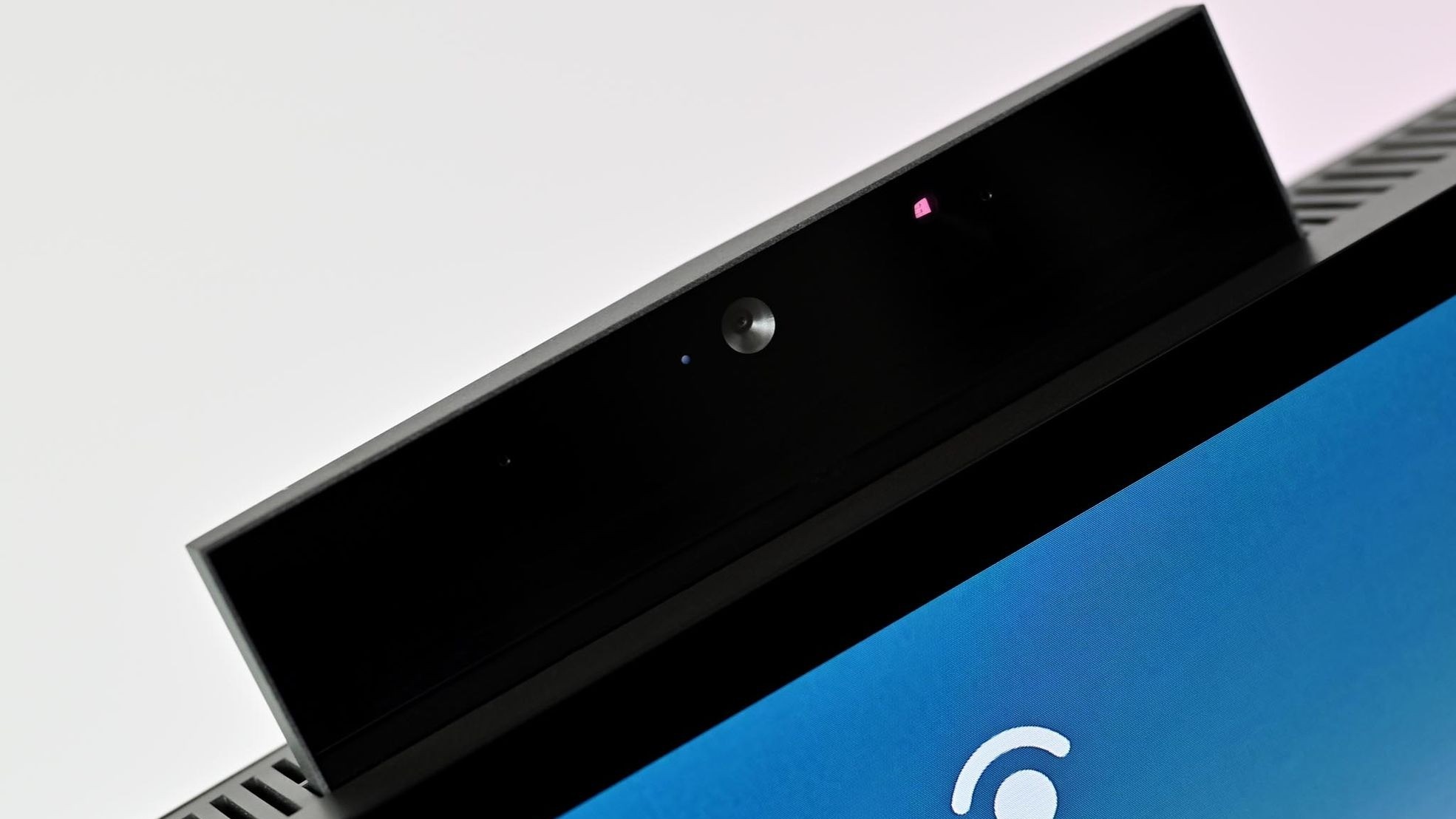
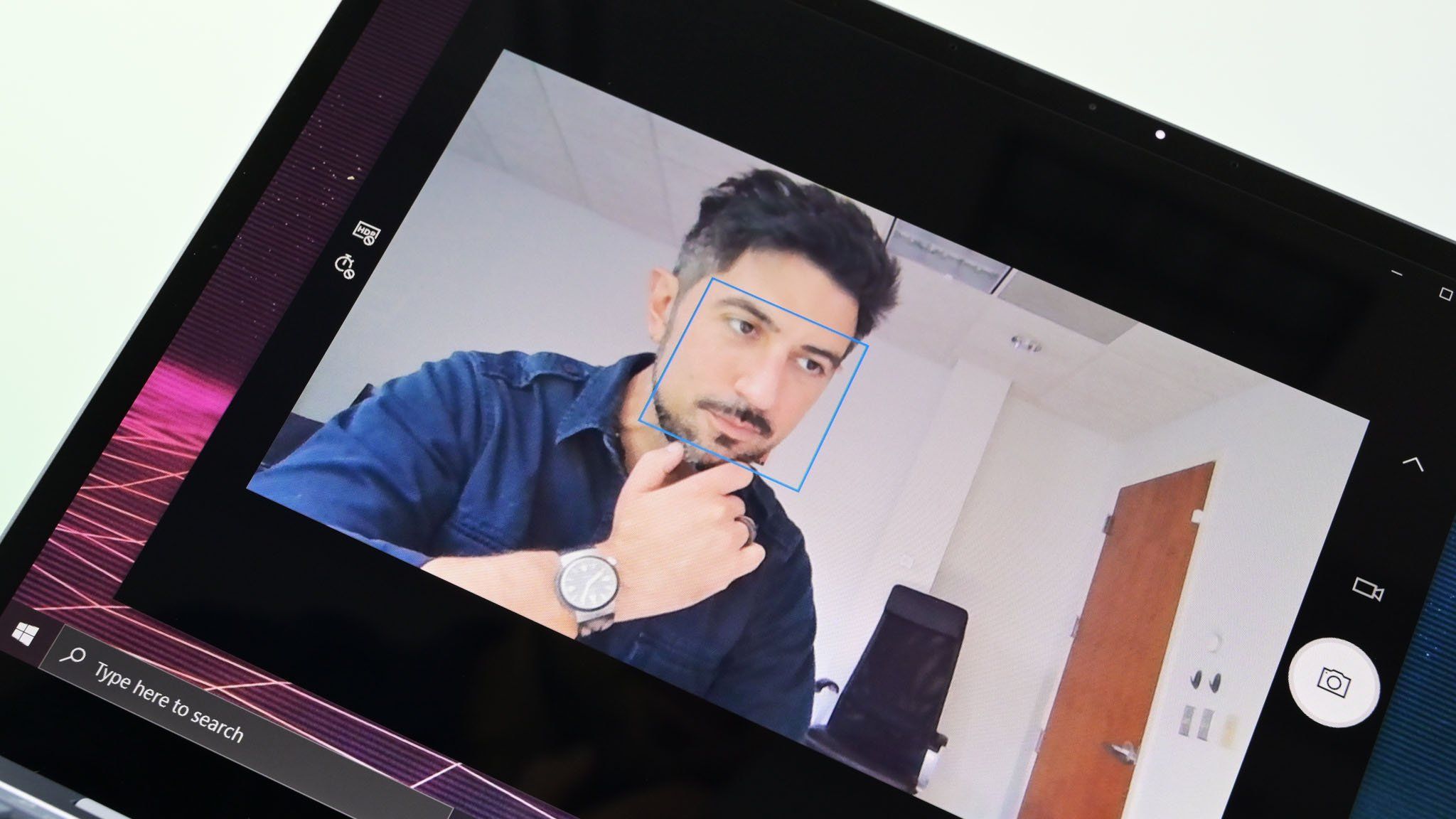
An HP ENVY 32 All-in-One PC with its webcam popped up and its display showing the prompt for Windows Hello login.

A pop-up webcam in a Windows all-in-one PC that also supports Windows Hello facial recognition. (Image credit: Future)

Before the Enhanced Sign-in Security feature was introduced, Windows Hello had already replaced passwords with a much stronger authentication model.

Instead of storing passwords that can be stolen or reused, Windows Hello creates cryptographic credentials that are attached to the Trusted Platform Module (TPM) available on your computer. Facial recognition and fingerprints are used only to unlock those credentials, and your biometric templates remain on the device rather than being uploaded to Microsoft's servers.

For the average home user, that already provides excellent protection against phishing, password reuse, and stolen credentials.

The Enhanced Sign-in Security feature doesn't replace the architecture already in place. Instead, it builds another layer on top of it.

The real difference is where the trust is placed

This is where the comparison becomes interesting. Using the standard Windows Hello, the operating system relies on the system to process biometric authentication after receiving data from the trusted sensor. Enhanced Sign-in Security moves much of that work into isolated, hardware-protected environments.

When using the Enhanced Sign-in Security feature, Microsoft improves that trust. Instead of allowing sensitive biometric operations to occur in the normal Windows environment, the feature isolates them using Virtualization-Based Security (VBS) and Trusted Platform Module (TPM) 2.0 technology.

The algorithms for facial recognition run in a protected memory region, secure fingerprint readers perform matching within the hardware itself, and communication between the biometric sensor and the operating system is encrypted and isolated.

In other words, Windows Hello protects your credentials, and Windows Hello Enhanced Sign-in Security protects both your credentials and the path your biometric data takes before Windows 11 authenticates you.

Fingerprints show the biggest difference

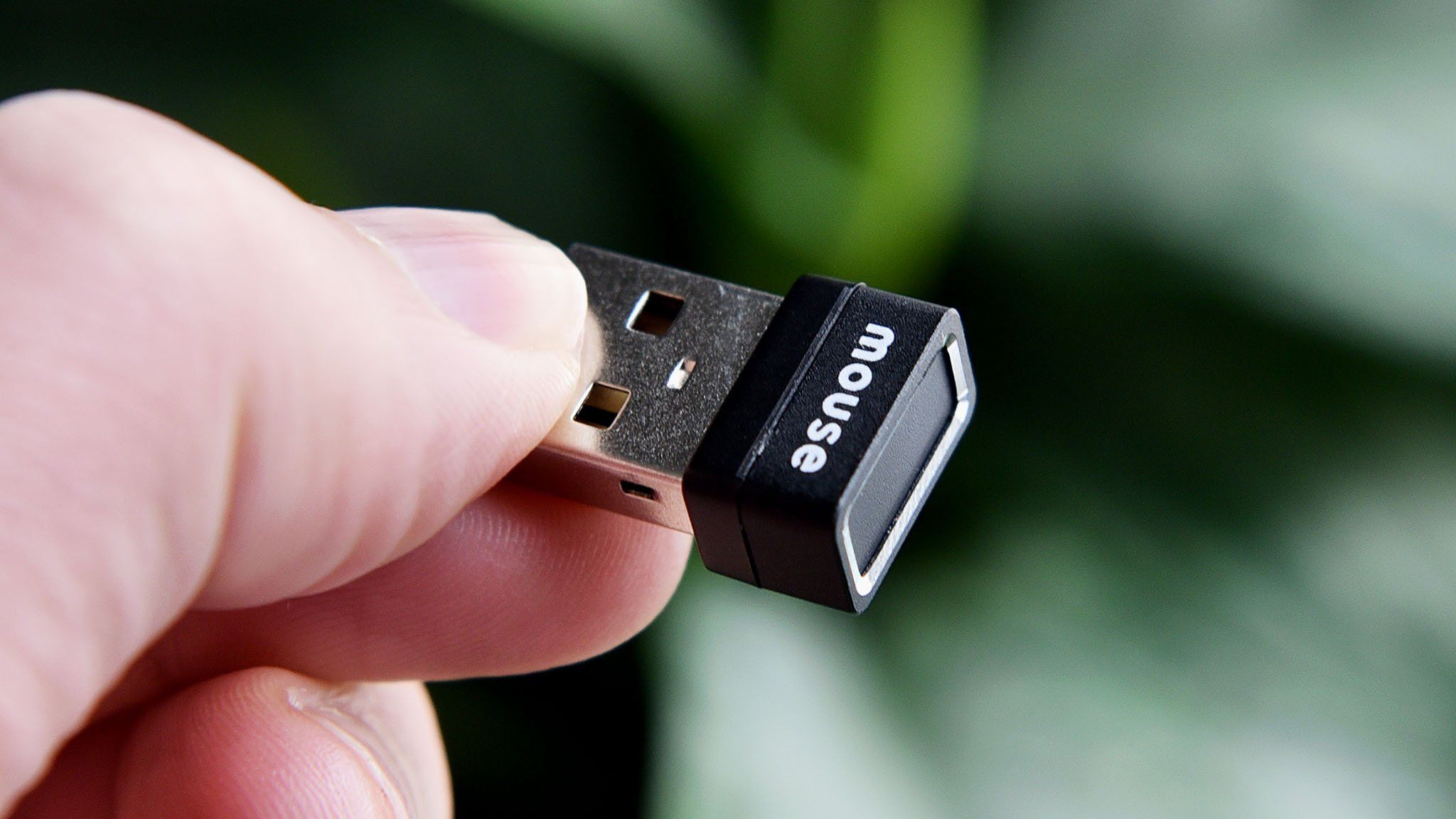
Mouse Fingerprint reader

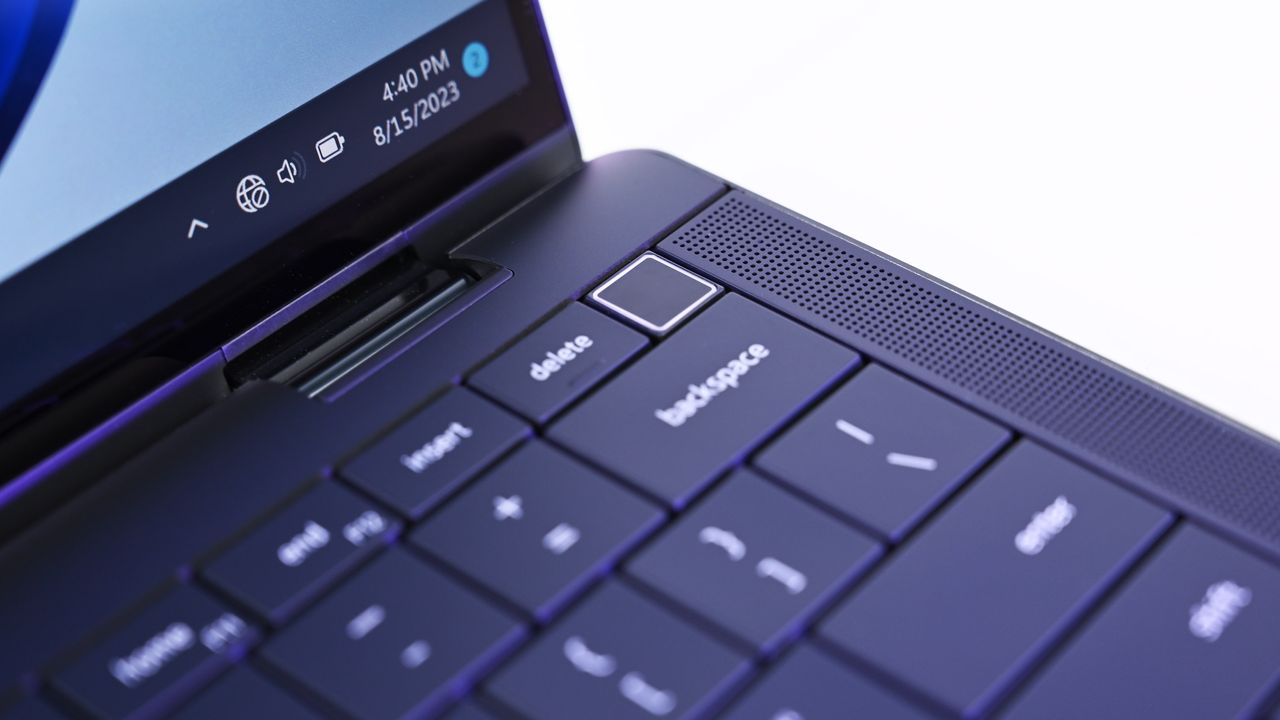
An example of an external fingerprint reader for Windows Hello and Windows PCs.

The August 2026 Security Update highlights the biggest architectural difference between standard Windows Hello and Enhanced Sign-in Security.

Using a standard Windows Hello fingerprint reader, the sensor captures your fingerprint, and Windows 11 verifies it securely using the operating system and TPM-backed credentials.

An ESS-compatible fingerprint reader moves more of that process into the hardware itself. These readers include a dedicated secure processor, store fingerprint templates inside the device, contain a Microsoft-issued certificate that proves they're trusted hardware, and establish an encrypted communication channel with the operating system. Instead of receiving raw biometric data, Windows 11 receives only the authentication result.

Microsoft hasn't explained why ESS still doesn't support external Windows Hello cameras (likely because USB can be a vector for attack). However, its support page shows that enhanced security for facial recognition relies on specific camera hardware, firmware, and protected memory through Virtualization-Based Security (VBS), whereas ESS fingerprint readers can perform biometric matching inside certified hardware. That architectural difference may explain why Microsoft expanded support for external fingerprint readers first.

The practical benefit is a smaller attack surface. In simple terms, even if malware gains elevated privileges, it has fewer ways to interfere with the biometric authentication process.

Should you enable Enhanced Sign-in Security?

If your computer doesn't support Enhanced Sign-in Security, there's no reason to worry. The standard security of Windows Hello remains one of the strongest consumer authentication systems available, and it's already a significant upgrade over passwords.

However, if your device includes Enhanced Sign-in Security-compatible hardware, or you're planning to buy a new external fingerprint reader that supports the feature, I'd recommend enabling it and leaving it on.

Not because Windows Hello suddenly became insecure, but because the enhanced option can add an extra layer of security. If your hardware supports it, there's little downside to leaving it enabled.

How to enable the enhanced security feature

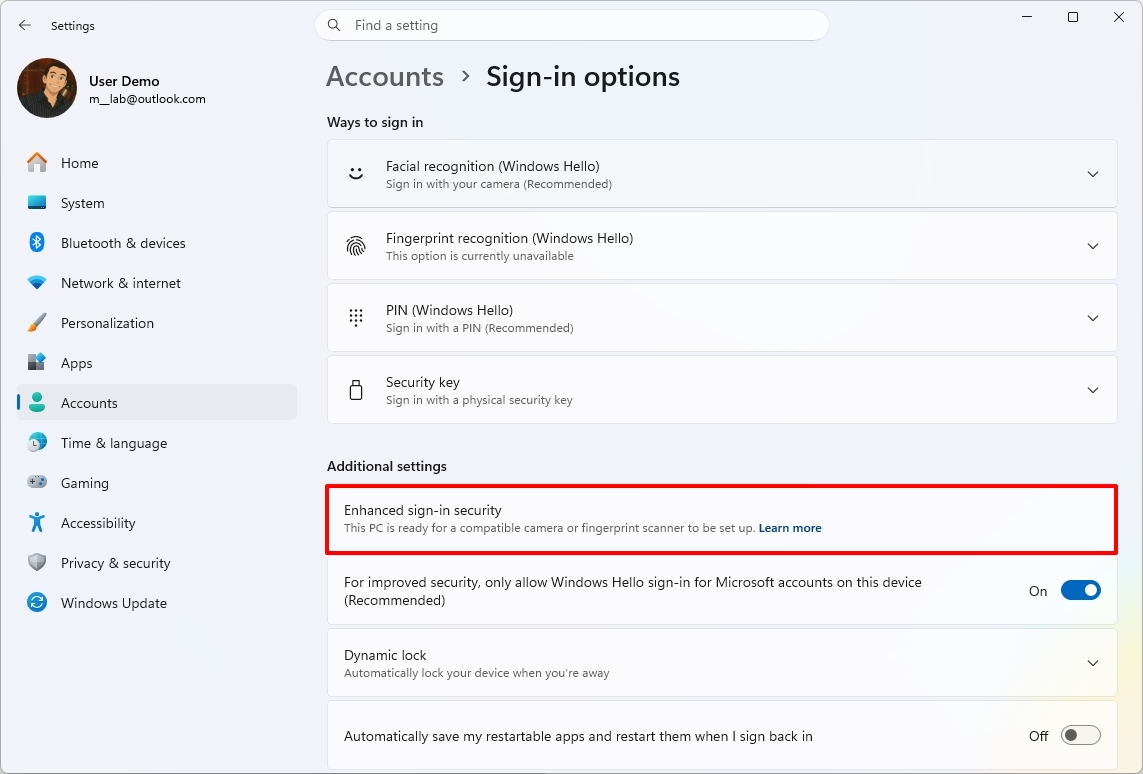
If the feature is available for your Windows Hello-compatible authentication device, you can enable it by going to Settings > Accounts > Sign-in options.

Once the USB fingerprint reader is connected and recognized by the operating system, on this page, under the "Additional settings" section, check the state of the "Enhanced sign-in security" setting.

If your system wasn't previously running ESS, you may see a prompt showing "Pending set up" or "Update PIN."

Windows 11 Settings app highlighting the  Enhanced Sign-in Security setting.

(Image credit: Mauro Huculak)

If the "Update PIN" option shows up, use it to complete the setup. On the other hand, if you see the "Pending set up" option, then configure the "Fingerprint recognition" feature under the "Ways to sign in" section.

One important note. When upgrading your system to Enhanced Sign-in Security, Windows 11 will remove any existing non-ESS biometric enrollments and associated credentials to ensure a clean, secure environment. You will need to refresh your PIN and register your fingerprints again using the new sensor. Once complete, the ESS toggle will show as enabled.

Also, while the feature is turned on, you won't be able to use peripherals that do not support the security feature.

Windows Central's Take

Surface Laptop Go Camera

Windows Hello, web cam, and the Surface Pro PC. (Image credit: Daniel Rubino / Windows Central)

Microsoft hasn't done itself any favors with the name "Enhanced Sign-in Security." It sounds like an entirely new authentication system, when in reality it's an evolution of Windows Hello that strengthens how biometric authentication is processed behind the scenes. A lot of users will never notice the difference because the sign-in experience is exactly the same.

What makes the August 2026 Security Update important isn't that Windows Hello suddenly became more secure, as the standard Windows Hello has long been one of the strongest authentication systems available on consumer devices. The real significance is that the company is lifting the limitations by adding support for compatible external fingerprint readers.

If your computer already supports Enhanced Sign-in Security, I'd leave it enabled. If it doesn't, I wouldn't replace perfectly good hardware to get the feature because standard Windows Hello is already an excellent authentication system. However, if you're buying a new fingerprint reader for your computer, choosing an Enhanced Sign-in Security-compatible model is the better long-term investment since Microsoft is clearly expanding support for that ecosystem.

Do you think Enhanced Sign-in Security is worth using, or is standard Windows Hello already enough for your needs? Let me know in the comments.

More resources

Explore more in-depth how-to guides, troubleshooting advice, and essential tips to get the most out of Windows 11 and 10. Start browsing here:

Click to join us on r/WindowsCentral

Join us on Reddit at r/WindowsCentral to share your insights and discuss our latest news, reviews, and more.

Dell Latitude 9440 2-in-1

Dell Latitude 9440 2-in-1

  •  

Poll: How do you feel about Microsoft's "improvements" to Windows 11?

My mom hated Windows 8. That's an understatement; she despised it. Like so many others who had grown used to the Start menu and general interface of previous versions, Windows 8 came as a jarring change to my mom.

But a funny thing happened when Windows 10 came out; my mom was reluctant to upgrade. Despite hating Windows 8 and Windows 8.1, she had grown used to them and made them fit her workflow. Having to relearn yet another interface was extra work that my mom was slow to sign up for.

She eventually upgraded to Windows 10 and later Windows 11, but her experience and her frustrations were not unique. Sometimes the enemy you know is better than the one you don't, even if you got to know that enemy begrudingly.

So, what does this have to do with Windows 11? Windows 11's upcoming Patch Tuesday update has a feature that I believe will elicit a similar reaction to my mom being presented with Windows 10.

Starting next month, Windows 11's File Explorer will show file sizes using the appropriate units (KB, MB, and GB). That means you'll no longer see a file that's 1,500,000 KB. Instead, you'll see that file listed as 1.5GB.

I believe many will see this change as an improvement. Dealing with millions of KB can be awkward, especially when other parts of Windows use different units. But part of me would love the option to keep everything in KB.

Because File Explorer has stuck with KB for so long, I've gotten used to scanning file sizes based on how many digits they are. After next month's update, I could have a file that's 400KB right between files that are 400MB. While the larger files would be clearly labeled, I've learned to expect files listed in KB after years of use, so there will be a learning curve.

I'm curious how people feel about these types of changes. Do you embrace what Microsoft deems an improvement to Windows 11, or are you frustrated with a feature or layout you're familiar with being changed?

Microsoft could always keep options for legacy features and new options, but if that happens for decades, you end up with a bloated OS. Take a look at the soon-to-be revamped context menus of Windows 11 if you want to see what years of tacking things on does to an operating system.

Click to join us on r/WindowsCentral

Join us on Reddit at r/WindowsCentral to share your insights and discuss our latest news, reviews, and more.

File Explorer from Windows 11

File Explorer from Windows 11

  •  

Microsoft confirms it will make Windows 11 run better on PCs with 8GB RAM: Promises continued focus on fixing Windows' biggest issues this year

Windows chief Pavan Davuluri has posted an article on X today that outlines the journey Microsoft has taken so far to fix and improve Windows 11. Since March, the company has been laser focused on addressing Windows 11's biggest issues, delivering many new features and changes that are designed to improve the reputation and experiences around Windows.

While that work is still ongoing, Davuluri has now outlined four new areas of focus that Microsoft will be working on for Windows 11 between now and the end of the year:

  • Onboarding and setup. Delivering a faster and more efficient out-of-box experience.
  • Memory optimization for 8GB and above. Reducing Windows memory footprint to deliver a fast and responsive Windows experience across the PCs customers use every day.
  • Family. Providing a faster set up and making it easier for families to access useful parental controls.
  • Voice. Making voice more natural and fluid to interact across the apps you use every day.

Microsoft has confirmed that it's planning to improve Windows 11 so that it runs better on PCs with just 8GB of RAM. MacBook Neo took the world by storm earlier this year, and while Windows OEMs have since stepped up to offer better value for money, Windows itself is still quite heavy on these limited memory devices.

The company is now working to reduce Windows 11's memory footprint, ensuring that the OS feels fast and responsive even on 8GB RAM. It's yet to dive into how it's planning to make these changes, but it's likely related to how the company is moving more areas of the Windows UI to WinUI, which is lighter than WebView.

"We're going to take everything we've learned since March and keep listening and closing the loop on your feedback. The signal from you is clear: keep going. We intend to," says Davuluri.

Additionally, Microsoft has confirmed that it's rethinking the Windows out of box experience, with a new faster and more efficient set up experience in the works that will make booting up a new PC for the first time seamless and straight forward.

The other two areas of focus are Family and Voice. The company says it's working to deliver new Family Safety features across the OS, including enhanced parental control setup and more.

Voice is the final area of focus. Microsoft is on record as stating the future of computing will be one that is multi-modal, with voice acting as a primary input method alongside the keyboard and mouse. The company intends to make voice input more natural and fluid across the OS and apps you use.

Microsoft is clearly very proud of the work it has done so far this year to fix Windows 11. Compared to late last year, Windows 11 is in a very different spot. The company has delivered genuinely meaningful improvements and changes that are already impacting the OS for the better, and it sounds like there's more to come soon.

Click to join us on r/WindowsCentral

Join us on Reddit at r/WindowsCentral to share your insights and discuss our latest news, reviews, and more.

Windows 11

Windows 11

  •  

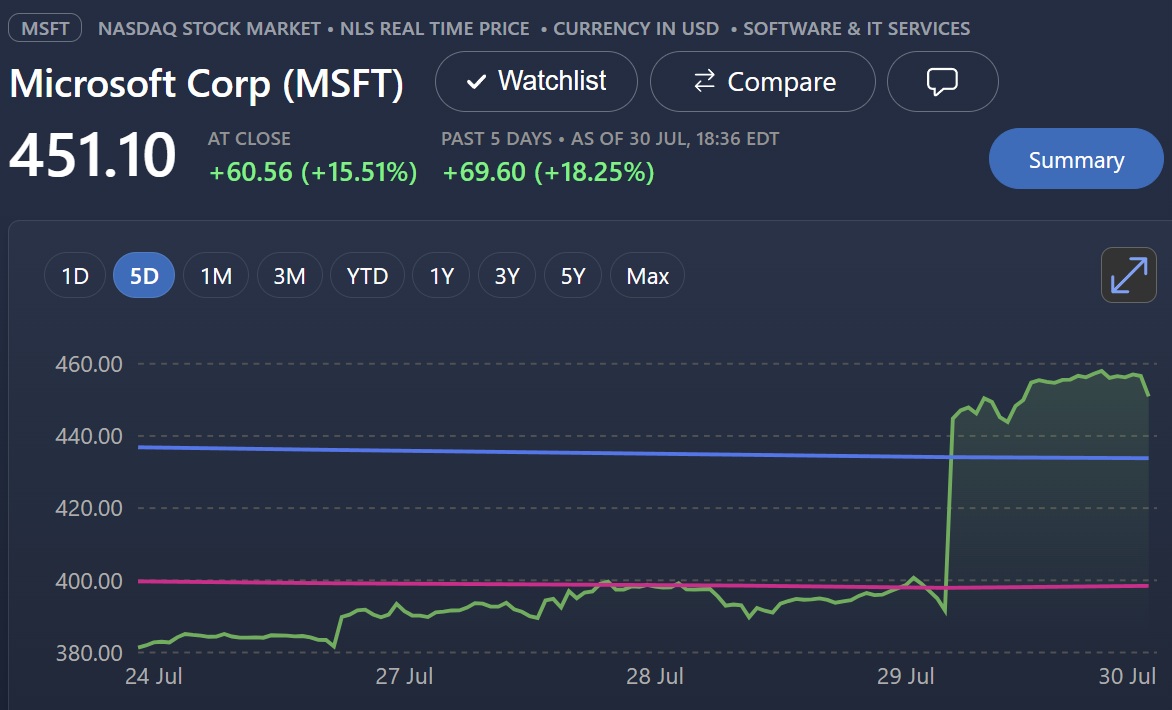
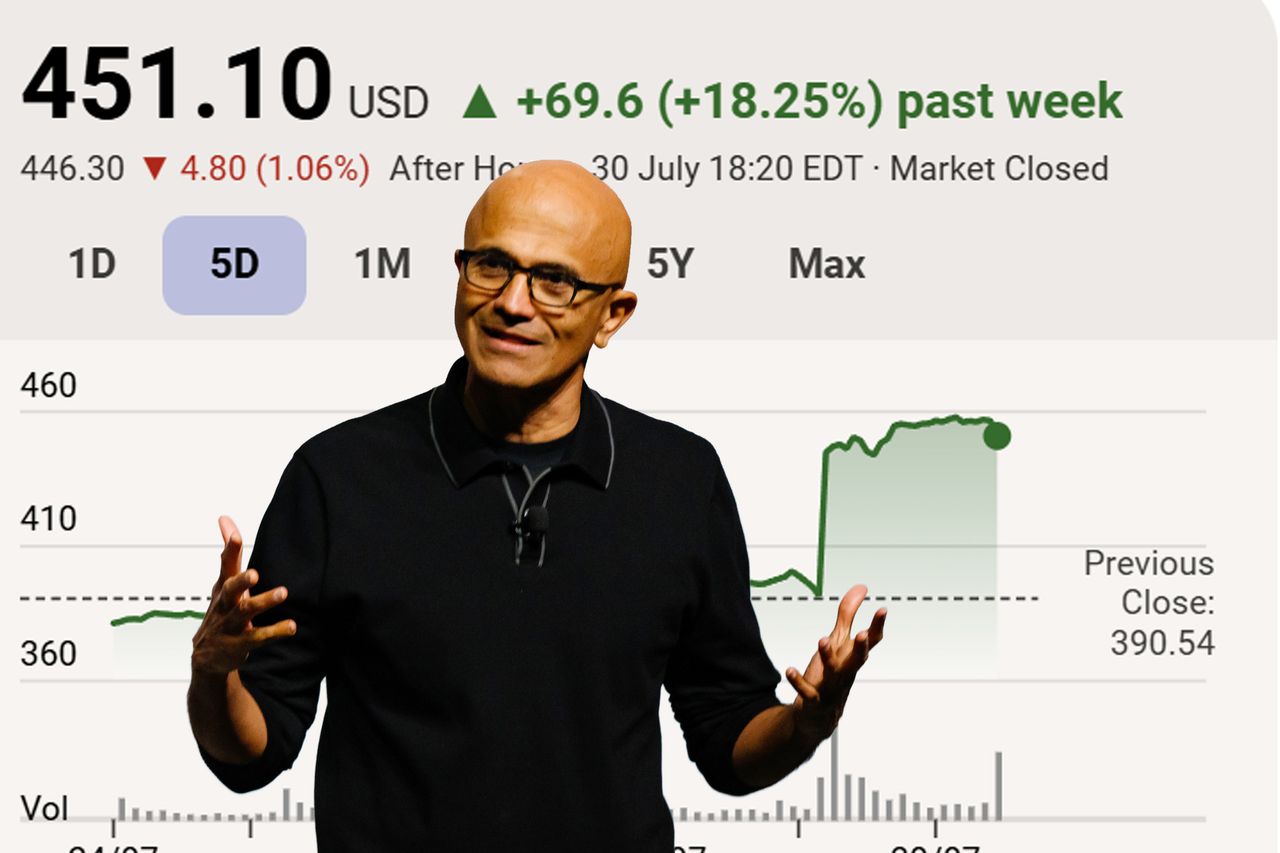
Microsoft stock price rips on earnings, jumping a 'record breaking' 18% in a week — Wall Street *really* liked Microsoft's earnings

Microsoft's stock price has seen a huge spike upwards as a result of its FY26 earnings report, which outstripped expectations by a considerable margin.

While Xbox and Windows were down 4% overall, with Xbox specifically down 11%. But these consumer-facing businesses are not what moves Microsoft's stock price in 2026. The core of Microsoft's operation, essentially Azure and AI, is vastly beating expectations.

Microsoft's stock has seen declines over the past year as investors worried the company was over-extending on its AI build out. Google has seen some volatility as its cash flows flipped negative — a historic first for the firm, as it continues to race to build out its AI stack.

Microsoft has also seen similar fears, but the FY26 report showed its Azure AI delivery is actually accelerating growth — and not just capital expenditure.

CEO Satya Nadella is positioning Microsoft's AI as a more "efficient" option over competitors, as cost increasingly drives conversations around the tech. OpenAI and Anthropic's assistants win out in benchmarks, but are orders of magnitude more expensive than Microsoft's home-grown models, as well as Chinese incumbents. Nadella stated to investors that Microsoft's home-grown chips and models are driving up to "40%" efficiency gains, beating out its previous reliance on OpenAI's ChatGPT.

Microsoft stock price jumps 18% in a single week, setting a record

Microsoft's market cap jumped $450 billion in a single day, setting a new world record. (Image credit: MSN Money)

Microsoft's overall revenue increased 18% YoY, to an insane $90 billion, its operating income hit $40.6 billion, up 18%, and Azure saw growth hit 45%, beating expectations by 5%. Microsoft 365 Copilot hit 30 million paid seats, up 20 million since the Spring. Microsoft also reported a pretty staggering 84% YoY increase in contracted AI revenue, which now represents an eye-watering $678 billion demand backlog.

Despite committing almost $116 billion in capital expenditure the past year, Microsoft still managed to keep operating cash flows positive to the tune of $55 billion, a 30% jump. Its free cash flow was down YoY to $19.64 billion, but still beat out expectations.

It's the type of fiscal discipline Wall Street really likes, and they rewarded Microsoft with a record-breaking stock rip. Microsoft's market capitalization increased by $450 billion in a single day, beating out a previous world record set by NVIDIA.

Increasingly it seems like the AI business is coalescing around a small handful of companies, namely Microsoft and Google. Meta has seen its stock price take a beating this past year, as investors fear it has fallen too far behind to keep up.

Great stock gains in the short term ... but questions remain

Microsoft Azure is being displayed on a smartphone with a Windows blue screen visible in the background

Azure is making investors very happy, but how happy will they be if AI literally destroys society? (Image credit: Getty Images | NurPhoto)

Perhaps philosophically, there's still a pretty large question mark hanging over the AI build out. Socially, data centers have become increasingly unpopular, owing to their vast negative impact on local communities, in terms of both noise and electricity prices. Indeed, AI data centers are also massive carbon emitters, and the benefit to society in general remains fairly unclear. Many of the lofty promises from the likes of OpenAI's Sam Altman have failed to materialize in real terms, and there's still a big discrepancy over how it could impact the global economy, and the social contract in general.

If AI puts millions, or billions even out of work, that'll simply create a consumption and productivity bottle neck that no amount of AI data centers could feasibly close. Microsoft itself has laid off thousands of workers this year, and will likely lay off many thousands more next year too. Microsoft and other big tech companies seemingly have no answer for this.

In the short term, investors stand to make a lot of money. But ... umm, will the AI build out actually be good for humanity in the long term? Does anyone actually care? I guess that's not something that tech billionaires worry themselves thinking about too much, eh?

Click to join us on r/WindowsCentral

Join us on Reddit at r/WindowsCentral to share your insights and discuss our latest news, reviews, and more.

Microsoft CEO Satya Nadella with a stock price rally background

Microsoft stock jumps an enormous 18% in a single week on earnings, beating expectations.

  •  

Microsoft plans to fix Windows 11's slow context menus with major overhaul designed to improve performance and reliability: New compact menu design will be faster and user customizable

Windows Central

Microsoft is working on a major overhaul to the context menu system on Windows 11 that is designed to fix performance and reliability issues by allowing users to customize what appears within the right-click menu across the system. The company is also working on a new compact menu design that will be faster to open and interact with.

One of Windows 11's more frustrating problems currently is how cluttered the modern context menus have become. Since Windows 11's debut, context menus have become bloated and overburdened by apps and actions from both Microsoft and third-party developers, which can add themselves into the context menu without user input.

This has resulted in the context menu being very slow to initiate, often taking a second or two to appear when the user right-clicks in File Explorer on a system with many apps installed and actions available. According to sources familiar with Microsoft's plans, the company is working on a new compact context menu design to fix this, that prioritizes the most common actions above everything else.

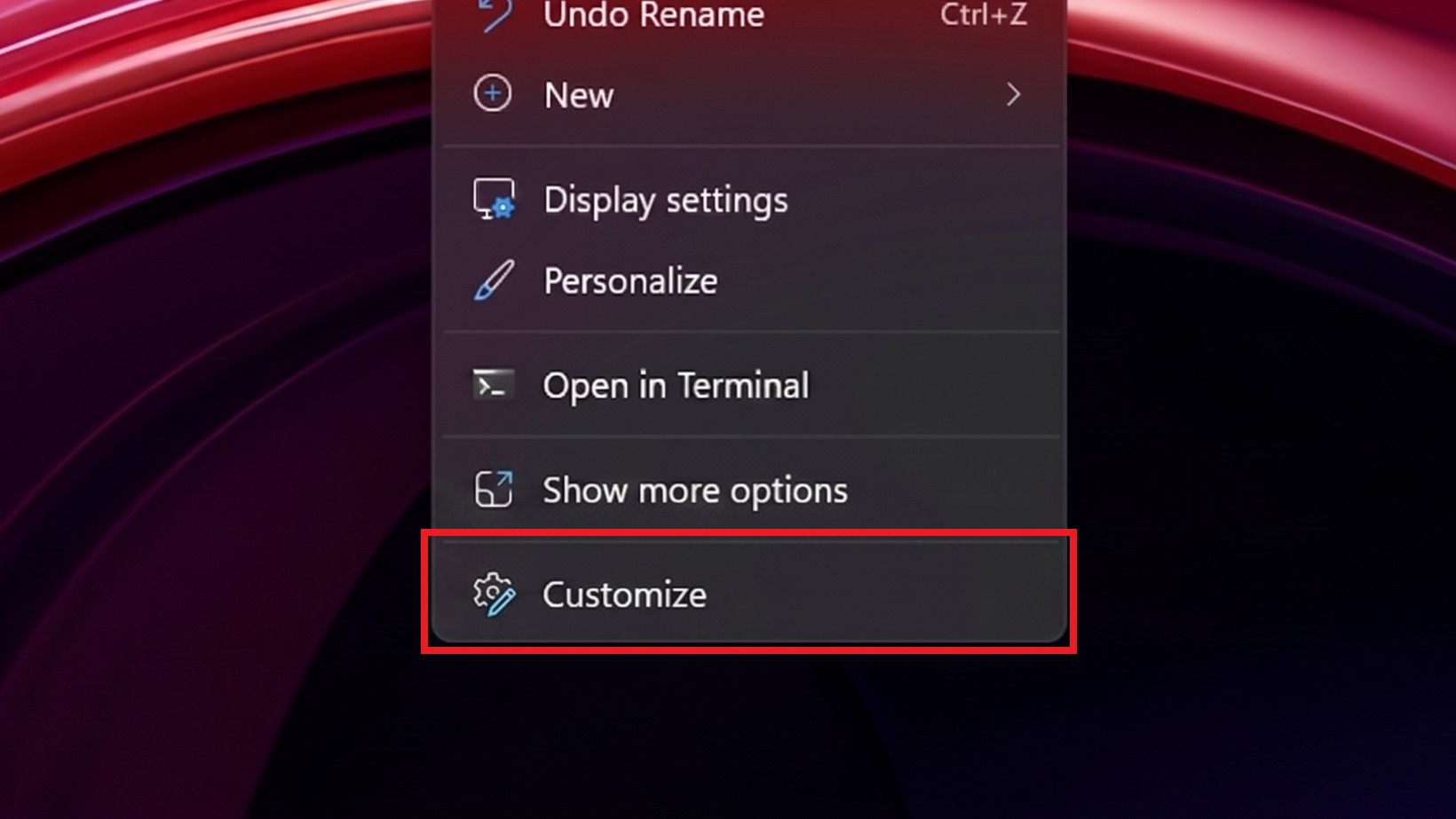
This new compact menu will be much faster and more reliable, as it foregoes needing to load in all the third-party actions that slow it down currently. Additionally, at the Windows Insider Meetup in London, Microsoft showed me a new context menu customization feature coming soon that will let users configure what apps and actions appear in the right-click menu.

Windows 11 customize context menu option

The option to customize the context menu will be added. (mockup) (Image credit: Windows Central)

Users will be able to show and hide actions and apps, as well as change the order in which these actions and apps show within the right-click menu. The menu will include a new "customize" option at the very bottom which can be accessed at any point to begin changing the menu options.

These changes are part of Microsoft's larger effort to fix Windows 11's biggest problems and issues under the Windows K2 initiative, which has been ongoing since last year. The company has confirmed plans to move more areas of the Windows system over to WinUI for consistency and performance reasons, with areas like File Explorer file properties and the Start menu getting the WinUI treatment soon.

Context menus are already powered by WinUI, and these new improvements that are currently in the works are designed to speed up the menus so that they are instantly responsive whenever you right-click within File Explorer, the desktop, or other native Windows UI interfaces.

It's unclear when these context menu updates are set to be announced, but the demo I saw a few weeks back was real working code and relatively polished, so I suspect we'll see an official announcement about these changes in the near future. I expect Microsoft is hoping to get these improvements out the door before the end of the year.

Click to join us on r/WindowsCentral

Join us on Reddit at r/WindowsCentral to share your insights and discuss our latest news, reviews, and more.

Windows 11 context menu

Cluttered context menus will soon be a thing of the past.

  •  

If you’ve spent years hearing Linux is always better, this Windows 11 story might change your mind — it certainly surprised even me

The Windows vs. Linux debate usually starts with the same arguments. Linux users point to freedom, customization, and control. Windows users point to compatibility, software support, and the fact that things generally work without much effort.

However, a recent discussion on Reddit about Windows 11 caught my attention because it challenged one of the biggest assumptions in that debate, which is that anyone with deep Linux experience would automatically reject Windows.

The original poster was not someone casually experimenting with another operating system. He grew up using Linux, started with a Raspberry Pi, spent years using Linux as his primary desktop platform, and understood the Unix ecosystem well. After switching his main device to Windows 11, however, his conclusion was far more balanced than the usual online arguments.

He found that Windows 11 wasn't perfect, but it worked better for his needs. That's probably the biggest takeaway from the discussion. People often choose an operating system based less on personal preference and more on whether it helps them get things done.

A Linux user switched to Windows 11 for practical reasons

Windows 11 Widget2 Razerbook

(Image credit: Daniel Rubino / Windows Central)

On Reddit, the user explained that compatibility with apps like Microsoft Office and Autodesk software played a major role in the switch. While Linux has excellent alternatives and compatibility layers, native support remains one of the biggest advantages.

The user also explained that tools like MSYS2 helped bridge the gap by bringing a more familiar Unix-like environment to Windows 11.

"I like to consider myself a practical person - I'm making this decision based on the os which works for my workflow and the tools I need to use, not based on idealism / dislike for Microsoft's practices," said @Puzzleheaded-Sky2284.

The comment highlights something that often gets lost in operating system debates. A lot of people aren't choosing an operating system to defend a company or community. They choose the platform that best supports their work, and for developers, creators, gamers, and professionals, compatibility often matters more than personal preference.

Windows 11 has improved, but Microsoft remains the controversial part

One of the interesting themes in the discussion was that many users separated Windows 11 itself from Microsoft's decisions around the operating system.

One commenter with professional experience managing Windows environments argued that Microsoft has solved many long-standing problems around fragmentation, updates, and compatibility.

"On good hardware - Windows simply works," @ChampionshipComplex noted.

Unlike operating systems designed for a limited range of hardware, Windows has to support thousands of hardware configurations, countless drivers, and decades of applications. That complexity is messy, but it's also one of the biggest strengths.

Another commenter (@TheTerraKotKun) shared a similar view: "Windows 11 is good OS but Microsoft as a company... I don't think that it's really good."

This may actually represent where many experienced users are today. The complaint is often not that Windows 11 cannot do the job. The complaint is about Microsoft's direction, including advertisements, online account requirements, and increased integration of cloud services and AI.

Critics still have valid complaints about Windows 11

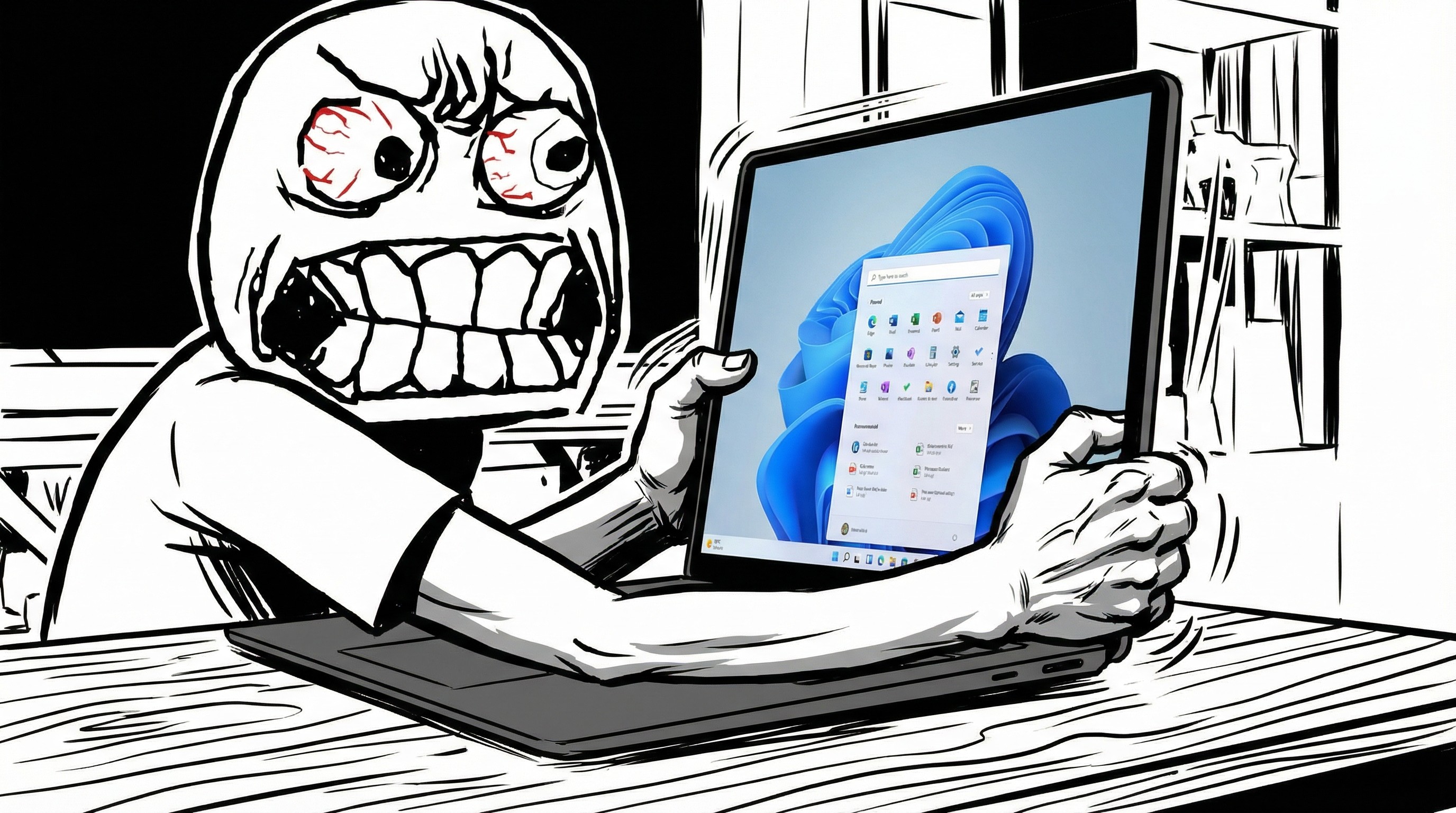
Rage face meme grabbing Surface Laptop with Start menu

(Image credit: Future | Edited with Gemini)

The discussion wasn't entirely positive. Some users argued that Windows 11 still has problems, particularly around resource usage, user control, and Microsoft's approach to the desktop experience.

A common criticism is that Windows has become more focused on promoting Microsoft services instead of remaining a neutral operating system.

One commenter (@Pale-Muscle-7118) explained: "My main problem is not really with the software or OS itself but with Microsoft behind it."

That's an important distinction because Windows 11 can be a capable operating system while Microsoft continues making decisions that many users dislike.

It's also worth noting that Microsoft has acknowledged many of these pain points. Through its Windows K2 initiative, the company has been focusing on improving performance, reliability, and the overall user experience while scaling back some of the interface decisions that have drawn criticism.

Linux still offers something Windows cannot replace

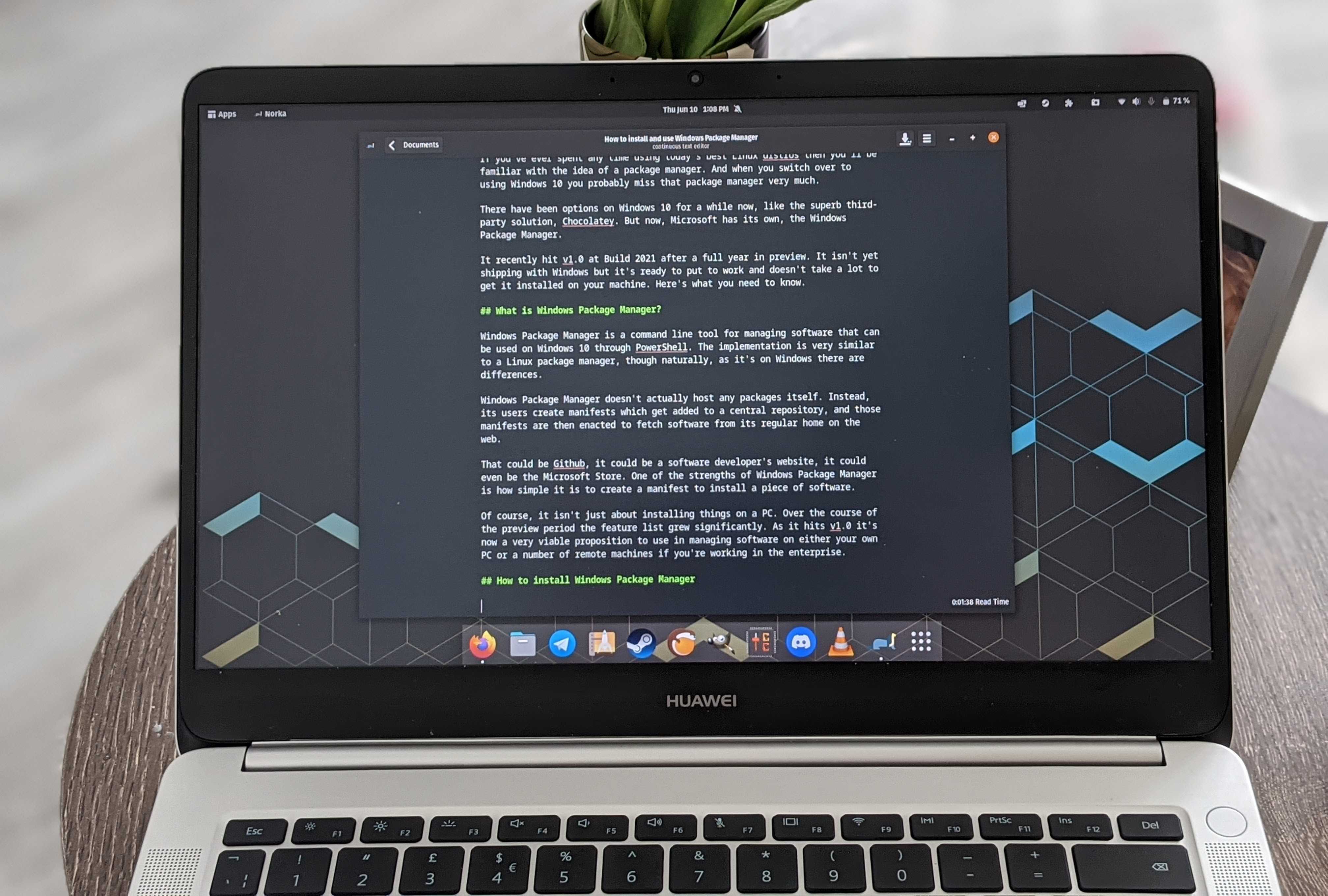
A Huawei MateBook D running Linux

CLI: for people who hate clicking things. (Image credit: Windows Central)

The discussion also highlighted why many people continue using Linux, which is because it provides a level of control that Windows simply does not.

Users can choose different distributions, desktop environments, window managers, package systems, and customization options. For people who enjoy controlling every part of their computing environment, Linux remains extremely attractive.

However, that flexibility can also create challenges. The original poster pointed out that fragmentation can make Linux harder for some users: "Linux is great (as is Windows), but many members of the community are... not so great."

He wasn't criticizing Linux itself. Instead, he argued that the Linux desktop ecosystem often requires more research, troubleshooting, and decision-making than, in this case, Windows 11. For some users, that's part of the appeal. For others, it's a barrier.

The real debate is not about winners and losers

The biggest takeaway from this Reddit discussion is that the Windows vs. Linux argument is often framed incorrectly, because there is no universal winner.

The discussion shows why the Windows versus Linux debate rarely has a clear winner. Every operating system involves tradeoffs. Linux gives users more control and flexibility, while Windows prioritizes compatibility and broad software support. The right choice depends less on which platform is objectively better and more on which one fits the way you work.

Even users who criticize Microsoft often continue using Windows because it solves practical problems.

As one commenter (@animalcrossing4_4) summarized: "The OS is a means to an end so stop shoving the holiness of some OS on me."

That may be the most accurate description of the entire debate.

An operating system is a tool. The best one is not necessarily the one with the most features, the most customization, or the strongest community.

It's the one that lets people spend less time fighting their computer and more time using it.

Windows Central's Take

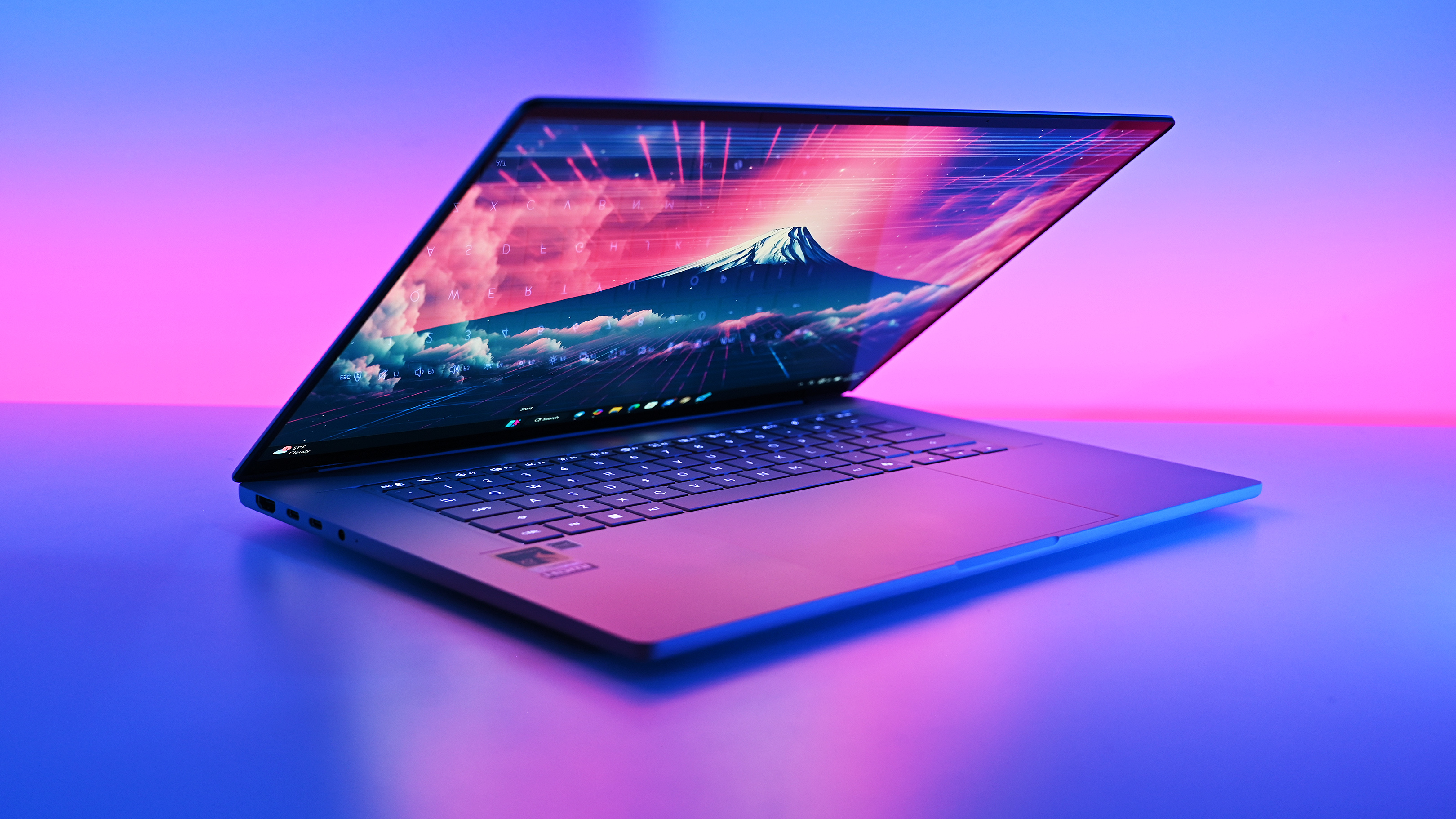
Studio photos of the 2026 ASUS Zenbook A16 laptop featuring the new Qualcomm Snapdragon X2 Elite Extreme processor.

The 2026 ASUS Zenbook A16 laptop featuring the new Qualcomm Snapdragon X2 Elite Extreme processor. It can't run Linux. (Image credit: Daniel Rubino | Windows Central)

This particular Reddit discussion isn't about Windows 11 suddenly winning over Linux users. However, it does reinforce something I've believed for a long time, which is that most people eventually end up with the operating system that helps them get their work done with the fewest compromises. That's why Windows continues to dominate the desktop despite Microsoft's occasional missteps.

Over the years, Microsoft has improved Windows where it matters most, including stability, hardware compatibility, and the developer experience with WSL and Winget. At the same time, the company has also made decisions that frustrate users, such as adding promotional content and pushing more Microsoft services (and AI) throughout the operating system.

Blank Pixel

Those criticisms are fair, but they don't necessarily outweigh the biggest advantage of an operating system that runs virtually on any modest hardware.

I always think it's interesting to find someone who sees Windows without treating the Windows versus Linux debate like a competition. Every operating system has strengths and weaknesses, and the right choice depends on your workflow, not on loyalty to a particular platform.

If Windows 11 helps you spend less time troubleshooting and more time being productive, then it's doing exactly what an operating system is supposed to do.

What do you think? Have you switched between Windows and Linux, or are you sticking with Windows 11? Let me know in the comments.

More resources

Explore more in-depth how-to guides, troubleshooting advice, and essential tips to get the most out of Windows 11 and 10. Start browsing here:

Click to join us on r/WindowsCentral

Join us on Reddit at r/WindowsCentral to share your insights and discuss our latest news, reviews, and more.

Linux logo and Windows logo with a colorful background.

Linux logo and Windows logo with a colorful background.

  •  

I've used these 7 shortcuts in Windows 11 more than anything else — stop using Ctrl+Alt+Del and learn something better

I've installed various versions of Windows more times than is probably necessary, across hundreds of laptops and desktop PCs that I've built, tested, and reviewed. Even if I narrow it down to Windows 11 alone, I reset devices back to a clean install practically every week, so I've built up a collection of useful commands and shortcuts.

For the most part, they aren't particularly innovative, and some won't even be surprising to enthusiasts, but they're definitely useful in my day-to-day experiences with Microsoft's operating system. Whether you consider yourself anything from a casual PC user to a service-hardened admin, you'll find at least some of these as useful as I do.

And, as with absolutely anything regarding commands copied and pasted into Command Prompt, PowerShell, or any other kind of terminal, you should always practice sensible backups and data protection habits. Keep your most important files in multiple places where possible, and only run high-level commands if you're a confident PC user — though I promise to explain what they all do.

Open Command Prompt during Setup

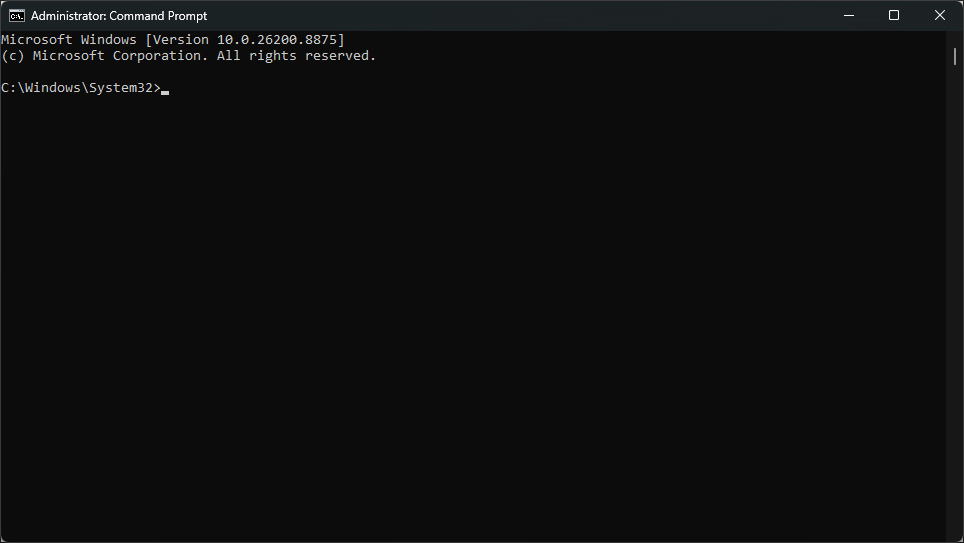
A Windows Command Prompt window running with administrator privileges, showing the Windows version information and the default `C:\Windows\System32>` prompt on a black background.

(Image credit: Windows Central)

While you're progressing through Windows Setup on either a new PC or a device that was reset to factory settings, you might want to bypass a few of Microsoft's suggested Windows 11 settings, like the mandatory "Let's add your Microsoft account" sign-in section.

  • Press Shift + F10 during Setup to open Command Prompt

There is a little quirk to this one, though. When the Command Prompt window first opens, you'll probably see a flashing caret that suggests you can type, but you'll often (if not always) find that your keyboard inputs are ignored. By default, the Command Prompt window isn't focused, so you'll need to either use a connected mouse to click it or press Alt + Tab if you only have a keyboard.

Create a local account

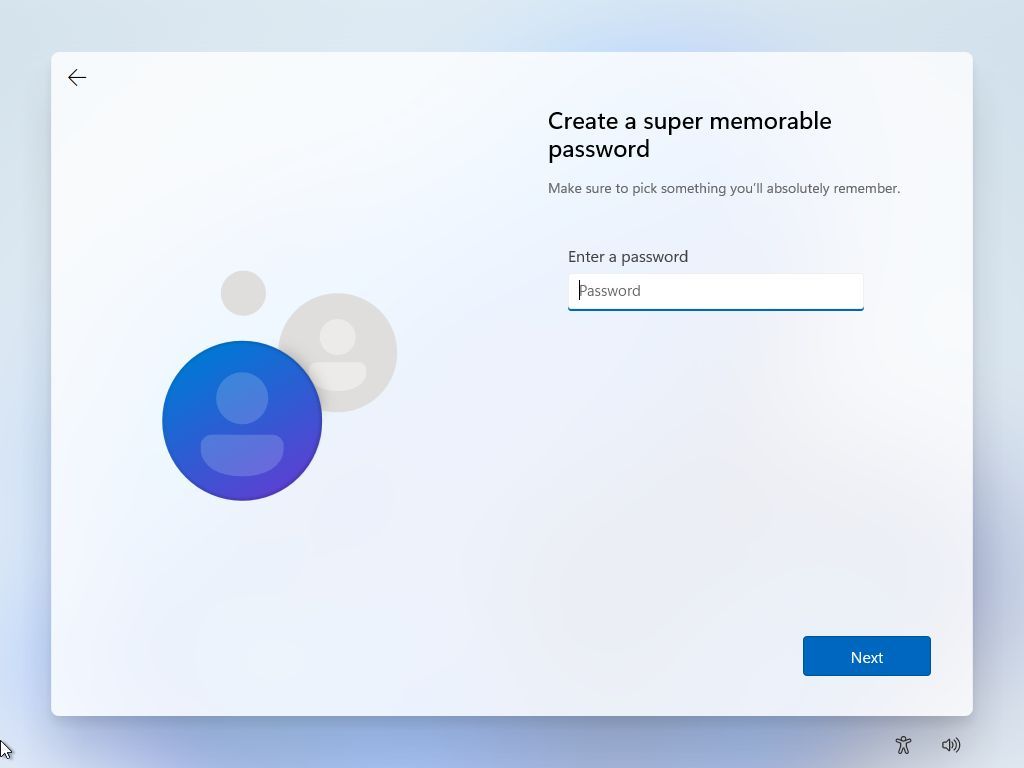
Windows 11 OOBE local account

(Image credit: Mauro Huculak)

Because I test so many PCs, I certainly don't want to sign into absolutely all of them with my personal Microsoft account. Unfortunately, the options to use a local account are becoming more limited as workarounds are removed, but my preferred Windows 11 ISO (disc image) still works with this method.

  1. Shift + F10 opens Command Prompt
  2. Enter this command: start ms-cxh:localonly
  3. Create a user (passwords are optional)

Bingo. Some apps will still ask you to sign in, and when they do, you'll need to make sure Windows doesn't try to "automatically sign in to all desktop apps." If you're ever prompted with that request, respond with the closest equivalent of "no, sign in to this app only".

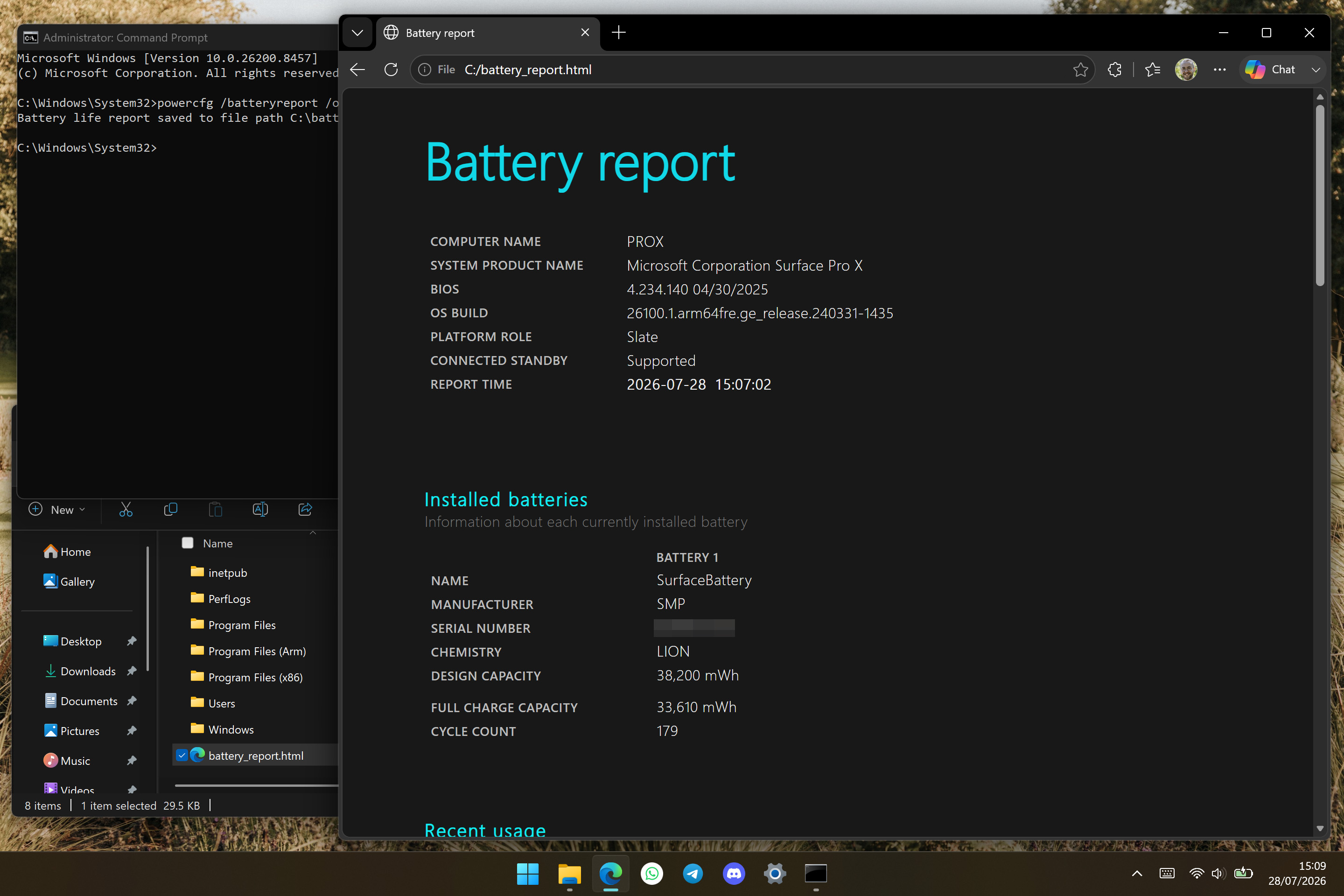
Checking battery health

A Windows desktop showing detailed Windows battery report with system specs, battery health information, and capacity statistics.

(Image credit: Ben Wilson | Windows Central)

This one is slightly more niche because it's primarily about how I test battery life on sample laptops. Still, checking your battery health also has a convenient crossover for anyone who might pick up a refurbished or pre-owned model, and seeing your battery cycle count alongside its design capacity is just plain useful.

  1. Open the Start menu
  2. Find CMD (Command Prompt) and Run as administrator
  3. Enter this command: powercfg /batteryreport /output "C:\battery_report.html"

Find the generated file on your C: drive to see helpful details, such as battery life estimates near the bottom of the page, all based on how long your laptop lasted on each charge. I always like to generate one of these reports when I'm using a brand new laptop over a full week during a review. It's good stuff.

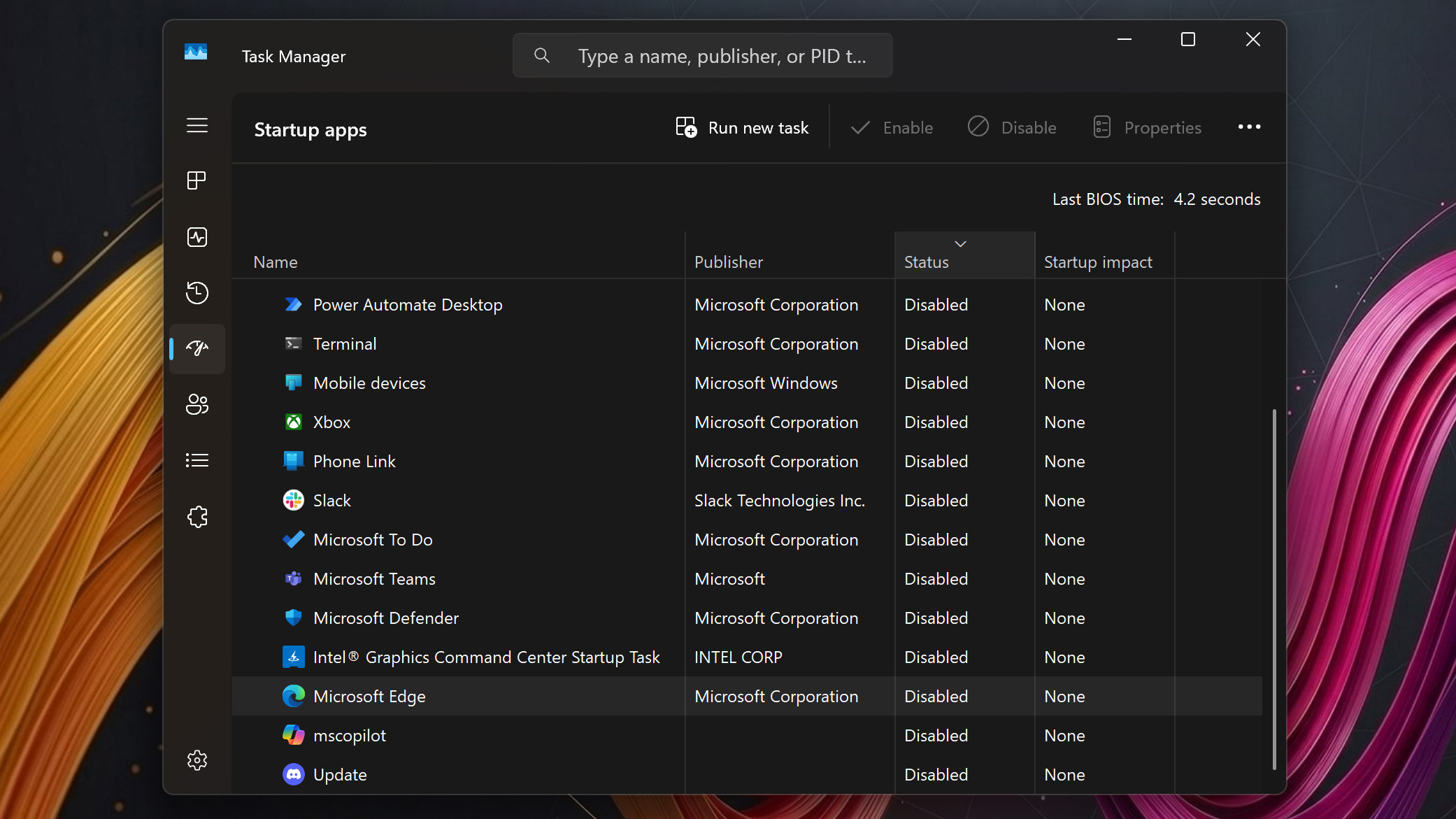
Faster Task Manager

The Windows Task Manager “Startup apps” tab displaying a full list of programs set to launch at startup, all marked as **Disabled** with **None** for startup impact.

(Image credit: Ben Wilson | Windows Central)

Now, if anything on this list is liable to pull ire in the comments, it'll be this one. Yes, I know that Task Manager is probably the most widely known feature of Windows, but plenty of people still think you need to press Ctrl + Alt + Delete to access it. However, there are two faster methods that I always use, depending on whether I'm using a keyboard or a mouse at the time.

  • Right-click the Taskbar and click Task Manager
  • (or) Press Ctrl + Shift + Esc to open Task Manager

The more interesting part of accessing the Task Manager is the reason for opening it on a brand new PC: disabling startup apps. On the left side, you'll find the dedicated category, which exposes any unwanted 'bloatware' that might have come pre-installed on your machine. If not, I usually disable msedge.exe (Microsoft Edge) anyway, because it doesn't seem to be necessary.

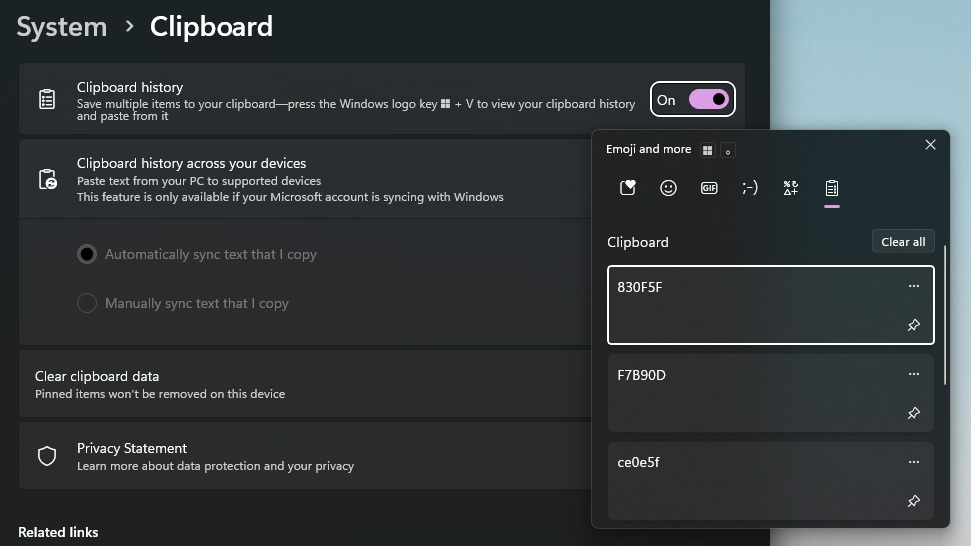
Clipboard history

A Windows 11 Settings window showing toggles for clipboard history turned on. On the right, the clipboard history panel is open, displaying three recently copied items.

(Image credit: Ben Wilson | Windows Central)

If you head to the Settings app and find System > Clipboard, you'll see the Clipboard history toggle, and I strongly recommend keeping it on. I'm constantly copying and pasting serial keys for licensed software, hex codes for colors, and all kinds of other jargon that happily sits in this pop-up list.

  • Press Windows + V to open Clipboard history

Alternatively, pressing Windows + . (the period key) takes you straight to the emoji picker, which is part of the same floating window as Clipboard history. You can start typing keywords and descriptors as soon as it appears, so finding a tiny laptop for your social posts (or anything else) is easy. 💻

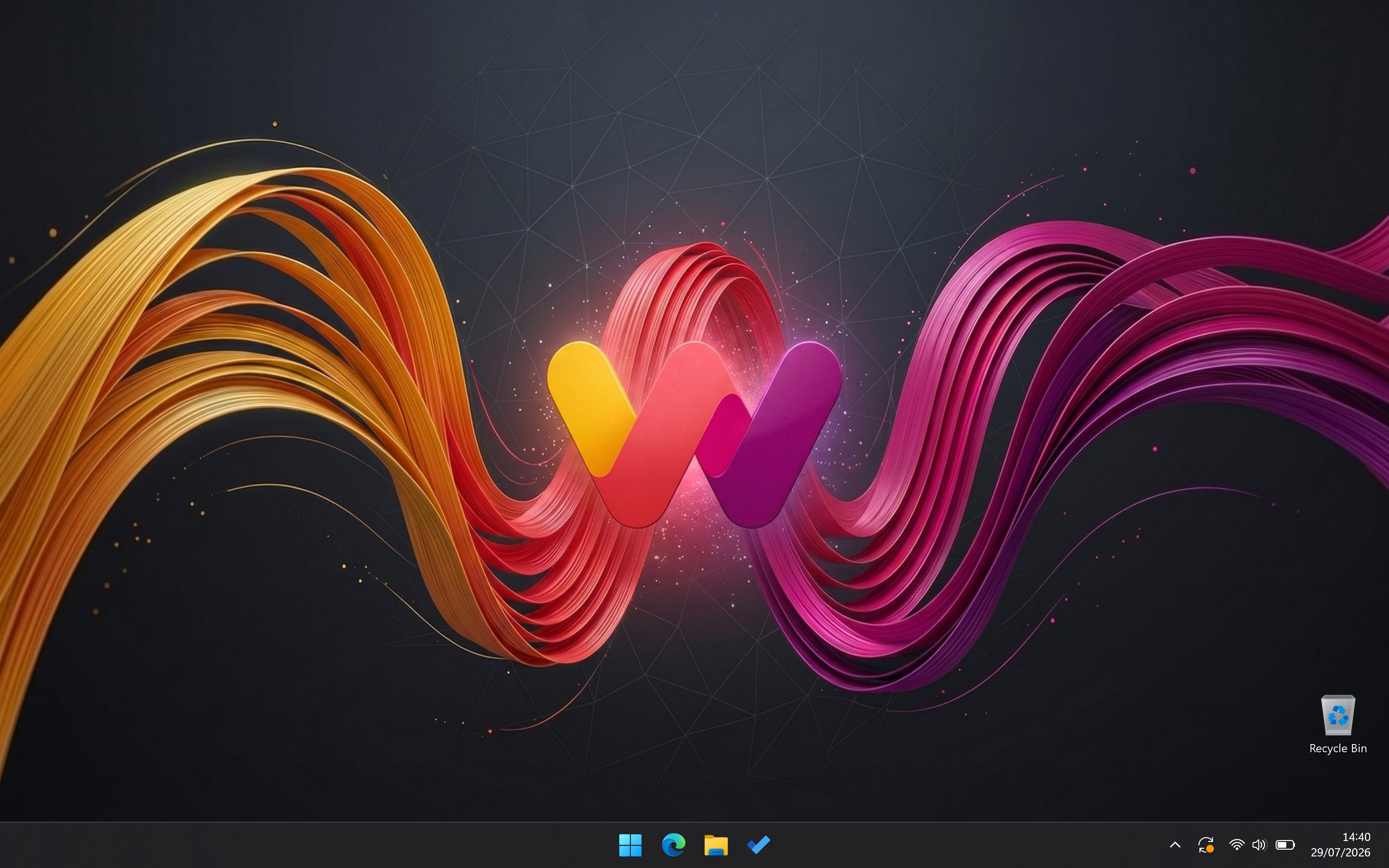
Access your Desktop

Windows 11 Desktop with Windows Central ribbons wallpaper, showing Taskbar and Recycle Bin

(Image credit: Ben Wilson | Windows Central)

This is a surprising entry, as I assume everyone knows about both methods. Getting back to your desktop feels like an obvious one to learn, as minimizing individual apps is painfully inefficient. However, even my PC-building colleague Cale Hunt wasn't aware of the second one, and frankly, I don't remember when or how I figured it out.

  • Press Windows + D to access your Desktop
  • (or) Click the blank Taskbar space to the right of the clock

A third, lesser-known shortcut of Windows + , (the comma key) will briefly show your Desktop, but it disappears when you let go of the Windows key. I can't say I ever use that one, but I've been habitually clicking the blank space to the right of the "system tray" (now the clock and notifications area) for years. If I don't have a mouse, the first one works, and pressing it again restores my windows.

Moving off-screen apps on multiple monitors

MSI MAG MT201D

(Image credit: Future)

Finally, I don't need this one as often as the others, but it's still a critical one to remember when I do. Sometimes, when I connect a second (or third) monitor to a desktop or laptop setup, the app I'm using will disappear from view. It's still technically active, but I just can't see it anymore. Thankfully, it's quite an easy fix if you remember this shortcut.

  • Press Windows + an arrow key to move the active app

The arrow key you press depends on how you've organized your screens, both physically and in alignment with what Windows 11 expects. For example, if you want an app to move to a display on your right side, press the right arrow key. If nothing moves around, try pressing Alt + Tab first to ensure your target app is in focus!

There's no doubt that each enthusiast will have their own favorites and likely views these entry-level commands as basic knowledge, but we all start somewhere. Sometimes it feels like muscle memory, but with Windows 11, there's so much going on that it's easy to forget some of the most useful shortcuts aren't as obvious to everyone!

Click to join us on r/WindowsCentral

Join us on Reddit at r/WindowsCentral to share your insights and discuss our latest news, reviews, and more.

Ben Wilson of Windows Central holding a laptop with "MY TOP 7 WINDOWS 11 TIPS AND SHORTCUTS" displayed on the screen

Until they change, these are my current favorite tips for Windows 11 newcomers (and enthusiasts).

  •  

Quote of the day by Phil Spencer: "A future where every screen is an Xbox" — Halo: Campaign Evolved on PS5 proves why Asha Sharma had to abandon a flawed plan

When Asha Sharma was named Xbox CEO, some on the web screamed about the fact that she was not a gamer. But the first few months of her tenure have shown why sometimes it's best to have a person who understands business in charge of a multi-billion-dollar gaming empire.

Here are some lessons that Xbox has had to learn or relearn this year under Sharma: Exclusives matter, Xbox starts with console, and it's not realistic to expect Xbox Game Pass to have 77 million subscribers when there are only an estimated 30 million Xbox consoles around.

Back in 2024, then Xbox CEO Phil Spencer said he wanted a "Future Where Every Screen Is An Xbox." It's been over two years since that memo was sent to Microsoft employees and leaked. In that time, we've seen Microsoft ship exclusives to PlayStation, reverse course, and straddle the barrier between consoles and PCs.

This is a future where Xbox is everywhere—consistent with our promise to empower players to “play the games you want, with the people you want, anywhere you want.

Phil Spencer (2024)

Spencer's vision was flawed. Taking the box out of Xbox never made sense. While cloud gaming extends the Xbox experience, the best experience requires dedicated hardware.

Sharma emphasized that fact in her exclusive interview with us earlier this year:

"I am committed to 'returning to Xbox,' and that starts with console, that starts with hardware. You will hear more about that soon."

But worse than taking the box out of Xbox was the idea that you could take the Xbox out of Xbox. Microsoft needs its console to stand out, and making everything under the sun an Xbox goes directly against that.

Microsoft put Halo on PlayStation 5 in a move our Jez Corden called "brand suicide." In February 2027, we'll see Fable launch and then God of War: Laufey launch the next day.

In just two days, PlayStation 5 owners will gain two massive games, but Xbox owners will get just one.

Hardware needs a reason to exist

A medieval hero from Fable in green and brown stands before a cracked stone wall carved with the PlayStation logo, glowing Xbox emblem on their back amid grass and yellow flowers.

Fable could have been a console mover for Xbox, but instead it will be part of a great week for PlayStation. (Image credit: Playground Games | Microsoft, Sony Interactive Entertainment Inc.)

Spencer's vision was flawed in terms of practicality, but I understand why people would wish it could work. In a perfect world, we'd all be able to play all our favorite games on any device.

But the reality is that exclusive content is at the core of platforms in 2026, and that's even more true when it comes to gaming. How many people would buy a Nintendo Switch 2 if all of its best games were available on the Xbox Ally X? Why would anyone buy an Xbox Series X or Xbox Series S if the PlayStation 5 had all of Xbox's games plus a bunch of Sony exclusives?

God of War Laufey launches 1 day before Fable early access on PS5.It's a sad reminder of how dumb Xbox's multiplat strategy was long term. Xbox is inadvertently advertising that PS5 has more content, and that Xbox customers are not important to MSFT.https://t.co/RukYP4IOYUJuly 27, 2026

Perhaps in another timeline in some parallel universe where PlayStation is actually for the players, we'd see Xbox and PlayStation games appear on both platforms. But we don't live in that world.

Sony reportedly has plans to pull back from PC gaming and not release single-player games on Windows PCs or Steam. That move was likely made because the next Xbox console is a PC at its core.

That means that Sony would rather lose out on all PC sales for its upcoming single-player games than have those same games be playable on the next Xbox console.

With Sony making moves like that, Microsoft can't afford to put its exclusive games on PlayStation.

Click to join us on r/WindowsCentral

Join us on Reddit at r/WindowsCentral to share your insights and discuss our latest news, reviews, and more.

Xbox Games Showcase 2025

Xbox Games Showcase 2025

  •  

Microsoft’s accessibility push remains the single best part of covering Windows 11

Windows Insiders have a new build of Windows 11 to install, and it comes with some exciting improvements for accessibility. The biggest change is to Voice Access, which can now isolate your voice to better control your PC while in a crowded room.

Voice Access allows you to control your PC with only your voice. Once you launch the feature, a dock appears and stays along the top of your screen. That bar shows commands as you enter them, which helps confirm what you've said to your computer.

At the moment, using Voice Access in a room with background noise can be tricky. But that will change with the update to Windows 11 that's now in testing. That upgrade is just the latest in a long string of accessibility improvements from Microsoft.

Microsoft and accessibility

Windows 10 added eye tracking in 2017. The feature lets you type with your eyes.

Microsoft has prioritized accessibility for a long time. It's genuinely one of the most endearing aspects of the company. Here are just a few of the Windows features and pieces of hardware we've covered over the past few years that are part of Microsoft's push to make technology more accessible.

Our Mauro Huculak has an excellent piece on 7 accessibility features in Windows 11 that make life easier for everyone.

Windows 11, and earlier versions of Windows, have a massive library of features that make computing more accessible.

Microsoft has an extensive support document about all the accessibility features in Windows.
Accessibility is about everyone. When Microsoft develops a feature or accessory with one type of user in mind, there's often a knock-on effect. For example, Read Aloud in Microsoft Edge makes PDFs more accessible, but it also improves reading comprehension and lets you multitask while hearing what's on your screen.

I use Read Aloud every day to proof read my articles. I find that listening as I read improves comprehension and helps me spot typos or other mistakes.

New and improved accessibility in Windows 11

The latest Windows Insider build includes several improvements to accessibility features. Voice Access now supports Voice Isolation, which filters out other speakers and background noise.

It's a small change that makes it possible to use Voice Access in a broader range of work environments. If you rely on Voice Access, a shared office can cause frustration.

Hybrid and in-office work often places colleagues too close to each other to use Voice Access. Voice Isolation allows someone who needs the feature to control a PC to work in the same space as their coworkers.

The same Insider build brings support for displays that use the HID (Human Interface Device) standard to Narrator. That standard enabled plug and play support for braille displays and is backed by Microsoft, Apple, and other tech giants.

Here's the change log for Windows 11 Insider Preview Build 29634.1000 that relates to accessibility.

Windows 11 Insider Preview Build 29634.1000

Voice Isolation in Voice Access

  • We’re introducing Voice Isolation, a new option in Voice Access that helps it focus on your voice, even when others are speaking nearby. Whether you’re in a shared office, an open floor plan, or at home with family around, Voice Isolation filters out other voices and background noise so Voice Access can better understand you. All processing happens privately on your device.
  • Getting started
    Voice Access now offers three speech recognition modes under Voice Access settings > Improve speech recognition:
    • Voice Isolation — Filters out other speakers and background noise (one-time voice setup required).
    • Remove background noise only — Filters out non-speech sounds like typing or door slams. No additional setup needed.
    • No filtering — Default microphone input with no additional processing.
  • To set up Voice Isolation, select it from the menu and follow the short, guided setup where you’ll read a brief paragraph aloud so Voice Access can learn your voice. It only takes a minute, and your voice data never leaves your device

Narrator

Braille displays now connect instantly with Narrator

  • We’re making refreshable braille displays easier to use in Windows. Narrator now supports displays that use the HID standard — an open industry standard for braille displays. If your display supports HID, simply connect it via USB and start reading — true plug-and-play with no additional setup required. For Bluetooth, pair your HID braille display in Settings > Bluetooth & devices just like any other accessory, and you can work wirelessly without being tethered to your PC.

  • Compatible HID displays include models like the Orbit Reader 20, Orbit Slate 340, Freedom Scientific Focus 40, and APH Mantis Q40.
  • HID braille displays now work during the initial Windows setup experience (OOBE) over USB — meaning users who are deaf-blind can set up their PC independently, right from the first screen. You can customize braille input and output options anytime in Settings > Accessibility > Narrator > Braille.

Blank Pixel

Click to join us on r/WindowsCentral

Join us on Reddit at r/WindowsCentral to share your insights and discuss our latest news, reviews, and more.

Windows 11 update in Settings app

Windows 11 update in Settings app

  •  

Windows 11’s August Patch Tuesday update brings several important changes, and I break down the biggest ones

Microsoft is expected to release the Windows 11 August 2026 Security Update on Tuesday, August 11, 2026. In this eighth month of the year, the software giant is rolling out several new features, improvements for existing features, and fixes.

In this quality update, Microsoft will introduce new features, including Windows Hello Enhanced Sign-in Security (ESS) support, the ability to uninstall AI models from Copilot+ PCs, touchpad gestures, voice isolation for Voice Access, Fluid Dictation for Voice Typing, and more.

There are also improvements to File Explorer, Windows Search, Widgets, Windows Update, power and battery, sounds, and more.

Furthermore, Microsoft is updating the interface for the Account Control flyout in the Start menu, the Windows Setup experience now includes a parental controls notice, and the list continues.

In this guide, I'll highlight the most significant changes in the August 2026 Security Update for Windows 11 versions 25H2 and 24H2, since both are identical.

Windows 11's new features arriving in August

As usual, the company uses Controlled Feature Rollout (CFR) to roll out new improvements gradually, so it may take some time before you see them.

File Explorer changes

Although the updated version of File Explorer doesn't introduce flashy features, the development team is making some worthy improvements.

First, when using the "Details" view, the file sizes now show appropriate units (such as KB, MB, and GB), instead of displaying every value in kilobytes.

Windows 11 desktop File Explorer details view with new size units.

(Image credit: Mauro Huculak)

It's now possible to use the middle-click to open a folder in a new tab from the address bar and Home page.

Other improvements on the Home page include a gray flash bug on loading and scrolling, and thumbnails in the Recommended section now appear with better quality.

Windows Search tweaks

Starting with the August update, Windows Search now includes improvements to better handle typos, and you can start searches with two-character queries.

Windows 11 desktop showing Search with better typo handling.

(Image credit: Mauro Huculak)

When searching for apps, Windows Search improves recognition of partial names and typos. Also, in the Settings app, the search rank has been updated to show more relevant options higher.

Windows Hello support

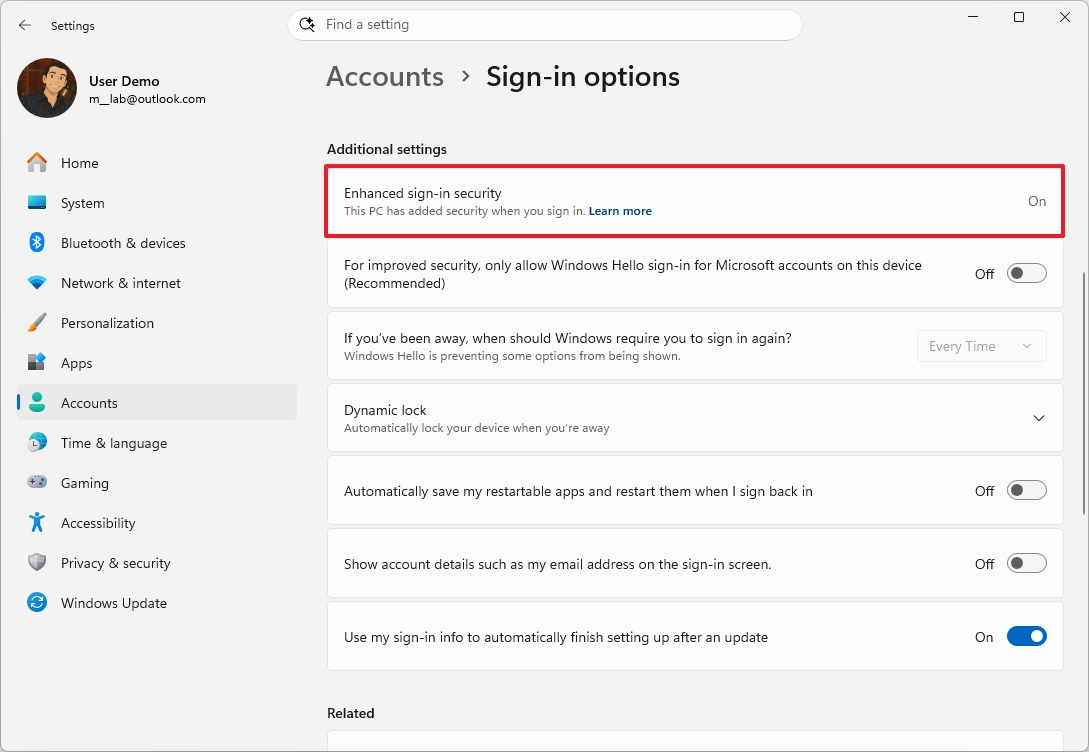
In this update, Microsoft is bringing Windows Hello Enhanced Sign-in Security (ESS) support for external fingerprint sensors.

In short, standard Windows Hello encrypts the sign-in data. However, enhanced security support takes it a step further by isolating the biometric process into a secure memory space, away from the operating system.

The option is available through Settings > Accounts > Sign in options.

Windows 11 Settings on the Sign-in options page highlighting the Windows Hello Enhanced Sign-in Security (ESS) option.

(Image credit: Mauro Huculak)

In the past, this feature was only available for devices with built-in sensors, such as Copilot+ PCs, but now, it'll be available for external peripherals.

AI model uninstall option

Although adding the ability to uninstall something from the operating system doesn't scream new feature, Microsoft is now allowing users to uninstall the Image Generation AI model from Settings > System > AI Components.

And this is a big deal, because one of the biggest complaints about Windows 11 has been the integration of AI features. While supported devices still don't have a master switch to completely disable AI on Windows 11, this is a small step in the right direction.

Widgets improvements

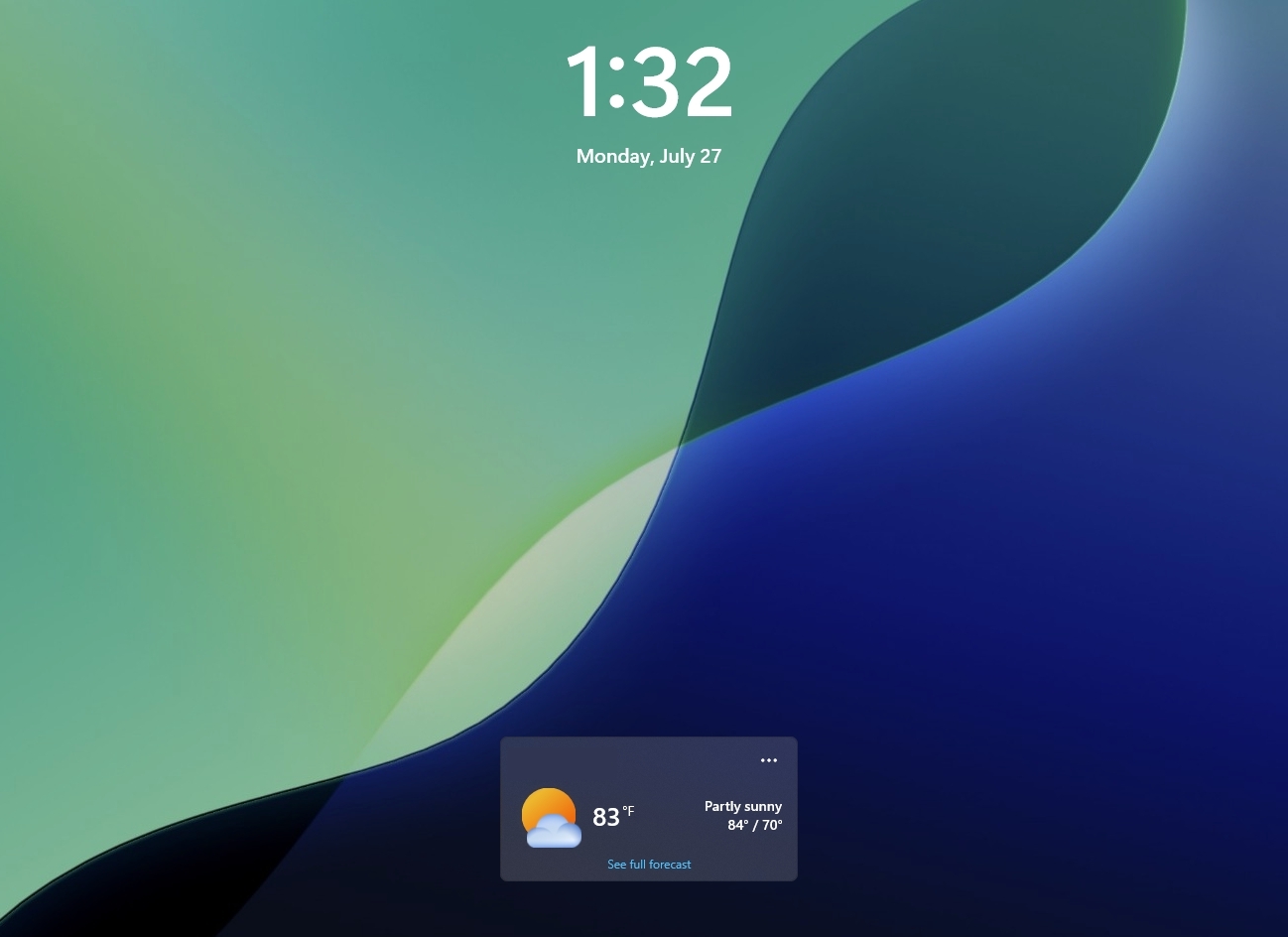
In the Lock screen, the experience should now be less distracting, as now, by default, users will only see the Weather widget.

Windows 11 Lock Screen with Weather widget and date and time information.

(Image credit: Mauro Huculak)

Also, notification badges in the Taskbar will now take the current accent color instead of the previous red indicator.

Touchpad new gestures

After installing the August update, on Settings > Bluetooth & devices > Touchpad, users will be able to customize the speed for scroll and zoom gestures.

In addition, there's a new option to enable accelerated scrolling, which is a feature that increases the scrolling speed as gestures are repeated.

Voice Typing and Access

In Voice Typing, Microsoft is now deactivating Fluid Dictation by default and integrating tooltips to help users understand how the feature works.

Voice Access now comes with Voice Isolation that improves speech recognition by filtering out background noise and other speakers.

In addition, the company is making available three speech recognition settings from Settings > Voice Access > Improve speech recognition.

The "Voice Isolation" option requires a one-time voice setup and filters both background noise and nearby conversations.

Users will also find the "Remove background noise only" mode suppresses sounds such as typing or doors closing without additional setup.

Finally, the "No filtering" mode uses the microphone input without any processing.

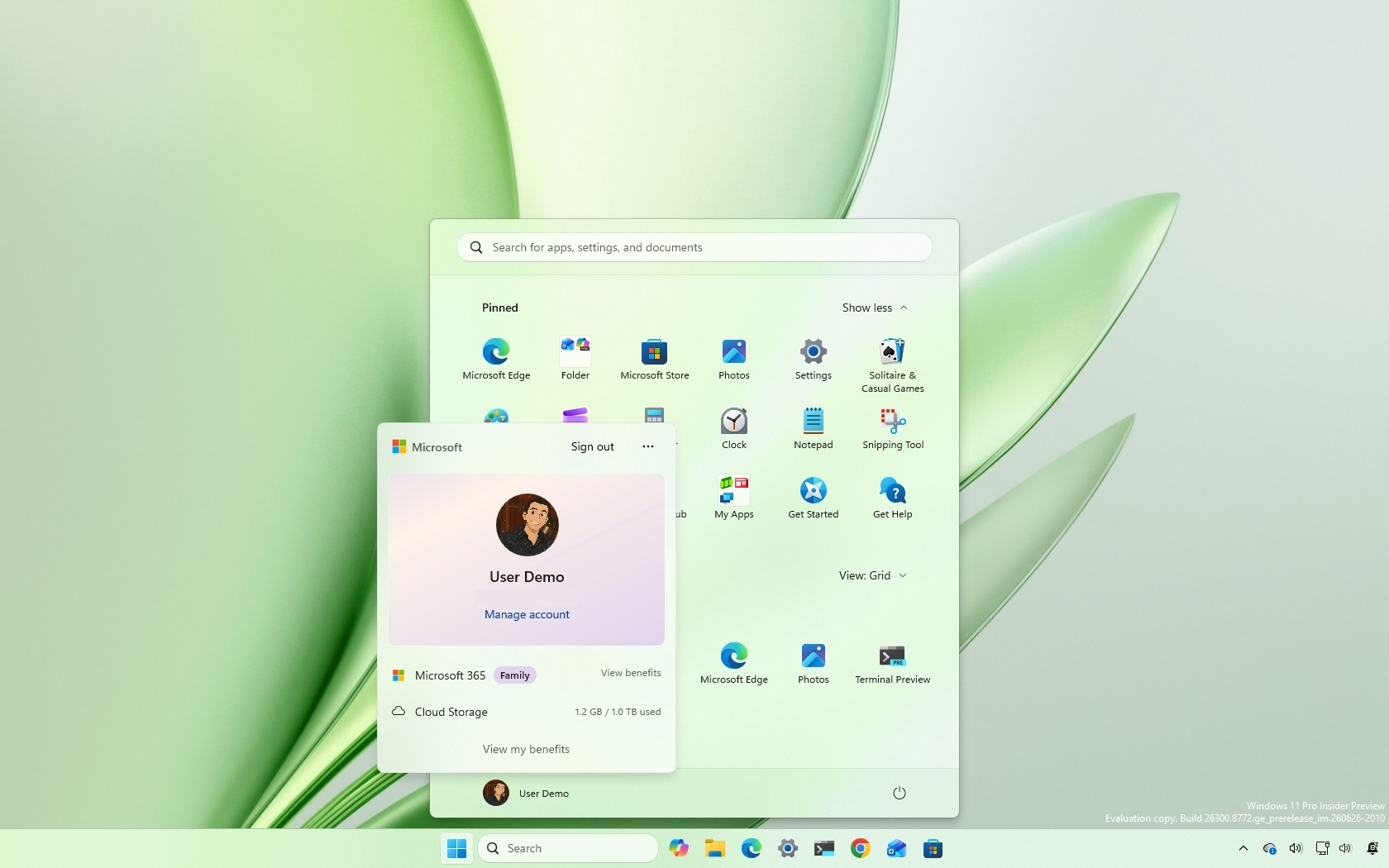
Account Control redesign

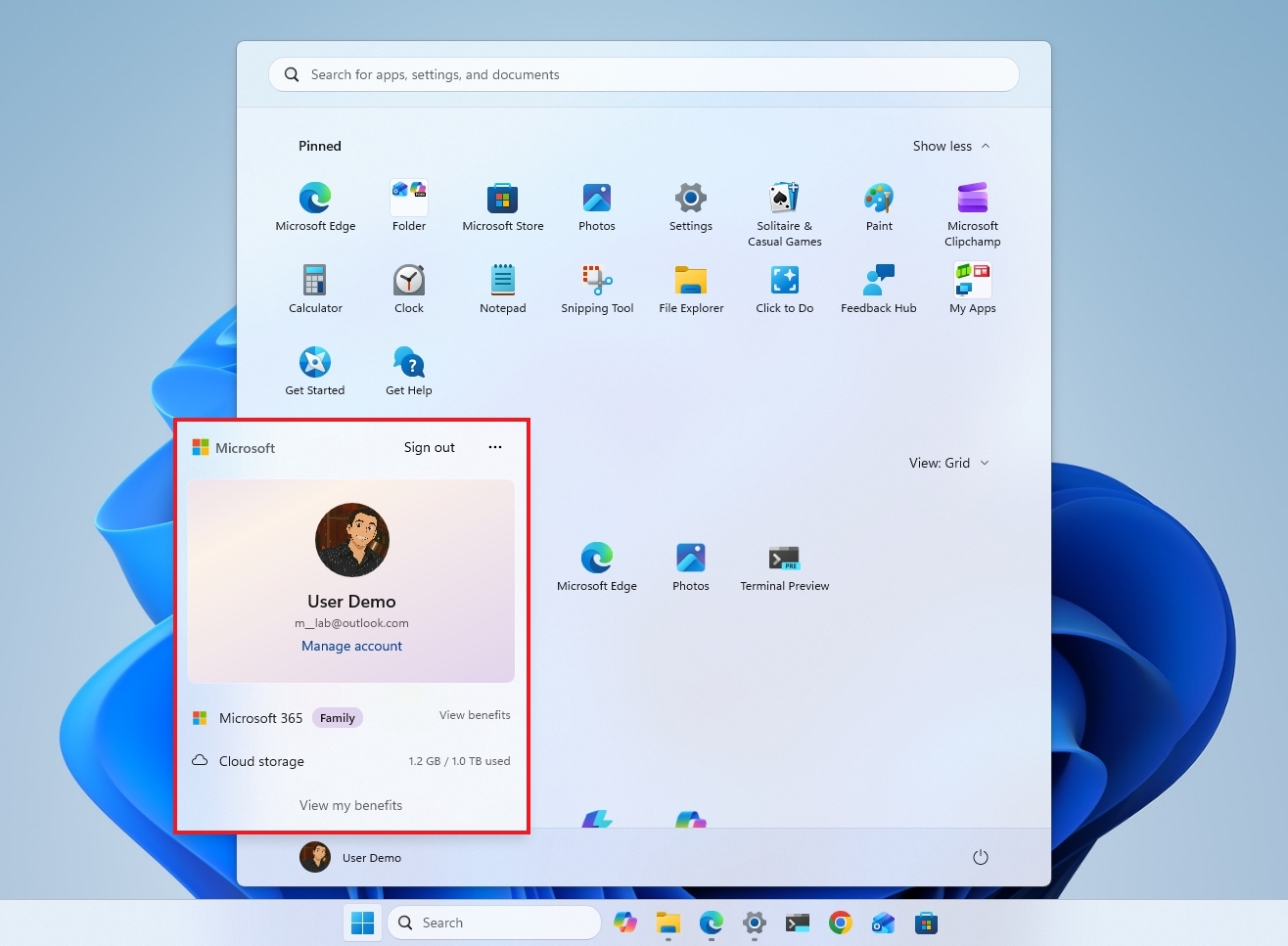
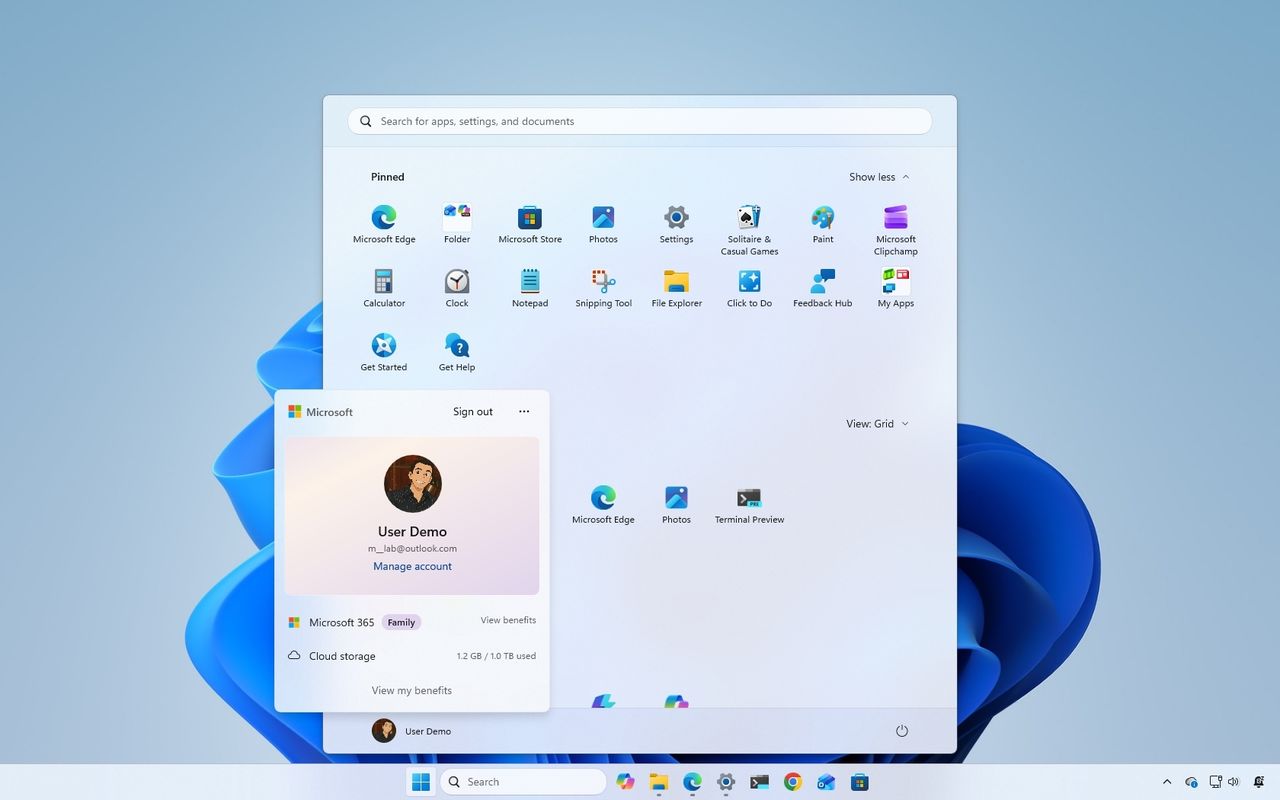
The flyout that appears when clicking the profile button in the Start menu is known as the Account Control interface, and in this release, Microsoft is adding some design changes.

Windows 11 desktop with the Start menu showing new Account Control interface.

(Image credit: Mauro Huculak)

The changes aim to make it more modern and clearer. For instance, the new design adds a new badge to quickly understand the current plan and state. In addition, it gives users access to their plan benefits as well as other information, such as storage usage from OneDrive.

Power and battery

In this release, the company is making changes to how power settings are applied in the system.

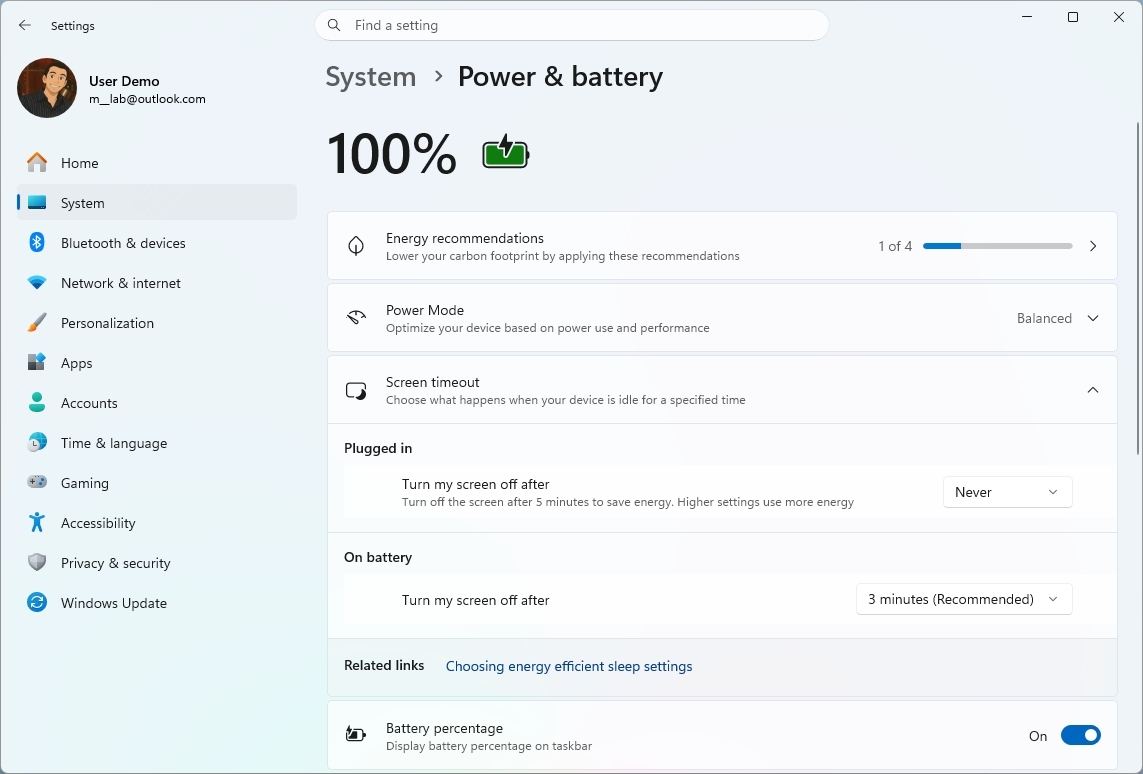
Windows 11 Settings showing the Power & battery settings.

(Image credit: Mauro Huculak)

According to Microsoft, customizations made to the display timeouts, sleep and hibernate timers, and laptop lid actions are now automatically applied to every power plan instead of only the active one.

Finally, the ability to configure the battery percentage for "Energy Saver" is coming back to the "Power & battery" settings.

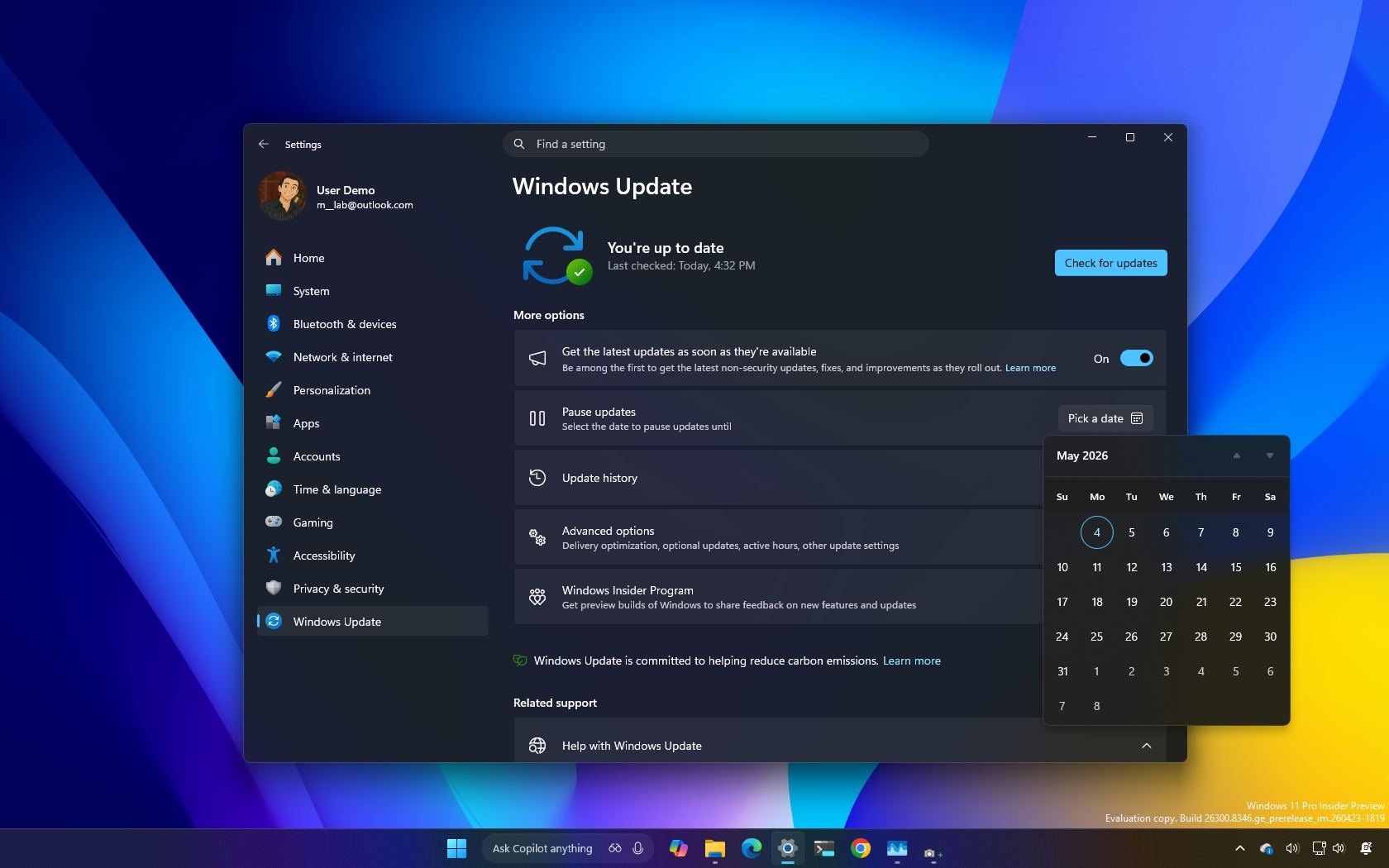
Windows Update improvements

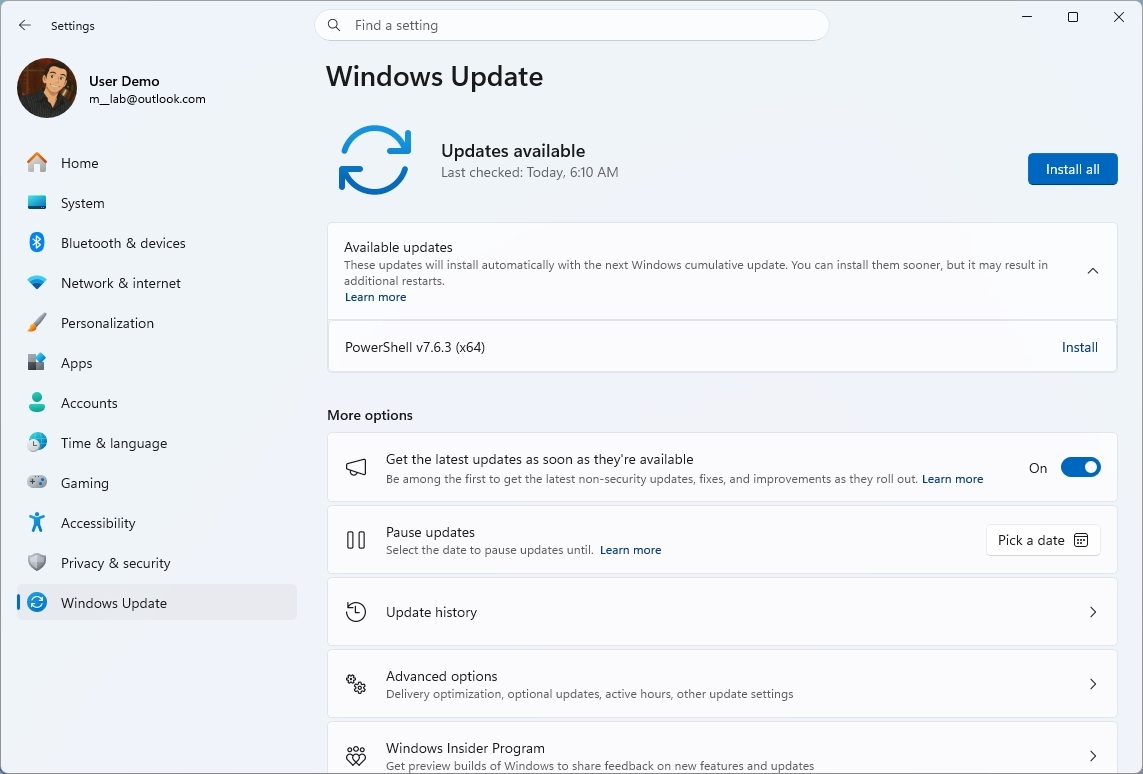
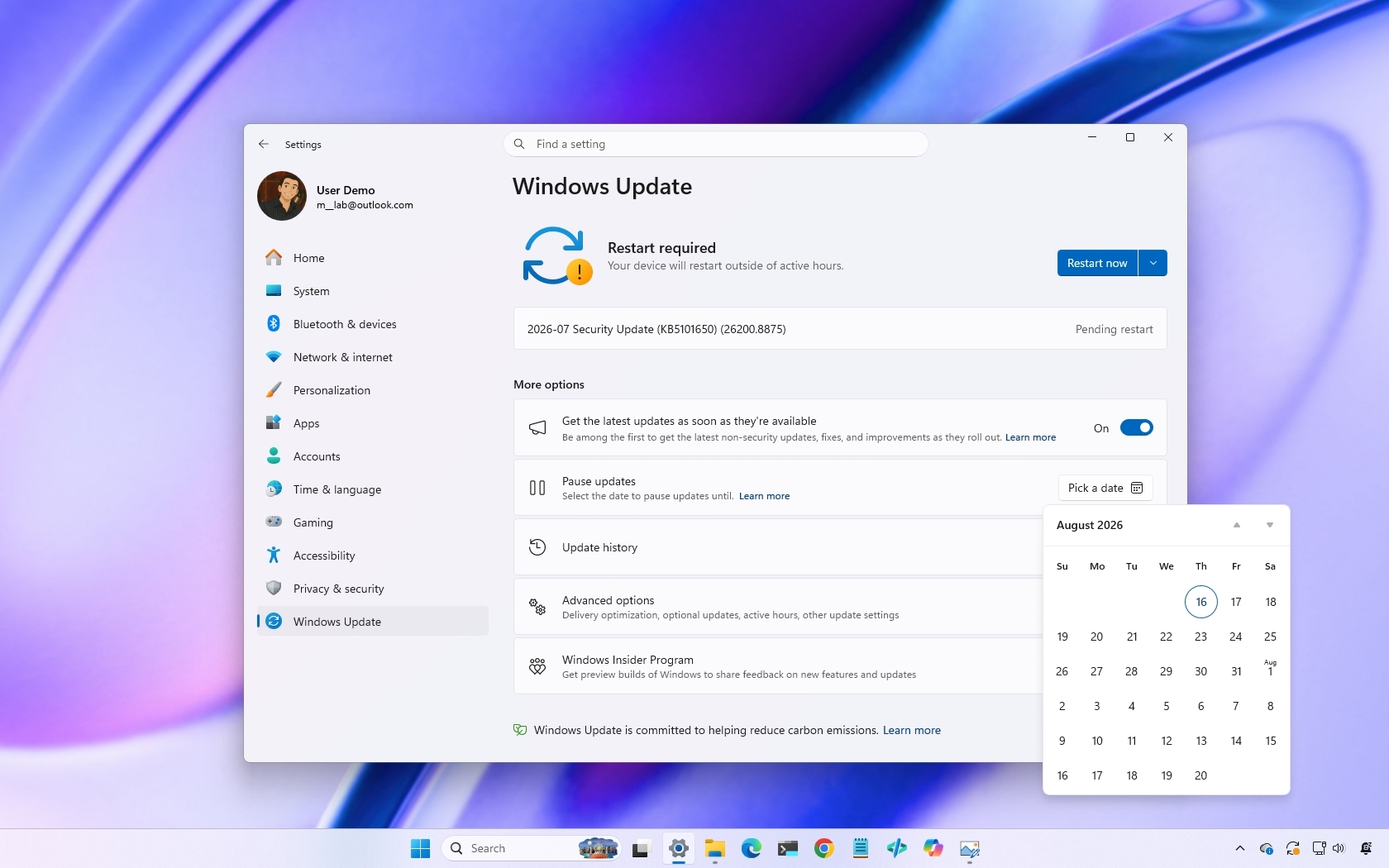
Microsoft continues improving the update system, and this time around, Windows Update will provide more accurate progress estimates during updates.

Windows 11 Settings app showing the Windows Update settings page.

(Image credit: Mauro Huculak)

Furthermore, the company is updating the cleanup process after installing updates to improve system performance.

System sound in dark mode

After installing this Patch Tuesday update, users should also notice improvements to system sounds in dark mode.

Windows Central's Take

From my perspective, this is the kind of Windows 11 update I like to see. It's not built around a flashy headline feature, but instead focuses on polishing the experience in dozens of small ways. Improvements to File Explorer, Windows Search, Windows Update, touchpad gestures, and power management won't generate a lot of excitement, but they're the kinds of changes that make the operating system feel more refined day after day.

Blank Pixel

I also think Microsoft's decision to let users uninstall the Image Generation AI model is an important step, even if it's a modest one. People have been asking for more control over AI features, and while this isn't a universal switch to remove AI, it shows Microsoft is at least acknowledging those concerns. I'd like to see the company continue in that direction by giving users even more choice over what AI components are installed.

As with every Patch Tuesday release, I'd still recommend waiting a few days before installing the update on your primary computer unless you need the latest security fixes immediately. Monthly updates occasionally introduce unexpected issues, and giving Microsoft a little time to address early reports has rarely been a bad strategy.

What are your thoughts about the Windows 11 August 2026 update? Which new feature or improvement are you looking forward to the most? Let me know in the comments.

More resources

Explore more in-depth how-to guides, troubleshooting advice, and essential tips to get the most out of Windows 11 and 10. Start browsing here:

Click to join us on r/WindowsCentral

Join us on Reddit at r/WindowsCentral to share your insights and discuss our latest news, reviews, and more.

Windows 11 desktop with the Start menu open showing th e new Account Control interface.

Windows 11 desktop with the Start menu open showing th e new Account Control interface.

  •  

Microsoft Confirms Modern WinUI 3 Redesign for Classic AutoPlay Dialog in Windows 11

Microsoft is accelerating its efforts to modernize legacy elements of the Windows shell. In a progress report on Windows quality commitments, Pavan Davuluri, Corporate Vice President of Windows and Devices, officially confirmed that the classic AutoPlay dialog and File/Folder Properties dialogs will soon receive modern WinUI 3 updates in upcoming Windows Insider Preview Experimental builds. […]

  •  

Windows 11 Apps Using Too Much RAM? Microsoft Confirms Issue, Promises Major WinUI Performance Improvements

Microsoft has officially acknowledged one of the biggest complaints surrounding modern Windows 11 apps: they often consume more memory than expected. The company says it is actively working on WinUI performance optimizations that will reduce RAM usage and improve the responsiveness of native Windows applications. The improvements are expected to arrive ahead of Microsoft’s next […]

  •  

Microsoft Threat Intelligence Portal Retires in August: 4 Checks Before the Cutoff

Microsoft is retiring its legacy Threat Intelligence portal on August 1. Security teams should verify licenses, permissions, investigation projects, APIs, and automated workflows before the cutoff.

The post Microsoft Threat Intelligence Portal Retires in August: 4 Checks Before the Cutoff appeared first on TechRepublic.

  •  

Il déverrouille une Xbox 360 avec un Teensy et un peu de bruteforce

Il y en a qui récupèrent des vieux canapés dans des bennes à ordures et puis il y a eWastelander qui passe son temps à récupérer du matériel électronique pour ses futures bidouilles . Sa dernière prise, c'est une Xbox 360 à 15 dollars, dénichée au fond du rayon des "défectueux" d'un magasin de jeux qui soldait tout à moitié prix. Elle démarre parfaitement mais son unique défaut, c'est un contrôle parental verrouillé par un code que plus personne ne connaît.

C'est un modèle E, le dernier de la gamme, sorti à peu près au moment de la Xbox One . Malheureusement, ce verrou lui interdit tout ce qui dépasse la classification E, soit l'équivalent américain du tout public. Par exemple, le jeu Rock Band Blitz est classé T, donc bloqué. Autrement, dans cette console, il n'y a pas de disque dur, il n'y a aucun profil qui a été enregistré. Et il n'y a absolument rien à récupérer de l'ancien proprio. Voilà, il y a juste le code PIN et c'est tout.

Ce clic autorise une connexion à Google : adresse IP transmise et traceurs possibles. En savoir plus Voir cette vidéo sur YouTube

Alors évidemment première tentative, la question secrète de récupération. "Quel est votre plat préféré ?" Il tape pizza, puis burger, puis chicken mais aucun ne passe...

Deuxième tentative, le code de réinitialisation d'usine planqué dans les menus. Il va donc dans les paramètres de la console où se trouvent les informations système. Il faut alors enchaîner une autre combinaison secrète de 6 boutons toujours identiques (gâchette gauche, gâchette droite, X, Y, bumper gauche, bumper droit) suivi de 4 pressions supplémentaires qui, elles, changent d'une console à l'autre. eWastelander programme alors les combinaisons en macros sur une manette 8BitDo, branchée via un adaptateur Brook Wingman et déroule toute la liste. Mais RIEN !

Mais il ne se laisse pas battre par le désespoir et amorce une troisième tentative : l'exploit logiciel bad update, qui se lance sur une console de série sans avoir à l'ouvrir et donne accès à une appli homebrew capable d'afficher le code en clair. Cet exploit ne se déclenche que depuis 2 jeux, Tony Hawk's American Wasteland et Rock Band Blitz. Sauf que, comme je vous le disais, Rock Band Blitz est classé T, et le verrou le bloque. Il bascule alors sur un autre exploit nommé bad avatar, mais la console freeze ! Quel enfer ! Comme cette 360 n'a aucun stockage interne, et que l'exploit réclame un disque dur ou une unité mémoire pour fonctionner, bah ça plante.

Restait la méthode "officielle", telle que décrite sur wiki Console Mods. Cela consiste à enregistrer la console sur son compte Microsoft puis à demander un reset du code, ou appeler le support qui le communique. Mais ce même wiki précise que la méthode "aurait été abandonnée d'après les retours négatifs, mais reste ici pour mémoire". Bref, y'a plus personne au comptoir !

Sa dernière option, qui se présente à lui, un peu comme la solution de la dernière chance, c'est d'effectuer un brute force sur la console. Et ça tombe bien parce qu'un autre dev surnommé Agent24 avait repris en janvier 2020 le code d'un autre bidouilleur (écrit à la base pour Arduino) puis adapté au Teensy.

Le Teensy, si vous ne connaissez pas, c'est une carte qui se fait passer pour un clavier USB et tape les combinaisons une par une. Cela représente 10 000 possibilités pour un code à 4 chiffres, soit entre une seconde et 17 heures selon la chance qu'on a. eWastelander coupe alors l'extinction automatique, laisse la carte tourner, et se barre...

5 heures après, il revient voir ce qu'il en est et, oh magie, sa console est déverrouillée !!

Bravo. Encore une fois, le brut de force a triomphé et ça ne date pas d'hier puisqu'en 2013, déjà, je vous parlais d'un bricoleur qui cassait le code PIN d'un GPS Garmin avec un Arduino et un vieux scanner, sur exactement le même nombre de combinaisons que pour la Xbox.

Et voilà comment ressusciter une console qu'on croyait perdue pour toujours à cause d'un simple code de contrôle parental !

Source

  •  

Windows 11's big 2026 update is almost here, and these 10 things you need to know before upgrading could save you time and frustration

Microsoft is expected to roll out the 2026 Update for Windows 11 (version 26H2) later this year, marking the fifth feature update for the desktop version of the operating system. However, this release isn't a full operating system swap, but it's still important not to skip it.

In this guide, I'll walk you through 10 interesting facts about Windows 11 version 26H2 to know before upgrading once it becomes available.

Facts to know about Windows 11 version 26H2

These are some facts about the new version for Windows 11.

1. Same operating system platform

Although the company will market Windows 11 version 26H2 as a new release, it shares the same platform as version 25H2, meaning both operating systems are identical under the hood. This is exactly the same case as versions 24H2 and 25H2.

2. Same set of features and improvements

ASUS Zenbook 14 OLED laptop displaying Windows 11 with Windows Update screen

Windows 11 version 26H2 includes the same features and improvements already available in version 25H2. Microsoft isn't introducing a separate feature set for this release because both versions share the same platform.

Perhaps the most noticeable differences between Windows 11 versions 26H2 and 25H2 are their version and build numbers, along with their support lifecycle.

For example, version 26H2 uses build numbers in the 26300 series, while version 25H2 uses the 26200 series. Now, despite the different build numbers, updates for both versions typically share the same cumulative update (KB) number because they are based on the same code and include the same features and improvements.

Microsoft is expected to continue servicing both versions with the same features and improvements for the foreseeable future. As a result, version 26H2 is not expected to introduce major new capabilities at launch. Instead, it serves as another enablement package release that activates a new version number while preserving the same experience users already have on version 25H2.

3. Enablement Package-based installation

Similar to Windows 11 version 25H2, version 26H2 is expected to be rolled out as an Enablement Package (eKB). This means that if you're already running version 25H2, upgrading to 26H2 will be similar to installing a regular monthly cumulative update, without requiring a complete reinstallation of the operating system.

An Enablement Package is a small update that acts as a switch to activate features already included in the operating system but kept dormant. Once installed, it simply changes the version number from 25H2 to 26H2 while enabling the new release (if applicable).

Because version 26H2 shares the same platform and feature set as version 25H2, the installation process is expected to be quick and require only a single restart. As with previous enablement package releases, Microsoft will likely offer the update as an optional installation at first before making it available automatically to eligible devices as version 25H2 approaches the end of its support lifecycle.

4. Full reinstallation upgrade

Although Windows 11 version 26H2 is virtually identical to version 25H2, the upgrade path depends on the version currently installed on your computer.

If you're already running Windows 11 version 25H2 (or 24H2), you can upgrade through the Enablement Package without reinstalling the operating system. However, devices running an older release (such as version 23H2) will need to perform a full feature update to move to version 26H2.

5. Upgrade from Windows 10

If your computer is still running Windows 10, upgrading to Windows 11 version 26H2 requires a full feature update. Compatible devices will receive the latest supported version of Windows 11 directly through Windows Update, so you won't have to install 24H2 or 25H2 first.

If your computer doesn't receive the upgrade through Windows Update, you can also perform an in-place upgrade using Microsoft's installation media.

6. Direct upgrade from older versions

Windows Update settings window on a computer screen with a dark theme. The calendar is open, showing May 2025. The background is a gradient of blue, yellow, and purple.

(Image credit: Mauro Huculak)

You can upgrade directly to Windows 11 version 26H2 from version 23H2, 22H2, or an earlier release, as well as from Windows 10, using the ISO file or other Microsoft installation media.

These methods perform a standard in-place feature update, allowing you to keep your files, apps, and settings while installing the latest version of the operating system.

7. Upgrade tools trigger a full feature update

Although upgrading from Windows 11 versions 24H2 or 25H2 to version 26H2 through Windows Update only requires installing a small Enablement Package, using the official ISO file or other installation media will perform a full in-place upgrade instead.

The installation still preserves your files, apps, and settings, but it reinstalls the operating system rather than simply activating the new version with the Enablement Package. This results in an unnecessarily longer installation process compared to upgrading through Windows Update.

8. Reasons to upgrade to version 26H2

Since the last three releases of the operating system are virtually identical, the primary reason to upgrade is to extend your device's support lifecycle rather than gain access to new features.

Windows 11 version 25H2 remains supported through October 2027, but upgrading to version 26H2 extends support for another year. As with previous releases, Microsoft is expected to provide 24 months of support for the Home and Pro editions and 36 months for Enterprise and Education editions.

This also means there won't be any urgency to upgrade as soon as version 26H2 becomes available. Because these releases offer the same features and improvements, you can continue using version 25H2 until you're ready to switch. However, you should plan to install version 26H2 before version 25H2 reaches the end of its support lifecycle to continue receiving security updates and bug fixes.

It's worth pointing out that version 24H2 is set to retire on October 13, 2026, and it's recommended to upgrade as soon as possible to the next supported version.

9. Same hardware requirements

Windows 11 Update Settings

(Image credit: Future)

Windows 11 version 26H2 does not introduce new hardware requirements compared to version 25H2. The same requirements for supported processors, TPM 2.0, and other system components remain in place.

These are the minimum requirements to install or upgrade to Windows 11:

  • CPU: 1GHz or faster processor, or System on a Chip (SoC) with at least two cores.
  • RAM: 4GB or more.
  • Storage: 64GB or larger storage device.
  • Firmware: UEFI firmware with Secure Boot capability.
  • TPM: Trusted Platform Module (TPM) version 2.0.
  • Graphics: Compatible with DirectX 12 or later with a WDDM 2.0 driver.
  • Display: High-definition (720p) display larger than 9 inches diagonally, with 8 bits per color channel.

This means that if your device can already run Windows 11 version 25H2, it will also be compatible with version 26H2 without requiring any hardware changes.

10. Rollout strategy will be gradual

Although the Enablement Package that upgrades Windows 11 from version 25H2 to 26H2 is a small update, Microsoft will likely follow the same gradual rollout strategy used in previous releases.

The company typically uses the Controlled Feature Rollout (CFR) system to monitor the update experience, check for potential compatibility issues, and expand availability over time. As a result, not every device will receive the Windows 11 2026 Update immediately through the Windows Update settings page.

Availability will gradually expand over several weeks or months as the company confirms that the update is ready for a wider range of hardware configurations. If your device doesn't see the update right away, it doesn't necessarily mean there's a problem. It simply means the rollout has not reached your hardware configuration yet.

Windows Central's Take

Windows 11 Update page in Settings app

(Image credit: Future)

I think the Windows 11 2026 Update is a good example of how the software giant is changing how it delivers upgrades. A new version number no longer automatically means a major redesign or a long installation process. Instead, the company is leaning more toward smaller transitions that keep computers current with less disruption.

From my experience covering the operating system, I think this approach makes a lot of sense. Full feature updates have historically been among the most complicated parts of maintaining the operating system, often leading to compatibility issues, driver problems, and upgrade failures. By using an Enablement Package model, Microsoft can accelerate the transition, reduce the risk of errors, and make it easier for more users to move to the latest supported version.

Blank Pixel

This strategy also benefits the company because a simpler upgrade experience could encourage more people to stay on newer versions instead of delaying updates for months or years. When an upgrade takes only a few minutes instead of requiring a complete operating system installation, users are more likely to accept it.

That said, I don't see 26H2 as an update users need to install immediately. If you're already running 25H2, the main reason to move will be support rather than new features. However, I think this is a better direction for the operating system. Making upgrades faster and more reliable could help reduce the problems that have caused many users to delay installing new versions.

What are your thoughts about Windows 11 version 26H2 following the same path as 25H2? Do you prefer smaller, smoother updates, or do you want major new features with every release? Let me know in the comments.

More resources

Explore more in-depth how-to guides, troubleshooting advice, and essential tips to get the most out of Windows 11 and 10. Start browsing here:

Click to join us on r/WindowsCentral

Join us on Reddit at r/WindowsCentral to share your insights and discuss our latest news, reviews, and more.

Windows 11 desktop with the Settings app opened and the Taskbar located at the top of the screen.

Windows 11 desktop with the Settings app opened and the Taskbar located at the top of the screen.

  •  

Windows 11 trades noisy Bing ads for the clean search experience it always needed — plus other updates you should know about this week

Windows Central

Can you hear that? It's the sound of capitalism crumbling. After years of pushback against ads, Microsoft has finally given in and decided to make a cleaner Search experience in Windows 11.

Sarcastic quips aside, Search is genuinely going to improve. Microsoft unveiled a massive upgrade to Search this week that will improve the accuracy of results, shift away from relying on the web, and yes, remove ads and promotional material.

The improved search will prioritize local results over grabbing information from the web. You'll even be able to customize whether web and Microsoft Store suggestions appear alongside local results at all. Search should also be more forgiving of typos, which should reduce frustration.

The upcoming improvements to Search were the biggest Windows 11 story of the week, but several other topics trended as well.

Biggest News of the Week

Semantic Search coming to Windows 11.
Windows Update in checking for update mode
Windows 11 desktop showing the Windows Update settings installing the July 2026 Security Update.
Windows 11 desktop with the Start menu open and showing the new Account Control design.
Windows Updates
Microsoft's new AI-driven Semantic Search is now available for those on the Windows Insider Release Preview.

I'd argue that Windows 11 never should have placed ads within Search in the first place. Certainly, Windows 11 Pro should have been ad-free. I'm glad to see Microsoft listen to feedback and get rid of some ads. I just think it's wild that the tech giant needs to be pushed in that direction.

I'm happy to see Microsoft did more than remove ads and call it a day. The new Search experience is better across the board. Our Zac Bowden was impressed after going hands-on with the feature.

I'm very impressed with the new experience. Right off the bat, the search pane is no longer a noisy mess of Bing ads and sponsored content. It's a clean list of recent searches, exactly what you'd expect from a search pane.

Zac Bowden, Senior Editor, Windows Central

As always with updates like this, you can focus on the fact that Microsoft should have launched Windows 11 in this state rather than be strong-armed into making search usable. Alternatively, you can choose to be happy that Windows 11 is finally getting fixed. I choose the latter.

Shopping with Sean

Laptop deals have cooled off a bit, but you can still save hundreds of dollars on the Samsung Galaxy Book6 or the HP OmniBook Ultra 14. Both are excellent laptops with gorgeous displays and snappy performance.

If you're a gamer, make sure to check out the Xbox Ultimate Game Sale that's now live. Hundreds of games are discounted in what might be one of Microsoft's best-ever sale events.


"I’ve been using the Samsung Book 6 for a while now and honestly it’s been solid. It’s lightweight, looks premium, and the battery easily gets me through most of the day. Performance is smooth for studying, browsing, videos, and everyday work." ~ VALENTIN, customer review

4.8 out of 5 Stars (based on 40 Best Buy customer reviews)View Deal

HP's new OmniBook Ultra is the best Snapdragon X2 laptop we've tested yet, complete with a gorgeous design, incredible keyboard and trackpad, best-in-class touchscreen OLED display, and incredible battery life and performance.

Windows Central review: ⭐⭐⭐⭐⭐View Deal

Click to join us on r/WindowsCentral

Join us on Reddit at r/WindowsCentral to share your insights and discuss our latest news, reviews, and more.

New Windows Search UX

New Windows Search UX

  •  
❌