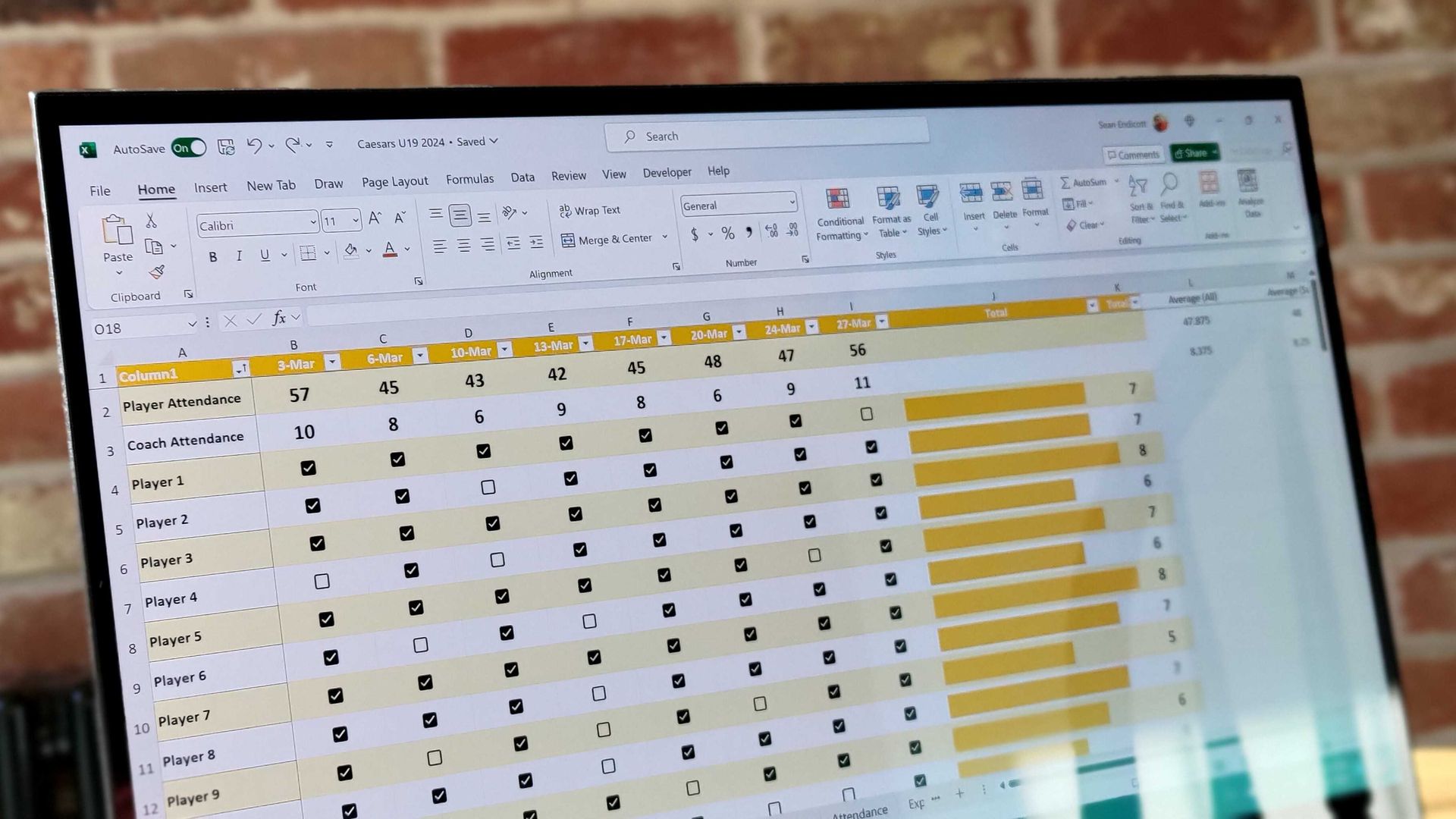
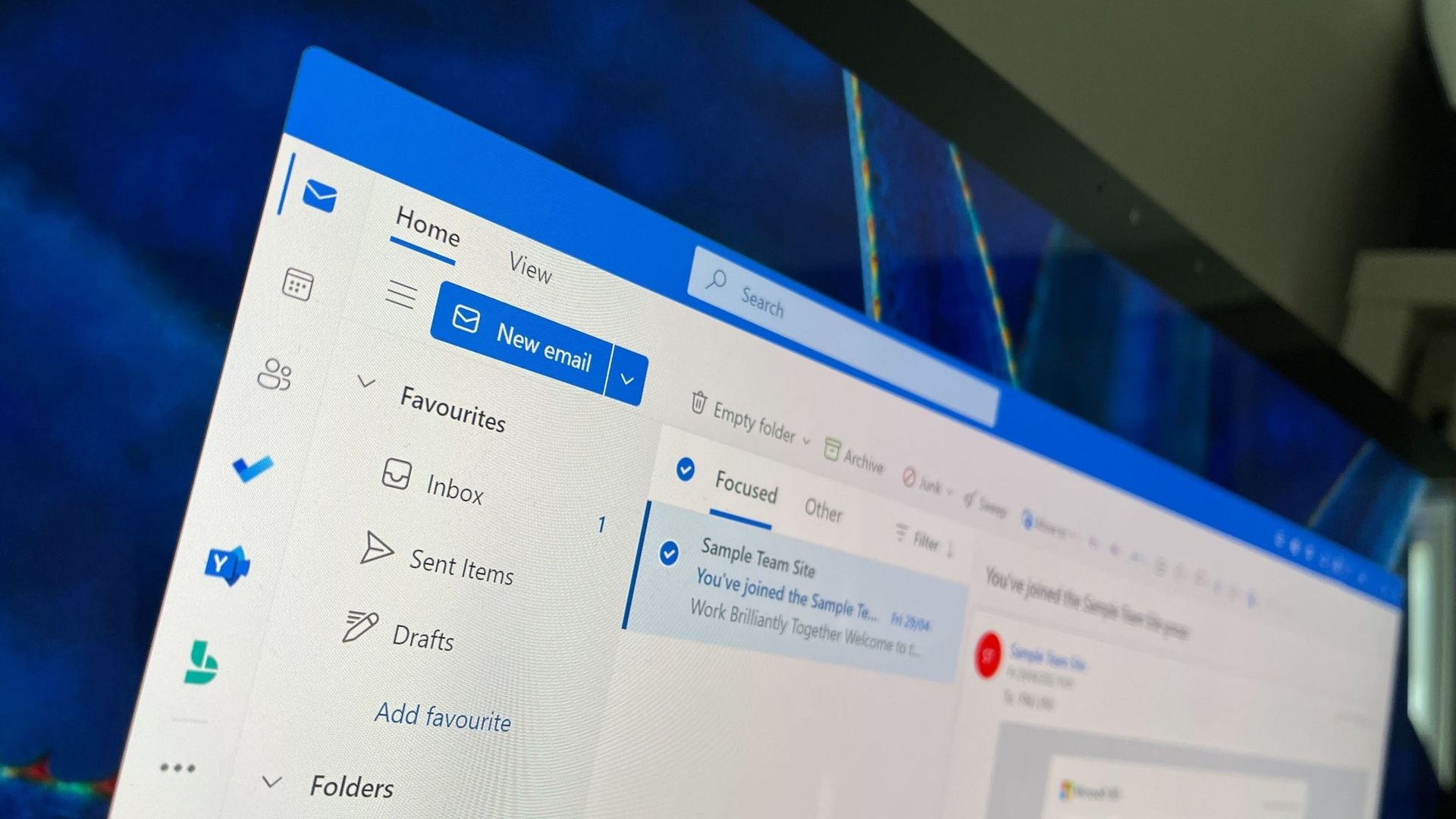
Copying and pasting continues to be an issue for those who install the latest updates from Microsoft. Just one month after an update broke functionality in Excel, October's release has caused the same issue.
The latest issues are caused by the KB5002934 update for Microsoft Excel, which is for Excel 2016. That version replaces KB5002665, which included a hotfix for a copy/paste bug. Despite superseding the previous update, the KB5002934 update can also prevent you from copying and pasting if a workbook contains conditional formatting.
Only a small set of Excel users should be affected by the bug, since it's limited to Excel 2016. Newer versions of Excel do not have the issue.
The bug appears in a way that may confuse those who run into it. Rather than Excel showing an error message or making a noise, the function simply fails.
The updates to Excel ship through Windows Update, though they aren't updates to the operating system itself. They function similarly to updates for other Microsoft apps such as Edge.
Luckily for those facing the issue, Microsoft has already fixed the bug. The company released a new build of Excel that fixes the issue. If Excel is running build 16.0.5574.1006 (or later), you should be fine.
You can check your Excel version by opening File > Account and looking under About Excel.
If for some reason you are still facing the issue, you can try these steps from Microsoft as a workaround:
On the Home tab, select the Paste dropdown list, and then select Paste Special.
In the Paste Special window, select one of the following options:
Formulas
Formulas & Number Formatting
Values
Values & Number Formatting
Link
I'm glad that Microsoft fixed the problem so quickly, but it's concerning that updates caused the same issues two months in a row.
Join us on Reddit at r/WindowsCentral to share your insights and discuss our latest news, reviews, and more.
Google’s new Android app store program brings one-tap installs and automatic updates, but US users are excluded, and marketplaces face a $10,000 annual fee.
Windows 11 finally lets you move the taskbar, but Microsoft has not fully restored functionality lost when jumping from Windows 10 to Windows 11. To help bridge the gap, developer Michał Łeptuch created an app that makes it easier to move the taskbar.
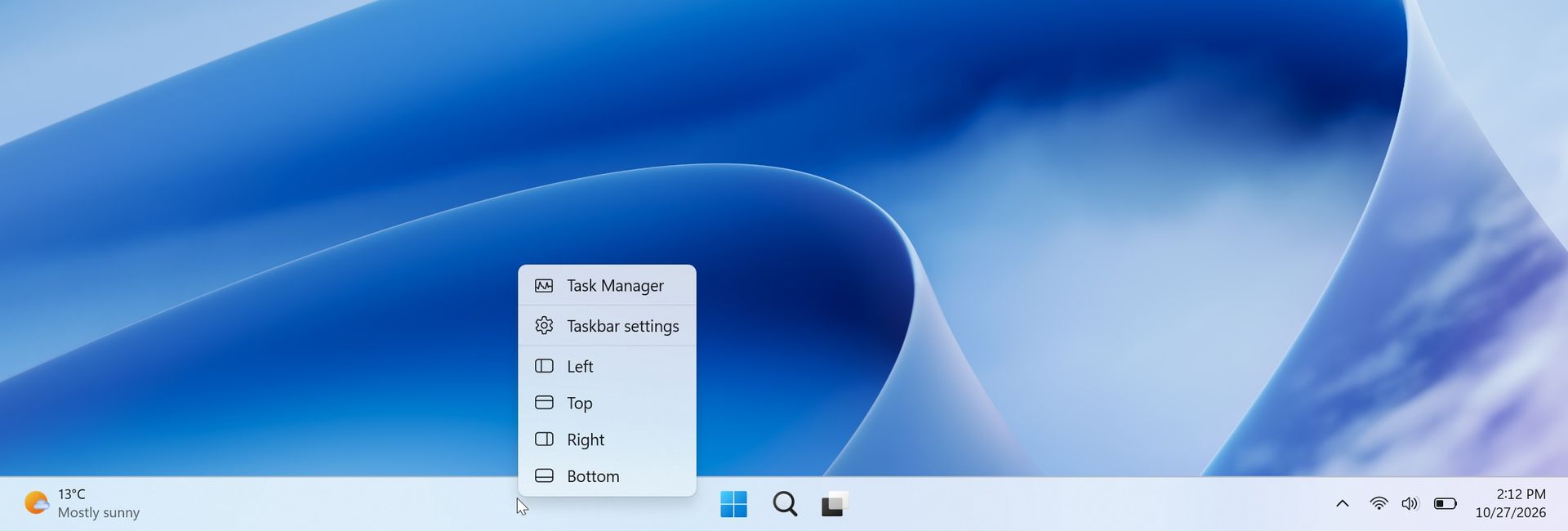
The simply-named "Taskbar Location Options" lets you right-click and move the taskbar to the top, left, right, or bottom of your screen. Alternatively, you can simply click and drag the taskbar to any edge of your display once the app is installed.
The inability to move the taskbar was one of the most criticized taskbar regressions when Windows 11 launched in 2021. One of the most-requested pieces of feedback for years was restoring the ability to move the taskbar to the sides or top of a display.
Microsoft finally restored that functionality last month, but changing the location of the taskbar still requires opening Settings, navigating to Taskbar settings, and selecting a new position from a dropdown menu.
The option to move the taskbar on Windows 11 is buried in the Settings app. (Image credit: Michał Łeptuch)
Łeptuch's app brings back the option to click and drag the taskbar. That feature was available on Windows 10 and previous versions of Windows. I always found it odd that Microsoft brought back the option to move the taskbar but buried it in the Settings app.
Dragging the taskbar is often faster, especially for users who frequently switch between desktop layouts or monitor configurations.
The installation process for Taskbar Location Options requires more steps than I'd like, but that should be smoothed out in the future. At the moment, you have to download a certificate, unblock the file, then run the file with PowerShell before installing the app.
The app's GitHub page includes a download link and a guide to install Taskbar Location Options.
Microsoft deserves credit for finally restoring the ability to move the taskbar, but the current implementation feels unnecessarily tucked away. Taskbar Location Options fills that gap by bringing back the quick drag-and-drop behavior Windows users enjoyed for years.
Join us on Reddit at r/WindowsCentral to share your insights and discuss our latest news, reviews, and more.
Browsing the web without an ad blocker is a brave adventure, especially on the mobile web. That's a big reason why I opted for Microsoft Edge and its built-in blocker on Android so many years ago; I just wanted to read articles in peace. Then again, it's sometimes an experience that's forced upon me when certain pages manage to bypass my ad blockers.
Of course, there are plenty of other browsers to choose from. Almost too many. But I'm not in a position to migrate my bookmarks, history, and logins to yet another Chromium clone just to escape overbearing ads for a while. That's why I've been leaning more on Reading Mode for the past few months or so, and it's a mostly flawless experience.
Reading Mode isn't new, but underappreciated
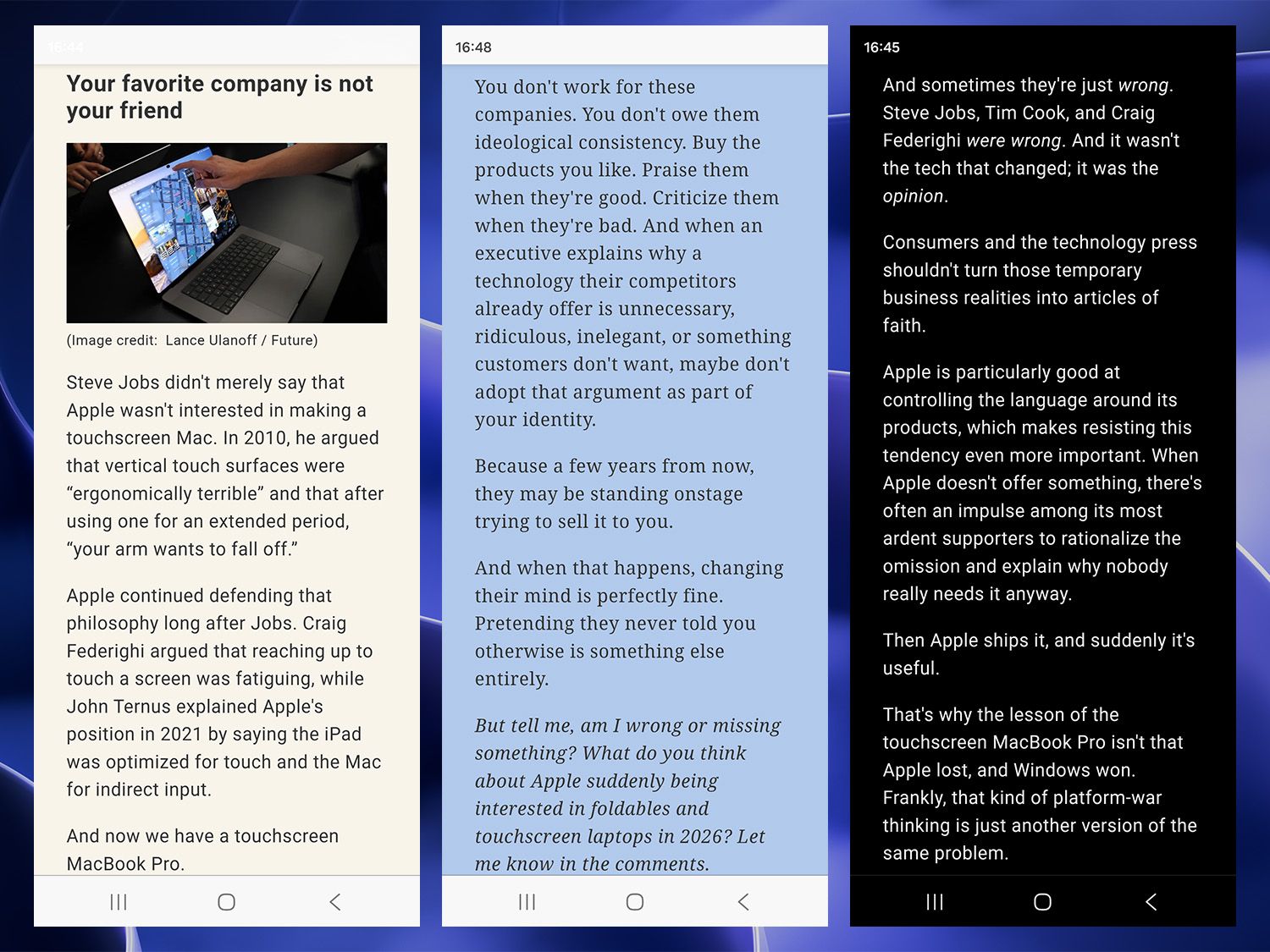
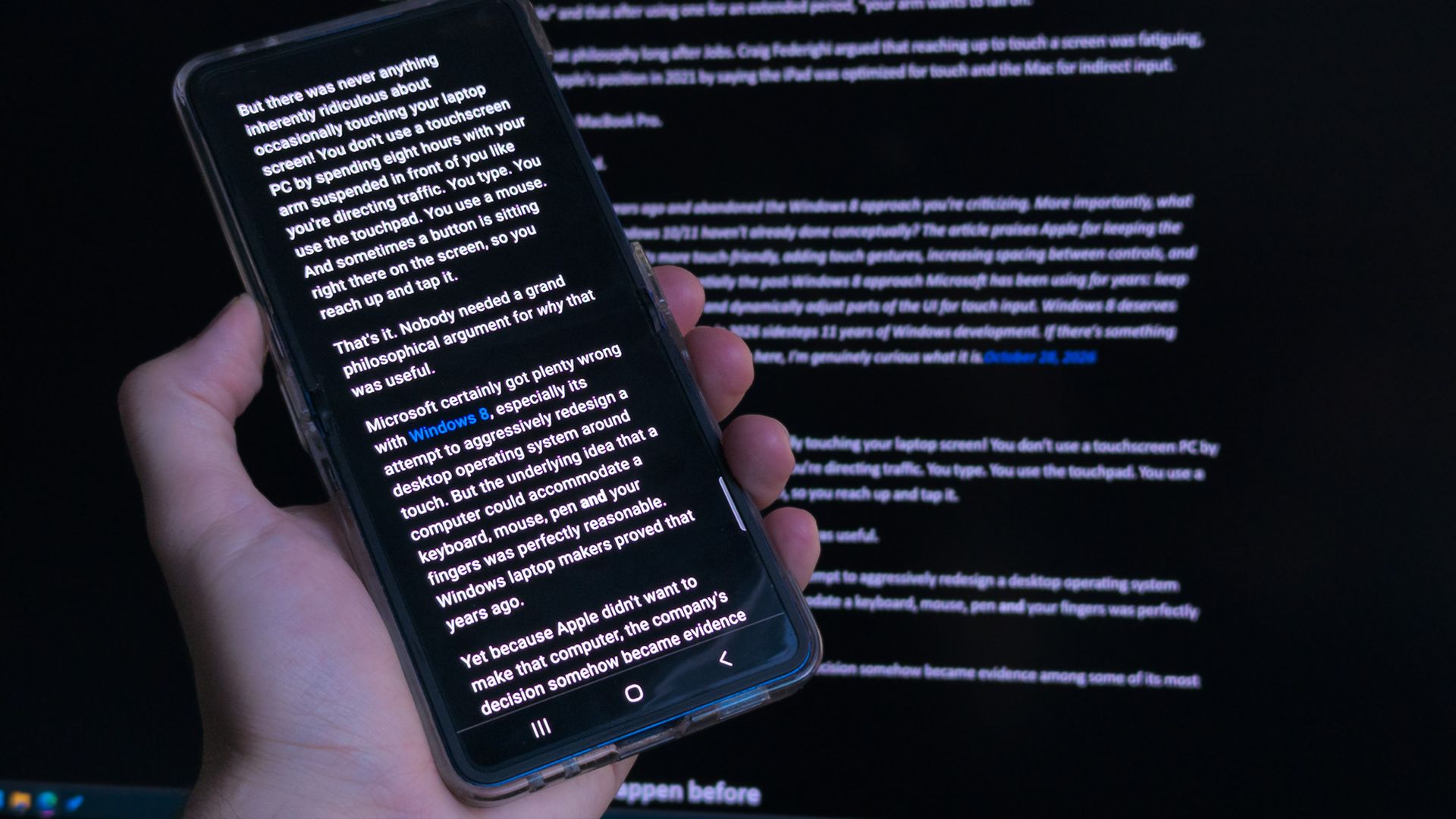
Choose from sepia, monochrome, and.. powder blue(?) (Image credit: Ben Wilson | Windows Central)
Microsoft Edge switches into Reading Mode for compatible articles with a single press of the F9 key, while Google Chrome needs a slightly more involved Alt+Shift+R shortcut. Alternatively, a tiny 'page' icon appears in the address bar on desktop browsers, while the Android app uses an 'open book' equivalent and activates the same thing.
Inside, I can toggle a few customization options, like text size, paragraph width, and color themes for the entire page that go further than a simple light or dark mode. A sepia-toned background might be easier on the eyes for some, and overriding the font to serif (or sans-serif) also helps some users read dense text faster. It's designed as an accessibility feature, but it helps in other ways.
The only downside is that, occasionally, some articles are inexplicably incompatible with Reading Mode, and it doesn't work as the icon disappears completely. It's usually specific to a certain website or outlet, which is even more confusing when they're often geared toward written content. I could probably solve it with another browser plugin, but I'd sooner look for a better ad blocker.
It isn't perfect either, but it's better than ads
Some .svg vector images get a little overinflated. (Image credit: Ben Wilson | Windows Central)
It's a small change, but switching to Reading Mode on the regular has made the mobile web (and sometimes the desktop web) feel less cluttered and, for the most part, less annoying. Admittedly, there are still times when it goes a little haywire, blowing up tiny .svg icons into full-page eyesores, but, again, it's better than ads that follow me down the page.
Simplify any article or webpage by removing ads, sidebars, and visual clutter—so you can focus and read at your own pace.
Microsoft, describing Reading Mode
There's nothing magical or groundbreaking about it, and no implication that I struck gold on finding some hidden feature. Instead, it feels more like one of those "Huh, I should have been using this for years" kinds of moments. I already contribute to brands that I care about the most through various memberships, but for the rest of the time, I don't want to be bothered with ads.
"Yet you display ads on your website. Curious!"
Ad blockers are practically a necessity for the modern web. (Image credit: Future)
Indeed, but you also control your own devices, and what you see generally depends on your choices. Advertising can work when it's done well, and we request ads relevant to our content, even if that doesn't always work out. In that, I'll generally only switch to Reading Mode once I've landed on a (usually long-form) article, to keep distractions to a minimum.
Ultimately, I'd much rather read some creative writing and human-driven opinions over an AI summary, and Reading Mode is proving to be the best way to do it. Again, I could consider an even better plugin as a replacement, but so far, I've been quite happy with this setup for now. Hopefully, Microsoft won't mess with it (or remove it entirely) on mobile.
Maybe you've found an even better solution? Perhaps an extension that has a little more determination to work on absolutely any article? I'm open to suggestions. Let me know in the comments if you have a setup that works for you, or what you think about reading articles on the mobile web in general. We'll always forward any feedback on our ads to the right people, too. We hear you.
Join us on Reddit at r/WindowsCentral to share your insights and discuss our latest news, reviews, and more.
I've been using Android phones for years now, and for the most part, they generally play well with Microsoft's 'Link to Windows' mobile app. That official setup gives me access to my phone from my desktop PC, and Samsung phones like my Galaxy Z Flip 7 have mostly worked without issue.
However, I still rarely use Phone Link on Windows 11 because when it does break, I find its random disconnection bugs so annoying that I don't want to pair my phone over and over. Besides, I don't need to access my smartphone from my PC all the time, so I looked for an alternative and found a great one.
What is scrcpy?
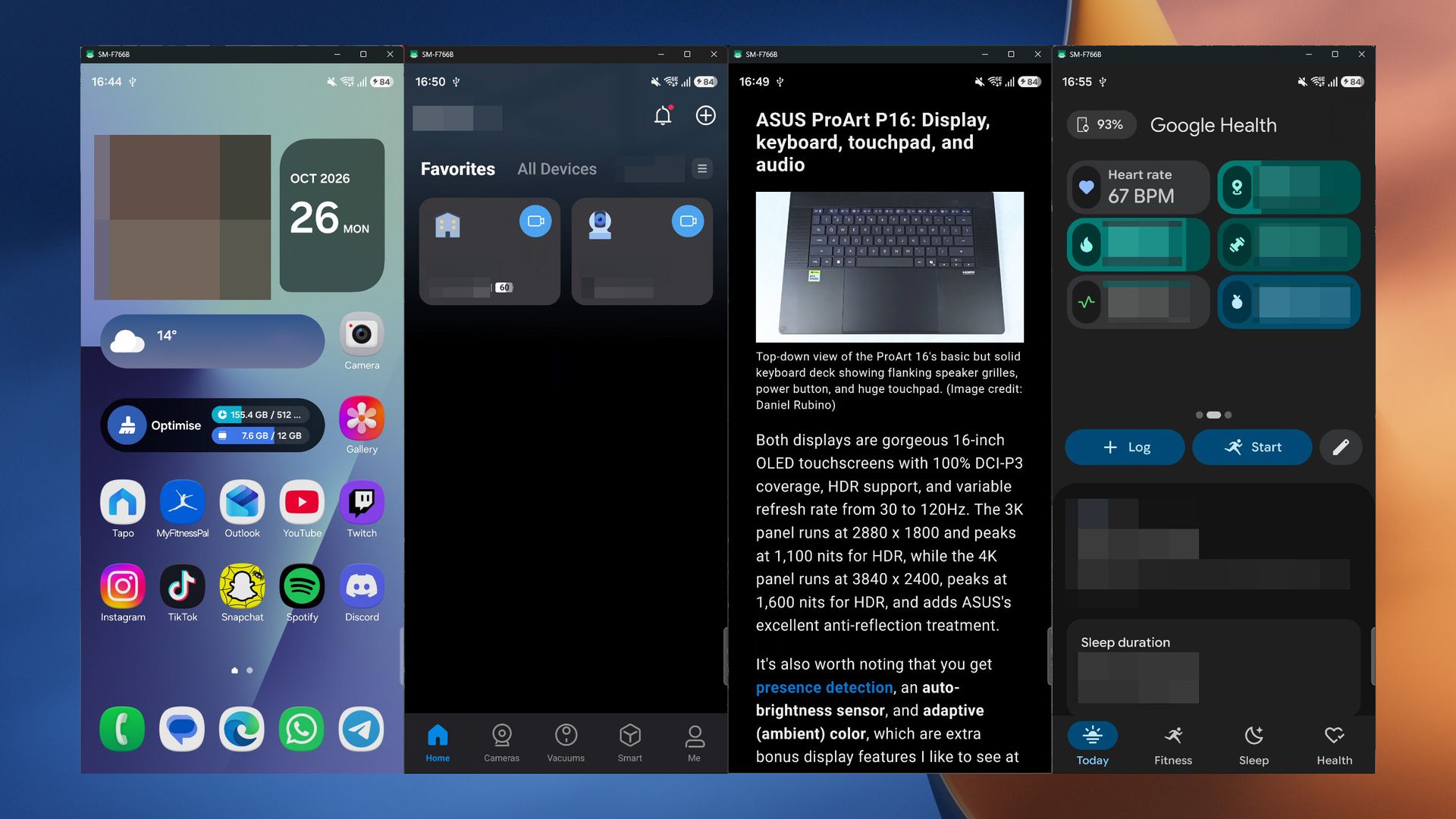
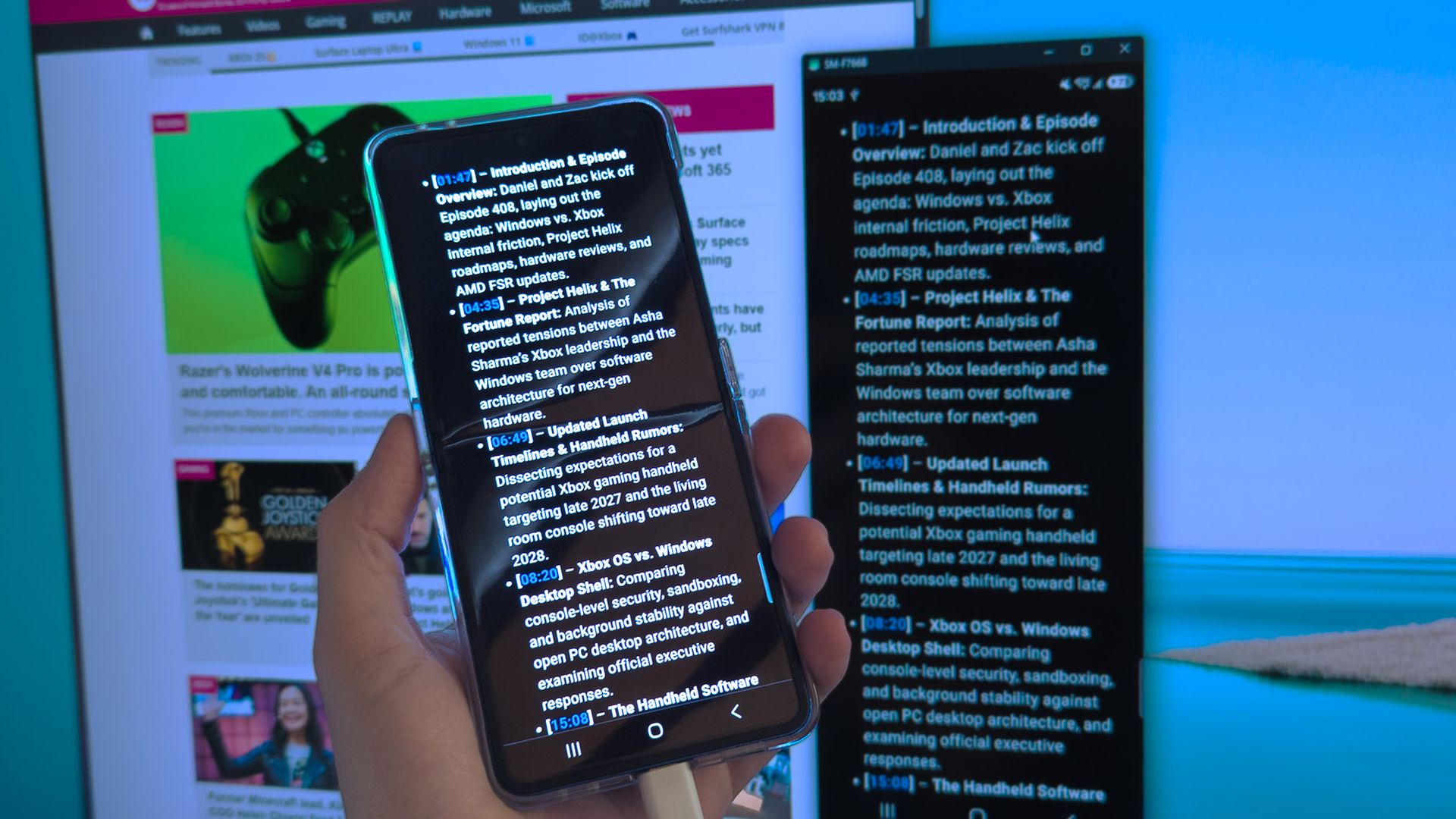
Controlling my phone with a mouse and keyboard, I can access my home cameras, copy text, and see my live health metrics. (Image credit: Ben Wilson | Windows Central)
It's pronounced "screen copy", but shortened to scrcpy on its GitHub repo. If you're unfamiliar, GitHub is a platform where coders and developers share and collaborate on software, often letting users view the source code of apps. That includes scrcpy, which is an open-source app (and that means it's free).
As its name suggests, scrcpy can mirror my phone's screen on my Windows desktop, like Phone Link. In that, it's not particularly groundbreaking, but I was intrigued by its flexible customization and support for low-latency connections over USB. It also works wirelessly, so it's nice to have that option.
You'll need to enable 'USB debugging', but that's easier (and less scary) than it sounds. On most devices, including my Samsung Galaxy, I tap the 'Build number' readout in my settings app seven times to enable a 'Developer options' menu and then toggle the new USB debugging option inside.
Now here's what I'm actually using it for
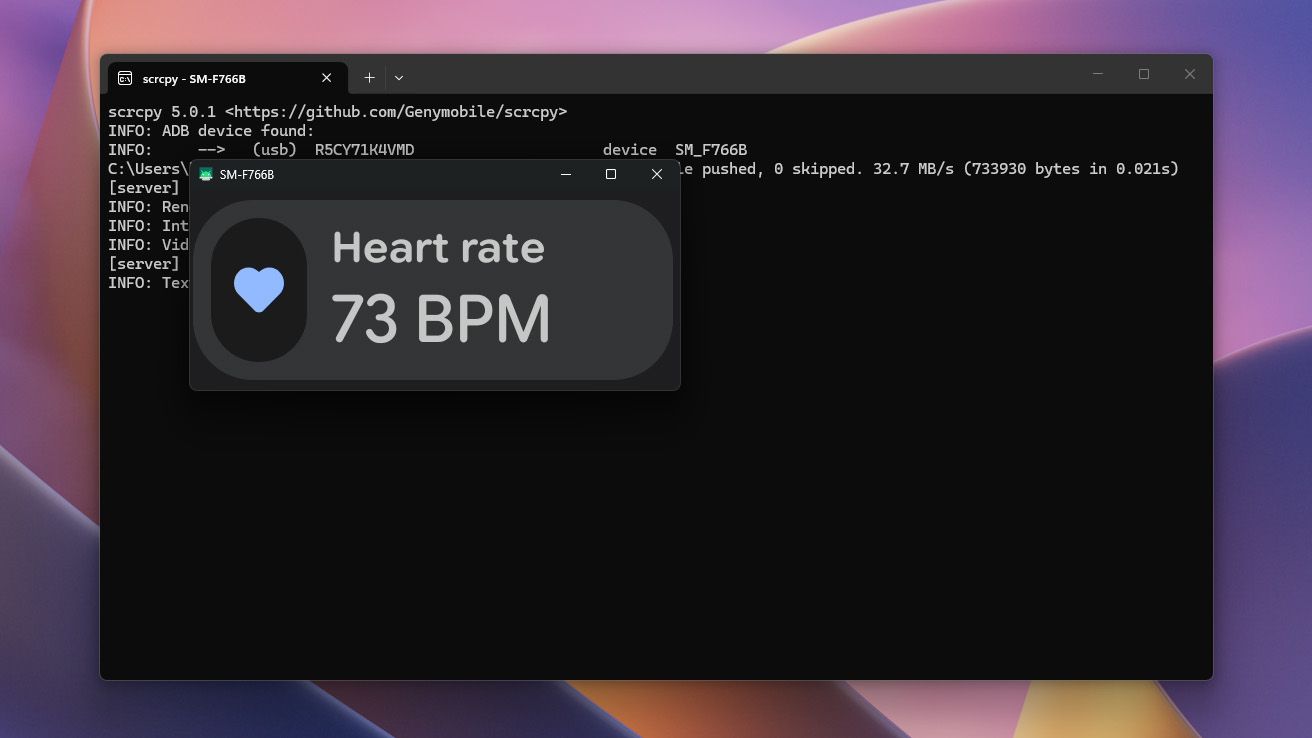
Command-line arguments mean I can crop specific parts of apps, such as my live heart rate in Google Health. (Image credit: Ben Wilson | Windows Central)
I had two main reasons to find a Phone Link alternative: to show my live heart rate from my Fitbit wearable connected to the Google Health app, and to view my Tapo security camera feeds, since TP-Link still doesn't offer a desktop app. Naturally, I've since discovered more benefits to scrcpy beyond these.
I know that first reason sounds strange, but Fitbit devices can't pair with Windows PCs, so it's more of a workaround to capture my heart rate BPM readout while playing horror games over Halloween. That's purely for fun, but the second is a real workaround.
Plus, command-line arguments like turn-screen-off disable my phone's screen (though it still responds to touch), and stay-awake prevents devices from going to sleep after inactivity. Those, combined with crop let me capture small parts of my screen and use very little resources.
There are more options to find in scrcpy's documentation, but these three alone mean I can watch my video doorbell for an expected delivery, or see which part of the latest Resident Evil game spiked my pulse the most. Niche, but easy to work with. I only need to connect my phone via USB-C and launch the app.
There's more to play with
As far as GitHub goes, this is one of the easier projects to use. (Image credit: Ben Wilson | Windows Central)
I'm getting into a habit of connecting my phone to scrcpy in the mid-afternoon to fire through a bunch of tasks that would otherwise make me stare at my phone, and having full mouse and keyboard control makes it much more convenient from my PC. Right-click takes me back a page, and a middle-click takes me home.
That cross-device clipboard feature also lets me copy text from a mobile app into a traditional Windows app without needing the Ctrl+C shortcut. Selecting a prompt to 'copy' on my phone just sends it to my Windows clipboard (and vice versa), which is a similar time-saver. Again, not unique, but still useful.
Still, as satisfied as I am, I'm eager to try other features. Direct camera capture, audio-only mode, and a collection of bitrate/quality tweaks are available for experiments; all exciting without a feeling that I'm getting lost in the Terminal. Definitely check out scrcpy for yourself if you're interested.
Join us on Reddit at r/WindowsCentral to share your insights and discuss our latest news, reviews, and more.
Some would be surprised to hear that Microsoft Edge has been available on macOS for years. The browser receives regular updates and gives users an easy way to extend their browsing experience across platforms. Soon, organizations that rely on Edge on macOS will have another option for which version of the browser is installed.
Selecting the Microsoft Edge Extended stable channel will soon be an option for organizations. That channel receives major feature updates every eight weeks, giving organizations more time to validate changes to the browser.
The Edge Extended stable channel is already available on Windows. Next year, it will roll out to macOS. An entry in the AI at Work Roadmap (previously known as the Microsoft 365 Roadmap), outlines Microsoft's plans:
"Organizations managing macOS devices will be able to select the Microsoft Edge Extended Stable channel, providing a slower 8-week major release cycle, compared to the two-week major release cycle for Stable."
Edge stable, which is commonly just referred to as "Edge," receives major feature updates every two weeks.
Notably, both Edge Stable and Edge Extended Stable receive security updates as needed. Organizations using the Extended Stable channel do not have to wait eight weeks to receive critical security fixes.
Join us on Reddit at r/WindowsCentral to share your insights and discuss our latest news, reviews, and more.
Microsoft just announced an overhauled Photos app for Windows 11, but that's for viewing images and videos. If you're interested in capturing content, you'll want to catch up on everything new in the Camera app.
A wave of changes to the Camera app recently shipped to Windows Insiders. They include several small improvements as well as some quality-of-life changes.
The Camera app can now zoom digitally when hardware zoom is unavailable. Microsoft has focused on the zoom experience in several updates this year. In June, the company started testing expanded support for more cameras.
Microsoft lists all the changes that are available for Windows Insiders:
Improved the camera zoom experience and added support for software zoom when hardware zoom is unavailable. Software zoom isn't available for Living Images, scanning, panorama, spherical preview, or other specialized modes.
Improved support for copying to your clipboard with Ctrl+C after capture.
Added a new Copy path action after capturing a photo or video, allowing you to easily copy the file path.
Delayed capture now shows the remaining seconds inside the timer ring.
Recorded video playback now shows the remaining time beside the seek bar.
Camera is more responsive and accurate when starting video.
Fixed an issue where a white flash would sometimes appear when opening the app with Windows in light theme.
While changes to software zoom are the headline additions, some users may appreciate the new Copy path option and improved clipboard support more. Both features make it easier to move captured images and videos into apps and documents.
Those improvements first entered testing for Insiders in the Experimental, Experimental (26H1), and Experimental (Future Platforms) channels on October 2. They have since shipped to Beta and Release Preview Insiders as well.
With the feature progressing through Windows Insider channels, it should make its way to general users in the near future.
The Camera app improvements arrive for Windows Insiders shortly after Microsoft announced a major redesign of the Photos app. Together, the updates show Microsoft's commitment to improving Windows 11's built-in apps.
Join us on Reddit at r/WindowsCentral to share your insights and discuss our latest news, reviews, and more.
PowerToys just added several new utilities and added new features for existing tools.
Two of the new utilities improve mouse use. Mouse Button Lock allows you to press and hold your mouse button down for a moment and then have your PC treat the input as if you've kept that button down. The tool improves accessibility for those who struggle to hold a mouse button down as they drag an item across the screen.
CursorHide is a smaller utility that hides the mouse pointer on your screen after a brief period of inactivity.
The quick-access shelf in Command Palette is an optional feature that shows pins below the search box.
This collection of utilities includes a large library of features to enhance the Windows experience. PowerToys is designed with power users in mind, but it has handy features for people who just use their PC for everyday computing too.
Here are the highlights from the latest build of PowerToys, as shared by Microsoft:
Mouse Button Lock and CursorHide
Holding a mouse button down during a long drag or selection can be tiring. With Mouse Button Lock, press and hold a button for a moment, then let go. Windows keeps treating it as held, so you can continue dragging or selecting until you click any button. This is especially useful for gaming, working in professional applications that require extensive dragging and selection, and improving accessibility for users who find it difficult to hold down a mouse button for extended periods.
CursorHide is the second new mouse utility. It hides the mouse pointer while you type, after a period of inactivity, or both, and shows it again as soon as you move the mouse.
Command Palette gets a quick-access shelf
Compact mode in 0.101 kept Command Palette out of the way until you needed results. Now your favorite commands can be one keystroke away too. Turn on the quick-access shelf in Settings > Appearance > Compact mode to show your pins below the search box while the palette is collapsed. Press Alt+1 through Alt+9 to launch them, or Alt+Shift+number to select one without running it. Drag to reorder, right-click for more actions, and optionally show recent commands and apps next to your pins.
The shelf is just one part of a big Command Palette update:
Settings search: Fuzzy search finds options, extensions, commands, aliases, and assigned shortcuts, then takes you straight to them.
Keyboard-first Dock: Press Win+Alt+J to focus the dock and move between its items from the keyboard.
Copilot key support: Choose Command Palette as the Copilot key app in Windows Settings, and press the key again to toggle the palette.
Multiple clocks: Pin several dock clocks, each with its own time zone and format.
Language and links: Pick an app language for Command Palette, and copy links that open a page, run a command, or jump to a specific setting.
Polish: Sharper app icons, faster grid and gallery browsing, results that keep loading at the end of a list, and clearer nested menus.
ZoomIt adds snip dictation
ZoomIt can now capture what you say along with what you snip. Turn on Snip with dictation in the ZoomIt settings, then press Space while you drag out a snip and describe what you're capturing. ZoomIt transcribes your speech on your device, and a single paste delivers both the screenshot and your text. Dictation uses the microphone selected under Record.
ZoomIt also gets smooth zoom transitions, better audio pacing in recordings, and a fix for silent recordings on multichannel and spatial-audio devices.
New command-line tools
More of PowerToys can now be scripted from the terminal:
Advanced Paste: Run built-in and custom actions without opening the UI, using files, stdin/stdout, or the clipboard. AI actions use your configured providers and policies.
Light Switch: Check status, set or toggle the theme, and manage schedules, with JSON output.
Settings: See which utilities are enabled, and turn them on or off even while PowerToys isn't running.
Peek: Preview multiple files and folders from the command line.
PowerDisplay: JSON Lines output makes results and errors easy to consume from scripts.
On your PATH: FancyZones, Image Resizer, File Locksmith, and PowerDisplay commands now work from any terminal folder.
Keyboard Manager adds tap-alone remaps and easier editing
Keyboard Manager now supports tap-alone remaps. Tap a key by itself to trigger a different action, while the key keeps working normally in shortcuts and mouse combinations. Large remapping lists are easier to manage too, with search, modifier and app filters, and bulk deletion.
The new editor also gets a searchable key picker, so you can select any key, including media keys or keys your keyboard doesn't have, and build a full shortcut with just the mouse. Recording now only listens while the editor is in focus, and Tab moves you out of the recording field. IT admins can also deploy and export remapping profiles with DSC v3.
Other notable changes
Color Picker and Text Extractor: Both move to WinUI 3, with a new overlay, editor, and magnifier for Color Picker. Your existing shortcuts and settings carry over.
FancyZones: Scroll the mouse wheel while dragging a window to switch layouts, with an optional indicator showing the selected layout's name.
Peek: Added read-only SQLite previews, file and subfolder counts with scanning progress for folders, a plain-text fallback, and Alt+Left/Alt+Right navigation between files.
Screen Ruler: Measure in device-independent pixels to account for each monitor's scaling, with improved edge detection.
Environment Variables: A new Remove duplicates action cleans up PATH while keeping the original order.
Quick Accent: A searchable character reference in Settings lets you browse language sets and copy characters directly.
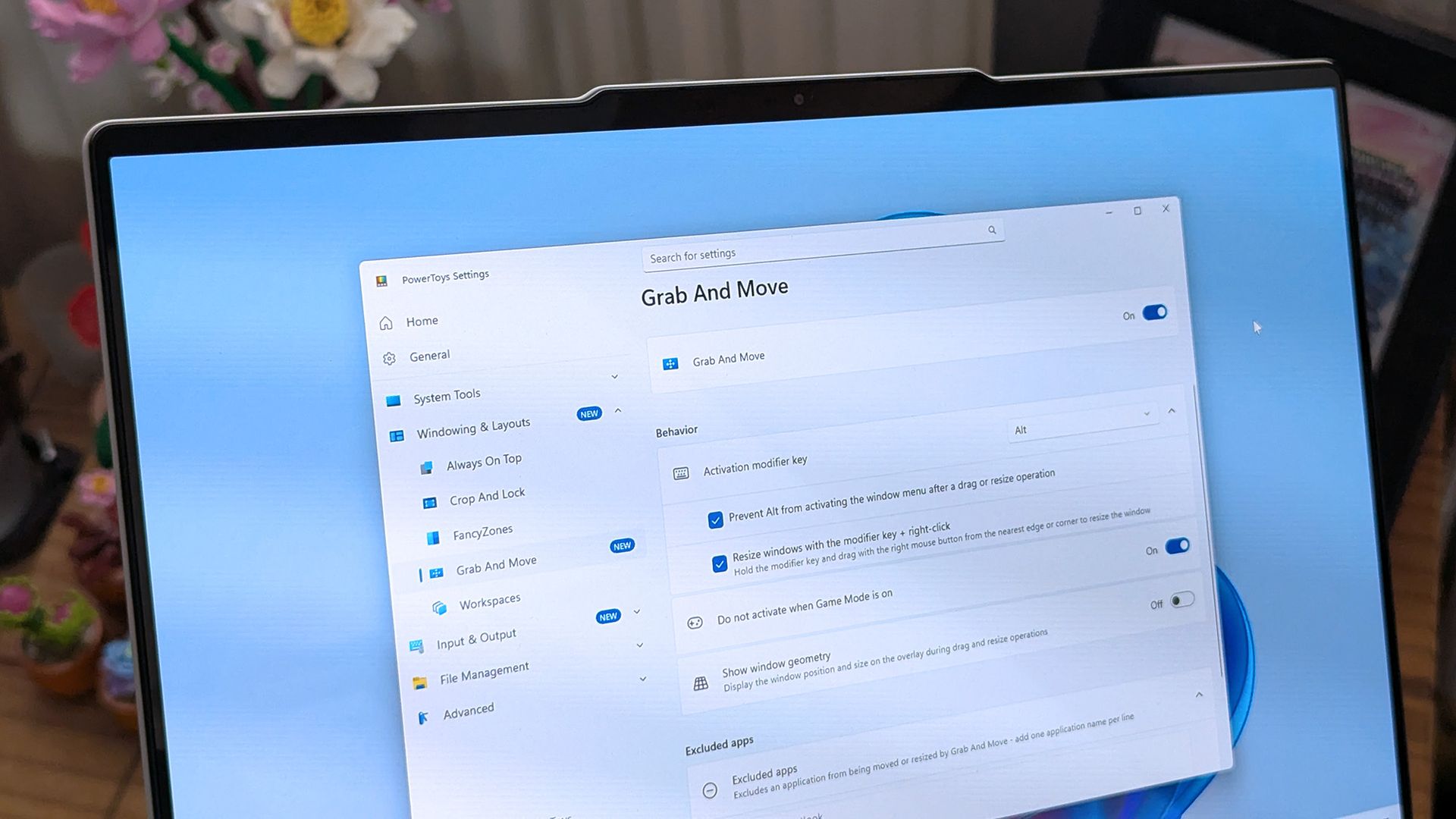
Grab and Move: Exclude specific apps so they keep their normal modifier-key behavior.
Shortcut Guide: Added shortcuts for Claude Desktop and Ableton Live, and made indexing more resilient to malformed manifests.
Workspaces: Now asks for confirmation before launching an unverified app configured to run as administrator.
Awake: Windows can now turn off the display while the PC is locked, without ending your keep-awake session.
New+: Fixed a File Explorer memory leak and improved long-path handling.
Settings: Added an interactive animated welcome scene, fixed a memory leak when switching pages, and kept module on/off preferences when a utility fails to load.
PowerToys has been one of my favorite Windows apps for a long time, and it is also a favorite of several members of our team at Windows Central. The app has a massive library of utilities that can be enabled or disabled, making it a great choice for casual PC users and power users.
PowerToys is also interesting to follow because it inspires the development of Windows 11. The newly announced Search experience for Windows 11 clearly takes some cues from PowerToys run and Command Palette.
Join us on Reddit at r/WindowsCentral to share your insights and discuss our latest news, reviews, and more.
During its OneDrive and Copilot event, Microsoft announced a massive number of changes to its cloud storage platform. Many of the improvements center around using Copilot to find items and generate new content, but there is also a feature for sharing OneDrive links.
Now, when you share a file in OneDrive, you can continue to use the same link even after you change access or permissions to that file. Previously, you'd need to create a new link after changing those settings. Old links would continue to work, but over time you'd accumulate a bunch of different links to the same file.
With so many different links to the same file, it would be easy to accidentally share one with the wrong permissions. The new method of sharing, which relies on "hero links," can update access and permission settings while retaining the same link.
Support for hero links is rolling out now. In the future, Microsoft will add support for expiring hero links. With those, you can set an organization's hero links to expire automatically on a schedule.
Copilot and OneDrive
It may not have received the fanfare of the Windows and Surface event held earlier this month, Microsoft just held a OneDrive and Copilot event. The event highlighted several new capabilities to Copilot, such as analyzing files, organizing projects, and turning files into interactive HTML reports.
Custom skills in Copilot let you capture a process and save that process as a Markdown file, which helps ensure Copilot runs the same way every time when performing that process.
Copilot also makes it possible to use natural language to find a photo in OneDrive.
Microsoft also highlighted its refreshed Photos app for Windows. That app shocked me due to its responsiveness and quick loading times. It also has several new features, such as Map View that lets you browse photos based on their geographic location.
Microsoft's blog post about Copilot and OneDrive is almost 3,500 words, so I won't rehash all of it here. The change that I'm most excited about is the addition of hero links. I share a lot of files through OneDrive and send links across several group chats. Reducing that clutter will reduce my stress immensely when it comes to sorting access and permissions.
Join us on Reddit at r/WindowsCentral to share your insights and discuss our latest news, reviews, and more.
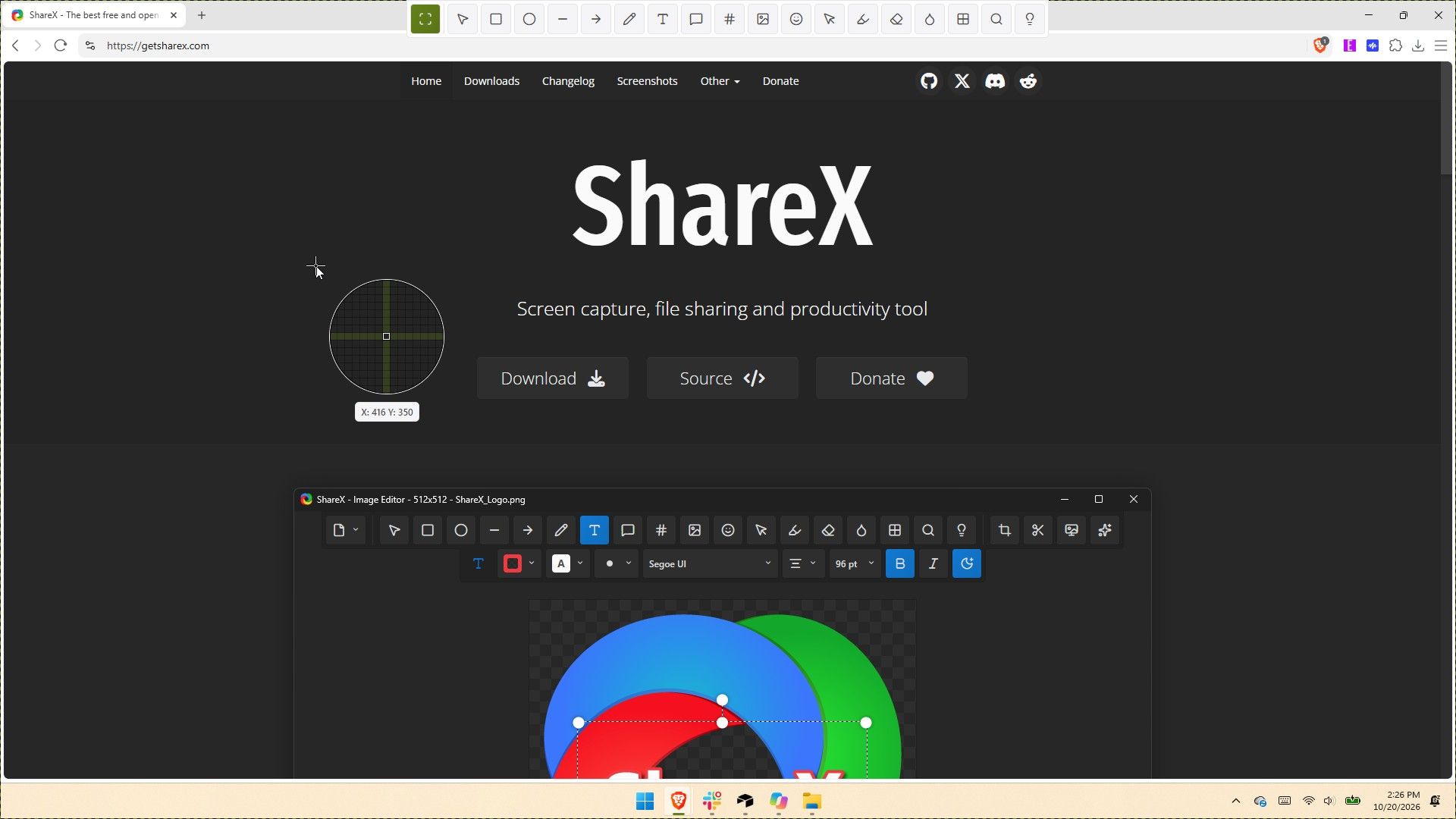
ShareX has been around for almost two decades, but in its 19 years as a screen capture app, it has never received an update as large as the one that just shipped to testers. ShareX version 22.0.0 brings a massive number of changes to a completely overhauled app.
The update adds native screen recording, a new screen recorder bar, and support for recording content at 120 FPS. It also brings a number of quality-of-life changes, such as a restart button for screen recordings and the option to show or hide the screen recorder timer and recording button labels.
Screenshot functionality has also expanded. Several preexisting tools have been redesigned, and new tools have been added as well.
Added an always on top toggle to the main window title bar.
Added a theme toggle to the main window title bar. ShareX
Added cursor centered zoom support to image viewer with Ctrl + Mouse wheel.
Reset image viewer zoom with Middle click.
Added PNG compression level option.
Added PNG filter option.
Added JPEG chroma subsampling option.
Added adaptive quantizer GIF quality option.
Added BMP bit depth option.
If you've only used the Snipping Tool on Windows 11, you may be a bit overwhelmed by all of the options within ShareX. But the defaults in ShareX make it easy to start using the app. I've been using CTRL+Print Screen all morning to grab screenshots.
The revamped ShareX is impressive, but the main reason I love the app is that it lets you save screenshots as a JPEG. That's a small feature that's been around for ages, but it still remains unavailable in Snipping Tool.
I've only had ShareX version 22.0.0 for a few hours, but in that time the app has performed quickly. It's so snappy that it feels native to Windows 11. If you take a few minutes to customize ShareX's settings and shortcuts, it can become a powerful tool that justifies running at startup.
ShareX is a free Windows app for screenshots, screen recording, and image editing. It packs dozens of tools for capturing, annotating, organizing, and sharing content from your PC.View Deal
Join us on Reddit at r/WindowsCentral to share your insights and discuss our latest news, reviews, and more.
Microsoft's Photos app is about to get a major upgrade. Microsoft recently highlighted how the app is faster, more efficient, and full of new features. The upgraded Photos app will feature a new Gallery, Editor, and Viewer.
Details about the new Photos app were shared in a Microsoft blog post, but images and videos have since shown off the level of improvement we can expect.
Based on early impressions of the app, the new Photos experience could be a go-to way to view and edit images on Windows 11 rather than an app you scroll past after right-clicking and selecting "Open with."
New features
The three main additions to the Photos app are the new Gallery, Editor, and Viewer. Those experiences are designed to, "help you rediscover and organize your collection, give you more capable tools for your favorite shots, and make the everyday experience faster," according to Microsoft.
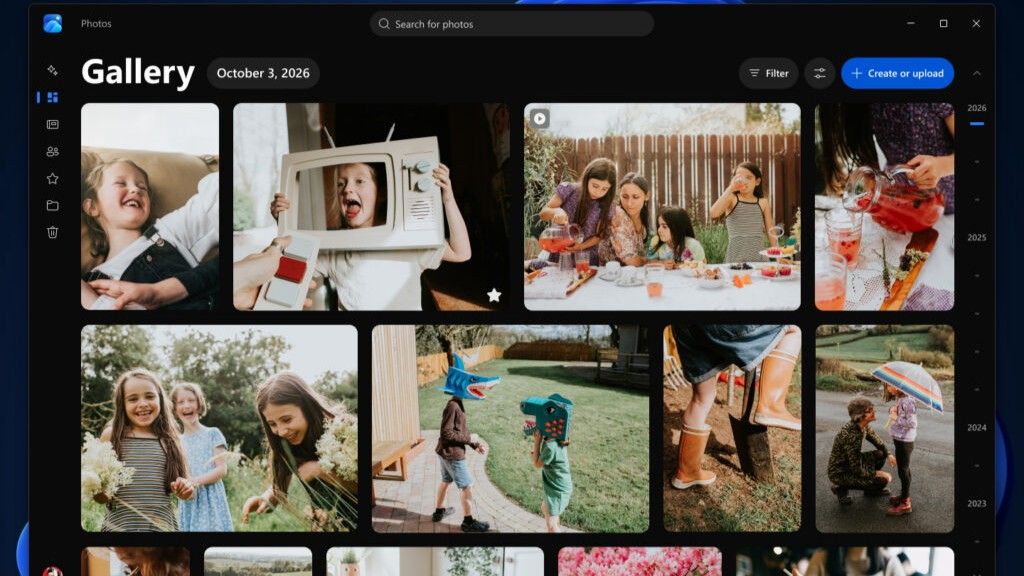
The new Gallery gathers together photos from your PC, OneDrive, and iCloud into a single space. You can then search for images using text, filter photos to see specific people, or browse Moments created by the app or albums you've organized.
You can use natural language to find images in your gallery, such as searching "sunset at the beach." That saves you the hassle of searching for specific file names.
The new Editor loads 25 percent faster, according to Microsoft. It includes tools to crop, enhance, repair, and stylize photos.
Super excited to ship the new Photo Viewer and Editor! Faster launch times, nearly 50% less RAM used by the Editor, and tons of new features!One detail worth showing off: Photo Viewer is now edge-to-edge. Zoom into a photo and watch it take over the entire window! https://t.co/5mKMO87PVlOctober 15, 2026
Microsoft rebuilt the new Editor from the ground up with WinUI 3, which is the modern framework used to create apps. Notably, only certain parts of the new Photos app are built with WinUI 3.
On top of the normal features you'd expect from an editor, such as cropping an image, the new Photos app has some advanced features like Relight. With that tool, you can add up to three light sources to an image and dynamically adjust lighting in the photo.
Microsoft added support for editing and saving HEIC and WebP images as well as the ability to preserve the color and contrast of HDR photos throughout the editing process.
The new Viewer in the Photos app is also called "native" by Microsoft, though the blog post does not specify that it is built with WinUI 3. It now has better support for HDR viewing and supports more file types, including SVG files.
Speed improvements
I'm excited to try the new features in the Photos app, but the speed of the app is what has stood out to me the most. Diego Baca, Microsoft's Vice President of Design for Windows, shared a video showing the new gallery.
Baca scrolls within the Photos gallery and hundreds of photo previews load instantly. Even when pausing the video, there is only one instance of stuttering or the app having to take a moment to load images.
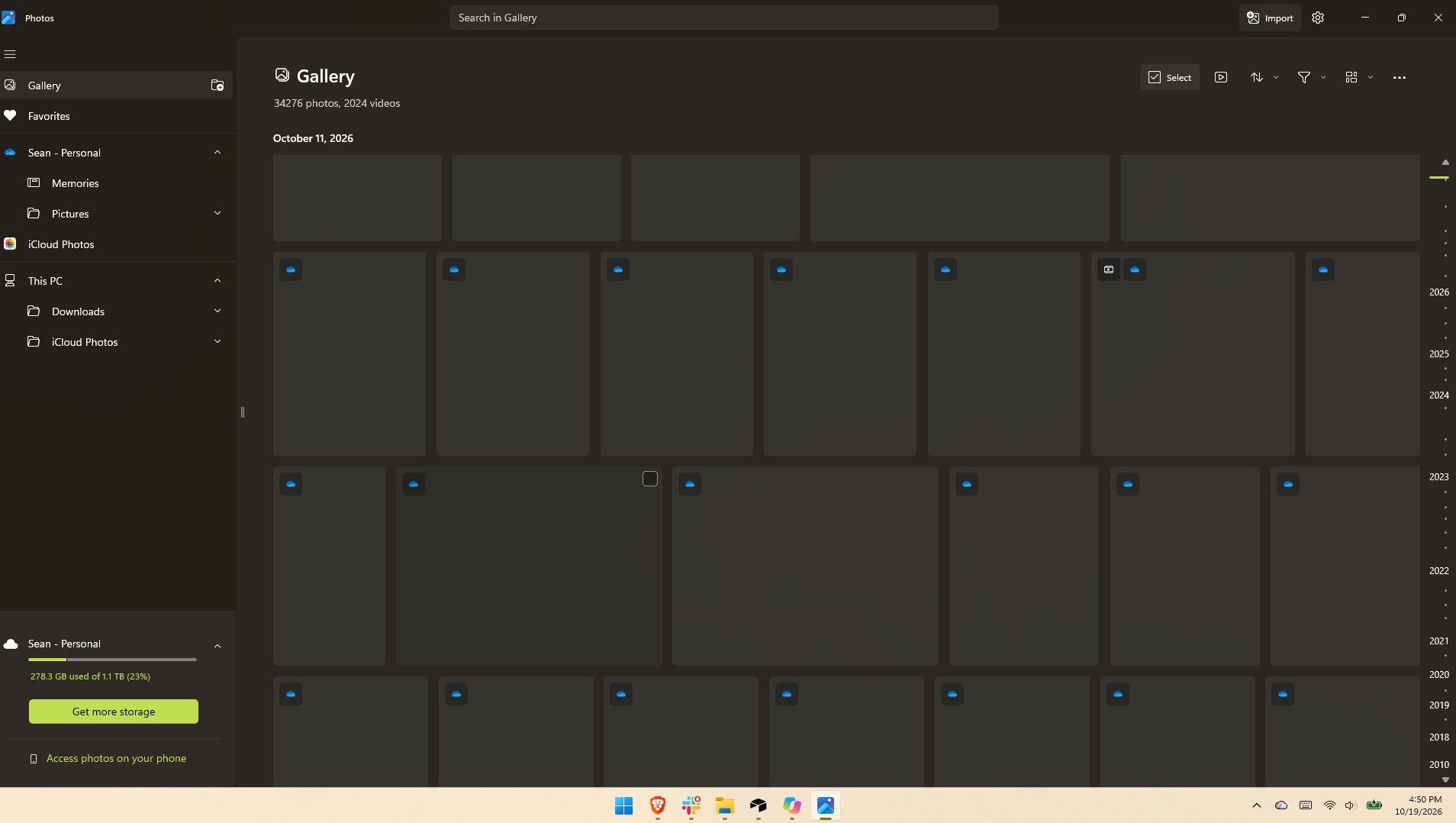
I thought for a moment I may have been judging the old Photos gallery too harshly, but a quick test put that concern to rest. Scrolling through my gallery on my main PC, which does not have the improved Photos app yet, I can watch thumbnails load one at a time. It's like switching from dial-up internet to broadband.
If I scroll through the old Photos app quickly, I can get an entire page of unloaded thumbnails. (Image credit: Future)
Several parts of the app have been sped up, such as Viewer launching 15 percent faster on average and up to 30 percent faster for HEIC images.
Earlier this year, we covered Microsoft's Rudy Huyn assembling a team to work on Windows apps. We've seen some of the fruits of that team already, but the new Photos app is by far the biggest improvement connected to them.
Join us on Reddit at r/WindowsCentral to share your insights and discuss our latest news, reviews, and more.
Microsoft Edge may not have a Favorites bar after a future update. The browser may instead feature a collection of bookmarks instead. The change would bring Edge more in line with Chrome, which could help people transitioning from Google's browser to Microsoft's.
The change appears now in the Canary version of Microsoft Edge, which suggests it will make its way to the stable version of the browser at some point in the future. Leo Varela, who tracks changes to Edge and Chrome, spotted the change and highlighted it on X.
Varela also noted that the switch could be made to make Edge appear more like Chrome.
Microsoft might rename "Favorites" to "Bookmarks" in Edge. I suppose this aims to make the browser feel more familiar to users switching from Chrome to Edge. This change is already being tested in Canary: https://t.co/DmBSVj4IQPOctober 15, 2026
I'm curious if people are even aware that Edge has Favorites rather than bookmarks. Even if you click the star icon in Edge to add a site as a favorite and then place that site in the Favorites bar, the user interface looks almost identical to bookmarks in Chrome or other Chromium browsers.
Edge still has a poor reputation
Many people assume Microsoft Edge is a worse browser than Chrome and do not try Edge themselves. (Image credit: Getty Images | SOPA)
This week I was speaking with a friend about Microsoft Edge and was somewhat surprised to hear them say it was a bad browser. I was actually more surprised that they had an opinion of the browser at all.
If you hop into our comment section or into subreddits full of tech enthusiasts, you'll often see people say something to the effect of "Edge is a fine browser; it's basically Chrome with a Microsoft paintjob."
But in my experience, that opinion is not held by non-techy users. In the rare instances that browser preferences come up in my everyday conversations, most people I speak with still connect Edge to Internet Explorer or just assume Edge is worse than Chrome.
I know Chrome gets a lot of hate around these parts, but the reality is that it's the world's most-used browser. Statcounter shows Chrome at a 66.36% market share right now. That tramples second-place Safari, which sits at 18.27%. Edge is in third place with a 6.04% market share.
That picture changes when exclusively looking at mobile devices. Chrome is even more dominant and Edge has essentially no mobile market share.
With Chrome being the de-facto standard for browsing, it's wise to make Edge look similar to Chrome. Microsoft needs to differentiate Edge in some ways, but Favorites versus Bookmarks is not one of them.
Join us on Reddit at r/WindowsCentral to share your insights and discuss our latest news, reviews, and more.
Microsoft Edge appears to have an AI tool on the way that will fix common issues within the browser. A page within the browser's settings app was spotted recently, though only for those using Edge Canary (a preview version of the app).
The feature was first spotted by Leo Varela, who keeps track of changes to Edge and Chrome. Varela noted that the icon for "Fix an issue" is a magic wand, which suggests it could be an AI tool. Microsoft often uses a similar icon to denote AI features.
Early hints of the feature appeared back in May. The latest version of Edge Canary shows a basic interface for the tool, but the feature is not functional yet.
The interface has a text box for describing an issue and also shows a list of four suggestions, such as "Fix videos that won't play" and "Help me sign in."
Edge's new "Fix an issue" settings page now displays a prompt box where you can type what you need help with. There are also four suggestion chips at the top that automatically fill the text field with prewritten prompts. Currently, clicking "Get help" throws an error: https://t.co/DUunhc4FZpSeptember 12, 2026
Earlier this year, Varela discovered the same feature in a different section of Edge's settings. That listing noted that the feature would use AI to analyze relevant diagnostic data to identify an issue and suggest a solution.
It's normal to see features like this bump along through various preview channels, but it's a bit odd that "Fix an issue" does not appear in the AI at Work Roadmap (previously known as the Microsoft 365 Roadmap).
For example, watermarking protection is on the way to Edge and is not expected to ship to the browser for months, but it is already on the AI at Work Roadmap.
Microsoft has a new competitor, and it's not a big name like Google or Apple. A developer named Brandon Thomas has created open-source replications of Microsoft Word, Excel, and PowerPoint using AI. Thomas made headlines recently for using AI to replicate the Adobe suite, and he has now pointed his AI agents at Microsoft 365.
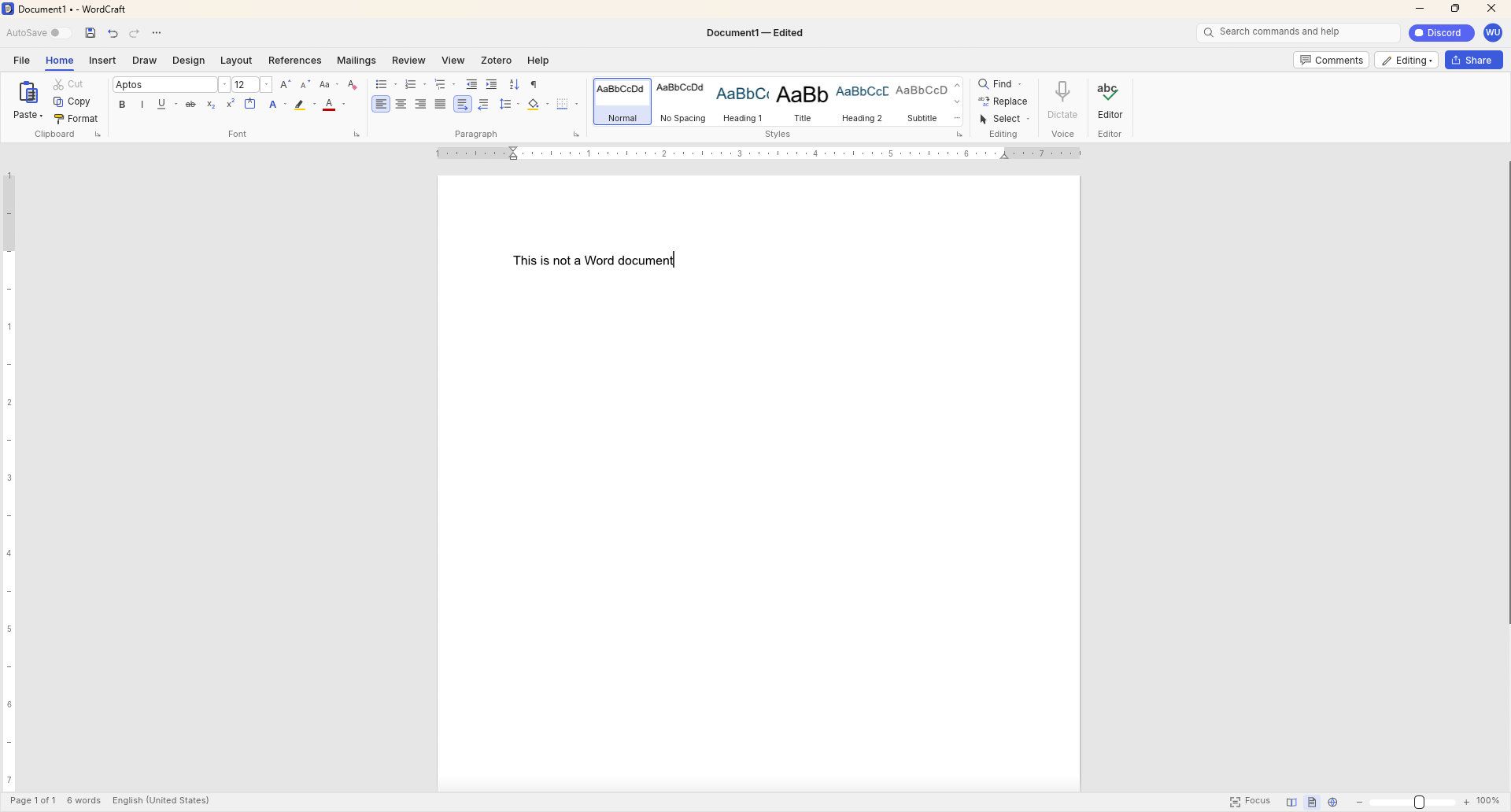
GridCraft (Excel clone), DeckCraft (PowerPoint clone), and WordCraft (Word clone) are made using Claude. They're free to download and you can read more about their development through the ArtCraft GitHub page.
WordCraft uses a familiar ribbon interface and document layout that closely resembles Microsoft Word. (Image credit: Future)
Thomas now has a growing suite of app clones that aim to replicate the functionality and design of the popular suites from Adobe and Microsoft. The situation was summed up brilliantly by Reddit user "EngFL92" who said, "Begun, the clone wars have."
Windows Central take: Proving a point
The concept of replicating apps is nothing new. LibreOffice has been available for years and there are a plethora of apps similar to Word, PowerPoint, Excel, and other Microsoft 365 applications.
WordCraft and other applications made by Thomas are important because they ask the question, "Can AI be used to replace paid industry-leading software suites."
At the moment, I'd say the answer to that question is "no." But the replica Office apps are in the alpha stage of development. We could see the feature gap close and bugs get squashed before general release, assuming Thomas decides to continue the project.
Shut your yap.Open Office / Libre Office sucks.It ate my 40 page essay during finals week.I'm paying back a grudge that has been years in the making.Stop dragging along shitty OSS software and venerating it like it's some holy relic. Let it die.October 13, 2026
Projects like this often gain notoriety quickly as they get shared online. Microsoft and Adobe are tech giants that charge a lot of money to access software. They're easy targets and I believe some of the passion against the companies is justified.
Thomas said on X that they're "paying back a grudge that has been years in the making," so there seems to be some history there.
Quite the media frenzy has formed around these apps. I suppose I'm a part of that, but I think some outlets have gone too far and argued that the AI-coded clones of the Adobe and Microsoft 365 suites are further along than they really are.
I appreciate the dedication to create apps that compete with some of the best-known software around. Projects like this can demonstrate that some people don't need to pay monthly subscriptions for their entire lives to get work done. But I'd suggest pumping the brakes on narratives along the lines of "vibe coding takes down tech giants in a month."
Join us on Reddit at r/WindowsCentral to share your insights and discuss our latest news, reviews, and more.
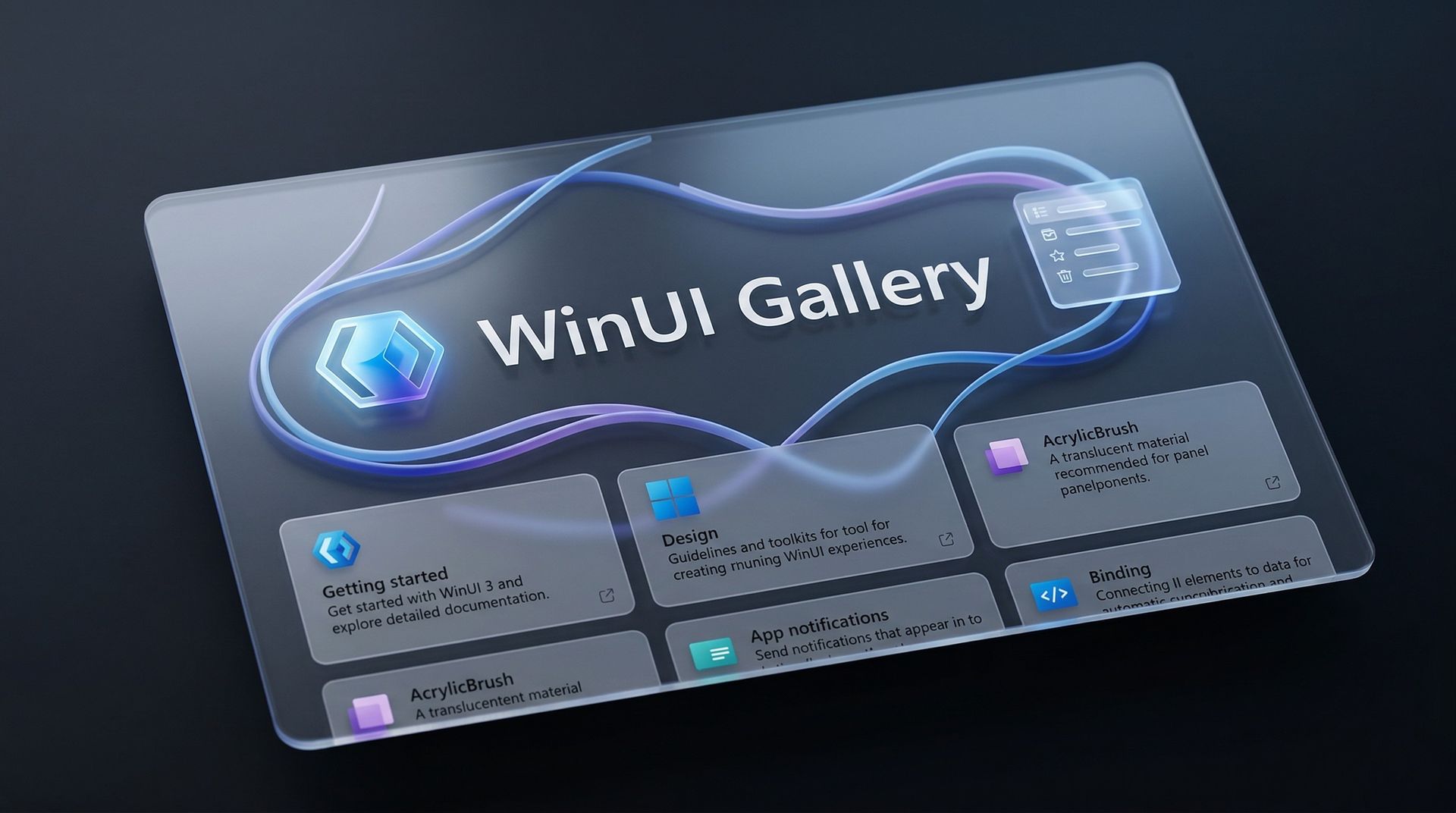
Microsoft's blueprint for making Windows 11 apps has received an update that allows developers to try more experimental features. WinUI Gallery just received a bump to version 3.0, and with that update comes a new approach to experimental features.
WinUI Gallery is Microsoft's sample app for developers, showing how Windows UI components work and helping app makers build software that looks and behaves like a native Windows 11 application. It's available through the Microsoft Store.
WinUI Gallery used to receive new controls after those controls had reached a stable Windows App SDK release. Because of that, Microsoft was limited in how much it could change those controls based on feedback. WinUI Gallery now includes the experimental Windows App SDK so developers can play with new controls earlier and provide feedback to Microsoft in time to drive changes.
🚀 WinUI Gallery 3.0 is here!Starting with this release, we're embracing Experimental versions of the Windows App SDK, giving you earlier access to new control/API samples so you can try them out more easily, share feedback, and help shape what's next!And this release is packed with new controls! 🚀✒️ Inking in WinUI!!📑 TableView📊 Charts🔢 Pagination control🪟 Simpler windowing APIs🎁 WrapPanel and StackLayout✨ And much more!Learn more👇:https://t.co/srgiSPUI29October 13, 2026
WinUI Gallery 3.0 also adds some quality of life changes that are outlined by Niels Laute, a Senior Product Manager at Microsoft:
Mouse back and forward buttons now navigate through the Gallery, just like in your browser (#2195), thanks @hoshiizumiya!
Search finds more. Every control page now has search tags, so searching for terms like “context menu”, “carousel”, or “WCAG” finds the right page even when the query doesn’t match the control’s name (#2185).
No more dead ends. When a search has no results, you now see your query, a few search tips, and a button to view all samples (#2255), thanks @Zakariathr22!
Since experimental controls are now in WinUI Gallery 3.0, there are several new samples available in the app, including TableView, Charts, and Wrap Panel and LayoutPanel. Those controls allow apps to present data in a way that's easier to digest.
WinUI Gallery is an app that everyday PC users will likely never download or even see. But it's an important tool for developers who want to create modern applications. The latest update should lead to more quality apps being available on Windows 11.
What is WinUI Gallery?
WinUI Gallery is a developer tool that acts as a digital showroom for Windows app development. Developers can see what UI elements look like on a PC by using the app and see relevant code samples to help create applications that align with Microsoft's design framework and guidelines.
Microsoft has had some form of a digital showroom since 2018, but the app has gone through a few name changes. Its current name is a bit confusing because of similar terms being used in different settings.
The latest update to WinUI Gallery brings that app to version 3.0, so it's referred to as WinUI Gallery 3.0. But despite the similar name, that is different than WinUI 3, which is the framework developers currently use.
Regardless of its slightly confusing name, WinUI Gallery is a useful tool for app development and helps push developers toward making apps that perform well and appear natural on Windows 11 PCs.
Join us on Reddit at r/WindowsCentral to share your insights and discuss our latest news, reviews, and more.
Microsoft Outlook will soon be able to save you from a costly mistake in an email. An upcoming feature will automatically spell check your emails before sending them.
Of course, Outlook already has a built-in spell check feature that highlights misspelled words and other mistakes. The new feature adds another layer of proofing by checking for spelling errors before an email is sent.
While spell check catches many mistakes as you type, it's easy to miss a typo in a long email or make an error when responding to messages. Running a final spell check before sending provides one last opportunity to catch mistakes before an email is delivered.
"If you don’t want to check spelling manually for every message—or you’re worried you might forget!—you can set Outlook to check spelling for you every time before sending emails," explains Microsoft through the Microsoft 365 Message Center (archived here).
When enabled, Outlook will review your message before it is sent and flag spelling issues that should be corrected.
The new spell check feature is expected to start rolling out mid-November, but it won't reach everyone until early December. Users in Targeted Release will be able to use the feature as soon as this month.
The new Outlook feature will sound familiar to those who have used Outlook for a long time. Classic Outlook already has the ability to check spelling before an email is sent through the "Always check spelling before sending" setting. Now, the same functionality is on the way to new Outlook.
Microsoft has spent the last several years bringing features from classic Outlook to new Outlook. Microsoft's latest update is another step toward feature parity between the two versions.
Are there any features you rely on that are still missing from new Outlook? Let us know in the comments.
Join us on Reddit at r/WindowsCentral to share your insights and discuss our latest news, reviews, and more.
A new Welcome screen is on the way to PowerToys, and it's so gorgeous that I'm a bit disappointed that most people will only see it when initially installing the app. The engaging out-of-box-experience (OOBE) uses a Windows feature called Composition, allowing it to render at 60 FPS. The clip shared on X by Niels Laute doesn't quite do the welcome screen justice due to compression, but the animation is still impressive.
This is more than just a fun animation. Creating a usable user interface that also performs well is much more difficult than creating a mockup.
Similarly to how PowerToys acts as a playground for developers to make features that occasionally get integrated into Windows 11, the new welcome screen showcases something WinUI apps can do.
Laute highlighted that the new welcome screen relies on Composition, which sits below WinUI. Developers can use it to render visual effects, and it can also manipulate UI controls because of how performant it is. If you use the Microsoft Store, you've likely seen animations that rely on Composition without realizing it.
I admit that swooning over fluid animations and interactive welcome screens is a bit nerdy. Millions of Windows 11 users will never notice what type of animation an app has. But attention to detail adds up and creates a better overall experience.
Earlier this year, I argued that faster performance won't save Windows 11 if Microsoft's apps are laggy web wrappers. The new welcome screen of PowerToys is a small change to users that would go a long way if extended to other Microsoft apps.
This collection of utilities includes a large library of features to enhance the Windows experience. PowerToys is designed with power users in mind, but it has handy features for people who just use their PC for everyday computing too.
Join us on Reddit at r/WindowsCentral to share your insights and discuss our latest news, reviews, and more.
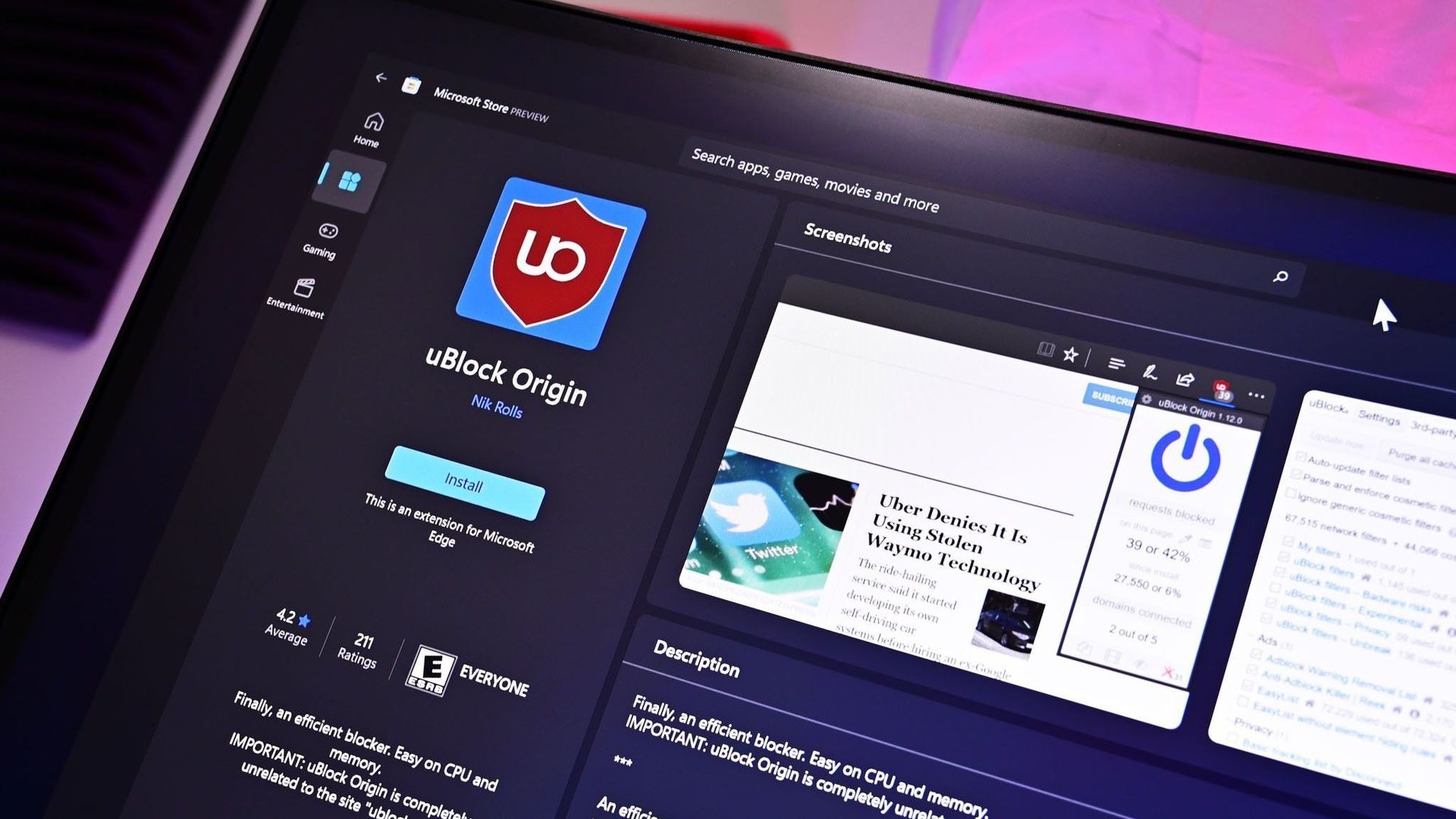
It finally happened. Earlier this week I opened Microsoft Edge and was inundated with ads. After months of warnings, uBlock Origin stopped working for me in the browser, leaving me with a choice to make: either find an alternative way to block ads in Edge or switch to a different browser.
To be transparent, I only block ads on certain websites. In fact, Windows Central is the primary reason I use an ad blocker at all. I've used uBlock Origin for years to ensure my articles appear clean and clear to our readers.
Ads help pay my bills, so I'm keenly aware that they're an important part of the web (and my life). I whitelist sites I browse regularly and often leave ad blocking disabled as I look around online. But sometimes I want to see what an article looks like with just the text and images I've placed directly. In other instances, I want to take a clean screenshot of the site for an article.
I relied on uBlock Origin for a long time and appreciated its granular controls. I was able to block certain items while approving others. For example, ad blockers sometimes falsely flag product blocks in an article. I appreciate that readers may not want to see a block about a laptop in a random piece, but if an article is literally about a specific Surface becoming available, it makes sense to show a way to purchase the PC.
Plenty of ad blockers still work on Microsoft Edge and even Google Chrome, but they function differently than uBlock Origin. Rather than intercepting requests and blocking them, many ad blockers simply mask ads. There are also limitations of what a Manifest Version 3 (MV3) extension can do, so even uBlock Origin Lite falls short of its "full fat" sibling.
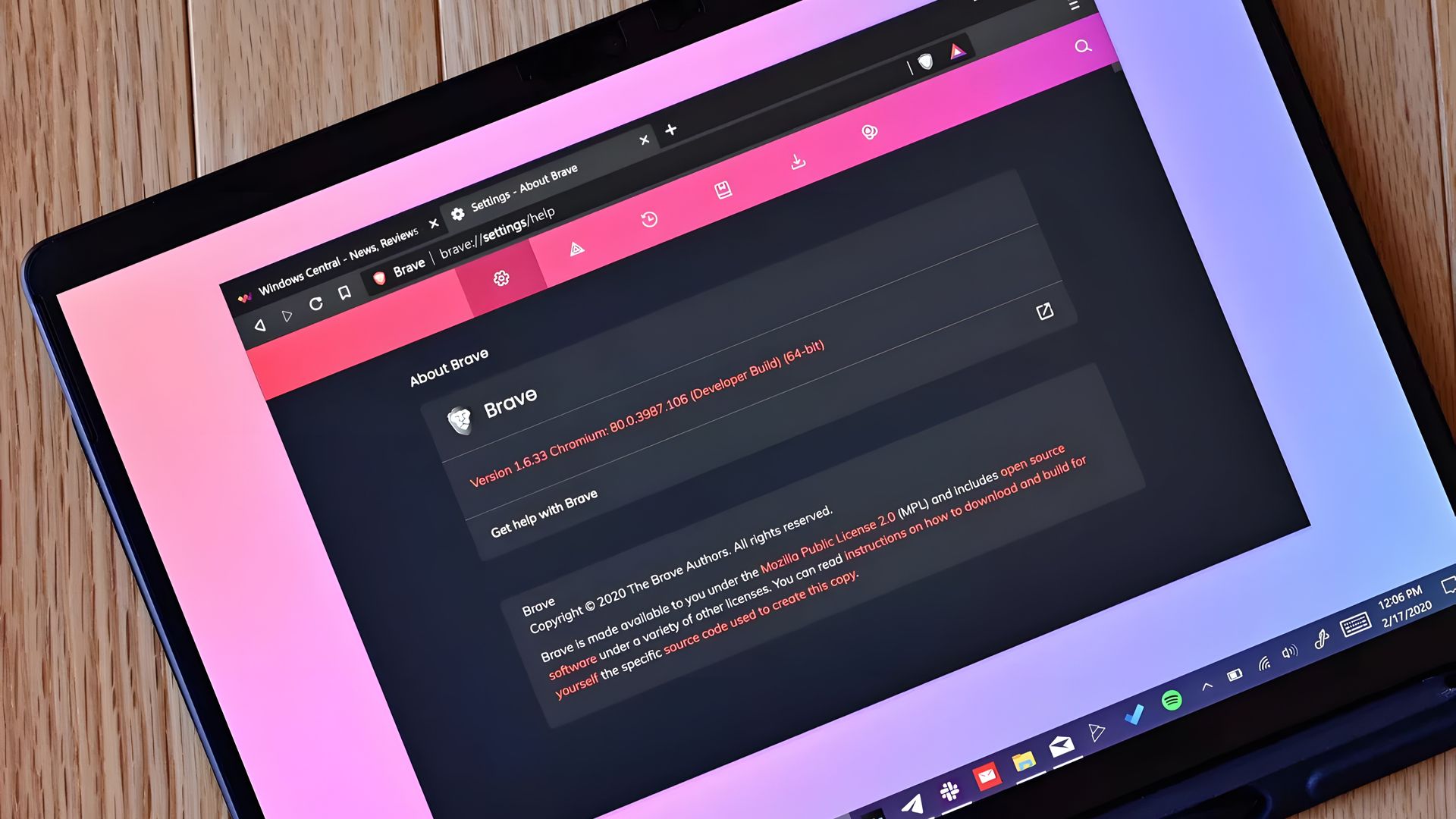
I had toyed around with switching browsers anyway. The end of uBlock Origin on Edge gave me a clean break. I initially looked at Brave because the makers of the browser have committed to keeping MV2 extensions alive. But after installing the browser, I tried using Brave Shields for a bit and found them to be quite effective.
Brave Shields also intercept network requests for ads, so blocking ads also speeds up site performance. That means I can quickly check an article, proof it or confirm it's laid out correctly, then get back to work.
Similarly to uBlock Origin, Brave lets me block specific elements with a couple of clicks. It lacks the satisfying zapper of uBlock Origin, but Brave's tools are still effective.
I'm going to just use Brave Shields for now, but knowing I could fall back to uBlock Origin if needed is comforting.
Join us on Reddit at r/WindowsCentral to share your insights and discuss our latest news, reviews, and more.

 Connexion