Vue lecture

Tecno Camon 50 Ultra 5G Review: A $420 AI Phone With Built-in Gemini, ChatGPT, DeepSeek, and Grok
PROS:


  • EllaClaw is one of the most impressive phone AI experiences available right now

  • Multi-model AI support, including Gemini, ChatGPT, Grok, DeepSeek, Meta AI, and Ella

  • Strong 2-day battery life from the 6500mAh cell

  • Competitive value in the mid-range segment

CONS:


  • Single speaker setup sounds tinny and lacks bass

  • Curved waterfall display is prone to accidental palm touches

  • No wireless charging or Qi2 (MagSafe)

RATINGS:

AESTHETICS
ERGONOMICS
PERFORMANCE
SUSTAINABILITY / REPAIRABILITY
VALUE FOR MONEY

EDITOR'S QUOTE:

The Camon 50 Ultra 5G feels like Tecno looked at the current AI phone race, skipped the walled garden nonsense, and built the first assistant experience that actually shows you why you’d want to use it in the first place.

Apple has Apple Intelligence. Google Pixel has Gemini. Samsung has Galaxy AI. Tecno has everything else. Packed into its EllaClaw agent is the ability to use Gemini, ChatGPT, Grok, and DeepSeek, because a walled garden never benefited anyone. Tecno’s Camon 50 Ultra 5G is a great phone, but what makes it worth doing a double take for is EllaClaw, an agentic AI built into the phone that offers a phone AI experience I have yet to see on any smartphone so far. EllaClaw is currently an invite-only closed Beta feature limited to just this phone, but seeing it in action gave me everything I needed to understand where other phones are going wrong with their on-board AI, and where they can learn from Tecno.

The wild part is how approachable it all feels. EllaClaw does not sit around waiting for you to guess the perfect command like some moody genie. It actively shows you what it can do, which makes the whole experience feel far less intimidating than Gemini or Apple Intelligence currently do. Within minutes, I was jumping between message summaries, creative tools, settings help, and different AI models without feeling like I needed a tutorial or a prayer.

Aesthetics
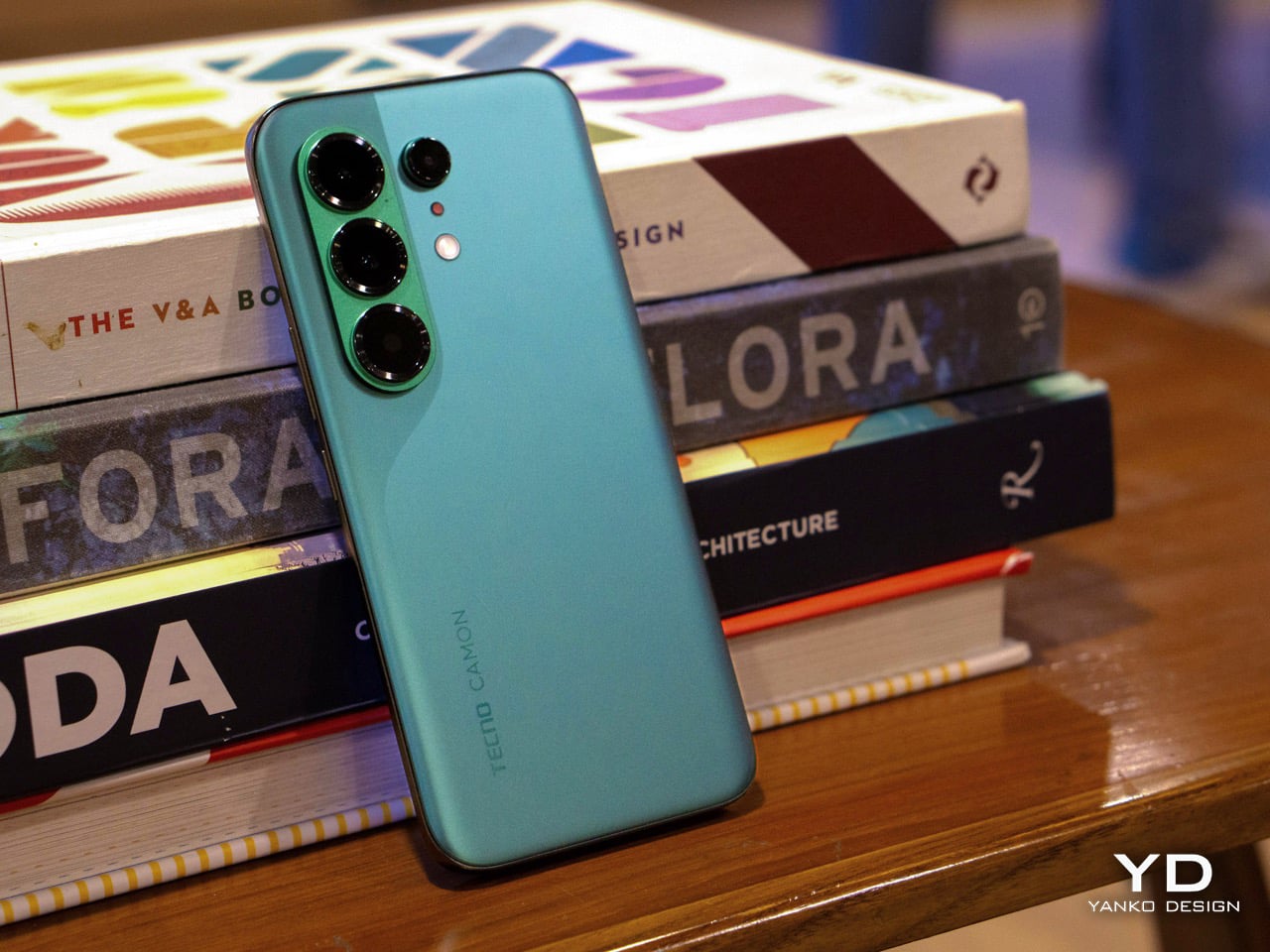
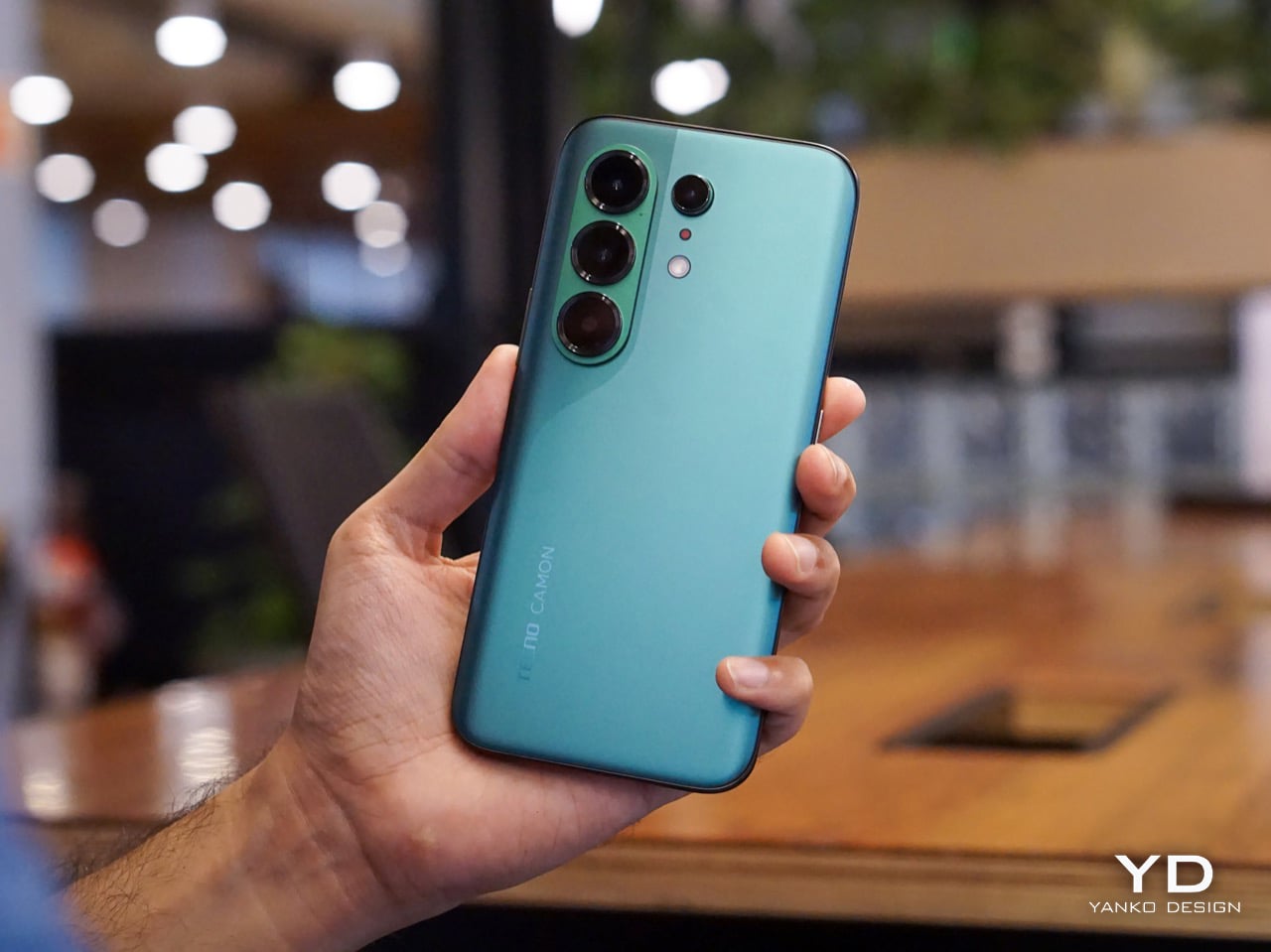
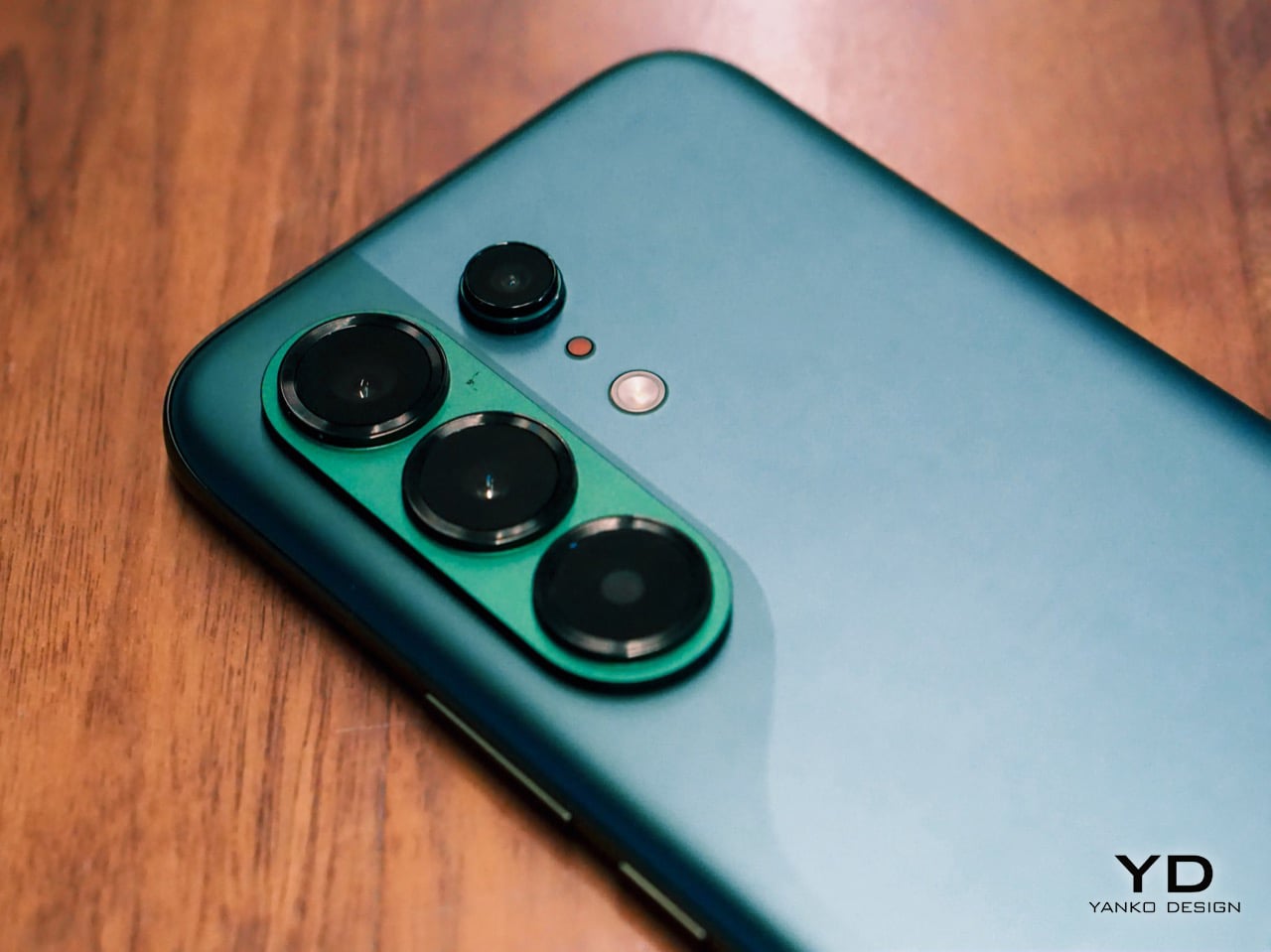
The moment I unboxed the Camon 50 Ultra 5G, I was hit with a serious case of déjà vu. The green variant has a gorgeous satin finish that gives it a silky, metallic glow under the light, and it immediately sent me down a memory lane trip to my old OnePlus 8 Pro which I faithfully used from 2020 to 2024. The color, the texture, even the way the camera module is arranged, it all felt so familiar and, frankly, so premium. Tecno absolutely nailed the flagship-esque feel here. The back is smooth to the touch, resists fingerprints reasonably well, and has a subtle elegance that a lot of phones in this bracket just do not bother with.
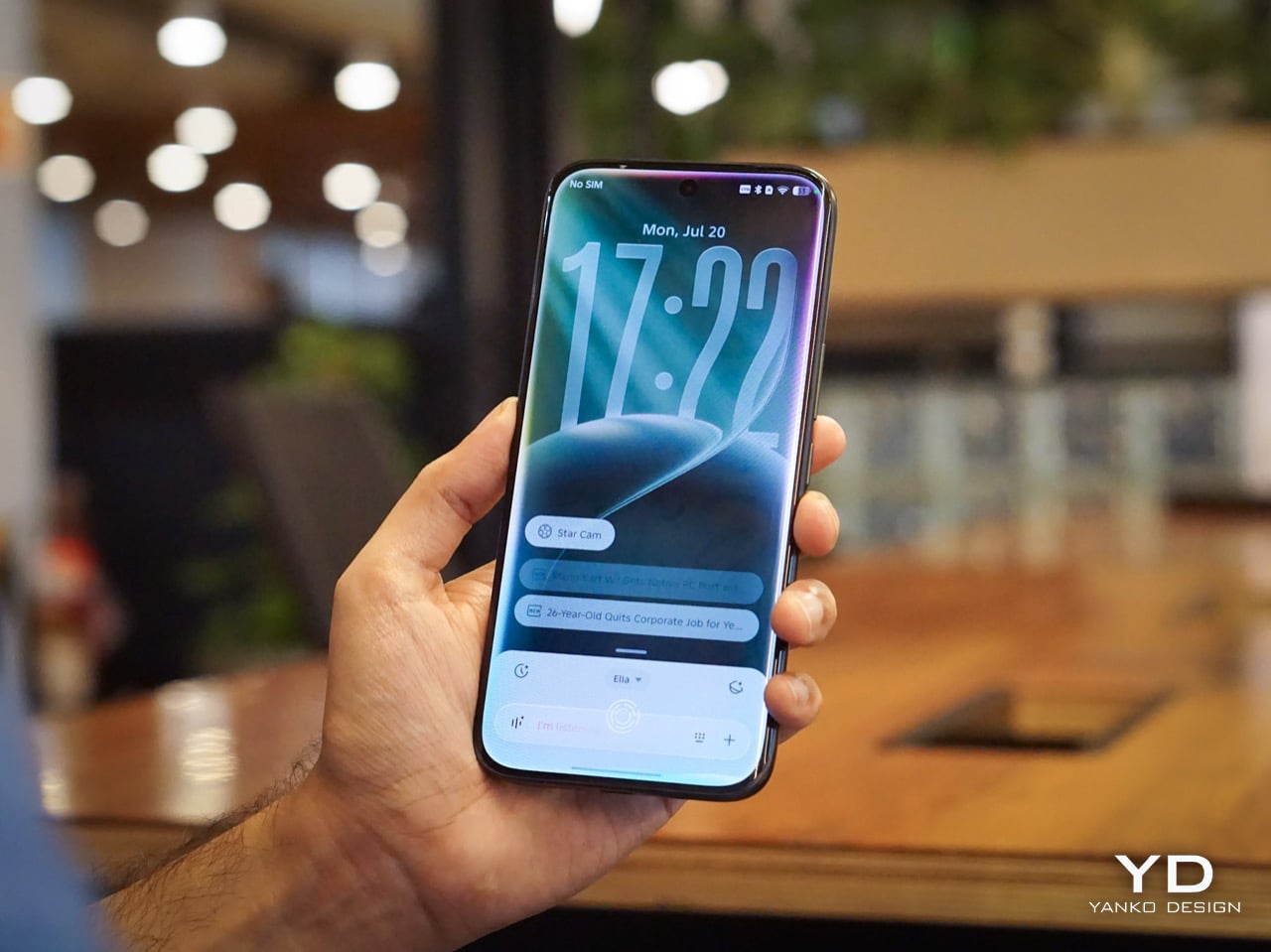
The front is where the design language gets a little more complicated, at least for me. Tecno went with a waterfall display, which means the screen curves dramatically around the sides. It looks stunning when the phone is off or when you are watching a video, creating an immersive, almost bezel-free experience. But I have always had a love-hate relationship with these displays. They are beautiful, no doubt, but they can be a magnet for accidental palm touches. While the software does its best to ignore them, I still found myself occasionally tapping something I did not mean to. It is a classic case of striking aesthetics meeting the messy reality of how we hold our phones. I do have to say that Tecno’s Liquid Glass homage does look much better on a waterfall display than on a bezel-ridden iPhone.

Ergonomics
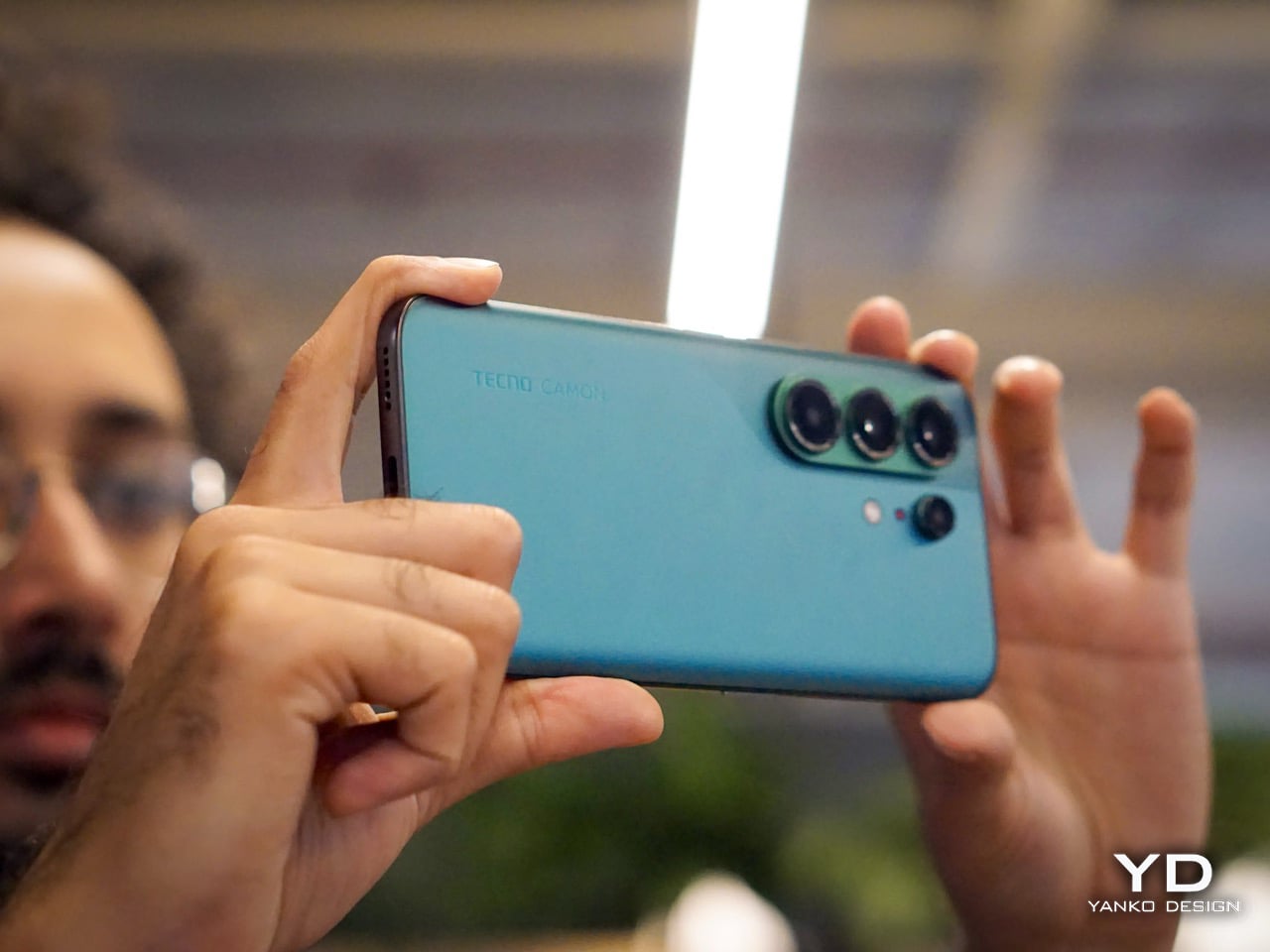
That waterfall display has a big effect on how the phone feels in your hand. The curved edges melt away into the frame, making the Camon 50 Ultra 5G incredibly comfortable to hold. There are no sharp, flat corners digging into your palm, which is great for long sessions of scrolling or gaming. The trade-off, of course, is that the phone can feel a little slippery if you are not paying attention. It has that smooth, polished-stone feel that is lovely to touch but always feels one careless gesture away from a gravity experiment. It is a phone that practically begs to be put in a case, even if it feels like a shame to cover up the design.

The button layout is personally feels a little little bit tricky. On the left, you have a dedicated AI key that summons EllaClaw, a shortcut I ended up using constantly. You can remap it, but having a one-press gateway to the AI is a smart touch. The right side, however, is where my muscle memory started to complain. There is a power button and a fairly short, single-piece volume rocker. Because the rocker is slightly compact, I often found myself fumbling, unsure if my thumb was on volume up, down, or about to lock the screen. It is a small pain, but a tiny indent in the middle of the volume button would have made all the difference. The buttons themselves are slightly sharp and textured, a necessary choice for a phone with curved edges, but it does not quite solve the problem of telling them apart by feel alone.

Performance
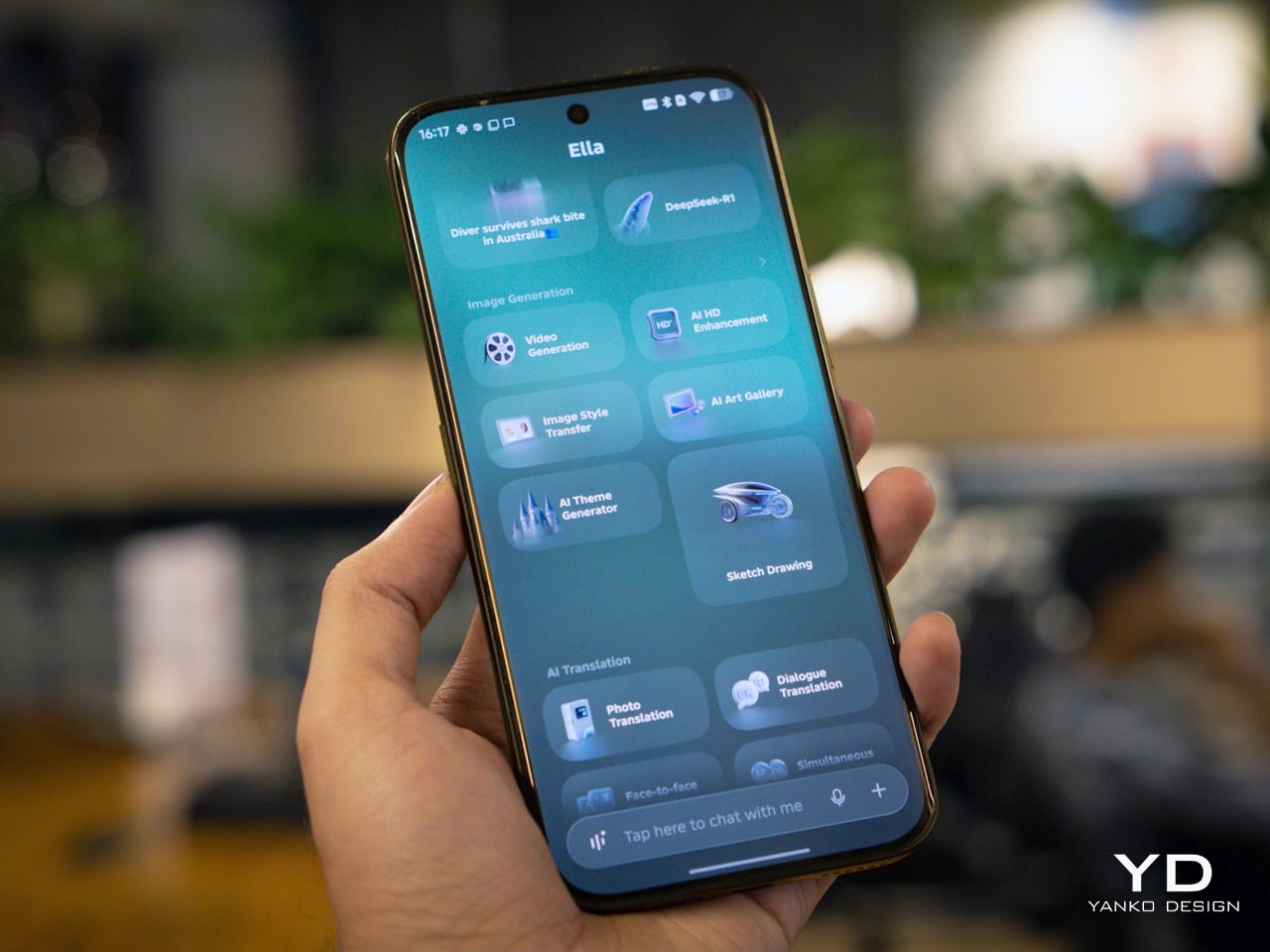
EllaClaw is where the Camon 50 Ultra 5G earns its stripes. The dashboard (which you access by swiping towards the left – where you’d see Google Discover on most Android phones) keeps surfacing prompts, shortcuts, and suggestions, making the AI feel alive and accessible rather than buried under three layers of settings. Most phone AI treats users like they should already know what they want. EllaClaw meets you halfway, and that changes everything about how you interact with the phone.

The deeper layer, EllaClaw Pro, is genuinely impressive. It reaches into the phone’s apps and system functions in a way that feels ahead of where the conversation currently is. I asked it to summarize my text messages without opening the messages app, and it did exactly that, handling the whole thing on its own. That kind of agentic behavior is the next logical step for phone assistants, and right now, Tecno seems to be ahead of the pack. Nothing reassured me that the AI wasn’t reading my messages to enhance its database though, so the privacy conscious might have a thing or two to worry about.
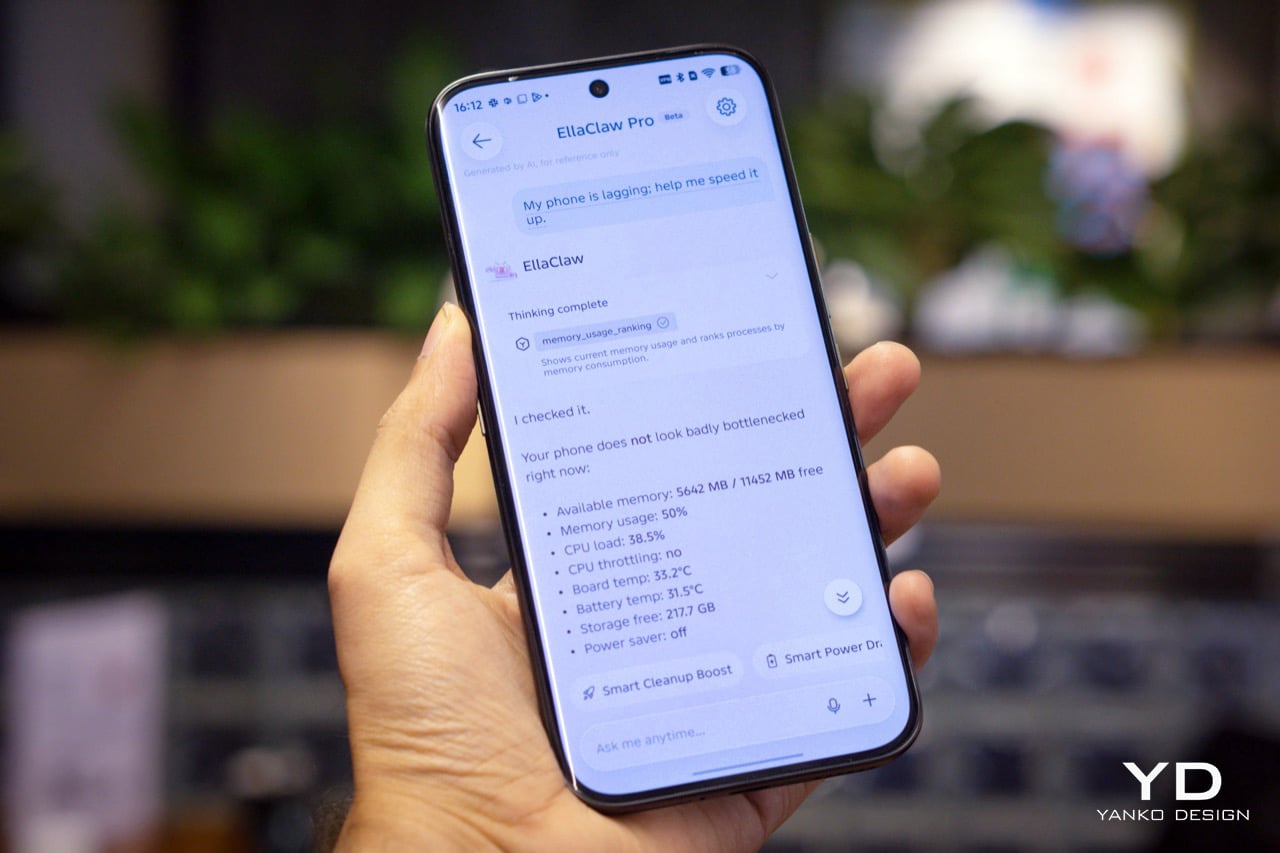
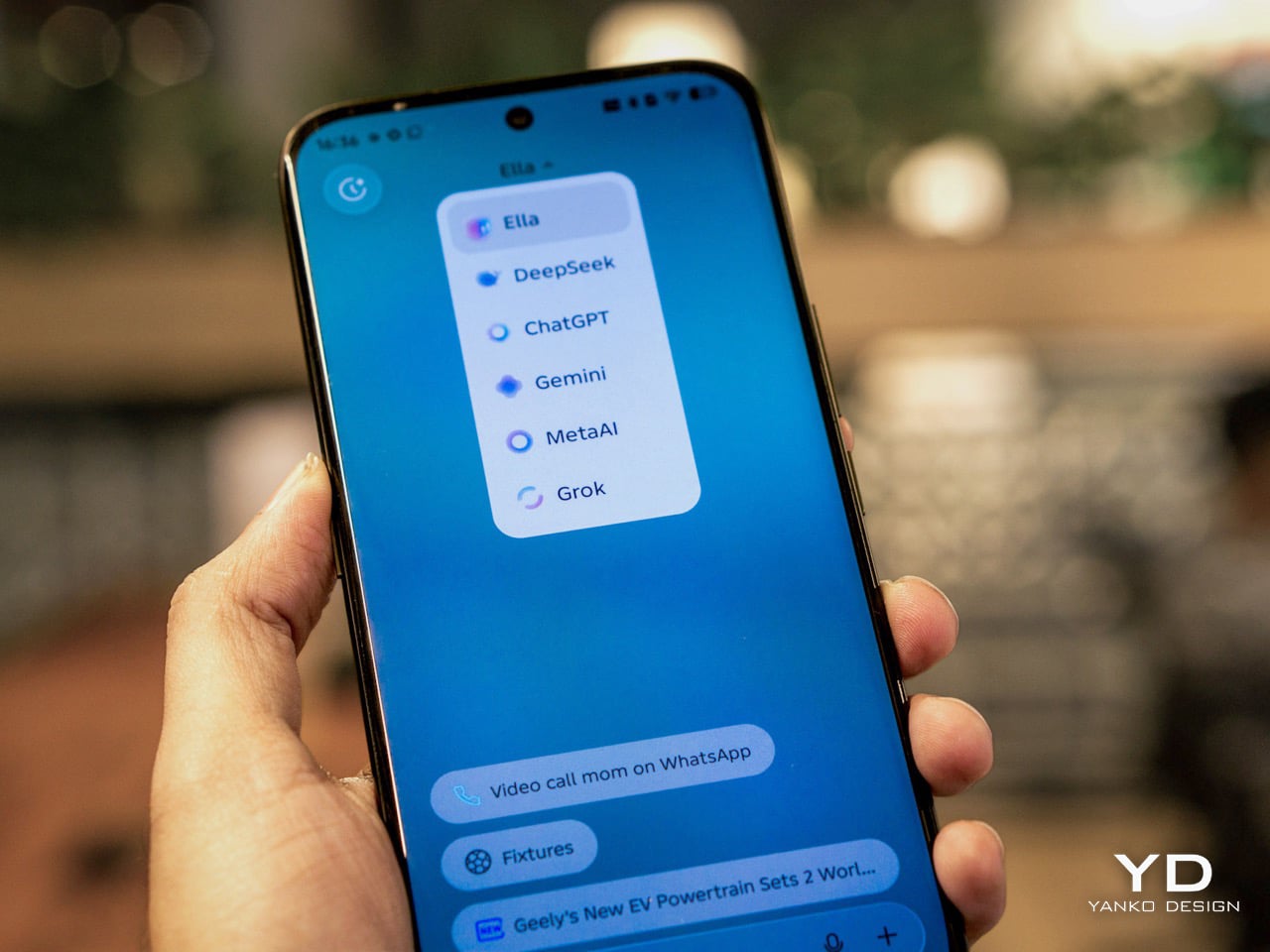
Tecno’s decision to build EllaClaw as a multi-model hub is one of the smartest software calls I have seen this year. My unit offered access to DeepSeek, Gemini, ChatGPT, Grok, and Meta AI alongside Ella’s own model, all in one dashboard. Claude is conspicuously missing, but everything else is here and free to use (at least during the Beta period). Daily limits are applied on AI use which reset every 24 hours, and you can buy extra credits in case you overshoot. In all my hours of testing, I never needed to purchase extra credits, which means image generation, video generation, and sketch-to-photo tools were all available at no additional cost.

EllaClaw is still being refined, though. The dashboard lagged occasionally, and the AI sometimes took longer to load than felt comfortable. Restarting the app always sorted it out, but it is a reminder that this experience has not fully grown into its ambition yet. Users in certain regions may also need a VPN to get the full experience running, which is worth knowing upfront.
The camera system is built around a 50MP Sony LYT-700C main sensor with OIS, paired with a 50MP telephoto lens offering 3x optical zoom (70mm equivalent) and an 8MP ultrawide. That telephoto is a proper standout for a phone at this price point, and the software leans into it with confidence. You get 60x hybrid zoom, which is mostly digital exaggeration past the 3x mark, but the results between 3x and 10x are still usable in decent light. The main camera performs well across a range of scenarios, especially in good light, and night mode is aggressive without getting too soupy. The front camera is a 50MP sensor with autofocus, which makes a noticeable difference in selfie sharpness compared to the fixed-focus cameras on cheaper phones.

Tecno stuffs the camera app with modes including dual-cam, underwater mode, document scanning, super night mode, and super macro. FlashSnap is the standout, though. It watches your scene and captures the most dramatic moment automatically, so if someone is mid-jump or mid-throw, the phone clicks at exactly the right time without you having to think about it. It made me look like a considerably better photographer than I actually am. Video recording tops out at 4K at 30fps, which is fine but not particularly exciting.
Battery life is one of the phone’s most quietly satisfying qualities. The 6500mAh cell pushed comfortably through two full days of use without needing a charge, which is more than my current flagship iPhone manages. At some point I just stopped thinking about charging altogether, which is the best thing a battery can do. The phone supports 45W wired charging, which is fast enough to feel civilized without being record-breaking.

The display is a 6.78-inch AMOLED panel with a 1.5K resolution (1208 x 2644 pixels, 429 ppi) and a 144Hz refresh rate with LTPO support for adaptive refresh. It is vibrant, sharp, and performs well in low light. The 144Hz refresh makes scrolling and gaming feel smooth, and the high PWM dimming (2160Hz) helps reduce flicker for those sensitive to it. The curved waterfall edges are a design choice I have already aired my reservations about, and this section will not relitigate that argument. It looks great. It catches accidental touches. Moving on.

Speakers are a weak spot, and a noticeable one. There is a single grille at the bottom right, so stereo is off the table, and the audio leans tinny with very little bass to speak of. For a phone this polished everywhere else, it feels like a department that got the budget cut.

Gaming held up well for everything I tried. Tecno’s dedicated gaming software manages frame rates and battery draw sensibly, and the Dimensity 7400 handled casual to moderate sessions without complaint. The 144Hz display helps make fast-paced games feel responsive, and the phone stayed well within comfortable temperature ranges throughout. Nothing I played caused any real issues, thermal throttling never became a concern, and the large battery meant I could game for extended sessions without nervously watching the percentage drop.

Sustainability
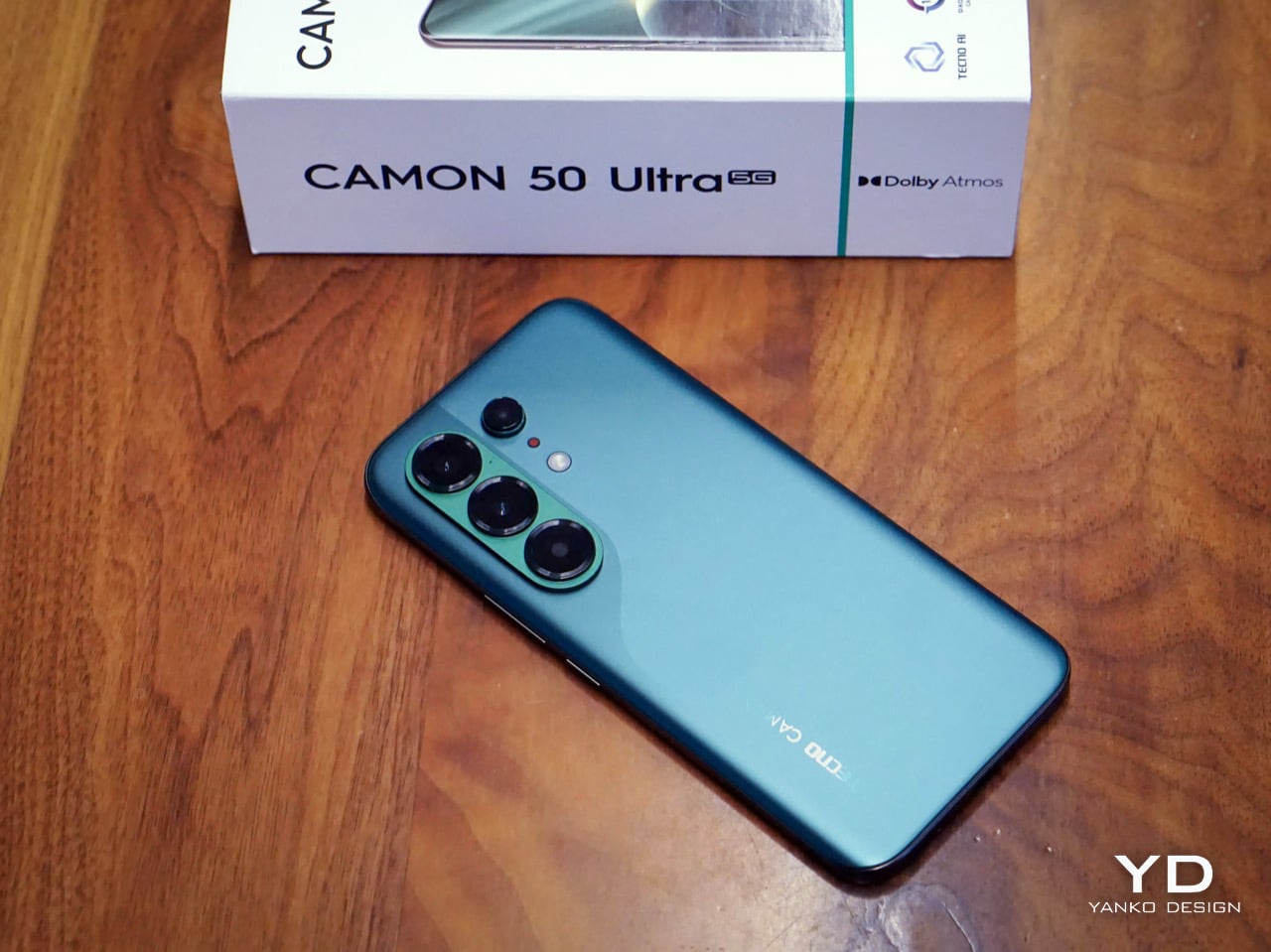
Tecno is promising 3 years of Android OS upgrades and 5 years of security patches for the Camon 50 Ultra 5G, which puts it roughly in line with brands like Motorola and slightly ahead of OnePlus, though still behind Nothing’s 6-year security support.That is a meaningful commitment for a phone at this price, especially if you are someone who plans to use the device well beyond the usual two-year upgrade cycle.

Tecno also claims the battery is built for durability, marketing it as a “5-Year Durability Battery” with TÜV certification and a 72-month lag-free guarantee. Whether that holds true in practice is something only time will tell, but the fact that the company is willing to stake that claim suggests they are at least thinking about longevity beyond the usual marketing fluff. The 6500mAh capacity itself helps, because the less frequently you need to charge, the slower the battery degrades. If you are getting two full days of use out of a charge right now, that headroom means the phone should still feel usable years down the line when the cell inevitably loses some of its capacity.

Value
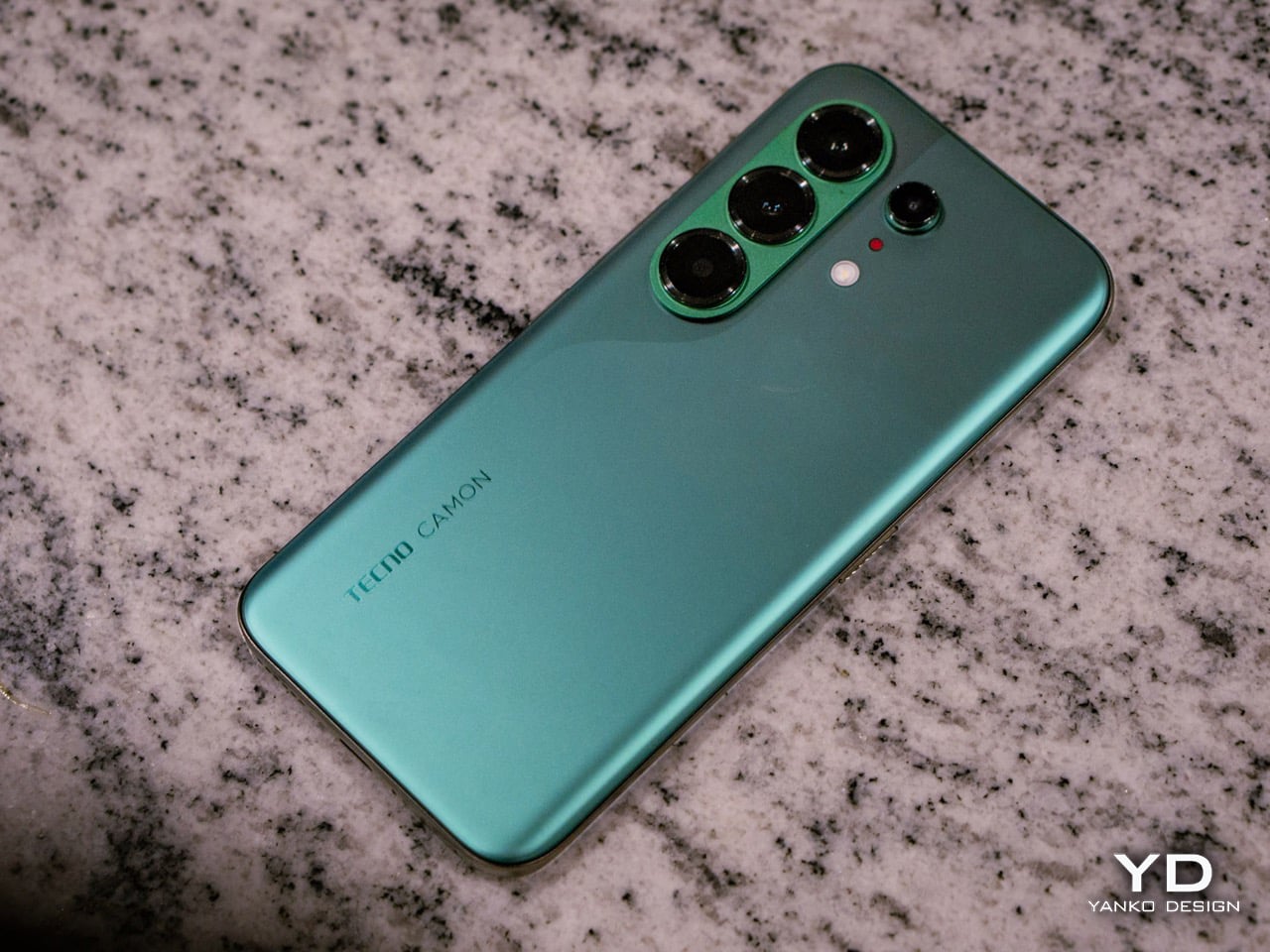
The Tecno Camon 50 Ultra 5G is priced at $420 for the 8GB + 256GB variant (that’s based on its ₹40,000 Indian price, since the phone hasn’t officially launched in the US). For a phone with a 50MP telephoto, a 144Hz AMOLED display, and a 6500mAh battery, that positioning feels competitive in the under-40K segment, especially when you factor in the AI ambitions.

What feels less competitive is the setup experience. When I powered on the phone and began the initial configuration, India was not listed in the countries menu. Hilariously enough, Palestine was available as an option. The world’s most populated country, nowhere on the list. I eventually had to select a different region just to proceed, which immediately felt awkward for a phone launching in India. Later, I also needed a VPN to access EllaClaw, which could have been a software issue tied to my initial region selection, or it could point to broader availability constraints. Obviously this won’t be the case for everyone since mine was a review unit with the EllaClaw beta program probably tied to a certain region. Either way, it is a frustrating first impression for a feature that is supposed to be the phone’s main selling point.

As for EllaClaw Pro and its credits system, Tecno does offer a credit-based structure for premium AI features like image generation and video creation. In my testing, I never hit a paywall or needed to purchase add-on credits, which suggests the included allocation is generous enough for typical use, at least initially. How sustainable that remains over time, or whether Tecno tightens the limits later, is harder to predict. For now, though, the experience feels surprisingly open, which is a rare thing in the AI phone space.

Verdict
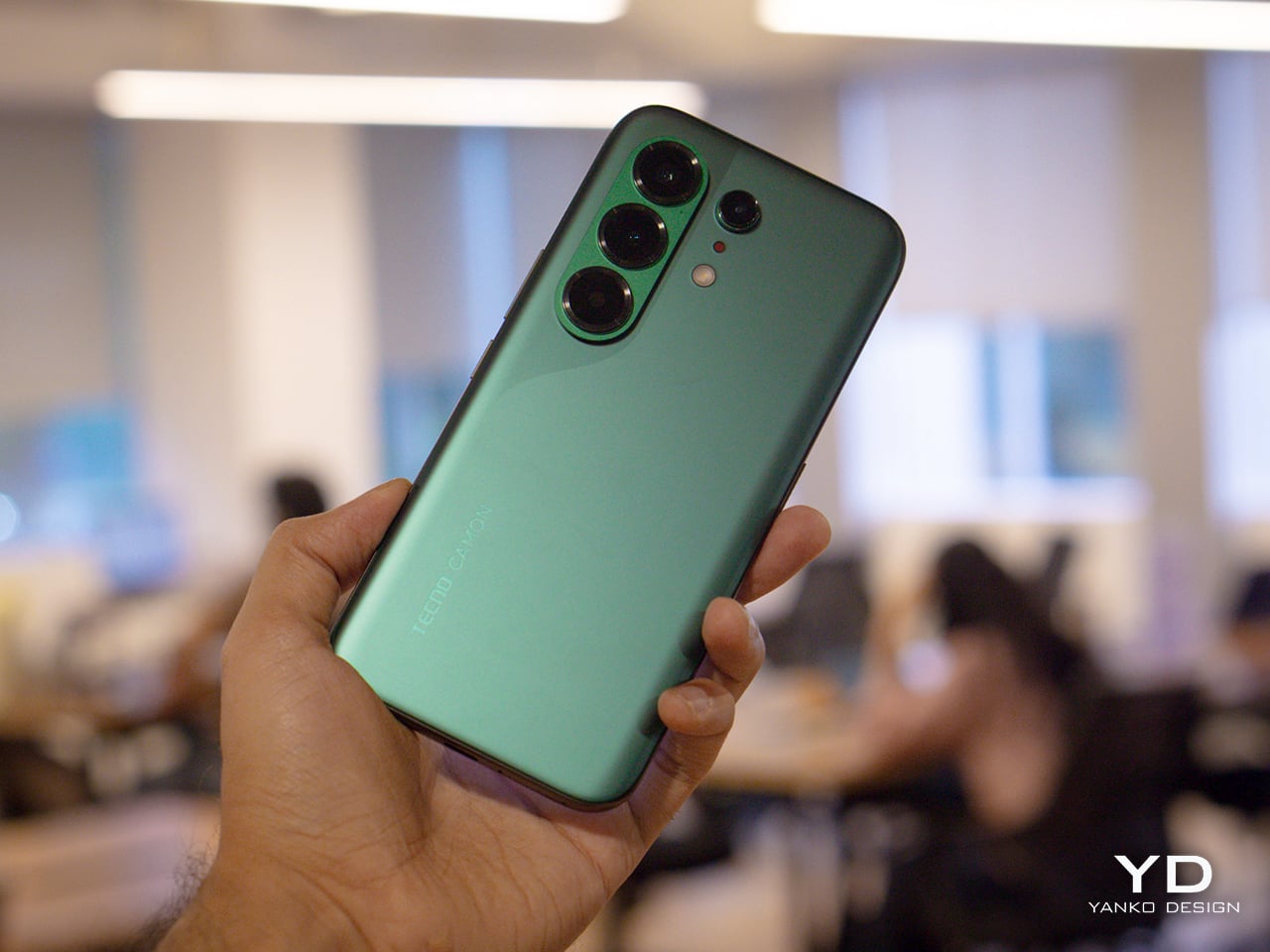
The Tecno Camon 50 Ultra 5G delivers a lot of value for $420. The camera is genuinely impressive, with super night mode shots and 60x zoom that feel bonkers for this price range, and the battery life makes it easy to forget about charging anxiety for days at a time. But I am not recommending this phone for its camera, or its battery, or even its design, as much as I enjoyed all of those things. I am recommending it for EllaClaw, because it is the closest I have come to using a phone AI that feels like it was built for actual humans.

EllaClaw is everything Gemini and Apple Intelligence hope to achieve, and a bit more. I did not think I would see a phone that lets me choose the LLM for its AI assistant, swapping between models depending on what I need. I definitely did not expect an AI assistant dashboard to genuinely give me so much insight and value into how I can use the AI, rather than just sitting through a keynote, nodding along to feature lists, and then forgetting half of them the moment I leave the room. Tecno has cracked something here that bigger brands are still struggling with, which is making AI feel approachable, integrated, and genuinely useful instead of intimidating or buried.

The phone has a few tiny flaws that feel manageable if you’re more driven by the AI chops. The speakers are tinny, the curved display catches palm touches, EllaClaw occasionally lags, and the setup process was a bit of a hassle given I needed a VPN to get EllaClaw to work (but that’s just my China-bound review unit). But if you are looking for a phone that shows you what AI on mobile should feel like when it grows up, the Camon 50 Ultra 5G is worth your attention. It is not perfect, but it is ambitious in all the right ways. Google, Apple, and Samsung could surely take notes.

The post Tecno Camon 50 Ultra 5G Review: A $420 AI Phone With Built-in Gemini, ChatGPT, DeepSeek, and Grok first appeared on Yanko Design.

  •  

Wacom MovinkPad Pro 14 Review: The $900 Sketchbook Designers Needed

PROS:


  • Minimalist design streamlined for focused work on the go

  • Paper-like experience when drawing or writing

  • Comes with Wacom Pro Pen 3 in the box

  • Large, bright, color-accurate OLED screen with anti-reflective surface


CONS:


  • Quite a significant investment

  • Uncertain software update roadmap

  • Instant Pen Display Mode is currently offered as a beta feature

RATINGS:

AESTHETICS
ERGONOMICS
PERFORMANCE
SUSTAINABILITY / REPAIRABILITY
VALUE FOR MONEY

EDITOR'S QUOTE:

The Wacom MovinkPad Pro 14 isn't another Android tablet. It's a sketchbook that happens to run one.
award-icon

For decades, Wacom has held an almost unchallenged grip on the drawing tablet and pen display market. Its products are so trusted that studios and design firms often keep them running for years, sometimes long after they’ve been discontinued. Lately, though, its rivals have been gaining a lot of attention, pushing increasingly attractive prices and expanding into new product categories.

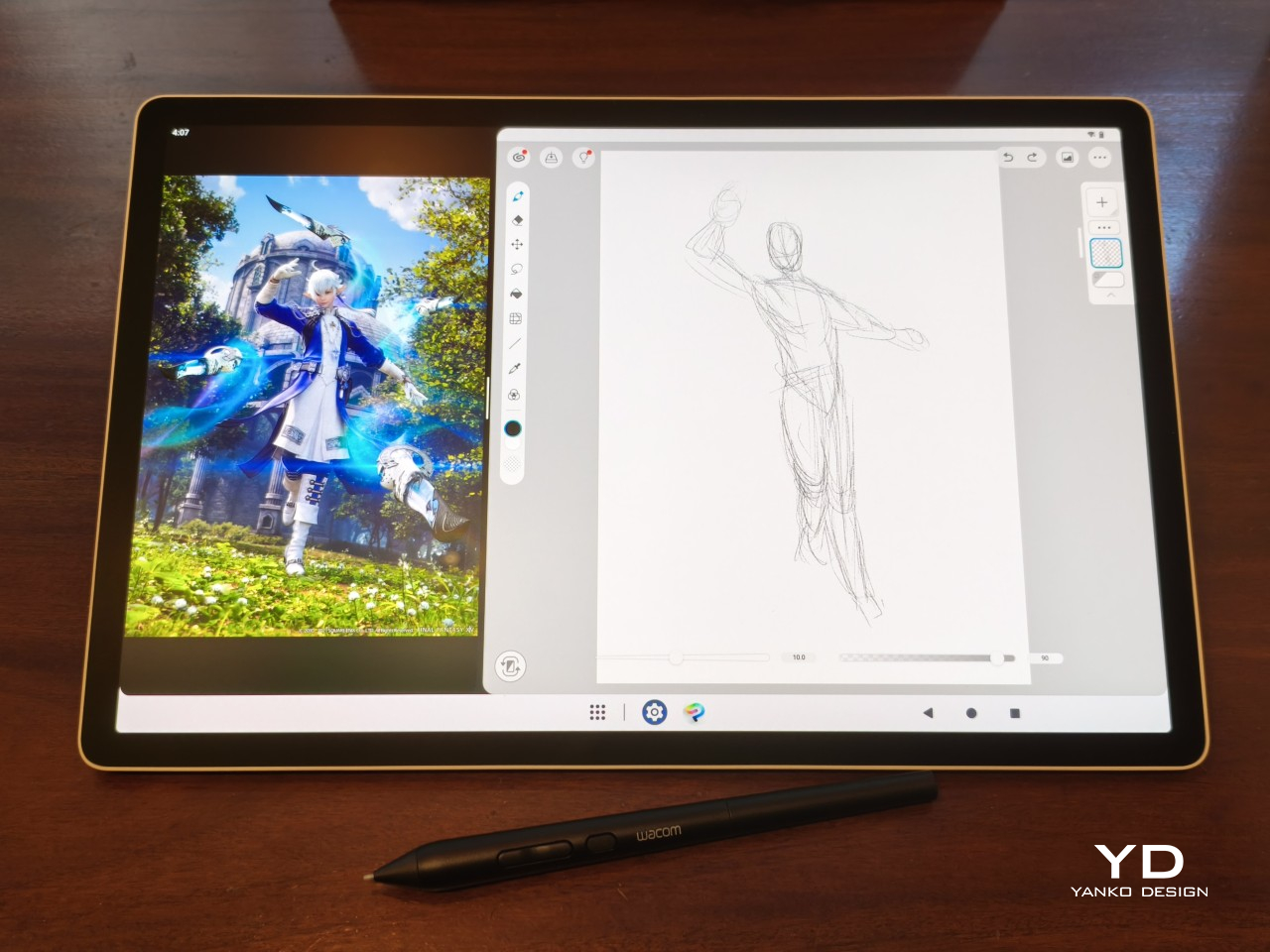
That doesn’t mean Wacom has been idling. The company is finally wading into standalone Android tablet territory with the MovinkPad 11 and the more premium MovinkPad Pro 14, a proper portable drawing machine aimed squarely at working creatives. We’ve been spending time with the larger of the two, along with the new Wacom Art Pen 2, and the question is whether it’s worth every dollar of its price tag.

Designer: Wacom

Aesthetics

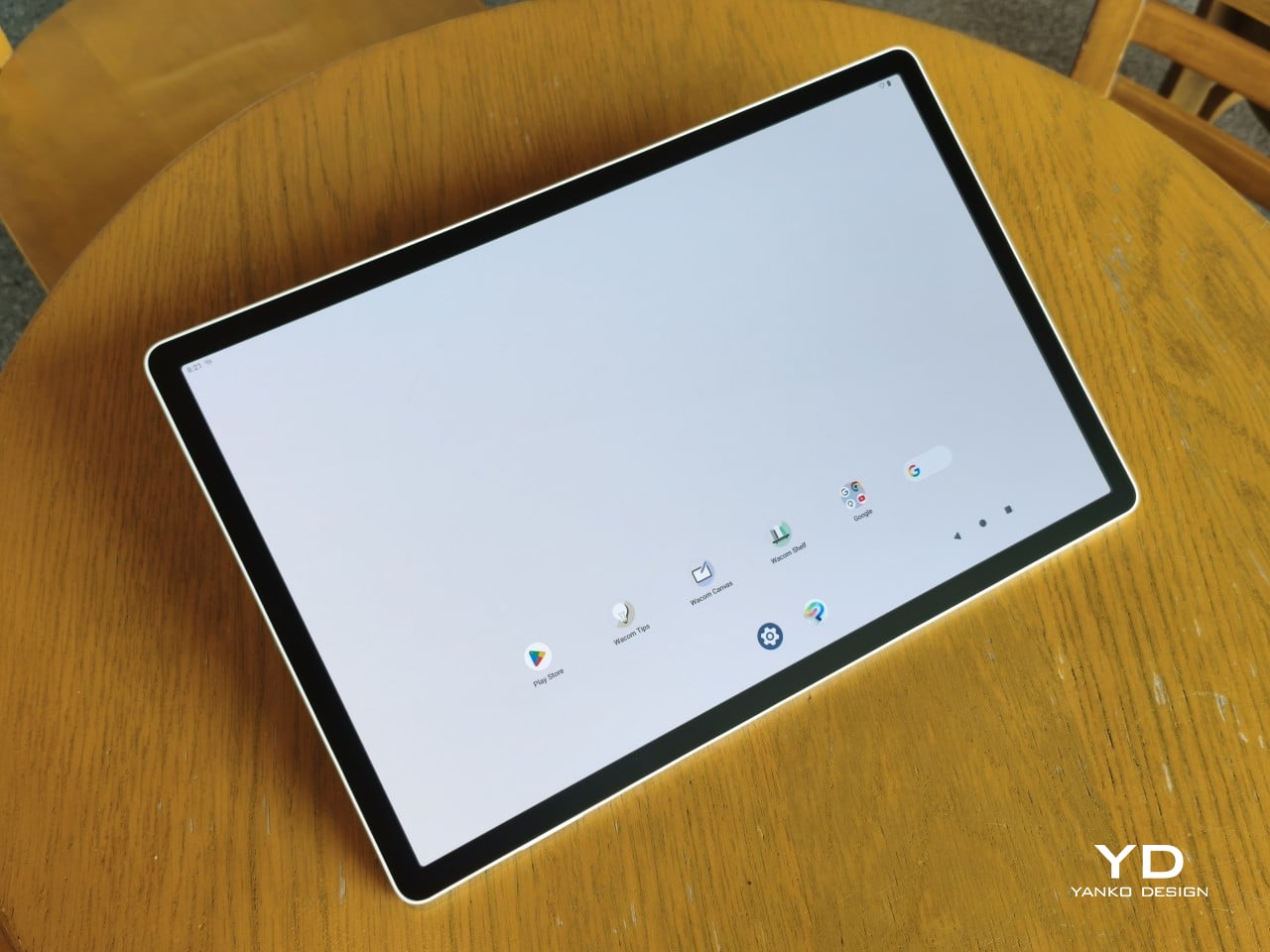
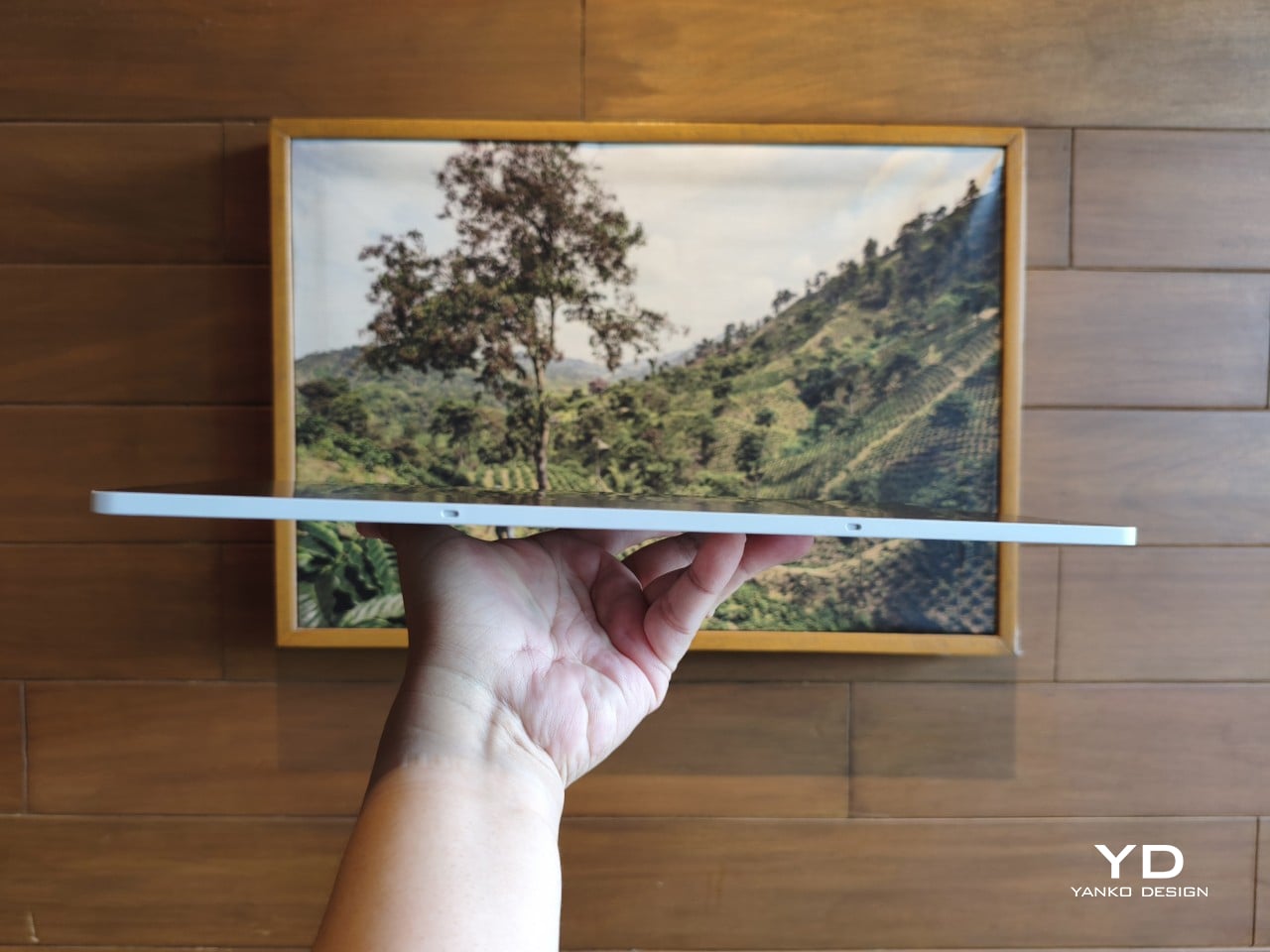
Right out of the box, the MovinkPad Pro 14 doesn’t dazzle the way other tablets in its price range tend to. There are no flashy colors, no ultra-thin borders, no polished surfaces. The bezels are noticeably wide, the default wallpaper is a solid, flat light gray, and the whole thing carries a stubbornly plain look that feels almost out of step with the competition.

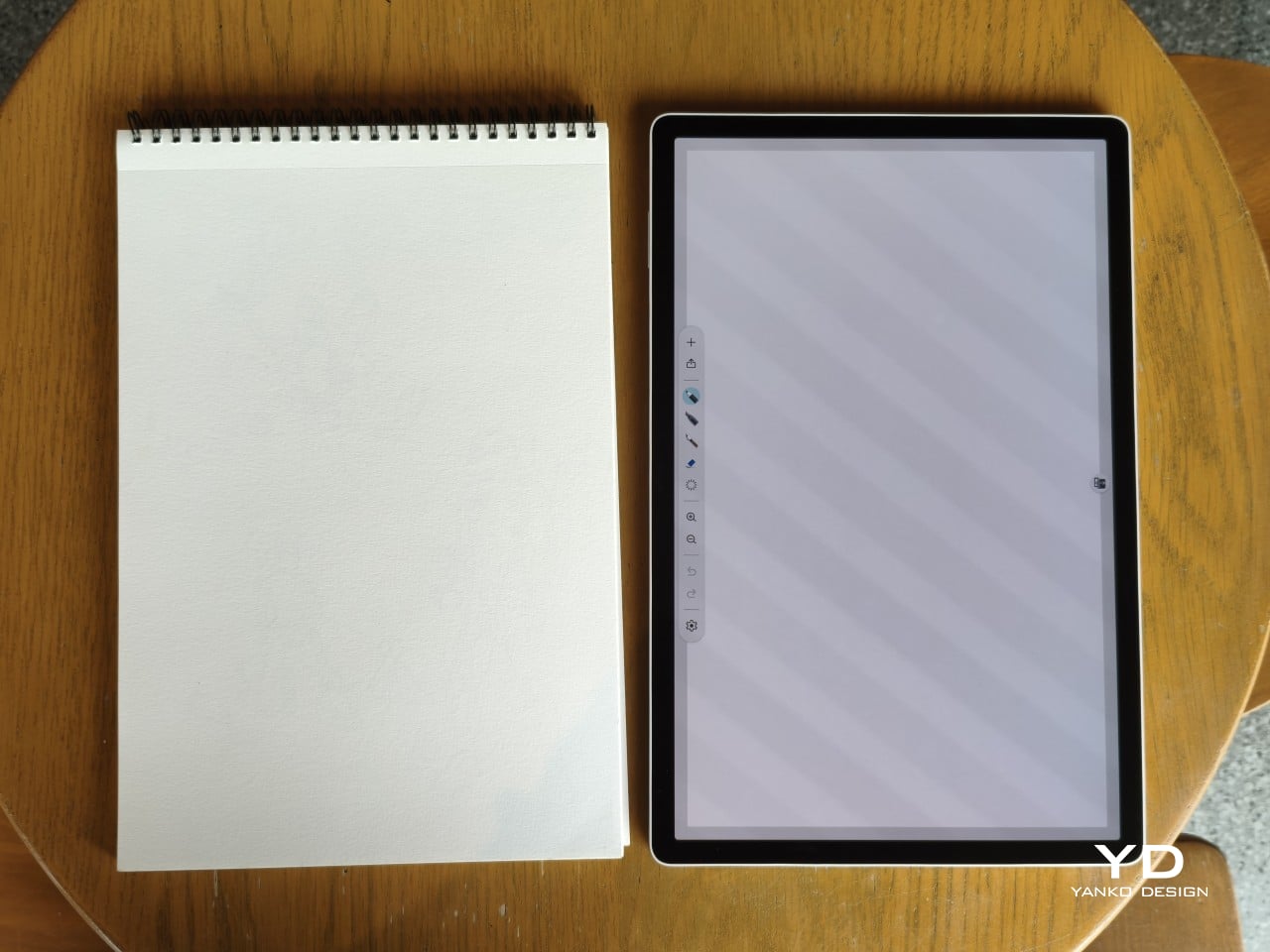
It’s all very much by design. Wacom’s intent is to mimic the look and feel of a physical sketchbook, the kind artists, designers, and architects carry everywhere. The device comes in one color, light gray, which echoes the tone of most sketchbook paper. Its rectangular form, wide borders included, also closely mirrors the footprint of an A4 pad, binding and all.

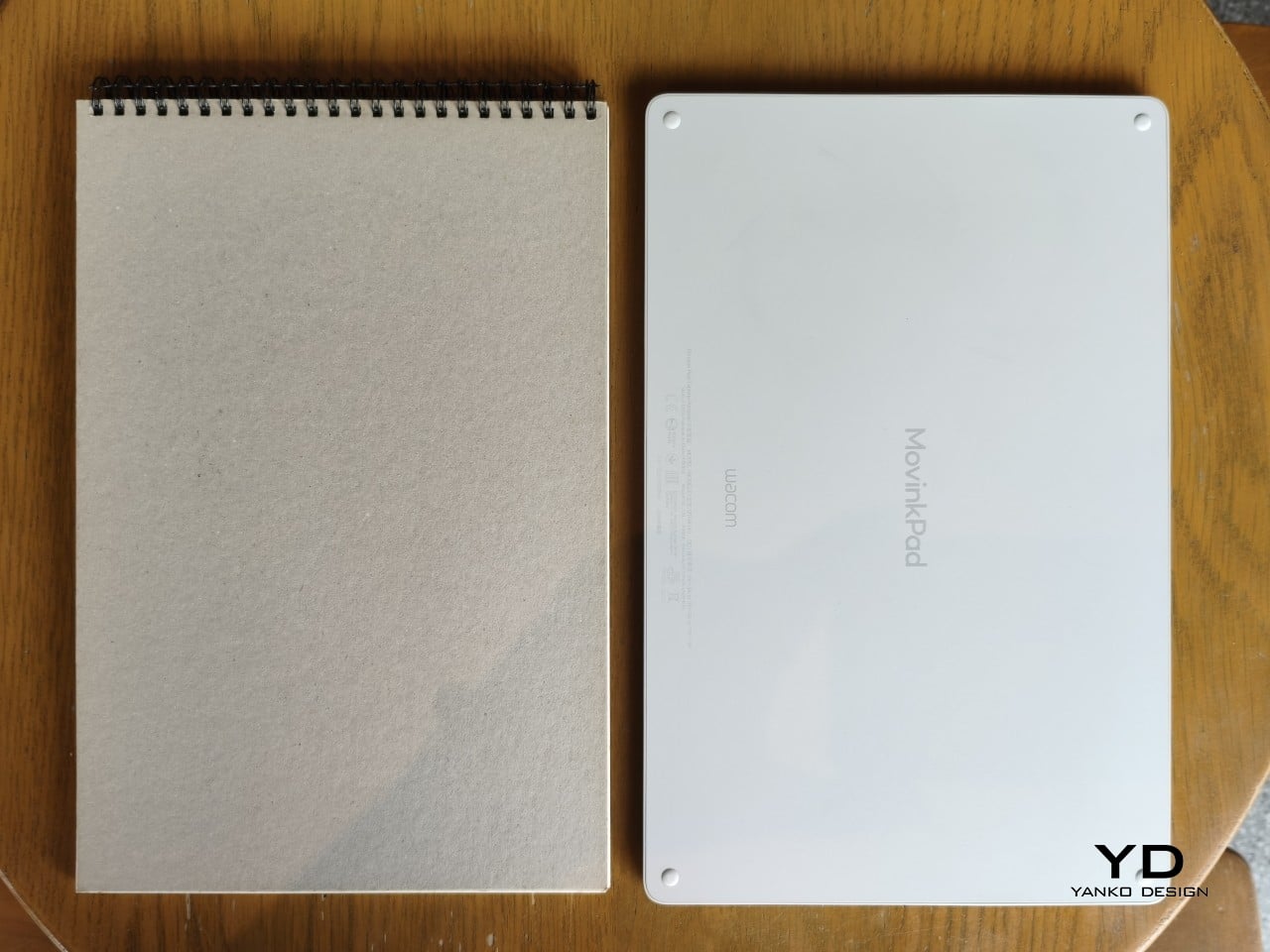
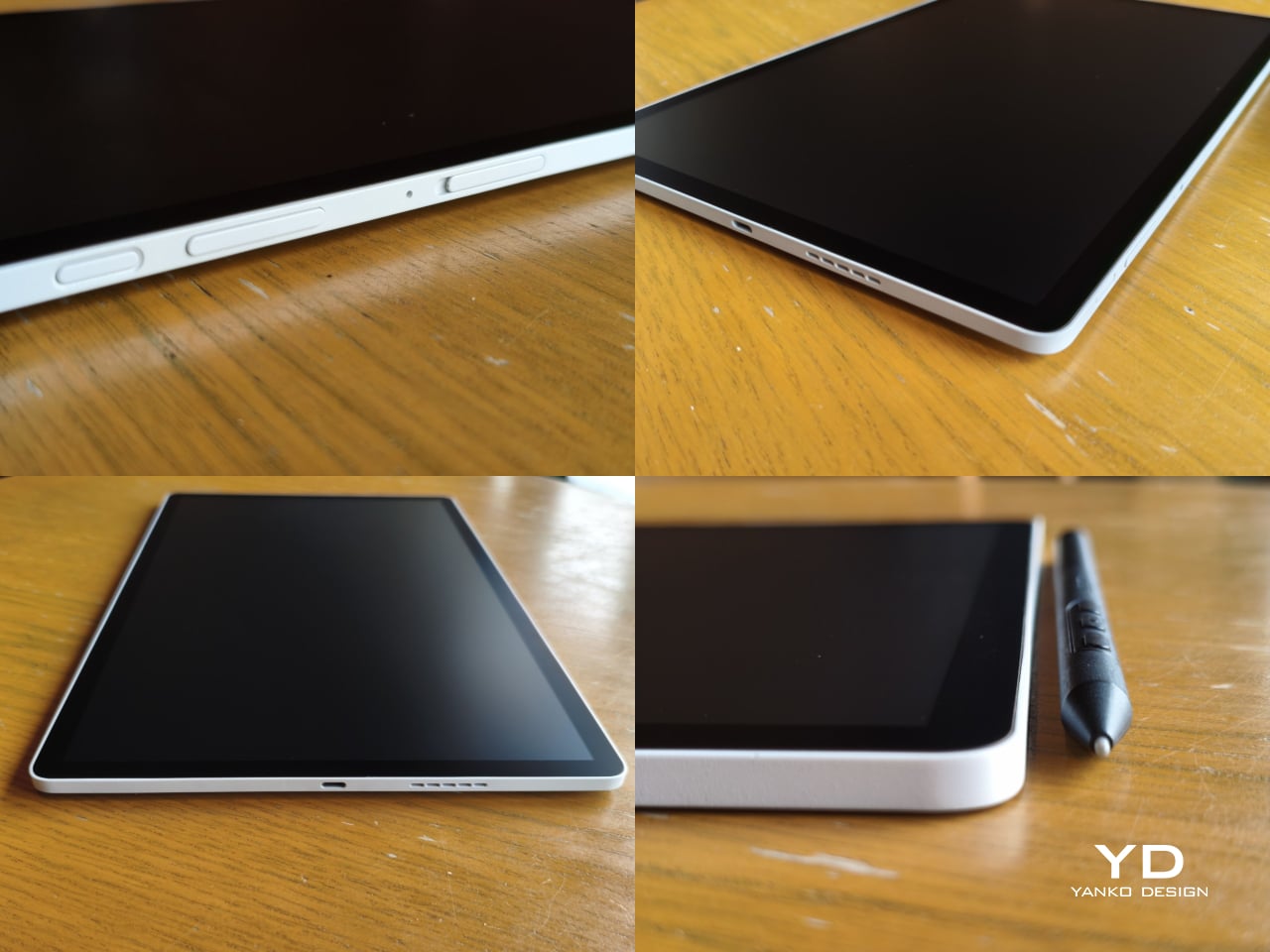
The sides of the device carry that same restraint. One long edge holds the power button, volume rocker, and microSD slot, while the opposite edge features connectors for the optional cover accessory. The short edges house the speakers, and the bottom is reserved for branding, regulatory inscriptions, and four rubber feet. There’s nothing extraneous, nothing decorative, and nothing that distracts from the task you’re there to do.

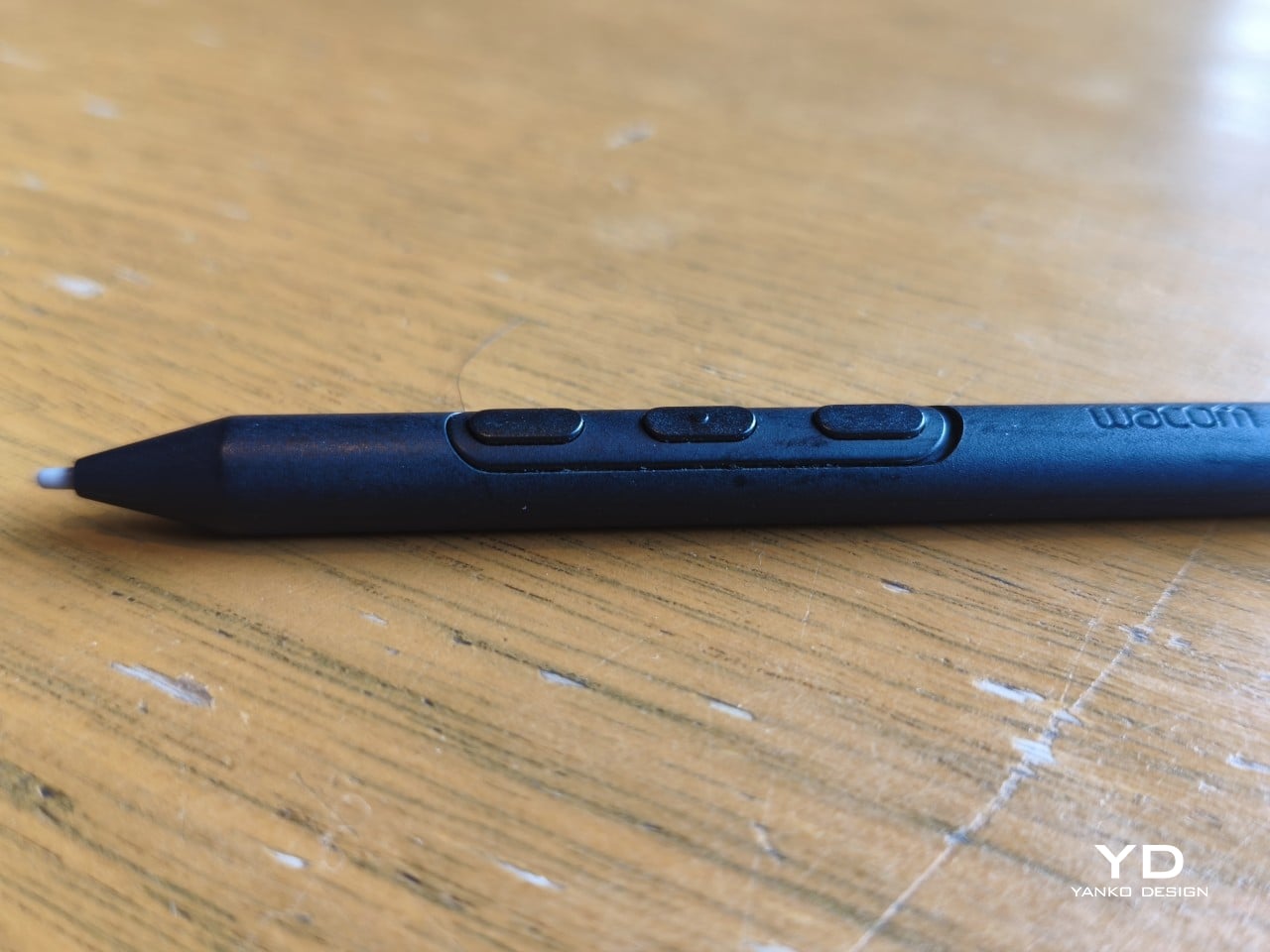
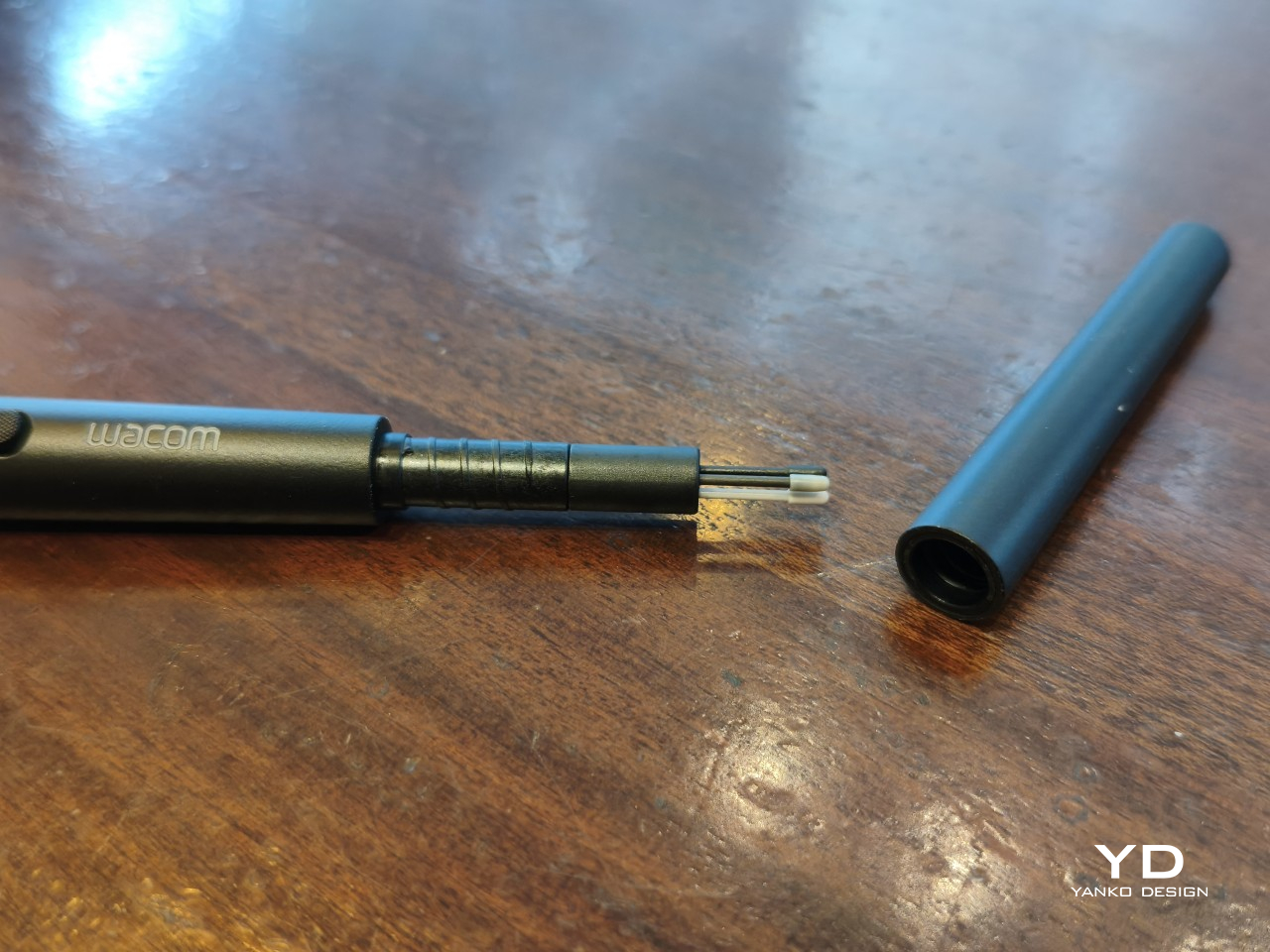
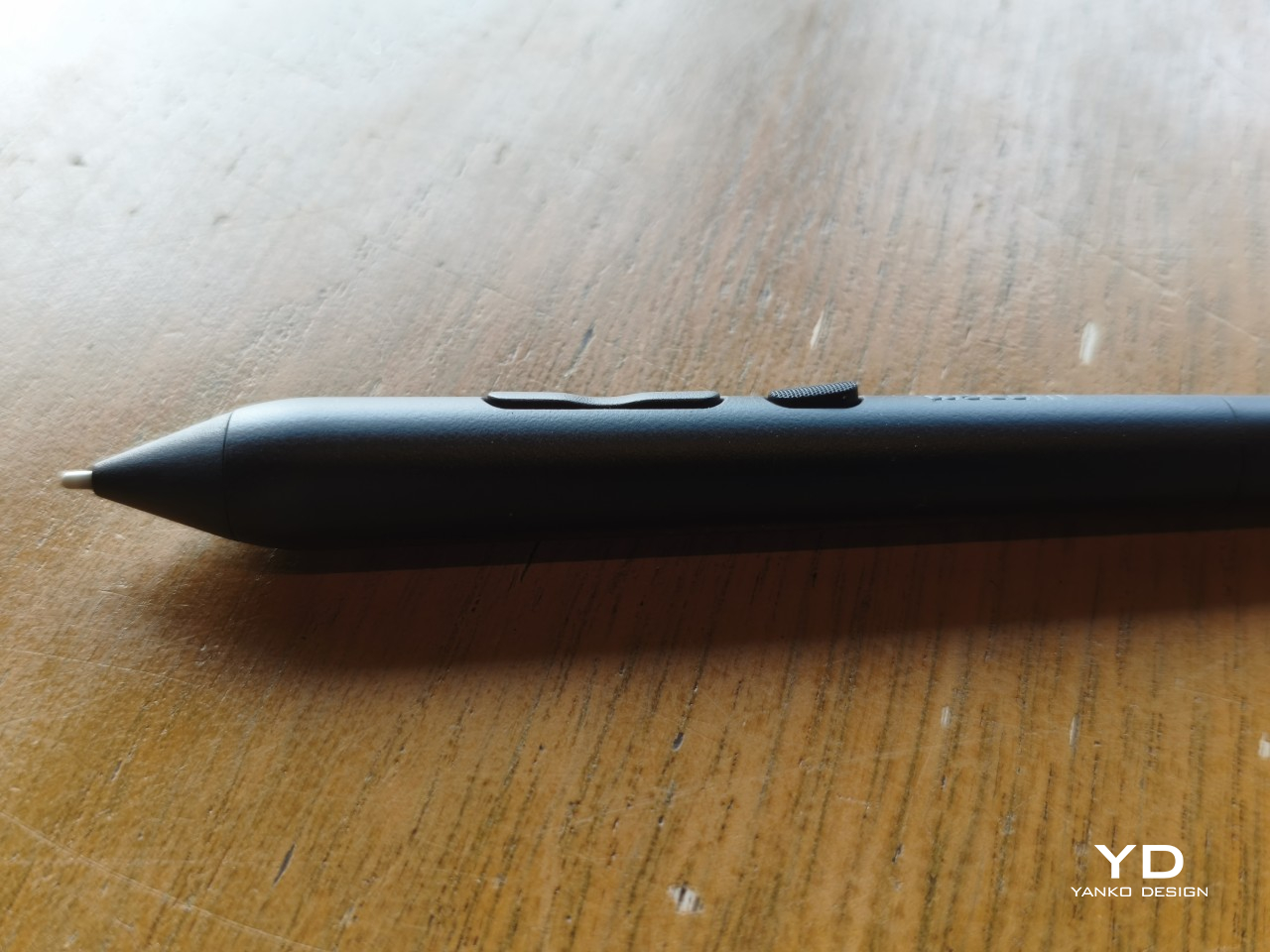
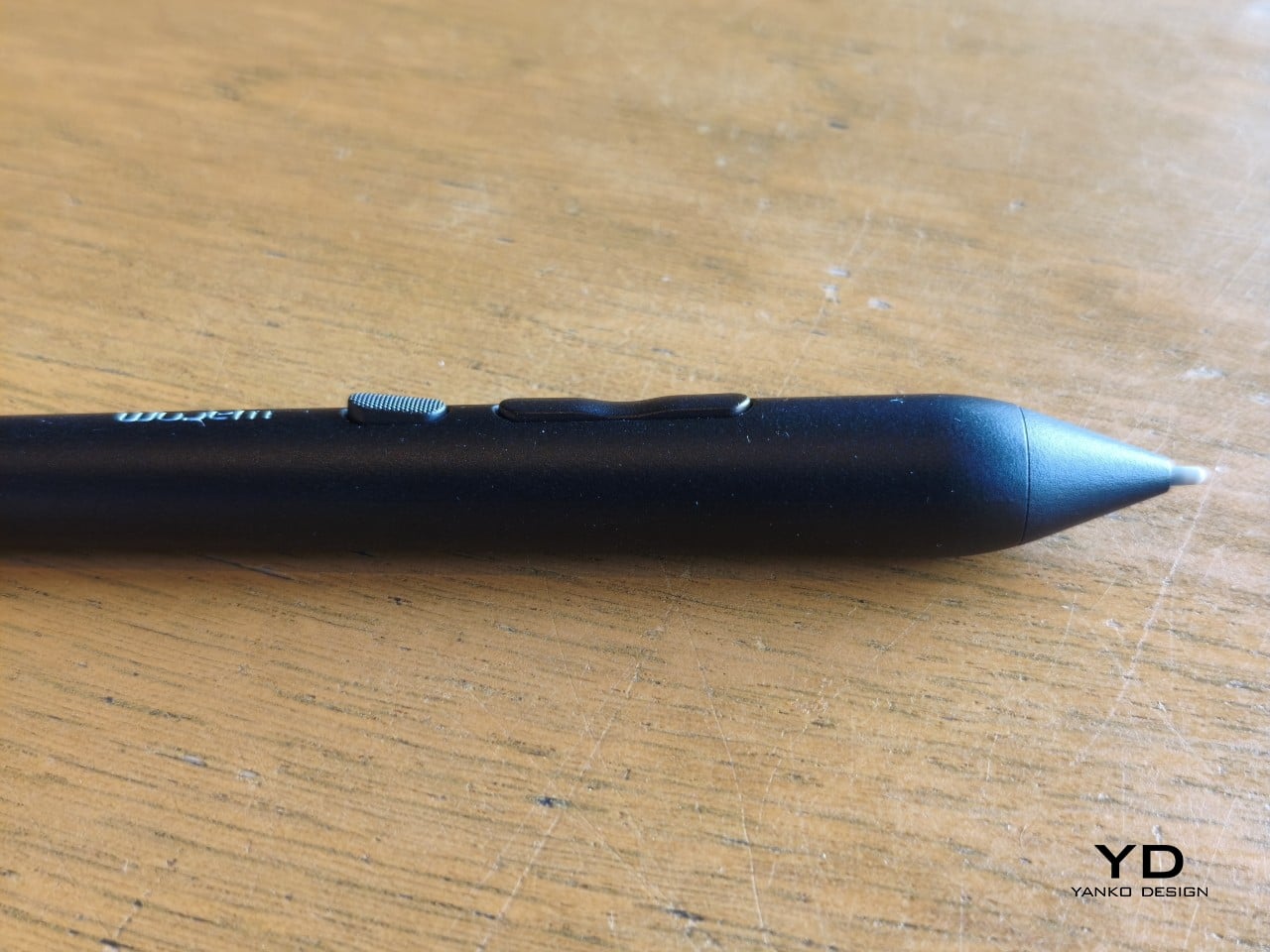
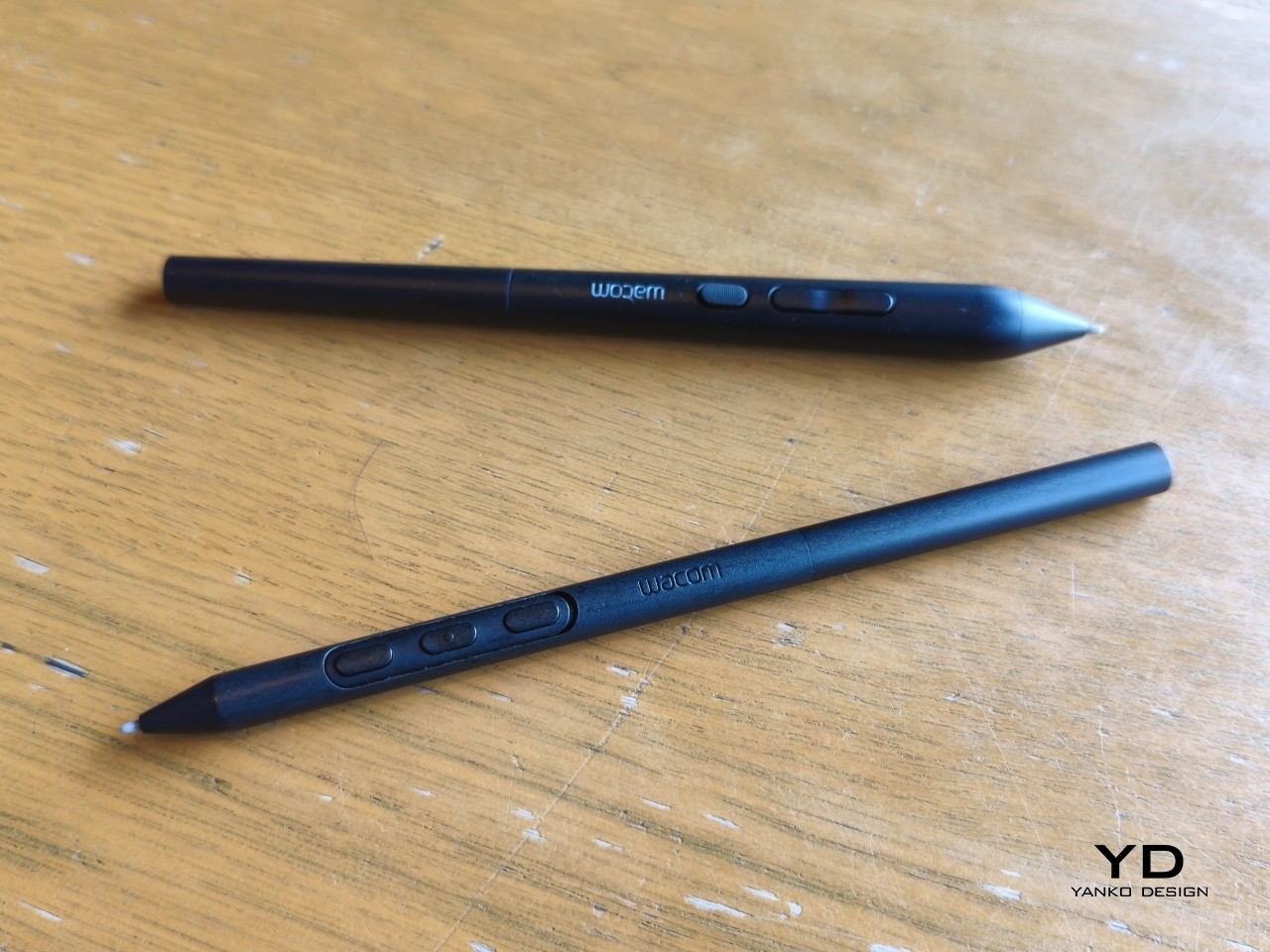
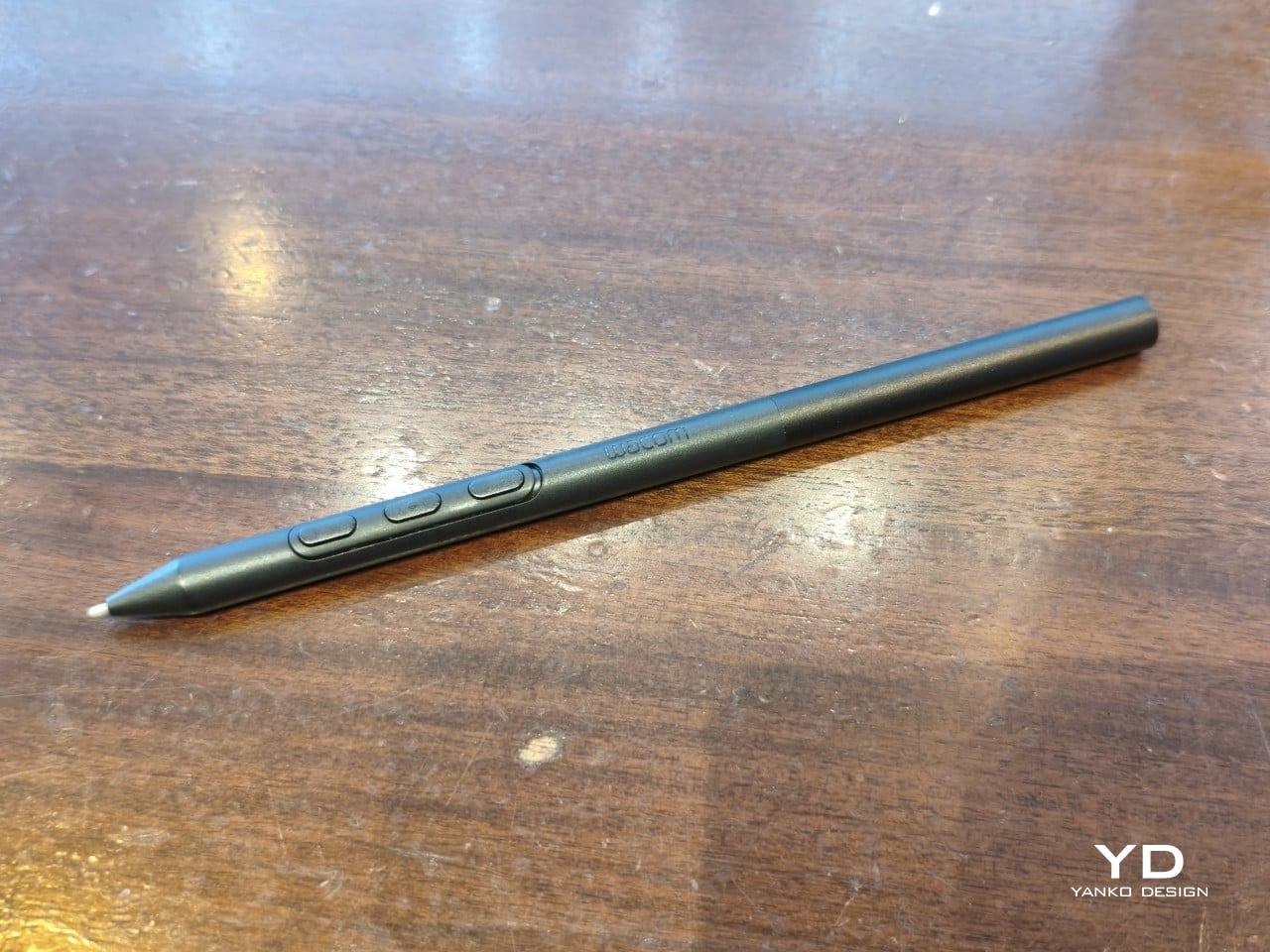
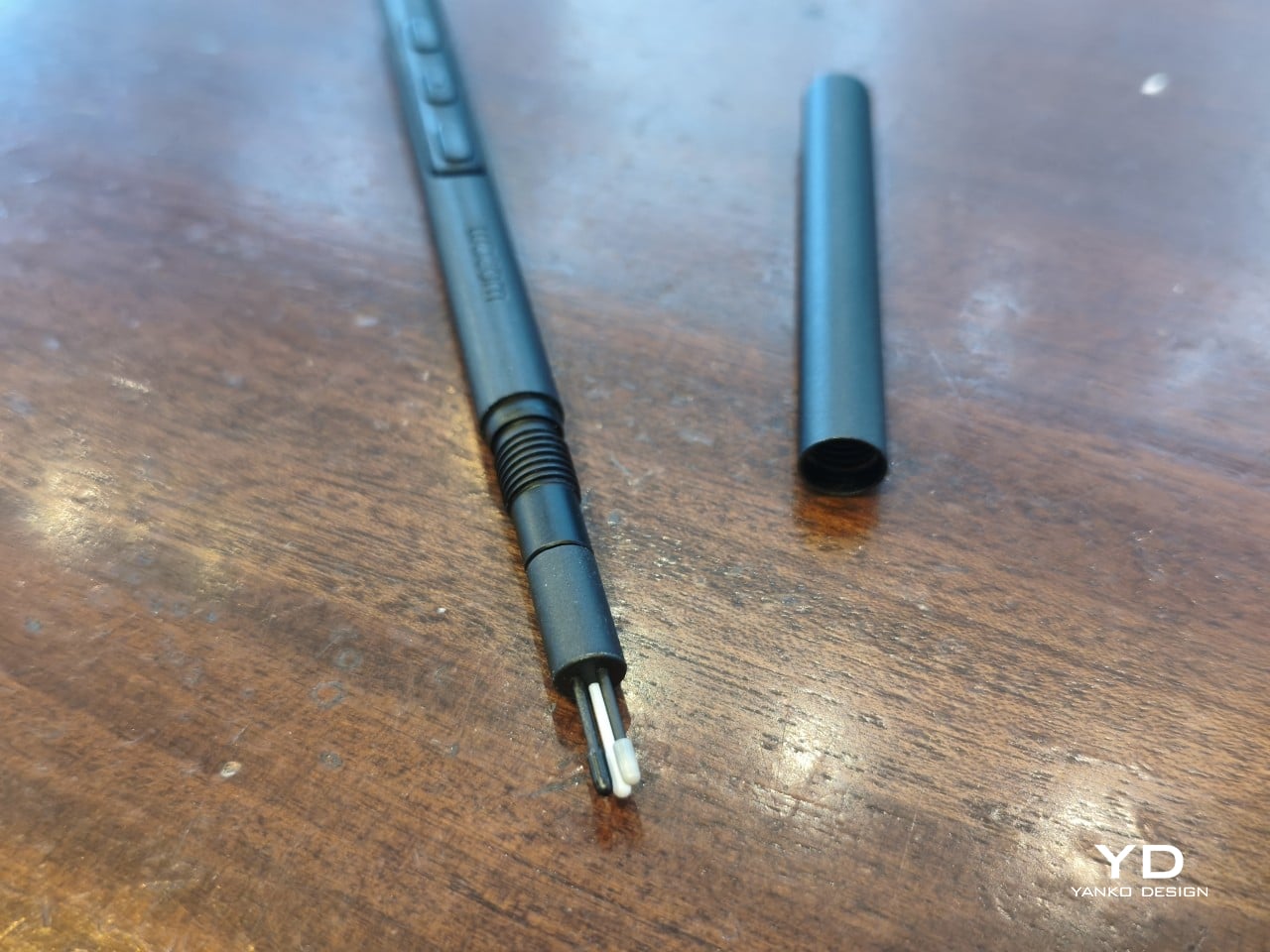
The included Pro Pen 3 follows the same philosophy. It’s all black, slim, and cylindrical, with a body so uniform it almost looks like a high-end mechanical pencil. The three side buttons are barely raised, sitting nearly flush against the barrel for a cleaner look. Unscrewing the rear half reveals three replacement nibs tucked inside: a Carbon Shaft nib, a Felt nib, and a POM nib.

Wacom’s vision for the MovinkPad Pro 14 is to replicate the feeling of picking up a sketchbook, flipping to a fresh page, and getting straight to work. That intent comes through clearly because the tablet removes just about every visual, physical, and digital distraction it can. It doesn’t try to be the slickest-looking device in the room. It tries to be the one you reach for first.

Ergonomics

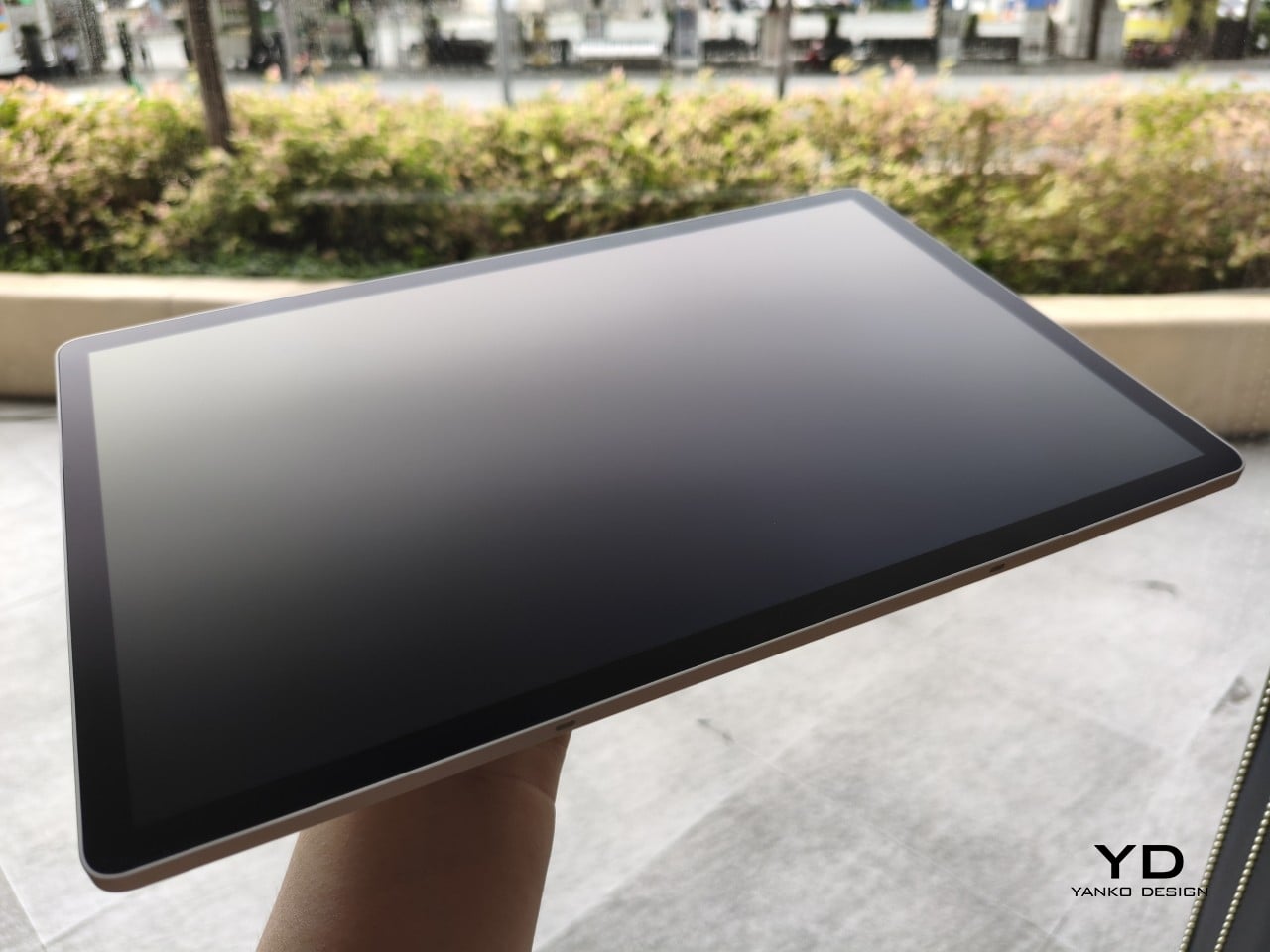
At 14 inches, the MovinkPad Pro 14 isn’t something you’d hold up one-handed for long, but at just 699 grams and 5.9mm thin, it slips easily into any bag. Resting it on your arm or lap doesn’t feel like a chore either. For creatives who move between locations throughout the day, that combination of size and lightness goes a long way toward making it a genuinely portable tool.

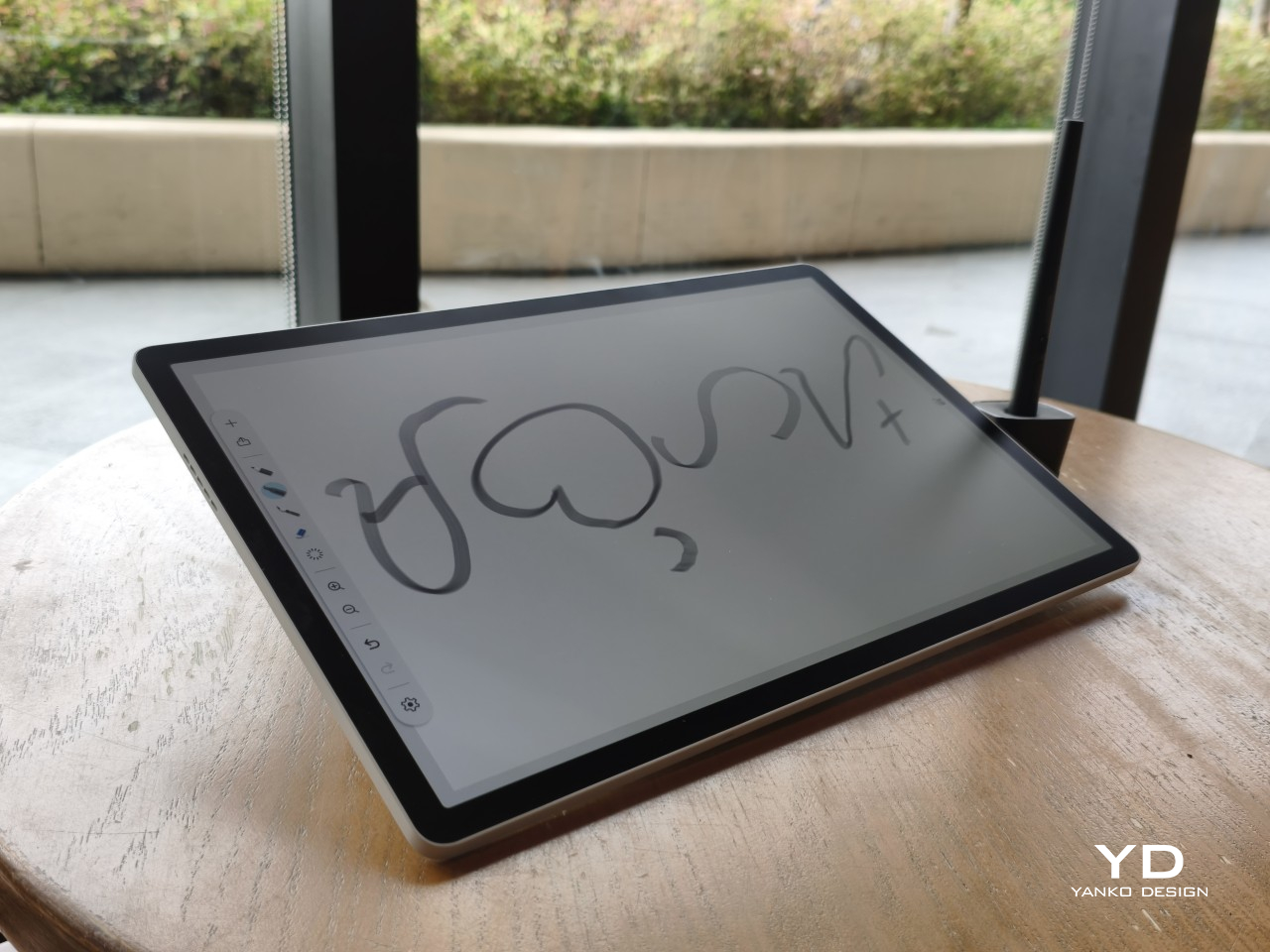
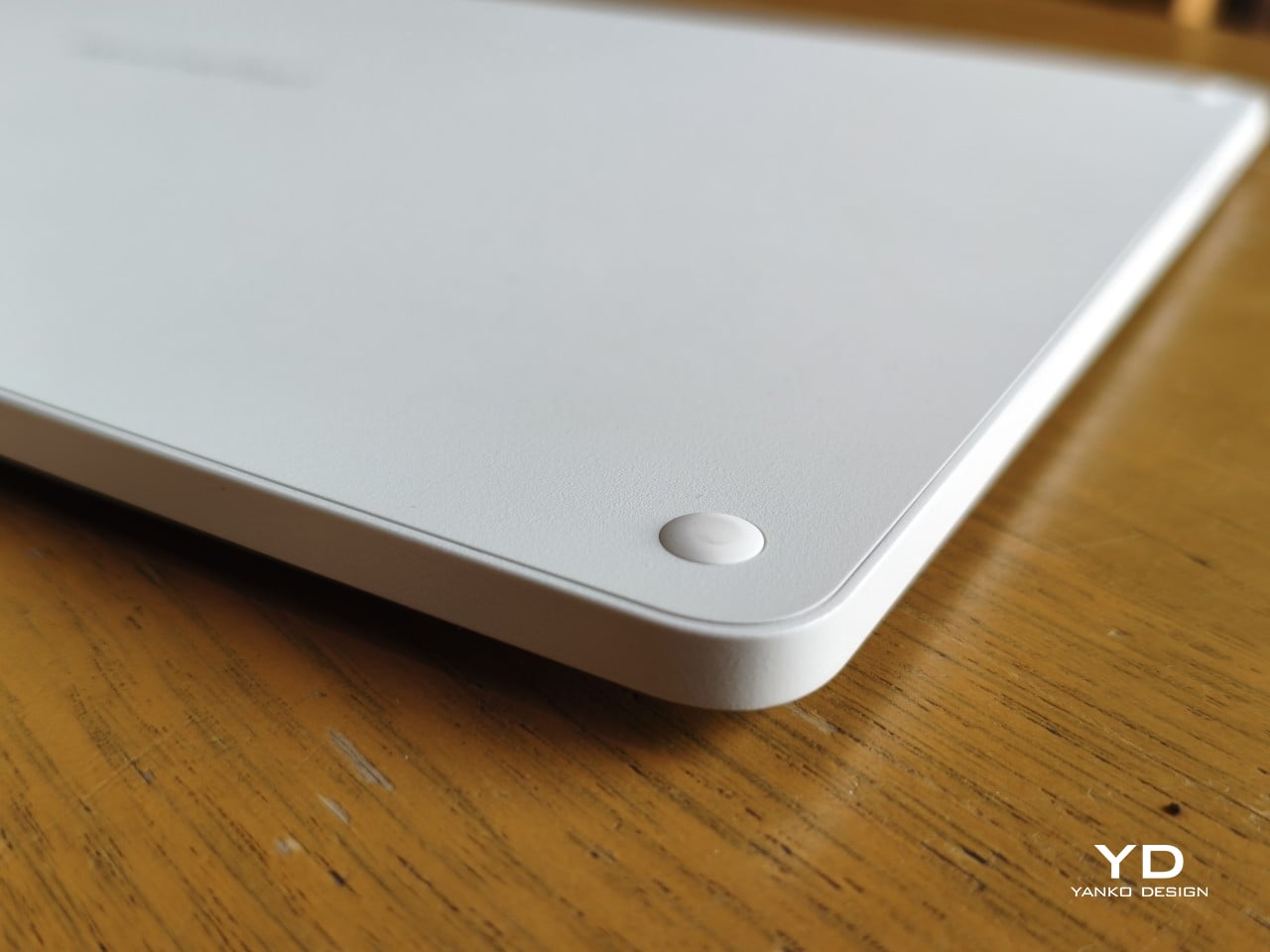
The four rubber feet on the underside keep the tablet from sliding around on a desk and slightly raise the back off the surface, which helps with airflow. There’s no built-in kickstand or angled stand, so if you prefer working at a tilt, you’ll need to source one separately, either from Wacom’s own accessory line or from a third-party option. It’s a small gap in an otherwise thoughtful package.

Those wide bezels, which might seem like a design quirk at first, actually earn their place here. They give you a comfortable inactive area to rest your palm or fingers when gripping the tablet from the sides, so your touch input doesn’t accidentally interfere with whatever you’re drawing. It’s the kind of practical thinking that tends to reveal itself only once you’re deep into a long session.

That said, the MovinkPad Pro 14’s footprint means it isn’t something you’d pull from a bag and start sketching on at a moment’s notice. For that kind of spontaneous work, the smaller MovinkPad 11 is probably the better fit. The Pro 14 is better suited to longer, more involved sessions away from the desk, as long as you’ve found a comfortable spot to settle in.

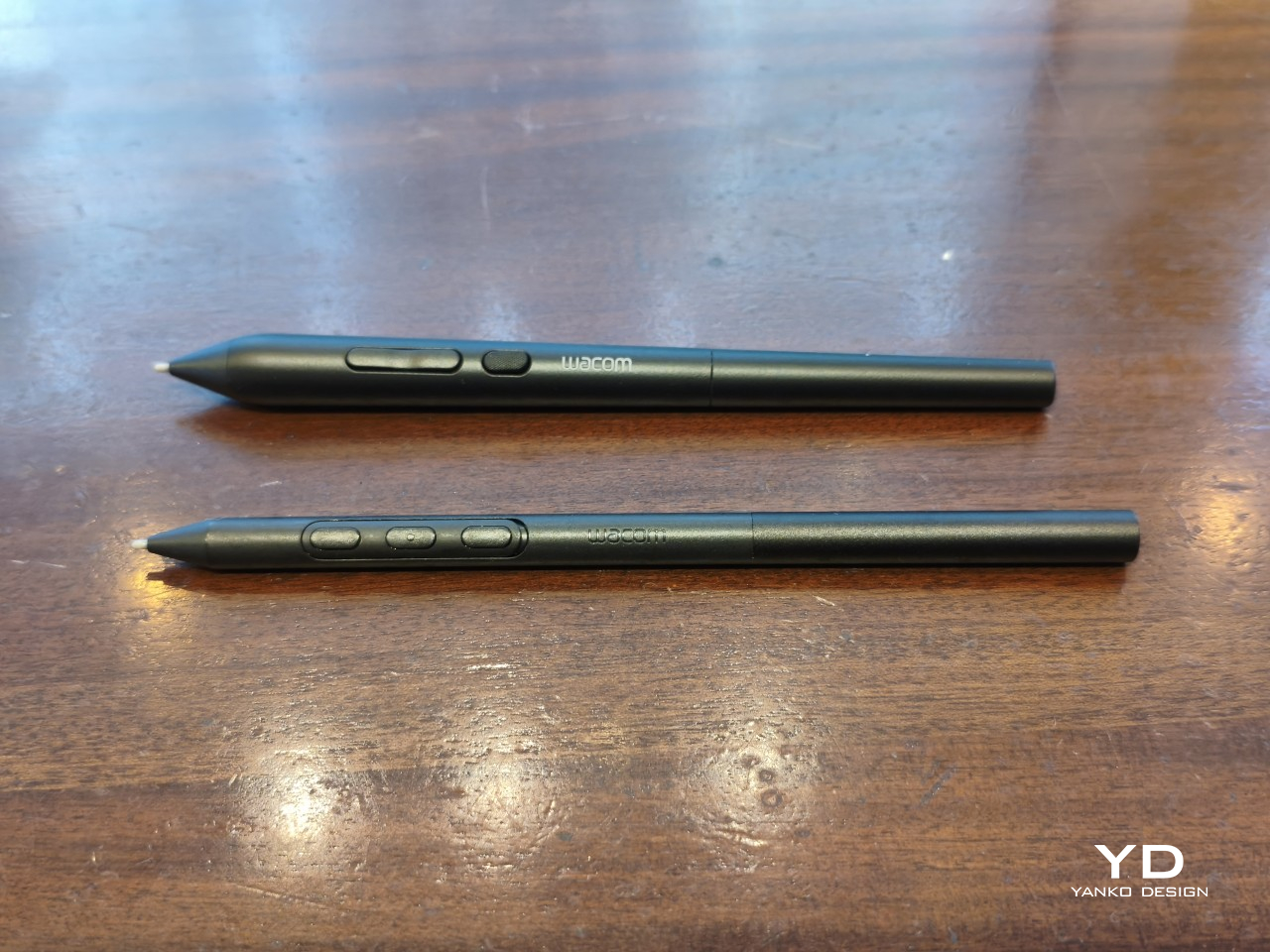
The Pro Pen 3 is well-balanced and comfortable enough in the hand, though your experience will vary depending on what you’re used to. Its slim, pencil-like build can lead to some cramping over long sessions for those accustomed to thicker tools. Official grips are available but aren’t cheap. The nearly-flushed buttons are also too easy to press accidentally. The Art Pen 2, which we’re also reviewing, offers a wider barrel as an alternative but is sold separately.

Performance

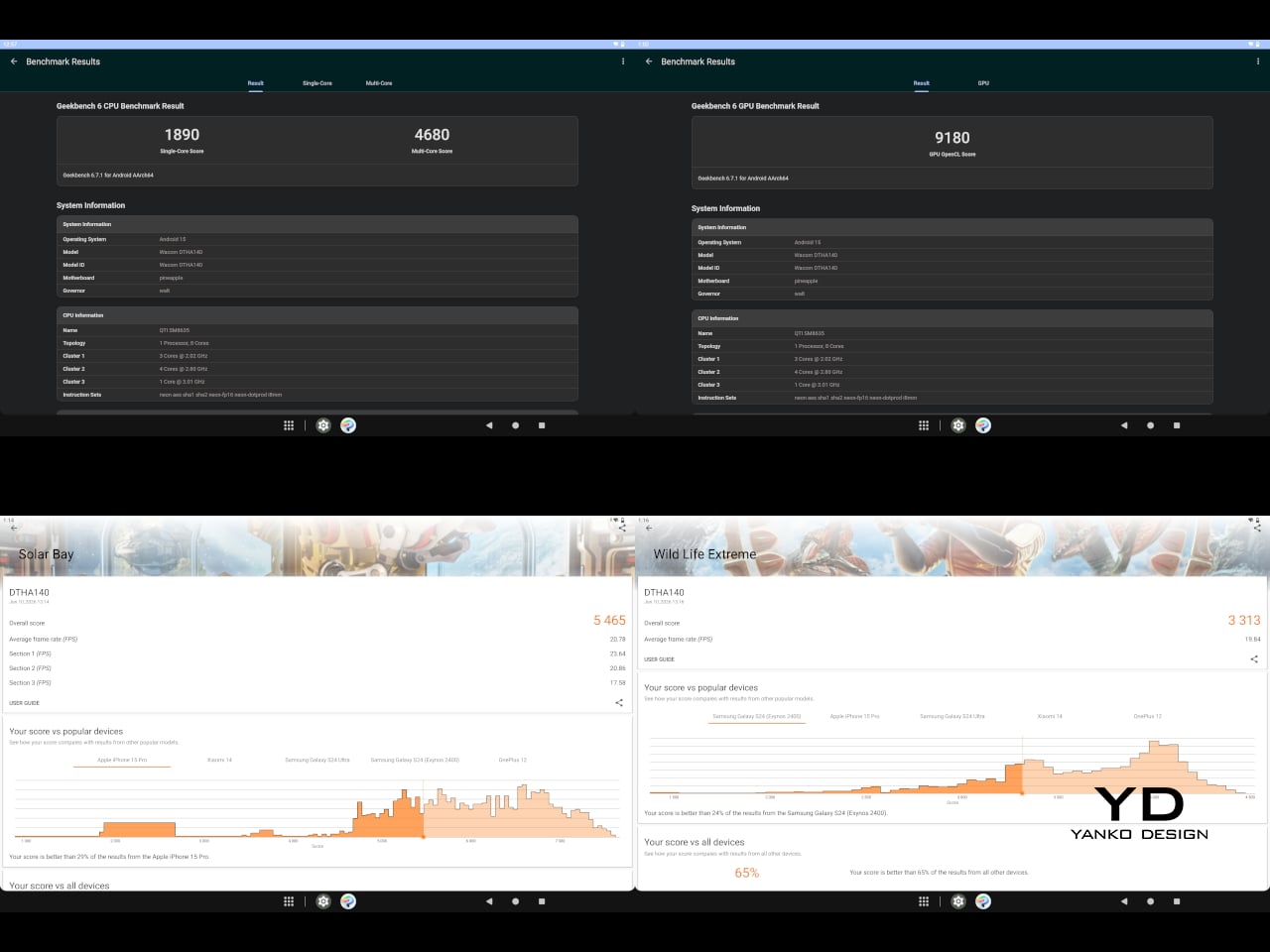
Under the hood, the MovinkPad Pro 14 runs on a Qualcomm Snapdragon 8s Gen 3 with 12GB of RAM and 256GB of storage, expandable via microSD up to 2TB. The processor isn’t the newest available, but it handles everything thrown at it with ease. Multitasking is smooth, app switching is fluid, and there’s no sense that the hardware is struggling to keep pace with anything.

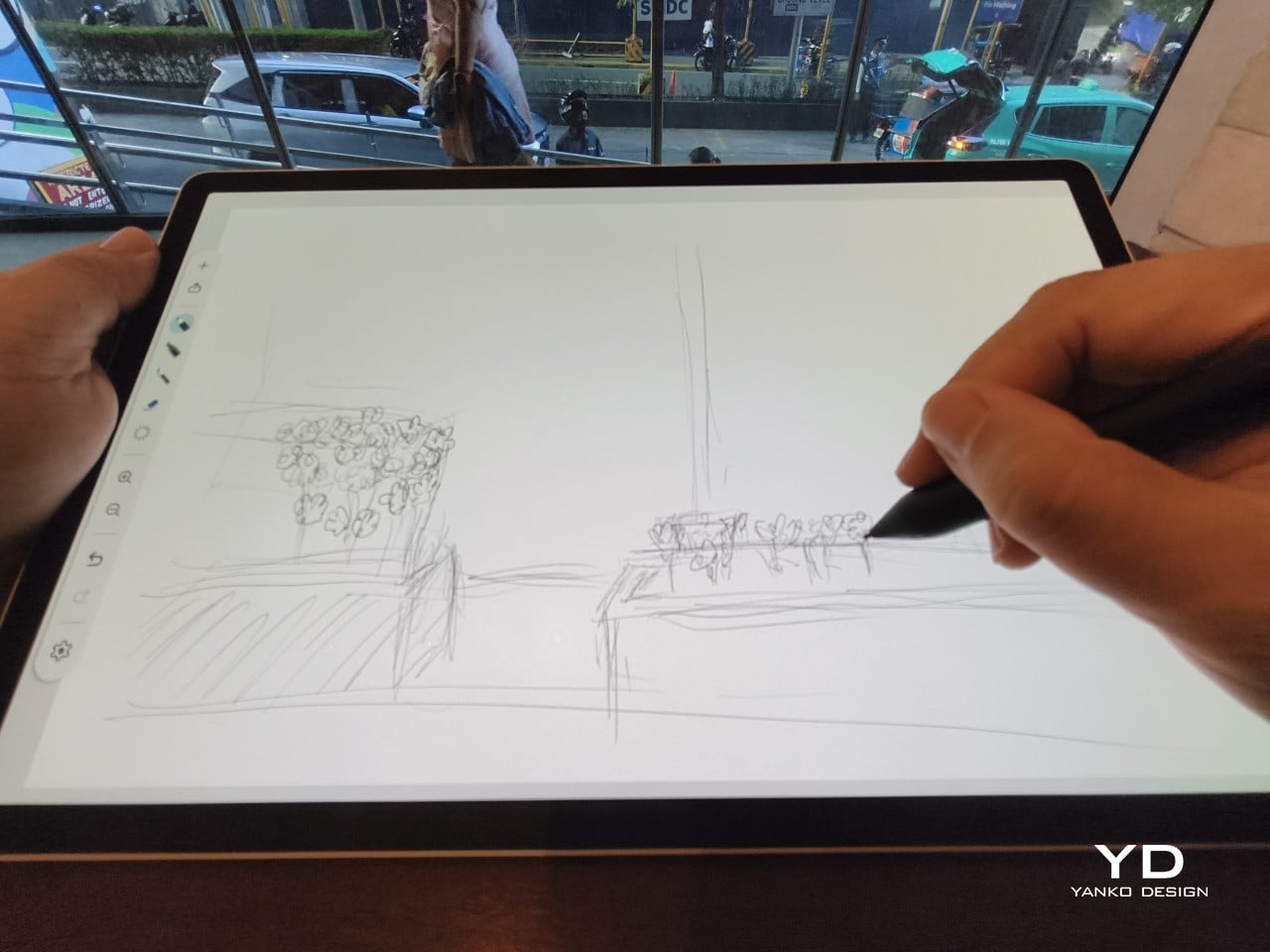
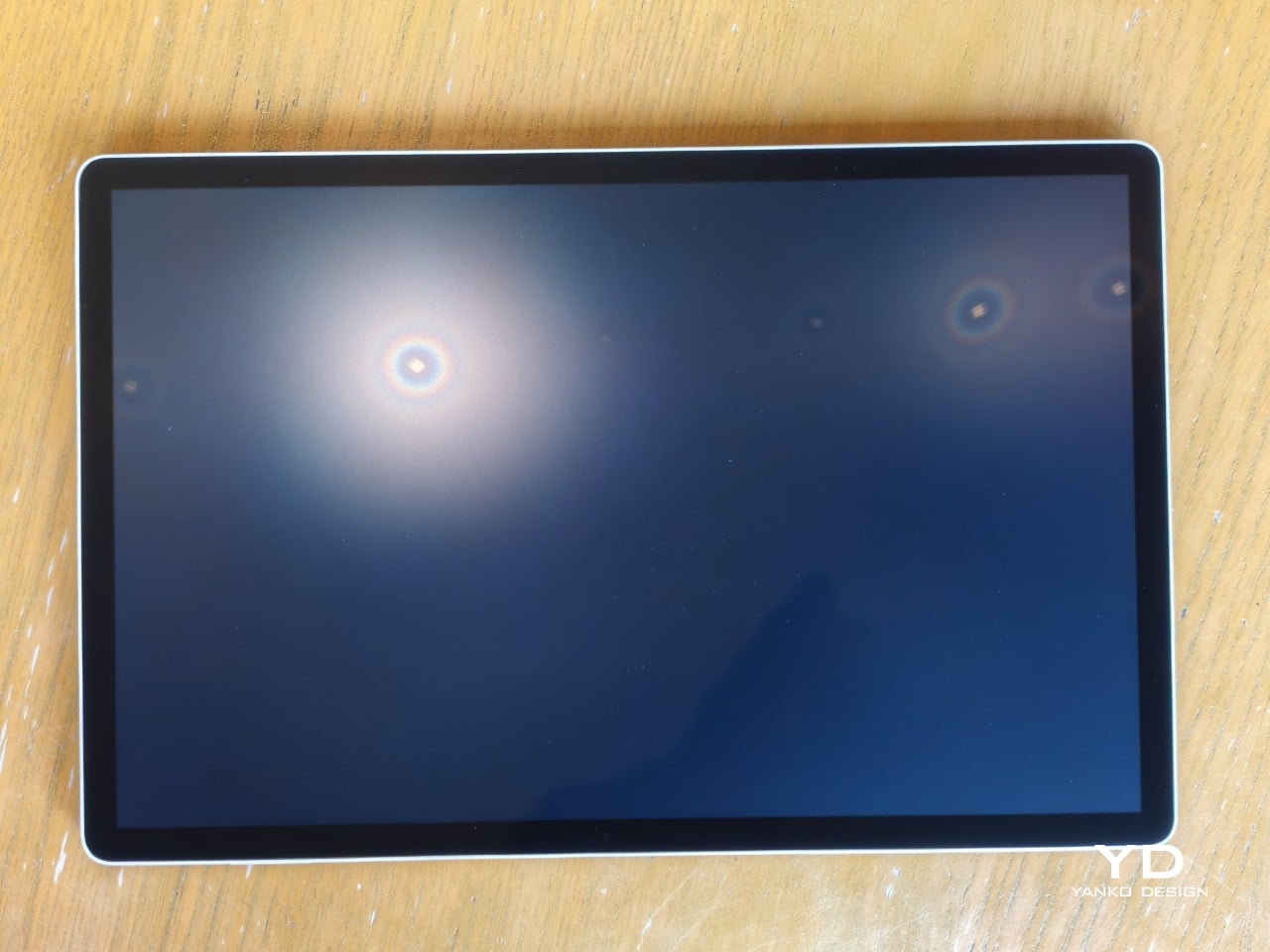
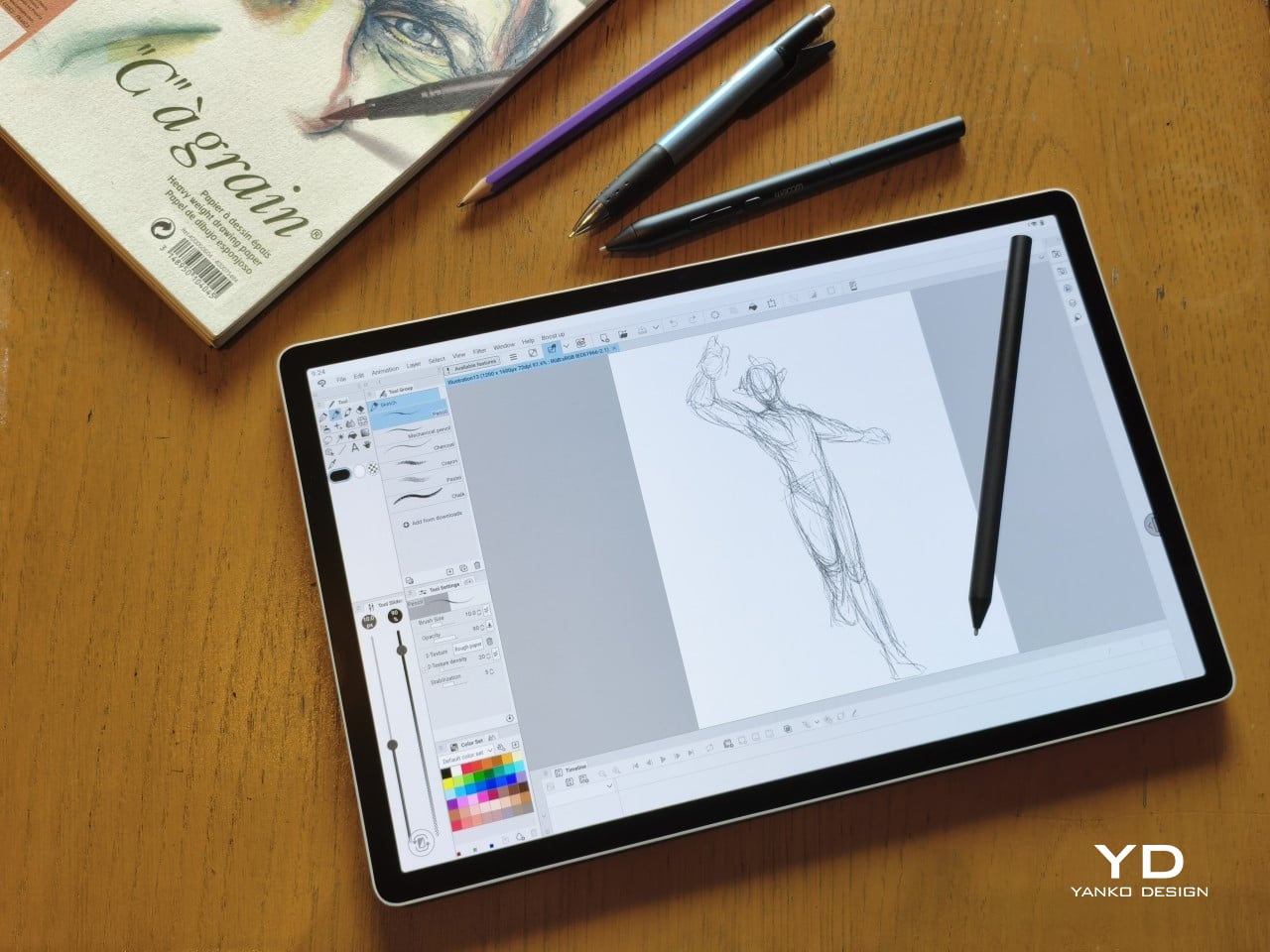
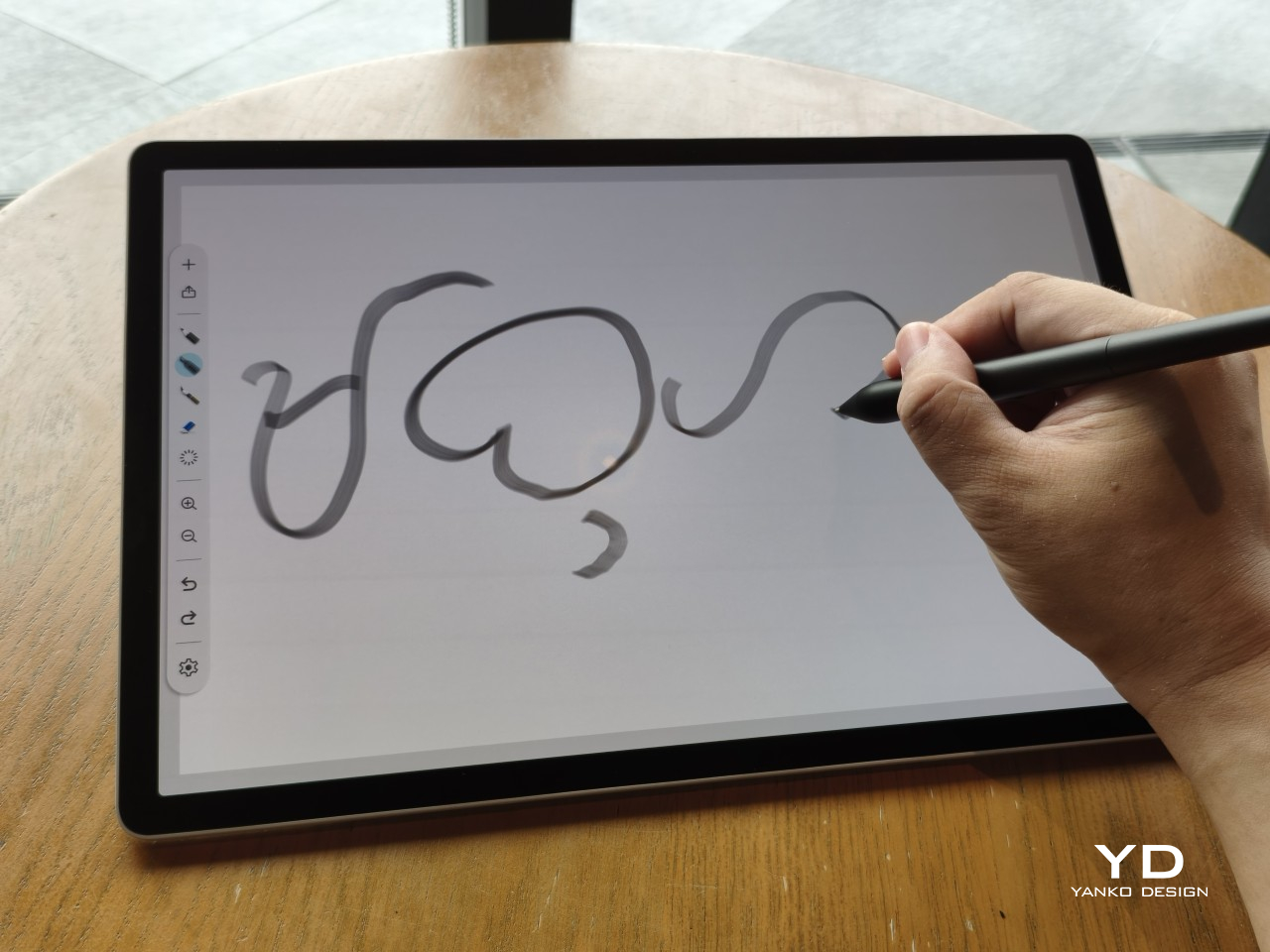
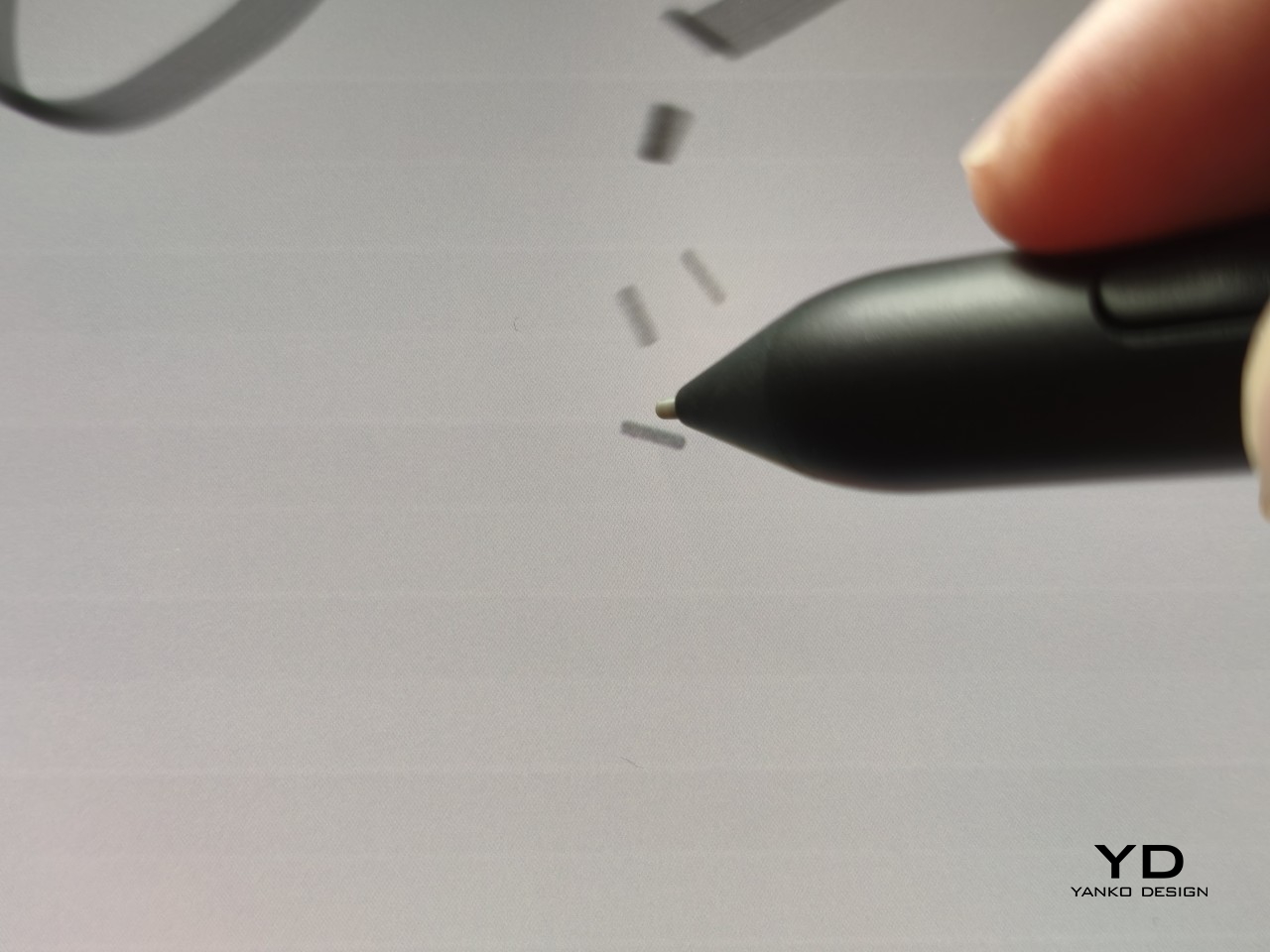
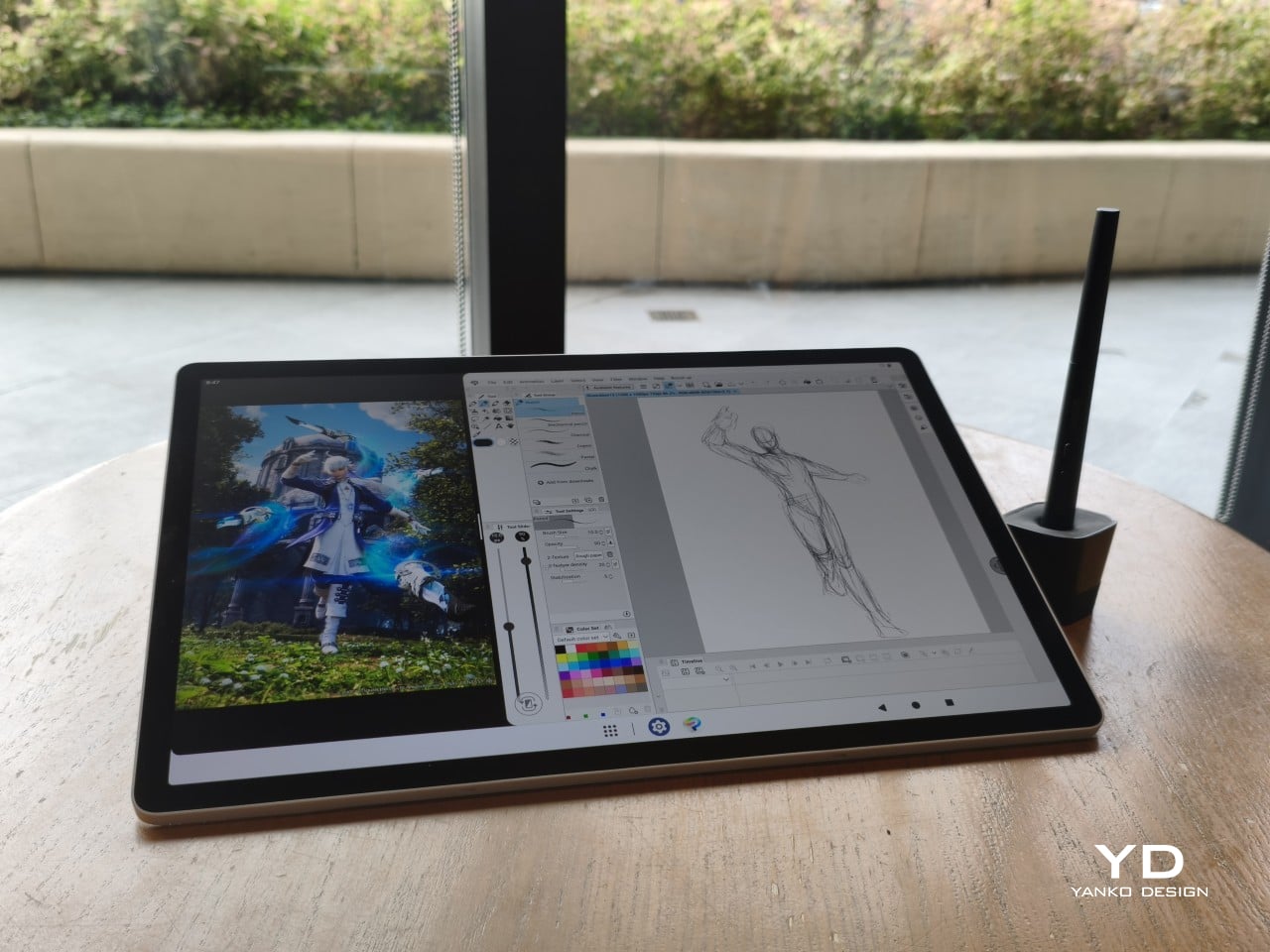
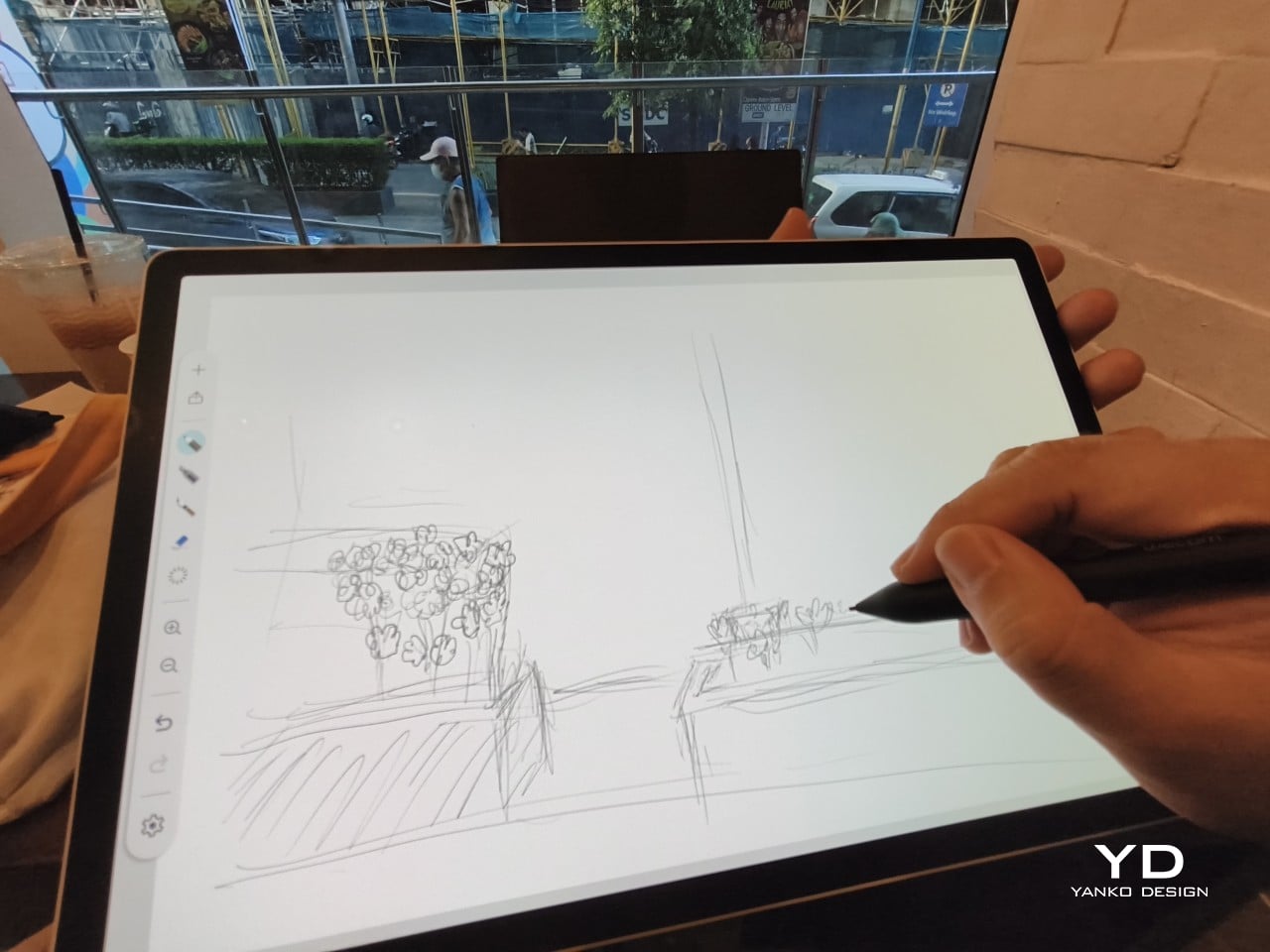
The 14-inch OLED display runs at a 2880×1800 resolution with a 120Hz refresh rate, treated with anti-fingerprint, anti-reflective, and anti-glare textured glass. The wide rectangular aspect ratio works in favor of drawing apps that line their UI panels along the sides, something squarish iPad screens can’t accommodate as cleanly. The textured coating adds a satisfying scratchiness to each stroke, and pen accuracy is, naturally, exactly what you’d expect from Wacom.

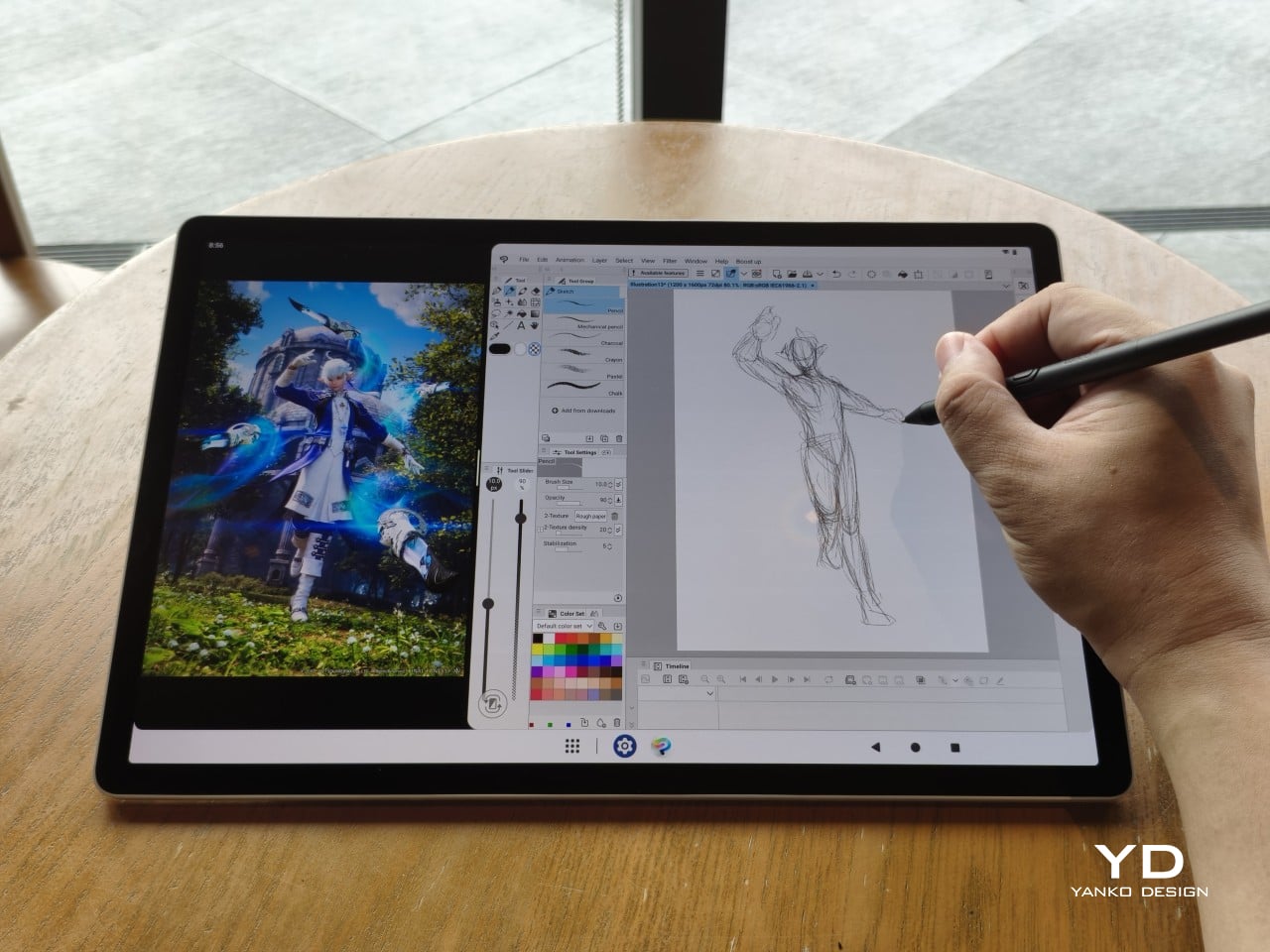
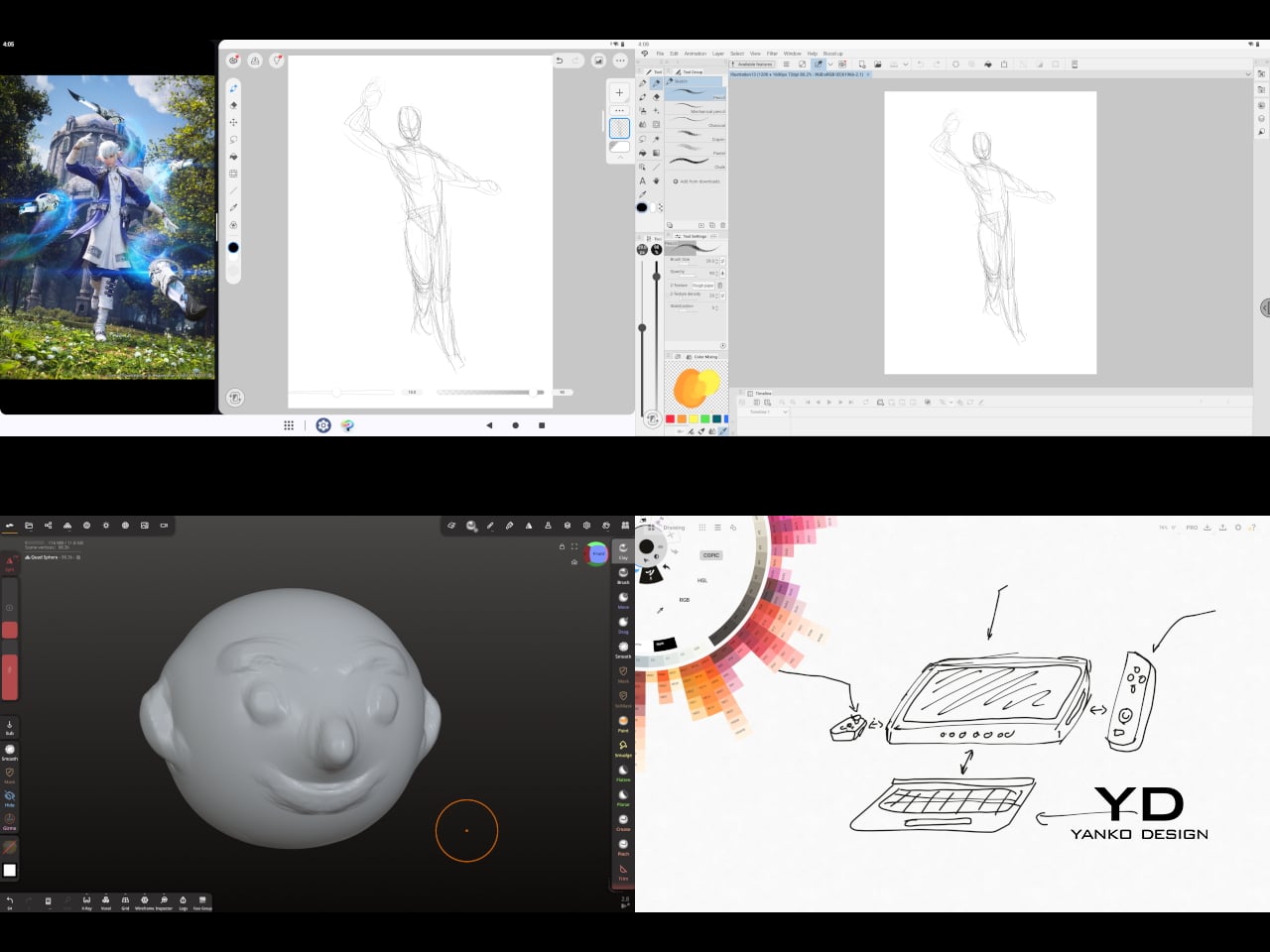
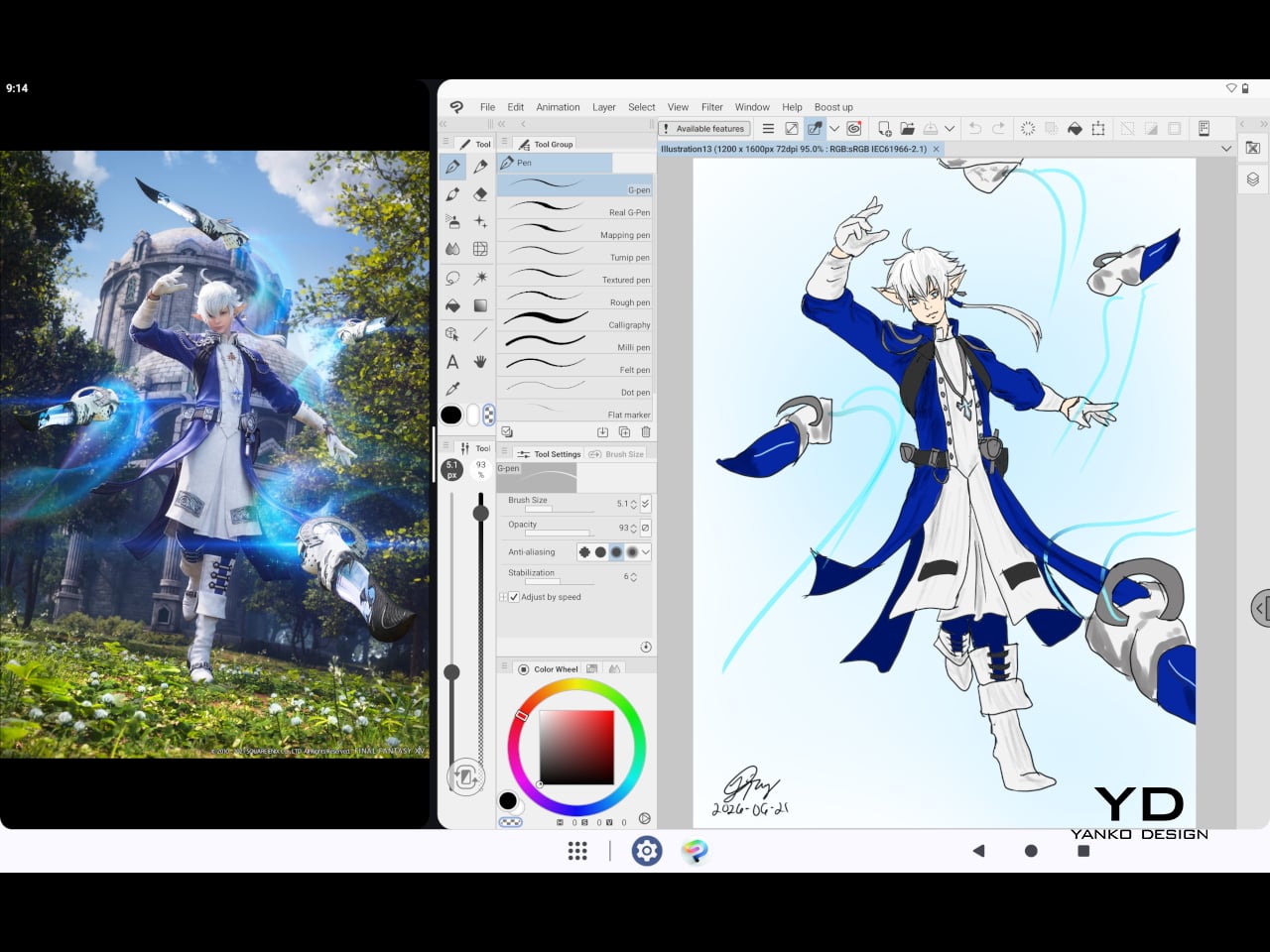
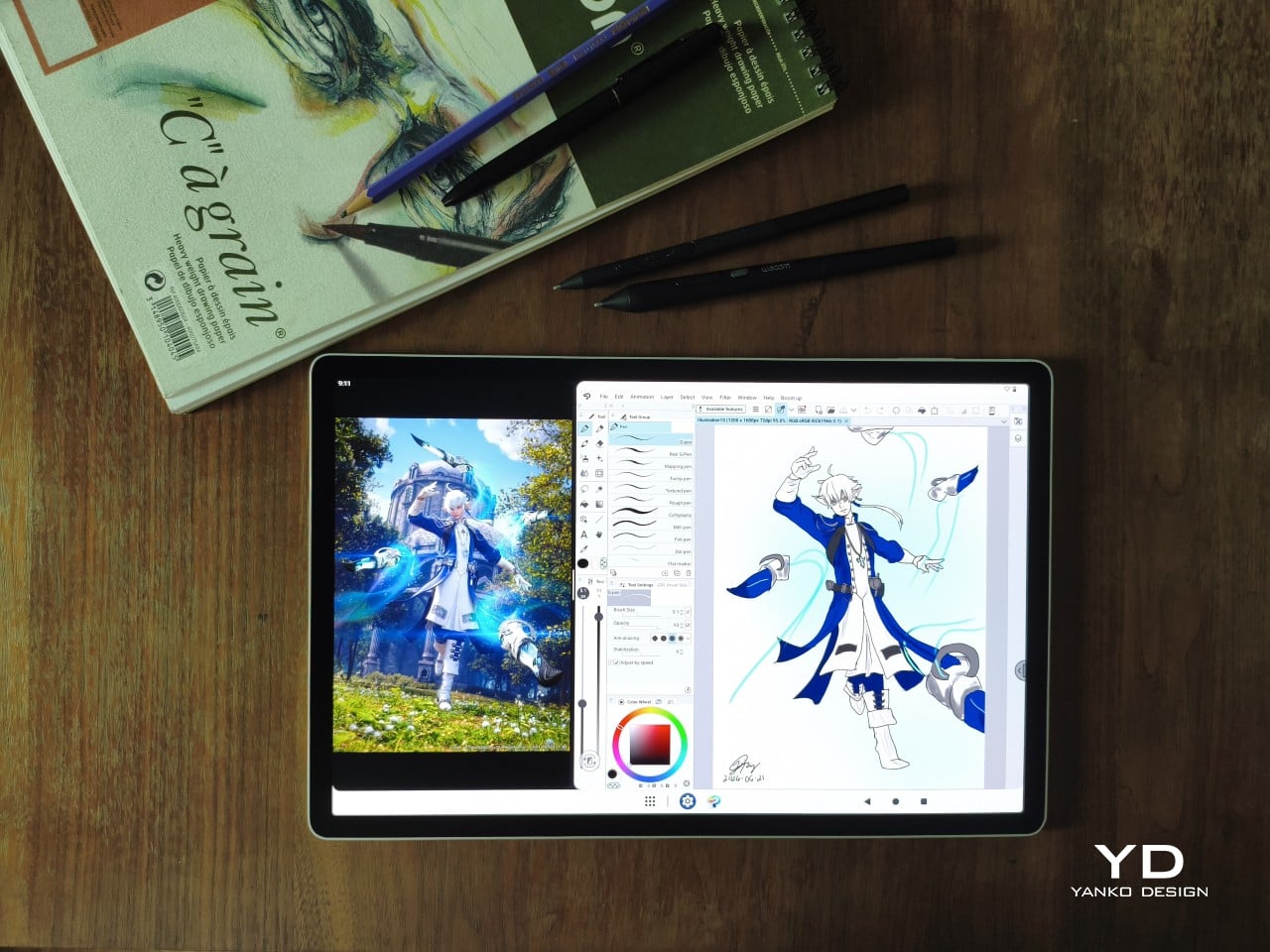
There are no cameras on the MovinkPad Pro 14, front or back. That’s a deliberate choice. There’s no temptation to flip over to social media, no accidental video calls, nothing that pulls focus away from what you’re there to do. Passively watching a tutorial in a corner of the screen is about as off-task as it gets, which, honestly, isn’t a bad thing for anyone prone to distraction. Split-screen functionality makes it easy to have a reference off to the side while you work.

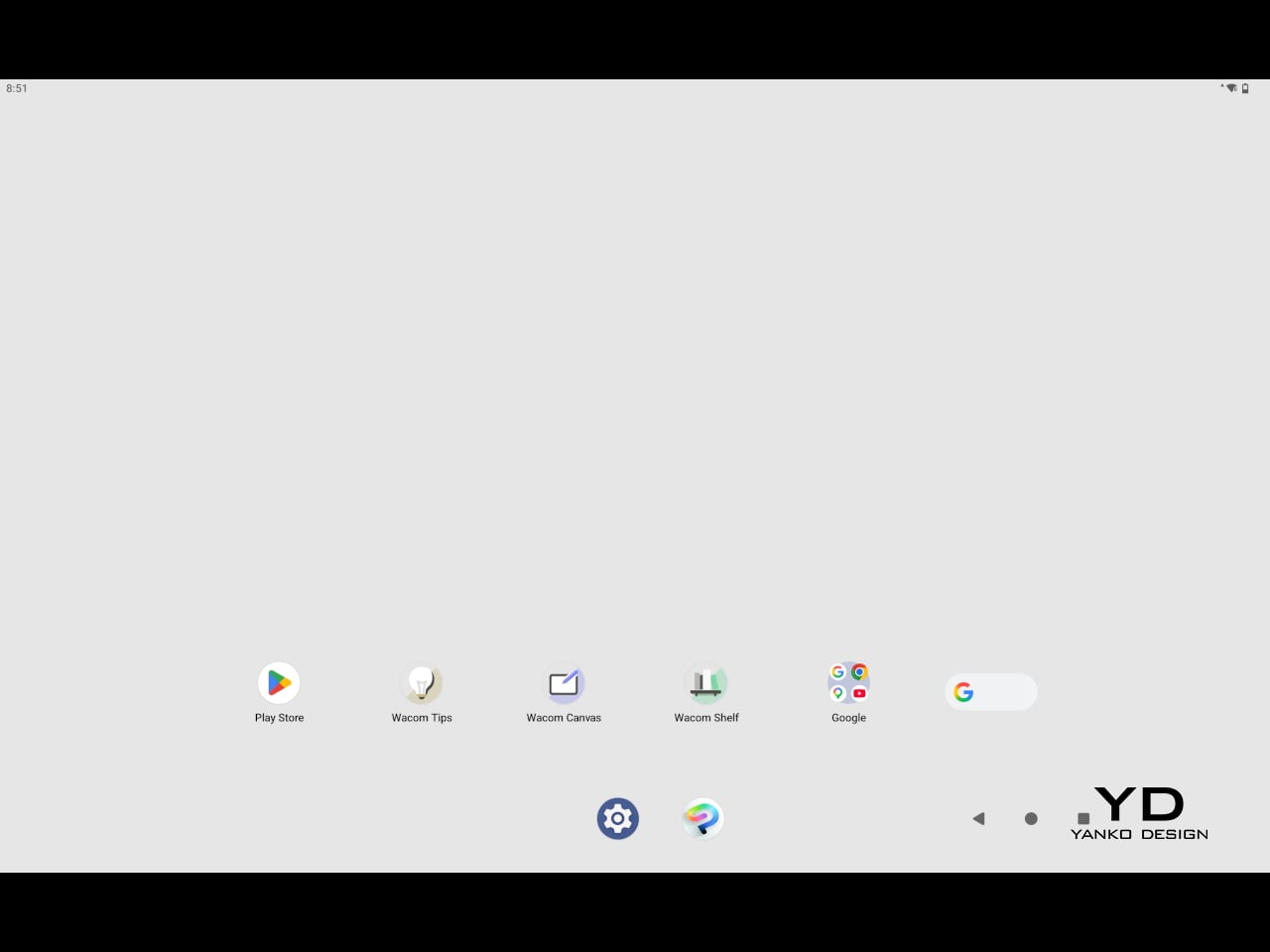
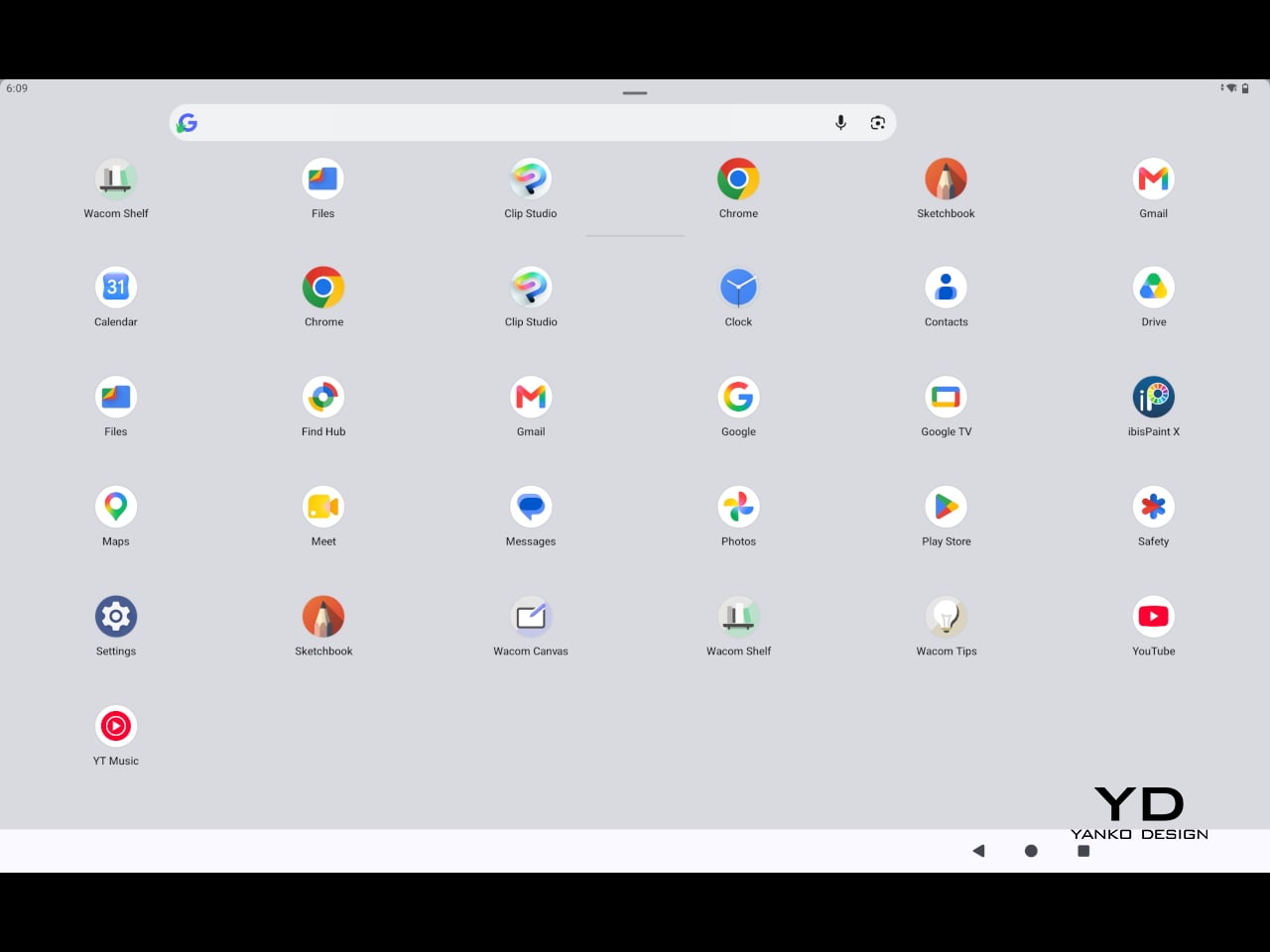
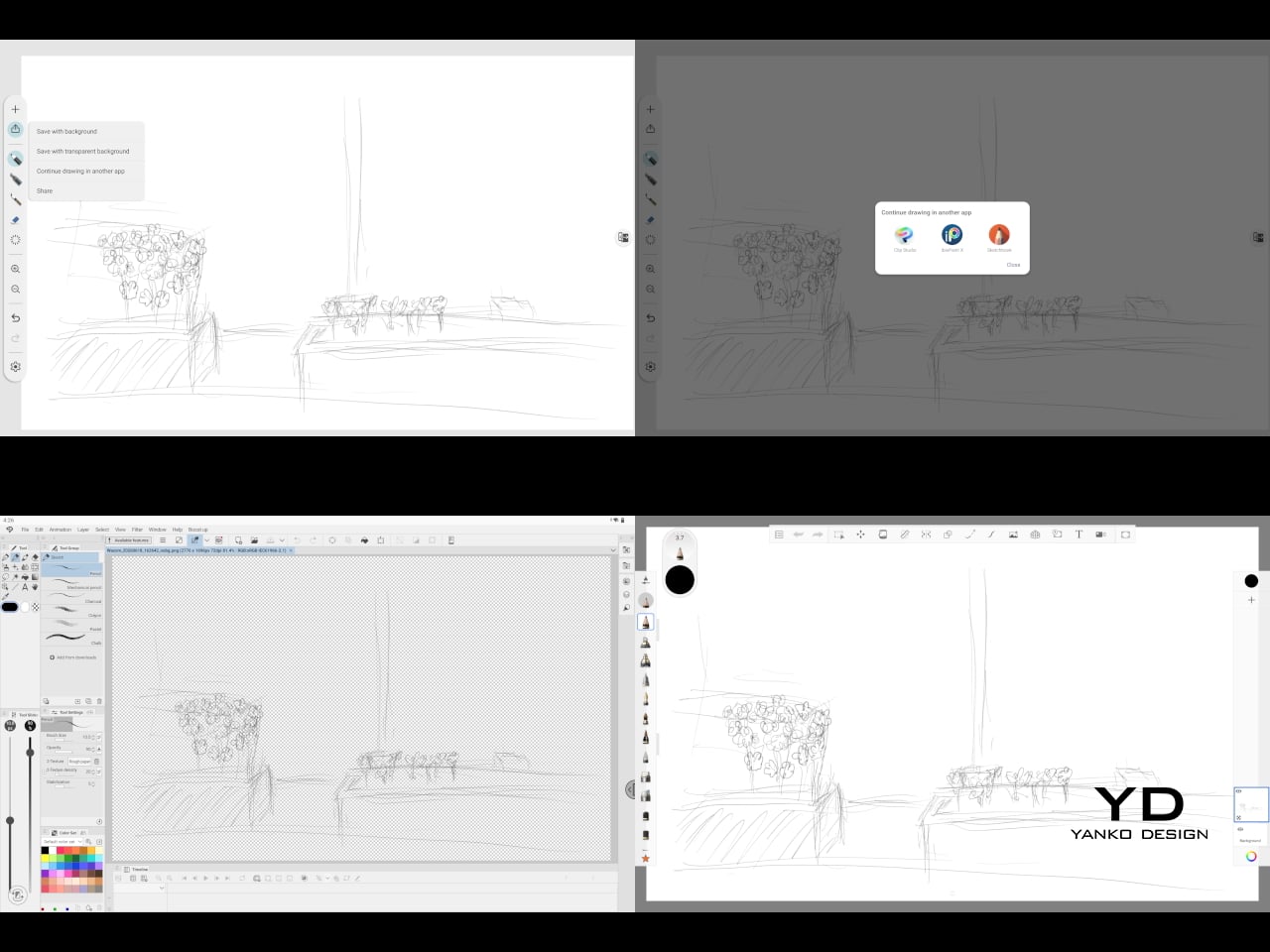
The software side is equally stripped down. Android 15 comes installed with zero bloatware and just three Wacom-made apps: Shelf for your gallery, Tips for settings, and Canvas, a quick sketching surface that wakes directly from sleep with a tap of the pen. It’s intentionally bare-bones for capturing fleeting ideas, though a few more brush options would genuinely be welcome. From Canvas, you can instantly send your sketch to an Android app, though it seems to be limited to Clip Studio Paint, iBisPaint, and Autodesk Sketchbook. Hoping it will offer some flexibility in the future.

Speaking of apps, desktop-grade drawing applications like Clip Studio Paint and Krita run without issue. The broader Android ecosystem opens up a decent range of options, though it’s worth remembering that anything exclusive to Windows or Mac won’t be available here. Customizing the pen buttons is also off the table, a limitation of the Android platform rather than any fault of the hardware itself.

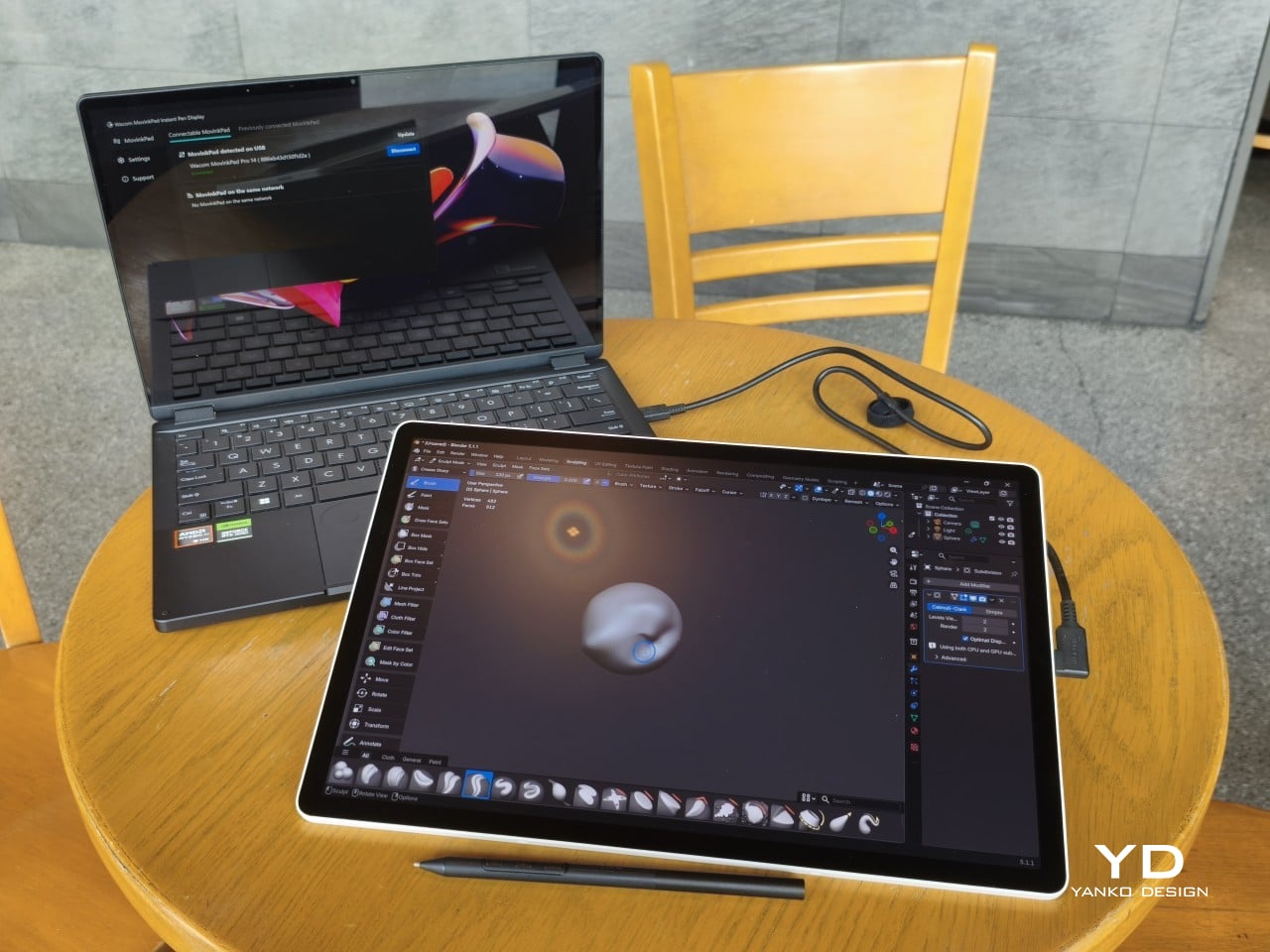
The Instant Pen Display Mode is arguably the most intriguing feature here. It converts the tablet into a secondary display for a Windows or Mac computer, via USB or Wi-Fi, turning it into a portable, makeshift Cintiq. It’s part of Wacom Lab, an experimental creator community that lets users explore and provide feedback on new creative possibilities through beta features. As of this writing, the setup process involves quite a number of steps, and pen button support is currently limited to toggling a small side panel for common modifier keys. It definitely shows promise, so hopefully development will be quick.

Battery life is genuinely impressive. The 10,000mAh cell can sustain nearly five days on standby and supports 65W fast charging, though you’ll need to bring your own charger since none is included in the box. The USB-C port is only 2.0, so it doesn’t charge as quickly as the spec might suggest, but an hour or more of active drawing barely makes a dent in the battery.

Sustainability

Wacom doesn’t use recycled or notably sustainable materials in the MovinkPad Pro 14 itself, but the company does meet several other environmental benchmarks worth noting. Its packaging is compact, minimal, entirely plastic-free, and fully recyclable, while the device is built with the kind of durability Wacom products are known for, the sort that keeps them in active use long after most gadgets would have been binned.

That longevity argument holds well for Wacom’s drawing tablets and pen displays, which tend to outlast their useful lives many times over. A standalone Android tablet is a different matter, though. Apps like Clip Studio Paint have already dropped Android 12 support, making regular OS updates critical. Wacom has committed to keeping the MovinkPad Pro 14 current, but no clear update schedule or roadmap has been shared publicly yet.

Value

At $899.95, the MovinkPad Pro 14 isn’t an impulse buy, but it’s a reasonably grounded one. An equivalent iPad would require buying the Apple Pencil separately, while a comparable Samsung Galaxy Tab tends to run noticeably higher. For a tablet built specifically around the drawing experience, with Wacom’s pen technology at its core, the price lands in a range that’s genuinely difficult to argue against.

The large screen and capable hardware make it a compelling option for creatives who frequently work away from their desks. It doesn’t sacrifice quality for the sake of portability. With the right app installed, it functions as a capable mobile workstation wherever you happen to be. And when a PC or Mac app becomes unavoidable, Instant Pen Display Mode is there to bridge the gap.

There are caveats, of course. The beta status of Instant Pen Display Mode means it’s not quite ready to be a daily driver feature. You’ll also need to feel at home with Android’s drawing ecosystem for this workflow to really make sense. And the uncertainty around long-term Android updates is a concern that Wacom will need to address more concretely before most buyers can put it fully to rest.

Verdict

The MovinkPad Pro 14 isn’t Wacom’s first stab at a standalone portable device. Veterans will remember the Windows-based Cintiq Companions and the MobileStudio Pros. But this is by far the most portable and clearly focused version of that idea. It doesn’t try to cram Windows into a pen display. It’s a purpose-built mobile experience that happens to carry a Cintiq-like trick discreetly tucked away.

At the same time, it doesn’t operate like an Android tablet with a Wacom digitizer tacked on, which is essentially what Samsung’s Wacom-enabled slates are. Wacom has built something around a specific, coherent idea: a true digital sketchbook. Some software edges still need ironing out, but for artists and designers craving genuine creative freedom outside the studio, the MovinkPad Pro 14 offers something few tablets in its class can match.

The post Wacom MovinkPad Pro 14 Review: The $900 Sketchbook Designers Needed first appeared on Yanko Design.
  •  

Wacom Art Pen 2 Review: A Stylus That Finally Moves Like a Real Brush

PROS:


  • Ergonomic design with raised and angled buttons

  • 360-degree barrel rotation sensitivity

  • Iconic Wacom flared grip design

  • Accessible price point for a pro tool

CONS:


  • Limited compatibility with Wacom drawing tablets

  • No option for custom weight swapping


RATINGS:

AESTHETICS
ERGONOMICS
PERFORMANCE
SUSTAINABILITY / REPAIRABILITY
VALUE FOR MONEY

EDITOR'S QUOTE:

The Wacom Art Pen 2 proves that sometimes one feature is all it takes to make a tool feel irreplaceable.

Digital drawing has matured to a point where the pen you use often defines the kind of work you’re capable of. Most tablets ship with a capable stylus included, and pressure sensitivity has become nearly standard. Where real differences emerge is in the finer details: tilt support, button placement, barrel thickness, and the nuanced control that separates a general sketching tool from something more professional.

Wacom knows this territory well, having refined its pen technology across decades of products. The Art Pen 2 is its latest attempt to push that nuance even further, reviving a feature from its predecessor that dedicated artists genuinely missed: 360-degree barrel rotation. It’s an accessory designed not for everyone, but for those who want their digital brushes to behave as closely as possible to the real thing.

Designer: Wacom

Aesthetics

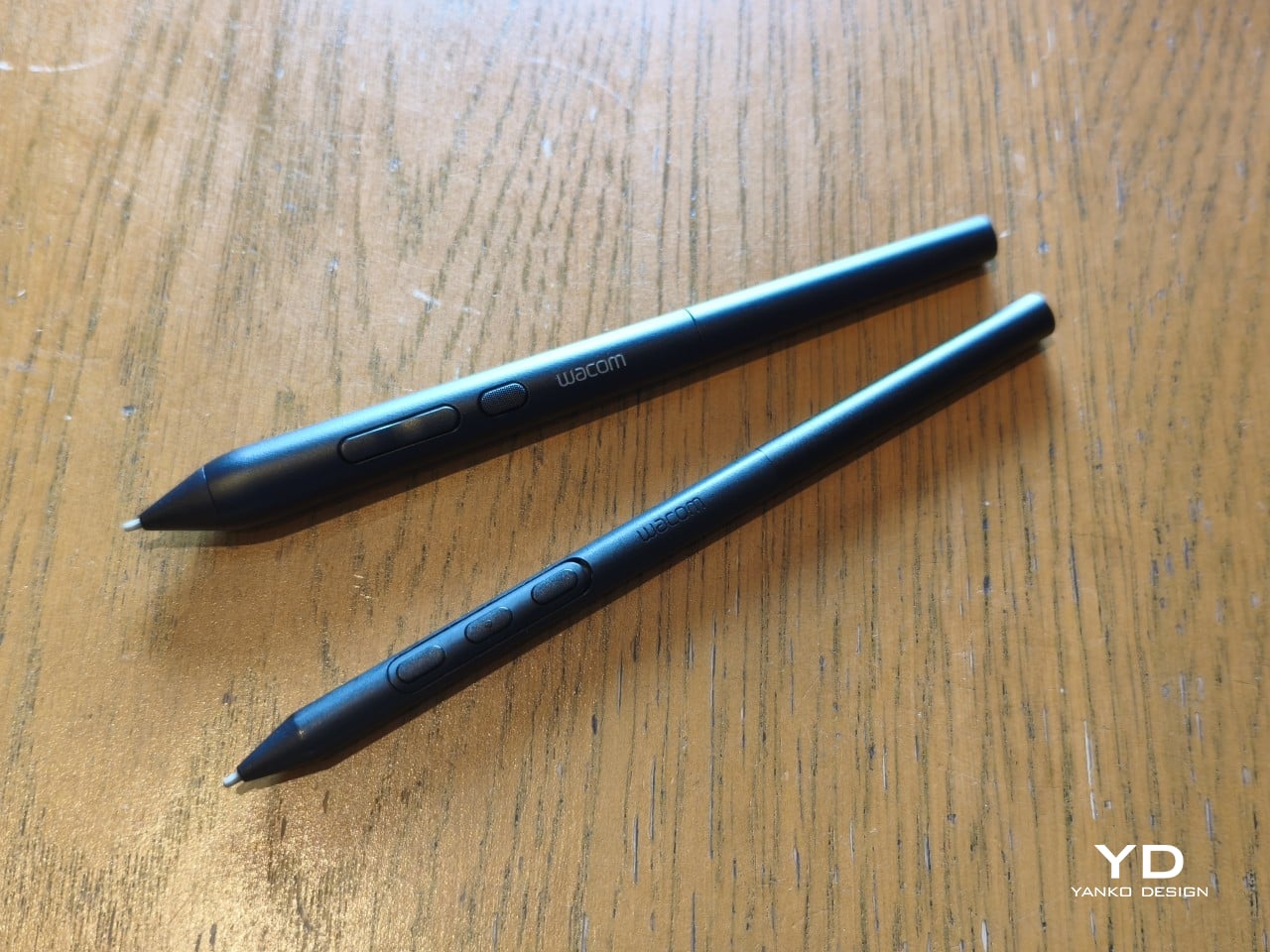
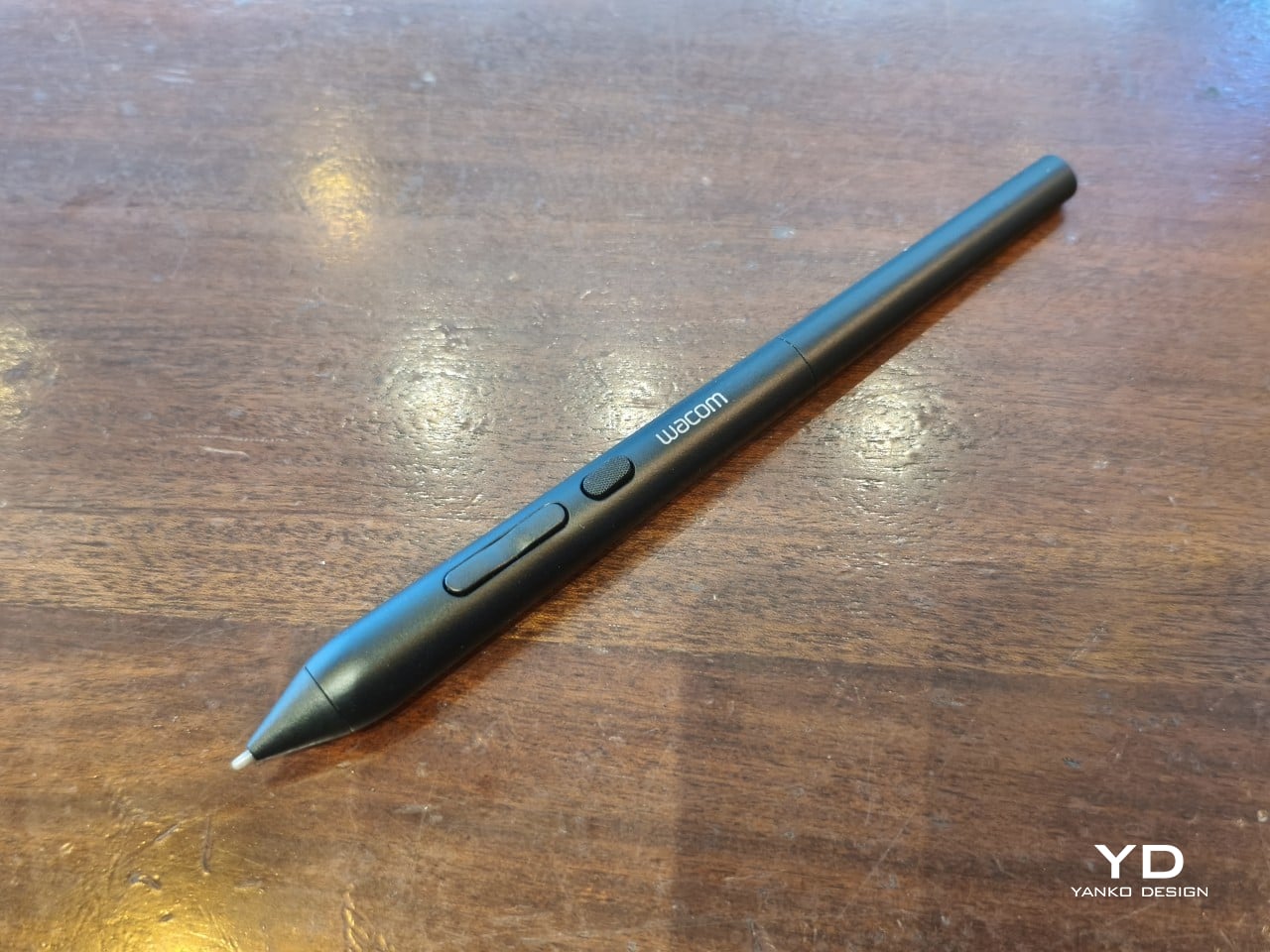
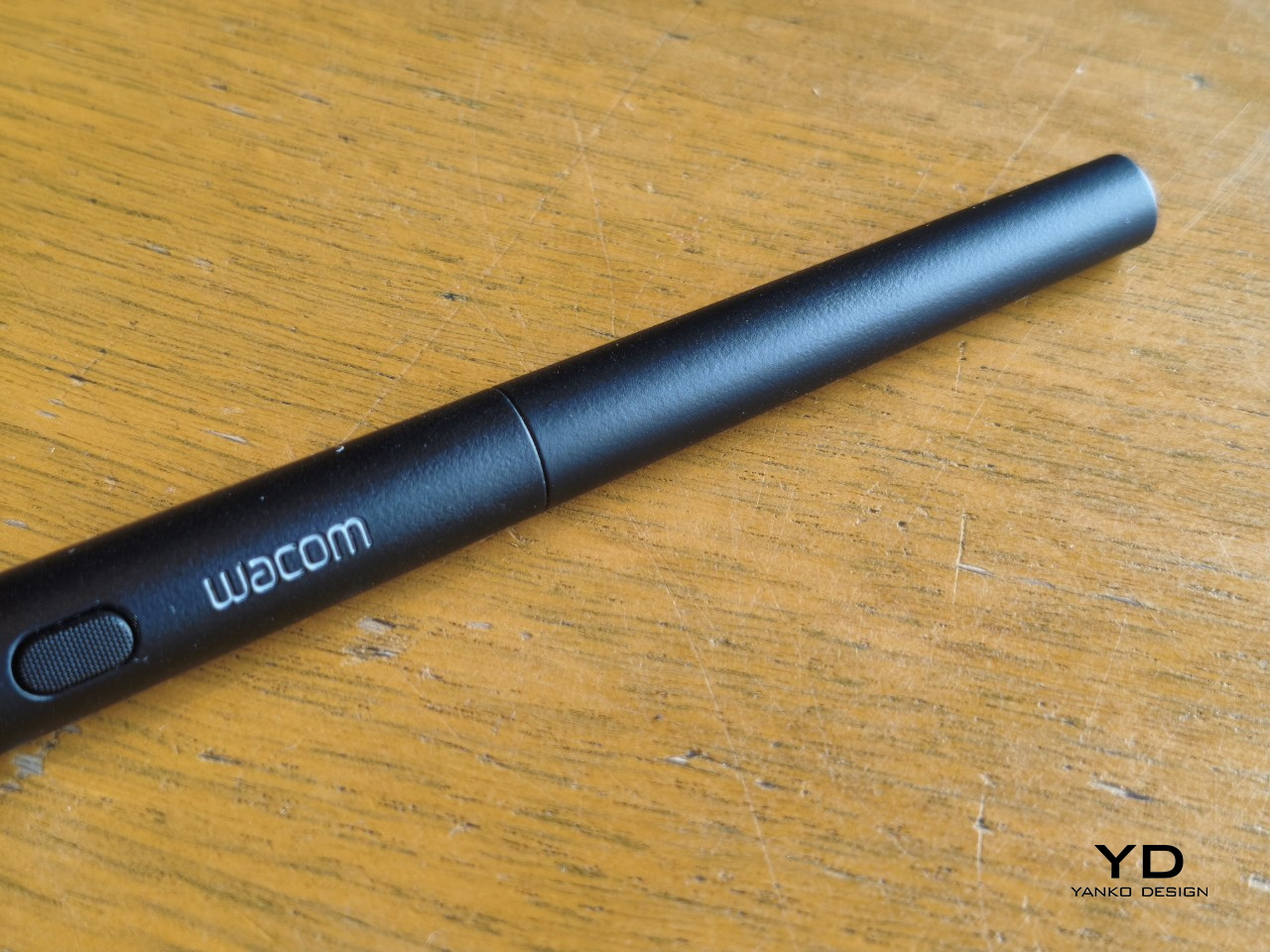
The Art Pen 2 carries Wacom’s iconic flared grip design, widening toward the tip and tapering toward the back. It gives the pen more visual character than a plain cylinder, while the two raised side buttons, set at a slight angle, add a bit of intentional texture to an otherwise clean barrel. The shape looks distinctly professional without being flashy, which suits the kind of serious work it’s built for.

Unscrew the back half, and a small nib compartment is tucked inside, keeping replacement tips within arm’s reach during a session. It’s a detail borrowed from the Pro Pen 3 and one that makes swapping nibs far less disruptive mid-drawing. The pen comes in an all-black finish, which keeps things clean and consistent, and makes the angled buttons stand out just enough to locate them quickly by sight.

Ergonomics

The pen is well-balanced and feels substantial in the hand without being heavy. The wider barrel suits anyone who finds slimmer pens like the Pro Pen 3 a bit uncomfortable during long sessions, though that’s always a personal call. The three raised, angled buttons make accidental presses nearly impossible and are effortless to identify by feel, which matters when your eyes are glued to the canvas.

The flared shape does come with a trade-off. It won’t sit easily in most pen loop accessories or grip covers, and there’s no way to slim it down if the barrel feels too wide. That’s the opposite situation from the Pro Pen 3, where an aftermarket grip can always bulk things up. The Art Pen 2’s shape is fixed, and you work with it or find something else.

Performance

Pressure sensitivity sits at 8,192 levels with full tilt support, putting it on par with the best pens at any price. Accuracy and response are exactly what you’d expect from Wacom, meaning there’s nothing to second-guess. What sets the Art Pen 2 apart, though, is the 360-degree barrel rotation, which picks up precisely how much and in which direction the pen shaft is turned.

For tools like calligraphy brushes or natural-media simulations, barrel rotation is genuinely transformative. It’s worth noting, though, that it’s also a fairly niche feature and not many drawing apps currently support it. Casual users probably won’t miss it at all. Where it resonates most is as an upgrade path for those who owned and relied on the original Art Pen before it was discontinued.

Compatibility is currently limited to a specific set of devices: the Wacom MovinkPad Pro 14, select Cintiq models (DTK168, DTK246, DTH246), and three Intuos Pro variants (PTK470, PTK670, and PTK870). Wacom has said that support for additional Pro Pen 3-enabled devices will be added over time, but for now, buyers should double-check their tablet is on the list before committing.

Sustainability

Like most professional accessories, the Art Pen 2 is plastic and metal, with nothing notably sustainable about the materials themselves. There’s no recycled content or eco-conscious material choice to speak of. Packaging tells a different story, though. It’s minimal, plastic-free, and fully recyclable, which aligns with what Wacom has been doing across its more recent product releases. A small step, but a consistent one.

What does count in the pen’s favor is Wacom’s track record for longevity. The original Art Pen was in production and active support for close to 16 years, an almost unheard-of lifespan for a digital accessory. If the Art Pen 2 follows a similar path, the investment stretches well beyond what most accessories can promise, and that kind of durability is its own quiet form of sustainability.

Value

The barrel rotation feature does limit the Art Pen 2’s broader appeal. Plenty of artists won’t need it, and for those users, there’s still a reasonable case for sticking with the more standard Pro Pen 3. If rotation has never factored into your workflow, the Art Pen 2’s most distinctive selling point simply won’t move the needle for you, and that’s worth being honest about.

That said, there’s a hidden value worth considering. At $99.95, the Art Pen 2 is $30 cheaper than the Pro Pen 3, with nearly identical core performance and barrel rotation on top. For those who prefer a thicker grip, it also sidesteps the added cost of official grip accessories. As a package, it makes considerably more financial sense than it first appears.

Verdict

The Wacom Art Pen 2 is a well-considered accessory for a specific type of creative. It doesn’t try to replace the Pro Pen 3, and it’s clearly not aimed at casual sketchers. What it offers is a combination of pro-level pressure sensitivity, a comfortable and distinctive grip, and a rotation feature that no competing pen at this price comes close to matching.

The limited compatibility list is a real constraint, and Wacom should address it sooner rather than later. But for those drawing on a supported device, particularly the MovinkPad Pro 14, the Art Pen 2 is a genuinely valuable add-on that earns its asking price without much argument. Especially at $99.95, it delivers a kind of brush-like expressiveness through barrel rotation that no standard pen, regardless of price, can replicate.

The post Wacom Art Pen 2 Review: A Stylus That Finally Moves Like a Real Brush first appeared on Yanko Design.
  •  

vivo X300 FE Review: The Compact Flagship That Earns Its Keep

PROS:


  • Compact, comfortable, and premium design

  • Powerful 50MP main and telephoto cameras

  • Large battery with fast wired and wireless charging

  • Long-term software support

CONS:


  • Mediocre 8MP ultra-wide camera

  • Uncommon horizontal camera design

  • A bit pricier than most "small flagships"

RATINGS:

AESTHETICS
ERGONOMICS
PERFORMANCE
SUSTAINABILITY / REPAIRABILITY
VALUE FOR MONEY

EDITOR'S QUOTE:

The vivo X300 FE proves that a compact phone doesn't have to feel like a lesser one.

Premium smartphones have been trending bigger, heavier, and more visually imposing for years. It’s reached the point where “flagship” is almost synonymous with large, and carrying one all day feels less like convenience and more like a commitment. The compact phone hasn’t disappeared, but finding one that doesn’t sacrifice performance, battery life, or camera quality in exchange for a smaller footprint has been genuinely difficult.

That’s the gap the vivo X300 FE is aiming to fill. It pairs a 6.31-inch flat display with a Snapdragon 8 Gen 5 chipset, a 6,500 mAh battery, and a ZEISS co-engineered camera system, all within a compact design that stays remarkably light for its class. On paper, it reads like a phone that shouldn’t be this compact. But does it actually work in practice? We give it a spin to find out.

Designer: vivo

Aesthetics

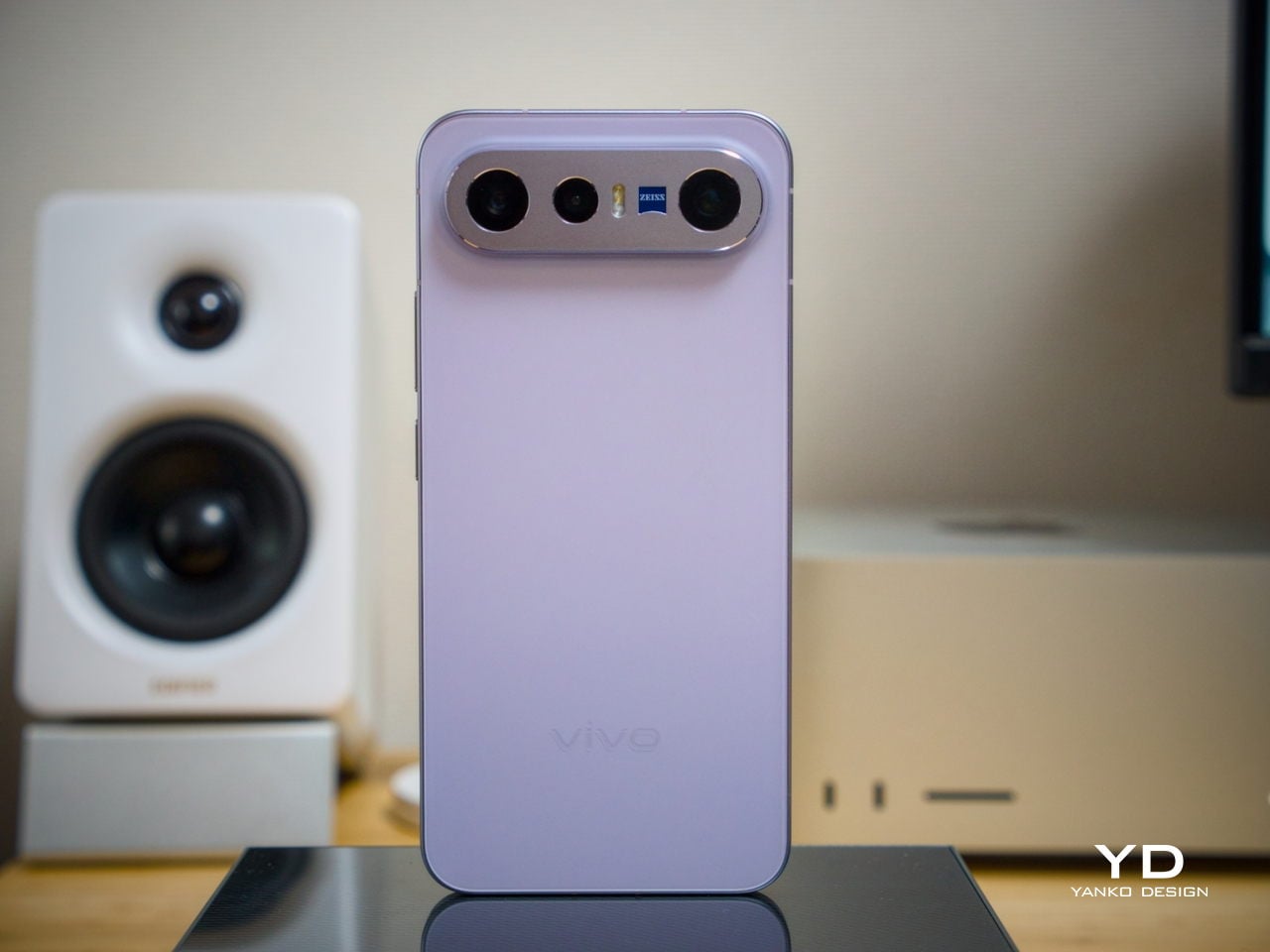
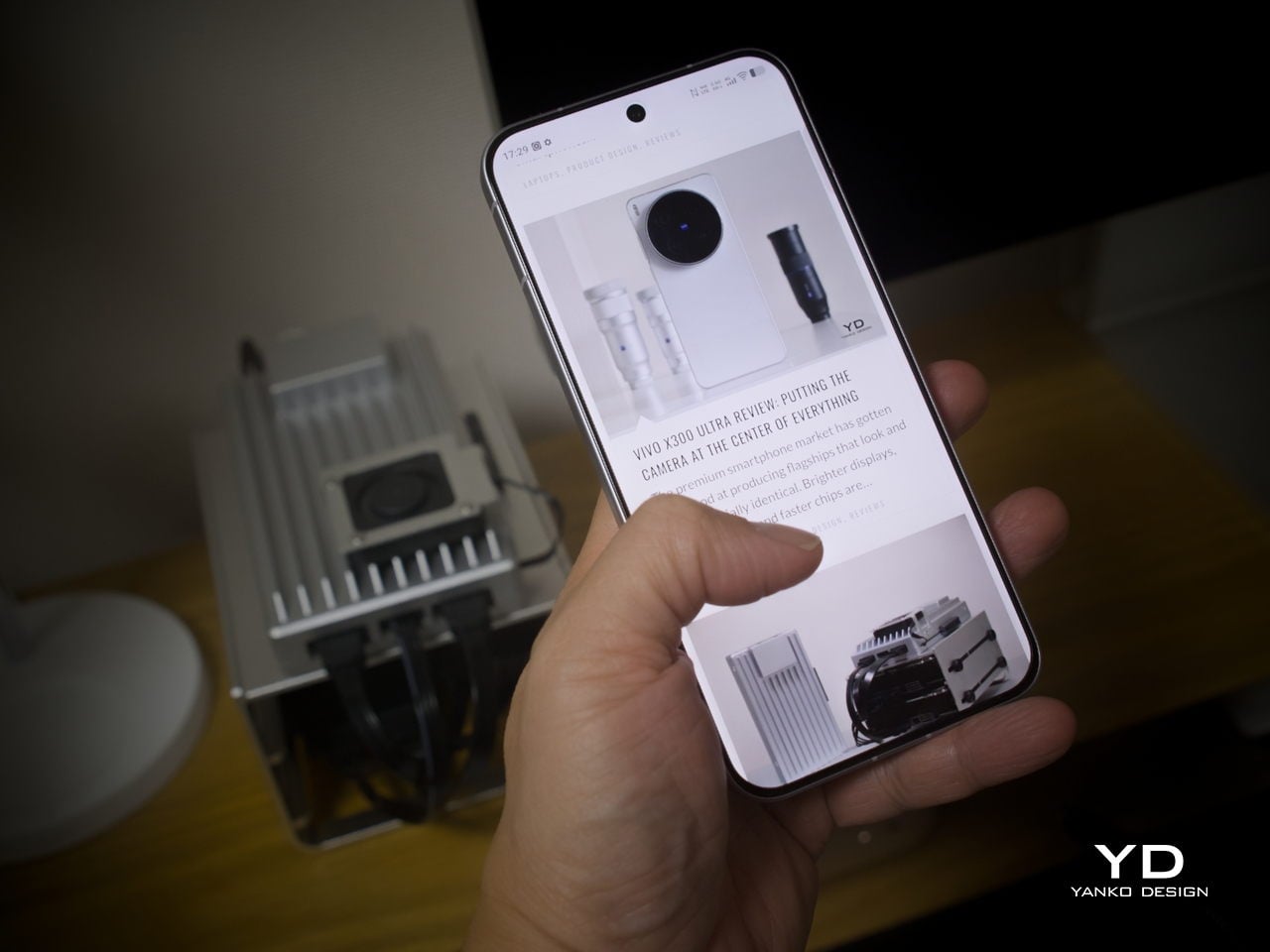
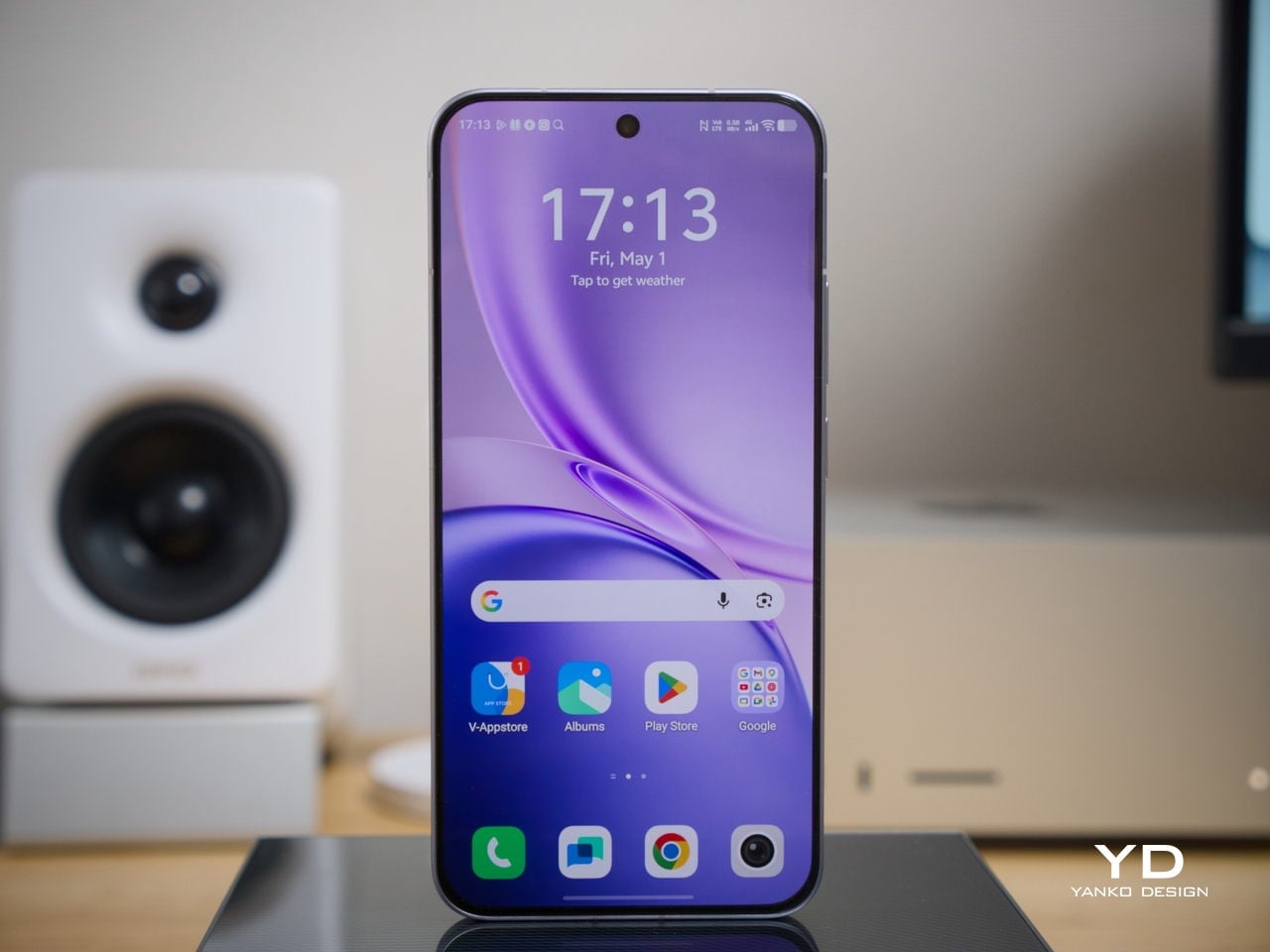
The X300 FE follows a flat-design language that’s become increasingly standard among more expensive flagships. There aren’t any curved glass edges or aggressively contoured surfaces, just a clean, rectangular form with ultra-narrow bezels, an aerospace-grade aluminum frame, and a front face that looks symmetrical and composed. The centered punch-hole is small and unobtrusive, and those slim borders give the display a neat, purposeful presence that doesn’t need theatrics to feel premium.

Our review unit came in white, which turns out to be a great choice for a phone this carefully considered. The matte rear panel uses vivo’s Metallic Sand AG glass treatment, giving it a soft, slightly chalky texture that resists fingerprints well and picks up ambient light in a way that shifts subtly between warm and cool tones. It doesn’t try to be eye-catching; it just looks well-made.

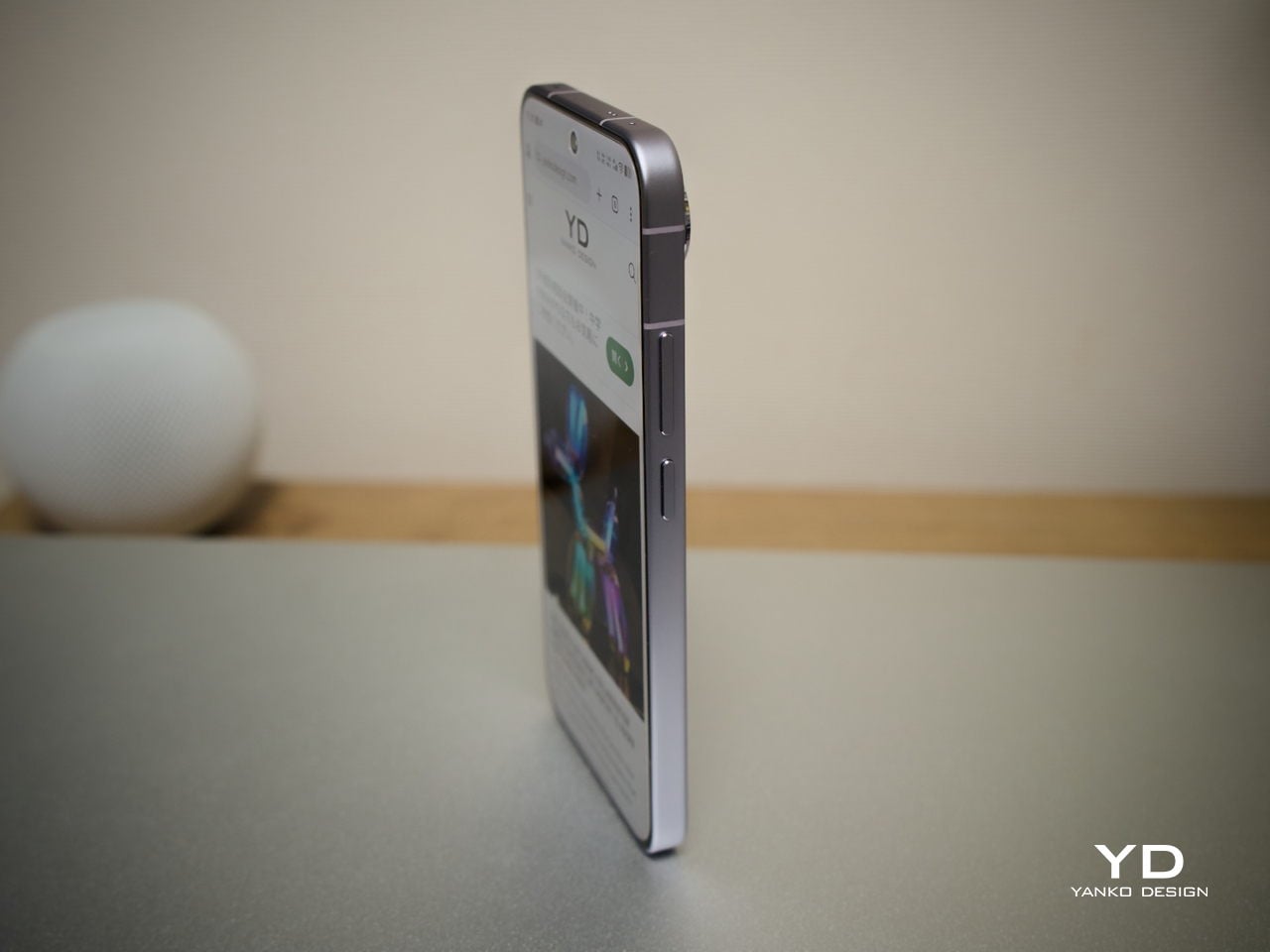
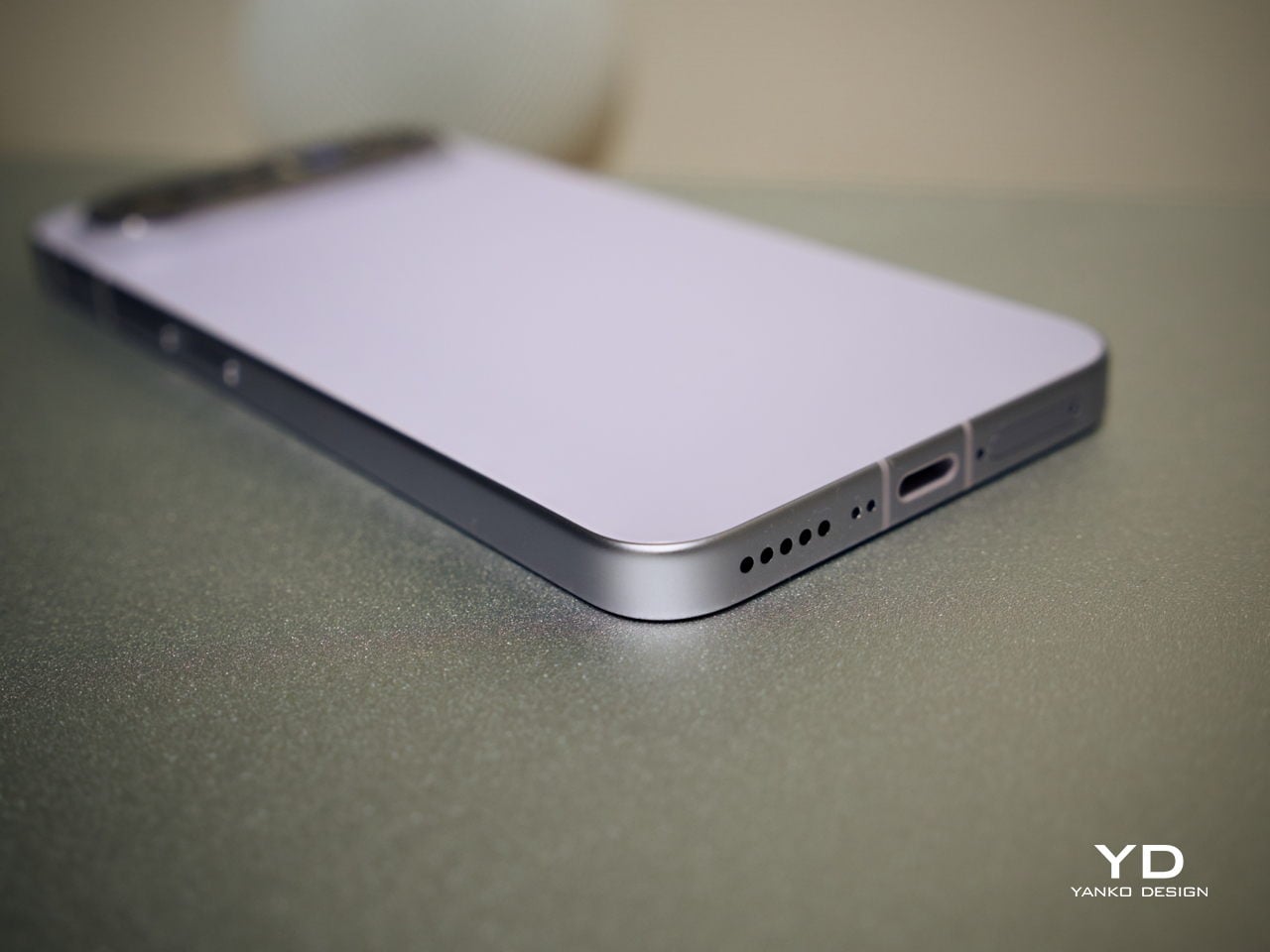
The flat aluminum frame wraps cleanly around the body, with edges that make it comfortable to grip without feeling sharp or slippery. The white model measures 8.10mm thick and weighs 192g, a hair more than the other colorways, but those differences don’t register in hand. What does register is the overall sense of a phone that’s been assembled with genuine attention to detail.

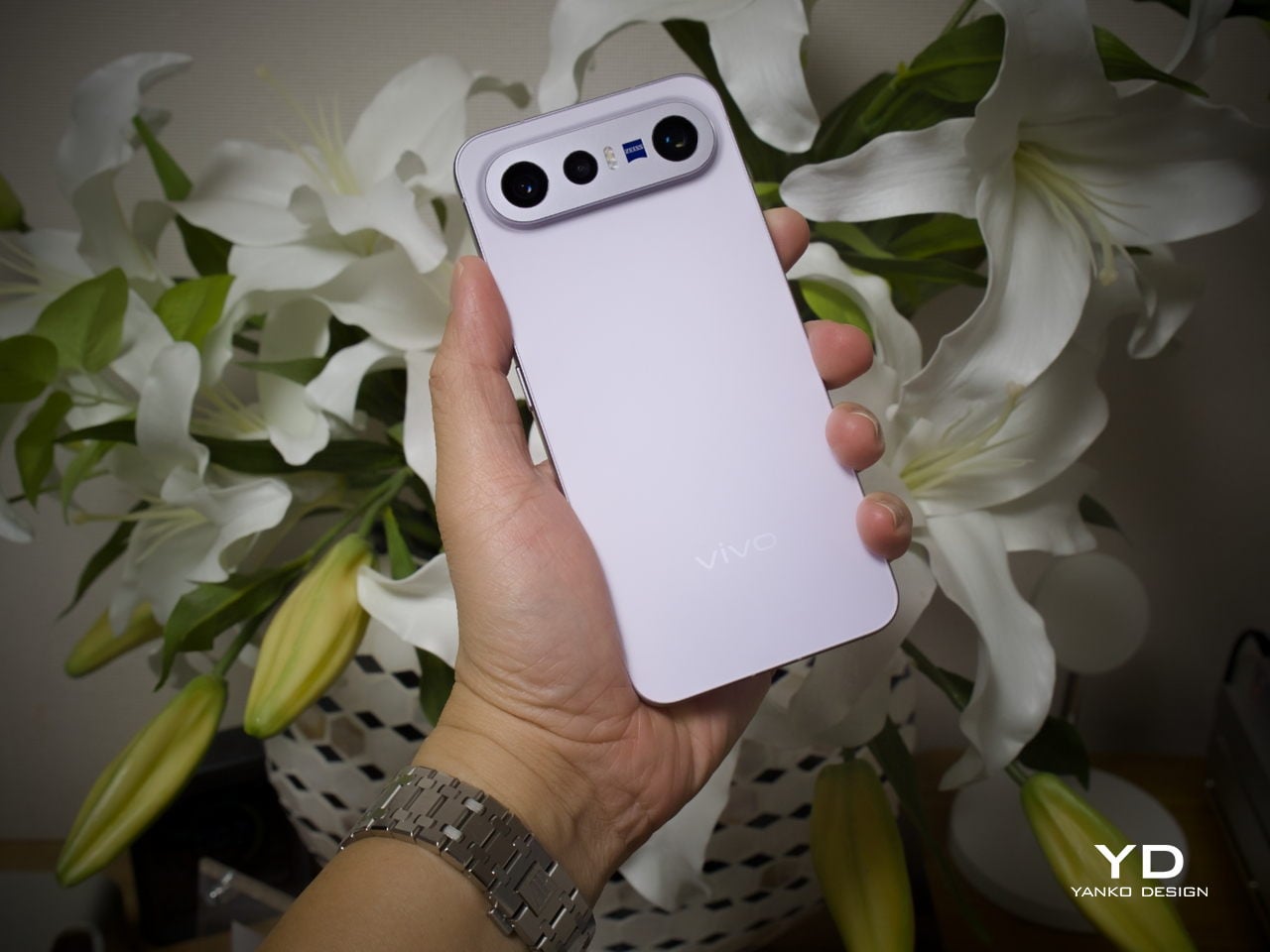
The camera module deserves its own mention. Rather than going for the oversized circular island that’s become visual shorthand for “serious camera phone,” vivo opted for a horizontal bar that spans the upper portion of the back. Three lenses are arranged neatly across it, with a ZEISS badge centered between them. It’s recognizable and distinctive without domineering the rest of the design. Admittedly, it’s going to be a divisive design, but it at least lets the vivo X300 FE easily stand out from the competition.

Ergonomics

At 150.83mm tall and 71.76mm wide, the X300 FE sits firmly in one-handed territory. It isn’t trying to be a miniature phone. It’s simply sized more sensibly than most flagships on the market. You can reach across the screen without adjusting your grip, slip it into a front pocket without thinking, and hold it for extended periods without the wrist fatigue bigger phones tend to bring.

The 192g weight for the white model falls in a range that feels present without being burdensome. There’s enough substance here to reinforce the premium feel of the materials, but not so much that you’re constantly aware of it. The 8.10mm profile isn’t exactly wafer-thin, though that’s a reasonable trade-off for a 6,500 mAh cell packed inside a frame this compact.

The flat-sided frame also contributes more to the ergonomic experience than it might seem. It gives your palm a stable, consistent surface to press against during typing and scrolling, which feels more controlled than on rounded-edge designs. The compact footprint, flat back, and balanced weight distribution all work together to make this a phone that feels designed around how it’s actually used.

Performance

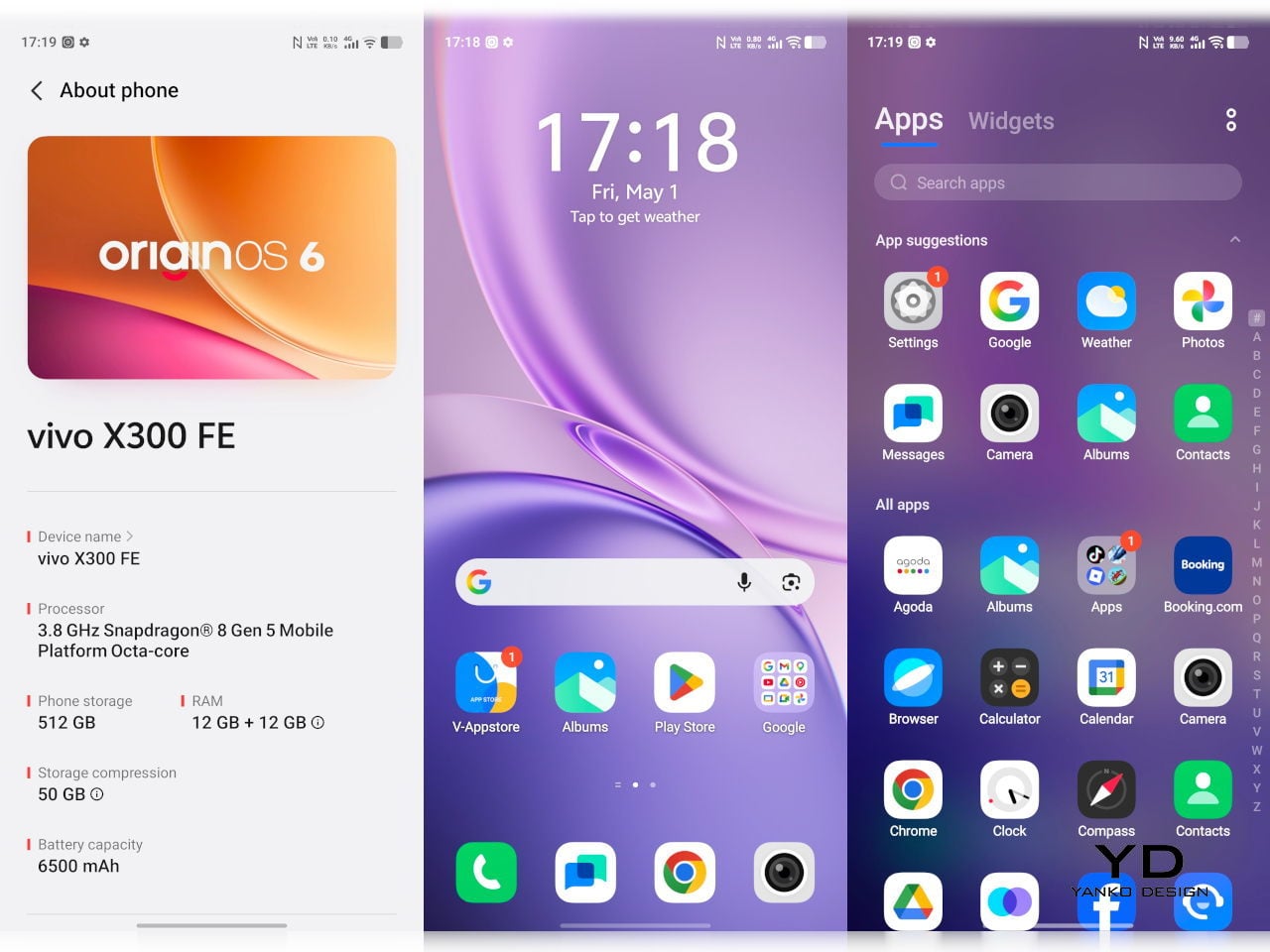
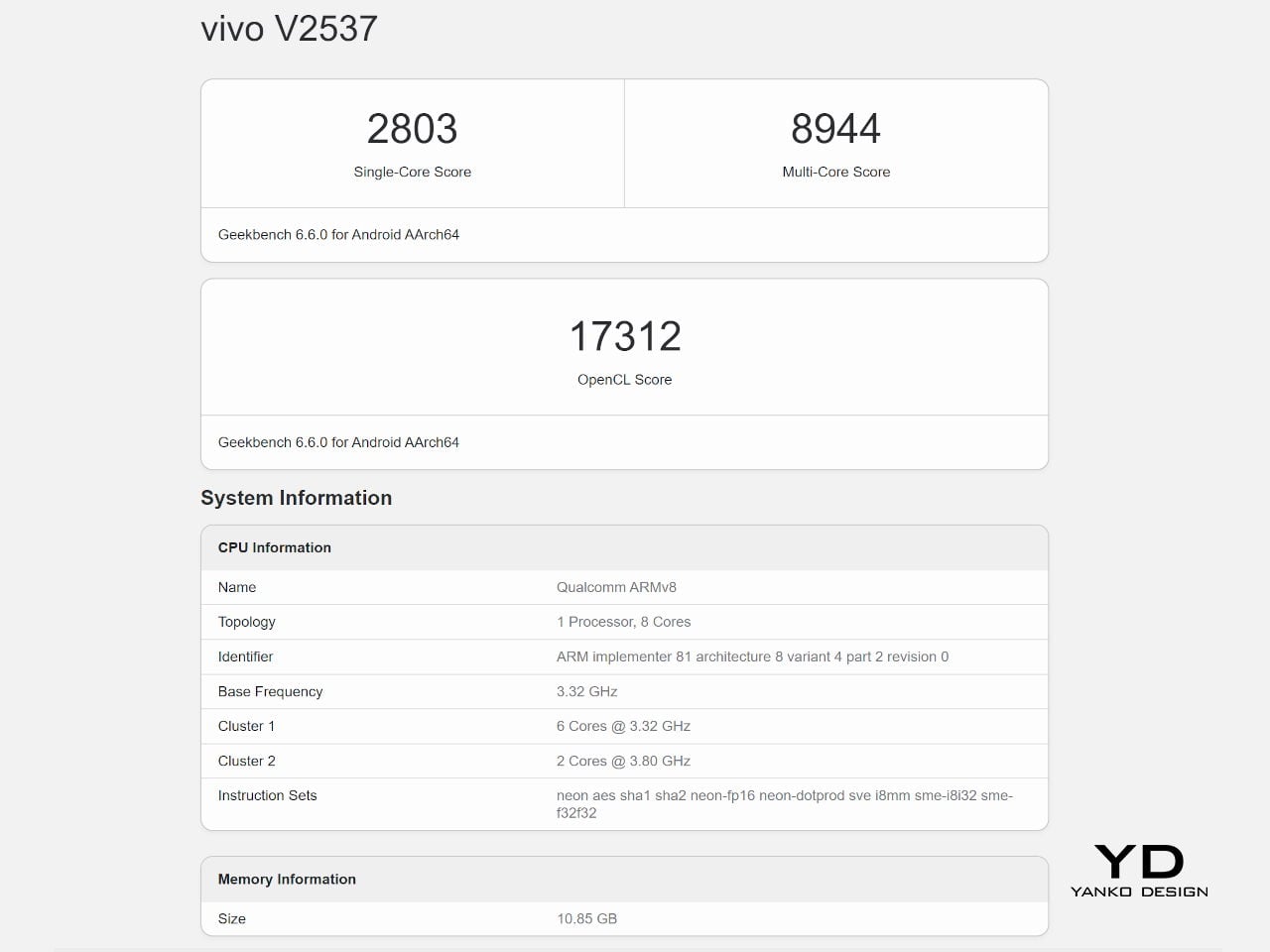
The Snapdragon 8 Gen 5 inside doesn’t need much introduction. It’s a flagship-class mobile processor, and the X300 FE puts it to good use. The 12GB RAM, expandable with another 12GB taken from the generous 512GB storage, clearly marks it as a class above your typical mid-tier compact phone. It runs Origin OS 6, based on the current Android 16 release, embracing a more minimalist and flat aesthetic that perfectly matches the phone’s design.

Day-to-day tasks feel completely effortless, from switching between apps and browser tabs to occasional gaming sessions, and nothing about the experience suggests the compact body is in any way holding the hardware back. Thermals are pretty impressive, given the vivo X300 FE’s size, but its compact form factor might work against it when it comes to how you hold it during those long periods.

Thankfully, the display backs that up well. It’s a 6.31-inch LTPO AMOLED panel with an adaptive refresh rate of 1 to 120 Hz, a 1.5K resolution at 460 PPI, and a local peak brightness of 5,000 nits. The 2,160 Hz PWM dimming also makes prolonged reading and scrolling noticeably more comfortable on the eyes, a detail that matters far more than most spec sheets would have you believe.

Then there’s the battery, arguably the X300 FE’s most impressive engineering accomplishment. A 6,500 mAh cell in a phone this slim and light isn’t something you see every day, and in practice, that capacity means genuine all-day endurance with room to spare. The 90W wired and 40W wireless charging mean you’re rarely stuck waiting long when it runs low, at least with the appropriate chargers.

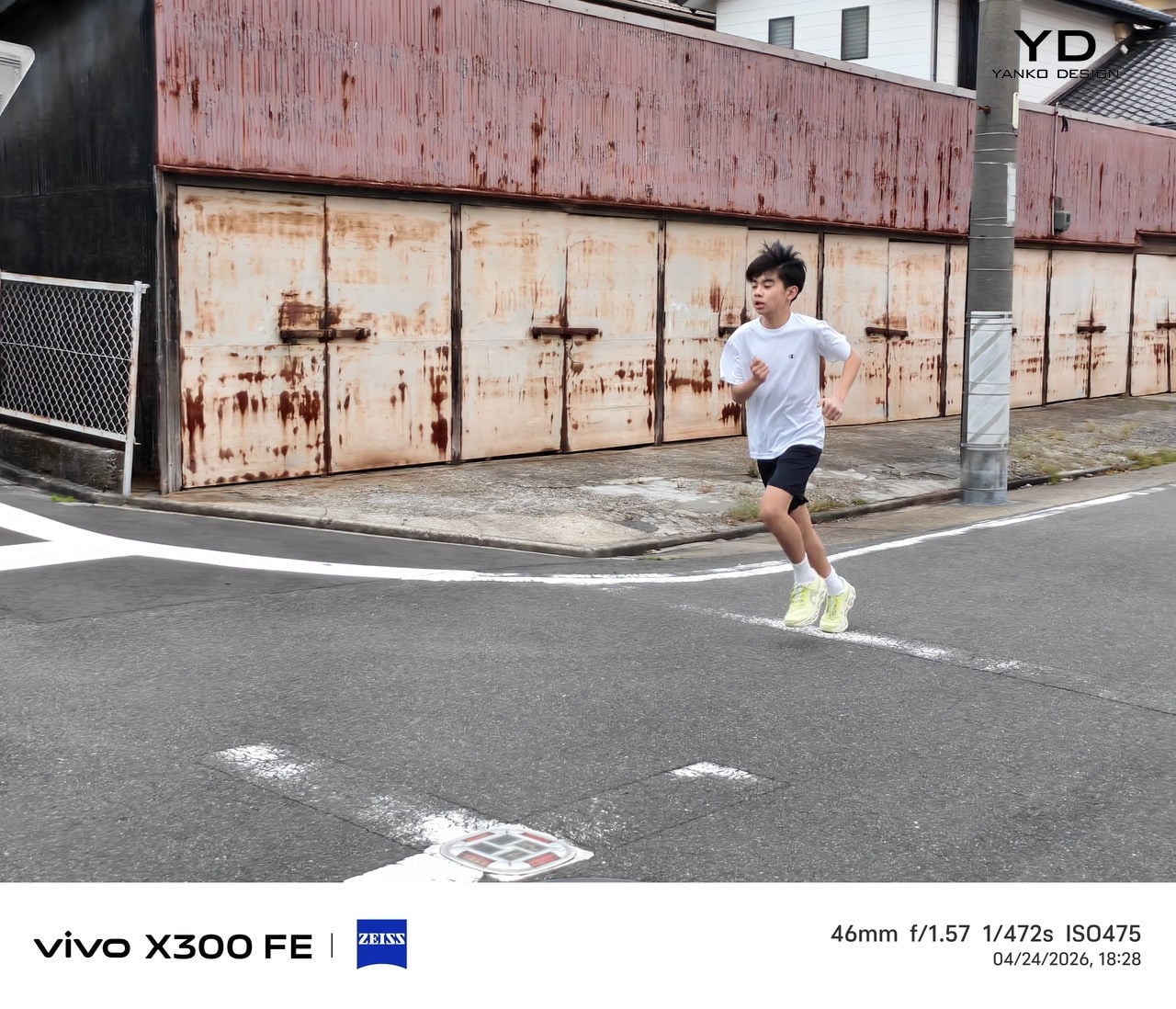
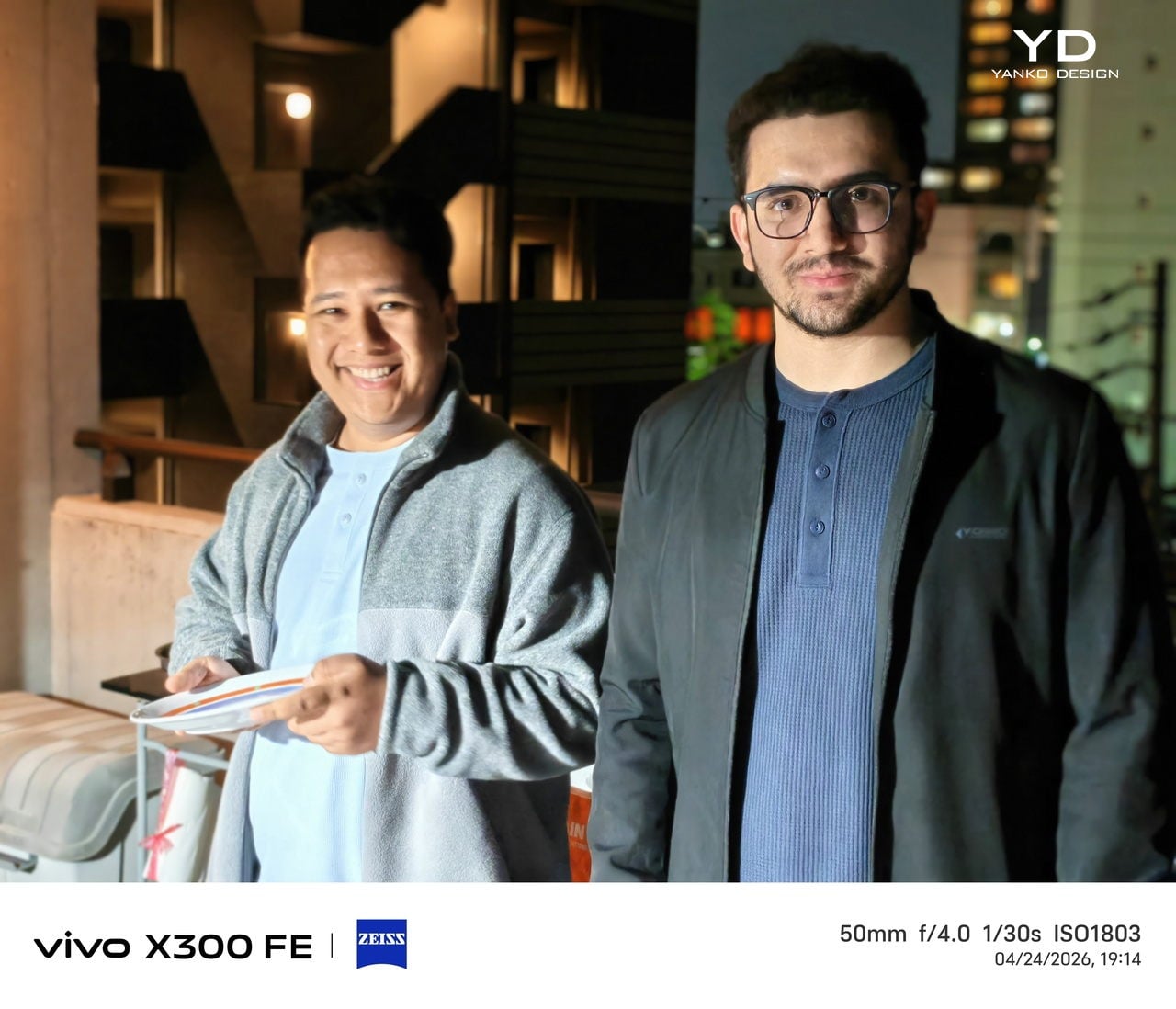
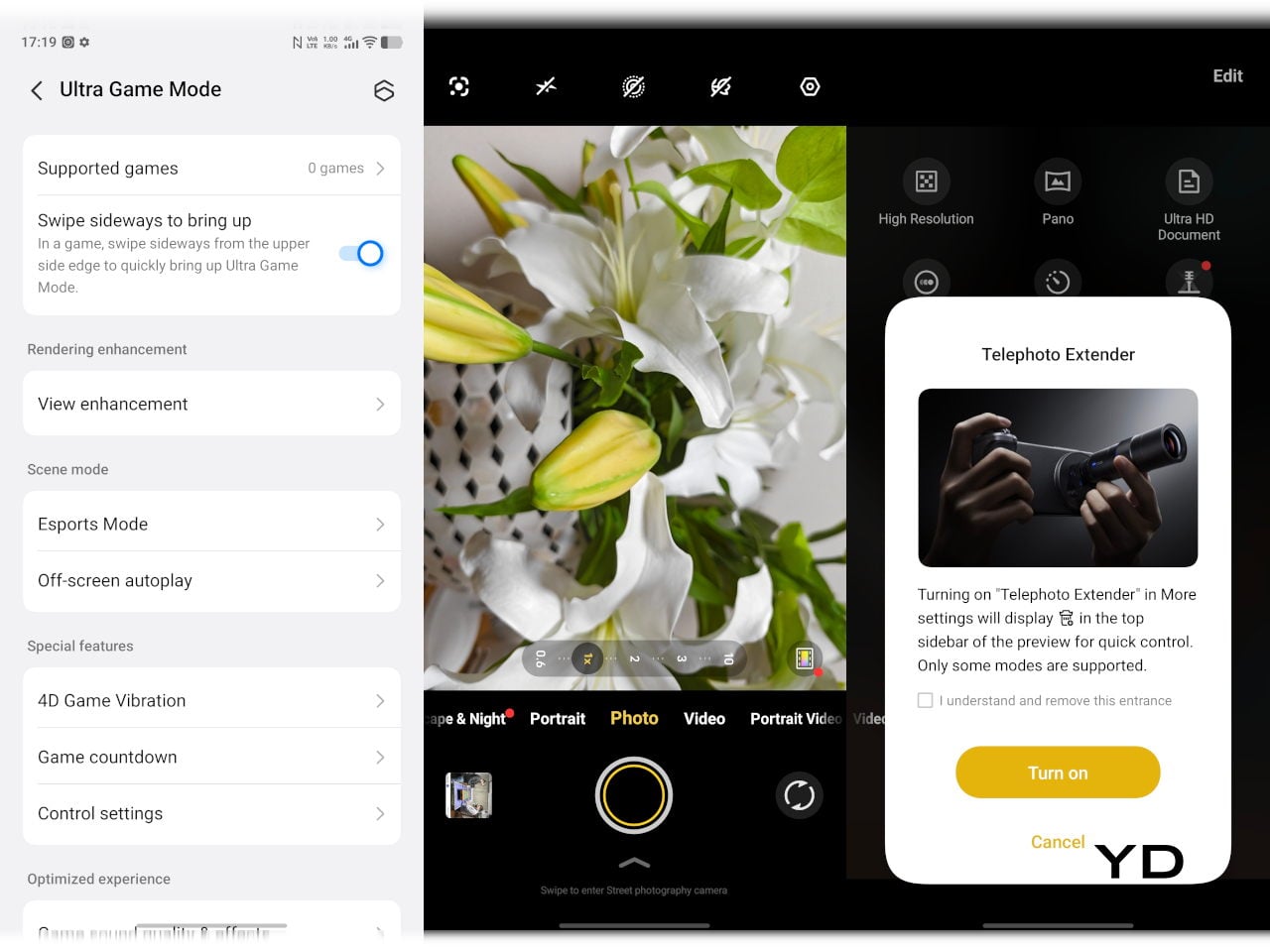
The camera system is led by a 50 MP ZEISS main camera and a 50 MP ZEISS super-telephoto camera, with an 8 MP ultra-wide rounding out the rear. The main and telephoto cameras handle portraits, street photography, and concert scenes with real confidence. An optional telephoto extender accessory also exists for those who want extended reach, though it’s firmly in niche territory.

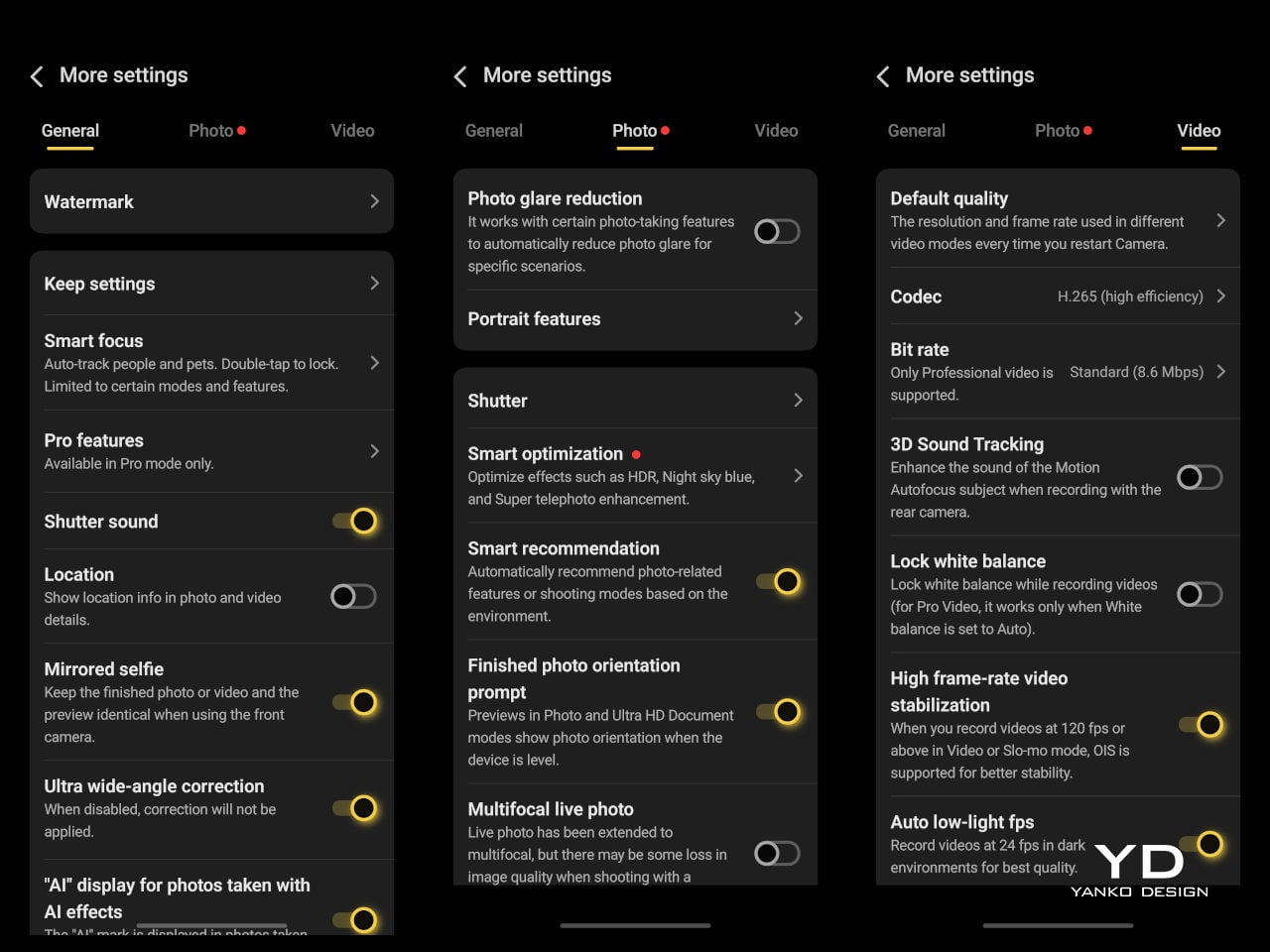
The results are impressive, especially when starting to zoom in on subjects. Even without the telephoto extender, you can enjoy clear and detailed shots, even at night. The 8MP ultra-wide, though usable, is a bit of a letdown, but vivo had to cut some corners to bring down the price and differentiate this model from its more powerful and more expensive siblings. You do have a ton of settings to tweak to get your perfect shot, but even the defaults are good enough to make fleeting moments more memorable.

Sustainability

The X300 FE carries IP68 and IP69 dust and water resistance ratings, alongside an SGS five-star drop resistance certification, giving it a reassuring level of durability for daily use. It also carries an SGS five-star drop resistance certification, which gives it more formal durability credentials than most phones in its class. Together, those ratings make a convincing case for a phone built to survive daily life without requiring any particularly careful handling.

Software longevity is where the X300 FE makes its strongest long-term case. On that front, vivo is committing to five years of OS upgrades, seven years of security maintenance, and a five-year smooth experience promise. That support window is competitive with the best in the Android space, and it signals that this phone is meant to be genuinely used for years, not replaced the moment something newer comes along.

Value

At around €1,000, The X300 FE isn’t a budget phone, and it doesn’t try to be. It competes in the premium compact flagship space, where the particular combination it offers is harder to find than you’d expect. A current-generation chipset, a genuinely large battery, fast wired and wireless charging, ZEISS-branded imaging, and a durable premium build in a package that remains notably light for a flagship is a rare and coherent offering.

The person this phone is designed for isn’t shopping for the biggest or most spec’d-out device available. It’s someone who wants a phone that keeps pace with their life without dominating it, one that fits in a jacket pocket, lasts a full day, and still takes genuinely good photos. Frequent travelers, urban commuters, and anyone who’s tired of unwieldy flagships will feel right at home here.

Verdict

The vivo X300 FE is the kind of compact flagship that doesn’t feel like a compromise once you’re actually using it. The design is restrained and coherent, the battery is frankly impressive for the size, the chipset handles everything you throw at it, and the camera does its best work in exactly the situations most people find themselves in, out in the world rather than on a lab bench.

What the X300 FE offers is a phone that’s easy to carry, genuinely long-lasting, and capable enough for the photography and day-to-day demands you’ll actually encounter. It’s well built, well supported, and clearly designed with a specific kind of person in mind. That clarity of purpose is refreshing, and for the right buyer, it’s exactly what makes this phone worth serious consideration.

The post vivo X300 FE Review: The Compact Flagship That Earns Its Keep first appeared on Yanko Design.
  •  

ASUS Zenbook DUO (2026) Review: One Laptop, Two Screens, All Business

PROS:


  • Beautiful, nearly identical 14-inch 144Hz 3K OLED screens

  • Narrower hinge creates a more immersive visual experience

  • Ceraluminum design adds visual and tactile character

  • Powerful Intel Panther Lake performance and impressive battery life

CONS:


  • Quite pricey

  • No built-in card reader

  • RAM is soldered

RATINGS:

AESTHETICS
ERGONOMICS
PERFORMANCE
SUSTAINABILITY / REPAIRABILITY
VALUE FOR MONEY

EDITOR'S QUOTE:

The ASUS Zenbook DUO (UX8407) earns its premium with two stunning co-equal OLED screens, a sleeker hinge, and Intel Panther Lake performance built for serious work on the go.
award-icon

For a time, it seemed that foldable and rollable screens would be the future of laptops, just as they are positioned to be where smartphones are going. That was until people realized that what may be good for handheld devices might not work for 14-inch slabs with keyboards. Foldable laptops might still have their day, but they are too impractical and costly for now.

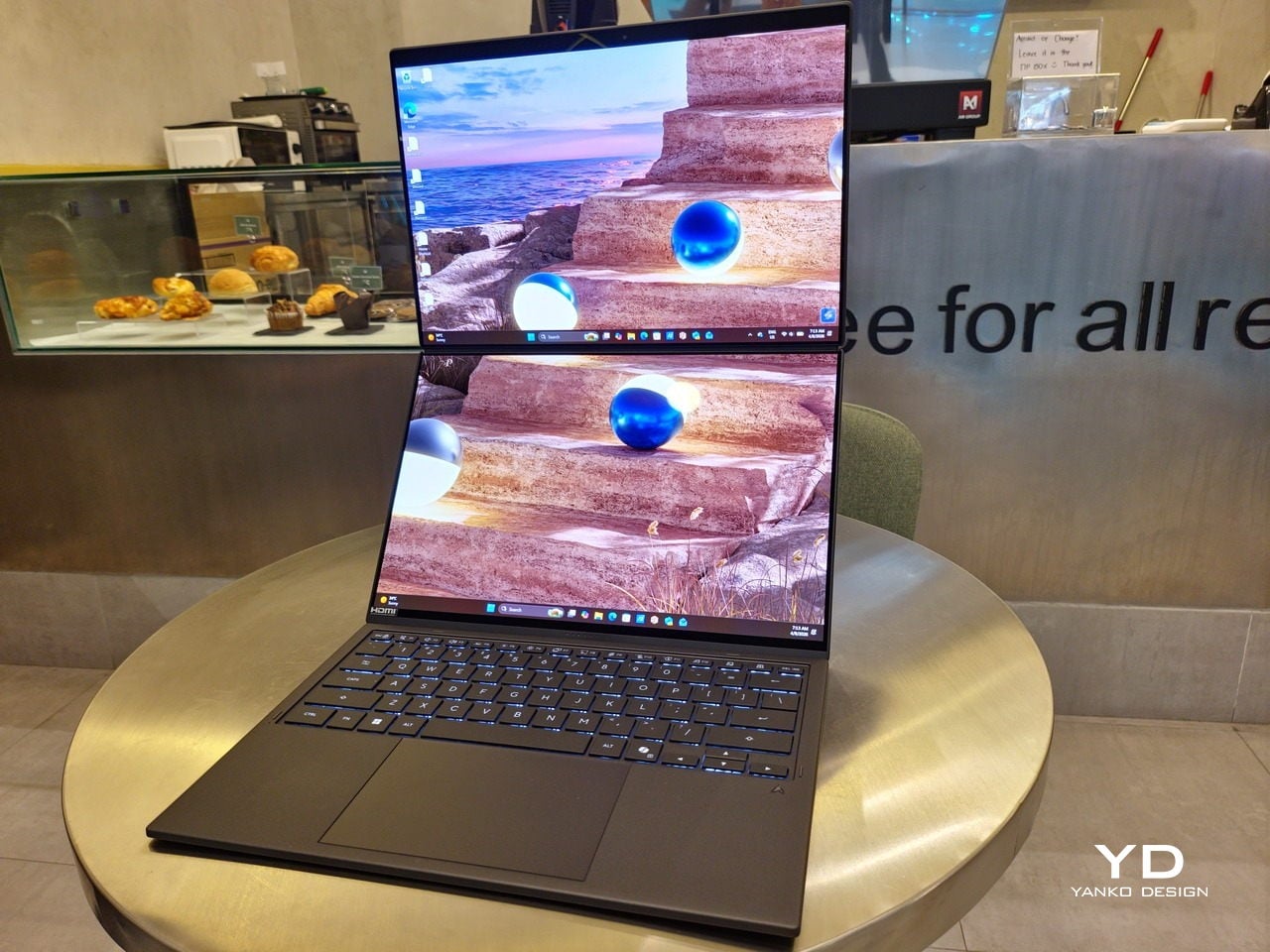
ASUS has chosen to instead design and deliver a solution for today’s needs and problems. Rather than a screen that folds just to save space, the Zenbook DUO has opted to expand the user’s workspace instead, bringing the productivity advantages of dual-monitor setups from desktops to laptops. This year’s ASUS Zenbook DUO (UX8407) does more than just upgrade the spec sheet. It is also adding a touch of style and elegance that makes a power user tool feel more considered.

Designer: ASUS

Aesthetics

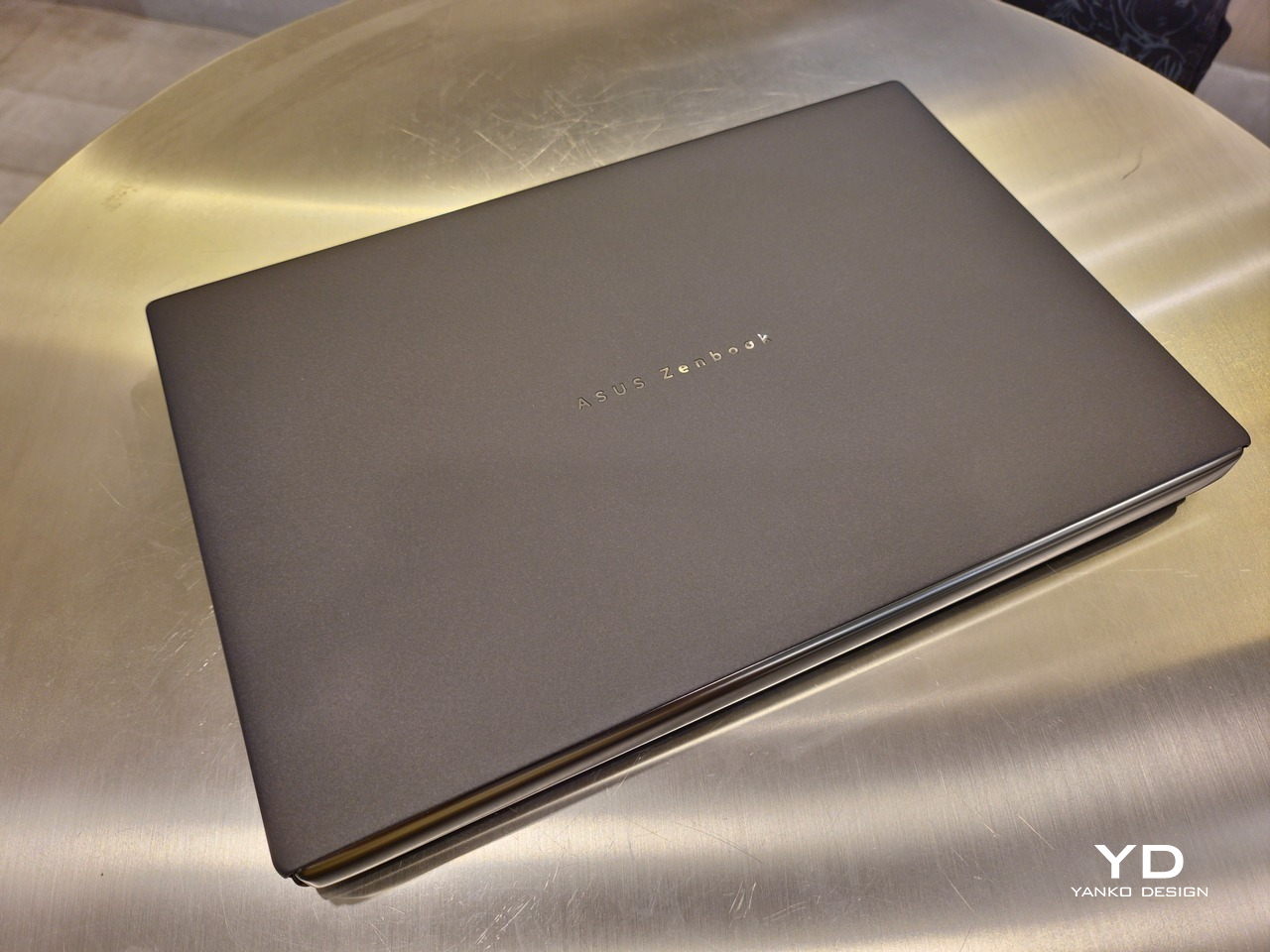
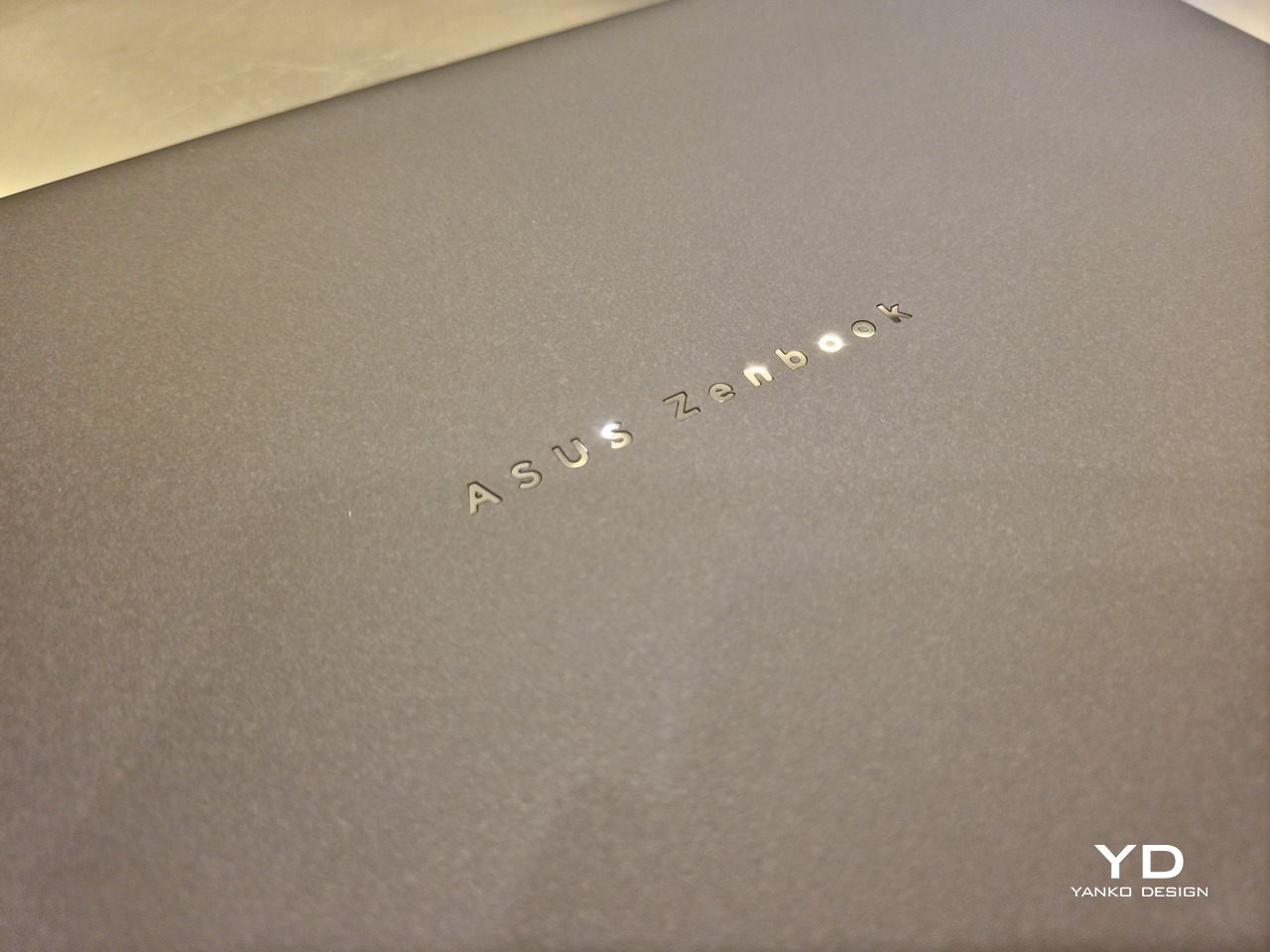
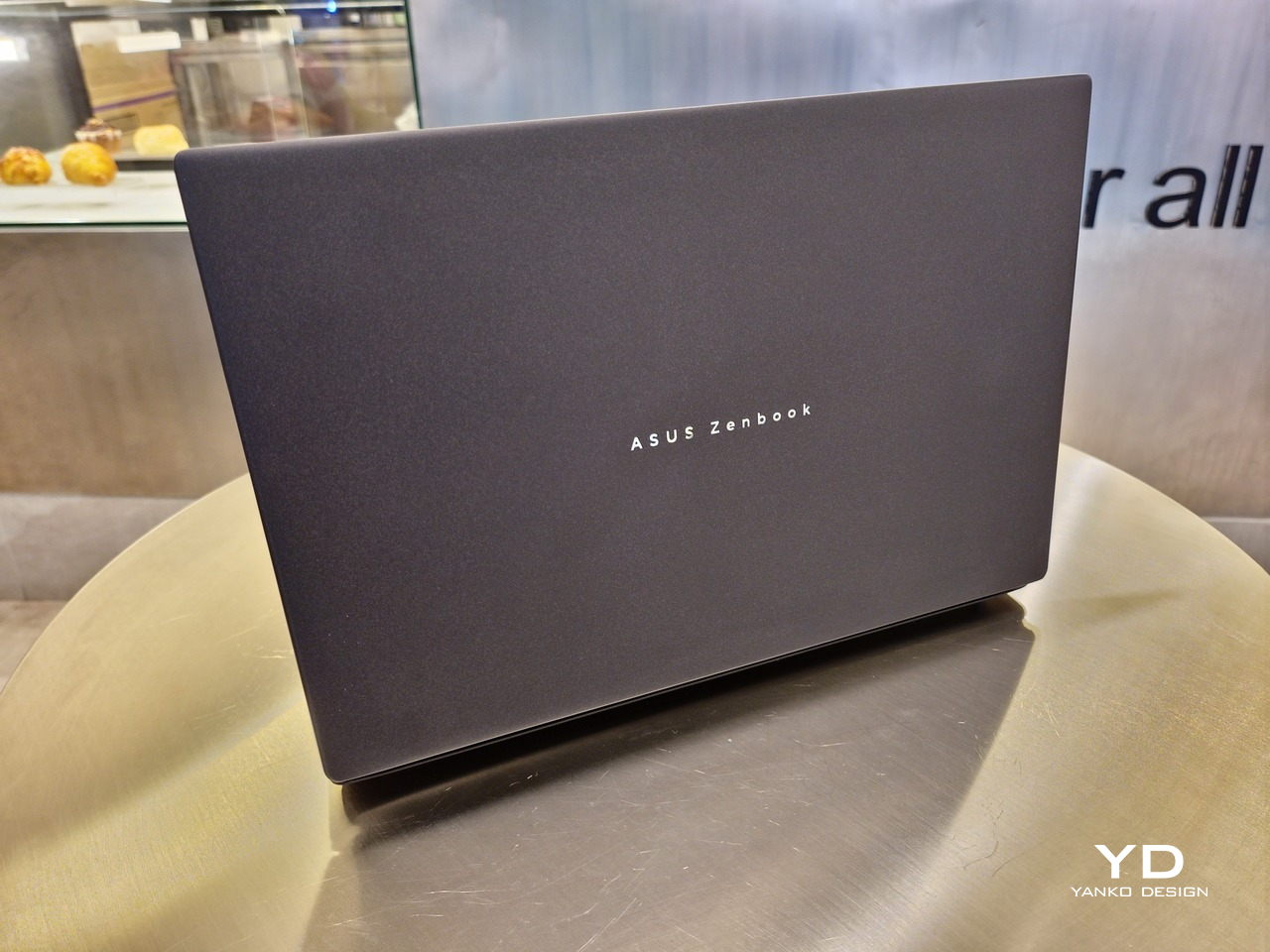
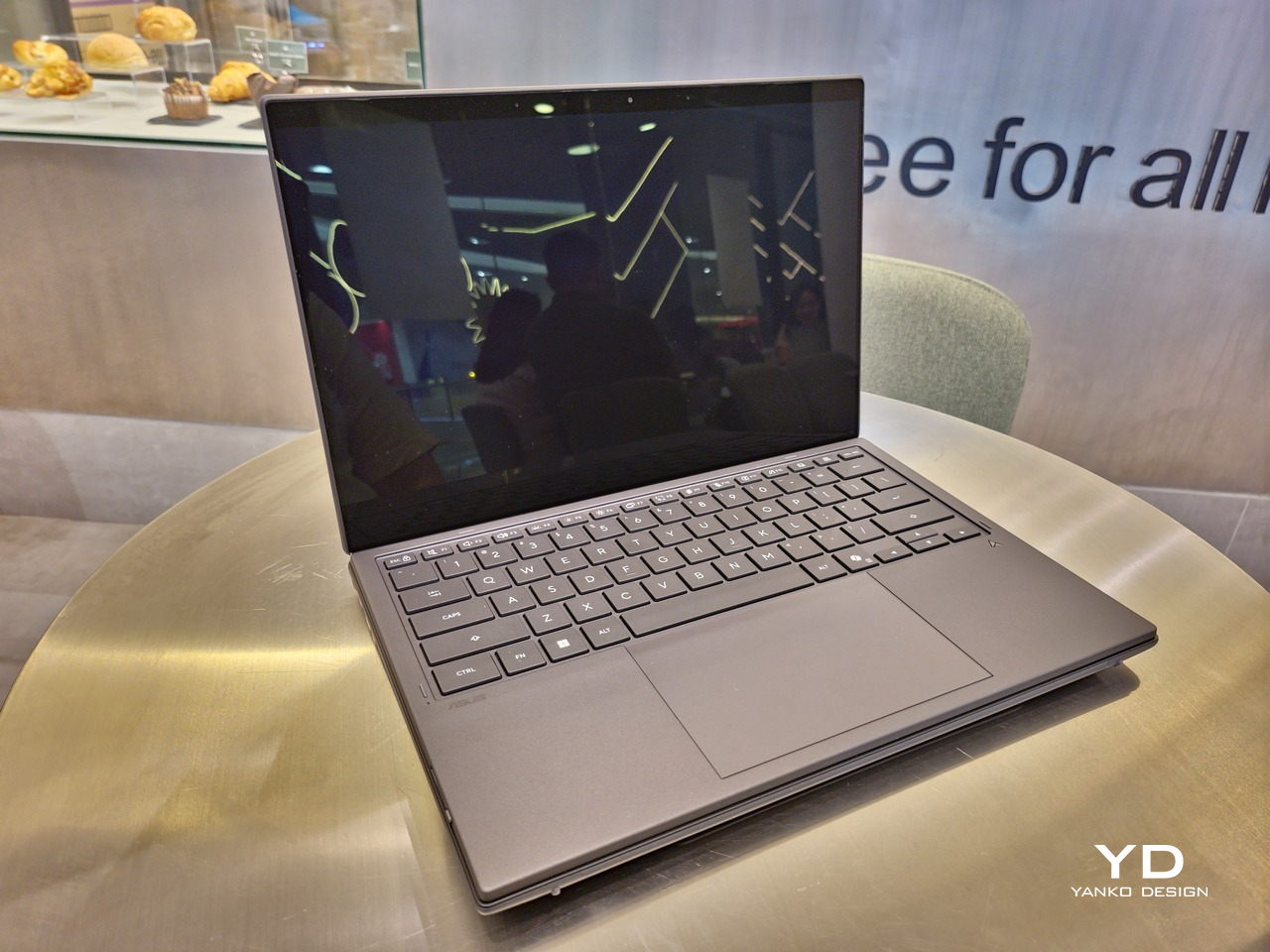
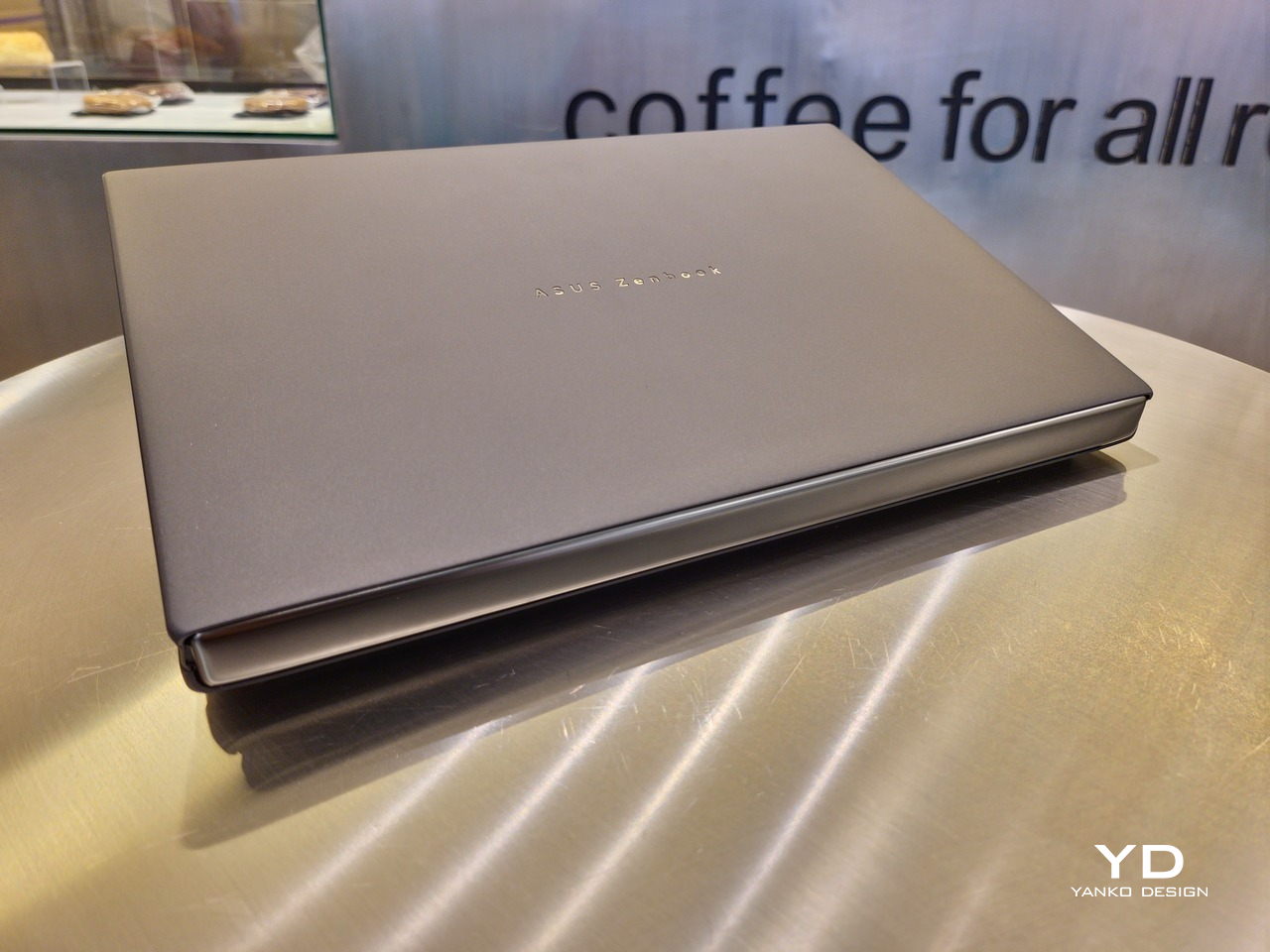
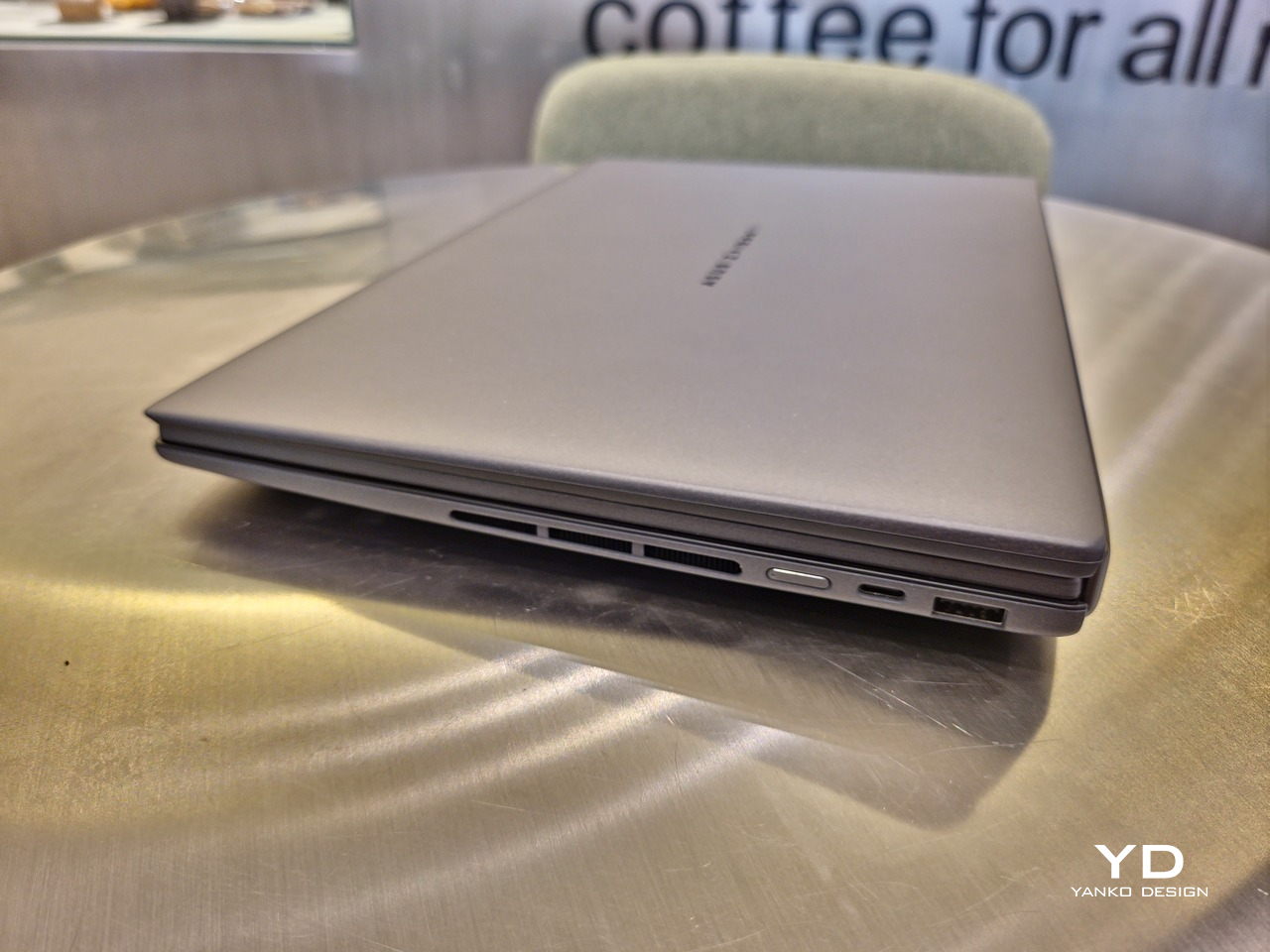
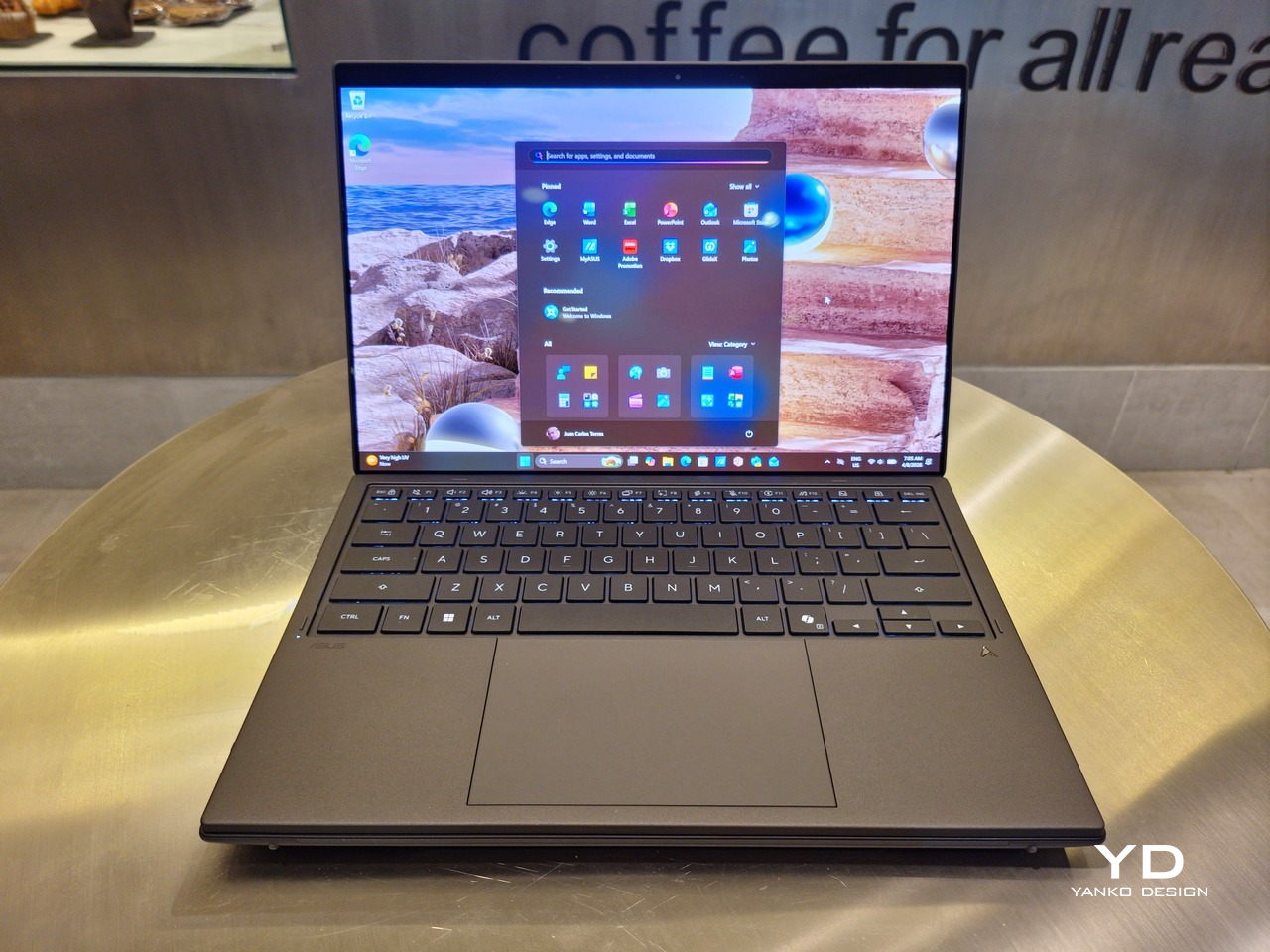
The 2026 ASUS Zenbook DUO (UX8407) is quite stunning in almost any form, whether it’s closed shut, opened like a laptop, or especially when it’s wide open. The lid cover exudes not only minimalism but also character, with a reflective “ASUS ZENBOOK” logo engraved against the Elephant Gray “Ceraluminum” surface, creating a simple yet eye-catching visual and material contrast.

That Ceraluminum is, of course, ASUS’s latest material innovation that uses a special oxidation process to give aluminum some ceramic-like properties, particularly durability and higher resistance to scratches. The end result is a material that isn’t just nice to look at but also pleasing to touch, giving the lid a texture that almost feels like stone or, well, ceramic. There is also a certain visual “roughness” to the Ceraluminum surface, setting it apart from the brushed metal or anodized appearances of its peers.

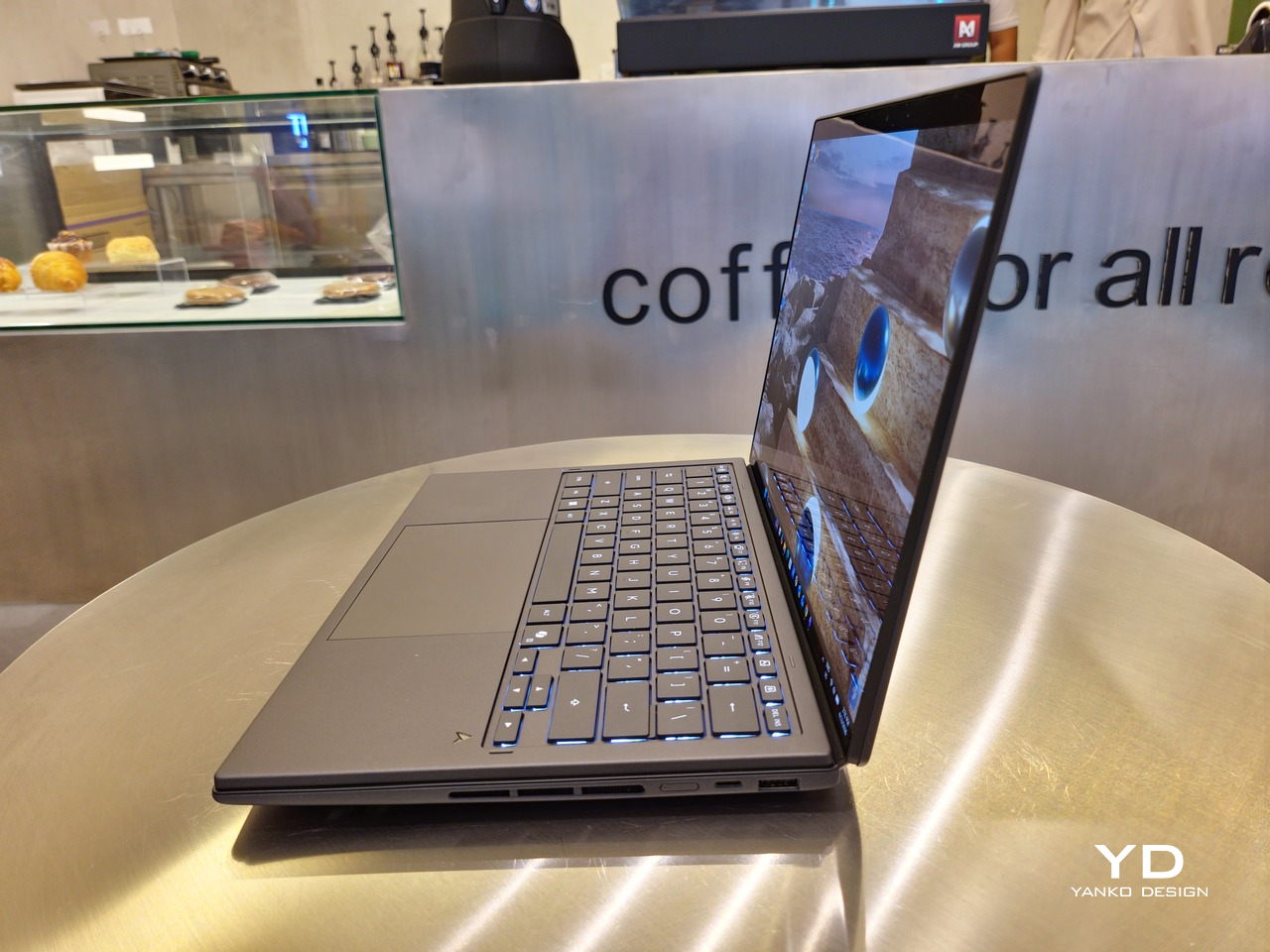
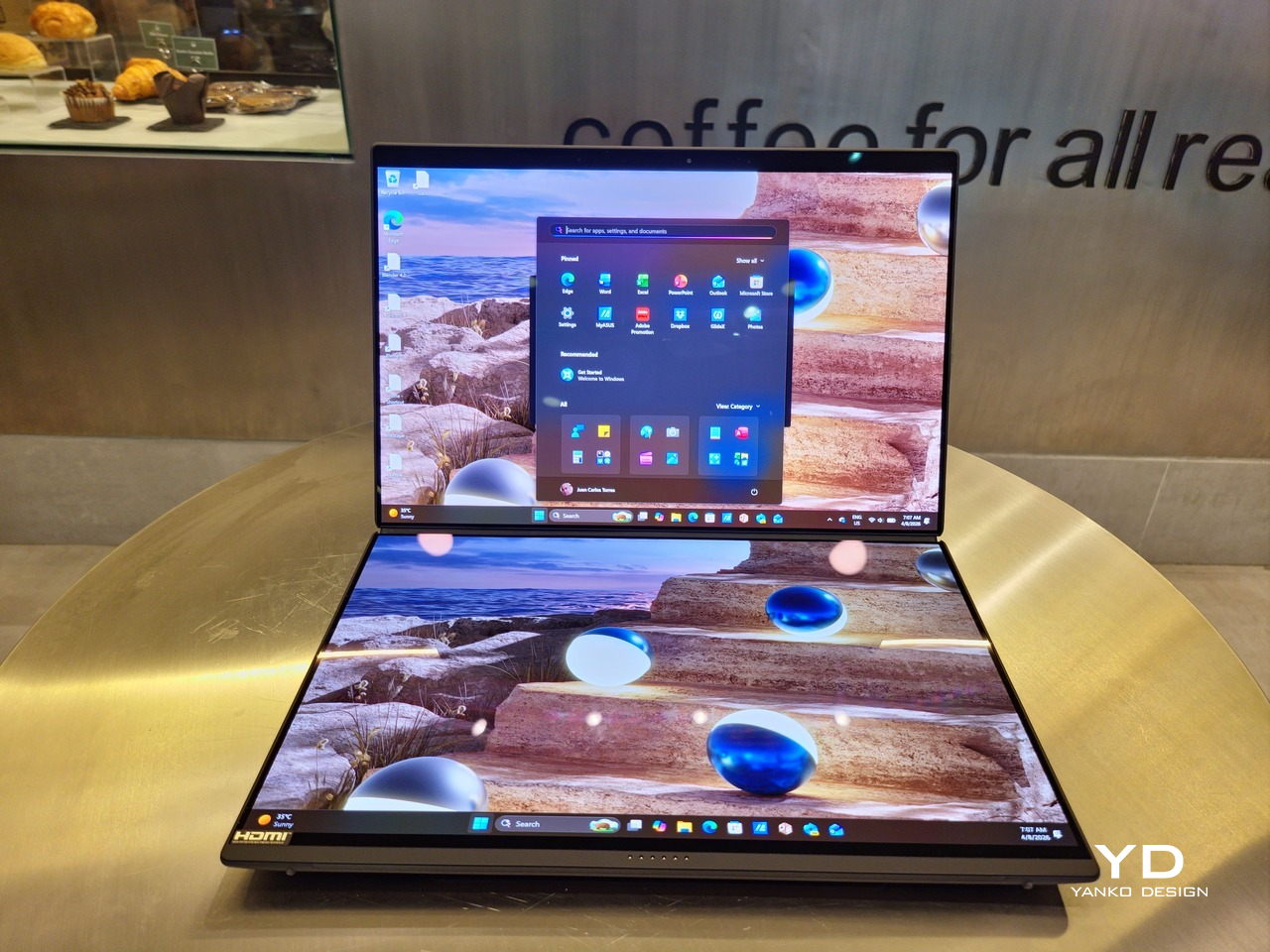
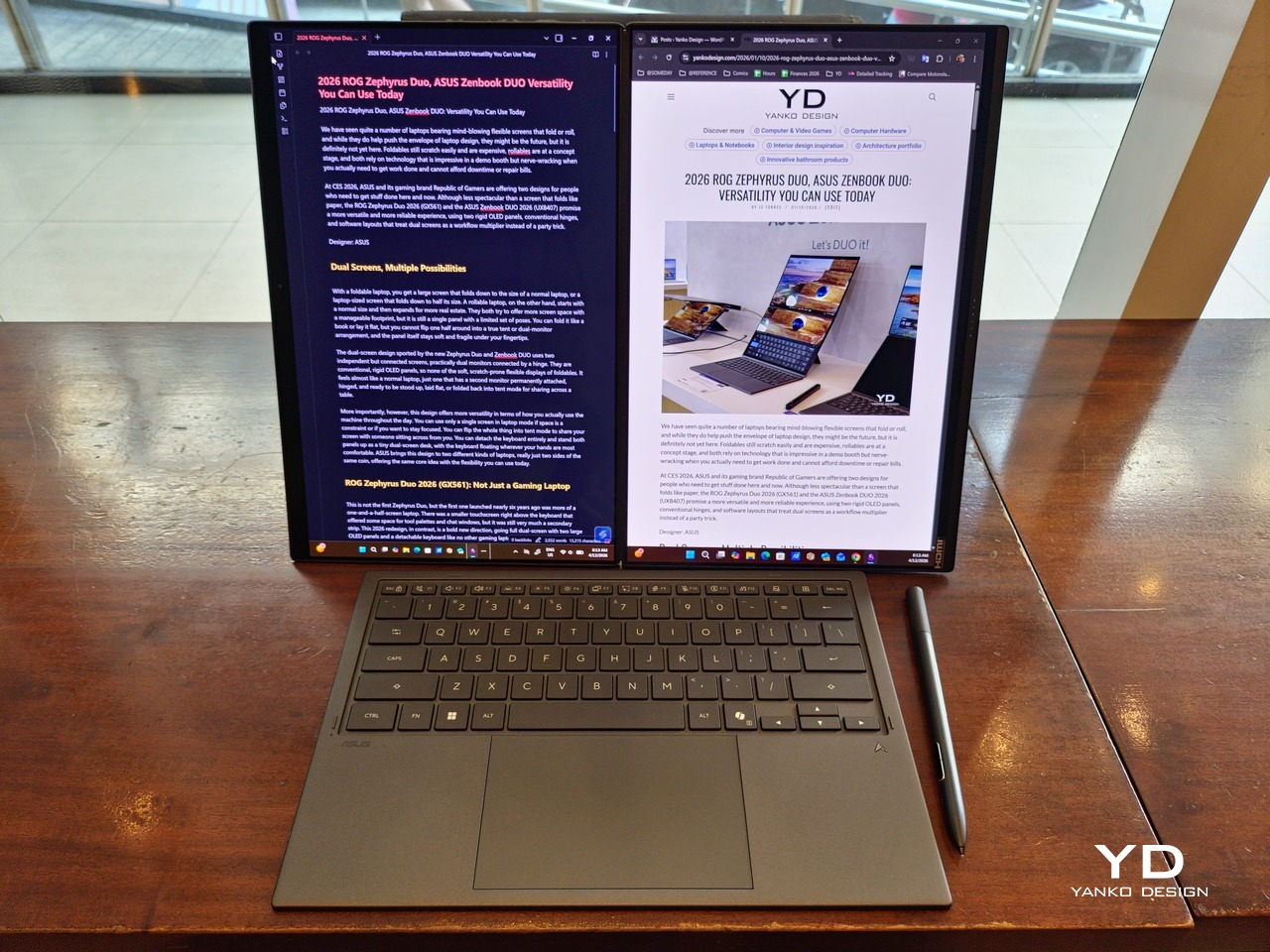
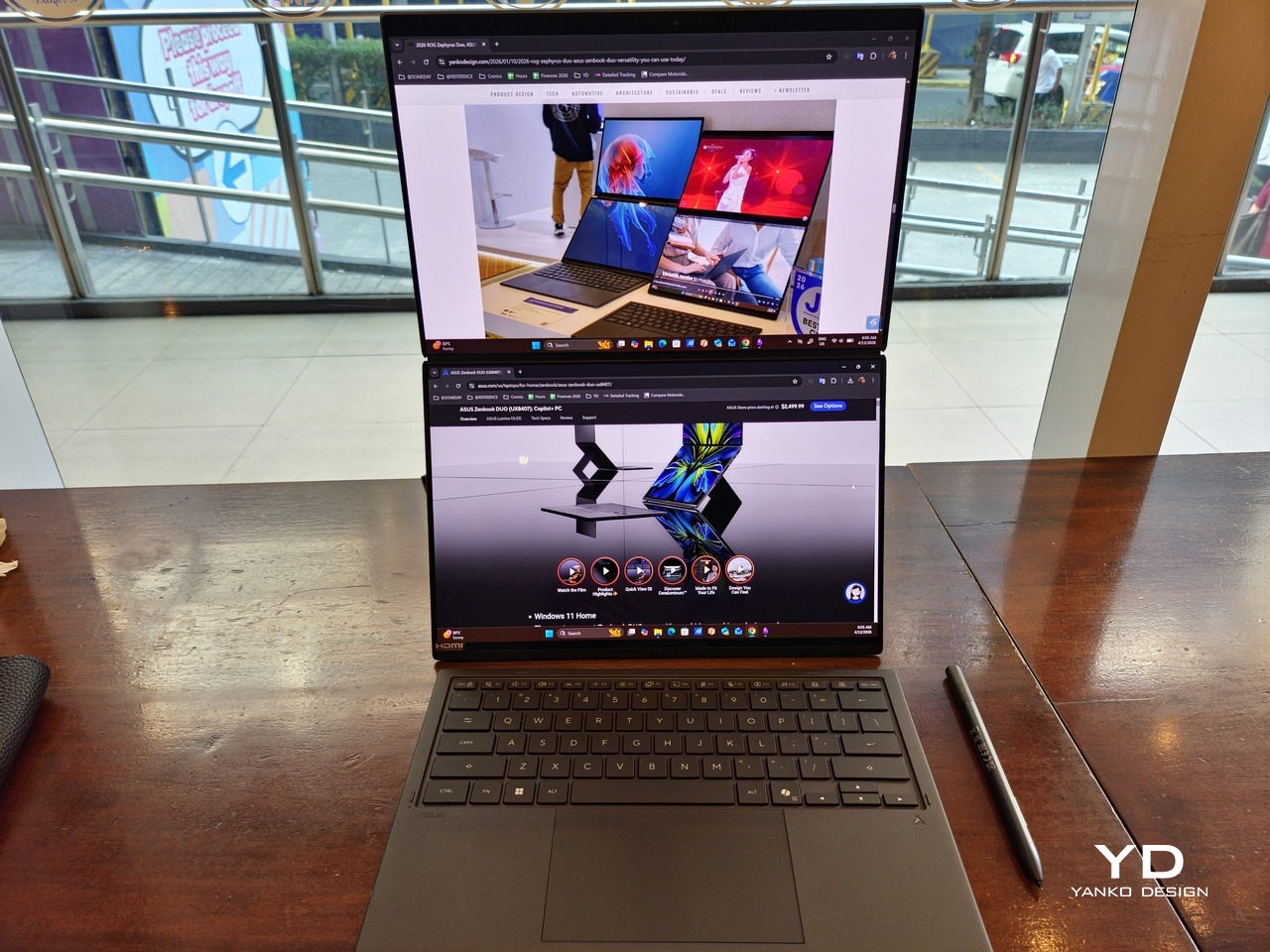
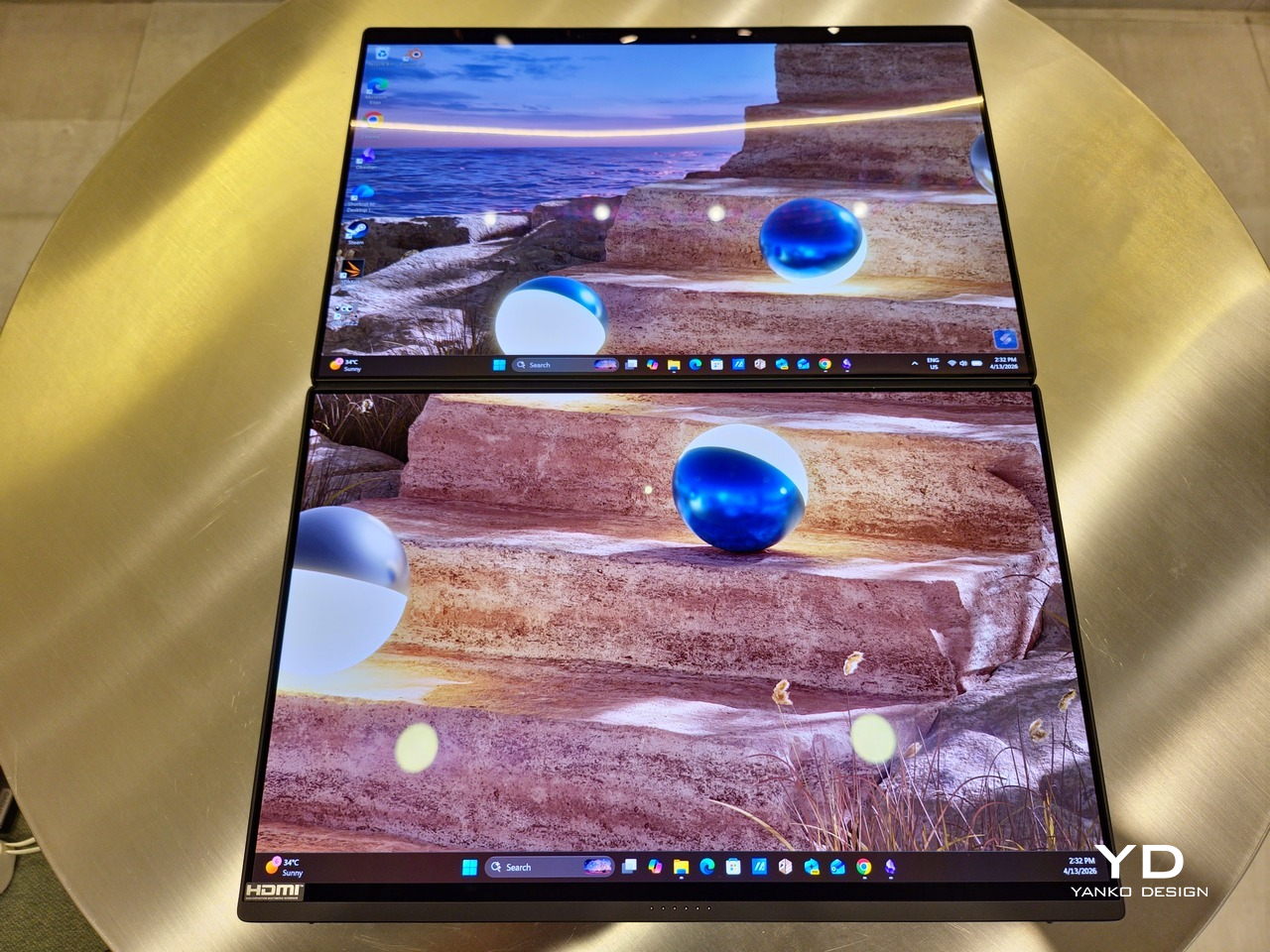
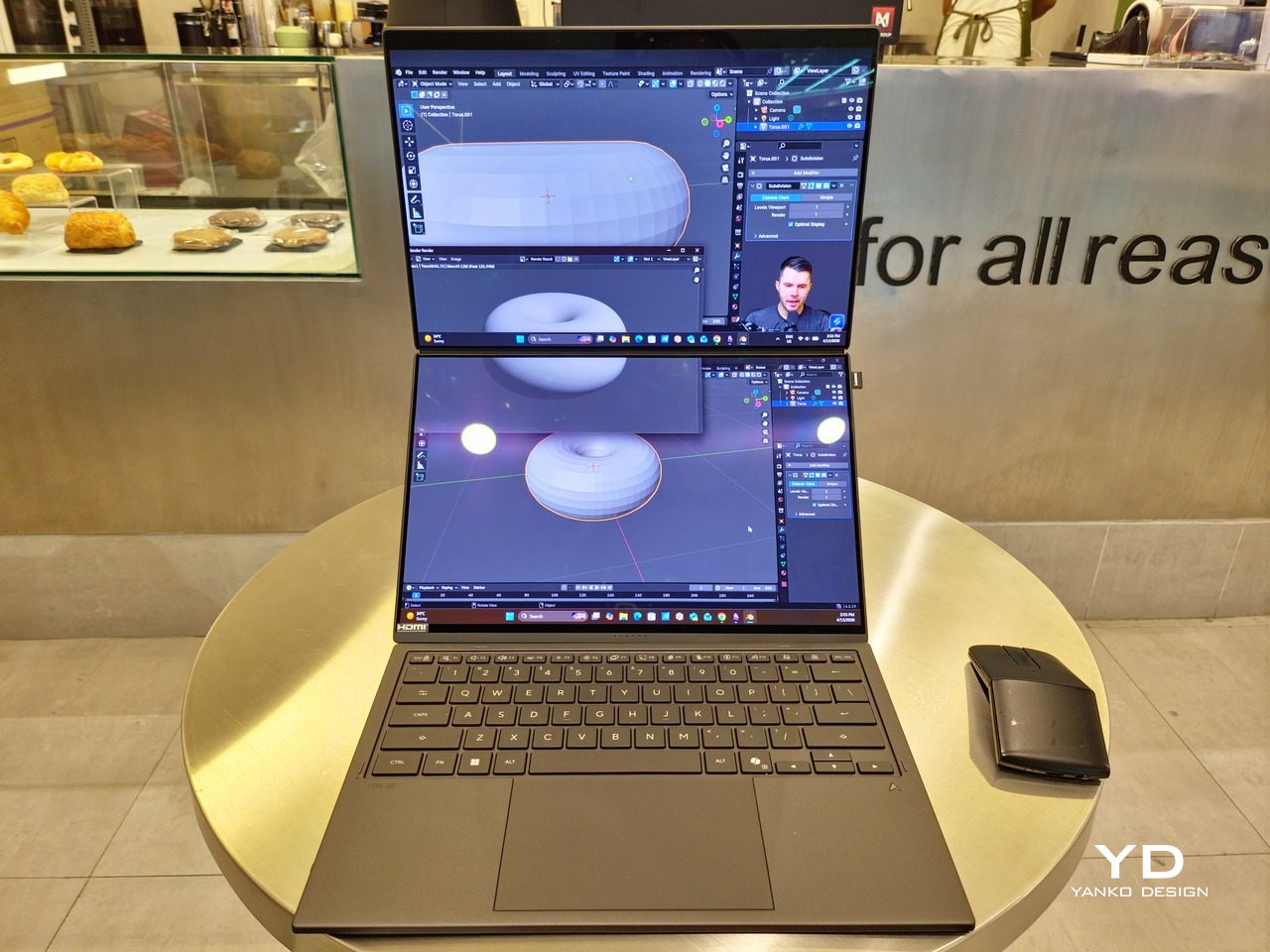
Of course, the real show happens when you open the laptop and lift the keyboard away, revealing two gorgeous 14-inch screens connected together by a hinge, no messy or awkward cables. For this iteration, ASUS poured its efforts into making that connection look even more seamless, not only by shrinking the bezels between the displays but also by developing a new “hideaway” hinge that narrows the gap from 25.31mm down to 7.6mm. Make no mistake, there’s still a very obvious separation between the two, but it is now less jarring, making it feel like you’re working with a screen that just happened to be split into two, rather than two screens stitched together.

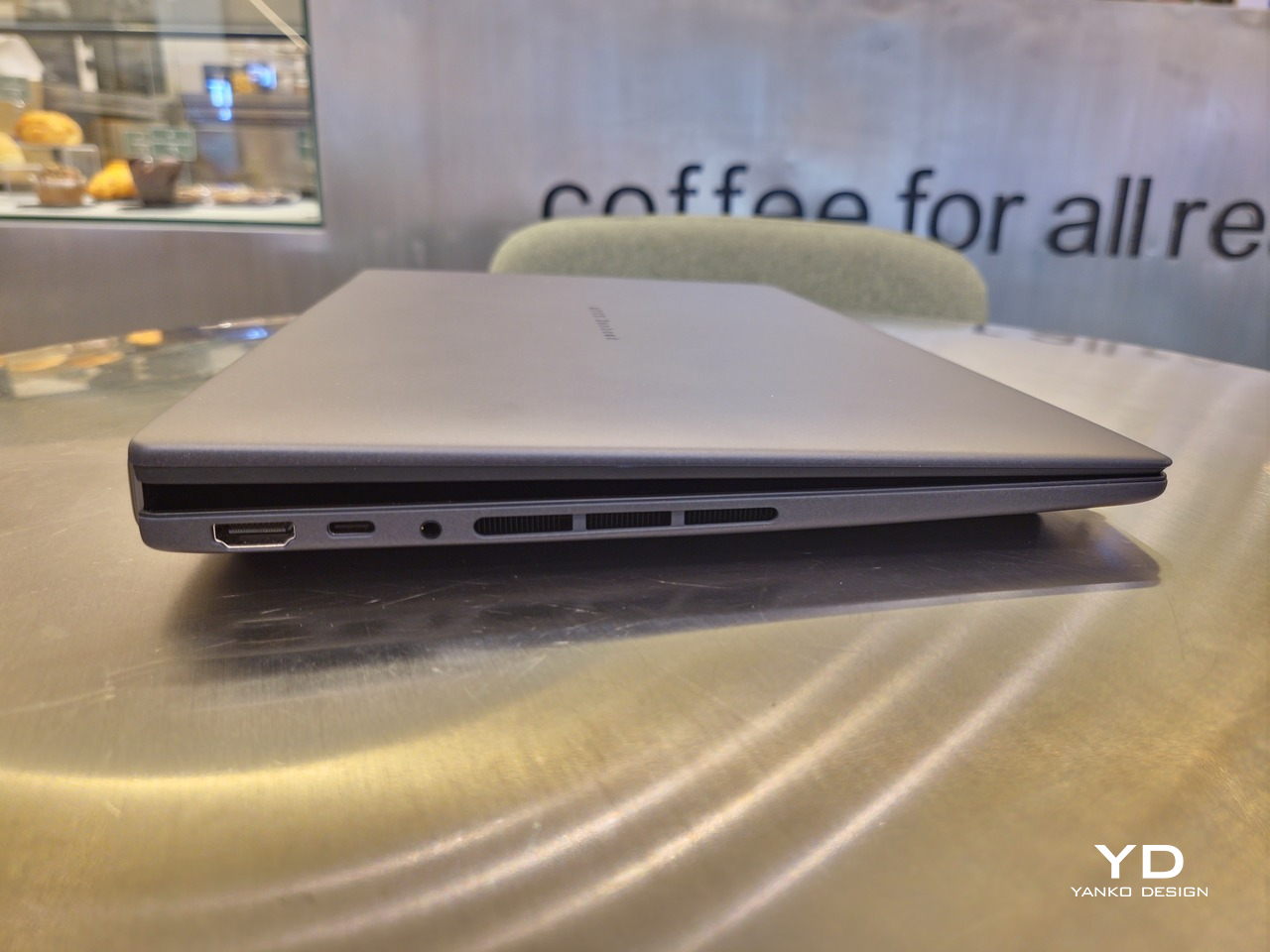
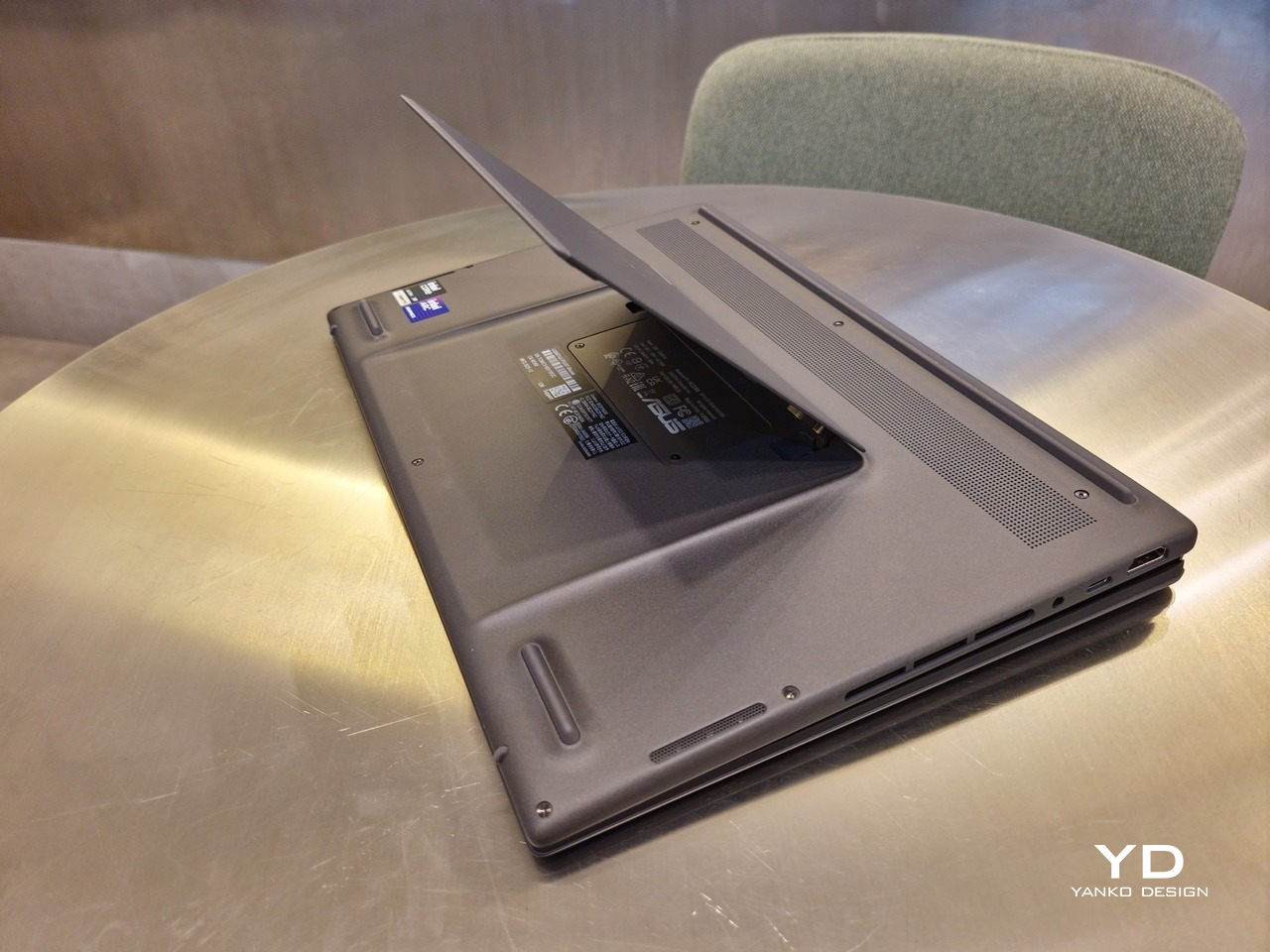
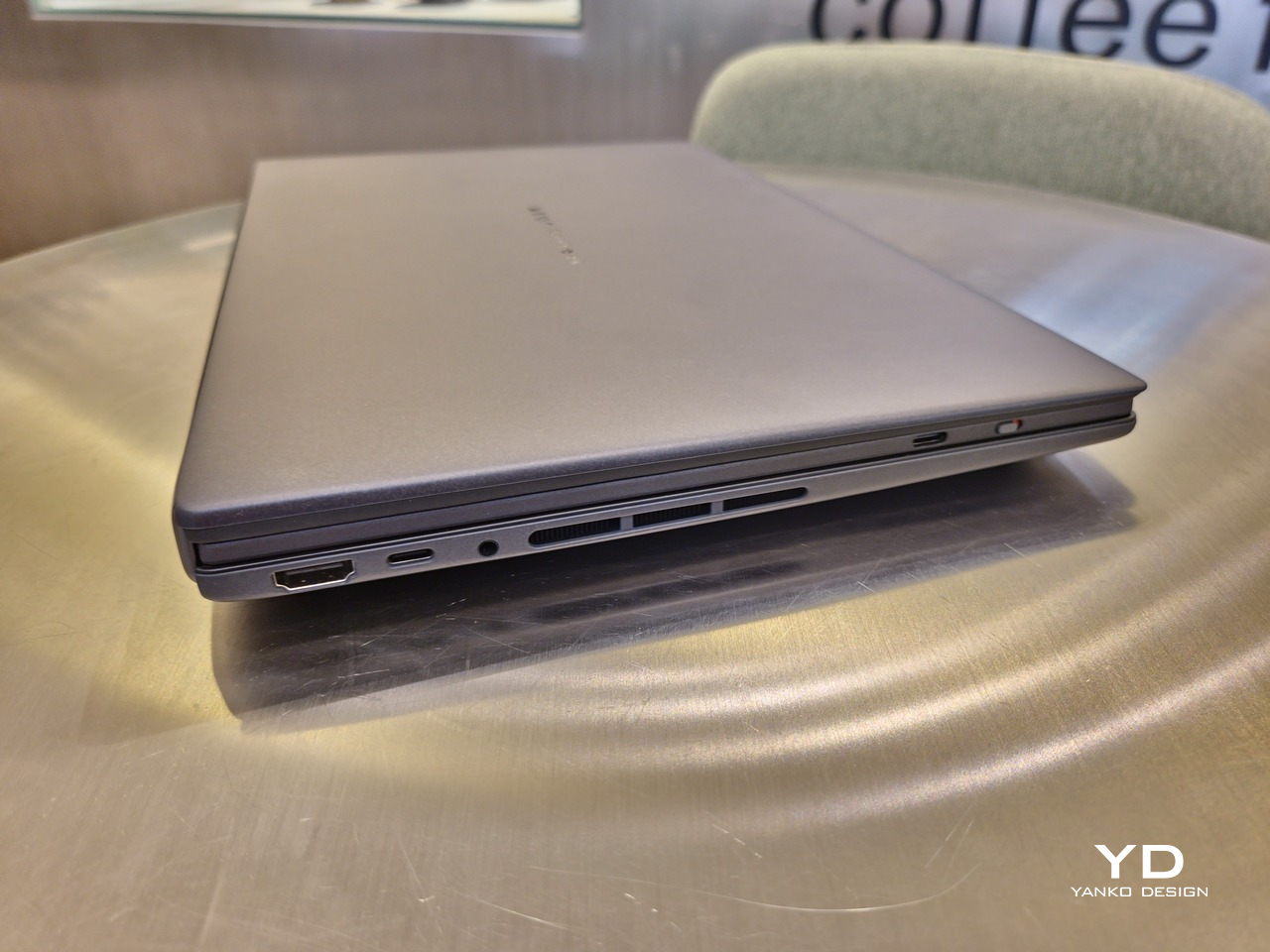
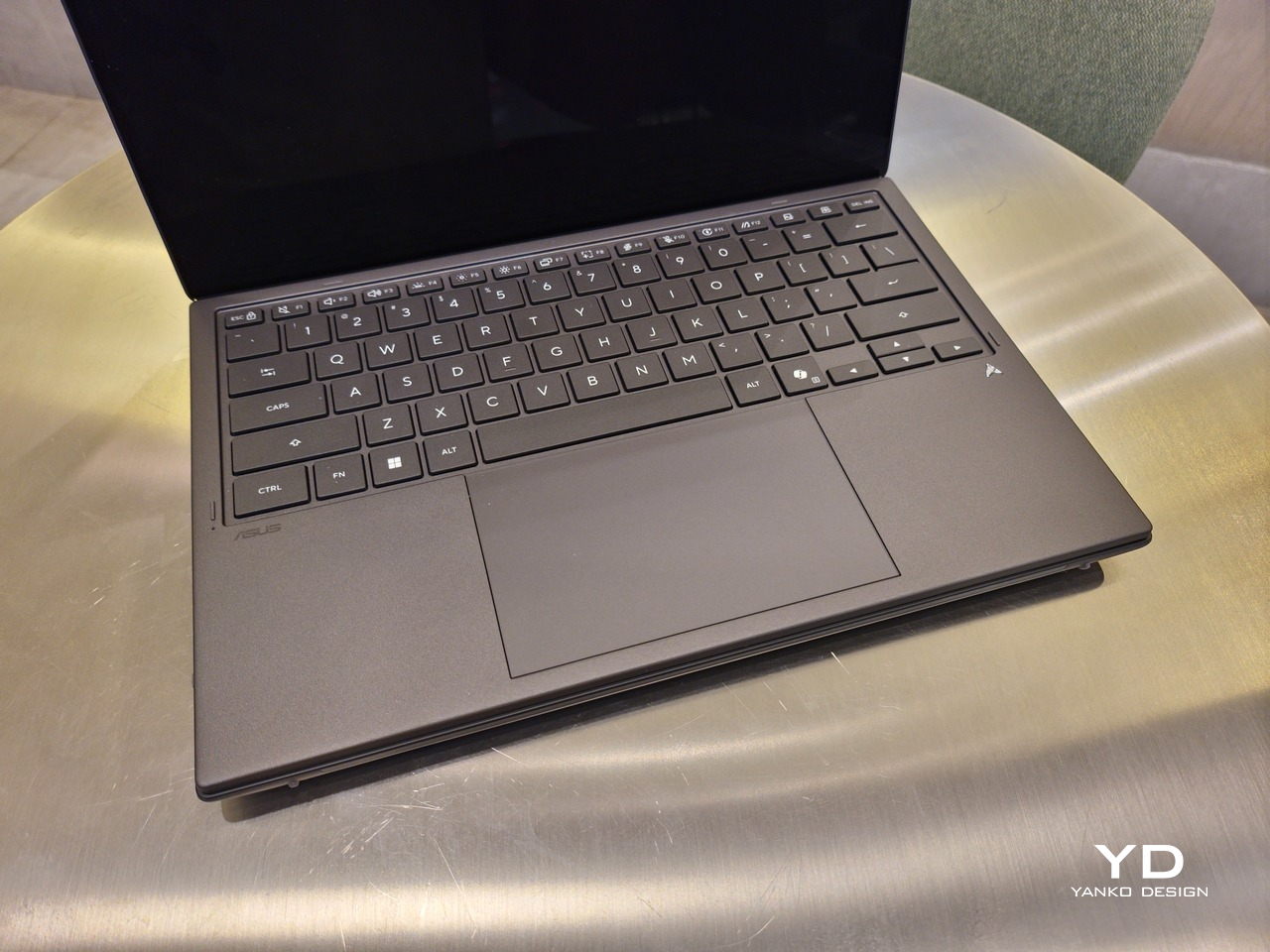
With the detachable Bluetooth keyboard resting on the second screen or when it’s closed, the Zenbook DUO (2026) looks almost like a normal laptop. You have a few (literally) ports on either side along with some air vents, and a wide-long grille at the bottom above the built-in kickstand. Your only clue that this isn’t a normal laptop is when you accidentally close the laptop lid without the keyboard attached, creating a very noticeable gap that, unfortunately, would also be an open invitation for small items to come in and scratch the screens.

Ergonomics

At 1.65kg (3.64lbs) with the Bluetooth keyboard attached, the ASUS Zenbook DUO (UX8407) isn’t exactly lightweight compared to other 14-inch laptops in the market, at least the non-gaming kind. That said, it’s not exactly on the heavier side either, especially when you consider that you’re carrying two 14-inch screens, not to mention a 99Wh battery, in a single bundle. In that context, it’s actually amazing how much ASUS was able to reduce the heft without cutting corners.

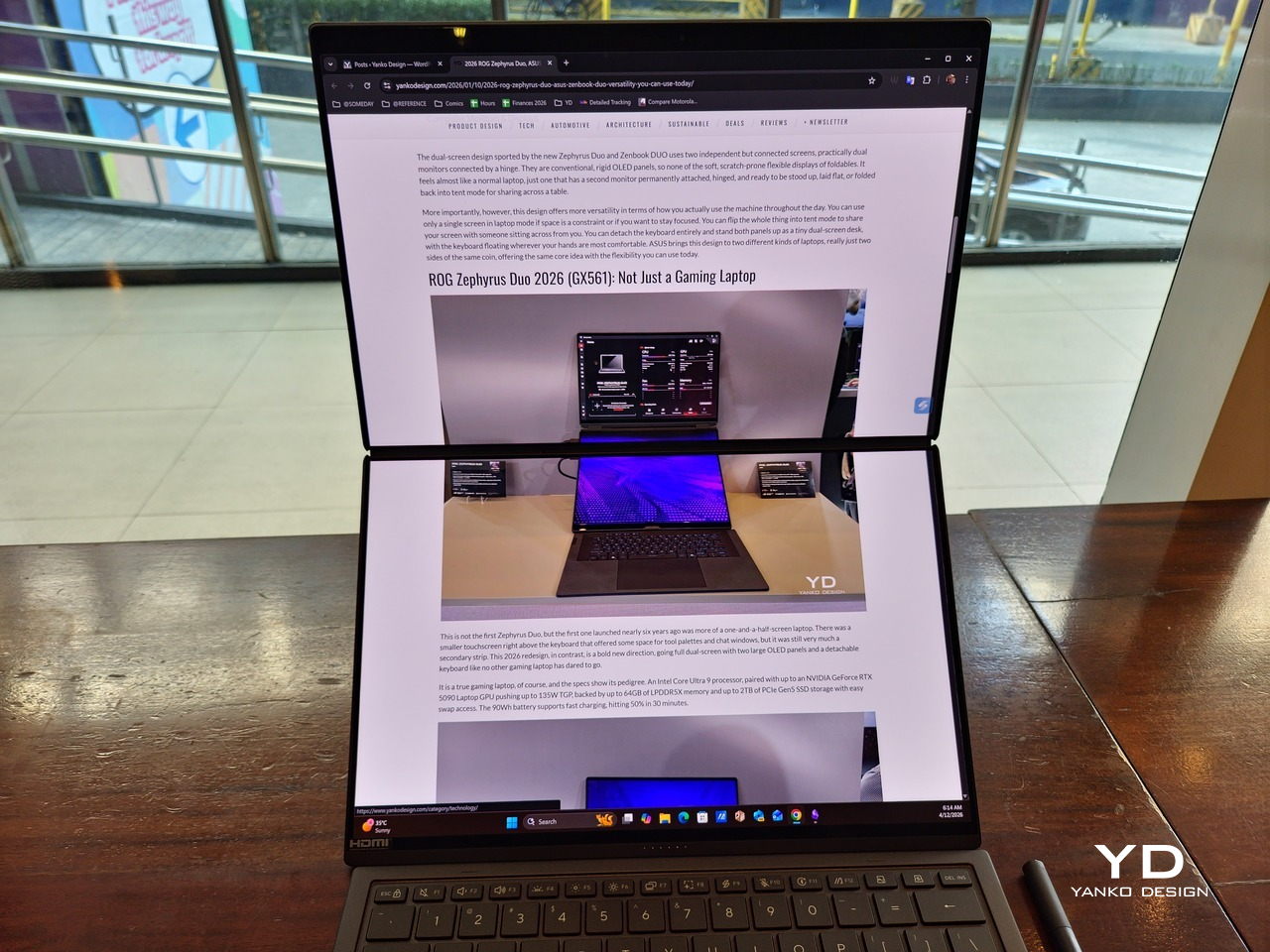
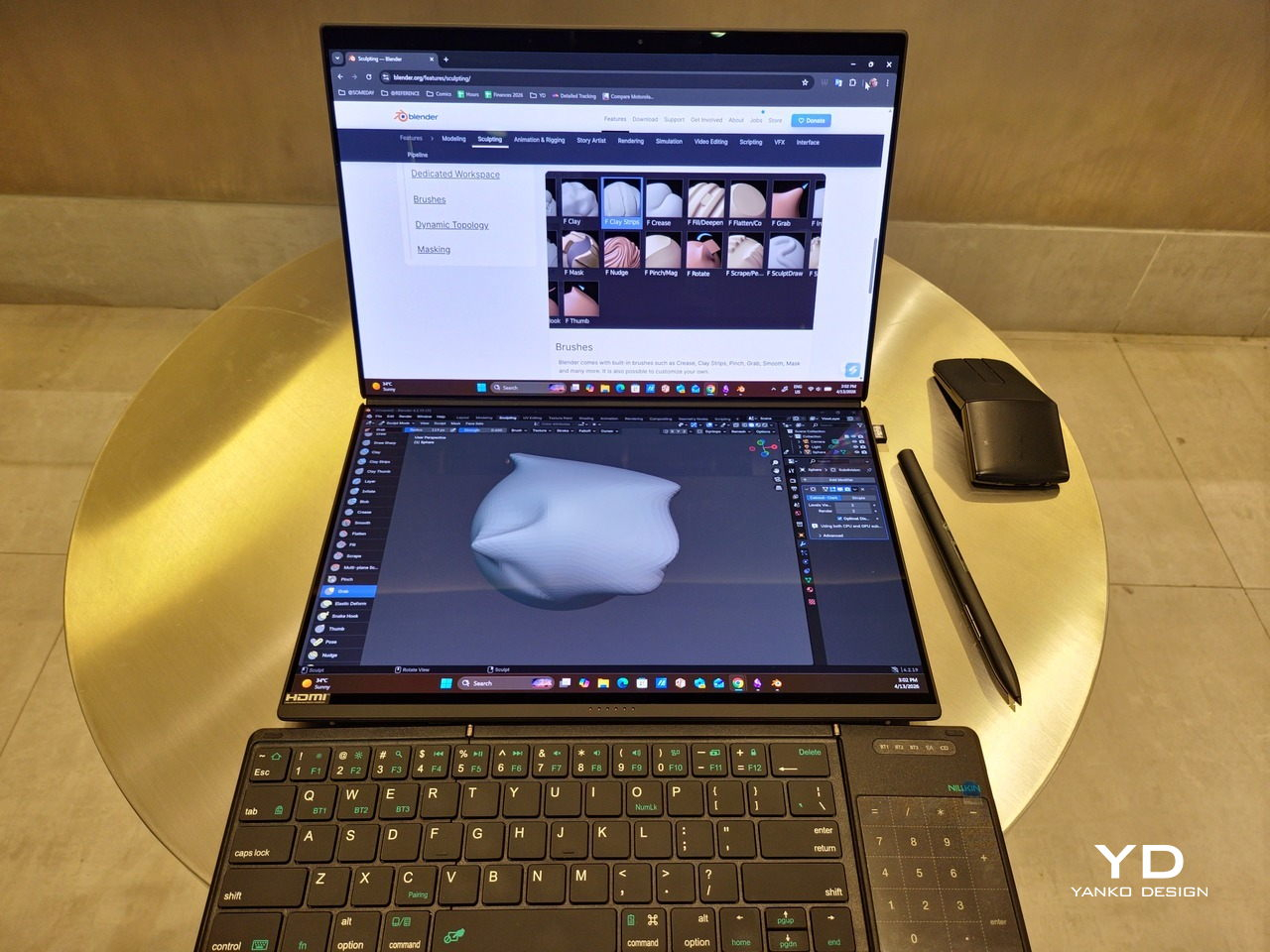
That said, having two connected displays brings its own ergonomics puzzle, something that ASUS seems to have finally solved almost to perfection. You have no less than 5 ways to use the laptop, from a normal laptop to two screens vertically stacked to the side-by-side “desktop mode”. While the hinge does most of the hard work, the built-in kickstand literally carries the burden, supporting that full weight (minus the keyboard) on its own.

The new kickstand is stronger, sturdier, and stiffer, providing confidence it won’t just suddenly close down. It can open to a maximum of 90 degrees, which is the angle you’ll need for desktop mode. That said, it also means that you only have possible angle for the displays in that mode, unless you have a separate stand to prop it up, which kind of defeats the purpose of having a built-in kickstand.

One thing to note in desktop mode is that you will naturally be sacrificing one side of ports. Thankfully, you can turn the Zenbook DUO (2026) which ever side up, whether you need an extra HDMI and headphone jack, or an extra USB-A port. Thankfully, both Thunderbolt 4 ports are equal in capabilities, so you don’t have to make a sacrifice on that end.

If there’s one thing I found a bit cumbersome in the Zenbook DUO’s design is that the power button sits so flushed against the frame. On the one hand, that means it won’t snag with anything in your bag, nor will it get triggered accidentally. On the other hand, it also makes it harder to locate it without looking or fumbling with your finger sliding across the edge repeatedly.

Performance

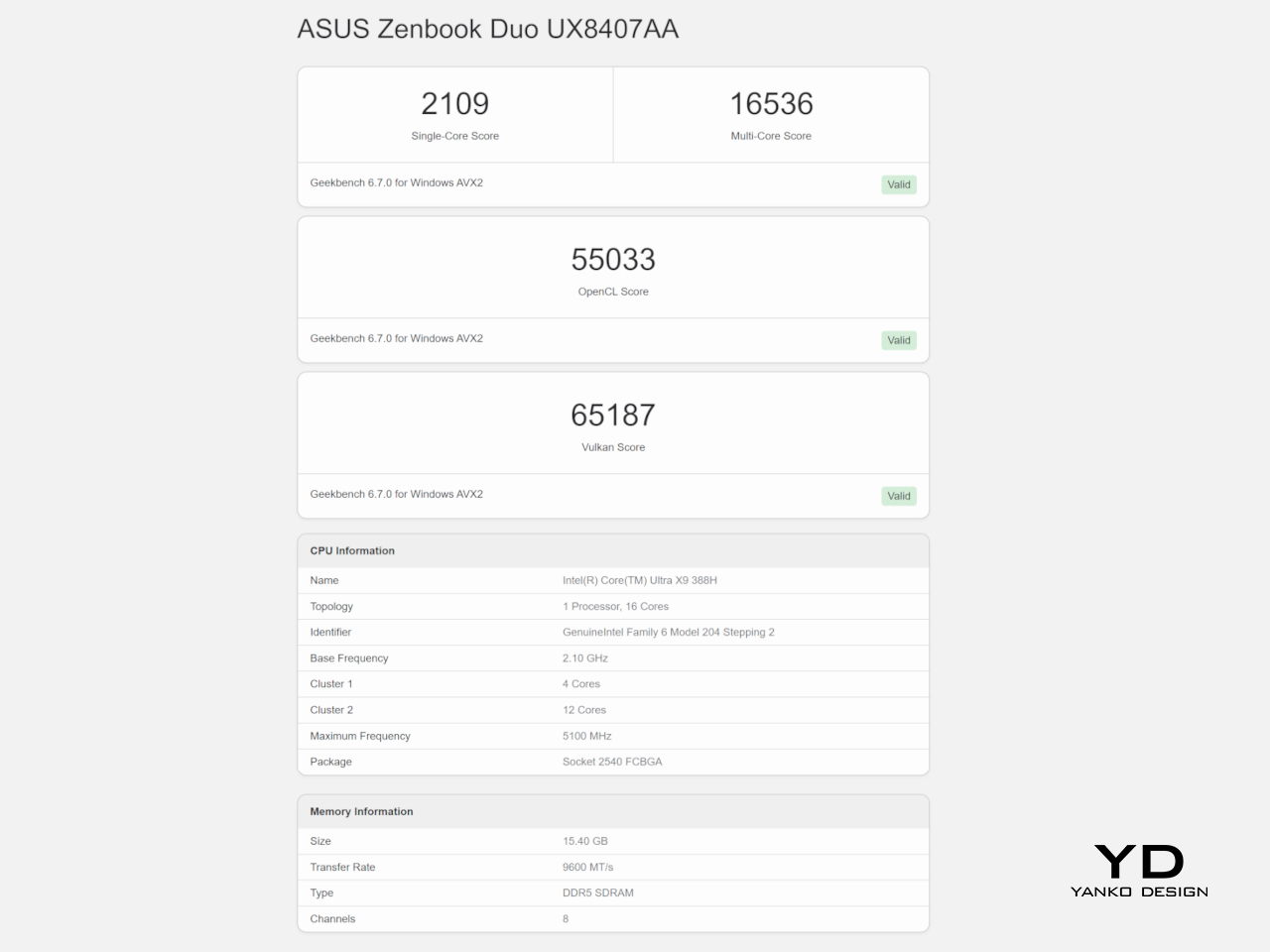
The ASUS Zenbook DUO (UX8407) is one of the early laptops to embrace Intel’s new Panther Lake chips, specifically the Intel Core Ultra 3 series. The dual-screen laptops comes in two options, one with an Intel Core Ultra 7 355 and the Intel Core Ultra X9 388H. In terms of CPU alone, these already represent a huge leap not just in performance but also in power efficiency, but the latter configuration pulls an even bigger feat.

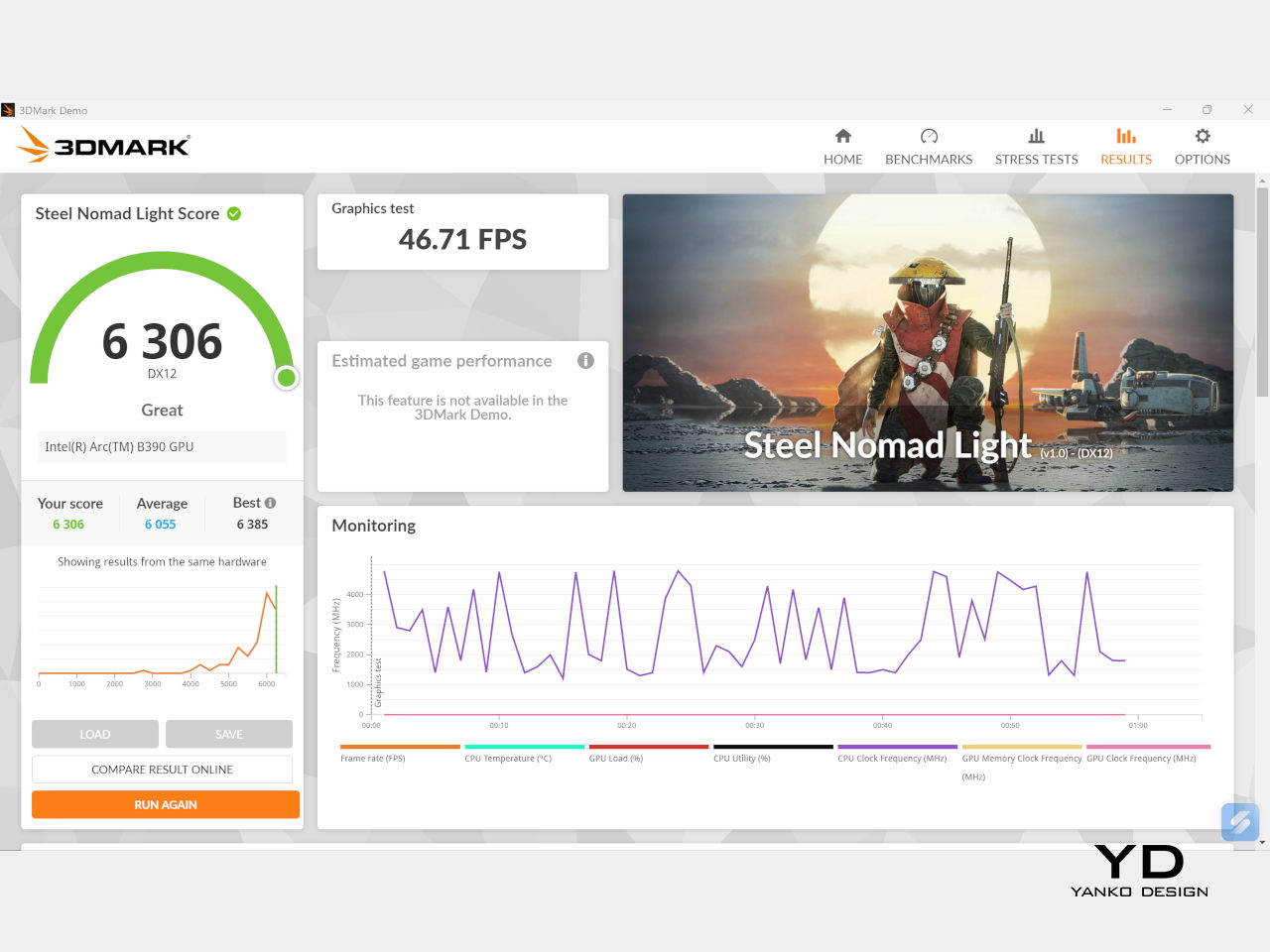
The review unit we received comes with an Intel Arc B390 GPU based the latest 3rd-gen Intel Xe graphics. Forget what memories you might have had of integrated Intel graphics, because we’re entering an era where you can actually play games with decent settings on it. Of course, your mileage may vary and benchmarks can only provide some general idea, but that all these specs mean is that the ASUS Zenbook DUO (2026) is built for serious productivity and creative work.

It is, after all, designed for heavy-duty computer users ranging from knowledge workers to creators who need to bring the productivity they enjoy on the desktop to wherever they go. Productivity suites, video editors, graphics programs, 3D modelers, and even games won’t make this flexible laptop break a sweat. And yes, that includes some AI shenanigans, thanks to an upgraded NPU as well.

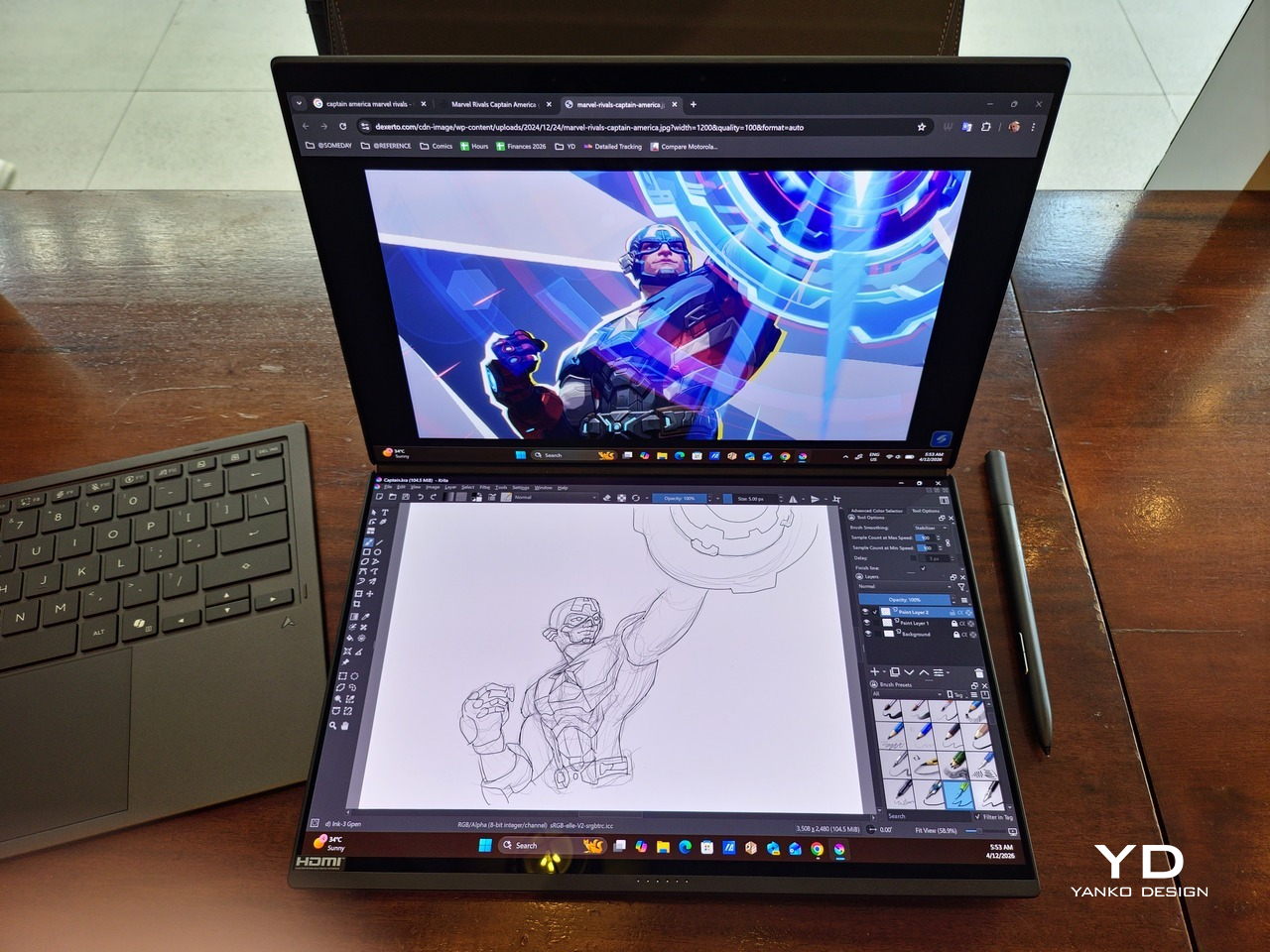
Of course, this also means that it has enough muscle to support running two screens which, by default, is set to extended (versus mirroring each other). The beauty is that these two screens are nearly identical not just in size but also in capabilities, where other dual-screen laptops skimp on the second screen more often than not. We’re talking two 14-inch 3K (2880×1800) 144Hz Lumina Pro OLED displays. Both support touch and, more importantly, both support the ASUS Pen stylus.

In reality, there are very slight differences between the two screens in terms of full color gamut and maximum brightness, but you won’t notice it too much unless you are actively looking for it. In practice, most people will keep content they’re working on in one of two screens anyway, leaving the other as an auxiliary for references or controls.

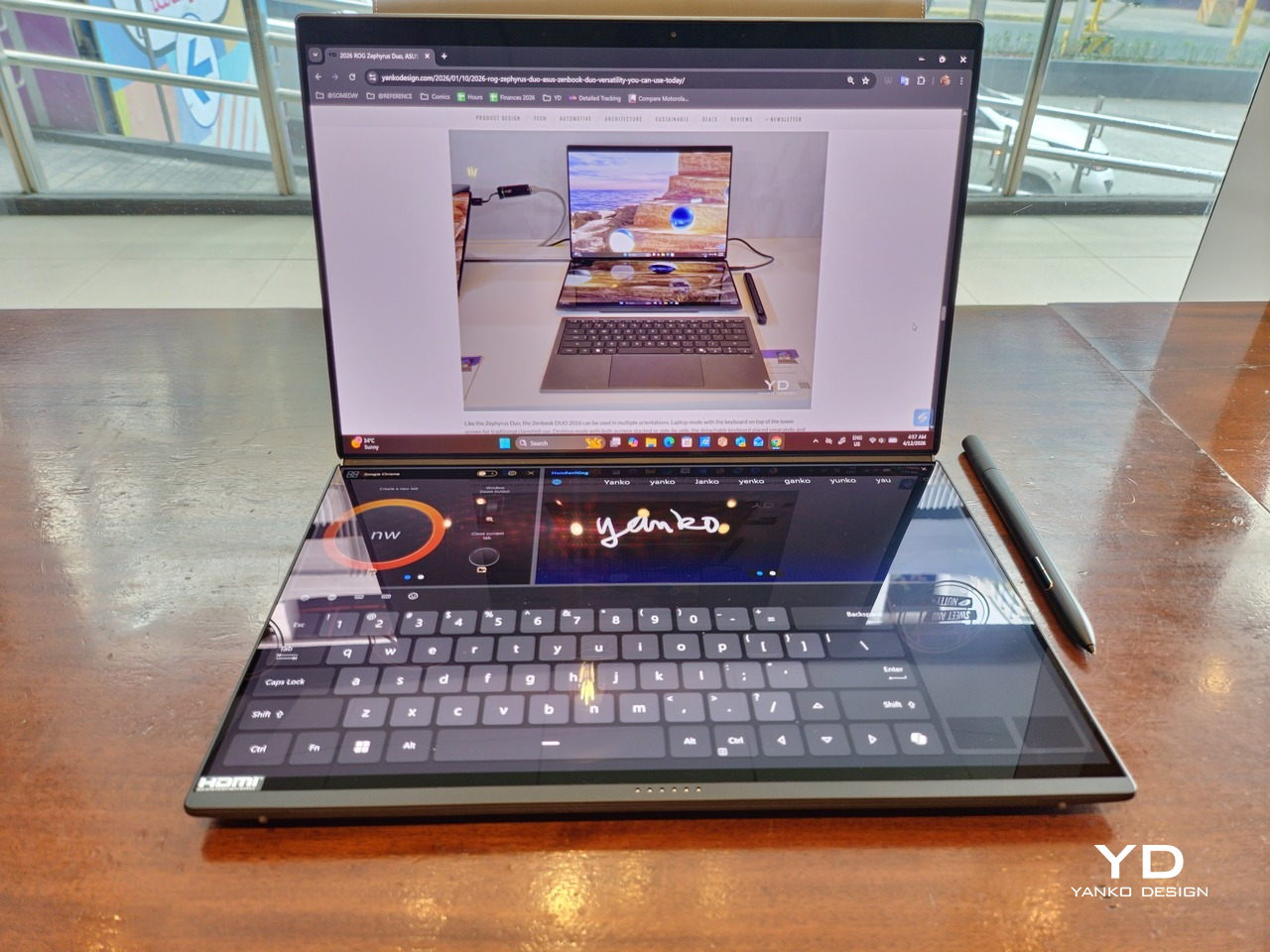
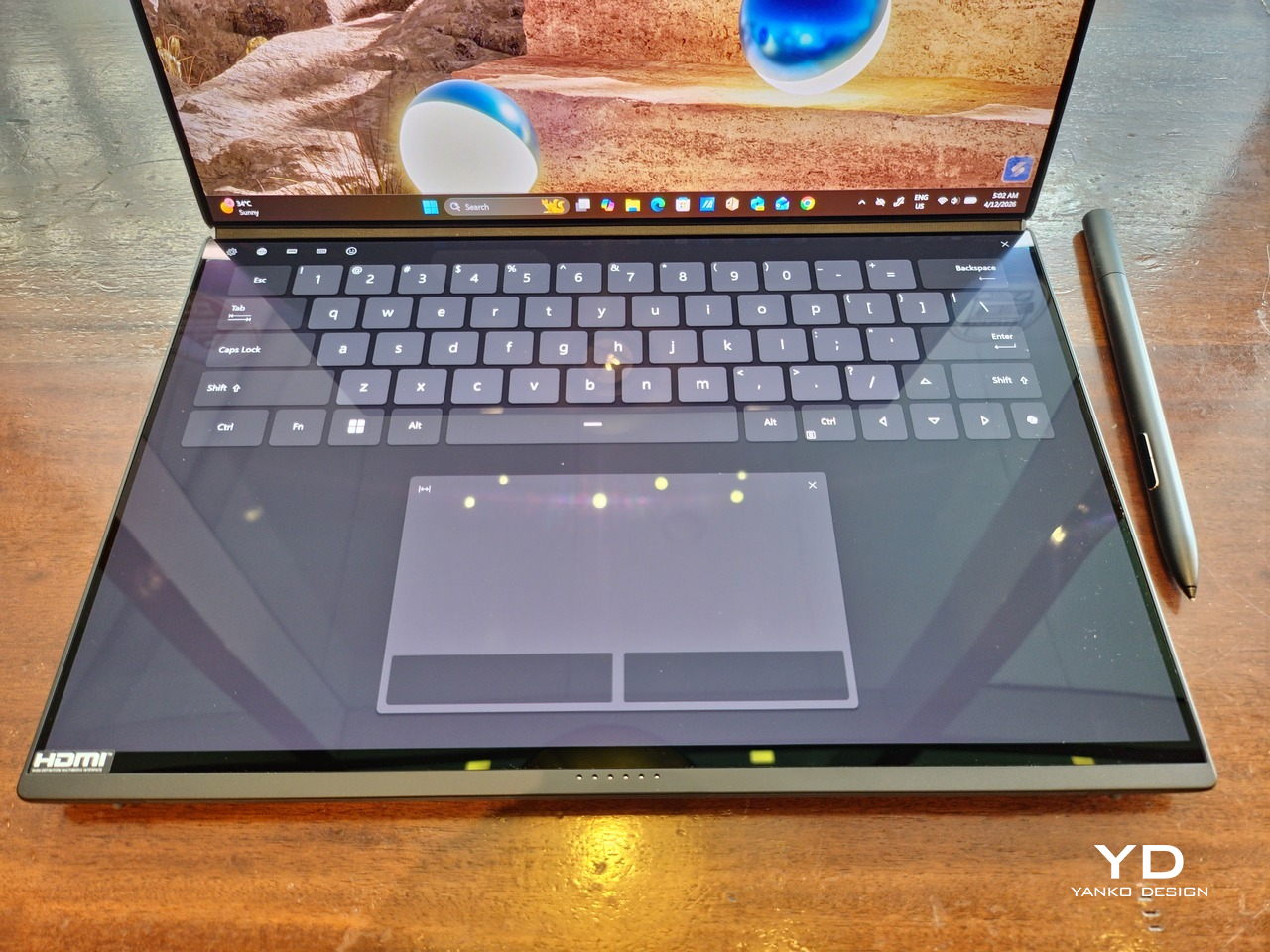
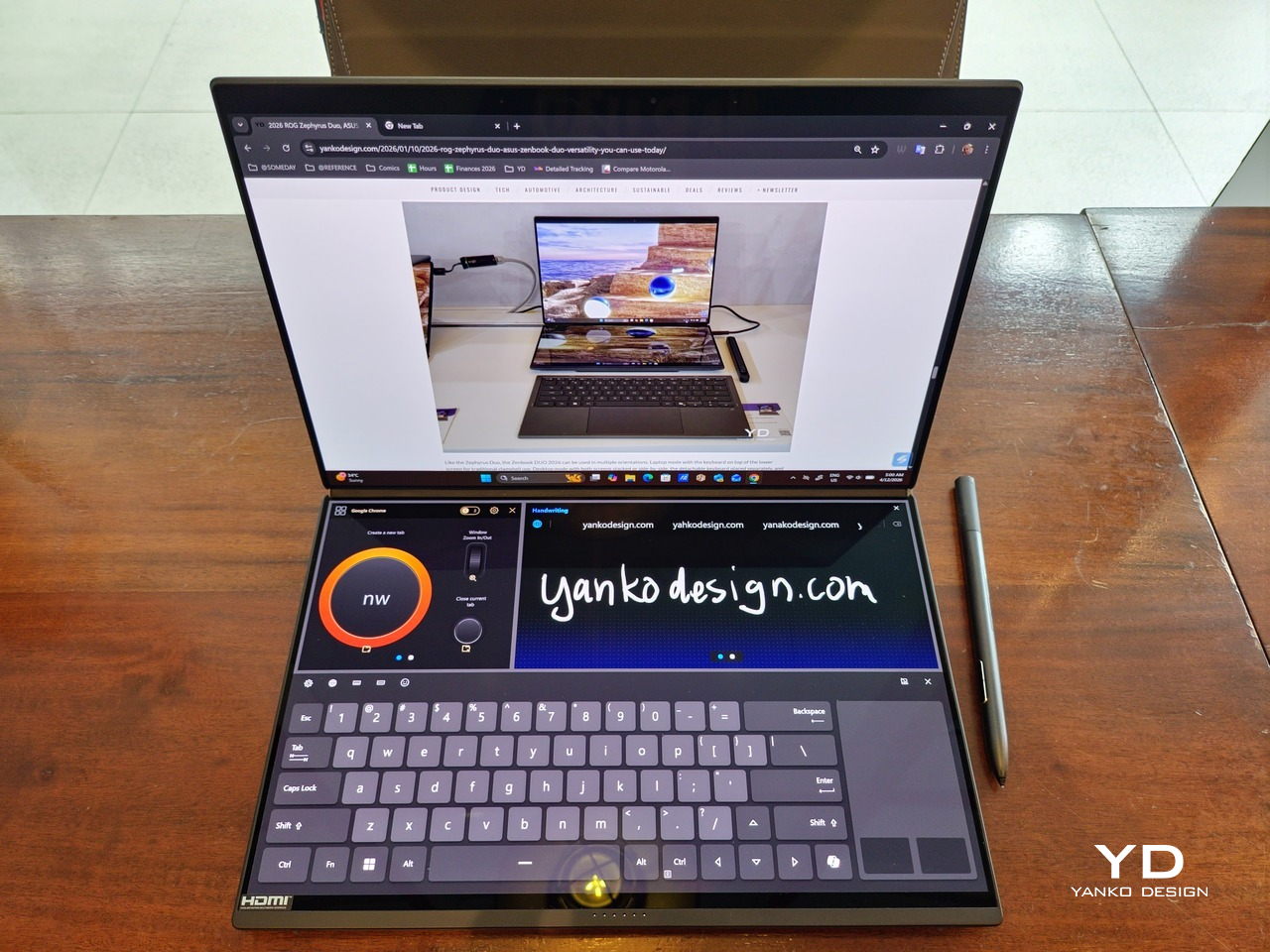
The latter is actually an interesting aspect of this dual-screen laptop, making the Zenbook DUO feel almost futuristic. While it does have a detachable keyboard, there might be times when you want to have more direct access to the lower touch screen without having to switch back and forth with the Bluetooth keyboard at the side. With a six-finger gesture, you can summon a half-height virtual keyboard, a half-height virtual keyboard with a virtual trackpad to the right, or a full-screen keyboard with a large trackpad below it, pretty much like the virtual equivalent of the physical keyboard.

Additionally, you can have other virtual knobs and sliders above the keyboard or as floating windows, thanks to ASUS’s Dial & Control app. These controls, which also include a numpad and an area for writing with a pen, can change depending on what app is currently in focus. With a browser window, it can have a button for a new tab or a dial for zooming in and out. Or it could be a knob for volume and a slider for screen brightness.

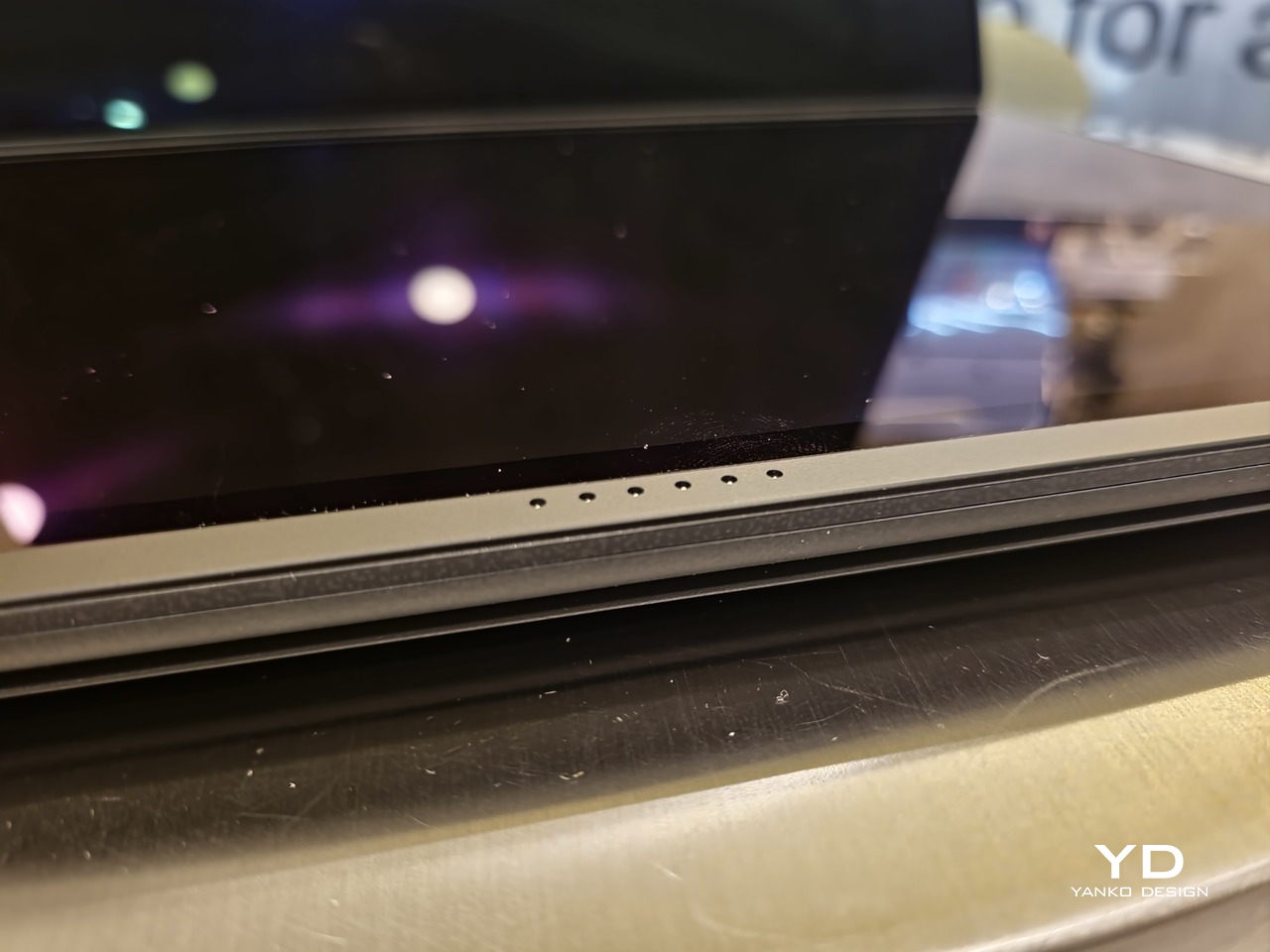
As for the detachable keyboard, it magnetically snaps into place, with retracting pogo pins creating a more stable connection than Bluetooth, though that is the only way to use it when it’s detached. That said, there are no notches or protrusions along the edges of the keyboard, so prying it away from that strong magnetic hold can take a bit of work. The keyboard charges when it’s lying on the laptop, but it can also be charged separately via USB-C. Key travel is decent, but the keys themselves feel a bit squishy. The large trackpad is sensitive, but the hydrophobic coating gives it too much resistance when gliding your finger across it.

The combination of the more power-smart Intel Panther Lake processor and the 99Wh battery tucked inside gives the ASUS Zenbook DUO (UX8407) quite a long uptime, even with both screens enabled. Even a battery of benchmarks and hours of typing and browsing has left a good 12% of battery left, rounding up to a little over 15 hours of use, just a little below ASUS’s advertised 18 hours (with two screens). The included 100W USB-C charging brick helps mitigate the battery loss, and the fact that you can easily use power banks to top up on the go makes the battery narrative even more compelling.

Sustainability

ASUS didn’t use to speak much about the sustainability of its laptops, but that has changed in recent years. The invention of Ceraluminum adds another level to that story, though a bit indirectly. In a nutshell, the material is meant to increase the durability and longevity of the product by protecting it from small accidents. Whether the ZenBook DUO uses sustainable materials, or at least what percentage of it does, isn’t public information.

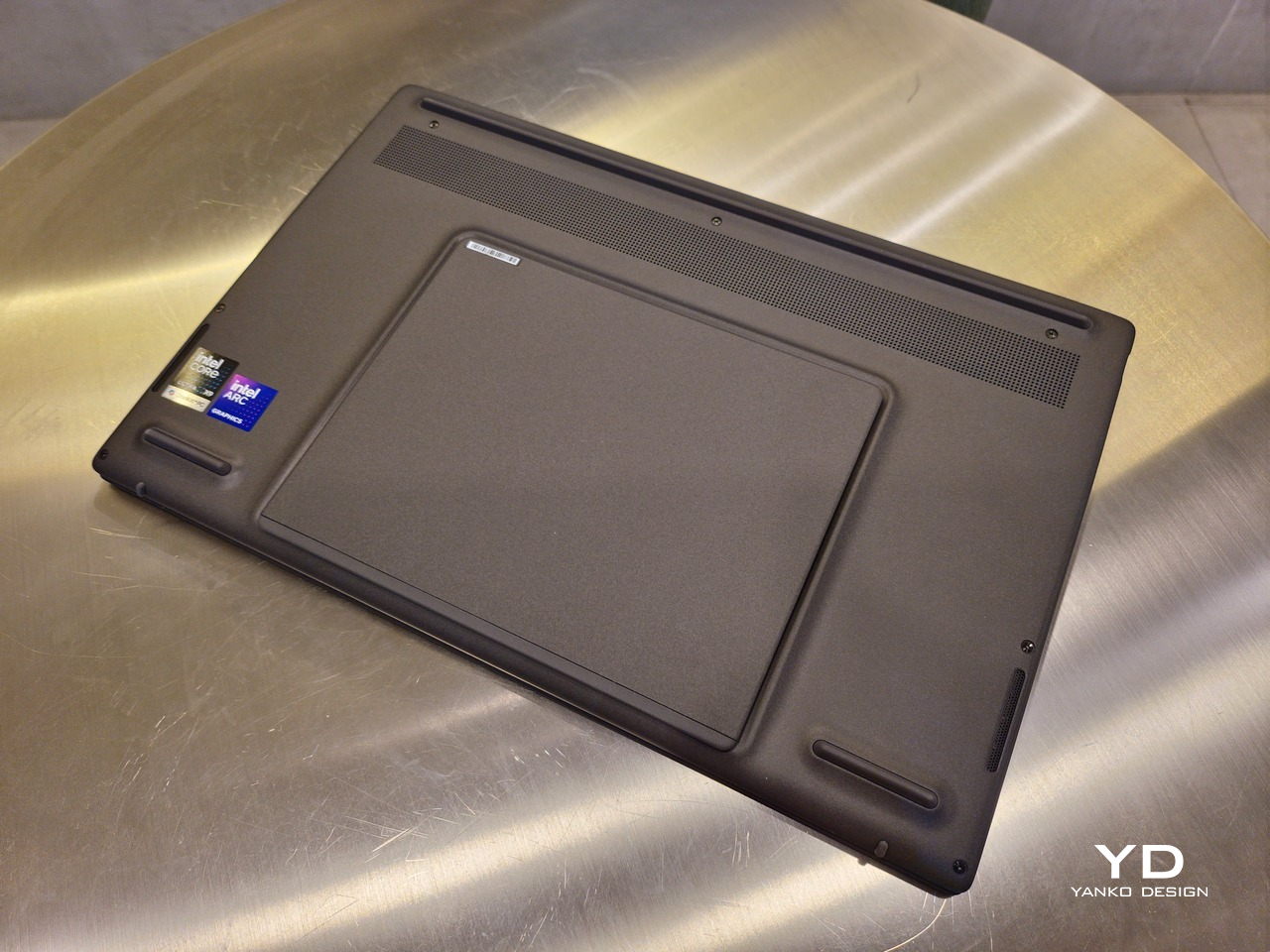
That longevity, however, is also affected by how much you can upgrade or even repair the laptop. Given how unconventional its design is, it’s really no surprise that there isn’t much here in the way of upgrade options. You do have easy access to the SSD underneath the kickstand. The Zenbook DUO (2026) can support up to 2TB with a full-sized M.2 SSD. The 32GB RAM, however, is soldered down.

Value

The ASUS Zenbook DUO (UX8407) is a laptop on a mission. It is, in a nutshell, designed for people who thrive and need multi-tasking capabilities that they could only enjoy while chained to their desk (or awkwardly carrying a portable monitor). That actually covers a wide range of professions and industries, including creators, designers, office workers, executives, and, yes, gamers. In that sense, there can probably be no better tool for them than this.

In both performance and flexibility, the 2026 Zenbook DUO offers users the power they need, as they need it. Cramped for space on a plane? Just use it as a single-screen laptop, and no one will be the wiser. Need to collaborate with a team? Lay it out flat on the desk to give everyone the same perspective. Need to reference documents as you write? The book-like desktop mode has you covered.

That said, it’s definitely far from perfect. For a laptop aimed at creatives and professionals, the absence of a built-in SD card reader seems pretty odd. And then there’s the $2,699.99 price for the configuration that has the impressive Intel Arc graphics. That puts it way above most 14-inch ultra-thin laptops and in the range of gaming laptops. But then again, none of those have two 14-inch screens, either.

Verdict

Laptops with foldable screens admittedly look fancy and impressive. The big OEMs, including ASUS, are still playing around to find the formula that will finally make it feel more than just a fancy and expensive experiment. In the meantime, however, people need to get work done, and when it comes to that, nothing really beats using more than two screens.

You could always carry a portable screen along with your laptop, which is awkward, cumbersome, and inefficient, or you could grab the ASUS Zenbook DUO (UX8407). With an improved hinge, beautiful co-equal 14-inch displays, and an Intel Panther Lake processor that can handle almost anything you throw at it, the dual-screen laptop lets you choose the way you want or need to work. And it looks stylish to boot in any form, making sure you’ll be the envy of everyone in the coffee shop.

The post ASUS Zenbook DUO (2026) Review: One Laptop, Two Screens, All Business first appeared on Yanko Design.
  •  
❌