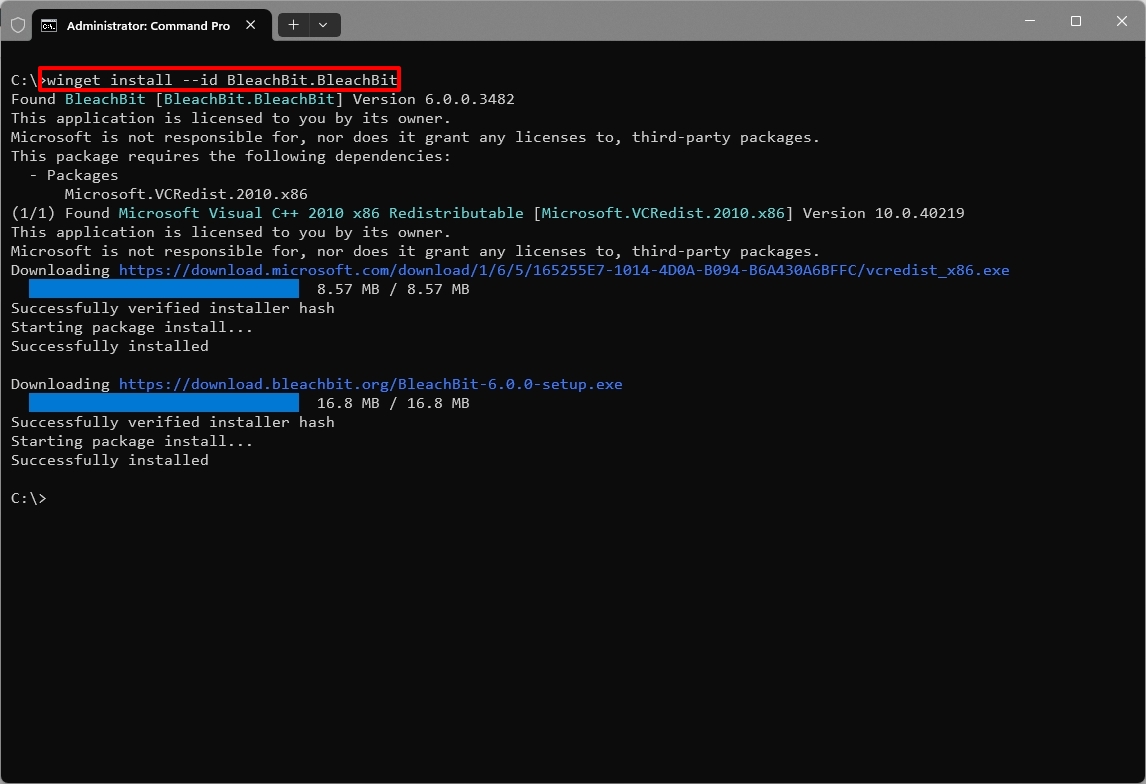
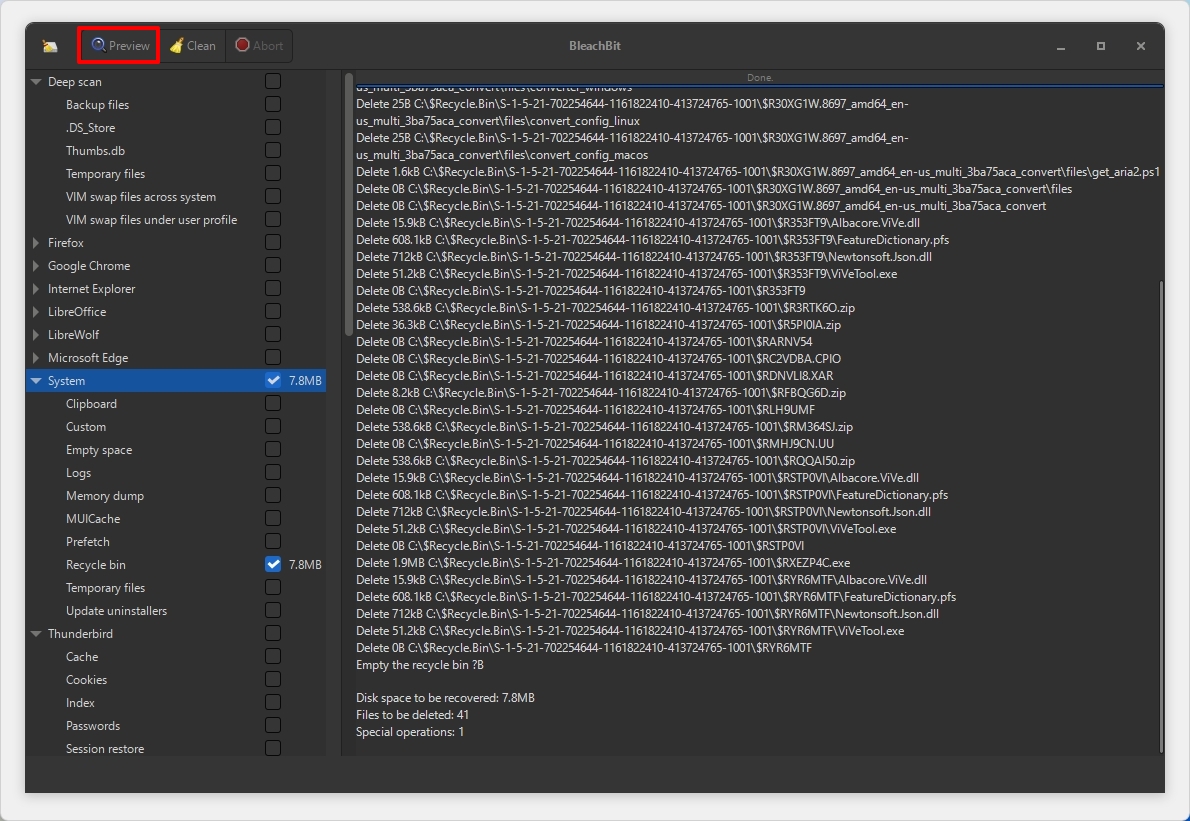
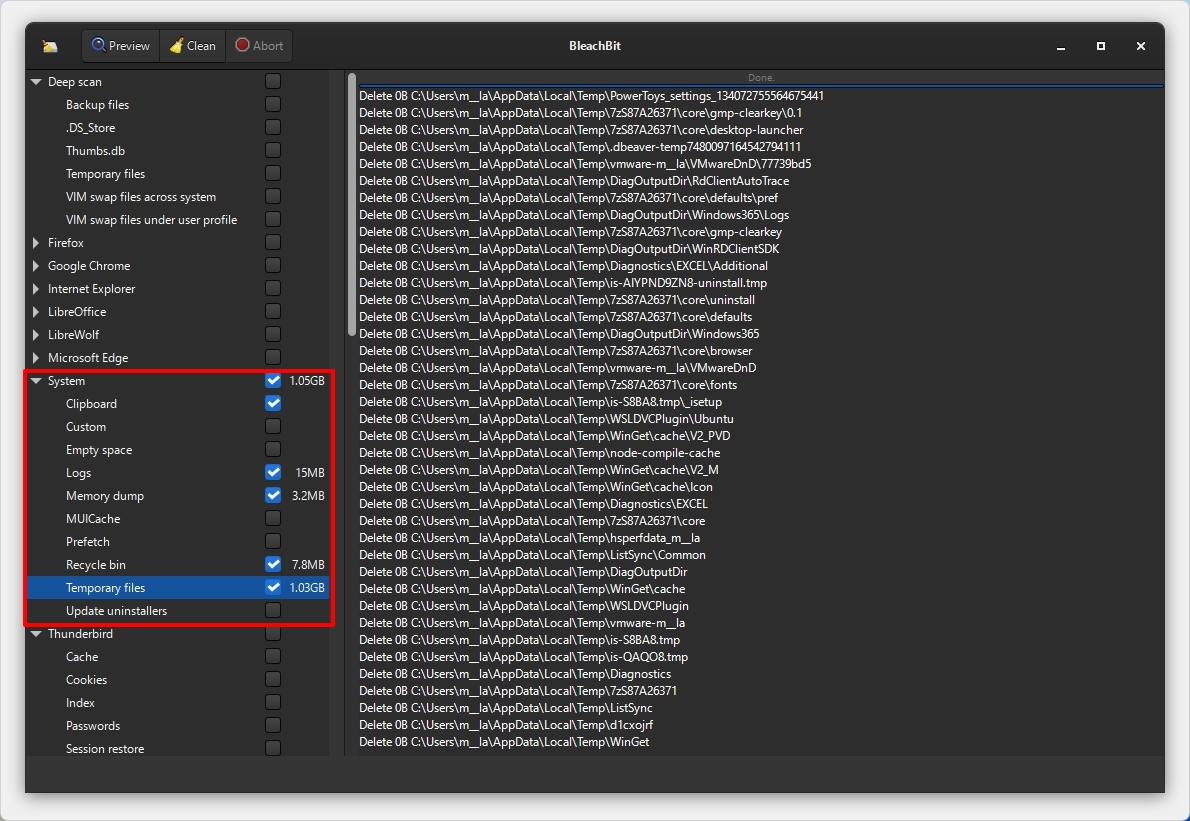
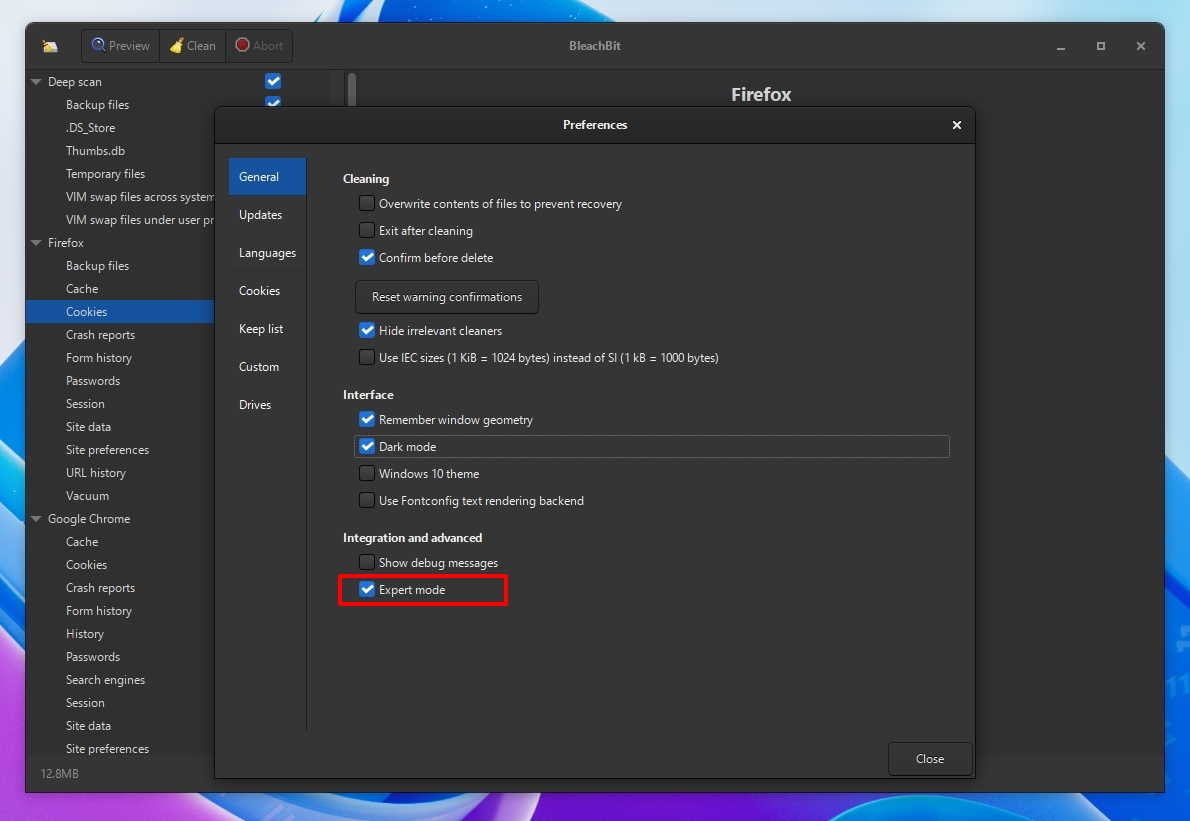
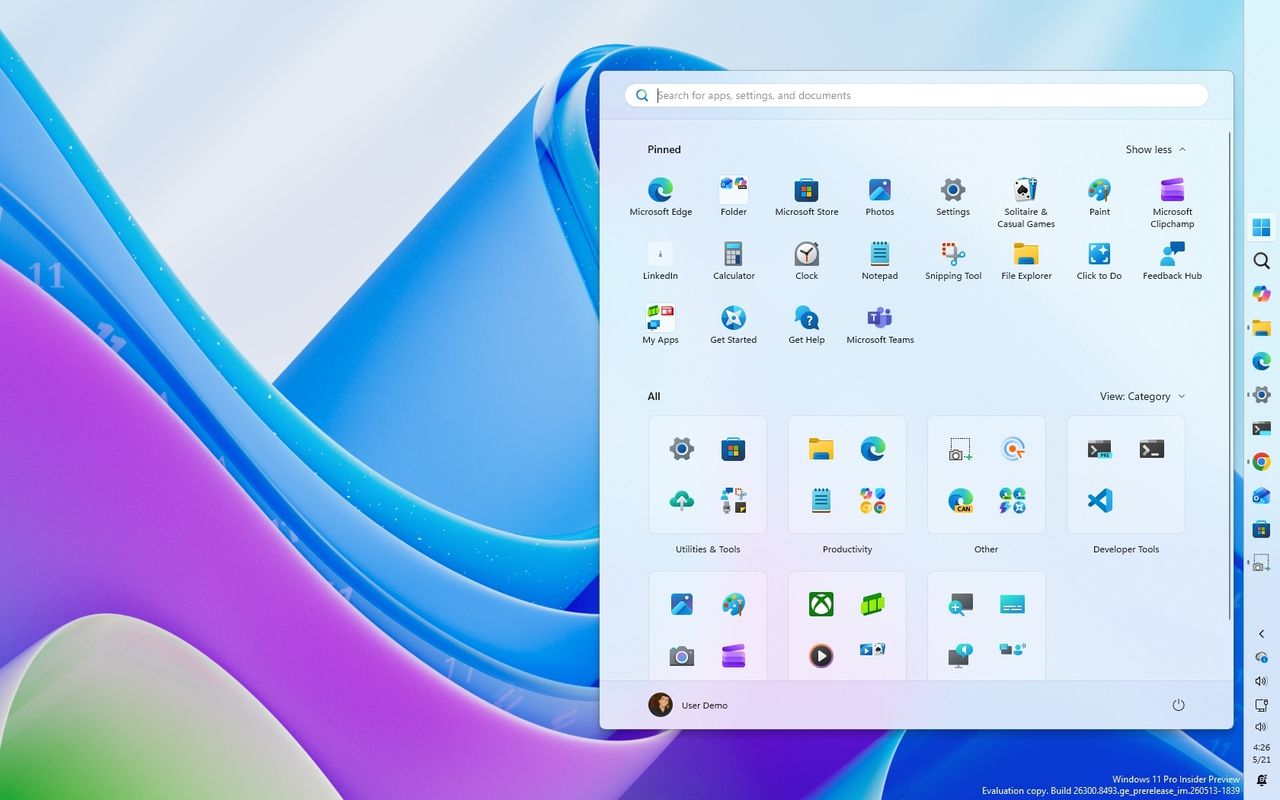
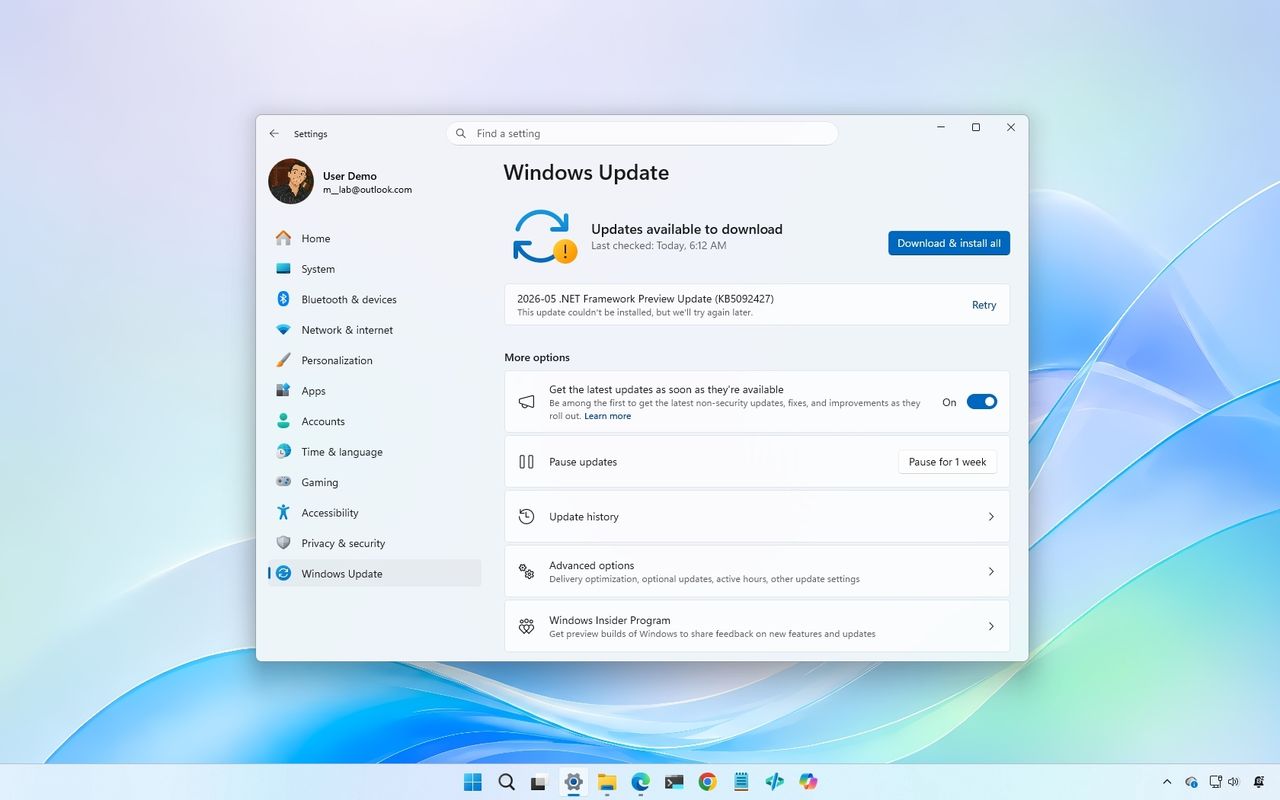
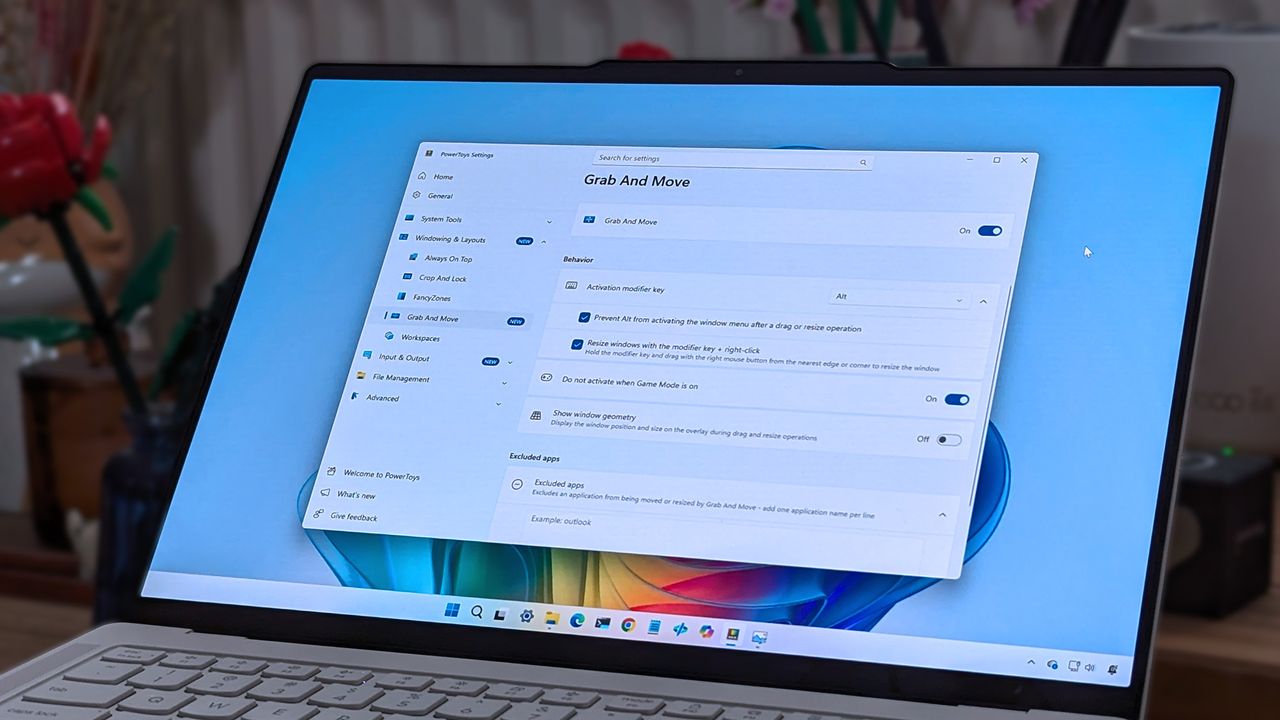
Microsoft is finally paying more attention to some of the oldest parts of Windows 11, and I hope it doesn't stop with the obvious ones.
For years, the operating system has had a strange split personality. Some parts of the system look and feel as if they were designed specifically for Windows 11, while others still feel like they were carried over from much older versions. But that's slowly starting to change.
Microsoft has been modernizing parts of Windows 11 for years, gradually updating interfaces that have remained largely unchanged. We've seen this work arriving in the Run dialog, Task Manager, shell controls, parts of File Explorer, and many other areas. Recently, however, Microsoft has been talking more openly about the challenges of modernizing deeply embedded components and developing the tools and frameworks needed to make that work easier without breaking the functionality people still depend on.
That's encouraging because I don't think the operating system needs another redesign just for a new coat of paint. There are much more important parts that deserve Microsoft's attention.
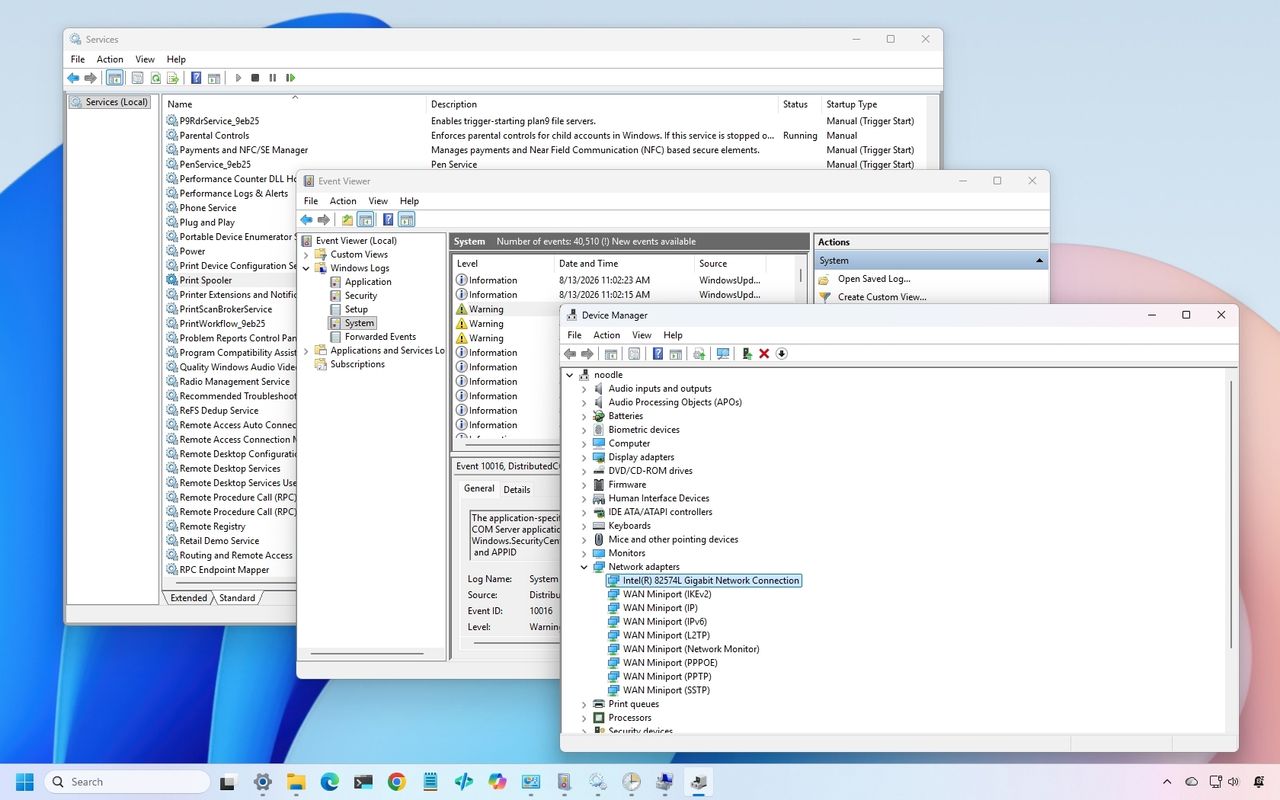
In particular, there are three classic tools I would like to see Microsoft modernize next, including Device Manager, Event Viewer, and Services.
And when the company eventually gets to work on these tools, I don't want "cheap" replacements that hide the advanced options. I want modern designs that preserve everything the existing tools can do while making them considerably easier to use.
In this guide, I'll highlight the legacy tools I want the company to update with a design that aligns with the style of Windows 11.
1. Device Manager
Device Manager is probably the most obvious place for Microsoft to continue.
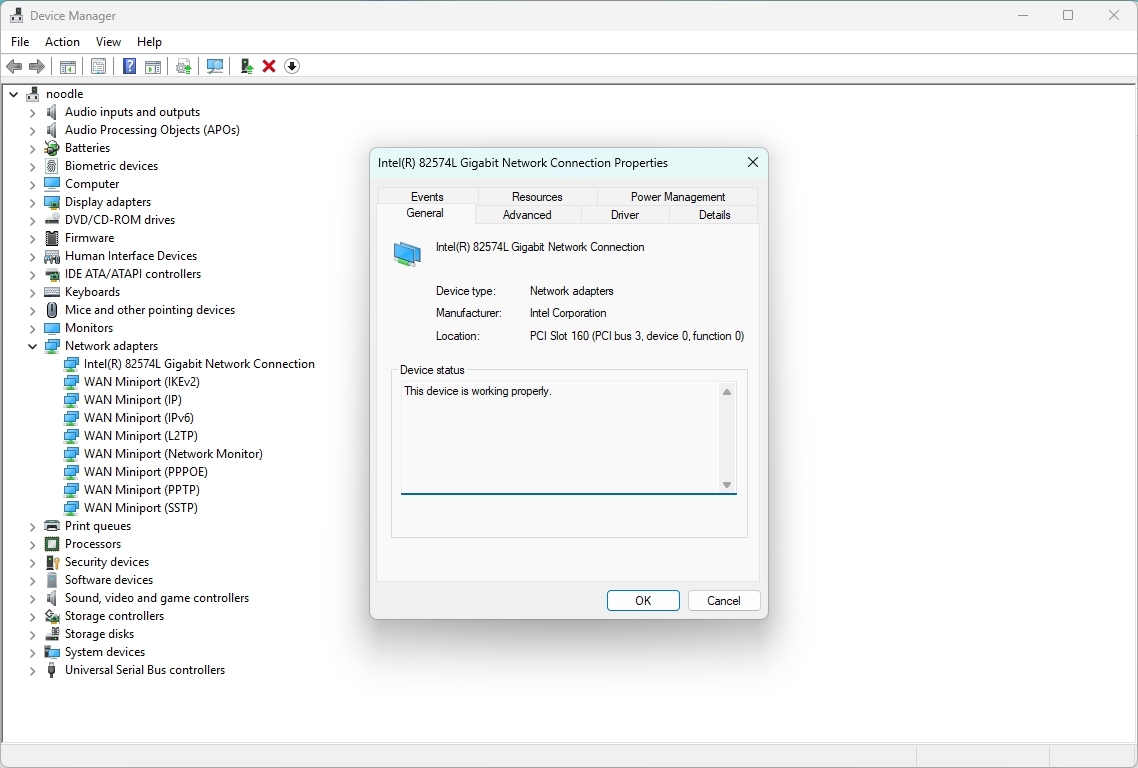
It remains one of the first places I go when troubleshooting hardware or driver problems. Yet the experience has barely evolved compared with the rest of the system.
(Image credit: Mauro Huculak)
The basic workflow still revolves around expanding a tree of hardware categories, right-clicking a device, opening properties, and digging through a collection of tabs.
It works, but it doesn't feel like a modern tool a regular user would use. Microsoft could turn Device Manager into a much more useful hardware management experience without removing any of its existing capabilities.
I would like to see a modern hardware manager with a proper search box, better filtering, and a more useful device overview.
For example, selecting a graphics card could immediately show the device name and manufacturer, the current driver version and date, and the device state, in addition to options to roll back, uninstall the device, and enable controls.
The important part is that Microsoft shouldn't simply move the existing tree into a prettier WinUI 3 window.
It should rethink how the information is presented. If the system knows a device isn't working correctly, I shouldn't have to hunt through several tabs to find out. The interface should tell me.
Something as simple as a clear status indicator saying "This device is working normally" or "Windows detected a problem with this device" would make the tool considerably more approachable.
At the same time, the company should retain the advanced information that administrators and enthusiasts rely on.
2. Event Viewer
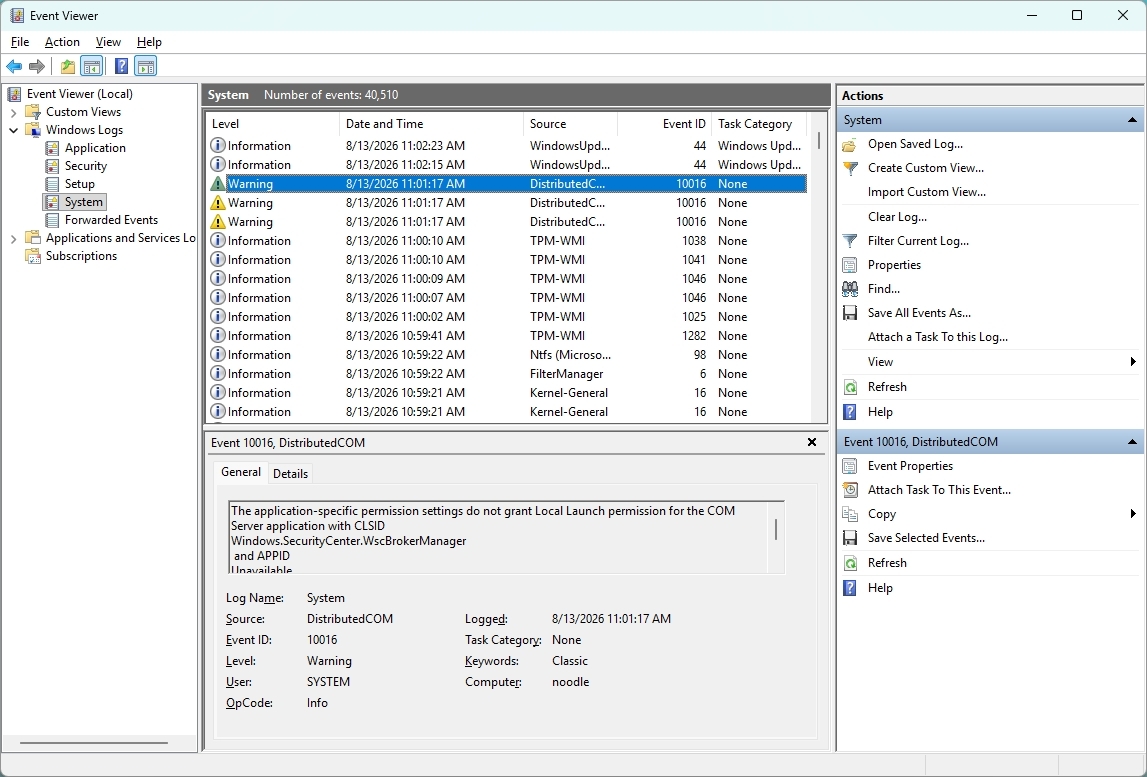
Event Viewer is one of those tools that has plenty of useful information, but finding the information you actually need can be difficult, especially for someone who doesn't use the tool every day.
(Image credit: Mauro Huculak)
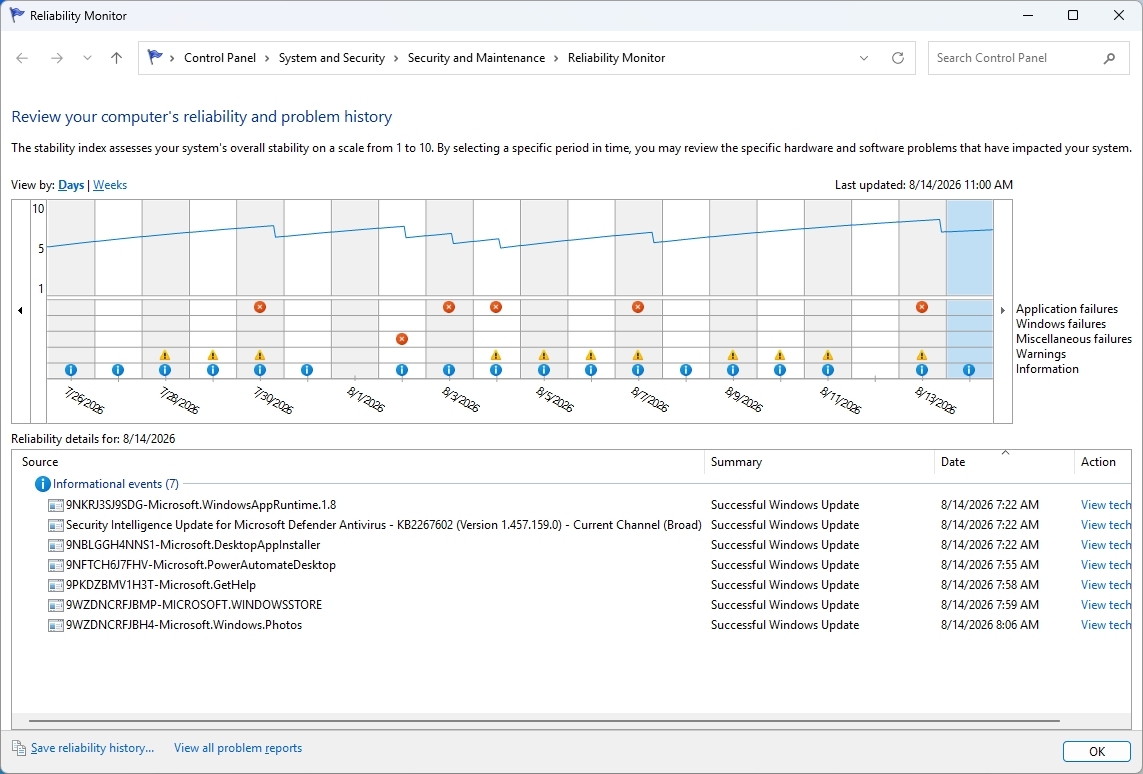
The bigger problem is that Microsoft already has a better way to understand system problems. Reliability Monitor. It gives you a timeline of crashes, warnings, and other problems, making it much easier to see when something went wrong. However, when you need more details, you're sent back to Event Viewer.
(Image credit: Mauro Huculak)
That's where I think Microsoft could do better. Instead of maintaining separate experiences, the company could combine the best parts of Reliability Monitor and Event Viewer into one modern troubleshooting tool.
For example, I should be able to see a timeline of Windows 11 and app problems, search and filter events, group related events, and quickly identify crashes, driver problems, and service failures.
3. Services
The Services console is another tool I'd like the company to modernize, but not because it lacks information. The existing tool already gives you a lot.
(Image credit: Mauro Huculak)
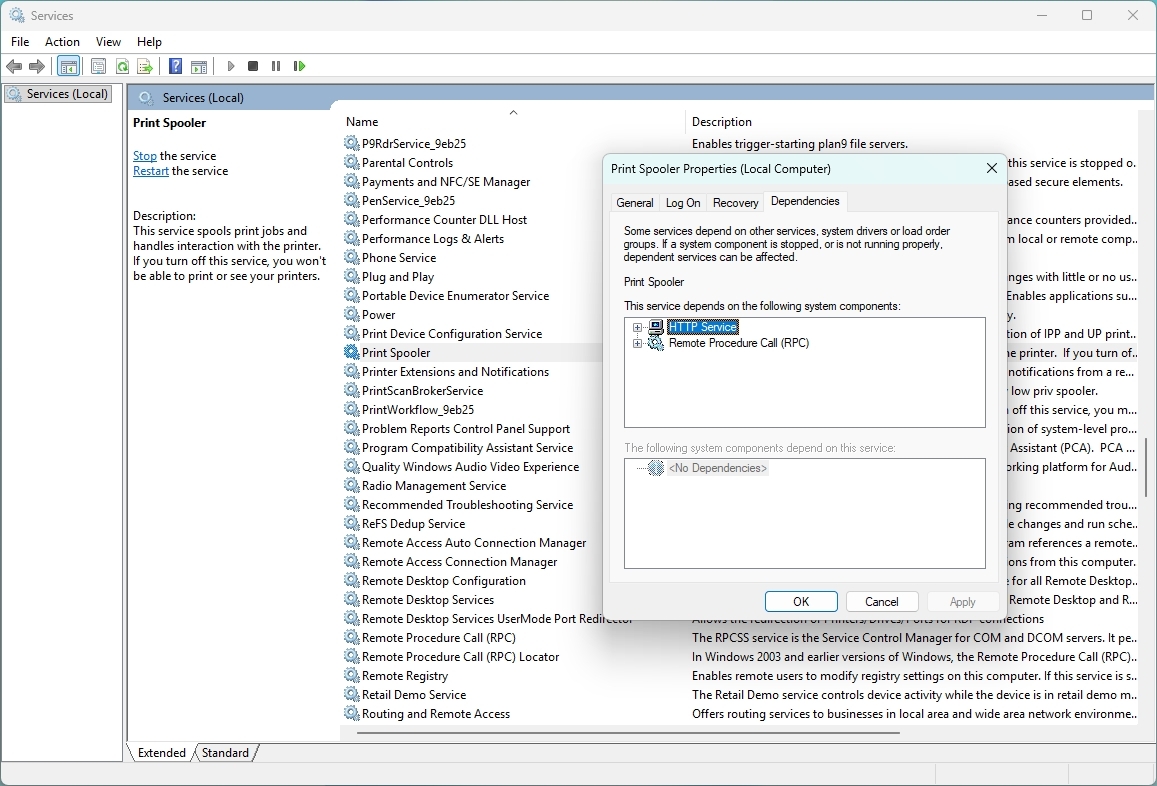
In the Extended view, I can select a service and see its description, while the main list shows its status and startup type. Opening the properties gives me even more options, including dependencies, recovery settings, and the account used to run the service.
The problem is that the overall experience still feels like a management console from another era. For example, search could be one of the new features that should make it possible to search for Windows Update, Bluetooth, networking, or even an executable name and quickly find the related services.
Dependencies could also be easier to understand. The information is already there, but I have to open the properties and look through another tab to see it. A modern interface could show those relationships more clearly.
That would be especially useful when troubleshooting. If one service isn't working because another isn't running, Windows 11 could make that relationship clear instead of leaving me to figure it out myself.
I don't want the company to simplify Services by removing its advanced options. I want it to keep everything that's already there and make the tool easier to search, navigate, and understand.
And then there's Task Scheduler
Task Scheduler is another example in which Microsoft already has many of the pieces I would want in a modern tool.
The Create Basic Task wizard makes creating a simple task relatively straightforward. It walks you through the task's name and description, when it should run, what triggers it, and what action it should perform. The problem comes when you need to go beyond the basics.
The full Task Scheduler interface offers a large number of options across multiple tabs, making it difficult to understand how everything fits together. Triggers, actions, conditions, settings, history, and security options are all there, but the experience hasn't evolved much. And that's where I think Microsoft could make a difference.
In this case, I wouldn't want the company to change those advanced options. Instead, it could build a modern interface around them, making it easier to understand what a task does, why it runs, what it launches, and whether it's working correctly. All, while keeping the existing advanced configuration available when needed.
Again, the functionality isn't necessarily the problem. The experience is.
I'm fine with Microsoft moving Disk Management into the Settings app because it's already heading in that direction with Disks & volumes.
The same applies to Computer Management. I don't think the company needs to create a modern version of the entire console. A lot of the tools inside it already exist separately, including Device Manager, Services, Event Viewer, and Task Scheduler.
The parts that remain particularly useful, such as Shared Folders and Local Users and Groups, could eventually receive their own modern experiences. Or these could become part of the "Accounts" settings.
Microsoft doesn't need to reinvent these tools
I don't expect the software giant to rebuild every classic utility from scratch. I also don't think every legacy tool needs to disappear.
Some of these tools exist because the operating system has accumulated decades of functionality, compatibility requirements, and enterprise dependencies. Microsoft has already acknowledged that replacing deeply integrated components isn't as simple as building a new interface and deleting the old one because of functionality and compatibility.
That's why I like the direction Microsoft appears to be taking. The company recently indicated that it is looking to modernize the Registry Editor, one of the oldest and most recognizable administrative tools in the operating system. At the same time, the company has already been experimenting with a new Print Management app inside Windows 11 Insider builds, showing that some of these long-standing management experiences can be replaced with dedicated modern apps rather than simply being given a new coat of paint.
Microsoft doesn't need to modernize the operating system by throwing away everything that came before it. It can take the functionality people already depend on, put it behind a better interface, and gradually roll these experiences into Windows 11.
Device Manager, Event Viewer, and Services would be a very good place to start.
If the company can modernize those tools while preserving the advanced functionality that makes them useful, I'll take that over another visual refresh any day.
Which classic tool do you think Microsoft should modernize next, and what would you change about it? Let me know in the comments.
More resources
Explore more in-depth how-to guides, troubleshooting advice, and essential tips to get the most out of Windows 11 and 10. Start browsing here:
When Microsoft made the launch of Windows 11 back in October 2021, the company touted it as the biggest visual redesign of the operating system in years. The centered Start menu, redesigned Taskbar, rounded corners, and refreshed interface gave the system a cleaner, more modern look while introducing new productivity features like Snap Layouts and a redesigned Microsoft Store.
Although the operating system now looked fresh and modern, the first release left plenty of room for improvement. A lot of the features that users were familiar with from Windows 10 were either missing or had been scaled back. File Explorer did not have tabs, the Taskbar lost several customization options, and many advanced settings still sent users to the Control Panel.
Furthermore, even the new right-click menu could make simple tasks take an extra step. Also, adding to the mix were some early performance problems and a mix of new and old interfaces, and Windows 11 often felt like an operating system that was still being put together.
Five years later, the operating system has evolved considerably. Microsoft has delivered annual feature updates, dozens of cumulative updates, thousands of bug fixes, and an expanding set of AI-powered capabilities. Along the way, the company has restored requested features, improved performance, modernized more of the interface, and refined many of the areas that drew criticism at launch.
That doesn't necessarily mean every change has been for the better. While the operating system has become faster, more capable, and more polished, Microsoft has also introduced new requirements and experiences that some users view as steps backward, such as a greater emphasis on Microsoft accounts and online services during setup.
So, how different is Windows 11 today compared to the version that debuted in 2021?
In this guide, I'll compare the two side by side to see how much the operating system has really changed over the past five years.
This comparison includes features and changes that Microsoft is still rolling out or developing at the time of this writing. Some features may not yet be available on all devices and could change before they become generally available in future Windows 11 updates.
Windows 11 first impressions
The desktop is probably the easiest place to see how the operating system has changed. When Microsoft introduced Windows 11, it brought a new visual style with rounded corners, updated icons, a centered Taskbar, and a simpler overall look. It was a noticeable change from its predecessor, but some parts of the experience still felt unfinished behind the new design.
Five years later, the desktop remains instantly recognizable, yet it feels far more polished. The software giant has refined the Taskbar, improved the Start menu, modernized more system components, and added new AI-powered experiences, all while making the operating system faster and more consistent.
The transformation isn't defined by a single feature. Instead, it's the result of hundreds of incremental improvements that have gradually turned Windows 11 into a more complete operating system.
In 2026, at first glance, Windows 11 still retains the familiarity of the version released back in 2021. You can see this in the centered Taskbar, rounded corners, and overall design are still there. However, you can notice the changes once you start using it.
The company has also brought back features that were missing at launch, added new options, and made many everyday tasks feel quicker and easier.
Start menu: From basic to more flexible
On Windows 11, the Start menu was one of the most controversial redesigns. In this new version, Microsoft replaced the Live Tiles with a simpler launcher focused on pinned apps and recommended content.
Although the cleaner look matched the new design language, it also removed many of the customization options users had relied on.
Windows 11 (2021)
The original Start menu prioritized simplicity over customization. It introduced a centered layout with pinned apps and recommendations. However, users couldn't resize the menu, hide recommendations completely, or organize the elements as freely as they could on Windows 10.
For many people, it felt more like an app launcher than the central hub users were accustomed to.
Windows 11 (2026)
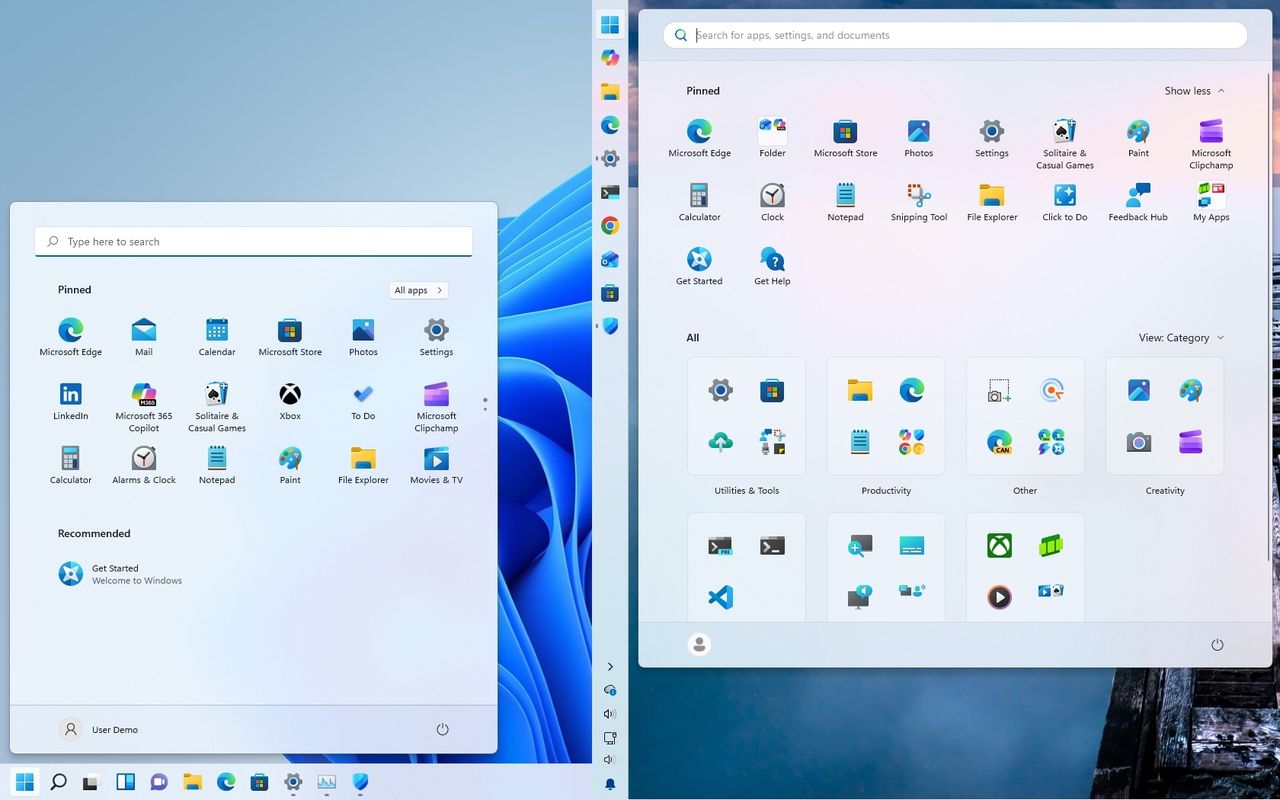
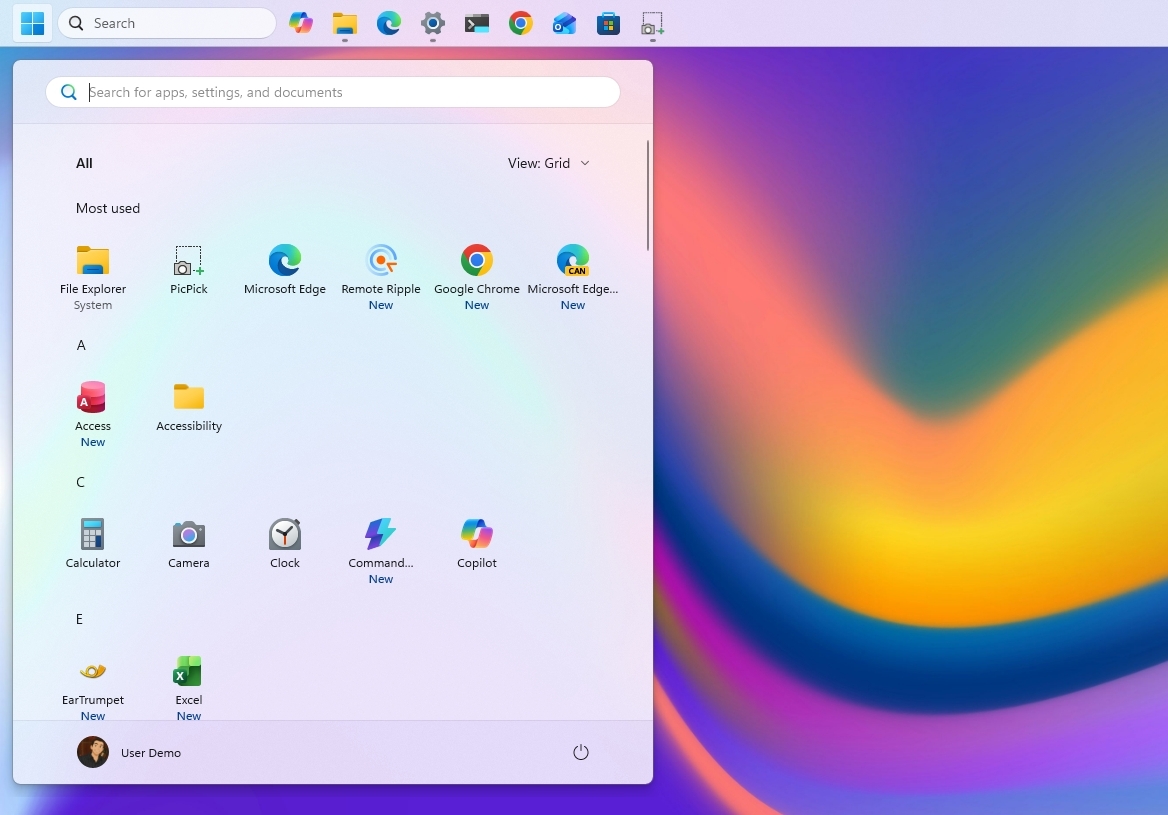
Today, the Start menu keeps the same visual identity but offers considerably more control. Microsoft has added Small, Large, and Automatic size options, giving users more control over how much space the menu takes up. The company has also improved the organization of pinned and recent content and added more controls for customizing what appears in the menu.
Although it still doesn't replicate the Start menu from Windows 10, the newer design strikes a better balance between simplicity and flexibility.
Taskbar: It had to be rebuilt
The Taskbar quickly became one of the biggest complaints about Windows 11. Although Microsoft modernized its appearance with centered icons and a simplified design, it also removed several long-standing features that many users considered essential.
Windows 11 (2021)
The first version of the Taskbar focused on a cleaner interface but came with significant compromises. For example, features such as drag and drop, app labels, and the never combine option were removed, the right-click menu was reduced to a single shortcut, and the Taskbar could no longer be moved to other edges of the screen.
While the redesign looked modern, it also disrupted the familiar workflows.
Windows 11 (2026)
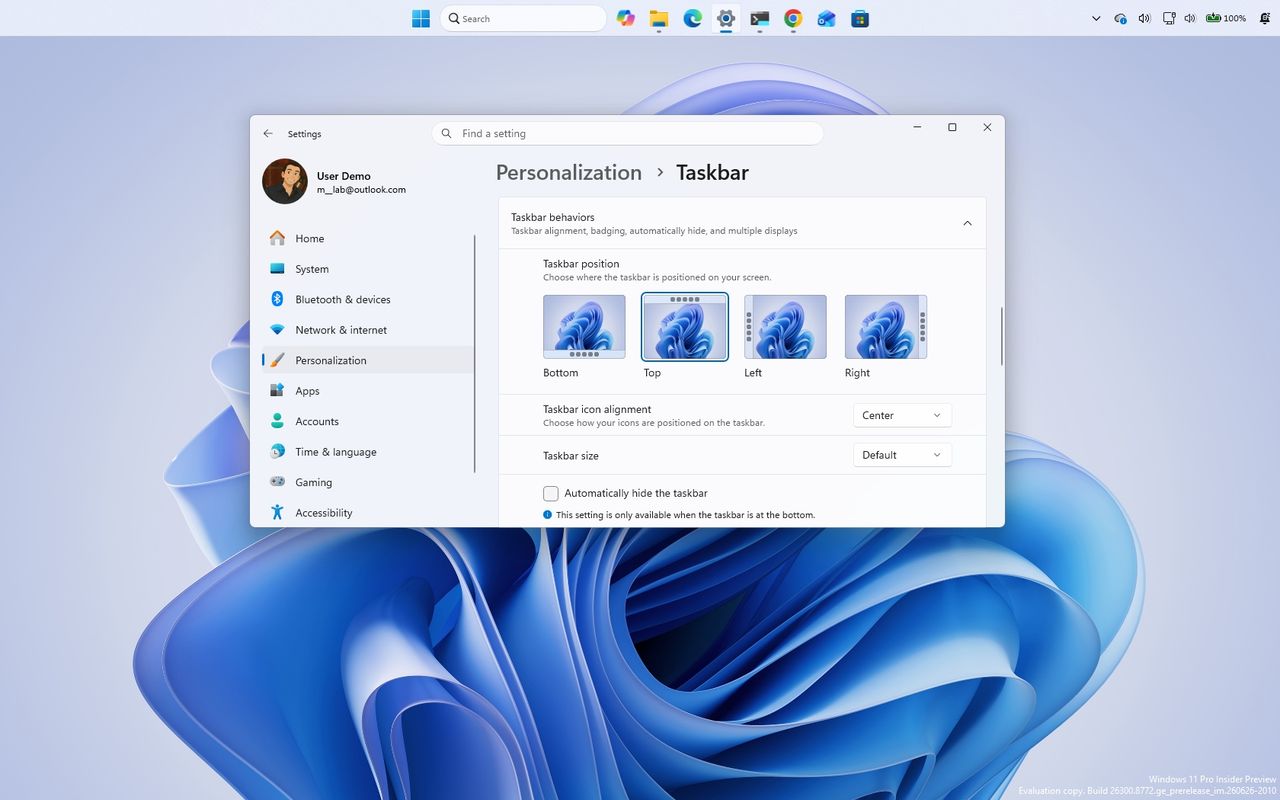
Microsoft spent the following years restoring many of the missing capabilities and adding more control. Also, the drag-and-drop support was added back, app labels and never combine became available again, and the system tray gained additional refinements and customization options. Microsoft has also brought back the ability to change the Taskbar's position, allowing it to be placed at the top, left, or right of the screen.
The Taskbar still follows the same basic visual design introduced in 2021, but it is now far more practical and customizable for everyday use.
File Explorer: From missing essentials to modern
File Explorer is one of the examples that shows how the operating system matured over the years. The version of the file manager introduced a modern interface with new icons and a simplified command bar, but many of the productivity features users expected were still missing. It looked modern, yet much of the experience remained familiar.
Since then, Microsoft has expanded File Explorer with features that make everyday file management more useful. The company added tabs, Gallery, better cloud integration, improved thumbnails, and several smaller changes that make browsing and managing files easier.
Windows 11 (2021)
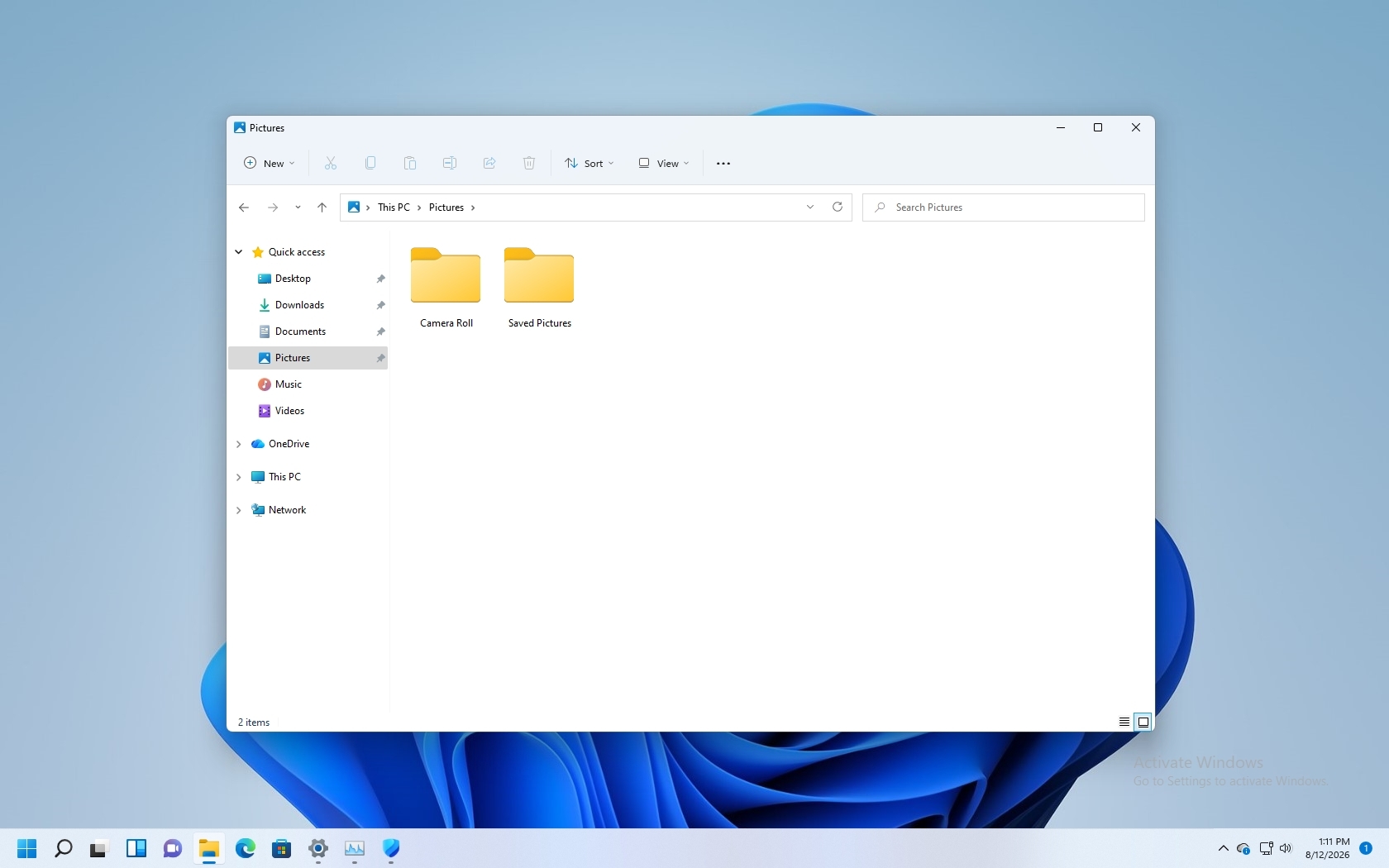
At launch, File Explorer received one of the first major visual updates in years. Microsoft replaced the traditional Ribbon interface with a cleaner command bar, updated icons, and a simplified design that matched the rest of the operating system.
(Image credit: Mauro Huculak)
However, the redesign was mostly cosmetic. A lot of the improvements users had been requesting were still missing. File Explorer launched without tabs, navigation between folders could feel slower than expected, and the redesigned context menu often required an extra step to access older commands. The experience looked more modern, but it still felt like a transition between the old and new versions of Windows.
For many users, File Explorer represented the broader Windows 11 launch experience. It had a refreshed appearance, but it still needed more time to mature.
Windows 11 (2026)
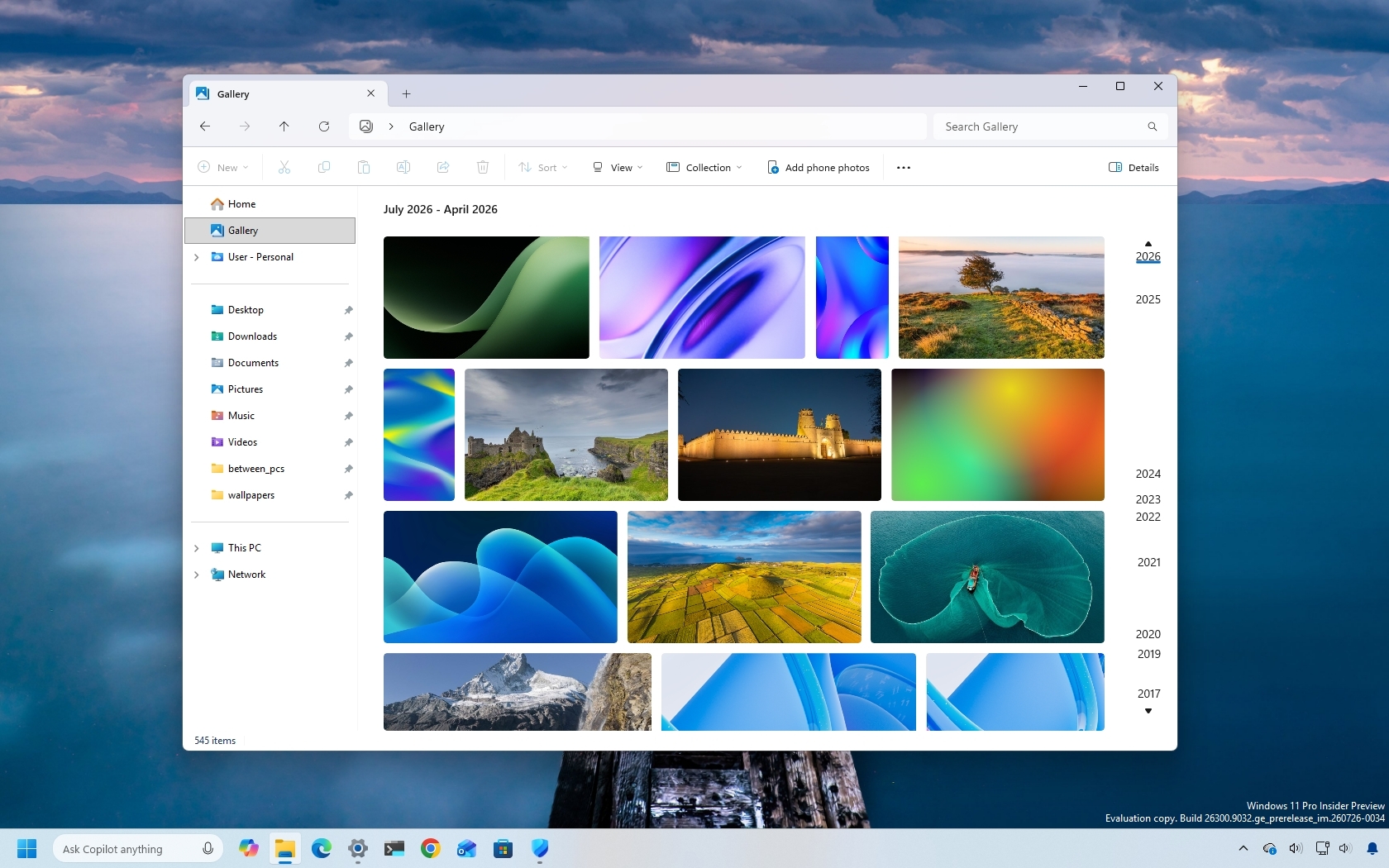
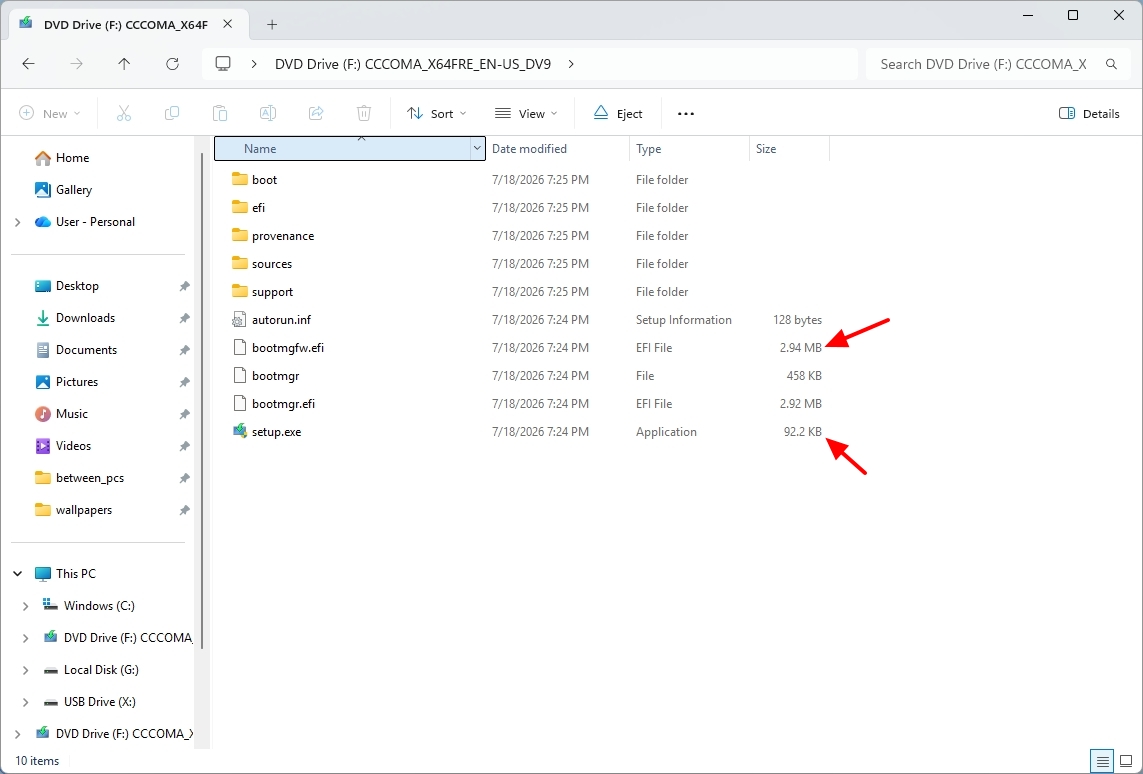
Five years later, File Explorer has become one of the strongest examples of Microsoft's gradual modernization effort. The company has added tabs, Gallery, a redesigned Home experience, improved thumbnails, better cloud integration, and clearer file-size information. Users can also middle-click to open folders in new tabs, making navigation more convenient.
(Image credit: Mauro Huculak)
Performance has also become a major focus. Everyday tasks such as opening folders, switching between tabs, loading previews, and searching through files feel more responsive compared with the original release.
While some legacy elements remain, File Explorer on Windows 11 (2026) feels much closer to the modern file manager Microsoft has been building toward. It keeps the familiar workflow while adding many of the productivity features users had expected for years.
Settings: The long transition
The Settings app has been one of the longest-running modernization projects for the company. When the new version of the operating system launched, Microsoft continued moving options away from the traditional Control Panel and into a redesigned Settings experience. However, the transition was far from complete.
The experience for configuring the system was inconsistent because some settings felt modern and easy to navigate, while others still redirected users to older interfaces. Five years later, Microsoft has continued expanding Settings, adding more controls, improving navigation, and reducing the number of times users need to open legacy tools.
Windows 11 (2021)
Originally, the Settings app received a refreshed design with a new navigation layout, updated pages, and a cleaner interface that matched the operating system's visual changes.
However, the modernization was far from complete. A lot of advanced options still opened Control Panel or older dialog boxes, creating an inconsistent experience. Finding specific options could also be frustrating because some controls were organized differently compared to Windows 10.
The Settings app represented one of the biggest challenges Microsoft faced with Windows 11. The company wanted to create a modern management experience, but decades of legacy components made a complete transition difficult.
Windows 11 (2026)
Five years later, the Settings app has become a much more capable replacement for many traditional Control Panel experiences. Microsoft has continued moving features into Settings, improved search, reorganized pages, and added more controls for managing devices, personalization, accounts, and system features.
The experience is more consistent than it was at launch, especially for everyday tasks such as managing displays, Bluetooth devices, power settings, personalization, and Windows Update.
However, the transition is still not fully complete. For instance, some advanced tools and legacy configuration pages still exist, and that shows that modernizing the operating system is a gradual process that must also maintain compatibility with older features and apps.
Productivity: Smarter Search, multitasking, and Widgets
One of the goals with the release of Windows 11 was to make everyday tasks easier, whether users were looking for files, managing multiple apps, or getting information without opening additional apps. At launch, the operating system introduced features such as Snap Layouts and Widgets, while Windows Search continued the experience users already knew on Windows 10.
However, many of these features were still in their early stages. Search relied mostly on keywords, Snap Layouts offered useful but limited window management, and Widgets focused heavily on news and Microsoft services.
Today, these experiences have improved considerably. Microsoft has expanded Search, refined multitasking tools, and added more controls to Widgets. Together, these changes show how Windows 11 has developed beyond its original desktop redesign.
Windows 11 (2021)
In the original release, Microsoft introduced several features designed to improve productivity, but many were still in their early stages.
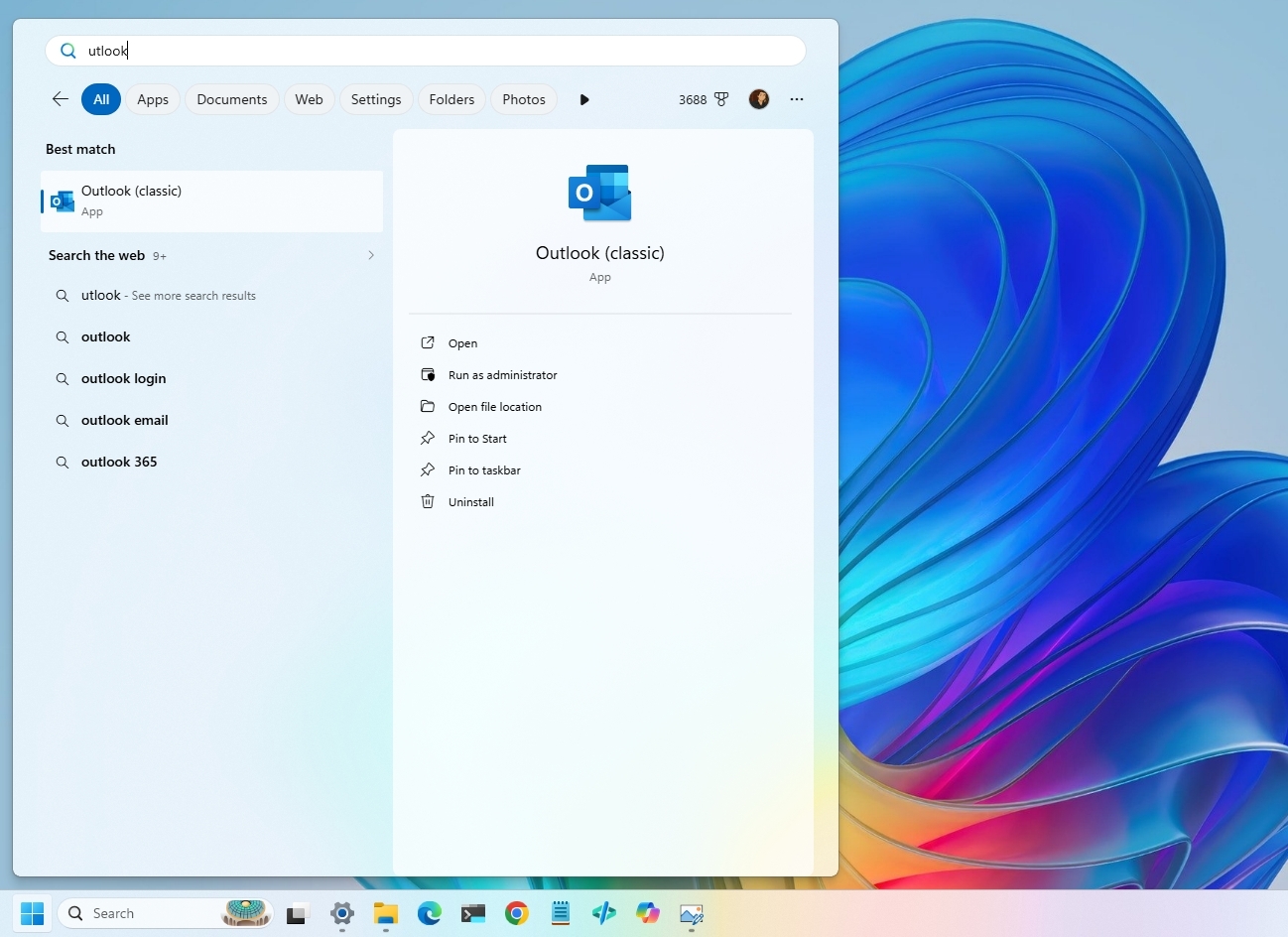
Windows Search provided a familiar way to find apps, settings, and files, but it relied mainly on traditional keyword matching and could sometimes struggle to return useful results quickly.
(Image credit: Mauro Huculak)
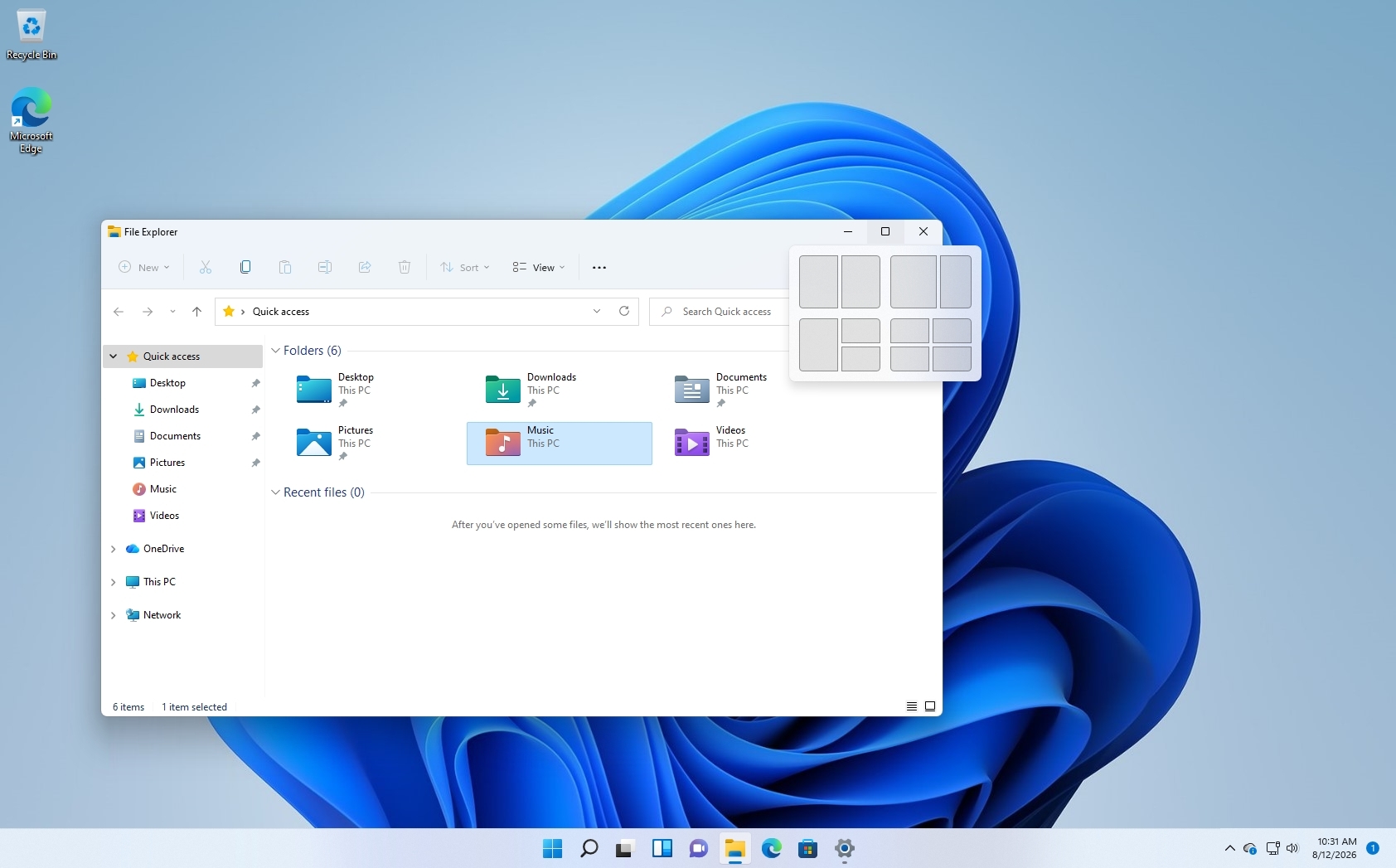
Snap Layouts was one of the more useful additions, giving users predefined window arrangements that made multitasking easier. However, the feature offered fewer layout options and less flexibility than the experience available today.
(Image credit: Mauro Huculak)
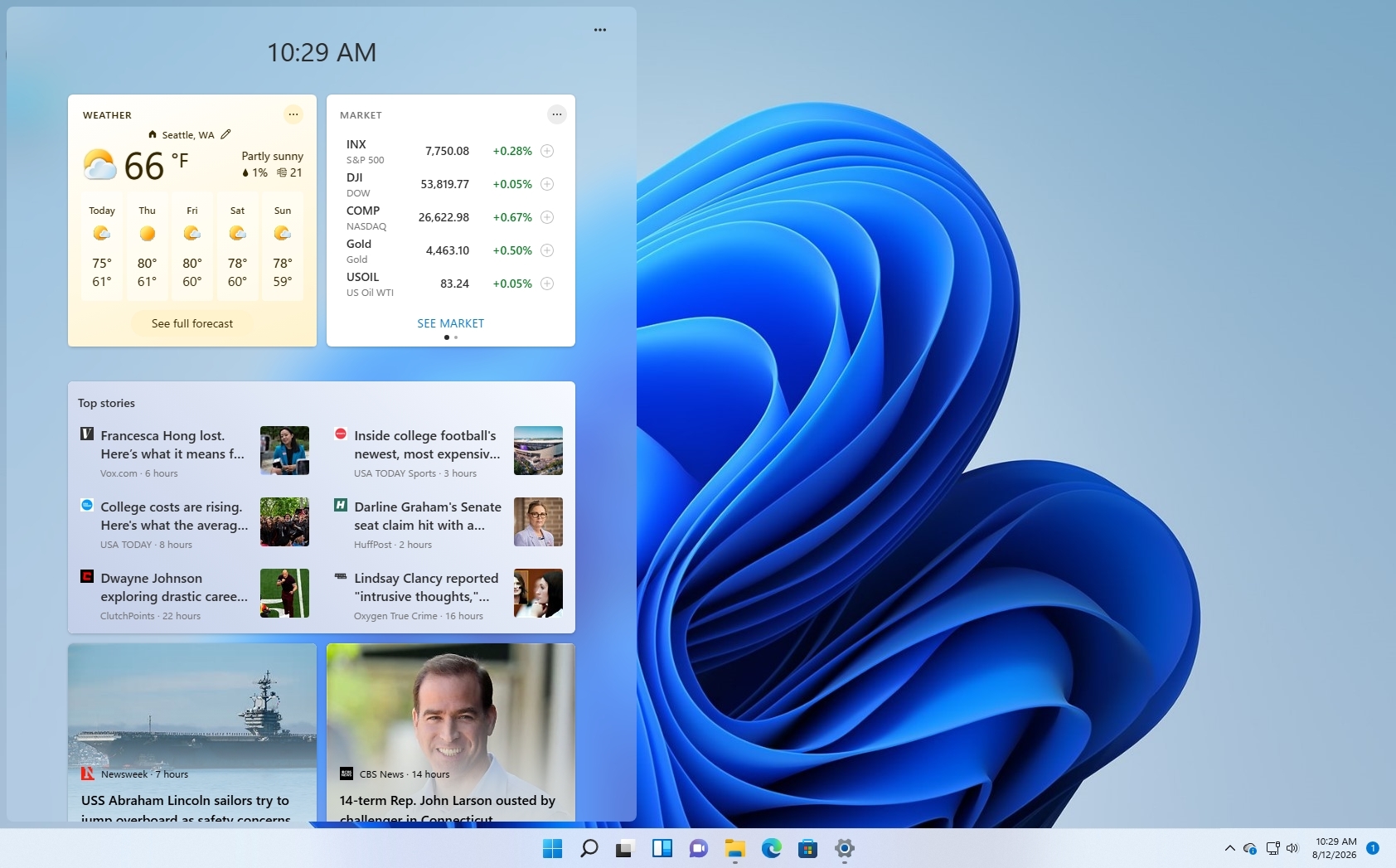
Widgets introduced a new way to access information from the desktop, but the original implementation focused heavily on news, weather, and Microsoft services. For many users, it felt more like an information panel than a productivity tool.
Windows 11 (2026)
Today, Microsoft has expanded these features and added more ways to get things done.
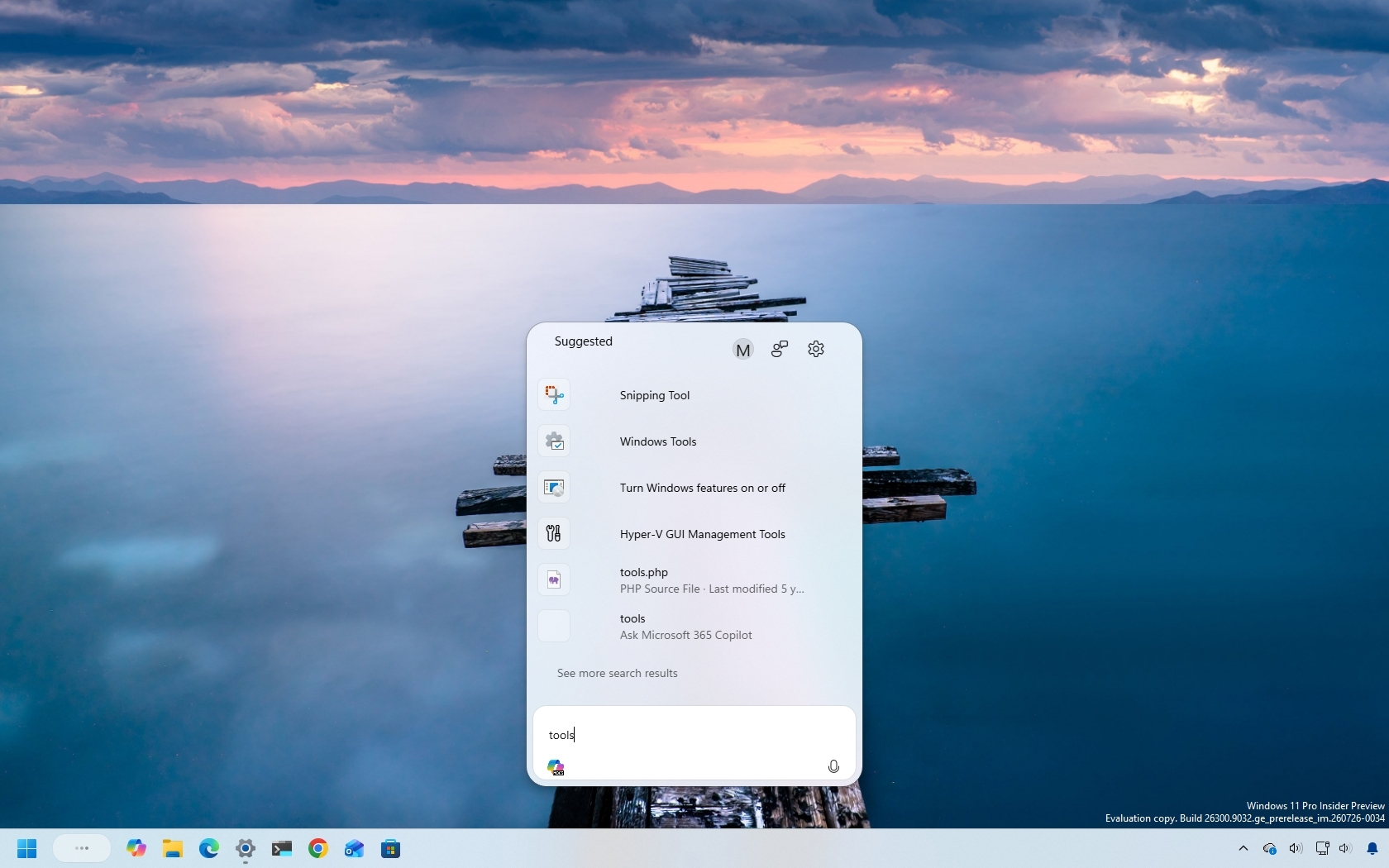
Windows Search now includes improvements such as better indexing, typo correction, improved local results, and AI-powered capabilities on supported devices. Recent updates have also improved how Search handles short queries and understands what users are looking for.
Microsoft has also introduced AI-powered capabilities for finding and changing settings on supported devices, allowing some configurations to be located and applied more easily.
(Image credit: Mauro Huculak)
The company is also working on a new search experience that replaces Windows Search with Ask Copilot in the Taskbar, using AI and natural language to search for files, settings, apps, and virtually anything else.
Snap Layouts has matured with better layout suggestions and improved support for larger displays and multiple monitors, making it easier to arrange several applications.
(Image credit: Mauro Huculak)
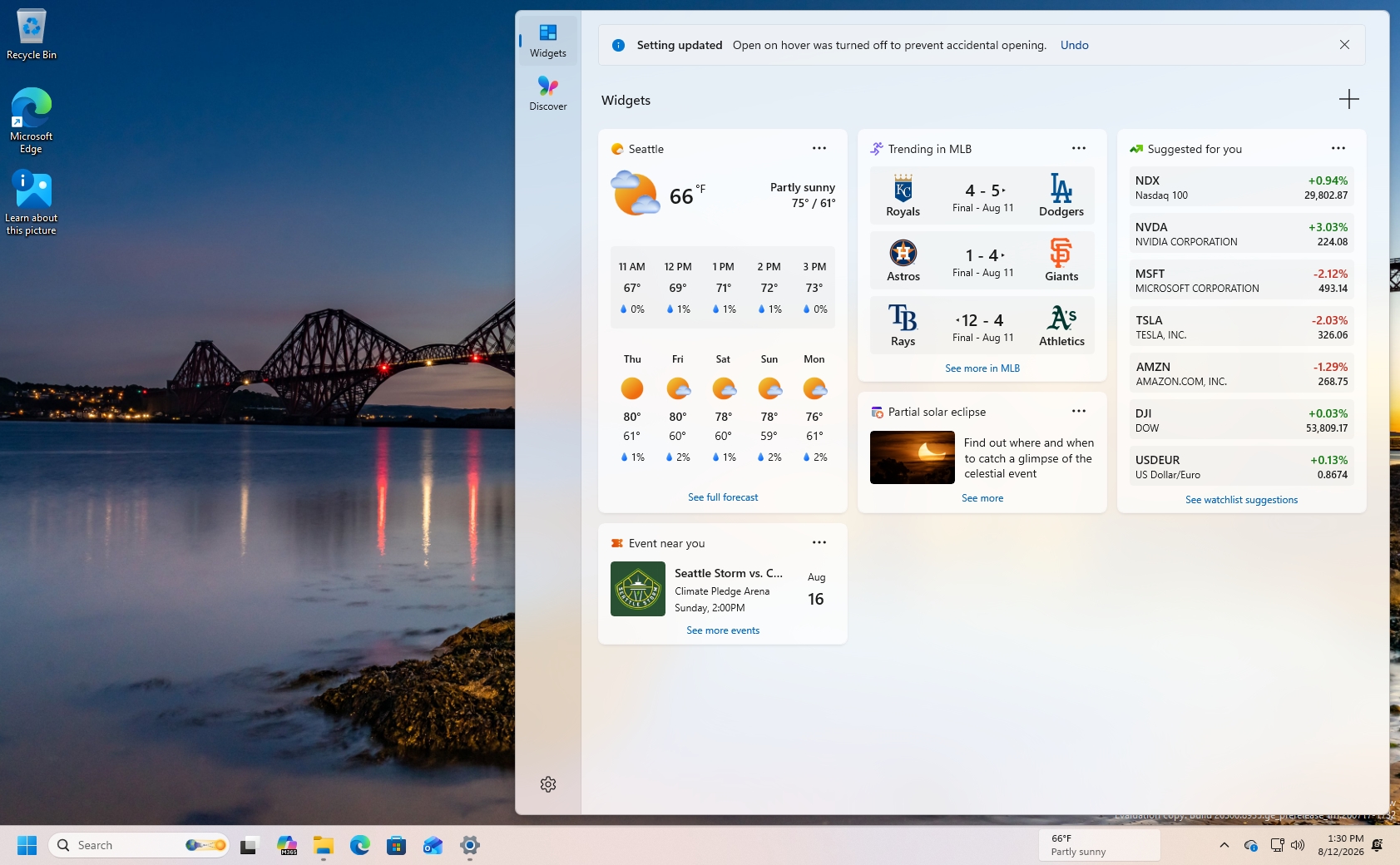
Widgets have also gained more personalization options and additional integrations. While news and information remain part of the experience, users have more control over what appears in the panel.
Copilot and AI: The biggest change?
Microsoft's decision to integrate AI into Windows 11 is perhaps the biggest difference between the 2026 and 2021 versions. When the company introduced the operating system, AI was not part of the desktop experience. The focus was on a redesigned interface, productivity improvements, and a more modern foundation.
Over the following years, the software giant shifted the operating system into a platform powered by AI. Copilot became part of the operating system, new AI features arrived on Copilot+ PCs, and Microsoft began integrating AI into areas such as search, accessibility, creativity, and system interactions.
The change has been significant, but it has also created a new debate around Windows 11. While some users see AI as the next major step for personal computing, many others question whether these features improve everyday tasks or add more complexity.
The comparison below shows how Windows 11 evolved from an operating system without built-in AI experiences into one designed around the company's vision of intelligent computing.
Windows 11 (2021)
Originally, AI was not a central part of the operating system. The experience focused on traditional desktop features.
Windows Search remained a conventional tool based mostly on keywords and indexing. Voice features, accessibility tools, and system assistance existed, but they were not powered by the newer AI capabilities Microsoft would introduce later.
The original Windows 11 experience also lacked dedicated AI hardware features. There were no Copilot+ PCs, no built-in AI assistant integrated into the desktop, and no local AI models designed to run directly on compatible devices.
At the time, Windows 11 represented a visual and usability redesign. AI would become the next major chapter in its evolution.
Windows 11 (2026)
Several years later, AI has become one of the defining parts of Windows 11. Microsoft introduced Copilot as an integrated assistant and expanded AI capabilities across the operating system, especially on newer Copilot+ PCs with dedicated neural processing units (NPUs).
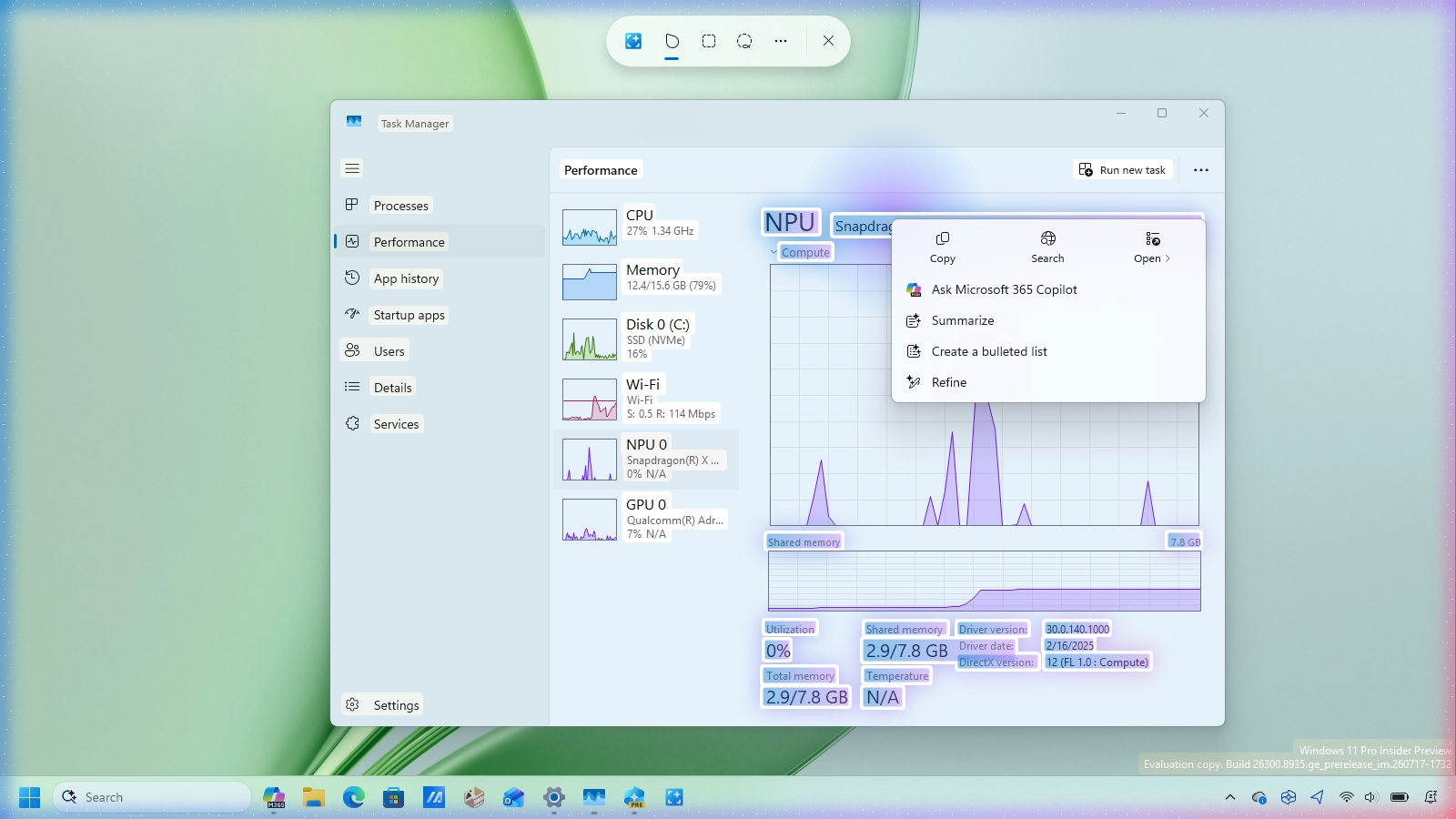
Modern Windows 11 includes AI-powered experiences such as improved Search, Recall, Click to Do, enhanced voice features, and creative tools designed to help users complete tasks faster. Accessibility has also benefited from AI through improved voice interaction, captions, and other assistive features.
(Image credit: Mauro Huculak)
The biggest change is that the operating system is no longer only reacting to commands. Microsoft is building toward an operating system that can understand context and help users complete tasks more naturally.
However, AI has also become one of the most debated parts of Windows 11. Features like Recall and increased integration with Microsoft services have raised questions about privacy, control, and whether every user wants AI built into their everyday computing experience.
Performance: Why Windows 11 feels different
Performance was one of the biggest concerns surrounding Windows 11 in its early days. The operating system looked modern, but some users encountered sluggish animations, slow File Explorer responses, high memory usage, and inconsistent responsiveness. For an operating system built on the same Windows 10 foundation, those problems made the visual redesign feel less convincing.
Microsoft has spent the years since launch improving responsiveness, resource management, and overall reliability. The company has also made performance a major focus of its broader Windows K2 work, with improvements designed to make everyday interactions feel faster without requiring more powerful hardware.
The difference is not always something that can be captured in a screenshot. Unlike the Start menu or File Explorer, performance is something users experience through hundreds of small interactions throughout the day.
Windows 11 (2021)
The original release could feel less responsive than Windows 10 on some systems, particularly during everyday tasks such as opening File Explorer, switching between windows, or interacting with the Taskbar and Start menu.
Some of these problems were related to animations and transitions that could feel sluggish. File Explorer also experienced performance issues in early releases, while memory management and background processes could cause responsiveness issues on systems with limited resources.
The result was an operating system that sometimes looked faster and more modern than it actually felt.
Windows 11 (2026)
Half a decade of updates have made Windows 11 a more responsive operating system. Microsoft has optimized core components, improved File Explorer performance, refined animations, and continued to reduce the delays users experienced in earlier releases.
Recent work under the Windows K2 initiative has placed an even greater emphasis on responsiveness, resource management, reliability, and reducing unnecessary overhead. Microsoft has also introduced improvements designed to make interactive tasks feel faster without simply relying on more powerful hardware.
Windows 11 is not universally faster on every piece of hardware, but the overall experience is considerably more mature than it was at launch. A lot of the small delays that made the 2021 release feel unfinished have either been reduced or eliminated. However, a lot of work still needs to be done.
Security and accessibility: Stronger protection
Security and accessibility have both evolved significantly since the first release of the operating system. In 2021, the company made hardware-backed security a bigger part of the operating system by requiring features such as TPM 2.0 and Secure Boot.
Also, accessibility tools such as Narrator, Magnifier, and Voice Access provided the foundation for a more inclusive experience. Now, in 2026, Windows 11 offers stronger security protections and more accessibility features.
For example, Microsoft has expanded Windows Hello, introduced Enhanced Sign-in Security, improved voice and captioning experiences, added Administrator Protection, and added AI-powered capabilities that can make the operating system easier to use for people with different needs.
Windows 11 (2021)
Security was one of the defining changes in the original Windows 11 release. Microsoft required TPM 2.0 and Secure Boot on supported systems and continued promoting Windows Hello as a more secure alternative to traditional passwords.
The operating system also included a strong foundation for accessibility, with tools such as Narrator, Magnifier, and high-contrast options. Voice Access was available in a more limited form, while features such as Live Captions were still relatively new.
At launch, the focus was largely on establishing stronger hardware-backed security and improving the accessibility features already available in the system.
Windows 11 (2026)
Security has become more deeply integrated into the experience. Microsoft has expanded protections such as Windows Hello Enhanced Sign-in Security, improved support for passkeys, added Administrator Protection, and strengthened defenses against malicious applications and other threats.
Accessibility has also become more capable. Voice Access provides more natural ways to control the desktop experience, Live Captions have become more useful, and newer AI-powered capabilities can help users interact with the operating system in ways that were not possible in 2021.
The biggest change is that security and accessibility are no longer just collections of separate tools. They are increasingly built into the way Windows 11 works, from how users sign in and protect their devices to how they interact with the desktop.
Setup experience: From easier to more connected
The Windows 11 setup experience has changed in an important way since 2021. The original release already encouraged users to connect their devices to the internet and use a Microsoft account. However, it was still possible to find ways around the requirement and create a local account. The option was not always obvious, but users had more control over how they configured a new installation.
By 2026, Microsoft has pushed the setup process further toward a connected experience. Internet access and a Microsoft account have become more central to the Out-of-Box Experience (OOBE). In contrast, local account setup has become increasingly difficult to access through the normal setup process.
This makes the setup experience one of the areas where Windows 11 has not simply evolved, but has also changed how people should use the operating system.
Windows 11 (2021)
The original setup process introduced a stronger push toward Microsoft accounts and online connectivity, particularly on Windows 11 Home. However, users could still create a local account by finding the appropriate setup option or using workarounds when the option was not immediately presented.
That gave users more flexibility when setting up a computer without wanting to connect their installation to Microsoft's cloud services.
The setup experience was also relatively straightforward once the initial account and network requirements were handled. The emphasis was on getting the system ready to use rather than introducing users to a growing collection of online services.
Windows 11 (2026)
The setup experience is now much more tightly connected to Microsoft's online ecosystem. The company has continued to make a Microsoft account and an internet connection central requirements for setting up Windows 11, while eliminating the local account option for home consumers.
This approach makes it easier to connect services such as OneDrive, Windows Backup, Microsoft Store, and other account-based features from the beginning. However, it also gives users less choice during setup, particularly those who want a traditional local offline account.
The change is significant because it reflects a different perspective from Windows 11, which launched in 2021. Microsoft is no longer treating the computer as an isolated device. It increasingly sees the operating system as part of a connected Microsoft account and cloud ecosystem.
What Windows 11 still hasn't fixed
Five years of updates have transformed Windows 11, but the operating system is still not completely consistent. Microsoft has modernized many of the areas that felt outdated at launch, yet some of the same problems that frustrated users in 2021 remain in one form or another.
The difference is that these issues are no longer spread across the entire operating system. They are increasingly concentrated in specific parts of Windows 11, particularly areas where Microsoft has to maintain compatibility with decades-old components and applications.
Windows 11 (2021)
The original release exposed many of these inconsistencies. Windows 11 introduced a modern Settings app, but many advanced options still opened in the older Control Panel experience and legacy dialogs. Different parts of the operating system often followed different design rules, making the experience feel like a mix of new and old.
Microsoft also faced criticism over limited customization, aggressive Microsoft account integration, and the reduction of familiar features.
Windows 11 (2026)
Windows 11 is considerably more polished, but some of those issues remain.
Legacy components are still visible in parts of the operating system, particularly advanced configuration tools and older dialogs.
Control Panel has not completely disappeared. Microsoft has moved many settings into the Settings app, but some functionality still depends on legacy interfaces.
Microsoft account integration is stronger. This makes services such as OneDrive, Windows Backup, and Microsoft Store easier to connect, but users who prefer a local account have fewer obvious choices during setup.
AI remains controversial. Microsoft has added AI to more parts of the operating system, but not everyone wants an assistant, AI search, or AI-powered features built in.
Promotions and recommendations remain part of the experience. Start menu recommendations, account prompts, Microsoft service integrations, and other promotional elements can sometimes make Windows 11 feel more like a platform for Microsoft's services.
Updates can still cause problems. Microsoft has improved the update and recovery experience, but system updates can still introduce bugs or compatibility issues.
The important difference is that these problems no longer define the entire Windows 11 experience. In 2021, inconsistencies and missing features were difficult to ignore. In 2026, they are increasingly the remaining pieces of an operating system that has otherwise matured considerably.
Windows 11 (2021) vs. Windows 11 (2026): The verdict
The question isn't whether Windows 11 changed. It clearly did.
The better question is whether Microsoft fixed enough of the problems that made the original release feel unfinished.
Windows Central's Take
In my opinion, Windows 11 is a much better operating system than the one shipped in 2021, but that improvement also says a lot about how rough the original release was. A lot of the familiar features were removed in the name of a cleaner design, and Microsoft ultimately spent years putting much of that functionality back.
What I appreciate more now is that Windows 11 feels less like a redesign layered over Windows 10 and more like its own operating system. File Explorer, the Taskbar, Start menu, Settings, and overall responsiveness have all moved in the right direction. The changes aren't always dramatic, but after using this experience for years, those small improvements add up.
My bigger concern is the direction Microsoft is taking the operating system rather than how it looks. The stronger push toward Microsoft accounts, cloud services, and AI gives Windows 11 capabilities that didn't exist in 2021, but it also makes the experience feel less user-controlled in some areas. I don't think every computer needs to be treated like a gateway to Microsoft's services. Users should have direct control of what they want.
For someone using Windows 11 today, I wouldn't recommend avoiding the operating system because of the problems it had at launch. Five years of updates have made a real difference. At the same time, I wouldn't pretend Microsoft has finished the job. The remaining legacy components, account push, and inconsistent experiences show that Windows 11 is still being rebuilt while millions of people are using it.
However, important to note that through its new Windows K2 initiative, Microsoft has been working to address many of the pain points in the operating system.
What do you think about how much Windows 11 has changed since 2021? Let me know in the comments.
More resources
Explore more in-depth how-to guides, troubleshooting advice, and essential tips to get the most out of Windows 11 and 10. Start browsing here:
Every time I install Windows 11, I turn off the same handful of features before I do anything else. They're not necessarily bad features, but I don't need widgets, recommendations, badges, and constant notifications competing for my attention while I'm working.
Over the years, I've found that making a few small changes creates a desktop that feels cleaner, quieter, and easier to focus on. I prefer Windows 11 to stay in the background and only get my attention when something truly matters. If you feel the same way, you're not alone.
In this how-to guide, I'll show you the Windows 11 features I always disable and explain why I think each change is worth making.
7 features worth turning off for a calmer desktop
None of these features are inherently bad, and I know many people enjoy using them. The problem, at least for me, is that they all compete for the same thing, which is my attention. One widget or notification isn't a big deal. However, once you combine recommendations, badges, alerts, and promotional content across the operating system, Windows 11 starts to feel busier than it needs to be. That's why these are the first settings I change.
1. Widgets in the Lock screen
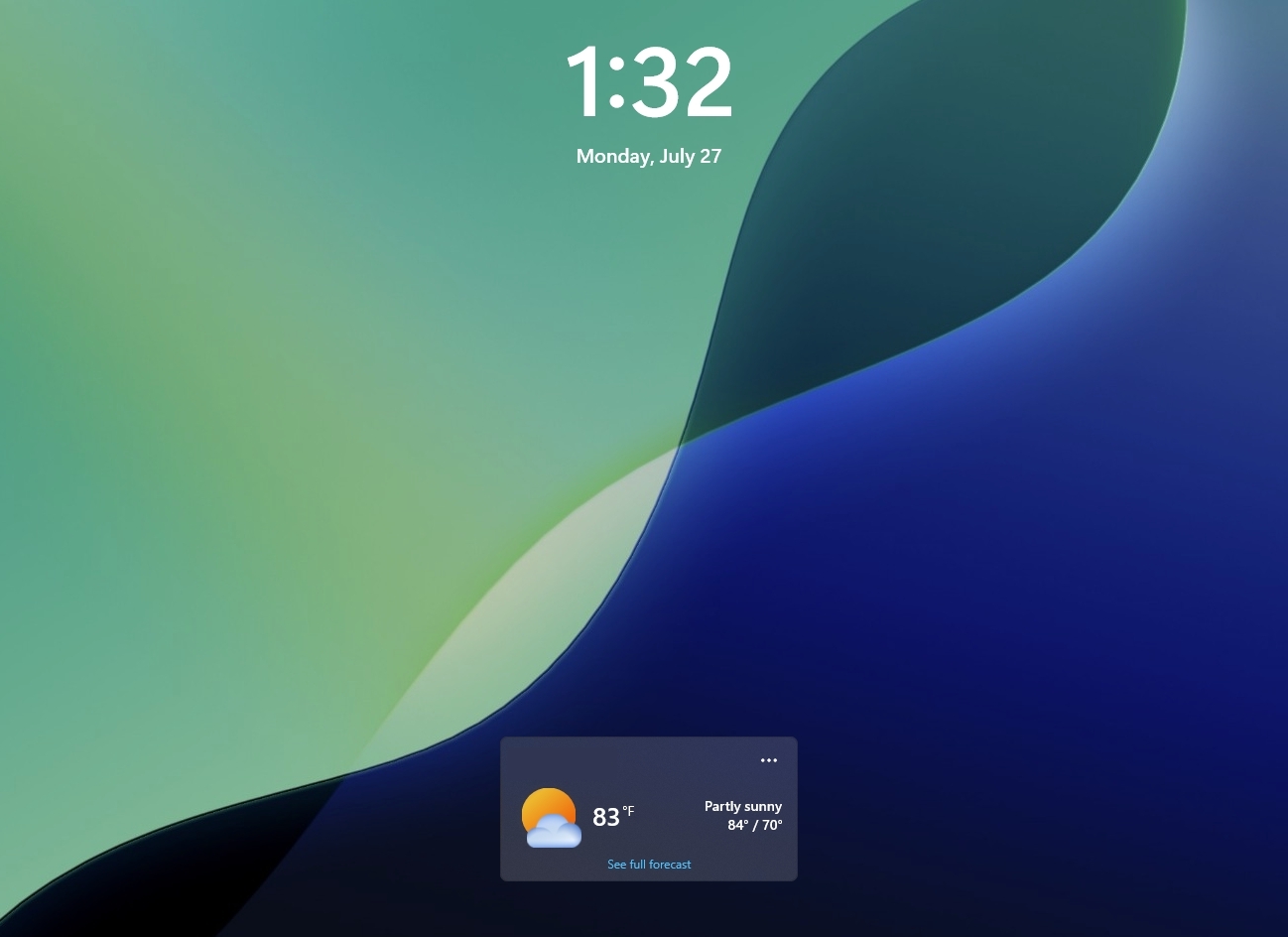
I like my Lock screen only to let me know it's time to sign in, and nothing more. I don't need sports scores, market updates, or suggested content before I've even reached the desktop. It's one more thing competing for my attention before I start working.
I also switch from Windows Spotlight to a static image because I don't want tips or promotional overlays appearing before I've even signed in.
For these reasons, I always try to disable the desktop widgets and use a static image, and here's how:
Open Settings.
Click on Personalization.
Click the Lock screen page on the right side.
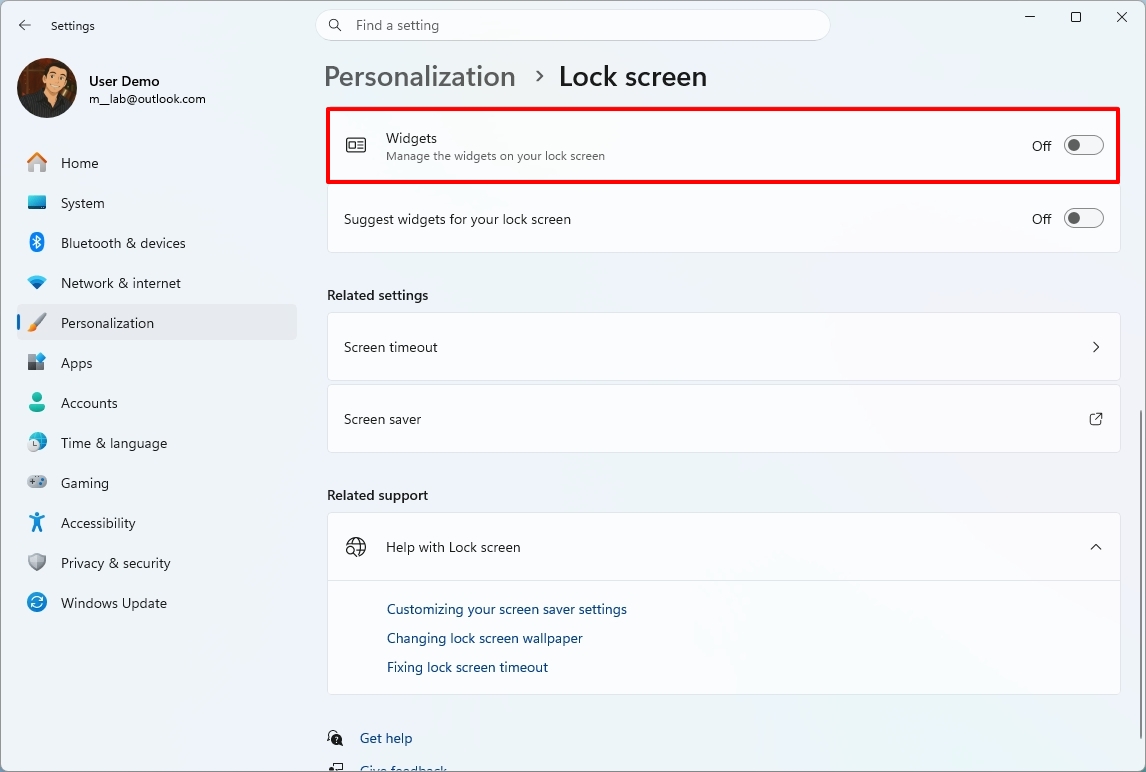
Turn off the Widgets toggle switch.
(Image credit: Mauro Huculak)
Turn off the "Suggest widgets for your lock screen" toggle switch.
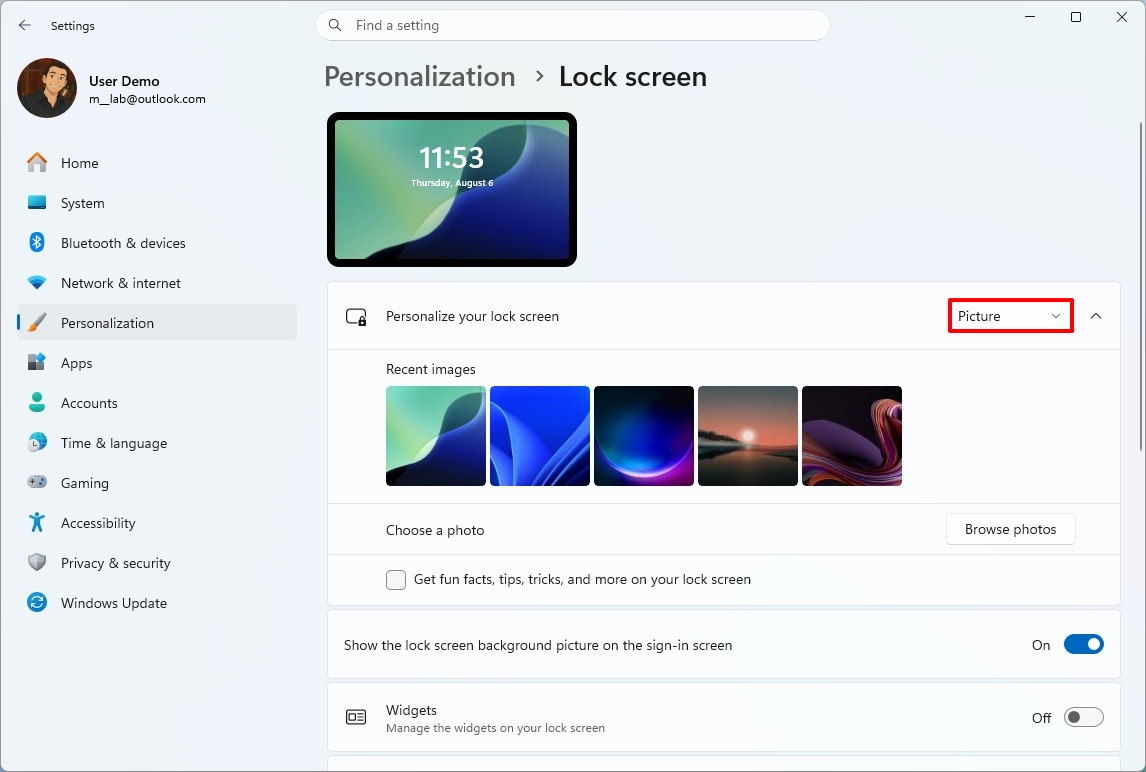
Select the Picture (or Slideshow) option in the "Personalize your lock screen" setting.
(Image credit: Mauro Huculak)
Choose the image you want to show on the Lock screen.
Once you complete the steps, the Lock screen becomes a simple place to check the time and sign in instead of another surface competing for your attention.
2. Widgets icon in Taskbar
I don't mind having quick access to Widgets, but I don't need live updates constantly trying to pull my attention away from whatever I'm doing. Removing the Taskbar button keeps the interface quieter while still letting me open Widgets with the keyboard shortcut whenever I actually want it.
If you don't want the unnecessary distraction, you can hide the icon from the Taskbar. Here's how:
Open Settings.
Click on Personalization.
Click the Taskbar page on the right side.
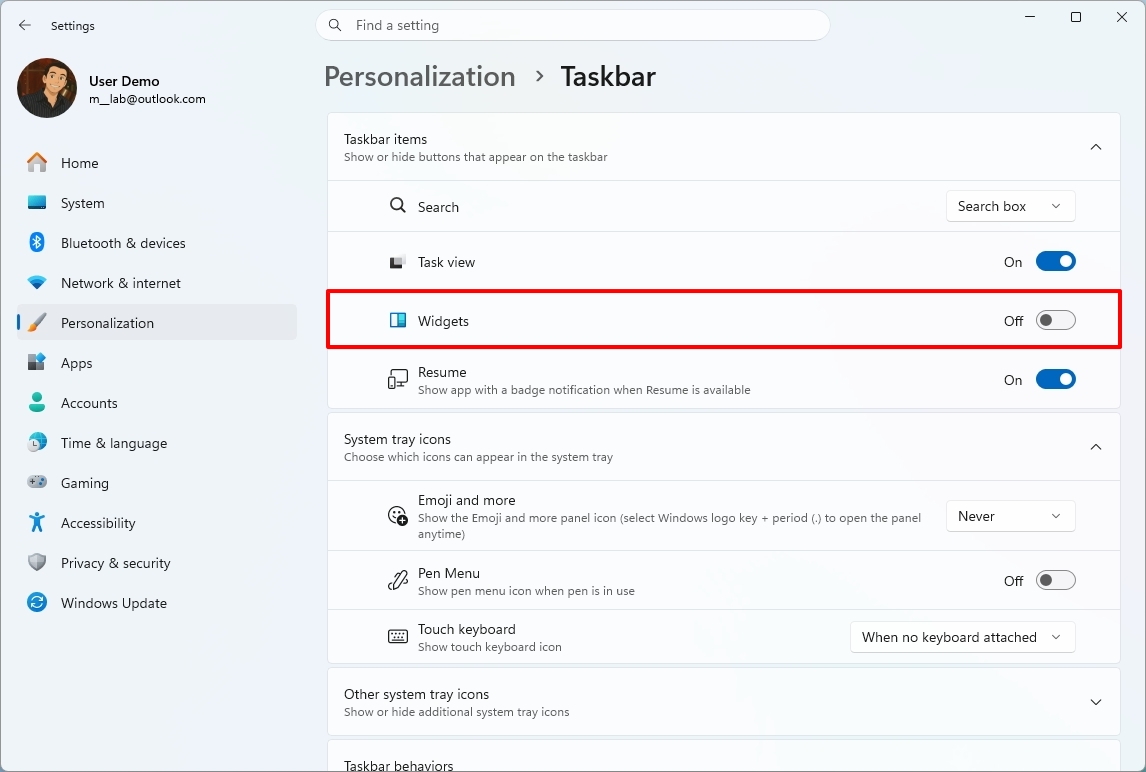
Turn off the Widgets toggle switch under the "Taskbar items" section.
(Image credit: Mauro Huculak)
After you complete the steps, the Taskbar stays free from live updates while still letting you open Widgets anytime with the "Windows key + W" keyboard shortcut if you need it.
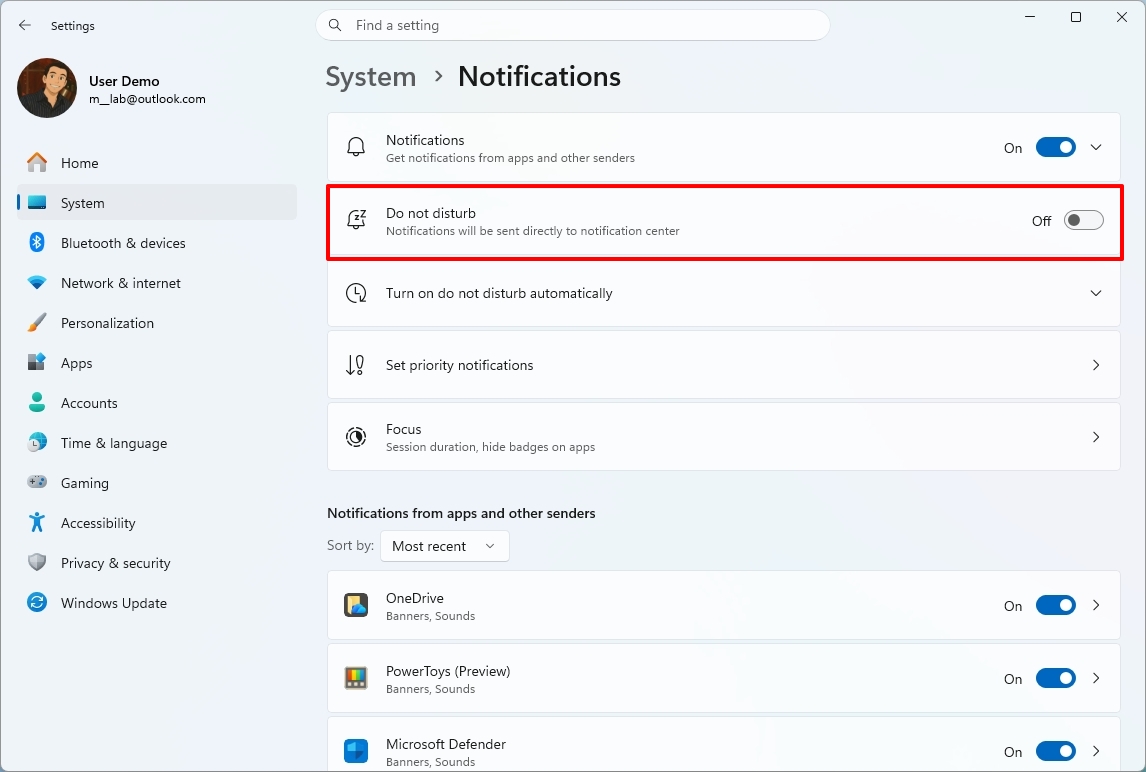
3. Do not disturb to stop toast notifications
Another feature I always turn on is "Do Not Disturb" to prevent distractions from toast notifications.
If you want to, you can also turn off notifications altogether, but I do this because I can still access the notifications from Notification Center.
To enable Do Not Disturb on Windows 11, use these steps:
Open Settings.
Click on System.
Click the Notifications page on the right side.
Turn off the "Do Not Disturb" toggle switch.
(Image credit: Mauro Huculak)
(Optional) Turn off the Notifications toggle switch.
Once you complete the steps, Windows 11 stops interrupting your workflow, but your notifications are still waiting in Notification Center whenever you're ready to review them.
If you decide to turn off the notification feature, the system and services won't be able to show or collect notifications.
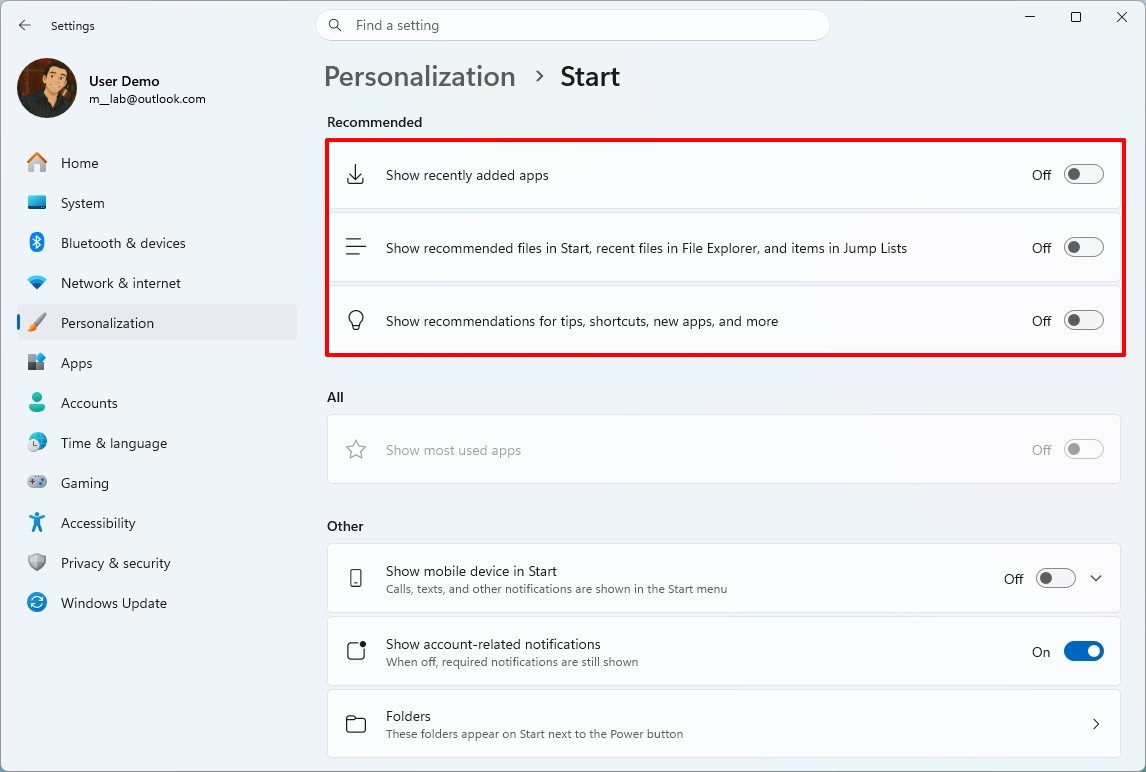
4. Start menu content recommendations
The Start menu has become much cleaner over the years, but I still don't like seeing recent files, app suggestions, and recommendations every time I open it. I prefer using the space for the apps I've pinned instead of content the system thinks I might want.
I personally like to have the "Pinned" and "All" sections in the Start menu, and I always turn off the "Recommended" section, but these steps aren't obvious to everyone.
To disable the Recommended section, use these steps:
Open Settings.
Click on Personalization.
Click the Start page on the right side.
Turn off the "Show recently added apps" toggle switch.
Turn off the "Show recommended files in Start, recent files in File Explorer, and items in Jump Lists" toggle switch.
Turn off the "Show recommendations for tips, shortcuts, new apps, and more" toggle switch.
(Image credit: Mauro Huculak)
(Optional) Turn off the "Show account-related notifications" toggle switch to prevent alerts from the Account Control menu in the Start menu.
After completing the steps, the Start menu feels cleaner and focuses on the apps you've chosen to pin instead of recent files and recommendations.
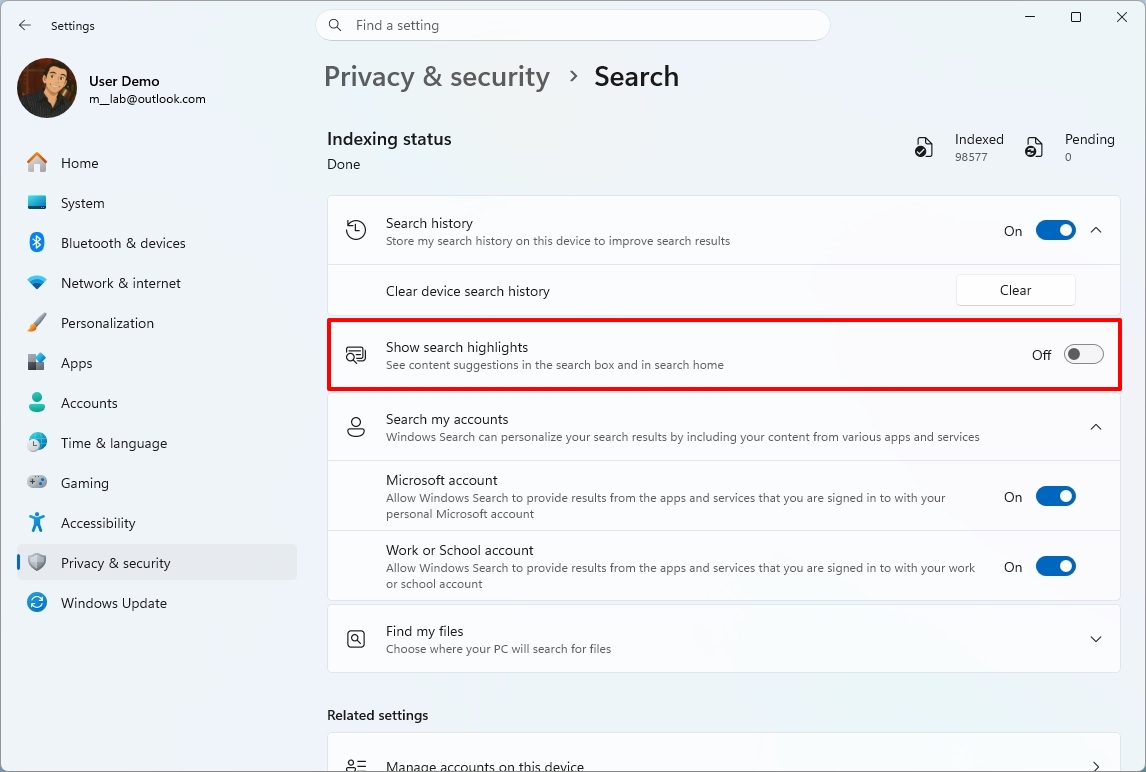
5. Search highlights from the web
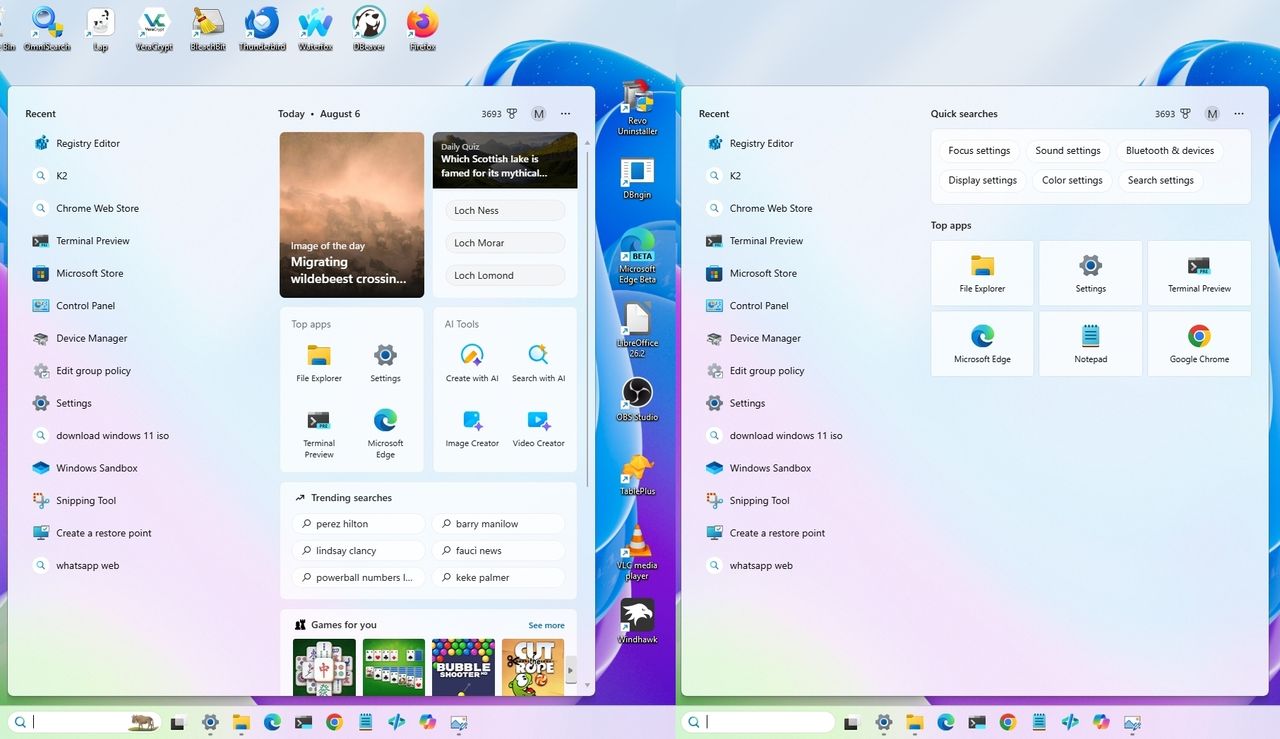
When you open the Windows Search home from the Taskbar, the first thing you'll notice is web highlights with daily quizzes, image of the day, trending searches, games, news, and more, when the search experience should be about finding local and cloud files, settings, and applications installed on your computer.
Search is one of the features I use dozens of times a day, so I want it to open directly into search, not news stories, trending topics, or games. The less visual clutter between me and what I'm looking for, the better. Fortunately, you can turn off the web highlights for a simpler experience using Windows Search, and here's how:
Open Settings.
Click on Privacy & security.
Click the Search page on the right side.
Turn off the "Show search highlights" toggle switch.
(Image credit: Mauro Huculak)
Once you complete the steps, Windows Search opens with fewer distractions, making it easier to get straight to finding your apps, files, and settings.
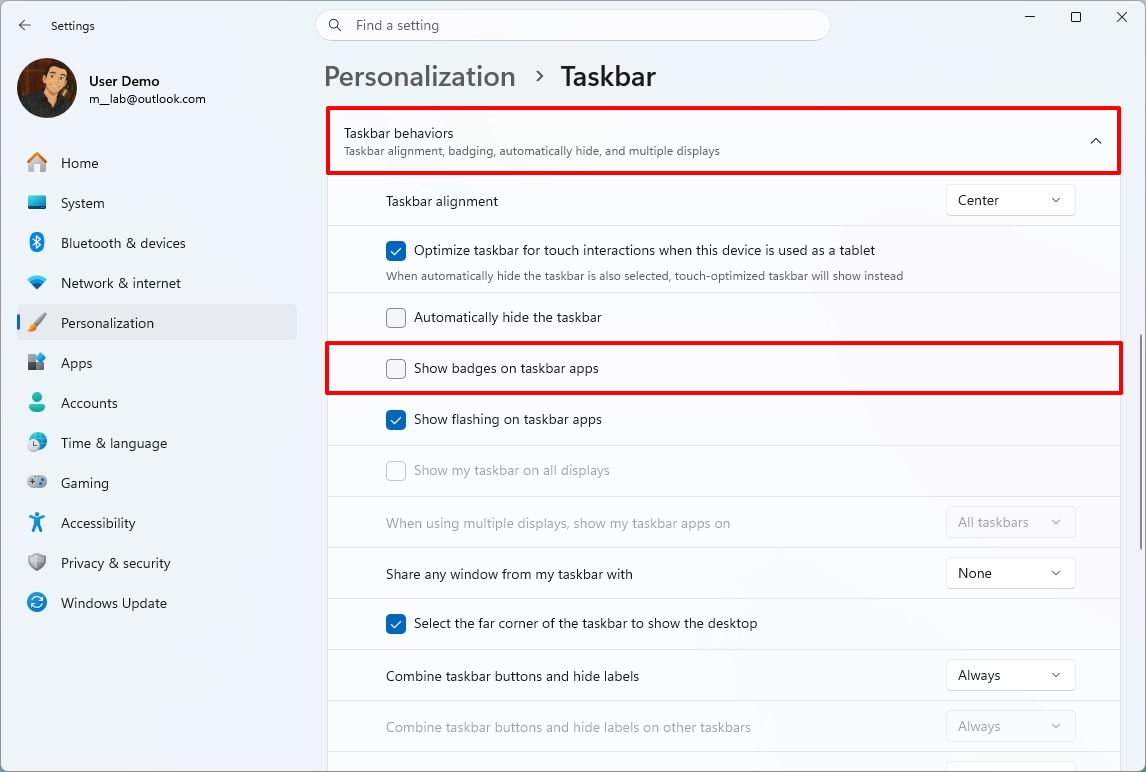
6. Taskbar app badges for unseen content
Taskbar badges are another feature I disable on every new installation. These are the small counters or dots that appear on app icons to let you know something needs your attention. While they can be useful, I find they encourage me to check apps that aren't important at the moment.
I prefer opening apps when I decide to, not because a badge is telling me to. If I want to check for updates or unread messages, I'll do it on my own schedule.
To turn off Taskbar badges on Windows 11, use these steps:
Open Settings.
Click on Personalization.
Click the Taskbar page on the right side.
Click the Taskbar behaviors section.
Clear the "Show badges on taskbar apps" option.
(Image credit: Mauro Huculak)
After you complete the steps, app icons will no longer display unread message counters, helping keep the Taskbar cleaner and reducing another small source of distraction throughout the day.
7. Desktop icons and files
Like pretty much everyone else, I usually place shortcuts and files on the desktop, but I don't like a crowded desktop either, so one thing I usually do is to hide the desktop icons.
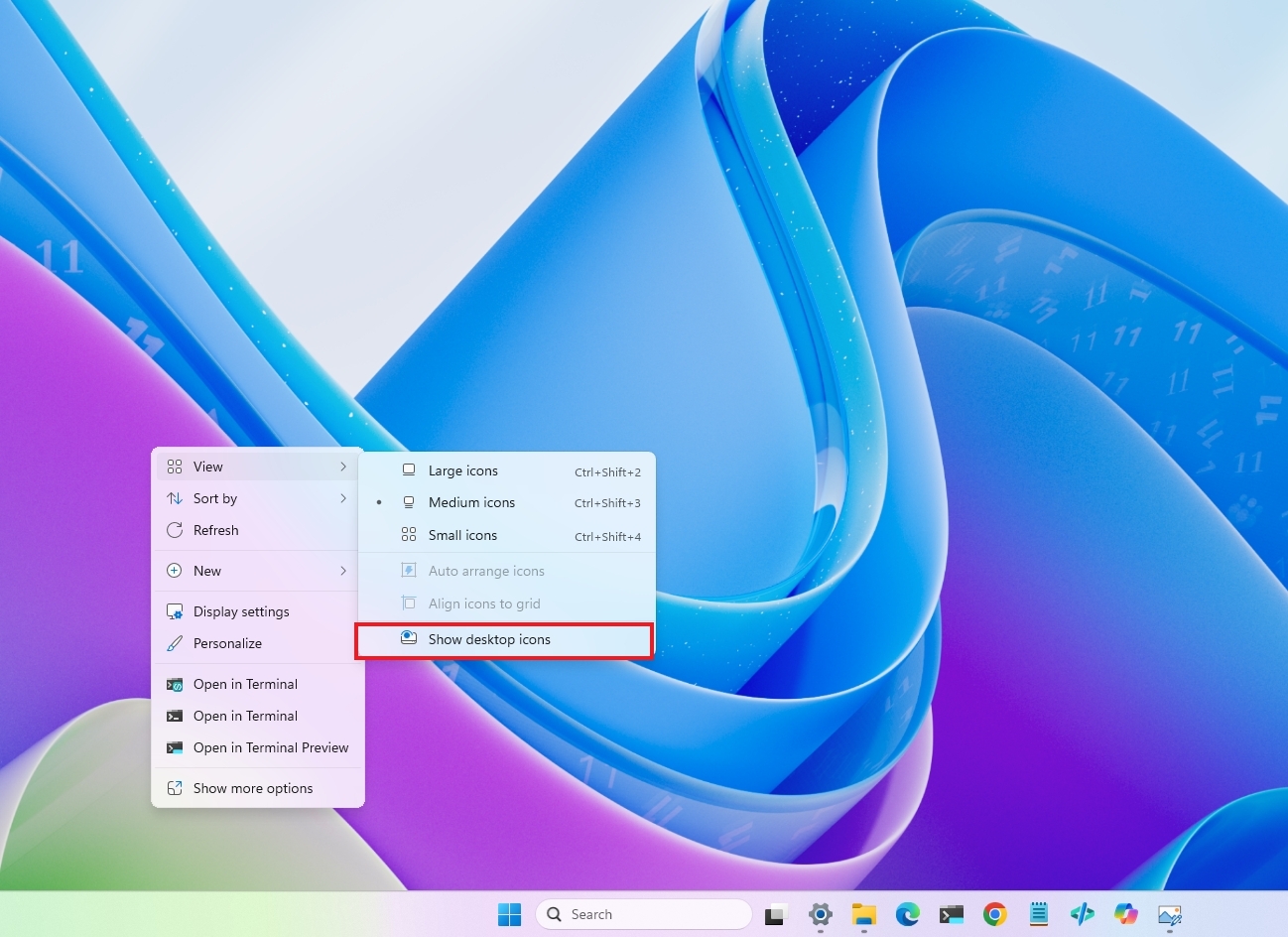
You can easily do this by right-clicking the desktop, selecting "View," and clicking on the "Show desktop icons" option to clear the setting and hide everything on the desktop for a clear view of the background image.
(Image credit: Mauro Huculak)
If I want to access the content of the folder, I usually just open the "Desktop" folder within File Explorer.
I know this one isn't for everyone, but hiding my desktop icons makes the entire workspace feel less cluttered. Everything is still there when I need it, but I don't have to look at it every time I minimize a window.
Windows Central's Take
I've been customizing this operating system for years, and this is still one of the first things I do on a new installation. Windows 11 includes plenty of features that many people enjoy, but I don't need constant reminders, recommendations, or badges pulling my attention away from my work. Spending a few minutes changing these settings makes the desktop feel much calmer without taking away the features I actually use.
Out of everything on this list, Do Not Disturb is the setting I'd tell most people to try first. I don't want notifications interrupting me throughout the day, but I also don't want to miss them completely. It gives me the best of both worlds.
Microsoft has been adding more customization options recently, but I still think the default Windows 11 experience tries a little too hard to keep people engaged. Fortunately, almost everything I mentioned here can be changed in just a few minutes, making the system feel much more personal without removing features you might want later.
Which Windows 11 feature do you turn off first to create a calmer desktop experience? Let me know in the comments below.
More resources
Explore more in-depth how-to guides, troubleshooting advice, and essential tips to get the most out of Windows 11 and 10. Start browsing here:
July has come to an end, and as we start a new month, it's a good time to look at the new features and changes that Microsoft has been working on in the second half of the month for Windows 11.
In the last two weeks of July, the company has delivered several new features, but many of those improvements were features that we have already seen in other builds as Microsoft continues to align each channel more closely together.
As part of the improvements, we have seen new customization options for the Start menu, new gestures for the touchpad, an updated interface for the Account Control menu, and improvements for File Explorer.
In addition, we have seen the company pushing changes to Widgets, Windows Search, and more.
In the Experimental channel, Microsoft released builds 26300.9032, 26300.8935, 28120.2630, and 28120.2546, while the Beta channel introduced builds 26220.9022, 26220.8925, 28020.2623, and 28020.2539 for versions 26H2, 26H1, and 25H2.
In this recap, I'll highlight the latest and most noteworthy changes available through the Windows Insider Program.
Biggest improvements from the Windows Insider Program in July 2026
These are the most significant changes Microsoft has unveiled since my last roundup.
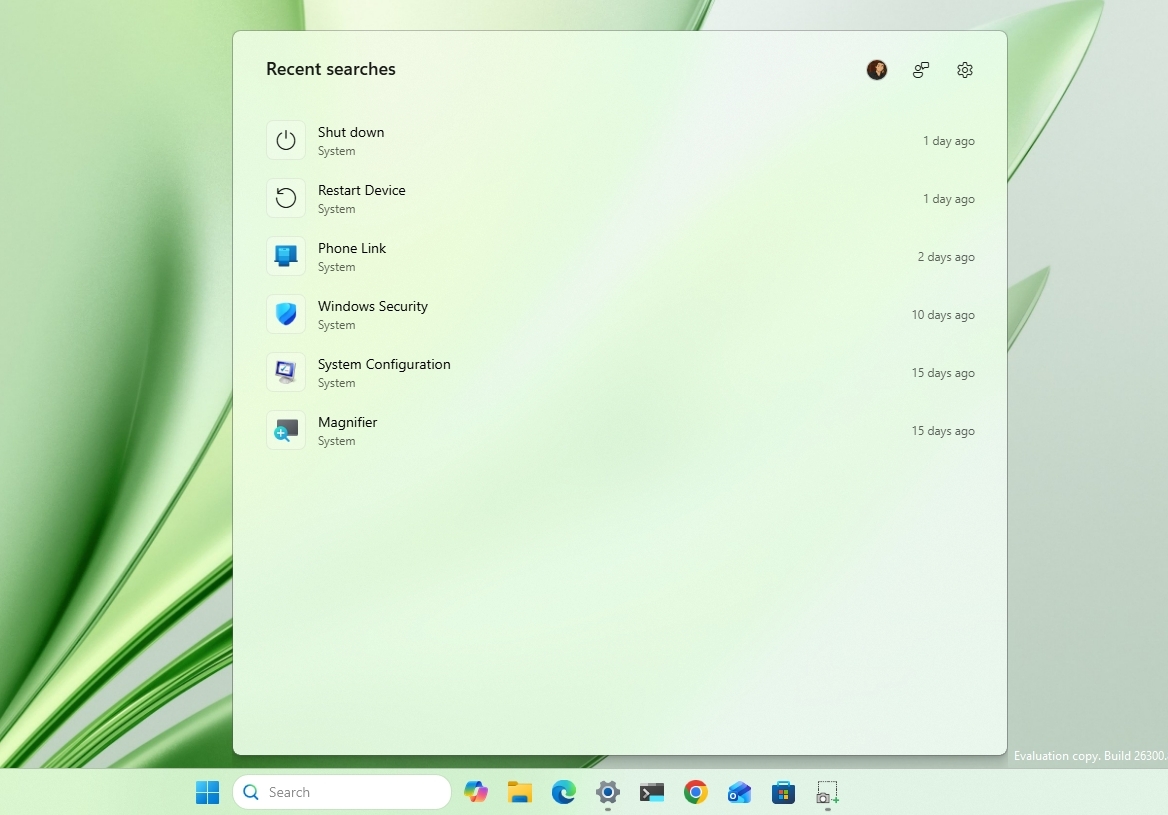
Windows Search automatic locations
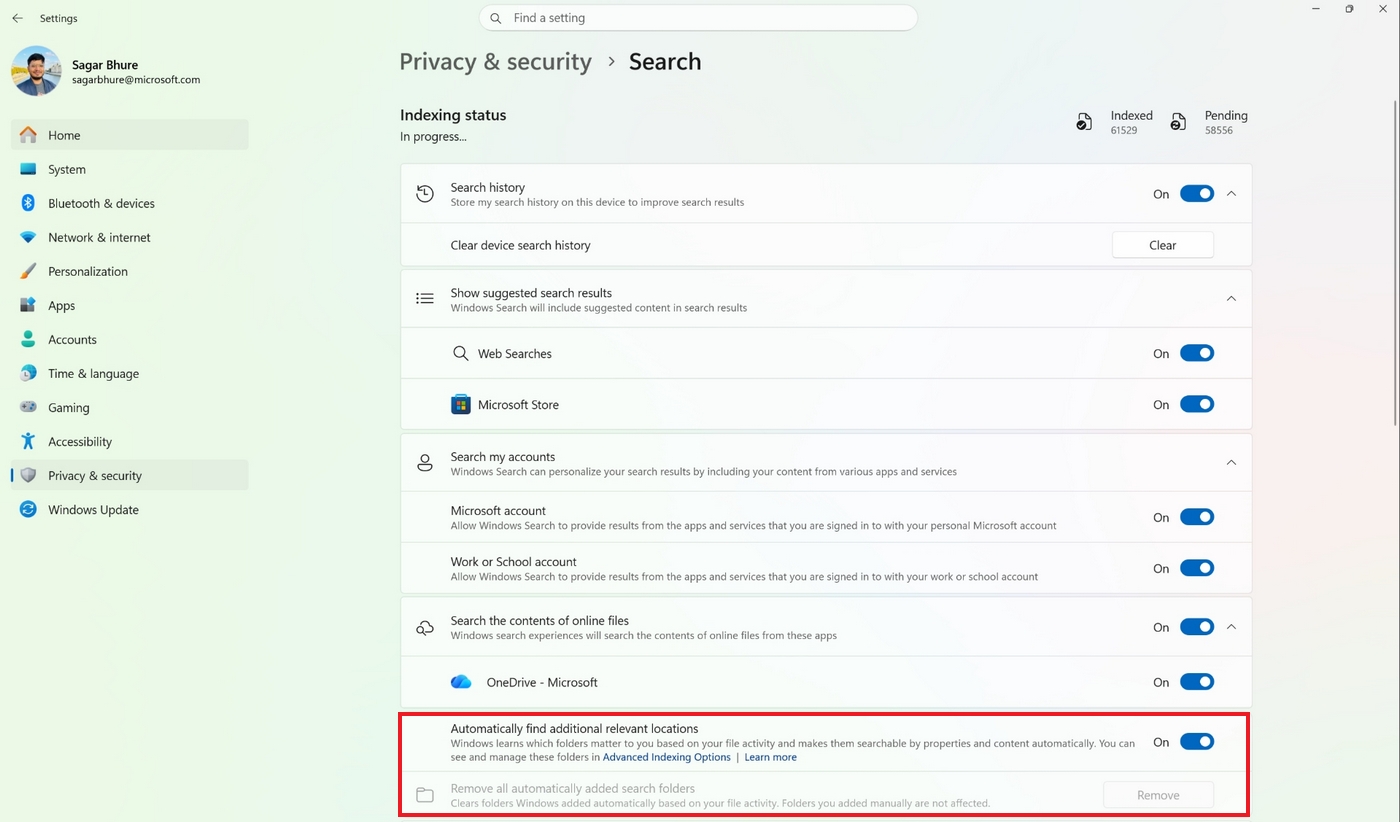
Starting with the release of build 26300.9032, the operating system ships with an updated version of Windows Search that can now automatically find and search other folder locations based on your activity.
The new feature uses signals, such as files and frequently accessed locations. According to the company, this helps to make relevant files easy to find without requiring manual indexing.
The feature is known as "Automatically find additional relevant locations," and it's located on Settings > Privacy & security > Search.
(Image credit: Microsoft)
In addition, Microsoft didn't mention this, but I've noticed a new "Search the contents of online files" on the same page, which allows you to decide whether Windows Search can search online content.
Phone Link changes
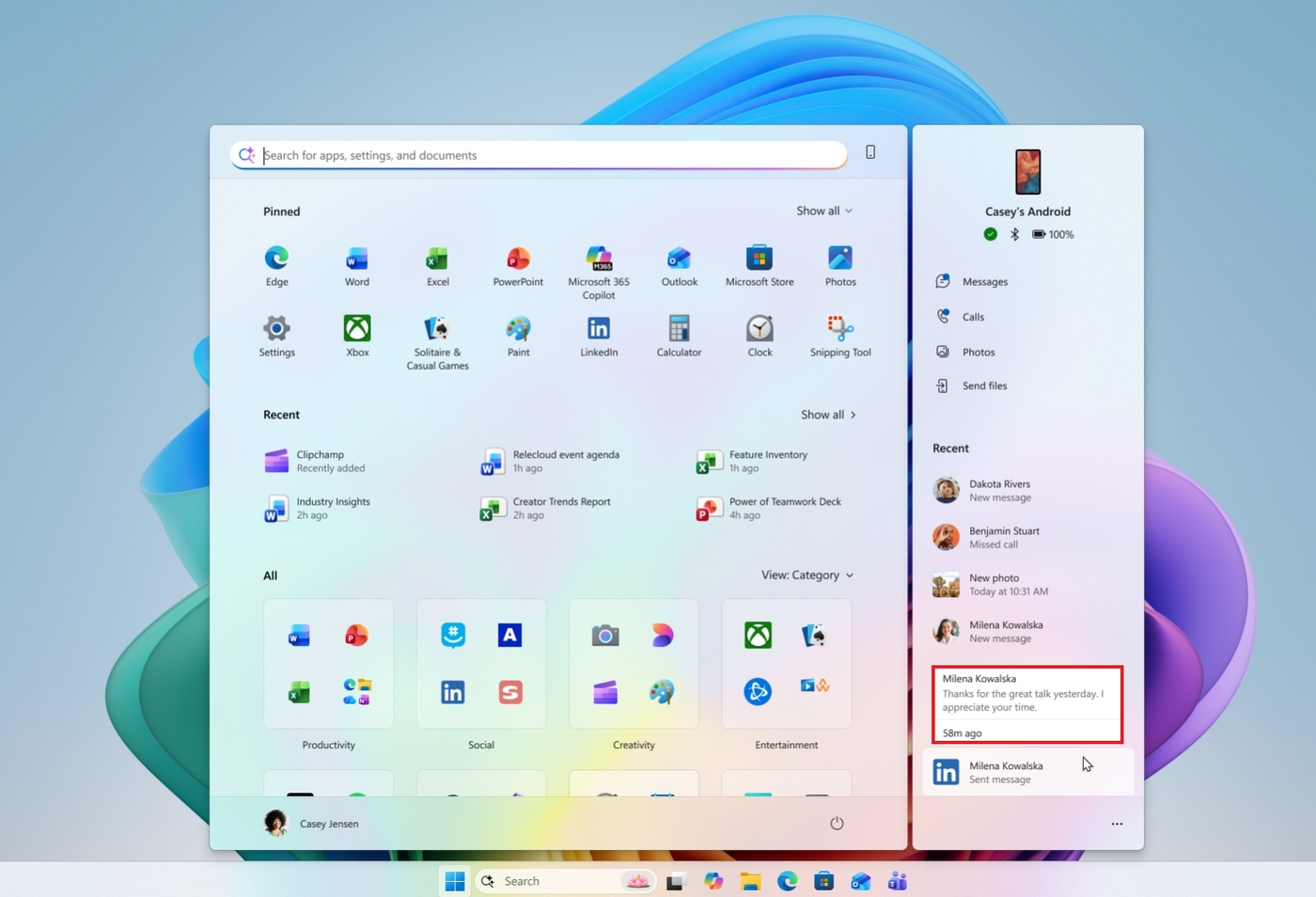
The Phone Link companion flyout that appears in the Start menu is getting an update on build 26300.9032 that allows you to hover over a recent message or notification in the "Recent" section to preview the content without extra steps.
(Image credit: Microsoft)
This improvement requires the Phone Link app version 1.26021.3.0 or higher.
Adaptive hibernate policy update
In the Experimental channel, build 26300.9032 (version 25H2) also introduces changes for the adaptive hibernate policy to prevent hibernation when the battery is above 80 percent and to hibernate when the battery falls below 10 percent.
Microsoft accomplishes this by increasing instances of instant-on resumes from Modern Standby and increasing battery preservation at the low end of the battery.
This change is also available on builds 28120.2630 and 28020.2623 for version 26H1.
File Explorer performance boost
On build 26300.8935, File Explorer received three specific improvements. First, the company made file deletion faster when deleting large and fragmented files.
This update also makes the Home page faster, and finally, the "Recommended" section on the Home page now supports touch scrolling to make it easier to browse files from the carousel.
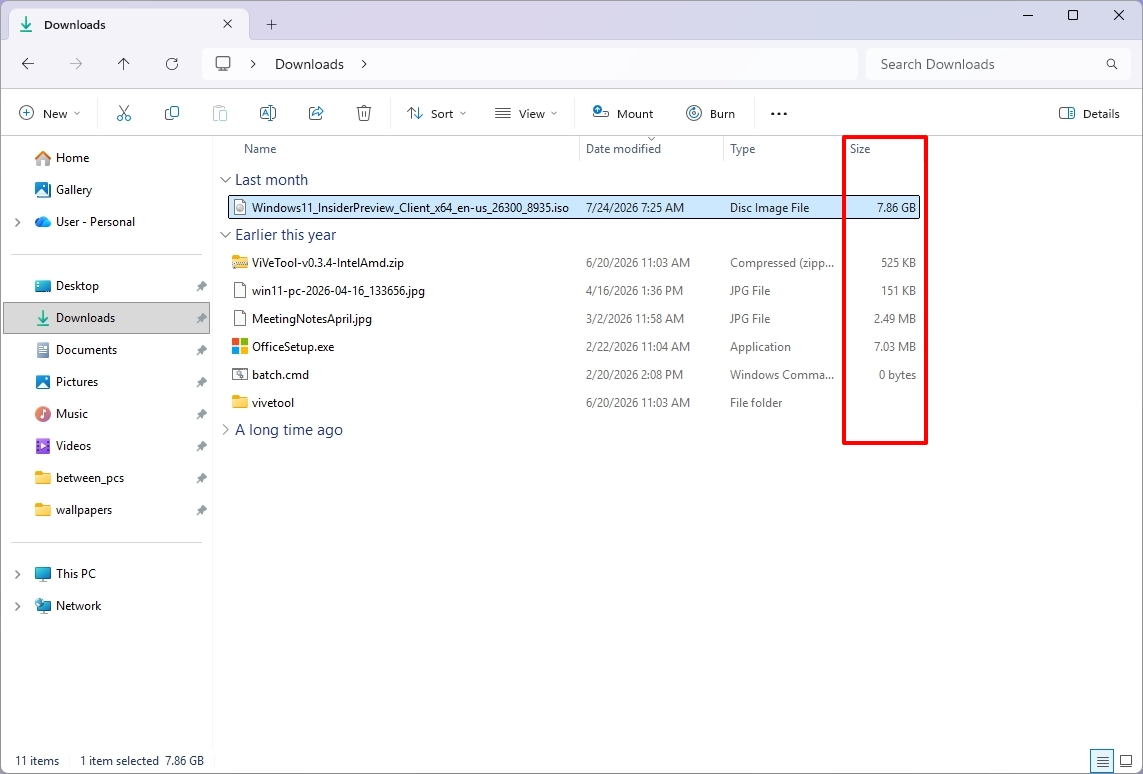
In addition, starting with build 26220.8925 for version 25H2, the "Details" view now shows file sizes with appropriate units, such as KB, MB, and GB, instead of only showing KB.
(Image credit: Mauro Huculak)
Furthermore, on the "Home" page, you can now use a middle mouse click to open folder locations in new tabs.
Widgets improvements
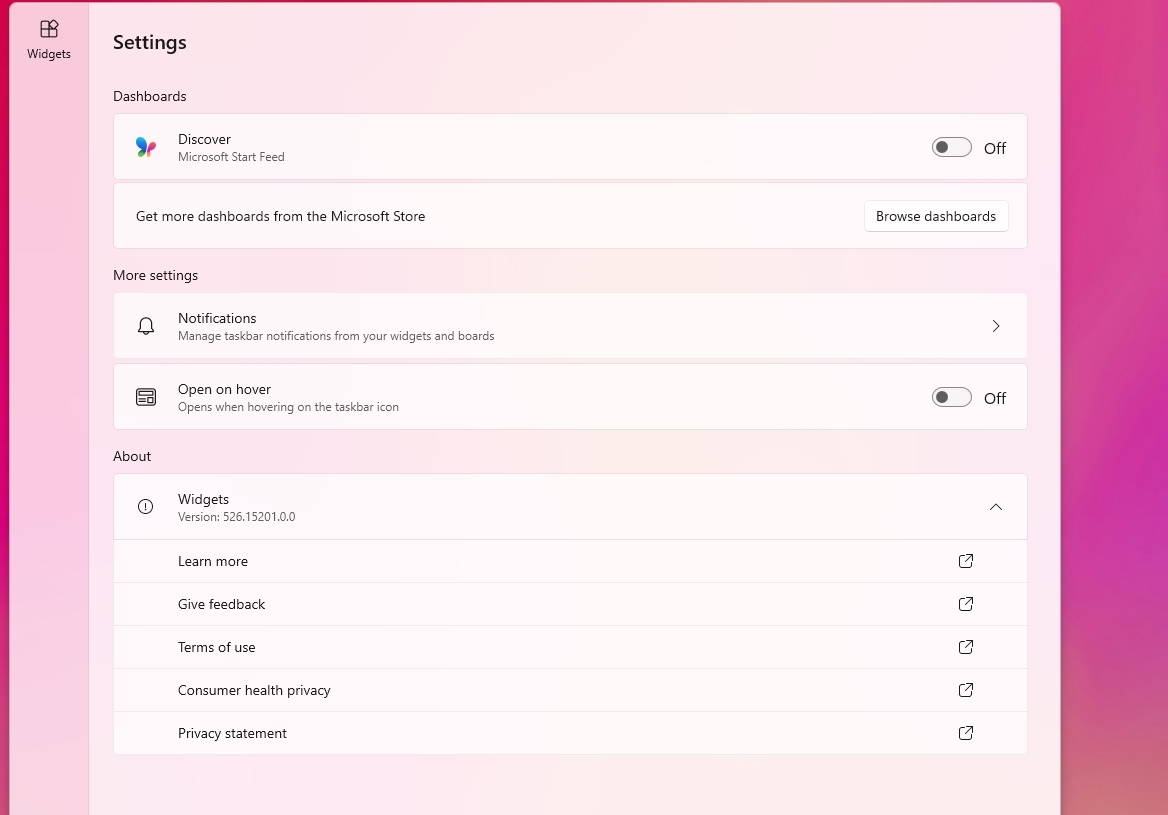
The preview build 26300.8935 also updates the animated icons for the Widgets entry point in the Taskbar.
First, the icon now matches the system accent color instead of the red color. Also, the animated icons can now show more dynamic content if notifications are enabled in the Widgets dashboard.
Windows Update changes
On build 28120.2630 (Experimental channel for version 26H1), Microsoft is making system updates less disruptive by reducing the number of restarts users face each month.
This is possible thanks to a new unified update experience that coordinates driver, .NET, and firmware updates with the monthly quality update, consolidating updates into a single monthly reboot instead of multiple interruptions.
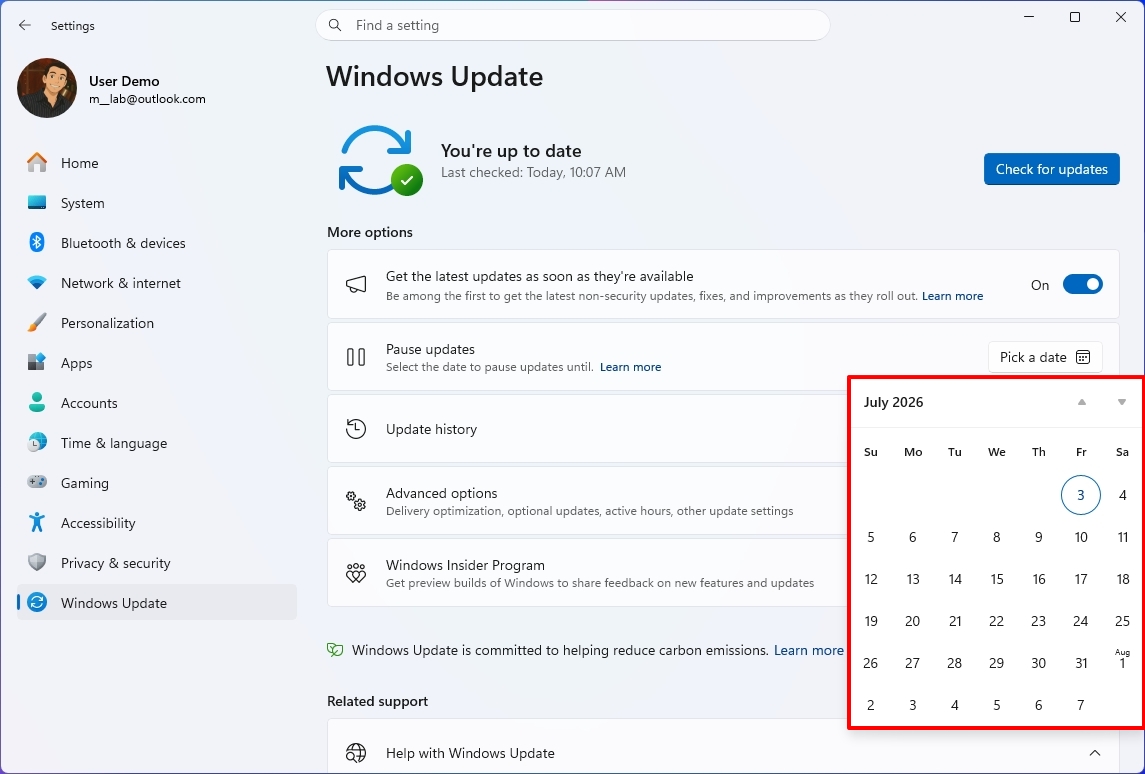
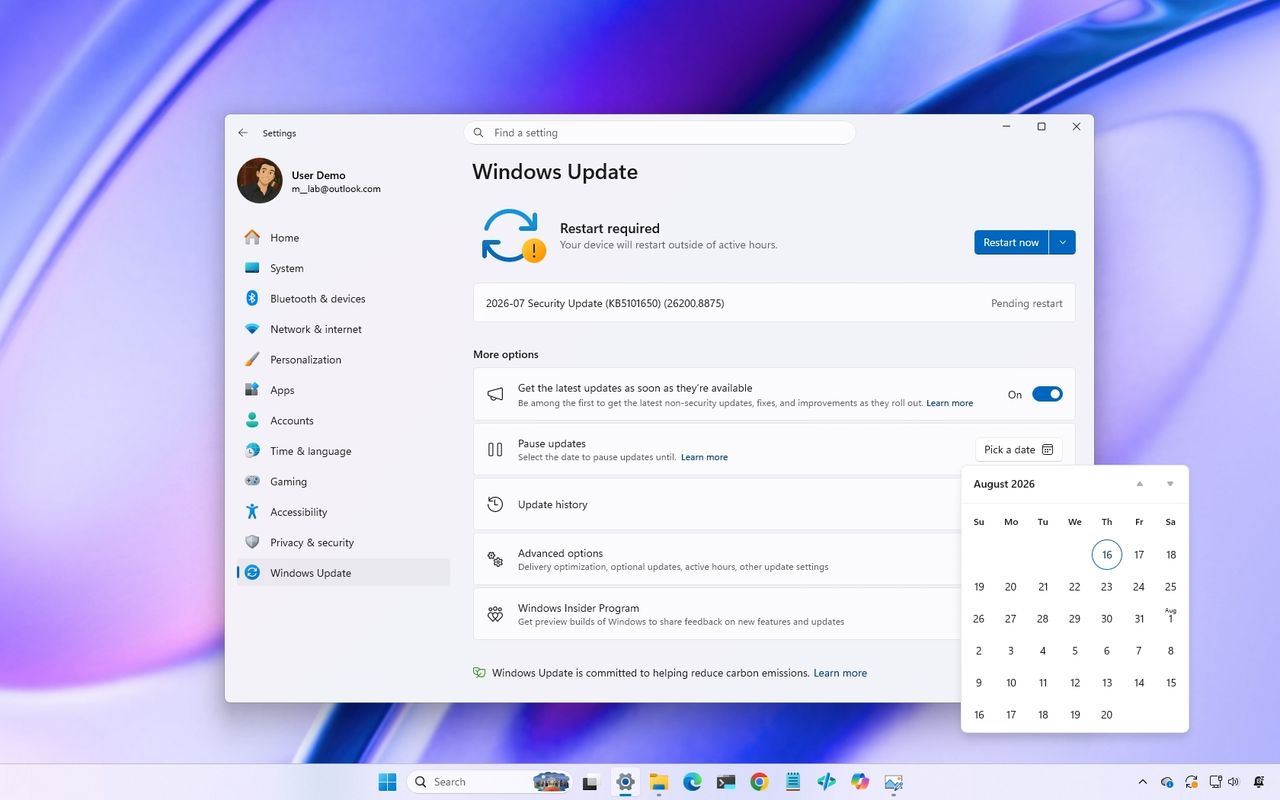
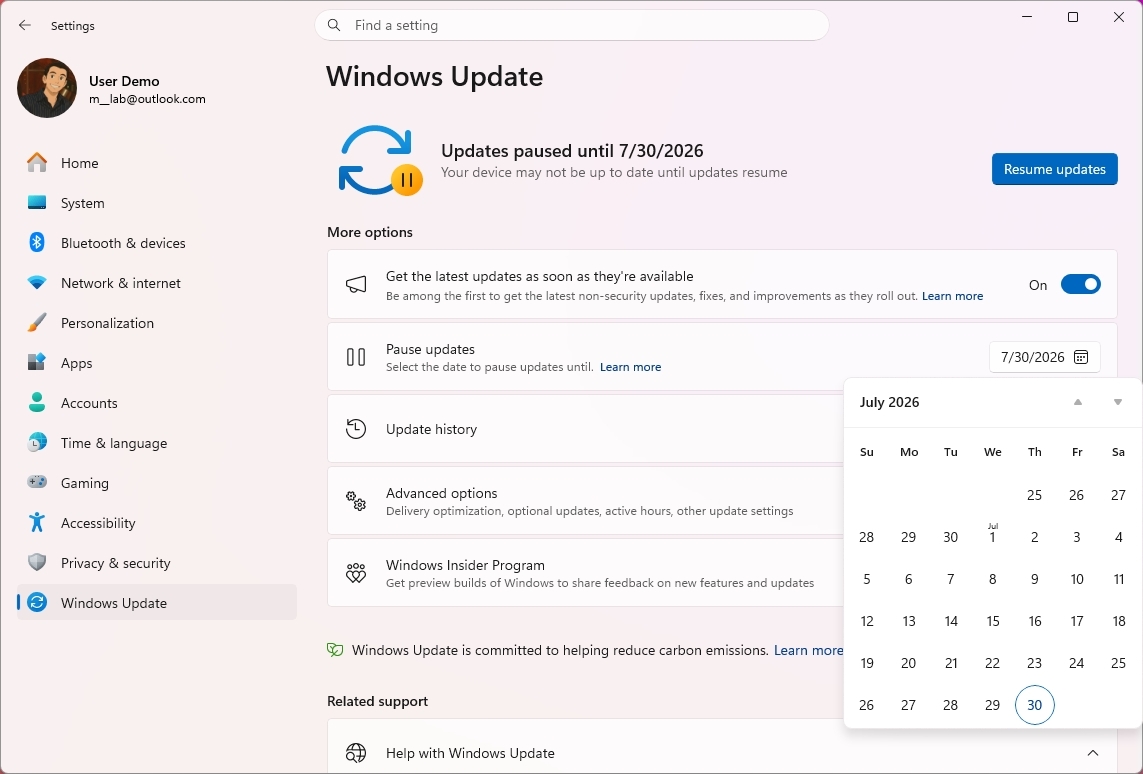
The company is also expanding update pause controls, allowing users to extend update pauses as many times as needed.
(Image credit: Mauro Huculak)
These improvements are also available for build 28020.2623 in the Beta channel for version 26H1.
Touchpad gestures
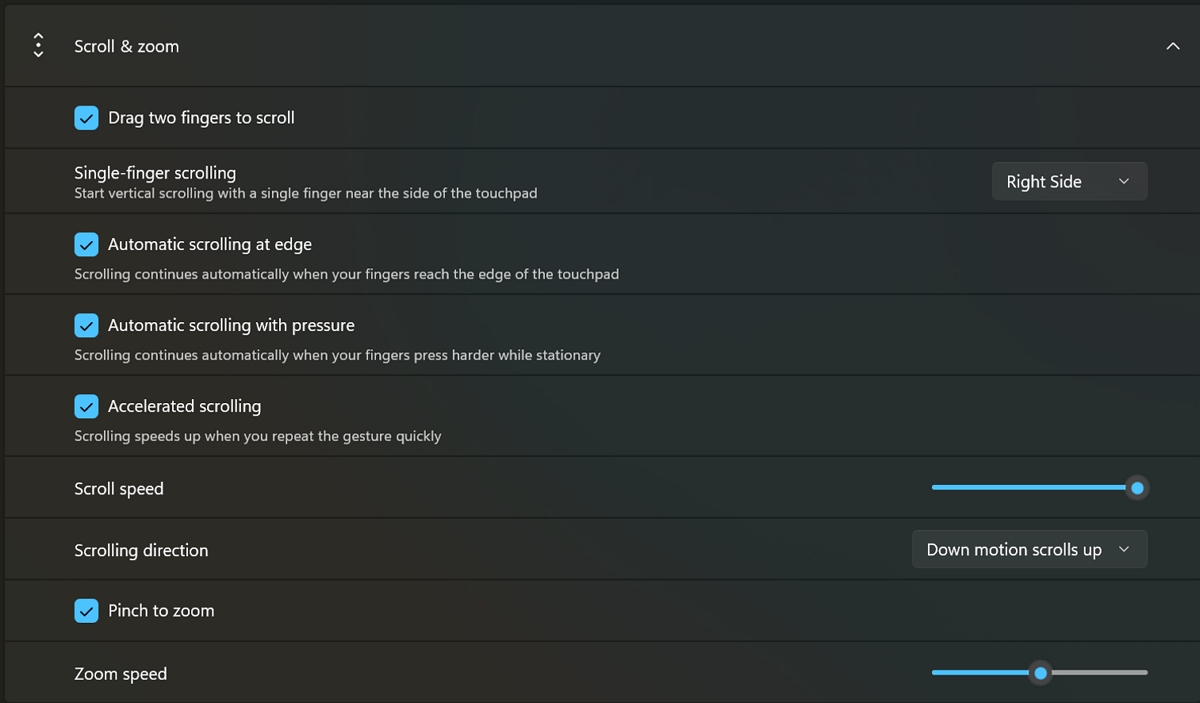
Builds 28120.2630 and 28020.2623 for version 26H1 add new gesture controls for Precision Touchpads through the Settings app.
The new options will work across most apps, although apps built with WinUI 3 will require updated WinAppSDK 1.8 or 2.0 support before they can take full advantage of the changes.
(Image credit: Microsoft)
The new controls include scroll and zoom speed, which lets you adjust the default speed for scrolling and pinch-to-zoom gestures. Also, accelerated scrolling will allow you to increase scrolling speed the longer you continue scrolling, making it easier to move quickly through long documents and webpages.
These improvements are also available for build 26220.8925 in the Beta channel for version 25H2.
Smart card policy
Starting with build 28120.2546, Microsoft is adding support to remove smart card policies in Azure Virtual Desktop (AVD) and Windows 365 sessions that use Microsoft Entra ID authentication.
As a result of this change, administrators can configure remote sessions to automatically disconnect when a redirected smart card is removed, helping improve security and meet compliance requirements.
This improvement is also available for build 29639 in the Experimental channel for version Future Platforms.
Narrator changes
Microsoft is making refreshable Braille displays easier to use with Narrator in build 28120.2546.
Windows 11 now supports HID-compatible Braille displays, allowing users to connect supported devices instantly over USB with no additional setup, or wirelessly through Bluetooth. The feature also works during the initial Out-of-Box Experience (OOBE), enabling you to configure a new computer independently.
These improvements are also available for build 28020.2539 in the Beta channel for version 26H1, for build 26220.8925 for version 25H2, and for build 29634 for version Future Platforms.
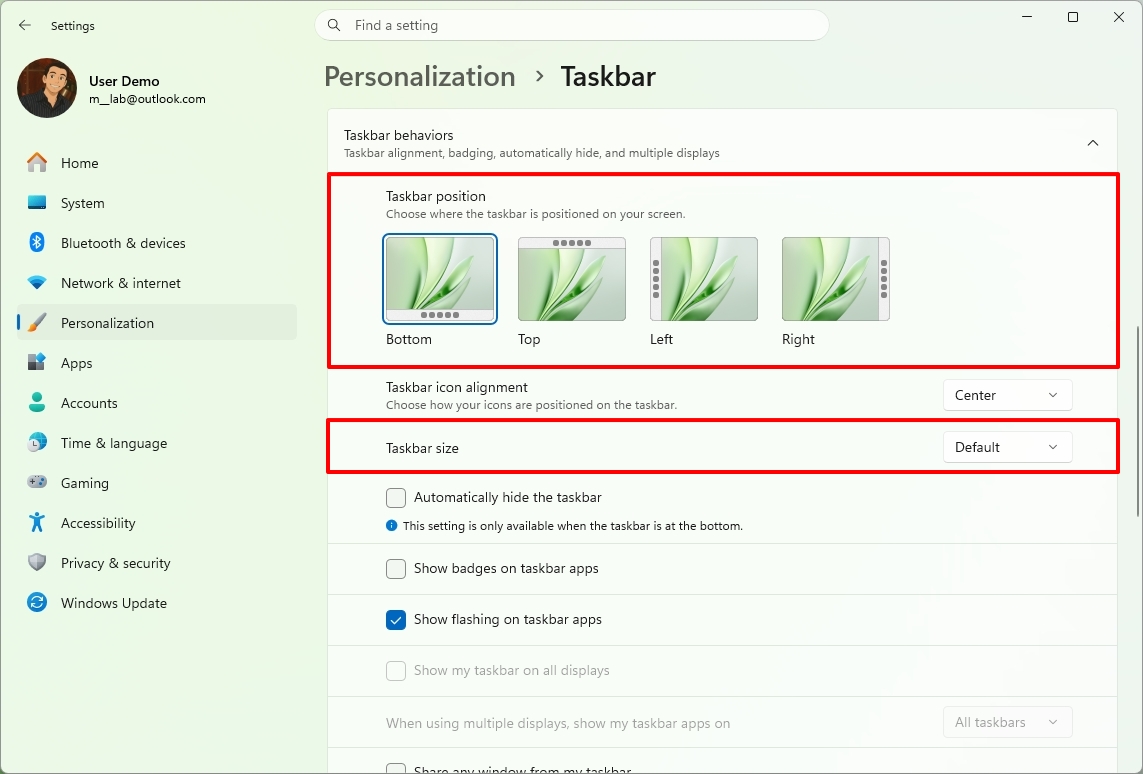
Taskbar positioning
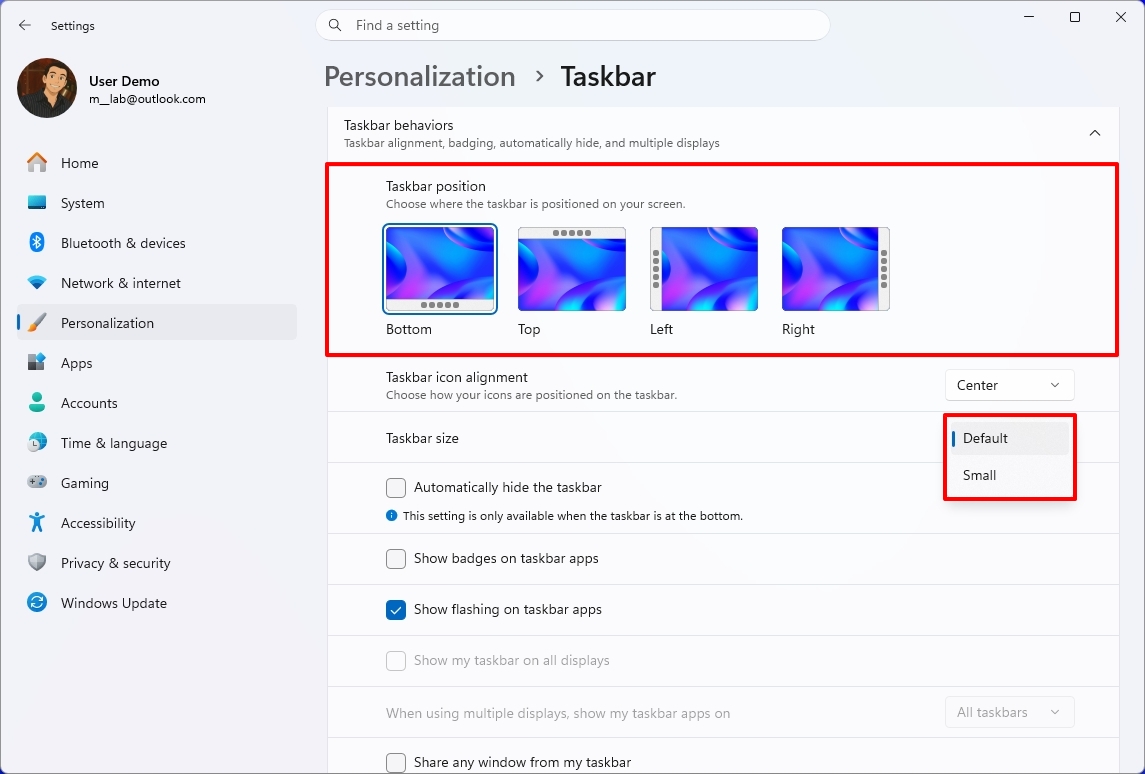
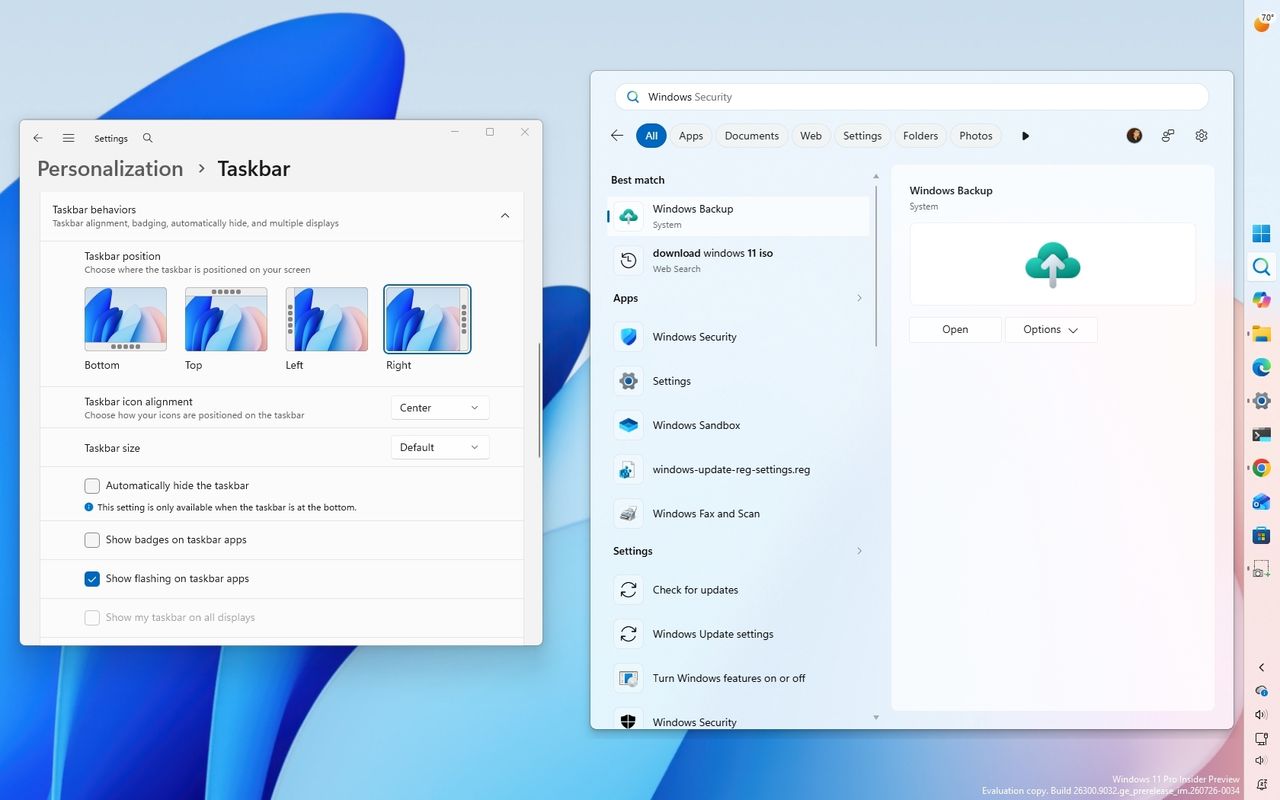
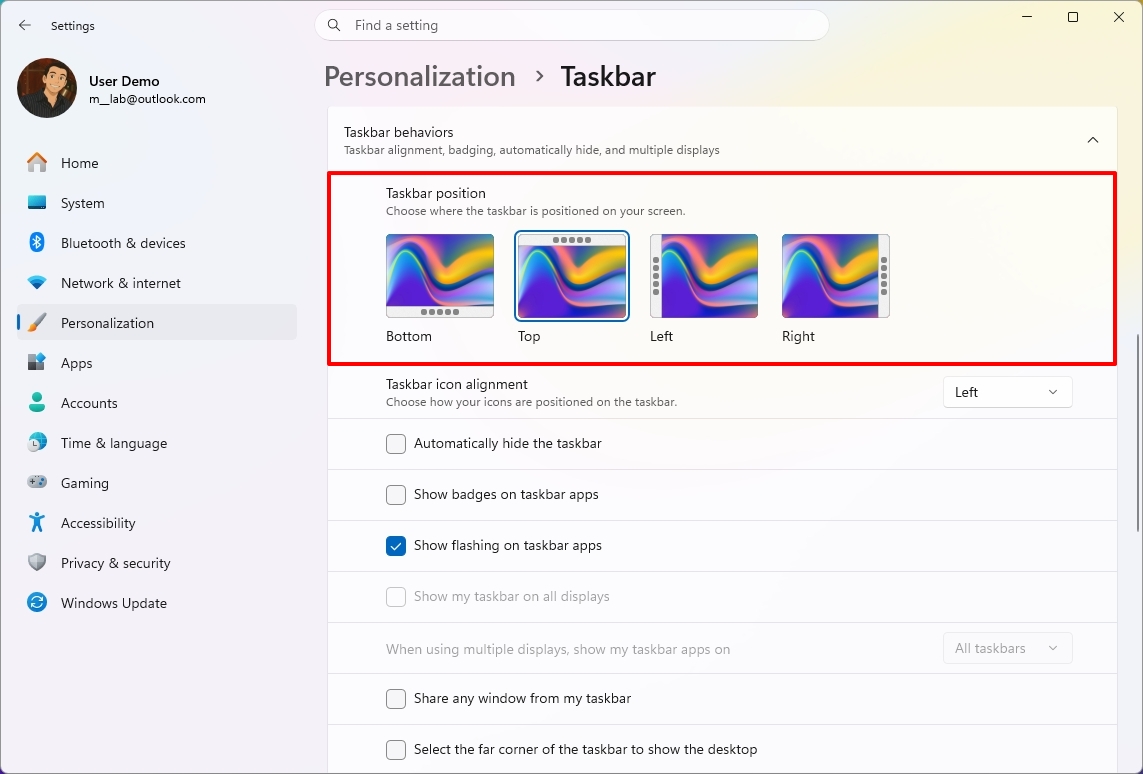
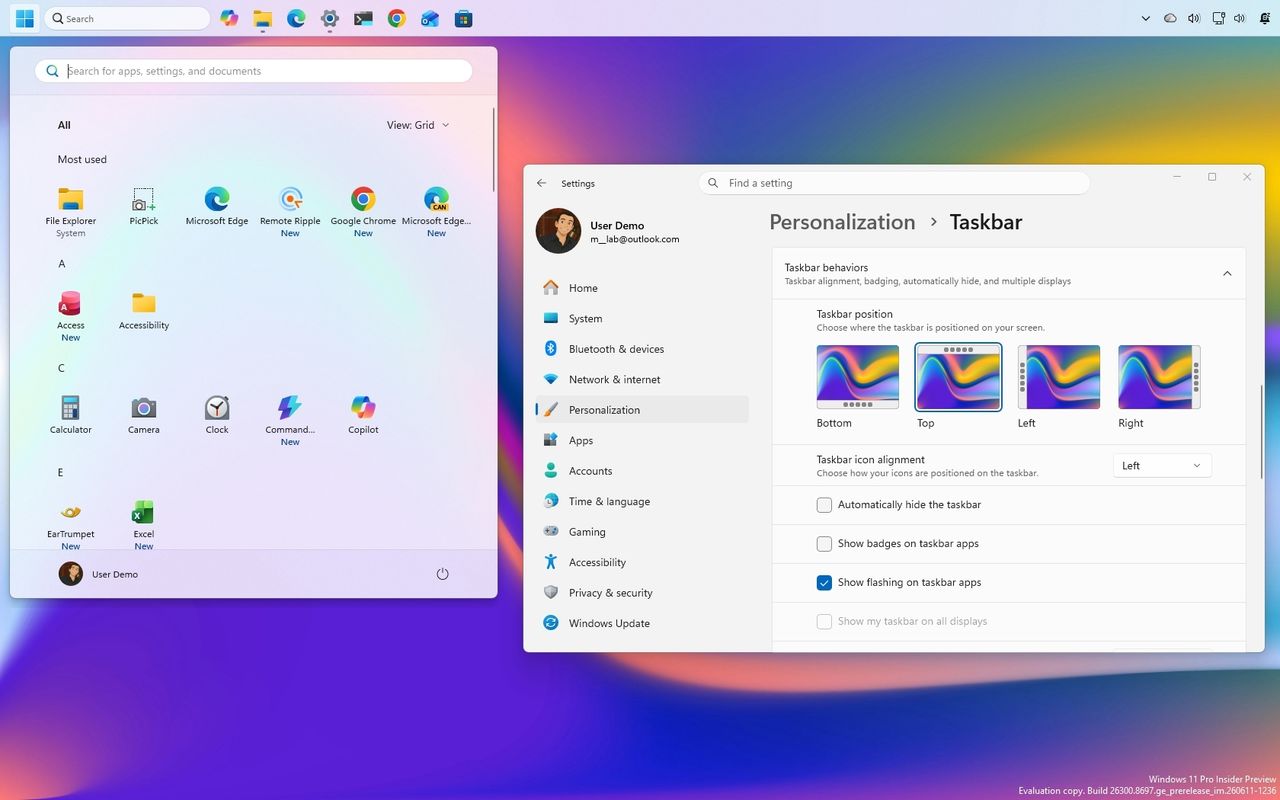
Starting with build 26220.9022 for version 25H2 in the Beta channel, the operating system introduces the ability to change the position of the Taskbar to the top, left, right, and bottom of the screen.
The new setting is known as "Taskbar positions," and it's available from Settings > Personalization > Taskbar > Taskbar behaviors.
(Image credit: Mauro Huculak)
When using this new functionality, Taskbar tooltips, flyouts, and animations continue to work in any of the positions, while most customization options, including never combining Taskbar icons, remain available.
(Image credit: Mauro Huculak)
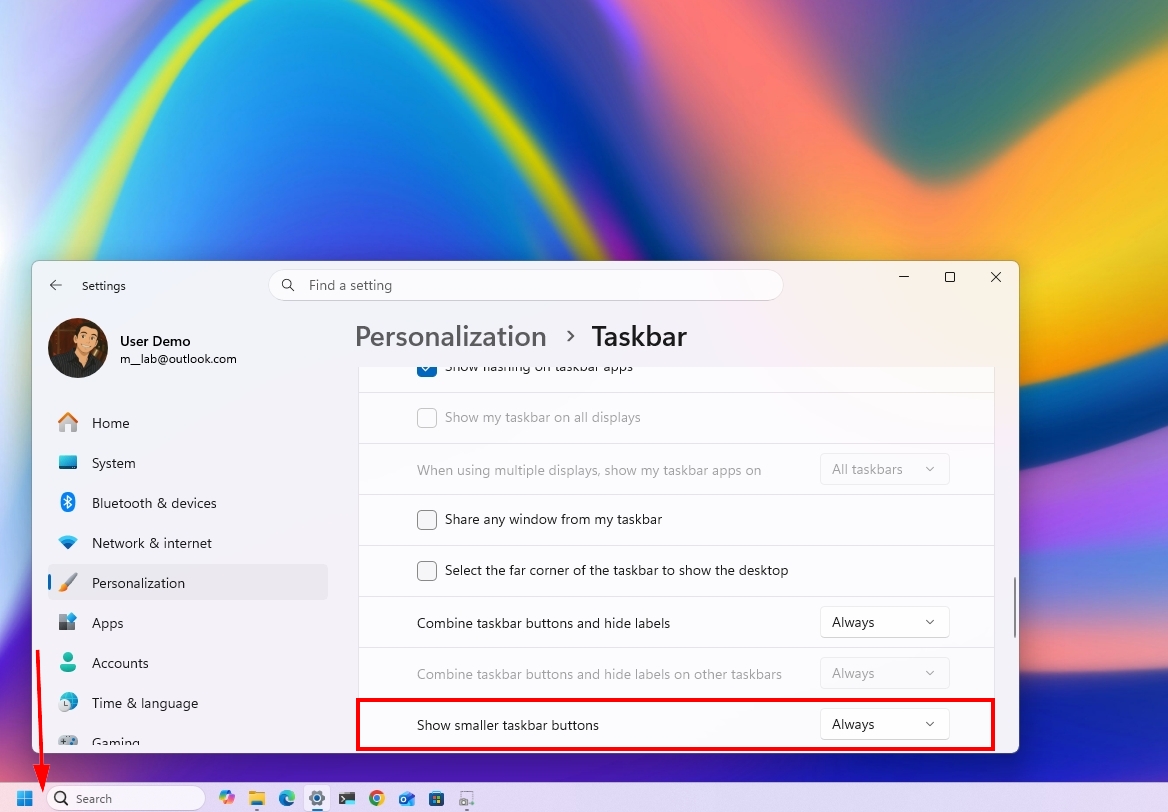
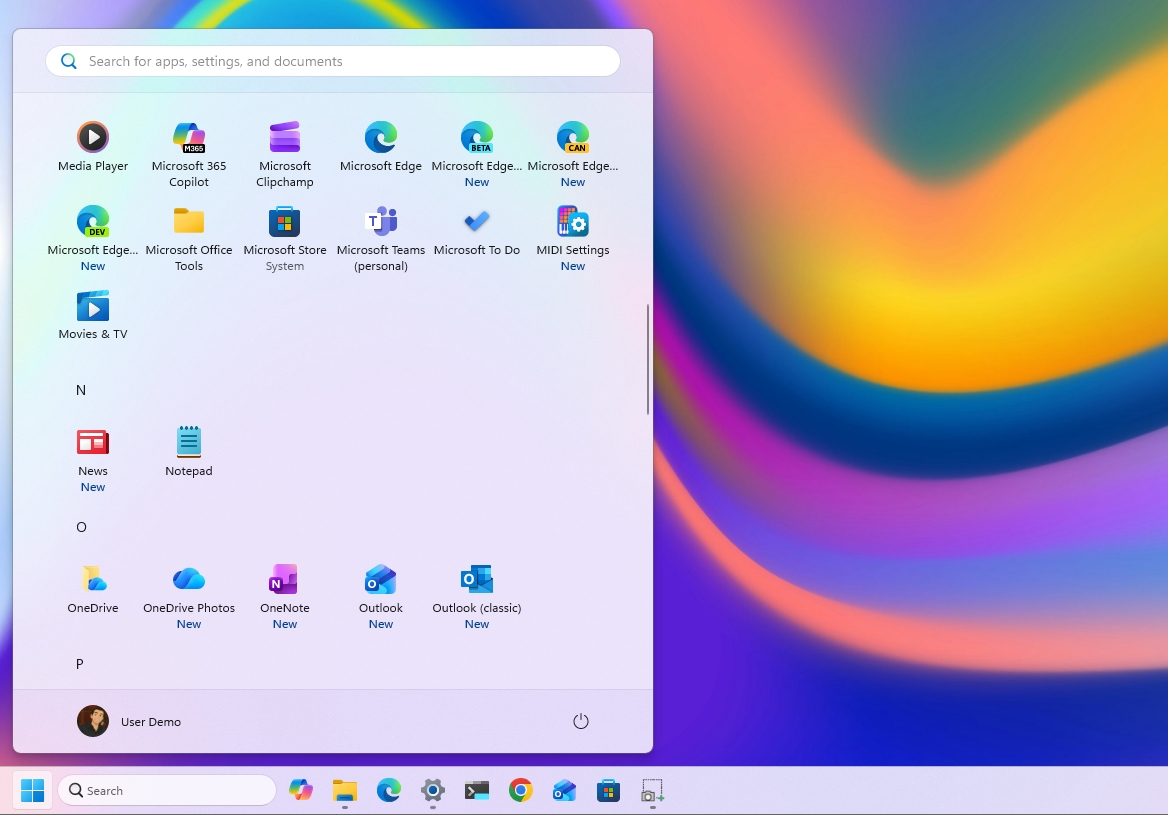
This flight also introduces the ability to make the Taskbar smaller. The option is available from this page. However, in the Beta channel, the option works when configuring the "Show smaller app icons" option. In future releases, the company will add a dedicated button under the "Taskbar behaviors" setting, as it's currently available in the Experimental channel.
It's worth pointing out that these changes are still under development, and they may not work as intended.
Start menu new customization
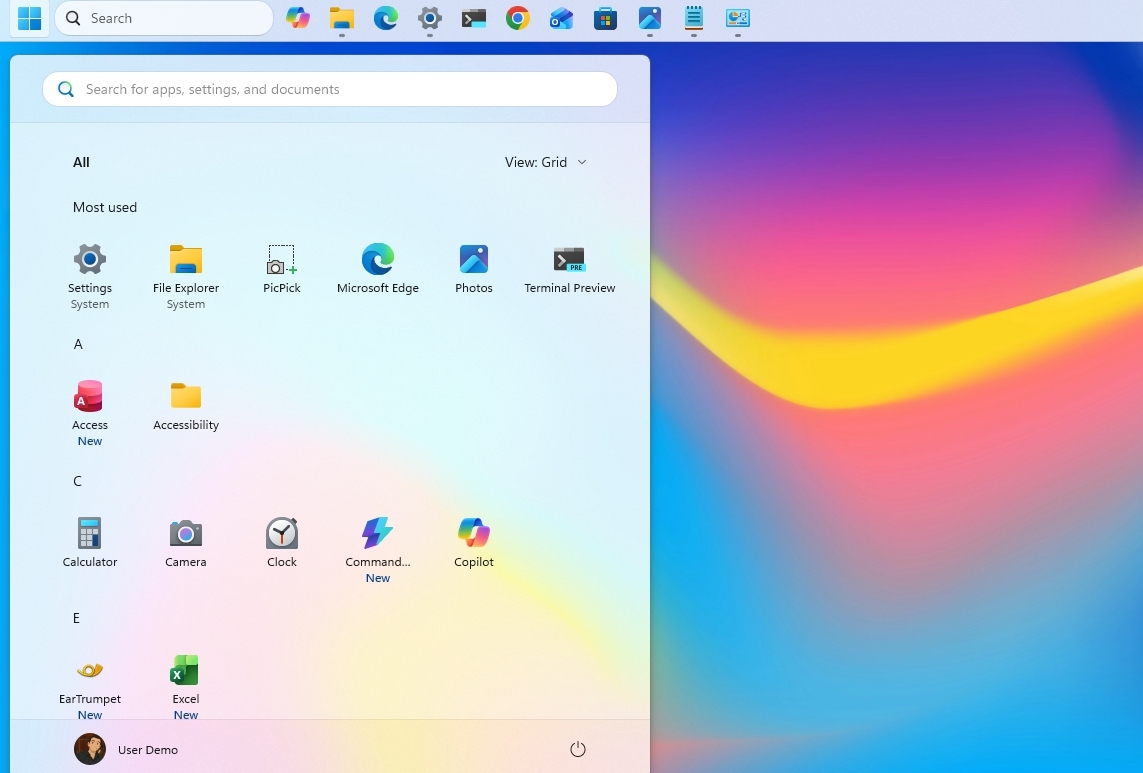
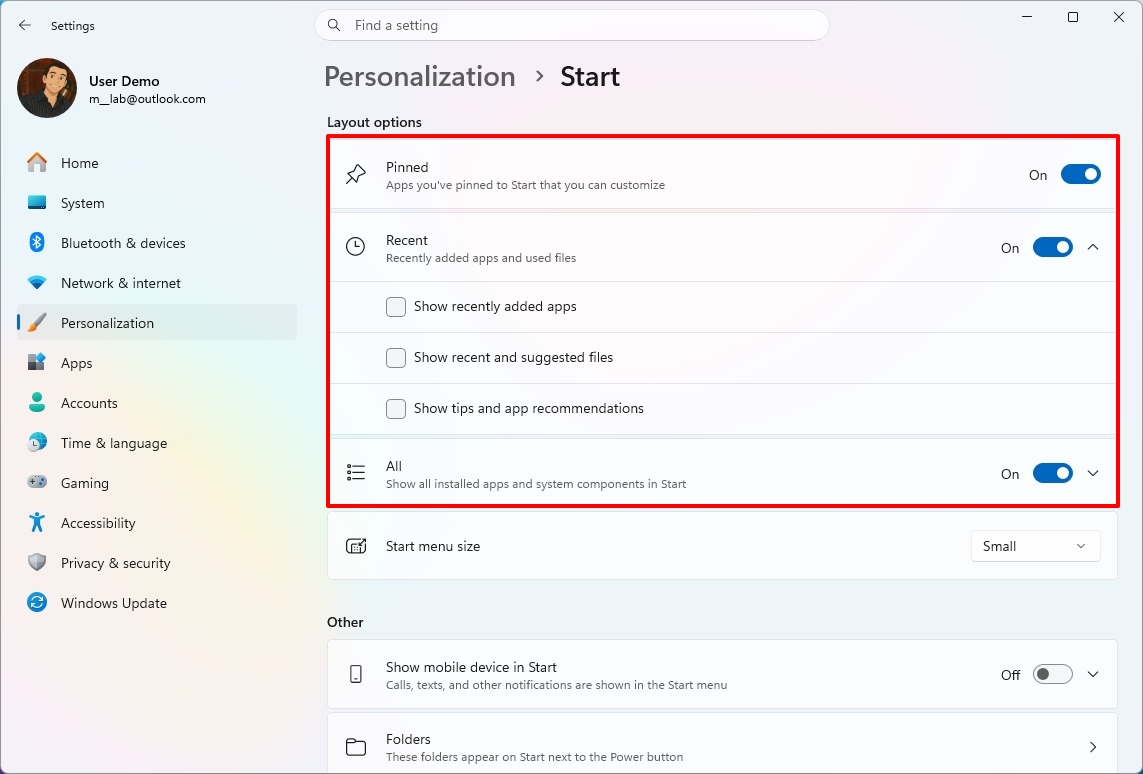
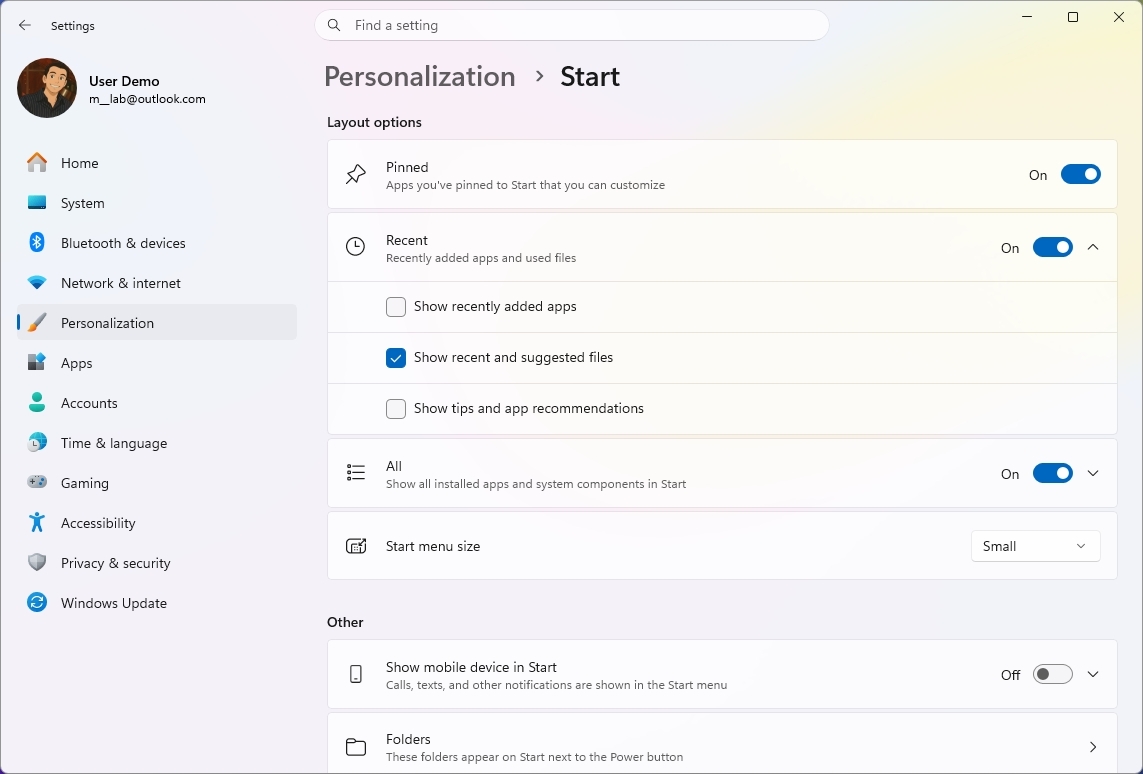
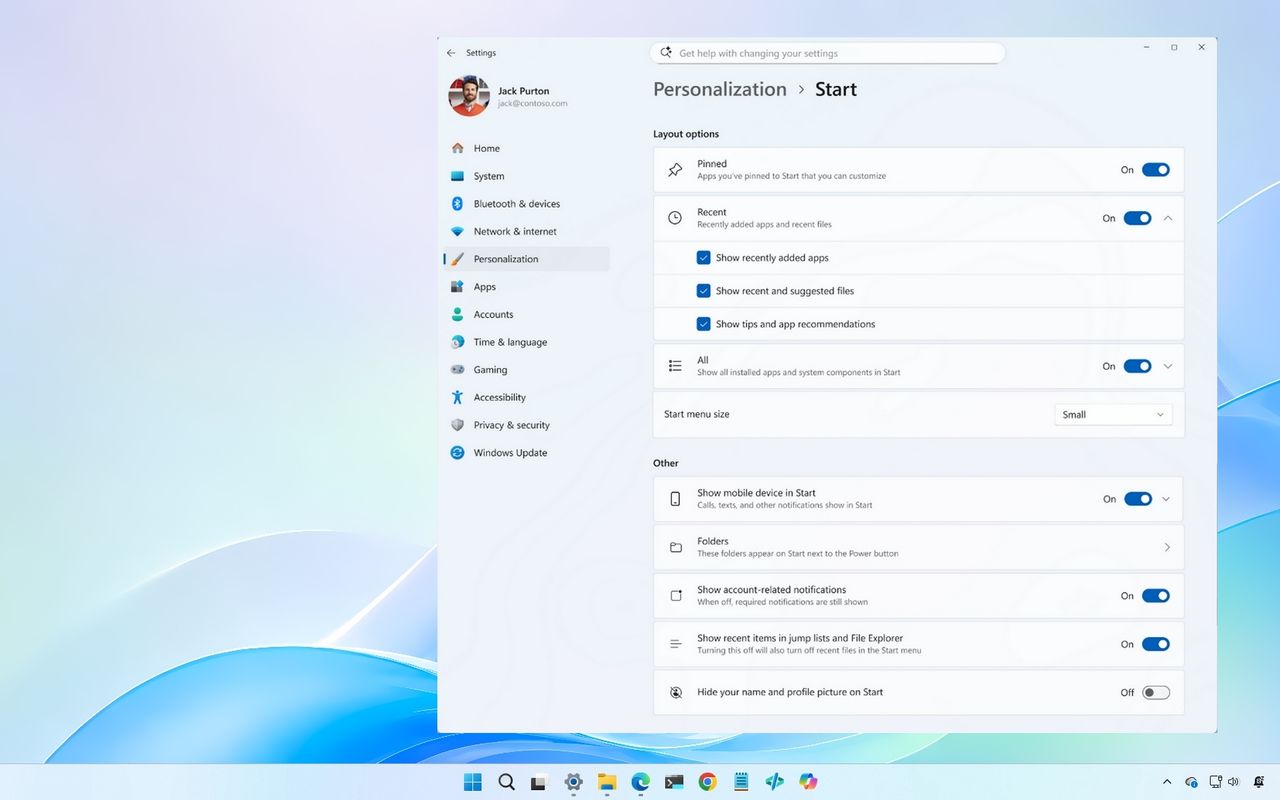
On Windows 11 build 26220.8925, Microsoft is rolling out new Start menu customization options, including the ability to choose which sections appear in the menu and adjust its size.
The new customization settings are available on Settings > Personalization > Start. On this page, you can show or hide any of the sections, and you'll also notice that the "Recommended" section has been renamed to "Recent."
(Image credit: Mauro Huculak)
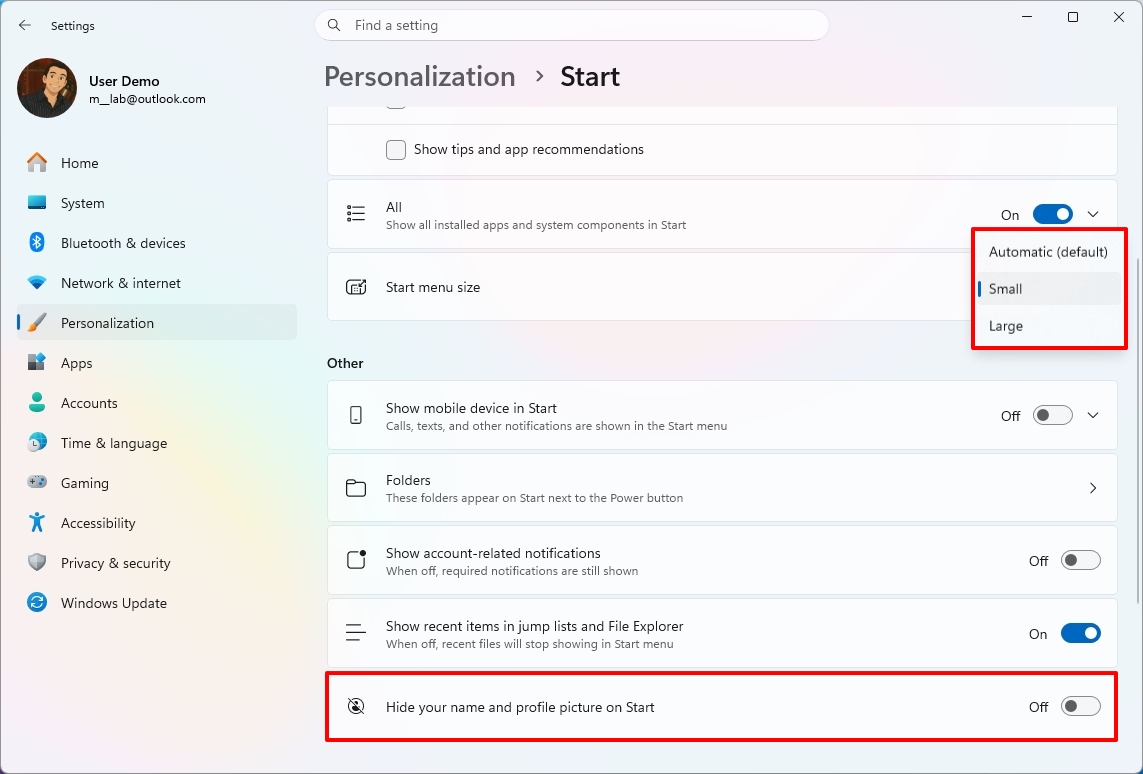
In addition, there's a new option to change the Start menu size, which means you can make the menu larger or smaller, or use the automatic option to let the system choose the size based on the configuration.
(Image credit: Mauro Huculak)
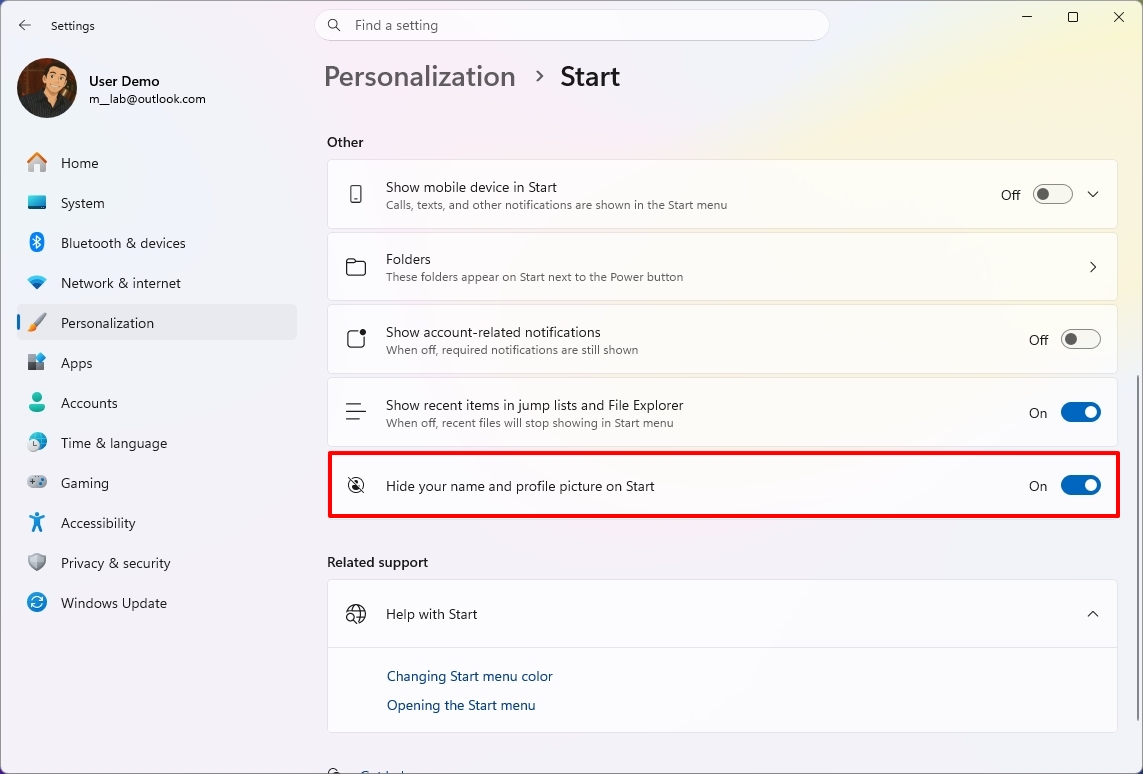
Finally, at the bottom of the page, under the "Other" section, you can enable the "Hide your name and profile picture on Start" setting to improve your privacy when projecting your screen to other people.
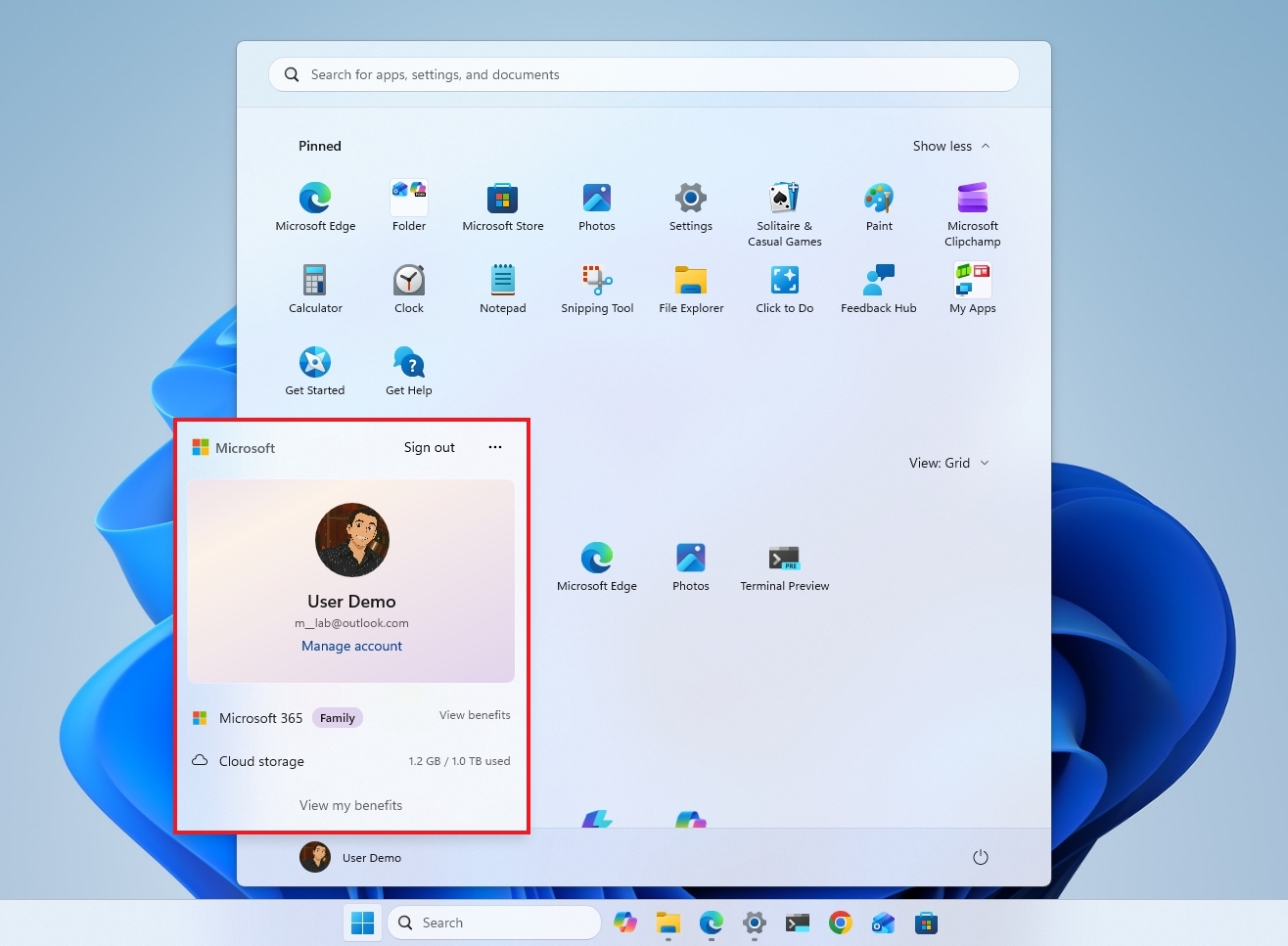
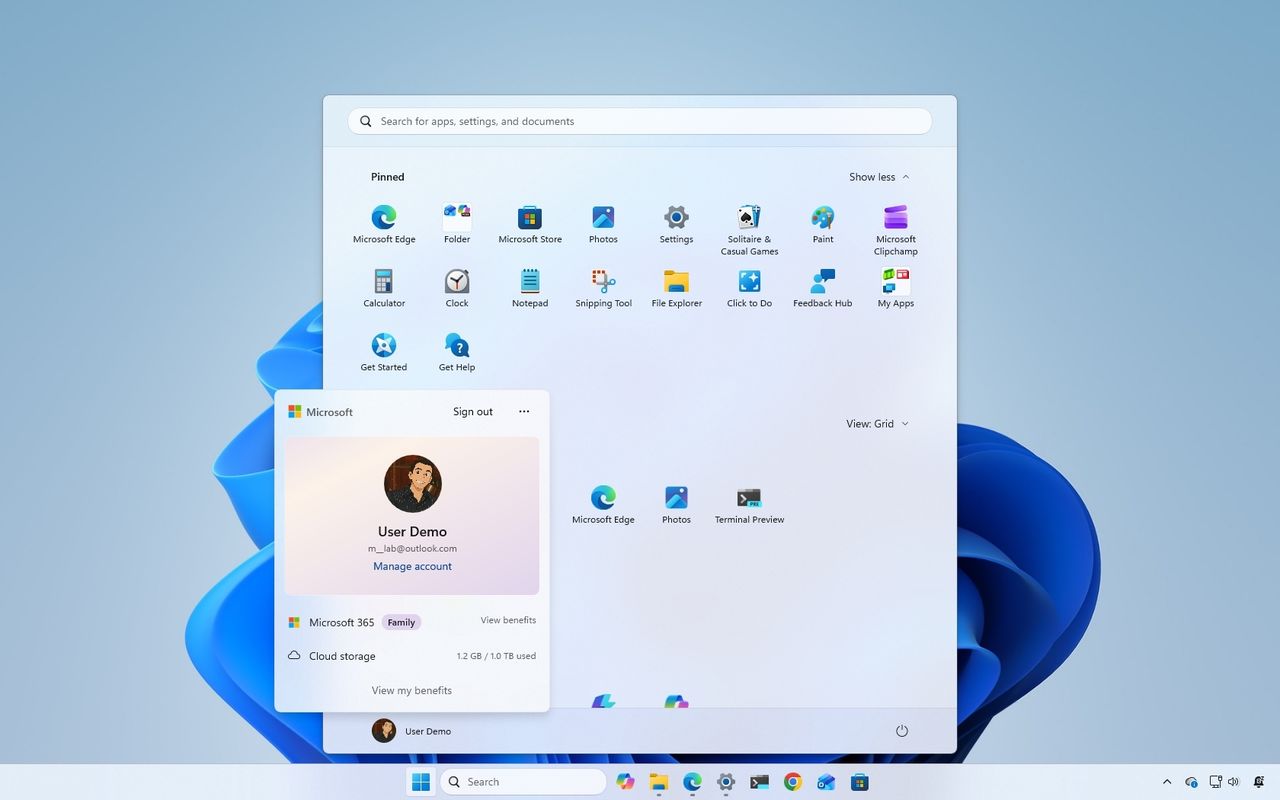
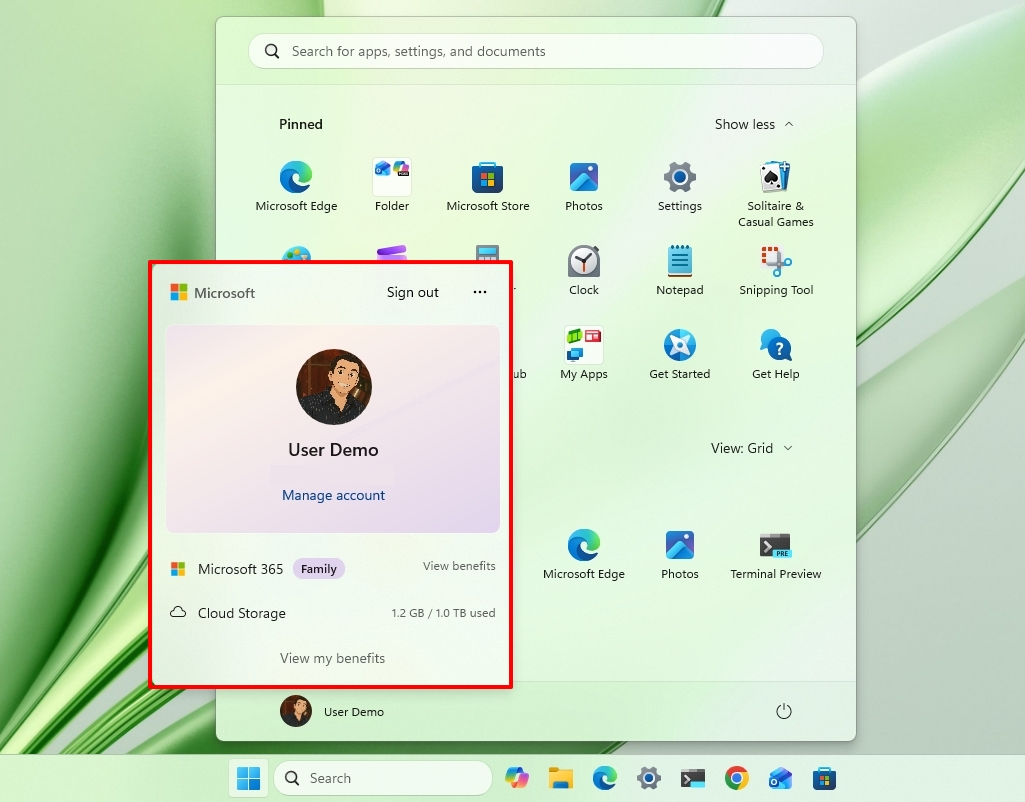
Account Control menu redesign
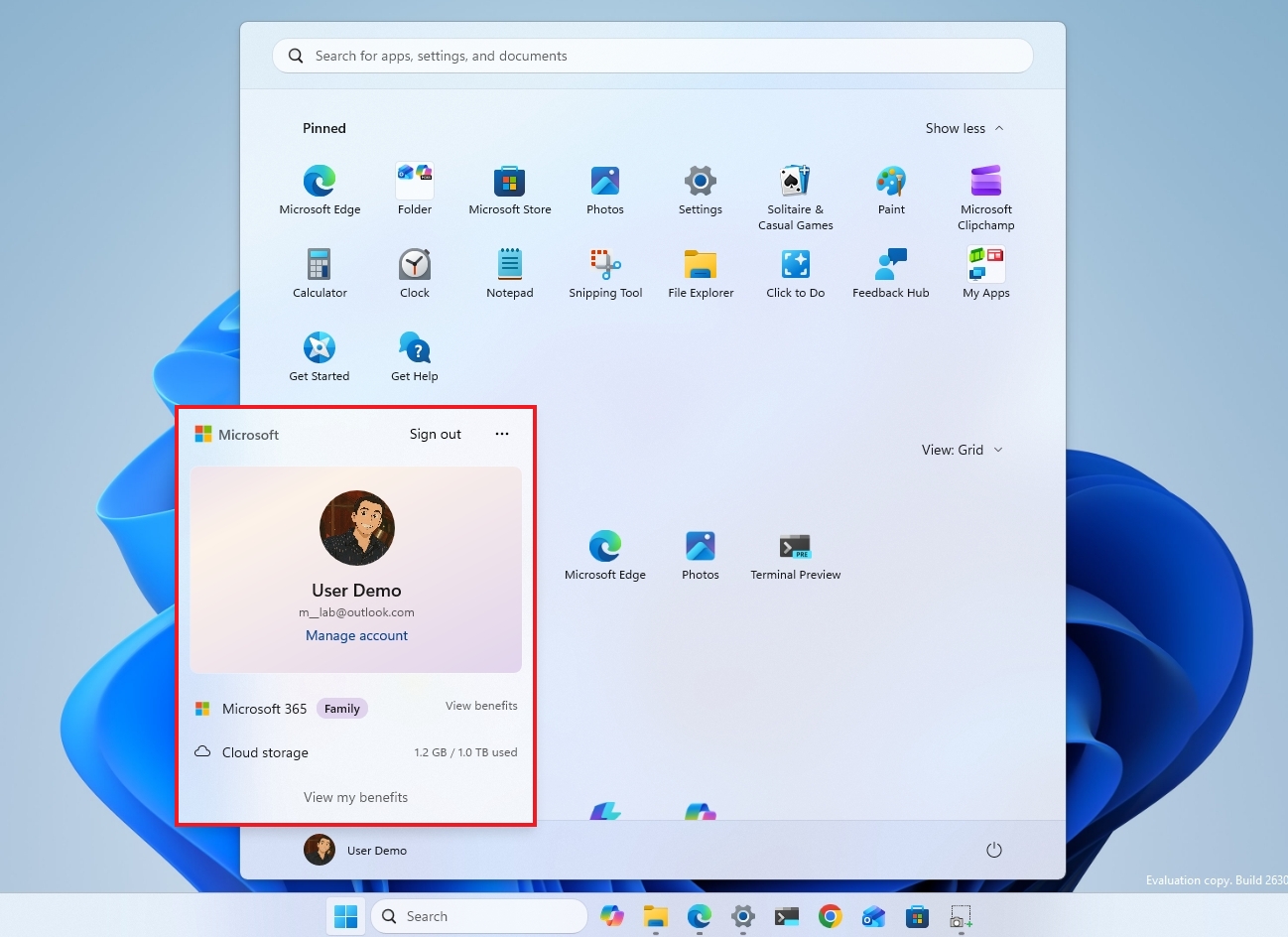
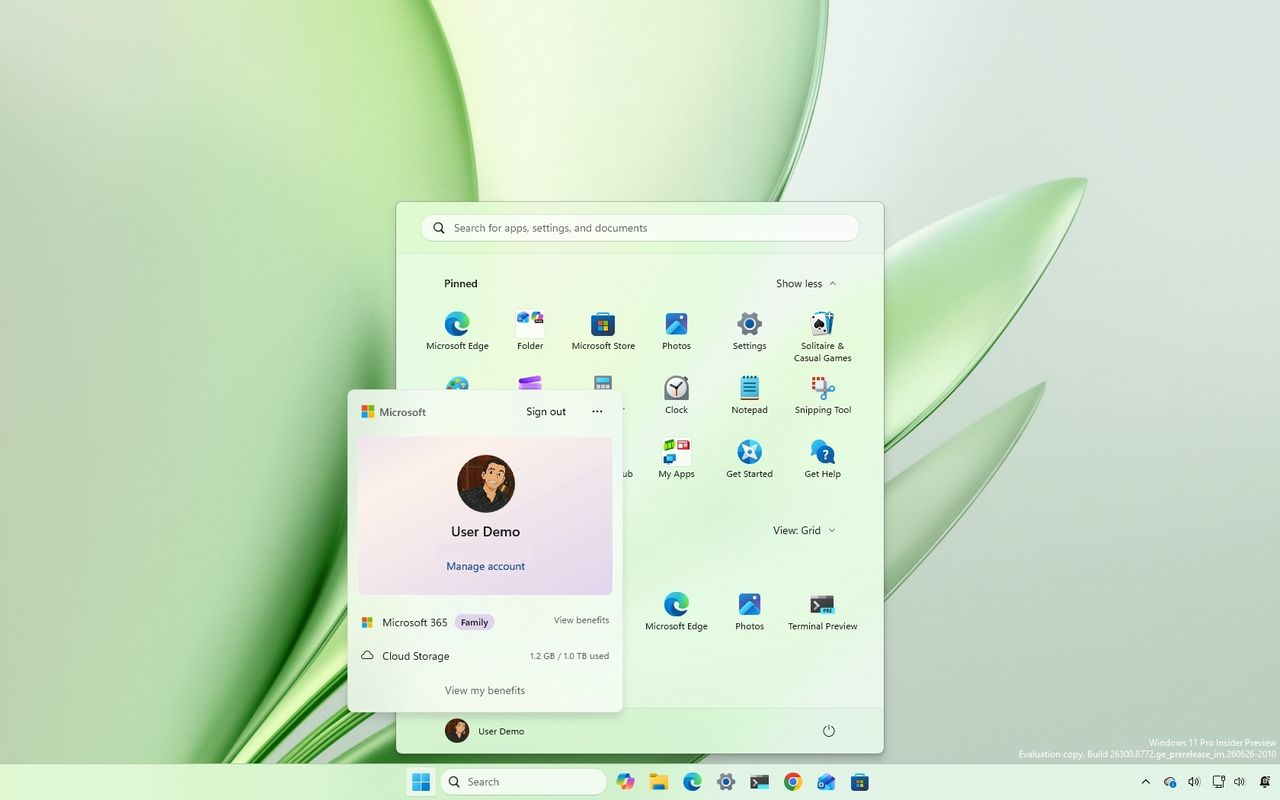
Microsoft is also refreshing the Account Control flyout in the Start menu with a more modern design and clearer Microsoft account information.
(Image credit: Mauro Huculak)
The updated interface adds a subscription badge, making it easier to check your account state, view available benefits, and explore upgrade options.
It also surfaces account benefits and storage details, giving users a centralized place to manage their Microsoft account without opening the Settings app.
This improvement is also available for build 29634 in the Experimental channel for version Future Platforms.
Voice Isolation for Voice Access
On build 29634 in the Experimental channel for version Future Platforms, Windows 11 also introduced Voice Isolation for Voice Access to improve speech recognition in noisy environments and shared spaces.
According to the company, the feature uses on-device processing for filtering background noise and nearby conversations.
In addition, Voice Access now includes three speech recognition models, including "Voice Isolation," "Remove background noise only," and "No filtering."
Windows Central's Take
Looking back at the second half of July, I don't think this was Microsoft's most exciting set of Insider releases. A lot of what landed in the Beta and Experimental channels wasn't entirely new. Instead, it felt like the company was catching those channels up with features that had already appeared in other Insider channels as it continues to align the program.
I don't think that's a bad thing. It suggests Microsoft is getting closer to offering a more consistent experience across the Insider channels while focusing on improvements that people will actually notice.
I'm still waiting to see how quickly these features make it into the stable release. Microsoft has been moving faster recently, but Insider builds are still a preview of what's planned, not a guarantee of what will eventually ship.
What are your thoughts about these latest Windows 11 Insider changes? Let me know in the comments.
More resources
Explore more in-depth how-to guides, troubleshooting advice, and essential tips to get the most out of Windows 11 and 10. Start browsing here:
In most modern homes, people rarely depend on a single shared computer anymore. Instead, most families use a combination of Windows 11 laptops, macOS devices, Android phones, iPhones, tablets, smart TVs, and cloud services, all connected through the same home network. The problem is that one weak device can compromise the entire network.
As digital life spreads across more devices and services, security gaps become easier to overlook. Attackers increasingly target the weakest link, often a device without proper protection, outdated software, or a misconfigured app.
TL;DR
The risk: Users today rely on multiple devices, accounts, and platforms.
The solution: All-in-one protection makes digital safety easy by eliminating coverage gaps between different operating systems.
Bitdefender Total Security: Provides a seamless multi-device coverage starting point for Windows 11, macOS, iOS, and Android.
Bitdefender Premium Security: Includes integrated privacy tools, such as an unlimited VPN, to remove data caps and protect public connections.
Bitdefender Ultimate Security: Offers identity-first digital protection with identity theft insurance and real-time monitoring.
Fragmented security increases household risk because attackers exploit the weakest device
Using different security solutions across devices creates an unbalanced level of protection. A Windows 11 laptop might have an antivirus installed, while a child's Android tablet might not, and this inconsistency can create openings that malicious individuals can exploit.
Can one vulnerable device really compromise the whole home?
Yes. Modern cyberattacks often use lateral movement, meaning malware on one device can scan the network for others. If one device (laptop, tablet, or phone) is compromised, it can expose other devices in the network.
According to the 2025 Verizon Data Breach Investigations Report, around 60 percent of breaches involve the human element, including non‑malicious actions such as mistakes, misconfigurations, or falling for phishing scams.
When each device in the home uses a different security solution, the chances of mistakes increase.
Why all‑in‑one protection solves this problem
A single security solution reduces that configuration friction. Instead of juggling different apps, settings, and alerts, every device follows the same protection solution. This reduces the number of decisions families must make, and fewer decisions mean fewer gaps.
(Image credit: Bitdefender )
Why is an all-in-one suite better than several specialized apps?
Because it removes configuration friction, using a unified protection means all your devices use the same security system, so you don't have to worry about differences between Android and Windows 11. Everything is built on a single platform, helping eliminate potential weak points that attackers could exploit.
Bitdefender Total Security provides seamless multi‑device coverage
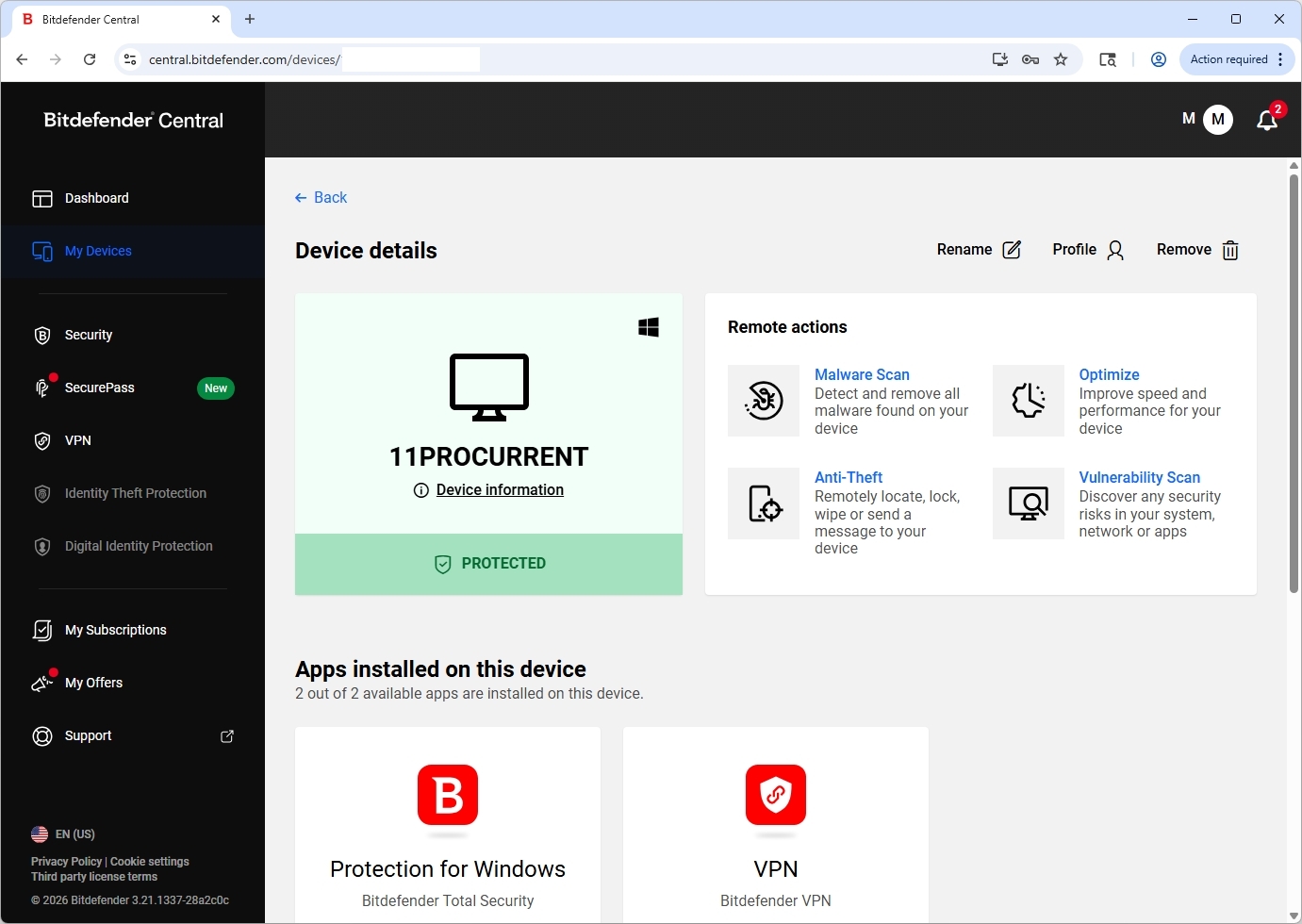
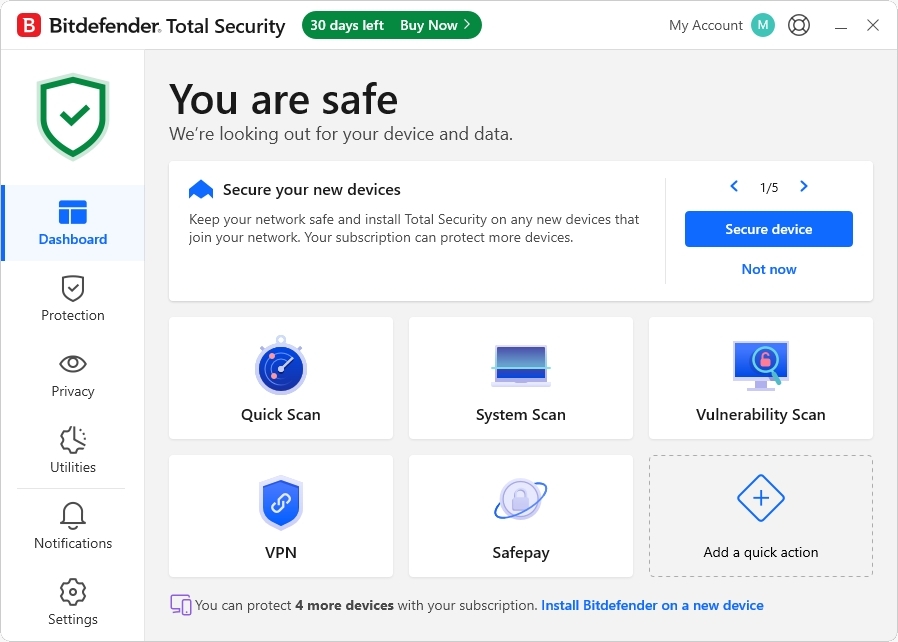
A single defense system is the appropriate solution for busy homes because it stops the manual labor required to stay safe. Bitdefender Total Security is designed as a single protection layer for mixed devices in the home. It brings Windows 11, macOS, iOS, and Android under one unified dashboard.
(Image credit: Future)
Key features of the Total Security tier:
Central dashboard: It monitors the security status of every family device from a single location.
Real‑time protection: Uses advanced threat detection to block malware, ransomware, and zero‑day threats.
Integrated privacy tools: It includes webcam and microphone protection to alert you when apps attempt unauthorized access.
Bitdefender consistently ranks at the top of independent laboratory tests. In the latest AV‑Comparatives Real‑World Protection Test, Bitdefender achieved a 99.5 percent protection rate with one of the lowest false‑positive scores.
Users can start with Antivirus Plus for essential protection on a single device before moving to full-suite plans.
Bitdefender Premium Security removes common limitations like VPN data caps
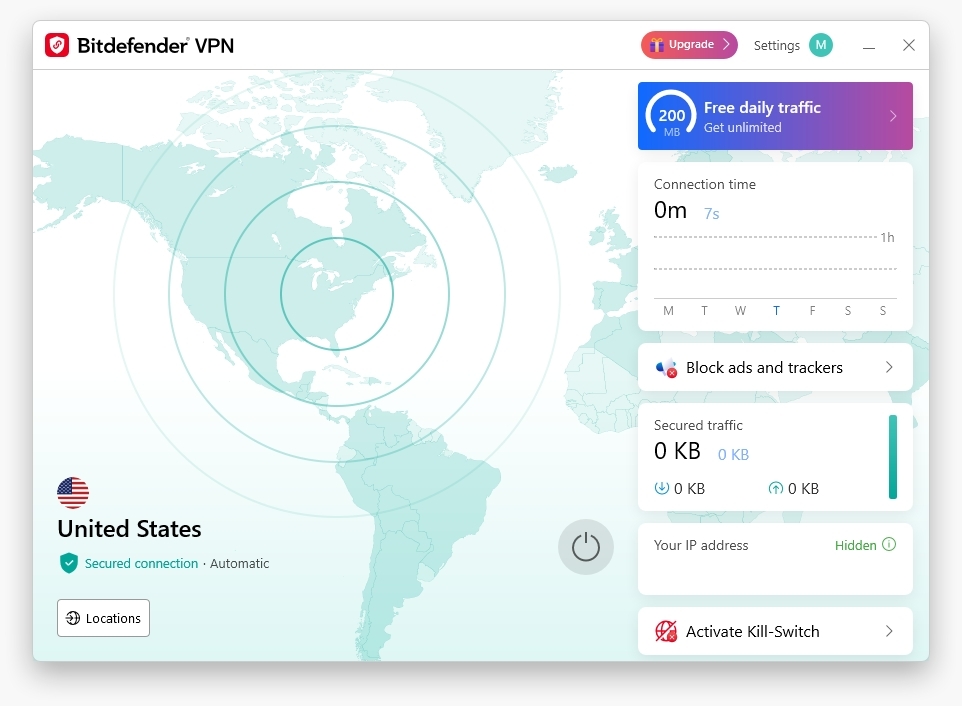
While the standard "Total Security" suite is robust, the jump to Premium Security is where all-in-one protection is the more practical choice because it removes common limitations, such as VPN data caps, that often lead users to avoid certain security features altogether.
(Image credit: Future)
Is upgrading to Bitdefender Premium Security worth it?
Yes, for most homes, upgrading to Bitdefender Premium Security is worth it, especially if you regularly use public Wi-Fi, travel often, or work remotely. An unlimited VPN adds a layer of protection by encrypting your internet traffic without the hassle of data limits.
Why is an integrated password manager helpful?
Integration creates an easier-to-manage experience. Bitdefender's Password Manager is great for shared households because it helps family members generate strong, unique passwords, as well as sync them across devices and reduce password reuse, a major cause of account compromise.
Bitdefender Ultimate Security adds identity‑first protection for modern home
Device protection still matters, but these days your personal data is just as exposed. Families share devices, accounts, and the same wireless network, which creates more chances for information to slip through the cracks. Bitdefender Ultimate Security focuses on that risk, adding tools aimed at protecting financial and personal data, not just the devices themselves.
It offers up to $2 million in identity theft insurance.
Access to restoration specialists.
What happens if your identity is stolen?
Bitdefender's specialists help guide you through restoring your identity, credit, and accounts, a process that can otherwise take a long time.
Bitdefender plan comparison
Feature
Total Security
Premium Security
Ultimate Security
Device Protection
Up to 5 devices
Up to 5 devices
Up to 5 devices
Unlimited VPN
No (200MB/day)
Yes
Yes
Password Manager
Yes
Yes
Yes
Identity Monitoring
No
No
Yes
ID Theft Insurance
No
No
Up to $2M
FAQs about common household security questions
Do I need an antivirus solution on every device?
Yes. Even devices that don't traditionally get viruses can be used as entry points for attackers.
Can an infected device compromise other devices on my network?
Yes. Some malware is capable of scanning your home network and attempting to access other devices.
Is an all‑in‑one suite better than using separate apps?
Yes, for most homes, the unified protection reduces the chances of misconfigurations and improves management.
Is the VPN upgrade worth it?
If you usually connect to public Wi‑Fi or travel, an unlimited Bitdefender Premium VPN is a worthy upgrade.
Bottom line
A security setup is only as good as how well it’s maintained across your devices. When protection is split between different apps and services, it's easy for something to get missed. An all-in-one approach reduces that complexity by bringing device security, account protection, and privacy tools into one place.
Bitdefender brings device protection, privacy tools, and identity monitoring under one system, reducing the complexity that usually causes security gaps at home.
For larger households managing multiple users and devices, Family Plans provide centralized protection and easier subscription management across the entire home network.
Microsoft is expanding one of the least understood security features in Windows 11. Beginning with the August 2026 update, Enhanced Sign-in Security (ESS) now supports compatible external fingerprint readers, extending the company's most secure Windows Hello experience to devices without built-in biometric hardware.
The timing couldn't be better because Enhanced Sign-in Security has confused users ever since Microsoft introduced it. Some users assume it's simply a newer version of Windows Hello, while others think it's reserved for businesses or Copilot+ PCs.
The reality is that Windows Hello and Windows Hello Enhanced Sign-in Security use the same sign-in experience, but they protect your biometric data in different ways.
After spending time digging through Microsoft's support page, I think that's the distinction most explanations miss. Enhanced Sign-in Security isn't about making facial recognition more accurate or fingerprint sign-in faster. It's about making the entire authentication process harder to attack.
Standard Windows Hello is already one of the best security features
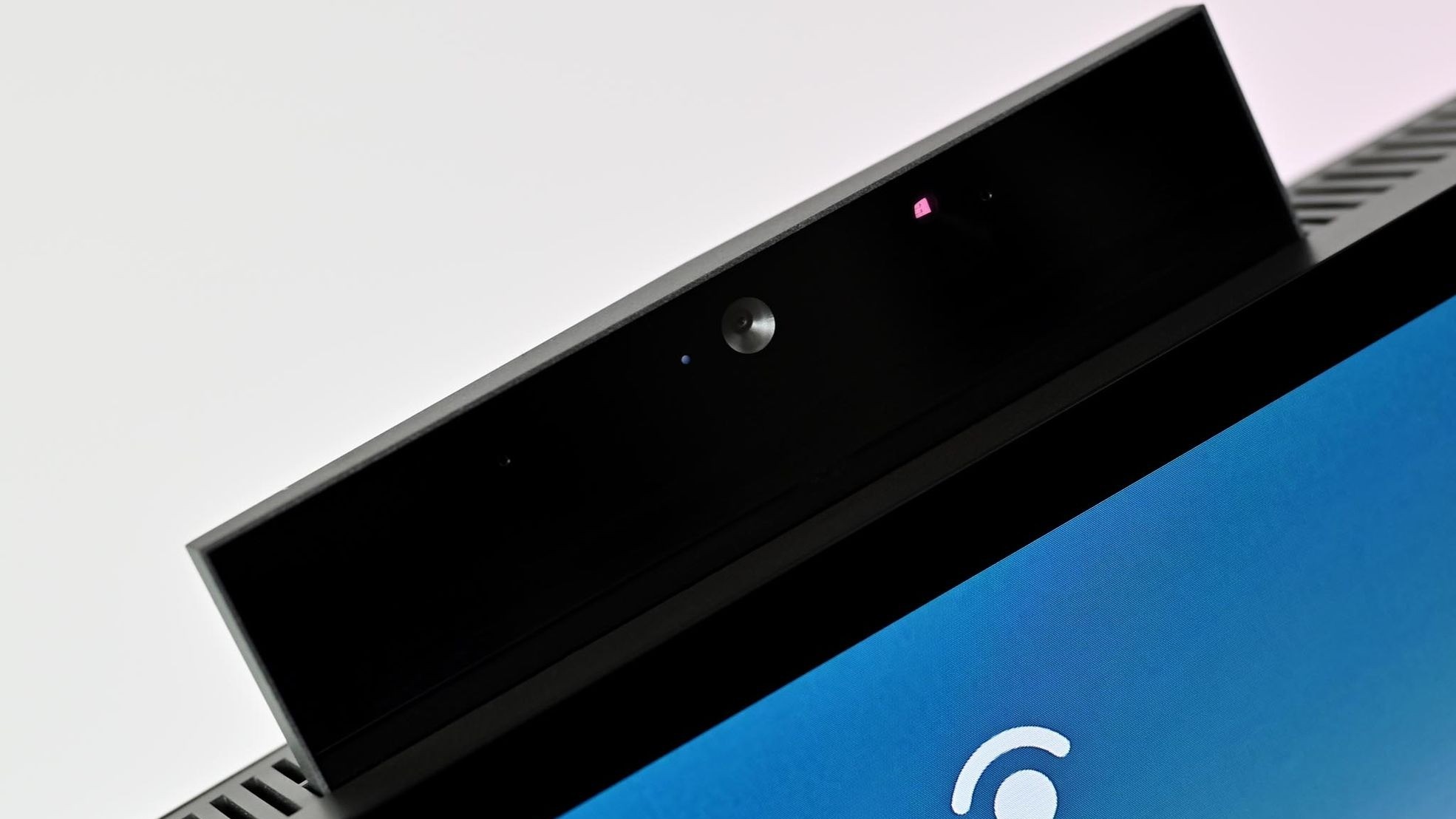
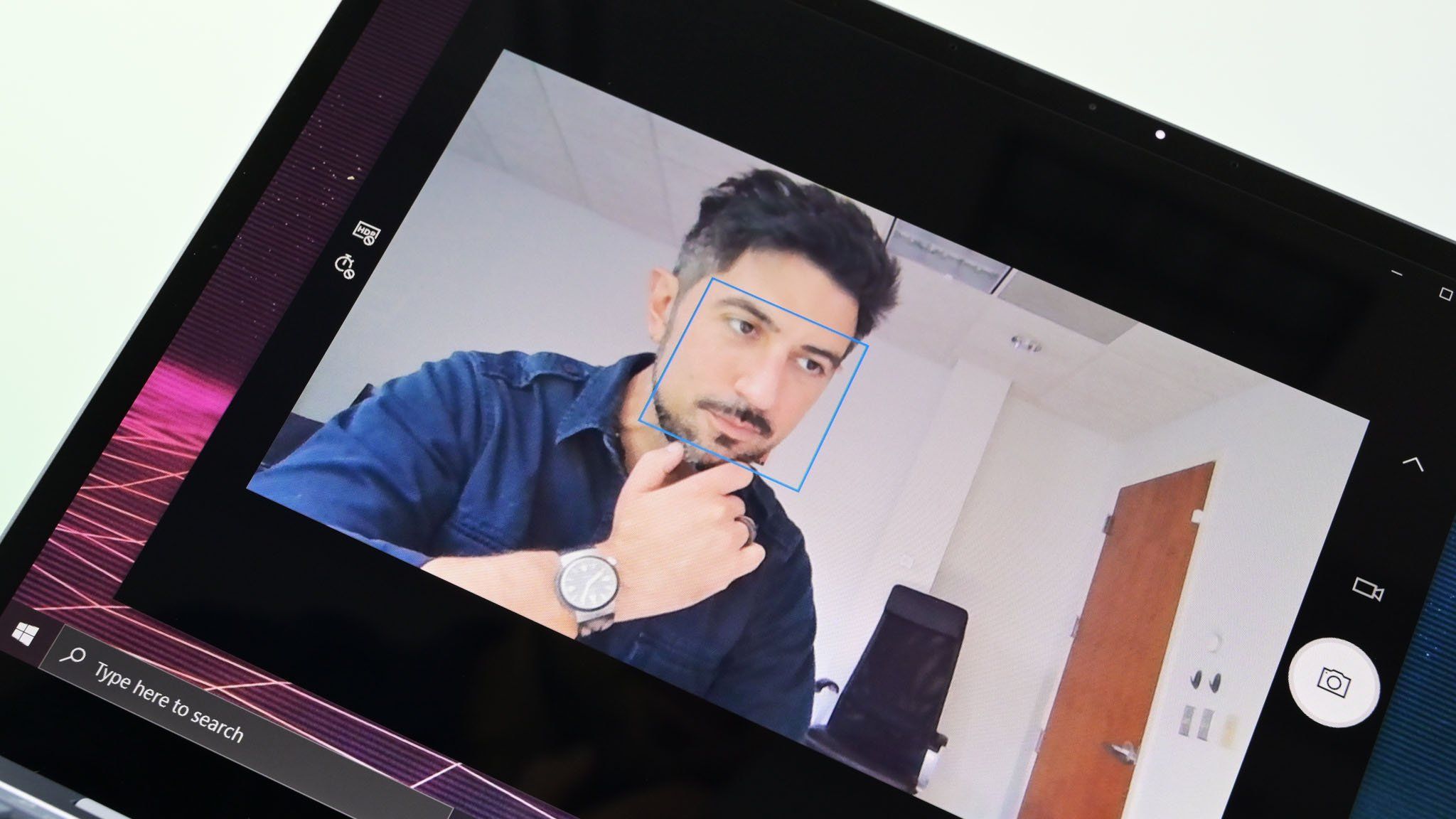
A pop-up webcam in a Windows all-in-one PC that also supports Windows Hello facial recognition. (Image credit: Future)
Before the Enhanced Sign-in Security feature was introduced, Windows Hello had already replaced passwords with a much stronger authentication model.
Instead of storing passwords that can be stolen or reused, Windows Hello creates cryptographic credentials that are attached to the Trusted Platform Module (TPM) available on your computer. Facial recognition and fingerprints are used only to unlock those credentials, and your biometric templates remain on the device rather than being uploaded to Microsoft's servers.
For the average home user, that already provides excellent protection against phishing, password reuse, and stolen credentials.
The Enhanced Sign-in Security feature doesn't replace the architecture already in place. Instead, it builds another layer on top of it.
The real difference is where the trust is placed
This is where the comparison becomes interesting. Using the standard Windows Hello, the operating system relies on the system to process biometric authentication after receiving data from the trusted sensor. Enhanced Sign-in Security moves much of that work into isolated, hardware-protected environments.
When using the Enhanced Sign-in Security feature, Microsoft improves that trust. Instead of allowing sensitive biometric operations to occur in the normal Windows environment, the feature isolates them using Virtualization-Based Security (VBS) and Trusted Platform Module (TPM) 2.0 technology.
The algorithms for facial recognition run in a protected memory region, secure fingerprint readers perform matching within the hardware itself, and communication between the biometric sensor and the operating system is encrypted and isolated.
In other words, Windows Hello protects your credentials, and Windows Hello Enhanced Sign-in Security protects both your credentials and the path your biometric data takes before Windows 11 authenticates you.
Fingerprints show the biggest difference
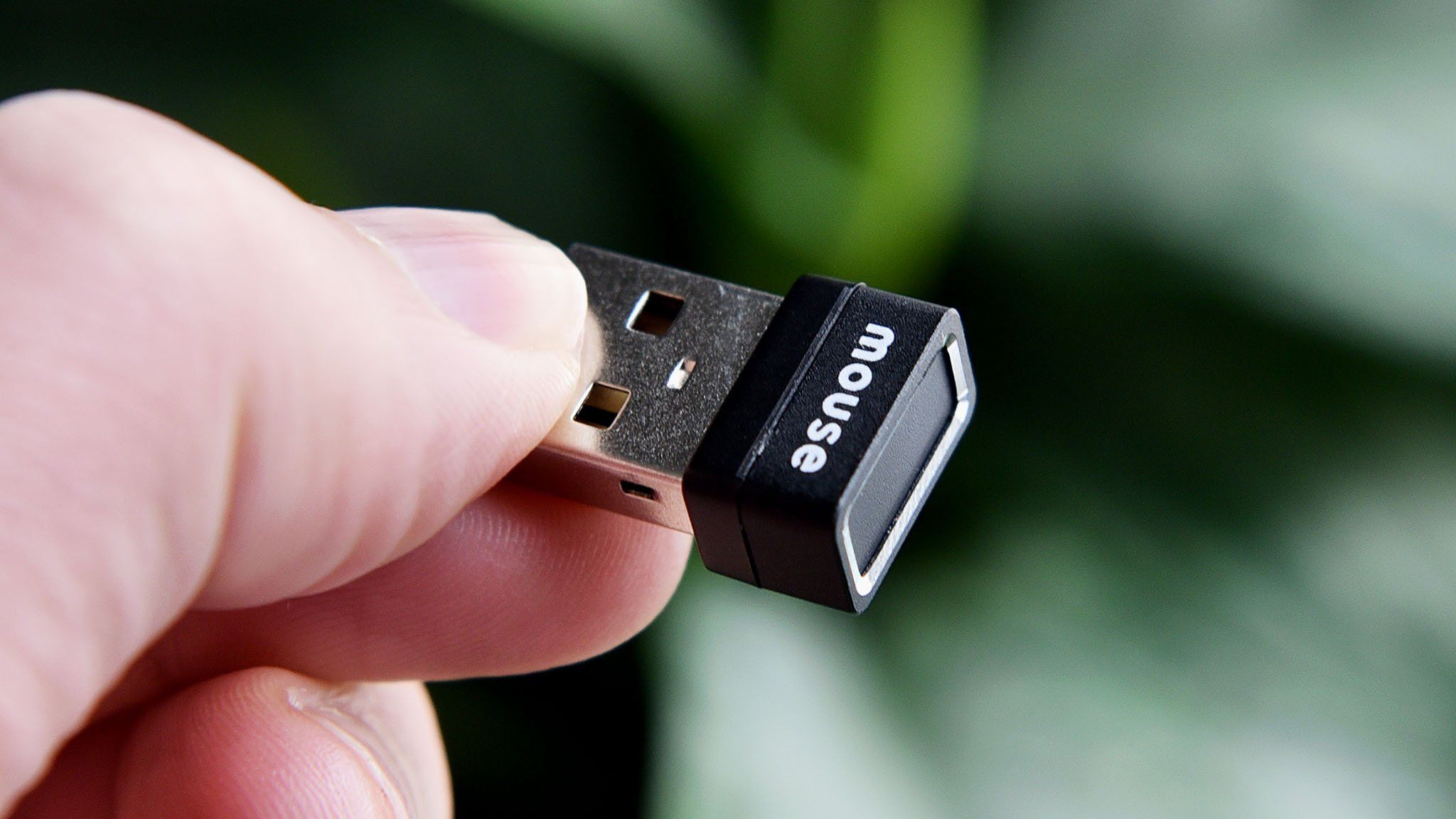
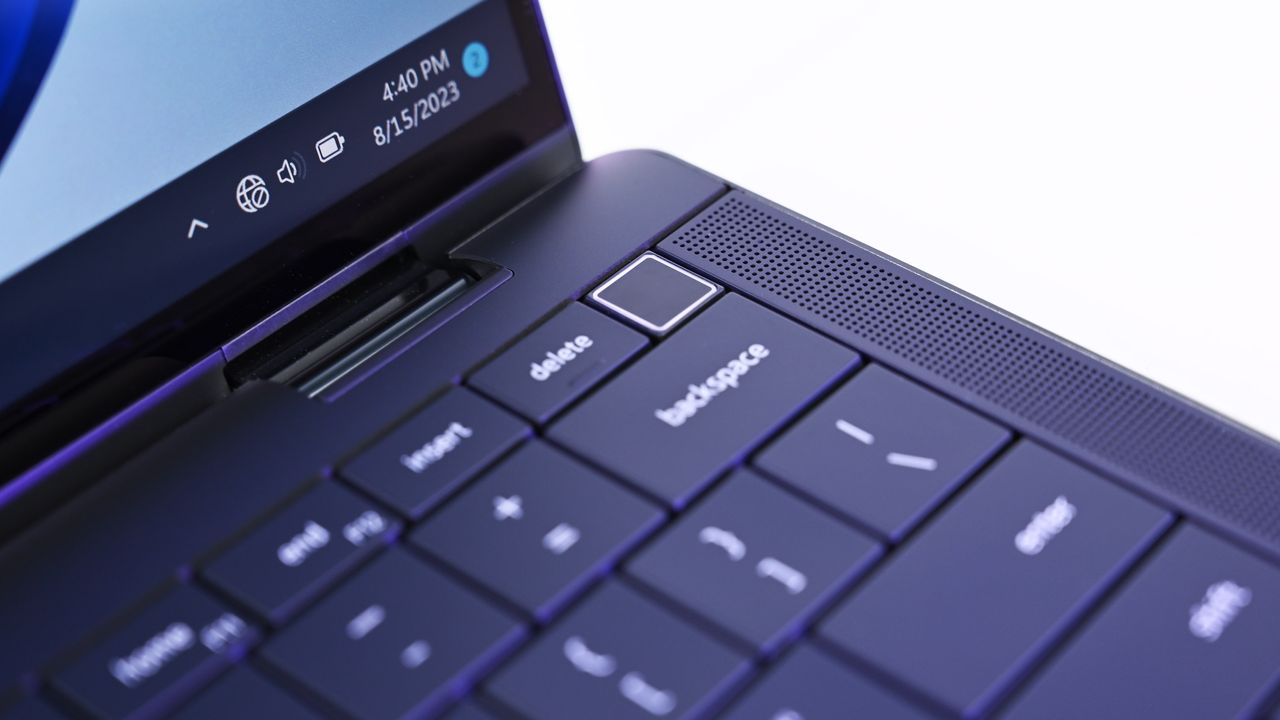
An example of an external fingerprint reader for Windows Hello and Windows PCs.
The August 2026 Security Update highlights the biggest architectural difference between standard Windows Hello and Enhanced Sign-in Security.
Using a standard Windows Hello fingerprint reader, the sensor captures your fingerprint, and Windows 11 verifies it securely using the operating system and TPM-backed credentials.
An ESS-compatible fingerprint reader moves more of that process into the hardware itself. These readers include a dedicated secure processor,store fingerprint templates inside the device, contain a Microsoft-issued certificate that proves they're trusted hardware, and establish an encrypted communication channel with the operating system. Instead of receiving raw biometric data, Windows 11 receives only the authentication result.
Microsoft hasn't explained why ESS still doesn't support external Windows Hello cameras (likely because USB can be a vector for attack). However, its support page shows that enhanced security for facial recognition relies on specific camera hardware, firmware, and protected memory through Virtualization-Based Security (VBS), whereas ESS fingerprint readers can perform biometric matching inside certified hardware. That architectural difference may explain why Microsoft expanded support for external fingerprint readers first.
The practical benefit is a smaller attack surface. In simple terms, even if malware gains elevated privileges, it has fewer ways to interfere with the biometric authentication process.
Should you enable Enhanced Sign-in Security?
If your computer doesn't support Enhanced Sign-in Security, there's no reason to worry. The standard security of Windows Hello remains one of the strongest consumer authentication systems available, and it's already a significant upgrade over passwords.
However, if your device includes Enhanced Sign-in Security-compatible hardware, or you're planning to buy a new external fingerprint reader that supports the feature, I'd recommend enabling it and leaving it on.
Not because Windows Hello suddenly became insecure, but because the enhanced option can add an extra layer of security. If your hardware supports it, there's little downside to leaving it enabled.
How to enable the enhanced security feature
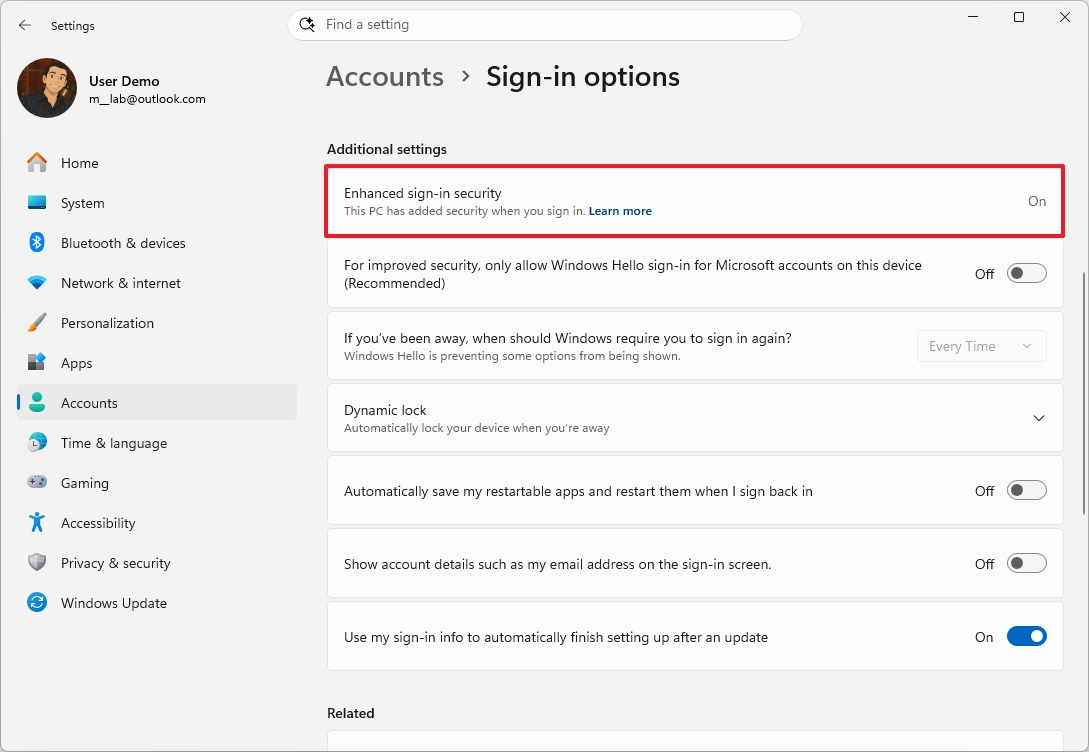
If the feature is available for your Windows Hello-compatible authentication device, you can enable it by going to Settings > Accounts > Sign-in options.
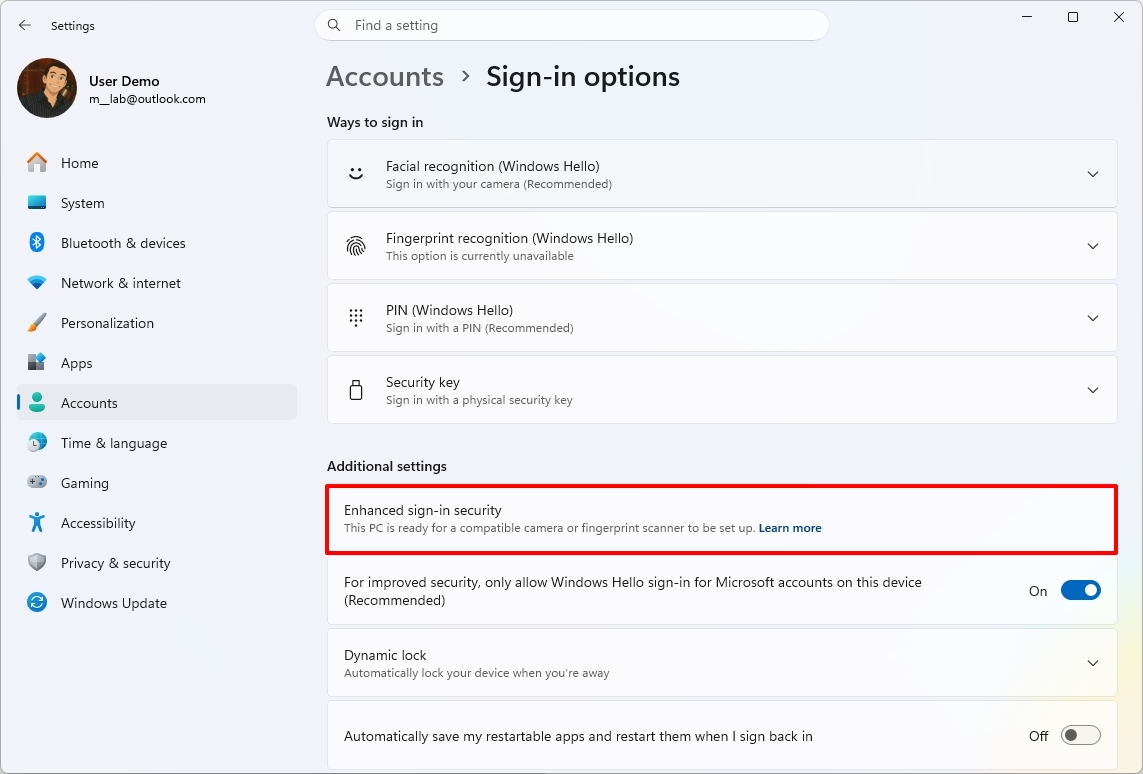
Once the USB fingerprint reader is connected and recognized by the operating system, on this page, under the "Additional settings" section, check the state of the "Enhanced sign-in security" setting.
If your system wasn't previously running ESS, you may see a prompt showing "Pending set up" or "Update PIN."
(Image credit: Mauro Huculak)
If the "Update PIN" option shows up, use it to complete the setup. On the other hand, if you see the "Pending set up" option, then configure the "Fingerprint recognition" feature under the "Ways to sign in" section.
One important note. When upgrading your system to Enhanced Sign-in Security, Windows 11 will remove any existing non-ESS biometric enrollments and associated credentials to ensure a clean, secure environment. You will need to refresh your PIN and register your fingerprints again using the new sensor. Once complete, the ESS toggle will show as enabled.
Also, while the feature is turned on, you won't be able to use peripherals that do not support the security feature.
Windows Central's Take
Windows Hello, web cam, and the Surface Pro PC. (Image credit: Daniel Rubino / Windows Central)
Microsoft hasn't done itself any favors with the name "Enhanced Sign-in Security." It sounds like an entirely new authentication system, when in reality it's an evolution of Windows Hello that strengthens how biometric authentication is processed behind the scenes. A lot of users will never notice the difference because the sign-in experience is exactly the same.
What makes the August 2026 Security Update important isn't that Windows Hello suddenly became more secure, as the standard Windows Hello has long been one of the strongest authentication systems available on consumer devices. The real significance is that the company is lifting the limitations by adding support for compatible external fingerprint readers.
If your computer already supports Enhanced Sign-in Security, I'd leave it enabled. If it doesn't, I wouldn't replace perfectly good hardware to get the feature because standard Windows Hello is already an excellent authentication system. However, if you're buying a new fingerprint reader for your computer, choosing an Enhanced Sign-in Security-compatible model is the better long-term investment since Microsoft is clearly expanding support for that ecosystem.
Do you think Enhanced Sign-in Security is worth using, or is standard Windows Hello already enough for your needs? Let me know in the comments.
More resources
Explore more in-depth how-to guides, troubleshooting advice, and essential tips to get the most out of Windows 11 and 10. Start browsing here:
The Windows vs. Linux debate usually starts with the same arguments. Linux users point to freedom, customization, and control. Windows users point to compatibility, software support, and the fact that things generally work without much effort.
However, a recent discussion on Reddit about Windows 11 caught my attention because it challenged one of the biggest assumptions in that debate, which is that anyone with deep Linux experience would automatically reject Windows.
The original poster was not someone casually experimenting with another operating system. He grew up using Linux, started with a Raspberry Pi, spent years using Linux as his primary desktop platform, and understood the Unix ecosystem well. After switching his main device to Windows 11, however, his conclusion was far more balanced than the usual online arguments.
He found that Windows 11 wasn't perfect, but it worked better for his needs. That's probably the biggest takeaway from the discussion. People often choose an operating system based less on personal preference and more on whether it helps them get things done.
A Linux user switched to Windows 11 for practical reasons
(Image credit: Daniel Rubino / Windows Central)
On Reddit, the user explained that compatibility with apps like Microsoft Office and Autodesk software played a major role in the switch. While Linux has excellent alternatives and compatibility layers, native support remains one of the biggest advantages.
The user also explained that tools like MSYS2 helped bridge the gap by bringing a more familiar Unix-like environment to Windows 11.
"I like to consider myself a practical person - I'm making this decision based on the os which works for my workflow and the tools I need to use, not based on idealism / dislike for Microsoft's practices," said @Puzzleheaded-Sky2284.
The comment highlights something that often gets lost in operating system debates. A lot of people aren't choosing an operating system to defend a company or community. They choose the platform that best supports their work, and for developers, creators, gamers, and professionals, compatibility often matters more than personal preference.
Windows 11 has improved, but Microsoft remains the controversial part
One of the interesting themes in the discussion was that many users separated Windows 11 itself from Microsoft's decisions around the operating system.
One commenter with professional experience managing Windows environments argued that Microsoft has solved many long-standing problems around fragmentation, updates, and compatibility.
"On good hardware - Windows simply works," @ChampionshipComplex noted.
Unlike operating systems designed for a limited range of hardware, Windows has to support thousands of hardware configurations, countless drivers, and decades of applications. That complexity is messy, but it's also one of the biggest strengths.
Another commenter (@TheTerraKotKun) shared a similar view: "Windows 11 is good OS but Microsoft as a company... I don't think that it's really good."
This may actually represent where many experienced users are today. The complaint is often not that Windows 11 cannot do the job. The complaint is about Microsoft's direction, including advertisements, online account requirements, and increased integration of cloud services and AI.
Critics still have valid complaints about Windows 11
(Image credit: Future | Edited with Gemini)
The discussion wasn't entirely positive. Some users argued that Windows 11 still has problems, particularly around resource usage, user control, and Microsoft's approach to the desktop experience.
A common criticism is that Windows has become more focused on promoting Microsoft services instead of remaining a neutral operating system.
One commenter (@Pale-Muscle-7118) explained: "My main problem is not really with the software or OS itself but with Microsoft behind it."
That's an important distinction because Windows 11 can be a capable operating system while Microsoft continues making decisions that many users dislike.
It's also worth noting that Microsoft has acknowledged many of these pain points. Through its Windows K2 initiative, the company has been focusing on improving performance, reliability, and the overall user experience while scaling back some of the interface decisions that have drawn criticism.
Linux still offers something Windows cannot replace
CLI: for people who hate clicking things. (Image credit: Windows Central)
The discussion also highlighted why many people continue using Linux, which is because it provides a level of control that Windows simply does not.
Users can choose different distributions, desktop environments, window managers, package systems, and customization options. For people who enjoy controlling every part of their computing environment, Linux remains extremely attractive.
However, that flexibility can also create challenges. The original poster pointed out that fragmentation can make Linux harder for some users: "Linux is great (as is Windows), but many members of the community are... not so great."
He wasn't criticizing Linux itself. Instead, he argued that the Linux desktop ecosystem often requires more research, troubleshooting, and decision-making than, in this case, Windows 11. For some users, that's part of the appeal. For others, it's a barrier.
The real debate is not about winners and losers
The biggest takeaway from this Reddit discussion is that the Windows vs. Linux argument is often framed incorrectly, because there is no universal winner.
The discussion shows why the Windows versus Linux debate rarely has a clear winner. Every operating system involves tradeoffs. Linux gives users more control and flexibility, while Windows prioritizes compatibility and broad software support. The right choice depends less on which platform is objectively better and more on which one fits the way you work.
Even users who criticize Microsoft often continue using Windows because it solves practical problems.
As one commenter (@animalcrossing4_4) summarized: "The OS is a means to an end so stop shoving the holiness of some OS on me."
That may be the most accurate description of the entire debate.
An operating system is a tool. The best one is not necessarily the one with the most features, the most customization, or the strongest community.
It's the one that lets people spend less time fighting their computer and more time using it.
Windows Central's Take
The 2026 ASUS Zenbook A16 laptop featuring the new Qualcomm Snapdragon X2 Elite Extreme processor. It can't run Linux. (Image credit: Daniel Rubino | Windows Central)
This particular Reddit discussion isn't about Windows 11 suddenly winning over Linux users. However, it does reinforce something I've believed for a long time, which is that most people eventually end up with the operating system that helps them get their work done with the fewest compromises. That's why Windows continues to dominate the desktop despite Microsoft's occasional missteps.
Over the years, Microsoft has improved Windows where it matters most, including stability, hardware compatibility, and the developer experience with WSL and Winget. At the same time, the company has also made decisions that frustrate users, such as adding promotional content and pushing more Microsoft services (and AI) throughout the operating system.
Those criticisms are fair, but they don't necessarily outweigh the biggest advantage of an operating system that runs virtually on any modest hardware.
I always think it's interesting to find someone who sees Windows without treating the Windows versus Linux debate like a competition. Every operating system has strengths and weaknesses, and the right choice depends on your workflow, not on loyalty to a particular platform.
If Windows 11 helps you spend less time troubleshooting and more time being productive, then it's doing exactly what an operating system is supposed to do.
What do you think? Have you switched between Windows and Linux, or are you sticking with Windows 11? Let me know in the comments.
More resources
Explore more in-depth how-to guides, troubleshooting advice, and essential tips to get the most out of Windows 11 and 10. Start browsing here:
Microsoft is expected to release the Windows 11 August 2026 Security Update on Tuesday, August 11, 2026. In this eighth month of the year, the software giant is rolling out several new features, improvements for existing features, and fixes.
In this quality update, Microsoft will introduce new features, including Windows Hello Enhanced Sign-in Security (ESS) support, the ability to uninstall AI models from Copilot+ PCs, touchpad gestures, voice isolation for Voice Access, Fluid Dictation for Voice Typing, and more.
There are also improvements to File Explorer, Windows Search, Widgets, Windows Update, power and battery, sounds, and more.
Furthermore, Microsoft is updating the interface for the Account Control flyout in the Start menu, the Windows Setup experience now includes a parental controls notice, and the list continues.
In this guide, I'll highlight the most significant changes in the August 2026 Security Update for Windows 11 versions 25H2 and 24H2, since both are identical.
Windows 11's new features arriving in August
As usual, the company uses Controlled Feature Rollout (CFR) to roll out new improvements gradually, so it may take some time before you see them.
File Explorer changes
Although the updated version of File Explorer doesn't introduce flashy features, the development team is making some worthy improvements.
First, when using the "Details" view, the file sizes now show appropriate units (such as KB, MB, and GB), instead of displaying every value in kilobytes.
(Image credit: Mauro Huculak)
It's now possible to use the middle-click to open a folder in a new tab from the address bar and Home page.
Other improvements on the Home page include a gray flash bug on loading and scrolling, and thumbnails in the Recommended section now appear with better quality.
Windows Search tweaks
Starting with the August update, Windows Search now includes improvements to better handle typos, and you can start searches with two-character queries.
(Image credit: Mauro Huculak)
When searching for apps, Windows Search improves recognition of partial names and typos. Also, in the Settings app, the search rank has been updated to show more relevant options higher.
Windows Hello support
In this update, Microsoft is bringing Windows Hello Enhanced Sign-in Security (ESS) support for external fingerprint sensors.
In short, standard Windows Hello encrypts the sign-in data. However, enhanced security support takes it a step further by isolating the biometric process into a secure memory space, away from the operating system.
The option is available through Settings > Accounts > Sign in options.
(Image credit: Mauro Huculak)
In the past, this feature was only available for devices with built-in sensors, such as Copilot+ PCs, but now, it'll be available for external peripherals.
AI model uninstall option
Although adding the ability to uninstall something from the operating system doesn't scream new feature, Microsoft is now allowing users to uninstall the Image Generation AI model from Settings > System > AI Components.
And this is a big deal, because one of the biggest complaints about Windows 11 has been the integration of AI features. While supported devices still don't have a master switch to completely disable AI on Windows 11, this is a small step in the right direction.
Widgets improvements
In the Lock screen, the experience should now be less distracting, as now, by default, users will only see the Weather widget.
(Image credit: Mauro Huculak)
Also, notification badges in the Taskbar will now take the current accent color instead of the previous red indicator.
Touchpad new gestures
After installing the August update, on Settings > Bluetooth & devices > Touchpad, users will be able to customize the speed for scroll and zoom gestures.
In addition, there's a new option to enable accelerated scrolling, which is a feature that increases the scrolling speed as gestures are repeated.
Voice Typing and Access
In Voice Typing, Microsoft is now deactivating Fluid Dictation by default and integrating tooltips to help users understand how the feature works.
Voice Access now comes with Voice Isolation that improves speech recognition by filtering out background noise and other speakers.
In addition, the company is making available three speech recognition settings from Settings > Voice Access > Improve speech recognition.
The "Voice Isolation" option requires a one-time voice setup and filters both background noise and nearby conversations.
Users will also find the "Remove background noise only" mode suppresses sounds such as typing or doors closing without additional setup.
Finally, the "No filtering" mode uses the microphone input without any processing.
Account Control redesign
The flyout that appears when clicking the profile button in the Start menu is known as the Account Control interface, and in this release, Microsoft is adding some design changes.
(Image credit: Mauro Huculak)
The changes aim to make it more modern and clearer. For instance, the new design adds a new badge to quickly understand the current plan and state. In addition, it gives users access to their plan benefits as well as other information, such as storage usage from OneDrive.
Power and battery
In this release, the company is making changes to how power settings are applied in the system.
(Image credit: Mauro Huculak)
According to Microsoft, customizations made to the display timeouts, sleep and hibernate timers, and laptop lid actions are now automatically applied to every power plan instead of only the active one.
Finally, the ability to configure the battery percentage for "Energy Saver" is coming back to the "Power & battery" settings.
Windows Update improvements
Microsoft continues improving the update system, and this time around, Windows Update will provide more accurate progress estimates during updates.
(Image credit: Mauro Huculak)
Furthermore, the company is updating the cleanup process after installing updates to improve system performance.
System sound in dark mode
After installing this Patch Tuesday update, users should also notice improvements to system sounds in dark mode.
Windows Central's Take
From my perspective, this is the kind of Windows 11 update I like to see. It's not built around a flashy headline feature, but instead focuses on polishing the experience in dozens of small ways. Improvements to File Explorer, Windows Search, Windows Update, touchpad gestures, and power management won't generate a lot of excitement, but they're the kinds of changes that make the operating system feel more refined day after day.
I also think Microsoft's decision to let users uninstall the Image Generation AI model is an important step, even if it's a modest one. People have been asking for more control over AI features, and while this isn't a universal switch to remove AI, it shows Microsoft is at least acknowledging those concerns. I'd like to see the company continue in that direction by giving users even more choice over what AI components are installed.
As with every Patch Tuesday release, I'd still recommend waiting a few days before installing the update on your primary computer unless you need the latest security fixes immediately. Monthly updates occasionally introduce unexpected issues, and giving Microsoft a little time to address early reports has rarely been a bad strategy.
What are your thoughts about the Windows 11 August 2026 update? Which new feature or improvement are you looking forward to the most? Let me know in the comments.
More resources
Explore more in-depth how-to guides, troubleshooting advice, and essential tips to get the most out of Windows 11 and 10. Start browsing here:
Microsoft is expected to roll out the 2026 Update for Windows 11 (version 26H2) later this year, marking the fifth feature update for the desktop version of the operating system. However, this release isn't a full operating system swap, but it's still important not to skip it.
In this guide, I'll walk you through 10 interesting facts about Windows 11 version 26H2 to know before upgrading once it becomes available.
Facts to know about Windows 11 version 26H2
These are some facts about the new version for Windows 11.
1. Same operating system platform
Although the company will market Windows 11 version 26H2 as a new release, it shares the same platform as version 25H2, meaning both operating systems are identical under the hood. This is exactly the same case as versions 24H2 and 25H2.
2. Same set of features and improvements
Windows 11 version 26H2 includes the same features and improvements already available in version 25H2. Microsoft isn't introducing a separate feature set for this release because both versions share the same platform.
Perhaps the most noticeable differences between Windows 11 versions 26H2 and 25H2 are their version and build numbers, along with their support lifecycle.
For example, version 26H2 uses build numbers in the 26300 series, while version 25H2 uses the 26200 series. Now, despite the different build numbers, updates for both versions typically share the same cumulative update (KB) number because they are based on the same code and include the same features and improvements.
Microsoft is expected to continue servicing both versions with the same features and improvements for the foreseeable future. As a result, version 26H2 is not expected to introduce major new capabilities at launch. Instead, it serves as another enablement package release that activates a new version number while preserving the same experience users already have on version 25H2.
3. Enablement Package-based installation
Similar to Windows 11 version 25H2, version 26H2 is expected to be rolled out as an Enablement Package (eKB). This means that if you're already running version 25H2, upgrading to 26H2 will be similar to installing a regular monthly cumulative update, without requiring a complete reinstallation of the operating system.
An Enablement Package is a small update that acts as a switch to activate features already included in the operating system but kept dormant. Once installed, it simply changes the version number from 25H2 to 26H2 while enabling the new release (if applicable).
Because version 26H2 shares the same platform and feature set as version 25H2, the installation process is expected to be quick and require only a single restart. As with previous enablement package releases, Microsoft will likely offer the update as an optional installation at first before making it available automatically to eligible devices as version 25H2 approaches the end of its support lifecycle.
4. Full reinstallation upgrade
Although Windows 11 version 26H2 is virtually identical to version 25H2, the upgrade path depends on the version currently installed on your computer.
If you're already running Windows 11 version 25H2 (or 24H2), you can upgrade through the Enablement Package without reinstalling the operating system. However, devices running an older release (such as version 23H2) will need to perform a full feature update to move to version 26H2.
5. Upgrade from Windows 10
If your computer is still running Windows 10, upgrading to Windows 11 version 26H2 requires a full feature update. Compatible devices will receive the latest supported version of Windows 11 directly through Windows Update, so you won't have to install 24H2 or 25H2 first.
If your computer doesn't receive the upgrade through Windows Update, you can also perform an in-place upgrade using Microsoft's installation media.
6. Direct upgrade from older versions
(Image credit: Mauro Huculak)
You can upgrade directly to Windows 11 version 26H2 from version 23H2, 22H2, or an earlier release, as well as from Windows 10, using the ISO file or other Microsoft installation media.
These methods perform a standard in-place feature update, allowing you to keep your files, apps, and settings while installing the latest version of the operating system.
7. Upgrade tools trigger a full feature update
Although upgrading from Windows 11 versions 24H2 or 25H2 to version 26H2 through Windows Update only requires installing a small Enablement Package, using the official ISO file or other installation media will perform a full in-place upgrade instead.
The installation still preserves your files, apps, and settings, but it reinstalls the operating system rather than simply activating the new version with the Enablement Package. This results in an unnecessarily longer installation process compared to upgrading through Windows Update.
8. Reasons to upgrade to version 26H2
Since the last three releases of the operating system are virtually identical, the primary reason to upgrade is to extend your device's support lifecycle rather than gain access to new features.
Windows 11 version 25H2 remains supported through October 2027, but upgrading to version 26H2 extends support for another year. As with previous releases, Microsoft is expected to provide 24 months of support for the Home and Pro editions and 36 months for Enterprise and Education editions.
This also means there won't be any urgency to upgrade as soon as version 26H2 becomes available. Because these releases offer the same features and improvements, you can continue using version 25H2 until you're ready to switch. However, you should plan to install version 26H2 before version 25H2 reaches the end of its support lifecycle to continue receiving security updates and bug fixes.
It's worth pointing out that version 24H2 is set to retire on October 13, 2026, and it's recommended to upgrade as soon as possible to the next supported version.
9. Same hardware requirements
(Image credit: Future)
Windows 11 version 26H2 does not introduce new hardware requirements compared to version 25H2. The same requirements for supported processors, TPM 2.0, and other system components remain in place.
These are the minimum requirements to install or upgrade to Windows 11:
CPU: 1GHz or faster processor, or System on a Chip (SoC) with at least two cores.
RAM: 4GB or more.
Storage: 64GB or larger storage device.
Firmware: UEFI firmware with Secure Boot capability.
TPM: Trusted Platform Module (TPM) version 2.0.
Graphics: Compatible with DirectX 12 or later with a WDDM 2.0 driver.
Display: High-definition (720p) display larger than 9 inches diagonally, with 8 bits per color channel.
This means that if your device can already run Windows 11 version 25H2, it will also be compatible with version 26H2 without requiring any hardware changes.
10. Rollout strategy will be gradual
Although the Enablement Package that upgrades Windows 11 from version 25H2 to 26H2 is a small update, Microsoft will likely follow the same gradual rollout strategy used in previous releases.
The company typically uses the Controlled Feature Rollout (CFR) system to monitor the update experience, check for potential compatibility issues, and expand availability over time. As a result, not every device will receive the Windows 11 2026 Update immediately through the Windows Update settings page.
Availability will gradually expand over several weeks or months as the company confirms that the update is ready for a wider range of hardware configurations. If your device doesn't see the update right away, it doesn't necessarily mean there's a problem. It simply means the rollout has not reached your hardware configuration yet.
Windows Central's Take
(Image credit: Future)
I think the Windows 11 2026 Update is a good example of how the software giant is changing how it delivers upgrades. A new version number no longer automatically means a major redesign or a long installation process. Instead, the company is leaning more toward smaller transitions that keep computers current with less disruption.
From my experience covering the operating system, I think this approach makes a lot of sense. Full feature updates have historically been among the most complicated parts of maintaining the operating system, often leading to compatibility issues, driver problems, and upgrade failures. By using an Enablement Package model, Microsoft can accelerate the transition, reduce the risk of errors, and make it easier for more users to move to the latest supported version.
This strategy also benefits the company because a simpler upgrade experience could encourage more people to stay on newer versions instead of delaying updates for months or years. When an upgrade takes only a few minutes instead of requiring a complete operating system installation, users are more likely to accept it.
That said, I don't see 26H2 as an update users need to install immediately. If you're already running 25H2, the main reason to move will be support rather than new features. However, I think this is a better direction for the operating system. Making upgrades faster and more reliable could help reduce the problems that have caused many users to delay installing new versions.
What are your thoughts about Windows 11 version 26H2 following the same path as 25H2? Do you prefer smaller, smoother updates, or do you want major new features with every release? Let me know in the comments.
More resources
Explore more in-depth how-to guides, troubleshooting advice, and essential tips to get the most out of Windows 11 and 10. Start browsing here:
For users, the update arrives as KB5101650, bringing version 25H2 to build 26200.8875 and version 24H2 to build 26100.8875.
The number is certainly eye-catching. Microsoft fixed more than four times the number of security issues compared with July 2025, when the company addressed 137 vulnerabilities.
However, the bigger story is not simply that the company patched hundreds of security flaws. The July 2026 security update is an early example of a major shift Microsoft has already warned about. AI is changing vulnerability discovery, and Windows 11 updates are expected to become larger as a result.
The software giant says that as AI helps security researchers find more issues across more code, customers will see a higher volume of security fixes included in future security releases.
In other words, larger Patch Tuesday updates are not necessarily a sign that Windows is becoming less secure. They are also a sign that Microsoft is finding and addressing more problems before attackers can use them.
Why Windows 11's July 2026 update is so large
The July 2026 update addresses vulnerabilities across many core areas of Windows, including the Windows Kernel, Win32k, NTFS, Remote Desktop, Secure Boot, BitLocker, File Explorer, and more.
Several of these fixes address vulnerabilities that could allow remote code execution, where an attacker could potentially run malicious code on a system remotely.
The scale of the release follows a sharp increase in security fixes throughout 2026.
Here's a comparison based on vulnerability counts reported by Windows Latest and security-tracking data, showing how the number of fixes has increased since 2025.
Month
Vulnerabilities fixed in 2025
Vulnerabilities fixed in 2026
January
159
114
February
55
58
March
57
79
April
134
167
May
72
120
June
66
200
July
137
570
January–July total
680
1,308
However, Microsoft says the growing number of fixes should not be interpreted as the operating system becoming less secure. Instead, the company says AI is helping identify vulnerabilities earlier and at a larger scale.
Microsoft is using AI to find Windows vulnerabilities faster
(Image credit: Screenshot: Windows Central / Laptop: Edited with Gemini)
The company has been investing in AI-powered security tools to reduce the time between discovering a vulnerability and protecting customers.
One of those tools is MDASH, Microsoft's multi-model agentic security scanning harness.
MDASH uses multiple AI models and more than 100 specialized AI agents to analyze code, identify potential vulnerabilities, debate findings, and validate whether issues are real.
Unlike a traditional scanner that simply reports possible problems, Microsoft's system is designed to reduce false positives by using multiple stages of analysis and validation.
The company notes that MDASH helped security researchers discover 16 vulnerabilities in networking and authentication components, including critical remote code execution flaws affecting areas such as the TCP/IP stack and IKEv2 service on Windows 11.
Those findings demonstrate how AI can help uncover complex security issues that may be difficult to identify through traditional approaches.
Microsoft has not said that MDASH discovered all 570 vulnerabilities included in the July 2026 update. Instead, the technology represents part of a larger effort to expand the company's vulnerability research capabilities.
Microsoft expects Windows 11 security updates to get bigger
The biggest takeaway from the new approach is that larger security updates are becoming expected. In a recent explanation of its vulnerability management strategy, Microsoft said: "As AI helps defenders discover more issues, customers will see a higher volume of security updates included in each security release."
The company says AI is being integrated into the entire security process, from finding vulnerabilities to helping engineers understand issues, develop fixes, and identify possible regressions.
Microsoft is also using additional validation systems to make sure faster security fixes do not come at the cost of update quality.
The goal is to shorten the time between vulnerability discovery and customer protection while maintaining reliability.
Why users should install updates faster on PCs
(Image credit: Future)
As security updates grow larger, Microsoft is also pushing users and organizations to reduce delays before installing them, because attackers are also benefiting from AI.
Microsoft says attackers can now exploit newly discovered vulnerabilities much faster than before, leaving users and organizations with less time to install security updates.
For users, that means monthly updates are becoming more important. While temporarily pausing updates can still make sense if a release causes compatibility problems, leaving security fixes uninstalled for long periods creates unnecessary risk.
The July 2026 update also includes non-security improvements, including Point-in-time restore, Screen Tint, improved Bluetooth reliability, File Explorer improvements, and much more. However, the security changes are the main reason users should prioritize installing it.
Windows Central's Take
When I first saw that Microsoft had patched 570 vulnerabilities in a single Patch Tuesday release, I didn't immediately think Windows 11 had become less secure. Instead, my first thought was that this was exactly the kind of update the company had been preparing users for when it said AI would dramatically increase the number of vulnerabilities it could discover.
I actually think this changes how we should judge Patch Tuesday updates. For years, I've looked at the size of a security release as a rough indication of how much could potentially go wrong after installing it. In the future, that assumption may no longer hold true. A bigger update could only mean that the software giant is finding and fixing more issues before attackers have the chance to exploit them.
That said, Microsoft still has something to prove. Discovering more vulnerabilities is only half the equation. Users will judge this new approach by whether these larger updates remain reliable and don't introduce new issues of their own. If the company can consistently deliver both better security and stable updates, I think that's a tradeoff most users will gladly accept.
Do you think larger Patch Tuesday updates are a good sign for Windows 11 security, or do they make you more cautious about installing updates? Let me know in the comments.
More resources
Explore more in-depth how-to guides, troubleshooting advice, and essential tips to get the most out of Windows 11 and 10. Start browsing here:
As part of the Windows Insider Program, Microsoft released several preview builds of Windows 11 in early July 2026, some of which introduced new features and others only improvements for existing experiences.
In the first two weeks of July, the company began the public test of the Cloud rebuild recovery feature, revealed a new design update for the account manager available through the Start menu, and made other improvements for version 26H2
In addition, Microsoft is continuing to expand previously announced features to more Insider channels, including the ability to upgrade from Windows 11 Home to Pro Education for K-12 environments. The company is also rolling out Taskbar position and size options, along with Windows Update improvements designed to reduce the number of required restarts each month.
In the Experimental track, we've seen builds 26300.8772 and 28120.2387, and builds 28020.2380 and 26220.8764 have been released in the Beta channel.
In this recap, I'll highlight the latest and most noteworthy changes available through the Windows Insider Program.
Biggest improvements from the Windows Insider Program in July 2026
In this recap, I'll highlight the latest and most noteworthy changes available through the Windows Insider Program since my last roundup.
Cloud rebuild new feature
Starting with build 26300.8772, Windows 11 introduces a new recovery feature known as "Cloud rebuild," which has been designed to make it easier to reinstall the operating system when the computer is unable to start, or you're looking for a fresh install.
(Image credit: Mauro Huculak)
If this feature sounds familiar, it's because it's similar to the Cloud download option in Reset this PC. However, Cloud rebuild introduces a new workflow that downloads the Windows 11 installation files and drivers and performs a clean installation without requiring a bootable USB drive, a custom recovery image, or access to the desktop environment.
Cloud rebuild can be accessed from the Windows Recovery Environment (WinRE) by going to the "Troubleshoot" page and using the "Cloud rebuild" option.
Before you can use the feature, the computer must be running Windows 11 on compatible hardware, and the device must be connected to the internet using a wireless or wired connection.
Once you confirm the Windows 11 version, edition, and language, click "Install," and the system will erase the hard drive and reinstall the operating system and drivers.
Account Control flyout redesign
In the Start menu, Microsoft is also updating the Account Control flyout with build 26300.8772. The new design offers a more modern style that highlights your account information and picture.
(Image credit: Mauro Huculak)
It also highlights your Microsoft 365 subscription, cloud storage, and access to your benefits.
Backup and restore default settings
In commercial computers, starting with the preview build 26300.8772, Windows 11 is enabling the backup and restore feature policy by default for devices enrolled in a Microsoft Entra ID or Entra hybrid-joined environment.
The idea is to start the device with backup protection to make recovery smoother. For example, when a device is reset or replaced, users can quickly return to their personalized desktop without extra steps.
Of course, network administrators can always control this experience, and Microsoft notes that existing policies will remain in effect, and manually configured settings always take priority over the default behavior.
Taskbar position settings
The company is also bringing back the ability to change the Taskbar location with the release of build 28120.2387 in the Experimental channel.
This change allows users to place the Taskbar at the top of the screen, as well as at the left or right edges, rather than being limited to the bottom.
The setting appears on Settings > Personalization > Taskbar, under the "Taskbar behaviors" section. The setting is called "Taskbar position."
(Image credit: Mauro Huculak)
The company notes that flyouts, tooltips, and animations will follow the Taskbar orientation regardless of the position.
Also, most existing features will continue to work, including the option to ungroup and show labels for apps.
Furthermore, the company is updating the "Show smaller taskbar button" option to make the Taskbar smaller instead of just the buttons. (As we have already seen in other tracks, the company is expected to create a separate option to make the Taskbar smaller.)
Windows Update with fewer reboots
As part of Windows 11 build 26220.8764, the company is introducing a new unified Windows Update experience that coordinates monthly quality updates with driver, .NET, and firmware updates.
By bundling these updates into a single installation cycle whenever possible, Microsoft aims to reduce the number of restarts users experience each month, with the long-term goal of requiring just one monthly reboot.
Windows 11 Pro Education for K-12 free upgrade
Microsoft is changing the installation requirements to allow devices running Windows 11 Home to upgrade to Windows 11 Pro Education at no additional cost for K-12 education.
This change aims to give schools more flexibility when acquiring new devices. However, the company says that this is one-way only. After the upgrade, the only way to roll back to the Home edition is by performing a clean installation of the operating system.
Windows Search upgrades
Outside its regular download schedule, Microsoft recently began rolling out a slew of improvements to the Windows Search experience on devices enrolled in the Experimental channel.
First, the company is decluttering the home screen and focusing on the search experience. As part of this rollout, the Windows Search home screen only includes your recent searches, ditching the visual clutter, including those annoying advertisements.
(Image credit: Mauro Huculak)
In addition, when performing a search and a web result is more relevant, the experience will now prioritize the answer rather than products and promotions.
Microsoft is also introducing design tweaks to better indicate where each result comes from. For example, you'll find better spacing between items and interface changes when selecting a result, including thumbnail previews.
Second, you'll now have more control over search results with the options to disable web searches and Microsoft Store apps from appearing in the Windows Search experience.
However, by default, search will work as always. It's up to you to customize your search experience from Settings > Privacy & Security > Search.
(Image credit: Mauro Huculak)
Third, the search experience now improves local content and rankings, meaning local results are given higher priority in apps, settings, and files, instead of web and Microsoft Store results showing up first when there are better results.
(Image credit: Mauro Huculak)
As part of the ranking tweaks, you'll notice that searches for settings now appear higher in the results.
Fourth, Microsoft is also focusing on improving search accuracy through two specific changes. For instance, Windows Search has been updated to better handle typos, missing or extra letters, and partial words.
In addition, the feature will now show results for local files using two-character file search, and more accurately surface cloud and connected files when they're the best match.
Windows Central's Take
I think these Insider builds show Microsoft focusing on what Windows 11 has needed for a while, improving the experience instead of simply adding more features. Cloud rebuild could make recovery much less stressful, while the Windows Search changes address one of the operating system's biggest frustrations by prioritizing useful local results over web content.
The reappearance of Taskbar positioning is also a welcome change. It shows Microsoft is still paying attention to feedback and bringing back flexibility that many users have missed since Windows 11 launched.
What are your thoughts on these latest Windows 11 Insider changes? Let me know in the comments.
More resources
Explore more in-depth how-to guides, troubleshooting advice, and essential tips to get the most out of Windows 11 and 10. Start browsing here:
If you've been using Windows as long as I have, you probably remember when a serious problem often meant backing up your files and reinstalling the operating system from scratch. Whether it was a bad driver, a failed update, or corrupted system files, a clean install was frequently the fastest way to rescue your computer.
I don't think that's the case anymore. Over the past several years, Microsoft has quietly transformed Windows 11 into a much more resilient operating system. Instead of relying on a single recovery option, the operating system now bundles a collection of tools designed to solve different types of problems. Some can repair Windows 11 while minimizing changes to your data. Others can roll back a problematic update, recover a computer that won't boot, or completely rebuild the system from the cloud.
The downside is that all these options can be confusing. Microsoft doesn't always make it clear which recovery feature you should use first, and many of them sound similar even though they solve different problems.
A lot of the recovery features discussed in this guide are available through the Windows Recovery Environment (WinRE). This separate recovery workspace runs outside the normal installation and provides access to tools that can repair, reset, or troubleshoot the operating system when the computer cannot start normally.
In this guide, I'll outline the recovery features available on Windows 11 and when I would actually use them.
Important: The right recovery option depends mostly on what went wrong. A broken update, a damaged driver, and a corrupted installation all require different approaches.
Fix problems using Windows Update
If the computer still starts normally but something doesn't feel right, I'd try the "Fix problems using Windows Update" recovery option first.
(Image credit: Mauro Huculak)
This feature repairs the operating system by downloading the same version of Windows 11 installed on your computer through Windows Update and reinstalling it over your existing installation. Unlike resetting your computer, it preserves your personal files, installed apps, user accounts, and settings.
If system files have become corrupted, built-in features have stopped working, or you're seeing unusual behavior after an update, this repair process can often restore the operating system without forcing you to reinstall your apps afterward.
I like this approach because it's the least disruptive recovery option Microsoft offers. If it solves the problem, you save yourself the time of reinstalling software and reconfiguring the system.
Best for:
Corrupted system files.
Missing or broken features.
General system instability.
Repairing Windows 11 while keeping apps, files, and settings.
Reset This PC
When repairing Windows 11 isn't enough,"Reset This PC" is usually the next step.
This feature reinstalls the operating system and lets you choose between two options.
(Image credit: Mauro Huculak)
Keep my files reinstalls Windows 11 while preserving your personal files, pictures, and videos, but it removes installed applications and resets system settings.
Remove everything wipes the computer completely before installing a fresh copy of Windows 11, making it a good choice if you're selling the device or want to start over.
You'll also choose between "Local reinstall," which uses recovery files already stored on the computer, or "Cloud download," which downloads a fresh copy of Windows directly from Microsoft's servers.
Personally, I almost always recommend Cloud Download. It takes longer because it downloads several gigabytes of data, but it also avoids problems caused by damaged local recovery files.
Best for:
Severe software problems.
Persistent performance issues.
Malware cleanup after backing up your data.
Preparing to sell or give away the computer.
Cloud rebuild
Cloud rebuild is one of Microsoft's newest recovery tools, and I think it fills an important gap in Windows recovery.
(Image credit: Mauro Huculak)
Available through the Windows Recovery Environment (WinRE), Cloud rebuild reformats the operating system partition, downloads a fresh Windows 11 image and compatible drivers from Windows Update, and restores the computer to the out-of-box setup experience.
Unlike Reset This PC, it doesn't depend on the recovery image already stored on your computer, and more importantly, it also includes the device drivers.
To me, this feature sits somewhere between Reset This PC and creating a bootable USB installer. It gives you a completely fresh installation without requiring installation media or another computer to download the setup files.
Best for:
Severely corrupted installations.
Failed Reset This PC attempts.
Damaged recovery files.
Rebuilding Windows 11 from scratch.
Go Back (rollback)
The upgrade process to a new version doesn't always go smoothly, and that's exactly why "Go Back" exists.
(Image credit: Mauro Huculak)
After upgrading to a new version of the operating system on top of an existing setup, Windows 11 temporarily stores your previous installation in the "Windows.old" folder. If the new version introduces compatibility problems, driver issues, or poor performance, you can roll back to the earlier version with just a few clicks.
The only catch is that this option is temporary. The system typically removes the previous installation files after about 10 days to free up storage.
If you notice problems immediately after installing a feature update, don't wait too long before deciding whether to roll back.
Best for:
Performance problems after upgrading.
Driver incompatibilities.
Software compatibility issues.
Bugs introduced by a feature update.
Uninstall Updates
Not every system update improves the experience. Sometimes a cumulative update can introduce startup problems, driver conflicts, or unexpected bugs.
When that happens, Windows 11 includes an option in the Windows Recovery Environment that lets you remove the latest update without resetting the entire computer.
The first option is usually the one you'll use after Patch Tuesday problems.
Best for:
Device problems after installing an update.
Boot issues caused by a recent update.
Update-related stability problems.
System Restore
Some people think System Restore is outdated, but I still think it's one of the most underrated recovery features in the operating system.
(Image credit: Mauro Huculak)
System Restore creates restore points that save system files, drivers, registry settings, and installed applications. If something goes wrong after installing a driver or application, you can return Windows to an earlier working state without affecting your personal files.
It's often much faster than resetting the computer and can solve problems in just a few minutes.
Best for:
Bad driver installations.
Faulty software.
Registry changes.
Recent system configuration problems.
Startup Repair
If Windows 11 won't boot, Startup Repair remains one of the built-in recovery tools designed to fix common startup problems.
(Image credit: Mauro Huculak)
Available through the Windows Recovery Environment (WinRE), the tool scans the system for damaged startup files, corrupted Boot Configuration Data (BCD), missing system files, and other issues preventing the operating system from loading correctly. If it finds a problem it knows how to fix, it attempts the repair automatically.
Depending on your recovery configuration, Windows 11 may first attempt newer recovery mechanisms, such as Quick Machine Recovery, before Startup Repair becomes available.
It won't solve every startup issue, but when it works, it can save you from more drastic recovery options like resetting or reinstalling the operating system.
Best for:
Windows 11 stuck during boot.
Endless restart loops.
Missing or damaged boot files.
Startup-related errors.
Safe Mode
Sometimes Windows 11 itself isn't the problem. Safe Mode starts the system with only the essential drivers and services needed for the operating system to run. That makes it much easier to remove a problematic graphics driver, uninstall recently installed apps, or troubleshoot malware that's preventing Windows 11 from working normally.
(Image credit: Mauro Huculak)
If Windows 11 works as expected in Safe Mode but crashes at startup, it's usually a sign that a third-party app or driver is causing conflicts.
Best for:
Troubleshooting driver problems.
Removing incompatible software.
Malware cleanup.
Diagnosing startup crashes.
Quick Machine Recovery
Quick Machine Recovery is one of the newest additions to Windows 11, and I think it's a direct response to lessons Microsoft learned from major outages like the CrowdStrike incident.
(Image credit: Mauro Huculak)
If a bad update or driver prevents Windows 11 from starting, the feature can automatically enter the Windows Recovery Environment, connect to Microsoft's recovery service, download a remediation package, and attempt to repair the problem before you ever reach the desktop.
Ideally, you'll never have to think about this feature because it works automatically behind the scenes. If the automated recovery isn't successful, you can continue troubleshooting using the other recovery options available through the Windows Recovery Environment.
Best for:
Startup failures caused by updates.
Driver-related boot issues.
Automatic recovery without user intervention.
Point-in-time Restore
Point-in-time Restore is another piece of Microsoft's evolving recovery strategy.
Rather than asking users to troubleshoot a failed Windows Update manually, Point-in-time Restore is part of Microsoft's effort to make Windows Update failures easier to recover from automatically.
A lot of people may never notice it working, but that's exactly the goal. The more the system can recover automatically, the less often users need to search for recovery guides or perform clean installations.
Best for:
Failed system updates.
Rolling back to a previous working update state.
Automatic update recovery.
Other details
This guide focuses on Windows 11 features that can restore the operating system to a known working state or help troubleshoot problems preventing the system from working correctly. However, the operating system also includes other recovery-related tools that serve a different purpose.
The Windows Recovery Environment (WinRE) is the workspace where many of these options are available, including Startup Repair, Reset This PC, System Restore, Cloud rebuild, and other troubleshooting tools. It does not repair Windows 11 by itself. Instead, it provides access to the features that can recover the operating system.
The Recovery Drive works in a similar way. It does not fix the setup directly. Instead, it creates a bootable USB drive that lets you access WinRE if the built-in recovery options are unavailable.
Other tools, such as Command Prompt, Startup Settings, and UEFI settings, are designed for advanced troubleshooting. They can help diagnose and manually repair problems, but they do not automatically restore the operating system.
Also, the Windows Backup app is part of the recovery experience, but it serves a different purpose. Instead of repairing a broken installation, it helps restore settings, credentials, Microsoft Store apps, and files stored in OneDrive after reinstalling Windows 11 or moving to a new computer.
The legacy Backup and Restore (Windows 7) tool is still available on Windows 11 and can create file backups and full system images. Unlike newer recovery features such as Reset This PC or Cloud rebuild, it relies on a backup created ahead of time. If you have a system image available, you can use it to restore the computer to a previous state, including the operating system, apps, settings, and drivers.
However, Microsoft has shifted toward newer recovery experiences that rely more on Windows Update, cloud services, and automatic repairs.
Windows Central's Take
After covering the operating system for more than two decades, I think Microsoft has finally addressed one of the biggest weaknesses: recovery.
The company has built a much more complete safety net into Windows 11. However, these tools only matter if they work when users need them most. A failed update, broken driver, or corrupted system file can still leave people searching for answers because the recovery experience isn't always predictable.
What I find interesting is that Microsoft didn't replace older tools like System Restore or Safe Mode. Instead, it kept building on top of them with newer experiences such as Cloud rebuild and automatic recovery features. The result is a layered recovery system that makes Windows 11 far more resilient than previous versions.
The next challenge isn't creating another recovery feature. It's making the existing ones easier to understand. If the operating system can better recognize what's wrong and automatically recommend the right recovery path, most people may never have to wonder whether to use System Restore, Reset This PC, or Cloud rebuild.
That's the direction recovery should continue moving toward, with less troubleshooting, fewer reinstalls, and more automatic repairs that keep people productive.
Have you ever had to use one of these Windows recovery features? Which one helped you get your device back up and running? Let me know in the comments.
More resources
Explore more in-depth how-to guides, troubleshooting advice, and essential tips to get the most out of Windows 11 and 10. Start browsing here:
Windows 11 includes several built-in tools to help keep storage usage under control on your computer. Features like Storage Sense, the Temporary Files settings page, and Storage Recommendation can help you reclaim storage with ease, making third-party cleanup utilities less essential than they once were.
However, those features don't clean everything. If you want more control over temporary files, browser data, app caches, and privacy-related files, BleachBit is one tool you have to try. It's free, open source, and, unlike many PC "optimizer" apps, it focuses on cleaning unnecessary files rather than promising unrealistic performance improvements.
In this how-to guide, I'll explain what BleachBit does, how to use it on Windows 11, which settings I recommend, and which features you should avoid unless you understand exactly what they do.
What is BleachBit?
BleachBit is a free and open-source cleanup utility for Windows 11 that removes temporary files, caches, logs, browsing data, and other unnecessary files created by the operating system and many third-party apps.
Unlike many commercial cleanup tools, BleachBit doesn't include advertisements, bundled tools, or premium features. Instead, it gives you complete control over what gets removed and explains every cleaning option before you run it.
Rather than replacing the built-in cleanup tools available on Windows 11, I see BleachBit as an additional utility for users who want more control over what gets cleaned.
Why use BleachBit?
Although Windows 11 already provides several storage management tools, BleachBit adds several more capabilities.
For example, cleaning the system's temporary files as well as those junk files created by third-party apps. You can also use the tool to clean temporary browser data, such as cache, history, and downloads.
In addition, BleachBit provides secure file shredding to make recovery more difficult and wipes free storage space on supported drives.
Finally, the tool offers command-line support for scripting and automation, and there's a portable version that you can use without installation.
The biggest advantage is flexibility. Instead of cleaning everything automatically, BleachBit lets you decide exactly what should (and shouldn't) be removed.
Install BleachBit on Windows 11
Installing BleachBit is straightforward. You can download either the standard installer or the portable version, then launch the application. However, the quickest way to install the app is by running the winget install --id BleachBit.BleachBit command in Command Prompt (admin).
(Image credit: Mauro Huculak)
For most cleanup tasks, running it in normal mode is enough. Some system cleaning options may require administrator privileges.
Once opened, you'll notice a list of apps and cleaning categories on the left, along with a brief description of each option as you select it.
Always run Preview first
One feature I recommend using every time is Preview. Instead of immediately deleting files, the "Preview" option scans your system, estimates how much storage space can be reclaimed, and shows exactly what BleachBit intends to remove.
(Image credit: Mauro Huculak)
Even if you've used BleachBit before, I still recommend running the Preview option first.
Recommended cleanup options
For routine maintenance, I recommend starting with categories that are generally safe to remove.
For example, from the "System" section, some good choices include:
Temporary files.
Logs.
Clipboard.
Recycle Bin.
Update uninstallers.
(Image credit: Mauro Huculak)
Usually, these items consume storage over time without affecting your daily workflow.
For browser cleaning, I suggest being more selective. Clearing cached files occasionally is perfectly reasonable, but deleting cookies will sign you out of websites, and removing session data will close saved browsing sessions.
Unless you're troubleshooting a browser issue or intentionally clearing your browsing activity, I usually leave those options unchecked.
The same advice applies to app caches. While they're generally safe to clear, some apps may take longer to launch the next time because they'll need to recreate those files.
(Image credit: Mauro Huculak)
As mentioned above, cleaning actions may require using the tool in Expert mode. If you receive the prompt, open the BleachBit main menu, select "Preferences," and choose the "Expert mode" option located in the "General" tab.
Securely delete sensitive files
BleachBit includes a built-in file shredder for permanently deleting sensitive files (and folders).
Unlike sending a file to the Recycle Bin (or even deleting it permanently with the "Shift + Delete" shortcut), secure shredding overwrites the file's contents before removing it, making recovery using standard data recovery tools much more difficult.
If you want to use this feature, open the BleachBit menu (the first icon at the top-left), choose the "Shred Files" option, then select the file to delete.
(Image credit: Mauro Huculak)
This feature is useful when you're deleting confidential content, financial records, or other sensitive files you don't want recovered later.
Wipe free disk space
The open-source tool can also overwrite unused space on a drive to remove traces of files that were previously deleted through the Recycle Bin.
This feature is intended primarily for drives before selling, donating, or retiring a computer, or for secondary drives.
The feature is available from the BleachBit main menu by selecting the "Wipe Empty Space" option and choosing the drive you want to clean.
(Image credit: Mauro Huculak)
I don't recommend running free-space wiping as part of regular maintenance because it takes time and provides little benefit for everyday use.
If you're preparing a device for resale, the Reset this PCfeature is generally the better approach.
One feature you won't find
One thing that BleachBit doesn't offer is a Registry cleaner.
I actually consider that an advantage. For years, Registry cleaners have been marketed as a way to improve performance in the operating system, but in practice, they rarely provide measurable benefits. Worse, removing the wrong Registry entries can cause apps or the system itself to behave unexpectedly.
Microsoft doesn't include a Registry cleaner on Windows 11, and I don't think most users should use one.
By focusing on cleaning unnecessary files instead of modifying the Registry, BleachBit avoids one of the biggest sources of risk associated with older computer optimization suites.
Does BleachBit make Windows 11 faster?
Not directly. When you delete temporary files, you can free up storage space and occasionally resolve issues caused by bad caches, but it won't make your computer faster.
If Windows 11 feels sluggish because your drive is nearly full, cleanup may help. However, performance issues are usually caused by factors such as not enough memory, older hardware, too many startup apps, malware, or software conflicts, not because your temporary files folder is too large (at least not the majority of the time).
Should you use BleachBit?
If you're comfortable with the built-in cleanup tools available on Windows 11, you may never need another maintenance utility.
However, if you want additional control over browser data, temporary files, app caches, privacy-related cleanup, secure file shredding, and other advanced maintenance tasks, you may benefit from BleachBit.
The open-source nature, easy-to-use interface, and decision to avoid questionable features like Registry cleaning make it one of the few utilities for cleaning up Windows 11 and one of the few alternatives to CCleaner.
Windows Central's Take
In the many years I've used the desktop version of Windows, I've tested and relied on countless cleanup utilities. Some of them were genuinely useful at the time, but many were eventually discontinued, acquired by other companies, or changed so much that they no longer offered the same experience.
Over time, I've become much more selective about the tools I recommend, especially when it comes to software that makes changes to the operating system.
More often than not, I recommend learning and using the built-in tools. However, BleachBit takes a different approach, and that's why I think it stands out. It focuses on cleaning files, not "fixing" the operating system, and I appreciate that it skips gimmicks like Registry cleaning that can do more harm than good.
If you decide to use it, my advice is not to treat it like a one-click optimization tool. Take advantage of the Preview feature, understand what each option does, and only clean what you actually need. If you use it that way, I think BleachBit is one of the few maintenance utilities that still deserve a spot in your toolkit.
What are your thoughts about BleachBit? Do you prefer Windows 11's built-in cleanup tools, or do you use a third-party utility? Let me know in the comments.
More resources
Explore more in-depth how-to guides, troubleshooting advice, and essential tips to get the most out of Windows 11 and 10. Start browsing here:
Microsoft plans to begin the Windows 11 July 2026 Security Update on Tuesday, July 14, 2026. In this seventh month of the year, the company is rolling out several new features and improvements for existing features. In addition, this update is expected to deliver a number of bug fixes.
In this new quality update, Microsoft will be introducing brand new features, including the Point-in-time Restore recovery feature and the Screen tint accessibility feature.
This release also introduces the new Windows Update changes that allow users to pause updates indefinitely. The Widgets feature receives a few changes to make the experience quieter and less distracting.
Furthermore, in this release, users will also find changes to the Windows Magnifier, a new default for installing printers using Windows Ready Print support, as well as improvements to the Settings app, File Explorer, Bluetooth, network virtualization, touchpad, and much more.
In this guide, I'll highlight the most significant changes in the July 2026 Security Update for Windows 11 versions 25H2 and 24H2, since both are identical.
Windows 11's new features arriving in July
As per usual, the company uses the Controlled Feature Rollout (CFR) technology to roll out new improvements gradually, so it may take some time before you see them.
Point-in-time Restore recovery feature
Starting with the July 2026 Security Update, Microsoft is introducing Point-in-time Restore, a new recovery feature designed to quickly roll back a system to a previous good working state.
The feature works automatically and creates restore points that include settings, files, and apps using the Volume Shadow Copy Service (VSS), allowing you to recover your computer when an issue arises.
Point-in-time Restore comes enabled by default in the Home and Pro editions of the operating system. However, the system must have at least 200GB of storage.
You can always control the feature in Settings > System > Recovery by using the "View or edit" button. On the page, you can turn the recovery feature on or off, configure the restore point frequency and retention, and decide how much storage the feature uses.
(Image credit: Mauro Huculak)
At the bottom, the feature will also notice the most recent restore points.
If something is working correctly, you can always access the feature from the Windows Recovery Environment (WinRE), and from the "Point-in-time Restore" page, select the restore point to recover your device.
Screen tint accessibility feature
In this update, the company is also rolling out Screen tint. This accessibility feature applies an overlay color on the screen designed to reduce eye strain and improve viewing comfort.
The feature is available in Settings > Accessibility > Screen tint. Once enabled, you can choose from one of the six preset color overlays or create a custom color.
(Image credit: Mauro Huculak)
In addition, there is a slider to control the overlay strength.
While the Screen tint feature seems similar to the Night Light feature, they are different, and they can work alongside each other. However, this feature automatically turns off Color filters and vice versa.
Windows Update new controls
Windows Update is getting a major upgrade. In this release, Microsoft is adding the ability to pause updates indefinitely, which seems to be the closest we'll get to completely turning off automatic updates.
As part of the changes, the "Pause updates" option now includes a calendar view that lets you pause automatic updates for up to 35 days. However, you can re-pause updates as many times as you want.
(Image credit: Mauro Huculak)
The only caveat is that if you want to postpone updates for more than 35 days, you'll need to manually pause them again. Otherwise, the system will download and install updates automatically as soon as the scheduled expiration expires.
Widgets with less distracting defaults
The company is trying to make the experience quieter and less distracting.
(Image credit: Mauro Huculak)
Widgets now open directly to the dashboard on first use, with hover activation disabled and notifications and Taskbar badges minimized by default.
The experience also offers more control over notifications and personalization settings, allowing users to customize Widgets from the Settings menu.
The dashboard icons can display the number of alerts, while badges clear automatically after leaving the dashboard. Microsoft notes that some settings will continue to adapt based on usage patterns to help limit interruptions.
This update also includes improvements to reliability, responsiveness, and overall visual quality across the Widgets experience.
Windows Magnifier improvements
In a continued effort to improve accessibility features, the software giant is also updating the Magnifier with more granular controls, allowing you to enter exact percentage values rather than having to use the zoom buttons to increase or decrease the zoom level.
(Image credit: Mauro Huculak)
Also, in the settings flyout, the zoom adjustment now allows users to set increments up to 400 percent.
Printer default changes
Starting with the quality update for July 2026, the operating system will install printers by default using the Internet Printing Protocol (IPP), provided the device is supported.
(Image credit: Mauro Huculak)
If you prefer to revert this configuration, open Settings > Bluetooth & devices > Printers & scanners, and turn off the "Default install printer using Windows Ready Print" option.
Location settings improvements
Microsoft is making location settings easier to understand in Settings > Privacy & Security > Location.
(Image credit: Mauro Huculak)
When location services are turned off, options such as "Default location" and "Allow location override" no longer appear active, since apps and services cannot access location data.
As a result, these settings will now be greyed out until location services are enabled, helping clarify when the options are available and reducing confusion.
File Explorer improvements
After installing this quality update, you'll notice that File Explorer will launch faster thanks to new speed improvements.
Also, on the Home page, when hovering over files, users who are logged in with a work or school account should now see options like "Open file location" and "Ask Copilot."
(Image credit: Mauro Huculak)
In addition, the address bar now supports paths with double backslashes and quotation marks, making it easier to paste or type folder paths from different sources.
Continuing with the improvements to the address bar, the experience now closes more reliably after selecting an option. Finally, File Explorer improves its ability to rename files.
Bluetooth changes
Microsoft is rolling out a series of Bluetooth improvements focused on reliability, compatibility, and audio performance.
For example, Windows 11 now keeps the microphone mute status synchronized between the system audio controls and Bluetooth headphones that include dedicated mute buttons or indicators, providing a more consistent experience during calls.
The update also improves compatibility with certain audio accessories. For instance, AirPods should enter pairing mode faster, and Beats Studio Pro headphones should offer more reliable microphone performance.
Voice calls on devices that support the Hands-Free Profile (HFP) should be more reliable. LE Audio accessories can begin playing audio faster while the microphone is active, and Windows 11 stability has been improved for some systems affected by Bluetooth-related driver issues.
The operating system will no longer incorrectly display a "Remove failed" message when a Bluetooth device cannot be removed because the Bluetooth radio is unavailable or has changed since the device was paired.
In addition, the "Bluetooth & devices" settings page has been updated to provide a more stable and consistent experience.
Connection reliability has also been enhanced. Classic Bluetooth audio devices can reconnect more quickly after a computer resumes from hibernation. At the same time, LE Audio accessories should maintain more reliable connections when switching between devices and recover more smoothly from temporary disconnections.
Phone Link improvements
Microsoft is improving how phone calls are handled between Windows 11 and a connected smartphone through Phone Link.
When you place a call from your paired phone, the audio will stay on the phone while it rings, then switch to the computer only after you answer the call on Windows 11.
This change helps prevent audio from switching between devices unexpectedly before the call connects.
The update also improves the "Do Not Disturb" experience. When Do Not Disturb is enabled, incoming calls from a connected phone will no longer ring through the computer, reducing interruptions while you're working.
Voice Typing and Voice Access
As you speak, Voice Typing and Voice Access can now refine the text in real time. In addition, the feature improves its capability to adapt to background noise. However, this is only available for Copilot+ PCs.
Furthermore, Voice Access and Voice Typing are now available in German, Spanish, and French.
Networking changes
The software giant is introducing several networking improvements focused on reliability, performance, and virtualization.
For virtualized environments, Confidential Virtual Machines (CVMs) now use SR-IOV hardware acceleration by default to improve network performance. At the same time, a networking configuration issue affecting nested Hyper-V setups has been fixed to ensure virtual machines are provisioned correctly.
The update also enhances the reliability of the networking stack. It reduces some Wi-Fi-related blue screen errors, improves cellular (WWAN) connectivity, and adds better support for IPv6-based VPN connections.
In addition, Microsoft has improved compatibility with certain third-party VPN solutions and server configurations that use SR-IOV networking. Network adapter settings and bindings are now also preserved during operating system upgrades, helping prevent networking configurations from being reset after an operating system update.
Touchpad changes
If you use a compatible touchpad, there's a touchpad customization option that lets you adjust the size of the bottom-right right-click area.
In Settings > Bluetooth & devices > Touchpad, you can choose between "Default," "Small," "Medium," or "Large" to control how much of the touchpad responds to a one-finger right-click.
This feature is available only on devices with a pressable touchpad surface. If your computer manufacturer provides touchpad customization through its own software, the system will display a "Custom" option to reflect those settings.
Windows Central's Take
I find it interesting that one of the biggest additions in this update is a feature designed to help when Windows 11 breaks rather than when everything is working perfectly.
Microsoft has spent the last few years talking a lot about AI, Copilot, and new experiences, but Point-in-time Restore addresses a much more fundamental problem. Every user eventually runs into a bad update, problematic driver, or software conflict. When that happens, recovery tools suddenly become far more important than whatever new feature was added to the Start menu.
The Windows Update changes also stand out to me because they give users a little more breathing room. The software giant clearly isn't interested in letting people permanently turn off updates, but repeatedly extending the pause period feels like a practical compromise between security and user control.
As for the rest of the update, I see it as evidence that Microsoft is continuing to chip away at long-standing annoyances. Faster File Explorer performance, Bluetooth reliability improvements, and less intrusive Widgets aren't headline-grabbing changes. However, they're often the updates that have the biggest impact on how the system feels after months of daily use.
Which feature in the July 2026 update are you most looking forward to trying on Windows 11? Let me know in the comments.
More resources
Explore more in-depth how-to guides, troubleshooting advice, and essential tips to get the most out of Windows 11 and 10. Start browsing here:
Windows 11 brings major changes to the Start menu and Taskbar in 2026, finally giving users more control over customization.
Microsoft spent the first years of Windows 11 simplifying the Start menu and Taskbar, often at the expense of features that users had relied on for years. In 2026, the company is correcting its direction.
In recent preview builds, the operating system has revealed a growing list of improvements that bring more customization and control back to the experience. From Taskbar positioning and resizing to Start menu layouts and recommendation controls, the software giant is restoring capabilities that many users have been complaining about since the original release of Windows 11.
However, the company's approach isn't about recreating Windows 10. Instead, Microsoft is rebuilding these experiences around the design principles of Windows 11 while giving users more flexibility than they have today.
Microsoft is giving users more control over the Taskbar
The biggest change is the reversal of positioning controls. Users will once again be able to place the Taskbar to the top, left, right, or bottom edge of the screen.
(Image credit: Mauro Huculak)
For many users, this feature never should have disappeared in the first place. The ability to place the Taskbar where it works best has been part of the operating system for decades.
At the same time, the company isn't restoring the exact Windows 10 experience. Previously, users could unlock the Taskbar and drag it directly to a different edge of the screen, or change its position through the Settings app. On Windows 11, changing the position requires using the option available through the Settings app, more specifically in the Taskbar settings under the "Taskbar behaviors" section.
(Image credit: Mauro Huculak)
Taskbar sizing is also making a comeback. However, the company is updating the "Show smaller taskbar buttons" option so that enabling it makes the buttons and Taskbar smaller, not just the buttons.
(Image credit: Mauro Huculak)
The feature improves flexibility, but it still doesn't offer the same freedom available on Windows 10, where users could manually resize the Taskbar and even create multi-row layouts.
The Start menu is finally becoming more customizable
The Start menu is being updated with some of the most significant improvements since the operating system's launch.
One of the biggest additions is support for different Start menu sizes. Instead of relying entirely on the automatic layout, users will be able to choose between different menu configurations based on their preferences.
(Image credit: Mauro Huculak)
You will find these settings on the updated "Start" page from the Settings app.
Microsoft is also introducing dedicated controls to show or hide sections such as Pinned, Recommended, and All apps. These changes address one of the most common complaints about the Start menu, which has often felt too limited compared to previous versions of the operating system.
(Image credit: Mauro Huculak)
The company is also separating recommendation settings from recent files and activity history. As a result, users will gain more granular control over what appears in the Start menu without affecting other parts of the operating system.
(Image credit: Mauro Huculak)
Privacy is also receiving attention, with a new option that lets users hide their account name and profile picture from the Start menu.
These changes reflect a broader shift in Microsoft's strategy
The Start menu and Taskbar updates are part of Microsoft's wider Windows K2 initiative, an effort focused on improving performance, reliability, and usability across Windows 11.
While much of that work happens behind the scenes, the Start menu and Taskbar provide visible evidence that Microsoft's priorities have evolved since 2021.
When this version of Windows launched, the company emphasized simplicity and consistency, even when it meant removing long-standing customization features. A lot of users felt those decisions made the operating system less flexible than Windows 10.
The changes expected to roll out in 2026 suggest Microsoft is rethinking and taking a more balanced approach. Rather than limiting customization in the name of simplicity, the company is finding ways to offer more control while preserving the modern design introduced on Windows 11.
Windows 11 is becoming a more flexible operating system
Microsoft's reinstatement of Taskbar positioning and sizing, Start menu layouts, and recommendation controls may not seem revolutionary on their own. However, these changes represent one of the most notable shifts.
The company is not abandoning its vision for Windows 11, nor is it trying to turn the operating system into Windows 10. Instead, the company is acknowledging that flexibility remains one of the operating system's greatest strengths.
For years, many of the conversations around Windows 11 focused on features that were removed. In 2026, the conversation is increasingly focused on the features Microsoft is bringing back and what that says about the operating system's future direction.
Windows Central's Take
I think the most interesting part of these Start menu and Taskbar changes isn't any individual feature. It's what they reveal about Microsoft's evolving approach to Windows 11.
When the operating system launched in 2021, the software giant removed a noticeable amount of customization in favor of simplicity. The Taskbar lost positioning and resizing controls, and the Start menu became significantly more limited compared to Windows 10. At the time, those choices felt deliberate, almost like a firm design reset.
In 2026, that direction looks less fixed. The reintroduction of Taskbar positioning and resizing options, along with more granular Start menu controls, suggests Microsoft is recalibrating how much flexibility the operating system should offer without undoing its modern design language.
What are your thoughts on the Start menu and Taskbar changes coming to Windows 11? Let me know in the comments.
More resources
Explore more in-depth how-to guides, troubleshooting advice, and essential tips to get the most out of Windows 11 and 10. Start browsing here:
Microsoft is finally fixing the Windows 11 Start menu with resizing, section toggles, and improved recommendation controls. Here's all you need to know.
Microsoft brings back Taskbar positioning and smaller Taskbar options on Windows 11, though some Windows 10 features remain missing.
Windows 11 desktop with colorful wave background. A Start menu overlay shows pinned apps like Microsoft Edge and Teams, organized by category in a grid layout.
Windows 11 desktop with colorful wave background. A Start menu overlay shows pinned apps like Microsoft Edge and Teams, organized by category in a grid layout.
PowerToys adds Grab And Move to Windows 11, letting you drag and resize windows from anywhere using simple shortcuts.
A laptop screen displaying Windows 11, featuring the "Grab And Move" settings window of PowerToys. The desktop background is colorful and vibrant.
A laptop screen displaying Windows 11, featuring the "Grab And Move" settings window of PowerToys. The desktop background is colorful and vibrant.

 Connexion