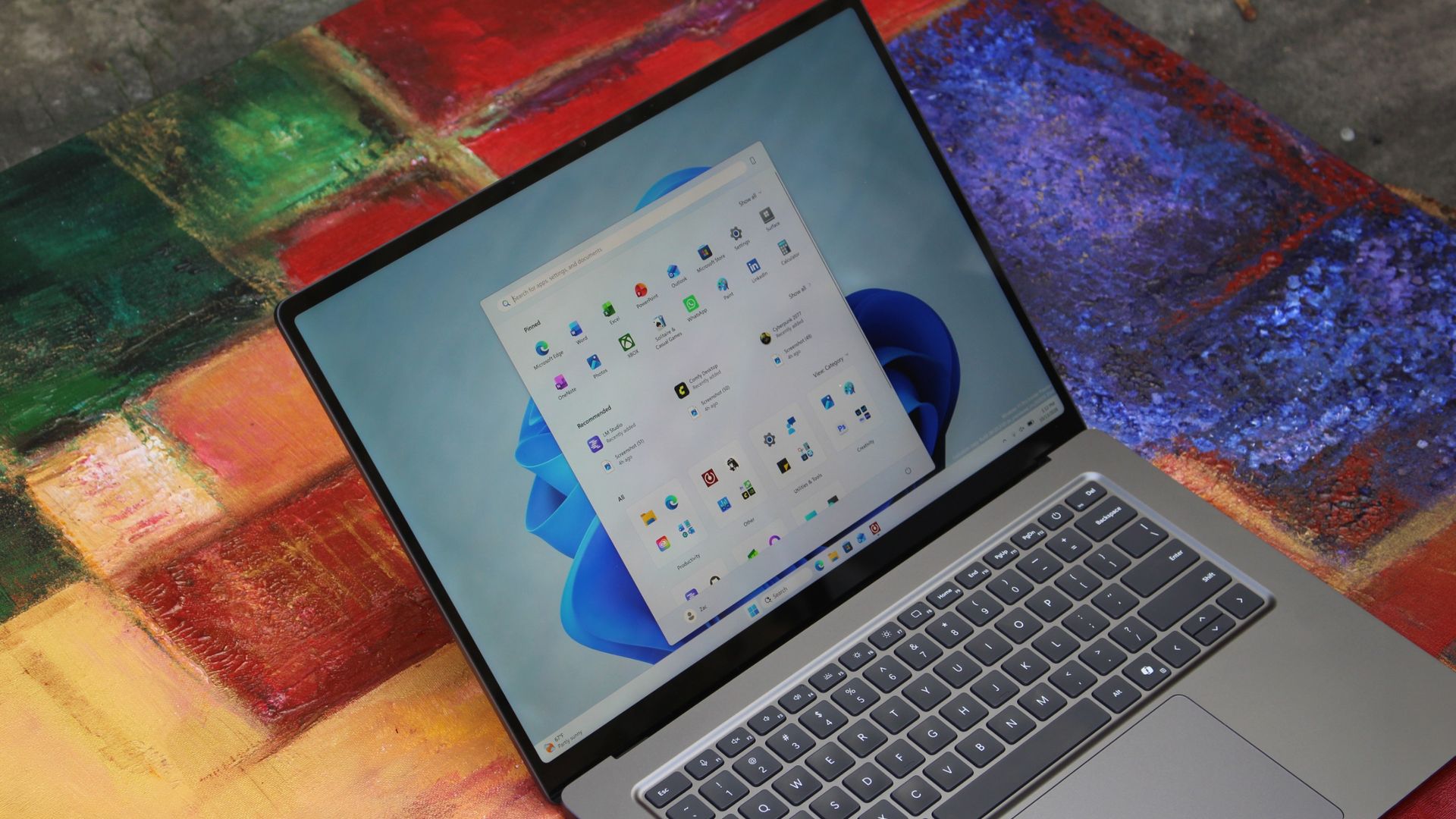
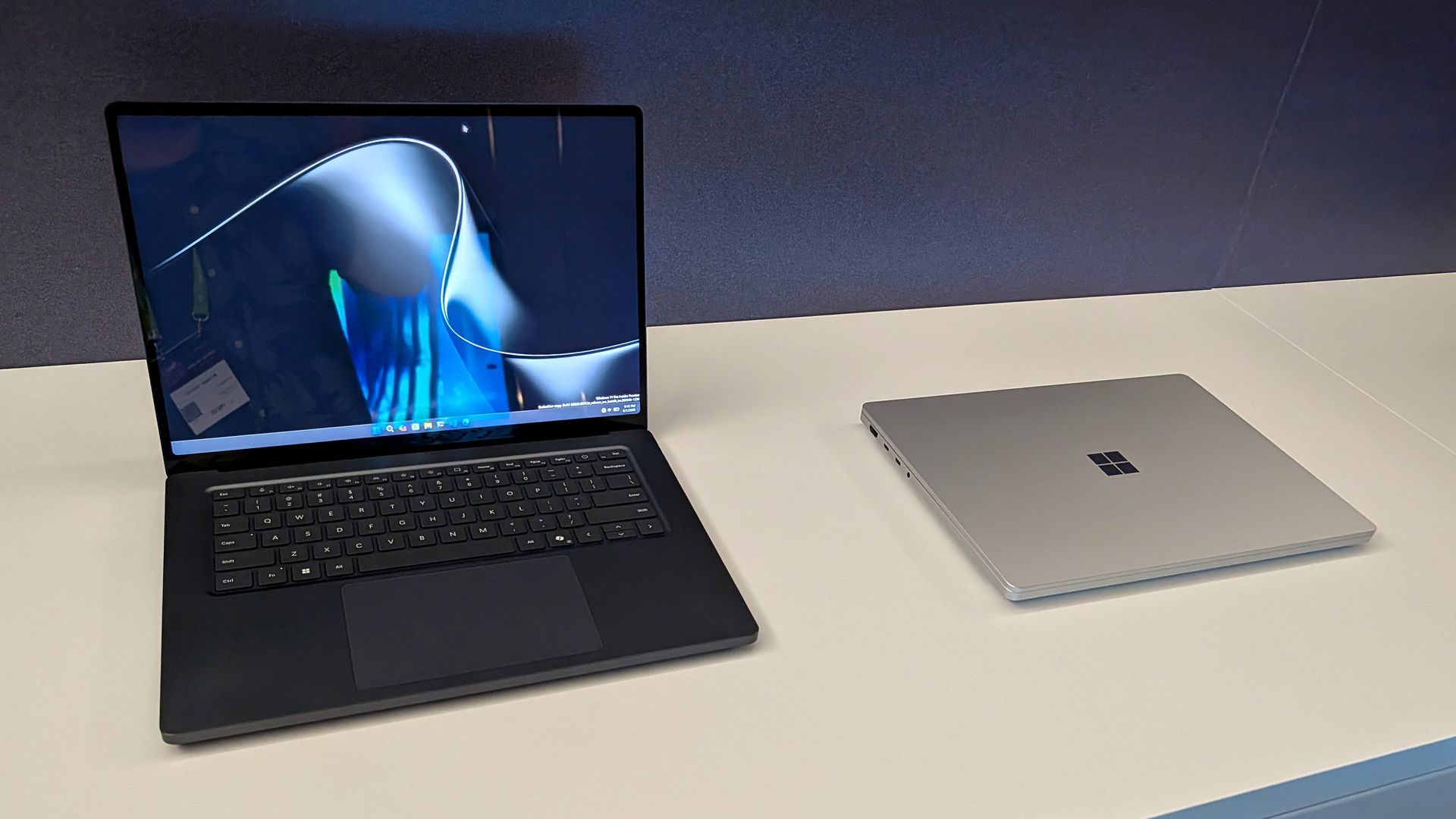
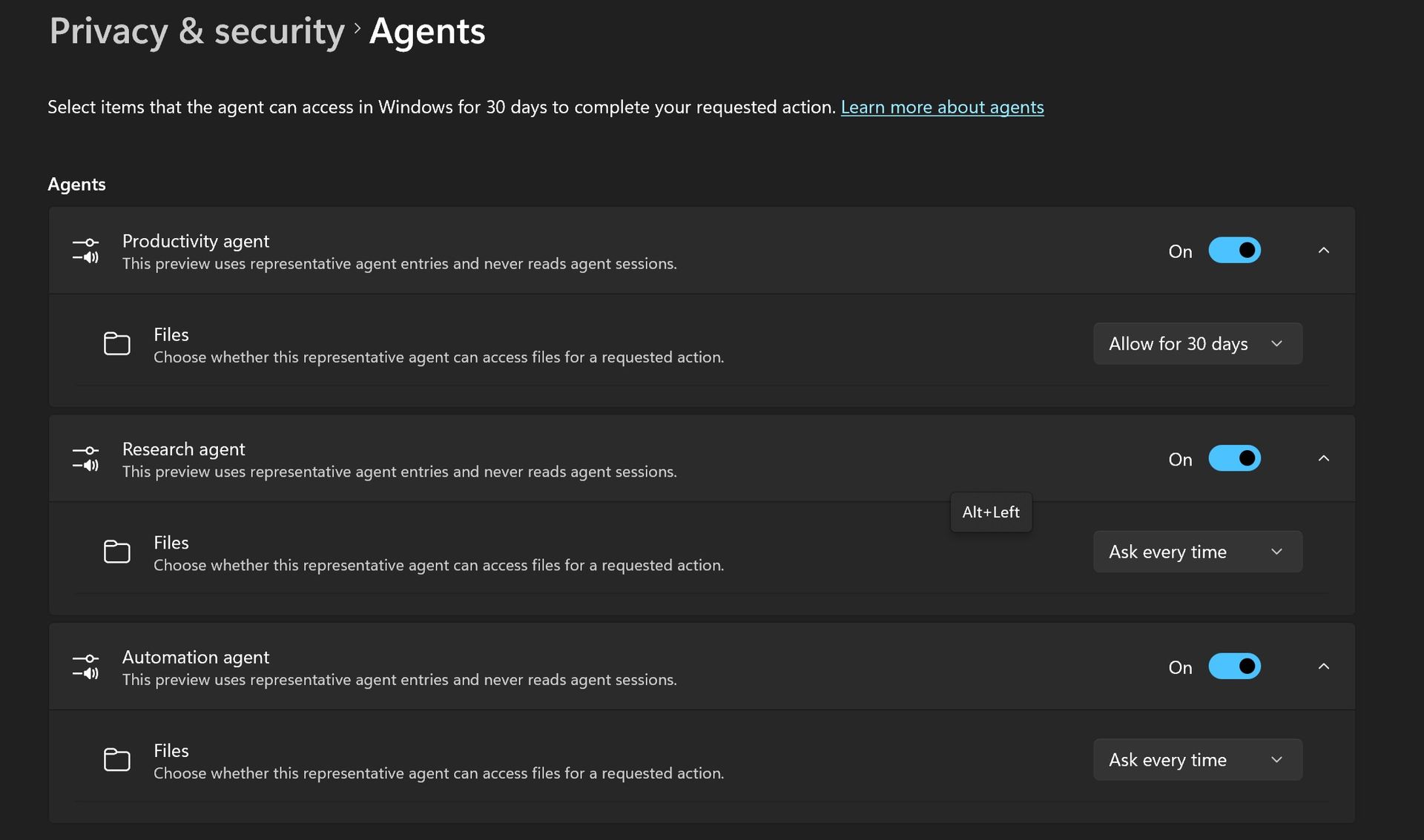
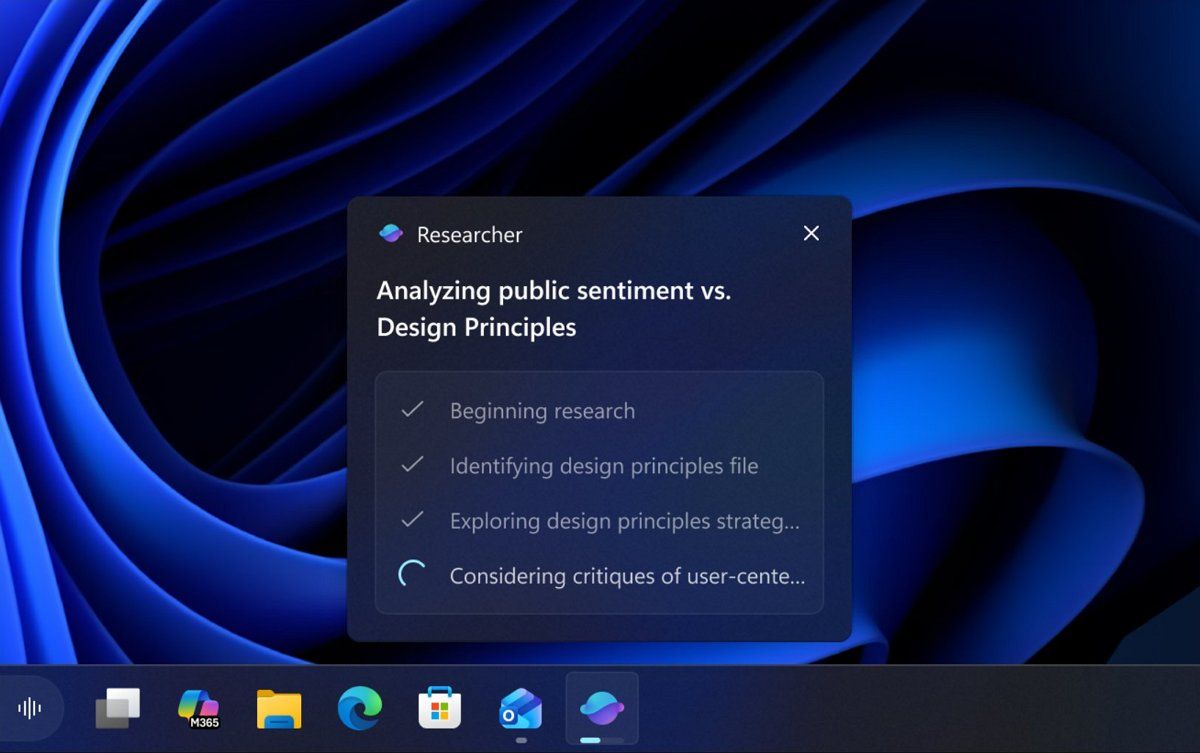
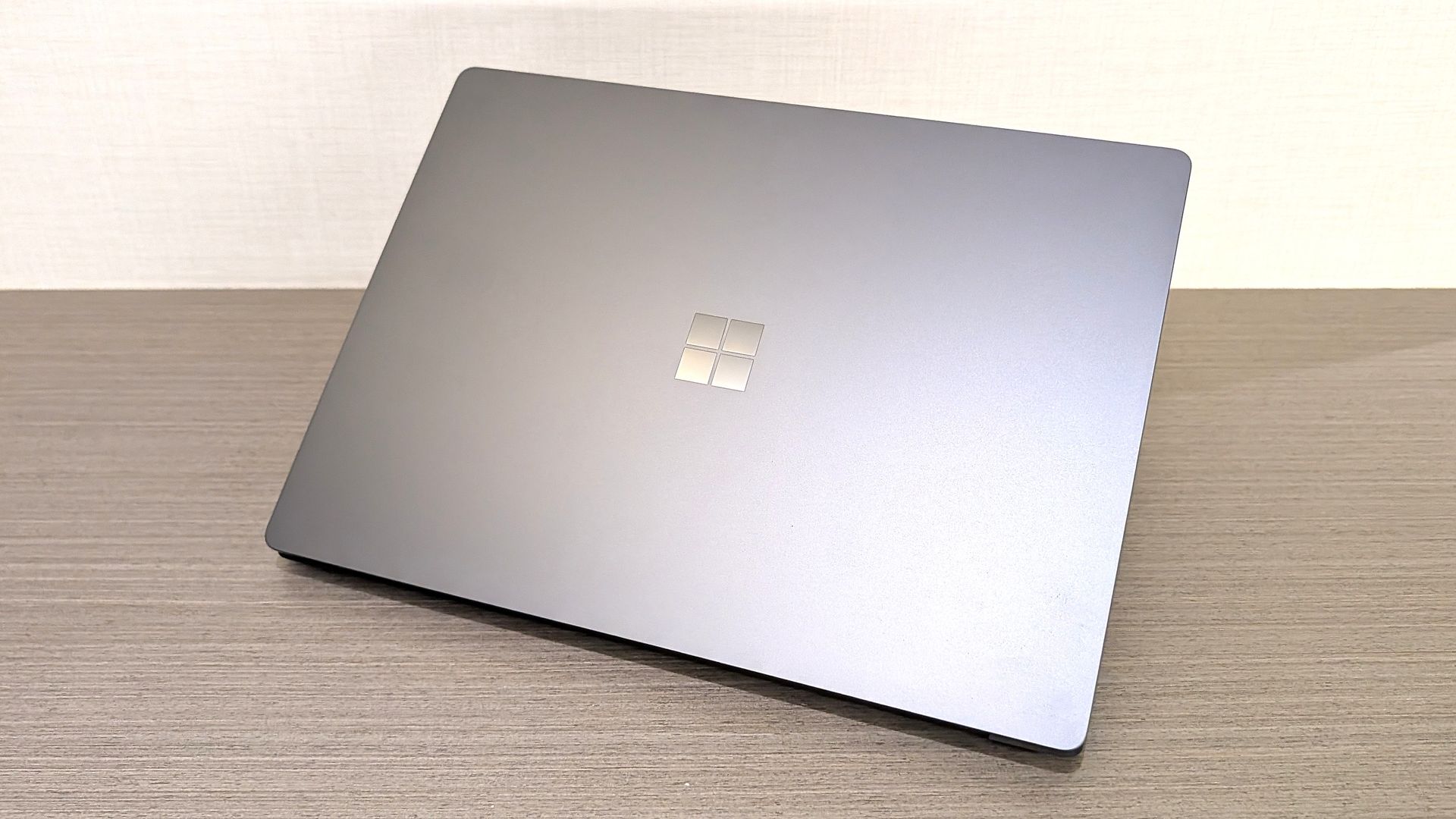
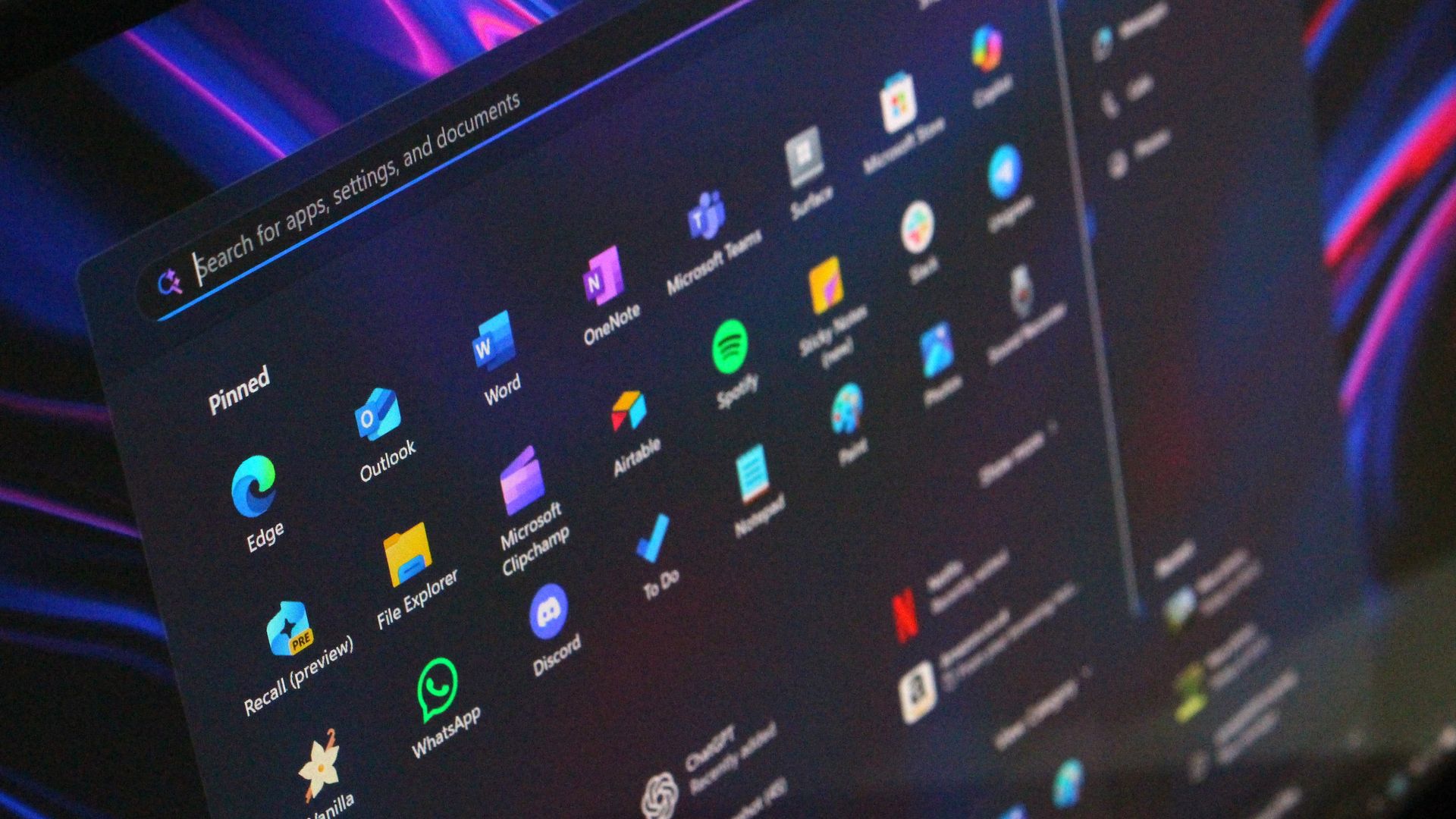
In this episode of the Windows Central Podcast, Daniel Rubino and Zac Bowden break down a major architectural efficiency victory in Windows 11 under the ongoing Windows K2 initiative: reducing memory footprint and improving responsiveness by 20% on 8 GB RAM machines through WinUI conversions, OEM memory budgets, and memory compression.
We also analyze reporting on upcoming Windows 11 default wallpaper refreshes and detail why a full-blown Windows 12 release in 2027 is looking increasingly unlikely. We discuss platform fragmentation across Germanium and Bromine codebases, component cost inflation ("Ramageddon"), and why Microsoft could move toward iterative annual OS branding rather than forced migrations.
The conversation also tracks Copilot’s new opt-in integration into Windows Search, its discontinuation on LG and Samsung smart TVs, and hands-on impressions of the major performance rewrite of the Xbox PC app on handhelds like the ROG Xbox Ally X20.
This episode of the Windows Central Podcast is sponsored by Surfshark VPN. Unlimited devices, access your content from anywhere, and auto-block malware on Windows, Edge, and other platforms from $2.50/mo, with 3 months extra FREE. Sign up today!
[05:41] – Windows 11 Uses Less RAM (Windows K2): How moving system UI to WinUI, stripping WebView dependencies, enforcing OEM memory budgets, and revamping RAM compression saves up to 1 GB on 8 GB PCs.
[09:54] – Responsiveness Benchmarks & Mac Comparisons: Testing 26H2 multitasking performance, 20% responsiveness gains, and parity with 8 GB macOS systems.
[17:26] – AI & NPU-Driven OS Optimization: Exploring machine learning prefetching to optimize system resources based on individual app usage habits.
[20:55] – Copilot App Overhaul & Reasoning Models: Daniel’s impressions of automated model selection, conversational depth, and critique of the Chromium-wrapped desktop client.
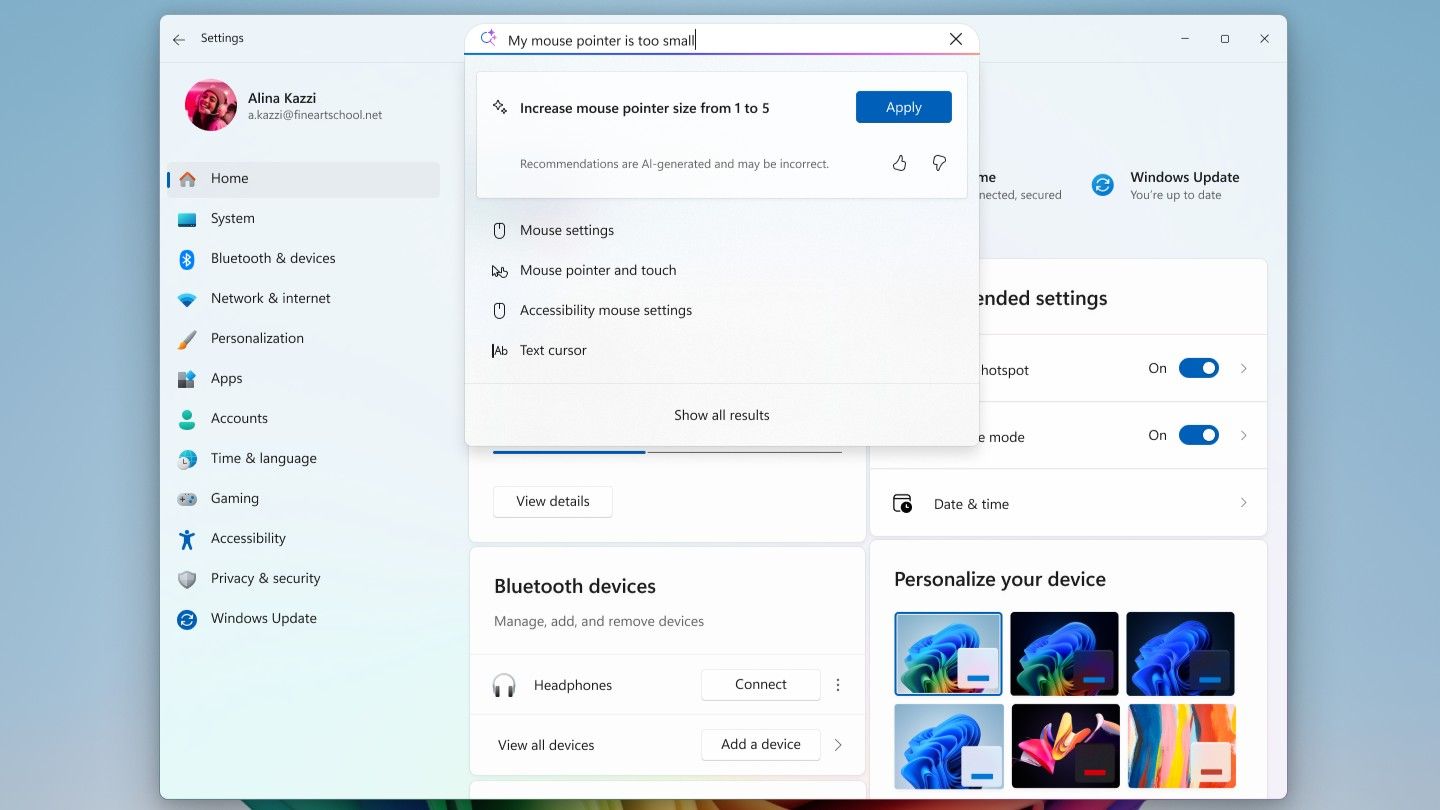
[29:39] – Copilot in Windows Search (Opt-In): The evolution of the former "Ask Copilot" taskbar feature into an optional, native WinUI search integration without forced AI prompts.
[37:27] – Copilot Discontinued on Smart TVs: Microsoft ends Copilot support on LG and Samsung smart TVs as the platform pivots away from consumer assistants toward productivity.
[44:12] – Why Windows 12 Is Unlikely in 2027: Analyzing Tom Warren's wallpaper leak, dual platform codebases (Germanium vs. Bromine), enterprise upgrade friction, and component shortages delaying an OS cycle.
[50:03] – Annual Windows Naming (Windows 27?): Comparing Microsoft's release cadence to macOS and Android annual versioning instead of disruptive numbered leaps.
[01:00:05] – Major Xbox PC App Rewrite: Massive performance boost (60% faster) on the newly overhauled Xbox Insider app, handheld scaling, and instant artwork loading on the ROG Xbox Ally X20.
Have a question you want us to answer on the podcast? Send it to us at [email protected]
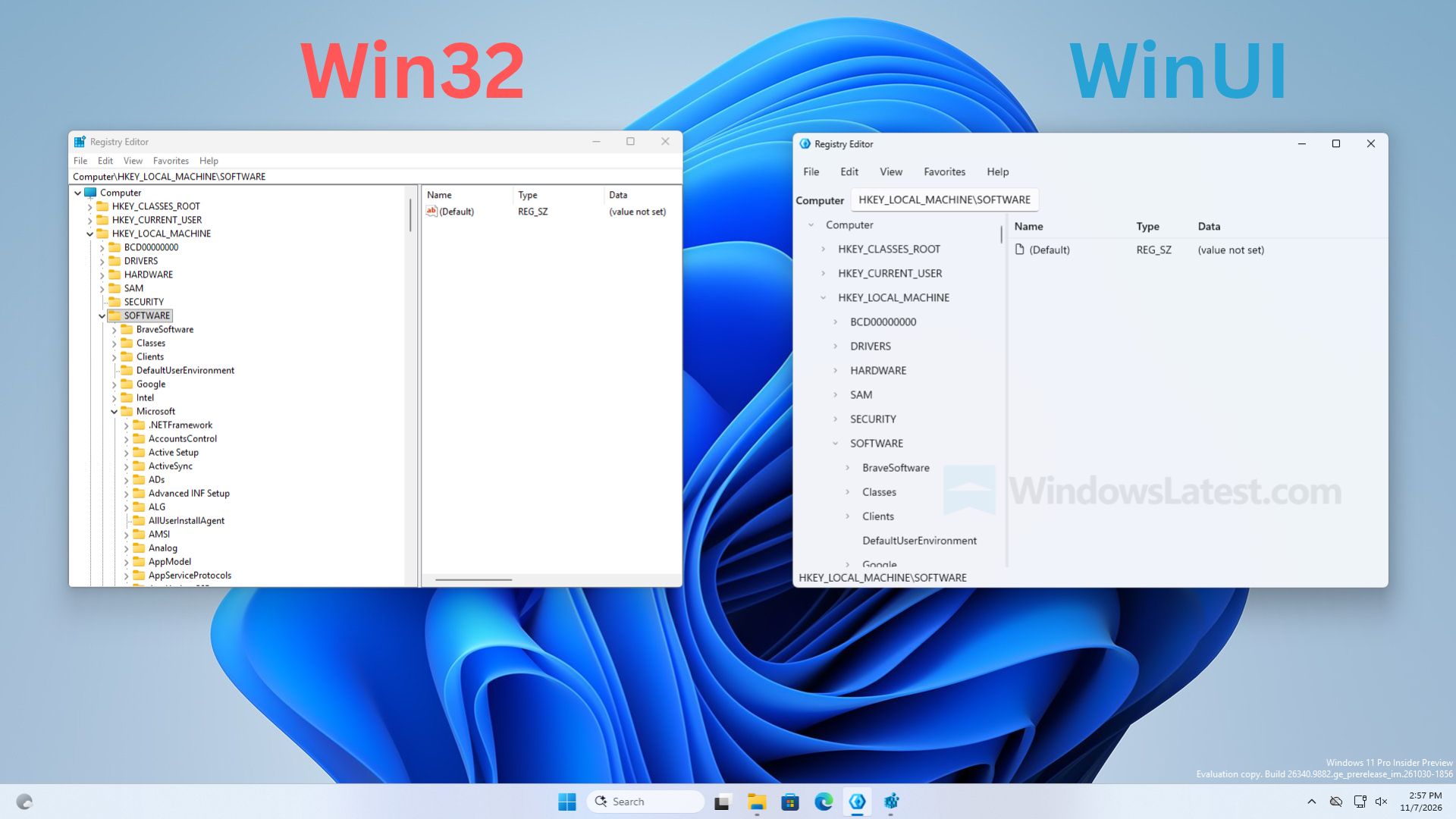
Microsoft has pushed back against reports that the company has built a modernized Registry Editor app for Windows 11, clarifying that the newly discovered modern Registry Editor is just a sample app, and not intended to ship in Windows.
Windows Latest was first to report on this new Registry Editor app, but stated within their article that the app is "not a mock-up," which led some people online to believe this app is a real replacement for the existing Registry Editor.
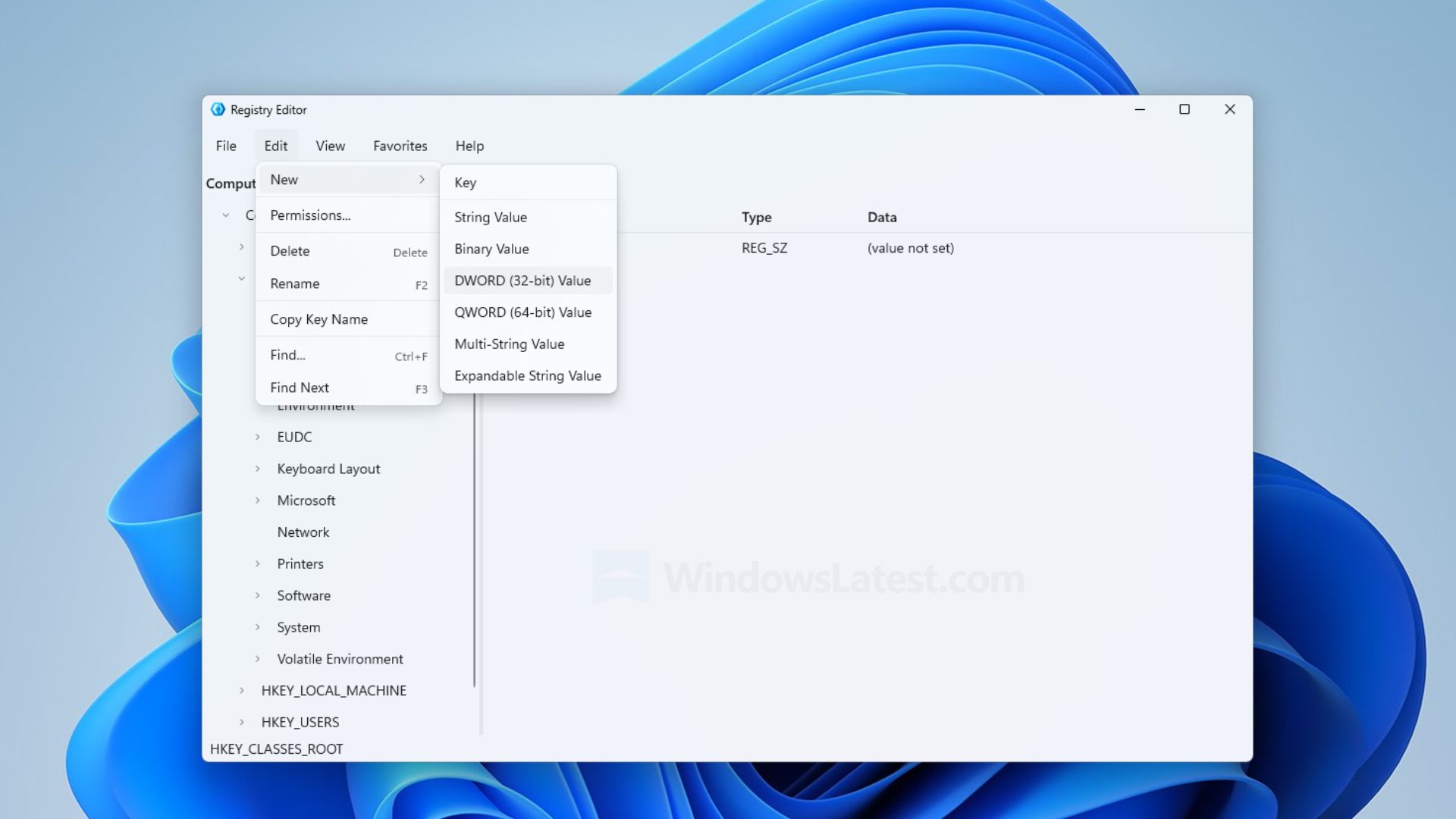
It appears that the app is a mockup, designed to showcase Microsoft.UI.Reactor technology, meaning it was only built to show developers what is possible with the tech and not representative of any modernization work ongoing by the Windows team.
Left: The existing Registry Editor. Right: The sample Registry Editor being mistaken for a real app. (Image credit: Windows Latest)
"It’s a sample. You say it’s the new one and then in the last line of the tweet you point out it’s a sample," Microsoft VP Scott Hanselman said in a reply to Windows Latest on X. This was followed up by a post from Windows Insider lead and CVP Marcus Ash, who said "Right. A sample. Not a developer preview of a new regedit."
So, that's confirmation from Microsoft that this new Registry Editor is not coming to Windows 11, and is just a sample app designed to showcase to developers what is possible with Microsoft.UI.Reactor.
With that said, this doesn't mean the Windows team isn't working on a modernized Registry Editor. My own sources tell me the Registry Editor is on the list for a modern rejuvenation under the Windows K2 effort, but there are other pillars and higher priority items that need to be addressed first before the Registry Editor can be tackled.
The good news is a modern Registry Editor for Windows 11 is unlikely to look like the sample app being depicted in recent reports, and that a modernized Registry Editor is on the docket for the future.
Join us on Reddit at r/WindowsCentral to share your insights and discuss our latest news, reviews, and more.
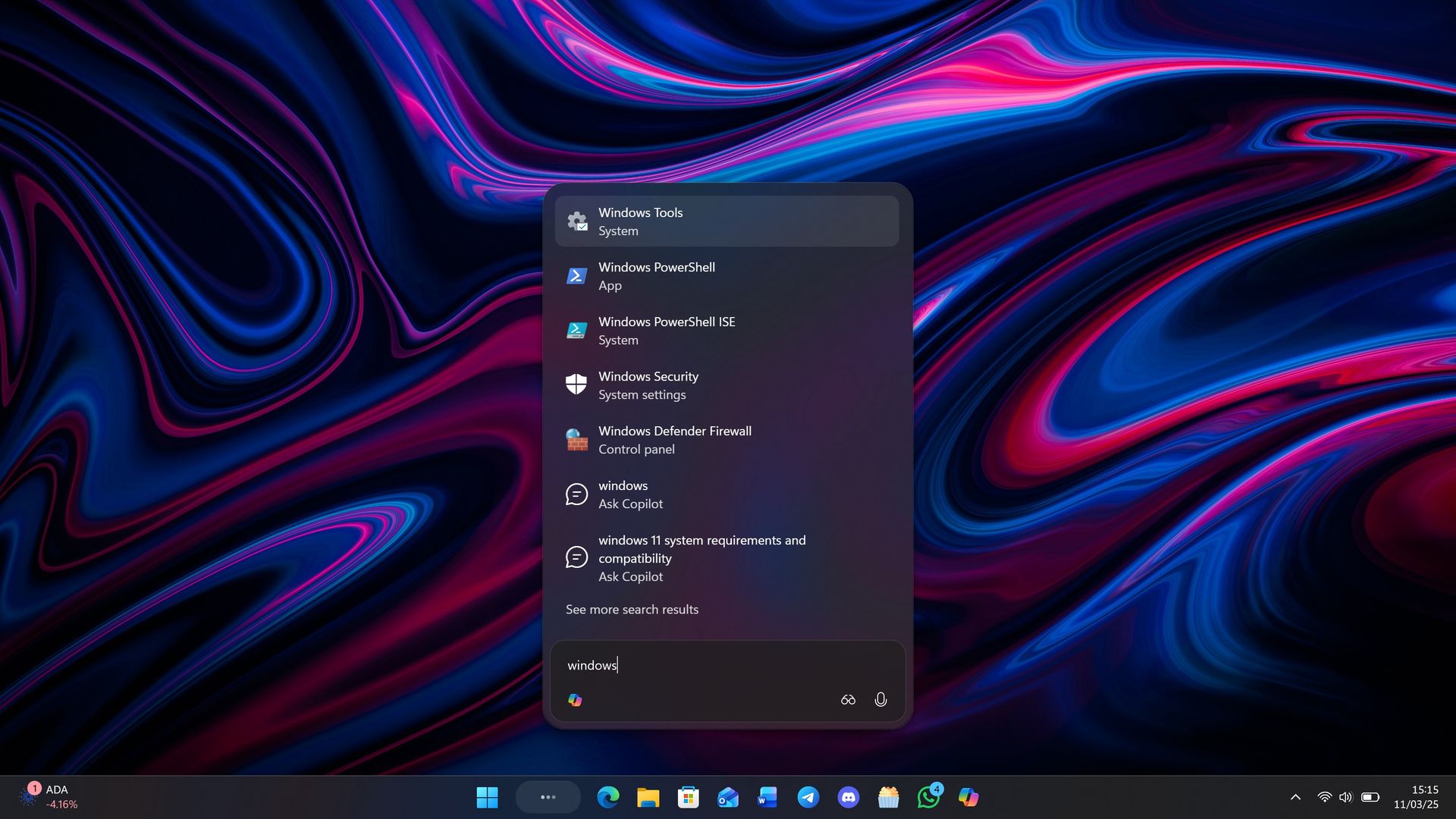
Last month, Microsoft announced a brand new, overhauled Windows Search experience that has been rebuilt from the ground up with more accurate file and app results as well as the ability to modify settings and initiate actions that you ask for.
The new Windows Search is powerful, letting users control their PC, modify settings, answer text messages, open apps, and preview images, files and rich content all from within the search UI. It reduces web content and uses native Windows UI frameworks for a faster and more fluid UX.
Microsoft has also confirmed that this new Windows Search UI will integrate Copilot later this year. This is unsurprising given the new interface builds upon the Ask Copilot experience that the company first announced last year, but never shipped outside of preview.
Ask Copilot testing was paused over the summer, likely because Microsoft decided to integrate it into this new Windows Search experience instead. The new Windows Search looks almost identical to Ask Copilot, meaning I expect the Copilot integration to function very similarly to how it already did before.
"We will also begin adding the option to integrate the new Copilot with Search on the taskbar, so you can get quick answers inline from Search, and if you want to have a richer conversation, you can jump from Search directly to the full Copilot app,"Microsoft says."This experience will be opt-in, and will first start rolling out to select markets later this year."
The good news is that unlike Ask Copilot, which had no option to turn off Copilot integration in the new interface, Microsoft says the Copilot integration in Windows Search will now be opt-in. That means users who don't want Copilot in their search UI won't have to see it.
Earlier this year, Microsoft announced that it will be reducing Copilot bloat across the Windows OS, which likely drove the decision to retire Ask Copilot and make it an optional feature in the new Windows Search instead. While both features share the same UI and backbone, Copilot will no longer be a mandatory part of it.
Microsoft says the new Windows Search will begin rolling out before the end of 2026, which is a quick turn around for a feature that was announced in October. But when you consider the fact that the new Windows Search is actually just Ask Copilot without Copilot, it becomes apparent that the feature has actually been in testing for almost a year.
Join us on Reddit at r/WindowsCentral to share your insights and discuss our latest news, reviews, and more.
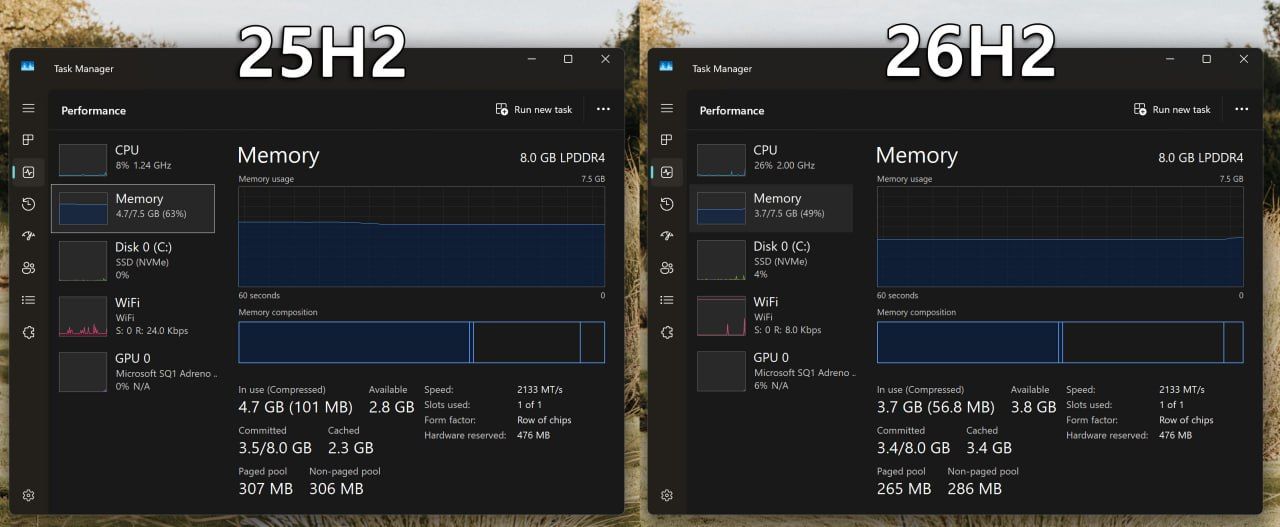
Microsoft has detailed a number of changes and improvements that it has made to Windows 11 over the last handful of months that are designed to improve the OS for devices that have just 8GB of RAM. The company says that as of today, Windows 11 is more RAM-efficient and faster on PCs with limited memory compared to a year ago.
"On 8 GB PCs, Windows is now up to 20% more responsive, and multitasking is up to 40% faster in our lab test" Microsoft CVP Pavan Davaluri says. "We’re approaching this in three parts: making better use of the memory in every Windows 11 PC, protecting the interactions that need to feel instant even under load, and ensuring key apps and Windows require less memory."
Recent Windows 11 updates have changed how the OS preloads background services and apps on PCs with 8GB RAM. Now, the OS will no longer preload things like the Widgets Board on these devices with 8GB RAM or less, which frees up RAM for other tasks and activities.
Microsoft also says that it has worked with teams across Windows, Office, and Edge to reduce the amount of RAM these apps use, resulting in up to 900MB of RAM being given back to the system for other tasks. A large chunk of those savings came from Office apps, which add up to 350MB of RAM freed for the system.
You'll notice the OS uses less RAM at idle now. (Image credit: Windows Central)
There are also consolidation efforts around behind the scenes technology that should also free up system memory. A number of web-powered interfaces across the system are now powered by the same engine, rather than individual engines, and a number of web experiences are being rewritten as native WinUI experiences that use less RAM.
In fact, if you install Windows 11 version 25H2 from a year ago, and compared it to the latest version of Windows 11 with the latest OS updates installed, you'll find that even at idle, Windows is now using significantly less RAM compared to before. These improvements appear to be very real.
Additionally, the company is enforcing "memory budgets" on OEM hardware with limited RAM. This should stop hardware makers from preloading 8GB RAM devices with unnecessary bloatware, reserving preload for the most important services.
These improvements are all in the name of ensuring Windows 11 runs well on 8GB RAM. Windows 11's performance on limited RAM PCs was pulled into the spotlight earlier this year when MacBook Neo shipped, which revealed that macOS is well optimized for 8GB RAM.
Now, Microsoft is eager to let people know that it has made the necessary improvements to Windows 11 to ensure that it too is well optimized for 8GB RAM. Here's a rundown of some other improvements it has made to the OS over the last year:
Memory compression already helps Windows keep more of your work in faster memory. Next, we’re making it even smarter and more efficient to get the most out of your system performance.
Windows features and apps will share common parts instead of each carrying its own. Search and Widgets will share one web engine, and so will OneDrive and Photos for memory savings across all four apps.
Apps and experiences built on WinUI 3, including File Explorer, Notepad, Paint, and the new Windows search are being designed to open faster and use less memory.
Together with PC makers and silicon partners, we’re optimizing how much memory your PC needs to reserve for its hardware, leaving more available for Windows and the apps you use.
We’re also working with third-party app developers to help their apps use memory more efficiently.
Of course, Windows 11 technically officially supports 4GB RAM PCs, and I'm told these optimizations also apply to those devices too. If you're running Windows 11 on 4GB RAM, you should see notable improvements to performance and multitasking with the latest OS updates.
But are these improvements going to be enough for users? Let us know what you think in the comments below!
Join us on Reddit at r/WindowsCentral to share your insights and discuss our latest news, reviews, and more.
In this episode of the Windows Central Podcast, Daniel Rubino and Zac Bowden break down the latest wave of Windows 11 Insider preview builds and major industry hardware shifts.
The episode begins with an overview of incoming Windows 11 quality-of-life updates, including File Explorer context menu overhauls, controller-friendly Xbox Quick Settings for gaming handhelds, deeper Phone Link integration in the taskbar, native speed tests, and rich, actionable search results. Zac also details controversial security adjustments to Windows Hello that force screen-brightening in low-light environments.
From there, we dissect Apple’s sudden embrace of touchscreen technology and OLED displays on the M5 MacBook Pro, comparing Apple’s historical messaging to current market demands. We follow up on the ongoing display debates surrounding the Surface Laptop Ultra's Mini-LED implementation (addressing local dimming claims and ghosting fixes), before examining Big Tech’s massive AI capital expenditure trends, market adjustments, and live audience Q&A questions.
This episode of the Windows Central Podcast is sponsored by Surfshark VPN. Unlimited devices, access your content from anywhere, and auto-block malware on Windows, Edge, and other platforms from $2.50/mo, with 3 months extra FREE. Sign up today!
TIMESTAMPS:
00:00 Pre-show Setup & Tech Checks
02:13 Welcome to Episode 409 & Agenda Overview
03:51 Testing $699–$799 Budget Windows Laptops
06:24 File Explorer Context Menu Overhaul & Quick Turnaround
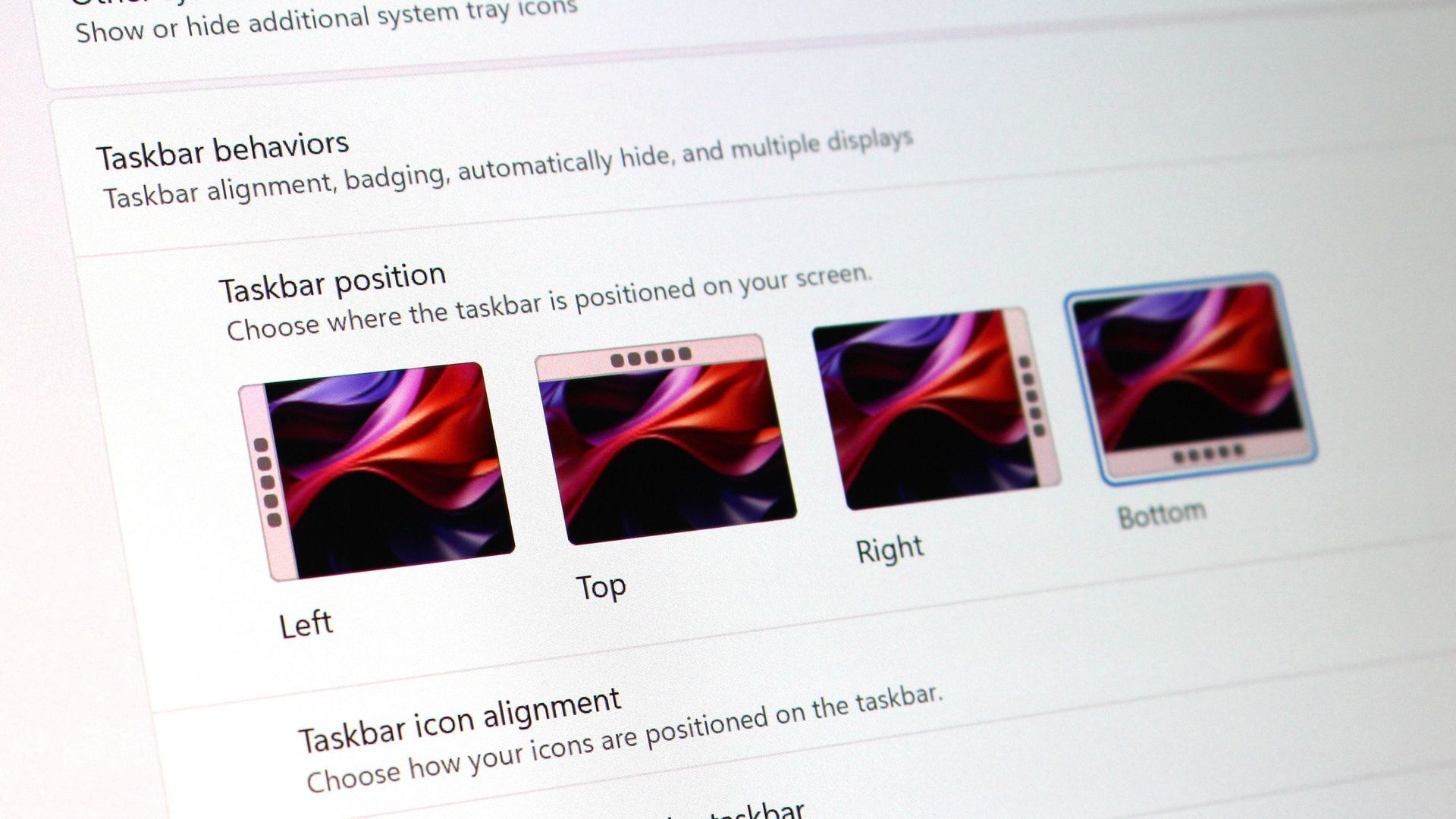
Microsoft has explained why you cannot drag the new movable Taskbar on Windows 11, a feature that was present on Windows 10 but failed to make the move to Windows 11 when it gained the ability to move the Taskbar earlier this year.
Vice President of Design at Microsoft, Diego Baca, explains that the inability to drag the Taskbar to move it is a "deliberate design decision," confirming that such behavior will not be coming to Windows 11 any time soon.
"From our research, dragging the taskbar to reposition it can lead to accidental movements, which is one of the reasons “Lock the taskbar” existed in previous versions of Windows," Baca said. "We also found that changing the taskbar position isn’t something people do frequently."
Baca continues: "We felt that providing a discoverable setting, just one right-click away, was a more intentional and predictable experience. It’s a deliberate design decision, not a missing capability."
The options for repositioning the Taskbar on Windows 11. (Image credit: Zac Bowden / Windows Central)
Microsoft is making it clear that the ability to drag and drop the Taskbar to move and resize it isn't coming to Windows 11, which I'm sure some long-time Windows users will be sad to hear. Baca says that most people don't move the Taskbar once they have placed it where they like, and so the ability to drag it to move it on the fly doesn't make much sense.
On Windows 10, moving the Taskbar was as simple as right-clicking it, unchecking "Lock the taskbar" and then dragging the Taskbar to your desired location. On Windows 11, it requires right-clicking the Taskbar, opening Windows Settings, then selecting your desired location within an app.
While not as straight forward as before, I agree that this method is tidier and reduces accidental movement that could sometimes occur when users unlocked the Taskbar on Windows 10 and forgot about it. You could also resize Windows 10's Taskbar by dragging the top of it, another feature that hasn't made the jump to Windows 11, likely for the same reasons.
It's good to see Microsoft being more open about why certain features aren't available on Windows 11. The company has made strides to be more transparent with fans and Insiders about design decisions and processes, and we love to see it.
Join us on Reddit at r/WindowsCentral to share your insights and discuss our latest news, reviews, and more.
Microsoft has started rolling out its overhauled context menus for Windows 11 as part of this month's non-security feature update that was made available today. The update, known as KB5127936, is now generally available as an optional release.
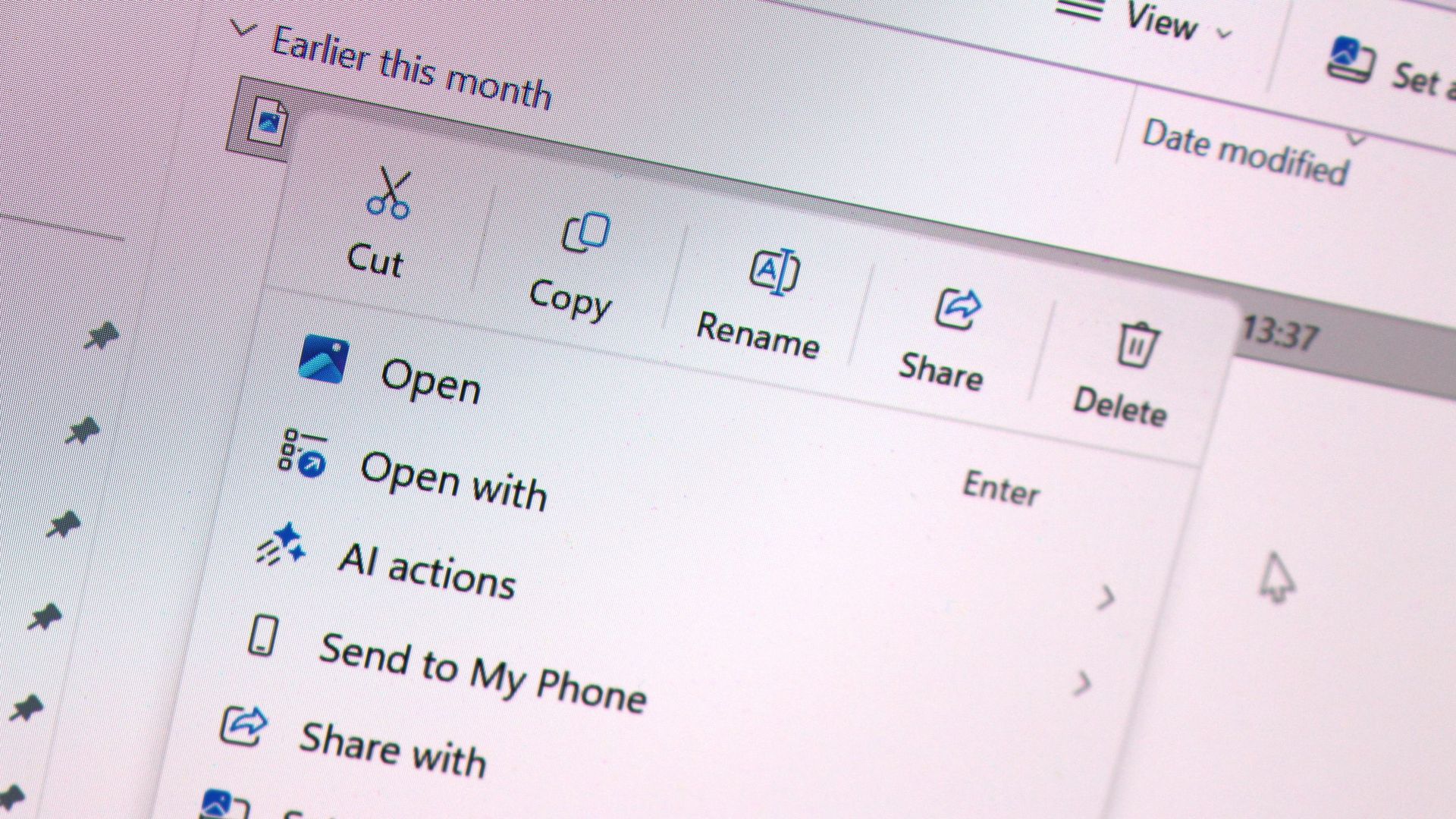
"This update introduces an updated context menu that is faster, simpler, and more customizable," Microsoft says. "The updated menu opens more quickly, reduces clutter, and gives you more control over the commands and app extensions that appear when you right-click."
These improvements are part of the company's ongoing "Windows K2" effort, which focuses on making core OS improvements that address complaints and issues from users. For a long time, context menus of Windows 11 have been slow, cluttered, and confusing, but today's update changes that.
Now, context menus open instantly, and they can also be customized by the user. Microsoft outlines the following customization options being added to Windows 11 with this new update:
Turn built-in Windows commands, such as Send to and Create shortcut, on or off.
Add commands such as Print to the context menu.
Choose which app extensions appear in the main menu or a submenu or hide the app extensions submenu.
Display Cut, Copy, Paste, Rename, Delete, and Share directly in the menu instead of as a row of icons.
Move Properties to the bottom of the context menu.
These new context menus also appeal to Windows 10 users, as they enable the ability to restore common actions such as cut, copy, and paste in the vertical list view instead of horizontally along the top of the menu. You can also turn off apps that might appear within the context menu.
Today's update includes more than just an overhauled context menu system, too. The new Xbox task view interface is also rolling out, along with updates to File Explorer and Windows Settings. Be sure to check out the changelog for the full list of changes.
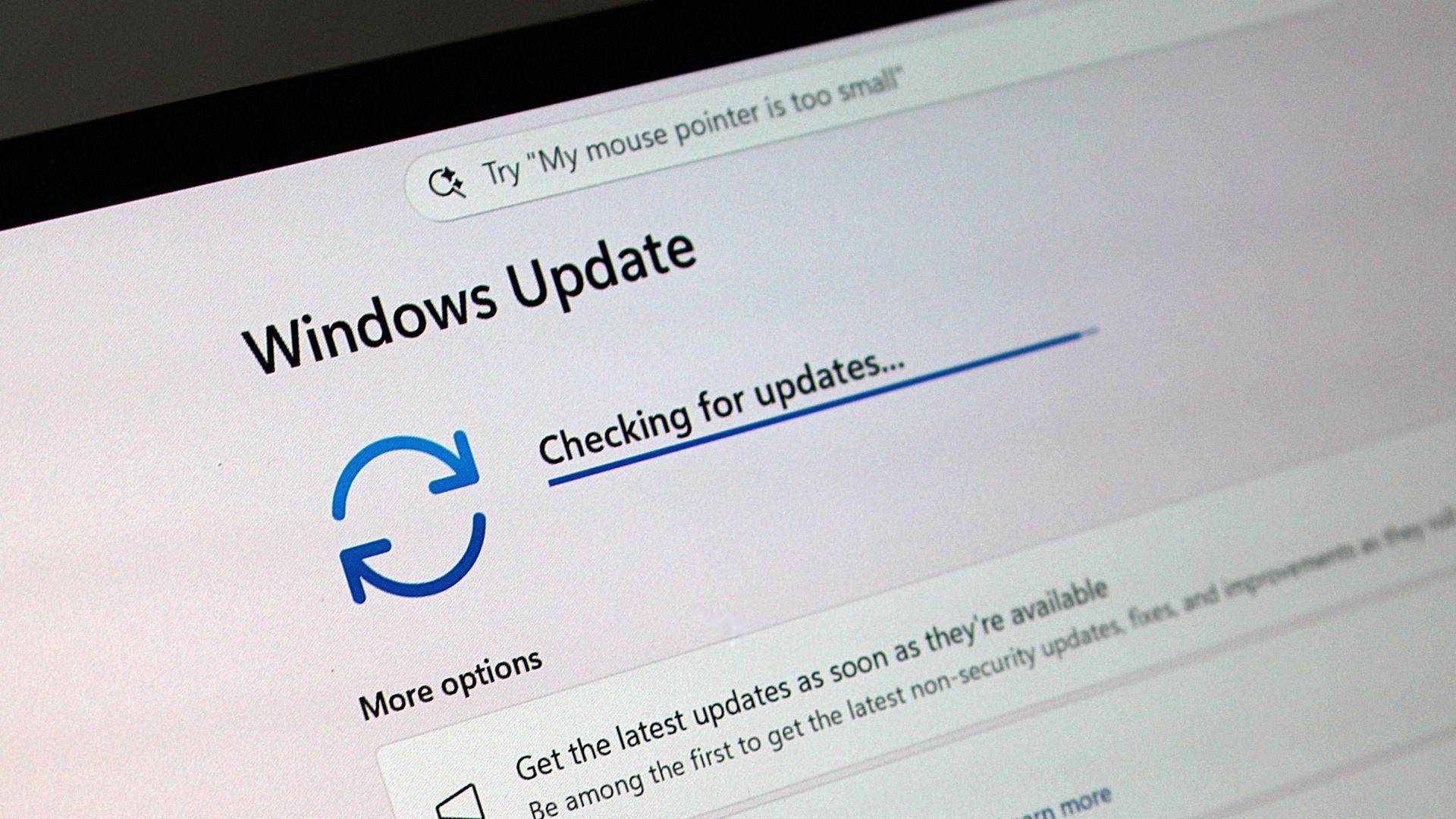
Unfortunately, all of these new features are rolling out gradually, which means you likely won't see them right away. You need to ensure the "Get the latest updates as soon as they're available" toggle is enabled in Windows Settings to get them quicker, but you'll still have to wait before they appear.
Join us on Reddit at r/WindowsCentral to share your insights and discuss our latest news, reviews, and more.
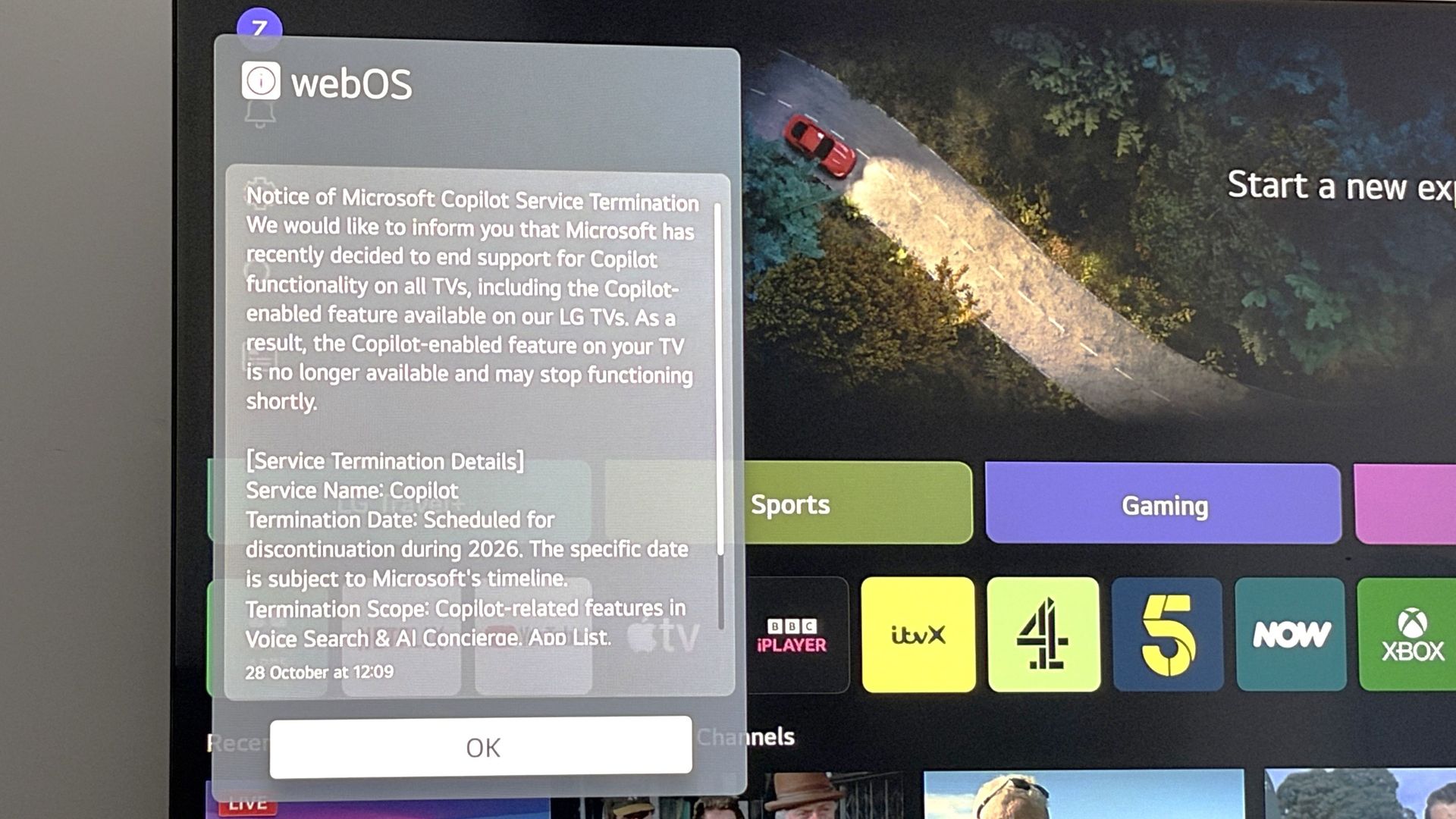
LG has announced that Microsoft is ending support for Copilot on smart TVs at some point between now and the end of this year. In a popup that appeared on my webOS-powered LG TV this morning, LG confirmed that Microsoft is ending support for Copilot on all smart TVs.
The notice reads:
"We would like to inform you that Microsoft has recently decided to end support for Copilot functionality on all TVs, including the Copilot-enabled feature available on our LG TVs. As a result, the Copilot-enabled feature on your TV is no longer available and may stop functioning shortly."
LG says Microsoft is yet to confirm which date Copilot support will end on smart TVs, but that it's expected to happen before the end of 2026. This move doesn't come as much of a surprise as I don't think I know anyone who has ever actively used Copilot on their TV.
The popup that confirmed Copilot is saying bye-bye to TVs. (Image credit: Zac Bowden / Windows Central)
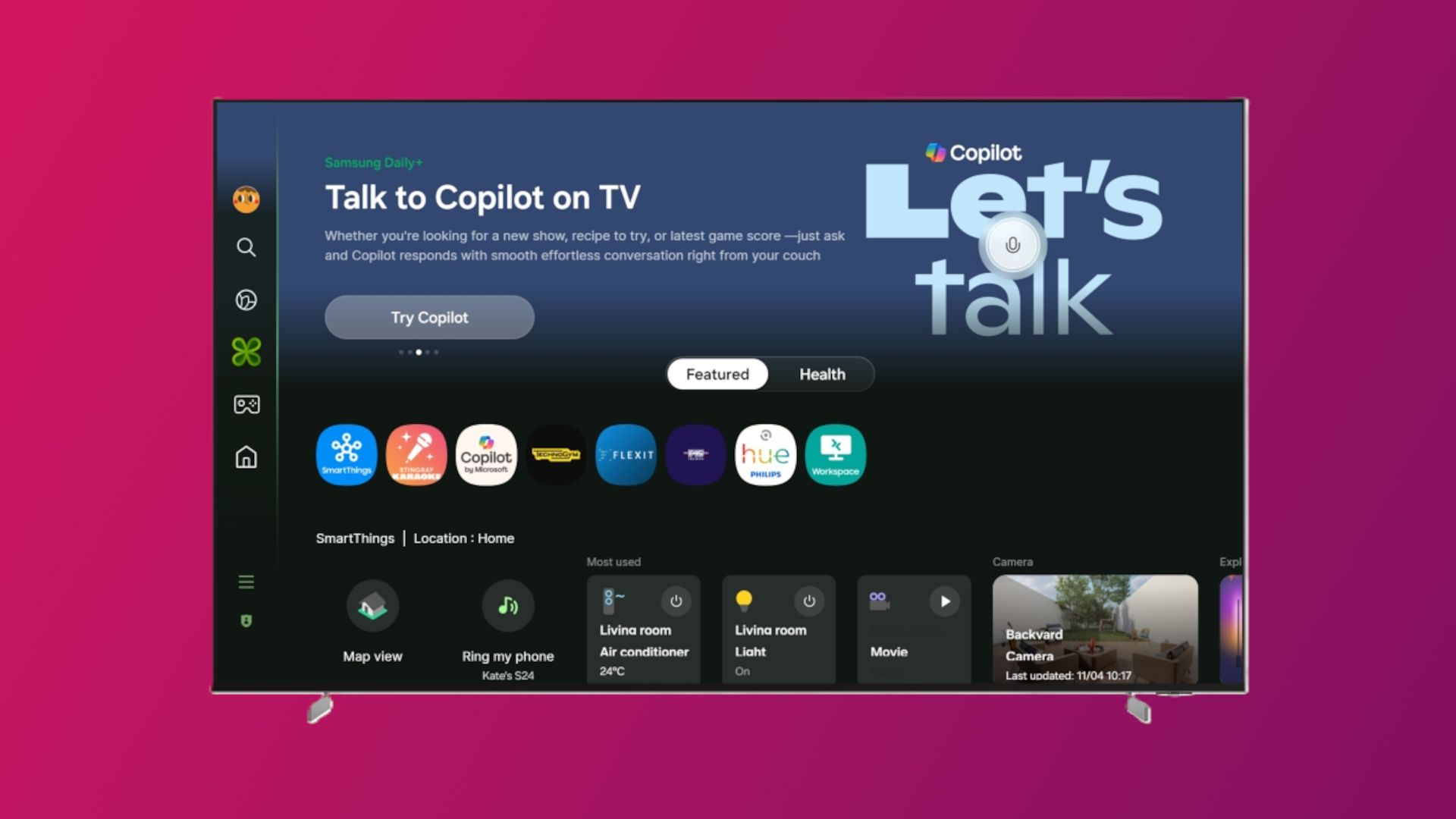
Copilot acted as an AI powered companion that could answer questions based on content on your screen. You could also use it to recommend TV shows and movies, and chat to it generally like you can on other devices. The app was forcibly installed on LG and Samsung TVs in the last year, which caused big pushback from customers online.
Microsoft has also changed course with Copilot since. It's no longer interested in positioning Copilot as a digital friend for personal use. Instead, it's actively targeting productivity and business use cases for Copilot, which means Copilot on TV no longer makes sense for Microsoft.
The company recently merged its Microsoft 365 Copilot and consumer Copilot under the same app, meaning there's no longer a dedicated personal Copilot app for users who wanted to make a digital friend. Copilot on TV is the latest consumer facing version of Copilot to kick the bucket.
We'll be sure to update this article once Microsoft confirms an exact end of support date for Copilot on TVs. For now, what do you think about the current state of Copilot? Let us kow in the comments.
Join us on Reddit at r/WindowsCentral to share your insights and discuss our latest news, reviews, and more.
Does the Mini LED display on Surface Laptop Ultra support local dimming? Many reviewers have noted the Mini LED display on Laptop Ultra is somewhat underwhelming, with ghosting issues and poor color contrast (albeit with great color accuracy) compared to other Mini LED screens on the market, and especially OLEDs.
I said in my Surface Laptop Ultra review that its display features 1,344 local dimming zones, which is significantly lower than the dimming zones you'll find on a MacBook Pro with the same display tech. That results in a lot more ghosting and blooming, which can make the display feel stuttery and not smooth at times.
I reached out to Microsoft again to see if it could clarify how the display works. The company told me that Surface Laptop Ultra does feature local dimming by default, with 5,400 LEDs across 1,344 dimming zones.
Much like any other Mini LED display, these zones adjust backlight brightness based on the content in that area. If a bright window is being displayed on a black background, the dark areas of the screen will be dimmed.
This behavior is what causes the ghosting and blooming effect on Surface Laptop Ultra, and is a side effect of Mini LEDs, especially ones with a low local dimming zone count. On my Surface Laptop Ultra in SDR, I can see the local dimming zones brightening and darkening as I move around a white window on a black background.
The Mini LED display on Surface Laptop Ultra does support local dimming. It's just not very good local dimming.
So, the display definitely does have local dimming capabilities. But it must be said that its performance isn't amazing compared to other Mini LEDs on the market. Whether local dimming is even working also depends entirely on your PCs settings.
The local dimming behavior is controlled by a setting in Windows Settings under System > Display > Brightness. With "Change brightness based on content" enabled, and the "Enhanced" display profile set, the local dimming support should function.
I've also found that you should turn off HDR for local dimming to be most effective. When HDR is on, the backlight is much more noticeable on dark backgrounds, likely because HDR requires much more brightness. A positive side effect of this is that this pretty much fixes the ghosting issue at the expense of local dimming performance.
So, the TL:DR is Surface Laptop Ultra does feature local dimming capabilities. You should have HDR disabled, with "Change brightness based on content" enabled and the "Enhanced" display profile set in Windows Settings for it to be most effective. On the flipside, enabling HDR reduces the ghosting and blooming issues, but decreases local dimming performance.
It must be said that the Mini LED display on Surface Laptop Ultra is somewhat disappointing. It certainly isn't as good as the Mini LED panel in a MacBook Pro, and I'm just left wondering why Microsoft didn't opt for OLED given that's what all the next-gen laptops are going with, including the upcoming MacBook Pro with touch.
Maybe, hopefully, a future firmware update can adjust and improve the performance of the local dimming behavior on Surface Laptop UItra. The most recent firmware update did fix flickering issues that people were having with the display, so anything is possible.
Join us on Reddit at r/WindowsCentral to share your insights and discuss our latest news, reviews, and more.
Microsoft has released its first firmware update for the new Surface Laptop Ultra that fixes a number of issues that users and reviewers have reported since launch day a few weeks ago. Namely, issues with the display and long reboot times are finally being addressed.
According to the changelog, this firmware update was released on October 22, 6 days after the Surface Laptop Ultra launched. It appears under the name "Microsoft Corporation System Hardware Update (200.0.7.0)" in Windows Update, and includes the following fixes:
Resolves an issue that could cause extended reboot times.
Resolves an issue that could cause screen flickering.
Resolves an issue that could cause unexpected restarts.
Includes additional bug fixes and general performance improvements.
Reviewers (myself included) had noted that the Surface Laptop Ultra's Mini-LED screen was disappointing as the display suffered from ghosting and flickering. Microsoft says the flickering issue should now be fixed with this latest update, though the ghosting issue is still present.
I also mentioned in my review that the Surface Laptop Ultra suffered from really long reboot times, which made installing Windows updates and drivers a pain as it made the process take twice as long. That issue is now also fixed as of this latest firmware update.
Other fixes include performance improvements and a reduction in unexpected restarts (BSODs,) something I am yet to encounter on Surface Laptop Ultra anyway. It's good to see Microsoft moving so quickly to improve the Surface Laptop Ultra, which is expected to get firmware updates for 6 years, until 2032.
Surface Laptop Ultra is on sale now starting at $2,599. It's Microsoft's first RTX Spark powered Surface PC, which explains why there have been some teething problems with the platform. I expect Microsoft to issue more bug fixes and improvements via firmware updates over the coming weeks.
Join us on Reddit at r/WindowsCentral to share your insights and discuss our latest news, reviews, and more.
On this episode of the Windows Central Podcast, Daniel Rubino and Zac Bowden tackle behind-the-scenes reporting on internal tensions between Microsoft’s Windows and Xbox engineering divisions regarding the next-generation Project Helix hardware. Sparked by a detailed report in Fortune, we examine conflicting visions over whether future Xbox hardware—including a rumored 2027 handheld and 2028 home console—should run a streamlined desktop Windows build or iterate on the locked-down, hyper-optimized, containerized Xbox OS.
We also breaks down leaked Microsoft internal survey research investigating potential shifts in first-party exclusivity for blockbuster franchises like Fallout and Minecraft. Daniel then details his comprehensive review impressions of the ultralight 3.9 lb ASUS ProArt P16 and the HP OmniBook Ultra 16, followed by an overview of AMD FSR 4.1 rolling out to handhelds like the ROG Xbox Ally series to boost frame rates on constrained hardware.
This episode of the Windows Central Podcast is sponsored by Surfshark VPN. Unlimited devices, access your content from anywhere, and auto-block malware on Windows, Edge, and other platforms from $2.50/mo, with 3 months extra FREE. Sign up today!
[01:47] – Introduction & Episode Overview: Daniel and Zac kick off Episode 408, laying out the agenda: Windows vs. Xbox internal friction, Project Helix roadmaps, hardware reviews, and AMD FSR updates.
[04:35] – Project Helix & The Fortune Report: Analysis of reported tensions between Asha Sharma’s Xbox leadership and the Windows team over software architecture for next-gen hardware.
[06:49] – Updated Launch Timelines & Handheld Rumors: Dissecting expectations for a potential Xbox gaming handheld targeting late 2027 and the living room console shifting toward late 2028.
[08:20] – Xbox OS vs. Windows Desktop Shell: Comparing console-level security, sandboxing, and background stability against open PC desktop architecture, and examining official executive responses.
[15:08] – The Handheld Software Dilemma: Out-of-box user experience friction on Windows-based gaming handhelds (driver updates, launchers) compared to dedicated console environments.
[23:51] – Security, Containerization & Publishers: Why game publishers prefer isolated hypervisor environments over open desktop file systems to prevent tampering and day-one piracy.
[30:27] – Windows 12 & State Separation: History of Microsoft’s state-separated OS initiatives (Core OS, CorePC) and whether architectural isolation could arrive in future Windows releases.
[35:31] – Leaked Exclusivity Research Survey: Discussion of leaked internal questionnaires gauging consumer reaction if future releases in franchises like Fallout or Minecraft become Xbox console exclusives.
[46:00] – ASUS ProArt P16 In-Depth Review: Daniel breaks down the 3.9 lb RTX Spark laptop, evaluating 3K vs. 4K OLED panels, thermal cooling under 50 dB, and everyday 10-hour battery life.
[54:32] – HP OmniBook Ultra 16: Contrasting ASUS’s utility suite (OLED dimming, taskbar protection) with HP’s build weight and software support.
[55:55] – AMD FSR 4.1 Launch on Handhelds: What the new upscaling and frame generation driver update means for the ASUS ROG Xbox Ally family and constrained hardware.
[01:00:08] – Live Audience Q&A: Viewer questions addressing Windows on ARM anti-cheat progress, Xbox Play Anywhere adoption incentives, and high-end hardware expectations.
Have a question you want us to answer on the podcast? Send it to us at [email protected]
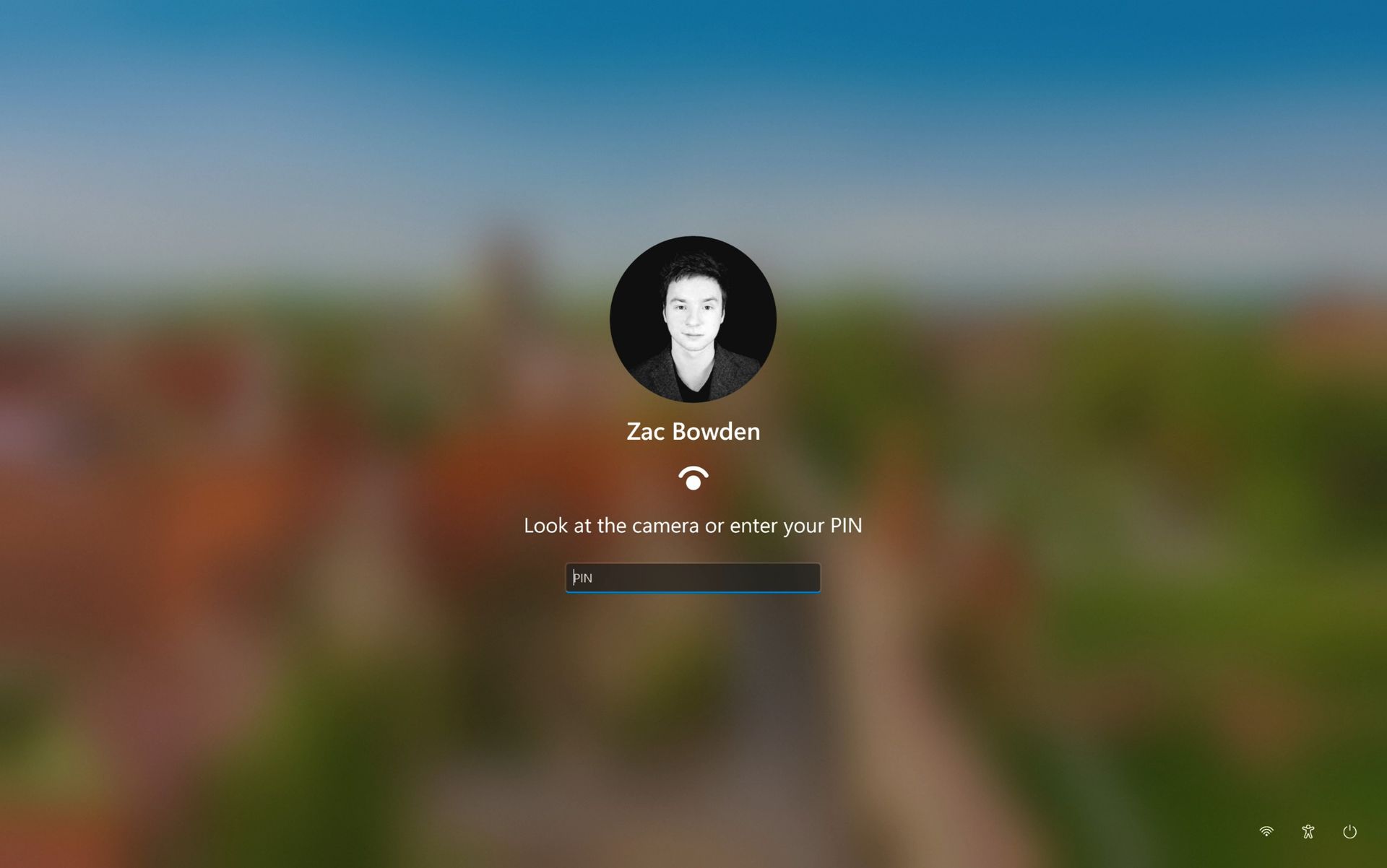
Microsoft is working on a small yet meaningful change to the lock screen and sign-in experience on Windows 11 that will streamline the authentication process that users must go through to log into their desktop.
The current Windows sign-in flow requires the user to manually select the method of authentication they wish to use to login. If you've set up a PIN, face unlock, and fingerprint unlock, the only method of authentication that is active is the one you manually click on to use on the lock screen.
This is a huge gripe of mine, and it's super frustrating when you want to login using your face, but Windows has selected PIN or fingerprint. It means your webcam isn't looking for you in that moment, and you have to manually switch to face unlock to force Windows into checking for your face and logging in.
Well, it looks like this is finally changing. In the latest Windows 11 preview builds, a hidden feature ID enables a new experience that automates this. Now, by default, the PIN box is always on show, but face unlock and fingerprint unlock are also active and ready to authenticate at the same time.
No longer does the user need to manually choose their login method. (Image credit: Zac Bowden / Windows Central)
This means users no longer need to manually select the login method of their choice. Windows will automatically capture whichever biometric authentication method is set up, even when the PIN box is on screen. This also means the lock screen looks cleaner as a result, as the options to choose which authentication method you want to use is no longer displays as it's not necessary. It's also faster for those with biometric authentication enabled.
I really like this change, as it encourages Windows to keep trying my face unlock even if it fails the first time. Of course, there's an eventual timeout if it fails too many times, but I find it is able to log me in before it ever reaches that point. Also, being able to just type my PIN without having to manually select the PIN option first is also great.
Microsoft is yet to announce this new sign-in flow, but I suspect it won't be long until it's officially put into testing as it's already very polished and has been in the works for a number of months now. What do you think? Is this a good change for the Windows lock screen? Let us know in the comments.
Join us on Reddit at r/WindowsCentral to share your insights and discuss our latest news, reviews, and more.
Microsoft's next-gen Xbox hardware lineup is beginning to come into focus. According to a new report from Fortune, the company is gearing up to ship new hardware in the form of a handheld in 2027, followed by a full-blown console in 2028.
It's unclear if the handheld project is a first party Xbox device, or a third-party device designed and manufactured by an OEM partner like ASUS and the ROG Ally X. The console is expected to be first-party, and is likely to run a specialized version of Windows.
The report claims that Xbox and Windows have been at odds about how the OS should run on Project Helix. Windows leaders wanted the consoles to run a modified version of Windows desktop, but Xbox leaders wanted a more boutique OS experience designed for gaming.
"Tensions ran high enough that a senior Xbox executive threatened to scrap the handheld project rather than adopt the Windows build ... Xbox is now largely controlling the direction of the operating system for the project" Fortune claims.
Microsoft's Xbox CTO, Scott Van Vliet has taken to X to refute Fortune's claims, stating that the report "misrepresents both the technical work and the relationship between the teams." But Windows and Xbox have a long history of clashing, and is the least surprising part of this report.
My own sources tell me that both Windows and Xbox teams have disagreed over the direction of the platform for certain gaming-specific experiences, but that doesn't mean the teams aren't still working together.
Windows already powers the current Xbox Series consoles, as well as Xbox One. It's a modified version of the OS that the Xbox team has customized, built on top of the Windows OS core that is developed by the Windows team.
It sounds like the Xbox team has decided to maintain this approach with Project Helix consoles, expanding and building upon it with new features and capabilities such as running PC games.
This is why you've seen an uptick in Xbox OS features for existing Xbox consoles over the last handful of months, as the Xbox org has started reinvesting in the OS experience they already control. This work will naturally also benefit the next-gen consoles.
Alarmingly, Fortune claims that Microsoft is currently expecting the next-gen Xbox console to cost somewhere between $1,200 and $1,800, making it the most expensive gaming console ever. It's possible that Microsoft may choose to subsidize the cost, which would bring it closer to $1,000, but nothing is confirmed.
Of course, these rumors are unconfirmed. Plans could change and schedules could slip, so nothing is set in stone until Microsoft is ready to formalize its plans officially. For now, we know that Project Helix is still in development, with first devkits expected to debut in early 2027.
Let us know in the comments what you think about Project Helix so far.
Join us on Reddit at r/WindowsCentral to share your insights and discuss our latest news, reviews, and more.
In this episode of the Windows Central Podcast, Daniel Rubino and Zac Bowden regroup following a week of extensive hands-on hardware testing and benchmarking. The central focus is the initial review wave for the Surface Laptop Ultra and the broader Nvidia RTX Spark mobile platform.
Zac details his full review of the Surface Laptop Ultra, highlighting its MacBook-inspired design improvements, haptic touchpad, outstanding audio, sleep battery efficiency, and magnetic USB-C connector—while contrasting its 2,000-nit Mini-LED display against competing Tandem OLED panels. Daniel shares first impressions of two rival RTX Spark flagships: the ultralight 3.9 lb ASUS ProArt P16 and the robust HP OmniBook Ultra 16.
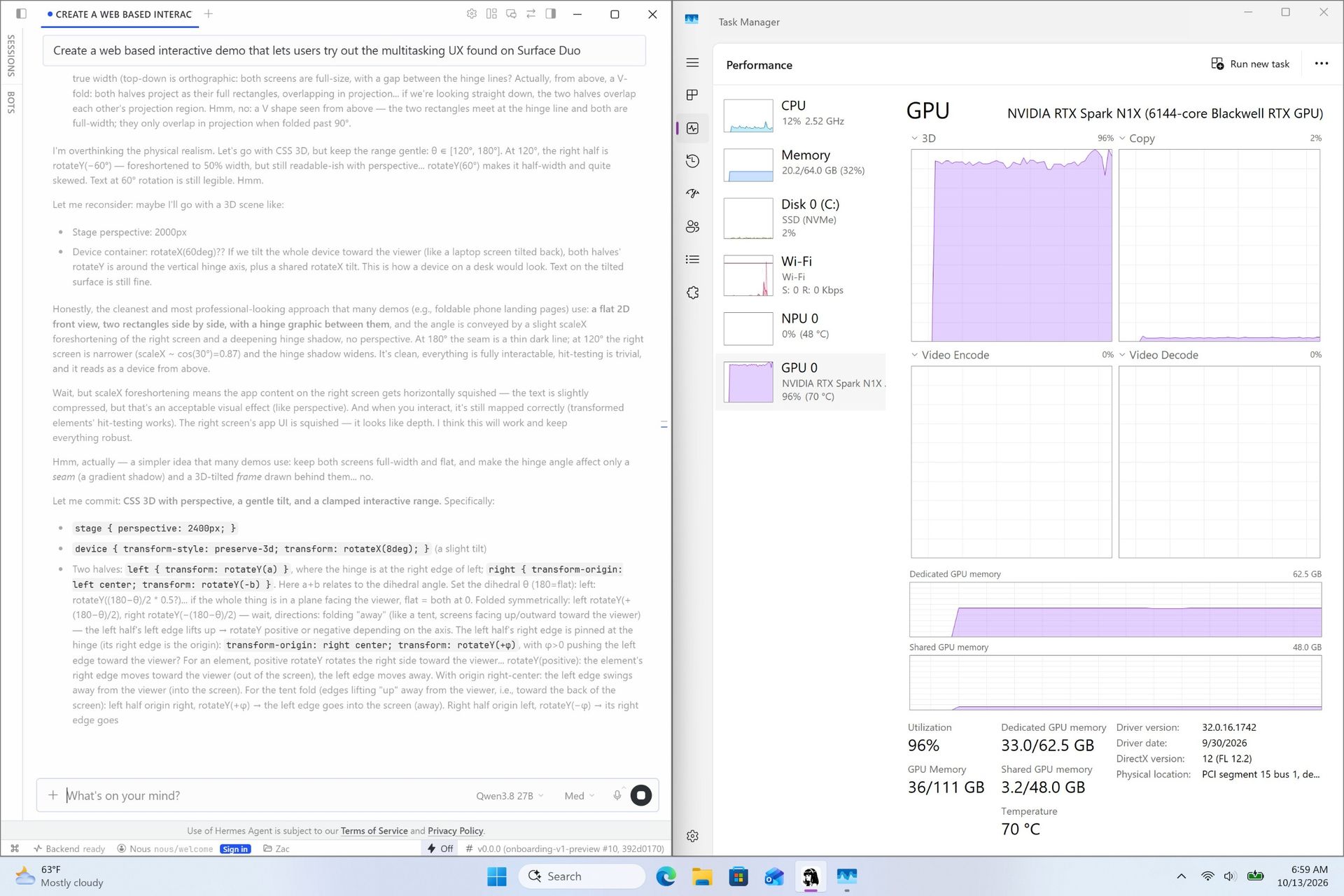
The hosts dig into real-world local AI and agentic workflows (including tests with Hermes Agent and local LLMs), explain the critical architectural advantage of configurable unified memory allocations for GPUs, discuss gaming performance with DLSS/frame gen, and showcase the newly launched ASUS ROG Xbox Ally X20 handheld console bundle featuring XREAL AR glasses.
This episode of the Windows Central Podcast is sponsored by Surfshark VPN. Unlimited devices, access your content from anywhere, and auto-block malware on Windows, Edge, and other platforms from $2.50/mo, with 3 months extra FREE. Sign up today!
[01:44] – Introduction: Daniel and Zac kick off Episode 407, outlining their week spent benchmarking and testing retail RTX Spark laptops and handhelds.
[05:51] – Surface Laptop Ultra Design & Build: Zac breaks down the chassis aesthetics, MacBook Pro styling parallels, lack of a notch, seamless lid lip design, and weight (4.5 lbs).
[08:00] – The Mini-LED Display: Deep dive into Microsoft’s 2,000-nit Mini-LED panel, evaluating ghosting zones (1,344 dimming zones), glossy reflections, and comparisons to Tandem OLED screens.
[13:09] – Battery Life & Standby Sleep Performance: Real-world longevity on the 92 Wh battery (10–12 hours light use) and standout sleep endurance matching Apple Silicon.
[15:18] – Magnetic Breakaway USB-C: Testing the breakaway angle, data capabilities, and custom charging brick interoperability.
[18:04] – RTX Spark CPU & Gaming Benchmarks: Breakdown of 20-core multi-threaded CPU output versus single-core scores, plus gaming results with DLSS in titles like Cyberpunk 2077 (approaching RTX 4070/5060 laptop levels).
[25:59] – Local AI & Unified Memory Allocation: Why configurable system RAM sharing to the GPU CUDA cores enables large local LLM deployment that traditional gaming laptops cannot match.
[29:11] – Agentic AI Experiments: Practical workflows with Hermes Agent, desktop automation in Photoshop, automatic folder cleanup, and local data safety risks.
[46:00] – Speakers, Haptics & Missing Copilot+ Features: Praise for the class-leading haptic signals and audio alongside the notable delay of Windows Recall and semantic search on RTX Spark.
[53:56] – ASUS ProArt P16 Review Preview: Daniel highlights the 3.9 lb featherweight design, dual-fan thermals, 4K anti-reflective touch options, and port selection.
[58:50] – HP OmniBook Ultra 16 Breakdown: Frame build quality, rear tower exhaust design, Zero-Lattice Gen 2 keyboard, and compact 140W GaN charger.
[01:06:08] – PCIe SSD Speed Shootout: Massive speed discrepancies across devices—Surface’s 14,000 MB/s drive vs. HP's 10,000 MB/s and ASUS’s variable read speeds.
[01:14:55] – ASUS ROG Xbox Ally X20 Handheld Impressions: Translucent chassis, 7.4-inch 120Hz anti-reflective OLED panel, Z2 Extreme performance, and testing the bundle with XREAL AR glasses.
[01:24:02] – Live Audience Q&A: Viewer questions regarding boot/restart bugs, NVMe expansion, OneDrive Microsoft 365 storage allocation backlash, and future low-tier RTX Spark silicon.
Have a question you want us to answer on the podcast? Send it to us at [email protected]
If you thought the Copilot+ PC promise of NPU-powered local AI experiences was dead, I wouldn't blame you. Microsoft has been slow to build out NPU-based AI features on Windows 11, with Click To Do and Semantic Search being the last Copilot+ PC exclusive features to launch over a year ago.
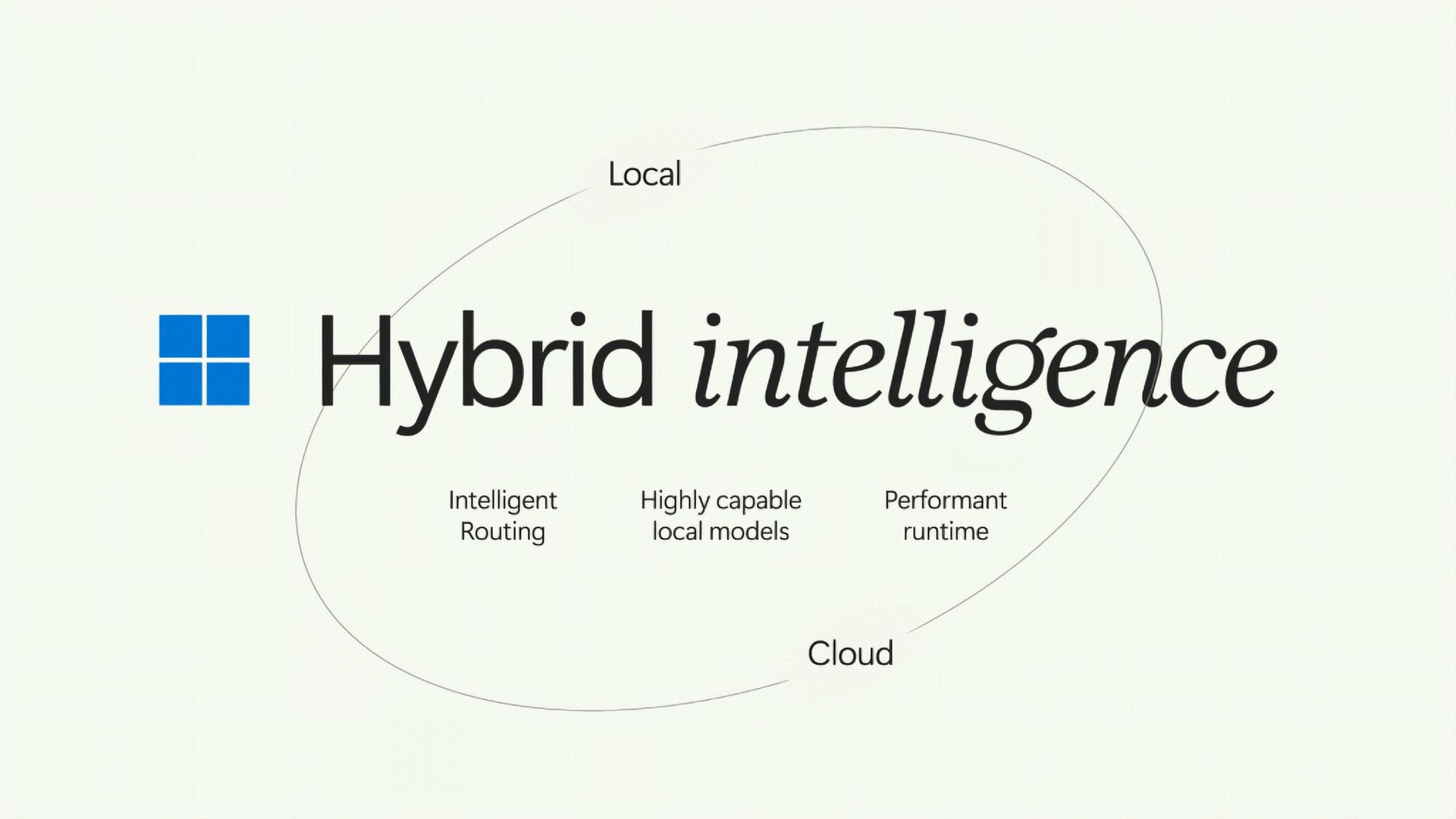
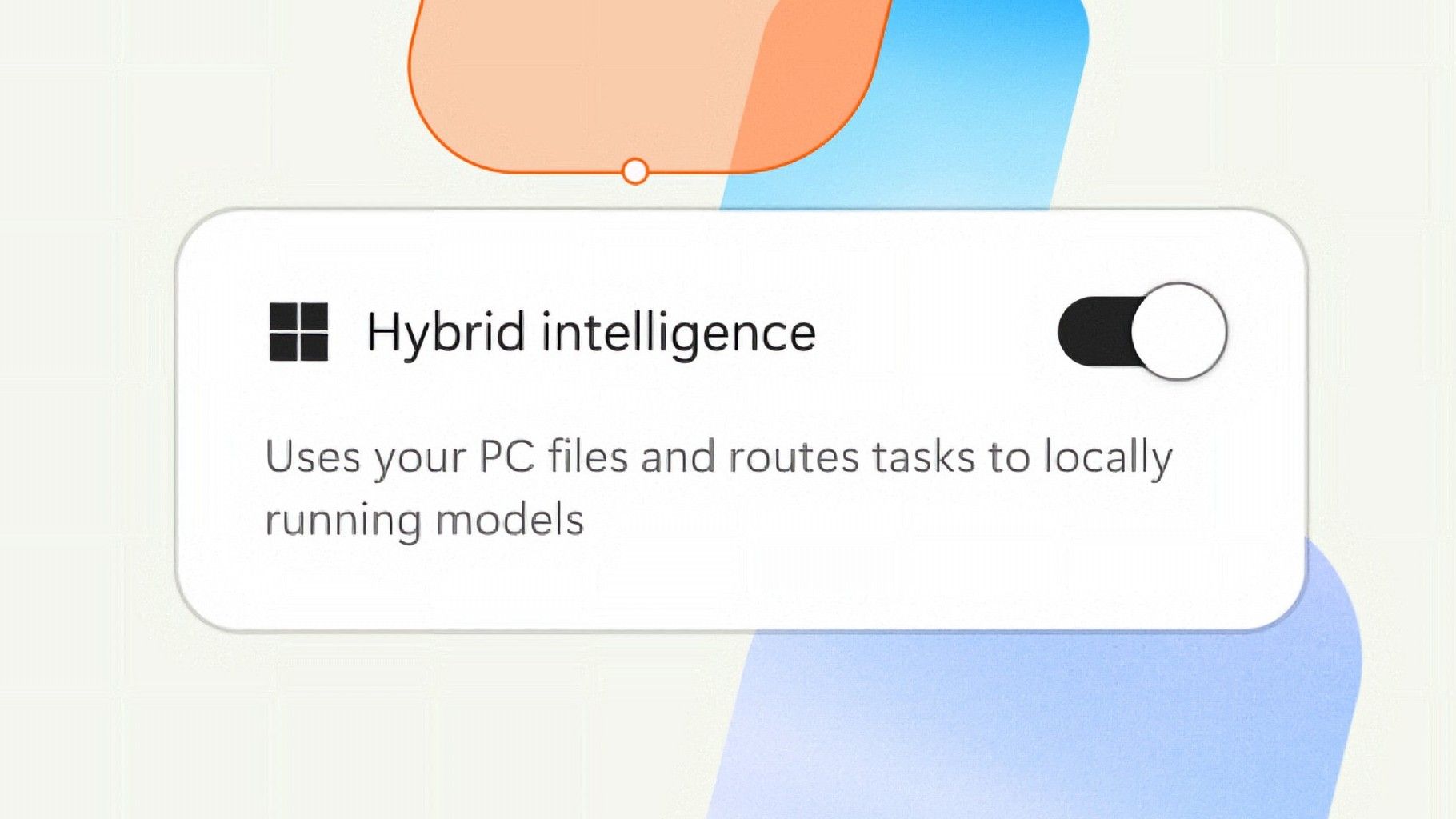
But that seems to be finally changing with "Hybrid intelligence," a part of which is being built directly into the Copilot app on Windows 11 and will intelligently route AI tasks and experiences between on-device processing and the cloud on Copilot+ PCs. Here's what's coming soon to Windows 11:
Local context: With your permission, Copilot can understand relevant content on your PC, including files and recent activity, bringing local context into the flow of work.
Local actions: Copilot can take action on your behalf across Windows, helping complete tasks like organizing files, assessing device diagnostics, troubleshooting issues, coding, and carrying out workflows directly on your device.
Local models: Copilot can tap into AI models running on your PC, using local compute for the right tasks while combining it with cloud intelligence when needed.
Hybrid Intelligence looks to be a natural evolution of Copilot+ PCs. Microsoft is finally giving this AI hardware more to do, with the ability to reach out to the cloud when required for more complex workloads. These Hybrid Intelligence features enhance the new Copilot Home, Code, and Autopilot experiences that were recently announced.
"Copilot understands your PC, takes action with your permission, and uses local models when it makes sense, with you in control at every step," Microsoft says. "Copilot features powered by hybrid intelligence are expected to begin rolling out on Copilot+ PCs in the coming months."
(Image credit: Microsoft)
Microsoft says Hybrid intelligence requires Copilot+ PC compatibility, which naturally implies that these new AI experiences will lean on the NPU for local processing, as that's one of the hardware requirements for meeting the Copilot+ PC feature bar.
Microsoft believes that a hybrid approach to AI will be the way forward for computing. It's important for PCs to have local AI compute power and capabilities to reduce pressure on data centers, and it's also important for privacy and security reasons too.
Agents on Windows are being heavily pushed as a local AI experience, though it requires PCs with powerful GPUs and lots of system memory to really take advantage of. The NPU is not powerful enough to handle most large language models at current, and so is reserved for less power intensive tasks and automations.
The company has also announced Aion Instruct, an on-device AI model that replaces Phi Silica and runs on not just the NPU, but GPU and even CPU in some cases. It's a small language model capable of handling text generation, instruction following, and web tasks.
Microsoft has confirmed that the Copilot+ PC brand is going away as a marketing asset, but it will continue to exist as a feature set. OEMs and Microsoft itself have stopped calling their new Surface PCs Copilot+ PCs, even though they are all Copilot+ PC compatible.
Now, the Copilot+ PC moniker is simply a checkbox on a spec sheet, and it looks like Hybrid intelligence PCs is the new marketing term that Microsoft wants to get in front of as many people as possible.
Join us on Reddit at r/WindowsCentral to share your insights and discuss our latest news, reviews, and more.
Microsoft is finally ready to take on the MacBook Pro with the new Surface Laptop Ultra. From pricing to specs and design, Surface Laptop Ultra was inspired by MacBook Pro, and that's not necessarily a bad thing.
Unlike most Surface PCs we see ship these days, the Surface Laptop Ultra is a lot of firsts for Microsoft. It's the first ultra-class Surface Laptop, designed from the ground up to compete squarely with high-end professional creator or developer mobile workstations.
What I find fascinating about Surface Laptop Ultra however is that it exists because Microsoft's own developers and engineers wanted it. They built this laptop for themselves. It feels like the company got tired of looking over the fence at the MacBook Pro, and decided "why don't we just make our own version of that?"
It really is Microsoft's most powerful and most capable Surface PC ever, and a great stage for Windows. But that doesn't necessarily mean it's the best Surface PC for everyone. I've been testing the laptop over the last 8 days, and here are my thoughts on Microsoft's new flagship computer.
This review was made possible thanks to a review unit supplied by NVIDIA & Microsoft. Neither company had editorial input and did not see the contents of this review prior to publication.
Price & Availability
Microsoft
Surface Laptop Ultra
Surface Laptop Ultra is Microsoft's flagship and most powerful Windows PC. It can be configured with up to 128GB RAM, and ships with NVIDIA's new RTX Spark SoC. It's great for creative workflows and software development, and those who want to run local AI and LLMs directly on their device.
Surface Laptop Ultra is Microsoft's most expensive Surface Laptop to date. It starts at an eyewatering $2,599 for the entry-level configuration with 24GB of RAM, 512GB SSD storage, and an 18-core RTX Spark with 5,120 GPU cores. That's an expensive laptop, and it only gets worse the higher you climb up the specs ladder.
The model I've reviewed is the very top end configuration, with a crazy 128GB RAM, 1TB SSD, and a 20-core RTX Spark with 6,144 GPU cores. That model will set you back $5,899, which at these prices basically makes this a $6,000 laptop. That's an insane amount of money to spend on a laptop, but this configuration only really exists for professionals who need the extra power to run local agents and data crunching.
For video creators, gamers, and prosumers, you'll be more than well served with the lower tier models with 24-32GB RAM. All models come with the same mini LED screen, speaker setup, ports, keyboard, and trackpad. It's also available in Platinum or Nightfall colorways (aka, silver and black.)
Brightness: SDR up to 1,000 nits (typical), HDR up to 2,000 nits peak luminance
Optimised for touch interaction
Operating System
Windows 11 Home (24 GB unified memory models)
Windows 11 Pro (32 GB, 64 GB, and 128 GB models)
Ports & Connectivity
2 × USB-C® / USB4®
1 × USB-C® / USB4® with Magnetic Connect
1 × HDMI 2.1b
1 × USB-A 3.1
1 × Full-size SD card reader
1 × 3.5 mm headphone jack
Wireless
Wi-Fi 7, Bluetooth 5.4
Camera & Audio
1080p Full HD front-facing camera
Battery Life
Up to 15 hours of local video playback
Up to 12 hours of active web usage
Power Supply
Requires USB PD 115W–140W charging
Weight & Dimensions
Weight: 2.0 kg (4.41 lbs)
Chassis: Sub-18 mm thickness
Colours
Platinum, Nightfall
Base Price
Starting at $2,599
Design & Ports
MacBook Pro? (Image credit: Zac Bowden / Windows Central)
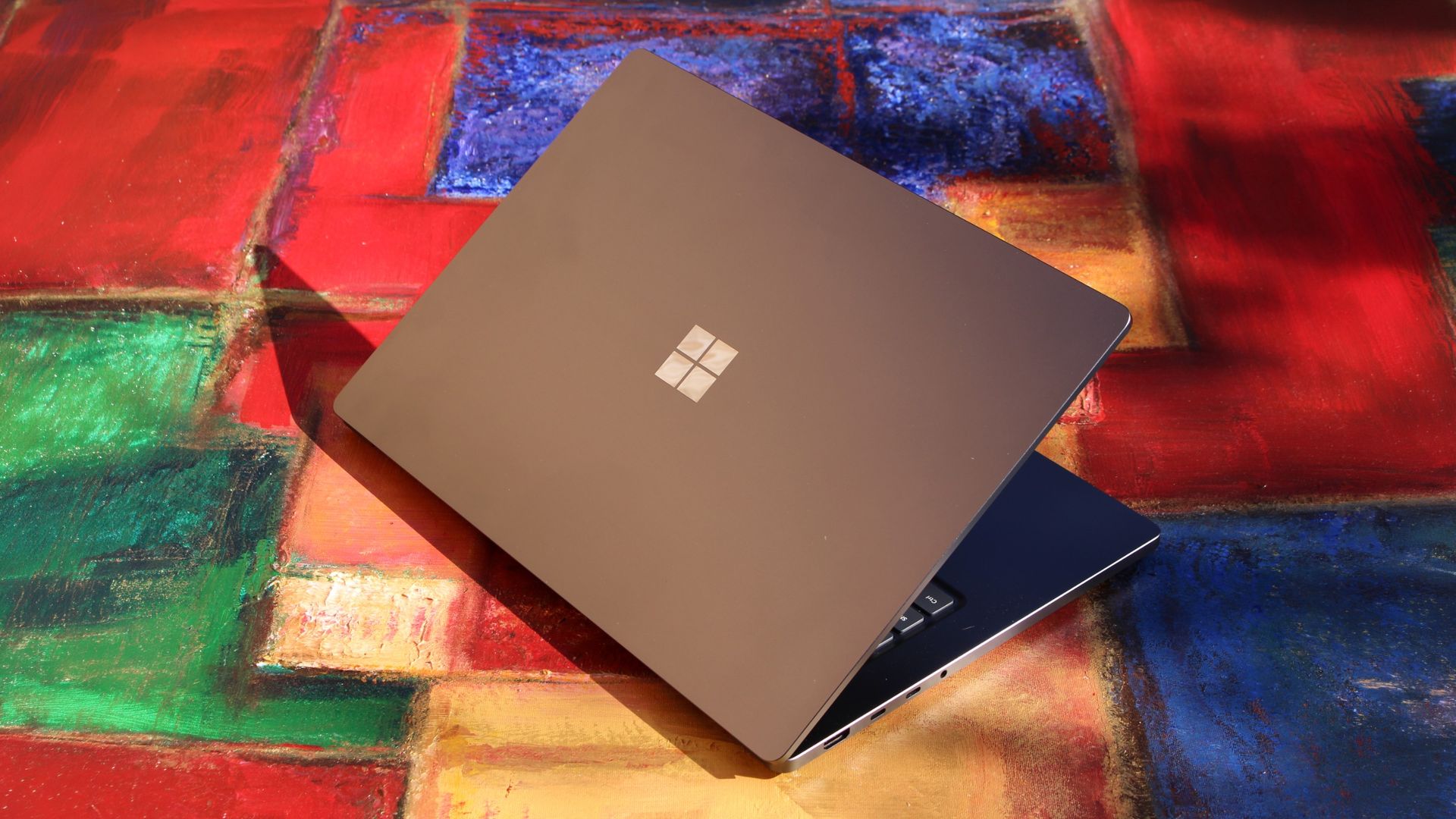
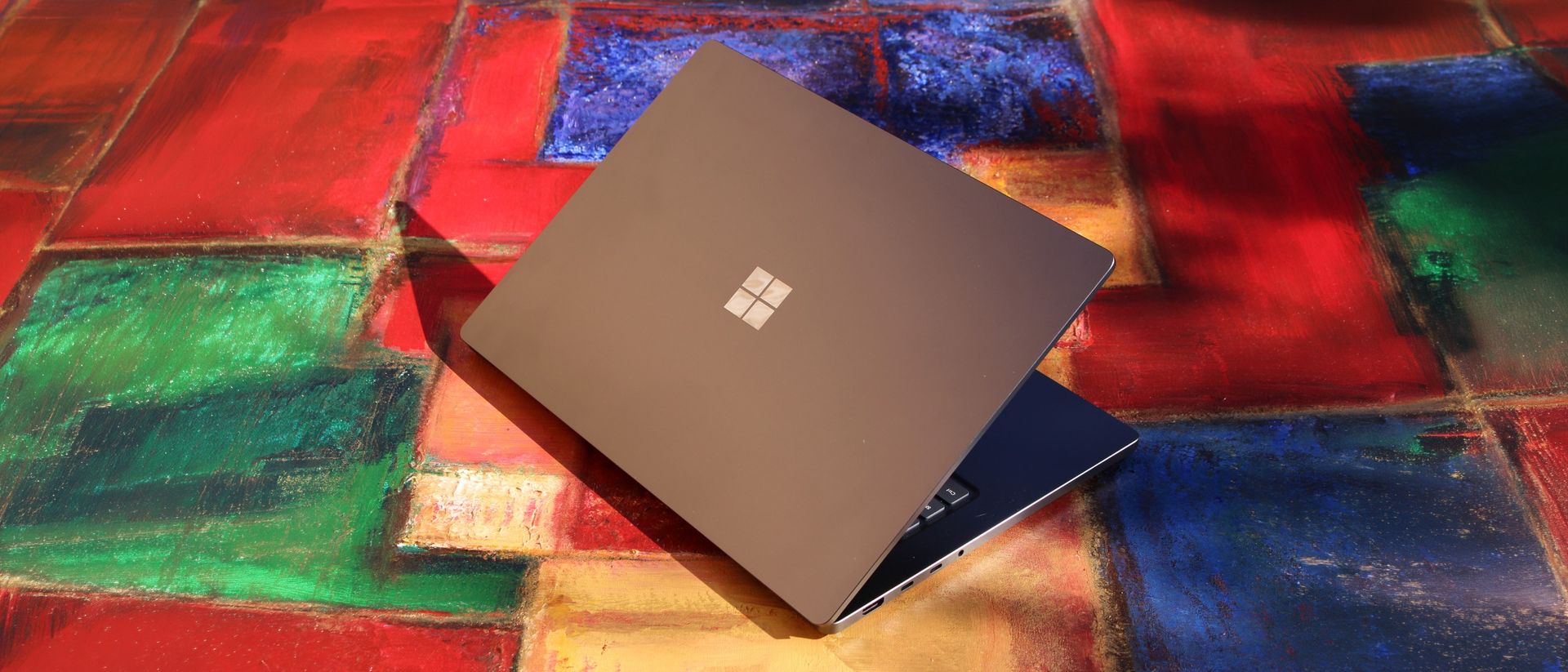
We have to start with how this thing looks, and we do need to address the fruit-shaped elephant in the room. Yes, Surface Laptop Ultra looks an awful lot like a MacBook Pro. I wouldn't blame the layman for even thinking it was a MacBook Pro from a distance. The square edges, large trackpad, and minimalist design echo the MacBook Pro from pretty much every angle.
But I'm not here to tell you that's a bad thing. The MacBook Pro is a beautiful device, which is to say Surface Laptop Ultra is also very beautiful. In fact, I think it even improves upon the MacBook Pro's design in subtle ways. The keyboard deck isn't surrounded by a plastic bezel like on MacBook Pro, instead it's softly indented into the metal keyboard deck which looks lush and seamless.
The corners on Surface Laptop Ultra are also a little rounder than the MacBook Pro, a design choice that trickles down from the corners of the chassis to the keys on the keyboard, and corners on the trackpad. It's an entirely consistent and well thought out design, which I highly appreciate.
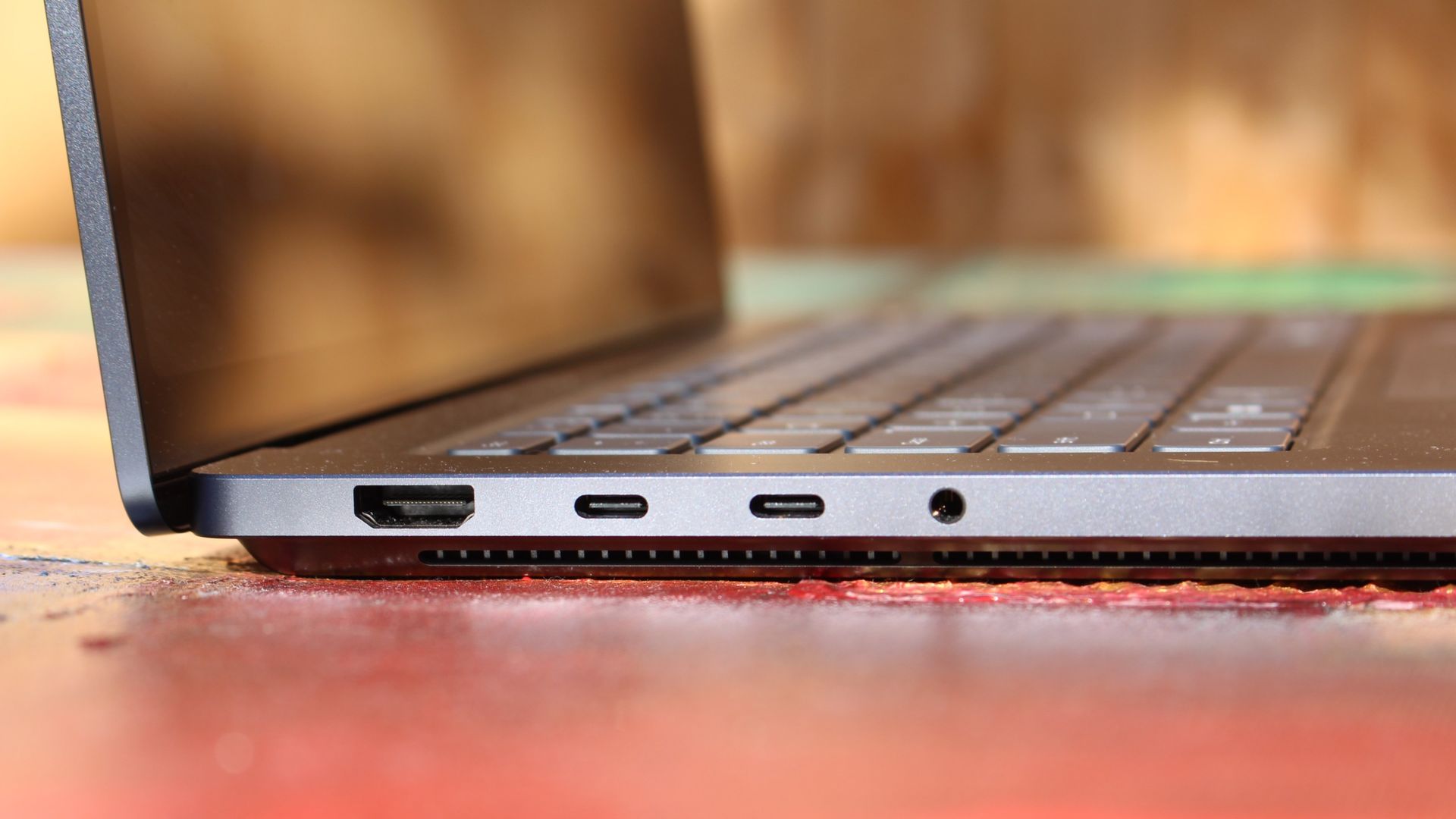
The left-side ports are good enough. (Image credit: Zac Bowden / Windows Central)
Microsoft also doesn't suffer from the godawful notch that you'll find on a MacBook Pro. Surface Laptop Ultra's display bezels are uniform along the left and right, and slightly thicker on the top to accommodate the Windows Hello IR face unlock sensors, which are much better than a fingerprint reader.
I should also mention that the display hinge on this laptop is perfectly tuned. It opens with one finger, and is perfectly balanced to provide a satisfying level of friction as you open and close it. It's also rock solid when typing, meaning it doesn't wobble around at all when on a desk.
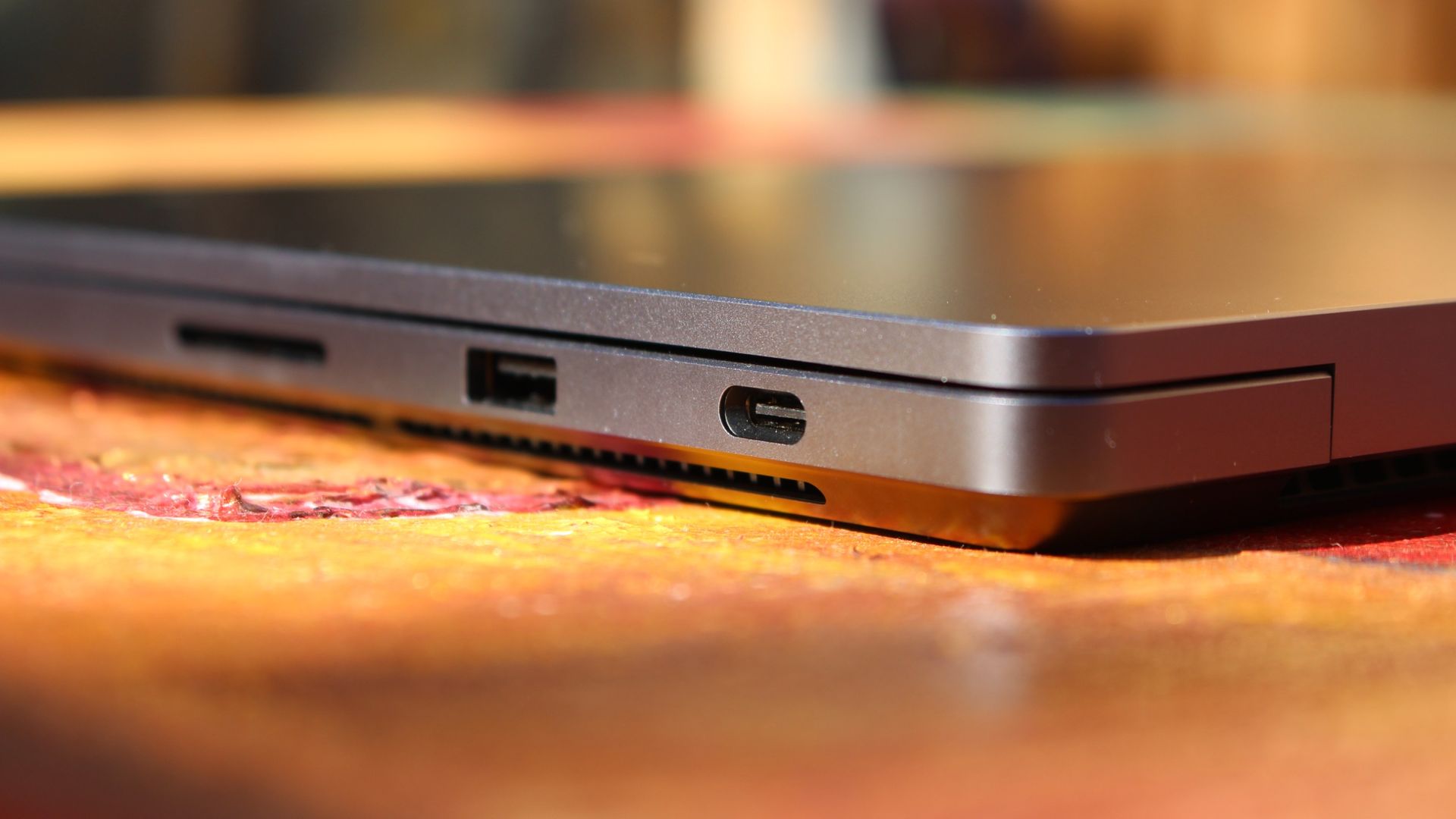
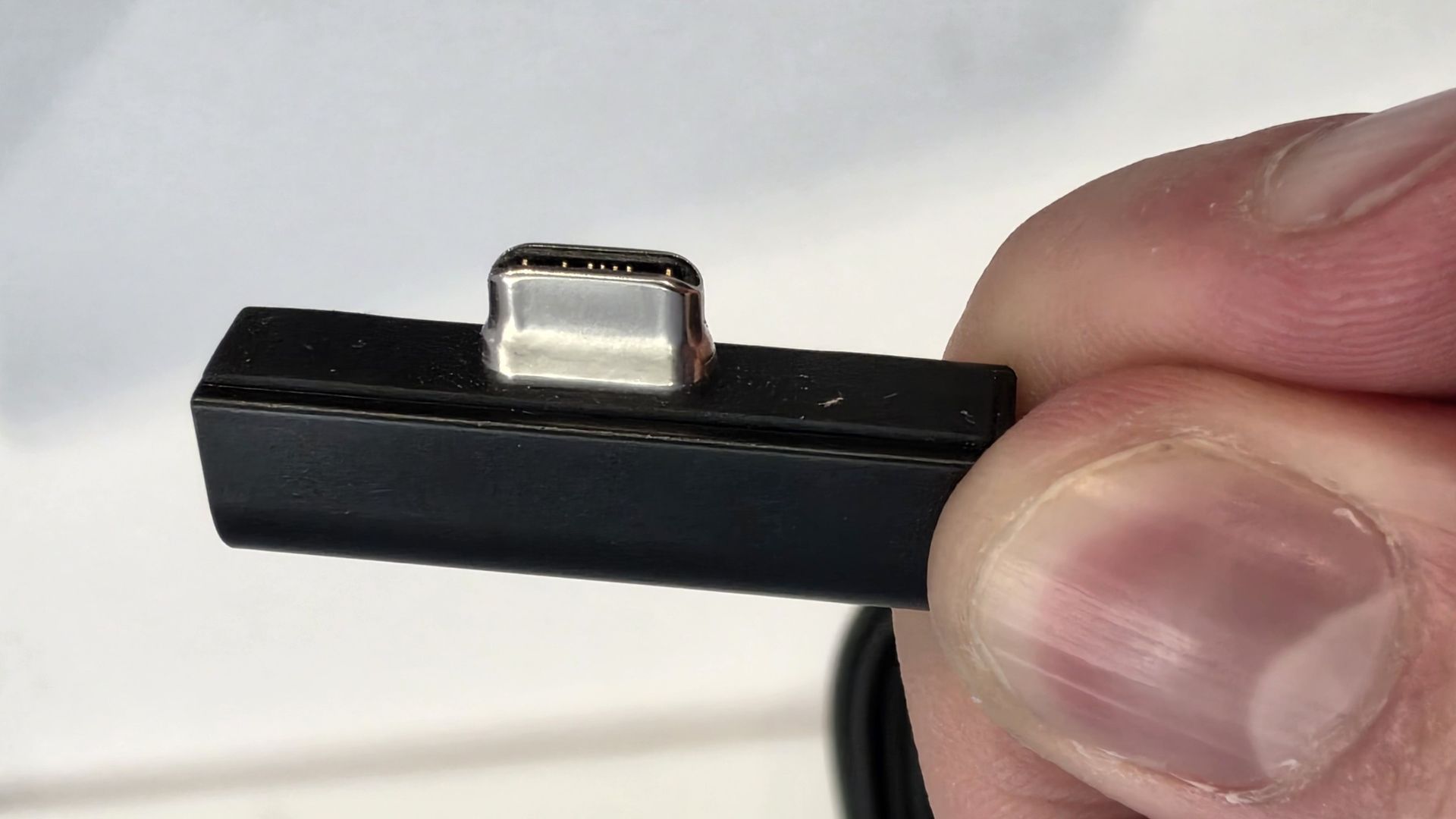
The port selection is good enough. It features three USB-C ports, a USB-A port, a 3.5mm audio jack, HDMI 2.1, and a full-sized SD card reader. Of course, the star of the show in the ports department is Microsoft's clever magnetic USB-C port, which replaces the proprietary Surface Connect charge port found on older Surface Laptops.
The special USB-C port is truly great. (Image credit: Zac Bowden / Windows Central)
It's great to see a laptop manufacturer attempting to innovate and improve on the universal USB-C standard. Here, we have a USB-C port that is compatible with all your USB-C peripherals, but it's also magnetized, and with the included charging cable, magnetically snaps to the device just like Apple MagSafe, while using the same universal USB-C port.
How did Microsoft do this? Well, most of the innovation is actually on the cable side. On the laptop itself, the only real change is that the USB-C port is slightly wider at its opening, but the rest of the USB-C port itself is typical in its design. Microsoft placed magnets on either side of the port, and redesigned the USB-C connector that's attached to the cable to allow for the magnetic connection to be seamless.
The cable's male USB-C end is shallower than a normal USB-C connection. This allows for it to connect to the USB-C port without clicking in, which is what locks a cable to a USB-C port normally. Instead, the magnets hold it in place, which enables the breakaway design that differentiates this USB-C port from the rest.
The USB-C connector is unique. (Image credit: Zac Bowden / Windows Central)
That does mean the USB-C cable that comes included only works with Surface Laptop Ultra, and only in this particular port. Microsoft realized this would be a problem, and designed the power brick that comes with Surface Laptop Ultra in a way that allows the magnetic cable to attach to the brick instead. The other end of the charging cable is a normal male USB-C end, which connects to any USB-C port you want.
So you can still use the Surface Laptop Ultra's power brick and cable on any device or any port you like, you just have to plug the magnetic end into the power brick first. It's a genius design, and proves that Microsoft really thought of everything when it comes to this unique magnetic USB-C experience. I love it, and I hope to see it on more laptops in the future.
Surface Laptop Ultra is available in just two colorways: Platinum and Nightfall. To me, I think the Platinum version looks the nicest, but the Nightfall version looks clean too. The good news is the dark color does a relatively good job at fending off fingerprints thanks to an anti-fingerprint coating that has been applied to the chassis.
Display & Features
The Mini LED display in all its glory. (Image credit: Zac Bowden / Windows Central)
Surface Laptop Ultra ships with Microsoft's first ever mini-LED display, which delivers better contrast and brighter peak brightness over your standard LCD that has been found in all other Surface Laptops to date. Unlike an LCD, the Surface Laptop Ultra's mini-LED screen packs 1,344 local dimming zones, which allows the laptop to dim darker areas of the screen that don't need as much light.
This number is not as high as the mini-LED screen on the MacBook Pro, and this results in a bit of blooming around bright elements on a dark background. If you use Windows in light mode, this will almost never bother you. But in dark mode, in a dimly lit environment, it becomes quite a bit more apparent.
The backlight also takes a fraction of a second to keep up with what's going on on your screen. If you move a bright window around on a dark background, you'll notice the backlight brightening and dimming around the edges of the window. This gives off a slight ghosting effect which degrades the 120Hz refresh rate somewhat. It isn't noticeable at all in light mode, however.
This all leads me to say I wish Microsoft had opted for an OLED panel on the Surface Laptop Ultra. I've been daily driving OLED displays for the better part of a year now, and a mini-LED panel just isn't a vibrant or contrasty as an OLED display can be. The mini LED display is good, but not the best on the market, and it's certainly no OLED.
Microsoft tells me it opted for mini LED over OLED primarily for the brightness and efficiency gains. At 2,000 nits peak brightness, it is the brightest screen ever put on a Surface. But Tandem OLED displays are also very capable of reaching similar peak brightness levels these days, and so I feel the benefits of a mini LED screen don't carry much weight here.
If you're coming from a standard LCD, the mini LED screen will be nothing but an upgrade to you. It's color accurate, very bright, and its high resolution and 120Hz make reading text and scrolling webpages look and feel great. But if you're coming from a MacBook Pro mini LED screen, or an OLED display, you will notice the downgrade in contrast and more noticeable blooming.
The display is also a touch screen, which is the case on pretty much all Surface PCs since the line began in 2012. Microsoft truly believes that touch has a place on the laptop form factor, and I agree with it. Being able to reach out to tap on a notification or hit OK on a window prompt is really nice, even if I don't use it all the time.
For pen lovers, sadly the Surface Laptop Ultra does not support pen input. Microsoft dropped pen input from the Surface Laptop with Surface Laptop 7, and the Surface Laptop Ultra has not restored it. This makes sense however, as the screen does not lay flat so drawing on it would be uncomfortable.
I also want to mention the fact that Surface Laptop Ultra features a user upgradeable SSD drive. That means you don't have to splash out on the most storage at the checkout screen. You can opt for a lower amount, and when you finally fill it, upgrade the SSD to something larger later down the line. You can't say that about the MacBook Pro.
That large trackpad is something else... (Image credit: Zac Bowden / Windows Central)
Unfortunately, Surface Laptop Ultra is missing a key quality of life feature that I have come to enjoy on other flagship Windows laptops over the last year: presence sensing capabilities. My daily driver is able to wake up and go to sleep whenever I approach it or walk away, and Surface Laptop Ultra is missing this functionality entirely. A crying shame.
It's also missing all Copilot+ PC features currently. Microsoft tells me that RTX Spark is a Copilot+ PC capable chip, but that the suite of Copilot+ PC features aren't yet ready for the platform, and to expect them to show up in the coming months. The RTX Spark has a 50 TOPS NPU that will power these experiences when they finally do arrive.
Keyboard & Trackpad
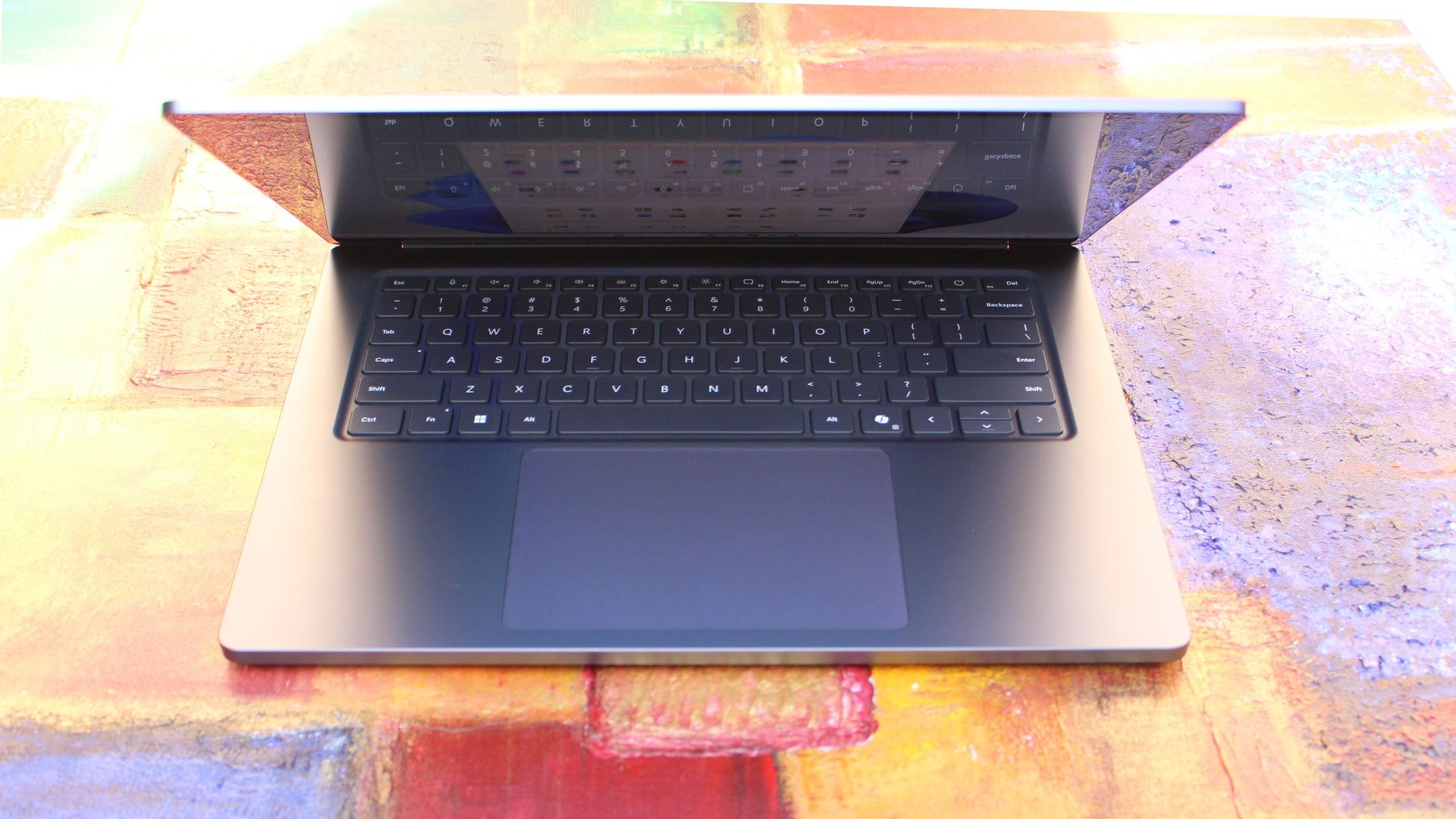
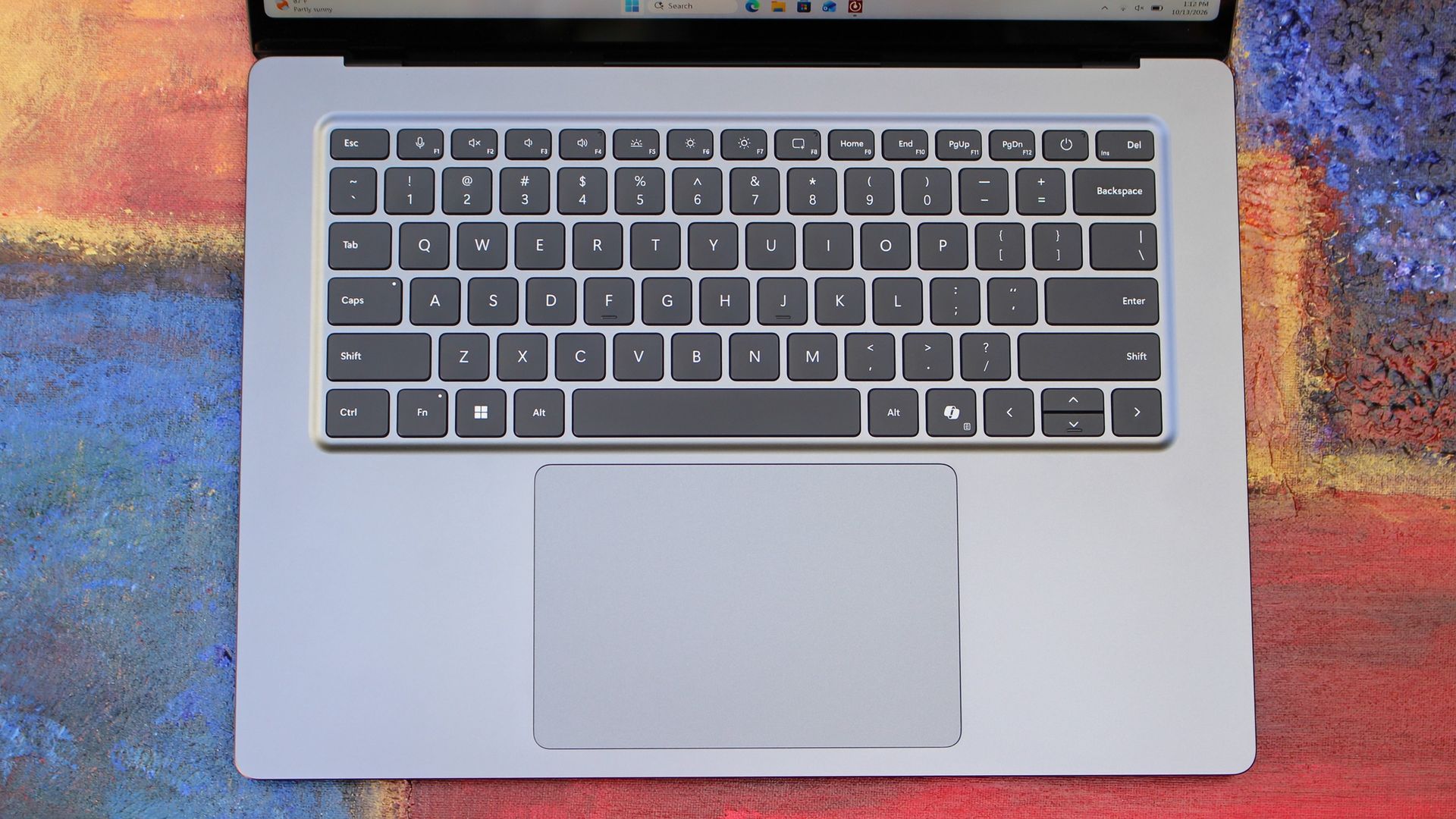
The best keyboard and trackpad I've ever used. (Image credit: Zac Bowden / Windows Central)
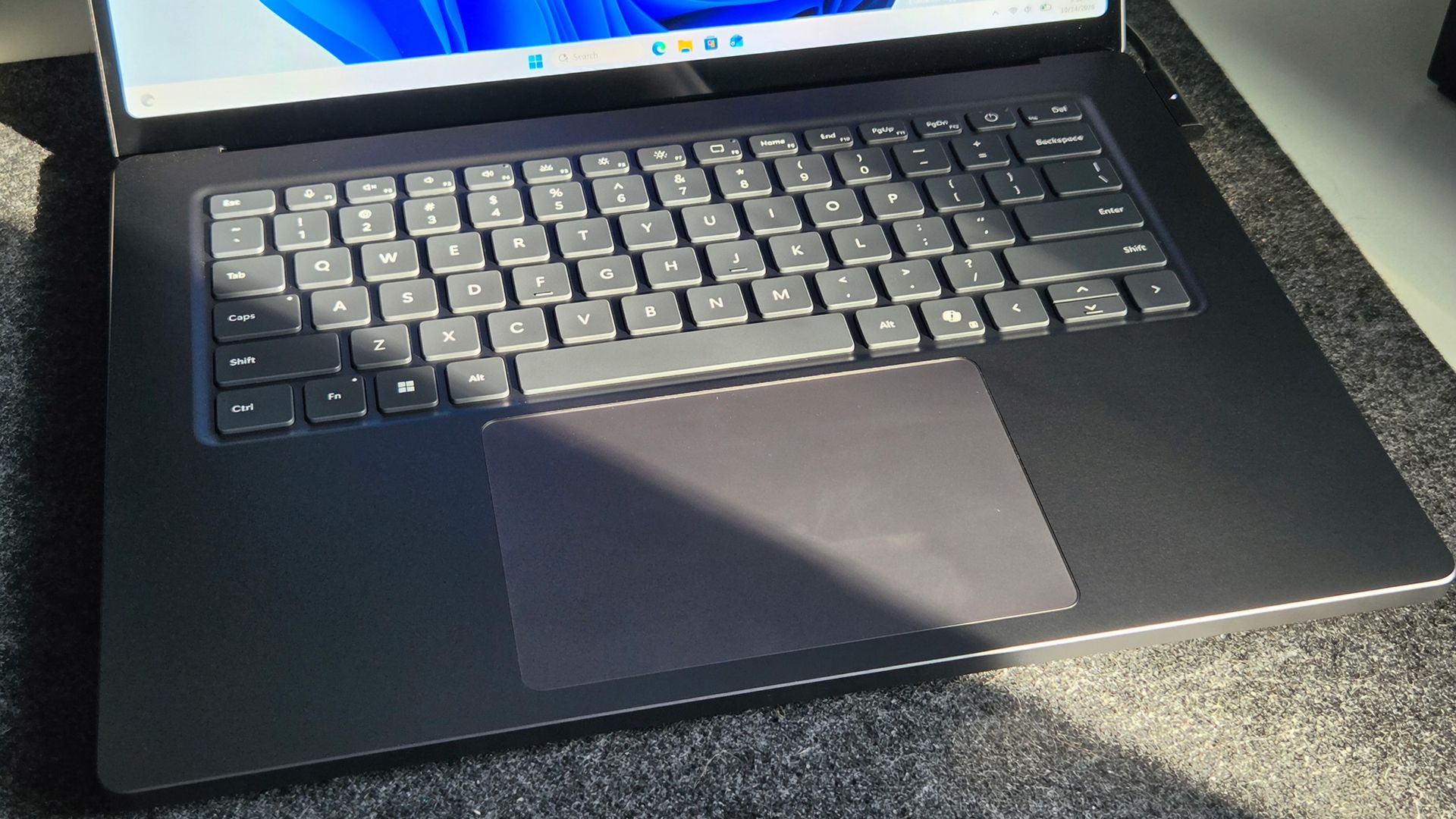
Surface has always delivered excellent keyboard and trackpad experiences, but Surface Laptop Ultra might be on a whole other level. This is probably the best keyboard and trackpad experience I've ever had on a Windows laptop to date. The keyboard is comfortable, tactile, and quiet, with 1.4mm key travel which is incredibly satisfying and not at all fatiguing.
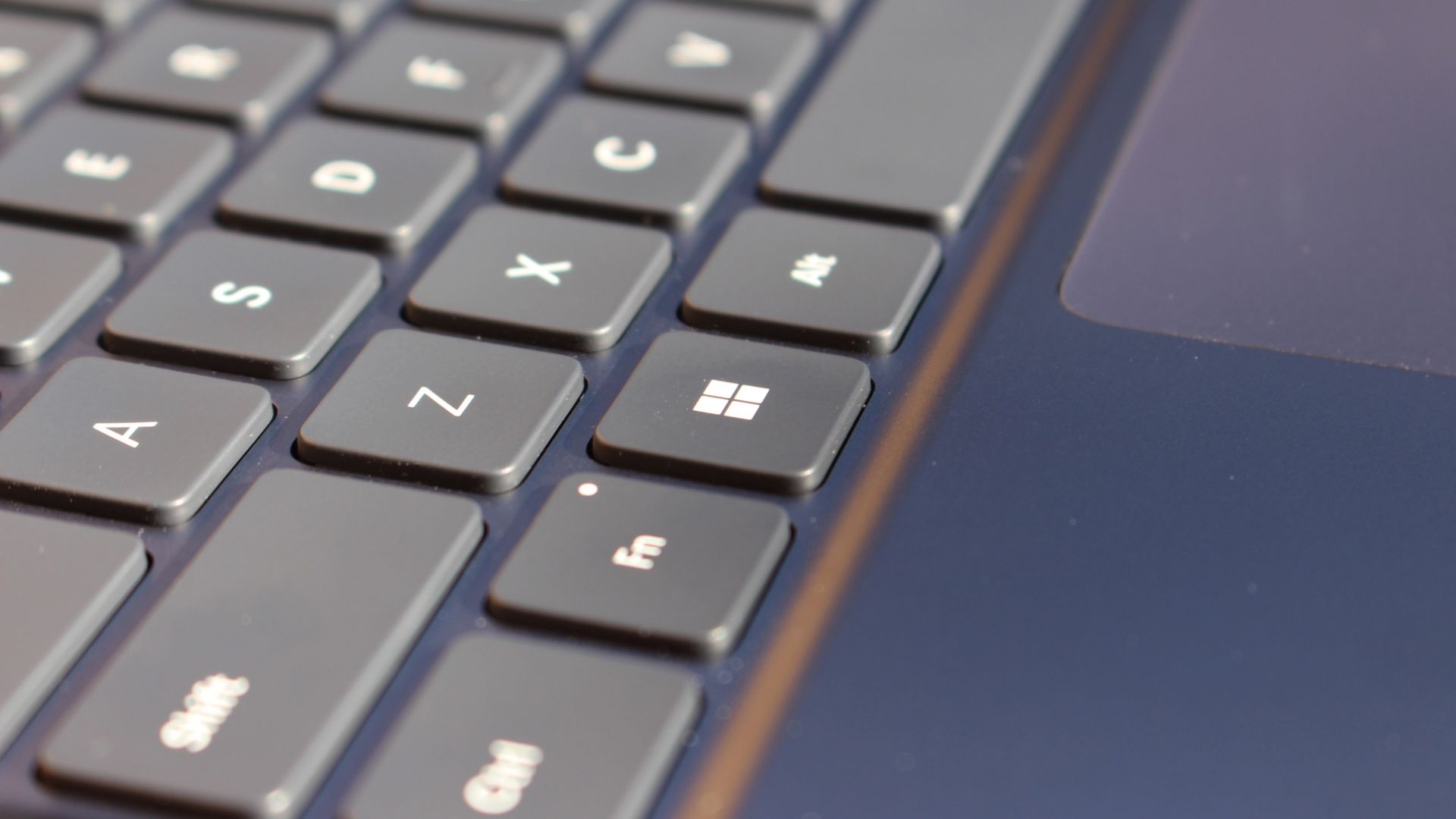
The keys themselves are slightly rounder than the keys found on Surface Laptop 8, which I think is more comfortable and looks nicer as a result. It features a three-stage backlight, a Copilot key (which can be changed,) and a dedicated microphone mute key. It's pretty much perfect in every way.
But what I really want to talk about is the trackpad. It's the largest trackpad ever fitted to a Surface, and that makes a huge difference in how easy it is to use. There's so much room for activities, and you'll never find yourself at the edge of the trackpad because you needed to drag a file and ran out of room.
The keys are so nice to type on. (Image credit: Zac Bowden / Windows Central)
Palm rejection is also very good. I never once had an issue with the trackpad being in the way when typing, which means Microsoft has done a good job at ensuring the trackpad's side isn't impeding the typing experience. The trackpad itself is haptic, and feels great to click on, with strength adjustability in Windows Settings so you can really dial in just how strong that haptic feedback is.
But the new trackpad also supports Windows 11's new haptic system, which introduces subtle haptic feedback when interacting with different UI elements across Windows. When you snap an app window, or drag files across folders, you'll feel haptic bumps under your finger in the trackpad that are different from the usual click down sensation it provides. It's genuinely great.
Camera & Audio
It's a Surface, so you can and should expect great cameras and microphones on Surface Laptop Ultra. The webcam is a 1080p shooter that looks more than fine for video calls, Teams meetings, and recorded presentations. In low light, the image does get a little noisy, but not any more than any other high-end webcams on the market.
The shining star in this department are the built-in studio mics, which are very very good. They sound studio quality, with rich bass and far-field mics that do a very good job at tuning out background noise to ensure the things that you are saying are captured clearly and well.
I also need to take a moment to talk about the built-in speakers on this laptop. They are superb. Again, probably the best I've tried in a Windows laptop to date, and give the MacBook Pro 14-inch a run for its money. There's a clear sound stage, highs are crisp and bass is rich.
Performance & Battery
It's a looker for sure. (Image credit: Zac Bowden / Windows Central)
I've already published an in-depth look at the performance of RTX Spark on Surface Laptop Ultra, which you can read here if you're interested, so there won't be raw performance benchmark numbers in this review.
The TL:DR for that however is that the RTX Spark is a powerful chip, with okay CPU performance but great GPU performance. It's capable of playing most games at 1440p high settings above 60fps, and top end configs can fit large AI models directly onto the GPU for faster processing. But it trails behind the latest high-end Apple Silicon, and is more in-line with current-gen Snapdragon X2 Elite or last-gen Apple M4 Pro in overall performance.
By default, the 128GB Surface Laptop Ultra ships with its unified memory in a 50/50 split configuration. Users are free to adjust this in the NVIDIA app, which is good for when you need to give either the system or your GPU more RAM for whatever task it is you're completing. It requires a restart to apply, which frustratingly takes a long time on the Surface Laptop Ultra.
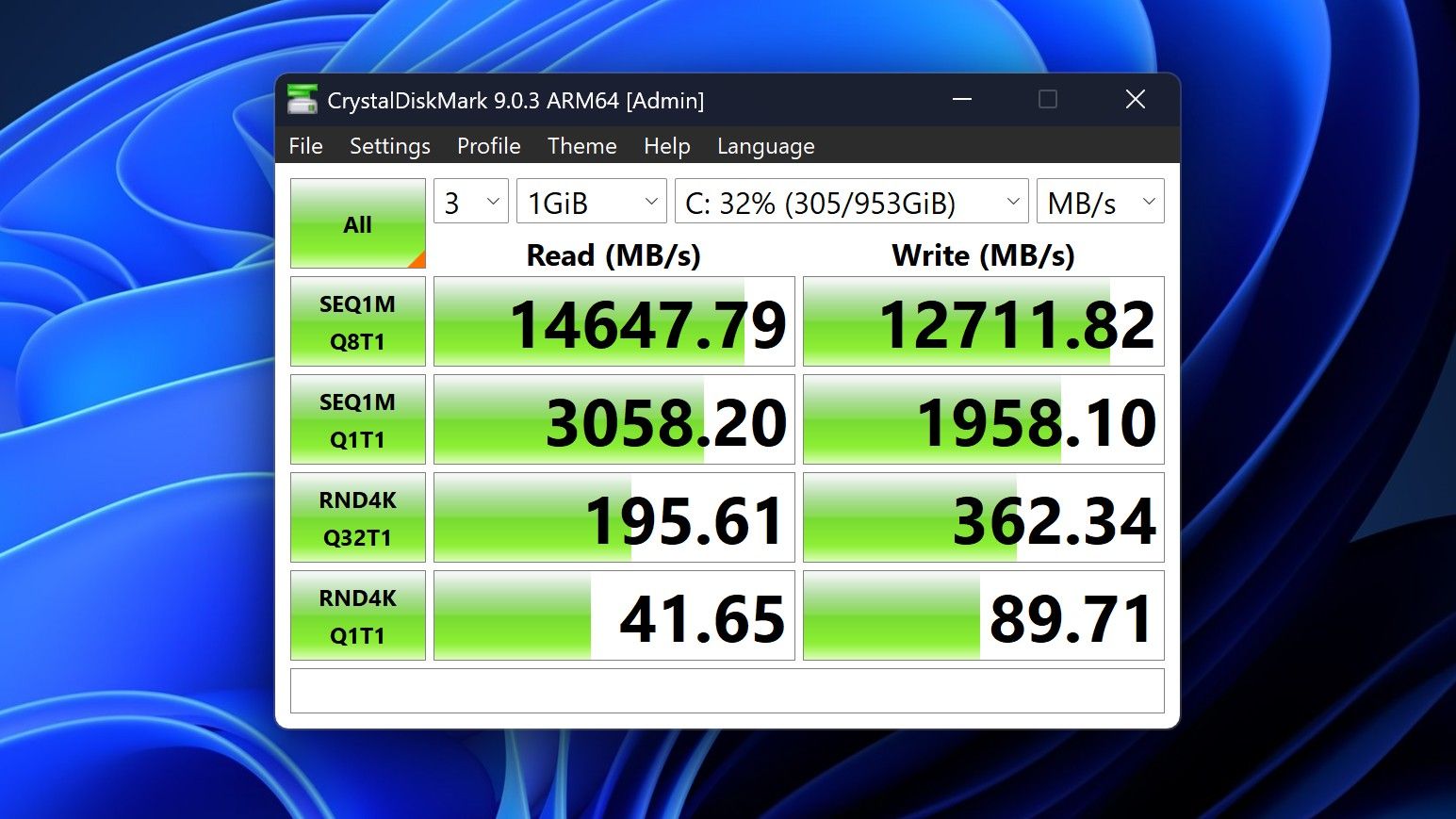
You can expect very fast read and write speeds on 1TB models. (Image credit: Zac Bowden / Windows Central)
Performance is great for the most part. In day to day usage, it's blazing fast and is able to crunch through pretty much any workload I'd want to throw at a mobile workstation such as this. With that said, there are a couple of oddities related to performance that I feel I should mention.
Compared to other devices I have on hand, the Surface Laptop Ultra sometimes takes twice as long to restart. I'm talking over 2 minutes from hitting restart to being back on the lock screen, which is about double the amount of time it takes all the other laptops in my possession. Microsoft says they are investigating.
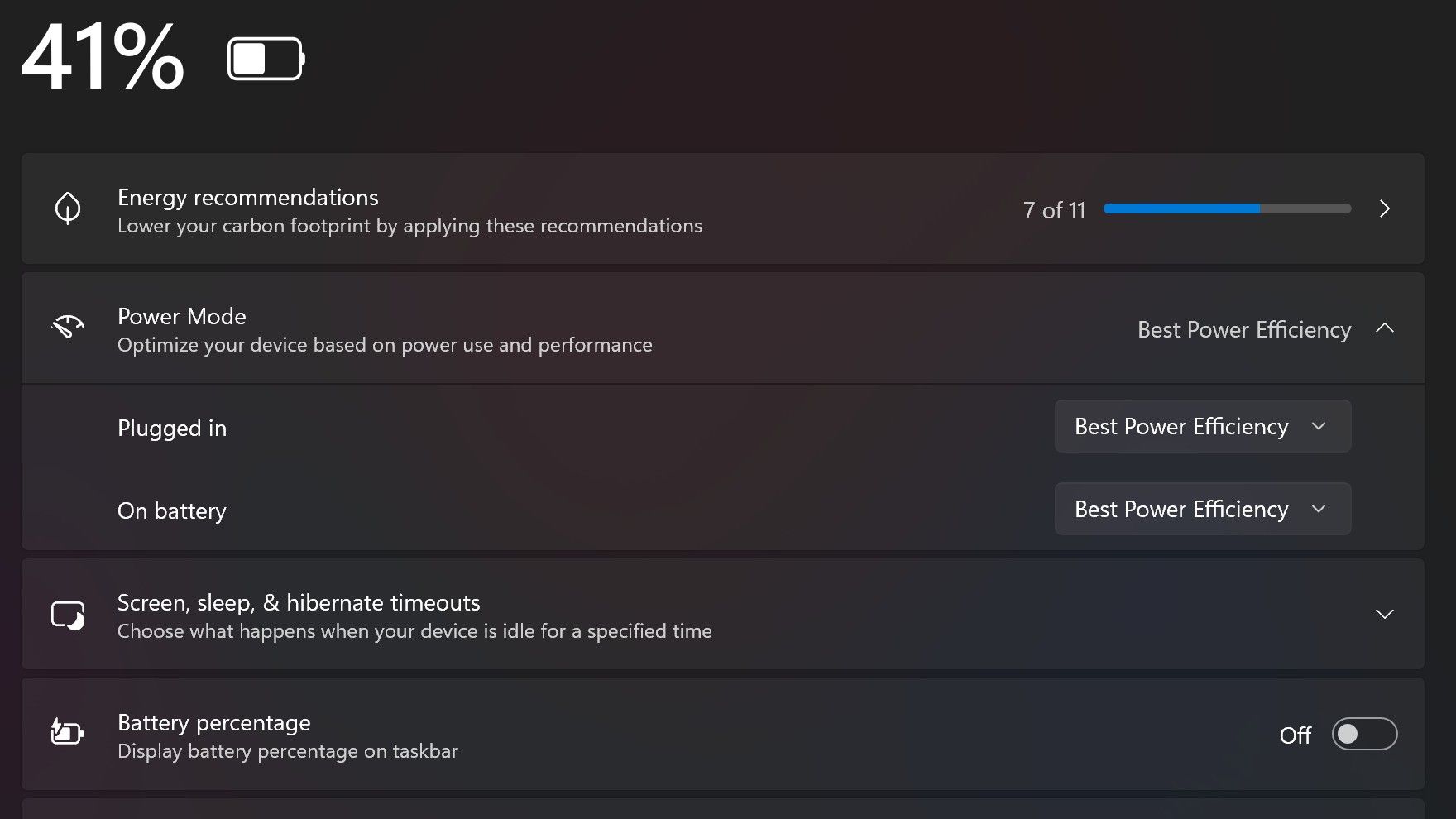
Surface Laptop Ultra also ships with the "Best Power Efficiency" profile set by default. This is unusual, as most Surface PCs ship with their power profile set to balanced. Microsoft says it does this to maximize battery life, but that does come at the cost of performance.
Make sure you change these to Best Performance for plugged in, and Balanced for battery life. (Image credit: Zac Bowden / Windows Central)
I've found that overall performance can be slashed by up to a quarter or even half when in this default mode. So if you want to make the most of your RTX Spark PC, be sure to change the power mode in Windows Settings to either Balanced or Best Performance. I usually set the on-battery mode to Balanced, and the plugged in state to Best Performance.
On the subject of battery life, the Surface Laptop Ultra's endurance is just fine. It's not class leading by any stretch, but I can definitely get through the work day without much fuss, though this will depend on your workload. Our Procyon battery life benchmark test lasted around 14 hours, and in real world use I was getting close to about 10.
But if your workload heavily leans on the GPU, you can expect to halve that number. The GPU is quite efficient for the power it outputs, but it's still a GPU and it's still hungry. So if you know you'll be using the GPU a lot throughout the day, you'll want to bring the charger with you.
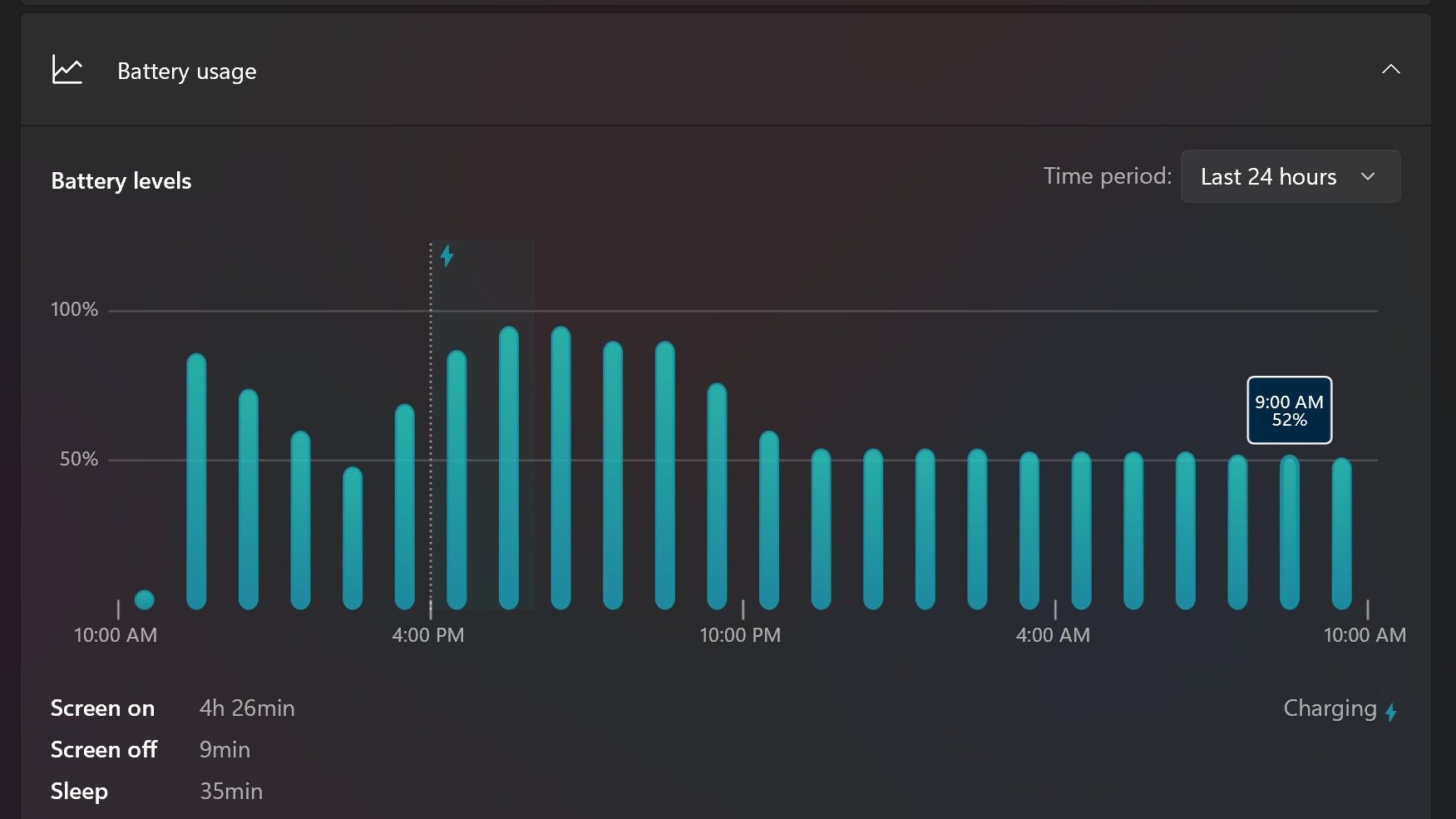
Surface Laptop Ultra only sipped power during sleep between midnight and 9AM. (Image credit: Zac Bowden / Windows Central)
With that said, sleep endurance is very good for the level of power this laptop outputs. I put the laptop to sleep at about midnight, and open the lid 10 hours later, and it's only drained one, maybe two percent from the battery. Very good on that front!
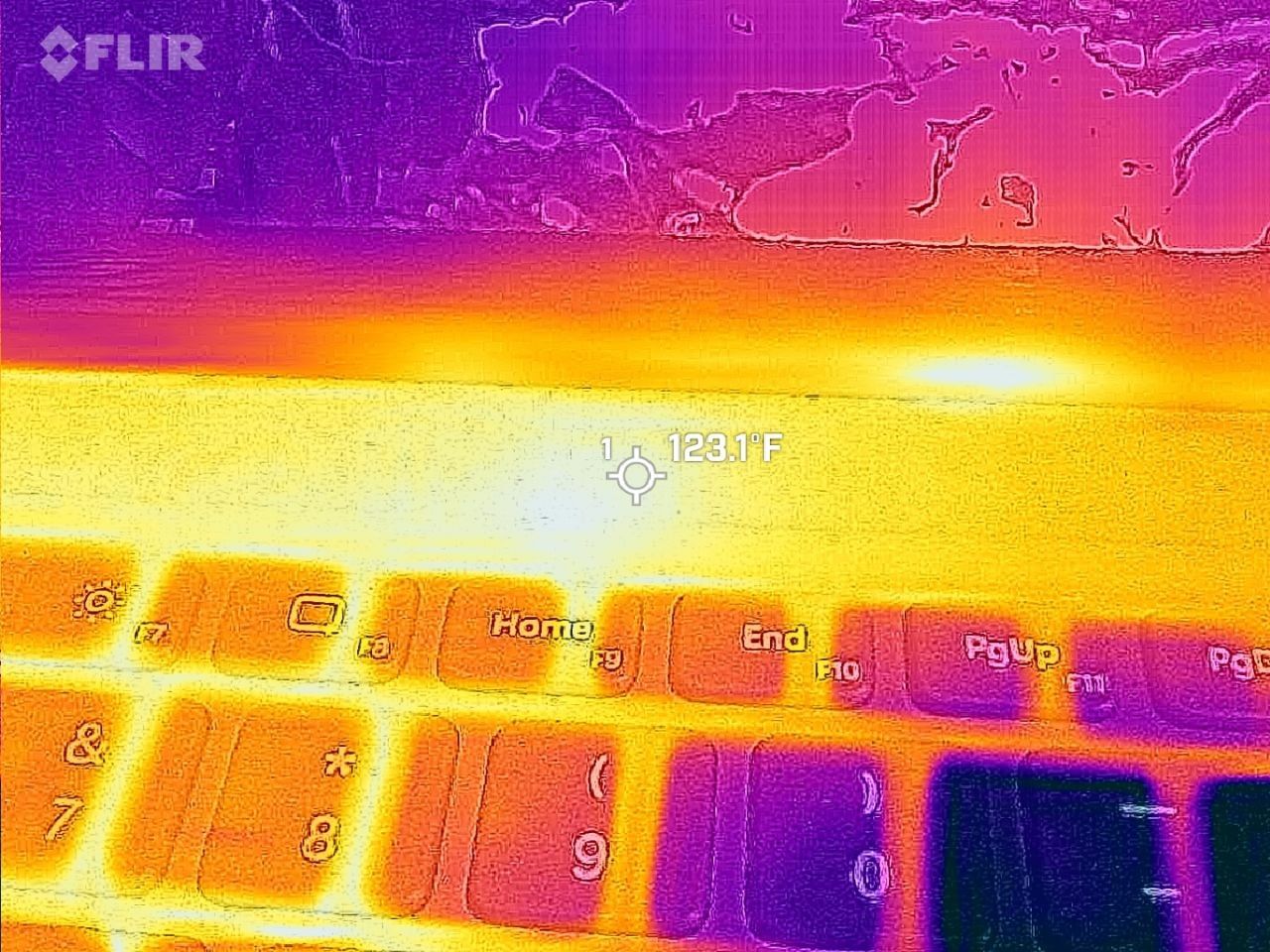
Under max load, the Surface Laptop Ultra gets quite warm. While the keys themselves remain at an okay temperature, the top part of the keyboard deck gets very toasty. I measured 123 F at its hottest under max load, which is approaching "oh that's hot" territory.
Surface Laptop Ultra gets toasty, but doesn't seem to thermal throttle. (Image credit: Zac Bowden / Windows Central)
I also noticed quite audible coil whine when under max load on my Surface Laptop Ultra. This isn't a problem in day to day use, but whenever the GPU is being used, I can hear buzzing coming from inside the keyboard chassis. If you're sensitive to that kind of thing, it will annoy you.
Fan noise is acceptable even at max load. I measure around 42 decibels at its loudest, and that was after running a benchmark for 10 minutes. In normal use, the fans rarely come on, though it does run slightly warm on your lap as a result.
Conclusion
Surface Laptop Ultra is ultra-premium. (Image credit: Zac Bowden / Windows Central)
✅ You should buy this if ...
You are a software developer utilizing on-device AI
You live and breathe large language models and agentic workflows
You need a beefy GPU in a portable and efficient package
You need lots of RAM
❎ You should not buy this if ...
You aren't interested in AI or agentic workflows
You only need a PC for standard productivity tasks
You occasionally game or edit video (get something cheaper)
You want something thin and light
Surface Laptop Ultra is great, but it's not something I can comfortably recommend everyone go out and buy, especially at these high prices. At the base level, it doesn't offer enough to justify the added cost over a Surface Laptop 8 with 24GB RAM. You do get the more beefy GPU and "better" display, but that comes at the cost of portability and battery life.
The Mini LED screen isn't the upgrade I was hoping it would be. For those who have only ever used a standard LCD their whole life, I'm sure you will appreciate the added brightness. But the ghosting issue is annoying and I think most people will notice it. I would have much preferred an OLED on a laptop this expensive.
Battery life is also just okay, which, again, for a laptop of this size and weight, leaves something to be desired. You can get longer day to day use out of a thinner and lighter Surface Laptop 8, which I think most people would prefer over the raw power that Surface Laptop Ultra offers.
And that brings me back to my original point. This isn't a laptop for everyone. It's a laptop for those who know they need it, and it's mainly for AI developers and high-end content creators. If you find yourself leaning on local agents to complete tasks for you, or enjoy generating images and videos using AI models, this is the laptop for you.
If you're someone who just needs a laptop for productivity tasks that includes a little bit of photo and video editing, and sometimes some gaming, there are cheaper laptops out there that will do that job very well.
Is this the MacBook Pro for Windows? I think it is. But it's not the perfect MacBook Pro alternative just yet. RTX Spark isn't at the same level as high-end MacBook Pro silicon, the Mini LED screen isn't best in class, and battery life could use some improvement.
Microsoft
Surface Laptop Ultra
Surface Laptop Ultra is Microsoft's flagship and most powerful Windows PC. It can be configured with up to 128GB RAM, and ships with NVIDIA's new RTX Spark SoC. It's great for creative workflows and software development, and those who want to run local AI and LLMs directly on their device.
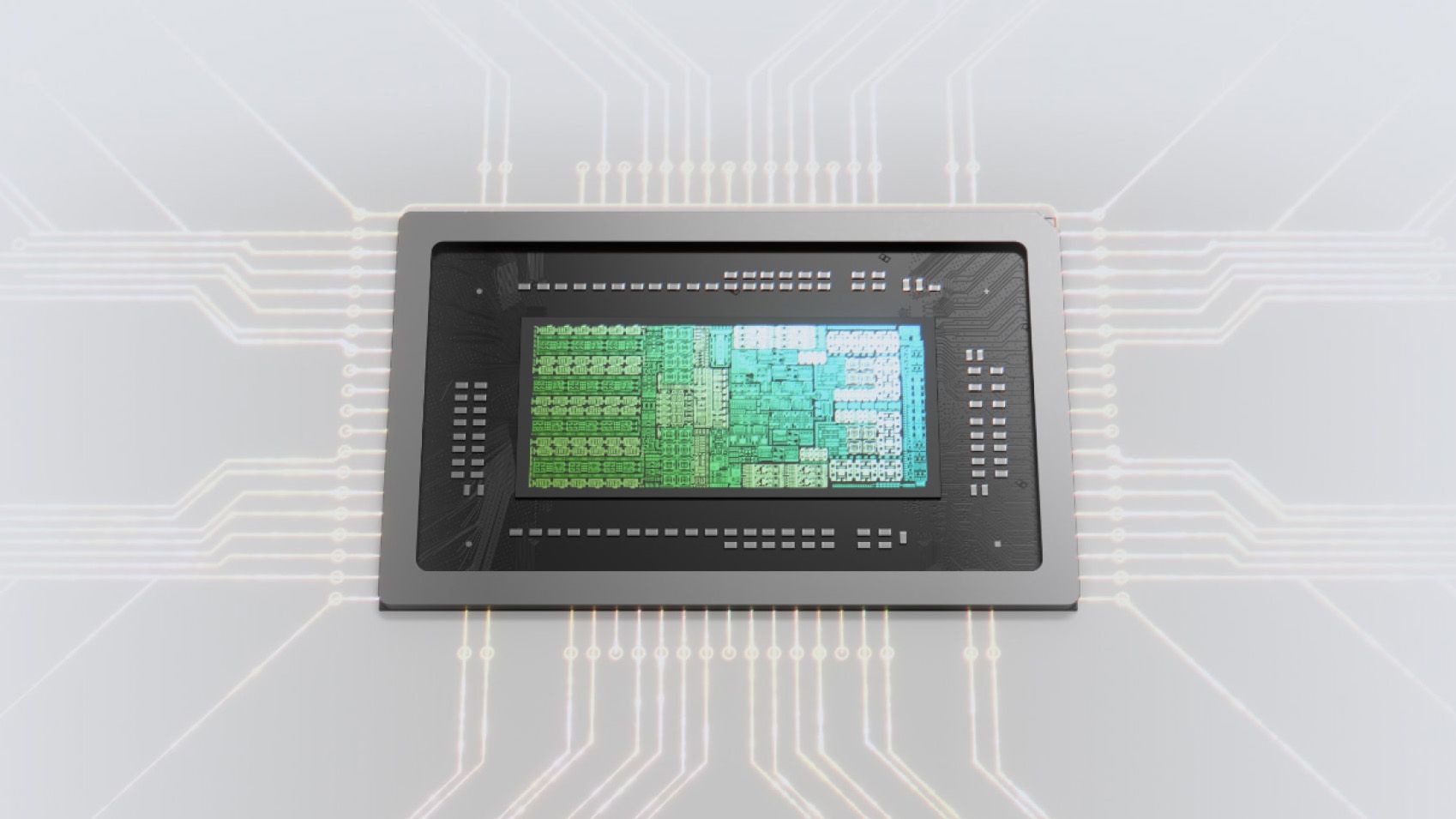
RTX Spark is finally here. After years of rumors, NVIDIA has re-entered the Windows silicon game with the MediaTek N1X, a tailor-made 18/20-core SoC with 5,120 or 6,144 GPU cores, up to 128GB of unified memory, and a heck of a lot of power for apps, games, and AI experiences under the hood.
It's not every day that Windows gains a new silicon partner, which is why everyone seems to be involved with ensuring this launch goes as smoothly as possible. Microsoft has worked closely with NVIDIA on optimizing the Windows platform, especially for RTX Spark, and third-party app vendors like Adobe, Blender, anti-cheat software, and more have mobilized to optimize their products and frameworks for the new chipset.
But the big play with RTX Spark is on-device AI. LLMs and agentic workflows have become all the craze over the last year, and NVIDIA believes the RTX Spark is the first chipset for Windows that has been designed from the ground up for running local AI experiences locally and securely, without sacrificing performance.
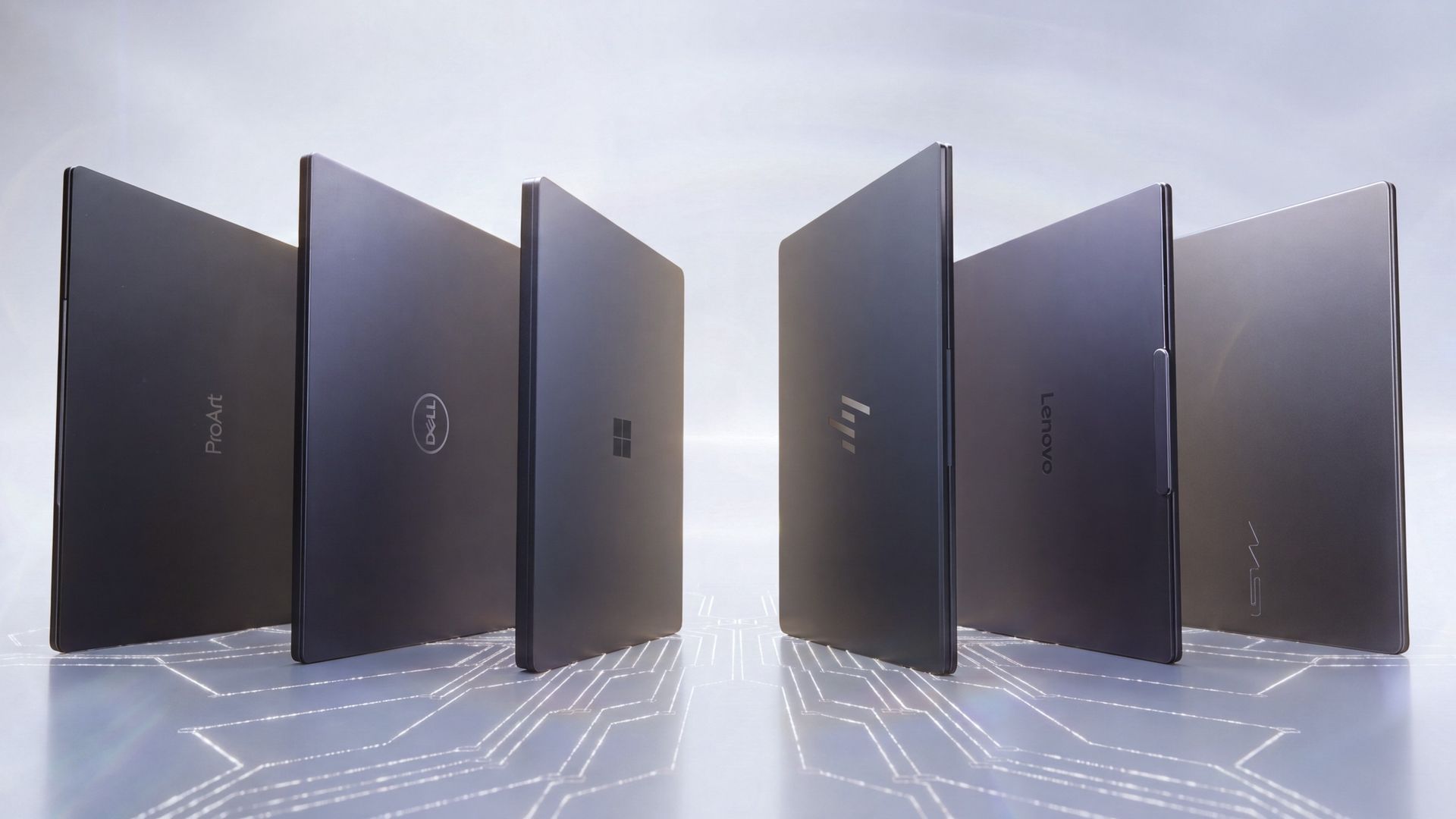
NVIDIA has 6 hardware partners lined up to ship RTX Spark hardware starting this week, and all of them are aimed at the high-end content creator or developer crowd. NVIDIA has set its sights on competing head-to-head with the MacBook Pro, and is eager to win over AI developers who flocked to that platform thanks to Apple Silicon.
I've been testing out the top configuration of RTX Spark over the last week on a Surface Laptop Ultra, and here's what I discovered it's good at, and what it's not so good at. FYI, today's embargo only allows us to detail the RTX Spark's performance and benchmarks, not the Surface Laptop Ultra itself. So battery life, thermal performance, and laptop-specific variables are not included in this piece. That information will be shared in the full laptop review, coming soon.
NVIDIA RTX Spark Overview
(Image credit: NVIDIA)
If you're looking for a quick rundown of what RTX Spark is and how it compares, here's what you need to know:
RTX Spark is a powerful SoC with good CPU performance and great GPU performance. Its CPU is comparable to the Apple M4 Pro and Qualcomm's Snapdragon X2 Elite, with multi-thread performance being its stronger asset in the CPU department, though it trails behind the Apple M4 Max and Snapdragon X2 Elite Extreme.
The GPU is the star of the show, with great performance thanks to its 6,144 GPU cores that deliver smooth framerates (with help from DLSS and framegen), faster rendering times, and very capable AI performance. Its quantized INT8 tensor execution, unified memory sharing, and computer vision acceleration easily leapfrog mobile discrete GPUs in its power class for AI workflows, which it excels at.
I don't believe RTX Spark is for everyone. It's very good at key things, and shines primarily for those who are knee-deep in local AI workflows and experiences. If you're not a mobile content creator, software developer, or utilize local LLMs often, RTX Spark probably isn't for you.
Mobile efficiency varies depending on power profile. The GPU is hungry and will drain power fast when at full pelt, but in day-to-day usage that only occasionally leans on the GPU, it should last the workday. The good news is, you should see the same performance regardless of plugged-in state.
Compared with most integrated Snapdragon, Intel, and AMD systems, RTX Spark is substantially faster in AI image generation and local inference, while matching or approaching dedicated RTX 4070/5060/5070 class GPU performance in most workloads outside of AI.
The latest generation of high-end Apple Silicon retains an advantage in peak single-thread CPU performance, but RTX Spark’s strength is its GPU, with TensorRT execution and high-speed memory providing advantages in diffusion, quantized models, and sequential data access.
RTX Spark configurations
Specification
RTX Spark N1X (5120-core GPU)
RTX Spark N1X (6144-core GPU)
CPU Configuration
18 cores (9x Cortex-X925 + 9x Cortex-A725)
20 cores (10x Cortex-X925 + 10x Cortex-A725)
Max Performance Core Clock
3.9 GHz
4.0–4.1 GHz
Max Efficiency Core Clock
2.8 GHz
2.8 GHz
GPU Architecture
Blackwell RTX
Blackwell RTX
CUDA Cores
5,120
6,144
Streaming Multiprocessors (SMs)
40
48
RT Cores
4th Generation
4th Generation
Tensor Cores
5th Generation
5th Generation
Unified Memory Type
LPDDR5X
LPDDR5X
Memory Interface
256-bit / 16-channel
256-bit / 16-channel
Memory Speed
Up to 9,400 Mbps
Up to 9,400 Mbps
Peak Memory Bandwidth
Up to 300 GB/s
Up to 300 GB/s
NVLink-C2C Bandwidth
600 GB/s bidirectional
600 GB/s bidirectional
Display Support
HDMI 2.1a, DisplayPort 2.0 over USB4
HDMI 2.1a, DisplayPort 2.0 over USB4
Process Technology
TSMC 3nm (CPU & GPU dies)
TSMC 3nm (CPU & GPU dies)
Configurable SoC TDP
45–80W
45–140W
NVIDIA RTX Spark CPU Performance
(Image credit: NVIDIA)
The RTX Spark CPU was co-designed by NVIDIA and MediaTek. The N1X, as it's known, comes in either 18- or 20-core configurations and is relatively efficient while delivering good performance. With that said, it's not leading in its class, leaving something to be desired when it comes to raw benchmarks.
In Cinebench 2026, the 20-core N1X achieved a single-core score of 558 and a multi-core score of 6,885. To put that into perspective, its single-core score beats the first-gen Snapdragon X Elite X1E-80-100 at 519, but falls short compared to Qualcomm's Snapdragon X2 Elite Extreme, which achieves a score of 662 for single-core. Multi-core fares better, with a score of 6,885, which is only just behind the X2 Elite Extreme and Apple M4 Max.
Cinebench Scores (Best Performance)
Cinebench 2026 Test
Plugged In Result
Unplugged Result
CPU (Multi Core)
6,885 pts
6,844 pts
CPU (Single Core)
558 pts
554 pts
MP Ratio
12.33 x
12.35 x
These scores do place it ahead of Intel's and AMD's latest flagship mobile workstation chips, but the chipset simply doesn't compete with Apple's latest Max chips, consistently trailing behind the Apple M4 Max and the M3 Ultra. This is a little disappointing given that the RTX Spark is directly targeting Apple Silicon.
It's a similar story with our Geekbench 7 results, achieving a single-core score of 2,718 and a multi-core score of 23,571. It's clear that multi-core performance is the N1X's stronger asset, competing with the likes of the Apple M4 Pro or Intel Core Ultra 9 285K, and is well ahead of the last-gen Snapdragon X Elite and Intel Lunar Lake, as it should be.
Geekbench Scores (Best Performance)
Geekbench 7.1
Plugged In Result
Unplugged Result
CPU (Multi Core)
23,571
23,879
CPU (Single Core)
2,710
2024
Outside of benchmarks, in day-to-day use the N1X feels fine. This isn't a slow CPU by any means, and will chew through even complex workflows with no sweat. Most day-to -day apps are Arm native these days, but for the few that do require Microsoft's Prism emulation layer, you won't even notice it. RTX Spark makes it so emulated apps feel just like native ones.
All our benchmarks were run with the Best Performance setting enabled, and in our tests we ran them a number of times in both plugged-in and unplugged states to see if there's any performance drop when away from a wall outlet. The good news is the RTX Spark delivers pretty much the same power regardless of plugged-in state, which mimics Apple Silicon.
NVIDIA RTX Spark GPU Performance
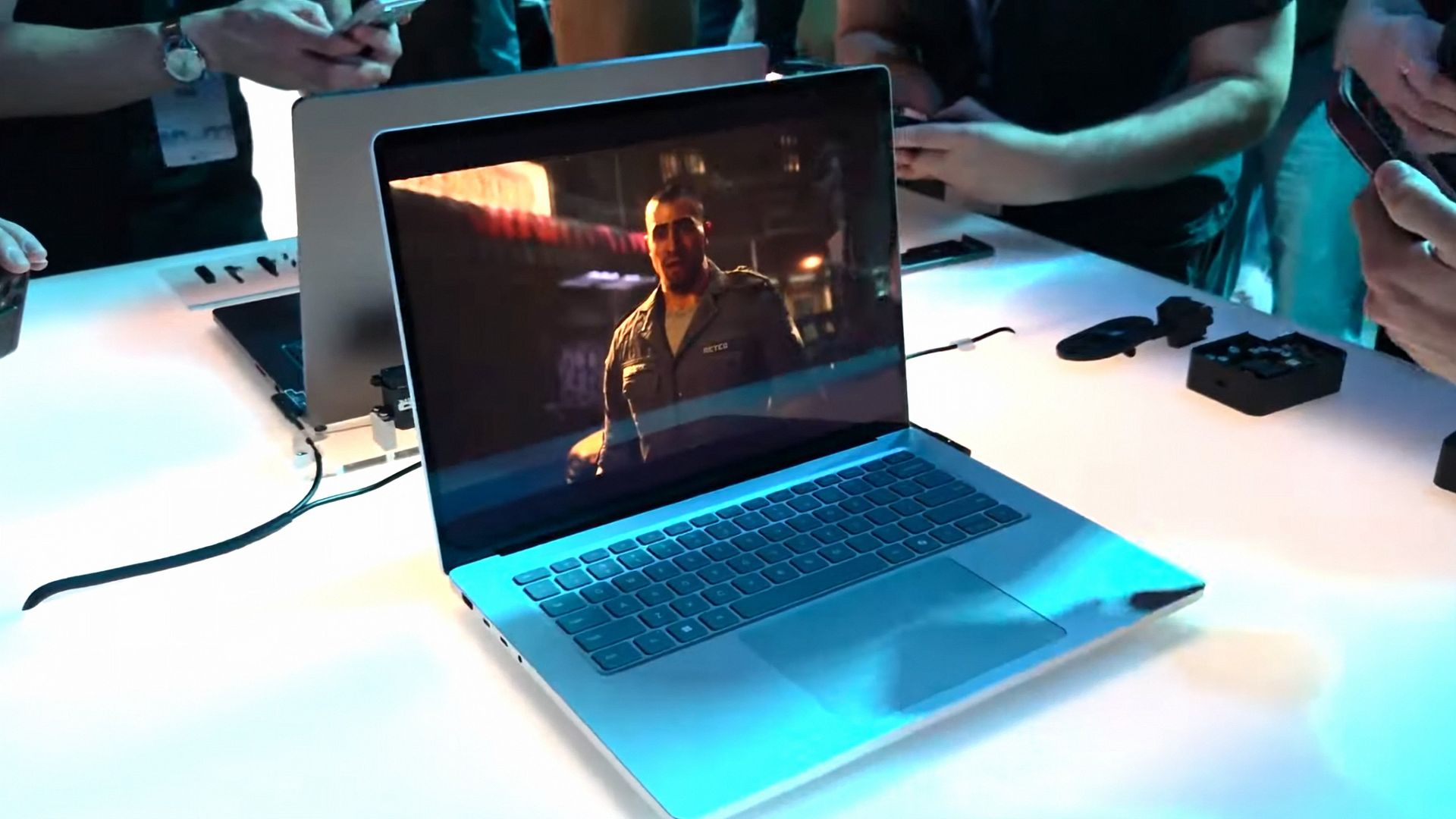
Gears of War E-Day running on RTX Spark (Image credit: Zac Bowden / Windows Central)
The star of the show with RTX Spark is the Blackwell RTX GPU with either 5,120 or 6,144 cores. We benchmarked the top-end, 6,144-core configuration for these benchmarks, and it does impress, outputting performance in workflows like video editing, model rendering, and gaming similar to an RTX 4070 or 5060, but in an efficient package with all-day battery life.
For what is essentially an integrated GPU, it outputs dedicated GPU performance in pretty much all workflows. But it really excels at AI workflows, especially when optimized for tensor and CUDA.
The 128GB configuration is set to split that memory evenly between system RAM and the GPU, meaning in our default configuration and for how we ran most of our benchmarks, the GPU had 64GB of video RAM to make use of. In this configuration, it's more than capable for most tasks, with the only exception being running AI models that surpass this size. In that situation, you can allocate more memory to the GPU so that it will fit.
In our 3DMark tests, we found that the RTX Spark performs similarly to an RTX 4070. It's very capable at 1440p gaming with high settings in most titles, though more demanding games will need to lean on DLSS and frame generation for smooth 60+ FPS gaming. In most titles we benchmarked, games ran without a hitch and looked great.
Benchmark
Target Resolution & API
Overall Score
Graphics Score
CPU Score
Test Framerates
3DMark Time Spy
1440p (DirectX 12)
12,771
12,368
15,669
GT1: 81.68 FPS, GT2: 70.11 FPS, CPU: 52.64 FPS
3DMark Time Spy Extreme
4K UHD (DirectX 12)
5,857
5,972
5,281
GT1: 37.77 FPS, GT2: 35.19 FPS, CPU: 66.30 FPS
3DMark Steel Nomad
4K UHD (DirectX 12 Heavy)
3,064
3,064
N/A
Graphics Test: 30.65 FPS
3DMark Speed Way (Run 1)
1440p (DirectX 12 Ultimate / DXR)
3,011
3,011
N/A
Graphics Test: 30.12 FPS
3DMark Speed Way (Run 2)
1440p (DirectX 12 Ultimate / DXR)
2,985
2,985
N/A
Graphics Test: 29.85 FPS
Gaming is not the main reason to buy an RTX Spark laptop, but it is an additional benefit. It's the first Windows on Arm platform that does gaming relatively well, supporting the usual breadth of gaming technologies and frameworks such as:
Ray tracing
DLSS 5
Multi Frame Generation
Neural Rendering
Reflex
G-SYNC
RTX Remix
Most games run under emulation on RTX Spark, as the platform is Arm64, and most games are compiled for x86. However, in most titles, this isn't a problem. Most mainstream anti-cheat software is now compatible with Windows on Arm, and the Prism emulation layer has been tuned specifically for RTX Spark to ensure most games run without a hitch, though there are exceptions.
Some games, such as Red Dead Redemption 2, will require you to change settings to get them to run successfully. For example, by default Red Dead Redemption 2 was set to run with Vulkan, which caused it to crash at launch. Switching it to DirectX12 fixed this for me. Most games run without needing to change any settings first, however.
Zac Bowden / Windows CentralZac Bowden / Windows CentralZac Bowden / Windows CentralZac Bowden / Windows Central
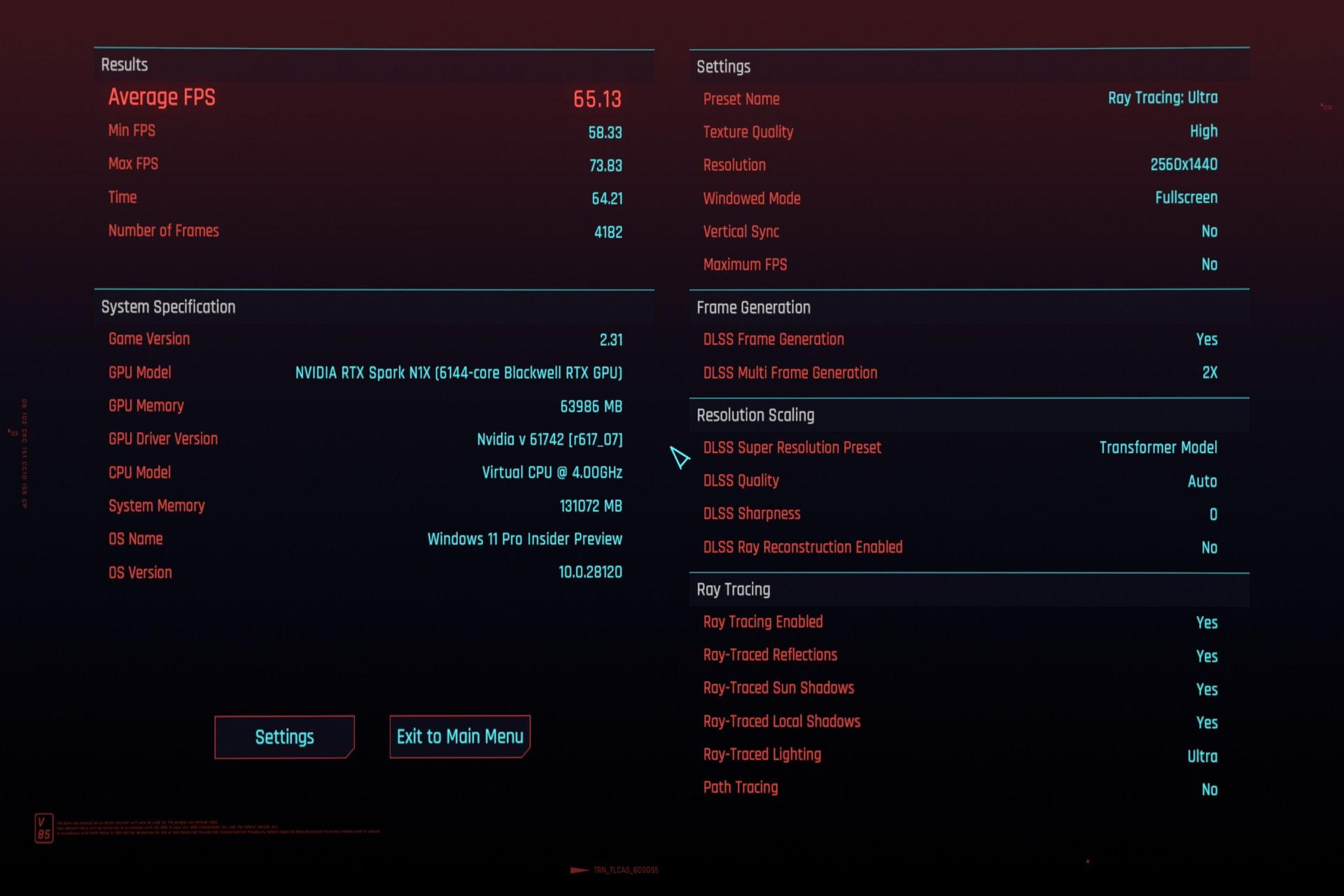
I tried Cyberpunk 2077, which runs pretty well right out of the box. The game analyzed my system and decided that Ray Traced Ultra settings were a perfect fit for the RTX Spark. Running at 1440p with frame gen enabled, the game was easily able to maintain 60fps while looking good doing it with these graphics settings enabled.
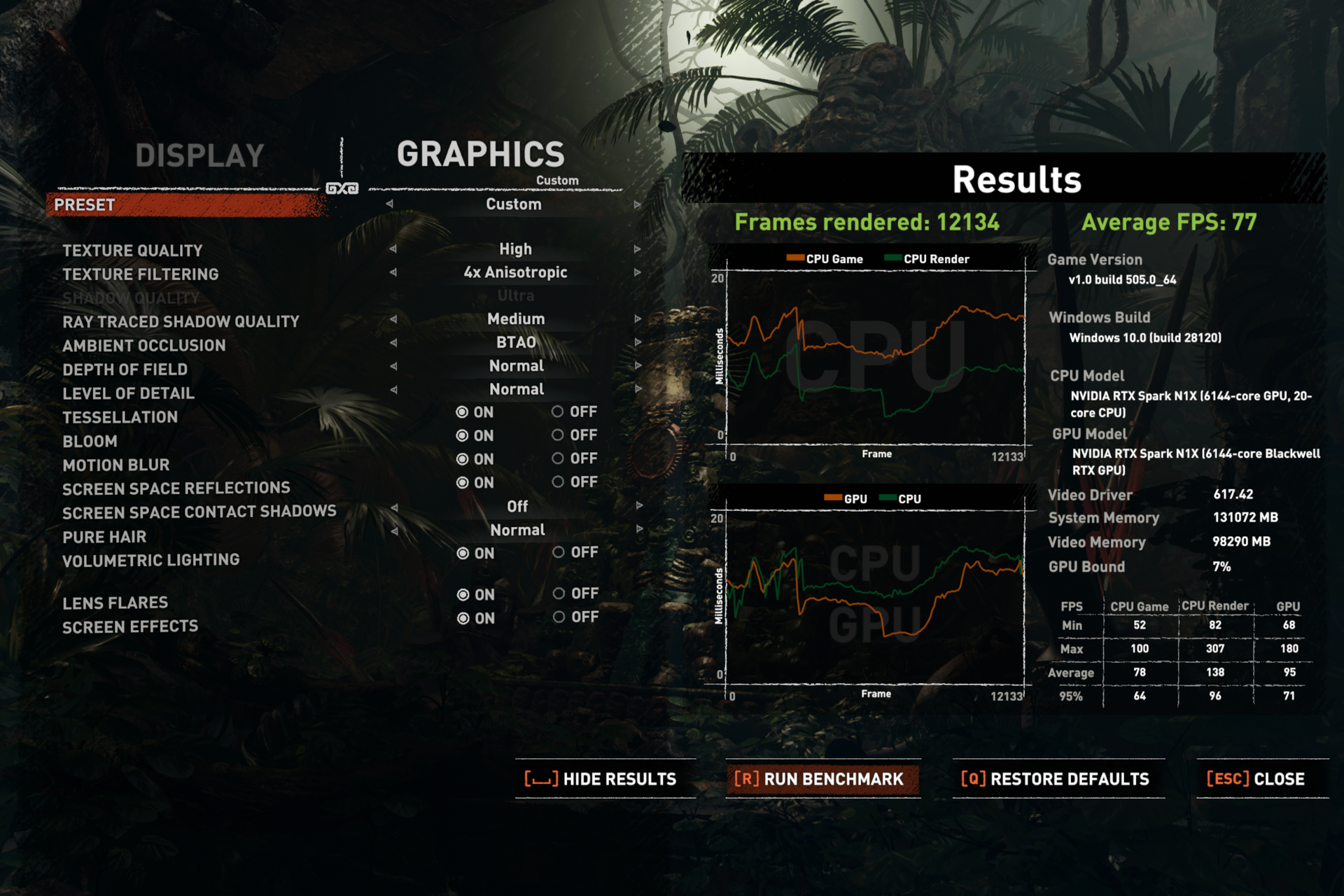
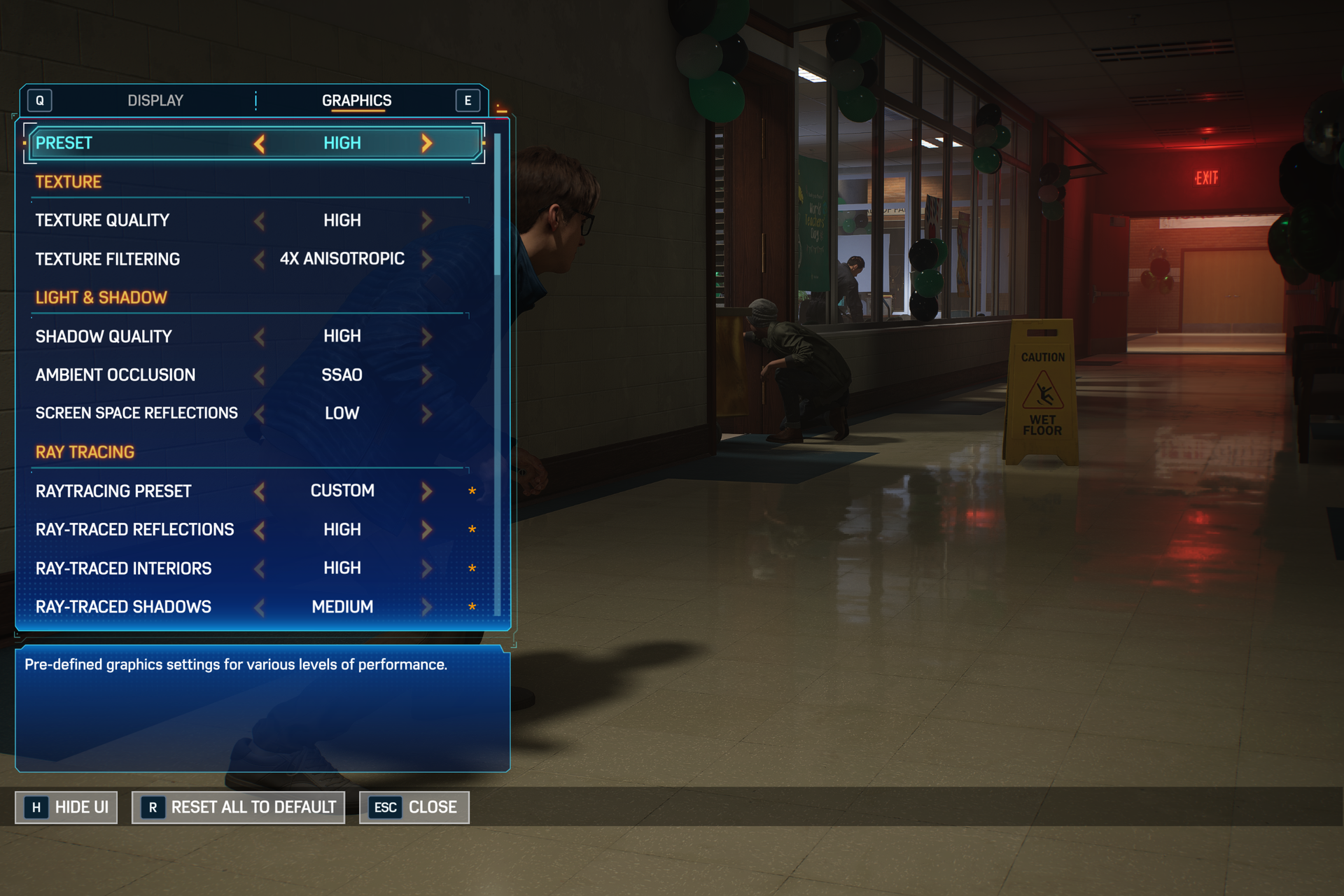
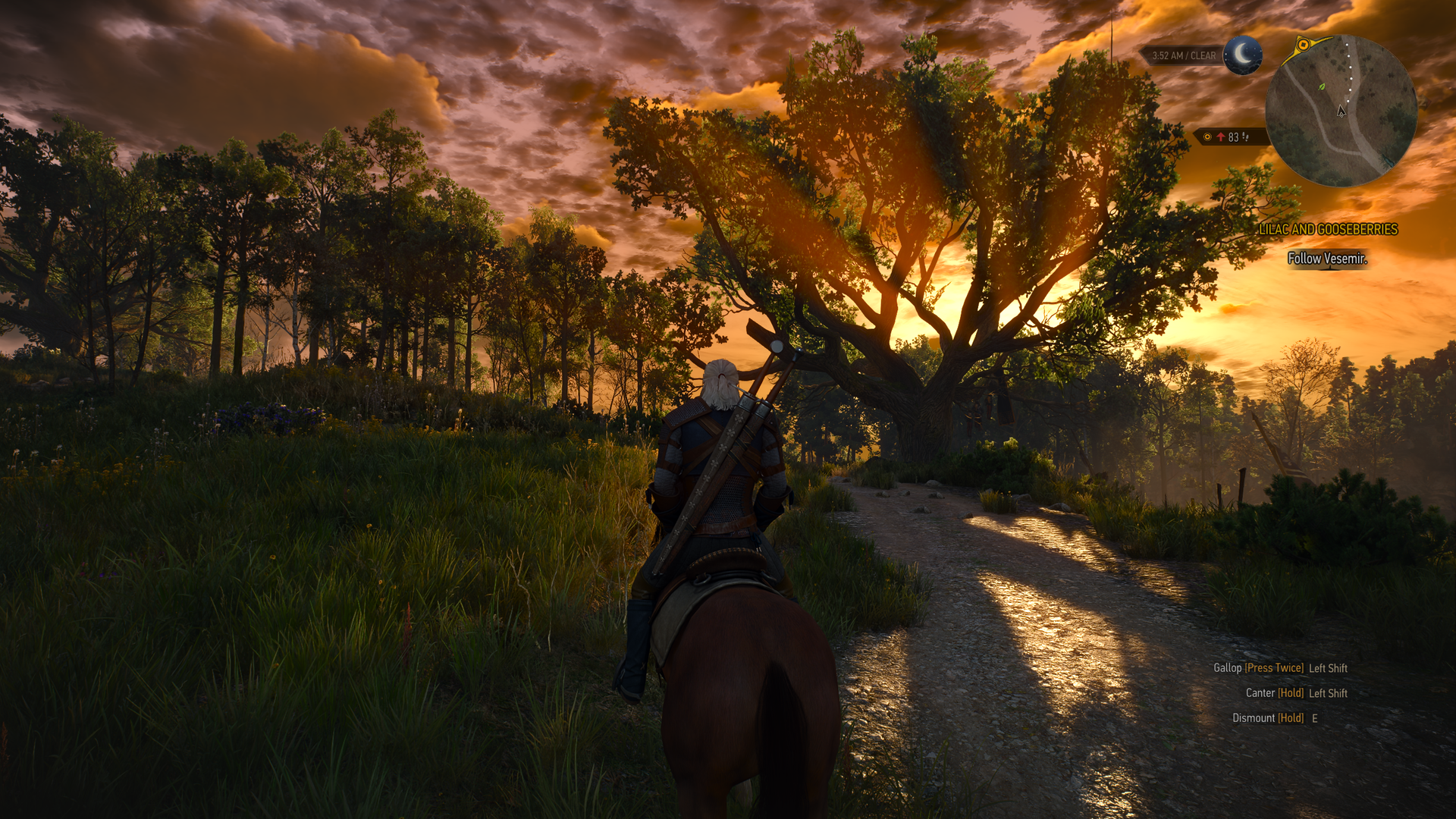
Shadow of the Tomb Raider also works great, but it takes quite a while to actually load up. But once the game is running and you're in-game, it looks great and runs well above 60fps at high settings at 1440p. Marvel's Spider-Man 2 and The Witcher 3 Remastered ran without a hitch, reaching close to 90fps in high settings at 1440p.
For content creators, RTX Spark is a great choice. Whether you are editing photos or rendering videos using apps like Adobe Photoshop and Premiere Pro, or rendering 3D environments in Blender, the RTX Spark is well suited for those tasks.
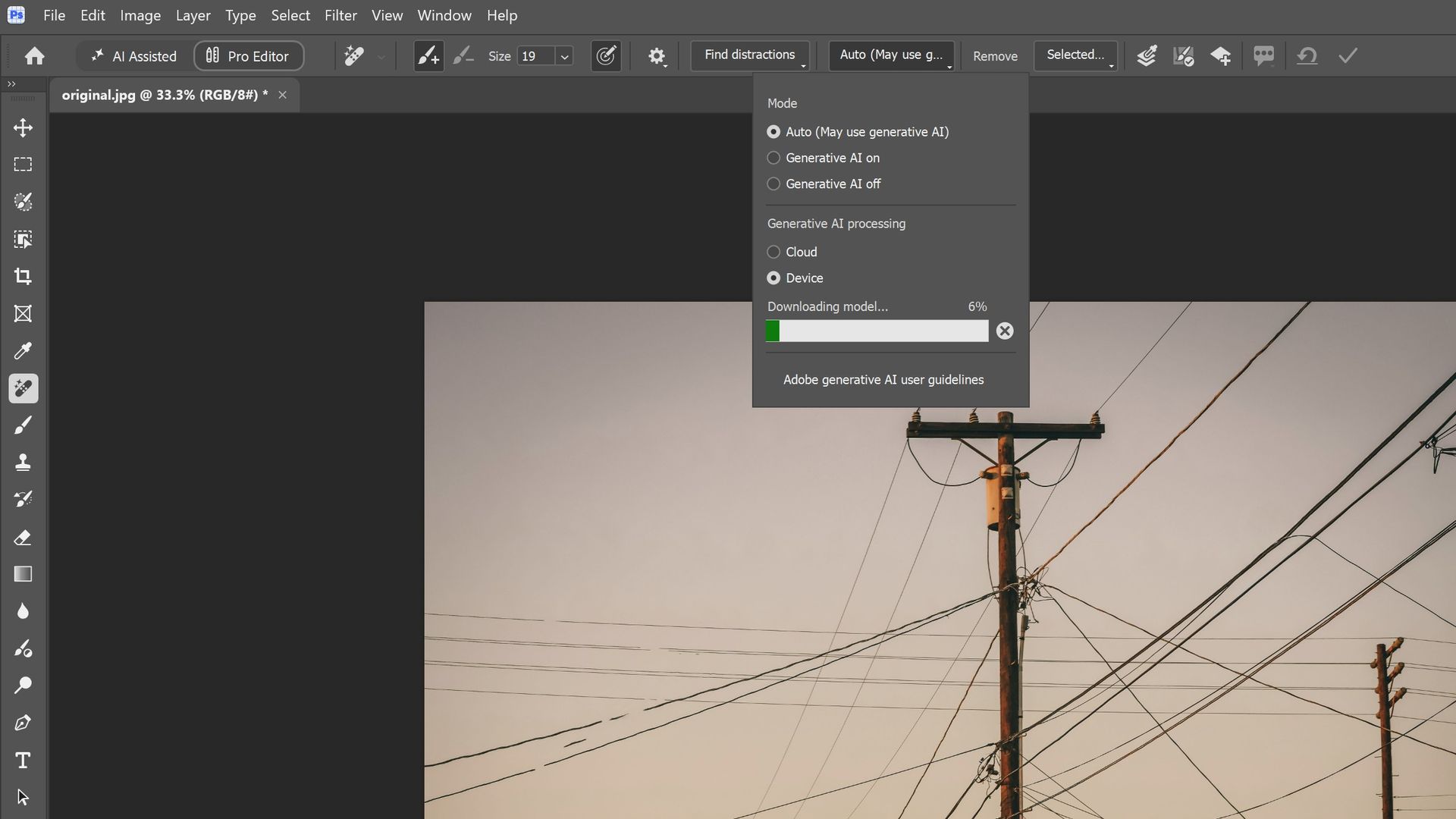
Photoshop supports on-device AI models on RTX Spark (Image credit: Zac Bowden / Windows Central)
Adobe and NVIDIA say the Adobe Creative Cloud Suite has been optimized specifically for RTX Spark. These optimizations include:
Photoshop on-device AI object removal
Premiere Pro TensorRT acceleration
Blender support for DLSS 4.5 Ray Reconstruction
When it comes to video rendering times, the RTX Spark trails the current-gen RTX 50 series GPUs. We benchmarked it against three other laptops with an RTX 5060, 5070 Ti, and 5080, in which it trailed the RTX 5060 in video rendering performance, finishing a few seconds later in most instances. In this benchmark, we ran Premiere Pro Beta, as that version includes necessary optimizations for RTX Spark.
Premiere Pro Export Times
Export Profile (Seconds ↓)
Surface Laptop Ultra (RTX Spark)
Lenovo Yoga Pro 9 (RTX 5060 8GB)
ASUS Zephyrus G14 (RTX 5070 Ti 12GB)
Lenovo LEGION 9 (RTX 5080 16GB)
H.264 Export (1 GPU)
42.002 s
32.111 s
39.403 s
20.218 s
H.264 Export (Pass 2)
34.415 s
26.003 s
33.532 s
18.401 s
H.264 UHD Export (1 GPU)
81.419 s
64.140 s
71.918 s
40.235 s
H.264 UHD Export (Pass 2)
66.496 s
52.301 s
59.536 s
34.253 s
Dedicated GPU performance can vary depending on laptop chassis size, cooling solution, and thermal envelope, which is why the 5070 Ti frequently trailed the 5060 in our testing.
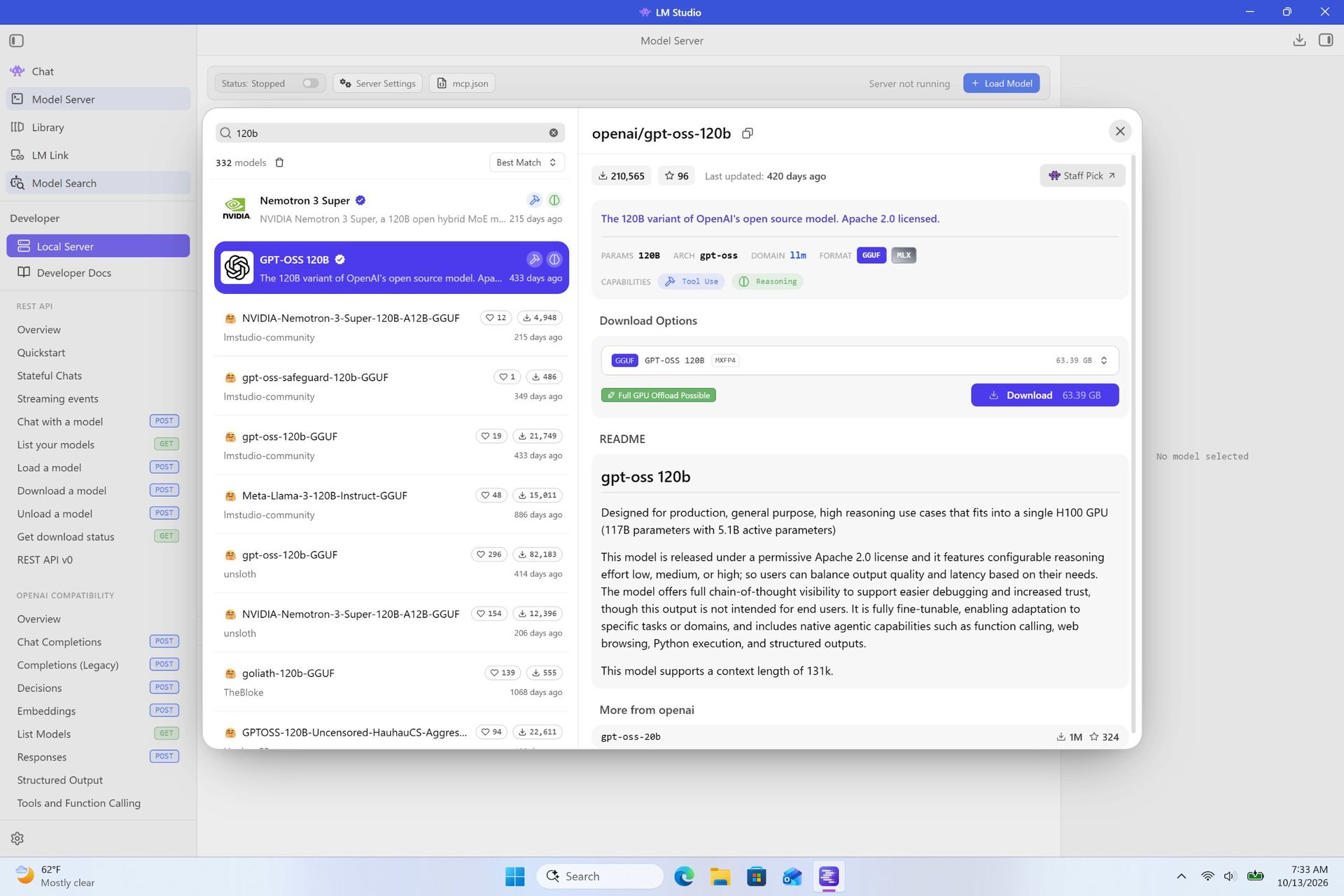
The RTX Spark GPU is very performant and is capable of pretty much handling anything you'd want to throw at it on a mobile workstation. Where it really shines, however, is running local AI models directly on it. It's the reason NVIDIA built this platform to begin with, and it does this very well.
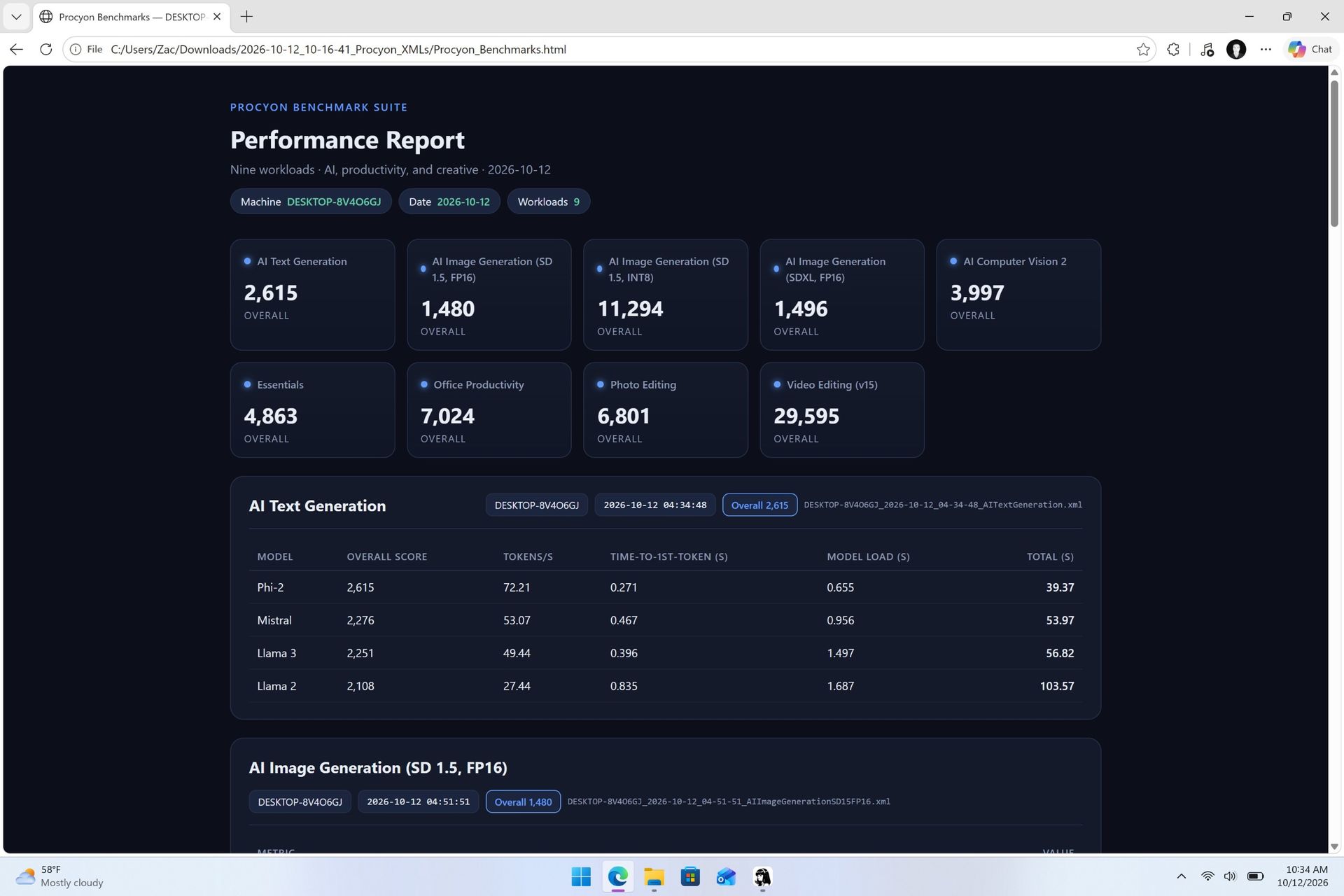
We ran several Procyon AI benchmarks to see how well the GPU performs when running on-device AI workflows. Text generation LLMs ran very fast, with Spark delivering responsive time-to-first-token results, including 0.27 seconds on Phi and 0.39 seconds on LLaMA3, but its sustained decoding rates trail higher-wattage discrete GPUs.
On-device text generation benchmarks
Model
Overall Score
Tokens / Second
Time to First Token (s)
Model Load Time (s)
Phi-3.5-mini
2,615
72.21
0.27
0.66
Mistral 7B
2,276
53.07]
0.47
0.96
Llama 3.1 8B
2,251
49.44
0.40
1.50
Llama 2 13B
2,108
27.44
0.84
1.69
But quantized AI performance is where RTX Spark truly leads. In Stable Diffusion 1.5 INT8, the RTX Spark scored 11,294 and generated images in 2.77 seconds, substantially outperforming the tested RTX 5080, RTX 5070 Ti, and RTX 5060, on which we ran the same tests.
Stable Diffusion Benchmarks
Model Profile & Metric
Surface Laptop Ultra (RTX Spark)
Lenovo Yoga Pro 9 (RTX 5060 8GB)
ASUS Zephyrus G14 (RTX 5070 Ti 12GB)
Lenovo LEGION 9 (RTX 5080 16GB)
SD 1.5 FP16 - Total Duration
67.55 s
69.70 s
107.73 s
44.59 s
SD 1.5 FP16 - Speed
4.222 img/s
4.356 img/s
6.733 img/s
2.787 img/s
SD 1.5 FP16 - Average UNet
23.986 it/s
23.265 it/s
15.070 it/s
36.426 it/s
SD 1.5 INT8 - Total Duration
22.14 s
138.74 s
101.83 s
440.19 s
SD 1.5 INT8 - Speed
2.767 img/s
17.342 s/img
12.729 img/s
55.024 s/img
SD 1.5 INT8 - Average UNet
19.158 it/s
2.949 it/s
4.043 it/s
0.927 it/s
SDXL FP16 - Total Duration
400.82 s
499.37 s
735.47 s
303.68 s
SDXL FP16 - Speed
25.051 s/img
31.211 s/img
45.967 s/img
18.980 s/img
SDXL FP16 - Average UNet
4.028 it/s
3.331 it/s
2.196 it/s
5.321 it/s
AI Workflows
The GPU is best suited for running large on-device AI models such as Qwen 3.8 27B, Gemma 4 31B, or even 120B-parameter models such as Nemotron or GPT-OSS.
NVIDIA is touting local agentic capabilities with this GPU, leaning on apps like Hermes Agent and OpenClaw to achieve this. We tested Hermes Agent, as OpenClaw failed to connect to the gateway once setup was complete.
The selling point of running LLMs and agents locally is that you are no longer constrained by usage limits or the amount of tokens you have available. When the AI runs locally, it's yours. You can run it for as long and as hard as you like.
120B parameter models can fit entirely on the RTX Spark's GPU, significantly speeding up LLM performance. (Image credit: Zac Bowden / Windows Central)
It's also good for security and privacy reasons. You may have confidential documents, audio recordings, intellectual property that you need summarized or explained to you, and feeding that data to a cloud-based LLM or agent is giving that data away to the host.
With RTX Spark, you can feed whatever data or task you want to your local AI running off the GPU, and that data will never leave the device. You can build up your own personal agent that is capable of managing your local files, creating documents, making edits, and in some cases even controlling your PC.
Hermes Agent is a great tool for beginners, as it offers local AI compute experiences and makes setting it up a breeze. You open the app, choose to run AI locally, and it recommends the best model for the specs you have. Once downloaded, you're good to start chatting with your own AI locally.
Instead of using up tokens in the cloud, local AI leans on the GPU for processing. Unlimited power! (Image credit: Zac Bowden / Windows Central)
Hermes Agent is particularly good at automating tasks. The first thing I did was tell it to clean up and organize my large, cluttered downloads folder. It moved images to my photos library, deleting any old executables, and organizing and categorizing PDFs and Word documents appropriately. It did all this without sending any of my data to the cloud, all processed by the GPU.
I also asked it to build me a basic website that included all my benchmark results so that I could refer back to them more easily. It ran that process entirely off my GPU, and came up with a pretty nice looking webpage design in the process. Zero cloud-based tokens used:
The webpage that the Qwen 3.8 27B parameter model created using Hermes Agent. (Image credit: Zac Bowden / Windows Central)
NVIDIA has even built MCP support into NVIDIA Broadcast and NVIDIA Control Panel, allowing you to hook it up to your local LLM and issue commands that allow it to configure your NVIDIA PC's settings.
Windows and RTX Spark
The Get Started app on RTX Spark includes a step to automate installing agent apps. (Image credit: Microsoft)
In addition to raw CPU and GPU performance, Microsoft has worked closely with NVIDIA to optimize RTX Spark for Windows 11. This partnership runs deep, and there are a lot of things going on behind the scenes that will aid the performance of Windows and support for apps on RTX Spark over the coming months and years.
For those unboxing a new RTX Spark laptop this fall, the Get Started app on Windows 11 will present a step that makes downloading and installing apps that can handle AI agents super easy. Hermes Agent will even go a step further and recommend a suitable model to download once up and running, meaning the user has to do zero research to get started.
With that said, I still find these recommended apps quite complex and convoluted. Many beginners will feel overwhelmed by these apps, especially OpenClaw, which I could not get working properly after it failed to open a gateway to allow the AI model to communicate with the OpenClaw chat interface.
Hermes Agent does automate setting up your first local agent. (Image credit: Zac Bowden / Windows Central)
Microsoft has optimized the system scheduler specifically for RTX Spark to squeeze out as much performance across Windows, menu flyouts, app launches, and more as possible. It has also made changes and enhancements to how Windows handles unified memory so that it's faster and more reliable at feeding that memory to where you need it.
TensorRT is now supported by Windows ML, and DirectX 12 has neural rendering support. The Prism emulation layer has also been tuned for RTX Spark, which results in emulated apps that simply do not feel like they are being emulated.
Microsoft is also keen to position Windows as the platform for local AI and agentic workflows. It has built safeguards and security into the Windows platform to ensure the local agents you run on Windows aren't capable of making severe changes or causing damage to your files, apps, and more.
This is a direct attempt at combating the sudden rise in local AI developers flocking to the Mac. Apple has made little optimizations to macOS to adopt and safeguard local AI and agentic workflows on that platform, whereas Microsoft is moving to make agents a native extension of the Windows platform.
RTX Spark is a Copilot+ PC certified chip, but you won't find any Copilot+ PC features at launch. Microsoft says it's working with NVIDIA to bring features like Windows Recall, Click To Do, and on-device Semantic Search to the RTX Spark platform in the coming months, which will run off the RTX Spark's 50 TOPS NPU.
Conclusion
(Image credit: NVIDIA)
RTX Spark is a super interesting chipset. It's forward leaning in a lot of ways, built on the Arm64 architecture that delivers serious performance and great efficiency. While its N1X CPU is just okay, its Blackwell RTX GPU really shines.
This is the first time we've seen RTX 4070-5070 level performance in an SoC that is this small and efficient. It's optimized for AI workloads, which is its strongest workflow by far. Quantized AI models run great, and with up to 128GB of unified memory, most mainstream models will fit entirely on the GPU without a hitch.
It's also great for content creators, and is very capable at gaming also. But at the prices that these devices are launching at, I think most people would be better served getting an Intel or AMD laptop with a dedicated NVIDIA GPU instead, as these often cost less than the cheapest RTX Spark laptops right now.
But if your workflow involves running AI models locally all day, software development, or complex data crunching and source code management, the RTX Spark is one of the better choices in the Windows space right now, especially for laptops that are thin-ish and (relatively) lightweight.
These RTX Spark laptops are more efficient and portable than typical laptops with a dedicated NVIDIA GPU, which is one of the key benefits of an SoC like this. The power this GPU outputs, for what is essentially integrated graphics, should not be understated.
Of course, just how efficient RTX Spark is will depend entirely on the hardware you choose to buy, as OEMs are free to feed the GPU more or less power depending on the chassis and thermal envelope. Keep that in mind.
Benchmarks
All benchmarks ran on RTX Spark 20-core CPU configuration with 128GB RAM and 6,144 GPU cores. All tests ran connected to power with Best Performance profile enabled, unless stated otherwise. We are still running benchmarks and new tests, and will update accordingly.
Microsoft has finally given us the all-important pricing and availability details for its flagship Surface Laptop Ultra device, which it first unveiled back in June. During its October 7th keynote in San Francisco, Microsoft confirmed that Surface Laptop Ultra would begin shipping on October 16, with pre-orders going live todaystarting at $2,599.
That entry-level price is on the more expensive side, but it's not as bad as many were expecting it to be. That entry-level price nets you the Surface Laptop Ultra with a 15-inch mini-LED screen, a large haptic trackpad, three USB-C ports (one of which is very unique), and the 18-core RTX Spark with 5120 GPU cores and 24GB RAM.
While the entry-level model isn't for high-end local AI development and agent work, it should be more than capable for video editing, photo creation, data crunching, light gaming, and 3D modeling work.
It's all happening in San Francisco. (Image credit: Daniel Rubino | Windows Central)
Alongside pricing and availability, Microsoft also revealed that the Surface Laptop Ultra is the world's first laptop to feature a breakaway USB-C port, similar to Apple's MagSafe and its own Surface Connect. Breakaway cable design means if you ever trip over the cable while the laptop is plugged in, it won't yank the entire laptop off your desk.
Breakaway ports have only ever really been possible on proprietary ports, as they use magnets to ensure the cable remains attached when in use. It's never been attempted on a universal standard before, which is what makes the Surface Laptop Ultra's breakaway port so special. It's a standard USB-C port, capable of taking any USB-C peripheral you can throw at it.
Surface Laptop Ultra is Microsoft's most expensive and most powerful Surface PC ever made. The high-end configs are designed for intensive AI developer workloads such as running large 120B parameter models locally, enabling complex agentic AI workloads and experiences.
Join us on Reddit at r/WindowsCentral to share your insights and discuss our latest news, reviews, and more.
Microsoft is holding a special event in San Francisco on October 7, and is remaining tight-lipped about what will be discussed. The company has confirmed that Windows, RTX Spark, and Surface are on all the agenda, but is yet to delve into specifics.
This will be the first dedicated Windows & Surface event since the Copilot+ PC launch event in 2024. That event ended up being a total disaster, generating a wave of negative pushback online around features like Recall, tarnishing the category right out of the gate.
Microsoft will be livestreaming its October 7 event, which means the company believes the news it's planning to announce is worthy of public attention. Both myself and Daniel Rubino will be attending the event in-person, giving us an opportunity to go hands-on with all the new features and hardware as they are announced.
So, what can we expect Microsoft to discuss on October 7? Here's what I know.
Surface Laptop Ultra fully revealed
Unsurprisingly, a big focus on October 7 will be on Microsoft's new RTX Spark hardware. The Surface Laptop Ultra was unveiled back in June, and I'm expecting to hear more about the hardware, capabilities, and availability in San Francisco.
A big part of the keynote will be about how Surface Laptop Ultra and RTX Spark are capable of running local 120B parameter models that enable on-device AI experiences and agentic workflows without requiring the cloud. The laptop will be primarily marketed at AI developers and content creators who frequently use apps like Premiere Pro, Blender, and more.
I also understand that Microsoft will demonstrate how the Surface Laptop Ultra maintains maximum performance even when not plugged in, similar to the MacBook Pro. It'll also highlight the PixelSense Ultra display, which sources tell me will be both sharper and brighter than the display on the upcoming MacBook Pro/Ultra with touch.
Surface Laptop Ultra also features a large haptic trackpad that supports Windows 11's built-in haptic engine system that provides subtle feedback when interacting with apps and UI surfaces. I also expect Microsoft to reveal a unique USB-C port that may feature a breakaway design, similar to Surface Connect.
Component
Specifications
Platform / Silicon
NVIDIA RTX Spark Superchip (integrating NVIDIA Grace CPU and Blackwell RTX GPU) with native CUDA support
Processor Options
18-Core CPU with 5,120-core GPU
20-Core CPU with 6,144-core GPU
Unified Memory (RAM)
18-Core: 24 GB or 32 GB
20-Core: 32 GB, 48 GB, 64 GB, or 128 GB
AI Performance
Up to 1 PetaFLOP AI compute; runs local frontier-class models up to 120B+ parameters
Haptic touchpad (over 30% larger than Surface Laptop 15-inch) with next-gen haptic experience support.
Audio
Dolby Atmos surround sound
Ports & I/O
1x HDMI, 3x USB-C, 1x USB-A, Full-size SD card slot, 3.5 mm headphone jack
Battery & Performance Parity
All-day battery life; maintains 99.6% performance parity whether plugged into wall power or running on battery
Colors
Platinum and Nightfall
Operating System
Consumer: Windows 11 Home on entry SKUs; Windows 11 Pro on higher SKUs
Commercial: Windows 11 Pro across all configurations
Microsoft will also delve into configurations of the Surface Laptop Ultra that customers will be able to buy. According to my sources, Surface Laptop Ultra will be available in two RTX Spark configurations: an 18-core model with 5,120 GPU cores, and a 20-core model with 6,144 GPU cores for higher-end workflows.
The 18-core model will be available with 24GB or 32GB RAM, and the 20-core model will be available with 32GB, 48GB, 64GB, or 128GB RAM. The entry-level 18-core SKUs will ship with Windows 11 Home, and higher-end configs will come with Windows 11 Pro.
Of course, all eyes will be on pricing. Sources haven't been able to confirm exact pricing just yet, but I understand that Surface Laptop Ultra will not be cheap, likely starting well above $2,000 for the entry-level 18-core model with 24GB RAM.
I also wouldn't be surprised if we hear more about the Surface RTX Spark Dev Box, which I suspect will likely start shipping at or around the same time as Surface Laptop Ultra.
Windows K2 recap, and support for agents
(Image credit: Zac Bowden / Windows Central)
In addition to the new RTX Spark hardware, Microsoft has teased that "something new is coming from Windows" at this event. Details around what exactly Microsoft is planning to talk about remain under wraps, but I have a few theories.
Of course, the company will likely spend some time recapping the Windows K2 effort that has been ongoing this year. It'll highlight recent performance, reliability, and feature improvements delivered to the OS, and maybe even discuss how it has tuned the Prism emulation layer to run better on RTX Spark PCs.
I'm also expecting Microsoft to highlight some refreshed user interface and design improvements across the OS. The company has been working to bring WinUI to more areas of Windows, including File Explorer, Start menu, and more, which is expected to improve performance.
Windows is also set to gain new unified memory controls that will allow users to adjust how much memory is reserved for the GPU on RTX Spark. This should help enable more advanced local AI workflows and increased gaming performance when needed.
Agents on Windows have been in the works for well over a year. (Image credit: Microsoft)
But the big focus will be on how Windows 11 now supports agents. Microsoft has been working on adding agentic capabilities to the OS over the last year, and I'd be surprised if we don't get a demo showcasing how the platform has been updated to run agentic workflows locally and securely.
At Build 2026, Microsoft unveiled three new in-house language models that are designed to run entirely on-device: Aion Instruct, Aion Plan, and MAI Code Flash. I suspect all three will be highlighted as working great on RTX Spark.
Lastly, I wouldn't be surprised if Microsoft finally takes the wraps off its new voice-enhanced user experience that it has been teasing is in the works over the last year. On multiple occasions, the company has said it's working to adapt and improve voice input across Windows in the wake of AI.
Pavan Davuluri said in July that Microsoft is working to make "voice more natural and fluid to interact across the apps you use every day." We are yet to see this work in action, and so I expect October 7 will be when the company reveals this.
Microsoft's play for the high-end, MacBook Pro AI developer crowd
According to my sources, this event will focus a lot on appealing to the AI developer crowd, a large chunk of which has flocked to the high-end MacBook Pro or Mac Studio for all their on-device language model needs.
The Mac platform has become the default choice for AI development, and Microsoft and NVIDIA are keen to win back those users. Microsoft will use this event to appeal to that audience, along with content creators who have also chosen the Mac for photo and video editing needs.
Hopefully there will be some surprises in the form of Windows announcements, but I fully expect the majority of the event to focus on how Windows is now ready for RTX Spark and local agents.
Join us on Reddit at r/WindowsCentral to share your insights and discuss our latest news, reviews, and more.
Microsoft is yet to confirm plans for Windows 11 version 27H2, but that doesn't mean we don't yet know anything about it. Thanks to information supplied by Microsoft about Windows 11 version 26H1 and 26H2, we can read the tea leaves and begin to decipher what Microsoft's plans are for its OS in 2027.
First up, we must set the stage for Windows 11 currently. For the first time ever, Microsoft has split the Windows userbase in two. Most Windows 11 users will continue to receive OS updates that are based on the Germanium platform release, which powers version 24H2, version 25H2, and the new version 26H2.
Germanium has been in the market since 2024, and is what the majority of Windows 11 users are running today. That will no longer be the case with version 26H1, which is the first version of Windows 11 since 2024 to ship on a new version of the Windows platform. This new version is codenamed Bromine, and exists exclusively for Snapdragon X2 and RTX Spark devices.
That means version 26H1 and the newer Bromine platform release will not be made available to the existing Windows 11 userbase this year. Microsoft doesn't say why, but my sources tell me this is because Bromine only really exists because of timing convenience. These new Arm chips required extra kernel level work, and it was easier for Microsoft to build those into a new platform release than it was to retroactively fit the Germanium platform release with these additions.
Because of this, Microsoft hasn't made any optimizations to the Bromine platform release for existing PCs. While you can run Bromine on existing hardware if you want, there is no benefit in doing so. As a result, Microsoft chose to keep the majority of Windows users in the platform release that has been shipping since 2024, and split off the new Snapdragon X2 and RTX Spark PCs with their own platform release.
That does mean there's going to be some awkward fragmentation between version 26H1 and version 26H2 throughout 2026 and into 2027, however. Microsoft has confirmed that because version 26H1 is based on a newer platform release than version 26H2, those running 26H1 are not eligible for the version 26H2 release.
The company does say that this won't be the case forever, and that Windows 11 users running version 26H1 will be updated to something newer in the future. According to my sources, that will be version 27H2 in 2027, which will be the first platform release since 25H2 to be offered to the entire Windows 11 userbase.
Release date
As is almost always the case, Microsoft tends to ship new versions of Windows in the second half of the year. I anticipate this will remain the case for version 27H2, which will likely target a September or October release window.
Because version 27H2 is likely to introduce a new platform release, Microsoft will use a measured and phased rollout approach to its general availability. That means not all users will see the update right away once it's made available, as Microsoft will choose to roll it out in waves to ensure the update is installing as intended.
It will also be a full blown OS upgrade release, and not just an enablement package. That means it will replace the entire OS with a new version, while maintaining all your apps, files and settings. This takes a little longer than an enablement package release, which only updates a few OS files to enable the new version.
Windows 11 version 22H2 was a fill blown OS upgrade release over 21H2, as was version 24H2 over 23H2. So this wouldn't be the first time this has happened.
Platform changes
We know that the version 27H2 release will need to be based on a newer platform release than Germanium to support upgrading both 26H2 and 26H1 users. What we don't yet know is what platform release this will be. It's possible that Microsoft could use the Bromine platform release for 27H2, though I think this is unlikely.
I think Microsoft will issue a platform release that's newer than Bromine. Given the timing, I suspect it may be the Windows Strontium platform release, which is expected to be finalized sometime in the first half of 2027. This would align with Microsoft's previous development schedules.
For example, Germanium was finalized in the first half of 2024, and ended up shipping as version 24H2 in the second half of that year. With Strontium expected to be finalized in the first half of 2027, I would wager the same will happen then for version 27H2.
Microsoft has announced that the next version of Windows will drop support for the Snapdragon 850 SoC. While not confirmation on its own, it's a strong hint that version 27H2 will be powered by a newer platform release than Bromine, given the Snapdragon 850 can still run Bromine-based builds.
New features?
(Image credit: Microsoft)
Because of Microsoft's "Continuous Innovation" effort, the company no longer ties new features to version updates. These days, Windows 11 receives new features whenever the company deems them ready to ship, meaning there's no features in active development that are expected to be exclusive to version 27H2 currently, though that could change in the future.
In fact, most mainline feature development still takes places on the Germanium codebase, then is forward integrated into newer codebases when ready. This is why new features often arrive on version 25H2 and 26H2 first, and then come to 26H1 later, as 26H1 is built on a newer Windows platform.
Windows 12?
(Image credit: Screenshot: Windows Central / Device: Edited with Gemini)
Of course, the age old question is whether or not the next version of Windows will be dubbed Windows 12. The answer is we don't know, and likely won't know until much closer to the time.
Even if Microsoft does debut Windows 12 next year, that doesn't mean Windows 11 version 27H2 wouldn't also exist. When Windows 11 version 21H2 debuted, Windows 10 still received its own 21H2 version that same year.
With all that in mind, I don't think we're going to see Windows 12 in 2026. Given the current versions of Windows 11 are split between two platform releases, it would be irresponsible and complex from a support perspective to leave the userbase in that state.
It would make the upgrade path from Windows 11 to Windows 12 more complex, and Microsoft would need to account for multiple in-market platform releases and versions. I would think it's better to get everyone back onto the same platform version under Windows 11 first, before trying to push forward with Windows 12.
Join us on Reddit at r/WindowsCentral to share your insights and discuss our latest news, reviews, and more.

 Connexion