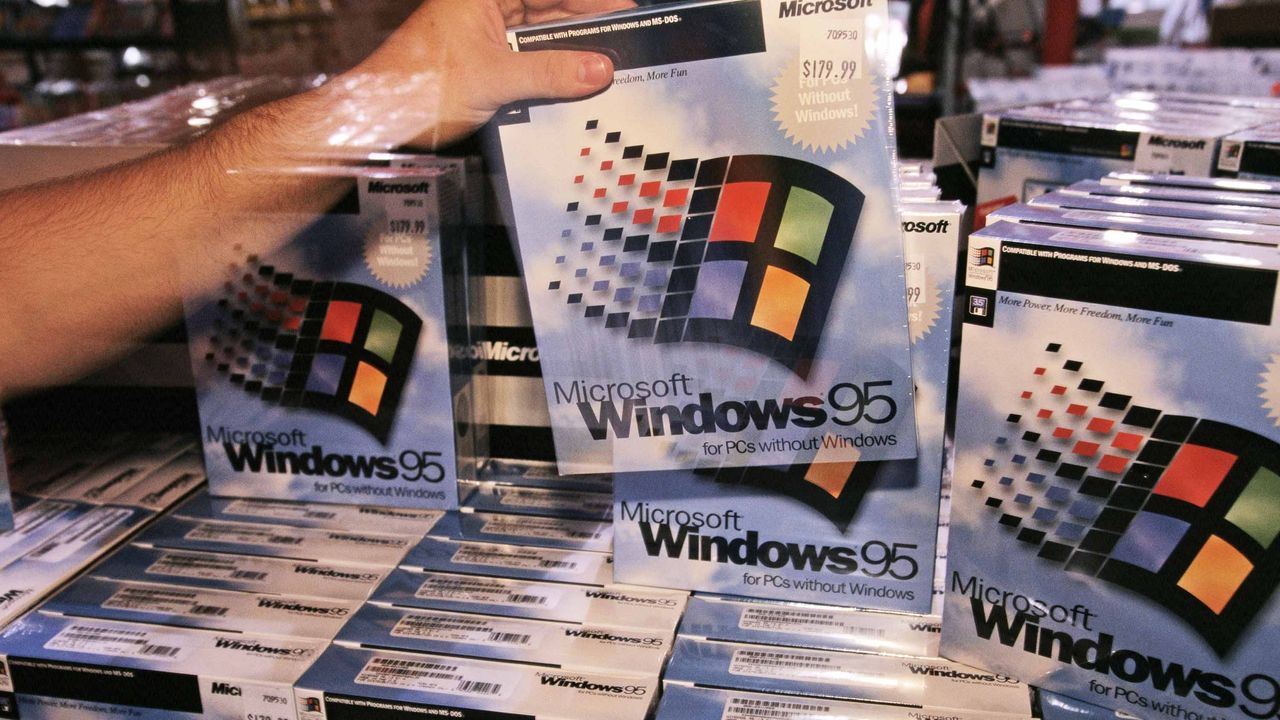
Believe it or not, there was a time when people lined up outside of actual stores to buy the latest version of Windows. Such was the case on August 24, 1995, when Microsoft officially launched Windows 95.
Yes, I find it hard to believe, but it's been 31 years since Microsoft made what is arguably the biggest change ever to its operating system. I didn't line up outside of Best Buy to secure my copy, but I do remember some of the hype ahead of the launch.
Stars of the hit TV show Friends, Jennifer Aniston and Matthew Perry, were tapped to create an hour-long Windows 95 video guide in which they answered questions and highlighted new features. It's ... quite a watch.
At the launch event, Jay Leno helped CEO/Chairman Bill Gates and company demo the software onstage as camera flashes erupted throughout the room.
And who can forget the classic Windows 95 launch sizzler featuring Start Me Up by The Rolling Stones?
Compared to the hesitant Windows launches of today — countless millions of people are still using Windows 10 today despite Windows 11 being on the market since 2021 — the launch of Windows 95 was a huge deal.
It wasn't just hype for no reason, either. The jump from Windows 3.1 to Windows 95 was massive, and a lot of its appeal rested in the bottom-left corner of the screen.
Windows introduces the Start button, and PCs are never the same
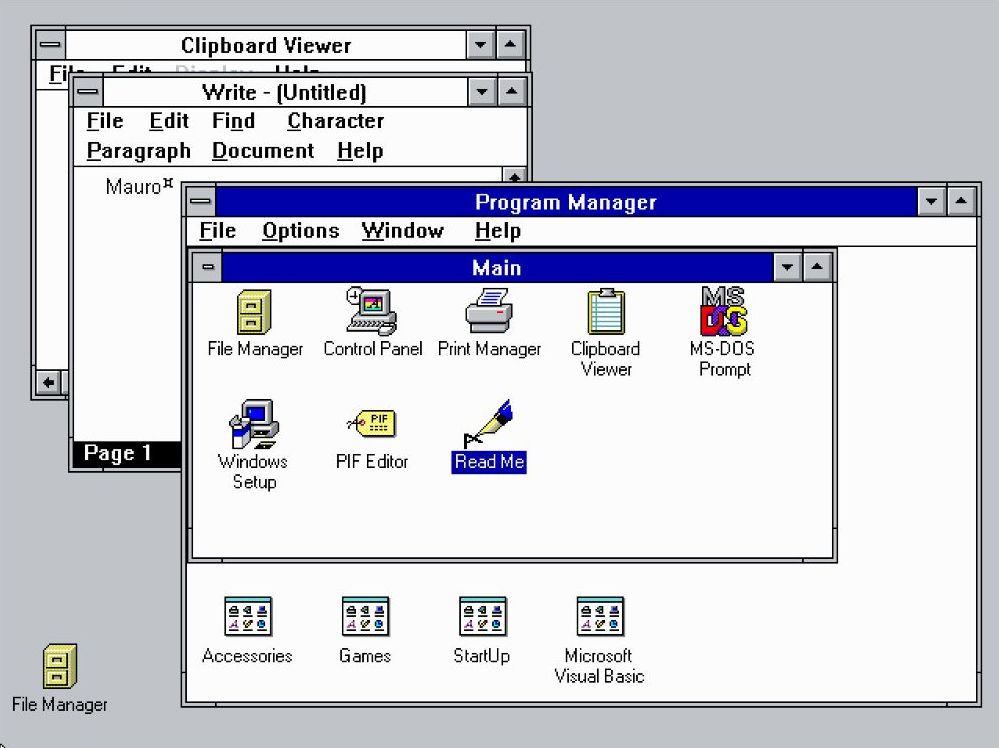
The old Windows 3.1 Program Manager in all of its glory. (Image credit: Mauro Huculak)
For many modern Windows users, the Start button has always been a staple of the OS. But before Windows 95, everything looked a lot different. You can probably see why Start Me Up was used as a promo song.
Windows 3.1 used a full-screen Program Manager tool to keep apps sorted. It involved nested windows containing icons, and you can see some of the inspiration for the eventual Start menu here.
However, Program Manager left users without any sort of unified system control dashboard or taskbar. Those comfortable with Windows 3.1 put up with it (what else was there?), but it wasn't exactly easy for an average person to sit down and start computing.
Windows 95 modernized the UI, making it a lot easier to use in the process.
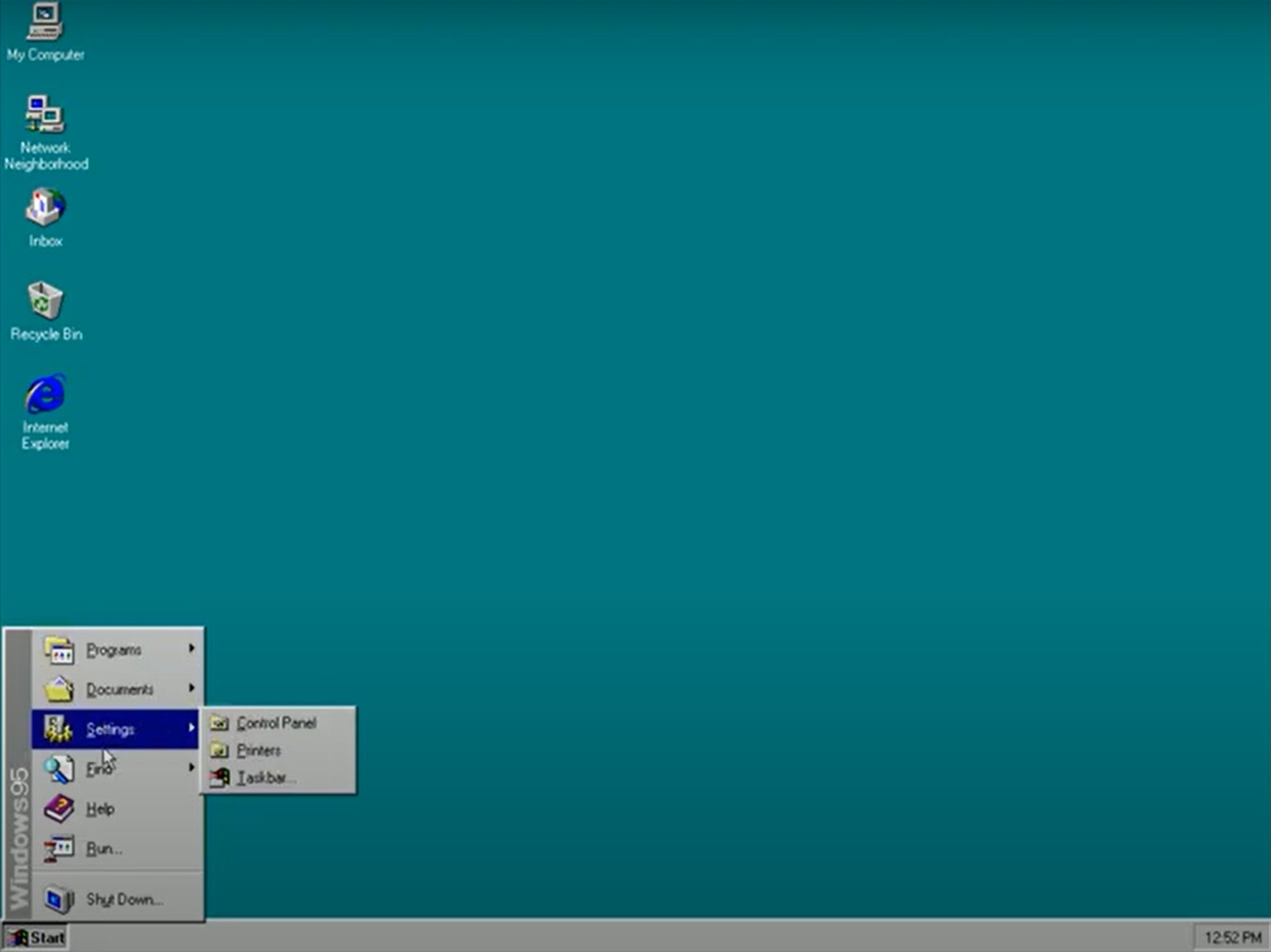
All hail the Windows 95 Start button, which has stuck with us for 31 years. (Image credit: Future)
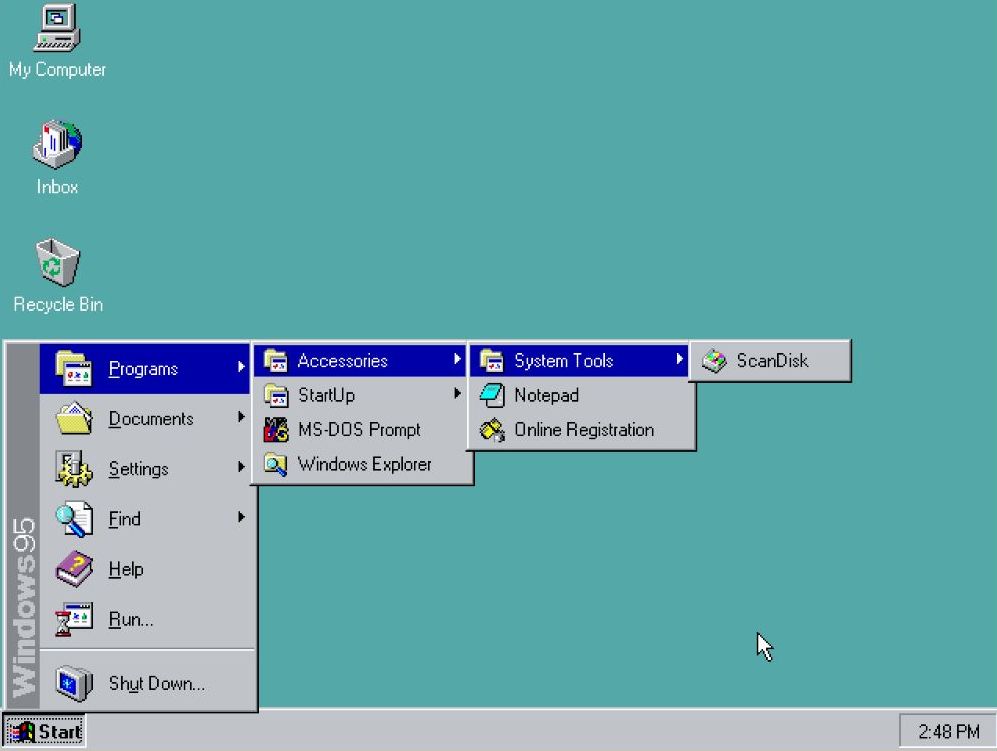
The Start menu was suddenly the aptly named first place to click when you booted your Windows 95 PC. It contained quick shortcuts to installed software and stored files, a trove of settings, and a Shut Down option.
Attached to the Start button and sitting across the bottom of the screen was a taskbar, which could keep track of which apps you'd opened and made it easy to swap between them. Windows 95 received the first instance of the Recycle Bin tool, making file deletion reversible.
Everything you need was easily accessible through Windows 95's Start menu. (Image credit: Mauro Huculak)
The addition of right-click context menus was massive, as users no longer had to hunt through menus. They could just right-click to pull up options.
Windows Explorer as we (mostly) know it today was also introduced in Windows 95. It replaced Windows 3.1's File Manager tool and organized files into much more comprehensive categories.
Microsoft didn't exactly invent any of these ideas, but it did group them all together into one package. The new interface proved to be a hit, and you can still see the DNA of Windows 95 every time you boot up Windows 11.
The lasting legacy of Windows 95 ... 31 years later
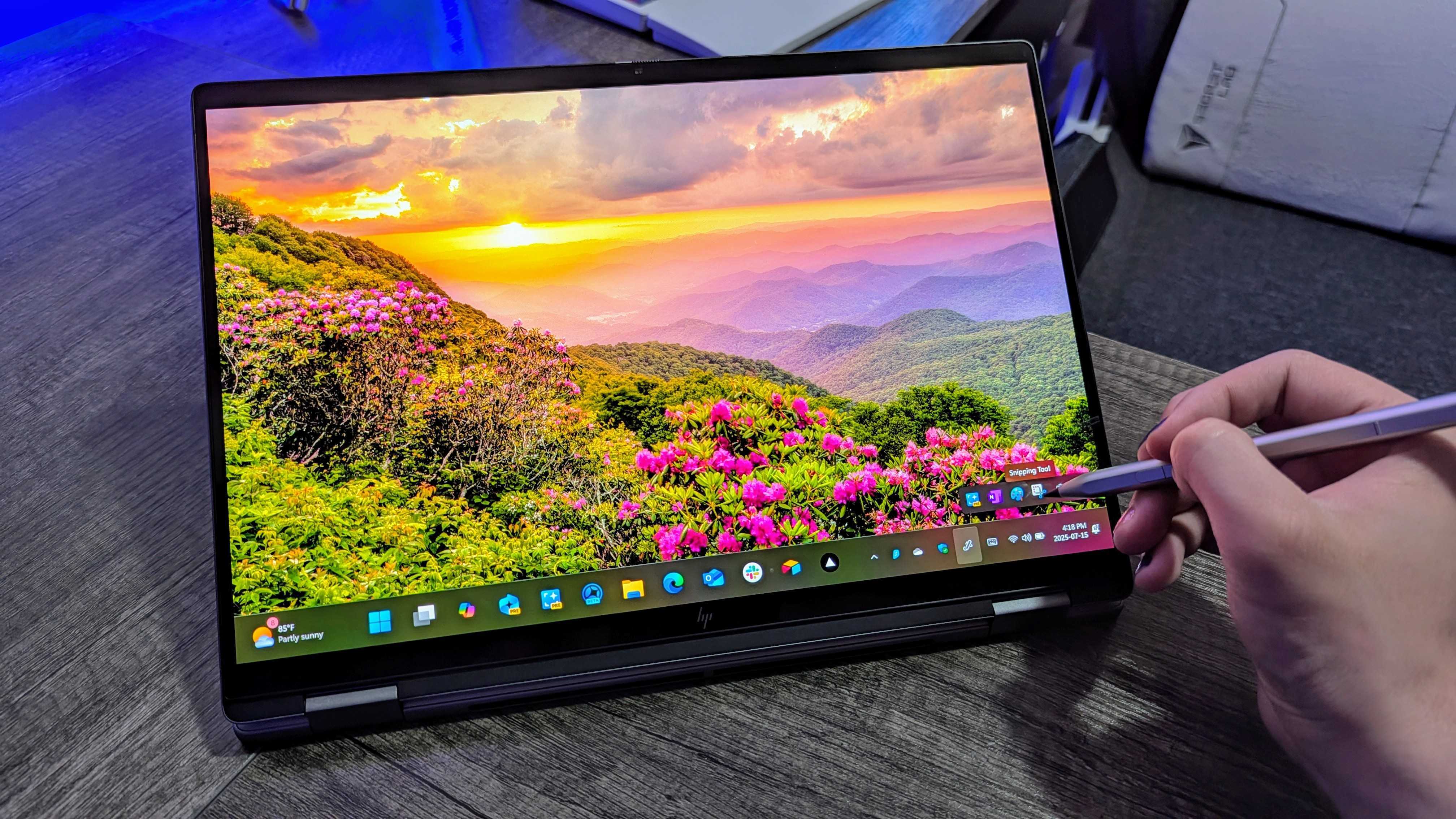
Windows 11 looks a lot different than Windows 95, but the foundational UI aspects remain. (Image credit: Windows Central | Zachary Boddy)
Windows 95 was the first OS I really remember using in earnest, and 31 years later, Windows 11 still feels like home. There's still a Start button, there's still a taskbar, there are still right-click menus, and there's still a Recycle Bin.
Sure, the appearance of these tools might have changed many times over the years, but they've survived three decades as the hardware around them has morphed from chunky beige towers to sleek laptops and RGB-infused desktops.
I'm sitting here trying to think of other user interfaces that have proven as resilient as the changes made in Windows 95. Plenty have come and gone in the meantime, while those from Windows 95 have become a foundation.
Can you think of any good examples of UI elements that have survived for 31 years? Were you around for the launch of Windows 95? How did it go? Let me know in the comments section below!
Join us on Reddit at r/WindowsCentral to share your insights and discuss our latest news, reviews, and more.
New Microsoft Operating System Windows 95 Goes on Sale.
New Microsoft Operating System Windows 95 Goes on Sale.
Docking stations are an interesting section of the laptop market. There are a lot of options out there, many of them offering the latest Thunderbolt 5 connectivity with an assortment of older and varied ports.
As the market fills up, laptop docks have to set themselves apart with different sub-features. I'm talking about Thunderbolt Share. A built-in M.2 SSD slot. A standout design (as much as that's possible with a small chunk of metal).
In the case of Hyper's HyperDrive NextThunderbolt 5 dock that I've been using for a few weeks, it's the extra features that I'm most excited about. Let me explain so you know if it's right for your desk.
This review was made possible thanks to a review sample provided by HyperDrive. It had no input nor saw the contents of this review prior to publication.
Where can I buy the HyperDrive Next Thunderbolt 5 dock?
The HyperDrive Next Thunderbolt 5 dock is available at major online retailers, including Amazon and B&H. Although it launched with a $399.99 price tag, it seems like it's now permanently available at $319.99.
I'd say that Hyper's HyperDrive Next dock is priced within reason compared to other Thunderbolt 5 hardware, although Wavlink continues to be the best value option out there that I've tested.
What sort of ports does the HyperLink Drive have?
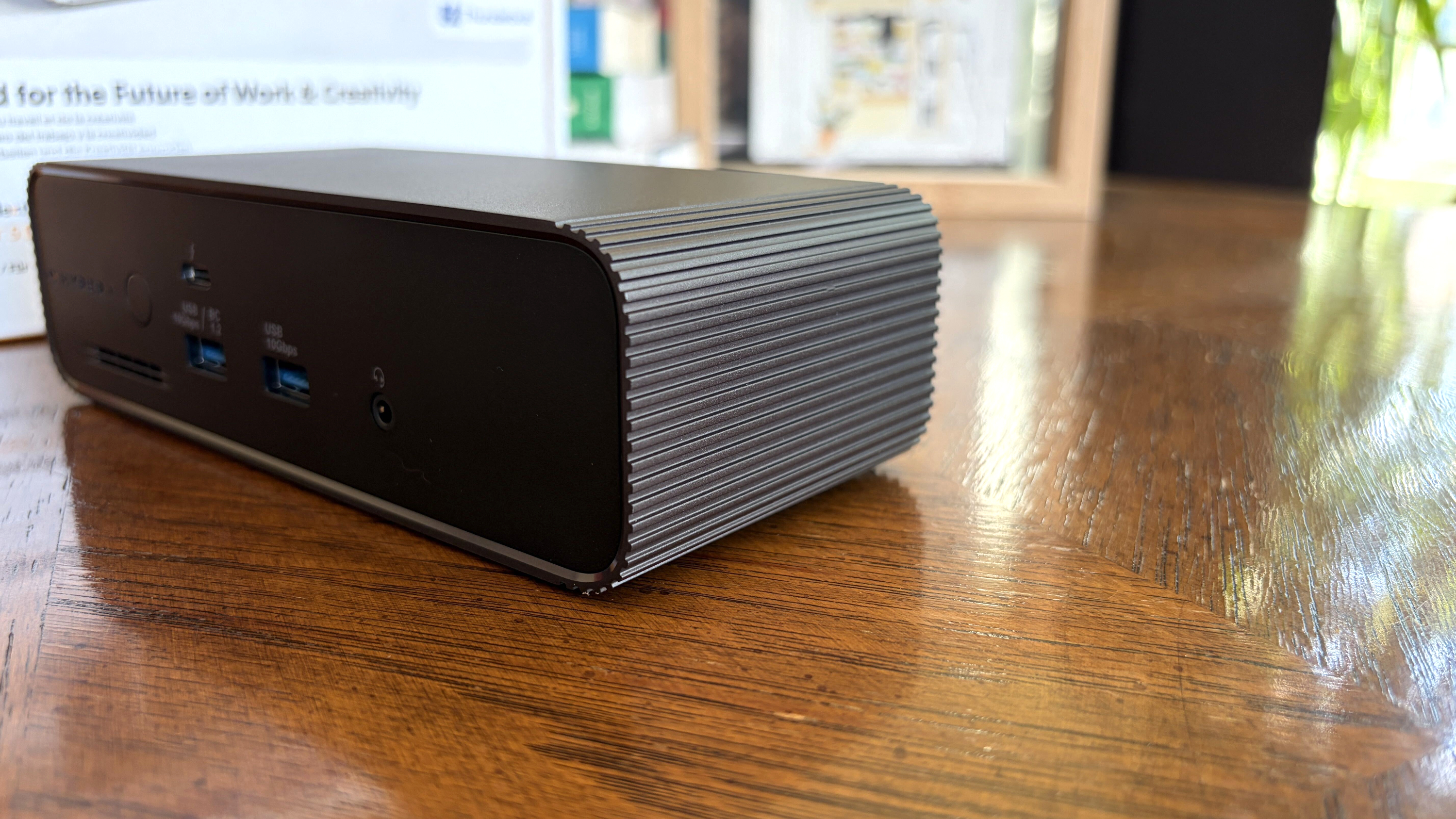
Ribbed edges give the dock's metal chassis a bit of texture and help dissipate heat. (Image credit: Future)
Dock design doesn't usually vary too much, and the HyperDrive Next plays it fairly safe with a chunky aluminum shell and plastic faceplates. I've mentioned plenty of times in other reviews that I prefer an all-metal design for added durability and less chance of scratching.
I like the ribbed corners on the aluminum shell. They add a bit of texture to an otherwise sleek exterior, and they help dissipate heat.
The dock works horizontally only, with rubber pads on the bottom to prevent it from slipping. Measuring 7.64 inches (19.4cm) wide and 3.07 inches (7.8cm) deep, it's thankfully rather compact.
There appear to be some holes drilled for mounting with a bracket, though a permanent setup like that might not be ideal due to the M.2 SSD slot's location (more on that in a moment).
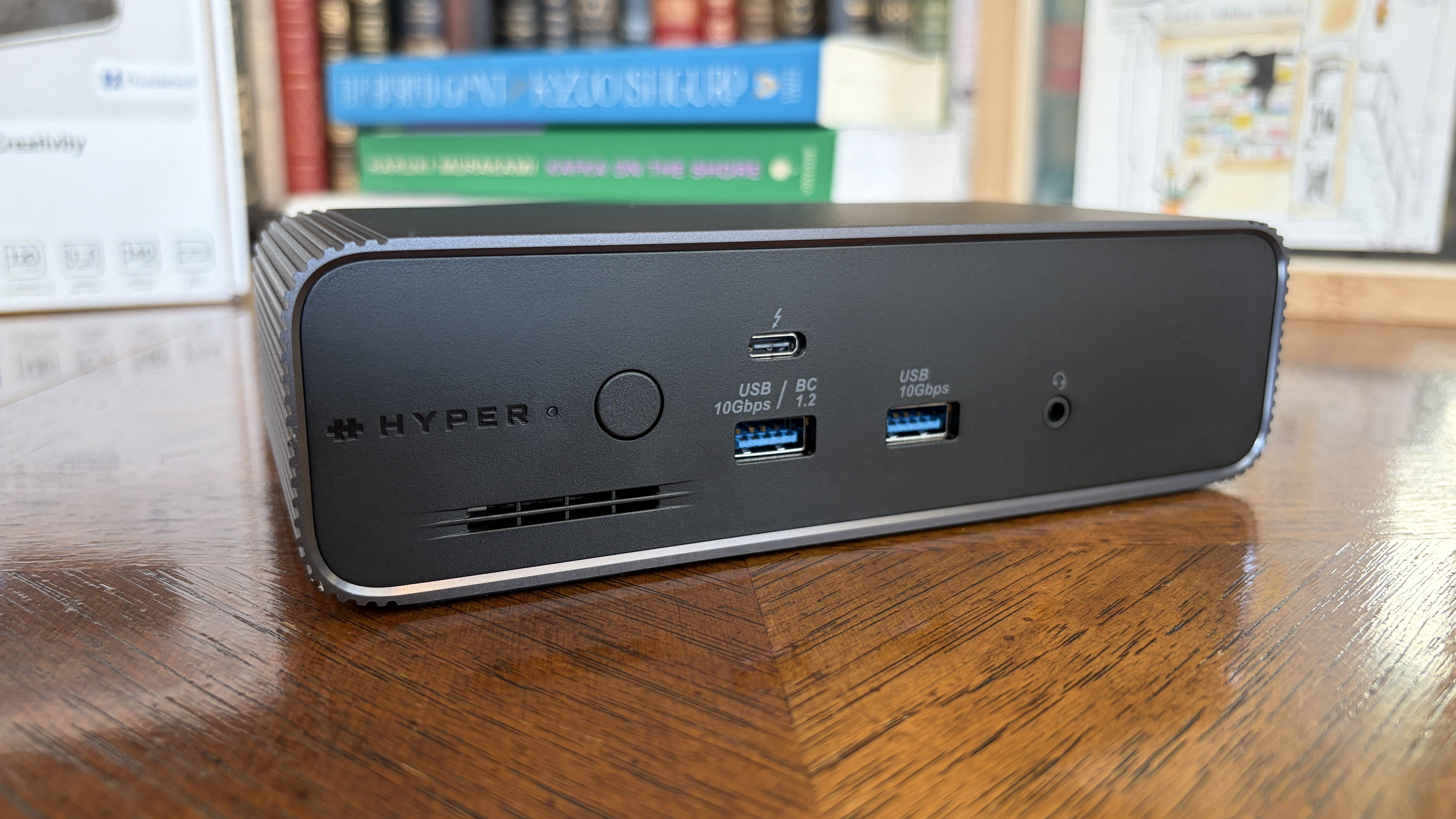
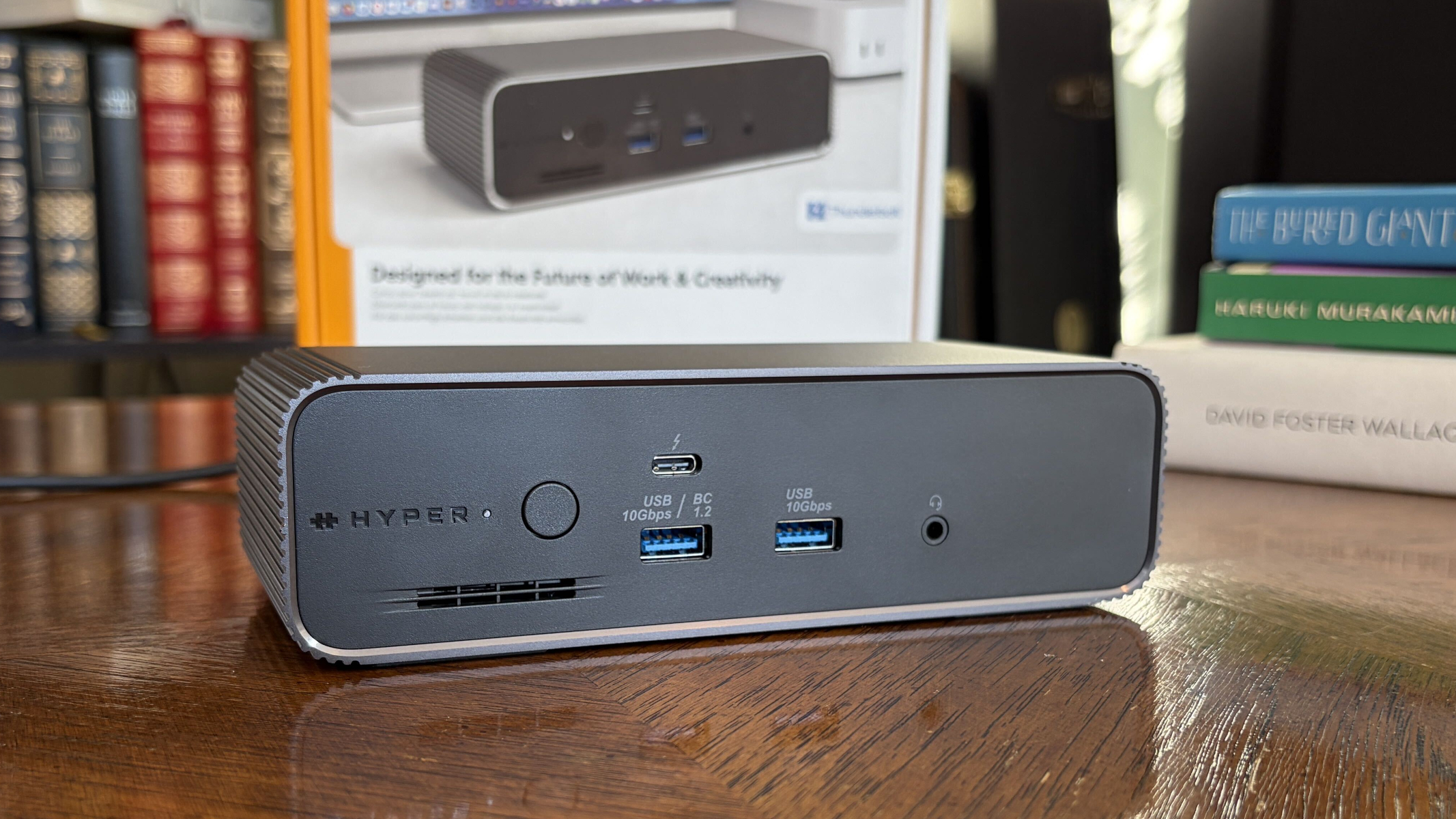
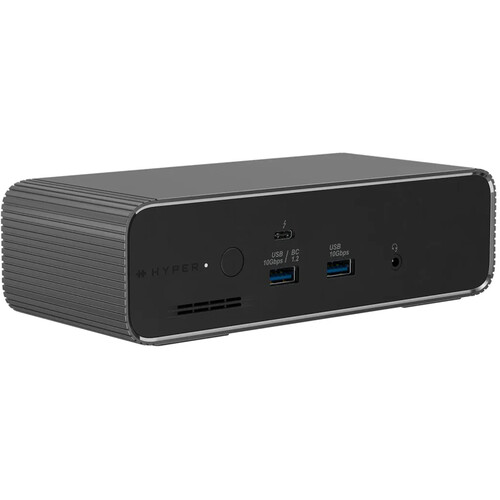
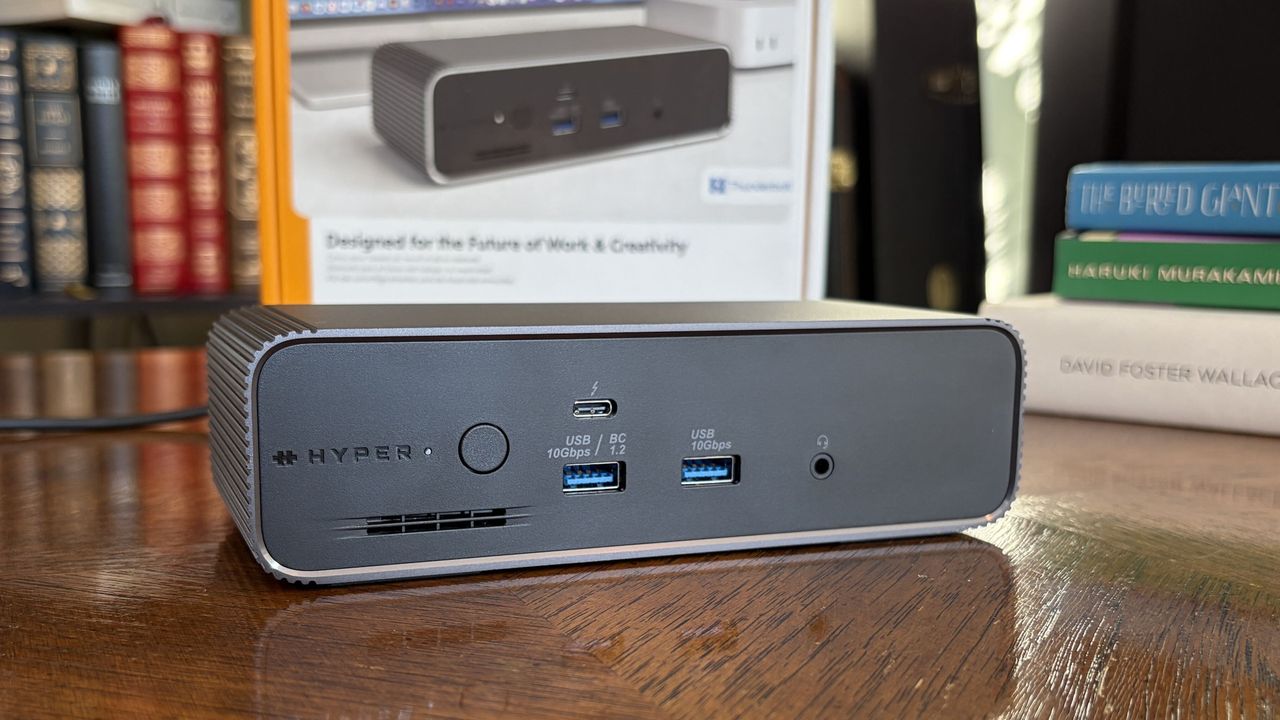
The front of the dock has dual USB-A ports, downstream Thunderbolt 5, and a 3.5mm audio jack. (Image credit: Future)
The front of the dock includes dual USB-A ports at 10Gbps each, a 3.5mm audio combo jack, and a single downstream Thunderbolt 5 port.
What you might think at first glance are SD card readers are merely vents cut out to help the built-in cooling fan. The slots sit below the power button and LED status light.
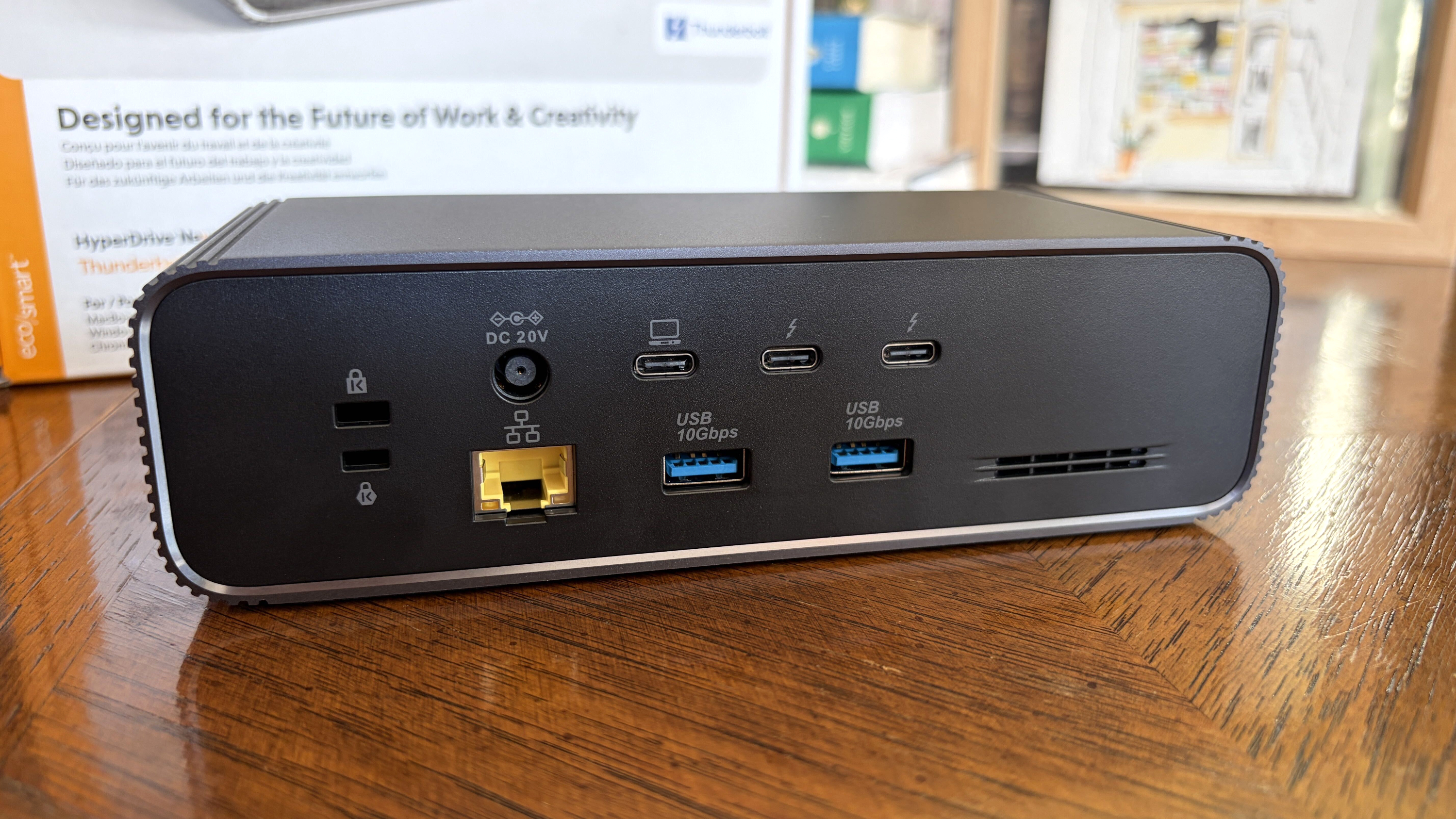
The back of the dock is where you'll find most ports, including downstream Thunderbolt 5, USB-A and 2.5Gb Ethernet. (Image credit: Future)
The back of the dock is where you'll find two more downstream Thunderbolt 5 ports, an upstreamThunderbolt 5 port for connecting your host laptop, two USB-A (10Gbps) ports, a 2.5Gbps Ethernet jack, dual lock slots, and a 20V power hookup.
The upstream host connection supports device charging at up to 140W, which is enough to keep most laptops without a discrete GPU topped up and ready to go.
At this point, you might be asking where the video outputs are located. Well, you're looking at them. The HyperDrive Next relies entirely on Thunderbolt 5 for external monitor support.
If you're using older monitors without USB-C connectivity, you'll need some adapters that switch the USB-C form factor used by Thunderbolt 5 to HDMI or DisplayPort.
The HyperDrive Next relies entirely on Thunderbolt 5 for external monitor support.
The good news is that Thunderbolt 5 is quite capable of handling video, and the dock allows for up to three 4K external displays, each running at a 60Hz refresh rate. If you're targeting a high resolution, it'll go as high as 8K at 144Hz.
It's worth noting that some other Thunderbolt 5 docks support up to three 4K displays each at 144Hz, so there's definitely a bit being left behind due to the other features on board.
I had no problems running one 4K screen and one ultrawide QHD+ screen off the dock, with bandwidth to add more. As mentioned, I've been using this dock on my desk, and I never noticed it get overly hot despite multiple monitors, frequent data transfers, and connected accessories.
HyperDrive Next's additional Thunderbolt 5 features
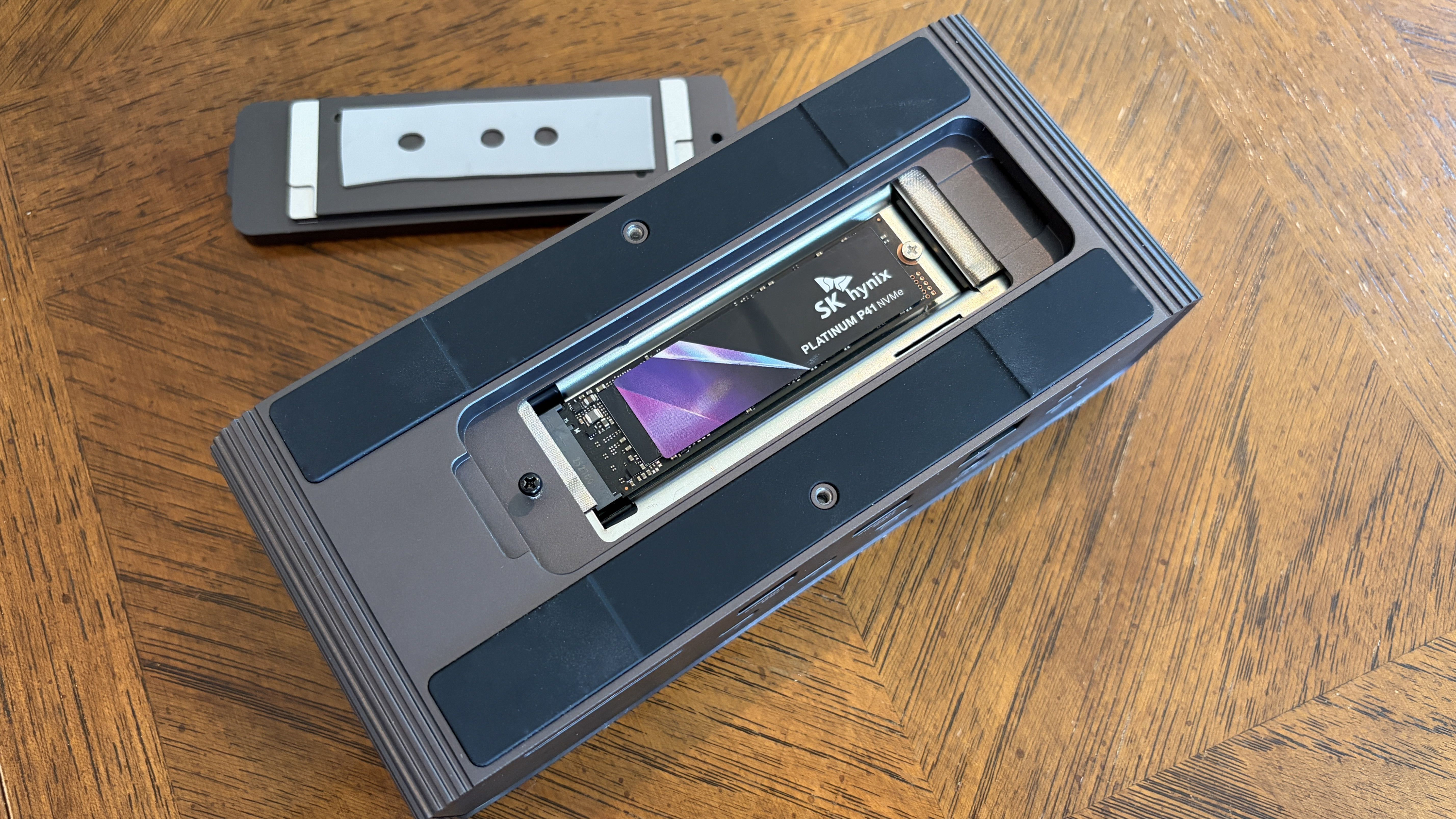
A look at the M.2 SSD slot with an SK hynix drive installed. (Image credit: Future)
Aside from the incredible transfer speeds you get from Thunderbolt 5, the extra bandwidth opens up some extra features that I particularly love.
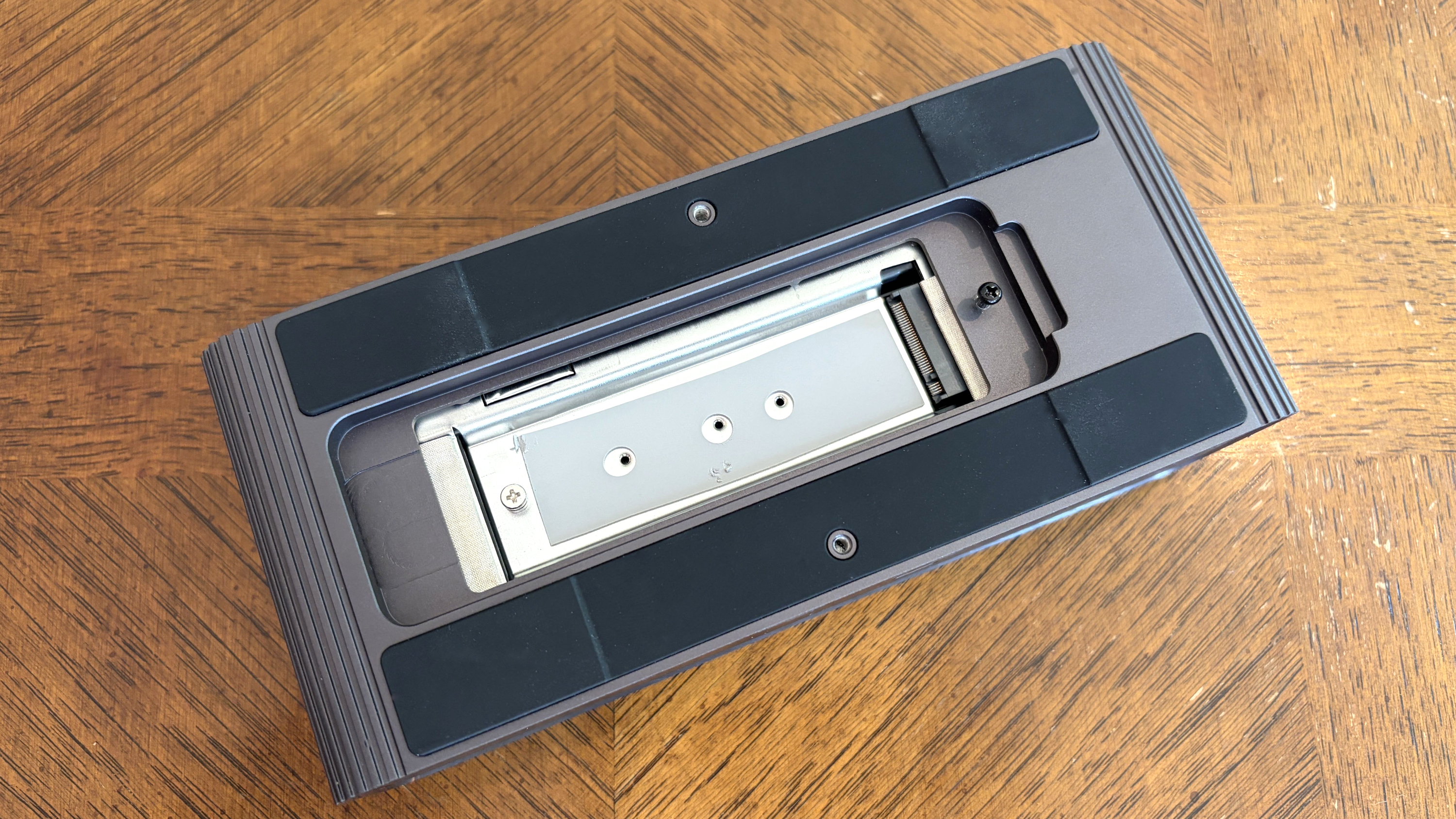
Like the Razer Thunderbolt 5 Dock Chroma I tested last year, the HyperDrive Next dock comes with a built-in M.2 PCIe 4.0 NVMe SSD slot, with a hatch located on the bottom of the dock.
You need a screwdriver to get in, but it's well worth it, with support for full-size 2280 M.2 sticks all the way down to smaller 2230 drives. You should be able to use up to a 16TB drive in here (who can afford that these days?), doubling the capacity of the other docks I've tested.
The built-in M.2 SSD slot fits sizes from 2280 down to 2230. (Image credit: Future)
The other big feature is Intel Thunderbolt Share. It's a tool that allows Thunderbolt 4 and 5 laptops to communicate directly with each other, easing common transfers and making life with multiple laptops that much easier.
File transfers are super easy, requiring just a drag and a drop.
The catch is that at least one of the laptops in use needs to have official Intel Thunderbolt Share certification, unless you have a dock connected in between with the official badge. That's where the HyperDrive Next comes in.
You can connect two separate laptops to the dock and control both from one set of peripherals. File transfers are super easy, requiring just a drag and a drop.
What I don't like about the HyperDrive Next Thunderbolt 5 dock
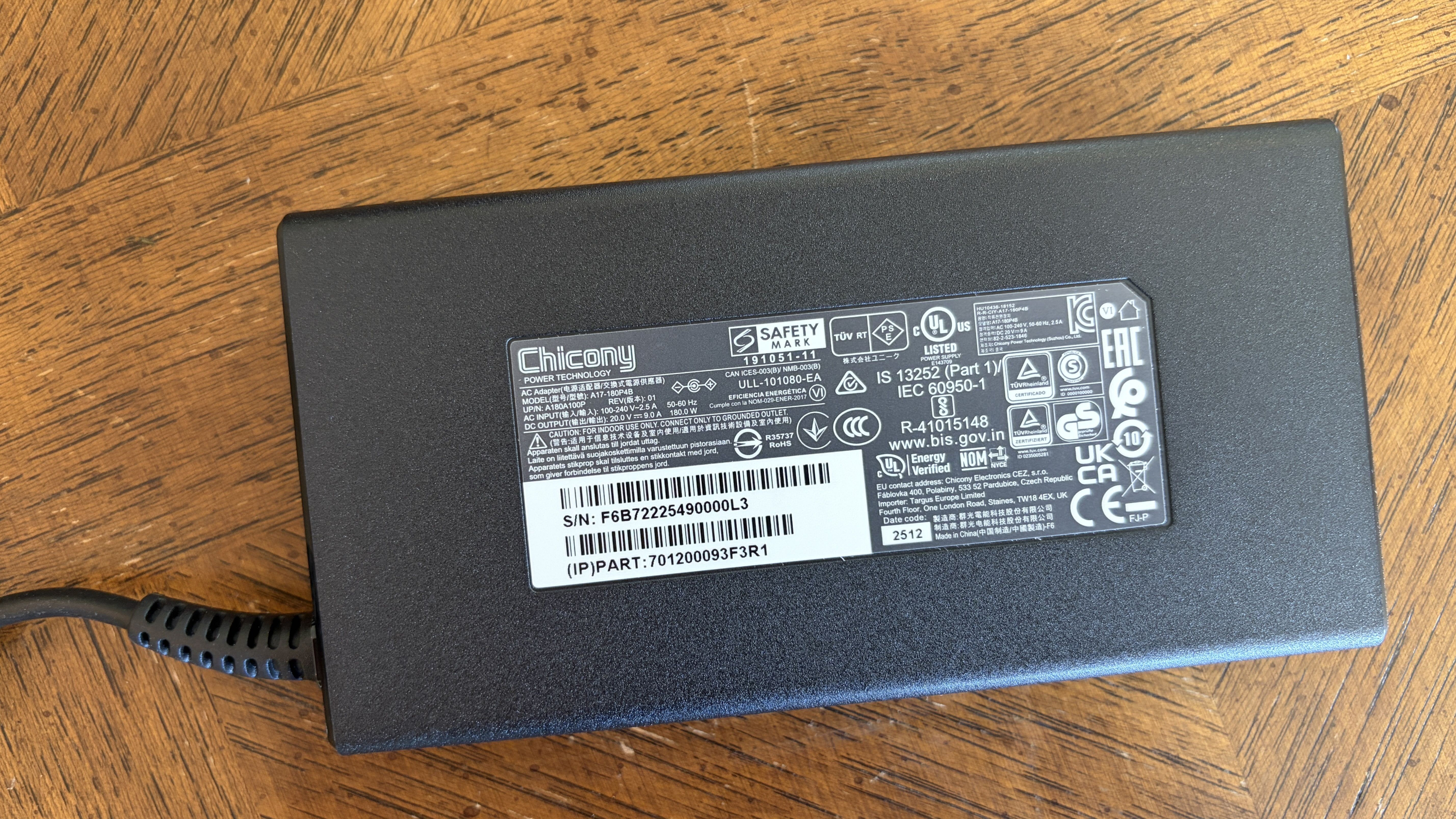
The 180W power adapter is a tad wimpy compared to other docks, but at least it doesn't take up much space. (Image credit: Future)
Depending on how you use your dock, the lack of native video outputs might be a con. However, for others, full Thunderbolt and USB connectivity, paired with an M.2 slot and Thunderbolt Share, might be exactly what's needed.
The only major issue I experienced has to do with how the dock handles heavy workloads. While testing, I noticed drops in SSD and Ethernet speeds when used simultaneously.
I figured this had something to do with power allotment. A 180W adapter isn't that big for a dock that can charge a laptop at 140W. Indeed, this does make some of the charging abilities on ports other than the host connection fairly wimpy.
The dock is super convenient thanks to its built-in features.
The other Thunderbolt 5 ports only charge at 15W, and one USB-A port hits 7.5W. The rest sit at a rather low 4.5W.
However, after doing a bit of research, it seems that the Ethernet/SSD limitation is caused by the actual Intel Barlow Ridge chipset that's used by modern Thunderbolt 5 docks.
So, yes, the dock is super convenient thanks to its built-in features. But you probably won't get as good of performance as if you had a drive and an Ethernet cable connected separately via Thunderbolt 5 ports. It's not exactly Hyper's fault, but it's well worth noting.
Should you buy the HyperDrive Next Thunderbolt 5 dock?
The HyperDrive Next Thunderbolt 5 dock is great for those who want a built-in M.2 SSD slot and Thunderbolt Share capabilities. (Image credit: Future)
✅ You should buy this if ...
You want a Thunderbolt 5 dock with a built-in M.2 SSD slot and Thunderbolt Share.
You have a Thunderbolt 5 laptop that can take advantage of all features (or you plan on buying one soon and can make do with Thunderbolt 4 speeds for the time being).
❌ You should not buy this if ...
You want maximum SSD and Ethernet speeds without requiring any adapters.
You have three external 4K displays and want to run them all at 144Hz.
Hyper's HyperDrive Next Thunderbolt 5 dock is a high-end option that actually competes quite well with the competition in terms of pricing and performance.
For example, the Kensington SD7100T5 EQ Pro comes with a built-in M.2 SSD slot, tons of ports (including SD card readers), and 2.5Gb Ethernet. It does not have Thunderbolt Share. It costs about $340.
If you don't need Thunderbolt Share or a built-in SSD slot, the Wavlink Thunderbolt 5 Thunderlight is probably a better bet, especially at only about $220.
Sitting in between is the HyperDrive Next at about $320, and I'd recommend it to those who want the convenience of external M.2 SSD storage and the ability to quickly share content between two PCs.
The HyperDrive Next Thunderbolt 5 Dock brings a potent combination of a built-in M.2 SSD slot and Thunderbolt Share certification, perfect for busy offices involving multiple PCs. However, its lack of native video output and so-so charging capabilities might have you looking at the competition.
Join us on Reddit at r/WindowsCentral to share your insights and discuss our latest news, reviews, and more.
A gray HyperDrive Next docking station with multiple ports displayed on a wooden desk, surrounded by colorful books and a framed image.
A gray HyperDrive Next docking station with multiple ports displayed on a wooden desk, surrounded by colorful books and a framed image.
Grand Theft Auto VI has been hogging the limelight lately, and for all the wrong reasons. Hackers have been leaking bits of gameplay and other info online, and gamers are gobbling it up ahead of the expected November 19, 2026, release date.
I'm trying to avoid as many spoilers as possible by not viewing the leaks, and besides, I have something better to keep me busy until GTA VI's official launch.
I'm talking about the Grand Theft Auto IV RTX Remix mod that adds Path Tracing to the 18-year-old game.
It's the work of a modder known as xoxor4d, who last week released version 1.4.2 of the mod on GitHub. The mod is compatible with GTA IV: The Complete Edition version 1.2.0.59, and it truly makes the 2008 car-jacking hit feel like it was released in 2026.
What does the RTX Remix mod do to Grand Theft Auto IV?
I know that the GTA IV Remix mod has been out for a while now, but I hadn't been following it that closely. Oh boy, it has come a long way since launch, and it's great to see the project's creator is keeping up with maintenance and new features.
There are certainly some other mods at play here, which I dig into a bit deeper below, but one thing is for sure: this is an incredible mod that changes the whole grimy, gray feel of the original game.
GTA IV arrived all those years ago with graphics that seemed mind-blowingly good, as is usually the case with Rockstar titles. Looking at the game's stock graphics now, well, you can tell that they're from a bygone era.
The RTX Remix mod drastically changes the appearance. The game's default static lighting has been replaced entirely with full path tracing, making rays jump and bounce off of surfaces quite realistically. Dynamic shadows look better than ever. It really is the best I've ever seen Liberty City look.
Here are some screenshots from the texture mod that I know will make you want to play GTA IV again, too.
A Grand Theft Auto IV screenshot from Warcaco's 4K texture mod.Warcaco (Nexus Mods)A Grand Theft Auto IV screenshot from Warcaco's 4K texture mod.Warcaco (Nexus Mods)
To say that this combination makes GTA IV look like a completely different game is an understatement. However, you're going to need a beast of a PC if you want to run this combination with any sort of playable success.
The demo video I provided above has the modded game dropping as low as about 60 FPS in some areas, and the GitHub project page notes that your CPU will likely be a bottleneck due to "the amount of detailed meshes the game is rendering."
Be that as it may, I definitely think any fans of GTA should give this one a shot just to see how it performs on their hardware.
NVIDIA's RTX Remix is a big deal, and not just because of one mod
I know, I know, more AI from NVIDIA's RTX division. Some of you might not want to hear of it, but I'm convinced that Remix is the real deal.
Remix arrived in January 2024 as an open-source and free tool, and it's been under development since. It's a clever way to inject path tracing, upscaling, and other materials into old favorites without needing any source code access.
Anyone with the right ambition can give Remix a shot, and there are some other projects I recommend checking out. Portal with RTX and Half-Life 2 RTXare probably the best examples, but they were spearheaded by NVIDIA. It's great to see lone developers jumping into the tool to create their own works.
Considering GTA VI isn't expected to launch with path tracing, and the fact that GTA V only supports ray tracing, this might be the best way to play Grand Theft Auto until the next installment arrives.
Join us on Reddit at r/WindowsCentral to share your insights and discuss our latest news, reviews, and more.
A GTA IV character in a dark jacket and motorcycle helmet standing in front of cars, with a roller coaster in the background.
A GTA IV character in a dark jacket and motorcycle helmet standing in front of cars, with a roller coaster in the background.
I've been gaming again lately on my desktop PC thanks to cooler weather, but thankfully I haven't experienced this new Windows 11 bug that cropped up after the August 11 (KB5121003) update.
It's apparently affecting 25H2 and 24H2 installs of Windows 11, as this update rolled out to OS builds 26200.9168 and 26100.9168.
According to Microsoft, the Windows 11 update is forcing some games to go unresponsive, crash, or reboot your PC entirely. You might also see the EXCEPTION_ACCESS_VIOLATION error pop up, forcing you to close your game.
Thankfully, it doesn't seem like the issue is too widespread. At least, not yet. Microsoft says it has received reports mainly focused on ARC Raiders, MARVEL Tōkon: Fighting Souls, and The Finals.
As of August 19, when the support page was last updated, Microsoft says it is investigating the issues to figure out if it's a problem on its side. Microsoft is asking any PC gamers experiencing a similar issue to file a report in the proper Feedback Hub app.
Embark Studios, the team behind ARC Raiders and The Finals, took to Discord to address the problem (via Windows Latest).
We’re aware of a new crash introduced with the release of a Windows update (KB5121003) that may be affecting some of you. The team is working on a fix, and we will keep you posted on any updates.
Embark Studios (via Discord)
In another post, the Embark team points at the crashes being caused by an inpoutx64.sys file change in the recent Windows 11 update. It seems like the kernel-level driver is having a hard time communicating properly.
Embark says it's working on its own "long-term fix," but in the meantime, affected gamers might be able to solve the issue on their own.
A temporary fix for the new Windows 11 gaming issues
The Finals is one game affected by the new Windows 11 update bug. (Image credit: Michael Hoglund via The Finals)
Embark has laid out the steps required to temporarily fix the crashing and freezing issues on KB5121003.
Launch Command Prompt as Administrator, type "sc stop inpoutx64", and press Enter.
In the same Command Prompt instance, type "sc delete inpoutx64" and press Enter.
Next, navigate to C:\Windows\System32\drivers in your PC's File Explorer. Find the file called inpoutx64.sys and delete it.
That should let your games run smoothly again, but hopefully we'll soon have a fix that doesn't require the manual workaround.
You can, of course, also roll back your Windows 11 PC to an older update version until the problem is officially fixed by Microsoft.
This seems like a fairly minor Windows 11 issue compared to some others we've already experienced this year, but that doesn't make it any less frustrating for those affected.
Join us on Reddit at r/WindowsCentral to share your insights and discuss our latest news, reviews, and more.
A character stands beside a rusty, weathered structure in a rocky outdoor setting, holding a firearm. A colorful Windows-like graphic with an exclamation mark appears in the corner.
A character stands beside a rusty, weathered structure in a rocky outdoor setting, holding a firearm. A colorful Windows-like graphic with an exclamation mark appears in the corner.
The next evolution of Apple's AirPods is out in the wild after a leaked video was posted online. Known as AirPods Ultra, the new wireless earbuds look basically the same as regular AirPods, albeit with a thicker stem.
Hiding inside the new AirPods Ultra are discrete cameras that enable something called "Visual Intelligence." According to Tom's Guide, these cameras aren't intended to record live video or snap photos, setting AirPods Ultra apart from the likes of Meta's AI Glasses, which are raising some very serious privacy concerns.
What I wasn't expecting next was an announcement from Razer's Min-Liang Tan explaining that the company's Project Motoko, unveiled as a concept at CES 2026, is actually a real product that's "coming soon."
At CES we unveiled Project Motoko: an AI native headset with dual cameras in the earcups. It sees what you see, hears what you hear. No display needed.Started as a concept. Not staying one. Coming soon.What's the first killer use case for wearable AI? pic.twitter.com/MCmrcnUdZMAugust 19, 2026
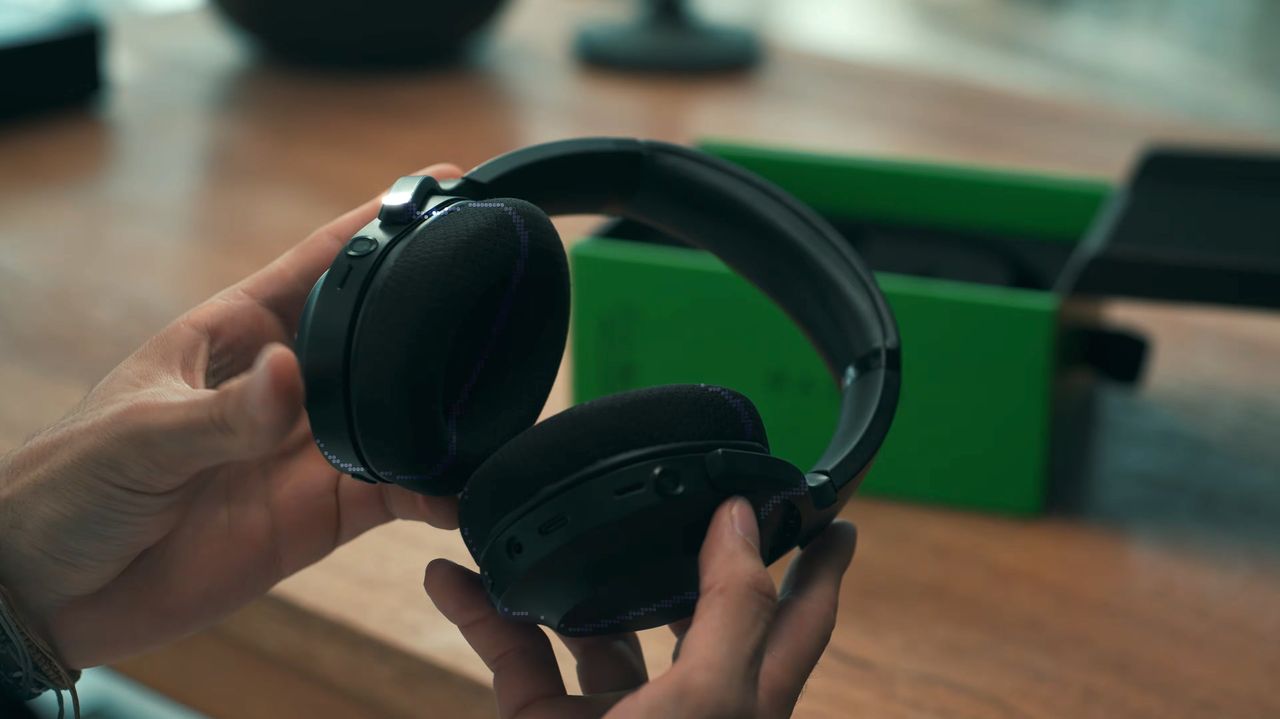
Razer's tackling of this idea involves a full wireless gaming headset with cameras built into the earcups. They're certainly not as hidden as the cameras on Apple's leaked implementation, but I don't think they're aimed at the same end goal.
In the leaked Apple video, a person picks up a book and looks at the cover. Siri (or some other assistant) then says that "your world becomes savable" — all you have to do is whisper into your own ear that you'd like to save what you're looking at.
The new AirPods Ultra are expected to show up at Apple's next special event in September, but already there is a lot of backlash regarding privacy. Glasses (or really any tech) that record everything around you are already being banned due to privacy concerns, and I hope that Apple indeed uses some method that captures info without saving actual photos.
Razer's Project Motoko is not like the rest
Razer is taking a different approach to a video-infused audio device. Rather than hiding the cameras in tiny earbuds, it's slapping them onto what appears to be a rather high-end wireless gaming headset.
Each earcup has an FPV camera designed to sit at eye level, allowing it to better quantify what you're actually looking at. Razer says its cameras offer a wider field of view than is humanly possible, and that they can pick up "symbols, text, and details."
Motoko can use a bunch of different AI models (Grok, OpenAI, and Gemini are mentioned), and Razer says it can be a "powerful data collection tool" to train language models. The headset runs on a Snapdragon chip.
A demo video on the Razer website explains that Motoko "hears, interprets, and answers in the moment." The accompanying video certainly seems to show that the headset's cameras are recording the entire time, much like AI glasses.
Razer pegs it as a "personal full-time AI assistant" that "stays keyed into your schedule, preferences, and habits, while adapting effortlessly to anything else you might ask." I'm reminded immediately of Lenovo's Qira AI assistant.
Privacy concerns aside, who's going to wear a gaming headset all day?
Who the hell wears a gaming headset while they work out? (Image credit: Razer)
Razer makes a lot of concept devices, and not all of them make it into the hands of consumers. The fact that Razer is going ahead with Motoko hot on the heels of the AirPods Ultra leak means the company must truly believe there's something there worth pursuing.
But my first thought was, "Who wants to wear a gaming headset all day?" Never mind the privacy concerns; gaming headsets are great for a few hours at a time, and usually best if you're not active.
Razer's vision for Motoko seems to go against that. A small FAQ section on the official website explains the potential everyday uses for Motoko:
The possibilities are endless. Whether you’re cooking and need step-by-step guidance, traveling and want real-time translations, working and managing tasks hands-free, repairing something with instant audio instructions, or gaming with immersive AI-driven guidance—Motoko adapts to every scenario. Its AI-powered vision and audio awareness make it more than a headset; it’s your always-on companion for smarter living, wherever life takes you.
Razer
Is everyone suddenly going to be wearing a bulky gaming headset everywhere they go? Not likely, especially during any tasks that require a bit of sweat. When Motoko actually launches, it had better be the most comfortable headset ever made if Razer wants it to be successful.
Windows Central's take on Razer Motoko
A screengrab from the Motoko video showing a livestream running from the gaming headset. (Image credit: Razer)
Razer's Motoko headset probably has the best chance of succeeding amongst PC gamers. It is, after all, a gaming headset. But, speaking from a bit of experience, I can say that a lot of PC gamers couldn't care less about letting AI help with video games. Whether or not Motoko's appeal actually goes mainstream remains to be seen.
I want to know if you'd buy something like Razer's Motoko when it launches. Would you use it for gaming? For something else? Are you concerned about eroding privacy due to the prevalence of these video capture devices? Let me know in the comments section below!
Join us on Reddit at r/WindowsCentral to share your insights and discuss our latest news, reviews, and more.
A person holds a pair of black Razer Project Motoko wireless headphones, showcasing their design, with a green box visible in the background on a wooden surface.
A person holds a pair of black Razer Project Motoko wireless headphones, showcasing their design, with a green box visible in the background on a wooden surface.
A new commissioned study from the independent testing group Signal65 has basically confirmed my arguments, this time after testing the flagship X2 Elite Extreme (X2E-96-100) variant in retail systems you or I can buy.
The Snapdragon X2 Elite Extreme delivers the highest CPU and AI performance we have measured in a premium thin and light Windows laptop, holds that lead in the out-of-box Balanced mode and on battery, and does it at a lower retail price than its closest Intel competitor.
Signal65
This sentence alone might not be telling you anything new, especially if you've experienced the X2 Elite Extreme firsthand. But let me break down the findings to explain a bit better what Signal65 dug up.
Qualcomm's Snapdragon X2 Elite Extreme goes up against Intel and AMD
Signal65 pitted the Snapdragon X2 Elite Extreme against modern Intel and AMD chips. (Image credit: Future | Daniel Rubino)
Signal65 tested the Snapdragon X2 Elite Extreme against the Intel Core Ultra X9 388H and AMD Ryzen AI 9 465 laptop CPUs. These are two of the latest chips from each company, found today in thin and light Windows laptops.
Testing the chips in Geekbench 7, Signal65 found the X2 Elite Extreme to be "up to 53% faster" than Intel's chip and "up to 83% faster" than AMD's chip.
In Cinebench 2026, which is used to test multi-thread rendering performance, the X2 Elite Extreme was "up to 87% faster" than the Intel and AMD chips.
What's even more impressive is that Signal65 separately tested the X2 Elite Extreme on battery power with the Balanced Windows power profile. With the Intel and AMD systems plugged in and set to Best Performance, the X2 Elite Extreme still outperformed the competing chips in all AI and CPU benchmarks.
The Snapdragon Summit 2025 had X2 Elite Extreme chips to test out.
Besides raw CPU power, the Snapdragon X2 Elite Extreme also outperformed its rivals in the Neural Processing Unit (NPU) arena. Qualcomm's specialized chip that runs AI locally almost hit 2x the AI performance compared to Intel, climbing to about 2.4x the performance of AMD's NPU in the Procyon AI Computer Vision test.
It's well worth noting that the X2 Elite Extreme's Hexagon NPU hits 80 TOPS, compared to 50 TOPS in the Intel and AMD chips. This might explain some performance discrepancy, but not to this extent.
Rumors of the X2 Elite Extreme's power were not exaggerated
A shot from the Snapdragon Summit 2025 where the X2 platform was unveiled. (Image credit: Future | Daniel Rubino)
In March 2026, we got an early look at what Qualcomm had cooked up with its X2 Elite Extreme. Leaked Geekbench 6 performance results showed that the Snapdragon chip could trounce the Core Ultra X9 388H, boding well for its competition against Intel's Panther Lake generation.
To say I had high hopes for Snapdragon X2 is fair, and I'm glad to see that performance in actual laptops you or I can buy hasn't dropped off compared to early reference systems.
A few things to consider when poring over Signal65's data
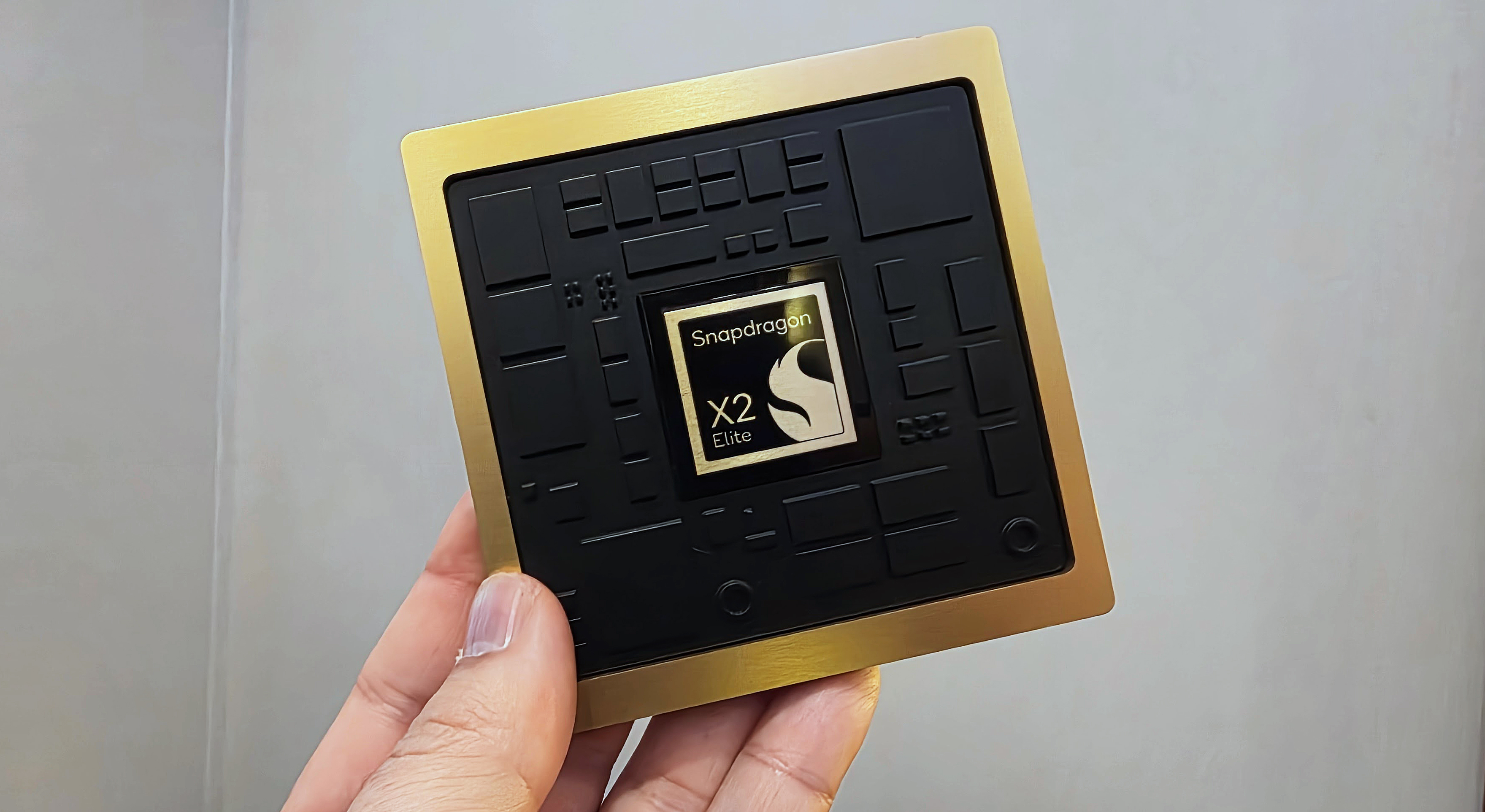
Snapdragon X2 Elite Extreme SoC is available now in Windows laptops. (Image credit: Qualcomm)
This report from Signal65 was commissioned by Qualcomm, but there's no reason for me to think that any of the numbers were fudged. Signal65 is independent and generally credible.
There's also the fact that these chips were tested in three different laptops from three different manufacturers.
For the test, Signal65 used an ASUS Zenbook A16 (X2 Elite Extreme), an MSI Prestige 16 (Intel Core Ultra), and an HP OmniBook X 16 (AMD Ryzen. Three 16-inch laptops ranging between $1,649 and $2,299.
Because of OEM-level decisions for cooling and power, the different laptops could affect the results. However, I don't think it would affect them enough to sway the paper's overall thesis.
It's also worth pointing out that Intel still leads the way with its integrated Arc B390 graphics, at least in Signal65's tests. It also bested Snapdragon in one Office battery rundown test.
As for value, the $1,699 Zenbook A16 with X2 Elite Extreme is only bested by the $1,649 OmniBook X 16 with AMD Ryzen. Intel might beat Qualcomm in graphics and in one battery rundown test, but the MSI Prestige 16 in which it was tested costs $2,299.
Qualcomm is not only delivering superior performance and battery life, but it's also delivering laptops at a better price than its competition.
Windows Central's take
Qualcomm's first-gen Snapdragon X chips are really what changed the Windows on ARM conversation after so many years. They weren't good enough to get everyone to drop Intel and AMD, but they were a solid foundation.
And now, with Snapdragon X2, Qualcomm has evidently stepped things up in a major way. If you've used a laptop with an X2 chip, you probably already know exactly what I'm talking about.
Have you had a different experience with your Snapdragon X2 PC? What's your main gripe? On the other hand, what do you love most about your X2 PC? Let me know in the comments section below!
Join us on Reddit at r/WindowsCentral to share your insights and discuss our latest news, reviews, and more.
Images of Qualcomm's new Snapdragon X2 Elite Extreme processor, benchmarks from reference design laptops, and pictures from the announcement at the Snapdragon Summit (2025).
Images of Qualcomm's new Snapdragon X2 Elite Extreme processor, benchmarks from reference design laptops, and pictures from the announcement at the Snapdragon Summit (2025).
I've been keeping watch on Crucial (and by extension, Micron) after the company began refusing to honor lifetime RAM warranties. Perhaps unsurprisingly, the same thing is now happening to customers with dead SSDs.
Reddit user AssignmentGlass5591 recently created a thread explaining that their Crucial X10 Pro 4TB external SSD decided to die at just 1% of its advertised lifespan. "It didn't wear out. It just broke," they explain.
The failure came with critical warnings in Crucial's app that were bad enough to warrant a replacement. AssignmentGlass5591 went through the normal channels required when this sort of thing happens.
They completed the Return Merchandise Authorization (RMA) process with Crucial and paid to ship the SSD to the required warehouse, expecting a replacement.
Here's where the AI boom stepped in to ruin another day. Crucial sent a reply email stating that there's no replacement available for the X10 Pro 4TB SSD because "consumer business is closed."
Instead, the company said it would refund the SSD's price at the time it was purchased, which was about €230. That's not good enough. Looking at Amazon.de this morning, that same drive now costs about €500.
AssignmentGlass5591 asked Crucial to replace the faulty external SSD with an internal SSD. Any M.2 SSD would do. But that didn't work either. Here's Crucial's official response (translated from German) from the email that the Reddit user received.
Due to Crucial's closure, production of all components, including portable SSDs, M.2 NVMe SSDs, etc., has ceased. Consequently, our inventory is depleted. Therefore, our only option is to refund your purchase price.
This move came with a promise to fulfill any warranty obligations, but obviously the company is doing the bare minimum.
Crucial recently pulled the same warranty trick with RAM
Crucial doesn't want to replace your faulty RAM anymore. (Image credit: Ben Wilson | Windows Central)
As I mentioned at the beginning of this piece, Micron/Crucial was called out a couple of weeks ago for botching a customer's RAM warranty.
Tom's Hardware covered the story, in which another Redditor explained that they were offered just 17% of the market value for a 48GB DDR5 kit that had gone bad and needed to be RMA'd.
Rather than receiving roughly $1,400, the price of the kit today, the customer was offered just $241.86. Good luck buying a replacement DDR5 kit for that price. The worst part? Only one stick in the kit was faulty, but the entire thing had to be sent in for the RMA process.
It's not just Micron that's lowballing warranty paybacks
Memory giant SK hynix isn't exactly being fair to warranty claims, either. (Image credit: Windows Central)
This isn't an issue isolated to Micron and Crucial. Tom's Hardware also reported just a few days ago that competing memory and storage giant SK hynix is also lowballing warranty claims and won't offer replacement hardware.
These companies aren't doing anything illegal; their warranty policies are rather ironclad. And under normal market conditions, receiving back the price you paid for the hardware wouldn't be an issue.
But that's no longer the reality of the market. These storage and memory companies are making unfathomable amounts of money on the AI buildout, and meanwhile consumer prices have never been higher due to shortages of components. The fact that some of that money earned from inflated AI pricing can't be paid back to customers just so they can buy any memory or storage at all is what I find particularly irksome.
Louis Rossman got into a legal battle with Samsung for a similar issue
Battling it out with a massive corporation isn't fun. But there's proof that high-profile pressure from customers can help the situation.
In June 2026, Right to Repair activist Louis Rossmann threatened to sue Samsung for not replacing a faulty 4TB 990 Pro SSD supposedly covered by warranty.
Samsung tried to send Rossmann a reimbursement for the purchase price of about $330. Meanwhile, the drive was selling for almost $1,000 on Samsung's website.
Rossmann threatened a lawsuit, and perhaps due to Rossmann's celebrity, Samsung folded. It promised to pay out the current market value for the faulty 990 Pro SSD, allowing Rossmann to buy a replacement without losing any money.
Better yet, it said that any customers in Rossmann's situation would also receive full (and current) market value for faulty hardware.
Windows Central's take
You'd better hope that the RAM in your PC lasts until the end of the crisis. (Image credit: Windows Central)
It's becoming clear that memory companies making fortunes off of the AI boom will continue to try to milk everything possible out of regular consumers.
It's also becoming clear that, with enough pushback, we might be able to change the way they're handling warranty claims as markets continue to experience chaos.
I expect this type of shenanigan to continue as more drives fail and replacements become more scarce, so keep making your issues public.
If you are buying a drive, I recommend checking out third-party retailers first. They might have a separate type of replacement or return option in place that works around manufacturer warranties. Nothing is guaranteed, but layers of support can't be a bad thing.
Join us on Reddit at r/WindowsCentral to share your insights and discuss our latest news, reviews, and more.
I haven't seen a sane GPU price in what feels like almost a year, and the landscape isn't getting any better for gamers.
The NVIDIA RTX 5090, which arrived at a $1,999 MSRP in 2025, is now listed at Newegg starting at $4,799.99. The MSI Ventus 3X OC is indeed the lowest price I could find, and there are other options that push well beyond $5,000.
Bad luck if you're shopping for a new RTX 5090 alone. The high-end of NVIDIA's consumer GPU stack has become inaccessible for the average gamer, and there's no real alternative in sight.
Well, that's sort of true. While perusing various storefronts this morning, it quickly became evident that I can buy an entire pre-built gaming PC with an RTX 5090 inside for less than the card alone.
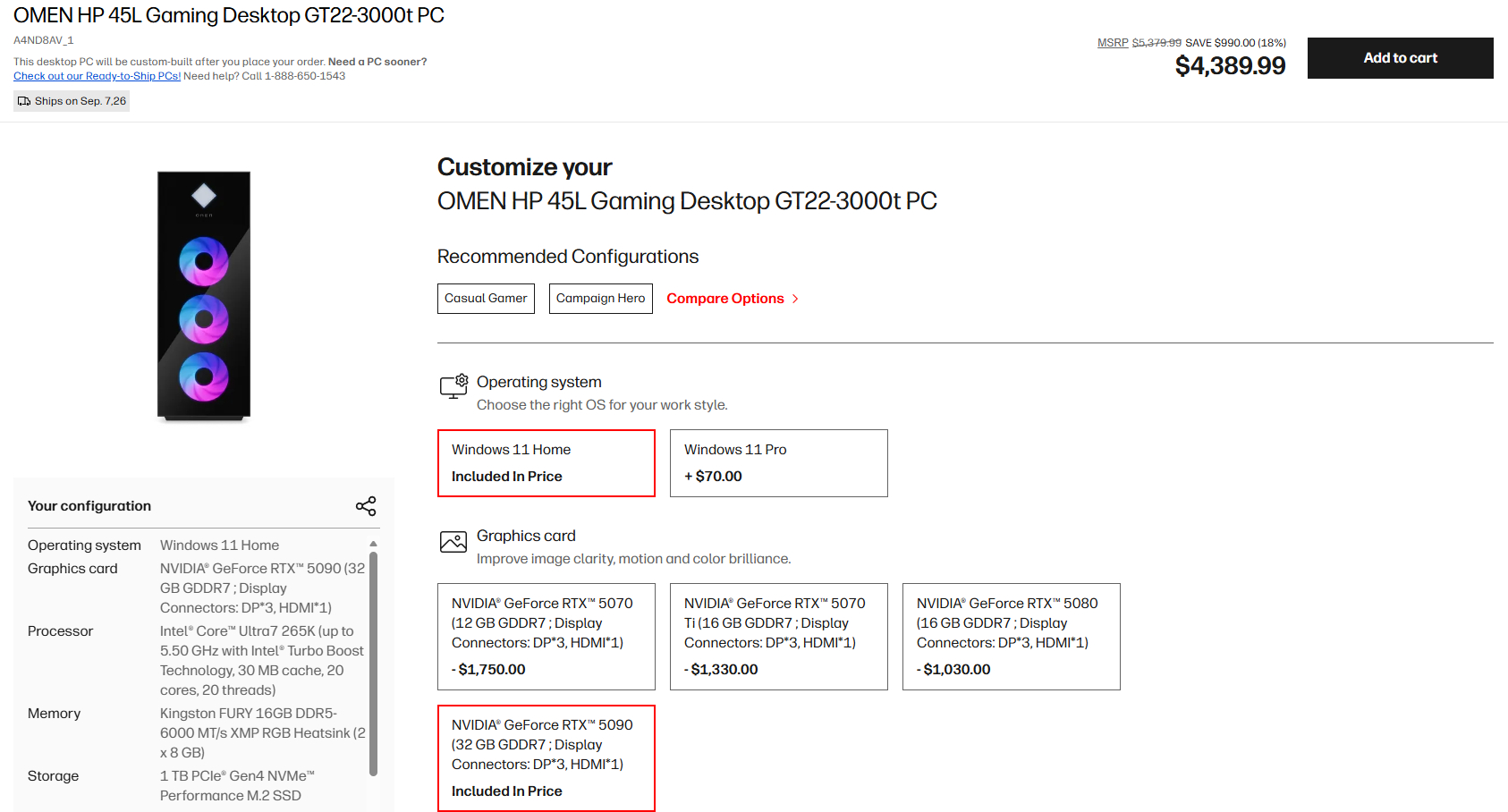
A look at the current promo pricing on a full gaming PC with RTX 5090. (Image credit: HP)
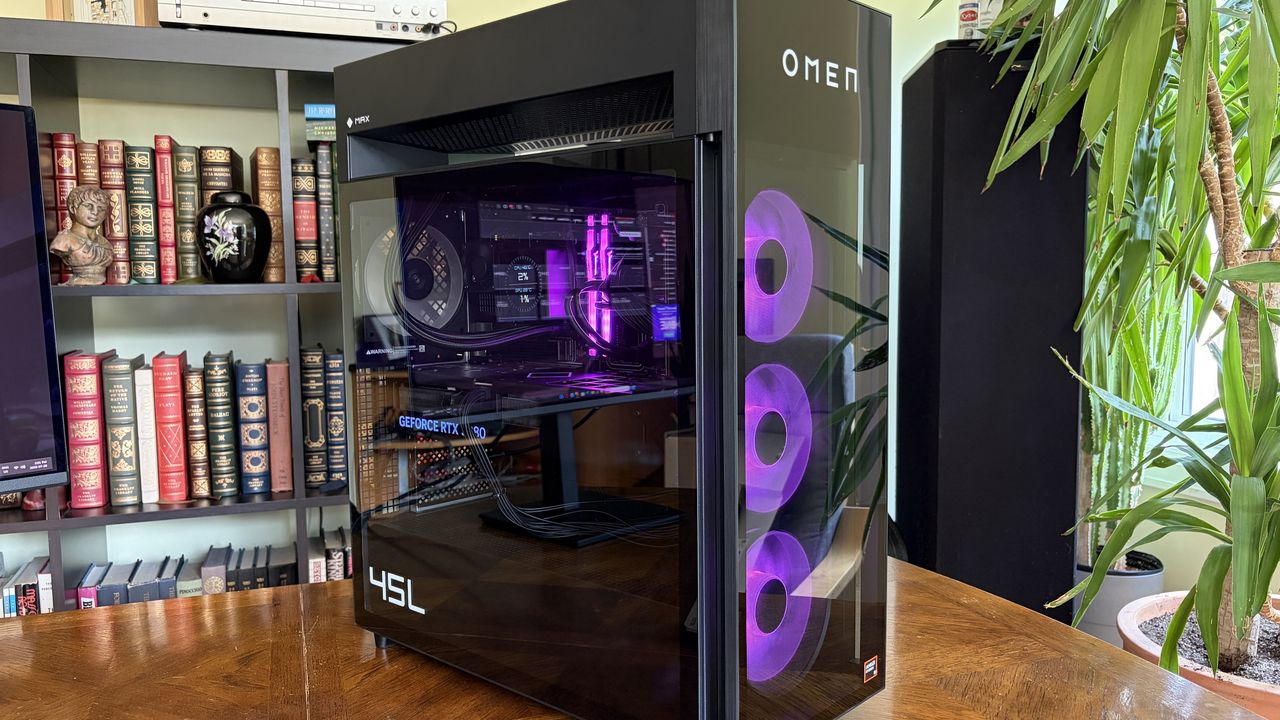
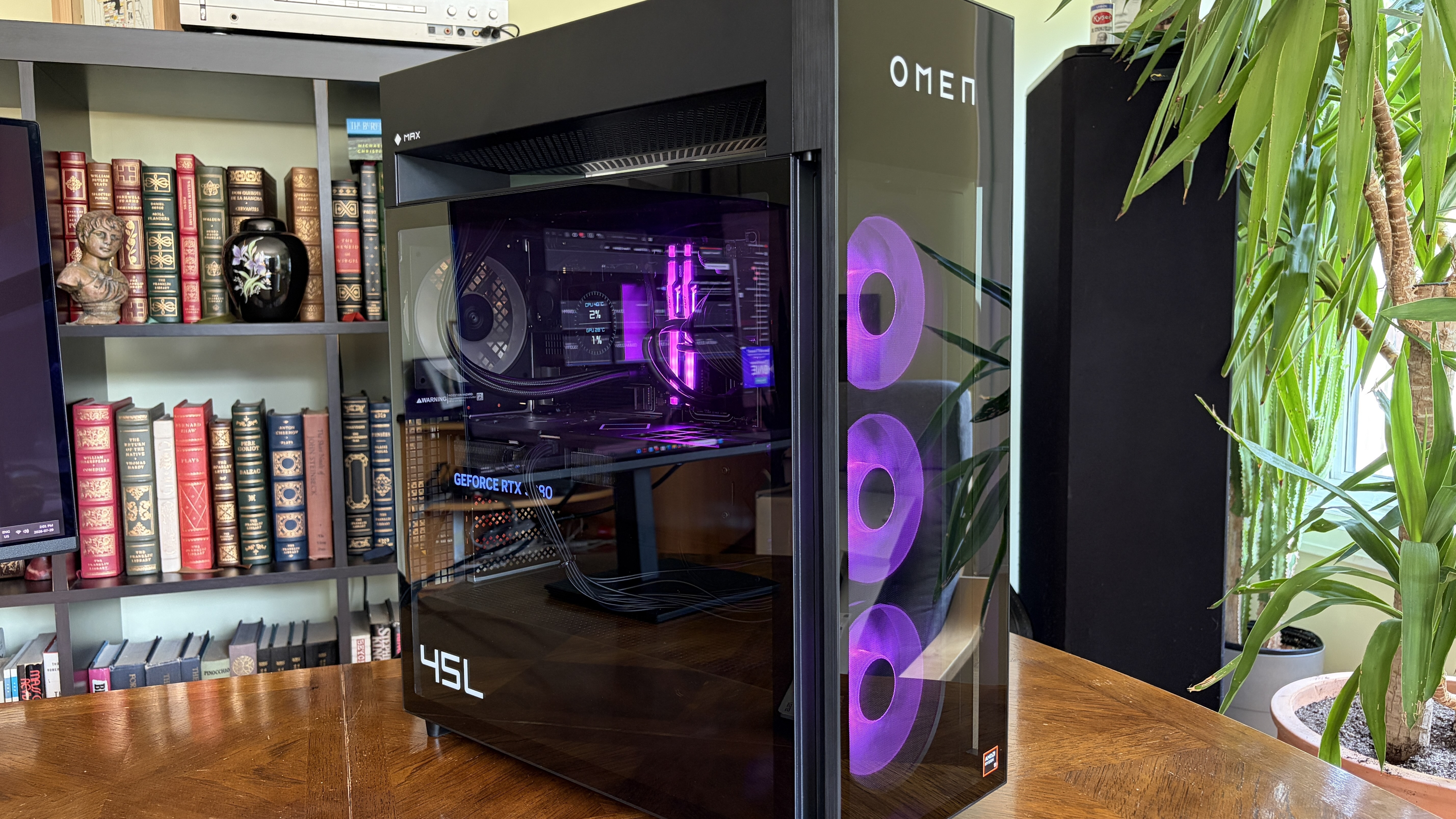
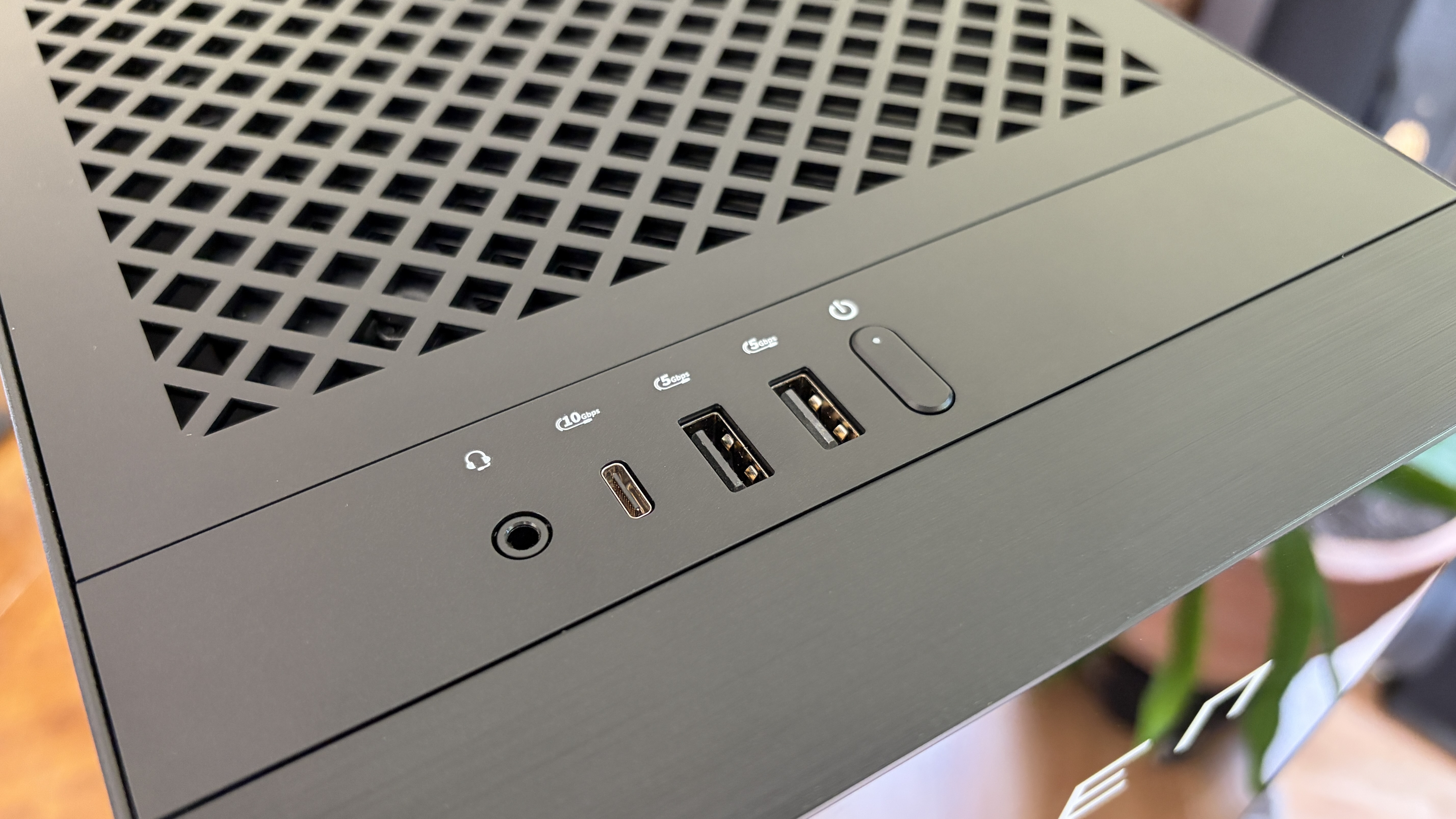
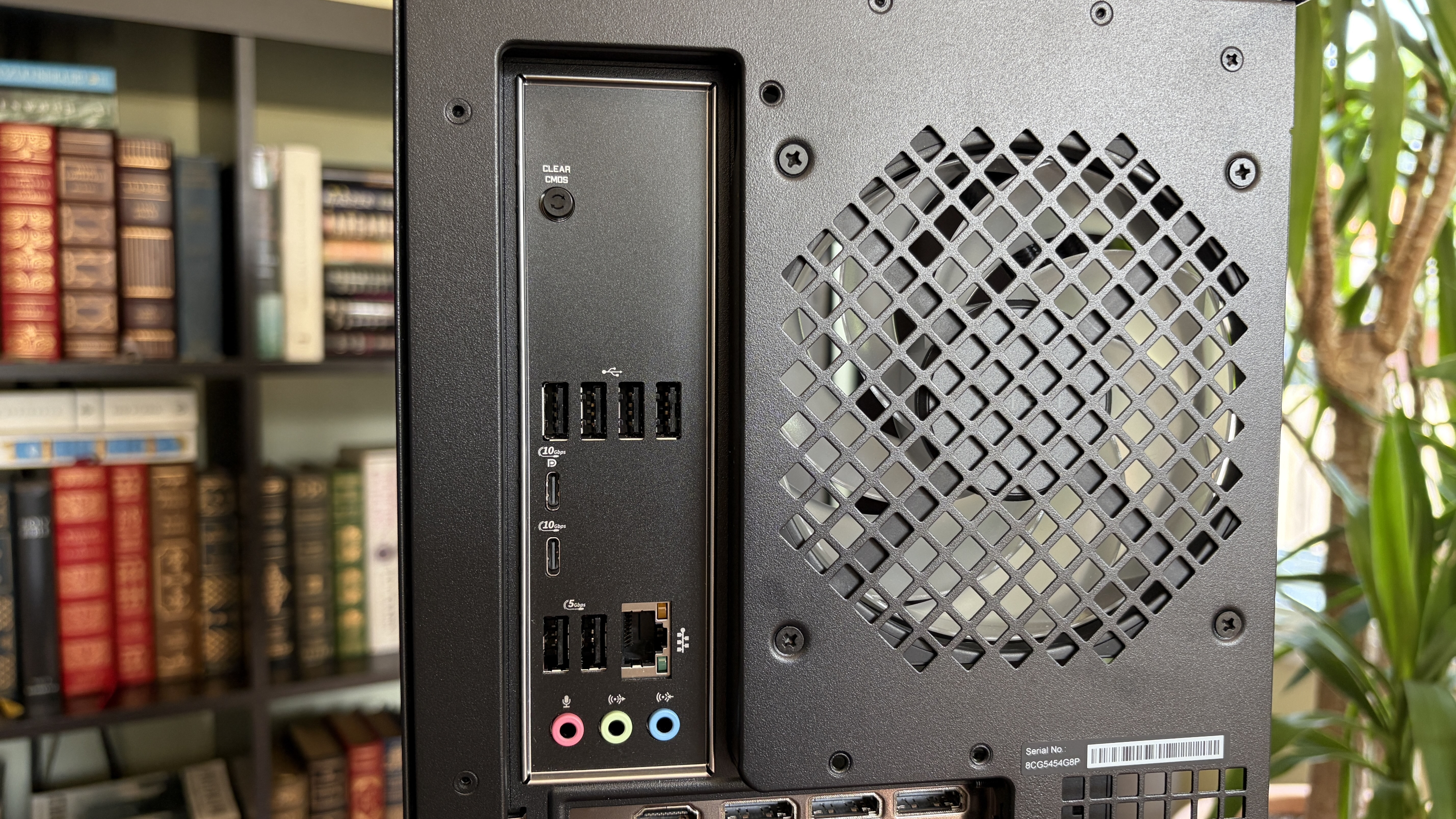
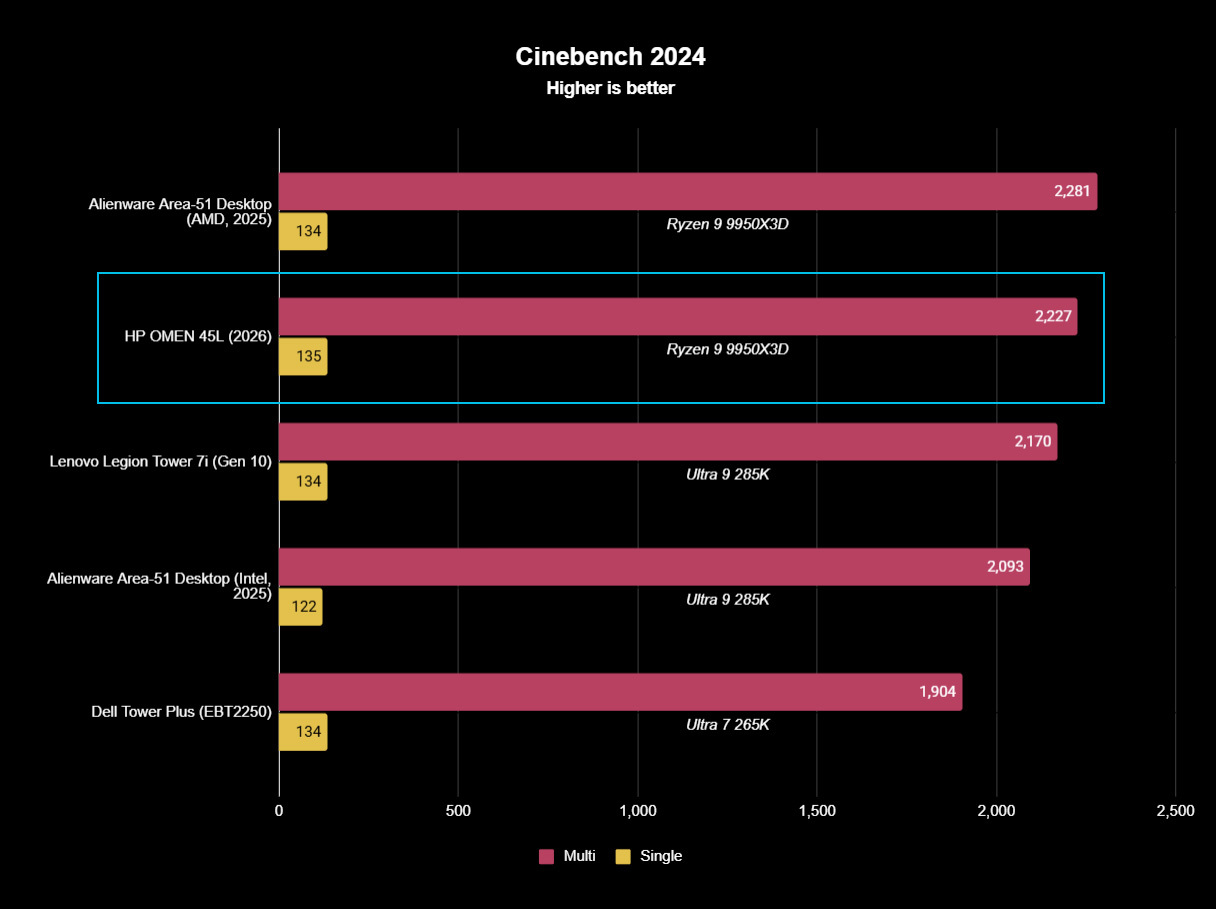
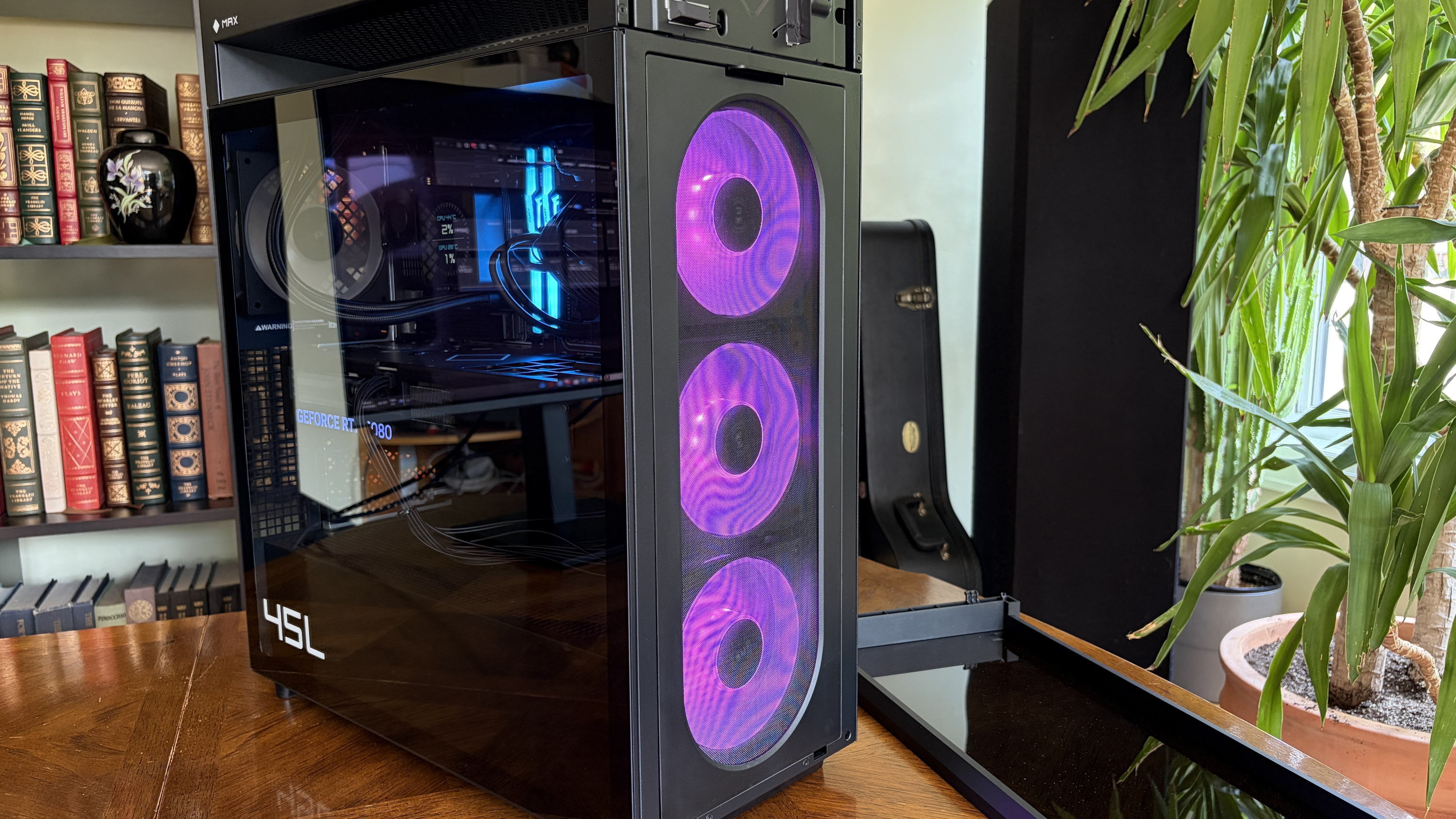
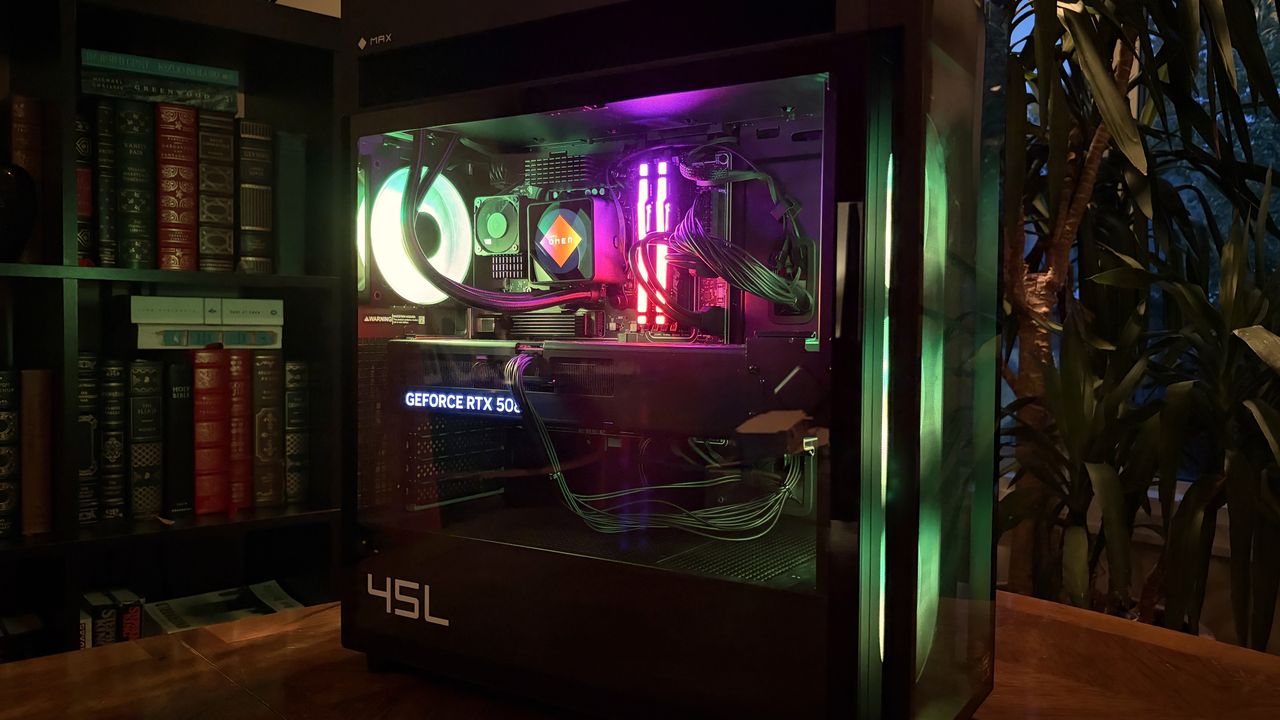
HP's Omen 45L desktop is my prime example. It has an NVIDIA RTX 5090 GPU, an Intel Core Ultra 7 265K CPU, 16GB of DDR5-6000 RAM, a 1TB M.2 PCIe 4.0 NVMe SSD, and everything else you need for a full build.
At the time of writing, this Omen 45L model costs $4,389.99. That's $410 less than the cheapest RTX 5090 listed on Newegg. Of course, the Omen 45L is on sale, with a regular price of $5,379.99. That's still less than the ASUS TUF Gaming RTX 5090 model, which sits at $5,429 on Newegg.
Buy a pre-built gaming PC for the card and sell the rest?
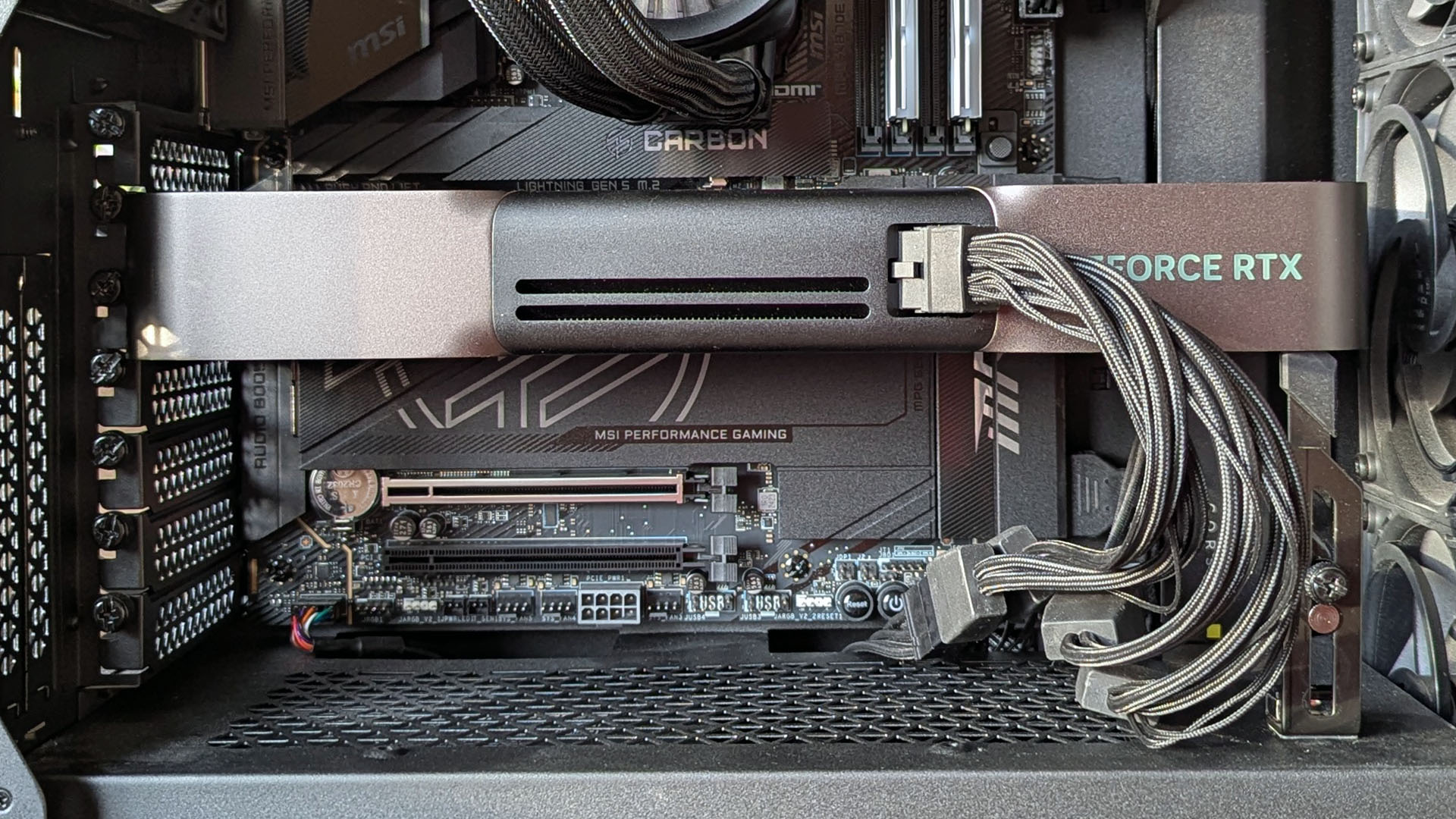
NVIDIA's RTX 5090 has hit costs I never imagined, but there are some alternative options. (Image credit: Windows Central | Ben Wilson)
The math gets more upside down when you factor in all the extra hardware you get with a pre-built PC.
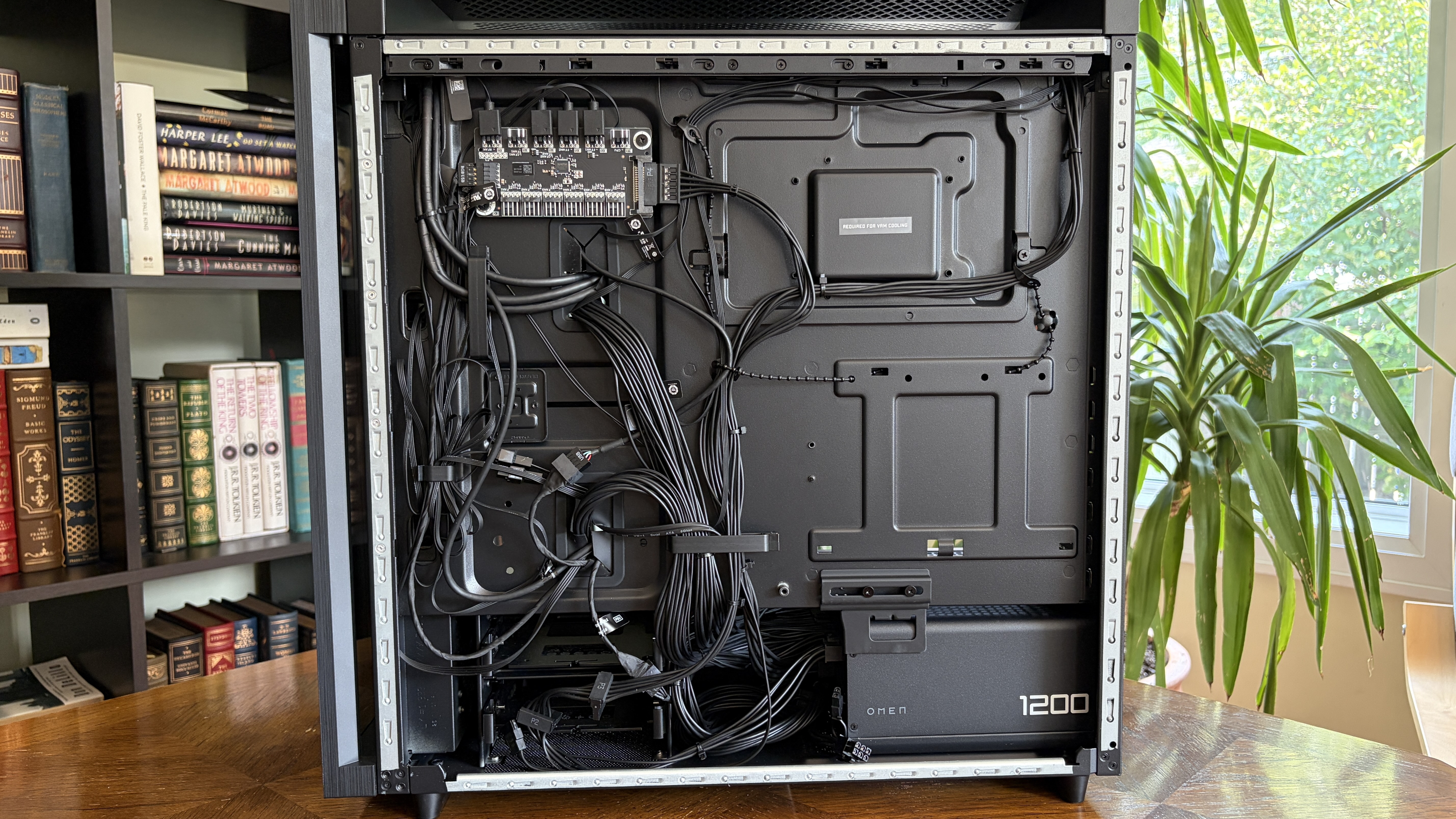
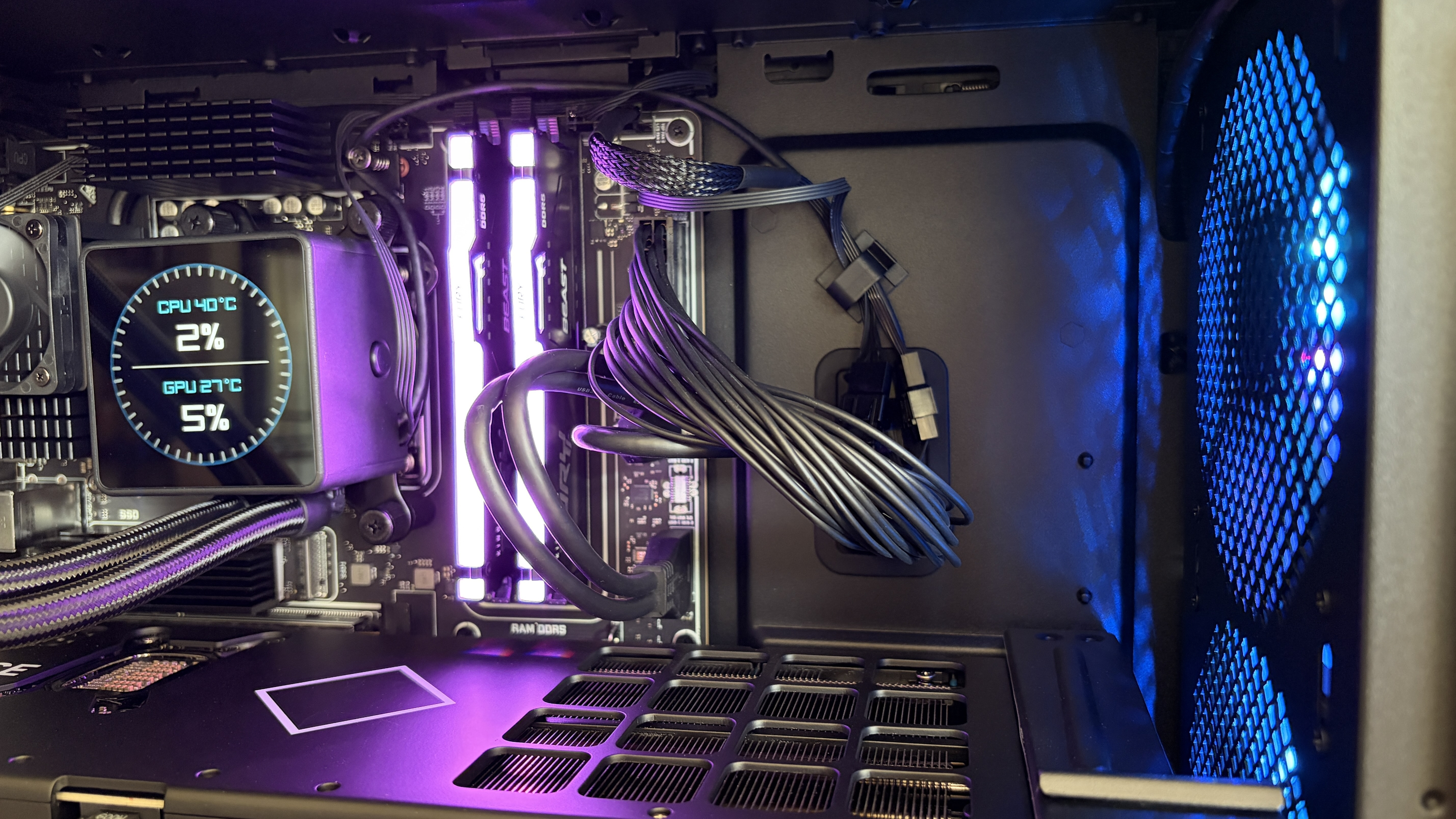
The Omen 45L's CPU adds about $300, the 16GB of Kingston Fury DDR5-6000 RAM adds about $330, and the 1TB M.2 PCIe 4.0 NVMe SSD adds roughly $200. That's about $800 worth of extra components before even considering the 1200W PSU, motherboard, cooling, and case.
I can imagine a lot of readers will see this and wonder why they don't just buy a pre-built, remove the RTX 5090, and sell the rest of the components. I'm wondering the same thing.
HP isn't the only place that I'm seeing this pricing deficit in effect. Over at iBuyPower, I put together a system with an Intel Core i5-14400F CPU, 32GB of DDR5 RAM, a 1TB M.2 PCIe 4.0 NVMe SSD, a 1000W PSU, and an NVIDIA RTX 5090 that costs $5,596.
With the right initiative to sell the extra components, you could definitely end up paying less or the same for a standalone card and still end up with some extra hardware for future upgrades.
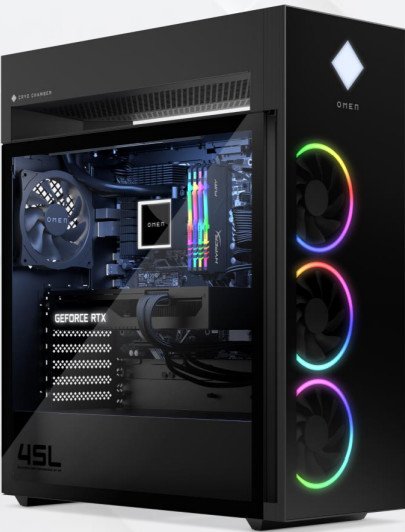
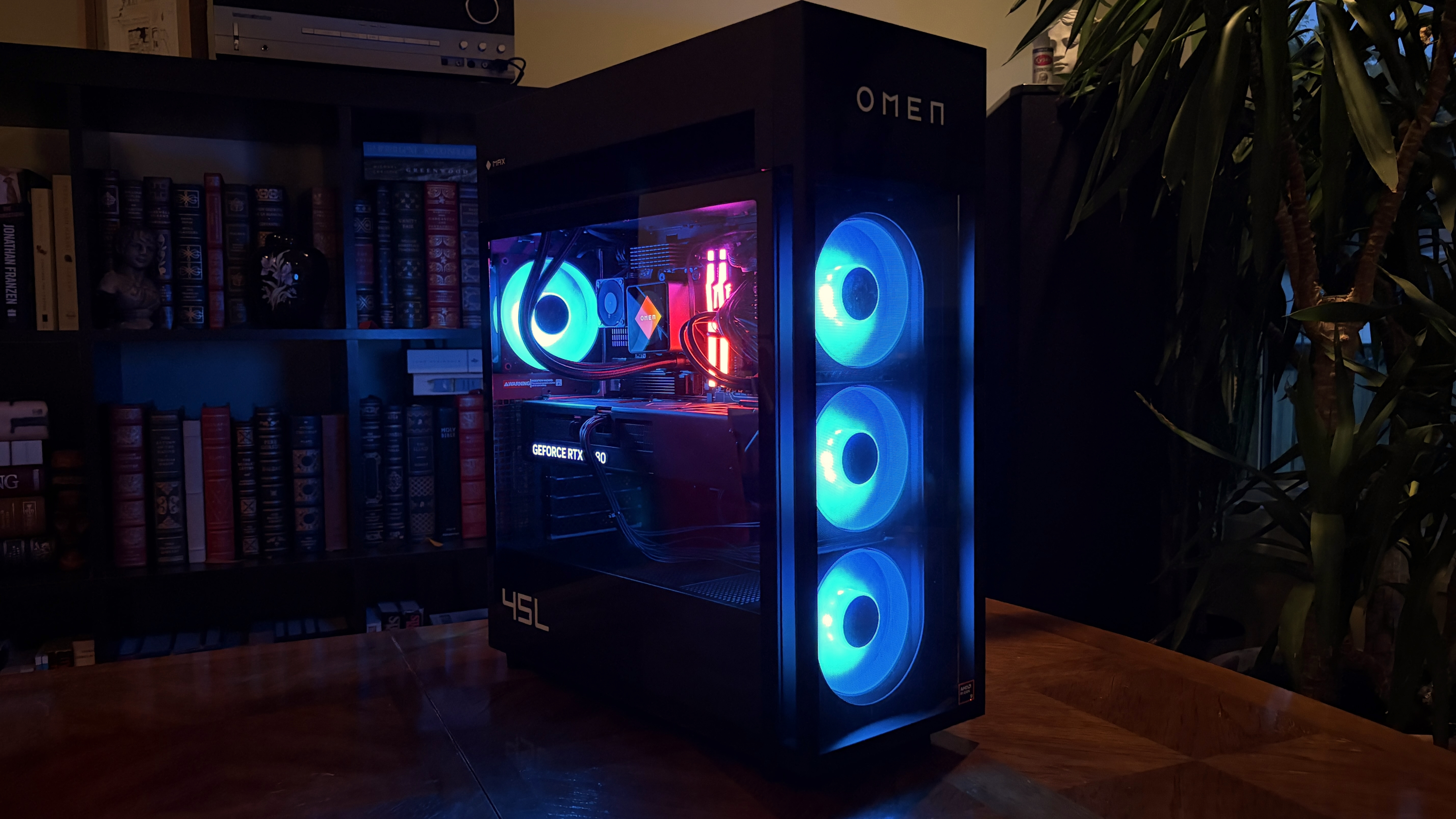
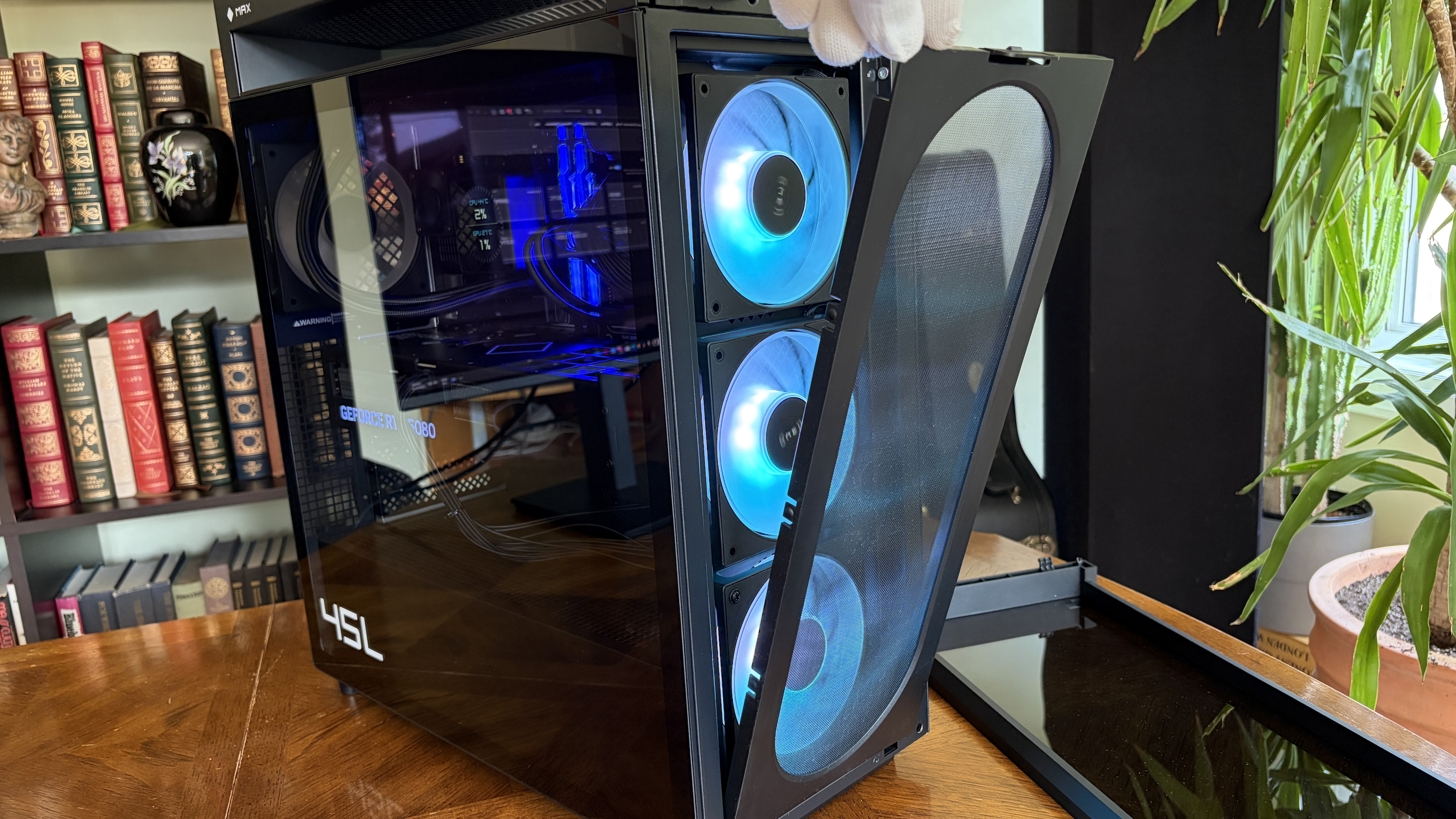
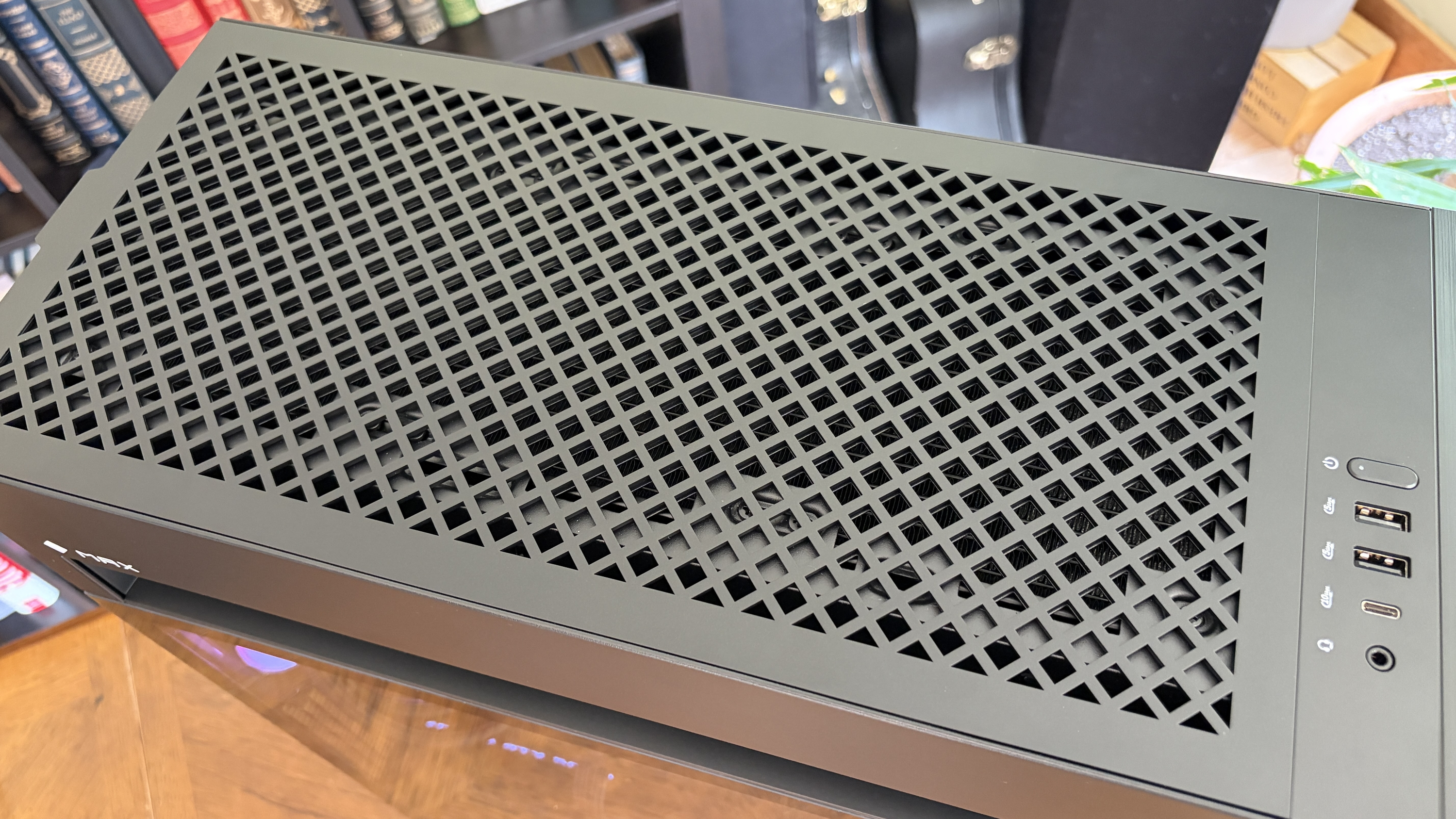
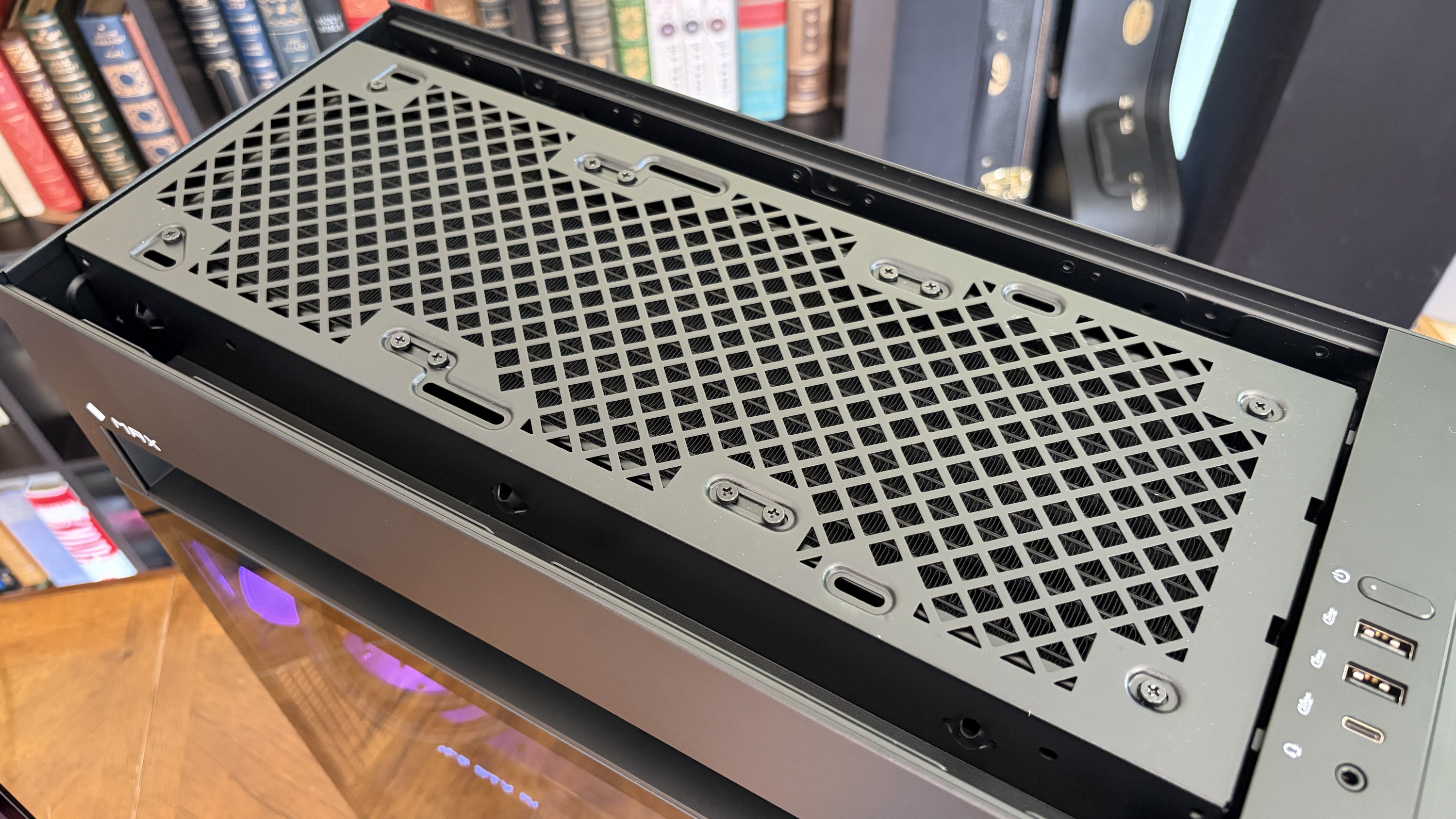
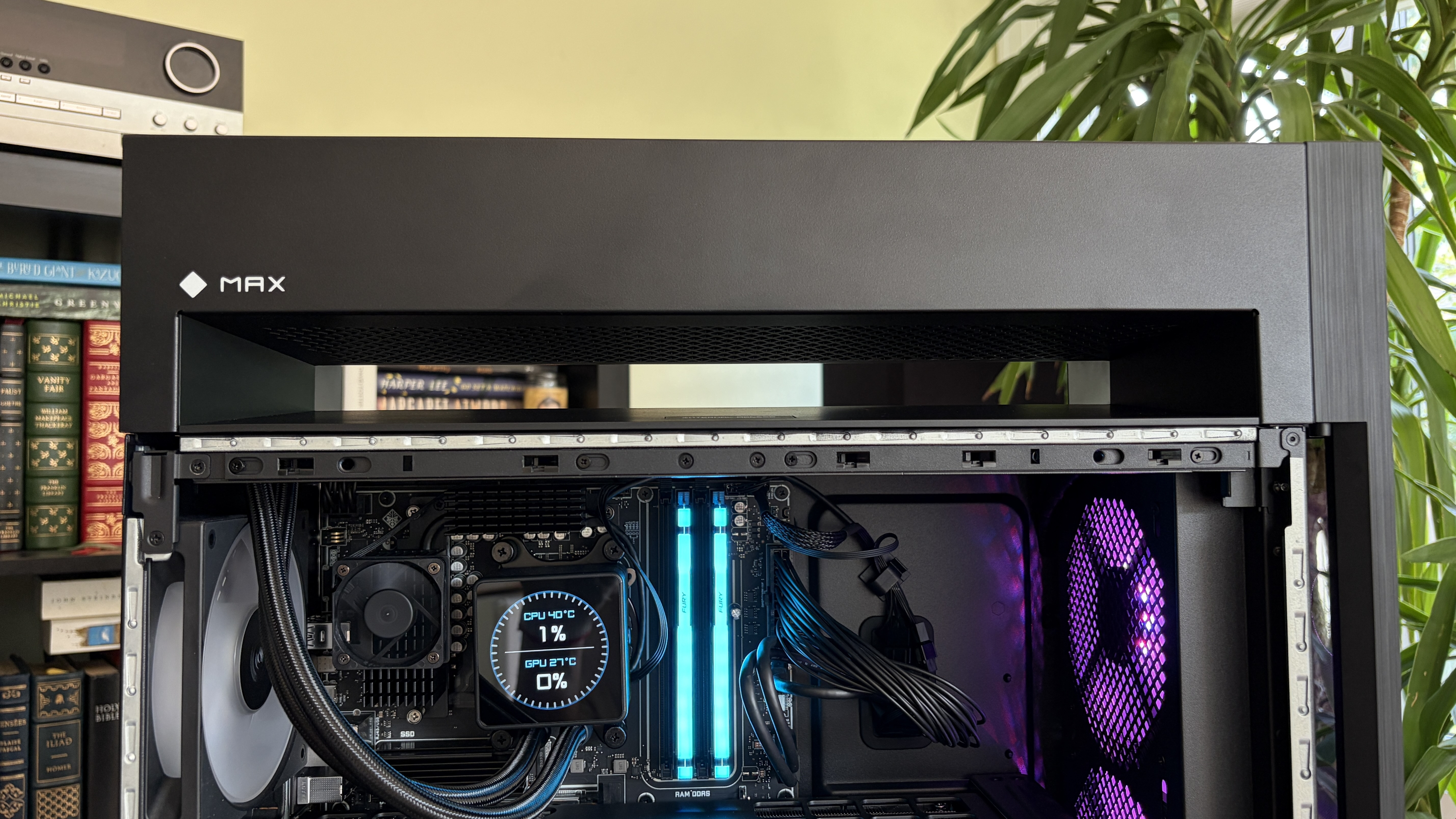
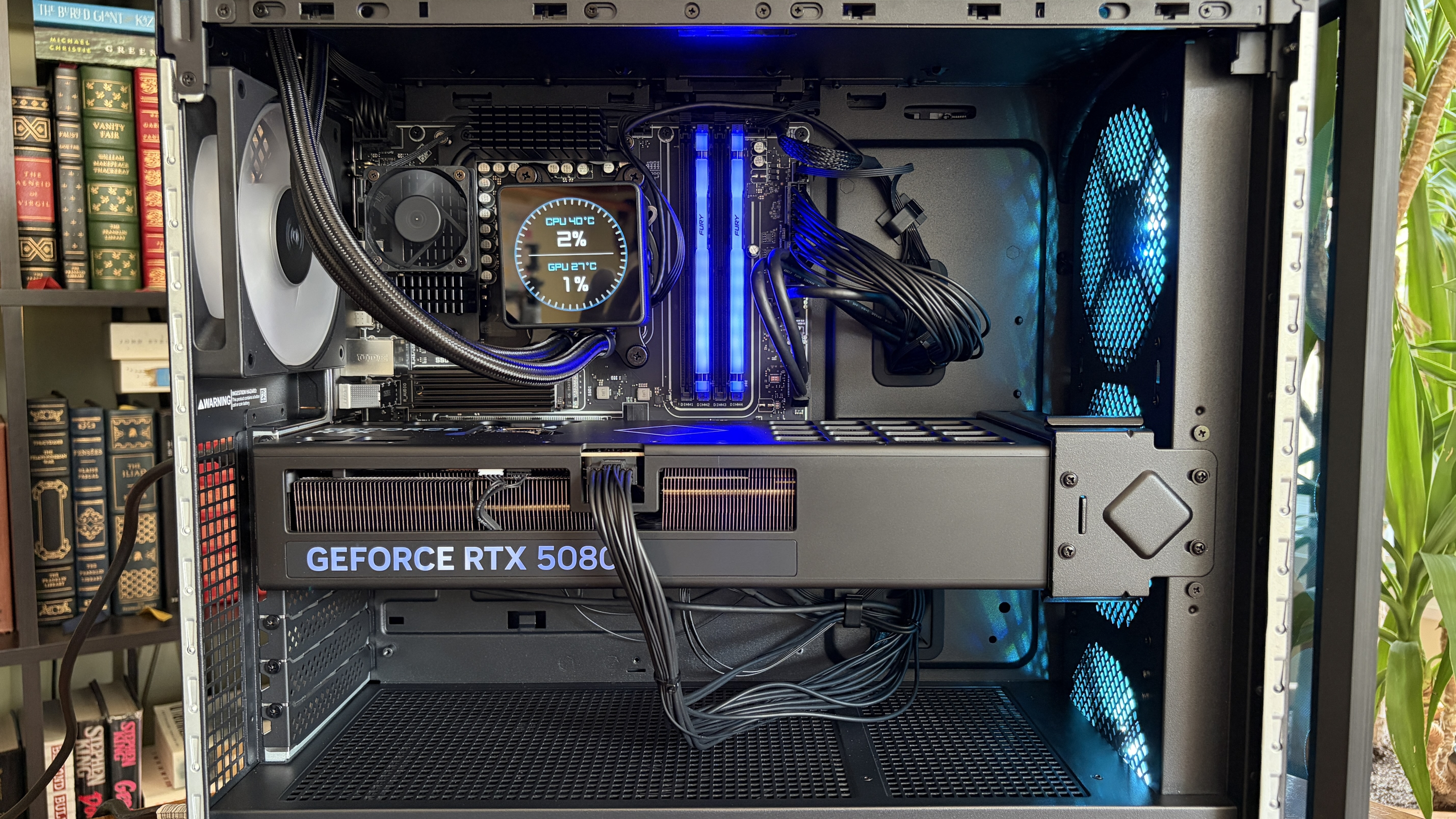
The HP Omen Max 45L I reviewed isn't perfect, but if it's cheaper than a lone GPU, it's hard to fault. (Image credit: Future)
The current state of GPU prices is due to the ongoing RAM and storage crisis that's sending NAND, DRAM, and other PC component prices into deep space.
As a result of the VRAM that goes into these cards hitting such high costs, NVIDIA jacked up the prices of GPU kits for its board partners (companies like ASUS, MSI, Gigabyte, and Zotac that build full GPUs using NVIDIA's kit) in July. Shortly after, it was reported that the hike could go as high as 30%.
We're now starting to feel those price hikes at retailers, as evidenced above. I suspect that HP's prices will also eventually be on the rise, but there are different market factors at play.
OEM builders can lock in large supplies of parts at a lower cost, so prices often don't catch up until after regular consumers begin to see them. I saw the same thing happen with Windows laptops this year. Components eventually run out, companies have to buy more, and those new costs are then passed down to consumers.
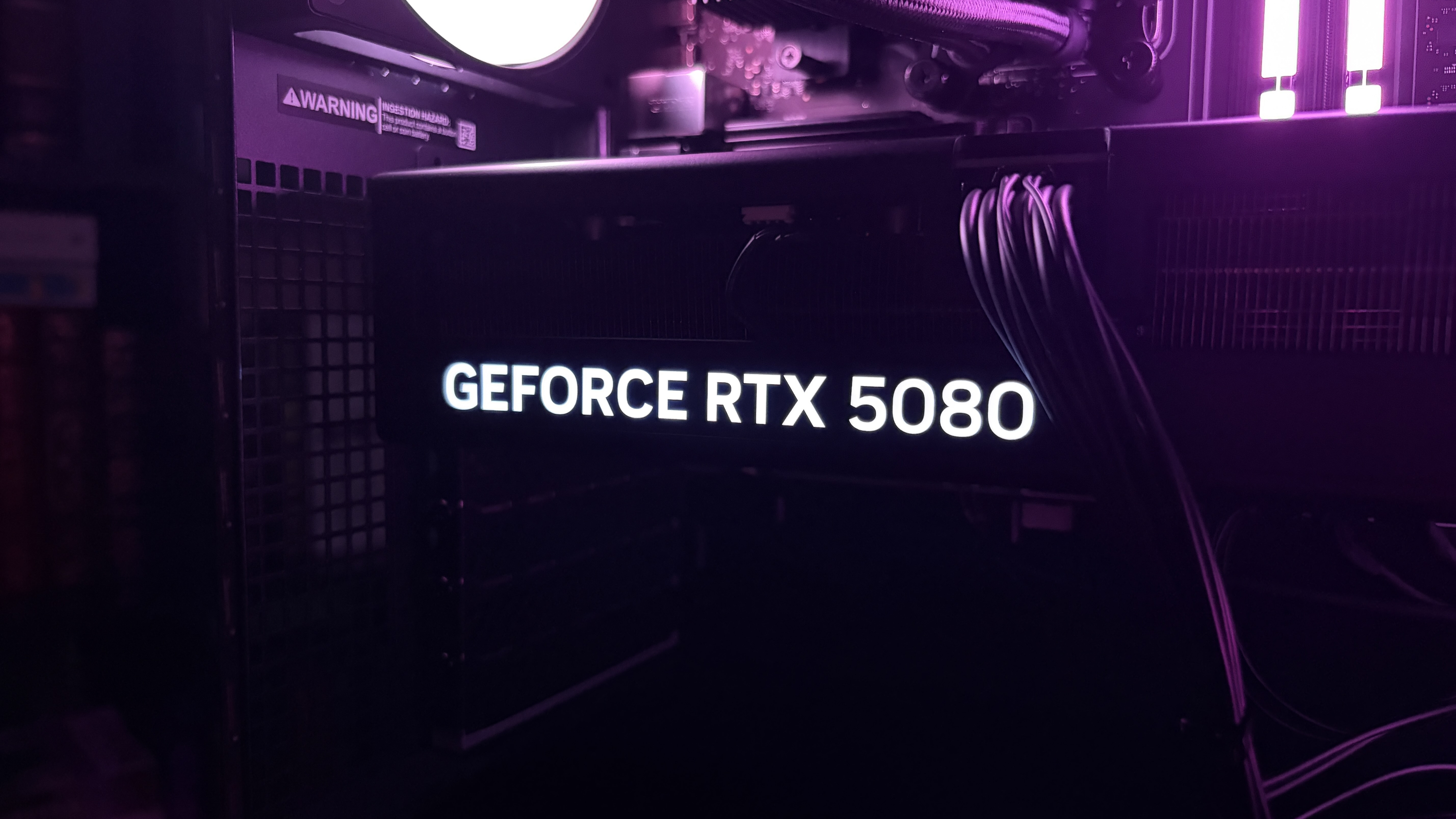
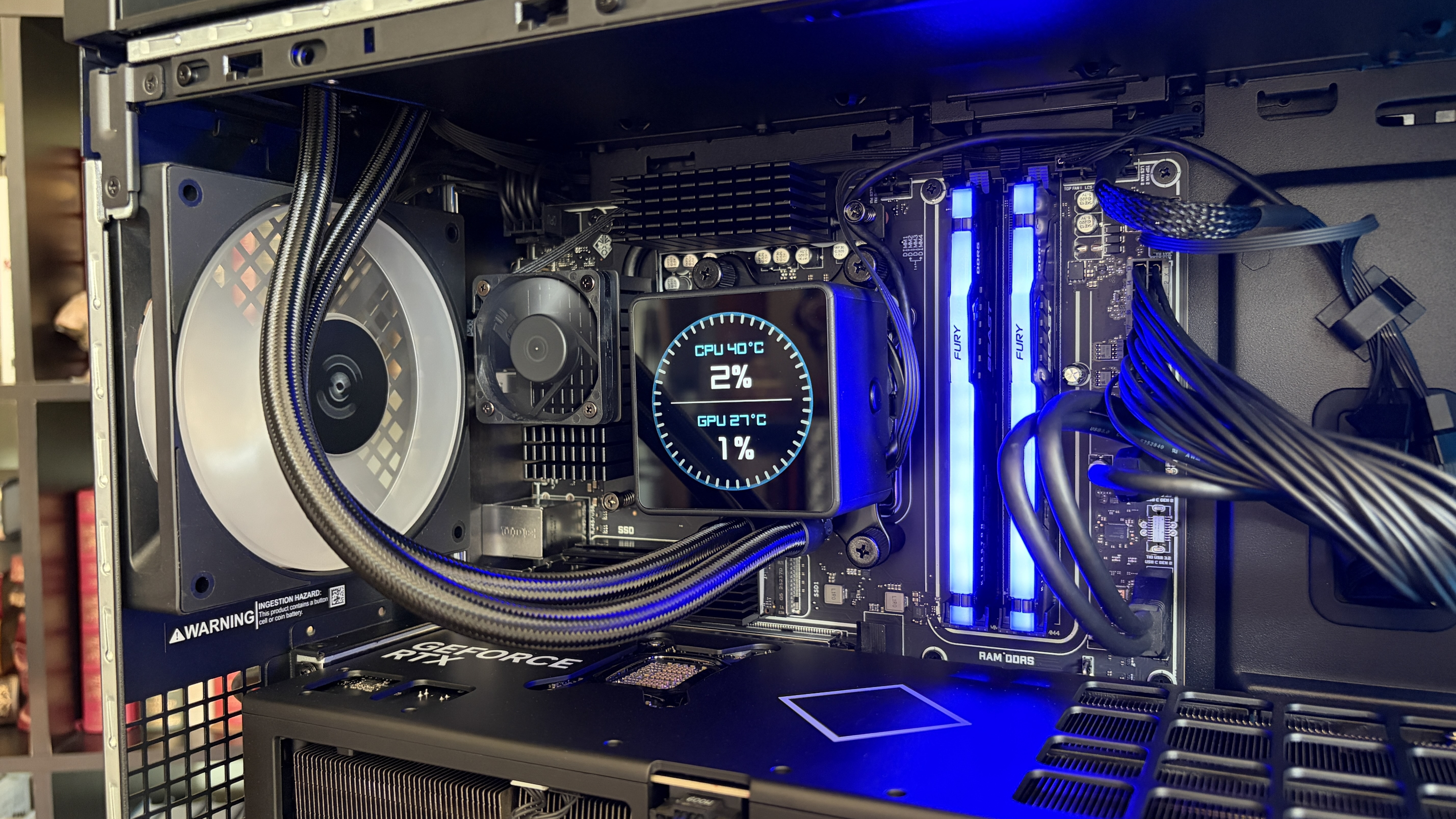
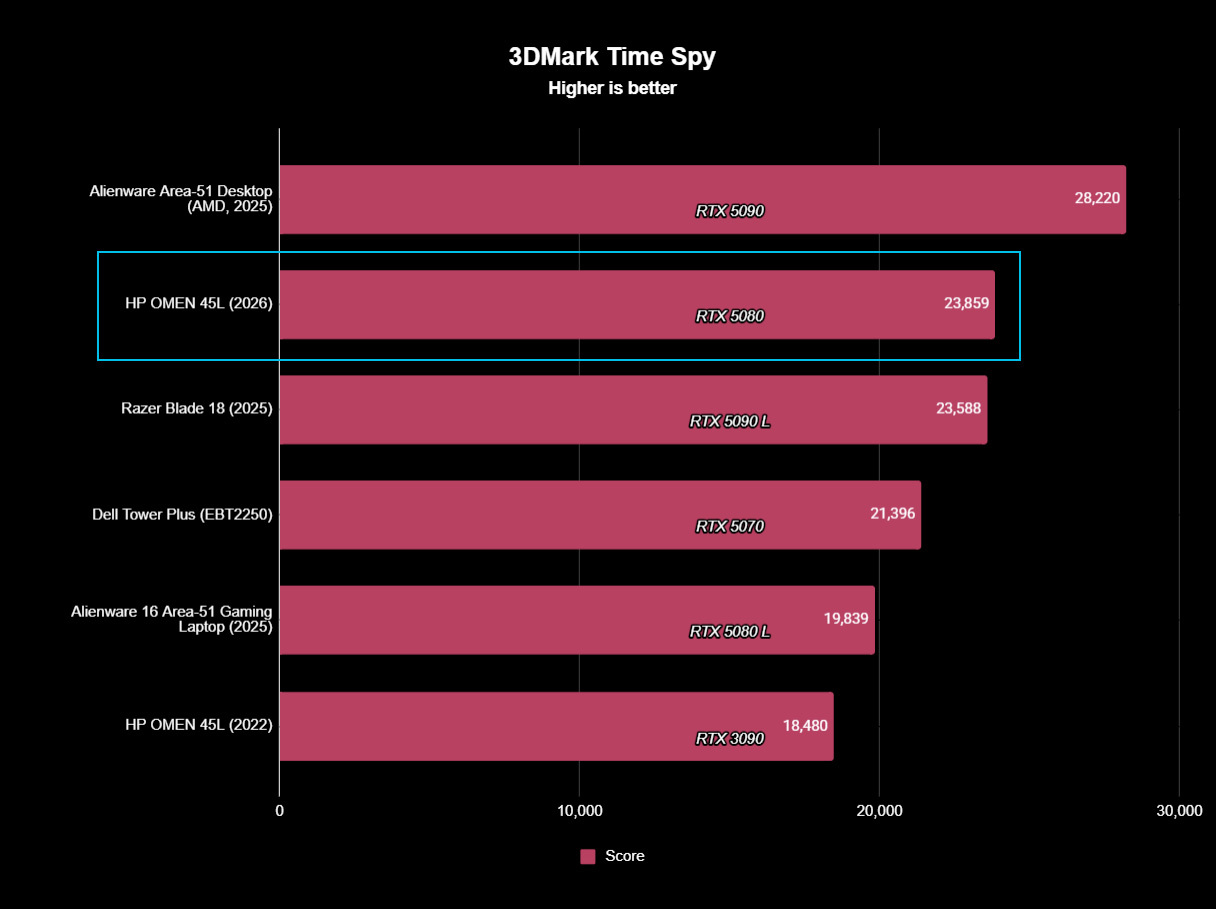
There's one caveat: when I reviewed the Omen Max 45L, I noticed that the RTX 5080 is a custom unit designed by HP. The same applies to the RTX 5090. Does that really matter? Not really. It's still NVIDIA's GPU inside, and my testing showed no difference compared to standalone cards.
Whatever happens to HP's pre-built PC pricing, there's no denying that the entire PC market is in chaos. You might not love the idea of a pre-built PC, but I definitely recommend seeing what's out there before you buy a standalone RTX GPU. You might just end up with a whole lot more than you expected for a lower price.
Join us on Reddit at r/WindowsCentral to share your insights and discuss our latest news, reviews, and more.
An Omen Max 45L with a transparent side panel displays its internal components, including a GeForce RTX 508 graphics card, against a backdrop of a bookshelf.
An Omen Max 45L with a transparent side panel displays its internal components, including a GeForce RTX 508 graphics card, against a backdrop of a bookshelf.
I was at Computex this year when NVIDIA's RTX SparkSystem-on-Chip (SoC) was revealed to the world, and from the start, I had a hunch that it would be a big deal.
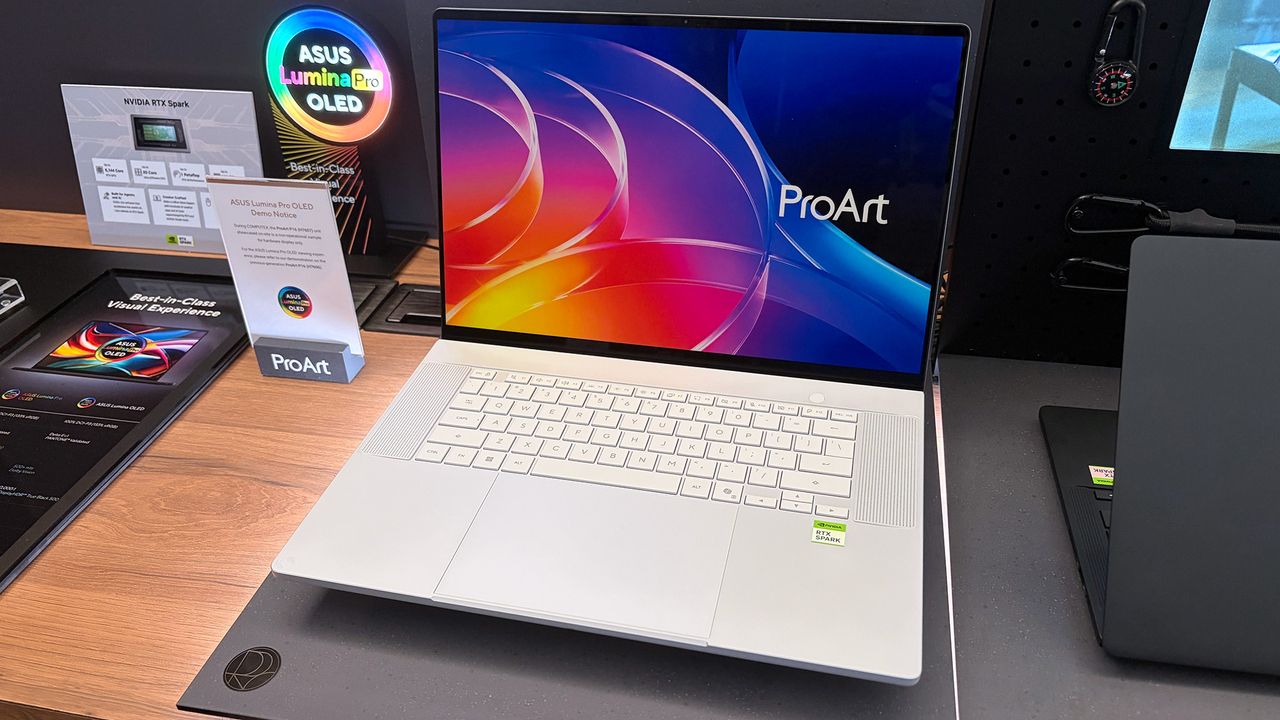
Incredibly sleek and streamlined, these laptops were a smash hit on the show floor. Apparently, they're also far more popular than ASUS was expecting.
In a recent ASUS Q2 earnings call, it was revealed that the company is completely out of ProArt P14 and P16 units to ship to its partners (aka third-party retailers and distributors) as part of pre-order efforts.
As one of the first manufacturers to launch RTX Spark-based systems, the market response to pre-orders for our ProArt notebook P16 and P14 has been intense. They are currently completely sold out. [...] Regarding current demand, the market response has far exceeded our expectations. Essentially, the initial quantities we planned have already been fully pre-ordered by our channel partners. We’re continuing to place additional orders with our partners.
S.Y. Hsu, Co-CEO ASUS (ASUS Q2 earnings call)
More RTX Spark laptops are on the way, of course, and ASUS has some time to shore up supplies before the planned Q4 2026 release of the new Spark-powered ProArt PCs.
It's too bad that the earnings call doesn't mention anything about exact volumes, because it's hard to say exactly how popular these laptops really are. However, ASUS says that it's "very optimistic about next year's sales" thanks to the "high AI computing power relative to its compact size" in the RTX Spark laptops.
What is NVIDIA's RTX Spark?
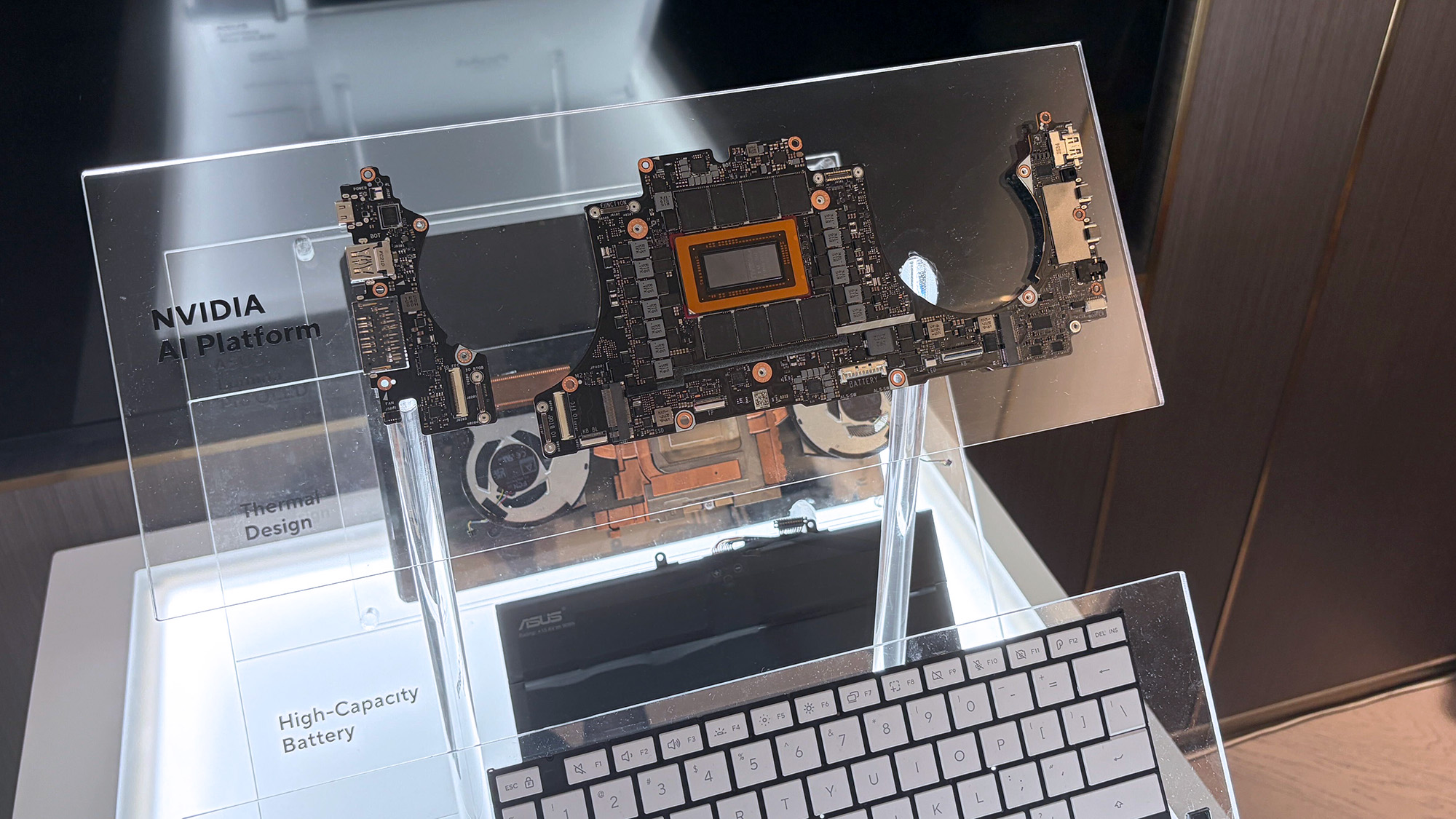
A look at the NVIDIA RTX Spark chip that's (normally) inside the ProArt P16. (Image credit: Cale Hunt | Windows Central)
NVIDIA's RTX Spark is an ARM-powered SoC that's expected to compete directly with the likes of Intel, AMD, and Qualcomm for space in Windows 11 PCs.
I covered rumors of the "N1X" chip for months in the lead-up to Computex 2026, and indeed it seems just as powerful and efficient as pre-announcement estimates.
Spark takes efficient ARM-based CPU cores similar to those found in Qualcomm Snapdragon chips and pairs them with an NVIDIA Blackwell RTX GPU, all while drawing from a unified memory setup that can hit 128GB.
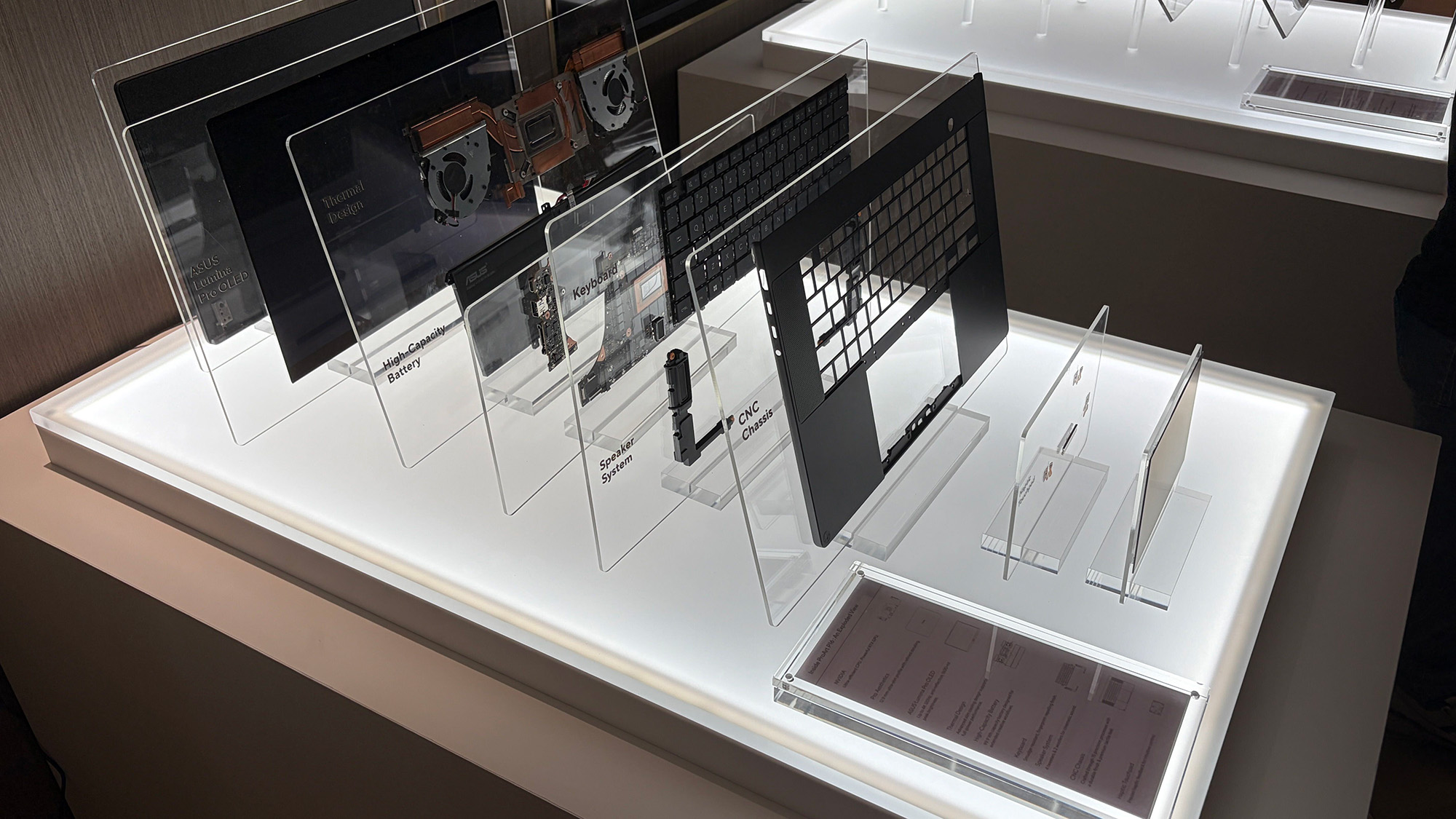
A broken-down example of the ASUS ProArt P16 with RTX Spark. (Image credit: Cale Hunt | Windows Central)
This combination allows for massive performance that can shred standard and AI-related tasks without requiring a bulky discrete GPU.
Throw these chips into ASUS ProArt laptops with "all-day-long" battery life, wide port variety, super slim bodies, and 4K OLED displays, and it's easy to see why there's so much interest from retail partners.
Keyboard switches used to be a fairly niche topic. Enthusiasts knew what they wanted and sought it out, while more casual gamers and typists just went with what seemed best.
I'm talking about the feel, the sound, and the speed — not to forget pricing, durability, hot-swap support, and layout, especially when getting into gaming keyboards.
But the days of switches being an enthusiast's niche are over. Hall Effect and optical switches are enjoying a mainstream push, especially in gaming hardware, and the less flashy keyboards for office work are also seeing some major upgrades.
These advancements can make buying a new keyboard in 2026 a confusing endeavor. You step away for a few months, and it feels like there's a completely new set of literature to read up on.
I'm here to lay out the main types of different keyboard switches you may encounter, helping you get the perfect hardware for your needs.
What are mechanical keyboard switches?
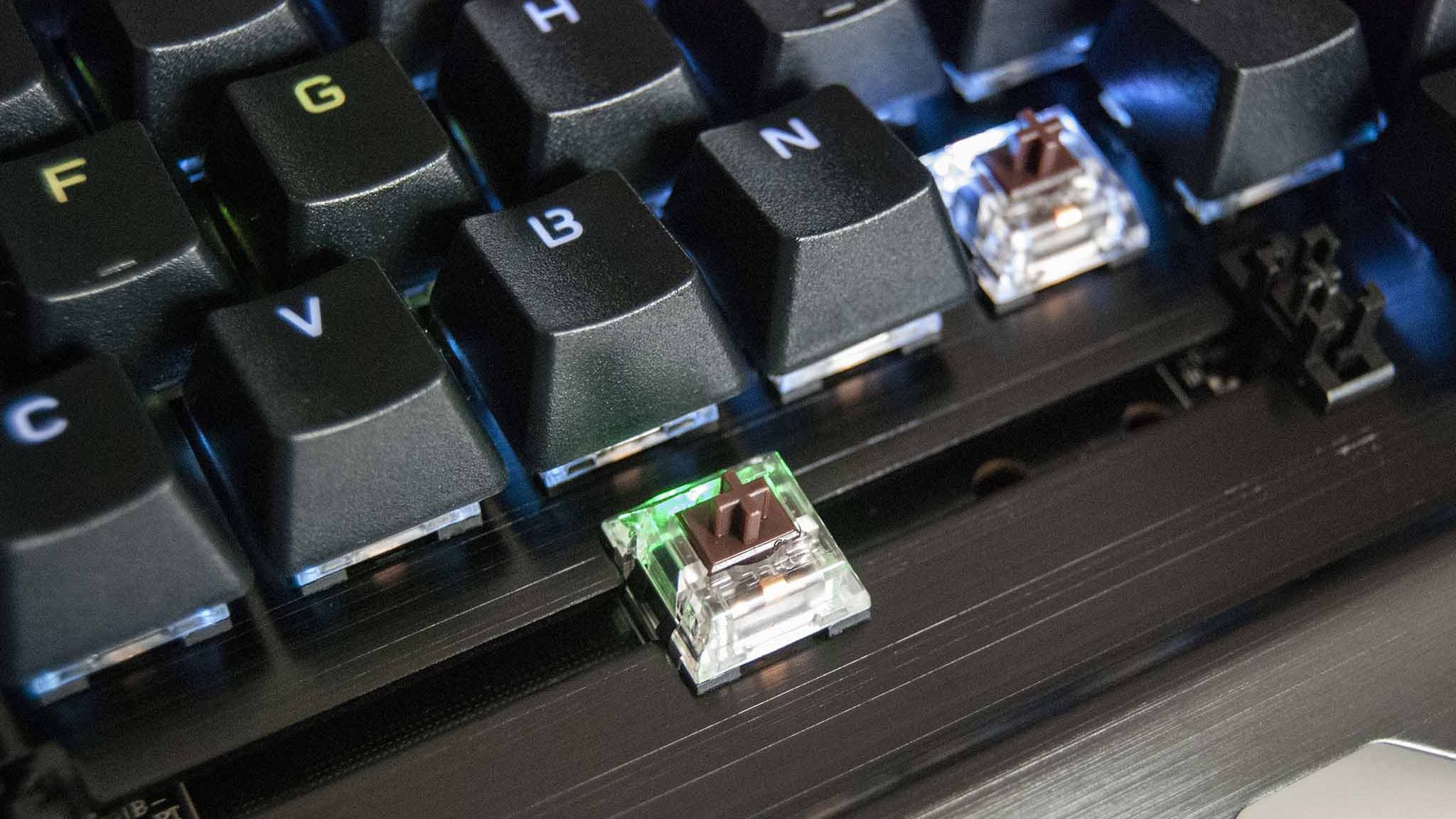
A Razer BlackWidow V4 with its keycaps removed to show off the mechanical switches. (Image credit: Ben Wilson | Windows Central)
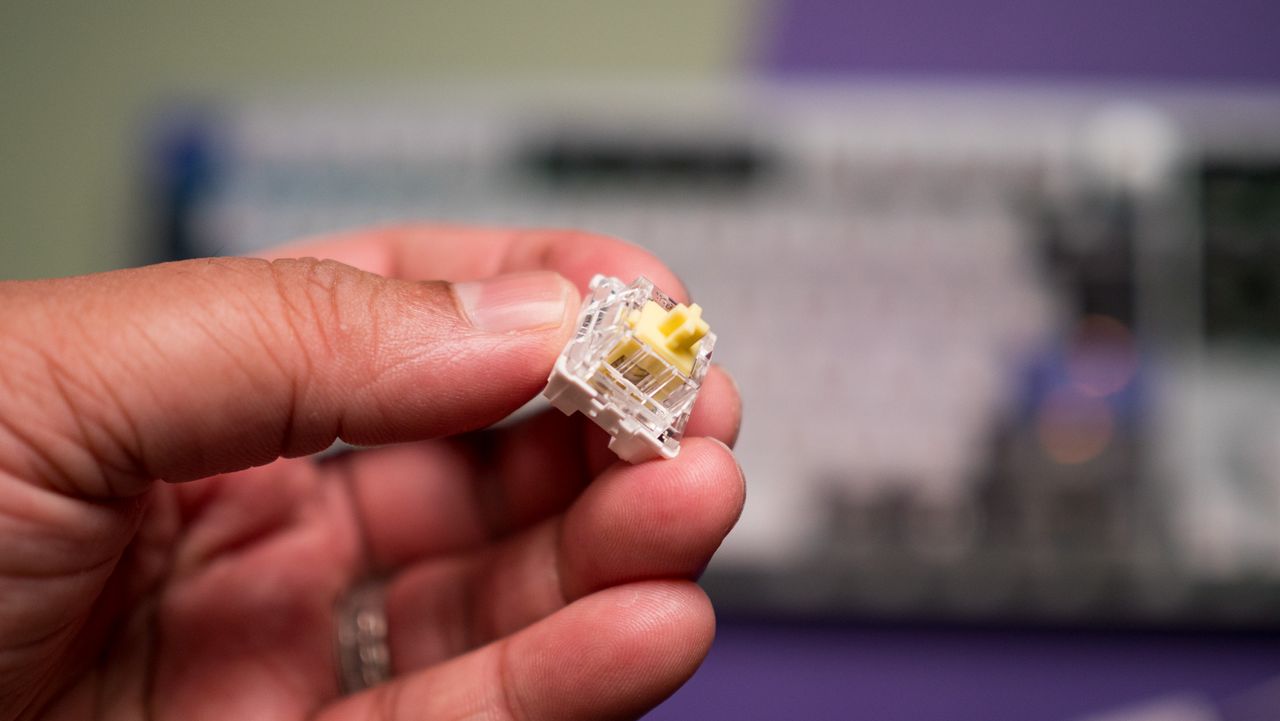
Mechanical switches are the baseline for keyboards. When the keycap is pressed, a stem compresses a spring, and two separate metal contacts touch to complete a circuit and let your PC know you've performed a keystroke.
Mechanical boards are popular because they allow for quick swapping of keycaps (and in many cases, the switches themselves) without needing any special tools. If you're just starting on your path down the keyboard rabbit hole, a mechanical option is likely your best bet.
You might have heard of Cherry MX before, and that's because it's the company that essentially created the mechanical keyboard in the 1980s. It's still the default switch today, with many competitors attempting to outdo its creations.
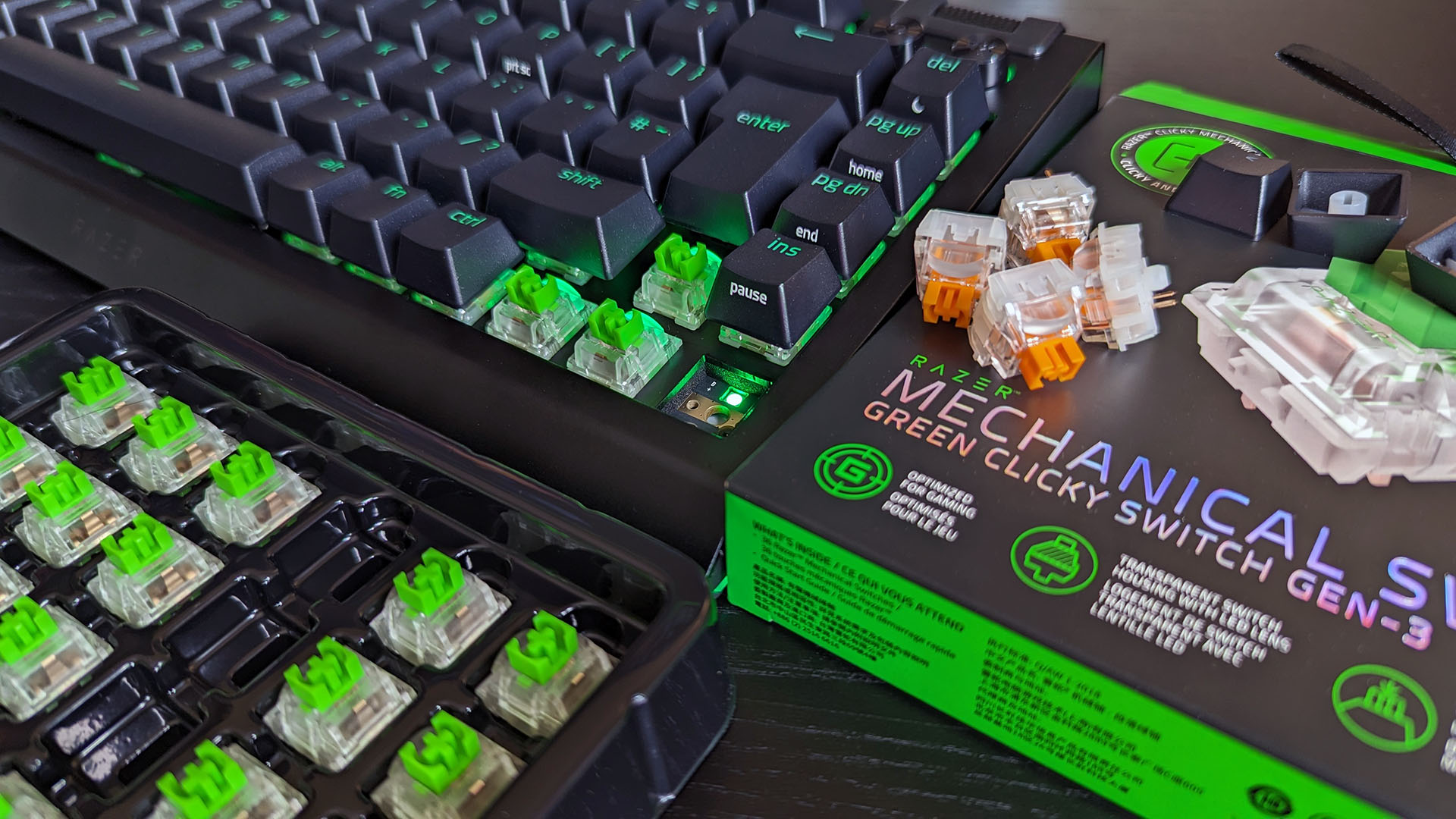
There are three basic versions of mechanical switches that you'll most often encounter when shopping: Linear, Tactile, and Clicky.
Linear switches
Linear switches offer a smooth feel from the top through to the bottom. There's no noticeable bump when you hit the actuation point (in this case, the two metal contacts coming together), and there's minimal noise while typing.
Cherry MX Red and Cherry MX Black switches are probably best known, but there are also Speed Silver, Silent Red, and Low Profile Speed options.
Linear switches are great for PC gaming because they're generally faster and more consistent when the action gets going. The fact that they don't make noise is also a boon, especially if you're gaming in a shared space.
Tactile switches
The Keychron Q6 Pro's tactile switches are an excellent option for gaming or for work. (Image credit: Harish Jonnalagadda / Windows Central)
Tactile switches are a common ground between linear and clicky. They offer a small, noticeable bump at the actuation point without adding a loud click.
Cherry MX Brown is the classic example of a tactile switch. They're sought after by gamers and typists alike who prefer having that little bit of pressure to let them know that a keystroke has been made.
Clicky switches
Clicky switches are what I consider the "extreme" version. They offer the same noticeable bump as tactile switches when the actuation point is hit, but a loud click follows.
Some typists and gamers prefer the heavier feel and the loud click (especially if you're going for a retro vibe), but that audible feedback can definitely get annoying over time.
Cherry MX Blue switches are the default example here, but there are also Green and Ultra Low Profile clicky switches to watch out for.
Pro Wireless Gaming: It's a result of a collaboration between Alienware and over 100 esports athletes, and it's a genuine step up over the company's previous products. Build quality is exceptional, typing feels great, and gaming performance is flawless.View Deal
Cherry MX's competition in the mechanical market
The Glorious GMMK 3 Pro is available will classic MX or Hall Effect switches. (Image credit: Harish Jonnalagadda / Windows Central)
Cherry MX remains the brand that's best known, and it has been upgrading its switches to better compete with new competitors. For example, its MX2A lineup with a redesigned stem helps make its switches feel a lot smoother.
This innovation to compete is driven by companies like Gateron, Kailh, and Glorious that have jumped on expiring patents to create their own mechanical switches. They generally fall into the same three basic mechanical switch categories, so it's not too difficult to figure out what's best for you.
What are optical keyboard switches?
Optical switches on the IOGear HVER PRO X gaming keyboard. (Image credit: Windows Central)
Optical keyboard switches are a lot like their mechanical counterparts. They use the same stem-and-spring setup, but there are no metal contacts to form a circuit when pressed.
Instead, optical switches place a beam of infrared light below each key. When you press a keycap, that beam is interrupted, and your PC recognizes a keystroke.
The main benefits of an optical switch are durability and response. There are no metal contacts to wear out, and keypresses are usually registered just a bit faster.
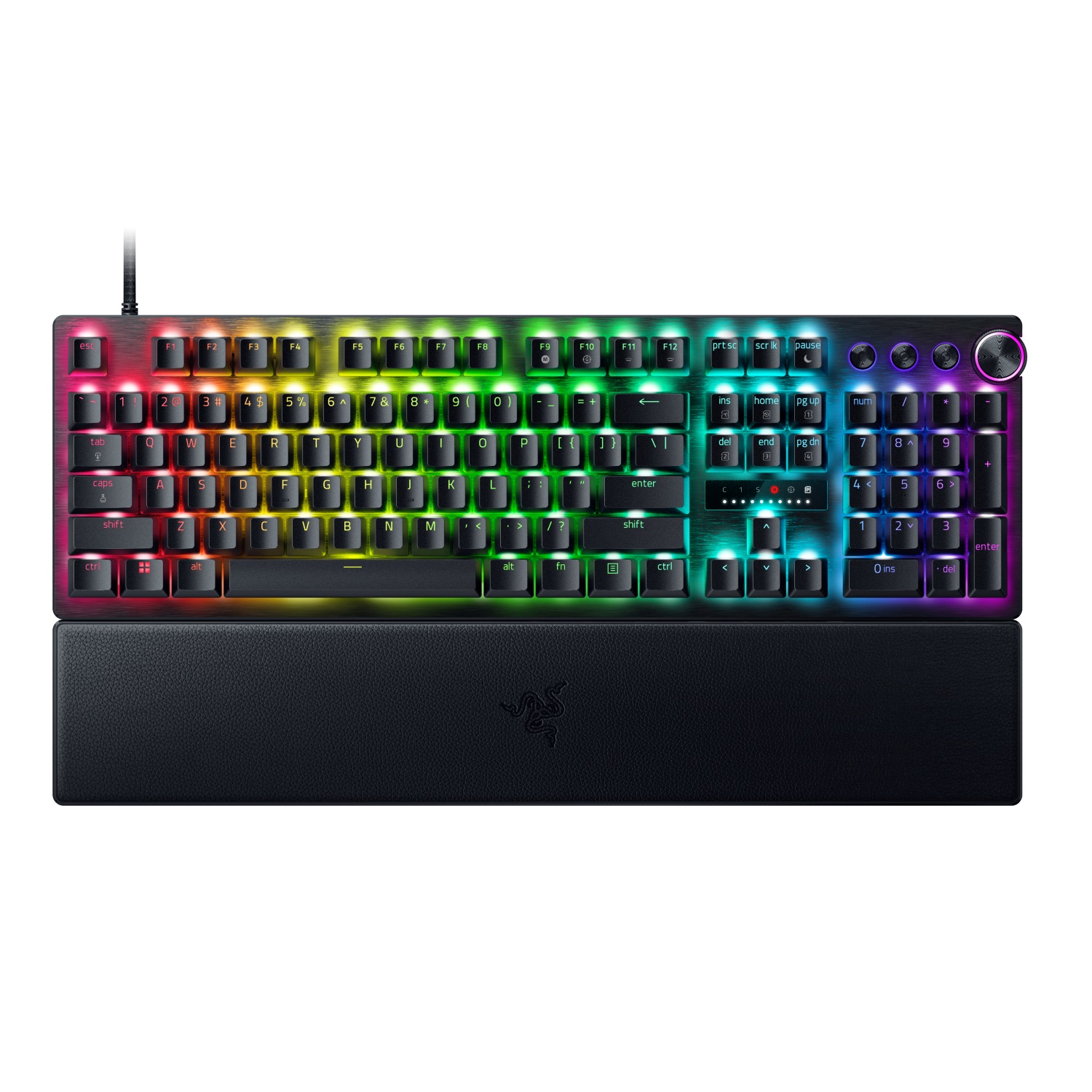
The Razer Huntsman V3 Pro features optical keyboard switches. (Image credit: Michael Hoglund)
When I think of optical switches, I usually think of Razer. It's the brand spearheading this tech most of the time; its Analog Optical Gen-2 switches in the Razer Huntsman V3 Pro are a perfect example. There are, however, competing brands.
Optical switches offer things like adjustable actuation (making keys easier or harder to register keystrokes) and rapid trigger mode (allowing for faster repeated presses).
Most optical switches are hot-swappable like their mechanical counterparts. However, the main catch is that optical switches can't be added to mechanical keyboards, and vice versa, due to different circuit technology underlying each option.
Razer's Huntsman V3 Pro uses optical switches for improved durability and performance, making it a particularly excellent option for gamers who don't want to spend extra on Hall Effect hardware.View Deal
What are Hall Effect keyboard switches?
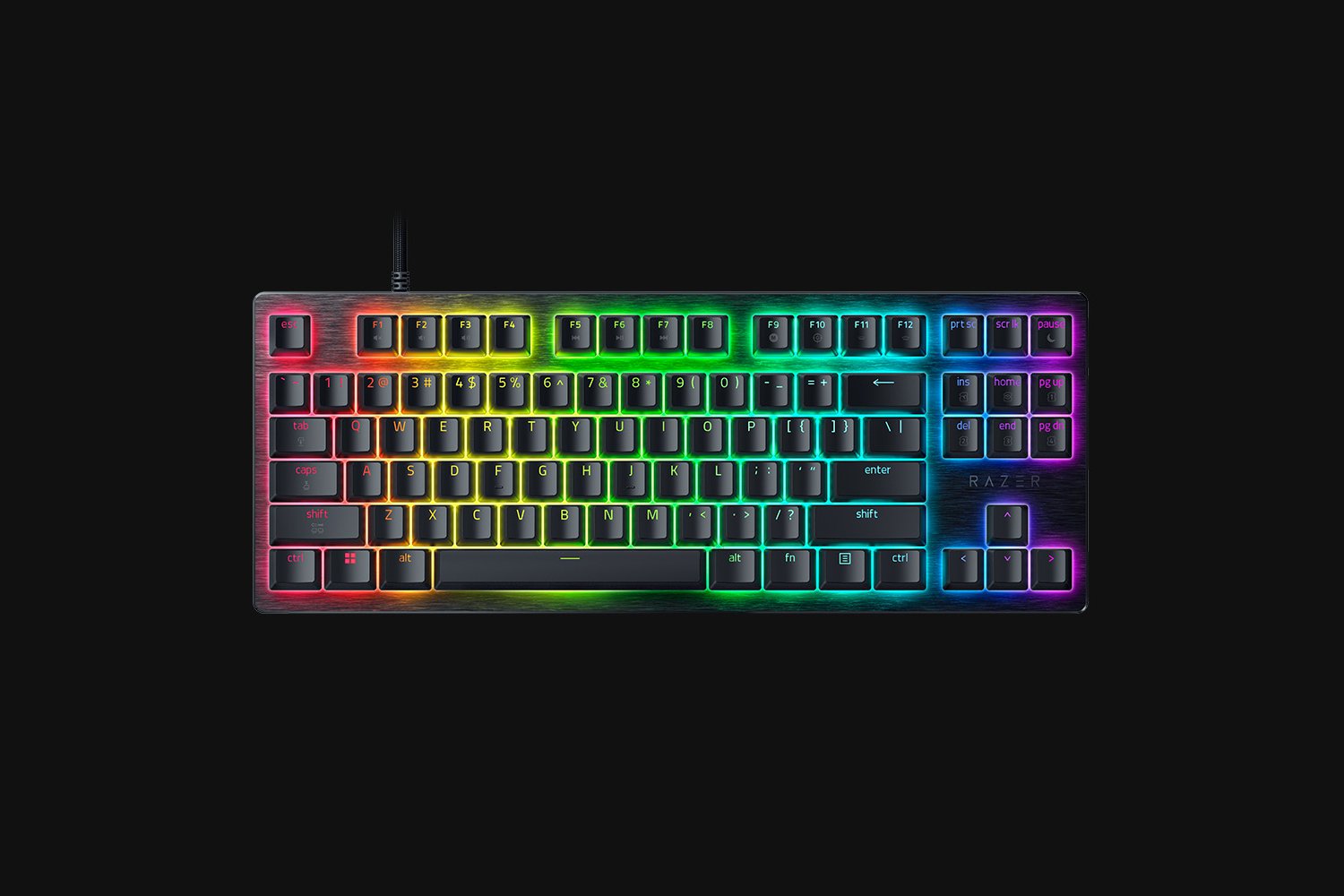
The Razer Huntsman V3 HE Magnetic Mini keyboard with Hall Effect switches. (Image credit: Daniel Rubino)
I first began hearing about "Hall Effect" to do with controller joysticks some years ago, but the tech actually originated with keyboards way back in the 1960s. Hall Effect seems to have now become the upgrade choice for many gamers in 2026.
Hall Effect works by placing a magnet in the switch's stem. A separate sensor measures how far the switch travels based on magnetic strength, meaning there's no actual physical or optical activation required.
This opens Hall Effect switches up to far more customization options than mechanical or optical hardware. Actuation distances can be fine-tuned, often as low as 0.1 mm, as in the Razer Huntsman V3 HE Magnetic we recently reviewed.
Because Hall Effect switches offer such tight customization and because there are fewer mechanical parts to wear out, they're becoming much more popular in PC gaming circles.
It was Wooting that really kicked this category off in the early 2020s, but since then, companies like SteelSeries, ASUS, Corsair, Keychron, Logitech, and the aforementioned Razer have jumped into the market.
Huntsman V3 HE Magnetic TKL 8KHz: With adjustable actuation from 0.1–4.0 mm, Rapid Trigger, Snap Tap, Snap Flex and Dynamic Keystroke, Razer’s HE Magnetic TKL give players granular control over inputs and movement — and back it with factory calibration, a 100‑million keystroke rating and on-demand recalibration via Synapse.View Deal
What are Topre switches?
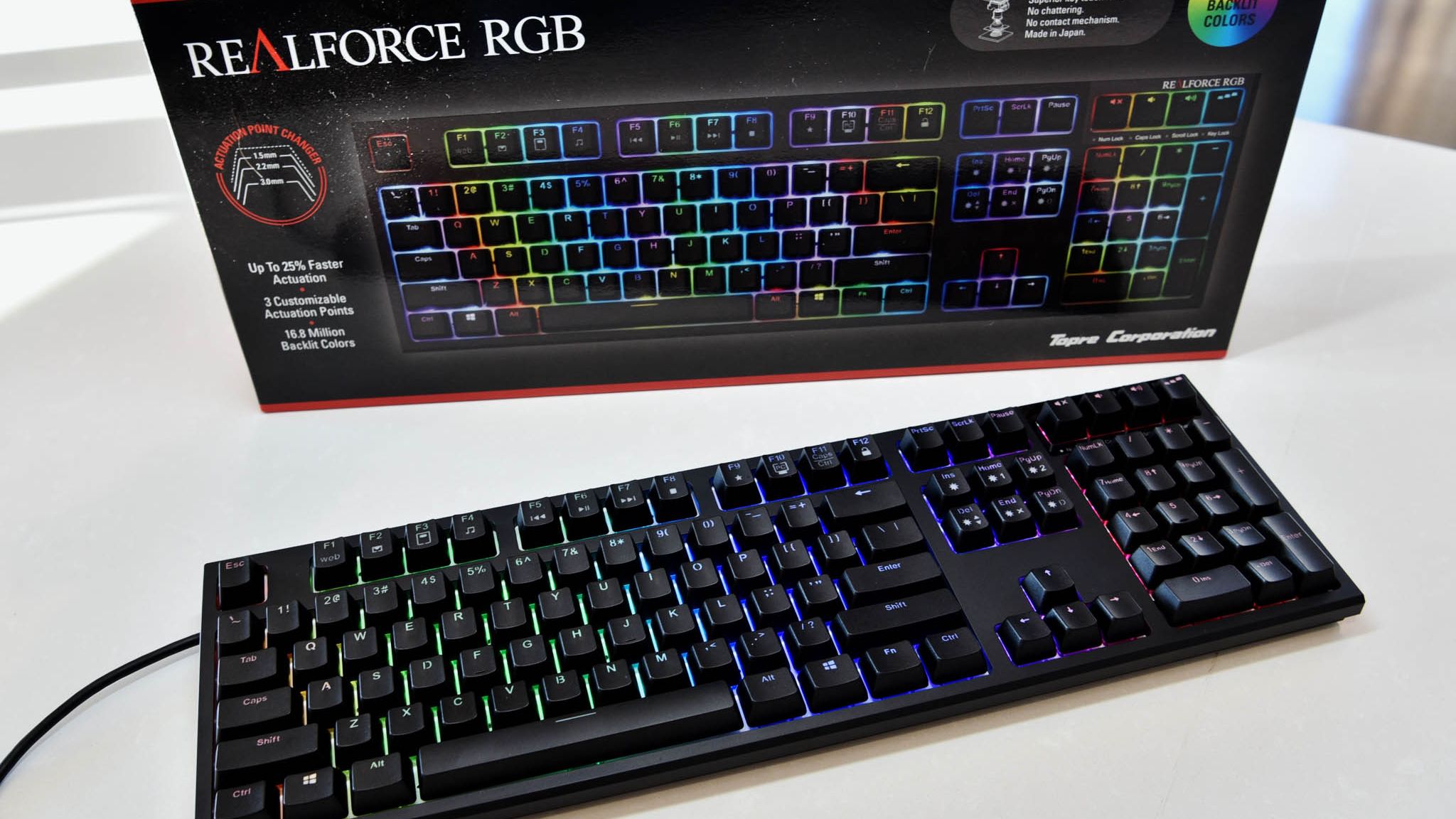
The RealForce RGB is a Topre keyboard we reviewed in 2020.
The final switch category I'm covering separately is Topre. These are capacitive switches designed by a Japanese company of the same name, and they're proving to be popular amongst people who type all day every day.
They work by combining a rubber dome on top of a spring. A sensor detects when the dome compresses (aka when you press down on the keycap) and registers a keystroke. It's a lot like Hall Effect, where there's no circuit to complete, but they have a softer feel that doesn't bottom out as hard.
Keyboards using Topre switches, like those from RealForce, are generally more expensive, but for some people, that extra money might save them from serious typing fatigue.
Other types of switches worth mentioning
The switches I mentioned above are the major options you'll find when shopping for a new keyboard. But there are a few others worth mentioning.
Mechanical, optical, and Hall Effect switches sometimes come in a low-profile option, which just means that the keycaps are not nearly as high. You'll sometimes find these keyboards installed in high-end gaming laptops, but there are plenty of standalone options available as well.
For budget keyboards, you're almost always going to find membrane or scissor switches in play. They're generally quiet, cheap, and relatively comfortable. The big problem? They don't usually last nearly as long, and they don't feel nearly as nice to type on.
Which type of keyboard switch should you buy?
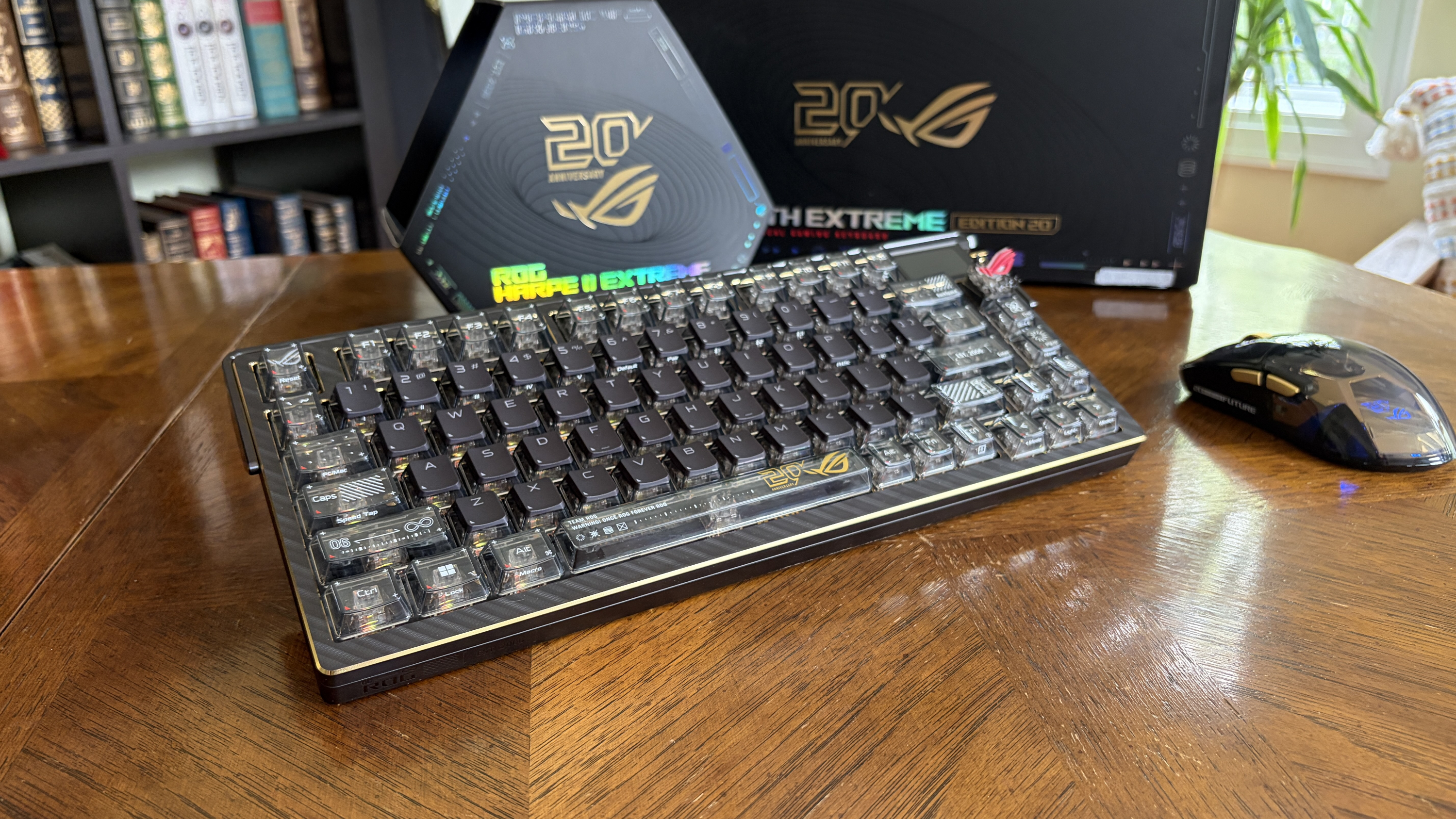
The ASUS ROG Azoth Extreme Edition 20 mechanical keyboard is one of the most expensive on the market today, but not because of its switches. (Image credit: Future)
So, with all the keyboard switch info in mind, which one should you buy? Our guides to the best keyboards and best gaming keyboards are great places to start, but let me break it down into the different categories of PC users who care most about their hardware.
Competitive PC gamers should seriously consider investing in a Hall Effect keyboard. They're more durable, they offer extreme precision, and they can be customized to your liking. Optical switches can also do a great job here if you'd rather skip the magnetic setup.
Casual PC gamers might want to splurge on Hall Effect or optical switches, and there's nothing wrong with that. But for the majority, classic mechanical switches, whether linear, clicky, or tactile, will do a great job of keeping up with repeated keypresses. You won't have to spend as much, and you can still have a lot of fun customizing your board.
For professional typists or programmers, I recommend a tactile mechanical switch. You still get a comfortable setup and extra durability, without all the extra noise that might annoy you or those around you over time. If you have the budget, this is where Topre switches can also be super appreciated.
And if you're on a budget, you can always check out a cheaper mechanical switch. There are plenty of options available at the low end of the market. And if you really don't care? Just get a cheapo membrane keyboard and forget everything you just read.
Join us on Reddit at r/WindowsCentral to share your insights and discuss our latest news, reviews, and more.
I have several PCs in my office that are capable of running Copilot+ tools in Windows 11, but there's one feature I've stayed away from: Windows Recall.
Why? I don't particularly like the idea of AI snapshotting what I do on my PC and making it searchable, even if it promises to never let the data leave my local system. I'm sure it's handy for some users, but I've yet to come across a scenario where I wish I had it enabled.
If you're of the opposite opinion and happen to use macOS, I have good news. OpenAI today announced "ChatGPT Computer History" for its macOS app.
What is ChatGPT Computer History?
Today we're releasing Computer History in ChatGPT.It lets ChatGPT learn from everything you do on your computer, so it can better understand how you work, finish tasks that you're in the middle of, and suggest skills and automations based on how you use your computer. pic.twitter.com/xnTq7hWH8OAugust 13, 2026
Here's a blurb from the ChatGPT press release about how it works:
Computer History turns your activity across apps and websites into memories and a timeline that ChatGPT and Codex can reference. You can ask natural questions about recent work, pick up where you left off, understand patterns in how you work, and turn repeated workflows into skills or automations.
OpenAI
Yeah, that sounds like the same thing. But let me explain ChatGPT's version a bit more.
Computer History, according to ChatGPT's website, is completely optional and turned off by default for Pro, Business, and Enterprise subscribers.
Rather than collecting screenshots every so often to keep track of your doings, Computer History "records interaction events and does not capture your screen or audio." It's basically its own little keylogger, keeping tabs on clicks, typing, app switching, shortcuts, and more.
The data it records is searchable, and you can interact with Computer History the same way you interact with any AI, asking it regular language questions.
The data that Computer History gathers is saved locally on your Mac, but it does get sent to OpenAI's cloud servers in order to turn it into memories. These memories are then sent back to your Mac for local storage.
OpenAI says it does not keep this data on its servers unless required by law, and it does not use the data for training.
Is Computer History different enough from Recall to avoid similar backlash?
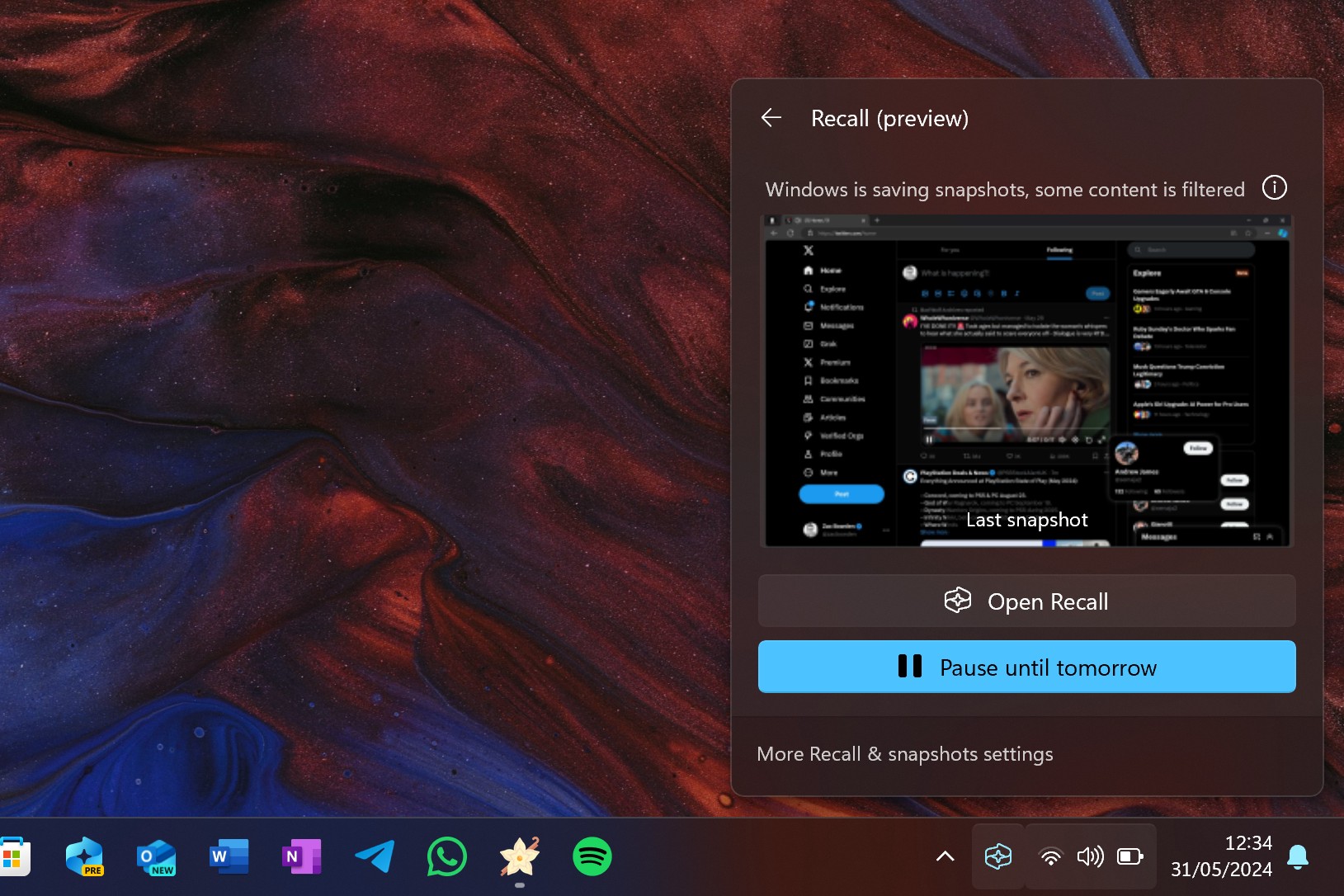
A look at the Recall feature's pause option in the Windows 11 taskbar. (Image credit: Windows Central)
The reaction to ChatGPT's Computer History announcement is surely mixed. It seems like there are just as many people worrying about massive privacy and surveillance issues as there are people wondering if they should go out and buy a Mac.
Windows Recall faced the same adversity when it was announced as a default feature, with no opt-in available. The pushback was so bad that Microsoft delayed its launch by almost a year in order to address security issues. It officially released in April 2025 as an opt-in feature, but I know that many Windows users are still wary of its abilities.
The fact that ChatGPT is making its Computer History opt-in from the start tells me it learned from Microsoft's mistakes. There's also the fact that it doesn't take screenshots, making it feel less like routine spying.
The memes coming out of the ChatGPT Computer History announcement are gold. (Image credit: @trashpandaemoji (X.com))
That doesn't mean there aren't inherent risks to using something like Recall on Windows or Computer History on macOS.
It's clearly noted in OpenAI's Computer History documentation that the feature does not encrypt your information, and that it can be accessible to other apps running on macOS.
Like Recall, there are also serious prompt injection risks. Because these AI-powered features can essentially see what you're doing, they can be tricked with text. You might visit a seemingly innocuous website, only to realize later that it contained hidden instructions aimed at AI that made it do something unsavory.
Windows Central's take
Some of us here at Windows Central use Windows Recall on our PCs, but I stay away from it. (Image credit: Zac Bowden / Windows Central)
Some of us here at Windows Central use Windows 11's Recall feature. Others don't. I'm in the latter camp, but one day that might change.
Why? It feels like there's a definite push going on with AI assistants that can remember everything you do, and it's not just ChatGPT and Microsoft. I've spent time with Lenovo's Qira cross-device ambient assistant, and I've written about HP IQ.
Although I shudder at the privacy implications of these tools gone wrong, they definitely seem like one strong fork in the future of computing. It will be interesting to see how this all plays out, and ultimately to see how macOS users react to something that made Windows users go ballistic.
What do you think about ChatGPT's Computer History? Is it Recall with a different name? Is ChatGPT approaching the tool properly with opt-in-only settings and no screenshotting? Is it something you'd use on Windows 11? Let me know in the comments section below!
Join us on Reddit at r/WindowsCentral to share your insights and discuss our latest news, reviews, and more.
Scooby Doo meme of Fred pulling the mask off of ChatGPT only to reveal Windows Recall beneath.
Scooby Doo meme of Fred pulling the mask off of ChatGPT only to reveal Windows Recall beneath.
Fellow Canadian Dave W. Plummer is a legendary programmer who created some of Microsoft's most recognizable (and lasting) software.
Not only did he create ZIP file support for Windows and get Space Cadet Pinball running on Windows NT, but he also created Windows Task Manager. As the story goes, Plummer began working on Task Manager at home before bringing it into Microsoft. It began shipping on Windows PCs in 1996, and the rest is history.
Well, sort of.
Plummer has been a regular figure on social media and YouTube (check out Dave's Garage) for years, and I particularly enjoy his stories and insights regarding the early days of Microsoft and Windows.
The example was bathed in neon lighting for a definitive cyberpunk vibe, and of course it was accompanied by a hard-hitting synthwave soundtrack.
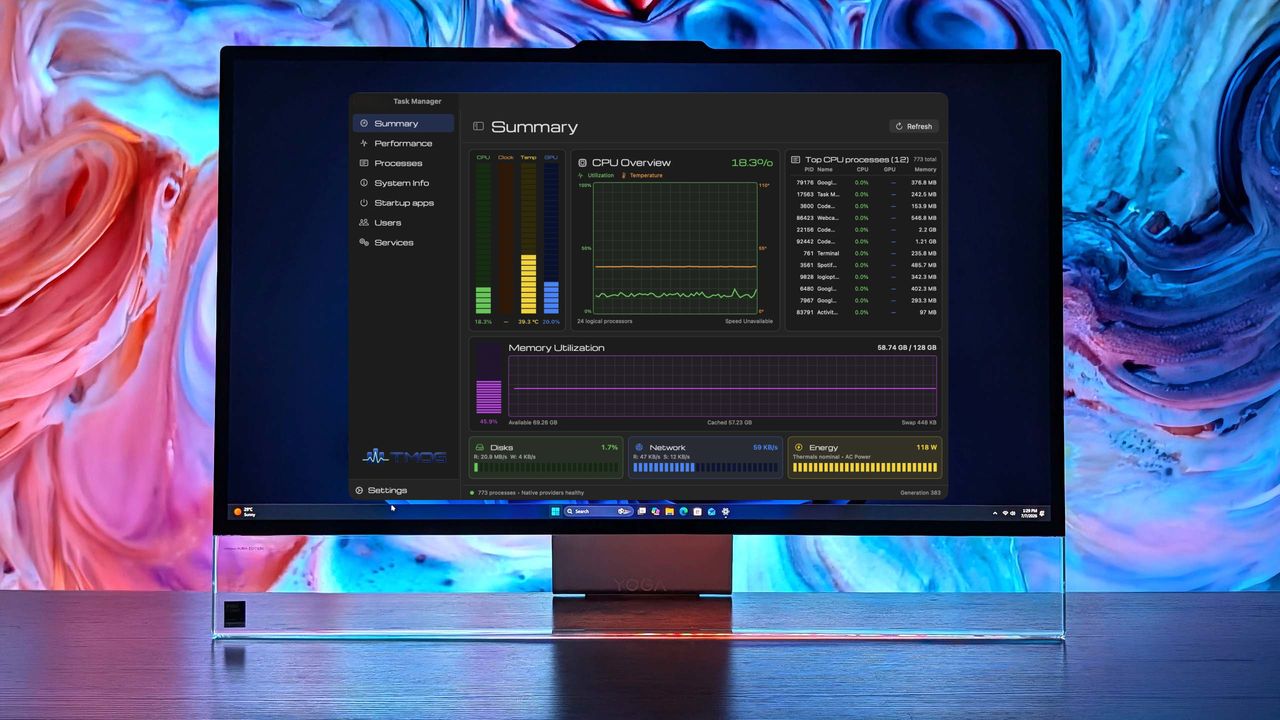
It's been about six months since Plummer showed off the concept, and he's now returned with a working version of what he calls "Task Manager OG," or TMOG for short.
It's not quite as cyberpunk as the original idea. The neon lighting is still there, but it's toned down, and the synthwave soundtrack seems to have been replaced with classic rock tunes.
Say HELLO to my little friend, Task Manager OG!I'm please to announce the immediate availability of the MacOS version of TMOG today; Windows support will follow shortly, so follow for the update!TMOG is a free application; I may do a Pro version at some point, but everything… pic.twitter.com/N35Bc239eiJuly 31, 2026
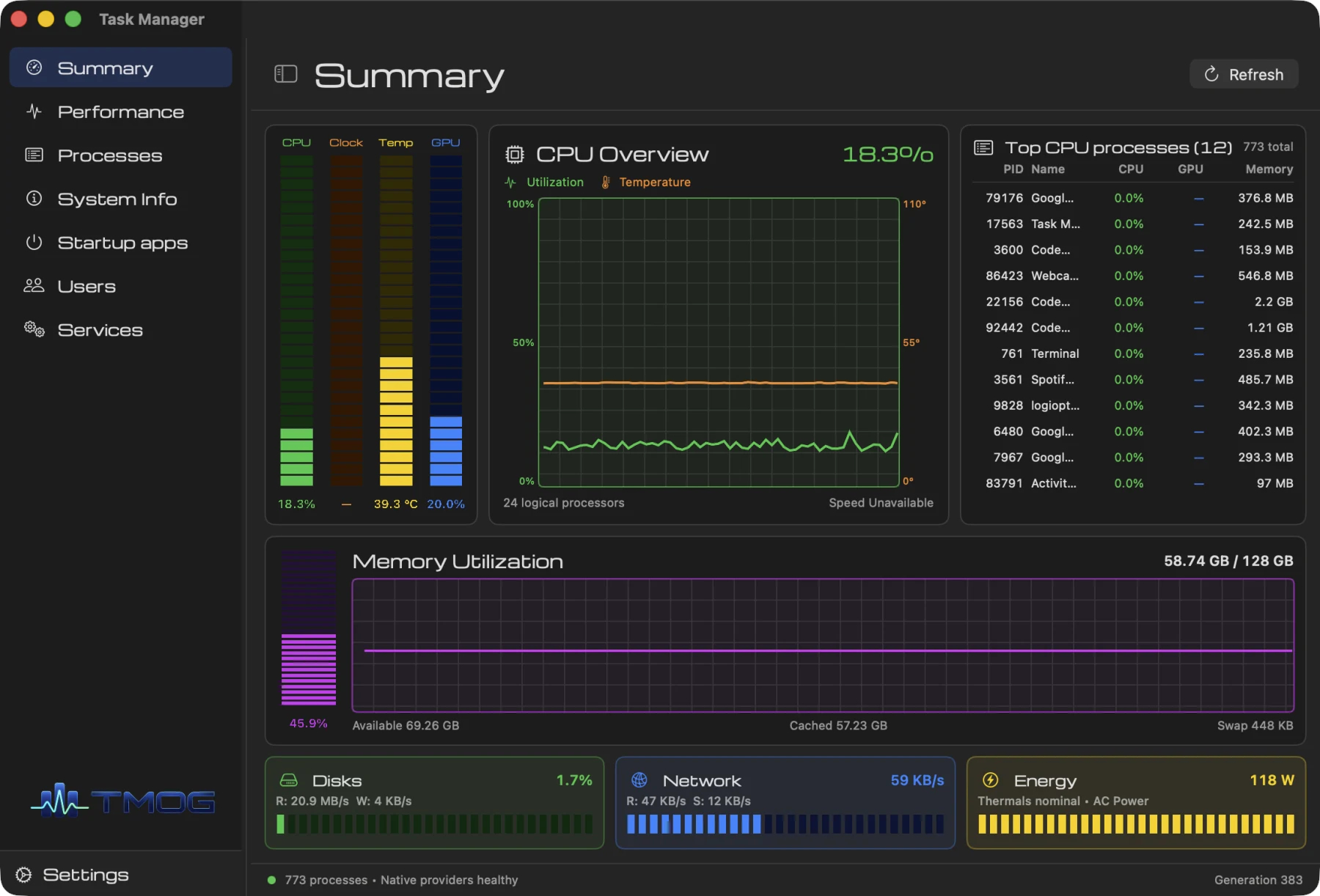
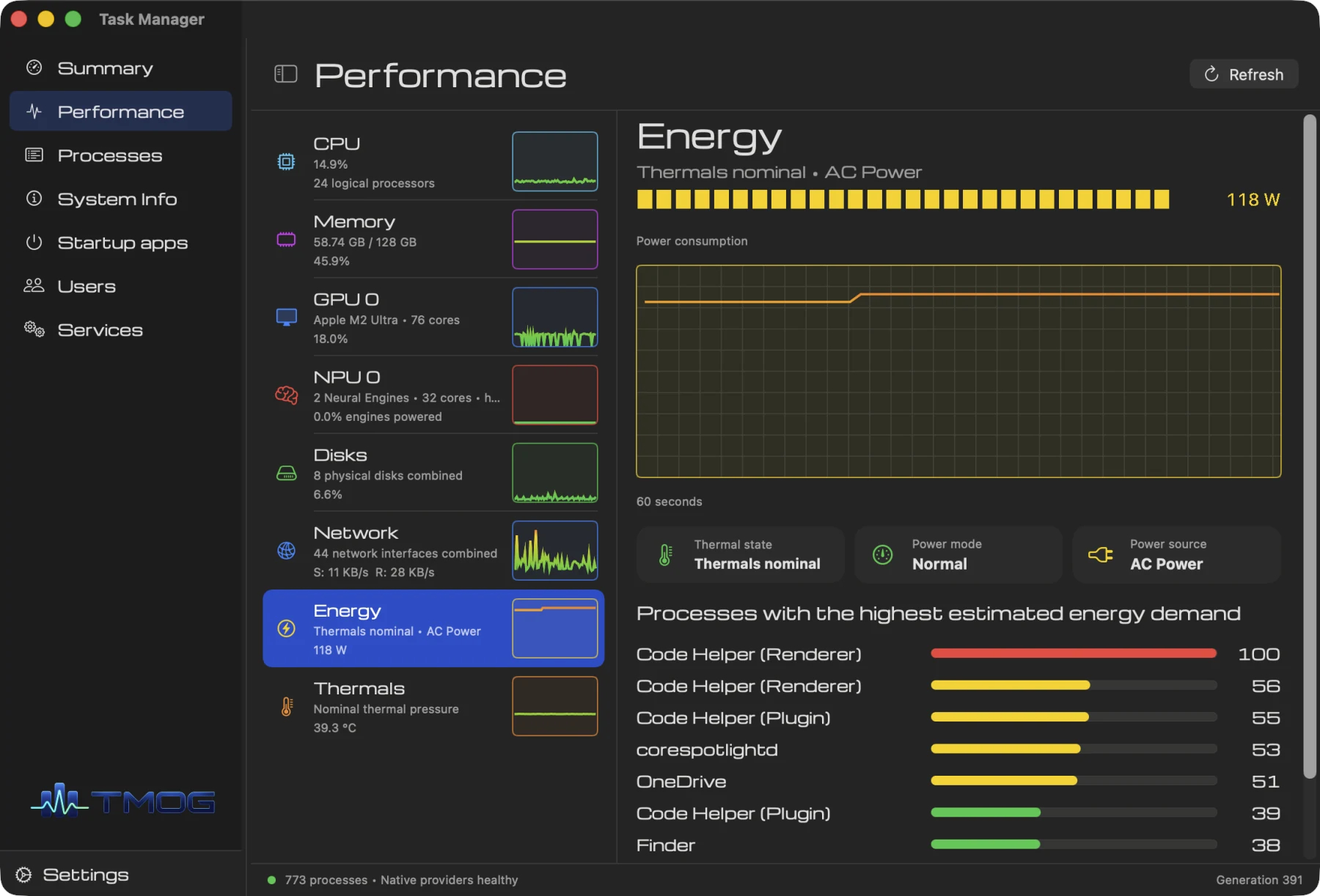
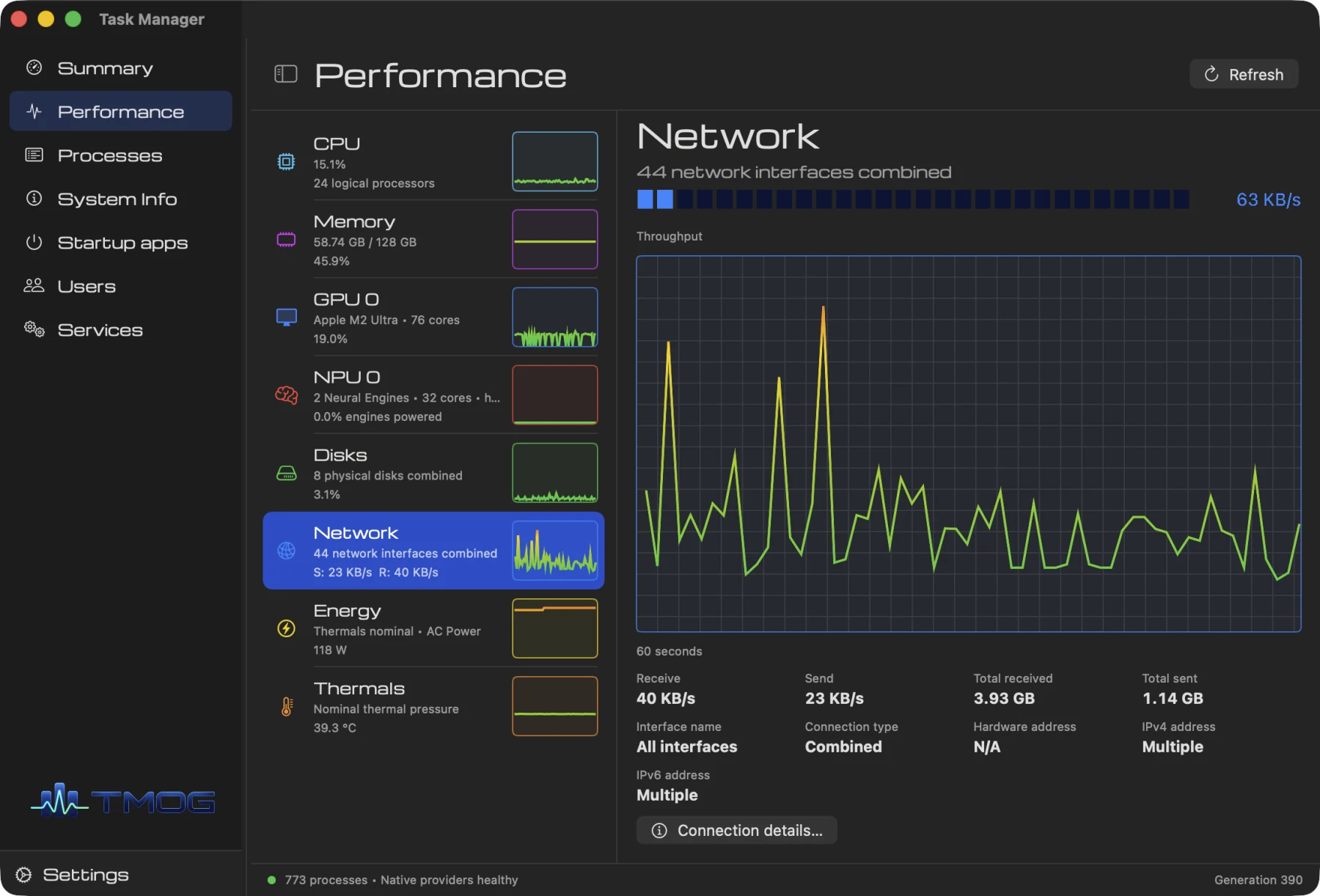
Plummer explains that he created TMOG to have "the clarity of Activity Monitor" from macOS with "the depth of Task Manager" from Windows. The software has all the main information about CPU, GPU, RAM, storage, temps, etc. up front, with much deeper diagnostics sitting just below.
Perhaps the best part is that Plummer says his OG version of Task Manager is "half the size of the Windows Task Manager."
A look at the overall summary tab in the Task Manager OG app.Dave W. Plummer (tmog.org)A look at the Performance tab in Task Manager OG.Dave W. Plummer (tmog.org)Another look at the performance tab, this time focusing on network performance, in Task Manager OG.Dave W. Plummer (tmog.org)
Here's the rub. Plummer's Task Manager OG is, for now, only available onmacOS. But as Plummer states, "Windows support will follow shortly." That's a bit of a bummer because I wanted to test it out myself; alas, I'm fresh out of Macs in my office.
Plummer has a full website set up for TMOG, where you can download the beta for free (currently for macOS only). The upcoming Windows version of TMOG is listed as native Win32, with no browser shell required.
There's another Task Manager alternative I've been enjoying
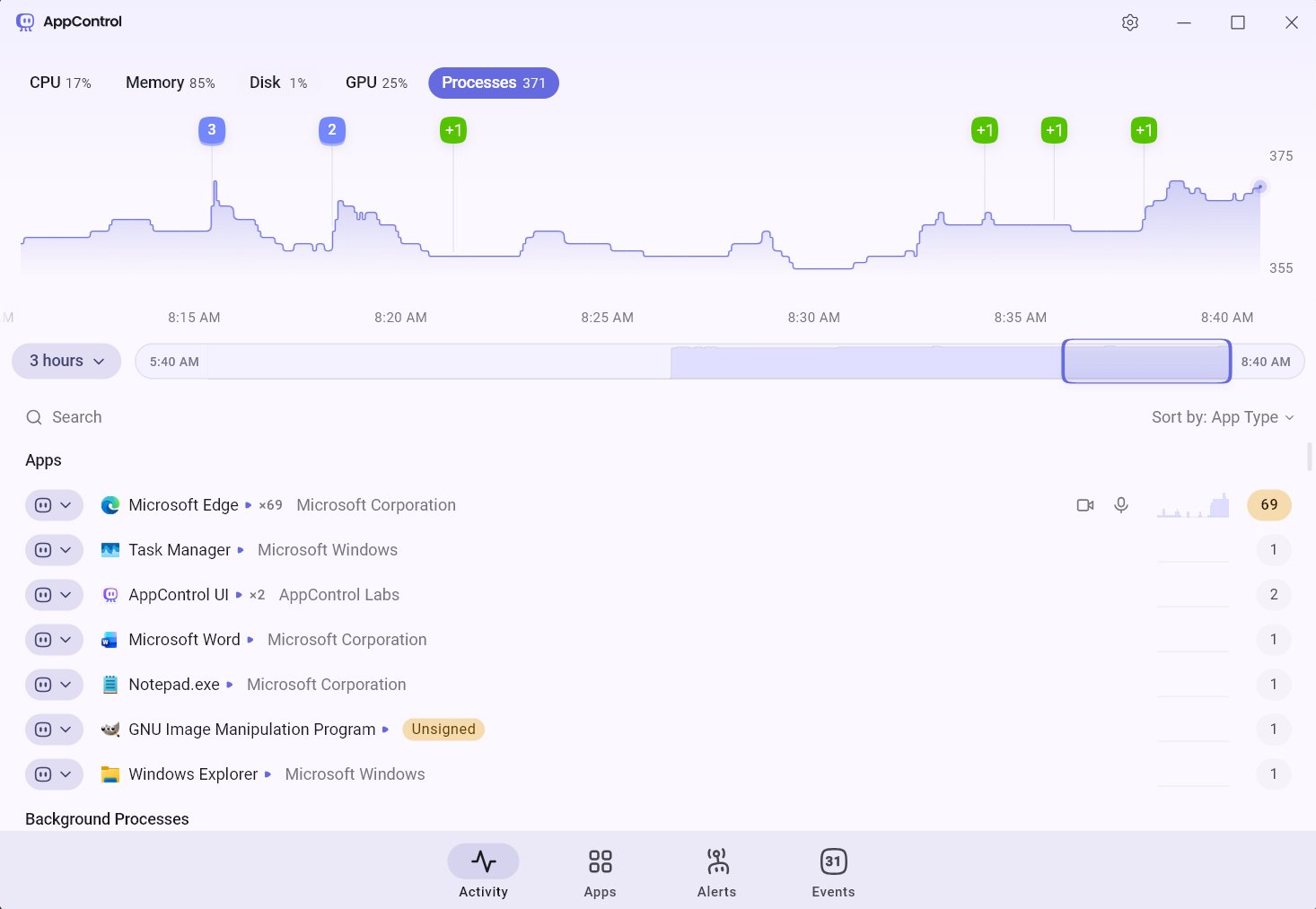
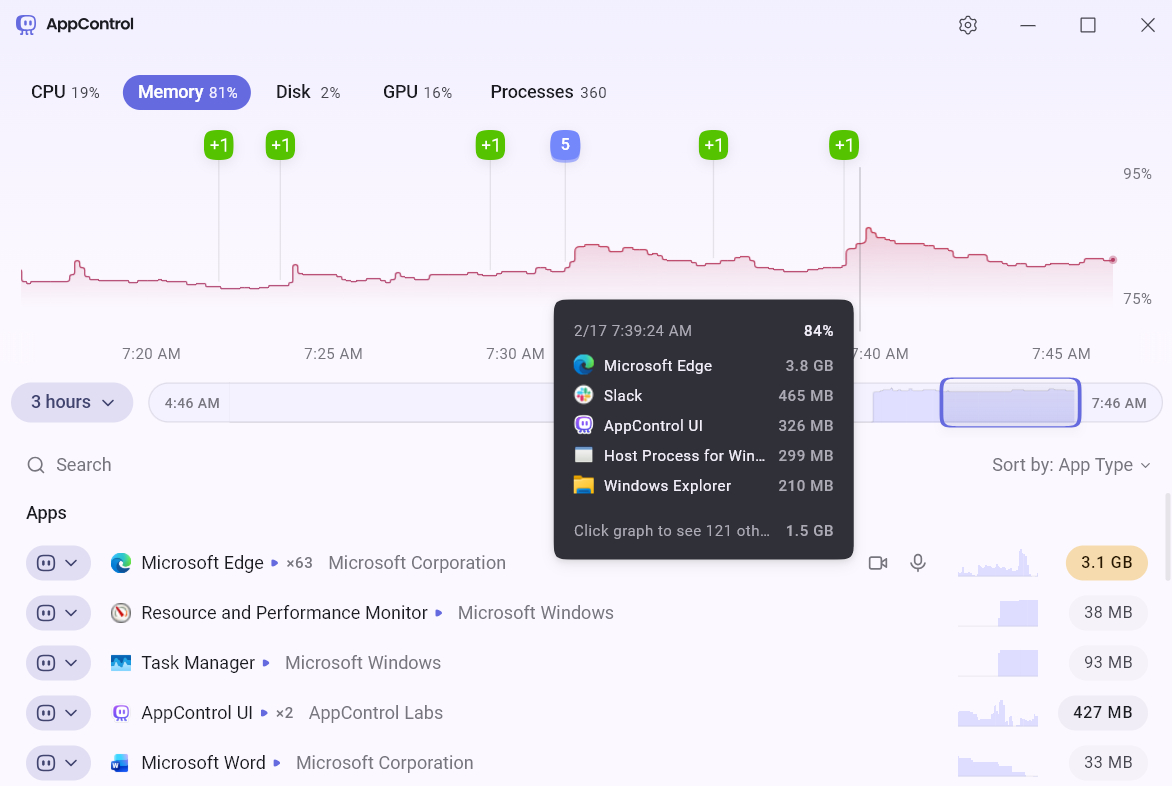
A look at the Processes monitoring page in the AppControl app.FutureThe memory usage spike when I opened a large article in our CMS is clearly shown in AppControl.Future
While I wait patiently to test out Plummer's Task Manager OG on Windows, I should remind readers that earlier this year I made the switch to AppControl.
It's a Windows 11 Task Manager alternative that I found quite capable, and I went so far as to say that AppControl is what the stock Windows 11 Task Manager should have been all along.
What do you think about the cyberpunk-esque look of Plummer's Task Manager OG? Is it something you'll try out on your Windows PC once it's available? Will you test it out on your Mac first? Let me know your thoughts in the comments section below!
Join us on Reddit at r/WindowsCentral to share your insights and discuss our latest news, reviews, and more.
Lenovo PC displaying Task Manager OG with CPU and memory statistics, set against a colorful abstract background.
Lenovo PC displaying Task Manager OG with CPU and memory statistics, set against a colorful abstract background.
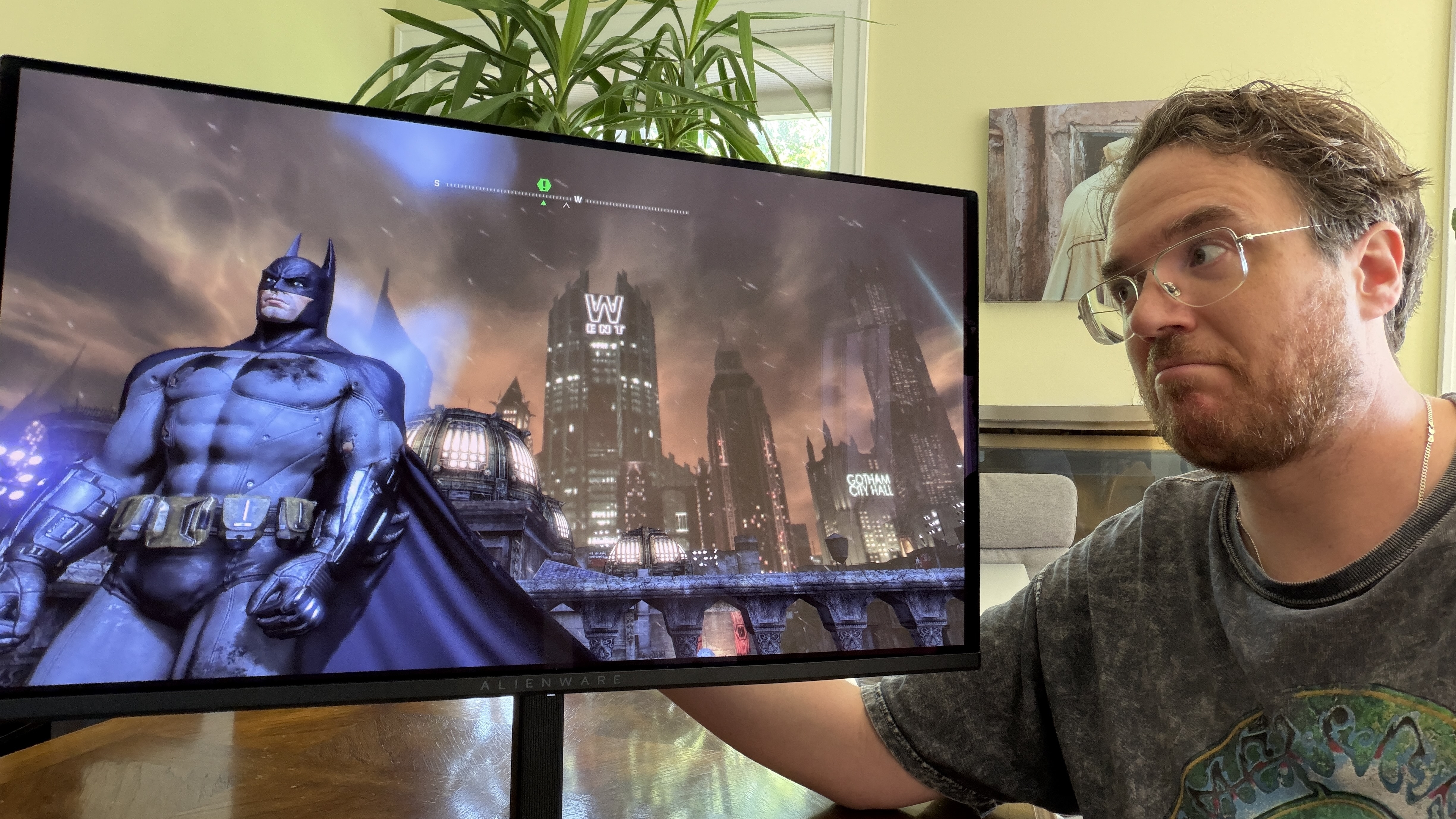
I made the switch to a full-time OLED monitor a few months ago, and it's been a welcome upgrade on my desk for gaming and for work.
Apparently, I'm far from the only one who decided to make this upgrade.
The latest market research fromTrendForce shows that the OLED monitor market picked up momentum as it moved through the second quarter of 2026.
In fact, TrendForce saw global OLED monitor shipments rise by a healthy 26.1% in Q2 2026 compared to Q2 2025. Year over year, shipments are up a whopping 98%. No, I don't think the OLED display market is in any jeopardy.
TrendForce posits that the OLED market's growth in Q2 2026 was largely driven by the launch of new models, especially those that measure 27 inches (the industry's most popular size).
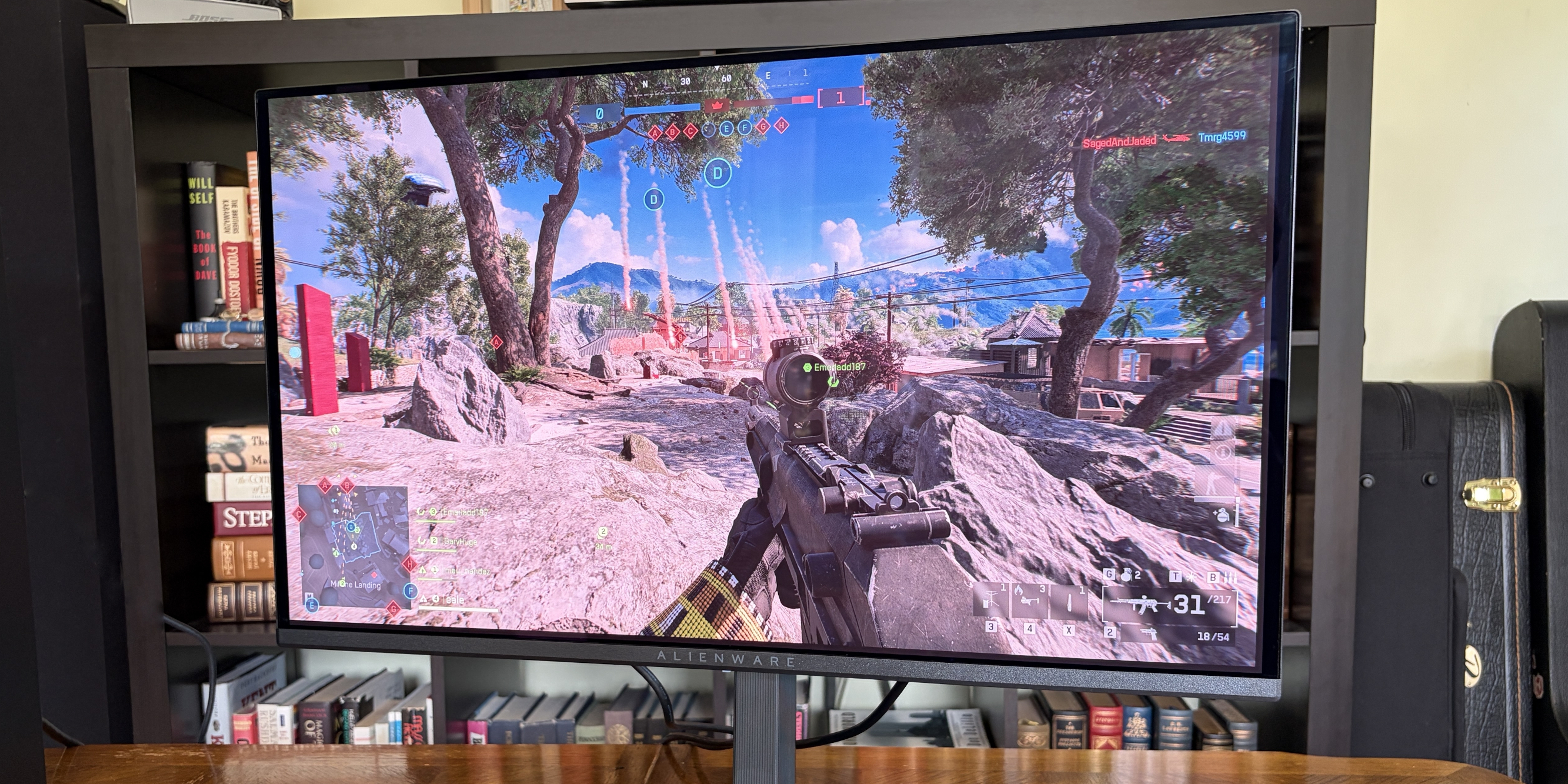
Alienware's AW2726DM is an outstanding OLED gaming monitor for those who want to spend $350. (Image credit: Future)
Another market growth factor TrendForce includes is China's 618 shopping day. It's akin to the Black Friday/Cyber Monday events on this side of the Pacific, when countless people make tech upgrades.
ASUS remains at the top of the OLED industry with a healthy 23.1% market share. It notably launched the 34-inch ultrawide ROG Strix XG34WCDMSrecently, which is currently being tested here in my office.
Samsung remains in second place with 13.1% market share, with MSI and AOC coming in at number three and four with 12.8% and 8.6% market share, respectively.
LG remains in last place out of the big brands with 8.4% market share, and I wouldn't be surprised to see that number drop next quarter as the company deals with fallout from its monitors installing unwanted adware on Windows 11 PCs.
The hidden driver behind the rise in OLED monitor sales
The price of many PC components, including NVIDIA GPUs, is on the rise due to AI-influenced hardware shortages. (Image credit: CFOTO/Future Publishing via Getty Images)
The TrendForce report suggests that improved OLED panel supply chains have helped smaller brands compete with the big names I mentioned above, but I suspect there's another reason driving monitor sales that TrendForce doesn't mention.
The ongoing RAM and storage crisis doesn't seem to have any end in sight. The rosiest of estimates puts a market correction towards the end of 2027, but more realistic estimates are pushing into the 2030s, barring some sort of AI bubble collapse.
The shortage of DRAM and NAND chips is affecting other hardware prices as well, including GPUs. When your next PC upgrade is looking, at best, like a motherboard and CPU swap, many enthusiasts are looking elsewhere for a meaningful (and not overpriced) upgrade path.
Dropping $350 on a new OLED gaming monitor doesn't seem so bad when standard RAM kits cost hundreds more. (Image credit: Future)
The recent drop in OLED prices, highlighted by the $350 Alienware AW2726DM monitor I reviewed, is making it a perfect time to swap monitors. And when other PC upgrades are off the table, OLED really starts to make sense.
Do you agree that sky-high PC component prices are forcing people to look at other upgrade avenues? Do you think OLED sales will level out in the next quarter as the market becomes more saturated? Let me know in the comments section below!
Join us on Reddit at r/WindowsCentral to share your insights and discuss our latest news, reviews, and more.
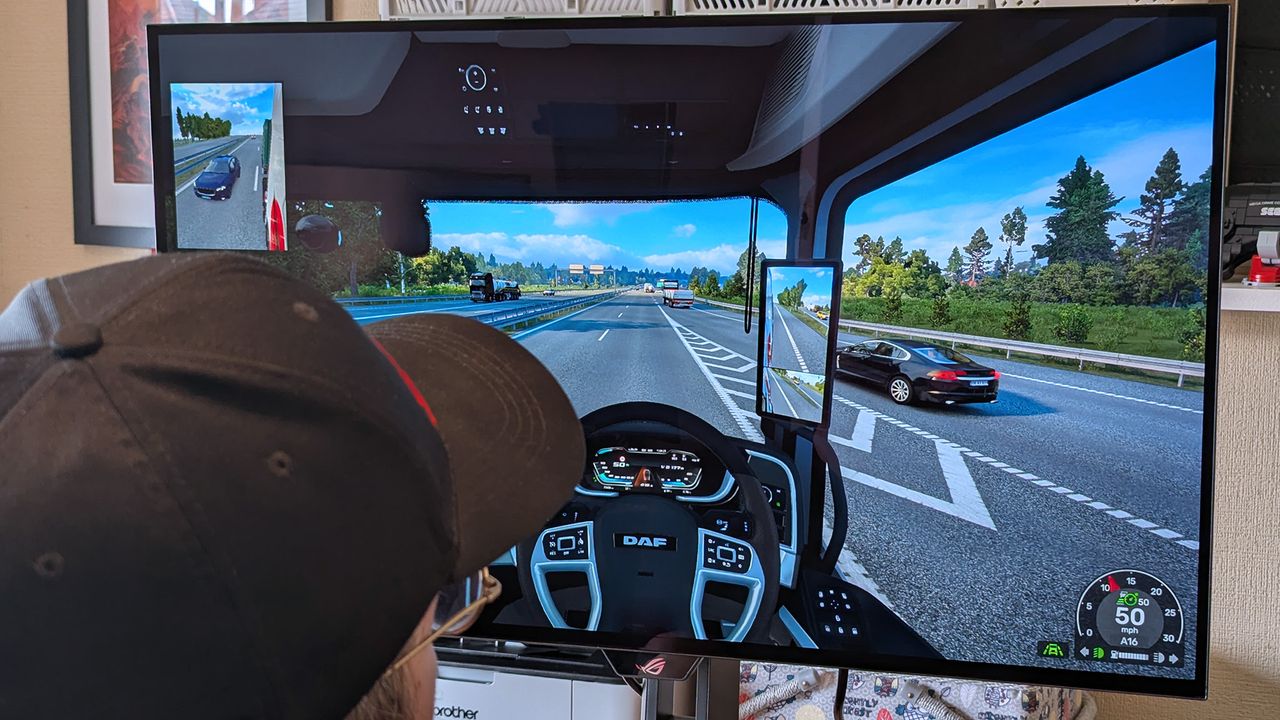
Windows Central's Ben Wilson wearing a black cap sits at a desk playing Euro Truck Simulator 2, with the ASUS ROG Strix OLED XG32UQWMS monitor showing a DAF truck interior.
Windows Central's Ben Wilson wearing a black cap sits at a desk playing Euro Truck Simulator 2, with the ASUS ROG Strix OLED XG32UQWMS monitor showing a DAF truck interior.
GOG (formerly known as Good Old Games) is one of the most popular spots to buy, download, and curate PC game collections. It competes directly against the behemoth Steam, the oft-maligned Epic Games, and plenty of other PC game storefronts, and over the years it has garnered quite a positive reputation among gamers.
GOG's games don't come with DRM. Older titles are often fixed, patched, and updated to run on new hardware. There's a rather generous 30-day return policy, and there are frequent sales with massive discounts.
Yeah, it all looks great, and I'm a huge fan of GOG.
So where is this going? I recently came across a user-maintained catalog of "Games that treat GOG customers as 2nd Class." It was just updated on August 11, 2026, and I'm shocked at how many titles are listed as having some sort of disparity compared to other digital storefronts.
GOG's game version disparity is a lot worse than I ever expected
There are 1,140 games that have at least one issue on GOG compared to other storefronts. (Image credit: GOG)
I was aware that some GOG games weren't the same as the versions found in other stores, but I never knew the problem was this widespread.
This effort to track issues with GOG versions of games actually got started in 2018 in a GOG forum thread that's still alive today, now reaching 400+ pages with thousands of replies.
The spreadsheet catalog contains a list of 1,140 games with at least one issue. There are 1,531 issues in total. Those numbers are not typos. Sure, some of the issues are less severe than others, but that doesn't mean GOG customers should receive an inferior product.
The catalog tracks the following issues:
Missing updates (308 total issues)
Missing languages (100 total issues)
Missing free DLC (51 total issues)
Missing paid DLC (200 total issues)
Missing features (111 total issues)
Missing soundtrack (439 total issues)
Missing builds (278 total issues)
Region locking (12 total issues)
Sources are provided for many of the games listed as having issues, and others are sourced directly from first-hand experiences.
Out of all the 1,140 games on the list, there are 17 special mentions. The game The Messengerfrom Devolver Digital, one of my favorite publishers, is flagged as special. Why? The GOG version is missing a Unity security update, and the soundtrack files are of a "lower quality than on Steam."
Devolver Digital's The Messenger is on of the games that received a special mention for missing features and issues. (Image credit: Devolver Digital | Sabotage)
Another special mention is given to the game Nuclear Thronefor its five issues, including a missing 10-year anniversary update, missing languages, missing challenges, missing soundtrack, and missing Linux version.
I could go on with plenty more examples, but I'm sure you get the idea. Missing soundtracks seem to be the most frequent offender with 439 total issues, while missing updates place second with 308 total issues.
Why do some developers seem to give GOG less attention?
Nuclear Throne is one of the games flagged as having the most issues on GOG. (Image credit: Vlambeer)
GOG's disparity with other storefronts isn't really GOG's fault. It's ultimately up to the developers and publishers what to include in their games when they're sent to GOG, and what to update thereafter.
Devolver Digital and THQ Nordic GmbH are both at the top of the list with 29 issues each in total across their published games.
Correct me in the comments section below if I'm wrong, but Steam's far larger user base and its savvy workshop integration make it the go-to spot for most game companies. Much more attention is paid to Steam, and GOG seems often to be treated as "we'll get to it when we can."
And because GOG requires games to be DRM-free, there's definitely extra work to be done in many scenarios. For older games that may or may not have a dedicated development team, this is especially painful.
GOG is a great place to shop if you care about game preservation and proper functioning of classic titles, but you're still paying for the games. There's a certain irony here in buying a game to preserve it properly, only to find out that it's missing one or several features that you could have received if you'd purchased it, say, on Steam.
My advice for the next time you're buying a game on GOG
Like I said, I support GOG and its mission to deliver DRM-free games. However, I was not aware of how many titles have issues.
From now on, I'll be checking the spreadsheet carefully any time I head over to GOG and pick up a new game. I suggest you do the same, lest you end up with a DRM-free version that's missing the content you bought it for in the first place.
Were you aware of how many games on GOG have missing content and issues compared to other storefronts? Has it tainted your opinion of GOG? Is there any hope to solve the major issues that some of these games have? Let me know in the comments section below!
Join us on Reddit at r/WindowsCentral to share your insights and discuss our latest news, reviews, and more.
GOG.com logo next to a Steam logo on a purple starry background, with a red equals sign separating them.
GOG.com logo next to a Steam logo on a purple starry background, with a red equals sign separating them.
ASUS Armoury Crate is but one piece of specialized management software that many of us have installed on our PC, perhaps without even knowing it. It comes preinstalled on ASUS gaming handhelds, including the Xbox Ally X, as well as ASUS gaming laptops.
If that sounds like hardware you use, it's time to check up on Armoury Crate. According to an August 10 update on the official ASUS advisory board, "a component used by Armoury Crate" is vulnerable and could be leaving you open to attacks.
Alongside that unmentioned component of Armoury Crate, ASUS has also released security updates for its GPU Tweak III, GPU Tweak II, and AI Suite 3 software.
This vulnerability, listed as CVE-2026-8917, comes with an 8.4 rating. That's out of a maximum of 10, meaning this isn't an issue you should ignore for long.
What does this ASUS vulnerability entail?
According to the CVE record, an "IOCTL vulnerability allows a local attacker to write a specific value to an arbitrary memory address, potentially leading to privilege escalation."
Although the CVE record doesn't mention Armoury Crate by name, it's clear that ASUS is concerned with that "certain component" alongside its other standalone software.
How do I update the vulnerable ASUS software?
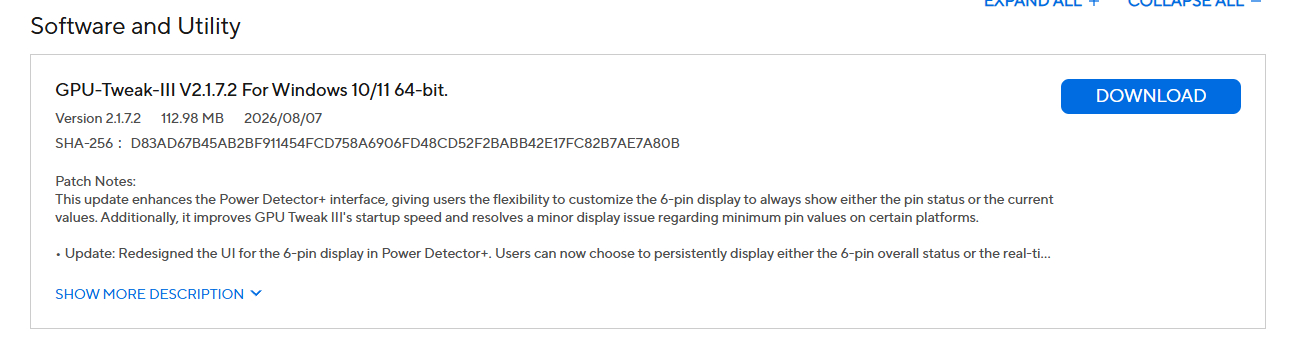
A look at the GPU Tweak III download page at the ASUS support website. (Image credit: ASUS)
Updated versions of GPU Tweak III, GPU Tweak II, and AI Suite 3 software can be directly downloaded from the ASUS support website.
You want to be sure that you're grabbing the most recent version. For GPU Tweak III, I'm seeing version 2.1.7.2. This appears to be a newer version than what's listed as affected on the CVE website.
The GPU Tweak II version on the ASUS support page appears to still be the one affected. (Image credit: ASUS)
For GPU Tweak II, I'm seeing version 2.4.0.0 on the ASUS support page; unfortunately, this version is listed on the CVE page as vulnerable, so I can only guess that ASUS hasn't yet made the necessary updates to its download packages.
It's unclear why ASUS hasn't yet made the secure version of GPU Tweak II available for download. If you're concerned, my best advice is to simply remove the software entirely until it's updated.
And for the actual Armoury Crate software, you can choose to update from within the app itself.
Is there any alternative to ASUS Armoury Crate?
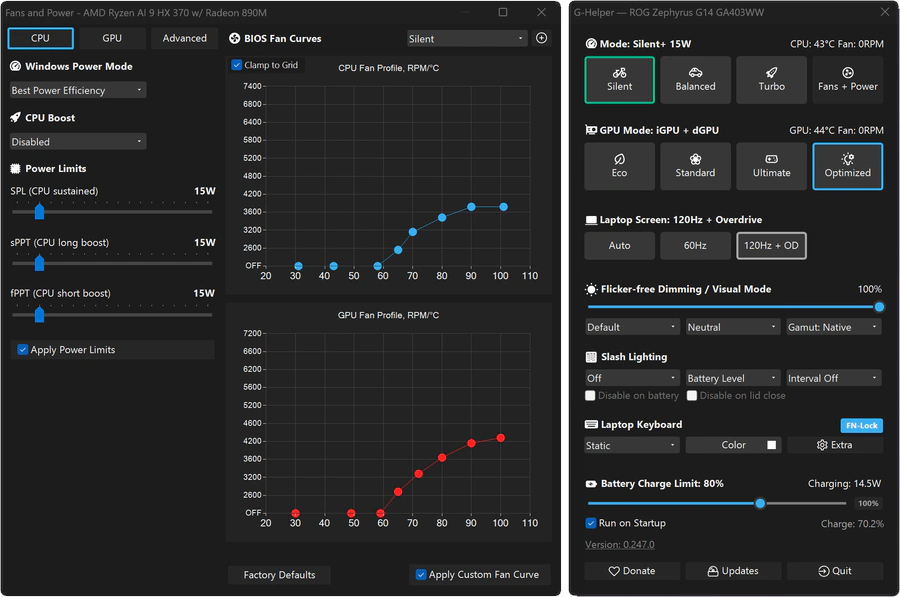
A look at the G-Helper app interface for ASUS laptops and gaming handhelds. (Image credit: Seerge (g-helper.com))
I often use Armoury Crate on my desktop gaming PC to control certain ROG and TUF components, but most of the time it sits idly in the background. It's not the best software, vulnerabilities aside, but it seems to get the job done.
I've read tales of some specific ASUS desktop hardware absolutely requiring Armoury Crate to function properly, but for other ASUS gaming devices, it can be replaced entirely.
Let me introduce you to G-Helper. It's designed to work with ASUS laptops and gaming handhelds, doing what Armoury Crate does in a streamlined, unbloated app that only eats up about 5MB of space.
It seems like every time I turn around, there's another round of layoffs affecting video game studios.
In July, Xbox announced its biggest downsizing ever, cutting 3,200 jobs throughout 2026 and 2027. At the same time, Xbox made deals with four major studios to go independent or take on new management.
It's all starting to feel like white noise with the same language. Streamlining. Restructuring. Focusing resources. Adapting to changing markets.
After reading an excellent report from Rest of World about the plight of small game developers in Turkey, I realized that the entire video game industry is likely in more trouble than most people realize.
While Microsoft and other big companies at the apex of the industry have been cutting thousands of jobs at the top, there's something just as disruptive going on at the bottom.
Solo developers are shipping full games with a tiny team, empowered by tools like Claude Code and Cowork, OpenAI Codex, and Copilot. This shift in how games are developed is eating up the entry-level jobs that used to serve as a way to break into the game dev industry. The candle is burning at both ends, as they say.
Turkey's AI game development example doesn't bode well
The game development scene in Turkey should be a warning for the rest of the world. (Image credit: Getty | Sergio Amiti)
Over the last decade, Turkey has become a mobile gaming hotspot with more than 800 studios at its peak. It served as a pipeline for young developers who finished school, applied, got hired, worked in junior roles, and eventually made their way up the ladder.
This pipeline is no longer functioning as it should, and it's largely due to AI. One developer interviewed by Rest of World went from a huge studio pumping out a game per week to founding his own studio.
With Claude Code in his back pocket, the developer realized he needed just two employees to achieve similar productivity.
I’m the only developer in my team. When we started, I had to write all the code myself. I also have to manage game design, social media, investment meetings, and the like. With Claude Code, I can do all that easily. It really sped things up and helped me a lot.
Emirhan Gül, speaking to Rest of World
This shift in Turkey's game development scene is having dire effects. Entry-level jobs are understandably disappearing at smaller studios, and the larger studios are reticent to hire inexperienced developers.
The AI stack designed to make us more productive is killing key jobs
AI tools are making us more productive, but at what cost? (Image credit: Getty Images, Robert Way)
The AI stack negatively affecting one of the largest game development booms in European history is the same AI stack that Microsoft is racing to put in front of every developer, on every platform, including the ones building for Xbox and Windows.
Microsoft has famously spent years telling Windows users that Copilot will make us all more productive. But Turkey's example is likely a preview of what that means when followed to its logical end.
Not a team of developers shipping games faster (OK, maybe a bit faster). One developer doing the job that used to require a team. Set this dilemma on top of a video game industry that just saw Xbox cut thousands of jobs, and the math really starts to hurt.
It's worth noting that Microsoft stated that AI is not being used to replace the most recent batch of laid-off employees at Xbox, but the company's overall massive spending on AI infrastructure and data centers has undoubtedly played a role in cuts to underperforming sectors like Xbox.
With layoffs at the top and an ever-shrinking front door at the bottom, the entire industry is being squeezed for all its juice.
Windows Central's take
Junior video game developers are being hit hard by the rise of AI. (Image credit: Getty Images | Microsoft)
The part that stuck with me the most is the plight of junior developers. A university director in Turkey is warning students not to follow the traditional path of getting hired on in an introductory position and working their way up. Instead, they should be building their own games while in school in order to land a job.
Right now is the worst time to enter the game industry to find a stable job, but it’s the best time to start your own venture, to realize your own idea.
Güven Çatak, Founder and Director of Game Lab, Bahçeşehir University (speaking with Rest of World)
So, yes, AI tools definitely lower the barrier to creating a game. At the same time, however, AI tools do nothing to ensure that a game actually finds an audience.
Key steps in the nurturing and maturing of a video game developer are being skipped, and artists, writers, and programmers aren't necessarily getting the experience needed to compete at the upper levels of the industry.
Turkey's degrading video game development scene seems like a preview of what's to come for the rest of the industry, and I'm not sure I like it.
Are you a developer who uses Copilot, Claude, or any other AI tools in your workflow? Has it made you more ambitious? More productive? Are you more nervous now about who you're competing with? Let me know in the comments section below!
Join us on Reddit at r/WindowsCentral to share your insights and discuss our latest news, reviews, and more.
Three AI logos on a dark background: a large Xbox logo in green and gray in the center, a colorful gradient logo on the left, and an abstract orange symbol on the right.
Three AI logos on a dark background: a large Xbox logo in green and gray in the center, a colorful gradient logo on the left, and an abstract orange symbol on the right.
I've spent a lot of time this summer gaming on my Steam Deck. It's hot outside, it's hot inside, and my desktop gaming PC simply creates too much heat.
The only major problem I have with my Steam Deck is that it doesn't play nicely with PC Game Pass, to which I'm a subscriber. Yeah, I could stream games to my handheld, but there's now a better solution in the works.
I'm talking about Xodus, an open-source project that's attempting to build a bridge between PC Game Pass and Linux systems, including the Steam Deck. The project is also attempting to iron out similar issues on macOS. No Windows install needed.
Xodus comes from the developers behind the Heroic Games Launcher, a separate open-source app that brings Epic, GOG, and Amazon Prime titles to Steam Deck (it also works on Windows, macOS, and other Linux systems).
The developers are undoubtedly up against a grind with this project. Xbox PC games that come from the Xbox app rely primarily on a Microsoft Game Development Kit (GDK) runtime, which is a far cry from DirectX and Win32 layers that Valve's Proton already handles quite well.
This Microsoft GDK is really what has kept PC Game Pass from running directly on the Steam Deck (and macOS) for so long.
Is Xodus ready for public release?
Xodus could finally bridge the gap between PC Game Pass and Steam Deck. (Image credit: Rebecca Spear / Windows Centarl)
According to updates shared on the Xodus GitHub page, the developers have cracked Xbox authorization, license checks, and MSIXVC package (the containers that PC games come in) download and decryption.
In a Reddit post, a Xodus developer noted that the team's main focus is now getting the Software Development Kit (SDK) for each title to run through Wine. It appears that Xodus has its own Wine and Proton forks for this purpose, as well as an open-source version of the xgameruntime.dll file that Game Pass games depend on.
Xodus likely won't support all Game Pass games when it launches, either. Older games that eschew GDK and MSIXVC for UWP will likely come later, if at all.
Why I'm so excited to try out Xodus on my Steam Deck
PC Game Pass on Steam would open up a whole lot of new options for gaming on the go. (Image credit: Future)
As mentioned, the biggest drawback to my Steam Deck, aside from its growing age, is its lack of native PC Game Pass support.
Sure, I could upgrade to a newer handheld that natively runs Windows, but it looks like I might not need to quite yet. That's especially exciting considering just how expensive gaming handhelds have become of late.
Then there's the Steam Machine, another Valve device running the Linux-based SteamOS. A whole bunch of gamers recently got their hands on the Steam Machine when it launched in June, and making PC Game Pass an option can only benefit Microsoft.
Here's the rub: Xodus has no affiliation with Microsoft. It's an unofficial community project created by independent developers. Does that mean Microsoft will have a problem with it? Not likely, but you never can tell.
Xodus still doesn't have an official release date, but it's something I'll be keeping my eyes on as it progresses. If you're a Linux gamer who wishes they could use PC Game Pass natively, you'll definitely want to keep watch as well.
What do you think about Xodus as a bridge between Steam Deck/Machine and PC Game Pass? Is it something you'd use regularly? Do you already have an alternative method that works better for you? Let me know in the comments section below!
Join us on Reddit at r/WindowsCentral to share your insights and discuss our latest news, reviews, and more.
A black Steam Deck handheld gaming device displaying a penguin logo with a cap that says "XODUS," set against a softly illuminated pink and purple background on a textured surface.
Microsoft isn't doing it, so someone else is trying.
Dell's XPS 13, starting at $599 for students and $699 for everyone else, kicked off a new market sector of affordable-but-premium Windows 11 PCs. It's not likely to be usurped by the new Acer Swift Air 14 unless you need more ports, a larger display, or more expressive color options.
Pros
Beautiful aluminum design that's more compact
2.5K display with plenty of brightness; 30Hz-120Hz variable refresh rate
IR camera for Windows Hello
Starts at $599 for students
Cons
No USB-A or 3.5mm audio
Thunderbolt 4 is only available with more expensive models
Acer's Swift Air 14 arrives to challenge the $699 affordable-but-premium PC market, and it should be the right choice for those who want a larger 14-inch display, more color options, and a more generous selection of ports.
Pros
Thunderbolt 4 ports come standard, includes USB-A and 3.5mm audio
Four color options, beautiful aluminum design
Larger 14-inch display hits 120Hz
Could have slightly better battery life compared to XPS 13
IR camera for Windows Hello
Cons
Slightly larger and heavier (though you get a larger display)
No Dolby Vision, lower-res display
No Panther Lake option for power users
Dell's latest XPS 13 (DX13260) was unveiled at Computex 2026 and launched in June, starting at $599 for students and $699 for everyone else.
Not to be outdone, Acer also unveiled a new budget $699 Windows 11 laptop at Computex; the Acer Swift Air 14 is expected to launch in North America in August ... basically any day now.
Considering how closely matched these two PCs are in price, I thought it was best to put together a comparison to help you make the right decision.
Dell XPS 13 vs. Acer Swift Air 14: Specifications
Here's a breakdown of the specs that go into each of these laptops to give you a better idea of what you're buying.
TL;DR? Acer's Swift Air 14 is a larger laptop with a much larger battery capacity, and both PCs run on the same Intel Wildcat Lake chips. I break down the differences in some detail below this table.
These budget laptops feel like they should cost a lot more than $699
Showing off the Acer Swift Air 14's color options. (Image credit: Windows Central / Zac Bowden)
One major feature that sets these budget laptops apart from other PCs in the same price range is their aluminum frames. These are laptops with a truly premium feel despite their budget pricing.
It's a beautiful laptop, complete with a metal enclosure that feels premium to touch, and a large trackpad and excellent keyboard that make using the device feel great.
Zac Bowden
Dell offers two colors — Storm or Sky — for its XPS 13, while Acer offers Sage Green, Frost Blue, Blossom Pink, and Lilac Purple colors for a bit of extra expression.
The Swift Air 14 is the larger of the two laptops due to its 14-inch screen. It's still only about 12.36 inches wide (basically the size that 13-inch laptops used to be), and it weighs in at just 2.75 pounds (1.25kg).
The XPS 13 has a width of 11.69 inches and weighs in at 2.2 pounds (1kg), which is considerably lighter. I'd say that both of these laptops are extremely portable, and there's a difference of just 0.1 inches when it comes to thickness.
The laptops feel premium, and that's really what matters with such affordable devices. Bowden, too, went hands-on with the new XPS 13, stating:
The new XPS 13 doesn't cut any obvious corners to reach its new $699 price point. It still feels every bit as premium and nice to use as the $1,000 XPS 13 before it. This would be like if Apple made the MacBook Air a $699 laptop, instead of building a cheaper MacBook Neo.
Zac Bowden
TL;DR: Both laptops have a premium design and build quality, and they're both relatively thin and light. Stick with the XPS 13 if you want to be as mobile as possible, though the Swift Air 14 isn't far behind.
Touchpads and keyboards don't suffer from budget pricing
A closer look at the XPS 13's backlit keyboard and mechanical touchpad. (Image credit: Future)
As I mentioned, these laptops don't feel like they cost $699. Zac Bowden and I tested them both while we were at Computex, and it's clear that both brands put a lot of work into their keyboards and touchpads.
Dell skipped its lattice-free keyboard design on the new XPS 13 for a more traditional feel, and its mechanical touchpad (no haptics, unfortunately) is large and has a satisfying click.
In the same vein, the Swift Air 14's keyboard has decent travel and a comfy feel. The touchpad, again without haptics, is large and tracks well. You'll ultimately have to decide for yourself which setup you like more, but I can say that neither laptop skimps on the backlit keyboard and mechanical touchpad.
TL;DR: Your final decision will likely come down to personal preference, but I can say after testing both laptops that neither is likely to disappoint in terms of touchpad and keyboard.
Port selection might be the weak spot for some users
A look at the Swift Air 14's USB-A port and 3.5mm audio jack. (Image credit: Zac Bowden / Windows Central)
The XPS 13 with Intel's Wildcat Lake chips features dual USB-C 3.2 (Gen 2) ports. If you spend more on a model with an Intel Panther Lake CPU, you'll get two Thunderbolt 4 ports instead.
The Swift Air 14 is a lot better on ports, with dual Thunderbolt 4, one USB-A 3.2, and a 3.5mm audio jack.
As for wireless connectivity, the XPS 13 has more modern Wi-Fi 7 connectivity paired with Bluetooth 6.0. The Acer Swift Air 14 falls back to Wi-Fi 6E and Bluetooth 5.3. Is this a difference an average user will notice in day-to-day computing? Absolutely not.
TL;DR: Dell's most affordable XPS 13 models don't come with Thunderbolt 4, and there's no 3.5mm audio jack. Acer's Swift Air 14 comes with dual Thunderbolt 4 by default, plus it adds USB-A and an audio jack.
Both PCs have IR cameras for Windows Hello
The bezel above the Swift Air 14's display houses a 1080p webcam with IR capabilities for Windows Hello. (Image credit: Windows Central / Zac Bowden)
Something you don't see very often in budget laptops is an IR camera for Windows Hello. This additional hardware built into the above-display cameras unlocks facial recognition for Windows 11, adding an invaluable layer of security for any type of user.
Both laptops have a regular 1080p camera for video conferencing and stills. We had limited time to test cameras during our hands-on, but each seemed to do a good job of handling varying lighting conditions.
TL;DR: There's not much difference here between the 1080p webcams with IR sensors for Windows Hello facial recognition.
Dell's XPS 13 has a superior display compared to the Swift Air 14
A bright display with a 2.5K resolution comes standard in the XPS 13.
Measuring 13.4 inches with a 2560x1600 (2.5K) resolution, the XPS 13's display doesn't fail to impress. It's crisp, it has plenty of brightness at a 500-nit maximum, and an anti-glare finish makes it easier to see in bright conditions.
It features Dolby Vision certification for HDR content, it has a 30Hz to 120Hz variable refresh rate, and Dell clocks it at 100% DCI-P3 color gamut coverage.
The only aspect I can see Acer winning with the Swift Air 14's display is sizing. It measures 14 inches, giving some users a much-needed boost for multitasking. It also hits 100% sRGB color.
Another shot of the XPS 13's 2.5K display. (Image credit: Zac Bowden / Windows Central)
It does, however, have a lower 1920x1200 resolution and less brightness at 350 nits. It's unclear if the Swift Air 14's display has a variable refresh rate: it's listed as 120Hz only. That's a nice smooth picture, though the variable aspect can help conserve battery life.
TL;DR: The XPS 13's higher resolution, variable refresh rate, and Dolby Vision certification make it an attractive option, though some users will prefer a full 14 inches from the Swift Air 14 for easier multitasking.
Intel Wildcat Lake CPUs help keep prices down
The Intel Core Series 3 wafer used to make the Wildcat Lake chips in the XPS 13 and Swift Air 14. (Image credit: Cale Hunt | Windows Central)
Dell's Wildcat Lake Core Series 3 processors are driving both of these $699 laptops, so I don't expect there to be much difference in performance. However, there is some nuance.
The XPS 13 is currently only available with a Core 5 320 chip; a Core Ultra 7 355 chip from the more powerful Panther Lake series is expected to arrive at some point in the future. If you want the most power possible and don't mind spending more, this is the configuration I'd hold out for.
I'm expecting the Swift Air 14 to launch with the same Core 5 320 CPU in its $699 model, but Acer also lists a Core 7 350 for those with a bit more to spend. Both laptops come with 8GB or 16GB of LPDDR5 RAM, and only Dell plans to release a 32GB config for its upcoming Intel Core Ultra model.
TL;DR: The use of Intel Wildcat Lake CPUs in both laptops means performance should be close. If you want more power, only the XPS 13 is expected to offer an Intel Panther Lake alternative.
Acer's Swift Air 14 has a much larger battery capacity, but Dell has a secret weapon
The Swift Air 14 hides a sizable 70Wh battery in its slim chassis. (Image credit: Zac Bowden / Windows Central)
The Intel Wildcat Lake chips used in these laptops are geared to offer exceptional battery life.
Dell says its XPS 13 with a 52Wh battery can go for up to 17 hours when streaming video, and that's boosted by the use of 800ED battery cells that hold more power while taking up less physical space.
Acer's Swift Air 14 has a larger 70Wh battery, though it doesn't have Dell's extra-dense cells. This results in an estimated 19 hours of video playback, or 16 hours of web browsing, according to Acer.
We'll have to perform our own tests on these laptops to discover the true battery life, but I can say that both PCs should be able to get through a day of work or study without needing a charge.
TL;DR: The Swift Air 14's larger battery capacity is offset by Dell's use of denser battery cells. Both PCs should be able to go for most of a day without needing a charge.
Dell XPS 13 vs. Acer Swift Air 14: Which should you buy?
Dell's new XPS 13 is available starting at $599 for students, $699 for everyone else. (Image credit: Future)
Which laptop you ultimately choose should come down to several personal preferences. Want a larger display even with a lower resolution? Acer's laptop is the way to go. Want a larger battery capacity? The same goes.
But Dell's XPS 13 drops its price to $599 if you're a student, which makes it a particularly spectacular deal. Combine that with a higher-res 2.5K display, snappy performance, and long battery life, and you have a PC that's tough to beat.
The incumbent
Dell
XPS 13 (DX13260)
Dell's XPS 13, starting at $599 for students and $699 for everyone else, kicked off a new market sector of affordable-but-premium Windows 11 PCs. It's not likely to be usurped by the new Acer Swift Air 14 unless you need more ports, a larger display, or more expressive color options.
The Challenger
Acer
Swift Air 14 (SFA14)
Acer's Swift Air 14 arrives to challenge the $699 affordable-but-premium PC market, and it should be the right choice for those who want a larger 14-inch display, more color options, and a more generous selection of ports.
Join us on Reddit at r/WindowsCentral to share your insights and discuss our latest news, reviews, and more.
A Dell XPS laptop with a gray lid and an open Swift Air 14 display showcasing specifications. An abstract logo in pink, purple, and yellow overlaps the images.
The new XPS 13 (left) and the Swift Air 14 (right) are two $699 Windows laptops.
I'm talking about an upgraded cooling system built on the back of HP's unique "Cryo Chamber." About a new modular power supply with an auto-cleaning fan. About new in-depth overclocking abilities.
The Omen Max 45L recently landed in my office, and I've been using it for a couple of weeks to see what it's all about. Does it make a strong case for itself compared to a DIY build? Does it have enough premium features to warrant a premium price? Here's what you need to know.
HP sent Windows Central a review unit on loan for testing. It had no input, nor saw the contents of this review, prior to publication.
How much does the HP Omen Max 45L cost?
The RTX 5080 is the second-most powerful GPU option available in the HP Omen Max 45L. (Image credit: Future)
HP's Omen Max 45L does not come cheap as a direct result of inflated component costs and the general high-end nature of the system.
Looking at HP.com at the time of writing, prices start at $3,489.99 for a model with an AMD Ryzen 7 9700X CPU, NVIDIA RTX 5070 GPU, 32GB of Kingston Fury DDR5-6000 RAM, and a 1TB M.2 PCIe 4.0 NVMe SSD.
Prices climb all the way to $6,499.99 for a model with an AMD Ryzen 9 990X3D CPU, NVIDIA RTX 5090 GPU, 4TB of storage, and 64GB of DDR5 RAM.
The specific unit I'm reviewing costs closer to $5,959.99 before any discounts. At the time of writing, it's $800 off the regular price, bringing it down to $5,159.99. Here's a closer look at the specs that make up the PC I'm testing.
HP Omen Max 45L
CPU
AMD Ryzen 9 9950X3D
GPU
Custom NVIDIA RTX 5080
RAM
64GB DDR5-6000 Kingston Fury Beast RGB
Storage
2TB M.2 PCIe 4.0 NVMe, Samsung PM9A1
Motherboard
Custom, Micro-ATX, AMD X870
PSU
1200W, Cybenetics Platinum, modular, ATX 3.1
Wireless
Wi-Fi 6E or Wi-Fi 7, Bluetooth 5.3 or 5.4
Dimensions
8.03 x 18.15 x 21.85 inches (20.3cm x 46.1cm x 55.49cm)
Weight
49.82 pounds (22.59kg)
Warranty
1 year, HP Care Pack options available
I put together a mock build on PCPartPicker to compare pricing. With the CPU, GPU, RAM, storage, PSU, X870 motherboard, Windows 11, and Lian Li O11 case, you're looking at roughly $4,616. Add some extra ARGB case fans in there, and you might hit $4,800 to $5,000.
Without a discount, HP is charging a lot more for the Omen Max 45L compared to building your own. If you are interested in this PC, I definitely recommend waiting for a deep discount.
Is the HP Omen Max 45L assembled properly with good cable management?
Cable management and build quality aren't perfect in the Omen Max 45L. (Image credit: Future)
In the former case, it's a bit of a mixed bag. The PC has a sturdy separate top compartment that can be used to lug around the 50-pound system, quick-release side and front panels, and a pull-off top panel hiding the AiO radiator.
The front glass panel is removed by pressing two buttons.FutureA screen keeps dust out of the case.Future
It's easy to get inside the PC without any tools, and I appreciate that there's a removable dust screen for the three front intake fans. I live with two cats and ... you get the idea. I've been using the PC for a couple of weeks, and there was minimal dust to blow out when it came time for photos.
It's easy to get inside the PC without any tools, and I appreciate that there's a removable dust screen for the three front intake fans.
The massive RTX 5080 GPU is held in place with an additional bracket — also removing the need for any bothersome foam packing en route — and I had to make no adjustments out of the box. The PC turned on and booted up as soon as I hit the power button.
The top of the Cryo Chamber is protected by a removable plastic covering.FutureAccess to the AiO radiator is fairly easy.Future
There are a couple of areas where the build quality could be better. I noticed immediately that the CPU pump header isn't mounted squarely on the chip. The front panel of the case seems to stick on one side. And the rear side panel doesn't quite match up flush with the rest of the tower unless I really take my time lining it up.
Cable management leaves a lot to be desired
The Omen Max 45L's cable management leaves a lot to be desired. (Image credit: Future)
Cable management in the HP Omen Max 45L isn't great. It feels like it was a rushed job, leaving stray cables and extra length on the visible side. Not only does this make for a messy appearance, but it can also interfere with internal air cooling.
Around the back, behind the all-metal panel, things aren't much better. Compared to, say, Maingear's MG-1 MK.II or Acer's Nitro 65, the Omen Max 45L's (normally) hidden cabling is spaghetti.
A look at some of the visible cabling inside the Omen Max 45L. (Image credit: Future)
There's a snarl of cables pinched between the panel and motherboard backing, and another snarl sitting in front of the modular PSU. One thing I can appreciate is that the correct SATA cables are sitting idle in front of the dual (empty) HDD bay for easier connectivity.
How is port selection on the HP Omen Max 45L?
A look at the front I/O on the HP Omen Max 45L.FutureA look at the rear I/O on the HP Omen Max 45L.Future
The front of the case hosts four ports and an LED power button. There are two USB-A at 5Gbps each, one USB-C at 10Gbps, and one 3.5mm audio combo jack. Not too bad in terms of convenience for ports often used.
Around back, on the custom HP micro-ATX motherboard, you'll find four USB-A 2.0 ports (with speeds measured in Mbps) as well as two more USB-A at 5Gbps. Two additional USB-C at 10Gbps round out USB connectivity.
This is a fairly austere port setup, leaving a lot of space on the board's I/O blank.
HP has a 2.5Gb Ethernet port for wired connectivity, as well as dedicated jacks for line in, line out, and microphone. This is a fairly austere port setup, leaving a lot of space on the board's I/O blank. At least there's an easy CMOS reset button available.
As for the GPU, ports depend on the card you get. The RTX 5080 here has one HDMI 2.1b and three DisplayPort 2.1b.
How does the HP Omen Max 45L's cooling set itself apart from other PCs?
The Cryo Chamber adds an air-gapped section for the AiO's radiator. (Image credit: Future)
The Omen Max 45L's most prominent feature is its dedicated Cryo Chamber that hosts the AiO CPU cooler's radiator separately from the rest of the PC. The air-gapped setup means that only ambient air is cooling the fins, and the hot air forced out the other side by the fans doesn't enter back into the PC.
It's an admittedly ingenious setup that makes a difference, especially when you're working with flagship GPUs that produce quite a bit of heat that's spilled directly into the main portion of the case. It does, however, add quite a bit of bulk to the case. If you're short on space already, this probably isn't the PC for you.
The Omen Max 45L uses mostly standard parts
HP uses custom parts in the Omen Max 45L, but they're sized appropriately for easy future upgrades. (Image credit: Future)
A big issue a lot of people have with big-brand pre-built PCs is their insistence on using proprietary hardware inside. I'm talking about parts that can't be easily replaced because they're some weird size or shape.
That's not the case here. Well, not exactly. The motherboard is a custom micro-ATX HP 8E55 using AMD's X870 chipset. It's a standard size that makes for easy replacement, and the case also fits up to a full-size ATX board.
I'm not sure why HP didn't just go for the full-size board in the first place. The massive GPU blocks off a lot of the board, and you'll absolutely be pulling the card out of the case if you have to do anything that involves the secondary SSD or the M.2 Wi-Fi card.
The RTX 5080 is also a custom HP job with a snazzy Omen-styled casing. It performs just as well as any other 5080 out there made by a known brand.
I tested it using 3DMark's Speed Way and Steel Nomad tests and came back with these scores of 8,996 and 8,628, respectively.
The RTX 5080 in the Omen Max 45L performs exactly as expected. (Image credit: Future)
There were no surprises from the AMD Ryzen 9 9950X3D, either; it performed as expected in baseline benchmark tests. If you're buying this PC strictly for gaming, I'd recommend sticking with the Ryzen 7 9800X3D. It costs $330 less and will deliver incredible gaming performance.
The Samsung SSD isn't the fastest we've tested, but it gets the job done with 6,626 MB/s read and 4,993 MB/s write speeds. Check out these graphs for a comparison to other hardware we've recently tested.
FutureFutureFuture
The PSU is actually one of the PC's strong points, which goes against a lot of other pre-built systems. It's a 1200W Platinum-grade option with a Cybenetics Platinum rating. It's fully modular for easy tweaking, it's quiet, and it has a custom reverse fan cleaning tool to spin the dust out of the hardware.
The PSU is actually one of the PC's strong points, which goes against a lot of other pre-built systems.
Even the separated AiO cooler can be replaced should the stock HP option that ships with the PC not be up to snuff for your needs.
Does the HP Omen Max 45L have good airflow?
There's almost no difference in temperate with the front glass panel removed/in place. (Image credit: Future)
To check airflow and temperatures, I ran a lengthy 3DMark Speed Way stress test. With all panels in place, including the front glass panel, the CPU hit 46 degrees Celsius, and the GPU hit 75 degrees.
With the front glass panel removed, GPU temperatures fell to about 74 degrees Celsius. The CPU, with separated cooling, saw no change. That's a minor difference, and you should have no problems keeping the PC cool as intended.
It's worth noting that the PC runs very quietly. The most noise I could get out of it was during the stress tests, and it peaked at just 47 decibels. That's quieter than most other pre-built PCs I've tested, and you'll hardly notice it's running even under load.
Does the Omen Max 45L come with useful custom software?
The main software to control this PC is HP's Omen Gaming Hub. It serves ads while open (annoying), but it does a decent job of controlling the PC.
The ARGB in the PC seems to have some issues, and I suspect it has to do with HP's firmware. It'll turn off randomly and not turn back on until the PC restarts, or it will reset on its own while using the PC.
HP includes a lot of software I deem unnecessary, including McAfee antivirus, Adobe offers, and Booking.com. It's classic bloatware. That's without mentioning the seven different HP apps that come preinstalled.
It can all be removed, but it's still an annoyance on a PC this expensive, especially when competitors are shipping clean installs of Windows 11.
Should you buy the HP Omen Max 45L?
You're going to need a fair amount of space in your gaming area to fit the Omen Max 45L. (Image credit: Future)
You should buy this if ...
✅ You want a unique and powerful desktop PC for gaming or creative work.
✅ You'd rather not save some money with a DIY build.
You should not buy this if ...
❌ You're looking for the best value possible in a pre-built gaming PC.
❌ You want the absolute best cable management and build quality.
There's no question that the HP Omen Max 45L delivers on top-tier performance and cooling. Unfortunately, its assembly and cable management don't feel like they match the high price.
Worse, the PC comes with quite a bit of bloatware, and there are what I suspect are firmware issues that plague the built-in RGB lighting.
The pre-built gaming PC market has come a long way in recent years, and the Omen Max 45L ultimately feels like it's stuck in the past. It won't disappoint those who need a ton of power, but there are plenty of alternatives out there that will deliver a superior product at a similar price.
HP
Omen Max 45L
HP's Omen Max 45L is a flagship pre-built desktop gaming PC with a few stellar tricks up its sleeve, but overall, I'd rather spend big money on a boutique build with better cable management, a higher build quality, and similar pricing.
Join us on Reddit at r/WindowsCentral to share your insights and discuss our latest news, reviews, and more.
A modern HP Omen Max 45L computer tower with a glass side panel showcasing colorful internal components, including a glowing cooling fan and RAM, is set against a backdrop of bookshelves.
A modern HP Omen Max 45L computer tower with a glass side panel showcasing colorful internal components, including a glowing cooling fan and RAM, is set against a backdrop of bookshelves.
If you asked me what the most exciting ThinkPad on the market is, I might say the latest T14 because it's highly upgradeable, or the latest X1 Carbon because it's so thin and light.
If you ask someone from the r/ThinkPad subreddit, you'd probably get an entirely different answer. Let me introduce you to the ThinkPad X210Ai.
If it looks odd, it's because it is indeed quite an oddity. For the ThinkPad savvy, yes, that's an X200 chassis dating from 2008 or so.
Notice the lack of a touchpad below the TrackPoint system's physical mouse buttons. The scissor-switch keyboard with high-topped keys and deep 2mm key travel. The chunky display surround with clasps to hold the screen closed while traveling.
Reddit user hektopuss posted this laptop a few months ago, and it's far from the only example of these modded ThinkPads on the subreddit.
Something like this shouldn't work. A ThinkPad chassis old enough to have shipped with Windows Vista, gutted and rebuilt with modern performance hardware. And yet, a small but increasingly visible corner of the ThinkPad community has been modding laptops that should cost less than a nice dinner into genuinely modern machines.
What's actually going on with the ThinkPad X210Ai?
The ThinkPad X210Ai is ultimately the result of the ThinkPad community's ingenuity and refusal to let old hardware die.
The X210Ai is a replacement mainboard from TP Art, which appears to be largely run by one person who goes by Franck Deng.
The mainboard is designed to drop into the X200 and X201 chassis; the best part is that it brings a modern Intel Core Ultra 7 165H or Core Ultra 9 185H to the table, as well as support for DDR5 RAM, dual M.2 SSD slots, Thunderbolt 4, and HDMI 2.1.
A breakdown of the X210Ai custom motherboard's ports and expansion slots. (Image credit: TPArt.net (Franck Deng))
You can keep the X200/X201's original display, or you can upgrade it, while the keyboard and TrackPoint stay put.
Because of the modded mainboard's changes, the bottom chassis needs to be reworked with new holes punched for the ports and fans. Luckily, TP Art sells the full kit with mainboard, daughterboard, chassis, mylar, and 3D-printed accessories for as little as $1,299.
New displays with high resolutions start at $299, and extra custom fans cost $119.
TP Art also sells barebones builds with everything (including keyboard and display) except RAM, storage, CMOS battery, and main battery for $1,699.
This tradition isn't entirely new, and TP Art is a direct descendant of the efforts on forums like 51nb where modders have been retrofitting ThinkPad mainboards for years. TP Art simply recognized an opportunity to do what they love (and make a bit of money from it).
The used ThinkPad scene is thriving as RAM prices skyrocket
You can find more modern used ThinkPads for less than the X210Ai custom job, but they just don't have the same classic accoutrements. (Image credit: Cale Hunt | Windows Central)
I imagine this sort of extreme ThinkPad modding would be happening no matter what component prices looked like, but the ongoing RAM and storage crisis driving up the cost of new laptops is surely having an exaggerated effect.
Memory and storage markets are genuinely breaking down for consumers as AI firms gobble up hardware, and there's no relief expected until maybe 2030. Combine these effects with the ThinkPad community's love of classic hardware, and it becomes clear why the X210Ai is becoming such a hit.
Franck notes on the TP Art site that the "volume of pending orders and our team's limited modification capacity" is forcing order processing up to six months out. I'd say that's quite popular.
The math on a rebuild doesn't look too bad once you start digging into current laptop prices.
The math on a rebuild doesn't look too bad once you start digging into current laptop prices. Say you buy a full barebones kit at $1,699 and have to add RAM and storage (the two highest costs).
Add, say, $500 to the cost for everything else, and you're sitting at about $2,200 total for a retrofitted ThinkPad.
Sure, you can get a more modern used ThinkPad for less, but that's not the point. Many enthusiasts yearn for the ThinkPad reliability of years gone by, one of the best keyboards ever made, and a wide selection of ports. That's exactly what the X210Ai offers.
Reddit user hektopuss says they plan to use the modded ThinkPad X210Ai for 10 years, which makes the purchase price a lot more reasonable.
Old chassis, new OS dilemma
Reddit user alvarikoke99 installed the Omarchy Linux config on their modded ThinkPad X210Ai. (Image credit: u/alvarikoke99 (Reddit))
Trying to run Windows on an unmodified ThinkPad X200 wouldn't go over well. It has no TPM 2.0 chip, no approved Windows 11 CPU, and shaky Secure Boot.
The X210Ai's modified board with Intel Core Ultra Series 1 chips solves that problem. Windows 11 is fully supported, meaning you shouldn't have to worry about any deadlines on the horizon.
Does that mean X201Ai adopters are all using Windows 11? Far from it. It seems that most use some form of Linux, effectively sidestepping most of Microsoft's barriers. Reddit user hektopuss, for example, is using Windows, but there are plenty of examples of Linux to be found.
How you, too, can get started with a modified ThinkPad
Another ThinkPad X210Ai dropped into an X200 chassis from Reddit user u/Retrocet. (Image credit: u/Retrocet (Reddit))
Buying a customized classic ThinkPad with new hardware under the hood surely isn't for everyone. If you do want a ThinkPad but want to spend less, I recommend checking out used markets that are currently thriving. It's hard to kill a ThinkPad, and that's a boon for buyers.
I recommend checking out the ThinkPad Blue Book buying guide on Reddit to get an idea of pricing. It needs to be updated for 2026, as most listed prices have gone up, but it's still relatively accurate.
If you do want to check out the X210Ai, you're free to do so as long as you don't mind waiting. As I mentioned, wait times are up to six months, and orders can't be canceled once placed.
Join us on Reddit at r/WindowsCentral to share your insights and discuss our latest news, reviews, and more.
Close-up of a black ThinkPad laptop in focus, with a green plant blurred in the background.
Close-up of a black ThinkPad laptop in focus, with a green plant blurred in the background.

 Connexion