Vue lecture

Il y a de nouveaux articles disponibles, cliquez pour rafraîchir la page.

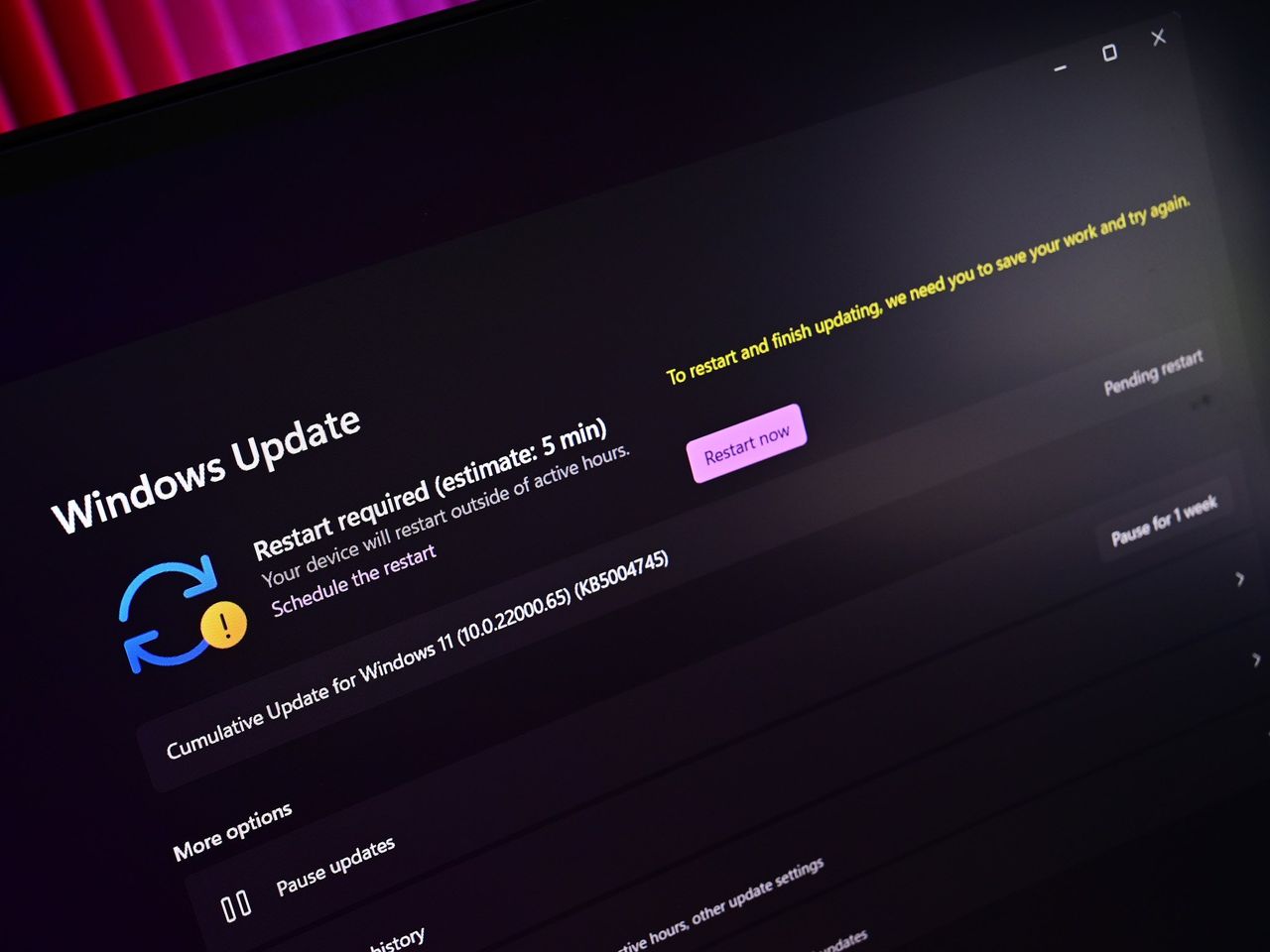
Windows 11's big 2026 update is almost here, and these 10 things you need to know before upgrading could save you time and frustration

Microsoft is expected to roll out the 2026 Update for Windows 11 (version 26H2) later this year, marking the fifth feature update for the desktop version of the operating system. However, this release isn't a full operating system swap, but it's still important not to skip it.

In this guide, I'll walk you through 10 interesting facts about Windows 11 version 26H2 to know before upgrading once it becomes available.

Facts to know about Windows 11 version 26H2

These are some facts about the new version for Windows 11.

1. Same operating system platform

Although the company will market Windows 11 version 26H2 as a new release, it shares the same platform as version 25H2, meaning both operating systems are identical under the hood. This is exactly the same case as versions 24H2 and 25H2.

2. Same set of features and improvements
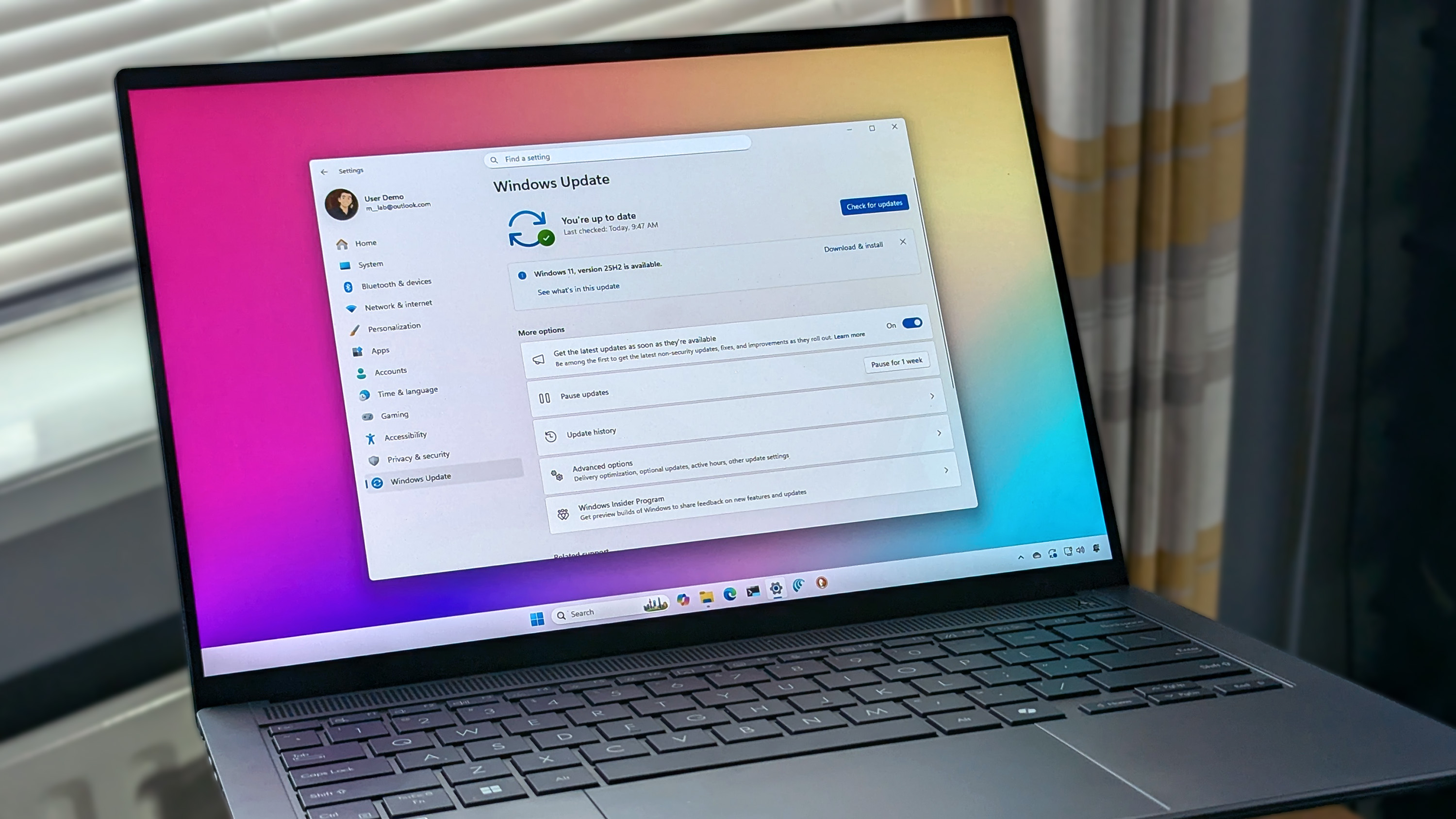
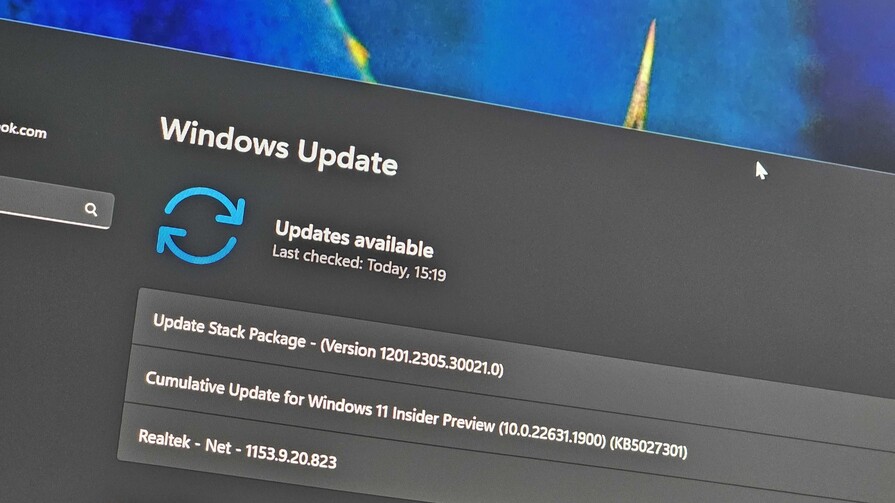
ASUS Zenbook 14 OLED laptop displaying Windows 11 with Windows Update screen

Windows 11 version 26H2 includes the same features and improvements already available in version 25H2. Microsoft isn't introducing a separate feature set for this release because both versions share the same platform.

Perhaps the most noticeable differences between Windows 11 versions 26H2 and 25H2 are their version and build numbers, along with their support lifecycle.

For example, version 26H2 uses build numbers in the 26300 series, while version 25H2 uses the 26200 series. Now, despite the different build numbers, updates for both versions typically share the same cumulative update (KB) number because they are based on the same code and include the same features and improvements.

Microsoft is expected to continue servicing both versions with the same features and improvements for the foreseeable future. As a result, version 26H2 is not expected to introduce major new capabilities at launch. Instead, it serves as another enablement package release that activates a new version number while preserving the same experience users already have on version 25H2.

3. Enablement Package-based installation

Similar to Windows 11 version 25H2, version 26H2 is expected to be rolled out as an Enablement Package (eKB). This means that if you're already running version 25H2, upgrading to 26H2 will be similar to installing a regular monthly cumulative update, without requiring a complete reinstallation of the operating system.

An Enablement Package is a small update that acts as a switch to activate features already included in the operating system but kept dormant. Once installed, it simply changes the version number from 25H2 to 26H2 while enabling the new release (if applicable).

Because version 26H2 shares the same platform and feature set as version 25H2, the installation process is expected to be quick and require only a single restart. As with previous enablement package releases, Microsoft will likely offer the update as an optional installation at first before making it available automatically to eligible devices as version 25H2 approaches the end of its support lifecycle.

4. Full reinstallation upgrade

Although Windows 11 version 26H2 is virtually identical to version 25H2, the upgrade path depends on the version currently installed on your computer.

If you're already running Windows 11 version 25H2 (or 24H2), you can upgrade through the Enablement Package without reinstalling the operating system. However, devices running an older release (such as version 23H2) will need to perform a full feature update to move to version 26H2.

5. Upgrade from Windows 10

If your computer is still running Windows 10, upgrading to Windows 11 version 26H2 requires a full feature update. Compatible devices will receive the latest supported version of Windows 11 directly through Windows Update, so you won't have to install 24H2 or 25H2 first.

If your computer doesn't receive the upgrade through Windows Update, you can also perform an in-place upgrade using Microsoft's installation media.

6. Direct upgrade from older versions
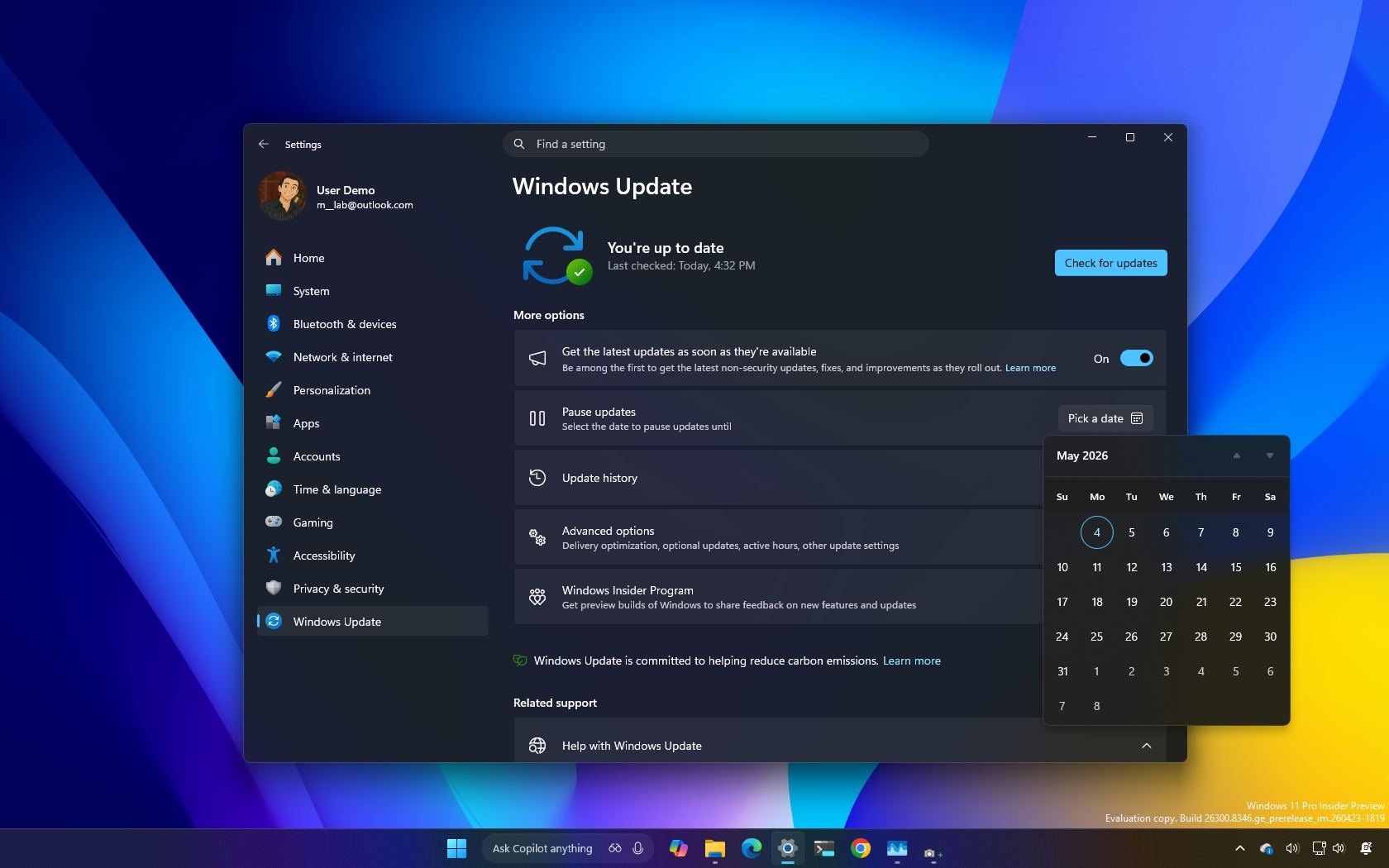
Windows Update settings window on a computer screen with a dark theme. The calendar is open, showing May 2025. The background is a gradient of blue, yellow, and purple.

(Image credit: Mauro Huculak)

You can upgrade directly to Windows 11 version 26H2 from version 23H2, 22H2, or an earlier release, as well as from Windows 10, using the ISO file or other Microsoft installation media.

These methods perform a standard in-place feature update, allowing you to keep your files, apps, and settings while installing the latest version of the operating system.

7. Upgrade tools trigger a full feature update

Although upgrading from Windows 11 versions 24H2 or 25H2 to version 26H2 through Windows Update only requires installing a small Enablement Package, using the official ISO file or other installation media will perform a full in-place upgrade instead.

The installation still preserves your files, apps, and settings, but it reinstalls the operating system rather than simply activating the new version with the Enablement Package. This results in an unnecessarily longer installation process compared to upgrading through Windows Update.

8. Reasons to upgrade to version 26H2

Since the last three releases of the operating system are virtually identical, the primary reason to upgrade is to extend your device's support lifecycle rather than gain access to new features.

Windows 11 version 25H2 remains supported through October 2027, but upgrading to version 26H2 extends support for another year. As with previous releases, Microsoft is expected to provide 24 months of support for the Home and Pro editions and 36 months for Enterprise and Education editions.

This also means there won't be any urgency to upgrade as soon as version 26H2 becomes available. Because these releases offer the same features and improvements, you can continue using version 25H2 until you're ready to switch. However, you should plan to install version 26H2 before version 25H2 reaches the end of its support lifecycle to continue receiving security updates and bug fixes.

It's worth pointing out that version 24H2 is set to retire on October 13, 2026, and it's recommended to upgrade as soon as possible to the next supported version.

9. Same hardware requirements
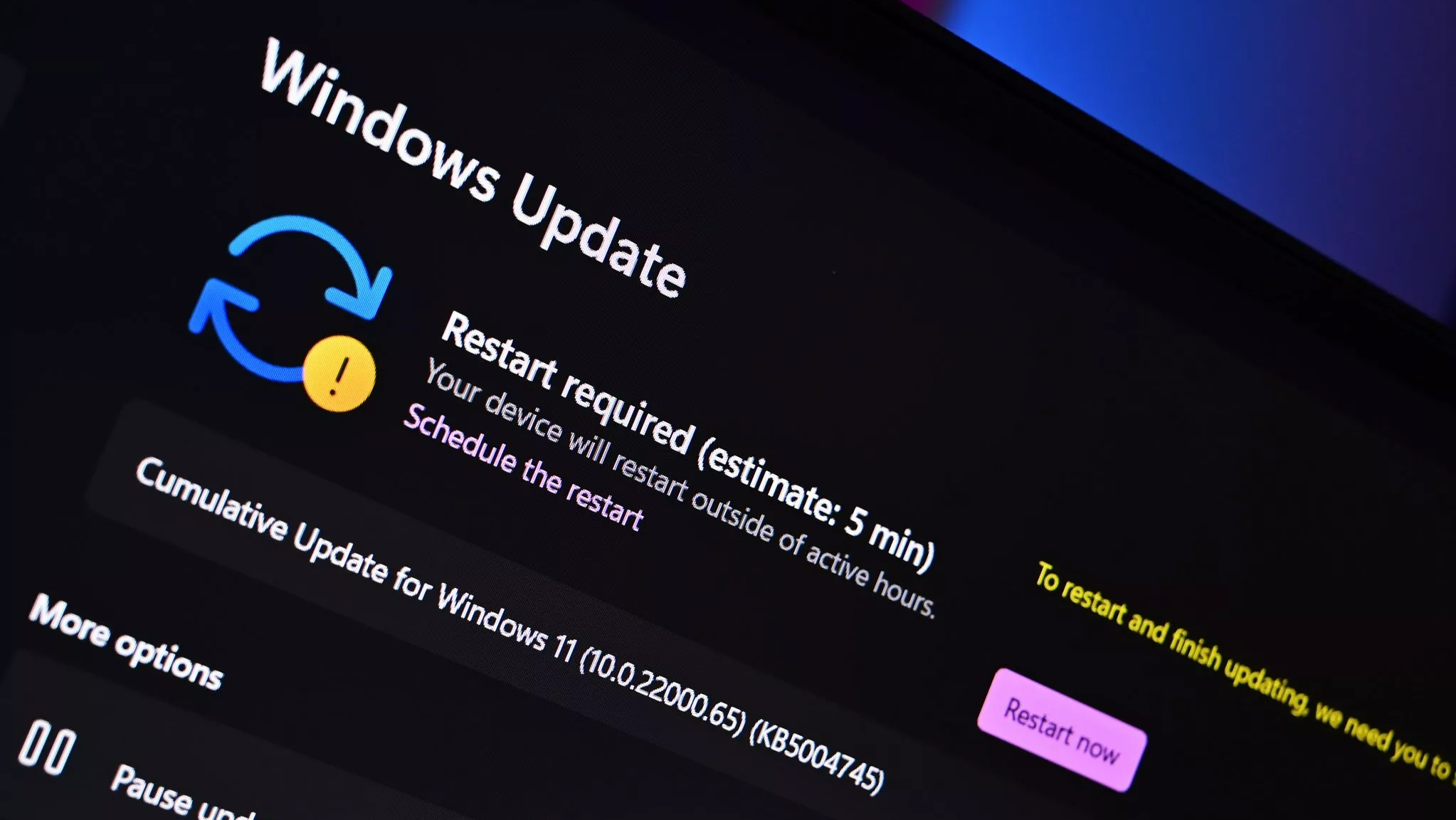
Windows 11 Update Settings

(Image credit: Future)

Windows 11 version 26H2 does not introduce new hardware requirements compared to version 25H2. The same requirements for supported processors, TPM 2.0, and other system components remain in place.

These are the minimum requirements to install or upgrade to Windows 11:

  • CPU: 1GHz or faster processor, or System on a Chip (SoC) with at least two cores.
  • RAM: 4GB or more.
  • Storage: 64GB or larger storage device.
  • Firmware: UEFI firmware with Secure Boot capability.
  • TPM: Trusted Platform Module (TPM) version 2.0.
  • Graphics: Compatible with DirectX 12 or later with a WDDM 2.0 driver.
  • Display: High-definition (720p) display larger than 9 inches diagonally, with 8 bits per color channel.

This means that if your device can already run Windows 11 version 25H2, it will also be compatible with version 26H2 without requiring any hardware changes.

10. Rollout strategy will be gradual

Although the Enablement Package that upgrades Windows 11 from version 25H2 to 26H2 is a small update, Microsoft will likely follow the same gradual rollout strategy used in previous releases.

The company typically uses the Controlled Feature Rollout (CFR) system to monitor the update experience, check for potential compatibility issues, and expand availability over time. As a result, not every device will receive the Windows 11 2026 Update immediately through the Windows Update settings page.

Availability will gradually expand over several weeks or months as the company confirms that the update is ready for a wider range of hardware configurations. If your device doesn't see the update right away, it doesn't necessarily mean there's a problem. It simply means the rollout has not reached your hardware configuration yet.

Windows Central's Take
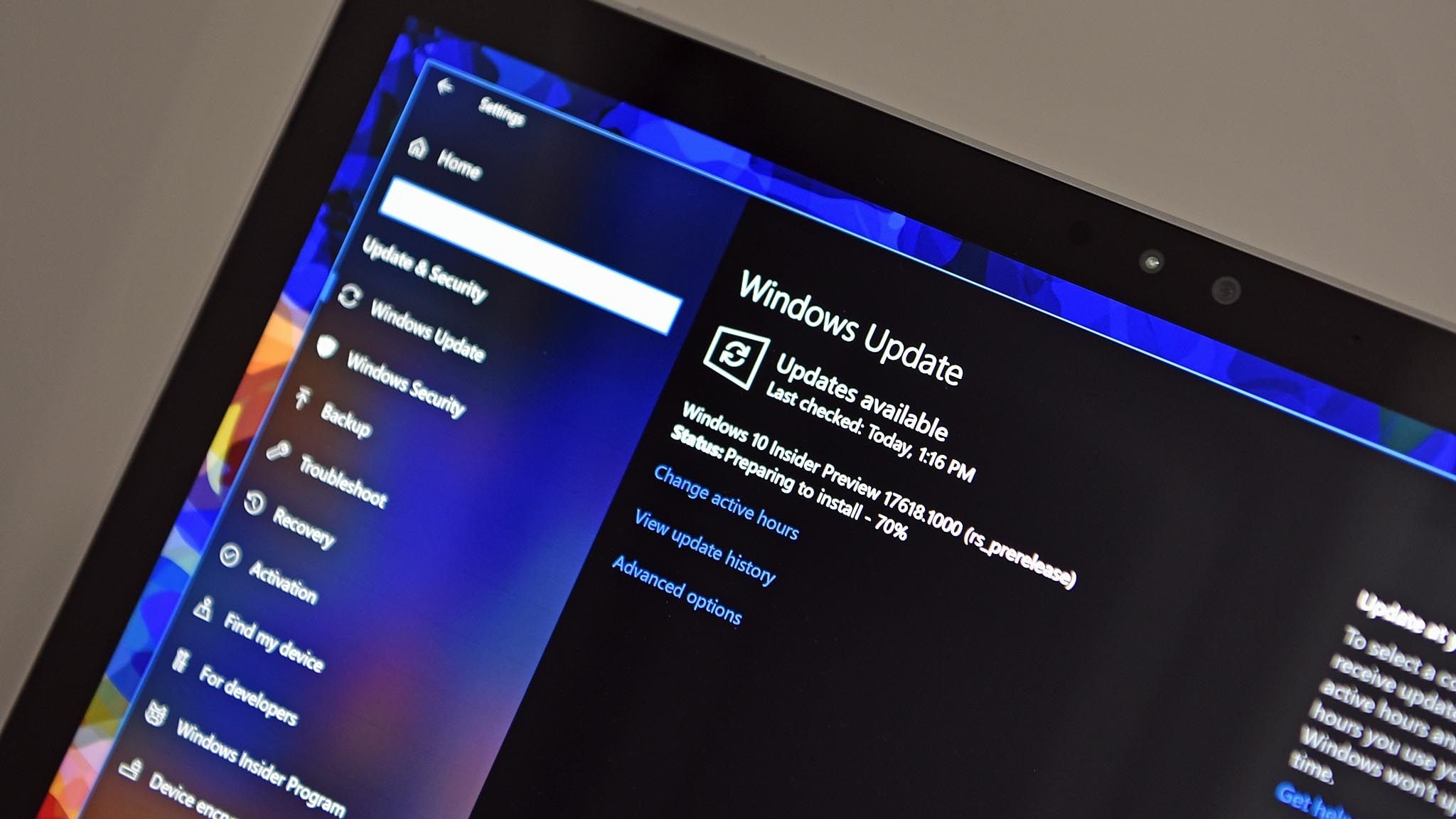
Windows 11 Update page in Settings app

(Image credit: Future)

I think the Windows 11 2026 Update is a good example of how the software giant is changing how it delivers upgrades. A new version number no longer automatically means a major redesign or a long installation process. Instead, the company is leaning more toward smaller transitions that keep computers current with less disruption.

From my experience covering the operating system, I think this approach makes a lot of sense. Full feature updates have historically been among the most complicated parts of maintaining the operating system, often leading to compatibility issues, driver problems, and upgrade failures. By using an Enablement Package model, Microsoft can accelerate the transition, reduce the risk of errors, and make it easier for more users to move to the latest supported version.

Blank Pixel

This strategy also benefits the company because a simpler upgrade experience could encourage more people to stay on newer versions instead of delaying updates for months or years. When an upgrade takes only a few minutes instead of requiring a complete operating system installation, users are more likely to accept it.

That said, I don't see 26H2 as an update users need to install immediately. If you're already running 25H2, the main reason to move will be support rather than new features. However, I think this is a better direction for the operating system. Making upgrades faster and more reliable could help reduce the problems that have caused many users to delay installing new versions.

What are your thoughts about Windows 11 version 26H2 following the same path as 25H2? Do you prefer smaller, smoother updates, or do you want major new features with every release? Let me know in the comments.

More resources

Explore more in-depth how-to guides, troubleshooting advice, and essential tips to get the most out of Windows 11 and 10. Start browsing here:

Click to join us on r/WindowsCentral

Join us on Reddit at r/WindowsCentral to share your insights and discuss our latest news, reviews, and more.

Windows 11 desktop with the Settings app opened and the Taskbar located at the top of the screen.
Windows 11 desktop with the Settings app opened and the Taskbar located at the top of the screen.
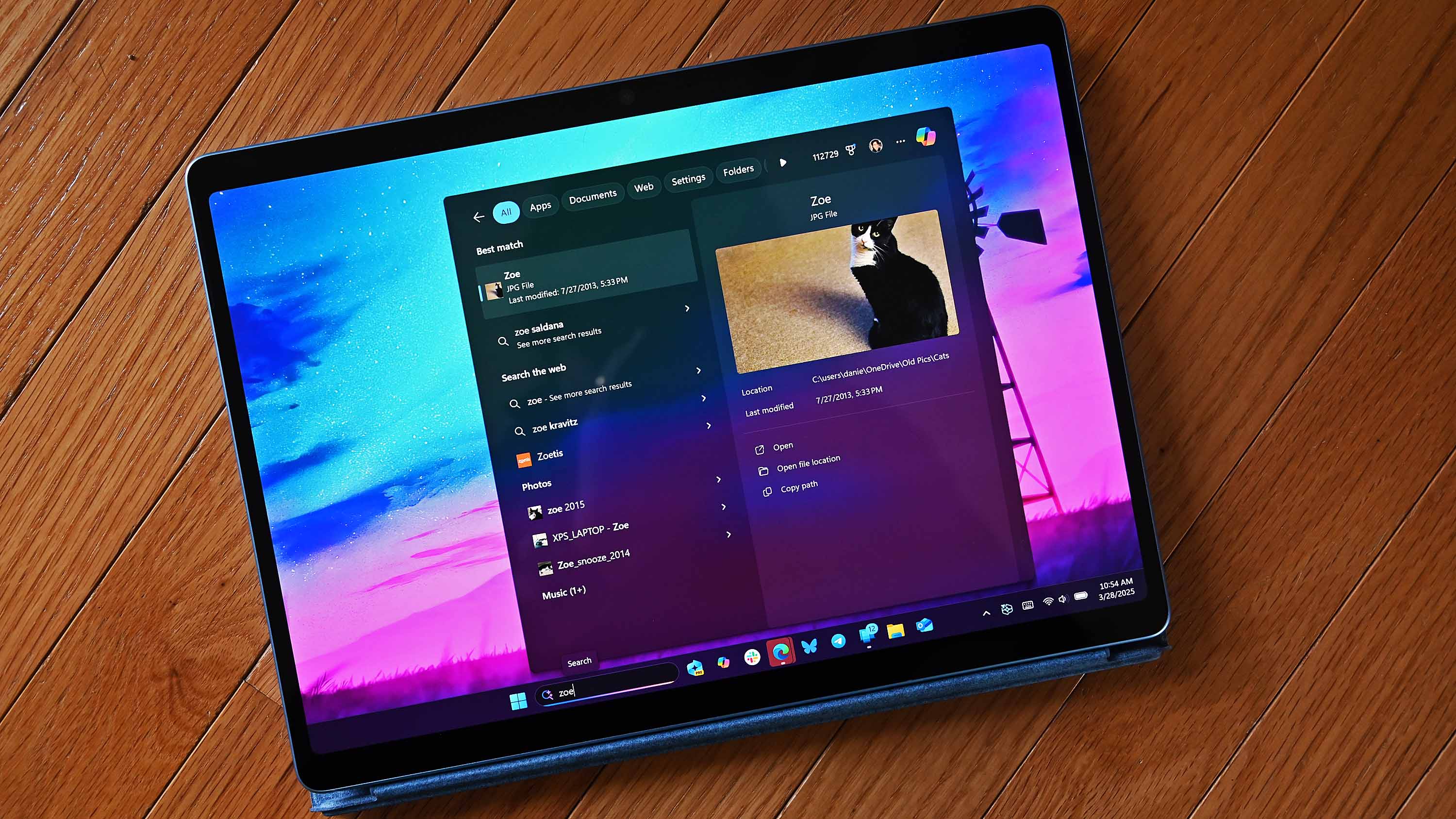
Windows 11 trades noisy Bing ads for the clean search experience it always needed — plus other updates you should know about this week

Windows Central

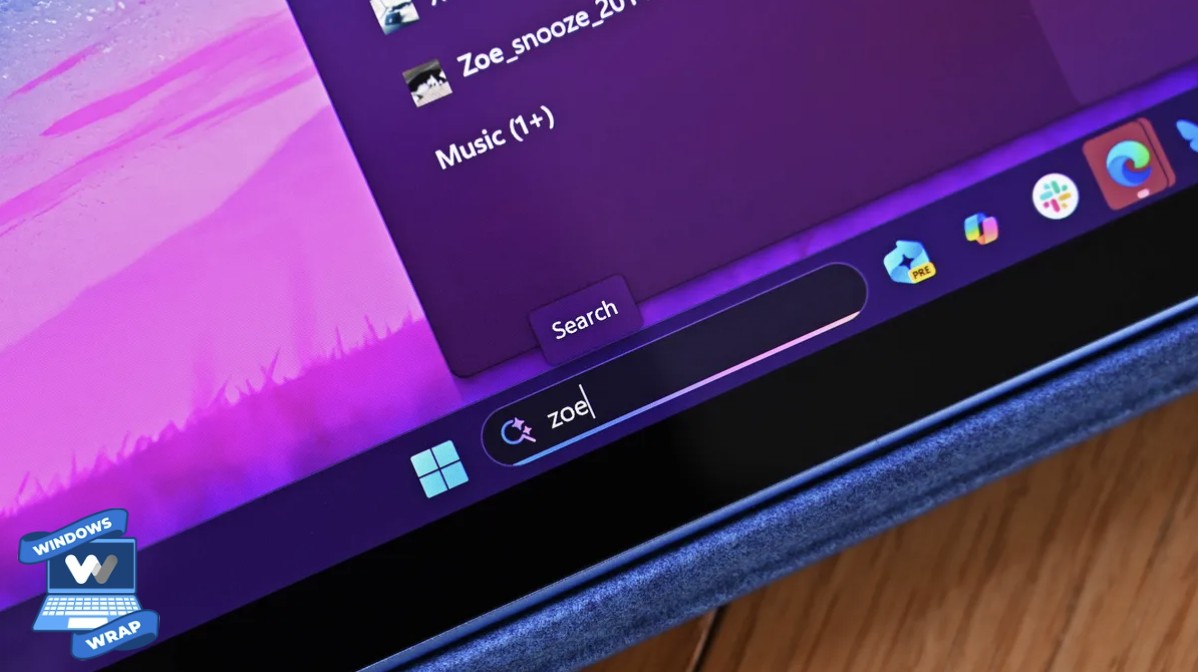
Can you hear that? It's the sound of capitalism crumbling. After years of pushback against ads, Microsoft has finally given in and decided to make a cleaner Search experience in Windows 11.

Sarcastic quips aside, Search is genuinely going to improve. Microsoft unveiled a massive upgrade to Search this week that will improve the accuracy of results, shift away from relying on the web, and yes, remove ads and promotional material.

The improved search will prioritize local results over grabbing information from the web. You'll even be able to customize whether web and Microsoft Store suggestions appear alongside local results at all. Search should also be more forgiving of typos, which should reduce frustration.

The upcoming improvements to Search were the biggest Windows 11 story of the week, but several other topics trended as well.

Biggest News of the Week

Semantic Search coming to Windows 11.
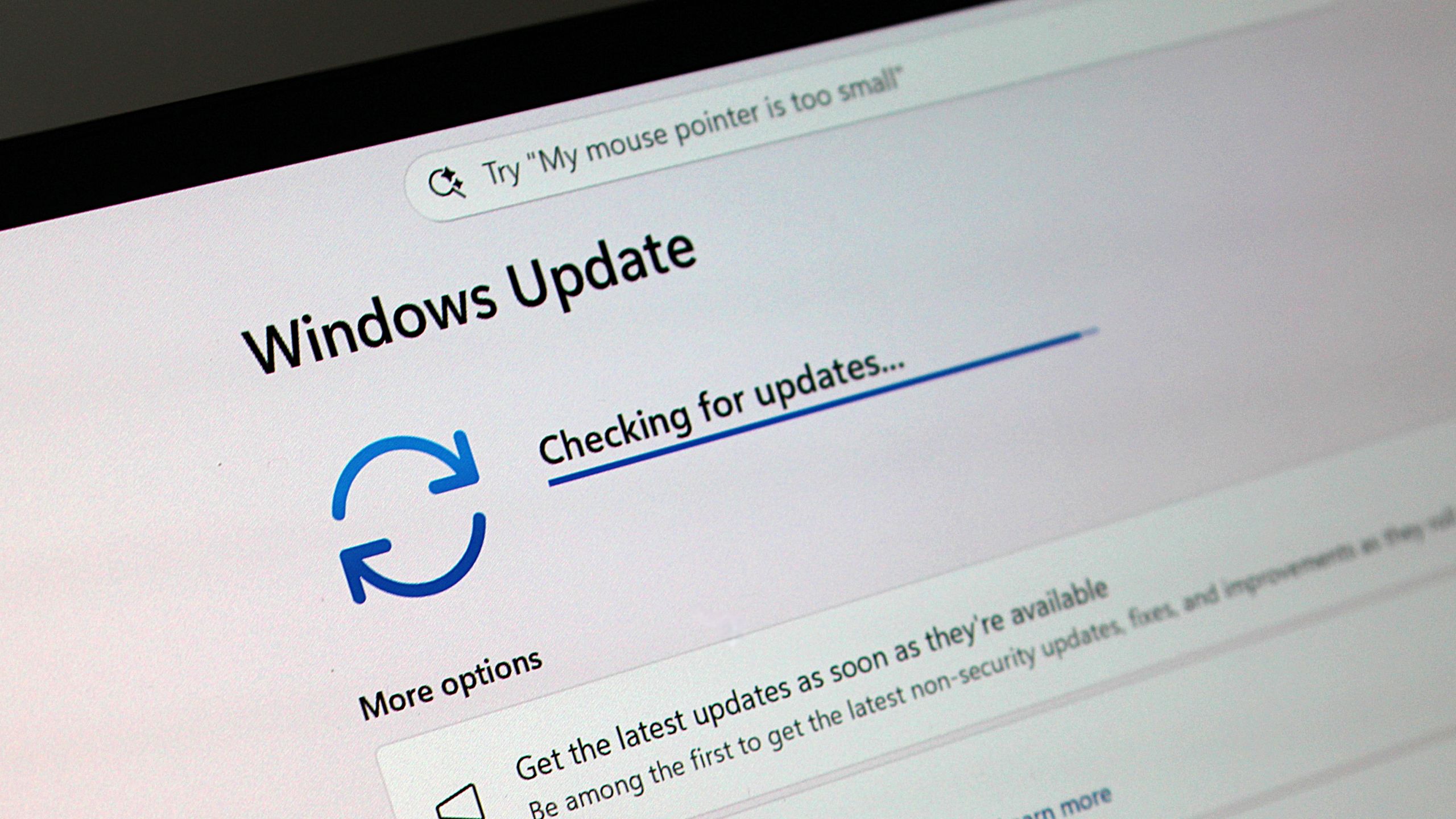
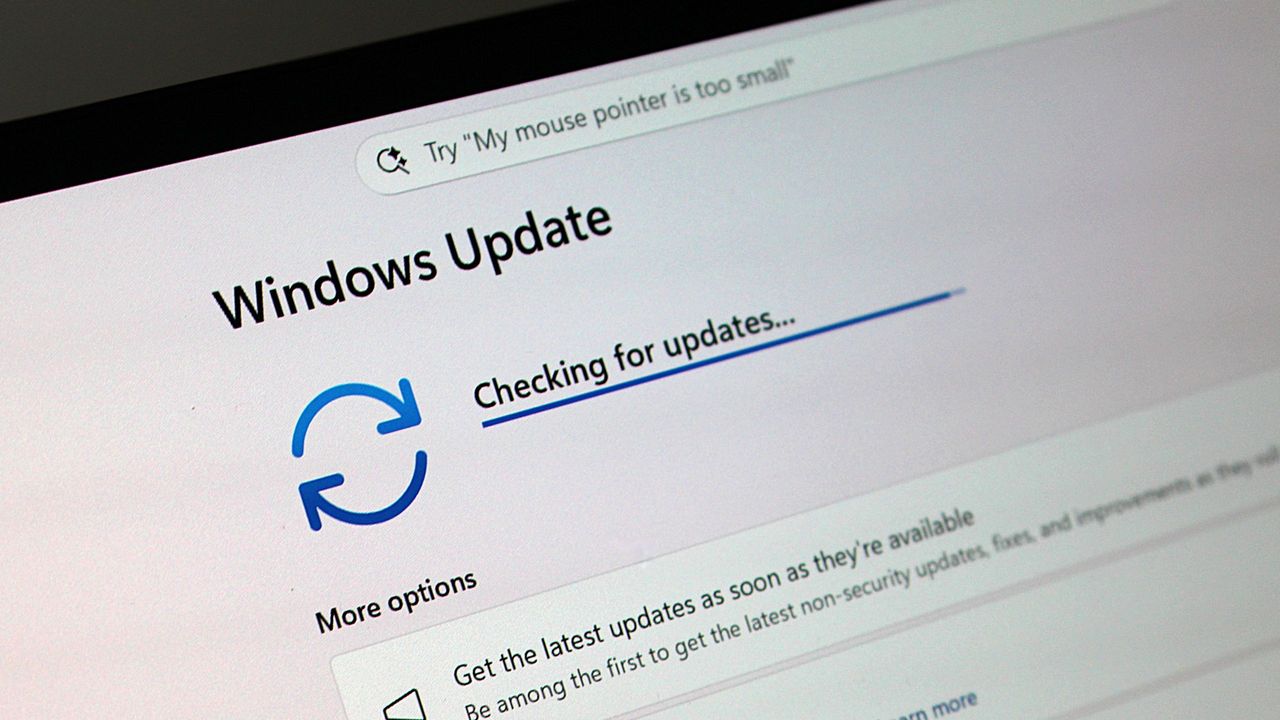
Windows Update in checking for update mode
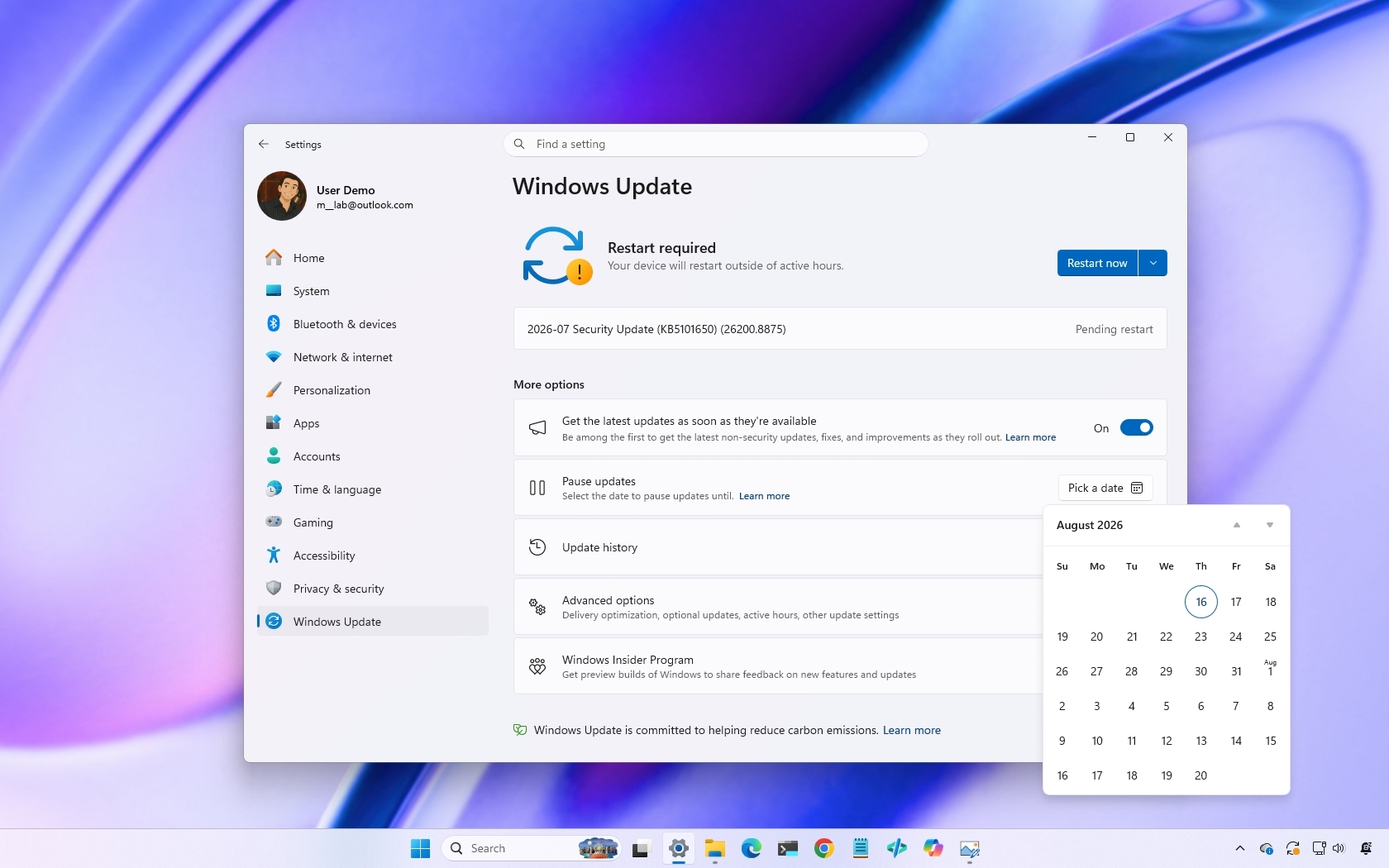
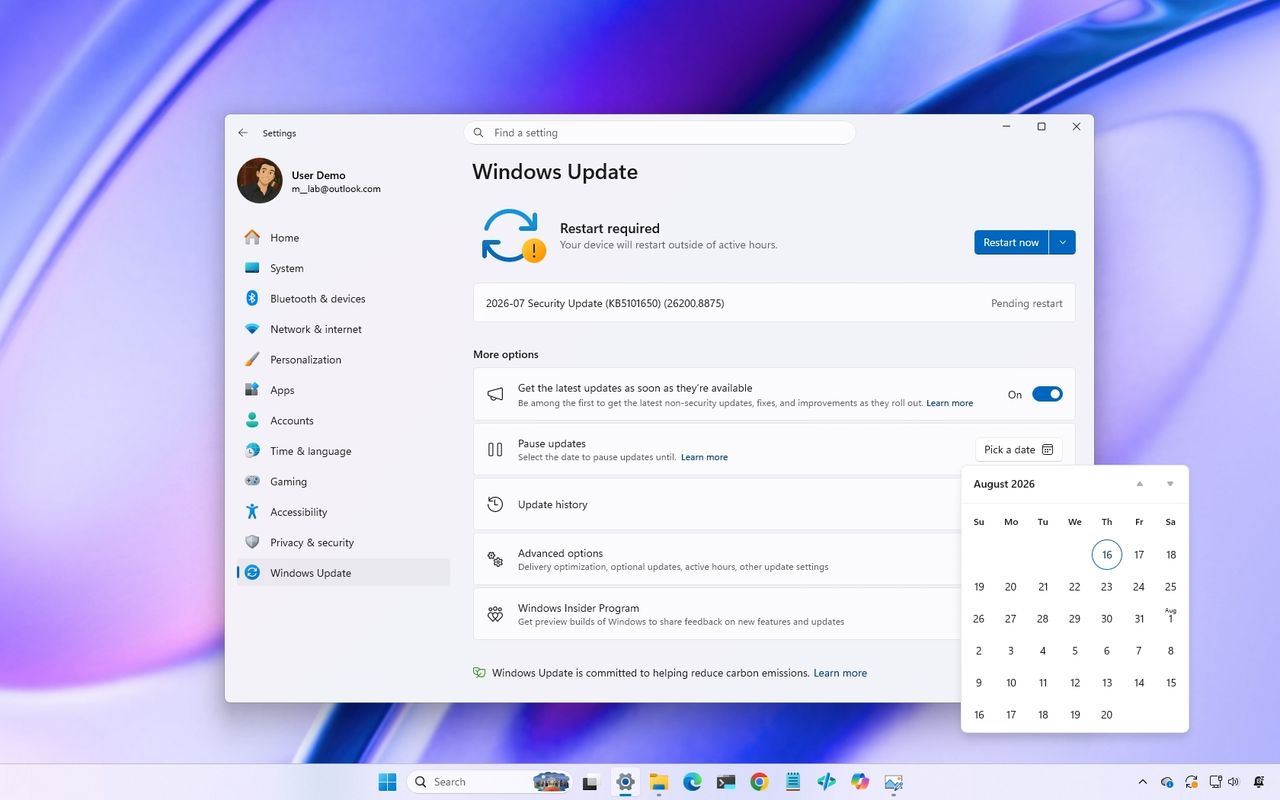
Windows 11 desktop showing the Windows Update settings installing the July 2026 Security Update.
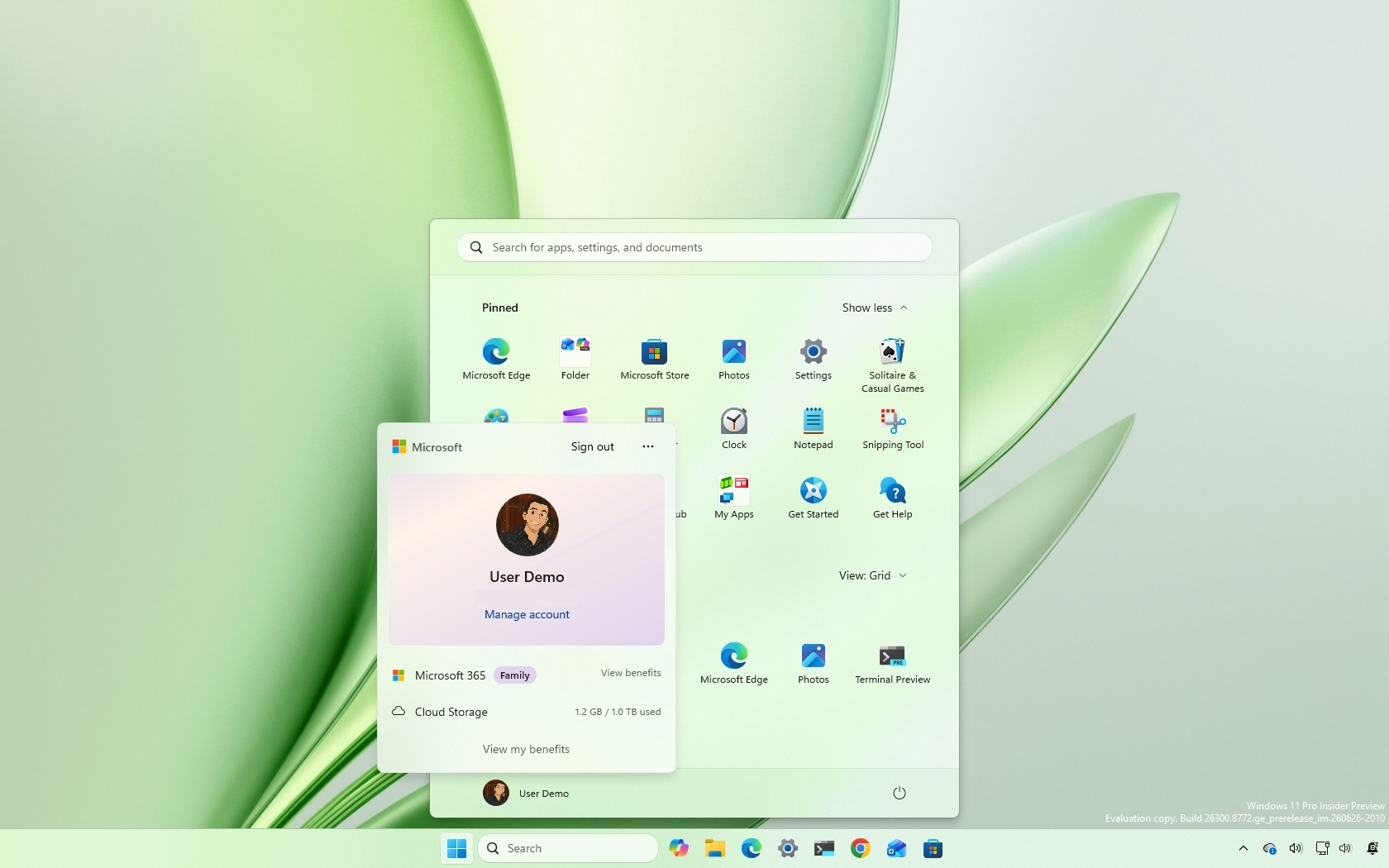
Windows 11 desktop with the Start menu open and showing the new Account Control design.
Windows Updates
Microsoft's new AI-driven Semantic Search is now available for those on the Windows Insider Release Preview.

I'd argue that Windows 11 never should have placed ads within Search in the first place. Certainly, Windows 11 Pro should have been ad-free. I'm glad to see Microsoft listen to feedback and get rid of some ads. I just think it's wild that the tech giant needs to be pushed in that direction.

I'm happy to see Microsoft did more than remove ads and call it a day. The new Search experience is better across the board. Our Zac Bowden was impressed after going hands-on with the feature.

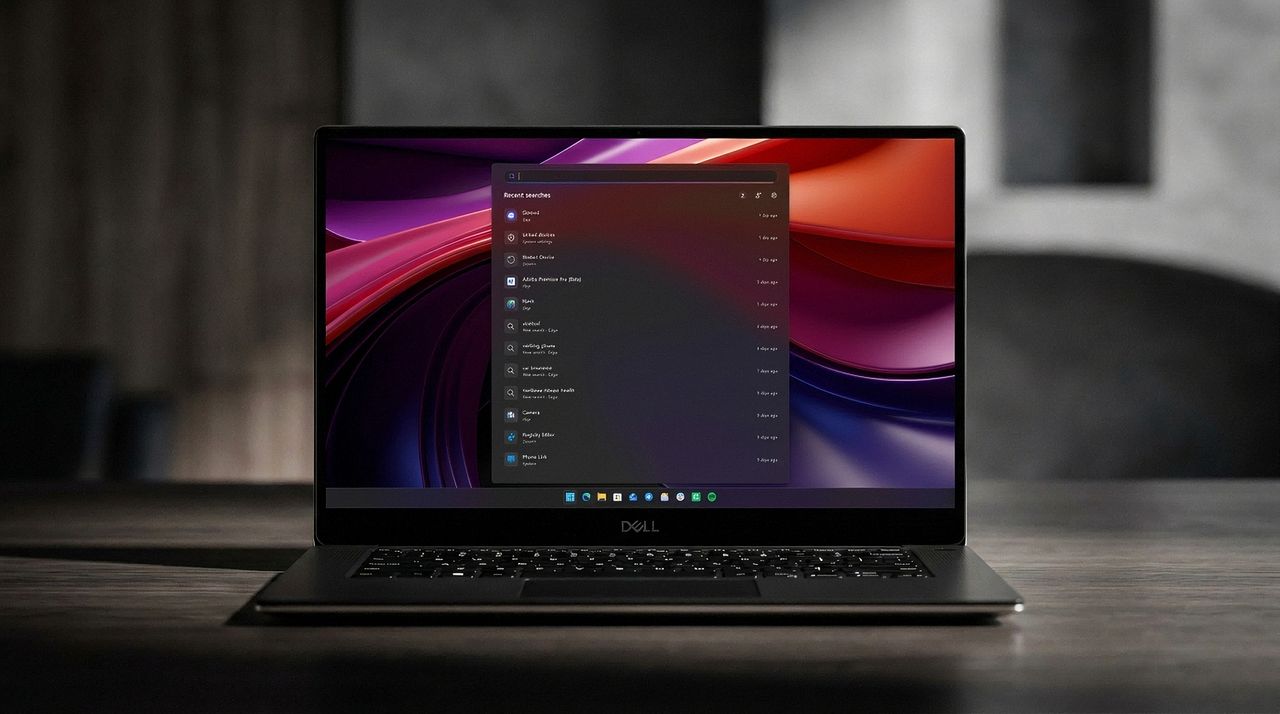
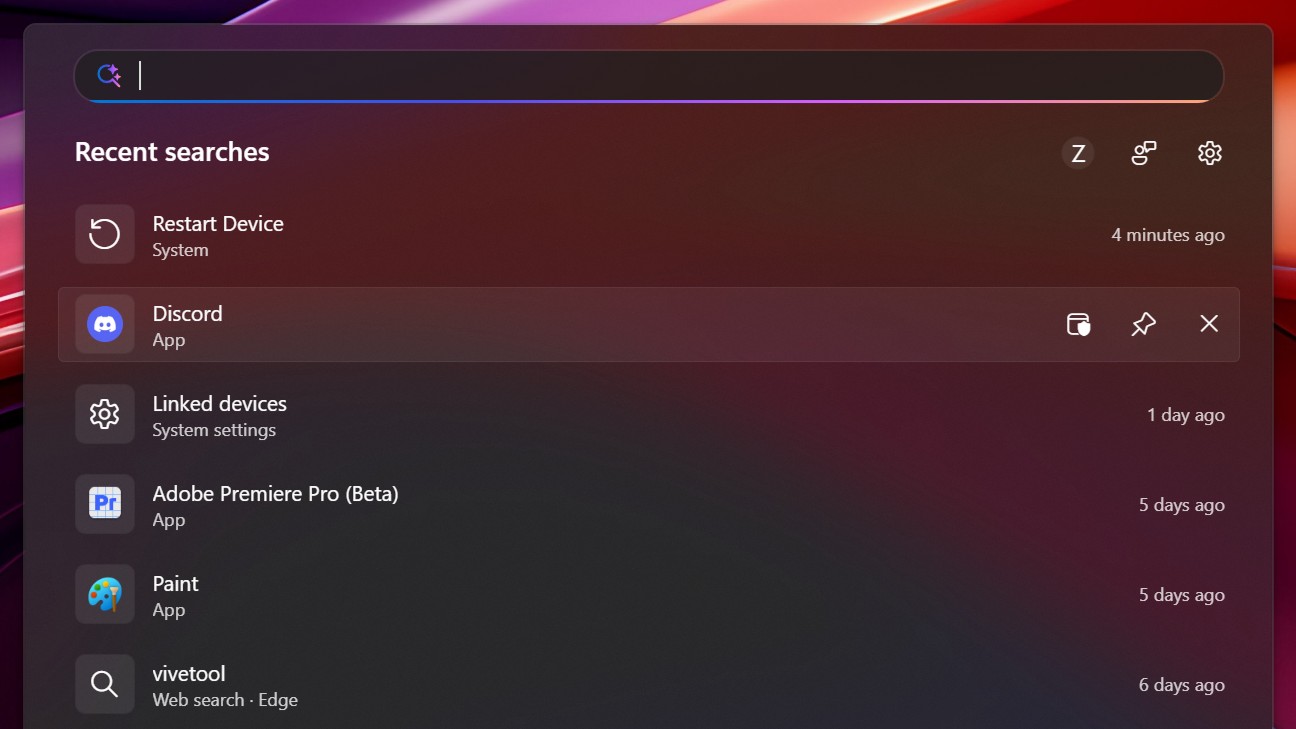
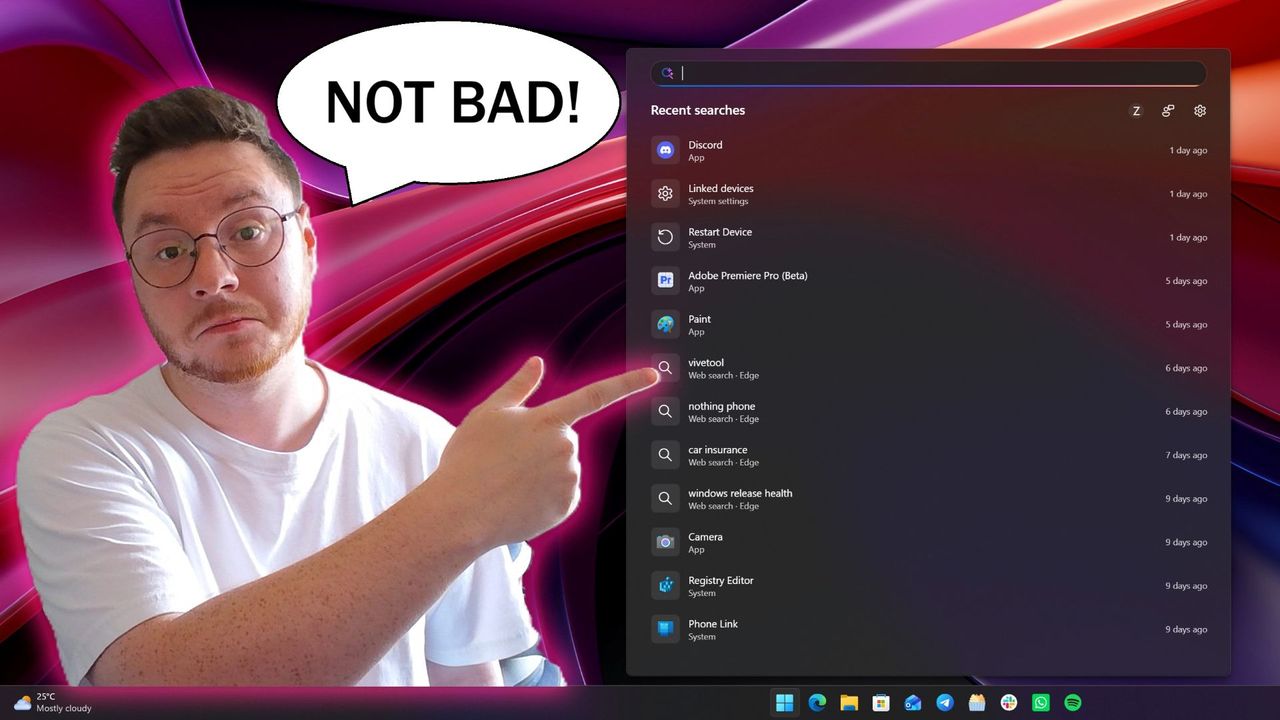
I'm very impressed with the new experience. Right off the bat, the search pane is no longer a noisy mess of Bing ads and sponsored content. It's a clean list of recent searches, exactly what you'd expect from a search pane.

Zac Bowden, Senior Editor, Windows Central

As always with updates like this, you can focus on the fact that Microsoft should have launched Windows 11 in this state rather than be strong-armed into making search usable. Alternatively, you can choose to be happy that Windows 11 is finally getting fixed. I choose the latter.

Shopping with Sean

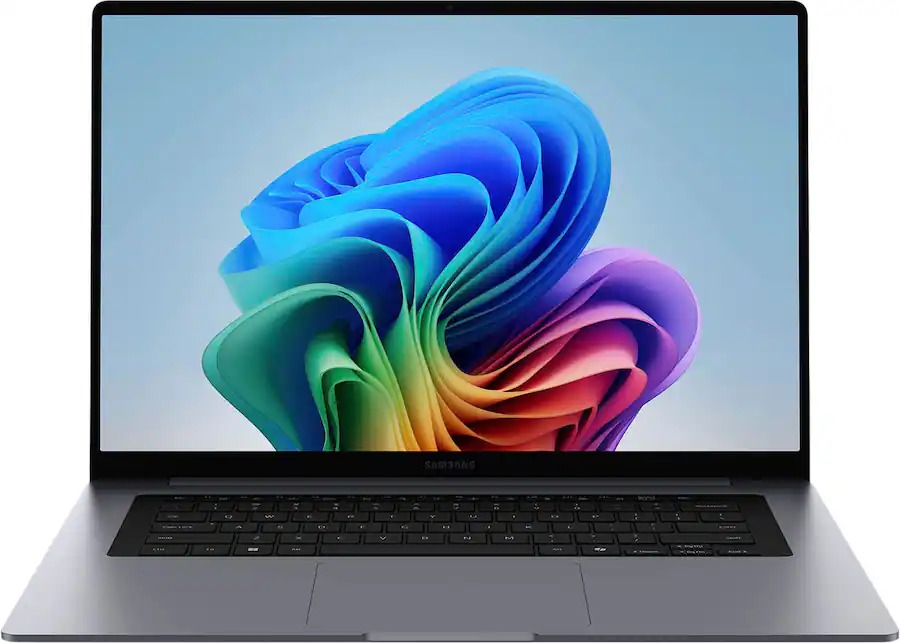
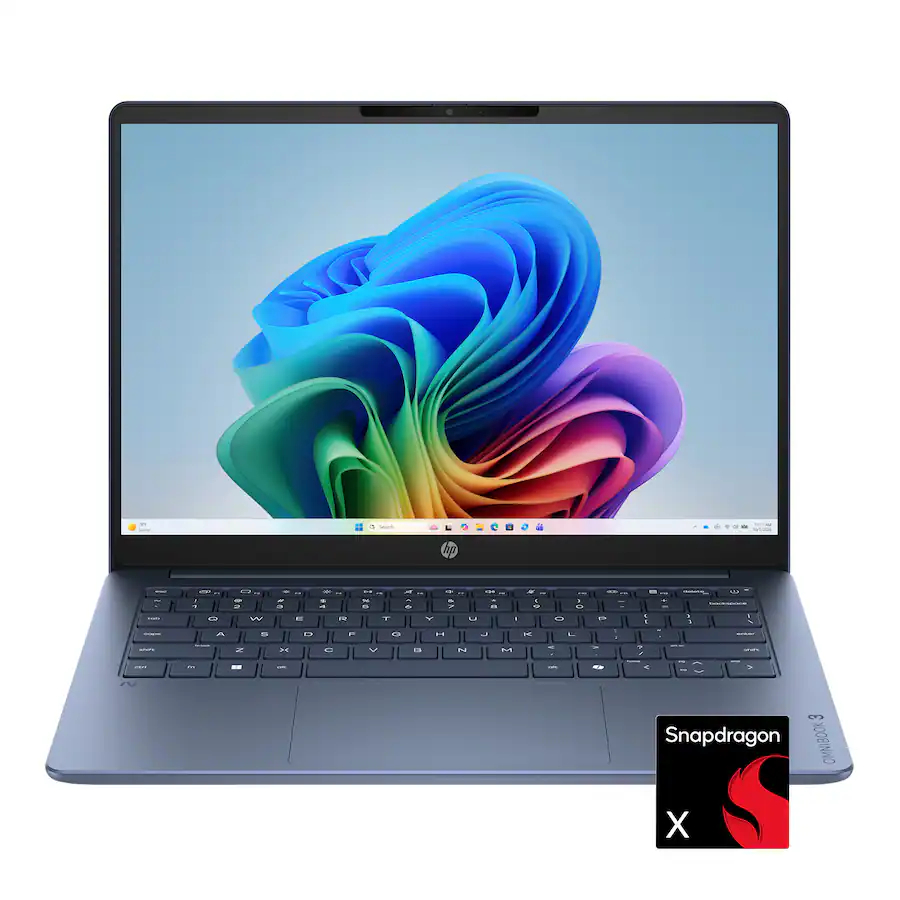
Laptop deals have cooled off a bit, but you can still save hundreds of dollars on the Samsung Galaxy Book6 or the HP OmniBook Ultra 14. Both are excellent laptops with gorgeous displays and snappy performance.

If you're a gamer, make sure to check out the Xbox Ultimate Game Sale that's now live. Hundreds of games are discounted in what might be one of Microsoft's best-ever sale events.


"I’ve been using the Samsung Book 6 for a while now and honestly it’s been solid. It’s lightweight, looks premium, and the battery easily gets me through most of the day. Performance is smooth for studying, browsing, videos, and everyday work." ~ VALENTIN, customer review

4.8 out of 5 Stars (based on 40 Best Buy customer reviews)View Deal

HP's new OmniBook Ultra is the best Snapdragon X2 laptop we've tested yet, complete with a gorgeous design, incredible keyboard and trackpad, best-in-class touchscreen OLED display, and incredible battery life and performance.

Windows Central review: ⭐⭐⭐⭐⭐View Deal

Click to join us on r/WindowsCentral

Join us on Reddit at r/WindowsCentral to share your insights and discuss our latest news, reviews, and more.

New Windows Search UX

New Windows Search UX

Windows 11’s massive July 2026 update fixes 570 vulnerabilities and shows how AI is quietly reshaping Patch Tuesday itself

Microsoft's July 2026 Patch Tuesday update for Windows 11 is one of the largest security releases we've ever seen, fixing 570 vulnerabilities across Microsoft's products, according to Action1's analysis.

For users, the update arrives as KB5101650, bringing version 25H2 to build 26200.8875 and version 24H2 to build 26100.8875.

The number is certainly eye-catching. Microsoft fixed more than four times the number of security issues compared with July 2025, when the company addressed 137 vulnerabilities.

However, the bigger story is not simply that the company patched hundreds of security flaws. The July 2026 security update is an early example of a major shift Microsoft has already warned about. AI is changing vulnerability discovery, and Windows 11 updates are expected to become larger as a result.

The software giant says that as AI helps security researchers find more issues across more code, customers will see a higher volume of security fixes included in future security releases.

In other words, larger Patch Tuesday updates are not necessarily a sign that Windows is becoming less secure. They are also a sign that Microsoft is finding and addressing more problems before attackers can use them.

Why Windows 11's July 2026 update is so large

The July 2026 update addresses vulnerabilities across many core areas of Windows, including the Windows Kernel, Win32k, NTFS, Remote Desktop, Secure Boot, BitLocker, File Explorer, and more.

Several of these fixes address vulnerabilities that could allow remote code execution, where an attacker could potentially run malicious code on a system remotely.

The scale of the release follows a sharp increase in security fixes throughout 2026.

Here's a comparison based on vulnerability counts reported by Windows Latest and security-tracking data, showing how the number of fixes has increased since 2025.

Month

Vulnerabilities fixed in 2025

Vulnerabilities fixed in 2026

January

159

114

February

55

58

March

57

79

April

134

167

May

72

120

June

66

200

July

137

570

January–July total

680

1,308

However, Microsoft says the growing number of fixes should not be interpreted as the operating system becoming less secure. Instead, the company says AI is helping identify vulnerabilities earlier and at a larger scale.

Microsoft is using AI to find Windows vulnerabilities faster

Windows Update on a Dell XPS laptop

(Image credit: Screenshot: Windows Central / Laptop: Edited with Gemini)

The company has been investing in AI-powered security tools to reduce the time between discovering a vulnerability and protecting customers.

One of those tools is MDASH, Microsoft's multi-model agentic security scanning harness.

MDASH uses multiple AI models and more than 100 specialized AI agents to analyze code, identify potential vulnerabilities, debate findings, and validate whether issues are real.

Unlike a traditional scanner that simply reports possible problems, Microsoft's system is designed to reduce false positives by using multiple stages of analysis and validation.

The company notes that MDASH helped security researchers discover 16 vulnerabilities in networking and authentication components, including critical remote code execution flaws affecting areas such as the TCP/IP stack and IKEv2 service on Windows 11.

Those findings demonstrate how AI can help uncover complex security issues that may be difficult to identify through traditional approaches.

Microsoft has not said that MDASH discovered all 570 vulnerabilities included in the July 2026 update. Instead, the technology represents part of a larger effort to expand the company's vulnerability research capabilities.

Microsoft expects Windows 11 security updates to get bigger

The biggest takeaway from the new approach is that larger security updates are becoming expected. In a recent explanation of its vulnerability management strategy, Microsoft said: "As AI helps defenders discover more issues, customers will see a higher volume of security updates included in each security release."

The company says AI is being integrated into the entire security process, from finding vulnerabilities to helping engineers understand issues, develop fixes, and identify possible regressions.

Microsoft is also using additional validation systems to make sure faster security fixes do not come at the cost of update quality.

The goal is to shorten the time between vulnerability discovery and customer protection while maintaining reliability.

Why users should install updates faster on PCs

Windows 11 update in Settings app

(Image credit: Future)

As security updates grow larger, Microsoft is also pushing users and organizations to reduce delays before installing them, because attackers are also benefiting from AI.

Microsoft says attackers can now exploit newly discovered vulnerabilities much faster than before, leaving users and organizations with less time to install security updates.

For users, that means monthly updates are becoming more important. While temporarily pausing updates can still make sense if a release causes compatibility problems, leaving security fixes uninstalled for long periods creates unnecessary risk.

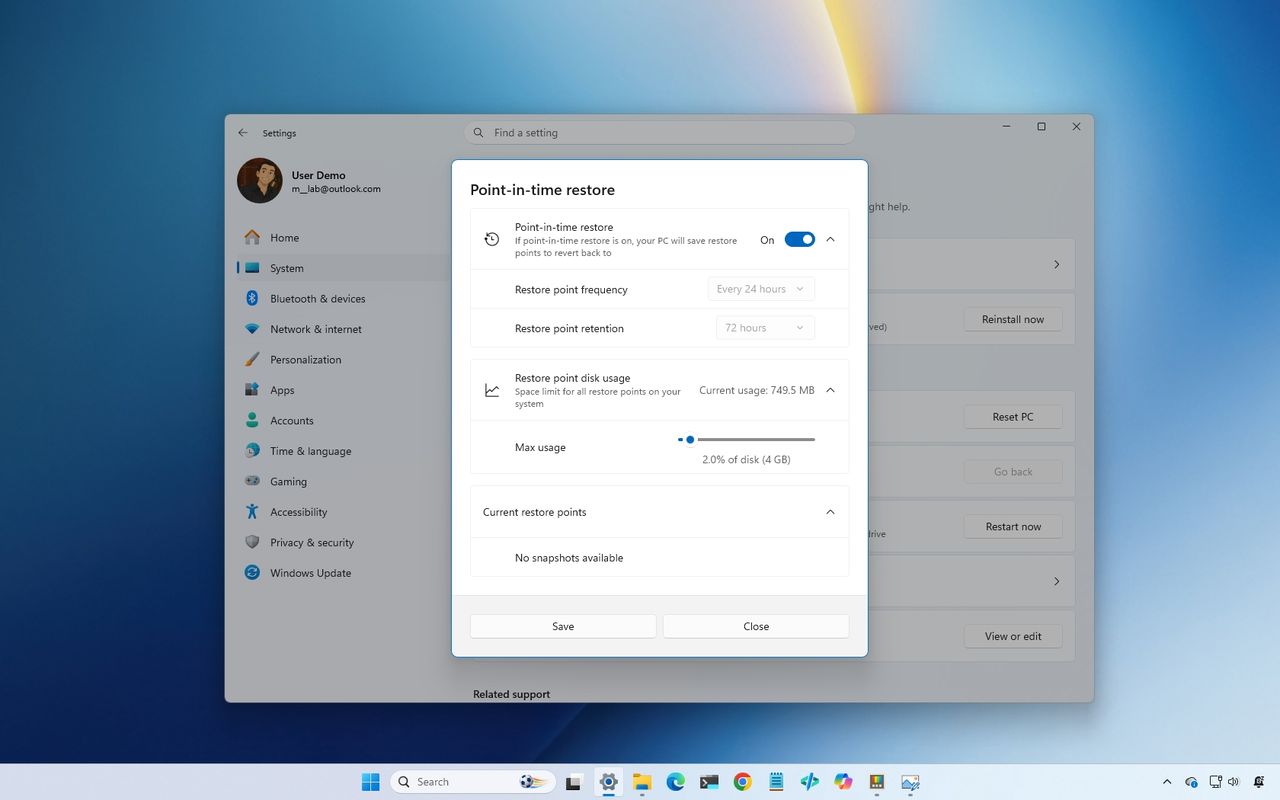
The July 2026 update also includes non-security improvements, including Point-in-time restore, Screen Tint, improved Bluetooth reliability, File Explorer improvements, and much more. However, the security changes are the main reason users should prioritize installing it.

Windows Central's Take

When I first saw that Microsoft had patched 570 vulnerabilities in a single Patch Tuesday release, I didn't immediately think Windows 11 had become less secure. Instead, my first thought was that this was exactly the kind of update the company had been preparing users for when it said AI would dramatically increase the number of vulnerabilities it could discover.

I actually think this changes how we should judge Patch Tuesday updates. For years, I've looked at the size of a security release as a rough indication of how much could potentially go wrong after installing it. In the future, that assumption may no longer hold true. A bigger update could only mean that the software giant is finding and fixing more issues before attackers have the chance to exploit them.

Blank Pixel

That said, Microsoft still has something to prove. Discovering more vulnerabilities is only half the equation. Users will judge this new approach by whether these larger updates remain reliable and don't introduce new issues of their own. If the company can consistently deliver both better security and stable updates, I think that's a tradeoff most users will gladly accept.

Do you think larger Patch Tuesday updates are a good sign for Windows 11 security, or do they make you more cautious about installing updates? Let me know in the comments.

More resources

Explore more in-depth how-to guides, troubleshooting advice, and essential tips to get the most out of Windows 11 and 10. Start browsing here:

Click to join us on r/WindowsCentral

Join us on Reddit at r/WindowsCentral to share your insights and discuss our latest news, reviews, and more.

Windows 11 desktop showing the Windows Update settings installing the July 2026 Security Update.

Windows 11 desktop showing the Windows Update settings installing the July 2026 Security Update.

This new Windows 11 clipboard utility is genuinely great, but I think the name is holding it back

A new clipboard manager for Windows 11 is here, and it's better than Microsoft's in a few key ways. "Edge Drop" is still in its early stages of development, but the current preview build is very promising.

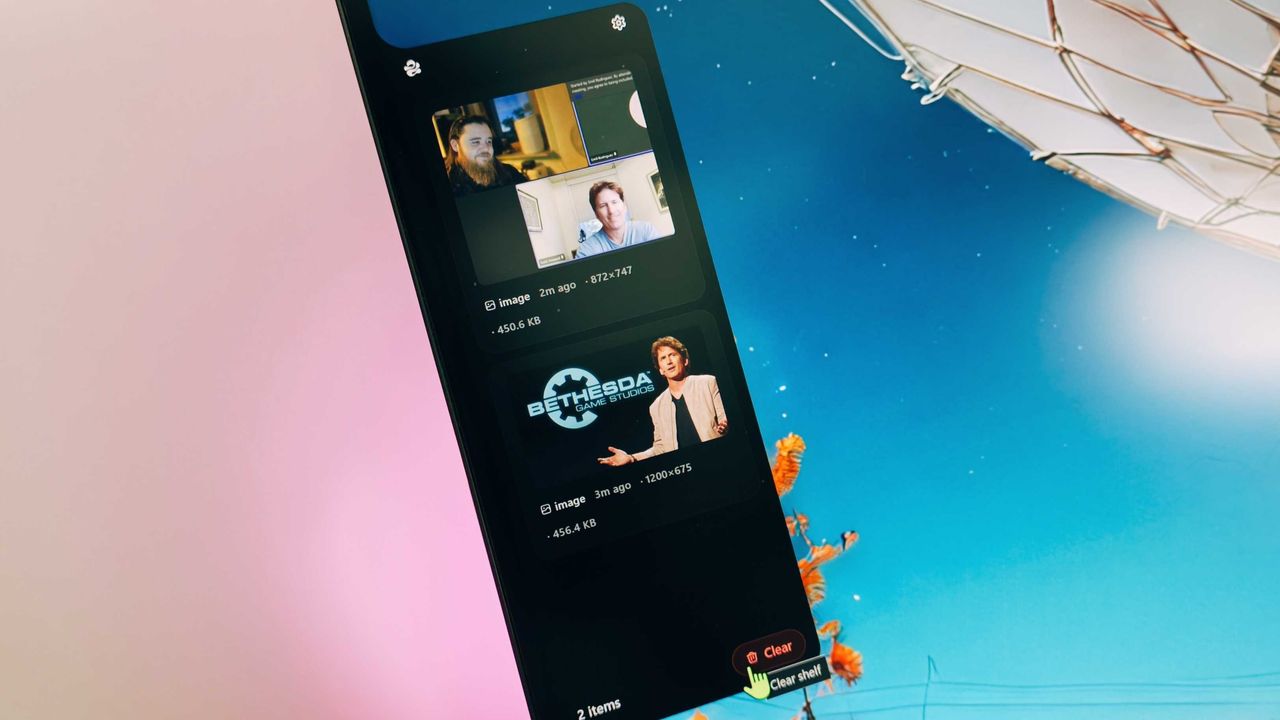
Edge Drop is a clipboard manager that can also be used for some light file management. It stays tucked away on the left side of your screen until you swipe your mouse over it or use a keyboard shortcut (Alt + C).

The app supports text, images, and several file types. Any item you copy on Windows 11 is added to Edge Drop by default. You can also drag items into Edge Drop.

Drag and drop functionality makes it easy to grab a few files, place them in Edge Drop, and then paste them somewhere else.

Edge Drop supports stacking content together, which I find useful for organizing projects. I'd love to see stacks work with different content types, such as text and images.

The developer of Edge Drop, AdiArtist, shared the app on Reddit. You can download Edge Drop through the app's website and read more about it on GitHub.

As a quick note, I wouldn't get used to the name of the app. Microsoft already has a feature named "Edge Drop." Even though that browser feature is being retired, I suspect Microsoft will want to protect the name.

Windows 11 Clipboard vs Edge Drop

Windows 11 Clipboard History

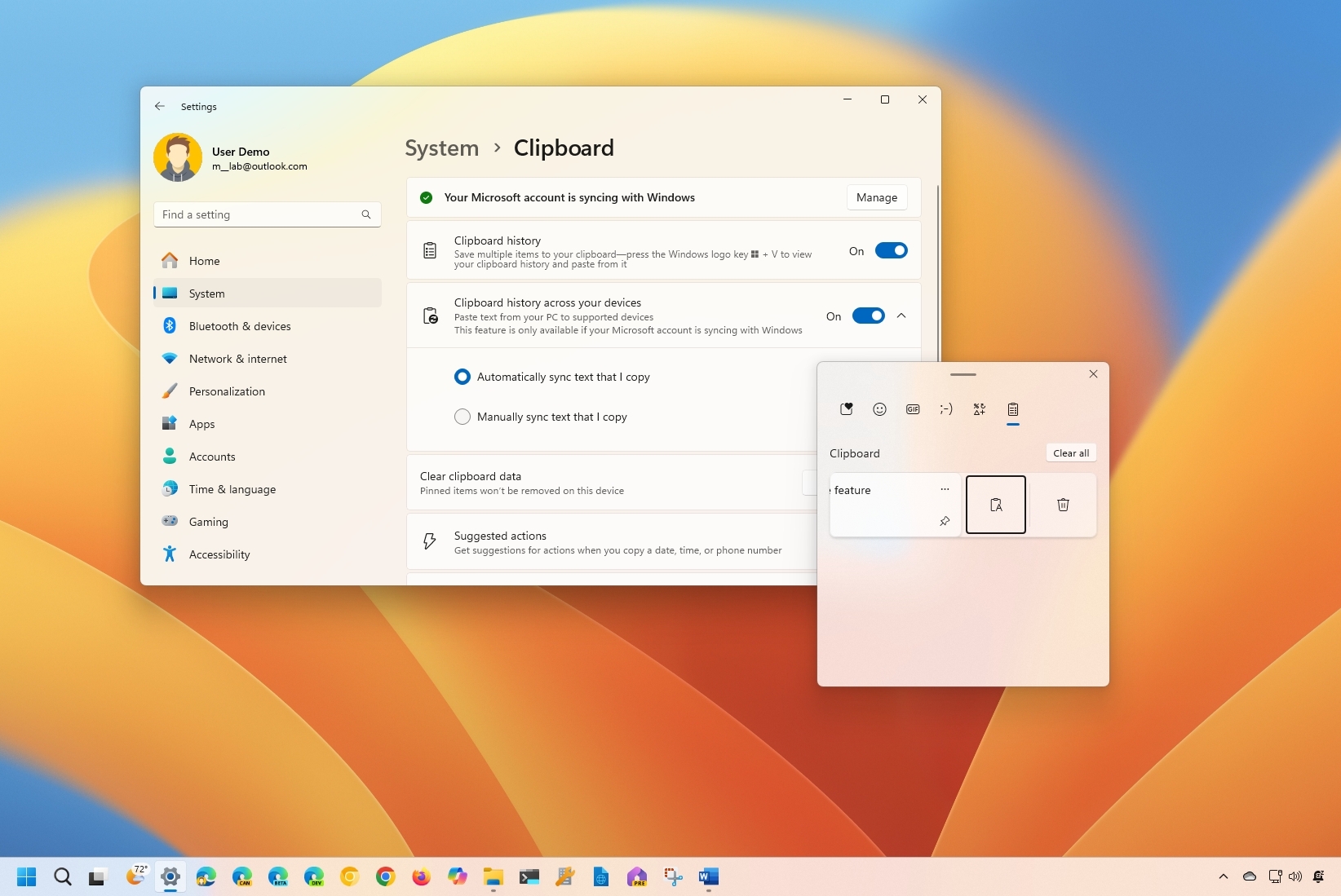
Windows 11's Clipboard can be summoned with a shortcut and supports pinning items. (Image credit: Mauro Huculak)

Windows 11 already has a robust, built-in clipboard history that you can summon with Win + V. It supports pinning items, syncing across devices, and has been an integral part of my workflow for years. Even with Edge Drop installed, I'm not abandoning it.

Where Windows 11's clipboard is heavily keyboard-driven, Edge Drop is more built for the mouse. If you're working on a creative project, dragging and dropping items into organized stacks feels completely natural.

It reminds me of when I reviewed the HyperSpace TrackPad Pro (which, sadly, was canceled). Using that trackpad shifted my workflow; editing video with it felt entirely different than navigating a webpage. It didn't replace my mouse, but it became a perfect companion tool.

I feel the same way about Edge Drop. It’s a convenient, mouse-oriented clipboard manager that’s always just a gesture away, and it has earned a permanent spot right alongside Windows 11's default clipboard.

Blank Pixel

Click to join us on r/WindowsCentral

Join us on Reddit at r/WindowsCentral to share your insights and discuss our latest news, reviews, and more.

The Edge Drop app interface displayed on a monitor, showing a list of shared images and a cursor hovering over the "Clear" button.

Edge Drop is a third-party clipboard manager for Windows 11 that tucks away on the side of your screen.

This Surface is the only laptop that supports Windows 11's best new feature

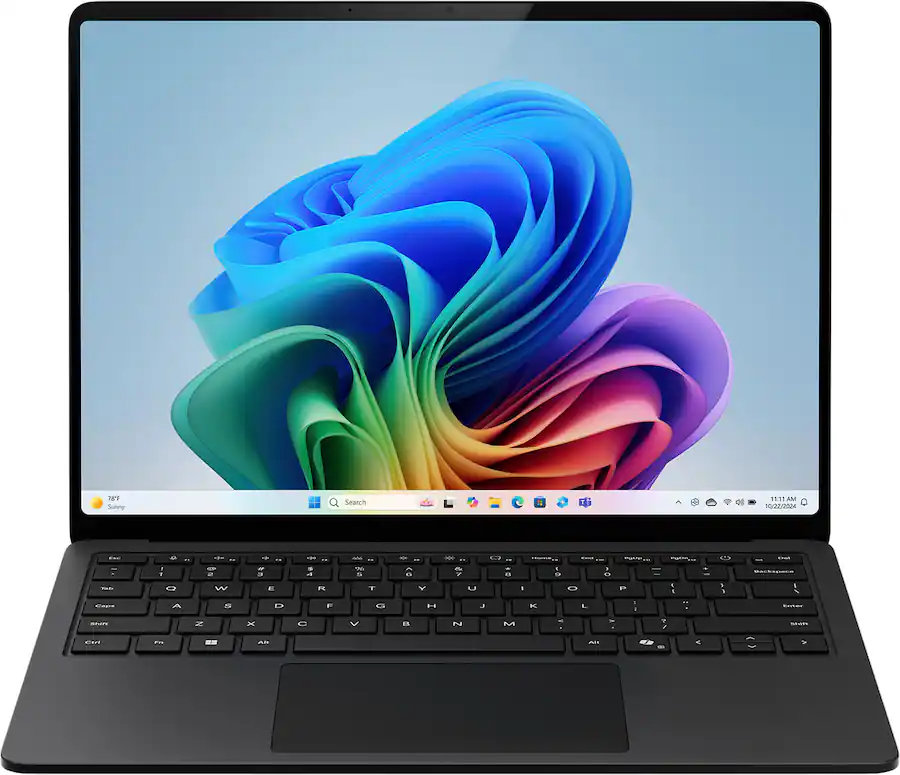
Microsoft's Surface Laptop 8 launched this summer, sporting new Snapdragon X2 chips. The flagship laptops promise a premium experience, better battery life than the previous generation, and improved graphics performance.

The bump in performance is expected considering the Surface Laptop 8 has a brand-new chip inside, so a different improvement is more noteworthy. The Surface Laptop 8 is one of the only devices to support Windows 11's new advanced haptics feature. It's the only laptop to support the feature.

Shop all Best Buy Surface deals

Advanced haptics sends a subtle bump through a touchpad, mouse, or stylus to let you feel Windows 11. For example, rearranging windows on your screen through Snap Layouts gives a clear indication of when you've hovered over a different layout.

Our Senior Editor Zac Bowden said "Windows 11's new 'Haptic Signals' feature is a quality of life upgrade [he] didn't realize the OS needed until [he] tried it." Now, you can experience the same thing since the Surface Laptop 8 is available for purchase.

CPU: Snapdragon X2 Plus
GPU: Qualcomm Adreno
RAM: 16GB
SSD: 512GB

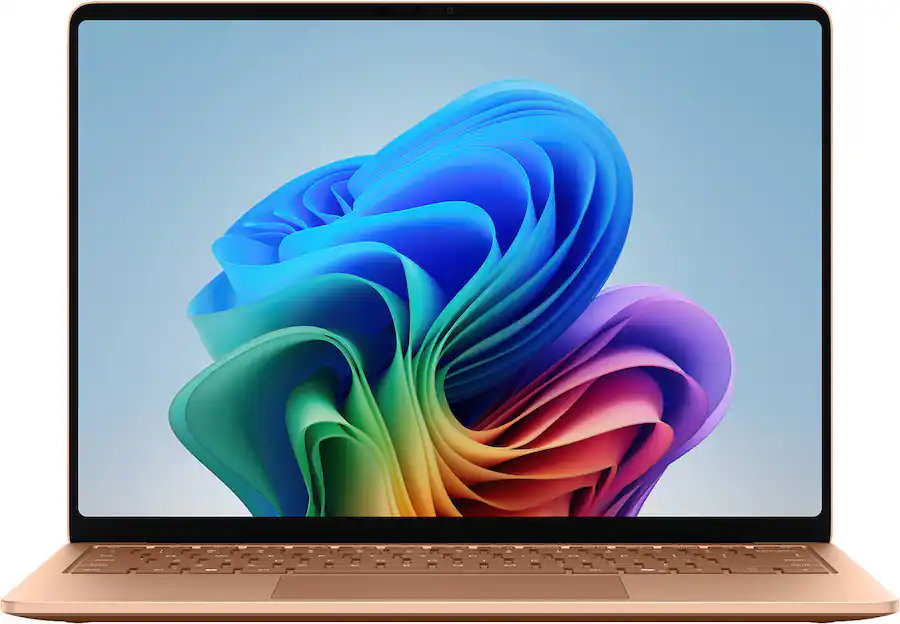
The Surface Laptop 8 introduces Microsoft's new Dune colorway, giving a warm aesthetic to an otherwise unassuming PC.

👉 See at BestBuy.comView Deal

CPU: Snapdragon X2 Elite
GPU: Qualcomm Adreno
RAM: 16GB
SSD: 512GB

This Surface Laptop 8 runs on the Snapdragon X2 Elite, which lets it tackle tasks all day without running out of battery life.

👉 See at BestBuy.comView Deal

Why should I care about advanced haptics?

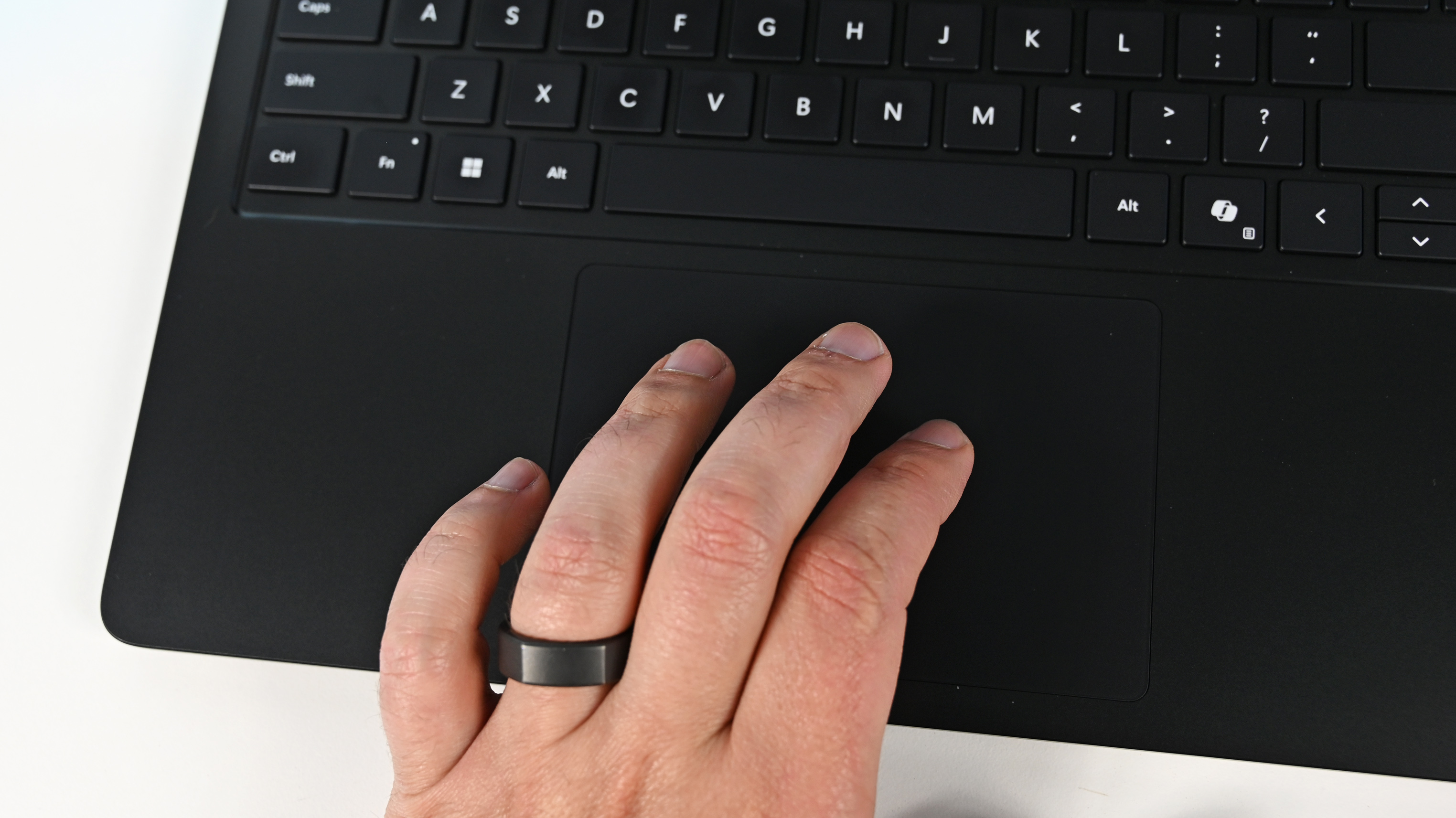
A hand wearing a black ring rests on the touchpad of a Surface Laptop for Business 8th Edition. The laptop keyboard is visible, highlighting the Shift, Ctrl, and Alt keys.

The haptic touchpad of the Surface Laptop 8 sends subtle vibrations when you perform certain actions, such as moving a file within File Explorer. (Image credit: Daniel Rubino)

As a quick point of clarity, the Surface Laptop 8 with Snapdragon X2 is what recently became available. Microsoft launched the Surface Laptop 8 for Business earlier this year. The business model runs on an Intel processor and comes with features you likely do not need as a general user.

Both the consumer and business versions of the Surface Laptop 8 support advanced haptics, but I recommend the consumer model to most people.

Advanced haptics is one of those small touches that makes Windows 11 feel polished. I appreciate UI changes and other Windows 11 improvements, but I'm more interested in features like advanced haptics because it changes the hands-on experience with a PC — quite literally.

"The new advanced haptic touchpad is a joy to use. It provides subtle tactile cues that confirm your actions," said our Editor-in-Chief Daniel Rubino in our Surface Laptop 8 review.

Our friends at Tom's Guide came away similarly impressed when reviewing the Surface Laptop 8:

"I’m also fond of the touchpad, which delivers satisfying haptic feedback when pressed. With some apps, you will even feel haptics when hovering over the X button on a window, which is quite fun and intuitive."

Right now, Windows 11 is the main way that you'll experience advanced haptics. But there's an API for the feature, so third-party developers can leverage it. Filmora, Affinity, and other third-party apps either already support the feature or will soon.

The only other way to use Windows 11's advanced haptics feature is to have a Logitech MX Master 4 or a supported stylus like the Surface Slim Pen 2. Over time, more devices should support the feature, but the Surface Laptop 8 beat everything else to the punch.

Click to join us on r/WindowsCentral

Join us on Reddit at r/WindowsCentral to share your insights and discuss our latest news, reviews, and more.

Surface Laptop for Business 8th Edition with a closed screen featuring a Windows logo, resting on a white surface. The background is a soft gradient from light blue to green.

Surface Laptop for Business 8th Edition with a closed screen featuring a Windows logo, resting on a white surface. The background is a soft gradient from light blue to green.

This 16" laptop with an Intel Ultra Core 7 processor and vibrant 2K display is on sale just in time to help you crush homework and summer exams

Best Buy is hosting a Back to School sale, giving major discounts on various gadgets and gizmos to help aspiring students get through their summer semester.

One of the more lucrative products on offer through this event is the fast-performing, long-lasting Samsung Galaxy Book6 laptop, which is currently having its steep $1,449.99 listing price cut down to $899.99 at Best Buy.


"I’ve been using the Samsung Book 6 for a while now and honestly it’s been solid. It’s lightweight, looks premium, and the battery easily gets me through most of the day. Performance is smooth for studying, browsing, videos, and everyday work." ~ VALENTIN, customer review

4.8 out of 5 Stars (based on 40 Best Buy customer reviews)View Deal

Why buy the Samsung Galaxy Book6?

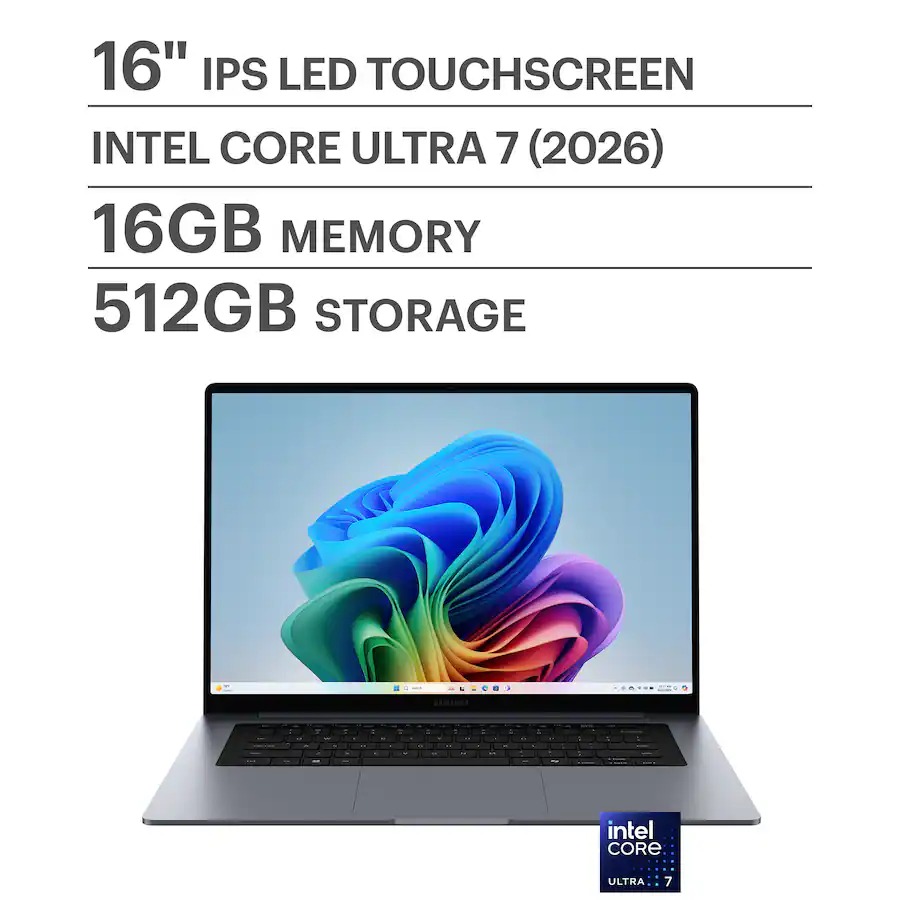
16-inch laptop with IPS LED touchscreen displaying colorful graphics, featuring Intel Core Ultra 7, 16GB memory, and 512GB storage.

Major spec highlights of the Samsung Galaxy Book6 laptop. (Image credit: Samsung)

Samsung produces some of the best laptops in the business, boasting gorgeous screens and solid hardware that can tackle any workloads thrown at them, and the Samsung Galaxy Book6 is no exception.

It can handle running multiple browser tabs; it can launch and run heavy-duty programs like Adobe Photoshop or multiple lightweight programs from Microsoft Office, and multitask these activities and more without a hint of slowdown thanks to its solid Intel Core Ultra 7 processor, 16GB of RAM, and 512GB SSD storage unit.

It also features a 16-inch 2K LED touchscreen that displays images with bright, vibrant colors and rich details for viewing documents and videos with clear HD definition while allowing you to tap and swipe app windows in an instant compared to using a mouse.

Other notable features of the Samsung Galaxy Book6 include a slim, lightweight design that's also sturdy enough to withstand some punishiment, a plethora of USB, HDMI and microSD ports, a long battery life up to 24 hours, Copilot+ integration for AI tasks, and the ability to wirelessly connect your phone via Galaxy Book6 Touch so you can respond to phone calls and text messages directly from your PC while turning it into a monitor so you can multitask more easily.

So, if you're looking for a premium-grade laptop to help you survive school exams for the next several years, Best Buy's 38% discount for the Samsung Galaxy Book6 laptop could be your golden ticket to acing tests with A+ scores.

FAQ

How long will Best Buy's Back to School Sale last?

Best Buy's Back to School sale will last from mid-July to early September.

Is its RAM and storage upgradeable?

The Samsung Galaxy Book6's RAM is soldered into the motherboard, so it can't be replaced with a different one. You can, however, upgrade its storage capacity by fitting an SSD into its second M.2 slot.

Is it good for gaming?

Due to its Integrated graphics card for productivity rather than gaming, the Samsung Galaxy Book6 can't handle playing mid to high-end PC games compared to its Samsung Galaxy Book6 Ultra counterpart.

Click to join us on r/WindowsCentral

Join us on Reddit at r/WindowsCentral to share your insights and discuss our latest news, reviews, and more.

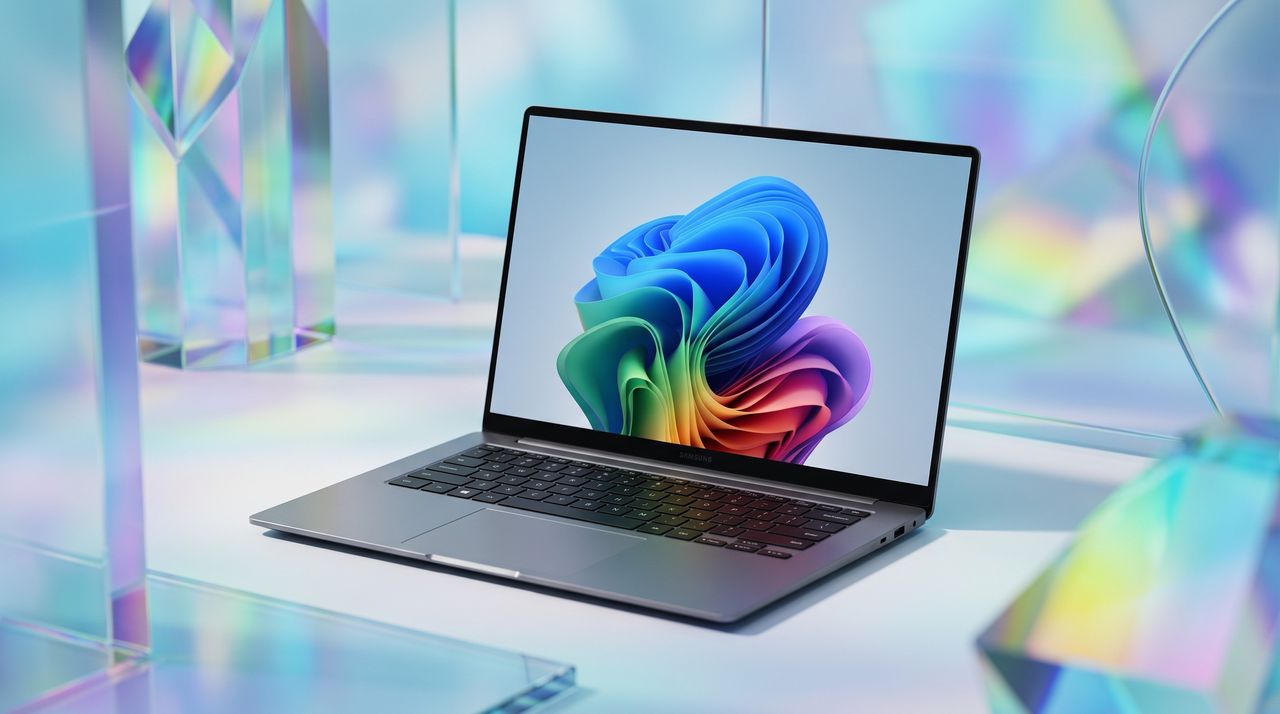
A sleek laptop with a vibrant abstract design on the screen, surrounded by colorful geometric shapes and reflections.

AI-generated image of a Samsung Galaxy Book6 laptop

Microsoft Comic Chat, an IRC client from 30 years ago that helped popularize Comic Sans, is going open source

Microsoft's once popular IRC client "Comic Chat" is being open sourced to celebrate its 30th anniversary. Those who frequented the world wide web in the 90's will likely remember Comic Chat for being a unique experiment into how IRC chatting could be, featuring graphical avatars that presented chats and chatrooms in comic strip form.

Originally developed by Microsoft Researcher David Kurlander and released on August 13, 1996, Comic Chat began life as a research project before morphing into Microsoft Chat and becoming the default chat client for MSN.

"Today, we’re excited to announce the open-source release of Microsoft Comic Chat, the chat client that automatically turned conversations within Internet Relay Chat (IRC) into comic panels featuring illustrated characters, speech bubbles, and expressions, and helped introduce the world to a little font called Comic Sans," Microsoft's Scott Hanselman announced in a blog post today.

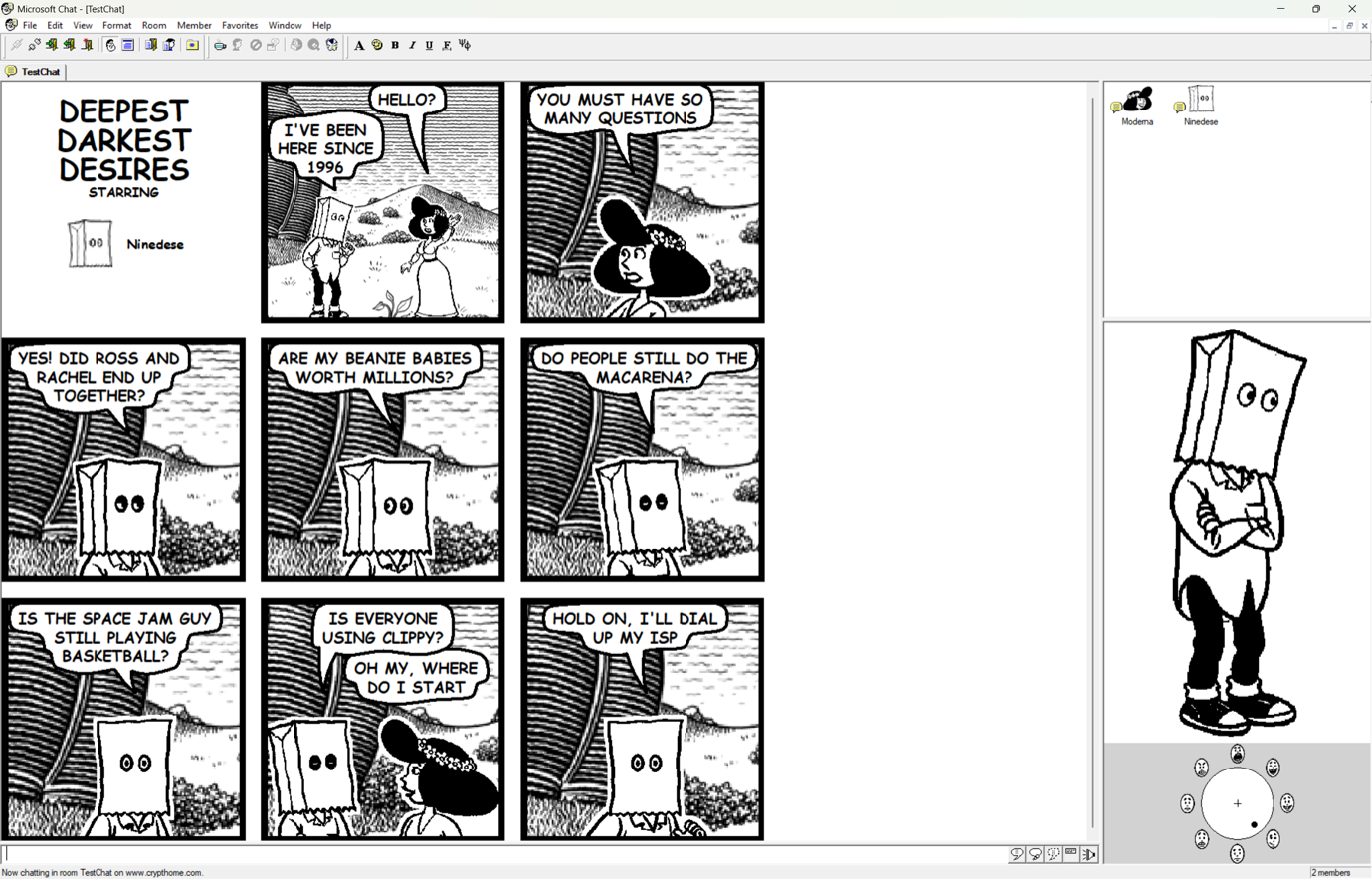
Comic Chat on Windows 11

Comic Chat running on Windows 11. (Image credit: Microsoft)

"For many people, Comic Chat is a nostalgic artifact from the early days of the internet as we transitioned from technologies like telnet, Usenet, and IRC to the largely visual web that we enjoy today. For others, it’s a legendary piece of Microsoft history they have only heard about in stories, screenshots, and debates about typography. Now, developers, historians, retro computing enthusiasts, and anyone who appreciates a wonderfully unconventional idea can explore the source code for themselves."

Although from the 90s, Comic Chat is still functional as an IRC client today, though most people likely don't use it anymore. Still, with the app now being open source, perhaps developers and tinkerers will be more open to breathing life back into the 30 year old app.

The Comic Chat source code is now public on GitHub for anyone who wants to take a look and compile their own version.

Click to join us on r/WindowsCentral

Join us on Reddit at r/WindowsCentral to share your insights and discuss our latest news, reviews, and more.

Microsoft Logo Birthday

Microsoft Logo Birthday

Microsoft rolls out 6 helpful new Windows 11 Insider features for early July, including one built to protect your PC from disaster

As part of the Windows Insider Program, Microsoft released several preview builds of Windows 11 in early July 2026, some of which introduced new features and others only improvements for existing experiences.

In the first two weeks of July, the company began the public test of the Cloud rebuild recovery feature, revealed a new design update for the account manager available through the Start menu, and made other improvements for version 26H2

In addition, Microsoft is continuing to expand previously announced features to more Insider channels, including the ability to upgrade from Windows 11 Home to Pro Education for K-12 environments. The company is also rolling out Taskbar position and size options, along with Windows Update improvements designed to reduce the number of required restarts each month.

In the Experimental track, we've seen builds 26300.8772 and 28120.2387, and builds 28020.2380 and 26220.8764 have been released in the Beta channel.

In this recap, I'll highlight the latest and most noteworthy changes available through the Windows Insider Program.

Biggest improvements from the Windows Insider Program in July 2026

In this recap, I'll highlight the latest and most noteworthy changes available through the Windows Insider Program since my last roundup.

Cloud rebuild new feature

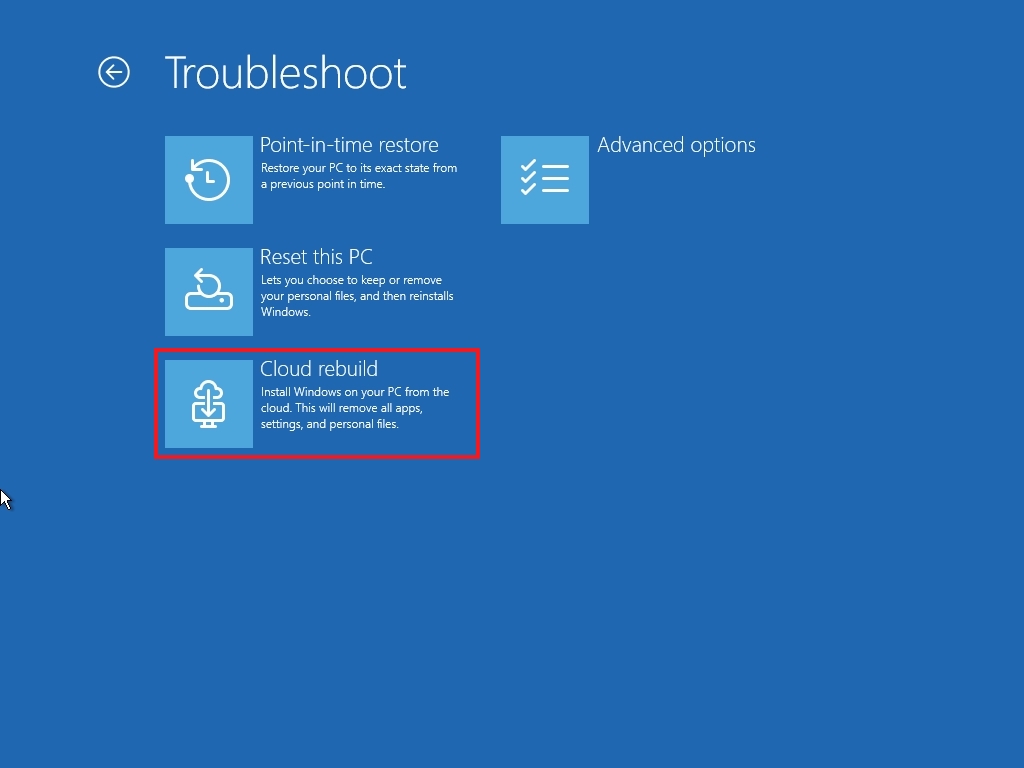
Starting with build 26300.8772, Windows 11 introduces a new recovery feature known as "Cloud rebuild," which has been designed to make it easier to reinstall the operating system when the computer is unable to start, or you're looking for a fresh install.

Windows Recovery Environment in the Troubleshoot page highlighting Cloud rebuild option.

(Image credit: Mauro Huculak)

If this feature sounds familiar, it's because it's similar to the Cloud download option in Reset this PC. However, Cloud rebuild introduces a new workflow that downloads the Windows 11 installation files and drivers and performs a clean installation without requiring a bootable USB drive, a custom recovery image, or access to the desktop environment.

Cloud rebuild can be accessed from the Windows Recovery Environment (WinRE) by going to the "Troubleshoot" page and using the "Cloud rebuild" option.

Before you can use the feature, the computer must be running Windows 11 on compatible hardware, and the device must be connected to the internet using a wireless or wired connection.

Once you confirm the Windows 11 version, edition, and language, click "Install," and the system will erase the hard drive and reinstall the operating system and drivers.

Account Control flyout redesign

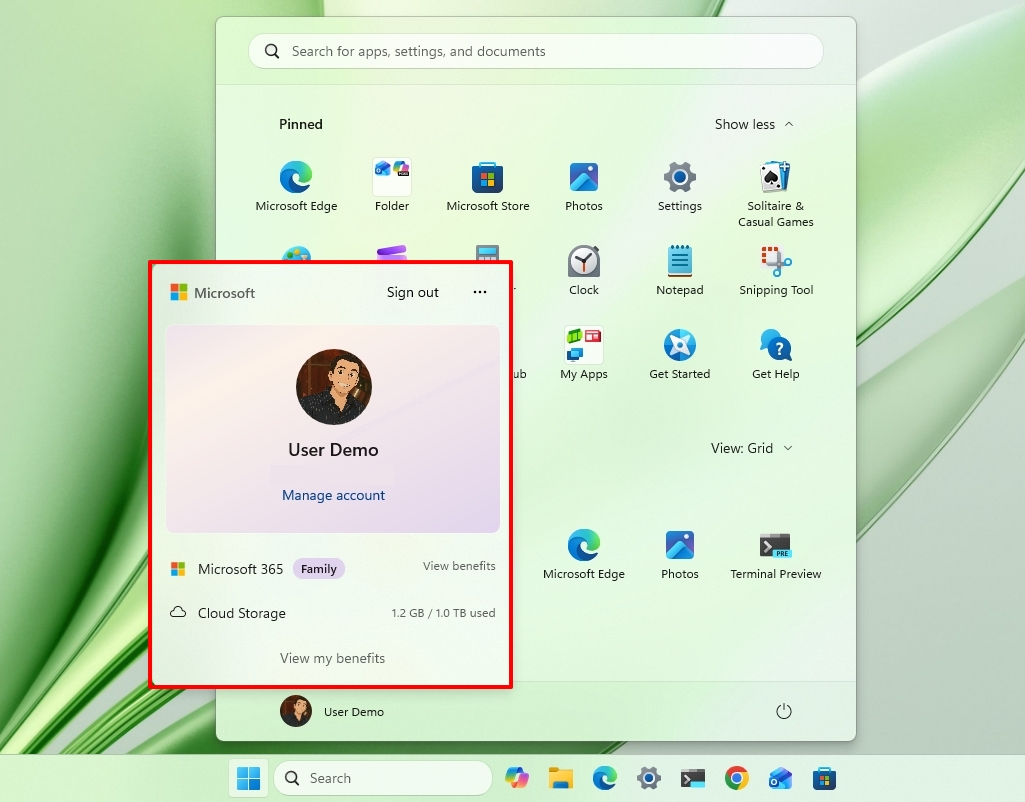
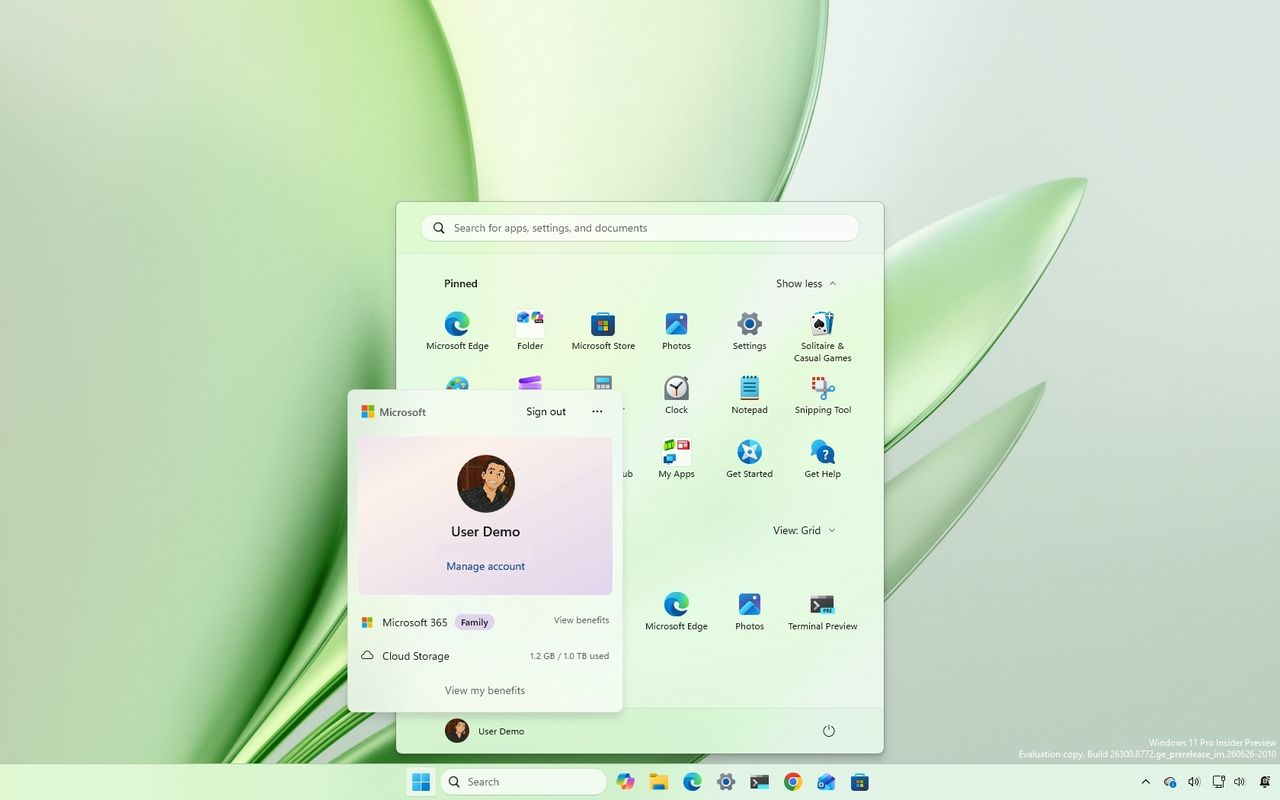
In the Start menu, Microsoft is also updating the Account Control flyout with build 26300.8772. The new design offers a more modern style that highlights your account information and picture.

Windows 11 desktop showing the new Account Control menu in the Start menu.

(Image credit: Mauro Huculak)

It also highlights your Microsoft 365 subscription, cloud storage, and access to your benefits.

Backup and restore default settings

In commercial computers, starting with the preview build 26300.8772, Windows 11 is enabling the backup and restore feature policy by default for devices enrolled in a Microsoft Entra ID or Entra hybrid-joined environment.

The idea is to start the device with backup protection to make recovery smoother. For example, when a device is reset or replaced, users can quickly return to their personalized desktop without extra steps.

Of course, network administrators can always control this experience, and Microsoft notes that existing policies will remain in effect, and manually configured settings always take priority over the default behavior.

Taskbar position settings

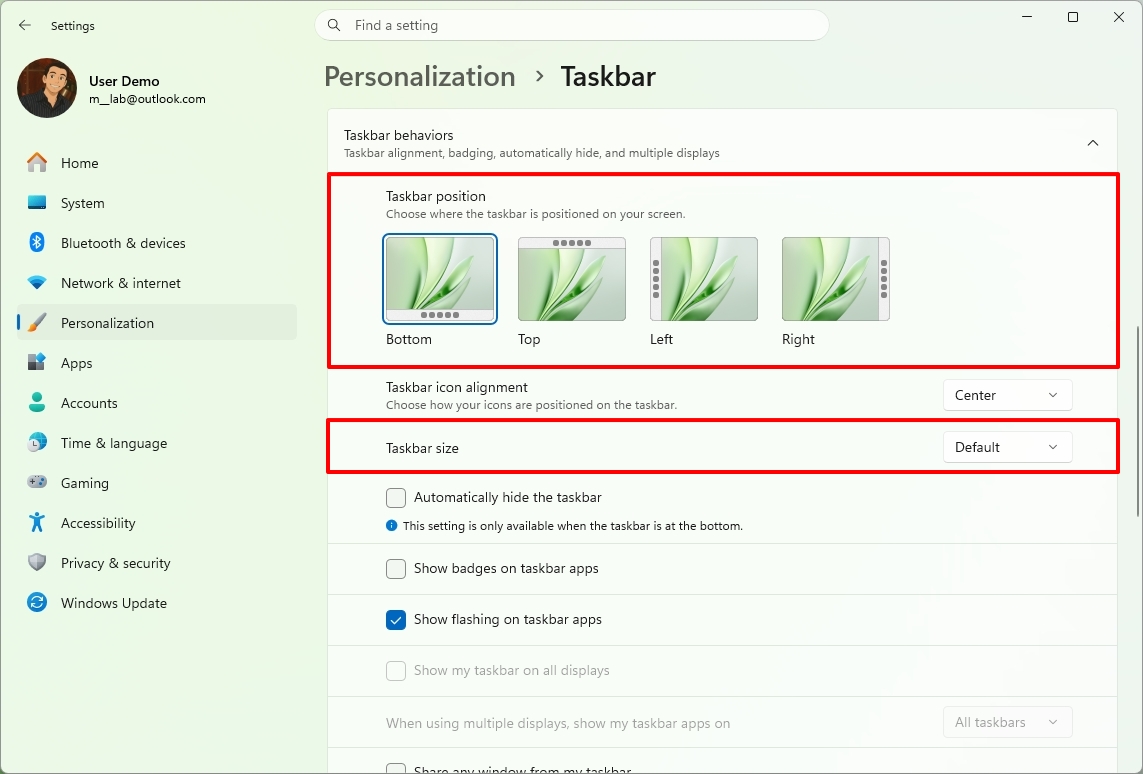
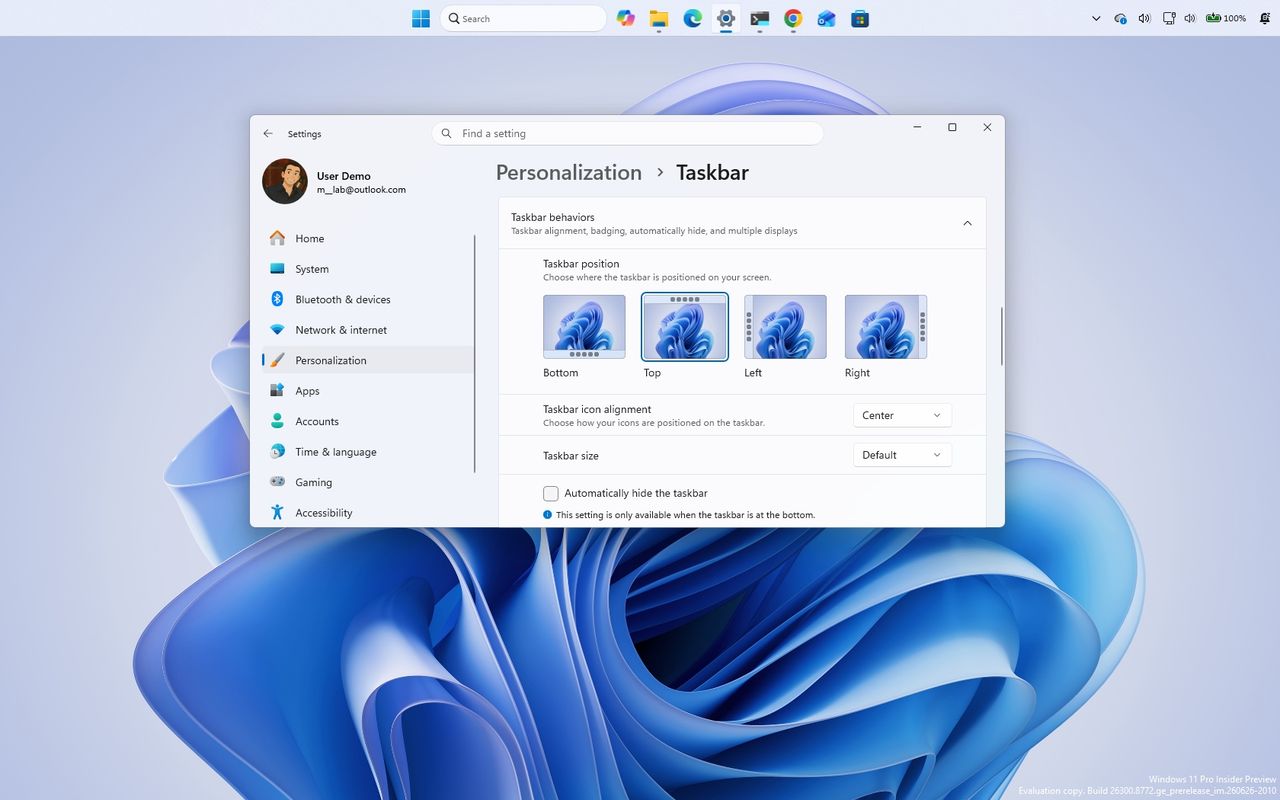
The company is also bringing back the ability to change the Taskbar location with the release of build 28120.2387 in the Experimental channel.

This change allows users to place the Taskbar at the top of the screen, as well as at the left or right edges, rather than being limited to the bottom.

The setting appears on Settings > Personalization > Taskbar, under the "Taskbar behaviors" section. The setting is called "Taskbar position."

Windows 11 Settings in the Taskbar page showing the Taskbar position settings.

(Image credit: Mauro Huculak)

The company notes that flyouts, tooltips, and animations will follow the Taskbar orientation regardless of the position.

Also, most existing features will continue to work, including the option to ungroup and show labels for apps.

Furthermore, the company is updating the "Show smaller taskbar button" option to make the Taskbar smaller instead of just the buttons. (As we have already seen in other tracks, the company is expected to create a separate option to make the Taskbar smaller.)

Windows Update with fewer reboots

As part of Windows 11 build 26220.8764, the company is introducing a new unified Windows Update experience that coordinates monthly quality updates with driver, .NET, and firmware updates.

By bundling these updates into a single installation cycle whenever possible, Microsoft aims to reduce the number of restarts users experience each month, with the long-term goal of requiring just one monthly reboot.

Windows 11 Pro Education for K-12 free upgrade

Microsoft is changing the installation requirements to allow devices running Windows 11 Home to upgrade to Windows 11 Pro Education at no additional cost for K-12 education.

This change aims to give schools more flexibility when acquiring new devices. However, the company says that this is one-way only. After the upgrade, the only way to roll back to the Home edition is by performing a clean installation of the operating system.

Windows Search upgrades

Outside its regular download schedule, Microsoft recently began rolling out a slew of improvements to the Windows Search experience on devices enrolled in the Experimental channel.

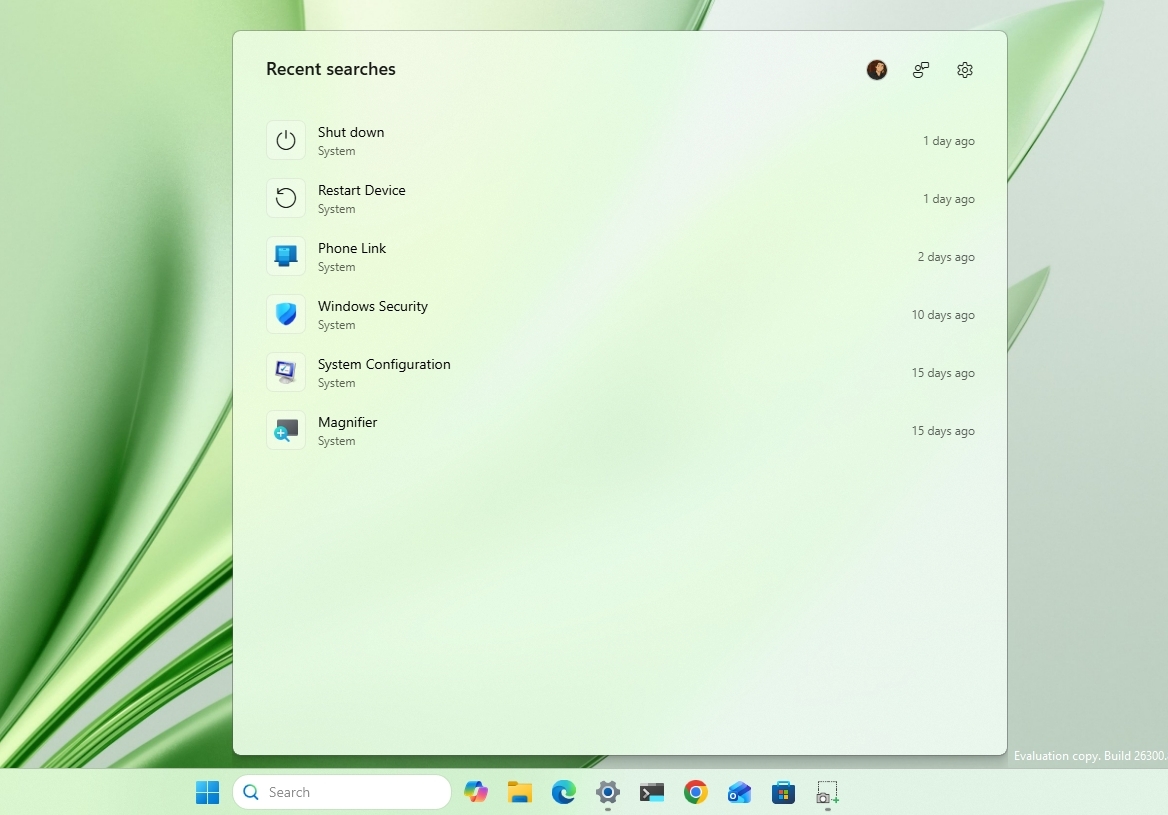
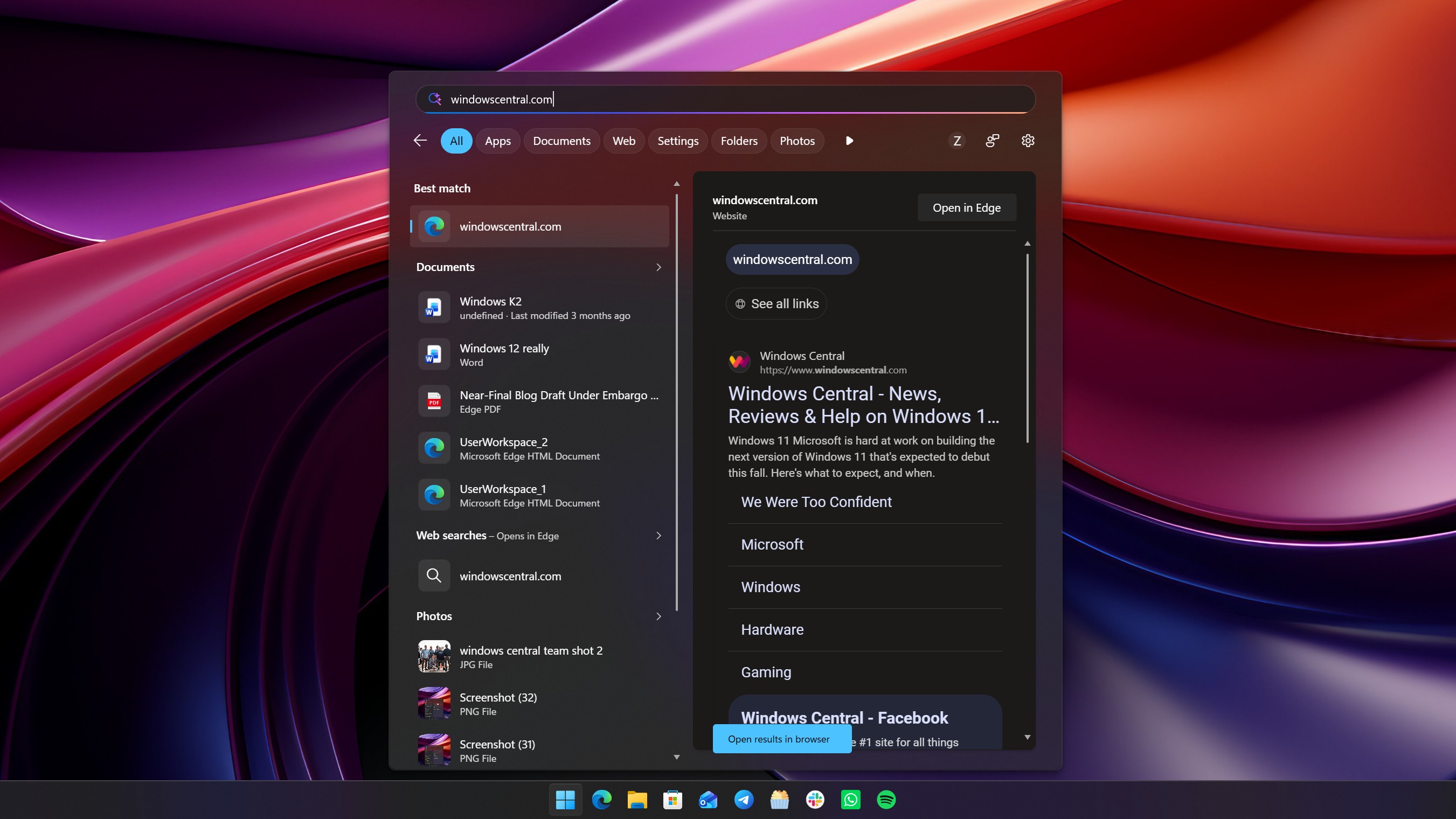
First, the company is decluttering the home screen and focusing on the search experience. As part of this rollout, the Windows Search home screen only includes your recent searches, ditching the visual clutter, including those annoying advertisements.

Windows 11 desktop with the Search home screen showing recent queries.

(Image credit: Mauro Huculak)

In addition, when performing a search and a web result is more relevant, the experience will now prioritize the answer rather than products and promotions.

Microsoft is also introducing design tweaks to better indicate where each result comes from. For example, you'll find better spacing between items and interface changes when selecting a result, including thumbnail previews.

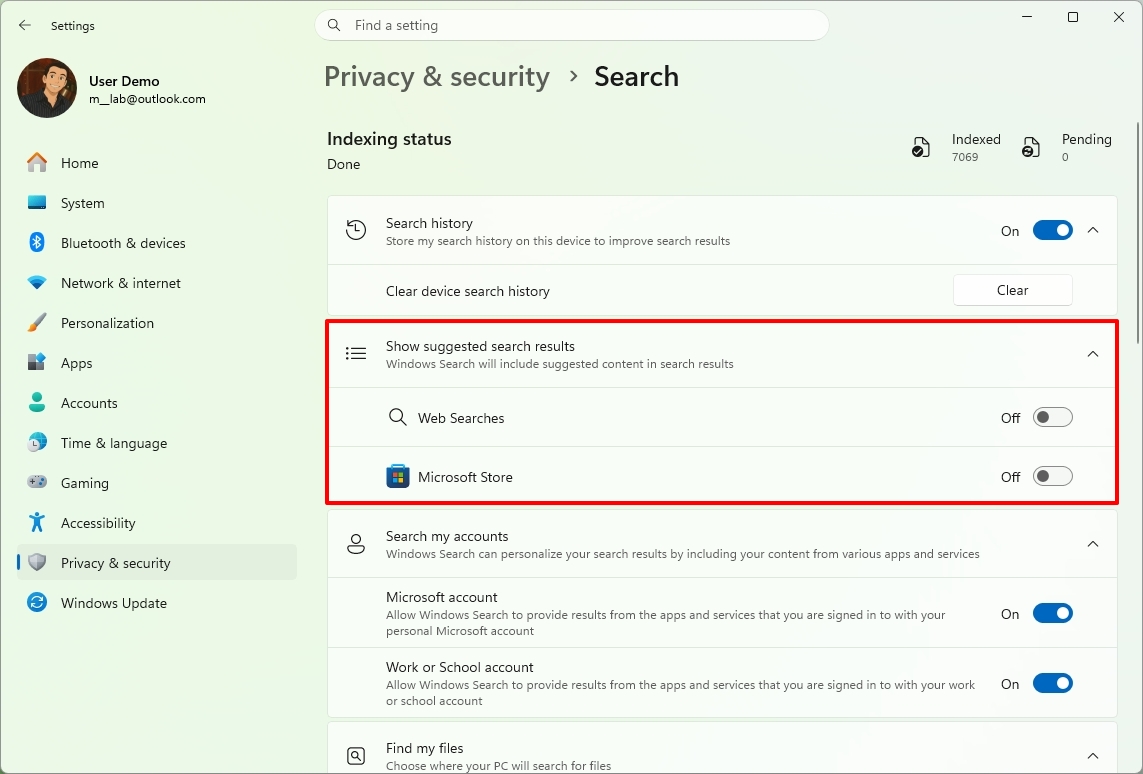
Second, you'll now have more control over search results with the options to disable web searches and Microsoft Store apps from appearing in the Windows Search experience.

However, by default, search will work as always. It's up to you to customize your search experience from Settings > Privacy & Security > Search.

Windows 11 Settings on the Search page showing the options to disable web searches and Microsoft store suggestions.

(Image credit: Mauro Huculak)

Third, the search experience now improves local content and rankings, meaning local results are given higher priority in apps, settings, and files, instead of web and Microsoft Store results showing up first when there are better results.

Windows 11 desktop showing the new search prioritizing Settings.

(Image credit: Mauro Huculak)

As part of the ranking tweaks, you'll notice that searches for settings now appear higher in the results.

Fourth, Microsoft is also focusing on improving search accuracy through two specific changes. For instance, Windows Search has been updated to better handle typos, missing or extra letters, and partial words.

In addition, the feature will now show results for local files using two-character file search, and more accurately surface cloud and connected files when they're the best match.

Windows Central's Take

I think these Insider builds show Microsoft focusing on what Windows 11 has needed for a while, improving the experience instead of simply adding more features. Cloud rebuild could make recovery much less stressful, while the Windows Search changes address one of the operating system's biggest frustrations by prioritizing useful local results over web content.

Blank Pixel

The reappearance of Taskbar positioning is also a welcome change. It shows Microsoft is still paying attention to feedback and bringing back flexibility that many users have missed since Windows 11 launched.

What are your thoughts on these latest Windows 11 Insider changes? Let me know in the comments.

More resources

Explore more in-depth how-to guides, troubleshooting advice, and essential tips to get the most out of Windows 11 and 10. Start browsing here:

Click to join us on r/WindowsCentral

Join us on Reddit at r/WindowsCentral to share your insights and discuss our latest news, reviews, and more.

Windows 11 desktop with the Start menu open and showing the new Account Control design.

Windows 11 desktop with the Start menu open and showing the new Account Control design.

Linux is not a "social warrior project," says its creator Linus Torvalds as he puts his foot firmly down against anti-AI comments

The day when AI isn't completely polarizing feels like it'll never arrive, and there's a definite divide between those for and those against.

This drama has now spilled into the Linux kernel, prompting a lengthy and firm response from its creator, Linus Torvalds (via GamingOnLinux).

It emerged as a topic referencing using AI and a tool called "Sashiko" for agentic reviews of changes to the Linux kernel. Then in swoops Torvalds to firmly put his foot down.

The full transcript of his response is below:

"Yes.

And no, that's not the position of the Linux kernel. I realize that some people really dislike AI, but this is an area where I'm willing to absolutely put my foot down as the top-level maintainer.

Linux is not one of those anti-AI projects, and if somebody has issues with that, they can do the open-source thing and fork it.

Or just walk away.

AI is a tool, just like other tools we use. And it's clearly a useful one.

It may not have been that "clearly" even just a year ago, but it's no longer in question today.

There are other questions around AI (like what the economy of it will actually look like in the end), but "is it useful" is no longer one of those questions. Anybody who doubts that clearly hasn't actually used it.

Yes, it can also be a somewhat painful tool, both for maintainer workloads and just from a "it keeps finding embarrassing bugs" standpoint.

But the solution is not to put your head in the sand and sing "La La La, I can't hear you" at the top of your voice like some people seem to do.

The solution is to make sure those LLM tools _help_ maintainers instead of just causing them pain. There's no question on that side.

We're not forcing anybody to use it, but I will very loudly ignore people who try to argue against other people from using it.

And no, AI isn't perfect. But Christ, anybody who points to the problems at AI had better be looking in the mirror and pointing at themselves at the same time.

Because it's not like natural intelligence is always all that great either.

The kernel project has been and will continue to be about the technology.

Sure, the social angle of working on open source is important and often a very motivating part of the project, but in the end that's a side benefit, not the _point_ of the project.

This is *NOT* some kind of "social warrior" project, never has been, and never will be.

In the kernel community we do open source because it results in better technology, not because of religious reasons.

And so we make decisions primarily based on technical merit. Not fear of new tools.

Linus"

A Huawei MateBook D running Linux

Linux is not a "social warrior" project. (Image credit: Windows Central)

I can already see the pitchforks rising, but let's take a step back. While Torvalds does appear to be flexing some muscle, if you read carefully, he's also not actually advocating for AI.

"AI is a tool... And clearly a useful one." There's no ideology behind it. He's not suddenly saying that the Linux kernel is going to be built using AI. More that if it can be used to make certain parts of the process better, then it will be.

And as he says, human intelligence isn't exactly perfect, is it?

It's a sticky wicket and sure to provoke some discussion. Linux is where many of the most serious enthusiasts go, and plenty just have a fundamental opposition to AI. I'm not getting into that, because it's exhausting, and we've been round and round on the topic plenty.

I do like Torvalds' approach in addressing this, though. Unlike, say, Microsoft, there are no business interests to push and bank accounts to swell by pushing the general public into using AI. There's also an alternative; if you don't like it, you can fork it and make your own. There are already plenty of custom kernels on Linux.

He's simply being pragmatic. The genie is free from the lamp; AI is here, and ignoring it simply isn't an option. Everyone can have their own opinion, but as he states, Linux isn't a "social warrior" project. They're just trying to make the best software, and increasingly, that's going to mean folks leveraging AI. Like it or not.

Blank Pixel

Click to join us on r/WindowsCentral

Join us on Reddit at r/WindowsCentral to share your insights and discuss our latest news, reviews, and more.

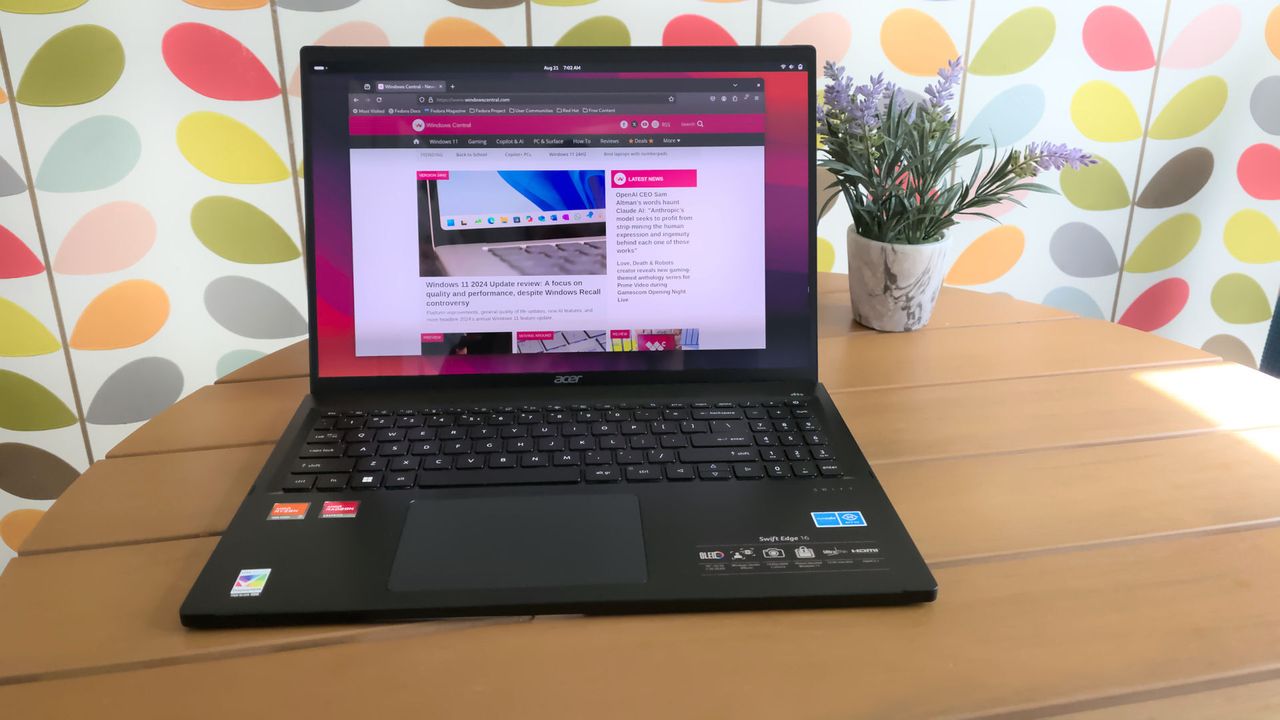
Acer Swift Edge running Linux

There's apparently no room for anti-AI sentiment when it comes to the Linux kernel anymore.

REVIEW: Turtle Beach Stealth Pro II for Xbox and PC — An absolutely spectacular multi-platform headset, with Turtle Beach's BEST audio EVER

Windows Central Best Award

I've been reviewing Turtle Beach headsets for a long time. The firm has a huge array of products for Xbox and PC gamers, hitting every price point and use case. Many of Turtle Beach's products have easily landed on our best Xbox and PC gaming headsets lists. Where I've personally found Turtle Beach to be most exciting is on the higher-end, where the firm has a tendency to really push the envelope with regards to functionality and value.

The Stealth Pro II absolutely encompasses that. Yes, it isn't cheap, but it comes in at a comparable price to lifestyle Bluetooth headsets that offer far less functionality and features, often with subpar durability and audio.

With the Stealth Pro II, I'm sitting here well and truly asking myself if this headset isn't just a competitor in the gaming space, but also the general everyday lifestyle space. With a subtle and stylish design, obscene amounts of functionality, and absolutely crystalline audio — the Stealth Pro II could be (should be) your next Xbox / PC gaming headset pick.

Turtle Beach Stealth Pro II — Specs and Price

Turtle Beach Stealth Pro II, headset photographs

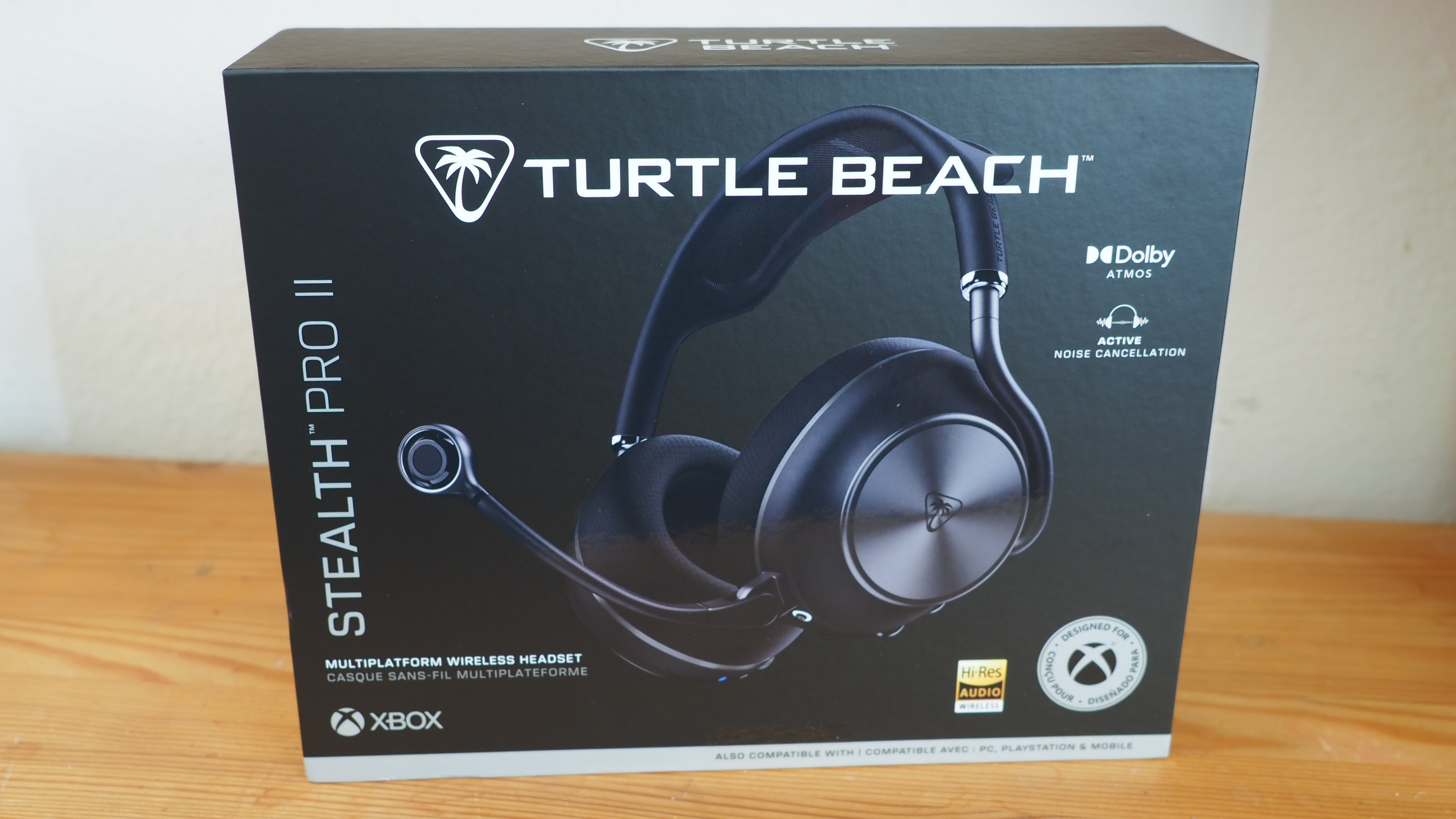
Even the packaging is slick. (Image credit: Windows Central | Jez Corden)

The Turtle Beach Stealth Pro II headset is a monster on paper, boasting an impressive array of features, functions, and premium-end specs.

Here's an overview of what you can expect to get out of the box.

Category

Specification

Drivers

60mm Eclipse™ Dual Drivers (separate woofers + tweeters)

Frequency Response

10Hz – 40kHz

Wireless Audio Quality

Hi‑Res 24‑bit / 96kHz over 2.4GHz; LC3plus & LDAC

Wireless Connectivity

2.4GHz USB wireless + Bluetooth 5.3 (dual‑audio)

Active Noise Cancellation

Advanced ANC with four internal mics

Microphone (Boom)

9mm floating shock‑mount, unidirectional, flip‑to‑mute, AI noise reduction

Internal Mics

Integrated beamforming microphones

Microphone Frequency Response

100Hz – 16kHz

Battery System

Dual swappable Li‑Polymer packs, 40 hours each (80h rotation)

Charging

Transmitter dock + USB‑C cable

Design & Build

Anodized aluminum frame, chrome accents, soft‑touch surfaces, diamond‑cut controls, dual‑layer memory‑foam cushions with athletic fabric, mesh suspension headband

Form Factor

Over‑ear

App Support

Swarm II app with 10‑band EQ, mic tuning, noise gate, presets

Audio Presets

Bass Boost, Signature Sound, Treble Boost, Vocal Boost

Compatibility (Xbox / PC Version)

Xbox Series X|S, Xbox One, PC, Bluetooth mobile devices. Additional USB transmitters for PlayStation / Nintendo sold separately.

Included Accessories

Hard‑shell case, transmitter dock, USB wireless transmitter, USB‑C cable, two batteries

Price

£299.99 / $349.99 / €349.99

At $349.99, it's not exactly what I'd call cheap, but that seems to have become the standard for headsets that are really pushing the bar when it comes to premium audio and "do everything" specs.

You can swap between two 40-hour batteries, with one permanently charged and ready to go in the transmitter dock. It comes with an additional USB transmitter for PC, with the main charge dock functioning as the radio for Xbox. It also sports Bluetooth 5.3 audio with LDAC, with simultaneous mixing with a USB sound source. It grabs the Hi-Res certification that has become all the rage lately, and boasts a massive speaker upgrade over the previous gen, with dual 60mm drivers and a huge frequency spectrum from 10Hz to 40kHz.

What's it like to actually use, though?

Turtle Beach Stealth Pro II — Design and Comfort

Turtle Beach Stealth Pro II, headset photographs

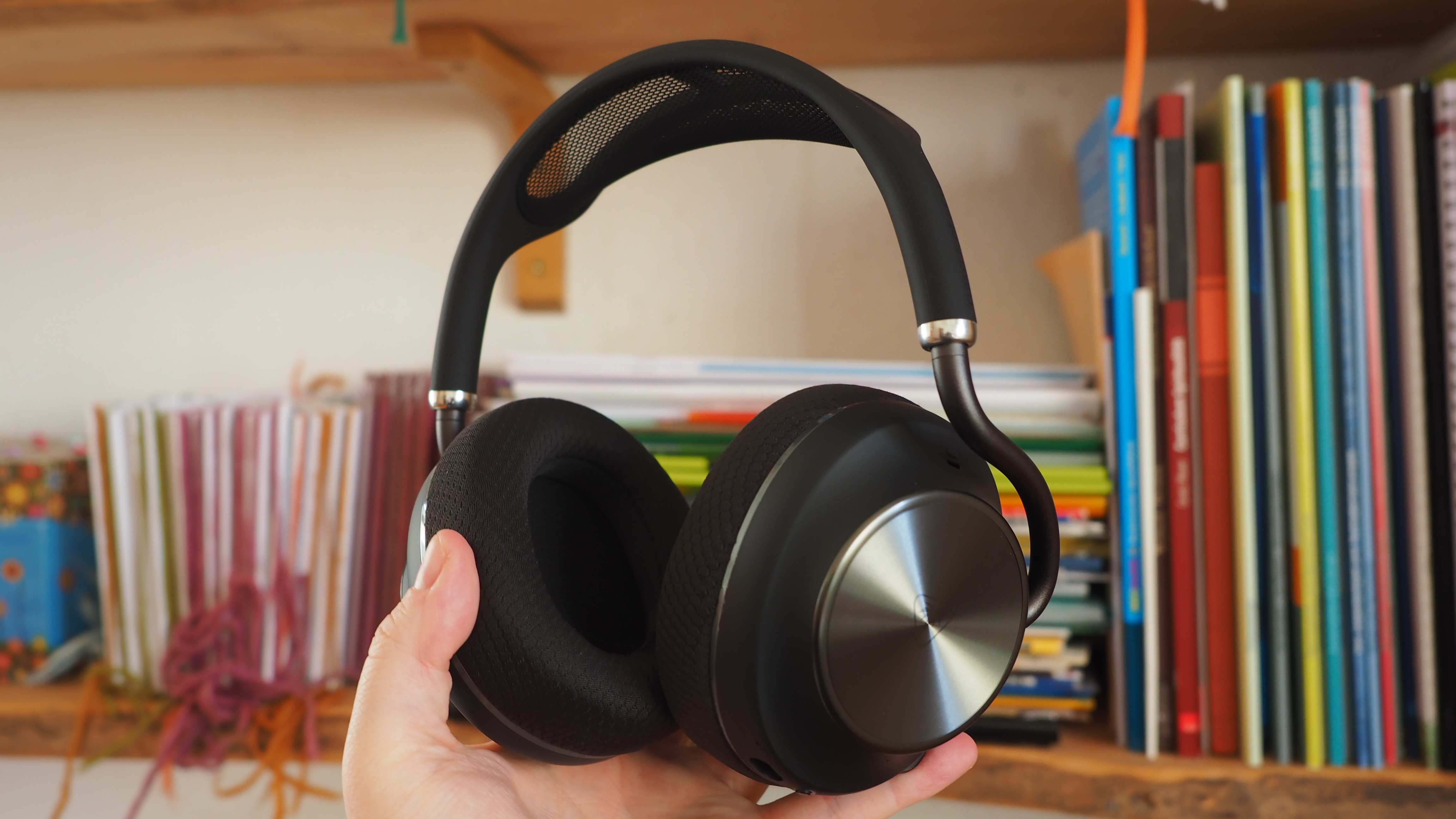
An absolute stunner, showing real restraint for a company previously known for neon green plastic and toy-like designs. This could be your every day headset. (Image credit: Windows Central | Jez Corden)

I think this is quite easily Turtle Beach's most attractive headset design. The Stealth Pro of yesteryear was fantastic, but it was still quite bulky in that typical "gamer" way, designed for isolation rather than fashion. Somehow, the 'Beach has managed to thread both needles with a single line here. Absolutely stunning engineering and design here.

The brushed metal speaker plates look great on the outside, and there remains a very subtle Turtle Beach imprint that stays out of the way and won't cramp anyone's style. The speakers are accented with the same metallic trims, and the headband connects with these bending connectors that look very futuristic.

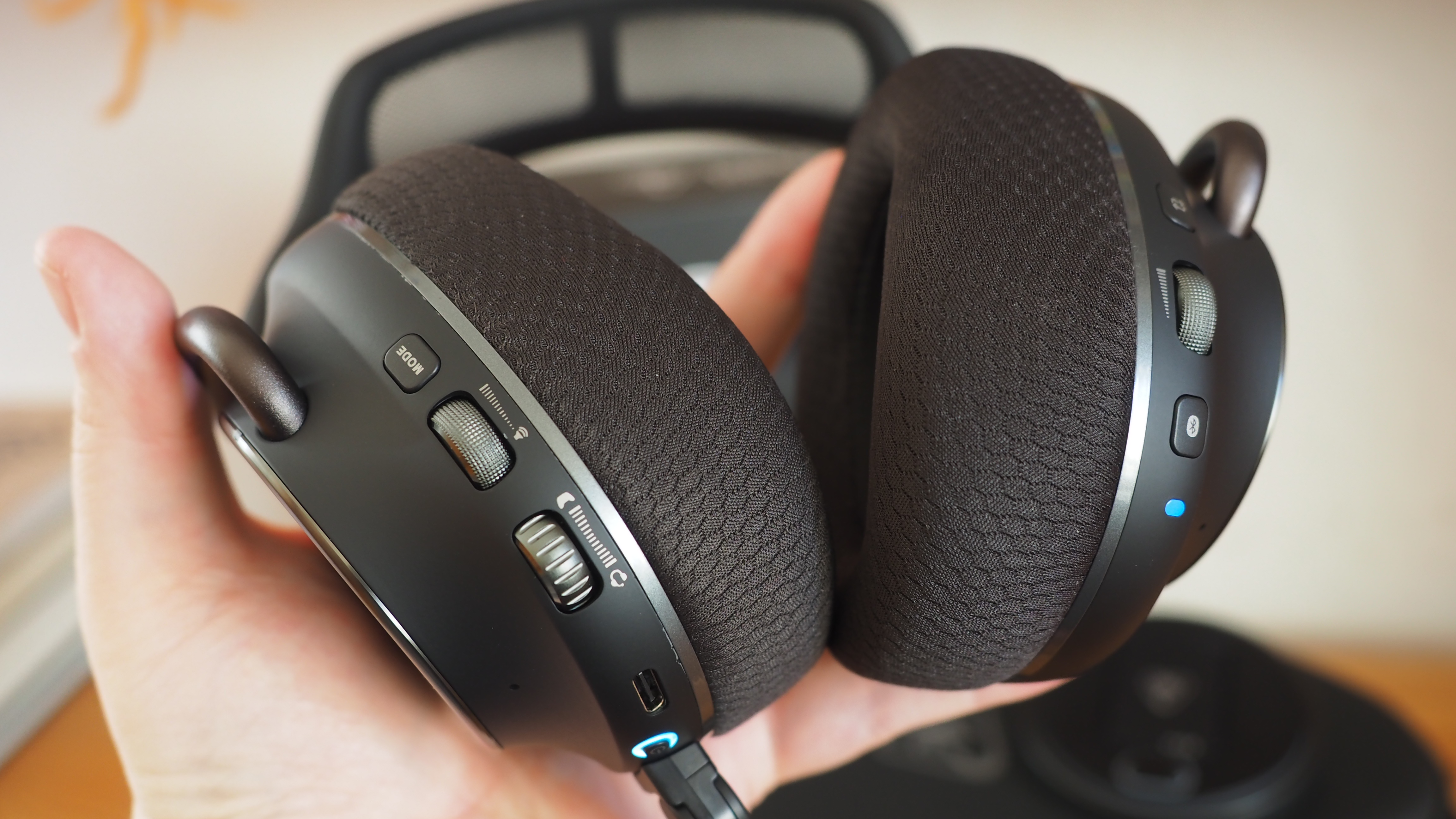
The microphone is simultaneously flip-to-mute and detachable, allowing you to go fully wireless. It has internal microphones as well for taking calls on the go without using the full mic boom.

Turtle Beach Stealth Pro II, headset photographs

The attention to detail extends to the controls. Each sports a different "feel" on the fingers to help you differentiate between the controls. It's smart, ergonomic design. (Image credit: Windows Central | Jez Corden)

The tapered cans reduce the visible footprint of the headset, which I feel reduces its visible "bulk" over some of Turtle Beach's previous attempts at a headset like this. And this is without compromising on speaker size or features. The 60mm drivers are a noticeable upgrade over the previous model, with separated tweeters and woofers.

On comfort, this is the only part where I think more attention could've been paid. The headband is made of this odd nylon mesh which, while looking pretty, is actually quite tight and uncomfortable over longer sessions. I imagine it's something one could get used to, but it seems like an odd oversight given how painstaking the rest of the design work is. The mesh is also great at trapping dust and is a bit difficult to clean effectively. Additionally, it doesn't seem to be replaceable ... so if you rip it somehow, you're kind of screwed.

I'm also not a huge fan of the fabric material used on the cushions. While it is comfortable, Turtle Beach's previous materials felt a little smoother on the skin. I am someone who vastly prefers leatherette over fabric, though, so take that as you will.

Turtle Beach Stealth Pro II — Features and Audio

Turtle Beach Stealth Pro II, headset photographs

It's far better looking than me. (Image credit: Windows Central | Jez Corden)

Where this headset absolutely dominates is audio. This is by a country mile the best-sounding headset Turtle Beach has ever produced. As I write this, I'm listening to Tool at maximum volume and enjoying my very own personal concert in an absolutely vast virtual soundscape with impressive separation, thundering, warm bass, and enjoying distortion-free treble, mids, and highs.

The intros on songs I've been intimately acquainted with for decades come through with details I've not experienced prior. Regardless of what I threw at it, from thundering double bass-peddle metal tracks to haunting electronica, it has been a really really fun time testing this headset out. For music and cinematic delivery, this headset is goosebumps-inducingly good, truly ethereal, regardless of genre. For lifestyle and daily mobile use, it also rocks up with active noise canceling, which is very good too. I put it through its paces with noisy fans and my air filter on maximum settings, and felt myself fully isolated with my Spotify playlist.

But what about gaming?

Turtle Beach Stealth Pro II, headset photographs

The nifty transmitter dock ensures you always have a 40-hour battery fully charged and ready to go. It also future-proofs you against flats. (Image credit: Windows Central | Jez Corden)

You can indeed expect a similarly amazing experience in games, too. Rocking up with Overwatch and the review build of Halo Campaign Evolved was as immersive as you might expect. Halo's intro music somehow never fails to enchant, and it's only elevated with a good sound system like these.

Where things get even more impressive, particularly in competitive play, is with Turtle Beach's famed SuperHuman Hearing.

Using the bundled Swarm II app, you can set it to focus either on footsteps or gunshots; there's also a legacy setting for those who prefer the old-school profile. SuperHuman Hearing does negatively impact the "cinematic" feel of games, creating an unnatural soundscape — but that's entirely the point. It's supposed to look for and emphasize sound cues that will give you a tactical advantage. And it does work. Games that are already designed with tactical sound design have always worked well with Turtle Beach's SuperHuman Hearing system, but with this headset it hits another level. If Battlefield 6 or Overwatch were Olympic sports, this headset would probably get you banned for cheating.

Another part of this headset that's utterly impressive is the microphone. It's detachable and sports flip-to-mute capabilities as mentioned, but it also has a miniature shock protector, which I've simply never seen before in a gaming headset.

Above is an audio sample with the headset's AI-powered noise cancellation feature turned on. In the first half, you can hear my voice come through clearly despite having a fan blowing directly on the mic, which is impressive. It sounds a lot better without the fan on, of course, but the clarity is rock solid for gaming comms.

I think I'd even be comfortable dropping my XLR mic and using this headset for actual game streaming, which is not something I find myself saying often these days. Turtle Beach really nailed it across the board when it comes to audio here.

Turtle Beach Stealth Pro II — Should you buy it?

Turtle Beach Stealth Pro II, headset photographs

A pricy headset that absolutely will not disappoint you. (Image credit: Windows Central | Jez Corden)

I absolutely adore this headset. The sound is a true pleasure, and it's always a joy when a headset like this delivers so much. It makes the review process fun, as I have an excuse to listen to several albums and play several games as part of my "extensive" testing process ...

I was a bit disappointed with the headband and materials on the earcups. I'm also a bit disappointed that Turtle Beach still can't seem to nail dual-USB sound source mixing, although I admit the requirement for that is pretty niche, and not something 99% of people will actually use. Being able to mix Bluetooth in simultaneously with your Xbox or PC is a nice consolation, though.

✅ You should buy this if:

  • You want best-in-class audio on a multi-platform gaming headset.
  • You're willing to pay a premium for things like ANC and high-end specs.
  • You're a fan of Turtle Beach's SuperHuman Hearing feature.

❌ You should skip this if:

Where this headset just shines above all is the sound delivery. The soundscape is incredibly immersive for its category, and the microphone is also a cut above what I'd typically expect from a gaming headset.

At this price point, there aren't really a ton of competitors out there worth considering in this range. I absolutely don't think you'll be disappointed with this if you're a dedicated Xbox and PC gamer who wants a bit of Bluetooth and music capabilities on the side. This is an immaculate "do everything" headset that definitely feels worth the price of admission for me.

Turtle Beach Stealth Pro II

Amazing
Turtle Beach
Stealth Pro II

The Turtle Beach Stealth Pro II is an absolutely stunning headset that sports arguably some of the best audio reproduction I've experienced in such a fully-featured gaming headset.

See at: Amazon

Click to join us on r/WindowsCentral

Join us on Reddit at r/WindowsCentral to share your insights and discuss our latest news, reviews, and more.

Turtle Beach Stealth Pro II, headset photographs

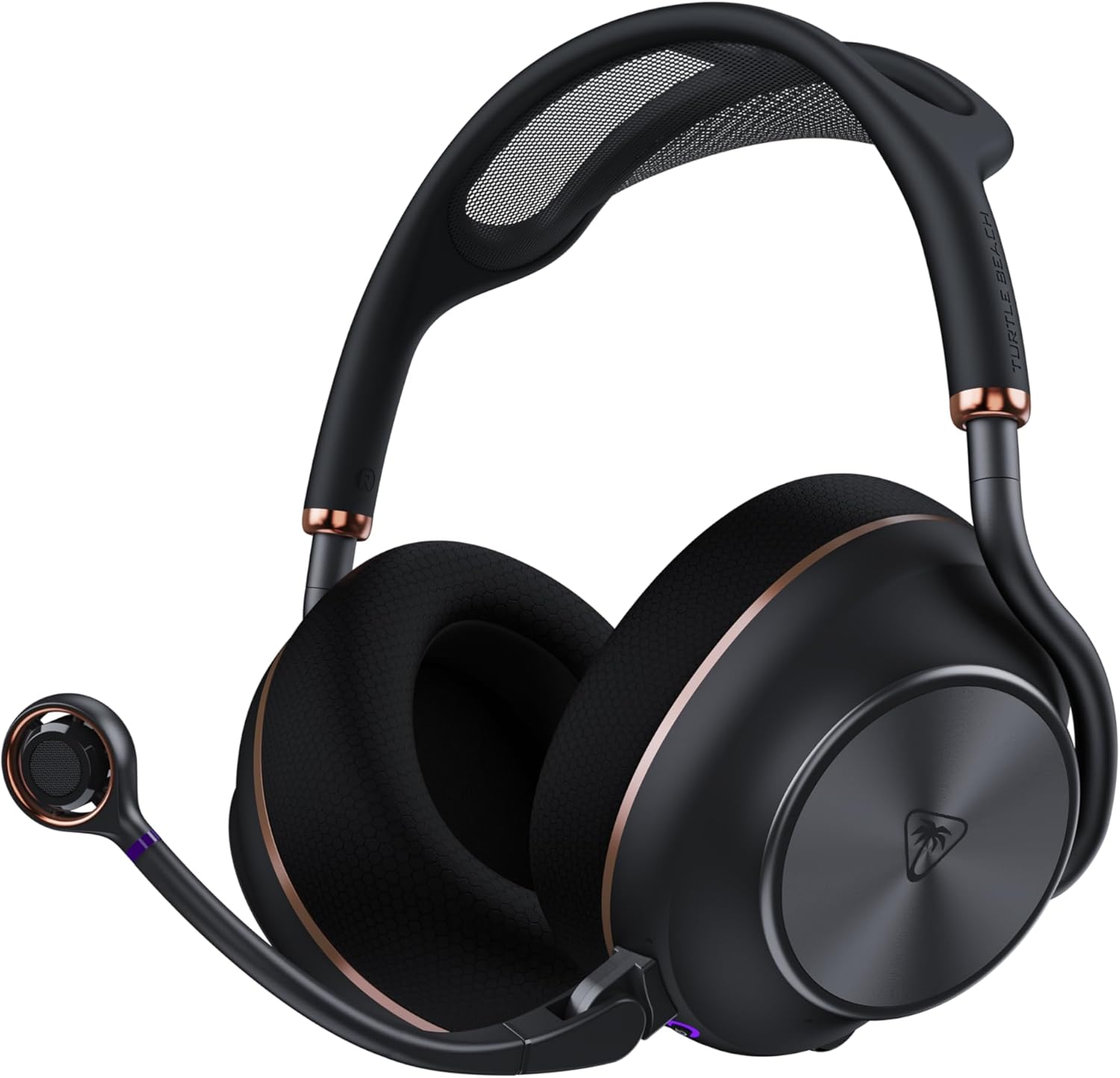
Turtle Beach has another banger on its hands.

Microsoft blocks Windows 11 KB5101650 update for Dell PCs due to "unexpected shutdowns, poor performance, increased heat, and battery drain"

Microsoft has confirmed that it has blocked the availability of the recent Windows 11 July Patch Tuesday update (KB5101650) on Dell PCs, after Dell reported a number of issues including unexpected shutdowns, overheating, poor performance, and more caused by the preview update that released before it.

The KB5101650 began rolling out on July 14, and includes a number of quality of life improvements and fixes. For most users, this update is issue free, but Dell PCs will find that the update is not available for them currently.

"A limited number of Dell devices might display a yellow exclamation point in Device Manager next to the Intel Innovation Platform Framework Processor Participant driver. These devices can potentially experience unexpected shutdowns, poor performance, increased heat, and battery drain."

This issue applies to both the KB5101650 update that rolled out on July 14, and the optional preview update KB5095093 that rolled out on June 23, on either Windows 11 version 24H2 or 25H2. Dell PCs running either of these updates and experiencing issues should roll back.

The bug in question appears to be caused by the new Windows USB-C Connection Manager interface, with the Intel Innovation Platform Framework Processor Participant driver no longer functioning as intended. "This issue was reported by Dell during testing and identified as an incompatibility between the Intel driver and the new Windows USB-C Connection Manager interface."

Microsoft says that it's working on a fix, and will release a resolution for the PCs that are impacted by this issue soon. The good news is that it appears Microsoft was aware of the problem right away, as the July 14 update was blocked on Dell PCs right out of the gate.

Unfortunately, there was no immediate block on the optional update that released on June 23, meaning some devices may have installed the update that is causing problems. The best course of action in that situation is to simply roll-back to the previous update.

via Bleeping Computer

Click to join us on r/WindowsCentral

Join us on Reddit at r/WindowsCentral to share your insights and discuss our latest news, reviews, and more.

Windows Update

Windows Update

Newegg offers some of our favorite gaming CPUs bundled with motherboards and precious RAM in a limited summer sale

AI continues to wreak havoc on the tech industry, driving up the prices of processors, RAM, motherboards, and more PC hardware so companies can keep up with its hunger for more power (and RAM).

Fortunately, Newegg is offering a limited sale on several discounted bundles containing AMD processors we've tested and rated highly for their solid performance, alongside compatible motherboards and 16GB RAM modules to help these CPUs reach their full potential.

So, if you're looking to upgrade your PC with some of the best CPUs for gaming or productivity content creation, along with the best motherboards and precious RAM to maintain their stability, this round-up could be your next best solution.


"True to its word, AMD has specifically targeted gamers with this affordable powerhouse, and I expect my upcoming tests only to cement its place in your next rig." — Ben Wilson, Senior Editor

Windows Central review: ⭐⭐⭐⭐½View Deal


"For gamers with a passion for livestreaming, it offers almost max specs for a reasonable price and power draw." — Ben Wilson, Senior Editor

Windows Central review: ⭐⭐⭐⭐½View Deal


"In a masterclass of performance-per-watt efficiency, AMD offers incredible single-core performance scores that beat its intended 14600K rival and even challenge the 14700K." — Ben Wilson, Senior Editor

Windows Central review: ⭐⭐⭐⭐½View Deal


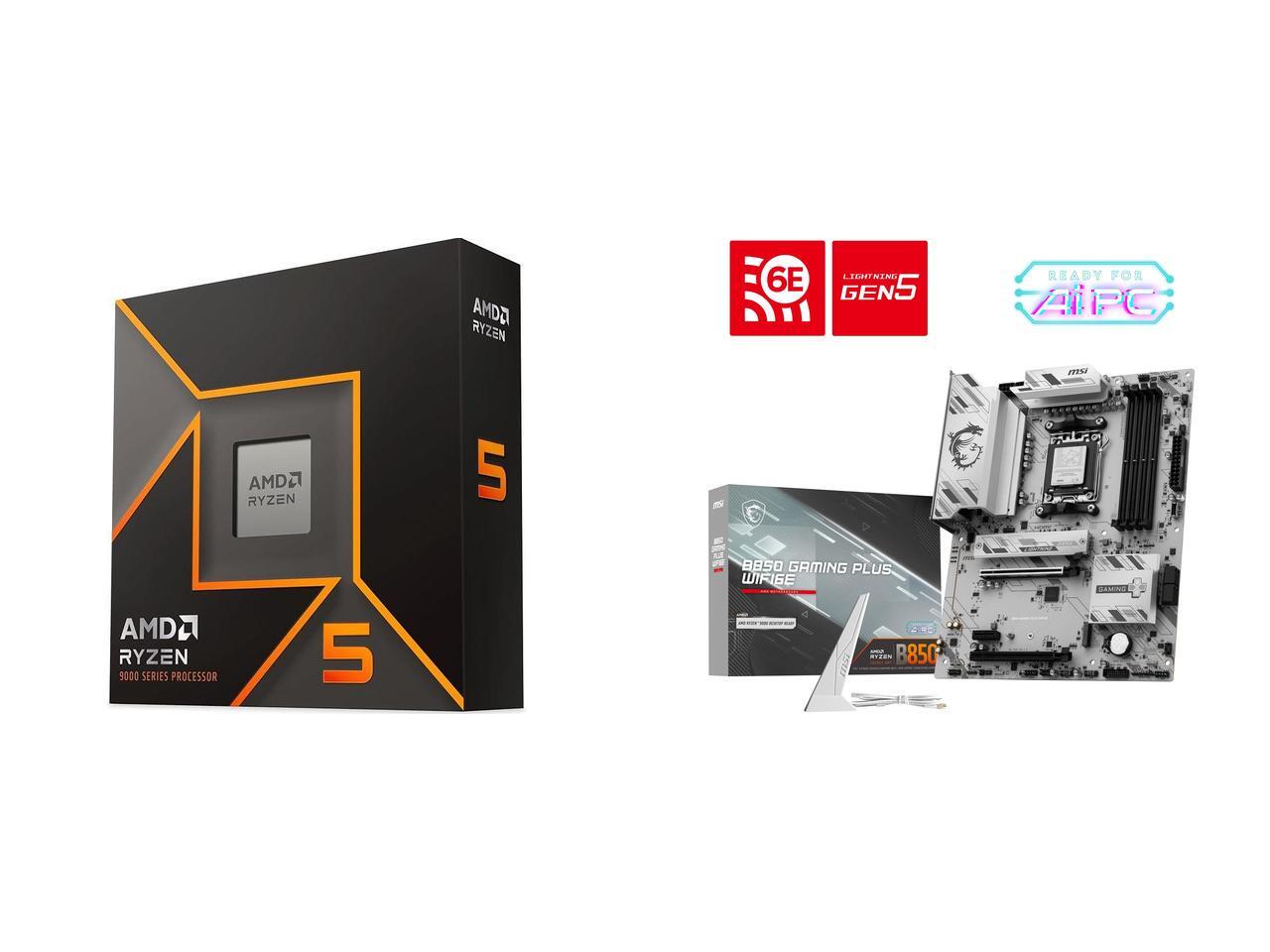
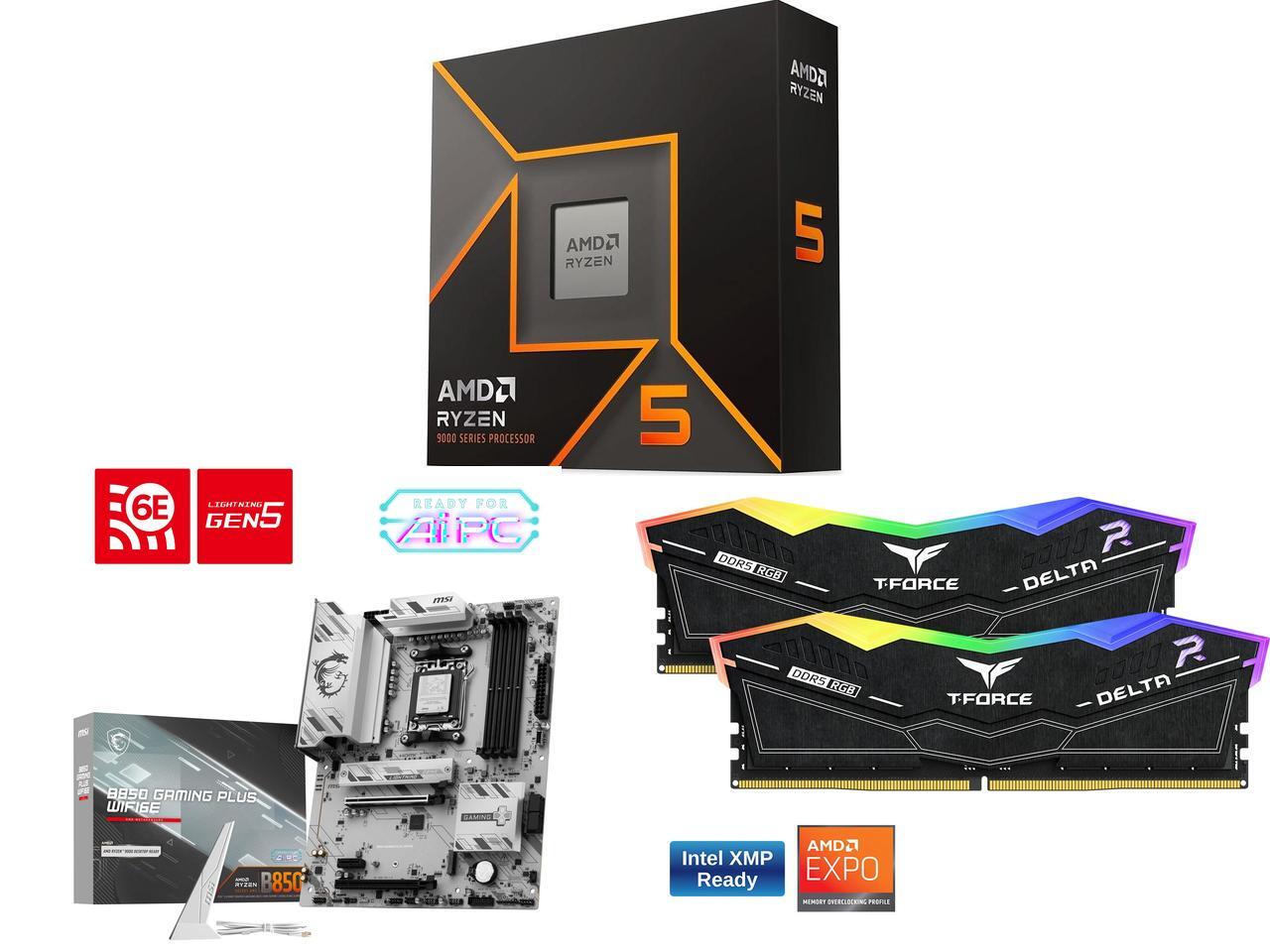
This bundle contains an AMD Ryzen 5 9600X processor along with a compatible MSI B850 GAMING PLUS WIFI6E motherboard with fast WiFi 7 wireless connectivity and two 8GB RAM sticks.View Deal


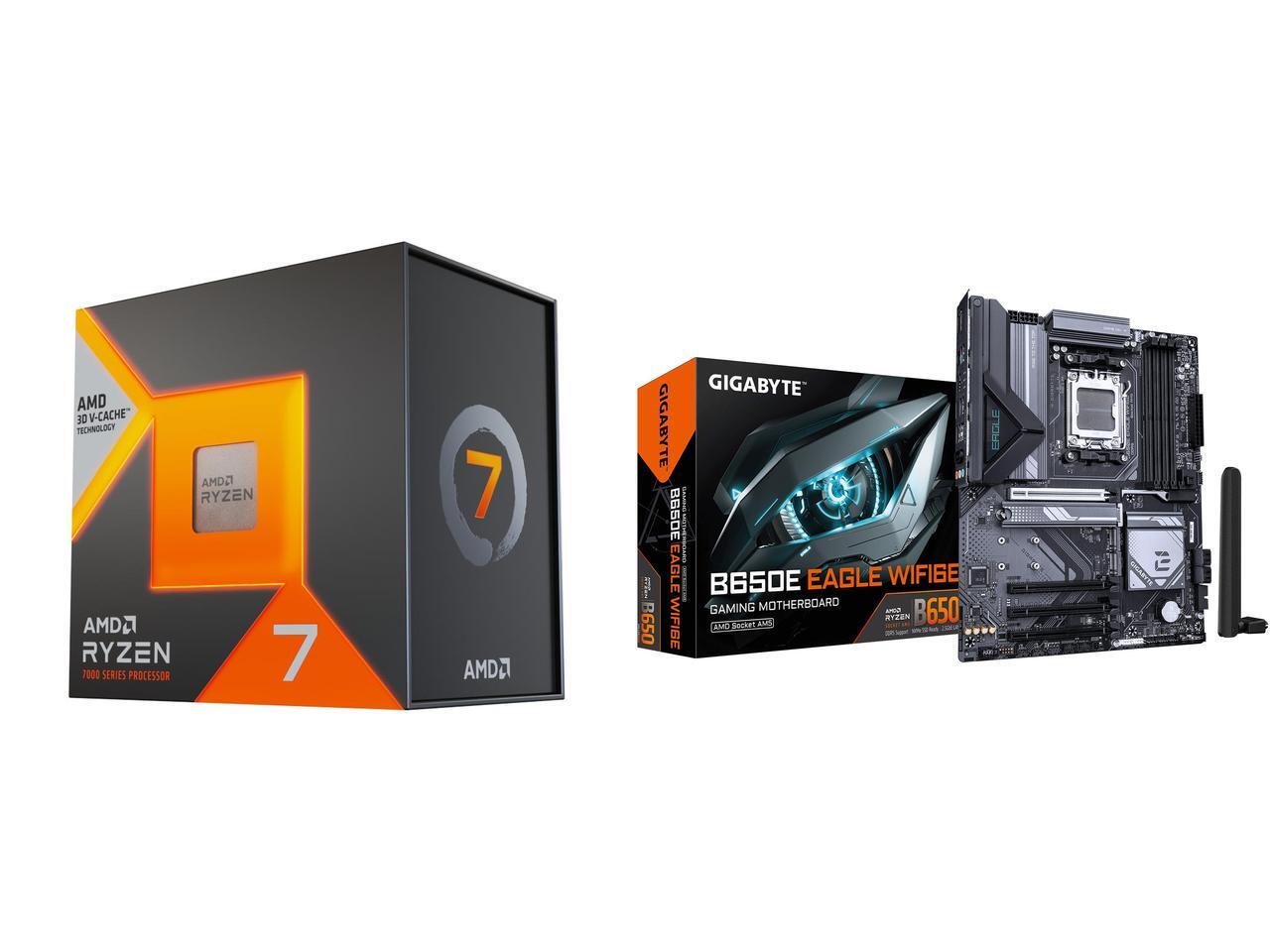
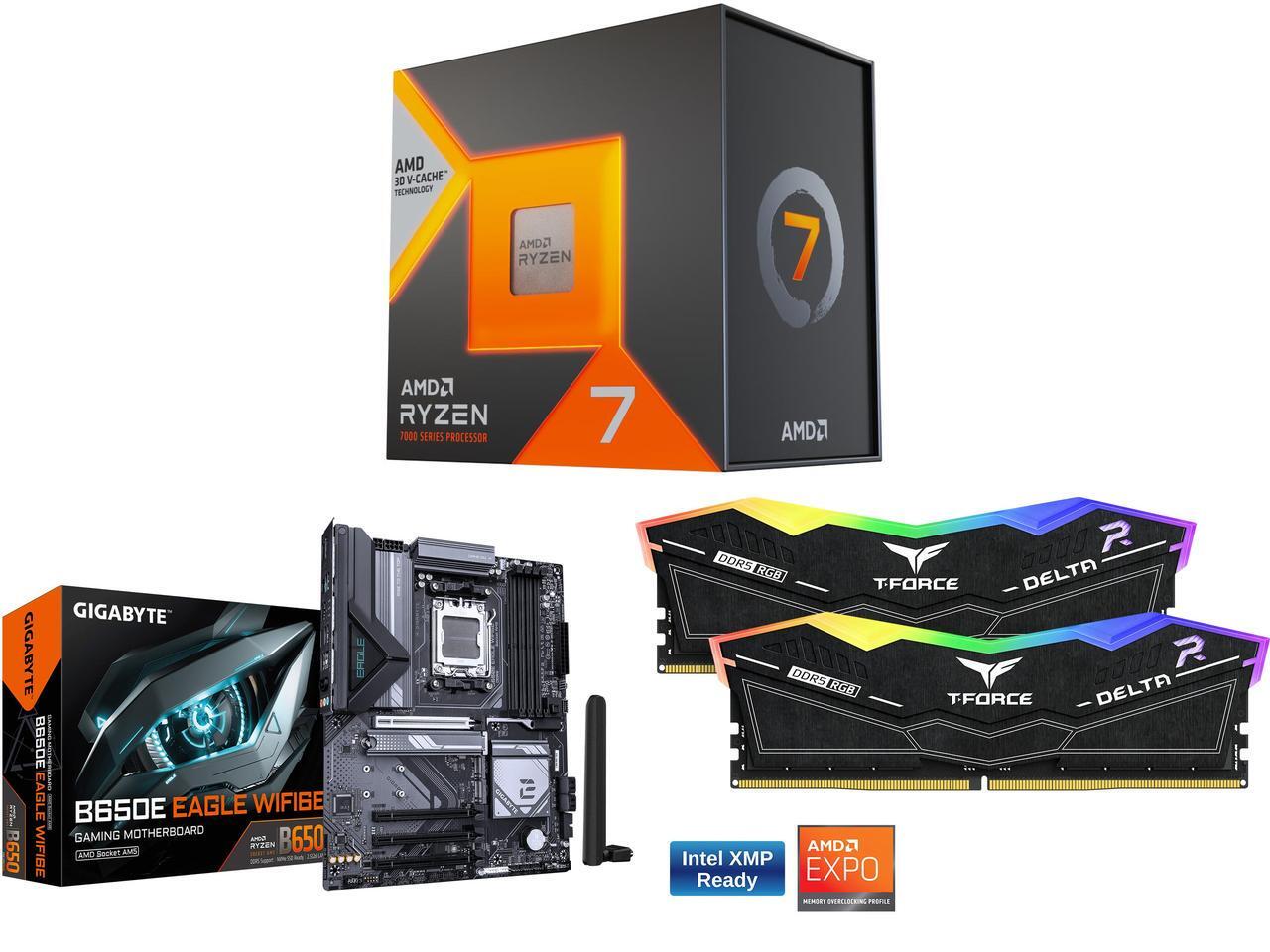
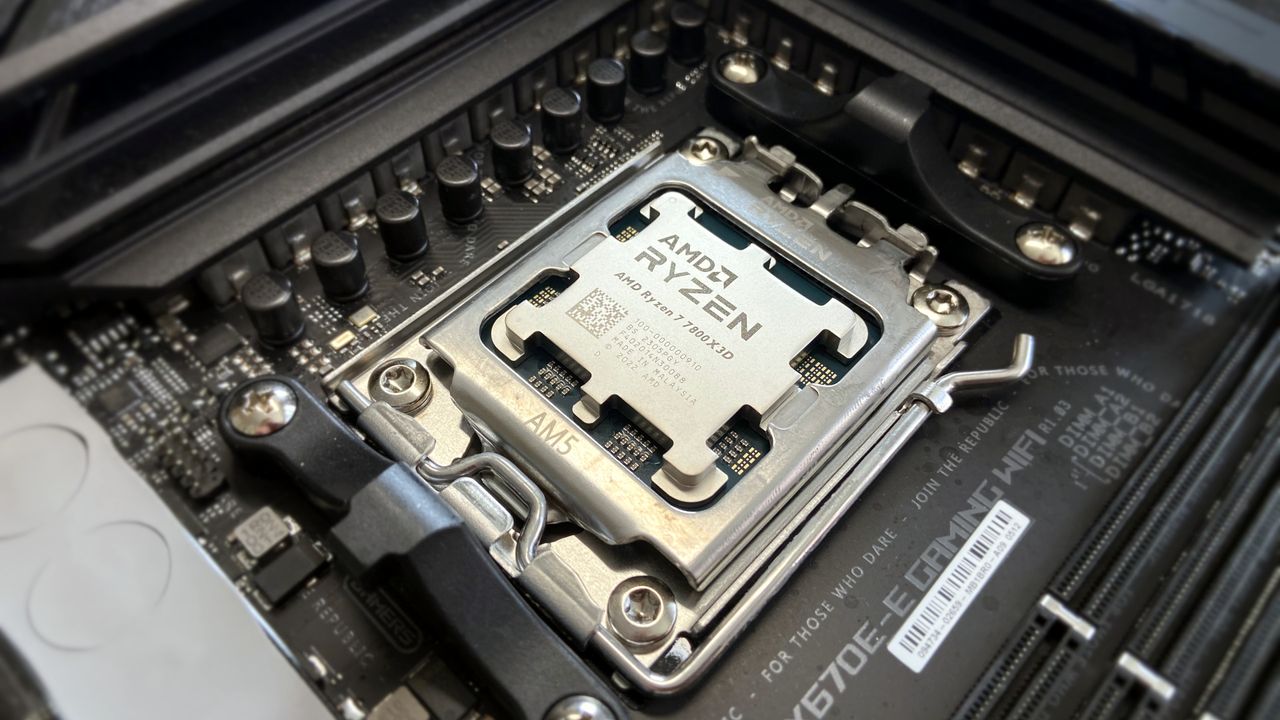
This gaming-focused bundle contains an AMD Ryzen 7 7800X3D processor, a GIGABYTE B650E EAGLE WF6E motherboard that offers PCIe 5.0 and Wi-Fi 6E, and two 8GB RAM sticksView Deal


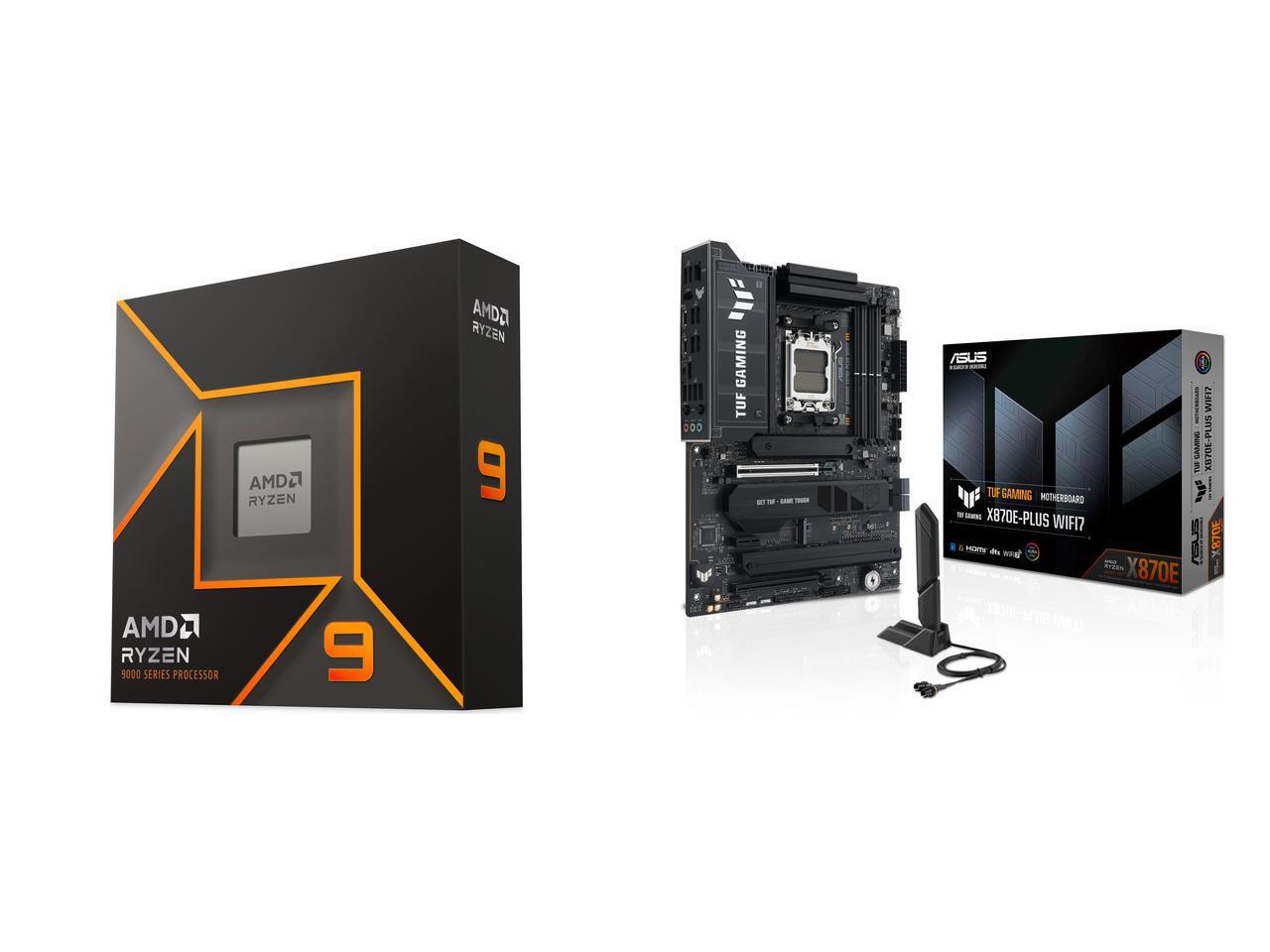
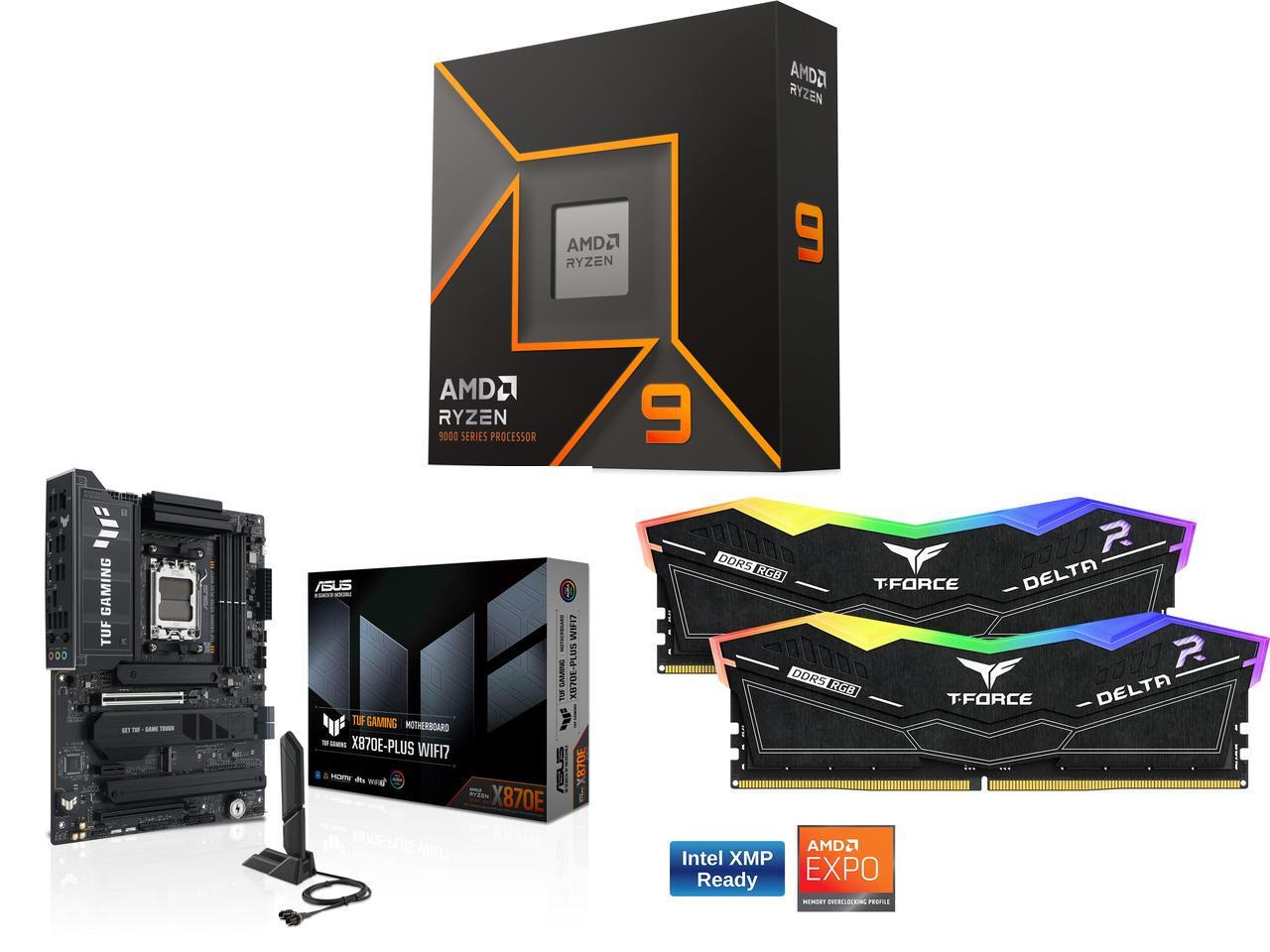
This bundle contains an AMD Ryzen 9 9900X processor with an ASUS TUF GAMING X870E-PLUS WIFI7 motherboard that features two onboard PCIe 5.0 M.2 slots with fast Wi-Fi 7 and two 8GB DDR5 RAM sticks.View Deal

FAQ

How long will these discounts last?

These discount deals will last from July 14, 2026 to July 31, 2026.

Are these AMD processors good for gaming?

Indeed, they are. AMD's Ryzen 9 9900X, Ryzen 7 7800X3D, and Ryzen 5 9600X processors all offer good to exceptional performance for boosting frame rates and smoothness, particularly the -X3D chips.

Which of these processors is good for productivity?

The Ryzen 7 7800X3D productivity performance is somewhat underwhelming, while the Ryzen 9600X fares much better with creative apps and solid single-core performance.

Click to join us on r/WindowsCentral

Join us on Reddit at r/WindowsCentral to share your insights and discuss our latest news, reviews, and more.

AMD Ryzen 7 7800X3D in socket

AI-generated image of an AMD processor with an MSI motherboard and Team Group RAM.

Alienware made an "entry-level" gaming laptop with RTX 5050 graphics — but this 15-inch PC needs more than NVIDIA's clever upscaling tech to offset its downsides.

An entry-level Alienware PC almost sounds like a contradiction; it's long been the all-out brand you could choose when money isn't a concern, and you'd rather have a guarantee your games will run. So, does the Alienware 15 need to exist, or is it just competing with the tantalizingly new category of high-end gaming handhelds?

Including NVIDIA's RTX 5050 graphics certainly piqued my interest, because until now, I've never seen what this low-end laptop GPU can actually do. Is it worth picking the 50 Series chip for the benefit of cutting-edge DLSS upscaling, or is it too weak to be worth your time? I had so many questions, and these are the conclusions I reached from my testing for this review.

How much does the Alienware 15 cost?

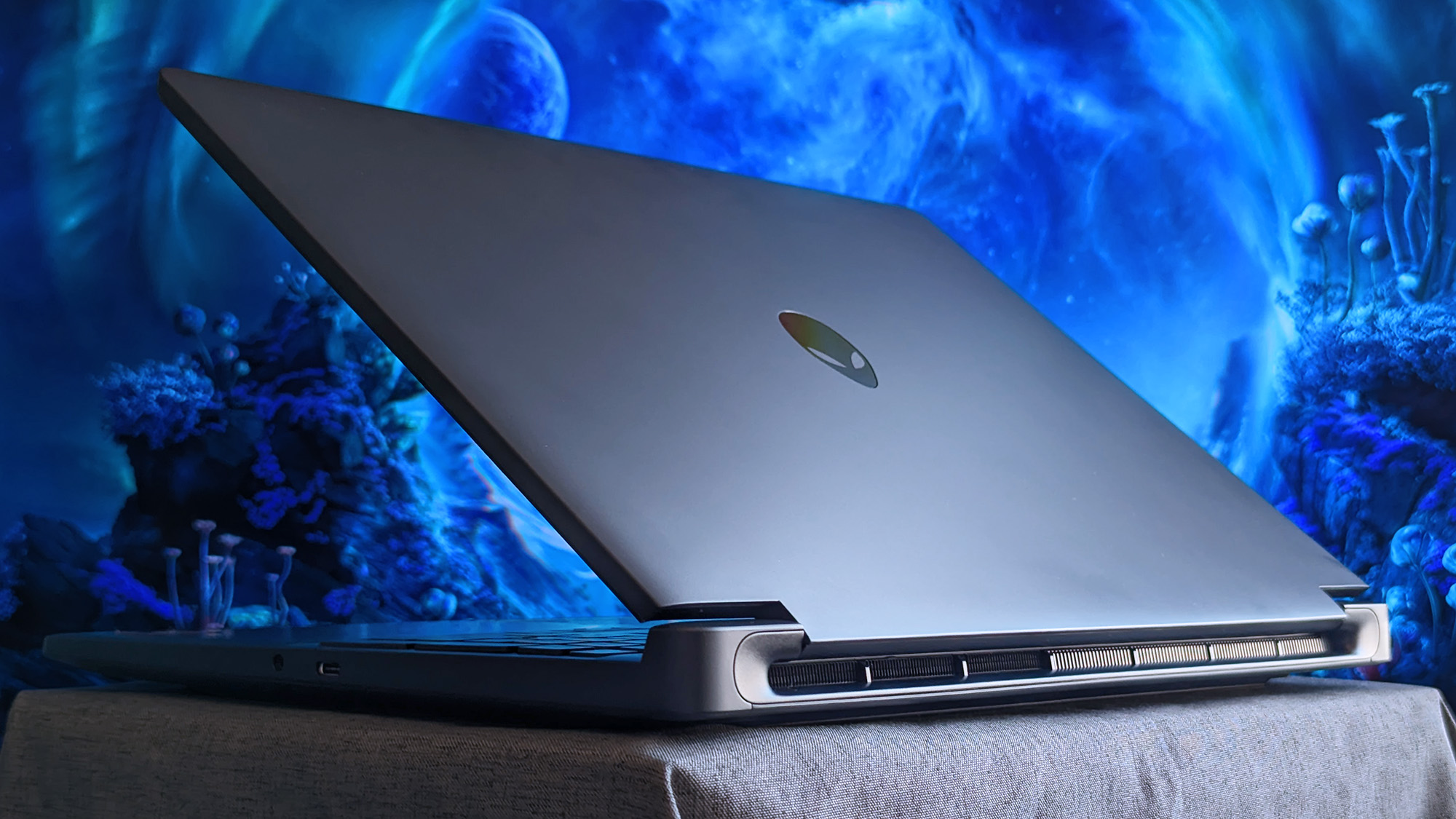
A partially open Alienware 15 laptop rests on fabric, showing its metallic lid with the Alienware logo and rear cooling vents, set against a glowing blue sci‑fi background.

Alienware's modern design language still peeks through in parts of this entry-level laptop. (Image credit: Ben Wilson | Windows Central)

The Alienware 15 starts at $1,399.99 on Dell.com, featuring the same AMD Ryzen 7 260 processor as my sample but with a previous-generation NVIDIA GeForce RTX 4050 discrete graphics card. Memory and storage remain at 16GB of RAM and a 512GB SSD, but upgrading to an RTX 5050 GPU increases the price to $1,459.99.

A third and final variant of the AMD model increases storage to 1TB with an RTX 5060 GPU for $1,849.99, but the CPU remains the Ryzen 7 260. Alternatively, an Intel-based Alienware 15 starts at $1,499.99 on Dell.com with a Core 7-240H CPU, RTX 5050 GPU, and 16GB/512GB of memory and storage, though you can upgrade to RTX 5060 graphics and a 32GB/1TB RAM and SSD combo.

In the United Kingdom, the AMD-based Alienware 15 starts at £829.00 with a less powerful Ryzen 5 220 processor, RTX 3050 graphics, and 8GB of RAM and 512GB of storage. At the time of writing, an Intel-based Alienware 15 starts at £849.01 with a Core 5-210H CPU, RTX 3050 GPU, and the same 8GB/512GB RAM/SSD.

Alienware 15 sample specifications

Component

Spec

CPU

AMD Ryzen 7 260

RAM

1x 16GB SO-DIMM DDR5-5600 MT/s

GPU

AMD Radeon 780M (Integrated)
NVIDIA GeForce RTX 5050 (8 GB)

Display

15.3" 16:10 WUXGA (1920 x 1200) non-touch
165Hz

Storage

512 GB M.2 NVMe PCIe 4.0 SSD

Battery / Charger

68WHrs / 180W barrel jack

Weight

4.89 lbs (2.22 kg)

Tested spec

This gets you exactly what I tested, or an upgrade to a more powerful RTX 5060 GPU and 1TB SSD will cost you $1,849.99. If you aren't confident in self-installed upgrades, you should strongly consider it.View Deal

Is the Alienware 15 well made?

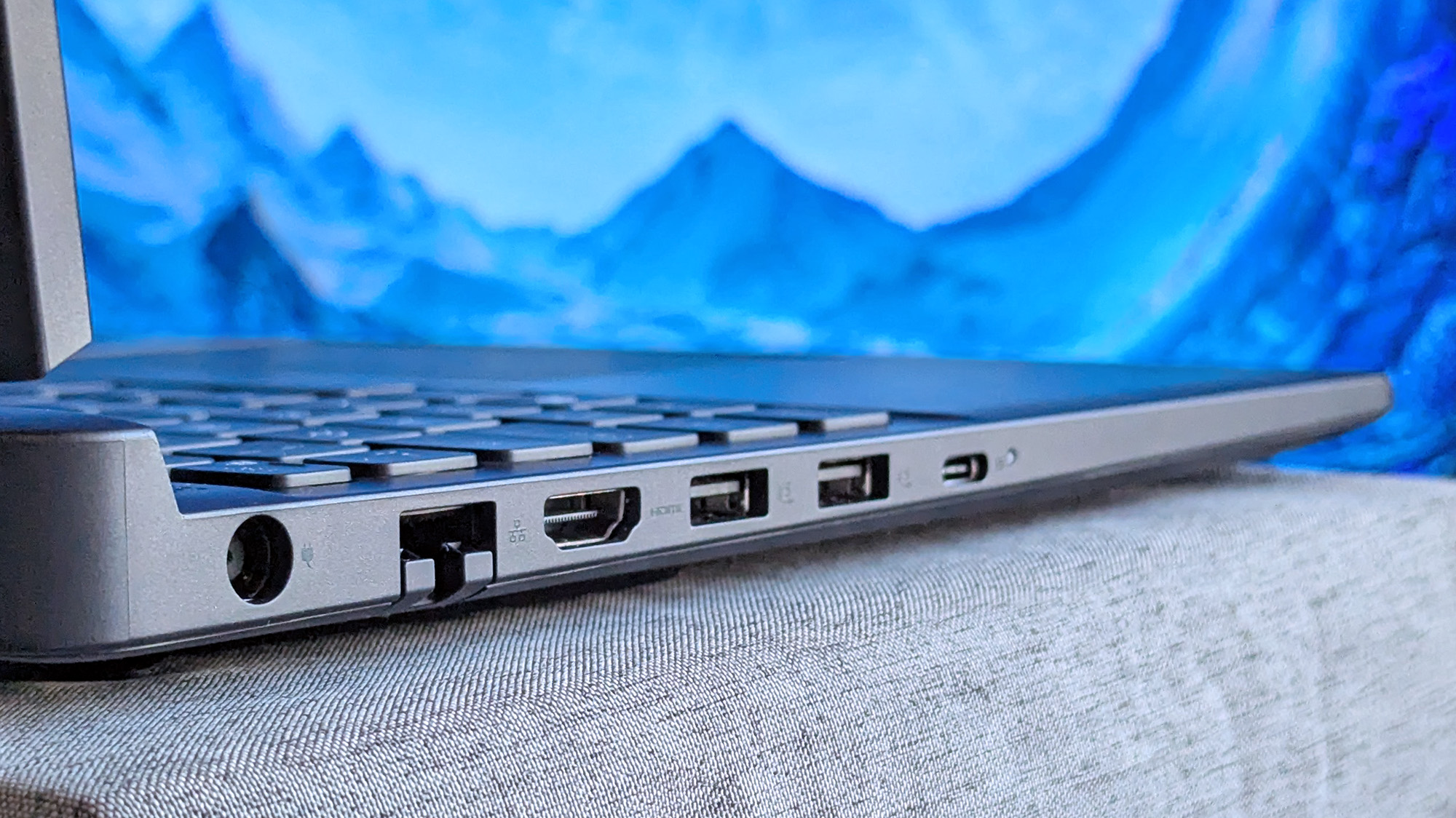
The left side of an Alienware 15 laptop shows multiple ports, including power, Ethernet, HDMI, two USB‑A ports, and a USB‑C port, with a blue-toned landscape wallpaper visible on the screen.
180W AC power requires an outdated barrel jack, but Ethernet, HDMI, and USB-A/C are all welcome.Ben Wilson | Windows Central
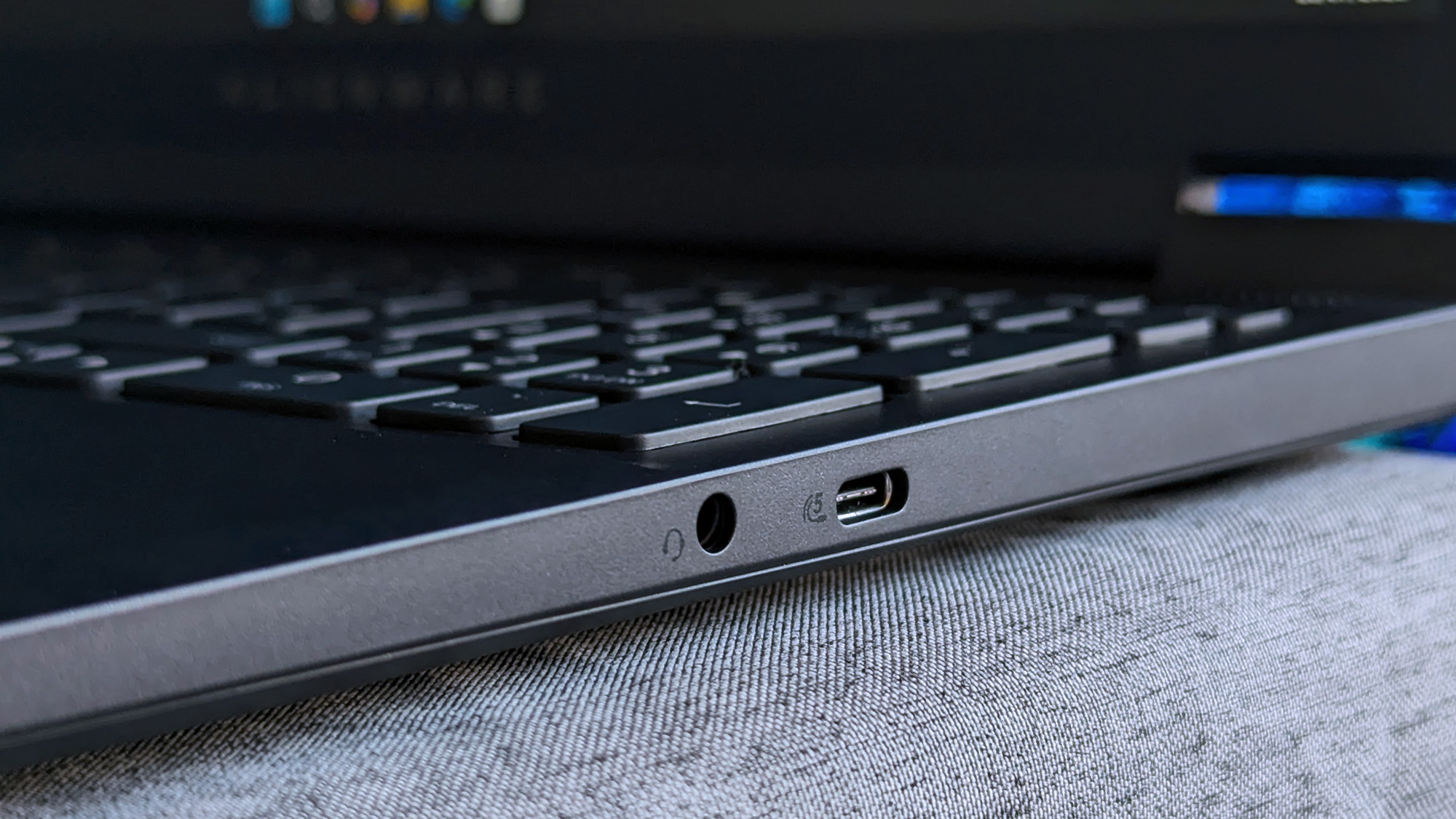
A close-up of an Alienware 15 laptop’s right side shows a 3.5mm headphone jack and a USB‑C port, with part of the keyboard and faint Alienware branding visible on the bezel.
Wired headphones and another USB-C port on the right side will likely be well used.Ben Wilson | Windows Central
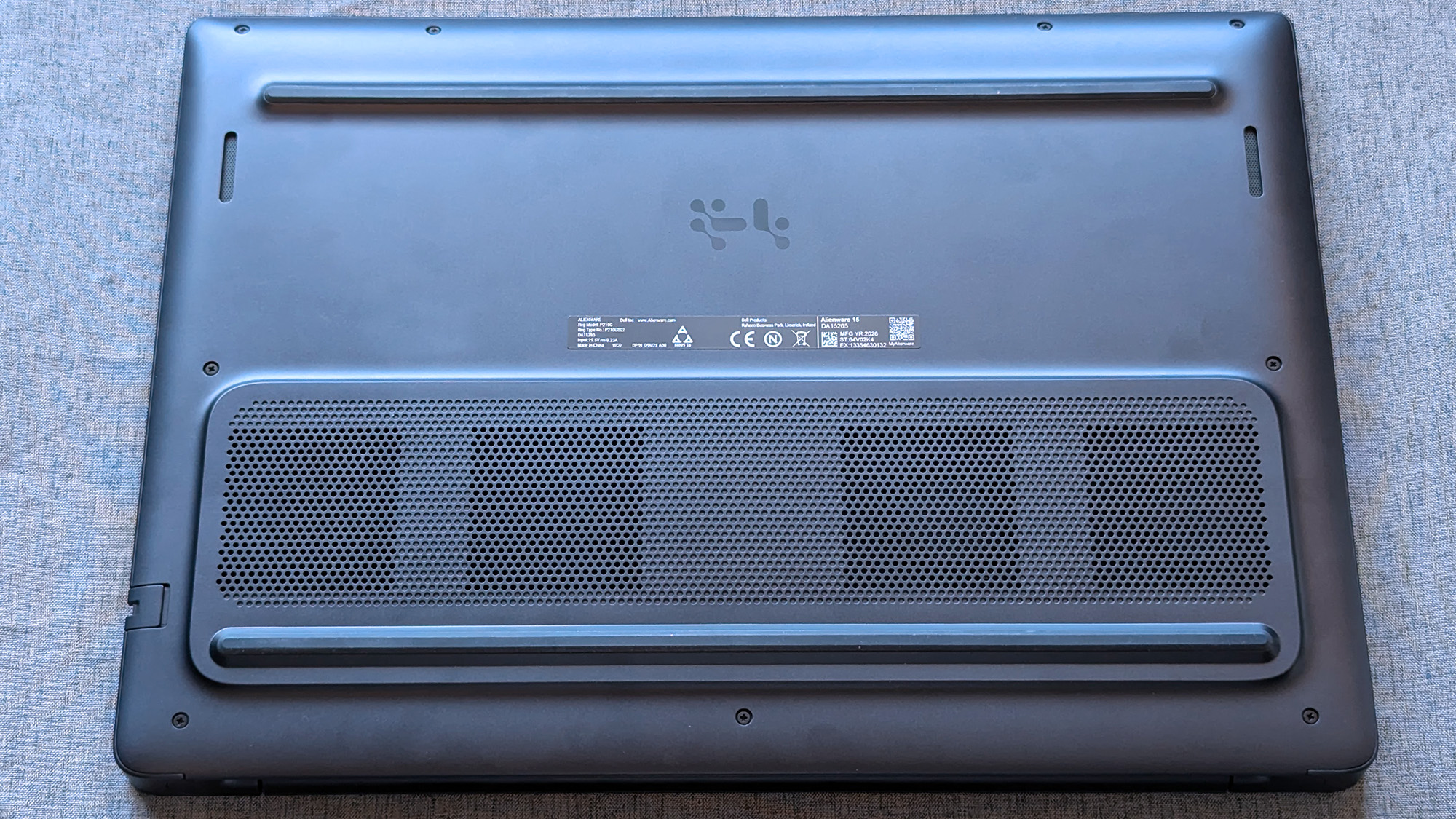
The underside of an Alienware laptop rests on a fabric surface, showing ventilation grilles, rubber feet, and a central label with certification markings and a QR code.
An elevated portion of the underside holds the cooling fans, and they work hard.Ben Wilson | Windows Central
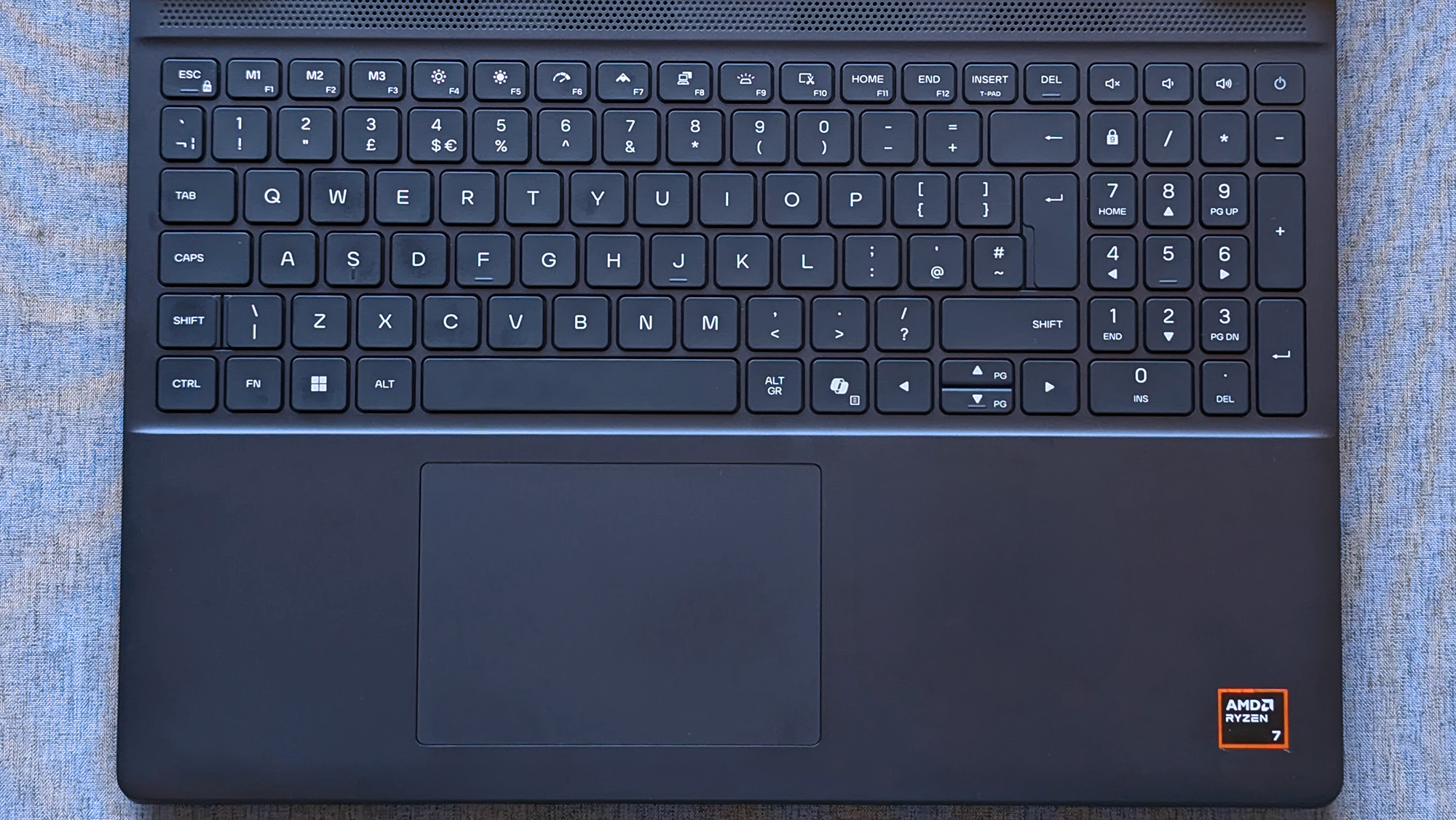
A laptop keyboard with a full numeric keypad sits above a centered touchpad, and an AMD Ryzen 7 sticker is visible on the lower right of the palm rest.
The touchpad feels small, but it's good enough to navigate Windows 11.Ben Wilson | Windows Central

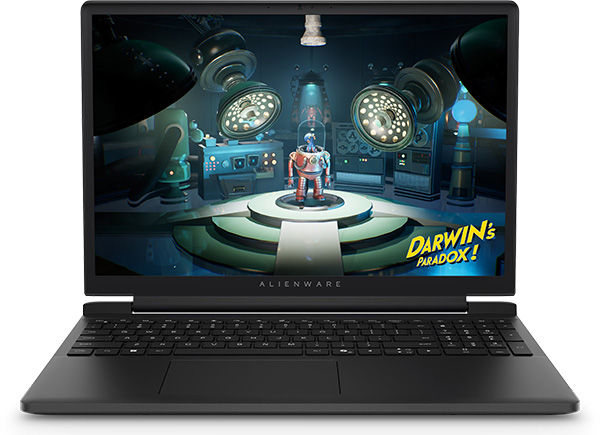
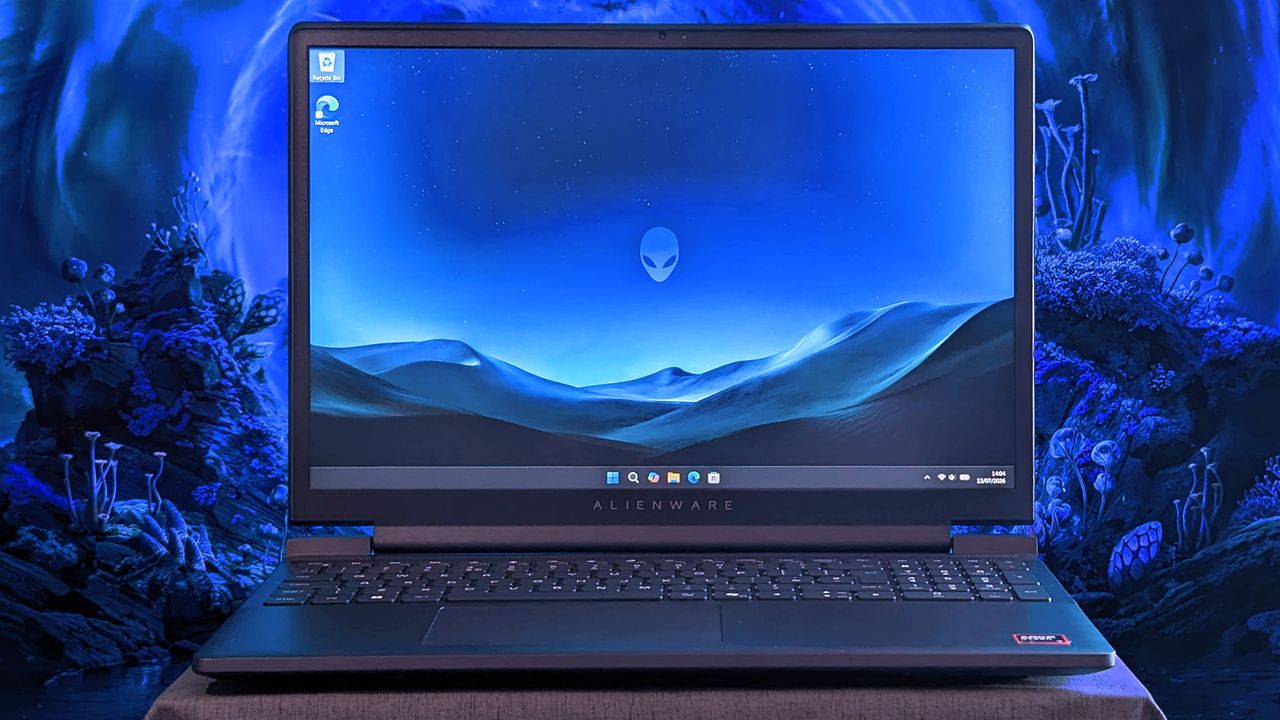
The Alienware 15 is a bit of a mixed bag, starting with a relatively plain exterior design featuring an iridescent alien head logo and thick air vent panels underneath, synonymous with the capable cooling you'll see in this category. And while its most striking first impression is how heavy it is — at 4.89 lbs (2.22 kg) — it still isn't much different from its rivals. Gaming laptops are just heavy.

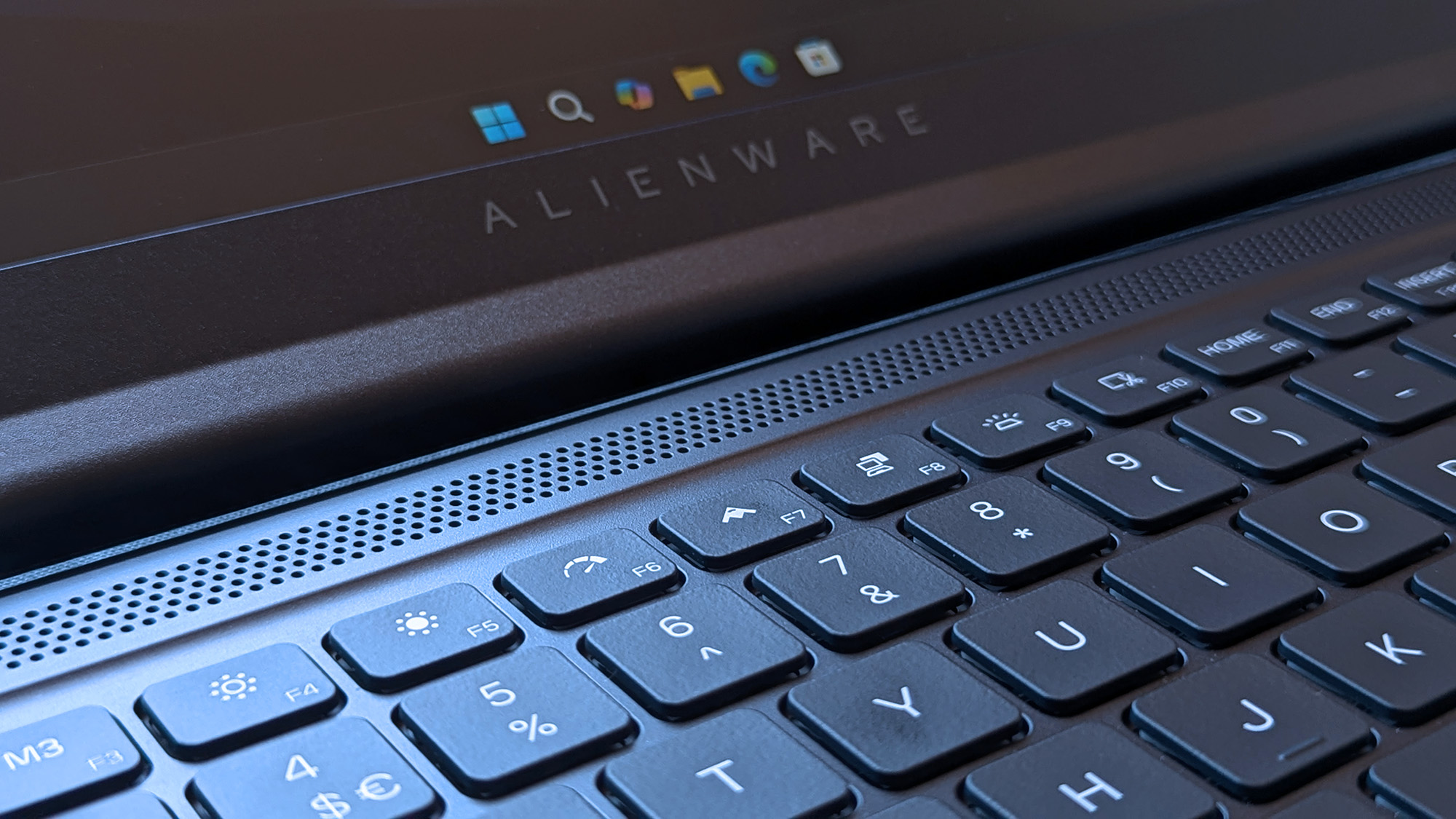
Its 15.3-inch screen sits on a gapped hinge, which looks strange at first glance, but I can feel airflow around the gap while it's in use, so it makes sense. The backlit keyboard is unremarkable, sticking to a single color and including a number pad that I'm sure most gamers will never use, and, as usual, I wish the space had been saved for larger speakers.

The 180W AC adapter needs an old-school barrel jack, but you can charge up to 100W with USB-C.

Admittedly, despite my gripes with the lack of any significant bass response, the sheer volume of the fans during games likely nullifies the appeal of its speakers anyway. As with all gaming laptops, I'm recommending you use headphones here. A small 5.5-inch mechanical touchpad only clicks properly in the bottom half, but you'll probably use a dedicated mouse for most games.

A 3.5mm audio jack pairs with a USB-C 3.2 Gen 1 port on the right side, while a single USB-C 3.2 Gen 2 is available on the left side, along with two traditional USB-A 3.2 Gen 1 ports for dongles, HDMI-out 2.1 for external monitors, and gigabit Ethernet for wired networking. The 180W AC adapter needs an old-school barrel jack, but you can charge up to 100W with USB-C.

How fast is the Alienware 15?

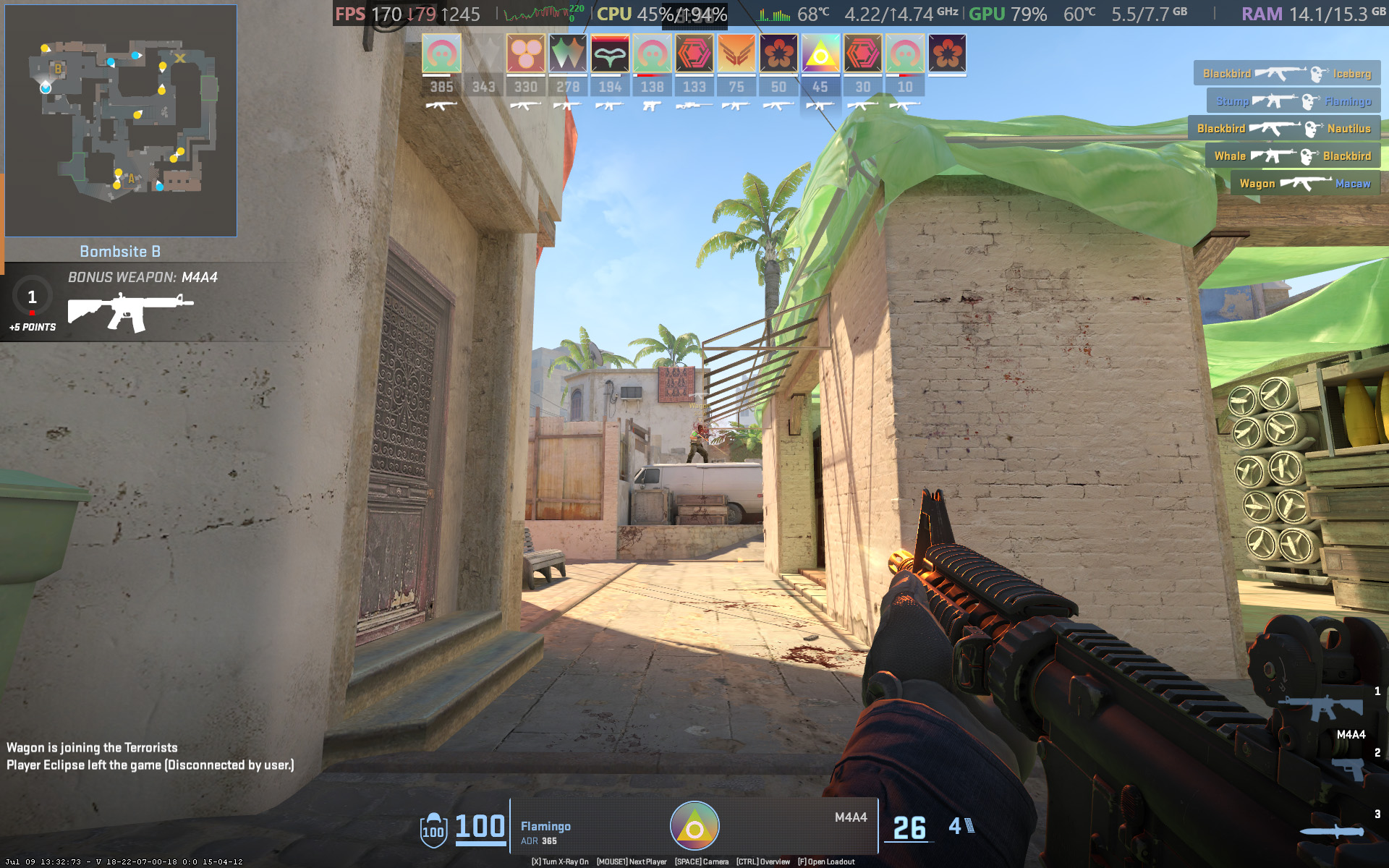
Counter-Strike 2 gameplay screenshot showing gunfights and UI elements running on an Alienware 15 laptop
Counter-Strike 2 demands a smooth frame rate, and 165 FPS is attainable with the RTX 5050.Ben Wilson | Windows Central
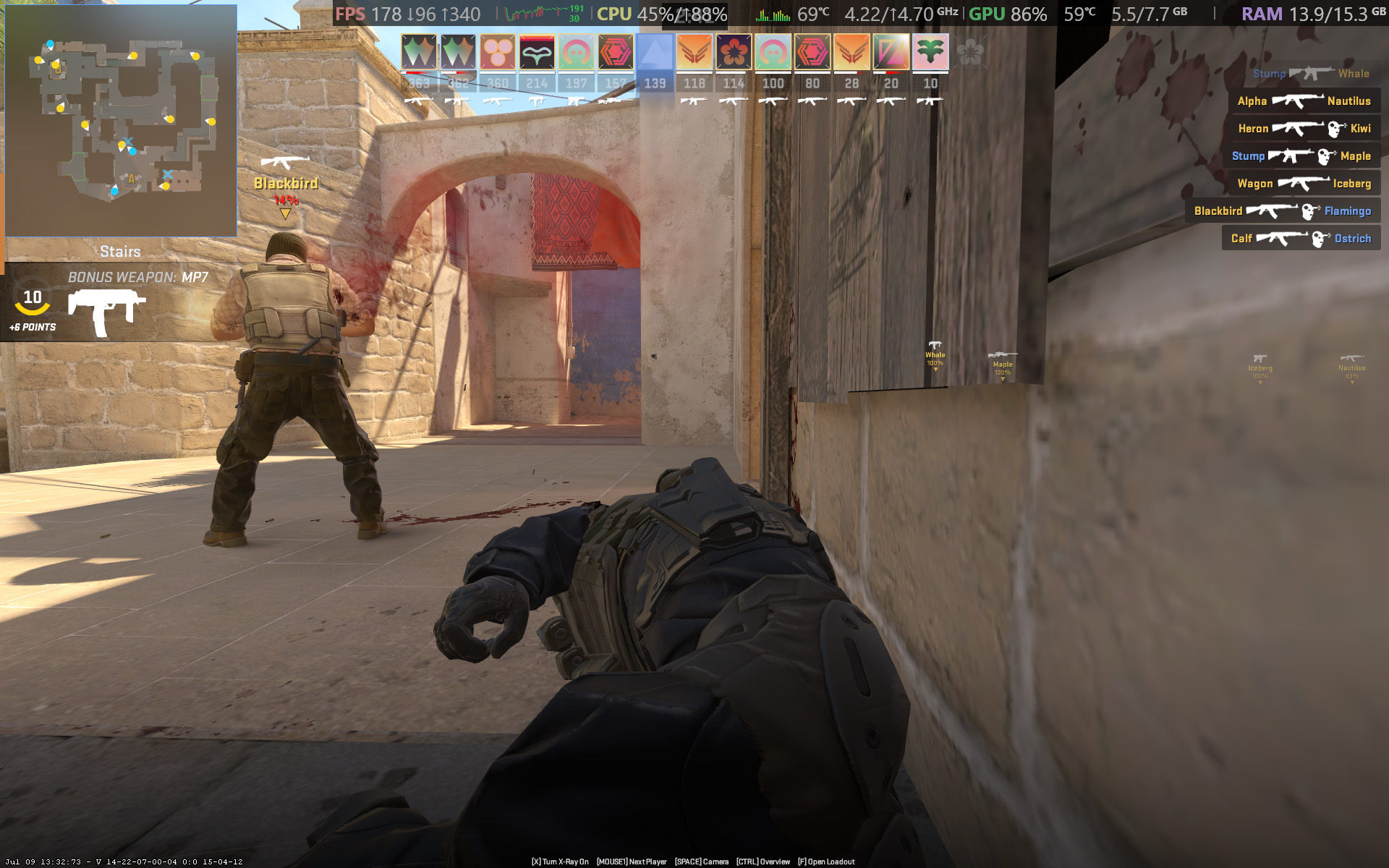
Counter-Strike 2 gameplay screenshot showing gunfights and UI elements running on an Alienware 15 laptop
You barely have to tweak the settings in CS2 to keep the FPS high enough.Ben Wilson | Windows Central

Starting with Counter-Strike 2, the game recommends 'High' settings with AMD FidelityFX Super Resolution and vsync disabled for native, uncapped rendering at 1920 x 1200. While spectating a few rounds on Dust II, I saw the frame rate remain around the 165 FPS target when I was connected to AC power and Alienware's 'Performance' mode was active.

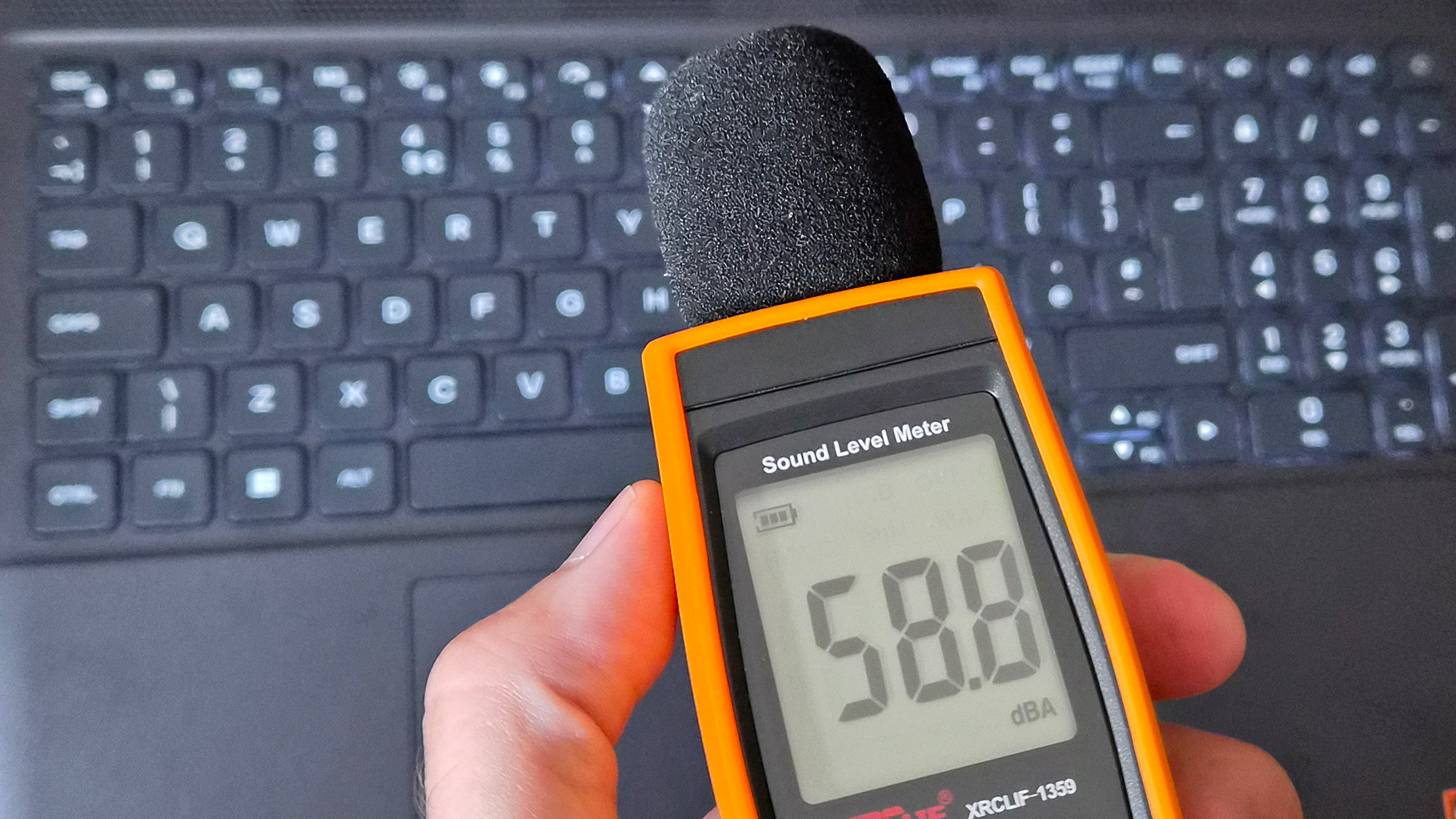
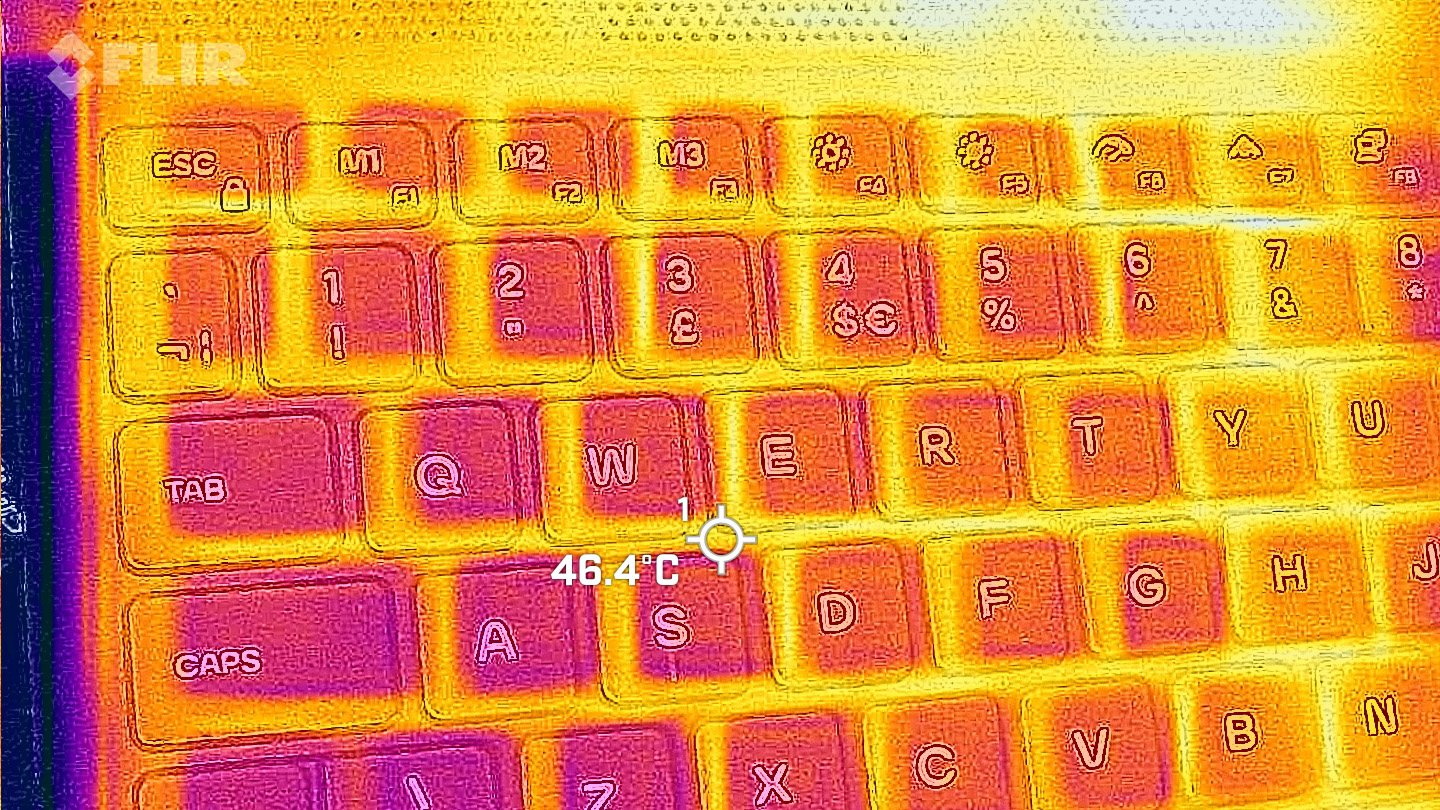
However, the laptop's fans were extremely loud throughout, keeping the CPU and GPU temperatures at around 68 °C and 60 °C, respectively. Switching to 'Stealth' mode reduced the fan speed, but no amount of graphical tweaks brought them down to a comfortable, more inconspicuous level. This is a loud laptop, and you'll have to get used to wearing headphones when you're gaming.

Cyberpunk 2077 gameplay screenshot showing car driving mechanics and UI elements running on an Alienware 15 laptop
Cyberpunk 2077 is quickly becoming the poster child for DLSS because it works so well.Ben Wilson | Windows Central
Cyberpunk 2077 gameplay screenshot showing the male protagonist and UI elements running on an Alienware 15 laptop
Certain visuals will look better than others, but upscaling certainly helps the game run smoothly.Ben Wilson | Windows Central

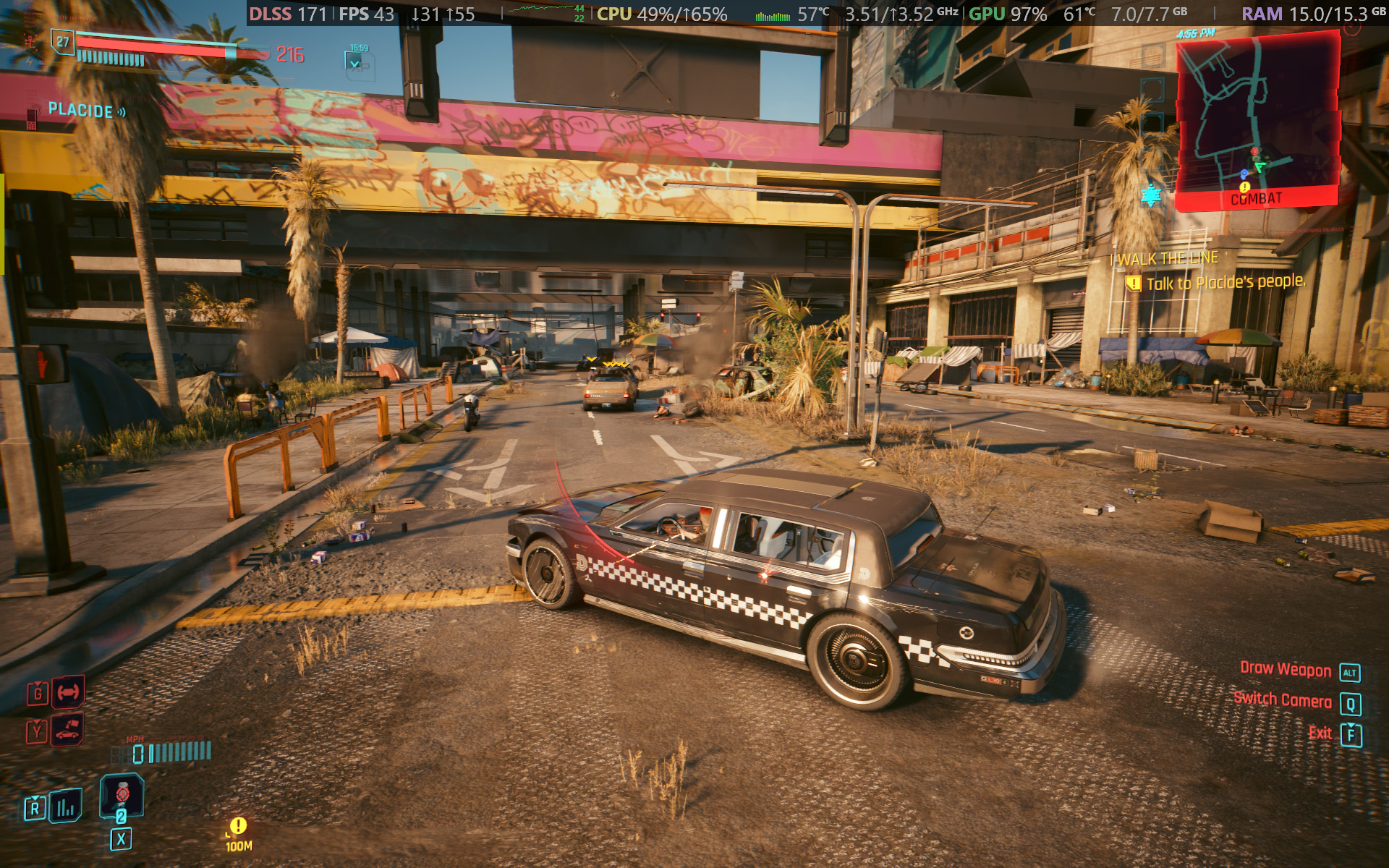
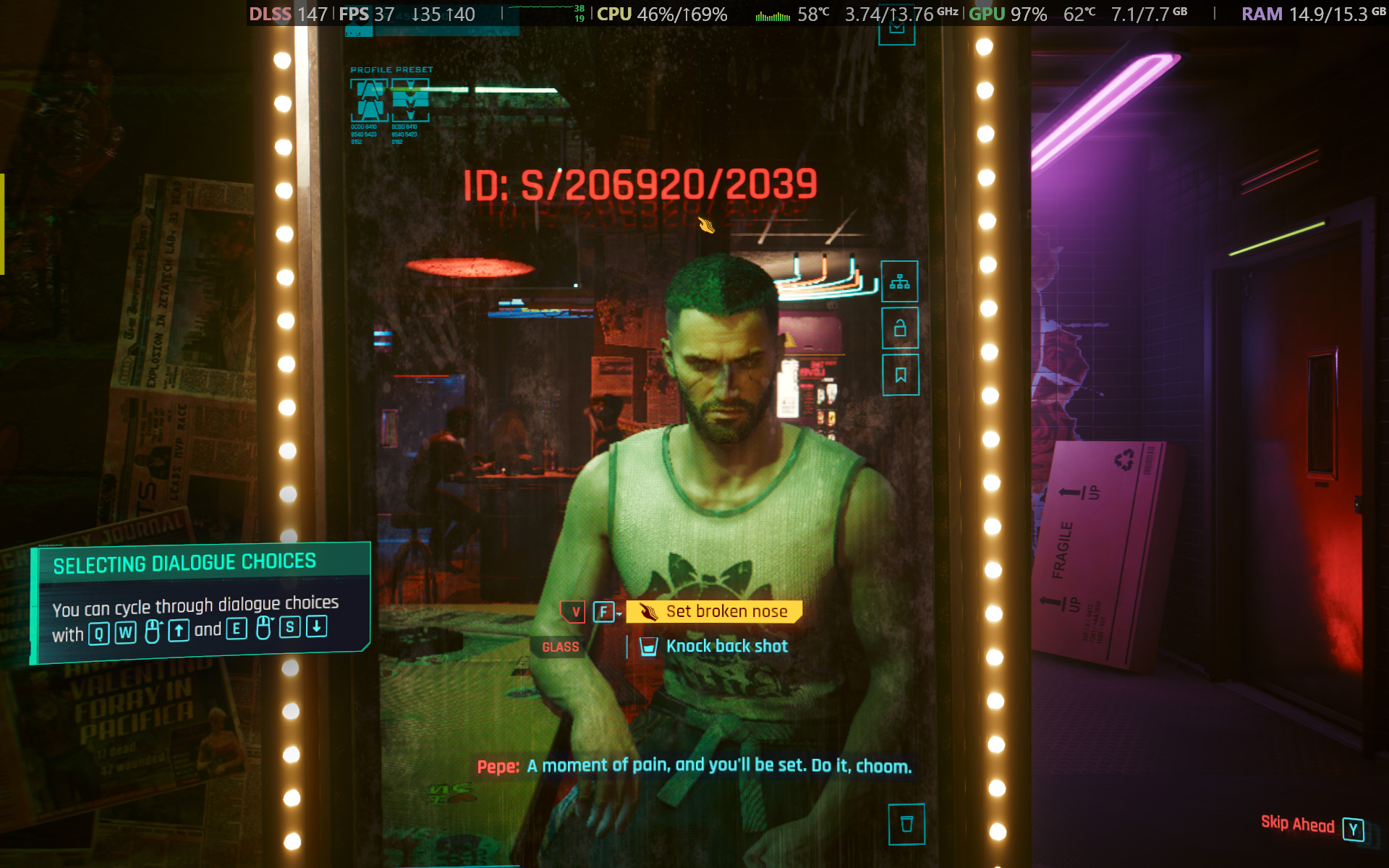
In Cyberpunk 2077, I found that the 'High' preset with ray tracing and upscaling disabled most consistently achieved a native 60 FPS baseline in the game's built-in benchmark. Of course, the game supports DLSS 4.5, so setting Super Resolution to 'Balanced' and Multi Frame Generation (MFG) to 4X in the 'Ray Tracing: Low' preset has the Alienware 15 scaling to 171 FPS, up from ~42 FPS.

I have to assume you're considering a gaming laptop with NVIDIA's RTX 50 Series graphics to take advantage of realistic, ray-traced lighting. Luckily, that is quite possible with the RTX 5050 in the Alienware 15, depending on your feelings around MFG and "fake frames". If, on the other hand, you don't care so much about those visual luxuries, then it runs quite smoothly without ray tracing.

PUBG gameplay screenshot showing third person prone position and UI elements running on an Alienware 15 laptop
PUBG: BATTLEGROUNDS dips in busy areas, but I was able to stay above 100 FPS.Ben Wilson | Windows Central
Apex Legends gameplay screenshot showing gun sights and UI elements running on an Alienware 15 laptop
Apex Legends fared better with frame pacing, though it needed more fine-tuning in the settings.Ben Wilson | Windows Central

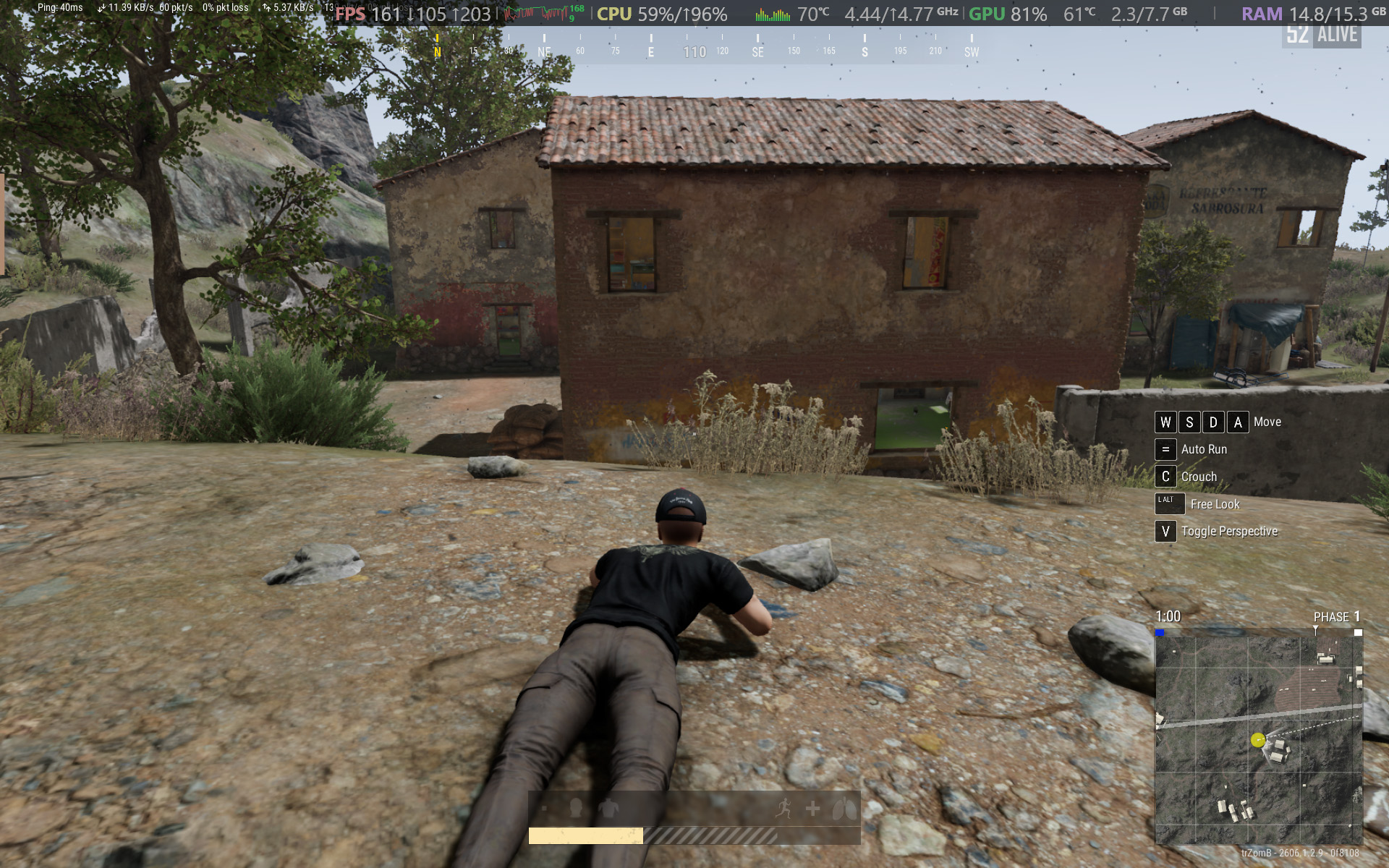
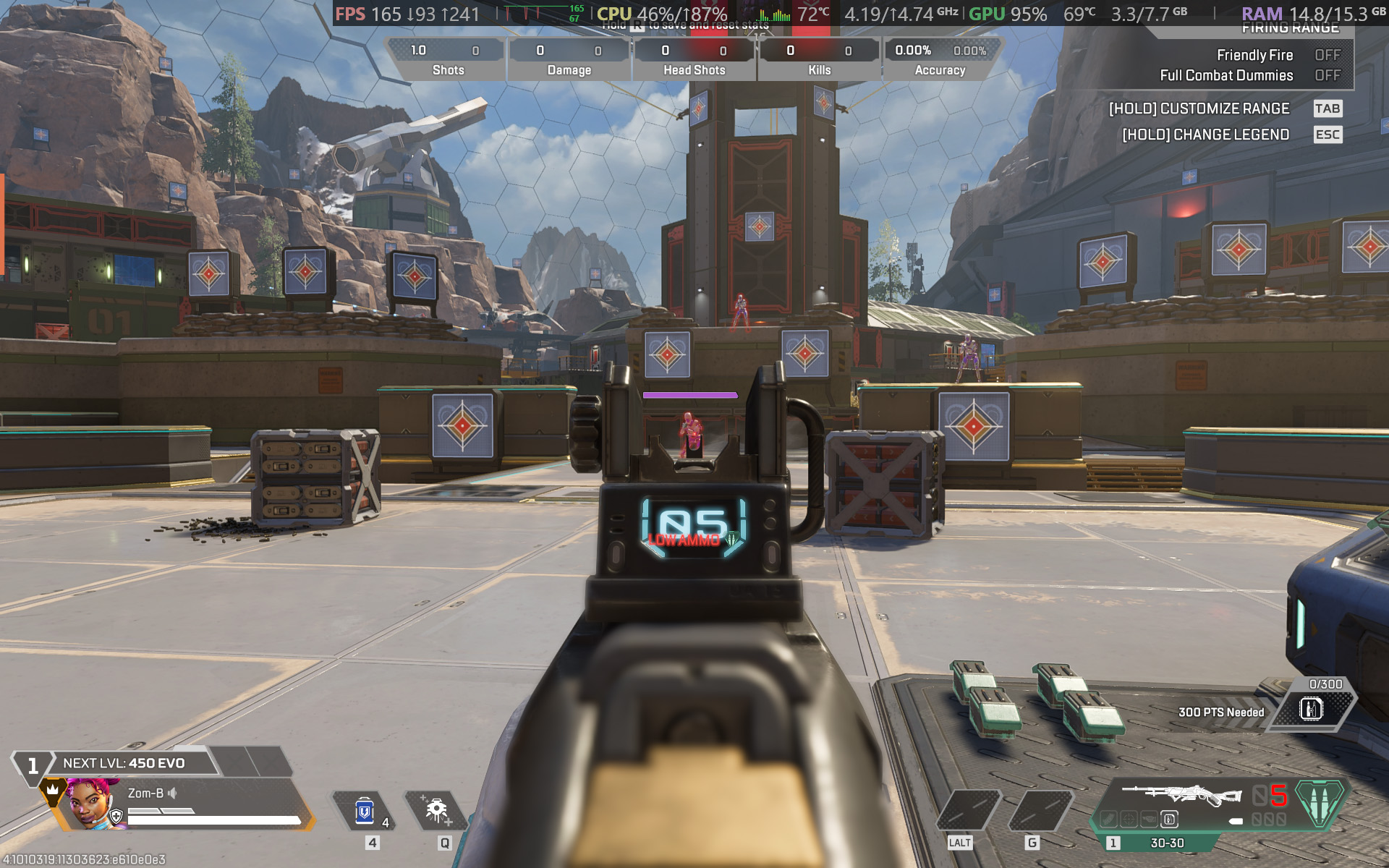
For other popular multiplayer titles, PUBG: BATTLEGROUNDS generally runs above 60 FPS with the 'High' preset at render scale 100, but you can push it to 165 FPS or higher by switching to the 'Medium' preset and further lowering some settings. Similarly, Apex Legends can reach 165 FPS and beyond with a little time spent in the settings, but the laptop's fans will be loud.

Performance benchmarks

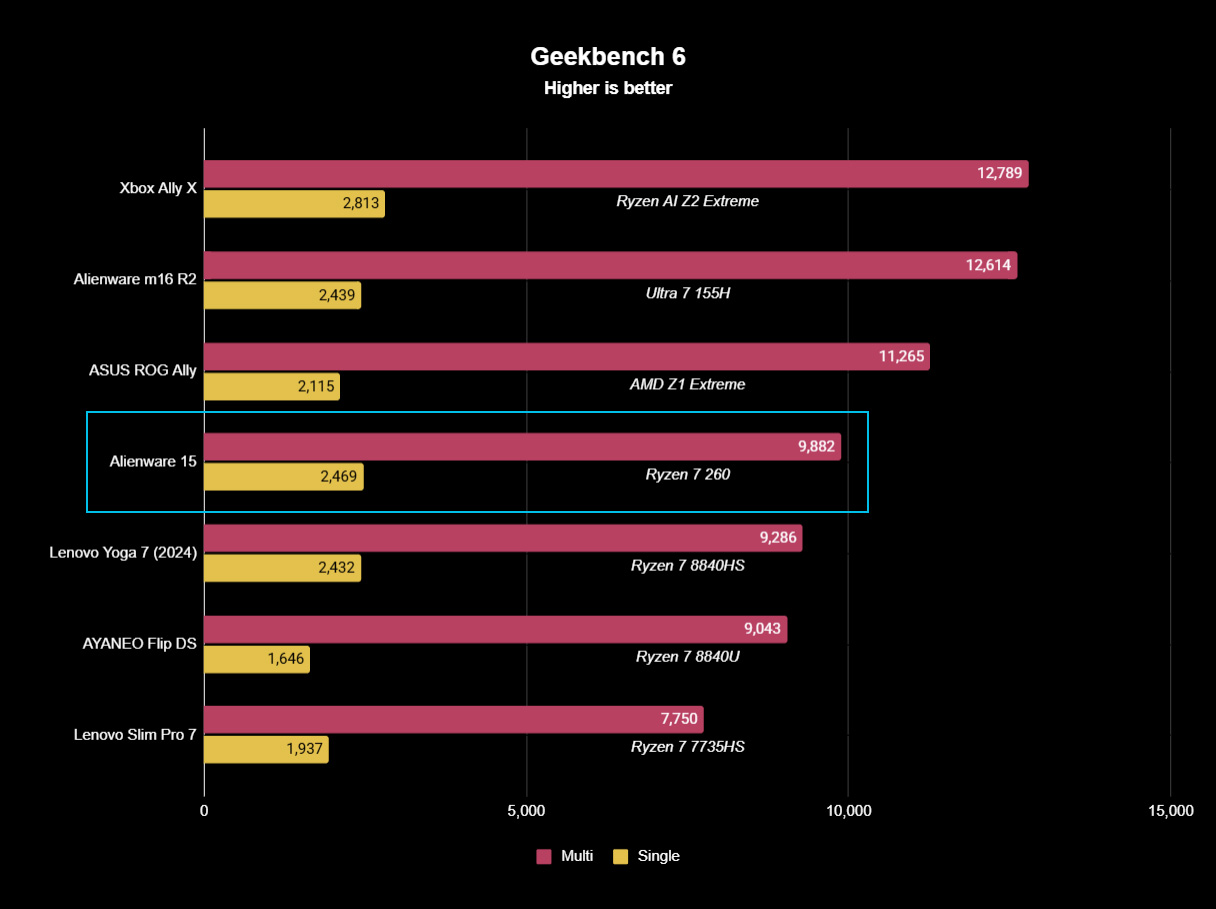
Geekbench 6 CPU benchmark test results in a bar graph highlighting the Alienware 15 laptop
Geekbench 6 CPU benchmarking shows the Ryzen 7 260 being beaten by years-old handheld chips.Ben Wilson | Windows Central
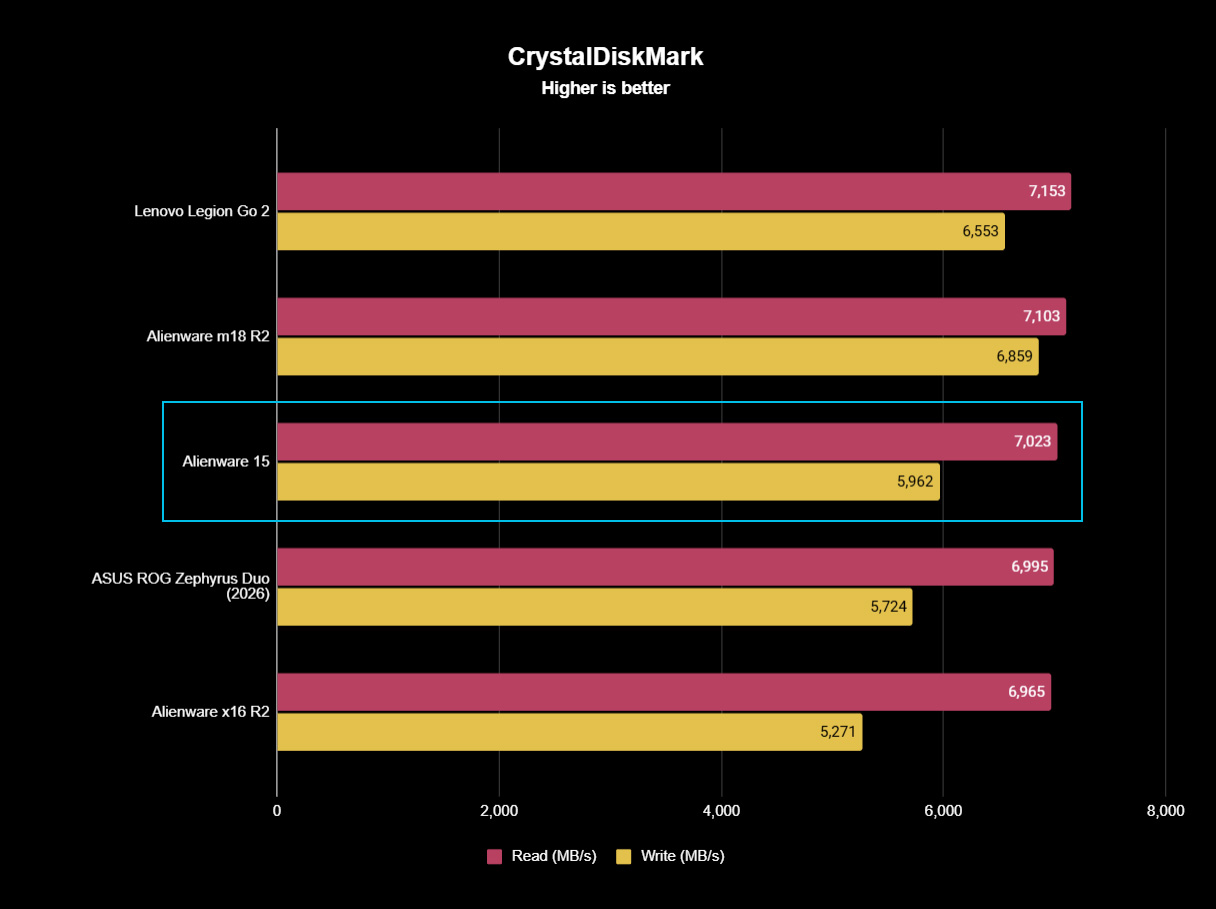
Storage benchmark results from CrystalDiskMark in a bar chart highlighting the Alienware 15
While the 512GB SSD is limited in capacity, it reads just as fast as the SSDs in Alienware's high-end laptops.Ben Wilson | Windows Central
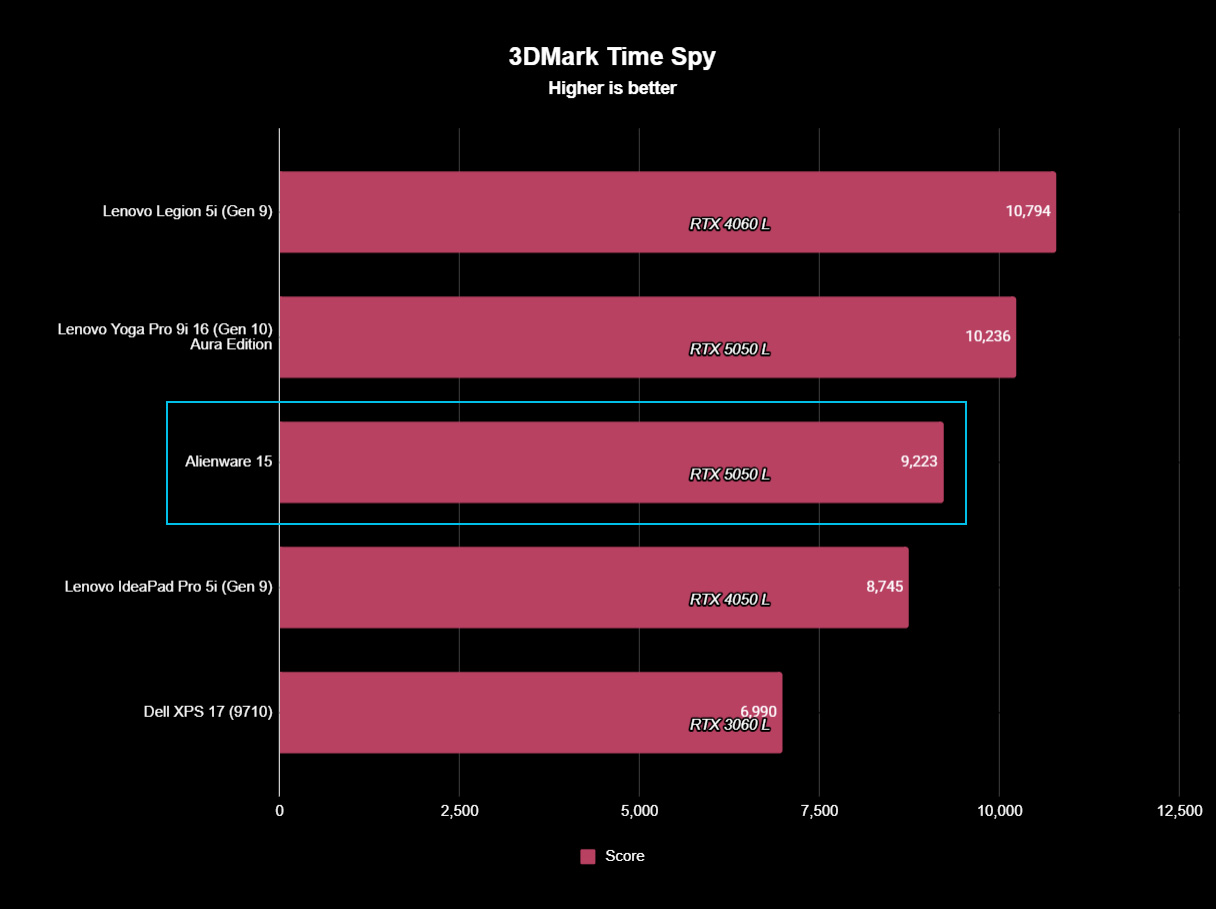
3DMark Time Spy GPU benchmark test results in a bar graph highlighting the Alienware 15 laptop
You'll see the RTX 5050 suitably appearing in plenty of entry-level gaming laptops like this.Ben Wilson | Windows Central

To put the specs of Alienware's cheapest laptop into perspective, the Ryzen 7 260 is a "Hawk Point" processor built on AMD's previous-generation Zen 4 architecture and ranks as the second-fastest CPU in the Ryzen 200 Series mobile range. That 8-core, 16-thread chip pairs with NVIDIA's entry-level RTX 50 Series mobile GPU, the GeForce RTX 5050.

However, benchmarking the Alienware 15's CPU in Geekbench 6 burst performance tests placed the Ryzen 7 260 even lower than I perhaps expected, even falling below the original ASUS ROG Ally gaming handheld from 2024. Cinebench 2024 failed to run any extended CPU stress tests after complaints of insufficient memory, so there's sadly no reprieve for this processor.

(The RTX 5050 is) faster than the last-gen RTX 4050, but of course, it still falls behind the 4060.

Testing the RTX 5050 across 3DMark's full gamut of GPU-centric tests yields a reasonably consistent and unsurprising conclusion: it's faster than the last-gen RTX 4050, but of course, it still falls behind the 4060. If you were choosing between a gaming laptop with an older GPU, such as an RTX 3060, and the 5050 in this Alienware 15, you'd choose the Alienware.

Finally, the PCIe Gen 4 SSD hits around 7,023 MB/s read speeds in CrystalDiskMark, while write speeds drop closer to 5,962 MB/s. It's a fast drive, and one that sees the Alienware 15 running neck-and-neck with the high-end Alienware m18 R2 from 2024. The 512 GB SSD has limited storage capacity, but it performs as expected.

Does the Alienware 15 have any issues?

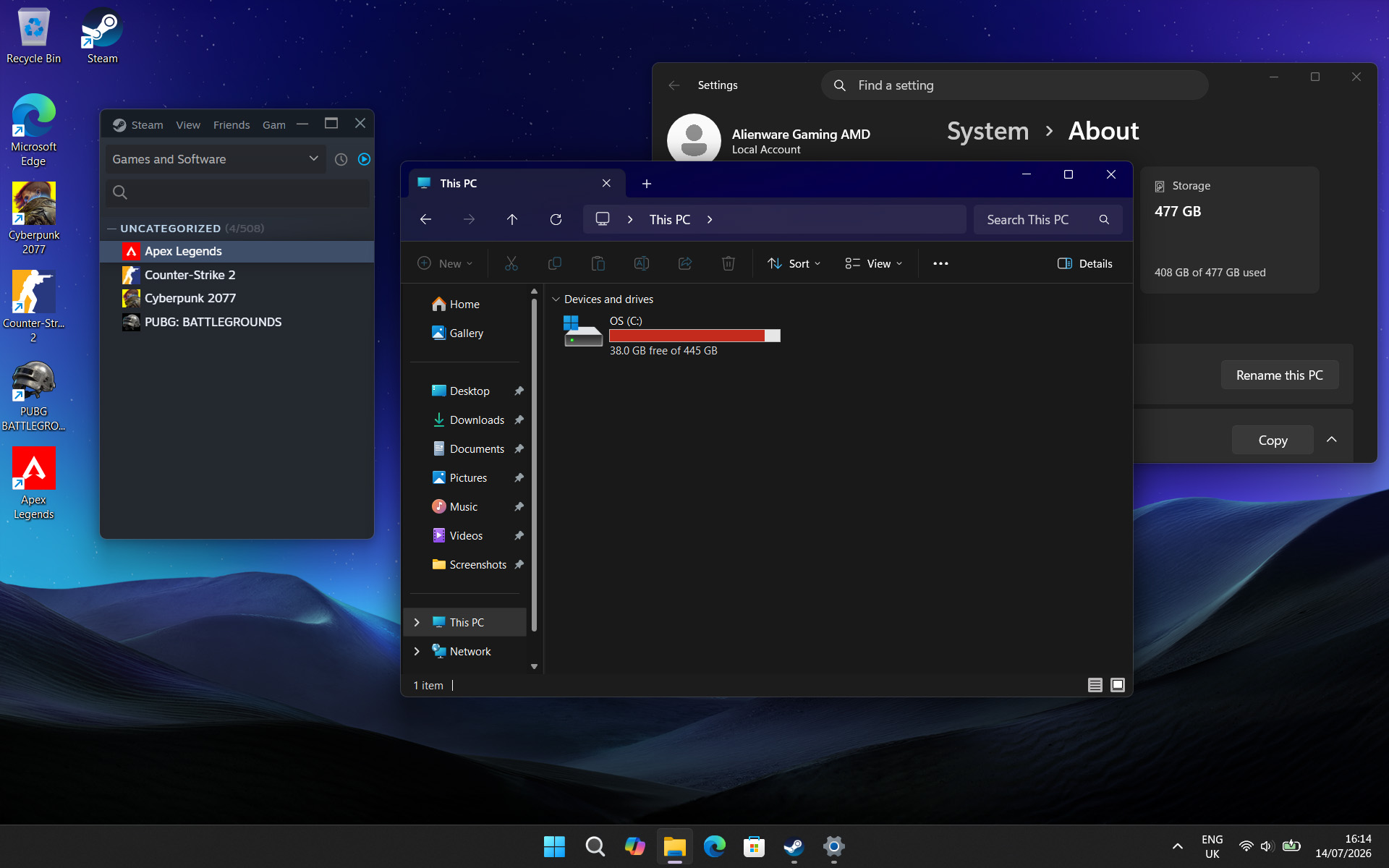
Windows 11 desktop screenshot showing almost full storage on an Alienware 15 gaming laptop with games installed on Steam

After installing only four PC games, I started seeing warnings about low storage space. (Image credit: Ben Wilson | Windows Central)

Above all, the most significant issue I had during my time with the Alienware 15 was its limited 512 GB SSD, reporting a usable 477 GB with only 332 GB of free space on its first boot into Windows 11. It simply isn't enough, and no amount of optimizations offered by the pre-installed 'SupportAssist' app can help that. After installing only four games, I was out of space.

Alienware advertises "user-upgradeable options" for "up to 1TB PCIe SSD (Gen4) storage", promoting "the flexibility to adapt for whatever comes next", but the ongoing memory crisis stunts that notion. It isn't Alienware's (or Dell's) fault, but I quickly learned that 512 GB isn't good enough in a gaming laptop, and upgrades are extremely expensive in 2026.

A handheld orange sound level meter with a foam‑covered microphone displays a reading of 58.8 dBA while being held above an Alienware 15 laptop keyboard.
Holding up a decibel meter during gameplay demonstrates how loud the fans really are.Ben Wilson | Windows Central
A FLIR thermal camera view of an Alienware 15 keyboard shows warmer areas in yellow and orange and cooler regions in purple and red, peaking at 46.4°C near the A key.
The keyboard gets warm during gameplay, which eventually made my fingers uncomfortable.Ben Wilson | Windows Central

Otherwise, the loud fans (~58 dBA) are difficult to ignore and will likely annoy anyone around you. Booting into a game switches the Alienware 15 into 'Performance' mode via the Alienware Command Center companion app, which quickly ramps up the fan speed. Profiles like 'Stealth' mode advertise the laptop as "ideal for any environment", but it's only true if you aren't gaming.

Despite the fans working as hard as they can, the keyboard still gets quite warm during gaming, and it felt a little uncomfortable after a while. I could solve it by plugging in my Steam Controller or by using an external keyboard and mouse, but at that point it feels like I'm hardly using the laptop. Using a thermal camera, I detected a temperature of 46°C around the WASD keys — not abnormal for a gaming laptop, but not exactly ideal either.

Should you buy the Alienware 15?

A close-up of an Alienware laptop shows the “ALIENWARE” branding above the keyboard, with visible function keys, number keys, and part of the Windows taskbar on the screen.
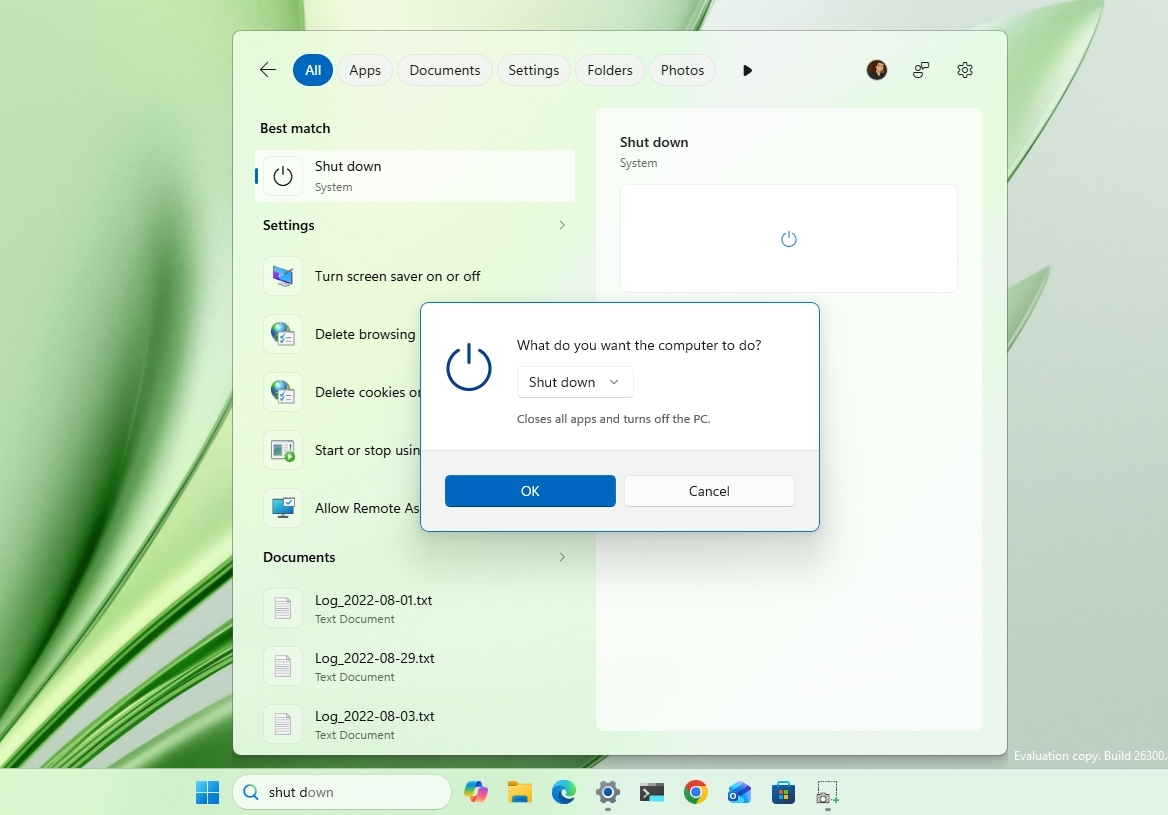
Switching power modes with F6 and F7 wrangles the fans a little, but it doesn't stop the overall roar. (Image credit: Ben Wilson | Windows Central)

You should buy this if ...

✅ You want a modern, entry-level NVIDIA gaming laptop

✅ You don't have space for a full-sized desktop PC

You should not buy this if ...

❌ You're looking for quiet, portable AAA gaming

The biggest problem with entry-level gaming laptops is that they immediately compete with high-end gaming handhelds, like the Xbox Ally X, which will be more tempting for its versatility alone. However, if you're looking for a stay-at-home gaming machine that occasionally travels with you — with an 180W AC adapter included — the Alienware 15 keeps up with modern gaming by leaning heavily on NVIDIA's RTX 5050 GPU.

Its 512 GB of storage will fill up fast, so you'll either have to be happy with regularly switching between installed games from your library, or rely on an external hard drive to transfer backups. This laptop is loud, restrained, and heavy, but it will play your games, particularly so if they support NVIDIA's latest DLSS upscaling technology. If you're pondering the Alienware 15 on a budget because it's on sale, then I say go for it.

Dell Alienware 15 gaming laptop render

Alienware
15 (Ryzen 7 260, RTX 5050)

NVIDIA's GPU does all the heavy lifting, with DLSS upscaling helping this entry-level gaming laptop to keep up.

Click to join us on r/WindowsCentral

Join us on Reddit at r/WindowsCentral to share your insights and discuss our latest news, reviews, and more.

An Alienware 15 laptop sits on a cloth surface with its display showing a blue landscape wallpaper and the Alienware head logo. The background behind the laptop features glowing blue sci‑fi scenery.

Does Alienware need to offer "low-end" hardware in the first place?

Windows 11 has more recovery options than ever, and here’s exactly when I would use each one to fix a broken PC

If you've been using Windows as long as I have, you probably remember when a serious problem often meant backing up your files and reinstalling the operating system from scratch. Whether it was a bad driver, a failed update, or corrupted system files, a clean install was frequently the fastest way to rescue your computer.

I don't think that's the case anymore. Over the past several years, Microsoft has quietly transformed Windows 11 into a much more resilient operating system. Instead of relying on a single recovery option, the operating system now bundles a collection of tools designed to solve different types of problems. Some can repair Windows 11 while minimizing changes to your data. Others can roll back a problematic update, recover a computer that won't boot, or completely rebuild the system from the cloud.

The downside is that all these options can be confusing. Microsoft doesn't always make it clear which recovery feature you should use first, and many of them sound similar even though they solve different problems.

A lot of the recovery features discussed in this guide are available through the Windows Recovery Environment (WinRE). This separate recovery workspace runs outside the normal installation and provides access to tools that can repair, reset, or troubleshoot the operating system when the computer cannot start normally.

In this guide, I'll outline the recovery features available on Windows 11 and when I would actually use them.

Important: The right recovery option depends mostly on what went wrong. A broken update, a damaged driver, and a corrupted installation all require different approaches.

Fix problems using Windows Update

If the computer still starts normally but something doesn't feel right, I'd try the "Fix problems using Windows Update" recovery option first.

Windows 11 Settings on the Recovery page, highlighting the Fix problems using Windows Update option.

(Image credit: Mauro Huculak)

This feature repairs the operating system by downloading the same version of Windows 11 installed on your computer through Windows Update and reinstalling it over your existing installation. Unlike resetting your computer, it preserves your personal files, installed apps, user accounts, and settings.

If system files have become corrupted, built-in features have stopped working, or you're seeing unusual behavior after an update, this repair process can often restore the operating system without forcing you to reinstall your apps afterward.

I like this approach because it's the least disruptive recovery option Microsoft offers. If it solves the problem, you save yourself the time of reinstalling software and reconfiguring the system.

Best for:

  • Corrupted system files.
  • Missing or broken features.
  • General system instability.
  • Repairing Windows 11 while keeping apps, files, and settings.

Reset This PC

When repairing Windows 11 isn't enough, "Reset This PC" is usually the next step.

This feature reinstalls the operating system and lets you choose between two options.

Windows 11 Settings on the Recovery section, highlighting the Reset this PC settings.

(Image credit: Mauro Huculak)

Keep my files reinstalls Windows 11 while preserving your personal files, pictures, and videos, but it removes installed applications and resets system settings.

Remove everything wipes the computer completely before installing a fresh copy of Windows 11, making it a good choice if you're selling the device or want to start over.

You'll also choose between "Local reinstall," which uses recovery files already stored on the computer, or "Cloud download," which downloads a fresh copy of Windows directly from Microsoft's servers.

Personally, I almost always recommend Cloud Download. It takes longer because it downloads several gigabytes of data, but it also avoids problems caused by damaged local recovery files.

Best for:

  • Severe software problems.
  • Persistent performance issues.
  • Malware cleanup after backing up your data.
  • Preparing to sell or give away the computer.

Cloud rebuild

Cloud rebuild is one of Microsoft's newest recovery tools, and I think it fills an important gap in Windows recovery.

Windows Recovery Environment in the Troubleshoot page highlighting Cloud rebuild option.

(Image credit: Mauro Huculak)

Available through the Windows Recovery Environment (WinRE), Cloud rebuild reformats the operating system partition, downloads a fresh Windows 11 image and compatible drivers from Windows Update, and restores the computer to the out-of-box setup experience.

Unlike Reset This PC, it doesn't depend on the recovery image already stored on your computer, and more importantly, it also includes the device drivers.

To me, this feature sits somewhere between Reset This PC and creating a bootable USB installer. It gives you a completely fresh installation without requiring installation media or another computer to download the setup files.

Best for:

  • Severely corrupted installations.
  • Failed Reset This PC attempts.
  • Damaged recovery files.
  • Rebuilding Windows 11 from scratch.

Go Back (rollback)

The upgrade process to a new version doesn't always go smoothly, and that's exactly why "Go Back" exists.

Windows 11 Settings on the Recovery section highlighting the rollback option.

(Image credit: Mauro Huculak)

After upgrading to a new version of the operating system on top of an existing setup, Windows 11 temporarily stores your previous installation in the "Windows.old" folder. If the new version introduces compatibility problems, driver issues, or poor performance, you can roll back to the earlier version with just a few clicks.

The only catch is that this option is temporary. The system typically removes the previous installation files after about 10 days to free up storage.

If you notice problems immediately after installing a feature update, don't wait too long before deciding whether to roll back.

Best for:

  • Performance problems after upgrading.
  • Driver incompatibilities.
  • Software compatibility issues.
  • Bugs introduced by a feature update.

Uninstall Updates

Not every system update improves the experience. Sometimes a cumulative update can introduce startup problems, driver conflicts, or unexpected bugs.

When that happens, Windows 11 includes an option in the Windows Recovery Environment that lets you remove the latest update without resetting the entire computer.

WinRe Uninstall Updates option

(Image credit: Mauro Huculak)

Using this experience, you can uninstall the latest quality updates (monthly cumulative updates) and feature updates (major version upgrades).

The first option is usually the one you'll use after Patch Tuesday problems.

Best for:

  • Device problems after installing an update.
  • Boot issues caused by a recent update.
  • Update-related stability problems.

System Restore

Some people think System Restore is outdated, but I still think it's one of the most underrated recovery features in the operating system.

Windows 11 desktop showing the System Restore settings.

(Image credit: Mauro Huculak)

System Restore creates restore points that save system files, drivers, registry settings, and installed applications. If something goes wrong after installing a driver or application, you can return Windows to an earlier working state without affecting your personal files.

It's often much faster than resetting the computer and can solve problems in just a few minutes.

Best for:

  • Bad driver installations.
  • Faulty software.
  • Registry changes.
  • Recent system configuration problems.

Startup Repair

If Windows 11 won't boot, Startup Repair remains one of the built-in recovery tools designed to fix common startup problems.

WinRE in Advanced options highlighting the Startup Repair setting.

(Image credit: Mauro Huculak)

Available through the Windows Recovery Environment (WinRE), the tool scans the system for damaged startup files, corrupted Boot Configuration Data (BCD), missing system files, and other issues preventing the operating system from loading correctly. If it finds a problem it knows how to fix, it attempts the repair automatically.

Depending on your recovery configuration, Windows 11 may first attempt newer recovery mechanisms, such as Quick Machine Recovery, before Startup Repair becomes available.

It won't solve every startup issue, but when it works, it can save you from more drastic recovery options like resetting or reinstalling the operating system.

Best for:

  • Windows 11 stuck during boot.
  • Endless restart loops.
  • Missing or damaged boot files.
  • Startup-related errors.

Safe Mode

Sometimes Windows 11 itself isn't the problem. Safe Mode starts the system with only the essential drivers and services needed for the operating system to run. That makes it much easier to remove a problematic graphics driver, uninstall recently installed apps, or troubleshoot malware that's preventing Windows 11 from working normally.

Windows 11 desktop in Safe Mode.

(Image credit: Mauro Huculak)

If Windows 11 works as expected in Safe Mode but crashes at startup, it's usually a sign that a third-party app or driver is causing conflicts.

Best for:

  • Troubleshooting driver problems.
  • Removing incompatible software.
  • Malware cleanup.
  • Diagnosing startup crashes.

Quick Machine Recovery

Quick Machine Recovery is one of the newest additions to Windows 11, and I think it's a direct response to lessons Microsoft learned from major outages like the CrowdStrike incident.

Windows 11 Settings in the Recovery section showing the Quick machine recovery settings.

(Image credit: Mauro Huculak)

If a bad update or driver prevents Windows 11 from starting, the feature can automatically enter the Windows Recovery Environment, connect to Microsoft's recovery service, download a remediation package, and attempt to repair the problem before you ever reach the desktop.

Ideally, you'll never have to think about this feature because it works automatically behind the scenes. If the automated recovery isn't successful, you can continue troubleshooting using the other recovery options available through the Windows Recovery Environment.

Best for:

  • Startup failures caused by updates.
  • Driver-related boot issues.
  • Automatic recovery without user intervention.

Point-in-time Restore

Point-in-time Restore is another piece of Microsoft's evolving recovery strategy.

Rather than asking users to troubleshoot a failed Windows Update manually, Point-in-time Restore is part of Microsoft's effort to make Windows Update failures easier to recover from automatically.

A lot of people may never notice it working, but that's exactly the goal. The more the system can recover automatically, the less often users need to search for recovery guides or perform clean installations.

Best for:

  • Failed system updates.
  • Rolling back to a previous working update state.
  • Automatic update recovery.

Other details

This guide focuses on Windows 11 features that can restore the operating system to a known working state or help troubleshoot problems preventing the system from working correctly. However, the operating system also includes other recovery-related tools that serve a different purpose.

The Windows Recovery Environment (WinRE) is the workspace where many of these options are available, including Startup Repair, Reset This PC, System Restore, Cloud rebuild, and other troubleshooting tools. It does not repair Windows 11 by itself. Instead, it provides access to the features that can recover the operating system.

The Recovery Drive works in a similar way. It does not fix the setup directly. Instead, it creates a bootable USB drive that lets you access WinRE if the built-in recovery options are unavailable.

Other tools, such as Command Prompt, Startup Settings, and UEFI settings, are designed for advanced troubleshooting. They can help diagnose and manually repair problems, but they do not automatically restore the operating system.

Also, the Windows Backup app is part of the recovery experience, but it serves a different purpose. Instead of repairing a broken installation, it helps restore settings, credentials, Microsoft Store apps, and files stored in OneDrive after reinstalling Windows 11 or moving to a new computer.

The legacy Backup and Restore (Windows 7) tool is still available on Windows 11 and can create file backups and full system images. Unlike newer recovery features such as Reset This PC or Cloud rebuild, it relies on a backup created ahead of time. If you have a system image available, you can use it to restore the computer to a previous state, including the operating system, apps, settings, and drivers.

However, Microsoft has shifted toward newer recovery experiences that rely more on Windows Update, cloud services, and automatic repairs.

Windows Central's Take

After covering the operating system for more than two decades, I think Microsoft has finally addressed one of the biggest weaknesses: recovery.

The company has built a much more complete safety net into Windows 11. However, these tools only matter if they work when users need them most. A failed update, broken driver, or corrupted system file can still leave people searching for answers because the recovery experience isn't always predictable.

What I find interesting is that Microsoft didn't replace older tools like System Restore or Safe Mode. Instead, it kept building on top of them with newer experiences such as Cloud rebuild and automatic recovery features. The result is a layered recovery system that makes Windows 11 far more resilient than previous versions.

The next challenge isn't creating another recovery feature. It's making the existing ones easier to understand. If the operating system can better recognize what's wrong and automatically recommend the right recovery path, most people may never have to wonder whether to use System Restore, Reset This PC, or Cloud rebuild.

That's the direction recovery should continue moving toward, with less troubleshooting, fewer reinstalls, and more automatic repairs that keep people productive.

Have you ever had to use one of these Windows recovery features? Which one helped you get your device back up and running? Let me know in the comments.

More resources

Explore more in-depth how-to guides, troubleshooting advice, and essential tips to get the most out of Windows 11 and 10. Start browsing here:

Click to join us on r/WindowsCentral

Join us on Reddit at r/WindowsCentral to share your insights and discuss our latest news, reviews, and more.

Windows 11 desktop showing the Point-in-time Restore settings.

Windows 11 desktop showing the Point-in-time Restore settings.

Microsoft's Snapdragon X2 Surface Laptop 8 and Pro 12 for Business are now available

The most exciting new Surface features in years are now available on a PC with a Snapdragon X processor. The Surface Laptop 8 for Business can now be purchased with a Snapdragon X2 Plus or Snapdragon X2 Elite.

For those who prefer a 2-in-1 over a traditional laptop, the Surface Pro 12 for Business (13-inch) is also available with a Snapdragon X2 chip. Like its clamshell sibling, the Surface Pro for Business also had an Intel model launch earlier this year.

The official names of the new PCs are "Surface Pro for Business 12th Edition" and "Surface Laptop for Business 8th Edition" but I've referred to them as the Surface Pro 12 for Business and Surface Laptop 8 for Business in this piece for ease of reading.

The standout feature of this year's Surface lineup is the privacy screen seen in the Surface Laptop 8 for Business. That display can be set to obscure content on your screen when people try to view it at an angle. It's similar to Samsung's screen on the Galaxy S26 Ultra.

The built-in privacy screen of the Surface Laptop 8 for Business combats creeping eyes from all angles, as opposed to third-party privacy screen protectors that only work from the sides.

The Intel version of the Surface Laptop 8 for Business launched earlier this year and received high marks from our Editor-in-Chief. The vast majority of what makes that laptop great extends to the Surface Laptop 8 for Business with Snapdragon X2, which are now available to order.

Demonstration of Surface Laptop for Business 8th Edition's privacy screen engaged, making the slightly tilted laptop's display difficult to read due to being so dim.

The Surface Laptop 8 for Business is the only version with the built-in privacy screen. (Image credit: Daniel Rubino)

The haptic trackpad of the Surface Laptop 8 for Business is also a key addition. Thanks to a recent update to Windows 11, you can now feel the operating system and supported apps as you interact with them. Haptic buzzes occur when you drag files in File Explorer or perform certain actions.

The Surface Laptop 8 for Business is one of few devices to support the new haptic experience.

The new Surface Pro 12 for Business is largely a spec bump when compared to its predecessor. The Snapdragon X2 chip inside delivers better graphics performance than the first-gen Snapdragon X.

The Surface Pro has matured over more than a decade of refinement, so it's hard to complain about Microsoft sticking with what works.

What's special about Surface for Business PCs?

When Microsoft first introduced Snapdragon X chips to its Surface hardware, a split was formed that saw Intel on business PCs and Snapdragon X on consumer hardware. That's no longer the case, since you can order Snapdragon X processors in consumer or business PCs.

Notably, there are no new Intel-powered Surface PCs for consumers in 2026.

There are several differences between the consumer and business models of the latest Surface devices. Here are the features seen only on the business side:

  • Pre-installed Windows 11 Pro or Enterprise
  • Integrated Privacy Screen option
  • Advanced Exchange Warranty service
  • Device Firmware Configuration Interface (DFCI) cloud management
  • Windows Autopilot tenant pre-registration
  • Access to the cloud-based Surface Management Portal
  • Native corporate domain onboarding pathways during initial setup
  • Intel models available

Most of the features seen in the Surface for Business PCs are options general consumers would never use. The exception being the privacy screen that I wish was available on consumer versions of the Surface Laptop.

One key difference between the Snapdragon X2-powered Surface Pro 12 for Business and its Intel counterpart is that you can only get 5G connectivity with the Intel model.

Anyone can purchase a Surface for Business device. You don't need to own a business or have some sort of special account. But again, you're likely paying for unneeded features compared to the consumer Surface PCs unless you really need a privacy screen.

Blank Pixel

Click to join us on r/WindowsCentral

Join us on Reddit at r/WindowsCentral to share your insights and discuss our latest news, reviews, and more.

A sleek laptop with a black keyboard and a modern design, displaying a blue abstract swirl on its screen, set against a light gradient background.

A sleek laptop with a black keyboard and a modern design, displaying a blue abstract swirl on its screen, set against a light gradient background.

I tested Windows 11's overhauled search experience, and I think Microsoft has finally fixed it: Windows Search is now more accurate and easier to use

This week, Microsoft unveiled a major overhaul coming soon to Windows 11's search experience that's designed to fix its biggest flaws and criticisms. For a long time, many have agreed that search on Windows is pretty much broken, but the new changes that are now in testing may finally be fixing that problem.

I've been testing the new Windows Search out over the last two days, and I'm very impressed with the new experience. Right off the bat, the search pane is no longer a noisy mess of Bing ads and sponsored content. It's a clean list of recent searches, exactly what you'd expect from a search pane.

Search items that appear in this list are categorized so that you know whether an item is an app, document, setting, or web search. Hovering over items in this menu will display options depending on the type of item it is, such as apps which present the option to pin it to the Taskbar or run as an administrator.

Windows Search UX

Quick options appear when you hover over recent search items. (Image credit: Zac Bowden / Windows Central)

You can also right-click on any of the items in the search pane for more info, which displays additional options such as uninstall or app settings, open file location, as well as the ability to remove the item from the recents list.

Getting onto the actual searching experience, it's a major step up. The UI is nice and clean, and web results now pretty much never show up at the top unless you are actively searching for a website or query that makes sense for a search engine. In the old Window Search, searing for "windows central" would always bring the Bing result to the top, but now it prioritizes my local files and folders.

When a web result does appear at the top, you'll no longer see any ads or sponsored content in that result. The Bing results are now ad-free, showing only results that relate to your search query, which is amazing. You no longer have to worry about accidentally clicking on a link or app that has paid to be there.

New Windows Search UX
Web results are now more deliberate and ad-free.Zac Bowden / Windows Central
New Windows Search UX
Previously, searching "windows central" would show a web result. Now, it shows my local files that relate to that term. Zac Bowden / Windows Central

I also find that search results are now more accurate based on how you use your system. For example, on a PC where I have both the Photos and Photoshop app installed, typing "photos" actually surfaces Photoshop, which is what I want. I believe this is happening because I've never opened the Photos app on my PC before, and so Windows assumes that I'd want to use the app I use more often or most recently.

To test this theory, I ran Photos a few times and then typed "photos" again, and sure enough the Photos app was now appearing above Photoshop. To triple confirm, I started opening Photoshop a few times, and Photoshop became the top result for "photos" after.

This is great for those who have a system set in place where all the apps they ever use are already in full circulation on their PC. Windows knows which apps you use most, and will now do its best to position them as a best match when it thinks you're searching for it, listing follow up results below it that you can manually select if that's what you need instead.

New Windows Search UX

Windows will surface a best match based on how you use your PC. As I frequently use Photoshop, searching for "photos" places it at the top. (Image credit: Zac Bowden / Windows Central)

I also find that search is now a little smarter and more dynamic. If you don't know the name of an app, you can search for a category and Windows will do its best to surface an app that it thinks can do that job. For example, if I type "video editor" into the search box, Windows surfaces Clipchamp as a result, as that's the only video editor I have installed.

Windows Search now also does a much better job at surfacing settings that you might want to configure. If I type "temp" it'll show delete temporary files, or if i type "wifi" the wi-fi settings page is at the top. Even things like "insider" now correctly surface the Insider settings page. You can now pretty much search for any Windows Setting and have it accurately appear in the search pane, without needing to open Settings first.

Some settings even have configurable options within the search pane. For example, typing restart PC will show a setting to do so right from search, which then lets you select whether you want to restart or shut down. It's pretty neat, though most people will probably find it faster to just do that from Start.

New Windows Search UX

Settings are now better represtedn in search (Image credit: Zac Bowden / Windows Central)

Overall, these new search improvements are a real strong step in the right direction. In my brief testing, I've not really been able to fault it, and understand why the best match results are what they are. Being able to turn off things like Microsoft Store and web results are also a great addition, letting you craft your experience into whatever you need it to be. If you only ever want local search results, you can make it so.

It's clear that even in its default state now, local results are the number one priority. Unless your search query is clearly one intended for a search engine, Windows will more than likely place a local result as a best match, which is going to address the biggest complaint most people have with Windows Search.

These improvements are rolling out now in preview for Windows Insiders, with general availability expected later this year.

Click to join us on r/WindowsCentral

Join us on Reddit at r/WindowsCentral to share your insights and discuss our latest news, reviews, and more.

Man pointing at Windows 11's new search UI.

Man pointing at Windows 11's new search UI.

Windows 11's latest update will let you pause updates indefinitely

Windows 11's monthly Patch Tuesday update is here, and it's one of the biggest of the year. In addition to the usual group of bug fixes and security updates, the July Patch Tuesday update includes some major new features.

Our Mauro Huculak broke down the 13 features that matter most from Windows 11's July 2026 update. The update is substantial and includes new ways to recover your PC, improve accessibility, and update Windows.

As is normally the case for Windows 11 Patch Tuesday updates, we've known what was on the way for weeks. Microsoft rolled out the latest features and changes to Windows 11 through a preview update toward the end of last month.

Ironically, the biggest change in this update is that it will allow you to pause updates indefinitely. Starting with this build you can stop your PC from getting updates for up to 35 days and then re-pause updates.

The downside is that you have to manually pause updates again if you want to stop them for more than 35 days.

Point-in-time Restore is another big addition. The feature lets you roll back a system to a previous working state. Windows 11 automatically creates restore points that include settings, files, and apps.

Widgets are better following the update as well. You now have greater control over notifications and personalization settings. Opening the widgets panel will open the dashboard on first use.

The full release notes for the update are shared in a Microsoft support document and listed below.

Windows 11 July 2026 Update (gradual rollout)

  • [Point-in-time restore for Windows] New! This flexible recovery feature helps you quickly roll back your PC, including apps, settings, and personal files, to a recent automatic restore point. It helps reduce downtime and simplifies troubleshooting when issues occur. To learn more, see Point-in-time restore for Windows.
  • [Windows Update] New! A calendar experience in Windows Update Settings (Settings > Windows Update) lets you pause updates by choosing an end date, for up to 35 days. You can extend the pause by selecting a different end date and re‑pause updates as needed. For more information, see Pause updates in Windows.
  • [Widgets] New! A quieter, more focused Widgets experience helps reduce interruptions and improves default settings and notification controls:
    • Reduce distractions: Widgets no longer open on hover. Notifications and taskbar badges are minimized by default.
    • Simpler: Open to the Widgets dashboard by default on first use.
    • Customize: Configure Widgets how you want by selecting Settings in the navigation bar, then changing any of the default settings.
    • Stay informed: Dashboard icons show the number of alerts, and badges clear automatically when you leave a dashboard.
    • Adjusted defaults: Some default settings are preserved based on usage, while others adjust to reduce interruptions.
    • Performance improvements: This update provides improved reliability, responsiveness, and visual quality across the Widget experience.
  • [Accessibility] New! This update makes your screen easier to see and customizes your zoom experience:
    • Screen tint: Apply a full-screen color overlay to help reduce eye strain and improve readability. Choose from preset tint options, adjust the intensity, or turn it on automatically. Find this feature in Settings > Accessibility.
    • Magnifier: Enter a zoom percentage directly and change it in increments in the Magnifier window for more precise, flexible control.
    • Magnifier settings menu: You can now also modify zoom increments directly from the magnifier bar instead of navigating to Windows Settings each time.
  • [File Explorer]
    • New! When you hover over a file in File Explorer Home, commands such as Open file location and Ask Copilot appear as quick actions. This experience is now supported for work and school accounts (Entra ID).1
    • Improves the speed and performance of File Explorer launch.2
    • This update improves File Explorer responsiveness when mounting disk images.
    • The address bar now supports paths containing double backslashes and quotation marks (for example, C:\\Users\\user or "C:\Users\user"), improving compatibility with a wider range of inputs.
    • The address bar suggestion dropdown is more reliable and now consistently closes after an item is selected.
    • This update addresses an issue on File Explorer Home where OneDrive files could appear duplicated in the Favorites section.
    • This update includes several refinements to the Rename experience:
      • Addresses an issue where text was repeatedly selected when renaming items in folder views.
      • Addresses an issue where case-only name changes were not immediately reflected in folder views for items stored locally or in the cloud.
  • [Bluetooth] This update improves reliability and performance when connecting to and using Bluetooth devices:
    • New! Windows now keeps the microphone mute state in sync between the audio mixer and the Hands-Free Profile (HFP) for a more consistent experience with Bluetooth headphones with mute buttons or indicators.
    • Accessory compatibility workarounds: Improves compatibility with specific Bluetooth audio devices, helping AirPods appear faster in pairing mode and improving microphone reliability on Beats Studio Pro headphones.
    • Bluetooth audio stability:
      • Improves overall Windows stability with certain PC manufacturer drivers (error code 0x9F).
      • Improves Bluetooth reliability for voice calls when using Classic Audio devices with the Hands-Free Profile (HFP).
      • Reduces time for LE Audio accessories to start playing audio while using the microphone.
    • Device management: Windows will no longer show a “Remove failed” message when attempting to remove Bluetooth devices if the Bluetooth radio is unavailable or has changed since pairing.
    • Settings experience: Improves stability when using the Bluetooth & devices settings page for a smoother, more consistent experience.
    • Connection reliability and responsiveness:
      • Reduces the time it takes for classic Bluetooth audio devices to reconnect after Windows resumes from hibernation.
      • Improves reliability when LE Audio accessories disconnect, such as when another device (for example, a phone) connects.
      • Improves reliability of LE Audio streaming after a connection is lost and restored.
  • [Bluetooth and Phone Link] This update improves audio routing for calls made through a connected phone:
    • When an outgoing call is dialed from a paired phone, audio remains on the phone while ringing and transfers to the PC only when the call is answered from the PC.
    • When Do Not Disturb is enabled on Windows, incoming call audio from a paired phone no longer rings on the PC.
  • [Voice access and voice typing] **New!**⁠ You can now use voice access and voice typing in French, German, and Spanish. As you speak, your PC improves your text in real time. It corrects grammar, punctuation, and recognition errors, and helps improve clarity—even in the presence of background noise. This makes dictation smoother and reduces the need for manual edits.3
  • [Audio] This update improves the reliability of the inbox HD Audio driver.
  • [Taskbar] This update improves the reliability of opening the Start menu when selecting the left edge of the taskbar when the icons in the taskbar are left-aligned.
  • [Networking]
    • This update includes networking improvements for virtualized environments. Confidential Virtual Machines (CVMs) now use SR-IOV hardware acceleration by default for improved network throughput, and a configuration issue in nested Hyper-V virtualization network setup has been corrected to ensure reliable VM network provisioning.
    • This update improves the reliability of the Windows networking stack. It reduces bug checks (blue screen errors) related to Wi-Fi power and improves cellular (WWAN) connectivity, including support for IPv6 VPNs. Compatibility with third-party VPN software and SR-IOV configurations on server hardware is also improved. Network adapter settings and bindings are now preserved across OS upgrades.
  • [Printing] New! New printer installations use Internet Printing Protocol (IPP) by default when supported, simplifying setup and improving reliability. For details about third-party driver deprecation, see End of Servicing Plan for Third-Party Printer Drivers on Windows. To control this behavior, use the toggle in Settings > Bluetooth & devices > Printers & scanners > Default install printers using Windows Ready Print. For more information, see Introducing Windows Ready Print and modernized driver selection. For more information, see Introducing Windows Ready Print and Modernized Driver Selection.
  • [Windows Subsystem for Linux (WSL)] The update improves usage of WSL in mirrored networking mode with VPNs.
  • [Display and graphics]
    • Improves the reliability of rendering content while scrolling for certain apps spanning across multiple monitors.
    • Improves the reliability and persistence of applying color profiles.
  • [Location services] This update changes how some location settings are displayed in Settings > Privacy & Security > Location to help with clarity. When location services are turned off, settings like Default location and Allow location override don't immediately apply, since location information is not given to apps or services. These settings will now be greyed out when location services are off to reduce confusion over when they take effect.
  • [Search] This update improves the reliability of setting Search related group policies.
  • [Input]
    • New! You can now customize the size of the right-click zone in Settings > Bluetooth & devices > Touchpad. Choose from default, small, medium, or large to control how much of the bottom-right corner responds to a single-finger right-click. This setting is only available on touchpads with a pressable surface. If your device manufacturer provides customization through their own app, a Custom option will appear to reflect those settings.
    • This update improves recognition of English characters when using Japanese handwriting.
  • [General performance] Improves the time to shut down Background Intelligent Transfer Service (BITS) when you turn off your PC.
  • [General Reliability] This update improves the reliability of explorer.exe. It addresses issues on the login and lock screens related to third-party credential providers, reduces the probability of taskbar icons appearing as blank gray placeholders, and improves navigation to Home in File Explorer during OneDrive sync. It also improves explorer.exe reliability when switching between desktops, enhances app launch with shell extensions, and using acrylic blur effects in the Start menu, Settings, and the lock screen.
  • [Apps] Resolves an issue where some installers and applications could show unexpected elevation (UAC) prompts after installing KB5089549.
  • [Remote Desktop] This update refreshes the dialog design when you enable Remote Desktop in Settings > System > Remote Desktop.
  • [Graphics Kernel] Improves memory-management policy that allows PCs with more than 32GB of installed memory to run larger local AI models.

Windows 11 July 2026 Update (gradual rollout)

  • [Secure Boot] With this update, Windows quality updates include additional high confidence device targeting data, increasing coverage of devices eligible to automatically receive new Secure Boot certificates. Devices receive the new certificates only after demonstrating sufficient successful update signals, maintaining a controlled and phased rollout.
  • [Authentication] This update improves Netlogon secure channel connections between domain controllers, enabling successful connections from member servers to domain controllers set up before 2025.
  • [Emoji Panel Update] The emoji panel (Windows key + period (⁠.⁠)) now uses GIPHY for GIF content following the deprecation of Google’s Tenor API. Starting June 30, 2026, install the latest Windows update to continue using GIFs in the Emoji panel. If you don’t update, you will see a "GIF service is not available" error in the panel. Installing the latest Windows update will restore access to GIFs.
  • [Networking] This update improves how your device connects to shared network resources. Connections used by apps and system features, such as the NetUseAdd function, now work more reliably, including unauthenticated (null session) connections.
  • [Recycle Bin (known issue)] Fixed: This update addresses an issue where the confirmation dialog might display an internal Recycle Bin file name instead of the original file name when permanently deleting a file. This issue might occur after installing the June 2026 security update (KB5094126).
  • [Storage] This update improves disk space usage for the CapabilityAccessManager.db-wal file.
  • [Taskbar] This update improves notification badge display across your apps. Notification counts and badge visuals now update correctly, helping you stay up to date with new activity.
  • [File Explorer] This update fixes an issue where the OneDrive shortcut in File Explorer stops working when File Explorer is run with administrative mode.
  • [Notification badges (known issue)] Fixed: This update addresses an issue where notification badge counts for some applications such as Microsoft Teams and WhatsApp, might not refresh correctly. As a result, badge indicators might continue to display outdated notification counts until the application is restarted or badge count is refreshed.

You can download this month's Patch Tuesday update through the Windows Settings app. Clicking the "Check for updates" button within the "Windows Update" section should start the process.

Alternatively, you can download the update through the Microsoft Update Catalog.

Blank Pixel

Click to join us on r/WindowsCentral

Join us on Reddit at r/WindowsCentral to share your insights and discuss our latest news, reviews, and more.

Windows Update in checking for update mode

Windows Update in checking for update mode

This capable mini-PC for both work and 1080p gaming with increasingly expensive RAM and storage is now on sale just for today [EXPIRED]

This RAMpocalypse is getting worse by the day, making vital components for PCs like SSD units for storage and RAM chips for boosting performance cost hundreds of dollars by themselves.

During such a crisis, it's easier to find essential parts built into pre-made desktops. One such example is the Geekom A7 Max AI Mini-PC, a compact form-factor desktop built for crushing heavy workloads while being capable of light to mid-level gaming thanks to its 1TB SSD and 16GB of RAM.

Fortunately for workers and gamers alike, the Geekom A7 Max AI Mini-PC is now on a limited-time 29% discount for $594.00 at Best Buy (which is nearly half the price of a Steam Machine) just for today.


"The quality of Geekom’s build quality is exceptional, and right from the box the largely metal construction of the A7 Max is a delight." ~ Mark Pickavance, Writer at TechRadar

TechRadar Review: ⭐⭐⭐½View Deal

Why buy the the Geekom A7 MAX AI Mini-PC over the Steam Machine?

A sleek, compact Geekom mini PC with a silver finish sits on a green cutting mat. It features USB ports and a power button, conveying a modern tech vibe.

The Geekom A7 Max AI mini-PC on display. (Image credit: Tech Radar (Mark Pickavance) | Geekom)

The Geekom A7 MAX AI Mini-PC is a handy desktop for work and 1080p gaming on the side. It's equipped with an AMD Ryzen 9 7940HS CPU, an AMD Radeon 780M GPU, 16GB of RAM, and a 1TB SSD (the latter two of which can be upgraded to 64GB RAM and a 2TB SSD, respectively).

With these specs, the Geekom A7 MAX Mini-PC will suffer little to no lag performing productivity duties like typing or opening internet browser tabs while being capable of running light indie games at 60fps and even some AAA games at 1080p resolutions/30fps (with FSR enabled) at medium settings.

Another notable feature of this mini-PC is its large number of USB and HDMI ports, which allow it to connect to four monitors simultaneously, making it incredibly useful for those who want to open multiple programs at once without having to juggle their positioning on a single screen.
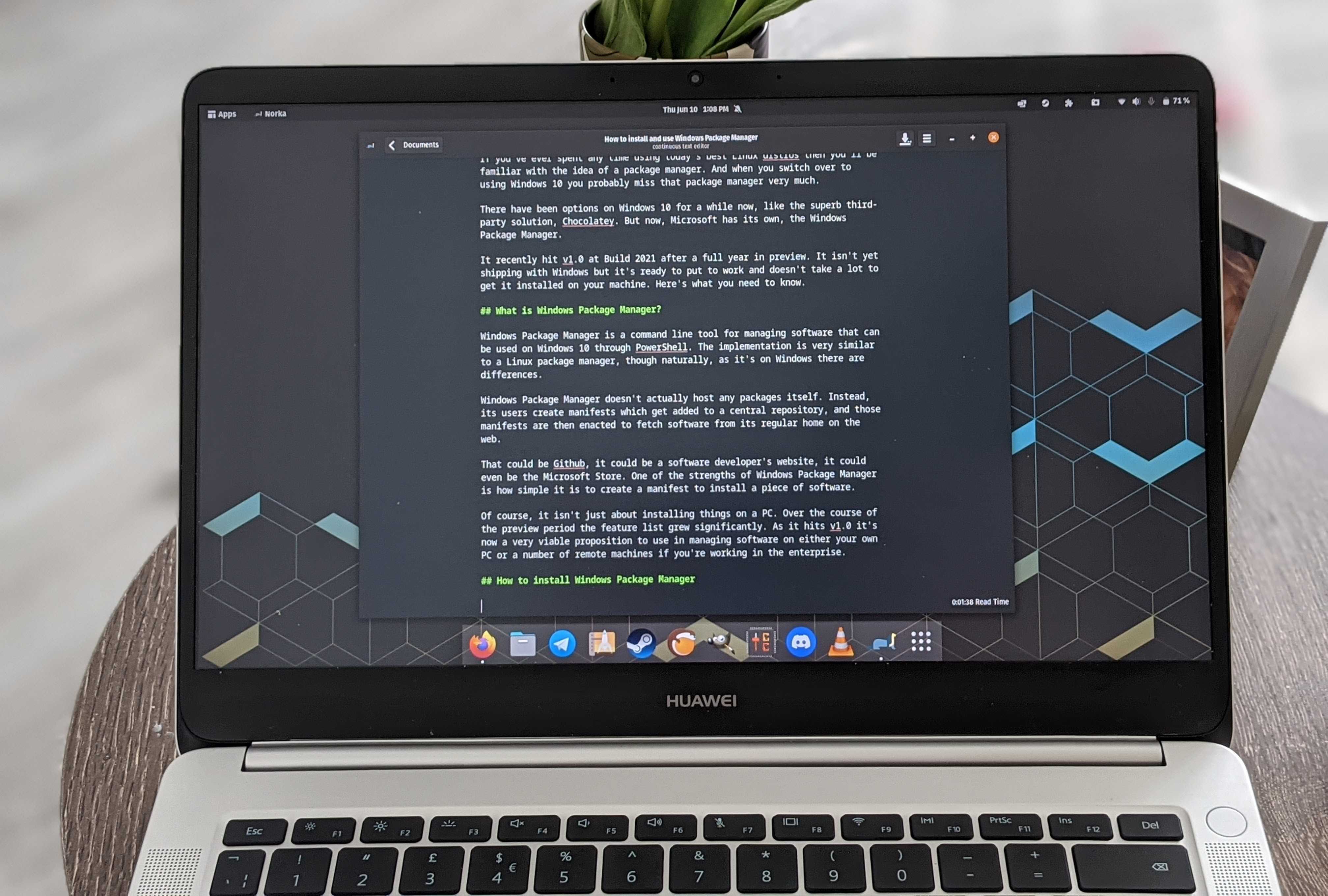
So, if you want a compact-sized, desk-space-saving mini-PC to play light games like Minecraft or indie games like Mina the Hollower on the side while tackling never-ending paperwork at the office, the Geekom A7 MAX that's now $594.00 at Best Buy could be your next best workplace buddy.

Just be aware that this deal is only available until July 15, 2026, so think fast if you want to get it.

FAQ

Can it be upgraded?

Yes. The Geekom A7 MAX AI Mini-PC's RAM can be upgraded up to 64GB via two SODIMM slots supporting dual DDR5 RAM and its storage space can be upgraded to 2TB max via inserting SSDs into its M.2 2280 PCIe Gen 4 SSD slot.

Is it good for productivity?

Indeed it is, the Geekom A7 MAX AI Mini-PC was primarily designed as productivity desktop that chew through heavy office workloads like typing reports, creating spreadsheets, editing videos, researching information on the internet.

How many ports does it have?

The Geekom A7 Max AI Mini-PC features 15 ports which includes two USB4 and two HDMI ports so it can support multiple monitors at once, two ethernet ports, six USB-A ports for accessories, an SD carder and a 3.5mm headset audio jack.

Click to join us on r/WindowsCentral

Join us on Reddit at r/WindowsCentral to share your insights and discuss our latest news, reviews, and more.

A Geekom A7 Max mini PC with multiple cables connected sits on a desk, with a USB flash drive on top and a computer monitor displaying graphs in the background.

The Geekom A7 Max mini-PC's collection of ports.

Windows Movie Maker still beats Clipchamp in an important way

If you ever feel like you need a break from social media and influencers, you may long for the more fun-focused video content of yesteryear. Windows Movie Maker was a simple program for creating videos, and it can now be yours once again.
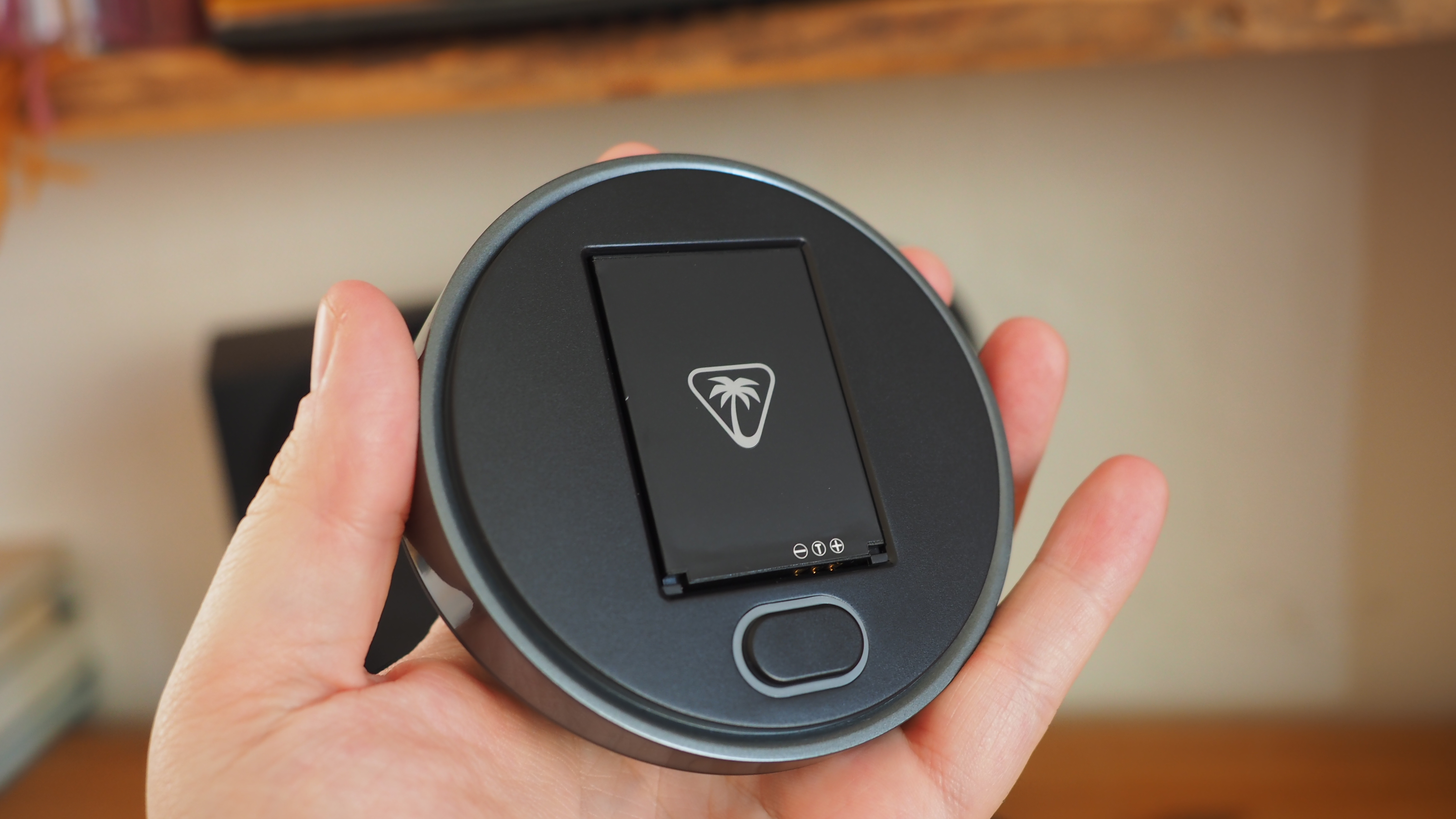
The folks at The Internet Archive uploaded Windows Movie Maker 6.0, making it easily accessible and preserving it. The app has been tested on Windows 7, Windows 10, and Windows 11.
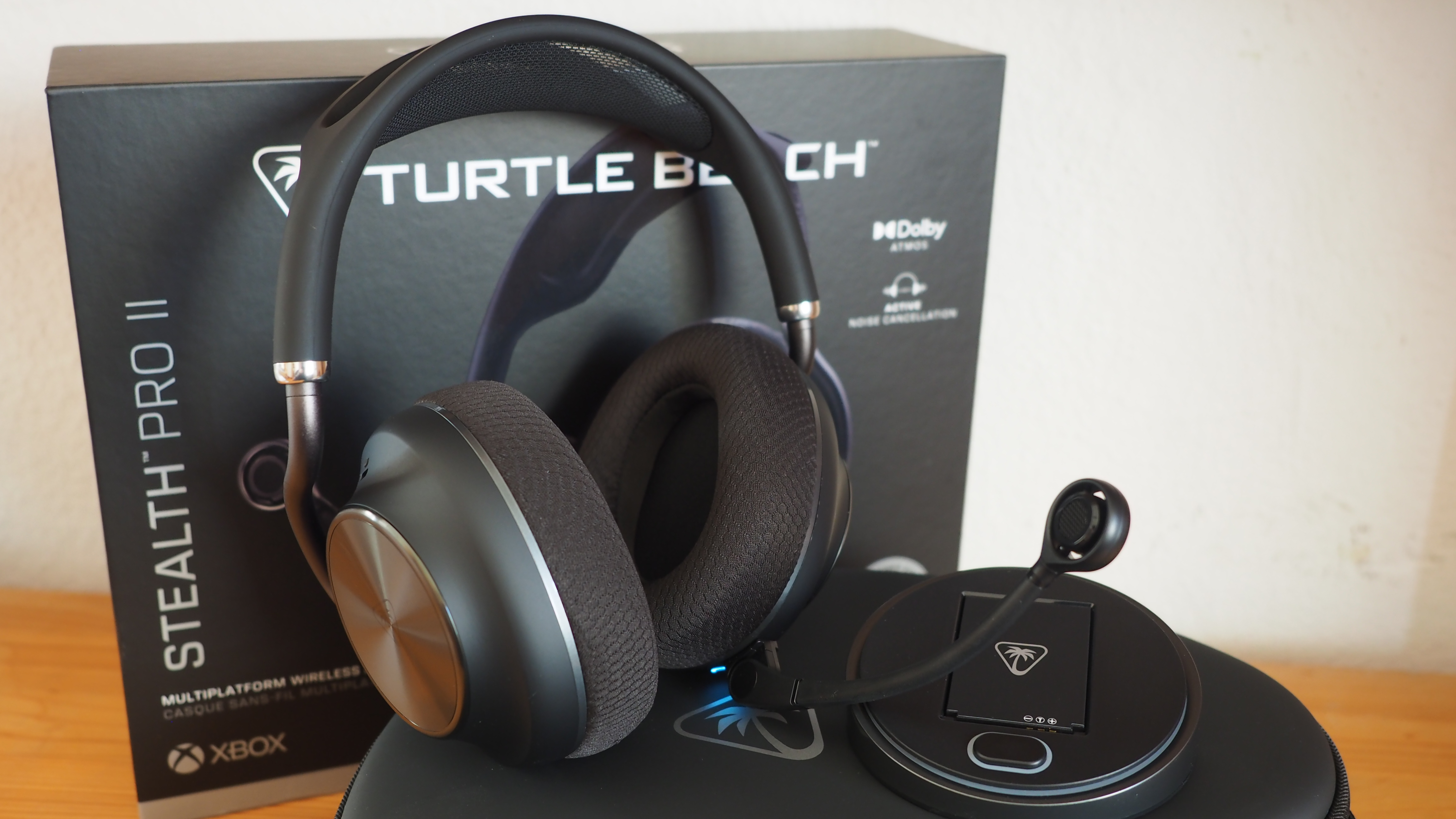
Downloading ancient technology can be a fun way to see how far things have changed over the years. Generally, Windows and its built-in apps have improved since the year 2000. But the modern movie-making app on Windows, Clipchamp, falls short of Windows Movie Maker in one key area.

Clipchamp now requires you to sync content to OneDrive to edit video projects. Media within your projects can be stored locally, but the projects cannot be edited unless you save the project to OneDrive.

That controversial change arguably broke Clipchamp. The app still works, but it does not feel like an app that should be bundled with Windows 11. Instead, it feels like a cloud-based app you should download alongside Microsoft 365.

Windows Movie Maker may lack the modern features of Clipchamp, but at least it works offline.

Ever wanted to use Windows Movie Maker 6.0 again but unsure where to get it for modern Windows?Well, "want" no longer! I've uploaded a setup for exactly that on The Internet Archive. Tested on Windows 7, 10, & 11, all working on each.Get it here:https://t.co/yEnF0sZv7n pic.twitter.com/LhozBBGtWNJune 30, 2026

Perhaps Microsoft could justify requiring OneDrive to edit videos if projects could easily extend across devices, but that's not the case. Microsoft retired Clipchamp for iOS last month, meaning you can no longer export video files from that app. Users are now encouraged to uninstall Clipchamp from any iOS devices.

Microsoft never even made an Android version of Clipchamp, so the company has effectively restricted the app solely to the desktop. There is a web version of Clipchamp, but it is optimized for desktop use.

How to download Windows Movie Maker for Windows 11

Windows Movie Maker was not meant for modern versions of Windows, but it can run on Windows 11 or Windows 10. The download link for the program is available through the Internet Archive.

As a warning, I had to refresh the page a few times to get the link to work. The Internet Archive claimed it was a bad link for some reason, but it does work after refreshing.

The file is available in several formats. I'd argue the easiest to use is the executable file because many people have clicked to install one of those before.

To install Windows Movie Maker, you'll need to click through the installation steps, agree to some terms, and click finish.

Blank Pixel

Click to join us on r/WindowsCentral

Join us on Reddit at r/WindowsCentral to share your insights and discuss our latest news, reviews, and more.

A screenshot of Windows Movie Maker showing a range of transitions.

Windows Movie Maker looks clunky by modern standards, but at least it supports offline editing.

❌