The beauty of a handheld gaming PC is its size and that it's also a full PC. The downside is that, unlike a laptop, you need to accessorize in order to achieve productivity status. A Nintendo Switch 2 may well have a 'mouse' now, but you're not going to use it to bang out some emails and spreadsheets on the train. I've had a Steam Deck since the very beginning, and as an open fan of Linux, I'm more than happy using it as a PC as well as a handheld games machine.
The beauty of a handheld gaming PC is its size and that it's also a full PC. The downside is that, unlike a laptop, you need to accessorize in order to achieve productivity status.
A Nintendo Switch 2 may well have a 'mouse' now, but you're not going to use it to bang out some emails and spreadsheets on the train.
I've had a Steam Deck since the very beginning, and as an open fan of Linux, I'm more than happy using it as a PC as well as a handheld games machine. Razer has now released a new product to go with one of its existing products that's particularly useful for the former.
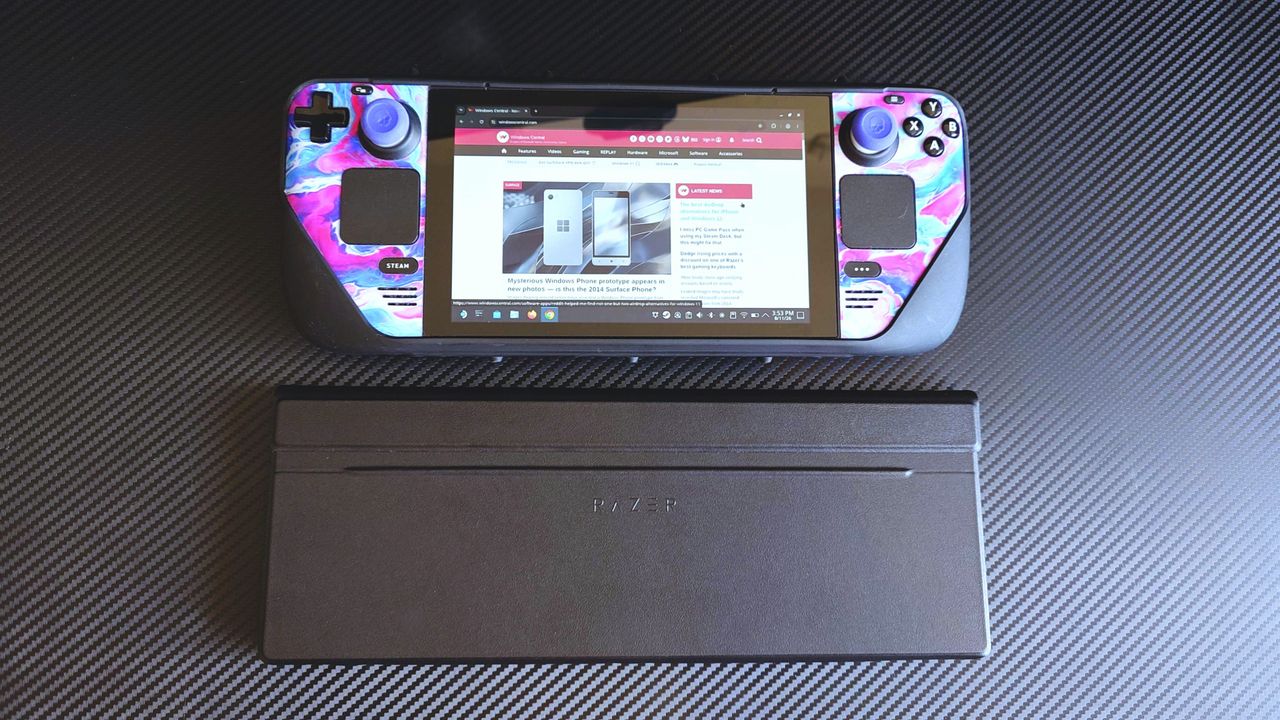
Unlike everything else Razer makes, it doesn't have some wild monicker. It's simply the Razer Travel Case Folio, and it's designed to transport your favorite portable keyboard and prop up your favorite portable device.
Nothing overly fancy, but in the case of handhelds, it's actually pretty nifty.
Compatible with both the Razer Joro and Apple Magic Keyboard, this simple product is perfect for using with a tablet or a handheld gaming PC thanks to its sturdy kickstand.
The keyboard part is designed primarily around the Razer Joro wireless keyboard, which I have, and is the only keyboard I ever travel with in conjunction with my Steam Deck. The box also says it's a seamless fit with Apple's Magic Keyboard, if you're so inclined.
As yes, one of the reasons you'd want to buy this case is if you're an iPad owner (other tablets are also available). It'll support up to a 13-inch tablet to use with your keyboard, as the back of the case opens up in a manner regulars in these parts will be familiar with.
The kickstand may not look that sturdy, but it is. (Image credit: Windows Central)
The Travel Case Folio has a Surface-style kickstand on the back.
I have to say I'm surprised at how sturdy it is. It has zero struggle propping up my hefty Valve handheld, and in the same vein as a Surface kickstand, you can adjust your angle to suit.
The keyboard doesn't lock into place or anything, but it's secure when the case is closed, kept in snug by the magnetic closing flap. I also like that there's a cutout on the case to connect a charger without needing to open it up. One is for the Joro, and one is more centralized for Apple's keyboard.
One small gripe I have though, and it is only small, is that the cutout for Razer's own Joro could have been a little larger or had a secondary one for the power switch. I never remember to turn the keyboard off, and every single time I've pressed something as I've packed it away, and that translates to something happening on the screen.
The Travel Case Folio doesn't add much extra bulk to the Razer Joro keyboard. Windows CentralPerfect if you don't have a kickstand case for your handheld. Windows Central
So I have to get it out again, open up the case, turn off the keyboard, and pack it all back up. And no, after many, many times of doing this, I still haven't remembered.
It's a really nice product though. Spill resistant on the outside, soft and protective on the inside, and it works better than I expected as a kickstand for a handheld. Even with my Steam Deck in a case, it will still stand up just fine. Perfect for those of us who don't have a Legion Go.
At $55.99 from the Razer Store, it's not that expensive, either. Obviously, if you don't have one of the two keyboards it's built for, then it's probably not worth it, but given that the Razer Joro is a $140 portable keyboard, it's worth the investment. I think I'm more surprised it took this long.
Join us on Reddit at r/WindowsCentral to share your insights and discuss our latest news, reviews, and more.
The Razer Travel Case Folio with Razer Joro Keyboard and a Steam Deck
A perfect companion to turn a handheld PC into a mobile workstation.
Razer, one of my favorite manufacturers that has produced some of the best PC gaming accessories I've ever used, has released a new mouse built to conquer any game you throw at it — the Razer Naga V3 Pro.This gadget is the long-awaited evolution of the Razer Naga V2 Pro, which takes everything we loved about its predecessor (which we gave a near-perfect review score) and refines it to create the ultimate PC gamer mouse.Here's what you need to know about the Razer
Razer, one of my favorite manufacturers that has produced some of the best PC gaming accessories I've ever used, has released a new mouse built to conquer any game you throw at it — the Razer Naga V3 Pro.
This gadget is the long-awaited evolution of the Razer Naga V2 Pro, which takes everything we loved about its predecessor (which we gave a near-perfect review score) and refines it to create the ultimate PC gamer mouse.
Here's what you need to know about the Razer Naga V3 Pro and where you can buy it.
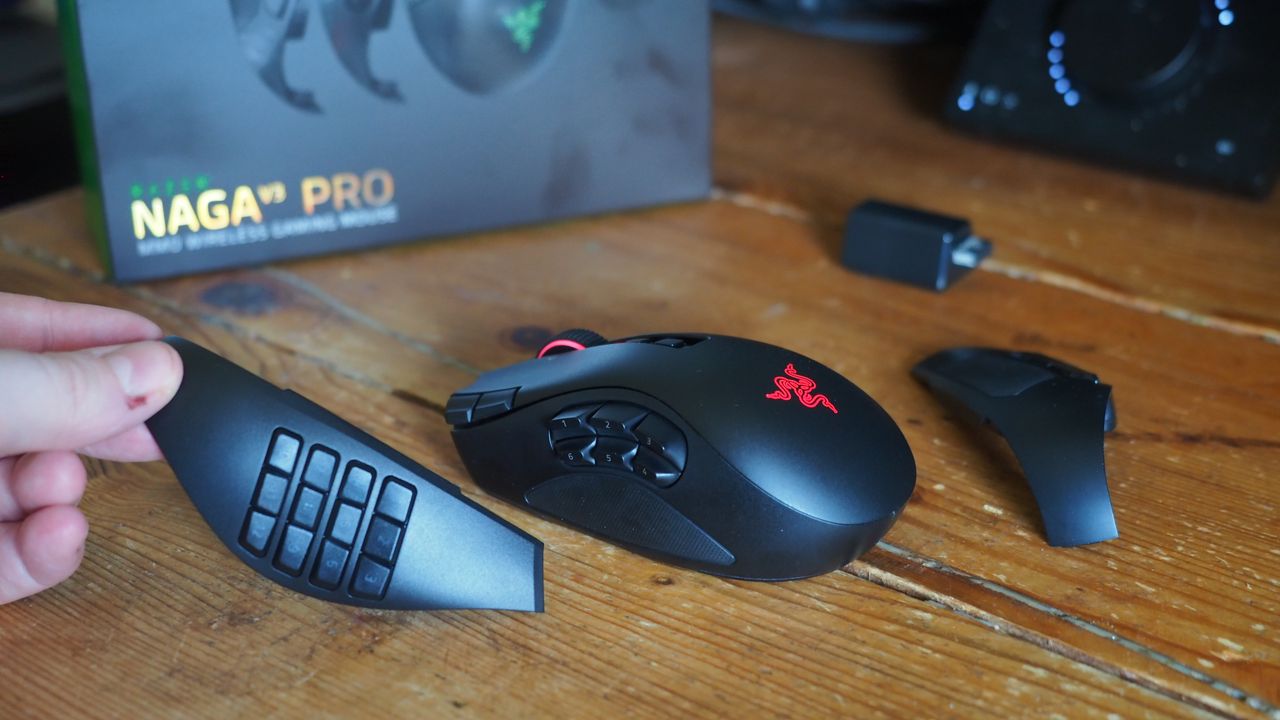
The side plates of the Razer Naga V3 Pro gamer mouseWindows Central | Jez CordenSide view of the Razer Naga V3 Pro MouseWindows Central | Jez CordenTop view of the Razer Naga V3 Pro MouseWindows Central | Jez Corden
The Razer Naga V3 Pro mouse is equipped with cutting-edge tech to improve input detection speeds and swappable button plate configurations so that it can handle a wide variety of game genres.
Its biggest selling points include:
23 programmable buttons and three interchangeable side button plates (a 12-button MMORPG plate, a 6-button MOBA plate, and a 2-button FPS plate).
A Razer HyperScroll Tilt Wheel Gen-2 with new dual tactile, free-spin, and smart-reel modes to adjust its scrolling speeds to a user's preference.
A Razer Optical Mouse Switches Gen-4 to give its buttons an upgraded lifecycle up to 100-million clicks, cleaner and faster input detection, tactile feedback, and a zero-bounce optical design to prevent accidental misclicks.
A Razr Focus Pro 50K Optical Sensor Gen-3 with precise mouse-movement detection and adjustable sensitivity that can go as high as 50,000 DPI.
Polling rates from 1000Hz to 8000Hz to help improve the mouse's input accuracy and detection speed.
A lightweight build of 117g (with the 12-button MMORPG plate attached) so it's not so heavy to move for the wrist while allowing it to be moved more quickly when making sharp turns in first-person action games.
A battery life of 155 hours on HyperSpeed connectivity (2.4GHz).
This mouse is Razer's next amazing premium outing for MMORPGs, MOBAs, FPS titles, and more
The Razer Naga V3 Pro gamer mouse on a base charger (Image credit: Windows Central | Jez Corden)
Our resident PC gaming accessory expert, Jez Corden, reviewed the Razer Naga V3 Pro and found it to be one of the best PC mice he's used so far this year. Jez praised it for possessing dozens of programmable buttons, the best-in-class software solution, and a premium feel that emphasizes tactility.
So, if you generally play input-heavy PC games and you want to get your hands on the Razer Naga V3 Pro, it will cost $179.99/£179.99/€199.99 at select digital retailers including Best Buy, directly from Razer.com, and at physical RazerStores.
Dominate any PC game imaginable with the Razer Naga V3 Pro Wireless mouse, complete with three swappable button plates, a Focus Pro 50K Optical Sensor Gen‑3 with 50,000 max DPI, 23 programmable inputs, and many more rich features.View Deal
Join us on Reddit at r/WindowsCentral to share your insights and discuss our latest news, reviews, and more.
A hand holding a Razer Naga V3 Pro mouse on a mouse mat next to a Razer keyboard
Take your PC gaming skills to the next level with the Razer Naga V3 Pro mouse.
I've been using Razer mice for decades, and have tested dozens upon dozens of iterations of the firm's products. I'm also a dedicated MMORPG and MOBA player on PC, flipping between games like World of Warcraft and Heroes of the Storm as seasons wax and wane.For the Warcraft-faithful, I play a Demonology Warlock, which has been simplified over the years, but in previous expansions I had anywhere up to 30+ keybinds for playing the class effectively in PvE and PvP.
I've been using Razer mice for decades, and have tested dozens upon dozens of iterations of the firm's products. I'm also a dedicated MMORPG and MOBA player on PC, flipping between games like World of Warcraft and Heroes of the Storm as seasons wax and wane.
For the Warcraft-faithful, I play a Demonology Warlock, which has been simplified over the years, but in previous expansions I had anywhere up to 30+ keybinds for playing the class effectively in PvE and PvP. It was a bit like learning a musical instrument back in the day, particularly when you throw in battle potions, trinkets and other additional buttons.
As such, I've tended towards Razer mice with extra inputs to make my gaming life easier. I had no idea how much easier it was going to get until I went palm-on with the new Razer Naga V3 Pro — which is quite easily one of the best mice of 2026.
Razer Naga V3 Pro: Specs and price
MMO player's best friend. (Image credit: Windows Central | Jez Corden)
The Razer Naga V3 Pro builds on its predecessor in a variety of ways, but chief among those is the inclusion of a further three configurable inputs, bringing the maximum total to 23 (and many, many more if you use HyperShift and other modifier keys).
1000 Hz native; upgradeable to true 8000 Hz (Mouse Dock Pro / HyperPolling Dongle); HyperSpeed Wireless (2.4 GHz), Bluetooth LE, USB-C wired
Battery & Lighting
Up to 155 hours (HyperSpeed); 3-zone RGB (logo, wheel, 12-button plate); 5 onboard profiles
Materials & Accessories
100% PTFE feet; USB-A to USB-C cable; HyperSpeed dongle; compatible with Mouse Dock Pro & HyperFlux V2
Dimensions & Weight
119.5 × 75.5 × 43.5 mm; 117 g base weight; Side plates: 12-button (20 g), 6-button (17 g), 2-button (15 g)
Price & Availability
$179.99 USD / £179.99 GBP / €199.99 EUR — Available worldwide Aug 11, 2026
Razer also doubled down on durability with reinforced molding processes for the switches, which the firm says will now last up to and potentially beyond 100 million actuations.
The obvious headline feature is the magnetic button plates that can be customized at will, adding between two, six, and twelve additional buttons. Razer has also included a uniquely configurable scroll wheel that comes with haptic feedback capabilities.
The mouse goes into general availability on August 11, 2026, and will set you back $179.99 from Best Buy in the United States.
Razer Naga V3 Pro: Features
Three's a crowd they say. Not here. (Image credit: Windows Central | Jez Corden)
The Razer Naga range has long been designed with MMO and MOBA gameplay in mind, adding a huge amount of additional inputs via a unique magnetic side plate feature.
Razer has enhanced the force of the magnets to ensure it feels well and truly part of the mouse when connected, and I can say without doubt that it well and truly does. The buttons can be programmed at will using Synapse, and modified further with a ring-finger button that defaults to Razer's dedicated "Hyper Shift" modifier key. Of course, all of these can be reconfigured too.
What struck me immediately when going palm-on was the new scroll wheel. Razer has included some unique functionality here that I've not experienced previously in other mice. You can set it to free-wheeling mode, which allows it to quite literally spin indefinitely under its own weight. There's also a standard step-stop function that most users will be familiar with, but also a precision-stop feature that adds some haptic feedback and shortens the actuation for rapid hot bar or weapon switching with more forceful control.
There is a parade of other buttons and functions too. The DPI rates have been placed in the top right corner of the mouse out of the way, requiring a little more intent to reach to prevent accidents, I suppose. There are two buttons below the scroll wheel, and the scroll wheel itself can be tilted and clicked for additional inputs too.
It sports 155 hours of battery life out of the box, and supports Razer's new Mouse Dock as well as its wireless Hyper Flux charging mouse mat. Either plugged in or connected to a compatible Hyper Speed dongle, this bad boy can go all the way up to 8,000 Hz. You will not be left wanting for speed.
Razer Naga V3 Pro: Comfort and usage
All the buttons. Windows Central | Jez CordenLight weight, maximum function. Windows Central | Jez CordenIt feels good in the hand, although some users may find it a little too high. Windows Central | Jez CordenRazer magnetic charge dock capable, but not included. Windows Central | Jez Corden
How does it feel to actually use, though? I dropped into a couple of World of Warcraft raids and played a few games of Heroes of the Storm to get a feel for it, but it was in games like Age of Empires where it truly felt transformative.
As noted, you can add up to 12 extra buttons with the side plate feature. It does take some getting used to, and I think Razer could've perhaps done a bit more to help differentiate the keys, particularly on the 12-button plate. The six button plate felt like the sweet spot for me, given that the profile of the buttons made them easier to memorize, but also I didn't find it as hard to squeeze my thumb backwards to hit the keys closest to my palm.
Indeed, you might struggle with this mouse if you don't have the most flexible hands. I found its palm hump to be a bit tall for my tastes (small ass hands maybe, or perhaps poor desk ergonomics on my end), but overall it was incredibly comfortable. I suspect most people won't have any issues with it. I also suspect that it was designed quite intentionally to be "palm grippy" to facilitate the fact users will be reaching for buttons on the side more often than on other mice.
Six buttons felt like the sweet spot for me. (Image credit: Windows Central | Jez Corden)
There are probably neuroscientific reasons for this, but it does feel genuinely more intuitive to actuate inputs on the same hand as your movement intentions. Perhaps it stems from my console-oriented history in some ways, but I found it a lot easier to drop Guldan's ult with a mouse swipe and mouse click, as opposed to lining up my mouse with a keyboard press.
For Age of Empires, it was particularly fun binding various quick keys directly to the mouse. Assigning regiments, bypassing certain menus, and being able to select specific units instantly from anywhere won't make up for my lack of skill with RTS, but it did boost the fun factor.
Razer Synapse is a fantastic piece of software that ties everything together. It's still better than solutions from other companies by a country mile. Configure RGB lighting, set up profiles for specific games, configure literally all the things — quick and easy.
Sync all the Razer things. (Image credit: Windows Central)
Some of the less useful features include Razer's macro functionality, which will sadly get you banned in a lot of online games for "automation."
The Naga V3 Pro also comes with an AI assistant key by default, which lets you bind certain Copilot prompts to mouse inputs for some reason. You can turn it off, but it's 2026 so everything has to have some kind of "AI" feature in it apparently, even if it's effectively useless. Perhaps this might become more useful if Microsoft ever ships agents to consumers, but as for right now it feels like boardroom fluff. Thankfully, that's the only "feature" here I could describe as such. Practically everything else is genuinely useful and represents a demonstrable upgrade.
There is a lot of functionality in the Razer Naga V3 Pro, and you won't need all of it all of the time. It is designed primarily for people who want maximum control over their games, and indeed, it is priced as such.
Razer Naga V3 Pro: Conclusion
It ain't cheap! (Image credit: Windows Central | Jez Corden)
The Razer Naga V3 Pro is a tour de force of functionality, with unmatched versatility for practically every genre of game you can throw at it. FPS, RTS, MOBA, MMORPG, and beyond — even the most control-complex games fall before the Naga and its capacity to inject intuitiveness into the least intuitive games and control schemes possible.
But yes, it will require configuring to get there. That's ultimately who it's designed for, though; people who play more complex games to a hardcore level, and want their peripherals to reflect their desire to configure and control their experience.
You should buy this if ...
✅ You play complex input-heavy games like MMORPGs and RTS.
✅ You like to configure your controls to the nth degree.
✅ You prefer your inputs on your mouse, rather than your keyboard.
You should not buy this if ...
❌ You find configuring keybinds exhaustive and annoying.
❌ You have particularly small hands (you might find its height uncomfy).
❌ Price might be a concern.
This will become my default mouse moving forward. Being able to effectively keybind number keys 5, 6, 7, 8, 9, 0, etc. without needing to physically reach away from WASD is a big boost in some games I play.
However, I am cognizant of the fact that I got the review unit here. Almost $200 for a mouse is tough to justify unless you're particularly passionate about the functionality the Razer Naga V3 Pro is going to provide for you. For configuration enthusiasts, there's well and truly nothing better than the Razer Naga V3 Pro right now.
Razer
Naga V3 Pro
"Stay one step ahead—no matter how the game changes."
Join us on Reddit at r/WindowsCentral to share your insights and discuss our latest news, reviews, and more.
Razer Naga V3 Pro mouse
Customize the thumb buttons with a variety of options for maximum MMO-bility. Yes, I just made up a word; it's Monday, and I can.
The ROG Strix OLED XG32UQWMS gaming monitor is planned for release in September 2026. ASUS provided a sample, but the company had no input on the article nor saw its contents before publishing.OLED gaming monitors have been around for a while, but concerns about text clarity and burn-in left me less excited to buy something like the ASUS ROG Strix OLED XG32UQWMS. Given the chance to test an upcoming model from its range shown at Computex earlier this year, I coul
The ROG Strix OLED XG32UQWMS gaming monitor is planned for release in September 2026. ASUS provided a sample, but the company had no input on the article nor saw its contents before publishing.
OLED gaming monitors have been around for a while, but concerns about text clarity and burn-in left me less excited to buy something like the ASUS ROG Strix OLED XG32UQWMS. Given the chance to test an upcoming model from its range shown at Computex earlier this year, I couldn't resist, and my review could be the moment that helps me overcome my apprehension. Here's what I learned.
How much does the 32-inch Strix OLED cost?
4K looks fantastic in Windows 11, and UHD is perhaps better suited to gaming if you don't want to stress your PC. (Image credit: Ben Wilson | Windows Central)
The ROG Strix XG32UQWMS is targeting a September launch for $899, with specific US retailers to be confirmed. In the United Kingdom, that converts to £819, with planned third-party resellers including Amazon UK, Currys, and Very. In the meantime, you can sign up for availability notifications on the monitor's official ASUS listing for your region.
ROG Strix XG32UQWMS sample specifications
Component
Spec
Display type
WOLED
Resolution
UHD (3840 x 2160) FHD (1920 x 1080)
Refresh rate
240 Hz (UHD) 480 Hz (FHD)
Brightness
330 cd/m² (typical) Up to 1,500 cd/m² (peak)
Viewing angle
178°/ 178° (vertical/horizontal)
Response
0.03 ms (Gray-to-Gray)
Dimensions
28.27" x 22.13" x 7.40" (71.8 x 56.2 x 18.8 cm)
Weight
10.64 – 14.46 lbs (4.83 – 6.56 kg)
Originally announced at Computex 2026, ASUS targets a September launch in the United States at $899, with sign-ups offered for availability notifications.View Deal
Is the 32-inch Strix OLED easy to set up?
The chunky middle section makes it much easier to move this monitor around.Ben Wilson | Windows CentralThis push-button release system is inspired and makes the stand easy to attach.Ben Wilson | Windows CentralThe height-adjustable table stand is heavy, but it's definitely sturdy.Ben Wilson | Windows CentralIf you prefer a VESA mount, you'll have to provide your own screws.Ben Wilson | Windows CentralThe footplate fixes tight with a simple thumbscrew and feels secure.Ben Wilson | Windows Central
I'm a big fan of toolless setups wherever they appear, and ASUS ROG wins points for delivering a straightforward process here. Everything hinged on a push-button release mechanism that either gripped the stand or the VESA mount; I used the former and attached the footplate with a simple thumbscrew.
I'm a big fan of toolless setups wherever they appear, and ASUS ROG wins points for delivering a straightforward process here.
The display alone weighs 9.92 lbs (4.5 kg), and adding the VESA mount brings the total to 10.64 lbs (4.83 kg) in a mounted setup. Otherwise, the foot plate and strut together weigh 4.54 lbs (2.06 kg), controlling height with a sturdy but not overly stiff response. On my desk, the monitor is 14.46 lbs (6.56 kg) overall.
Ports aplenty, but you only get a DisplayPort cable and AC power in the box.Ben Wilson | Windows CentralThe proximity sensor helps the monitor automatically dim when I move away, preventing burn-in.Ben Wilson | Windows CentralASUS throws in a cute pouch for spare parts I won't use.Ben Wilson | Windows CentralA big, satisfying peel of a protective plastic film under the advertisements is all that remains.Ben Wilson | Windows Central
Attaching the stand gave me a clear view of the ports and navigation via the multi-function button (MFB) located behind the bottom-mounted ASUS ROG logo and its accompanying "Neo" proximity sensor. It's a pretty standard affair that matches rival brands, and its controls should feel familiar to most people.
While there are two HDMI 2.1 ports, a pair of USB-A 3.2 Gen 1 with a hub port, and a headphone jack, there's only a single DisplayPort cable in the box for its matching DP 1.4 port, along with the AC cord. Bundling a free USB-B cable shouldn't be too expensive, and I'm disappointed to see it missing here.
Does the 32-inch Strix OLED look good?
Now that I've played on an OLED monitor, it'll be hard to go back to my IPS screen. (Image credit: Ben Wilson | Windows Central)
Moving from a 27-inch IPS Alienware monitor to an OLED panel made its benefits immediately obvious, with an experience similar to the one I get from my LG C2 TV in the living room. High contrast, deep blacks, and crisp visuals come with its 4K resolution and that smooth 240Hz refresh rate. Windows 11 adjusted my settings accordingly, and the monitor looks great out of the box.
The UHD @ 240Hz mode looks fantastic, and I'm left wondering who would ever want to switch to 1080p for the sake of 480Hz on a 32-inch display.
In motion, the UHD @ 240Hz mode looks fantastic, and I'm left wondering who would ever want to switch to 1080p for the sake of 480Hz on a 32-inch display. I know it has its place in ultra-competitive shooters like Counter-Strike 2 and its many rivals, but 240Hz still feels like plenty to me. If you're the target audience, I think you'll be happy, because FHD gameplay still looks quite good.
There are plenty of visual tweaks to make in the OSD, primarily balancing brightness, if you need them.Ben Wilson | Windows CentralText looks fine, aided mostly by the sheer clarity offered by 4K in the first place.Ben Wilson | Windows Central
Up close, the clarity of on-screen text looks fine; nothing particularly groundbreaking, but nothing looks noticeably fringed when I sit at a comfortable distance in UHD mode. Adjusting ClearType in Windows 11 might give results that better suit you, but I didn't feel like anything looked out of place during my usual daily work and gaming.
The OSD is at least easy to navigate, and I could install the DisplayWidget Center if I really wanted to use a mouse to tweak several settings at once. Otherwise, the "TrueBlack Glossy" panel looks significantly darker at a glance than the other screens in my office, which certainly helps with the deep blacks OLED is famous for, and I found the visible room reflections were tolerable.
Testing the display
Out of the box, the XG32UQWMS defaults to "Racing mode", hitting 99% of the DCI-P3 color gamut as advertised, and sRGB accuracy earns a perfect score, while Adobe RGB maxes out at 93%. Without changing settings, a 100% brightness level reached around 306 to 311 nits, so getting it to 330 nits will require a bit of tweaking. On the whole, I'm satisfied with its stock settings.
Should you buy the 32-inch Strix OLED?
At this price, it's certainly considered an investment, but burn-in prevention tools make it much easier to recommend. (Image credit: Ben Wilson | Windows Central)
You should buy this if ...
✅ You want an OLED monitor built for preventing burn-in
✅ You're a competitive gamer who thrives on high refresh rates
You should not buy this if ...
❌ You want an out-of-the-box USB hub monitor
A built-in presence sensor probably sets off alarm bells for some gamers, but the proximity detection is literally there to help protect this OLED panel by switching off when you walk away. That, along with adjustments to uniform brightness and pixel-cleaning settings, helps prevent burn-in, which was my biggest concern with monitors like these. ASUS definitely could have thrown in a free upstream USB cable for its hub, but the display itself is solid, so it still wins praise.
ASUS ROG
Strix OLED XG32UQWMS
Due for release in September 2026, this OLED gaming monitor should be at the top of your considerations if you're shopping around.
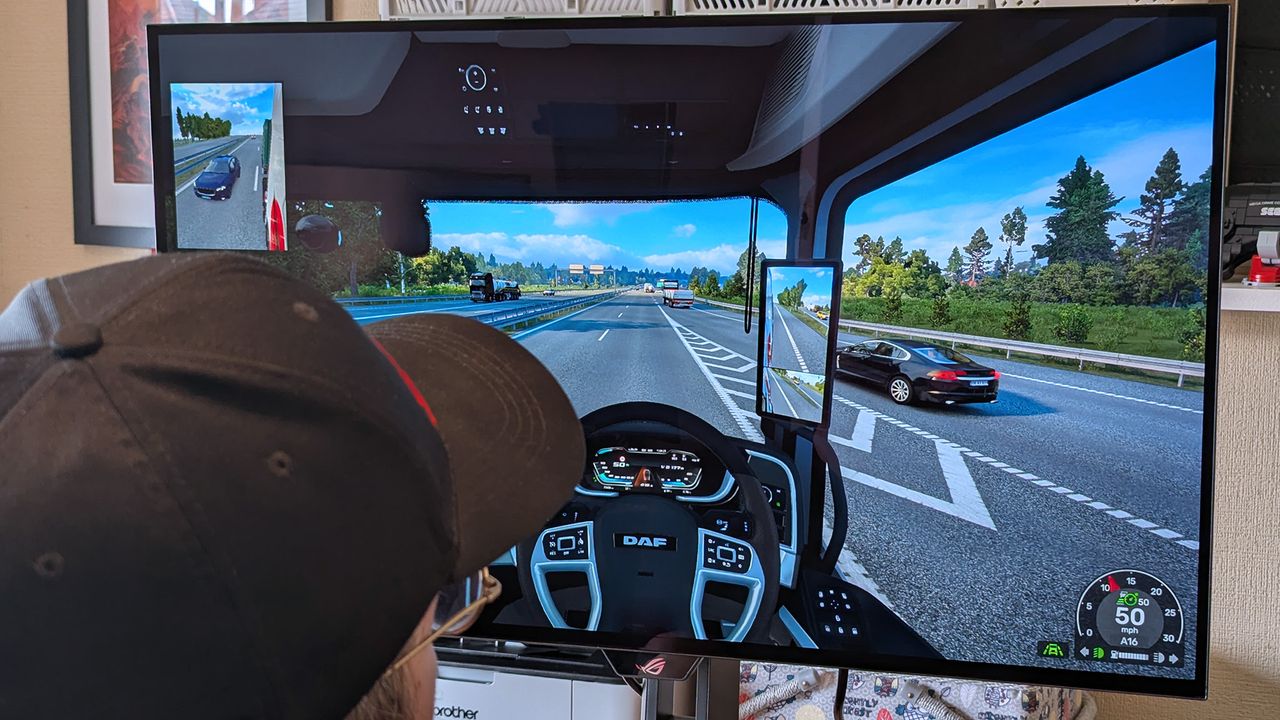
Windows Central's Ben Wilson wearing a black cap sits at a desk playing Euro Truck Simulator 2, with the ASUS ROG Strix OLED XG32UQWMS monitor showing a DAF truck interior.

 Connexion