Vue normale

Huntsman V3 HE Magnetic: Razer’s magnetic answer to precision — fast, configurable, and dangerously clever (and surprisingly not super expensive)

Magnetic keyboards used to feel like a side quest in the keyboard world. You either bought one from a tiny boutique brand and hoped the firmware wasn’t held together with duct tape, or you ignored the whole category because it felt too experimental.

Now Razer has stepped in with its first Hall Effect Magnetic Huntsman keyboards, and that changes everything. When a company with global retail presence decides magnetic switches matter, it suddenly becomes a lot easier for regular players to try the tech without worrying about sketchy support or limited availability.

After spending time with both the Razer Huntsman V3 HE Magnetic Tenkeyless ($139) and the smaller Huntsman V3 HE Magnetic Mini 65% ($119), I came away impressed. These keyboards feel like Razer embracing magnetic switches in a serious way while keeping the familiar Huntsman feel I already know well.

Razer had no input, nor did it see the contents of this review, prior to publication.

Design and build

Top-down comparison of the Razer Huntsman V3 HE Mini 65% keyboard (top, cyan RGB) and TKL keyboard (bottom, green RGB) on a pink surface.

Top-down comparison of the Razer Huntsman V3 HE Mini 65% keyboard (top, cyan RGB) and TKL keyboard (bottom, green RGB) on a pink surface. (Image credit: Daniel Rubino)

Both keyboards share the same DNA: aluminum top plate, doubleshot PBT keycaps, and dense internal foam that gives each keystroke a quieter, more muted sound. Razer told me they added extra lubrication and a “very dense layer of foam to absorb high‑pitch pinging noises,” and I can hear the difference. These boards sound cleaner than the Huntsman AK and even the V3 Pro.

The TKL gives you the arrow keys and navigation cluster, which I prefer for writing and general use. The Mini 65% keeps the arrows but trims the rest, which frees up desk space and feels great for shooters.

Razer confirmed both models have full feature parity, so you’re choosing layout, not capability.

Magnetic switches explained

Low-angle close-up of a black Razer gaming keyboard with vibrant cyan RGB backlighting glowing under the keycaps.

Low-angle close-up of a black Razer gaming keyboard with vibrant cyan RGB backlighting glowing under the keycaps. (Image credit: Daniel Rubino)

Hall Effect switches use magnets and sensors to track key travel. There’s no physical contact point, which means the keyboard can detect exactly how far a key has moved. That unlocks features that optical or mechanical switches can’t do as well.

Razer calibrates every switch at the factory. They told me:

"Hall Effect boards are prone to interference from environmental factors… metal desks, magnets, metal objects."

Instead of pretending this isn’t an issue, Razer built a calibration tool directly into Synapse. If your desk or environment causes drift, you can reset the keyboard back to factory accuracy in three guided steps. I didn’t run into interference myself, but I like knowing the fix is built in.

Actuation is fully adjustable from 0.1 mm to 4.0 mm, and you can tune each key individually. I set WASD to 1.2 mm for shooters and left the rest at 2.0 mm for typing. The onboard adjustment tools make this easy.

Razer also claimed:

“We are the most accurate Hall Effect board available to players.”

They admitted true 0.1 mm accuracy is impossible because “pushing two magnets together is damn near impossible,” but their margin of error is small enough that I never noticed inconsistency.

Latency and performance

Screenshot of Razer Synapse software displaying customizable options for polling rate, gamepad settings, and macros on the Huntsman V3 HE.

Screenshot of Razer Synapse software displaying customizable options for polling rate, gamepad settings, and macros on the Huntsman V3 HE. (Image credit: Daniel Rubino)

Razer pairs the switches with true 8000 Hz HyperPolling. They measured the HE Magnetic at 0.6 ms latency, which is only 0.12 ms behind their analog optical switches. That’s impressive for a first‑generation magnetic design and still faster than other Hall Effect keyboards by about eight percent.

I can’t measure latency myself, but the keyboards feel snappy. Movements in Counter‑Strike 2 and Valorant felt crisp, and Rapid Trigger made counter‑strafing easier.

Movement‑focused features

Screenshot of Razer Synapse software displaying Actuation tab settings for the Huntsman V3 HE, including actuation point, Rapid Trigger, and Snap Tap.

Screenshot of Razer Synapse software displaying Actuation tab settings for the Huntsman V3 HE, including actuation point, Rapid Trigger, and Snap Tap. (Image credit: Daniel Rubino)

This is where the HE Magnetic line stands out. Razer didn’t just add magnetic sensing. It built a suite of features that take advantage of it.

Rapid Trigger — Keys reset as soon as they start moving upward. This helps you stop moving faster in shooters, which tightens your hitbox and improves accuracy.

Snap Tap — This prevents two directional keys from actuating at the same time. If you press D while holding A, the keyboard prioritizes the latest input. It makes counter‑strafing more reliable.

Snap Flex — You can bind two actions to a single press. For example, pulling a grenade pin and jumping at the same time. It simplifies multi‑key combos.

Dynamic Keystroke — Up to four actions can be assigned to a single key based on press depth and release. This is powerful and a little scary. I’m curious to see what players come up with.

Dual‑Keypress Priority — This keeps diagonal movement stable. If you’re holding W and A, pressing D won’t override the movement until you release A.

Good Molly, that's a lot of software tech, but while it may not make a difference if you play Brotato (like me; don't judge, it's great), for first-person competitive shooters, it all can absolutely improve your performance and enjoyment of the game. There is a bit of a learning curve here, and all of that is optional to use, but while Razer sometimes catches flak for Synapse, I can't help but feel these are some real value-plays.

Now, some of these are "launch-exclusive" to the HE Magnetic line, for now, but Razer hinted that these features will eventually trickle out to other Huntsman keyboards, likely in the coming months.

TKL vs Mini 65%

Top-down view comparing the compact Razer Huntsman V3 HE Mini 65% keyboard (top) and the larger TKL keyboard (bottom) on a white desk.

Top-down view comparing the compact Razer Huntsman V3 HE Mini 65% keyboard (top) and the larger TKL keyboard (bottom) on a white desk. (Image credit: Daniel Rubino)

I think most people buying keyboards today know Tenkeyless (TKL) versus Mini 65%, but just in case you don't, here's the recap, as I’ve used both layouts for years, and the choice is simple.

Choose the TKL if:

  • You type a lot
  • You want dedicated navigation keys
  • You prefer a familiar layout

Choose the Mini 65% if:

  • You want more mouse space
  • You travel or attend LANs
  • You want a compact gaming setup

Both keyboards have identical features. You’re choosing workflow, not capability.

Personally, I go TKL or even Compact / 96% Full‑Size like the 2026 Razer Huntsman Signature Edition ($499), as I like having media keys and arrow keys but detest numberpads.

Mini-65% is adorable and shockingly portable (great!), but you may end up missing some functions if you use it for more than competitive-ish gaming. No arrow keys is a move; let's just say that.

You can see my recent review of the other Huntsman TKL, aka the Razer Huntsman V3 TKL 8khz ($169), for an optical-switch option.

Either way, it's great that Razer gives you the choice.

Pricing and competition

The Razer Huntsman Signature Edition keyboard displayed with its premium black box, a welcome card signed by Min-Liang Tan, and extra keycaps.

The $499 Razer Hunstman Signature Edition (2026) is a very unique offering. (Image credit: Daniel Rubino)

The new Razer Huntsman V3 HE Magnetic TKL is $139.99, and the Mini is $119.99. That’s cheaper than Razer’s Pro models and competitive with other magnetic keyboards. Some boutique Hall Effect boards cost more and don’t have Razer’s distribution or warranty support. That alone makes these easier to recommend.

Launch date is today, July 30, so they should be available globally and shipping out to third-party sellers, including Amazon (HE Magnetic TKL; HE Magnetic Mini 65%) and Best Buy.

Typing and sound

Side-profile comparison of the Razer Huntsman V3 HE Mini 65% and TKL keyboards, showing their incline and height on kickstands.

Side-profile comparison of the Razer Huntsman V3 HE Mini 65% and TKL keyboards, showing their incline and height on kickstands. (Image credit: Daniel Rubino)

Typing feels smooth and consistent. The foam and lubrication help, and the magnetic sensing gives each key a clean, predictable feel. I prefer deeper actuation for writing, and the keyboards handled that well.

Gaming felt great with shallow actuation and Rapid Trigger.

Should you buy the Huntsman V3 HE Magnetic?

Angled side view of a black Razer gaming keyboard featuring green RGB backlighting glowing beneath floating keycaps.

(Image credit: Daniel Rubino)

You should buy this if ...

✅ You play competitive shooters

✅ You want adjustable actuation

✅ You want movement‑priority features

✅ You like what Razer is cookin'

You should not buy this if ...

❌ You only need a simple keyboard

❌ You don’t care about magnetic sensing

❌ You prefer optical switches

❌You want wireless options

I give the Huntsman V3 HE Magnetic line a 4.5 out of 5. Razer took magnetic switches and made them accessible, polished, and backed by a major brand. The keyboards feel great, the features matter, and the layouts cover both mainstream and compact preferences.

The Huntsman family may be getting crowded, but these new models earn their place, and we'll be updating our best gaming keyboards guide shortly.

And as someone who has gone through something like 5 of these Huntsman variations in the past months, all I can say is I don't think I'll be jumping to anything else anytime soon. Even as someone who does more gaming on their MSI Claw 8 EX AI+ and Xbox Series X, these Huntsman just feel good to use, whether for typing or gaming.

Razer Huntsman V3 He Magnetic 8khz

TKL
Razer
Razer Huntsman V3 He Magnetic TKL 8khz

With adjustable actuation from 0.1–4.0 mm, Rapid Trigger, Snap Tap, Snap Flex and Dynamic Keystroke, Razer’s HE Magnetic TKL give players granular control over inputs and movement — and back it with factory calibration, a 100‑million keystroke rating and on-demand recalibration via Synapse.

Razer Huntsman V3 He Magnetic 8khz

Mini
Razer
Razer Huntsman V3 He Magnetic Mini 65% 8khz

The Huntsman V3 HE Magnetic line pairs Hall Effect magnetic sensing with 8,000 Hz HyperPolling and deep per-key customization to deliver a top-tier competitive keyboard experience. This Mini 65% version pairs down to the most minimal design.

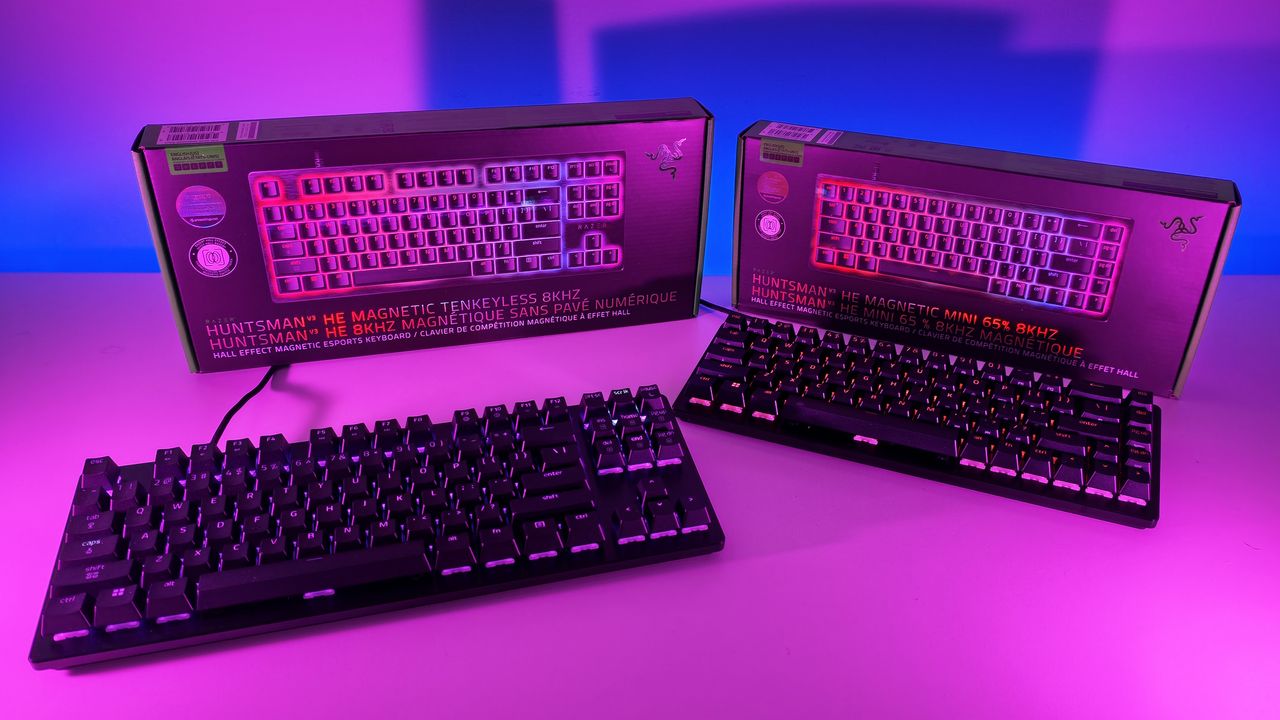
Low-angle shot of Razer Huntsman V3 HE TKL and Mini 65% keyboards with RGB backlighting placed in front of their retail packaging.
Low-angle shot of Razer Huntsman V3 HE TKL and Mini 65% keyboards with RGB backlighting placed in front of their retail packaging.
This JLab mouse is described as a smarter buy than some top-rated picks — with its more affordable price, it's easy to see why

JLab, a brand we usually recognize for its headphones, still dips out of its wheelhouse from time to time to make broader PC accessories for productivity and gameplay performance on the side.

Now, its ergonomic "Epic Wireless Mouse", featuring a 2,400 DPI sensor, 4-month battery life, and remappable buttons, is available at Best Buy (currently discounted by a third-party seller to $51.77).

If you're looking for something different, there are more affordable ergonomic JLab mice and keyboards at Best Buy, flaunted as "Better for your wrist. Better for your budget" — with options available directly from Best Buy alongside third parties.


Annihilate your opponents and your daily workload with JLab's responsive 2,400 DPI sensor, nine silent and customizable buttons, and a four-month-long battery life.View Deal

Why buy the JLab Epic Wireless Mouse?

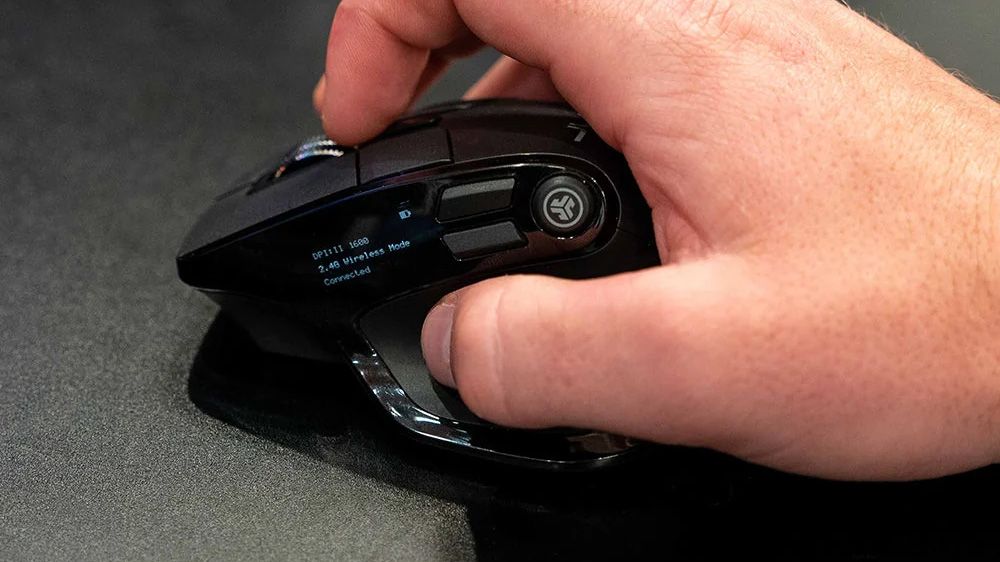
A black ergonomic wireless computer mouse with a side display showing battery, DPI, and connection status, featuring a circular JLab brand logo.

The JLab Epic Wireless Mouse displaying its OLED screen (Image credit: JLab)

JLab's Epic Wireless Mouse offers features for any worker navigating life's daily grind while taking breaks for some light gaming. These include an ergonomic design that fits snugly in your hand, the ability to connect to 3 devices via Bluetooth or its USB dongle, rechargeable batteries that last for around 4 months, and 9 buttons that can be customized with key bindings or shortcuts via JLab's Work app.

Elsewhere, it features silent buttons so they don't make distracting noise, a tiny OLED screen to show its status, and a 2,400 DPI sensor, making it responsive when moving the cursor while browsing or gaming.

So, if you're looking for a new mouse to help you with your assignments or games, then JLab is worth a shot. At least 114 shoppers on Best Buy have given it 5-star reviews, with some saying its performance is comparable to Logitech's MX Vertical Mouse but at a much cheaper cost (JLab's Epic Wireless Mouse has a listing price of $59.99, compared to the MX Vertical's listing price of $119.99).

FAQ

Which devices are compatible with this mouse?

The Jlab Epic Wireless Mouse is compatible with PCs running Windows, macOS, and ChromeOS, and mobile devices with Bluetooth connectivity.

What is the max wireless range on this mouse?

The max wireless range is 30 feet.

How long is the warranty on this mouse?

The JLab Epic Wireless Mouse has a 2-year warranty.

Click to join us on r/WindowsCentral

Join us on Reddit at r/WindowsCentral to share your insights and discuss our latest news, reviews, and more.

A hand holds the JLab Epic Wireless Mouse, showing its side display with DPI, wireless mode, and connection status.

A hand holds the JLab Epic Wireless Mouse, showing its side display with DPI, wireless mode, and connection status.

I've used the same Dell PC monitor for work and gaming for nearly a decade and I still can't find one to beat it

Technology rarely stands still, and having a job like this means seeing newer, better, faster hardware on a regular basis. But through all of the upgrades I've made in the last decade, there's one piece of tech that has been with me throughout and won't be going anywhere anytime soon.

Many years ago, I bought a monitor to pair with my gaming PC of the time. You can read about it in my Dell S2417DG review, which I had to double-check the date on. I've had this monitor for 9 years now.

It's not the only PC monitor I've used in that time, of course. I've paired it with various other secondaries, and I've moved it off to use with another PC while I review other monitors.

But almost a decade after cracking open the box, it's still here. It's my primary display for work and for PC gaming, and unlike every other piece of tech I've got itchy feet over upgrading through the years, I've got no plans to get rid of the Dell S2417DG. It's still plenty good enough, even for gaming when refresh rates have gone through the roof. I absolutely adore it.

What makes the Dell S2417DG so good

When I originally bought and subsequently reviewed the Dell S2417DG, I was looking for three things in particular.

At a then-list price of $430, compared to a lot of the competition, the S2417DG represented phenomenal value. The key specs that drew me to this specific model are highlighted in the table below.

Category

Key Specification

Screen Size & Panel

23.8" QHD (2560 x 1440) TN

Refresh Rate

144 Hz (Overclockable to 165 Hz via DP)

Response Time

1 ms (GtG)

Adaptive Sync

NVIDIA G-Sync

Inputs

1x DisplayPort 1.2, 1x HDMI 1.4, 4x USB 3.0

Ergonomics

Height, Tilt, Swivel, Pivot (90°), 100x100 VESA

When I bought it, I'd just secured an NVIDIA GTX 1080 Ti, the beast of its time, and my previous primary monitor didn't have a refresh rate or resolution high enough to allow me to stretch its legs.

Fast forward 9 years and I'm still happy gaming at 1440p and still happy at 165Hz. Could I do 4K? Sure, I'm fortunate to be running an RTX 5090 these days. Could I do more frames? Absolutely.

I've tested laptops and monitors with higher resolution and/or refresh rates far in excess of 165Hz and never once felt I needed more in my own setup. Playing Call of Duty: Black Ops 7 at 240Hz rather than 165Hz is not going to suddenly change the game for me. It certainly won't help a gamer in his forties be any better at it.

For day-to-day use, I've long felt 120Hz is the sweet spot. I only really use 165Hz because this monitor has a factory overclock, so why not?

A photo of NVIDIA G-Sync and 3D Vision stickers on the base of the Dell S2417DG monitor.

Yes, I've left the stickers on for 9 years as well. (Image credit: Windows Central)

But it has everything I need. The color isn't the absolute greatest, but 98% sRGB is fine for my needs since I don't do any serious color accuracy work, and games still look great.

Even with an older DisplayPort standard, I haven't yet been held back, and the 1ms response has since been beaten by newer monitors, but again, it was more than enough back then for me, and it's still the same today.

In years past, I also made use of the USB 3.0 hub built into the monitor. Nowadays my desktop PC has enough USB ports that are faster than this that I don't need to. But in the early days it was extremely useful.

Only one area this monitor has started to underperform

Xbox Series X review 2024

The HDMI needed to keep up with the Xbox Series X is the only thing letting this monitor down. (Image credit: Windows Central)

Over the lifespan of this monitor, I've also used it hooked up to my Xbox console. It's only here, now, that it's starting to show its age.

The HDMI 1.4 port on the Dell S2417DG is hard-capped at 60Hz, even though it will still support the 1440p native resolution. Even dropping to 1080p, that 60Hz cap applies on this monitor.

It's not a total dealbreaker, since 60Hz has been fine on console for long enough, but with an Xbox Series X I'm not able to make full use of the 120Hz capabilities in supported games using this monitor anymore.

As such, the Xbox Series X has been hooked up to a more modern 1080p monitor with a newer spec HDMI connection. I'll take frame rate over resolution any day.

I don't see the point in 'upgrading' to a newer monitor

A computer monitor displays a vibrant mountain landscape with a colorful sunset. Nearby are a PC with RGB lighting and headphones with cat ears, creating a cozy gaming setup.

There are far more technically impressive monitors out there now, but I feel like I'd be wasting my money. (Image credit: Windows Central | Zachary Boddy)

Are there better monitors out there? Of course there are. There are plenty with 4K displays, OLED, faster refresh rates, and larger panels.

But I've long felt 1440p is the sweet spot for gaming. I don't have the space for large displays, and having tested higher refresh rate panels, I don't actually feel like I'd be getting anything beneficial.

Call of Duty is the only 'competitive' game I play, and I've got enough FPS to be comfortable in that. Looking at what's out there right now at prices I'd be comfortable paying, I feel like any new monitor would be a sidegrade, less so than an upgrade.

Would I be better off with more up-to-date ports? Most likely I would, but I've been fine for 9 years now without feeling like I'm held back. The old warhorse is still pulling along as well as it ever did.

I'm also a big believer in not adding to e-waste. I could sell this on to someone else, but it works well enough still, so what's the point in that? Times are hard, everything is more expensive than ever before, and you never know when you'll need to cash in a kidney to buy another stick of RAM or an SSD.

I truly can't think of another piece of tech I still own and have used for as long as this monitor consistently. I'm just praying that writing about it doesn't hex the whole thing and I wake up tomorrow and it decides it's had enough...

Click to join us on r/WindowsCentral

Join us on Reddit at r/WindowsCentral to share your insights and discuss our latest news, reviews, and more.

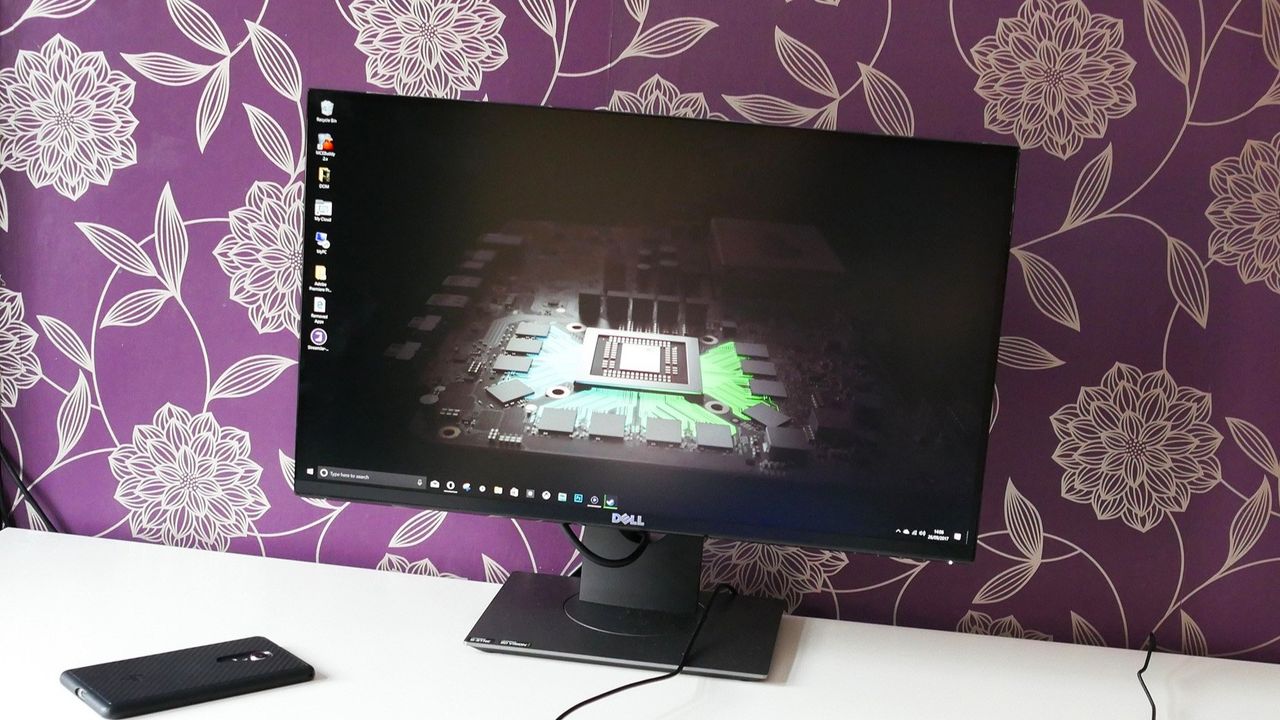
A photo of the Dell S2417DG pc monitor on a white desk next to a HP Elite X3 smartphone in front of a purple and gold patterned wall.

This was my monitor when it was new. It's got a few marks since then but, otherwise, remained faultless and still keeps up with today's games.

A cheap ergonomic mouse just showed me what the MX Vertical has been missing all along (and exposed its biggest flaw)

For the past few years, a Logitech MX Vertical has sat on my desk. I've grown to love the mouse so much that I even take it with me when I travel despite it not folding down or being compact in any way. So, when ProtoArc reached out to me about a newer, budget-friendly ergonomic mouse, I was skeptical that Logitech had anything to learn.

The Logitech MX Vertical fits in my hand well, lets my arm rest at a natural angle, charges through USB-C, and has aged well. The ProtoArc EM11 Pro is not exactly a direct competitor to the Logitech MX Vertical since the two mice are in different price brackets. But there are relatively few angled mice out there, at least in comparison to flat mice, so it's natural to pit the ProtoArc EM11 Pro against the Logitech MX Vertical.

Using the ProtoArc EM11 Pro made me realize a few areas the Logitech MX Vertical lags. If Logitech ever refreshed its ergonomic mouse, it should take some lessons from ProtoArc.

Grip and palm fit

Close-up of a hand holding the Logitech MX Vertical ergonomic mouse in a natural handshake grip position on a black mousepad.

The flat front of the Logitech MX Vertical does not fill my curved fingers. (Image credit: Future)

The ProtoArc EM11 Pro and the Logitech MX Vertical fill my hand differently. Logitech's mouse lies flush against my palm as my hand contours around the mouse. But the flat front of that mouse leaves a small gap between my fingers and the buttons.

In contrast, the ProtoArc EM11 Pro has an elongated base with a curve that tapers down at a sharper angle than the Logitech MX Vertical. As a result, the mouse does not feel flush against my palm. But the front of the mouse is curved, making the space behind the buttons feel more comfortable.

I'd love to have a mouse that combines the best of both designs since neither mouse is perfect.

Two wheels are better than one

Close-up of a hand gripping the dark gray ProtoArc EM11 Pro ergonomic mouse, showcasing the thumb rest, silver scroll wheel, and vibrant orange side buttons.

I didn't realize the value of a horizontal scroll wheel until I tried one. (Image credit: Future)

ProtoArc's ergonomic mouse has two scroll wheels, one set for vertical navigation and the other for scrolling horizontally. I didn't realize how much I wanted two scroll wheels until I navigated Excel and Google Sheets with a pair of wheels. I've always just held Shift on my keyboard and used the single scroll wheel when I needed to move horizontally in a spreadsheet, but having a second wheel feels much smoother. It also requires less movement, which is a key part of ergonomic setups.

Silent clicks for quiet workspaces

Close-up front view of the Logitech MX Vertical mouse showing the top scroll wheel and right-click buttons, with the ProtoArc EM11 Pro partially visible blurred in the background.

The Logitech MX Vertical can be a bit noisy. In contrast, the ProtoArc EM11 Pro is practically silent. (Image credit: Future)

I work from home, so I don't have any coworkers to irritate with mouse clicking. If anything, my 10-month-old daughter enjoys the Logitech MX Vertical's clicky buttons since she often sits on my lap and plays with my mouse and keyboard.

But if you work in an open office or sit next to someone at school or work, you probably don't want to hear clicking all day. The ProtoArc EM11 Pro is almost completely silent when clicked.

Why I'm sticking with the Logitech MX Vertical

Logitech should take some lessons from the ProtoArc EM11 Pro, but ProtoArc also has some homework to do. ProtoArc's mouse has some lovely features, but I think it either needs a design tweak or an option for people with different-sized hands.

The angle of my hand doesn't feel natural when using the ProtoArc EM11 Pro. The flared bottom makes my hand want to turn over more than I'd like.

Try as I might, I can't find a way to hold the ProtoArc EM11 Pro that feels comfortable. If I place the side of my hand alongside the base, my fingers don't align properly with the buttons. If I slide my hand down so that my fingers align with the buttons, my hand awkwardly presses against the base.

The curvature of the ProtoArc EM11 Pro also makes it feel like I have to curve my hand a bit, rather than rest at a neutral angle.

Ergonomic mice have a learning curve, so I tried ProtoArc's for a while to see if I'd adjust, and it just hasn't — ahem — clicked. But that may be specific to my hand size and shape. I've known people who disliked the feel of the Logitech MX Vertical, so a lot of this comes down to specific users.

Overall, ProtoArc packed its ergonomic mouse with features other companies should envy. I just wish the mouse fit in my hand as well as the Logitech MX Vertical.

This ergonomic mouse allows your arm to rest at a natural angle to reduce fatigue and strain. It's held up incredibly well throughout my years of use.

Windows Central review:⭐⭐⭐⭐⭐View Deal

This budget-friendly ergonomic mouse has two scroll wheels, can connect through a dongle or Bluetooth, and is practically silent when used.View Deal

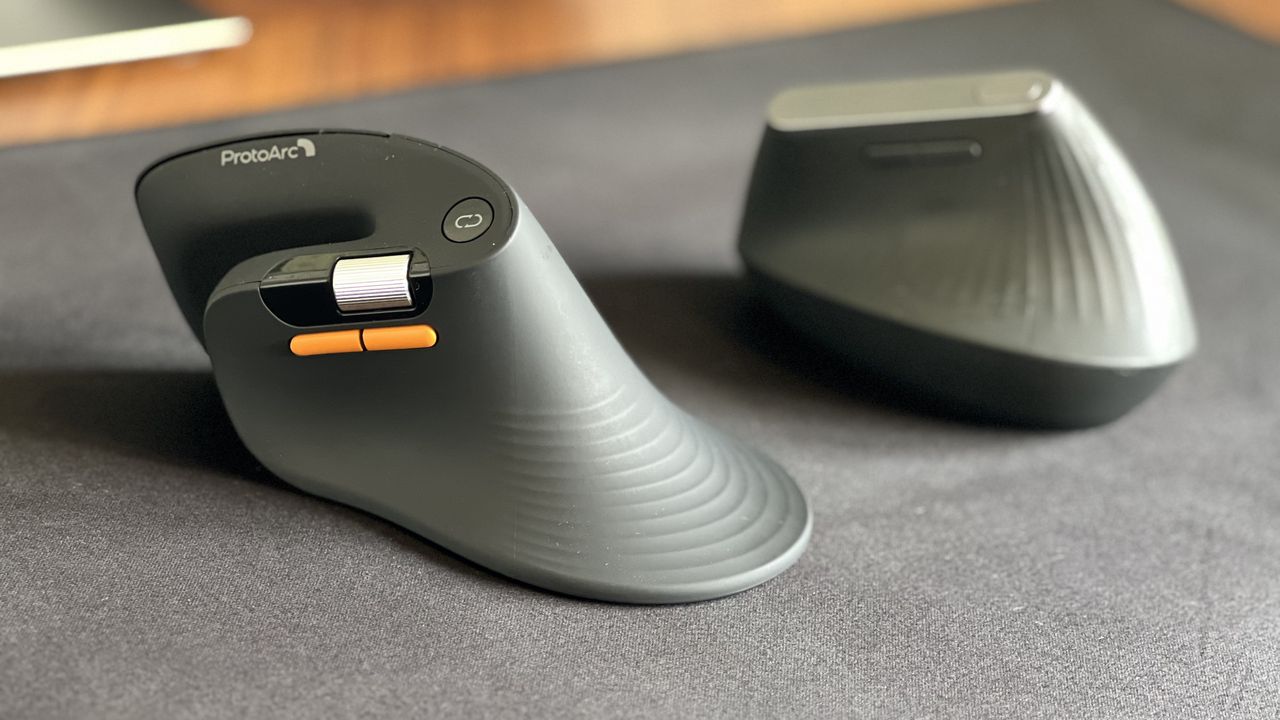
Side-by-side view of the ProtoArc EM11 Pro ergonomic mouse in the foreground with its orange side buttons and scroll wheel, next to the Logitech MX Vertical mouse sitting on a black desk mat.

Despite its low price, the ProtoArc EM11 Pro has features I miss when switching back to my Logitech MX Vertical.

❌