If you're looking for a laptop that's easy to carry without settling for weaker specs, LG's 'gram' range is still one of the strongest options around. To some, it's surprising to see LG in the category, but in the industry, they're still known for lightweight designs, built for traveling workers.With multiple models at Best Buy currently available across different price points before Black Friday, we've picked some standout LG Gram laptops that offer a balance of
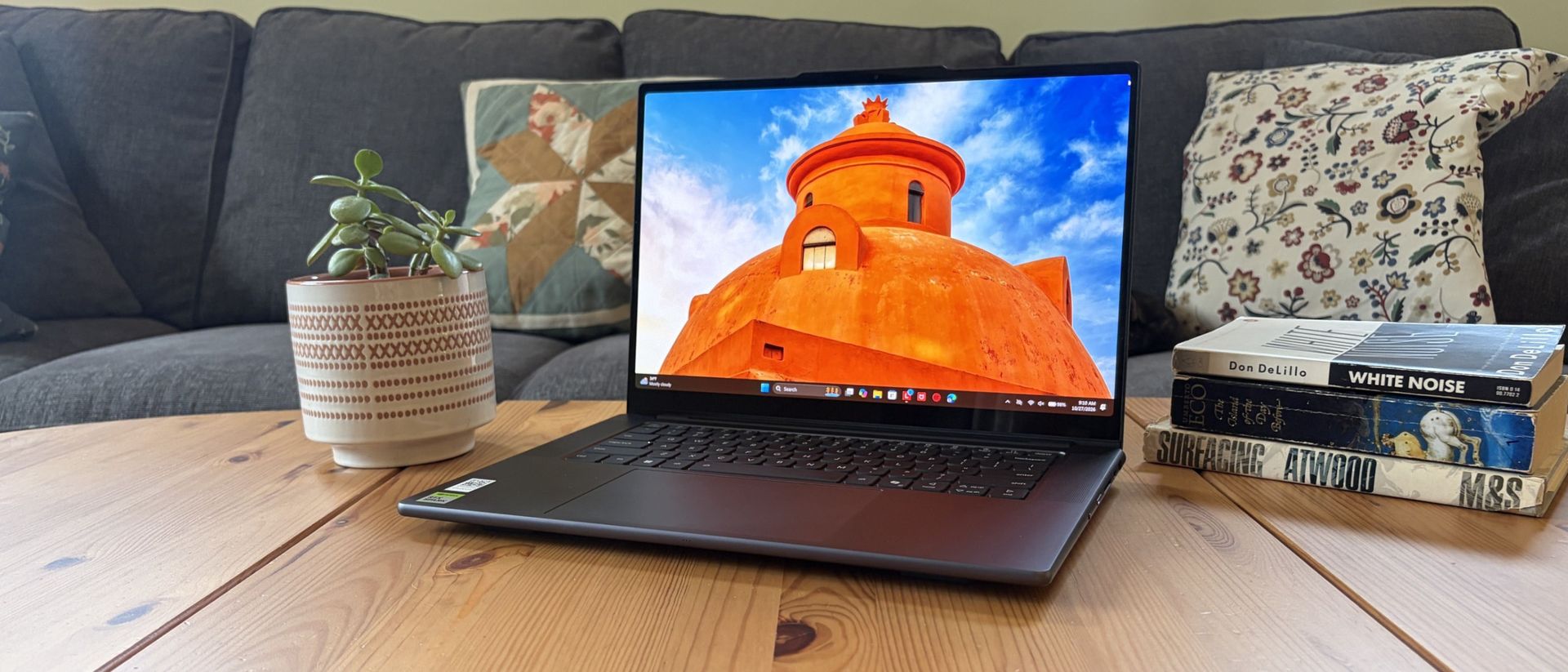
If you're looking for a laptop that's easy to carry without settling for weaker specs, LG's 'gram' range is still one of the strongest options around. To some, it's surprising to see LG in the category, but in the industry, they're still known for lightweight designs, built for traveling workers.
With multiple models at Best Buy currently available across different price points before Black Friday, we've picked some standout LG Gram laptops that offer a balance of value, features, and performance.
For example, the travel-friendly LG gram Max 17-inch touchscreen with an Intel Core Ultra 7 355 (Panther Lake) CPU, 16GB of RAM, and a 512GB SSD is currently discounted from $1,749.99 to $1,199.99 at Best Buy.
It features exceptional processing power for tackling heavy workloads, a 2.5K display that renders images with sharp details and vibrant colors, a large battery life of over 26 hours, and a thin 0.6-inch profile with a durable magnesium alloy chassis.
This LG Gram is armed with Intel's latest Panther Lake processor, capable of making mincemeat of digital documentation, spreadsheets, and other productivity tasks with ease, while packing a solid chassis and portable design.View Deal
This LG Gram 15-inch laptop has the best value for money in this roundup, as you will be getting a versatile workflow cruncher with a fast-performing Intel Core Ultra 5 CPU, an ultra-thin build, upgradeable SSD and RAM slots, and more features for under $600.View Deal
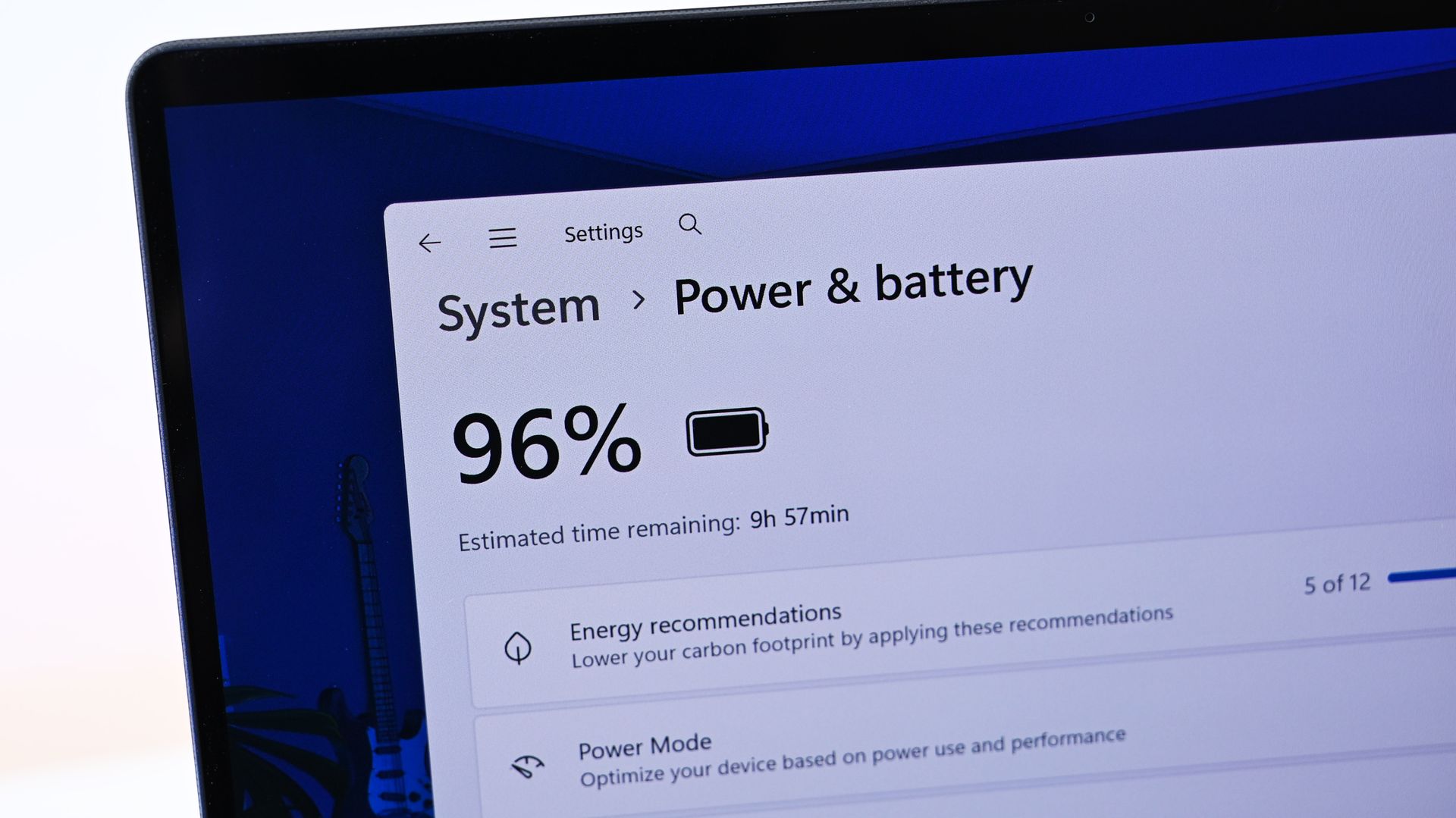
This 14-inch LG Gram laptop features a 61Wh battery that lasts all day at work, a built-in AI assistant to speed up menial tasks like summarizing text, and a FHD 1920x1080 IPS display for wider reading space.
This LG Gram laptop comes with a 15-inch Touchscreen with FHD resolution, an Intel Core Ultra 5 115U CPU with a dedicated NPU for processing AI tasks efficiently, and a generous selection of USB and M.2 SSD slots.View Deal
This laptop is the second most powerful one in this roundup, as it's equipped with an AMD Ryzen AI 7 445 CPU that helps it excel in AI-related tasks and a 1TB SSD for storing tons of vital data files.View Deal
How long will these deals last?
Best Buy's discounts on LG Gram laptops will last until November 14, 2026.
Is 8GB enough RAM for Windows?
In the past, we wouldn't normally recommend a laptop with 8GB RAM because it offers less-than-optimal responsiveness with Windows 11. However, we have recently tested Microsoft's latest 26H2 update to Windows 11, and we have discovered that it has improved the fresh-boot memory footprint (with no additional apps running) and common workload performance of 8GB RAM PCs.
While there still needs work when tackling heavy workloads, this 26H2 update has made 8GB RAM PCs and laptops much more viable for casual use or light workloads.
Should I wait for Black Friday for a better deal?
It depends on whether you're willing to wait until Black Friday for a bigger discount or if you're in need of a new laptop for work/casual use right now and don't have time to wait for a sweeter deal.
Join us on Reddit at r/WindowsCentral to share your insights and discuss our latest news, reviews, and more.
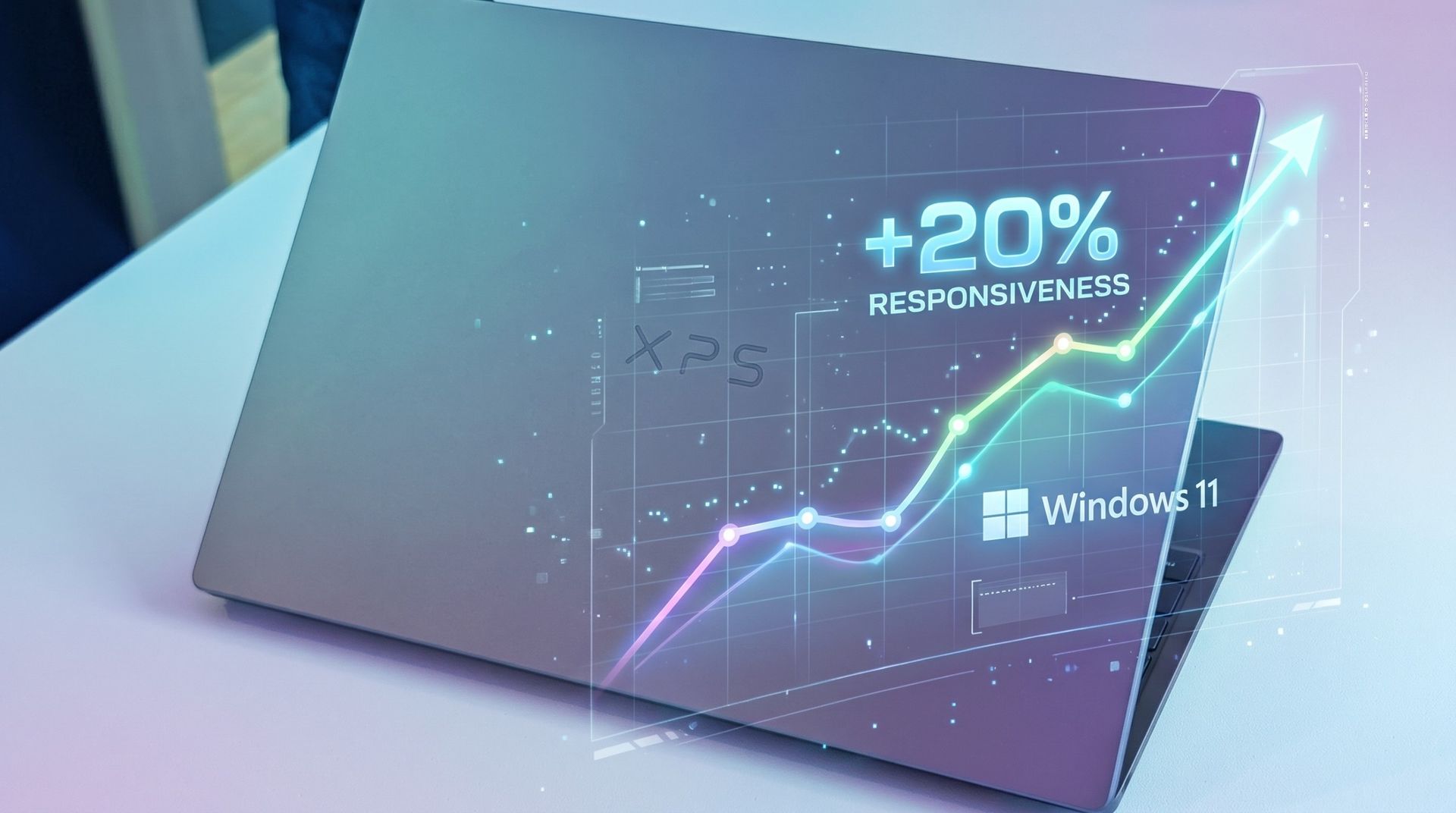
Microsoft has been busy at work reducing the amount of RAM that Windows 11 consumes, and it finally made an official statement today on the topic.As it turns out, the company has already been quietly shipping performance improvements in the latest Windows 11 updates, focusing on making systems with 8GB of RAM feel a lot more responsive.The result? Microsoft says Windows 11 is now about 20% more responsive on 8GB PCs compared to before this work started. The work
As it turns out, the company has already been quietly shipping performance improvements in the latest Windows 11 updates, focusing on making systems with 8GB of RAM feel a lot more responsive.
The result? Microsoft says Windows 11 is now about 20% more responsive on 8GB PCs compared to before this work started. The work also applies to systems with 4GB, 16GB, and beyond, with specific tuning for each amount.
This couldn't come at a better time. RAM and storage shortages (explained below) are driving up the cost of all PCs, and models with 8GB of RAM are being revived to lessen the burden on consumers.
Our favorite 8GB Windows laptops in November 2026
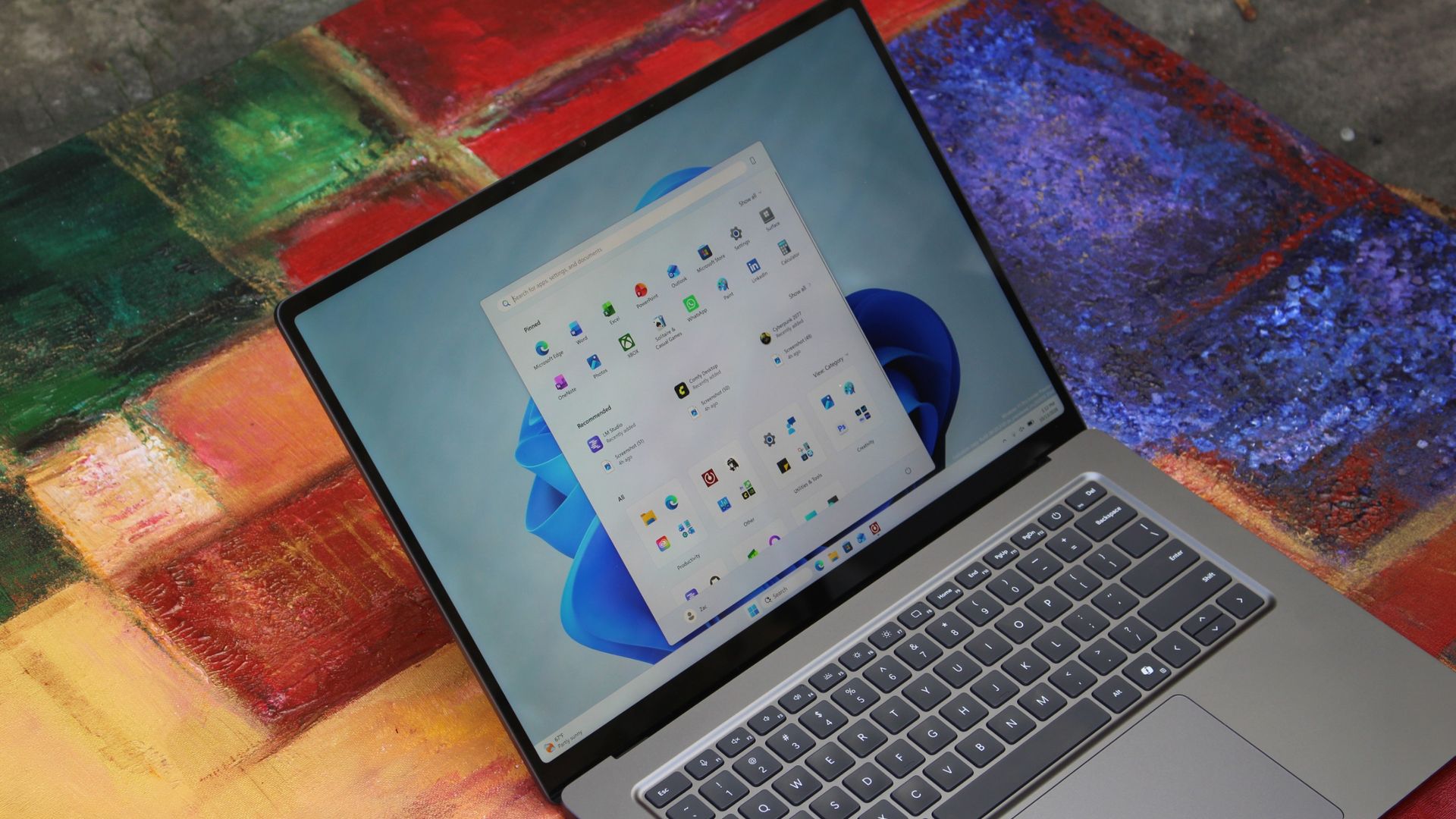
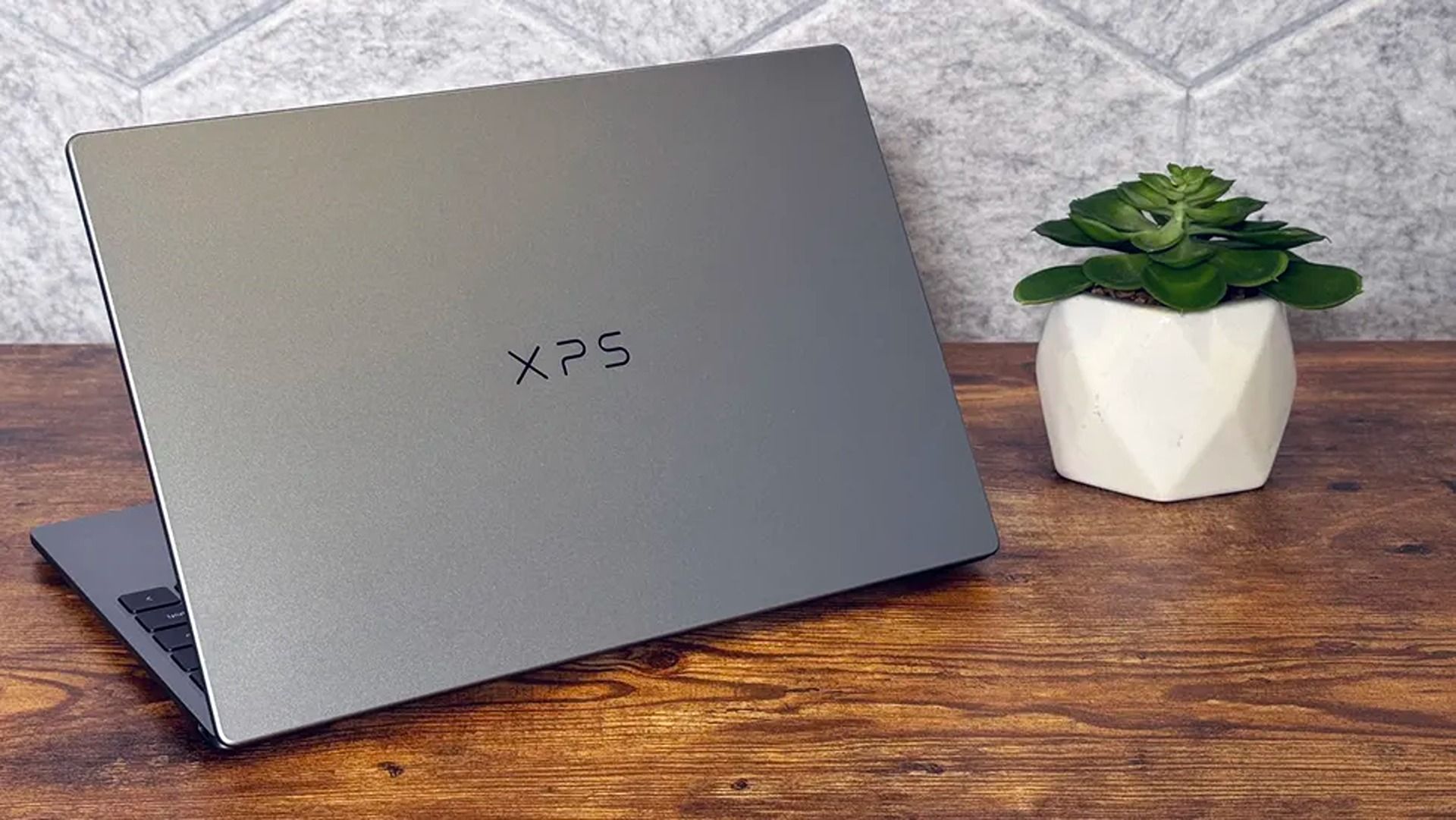
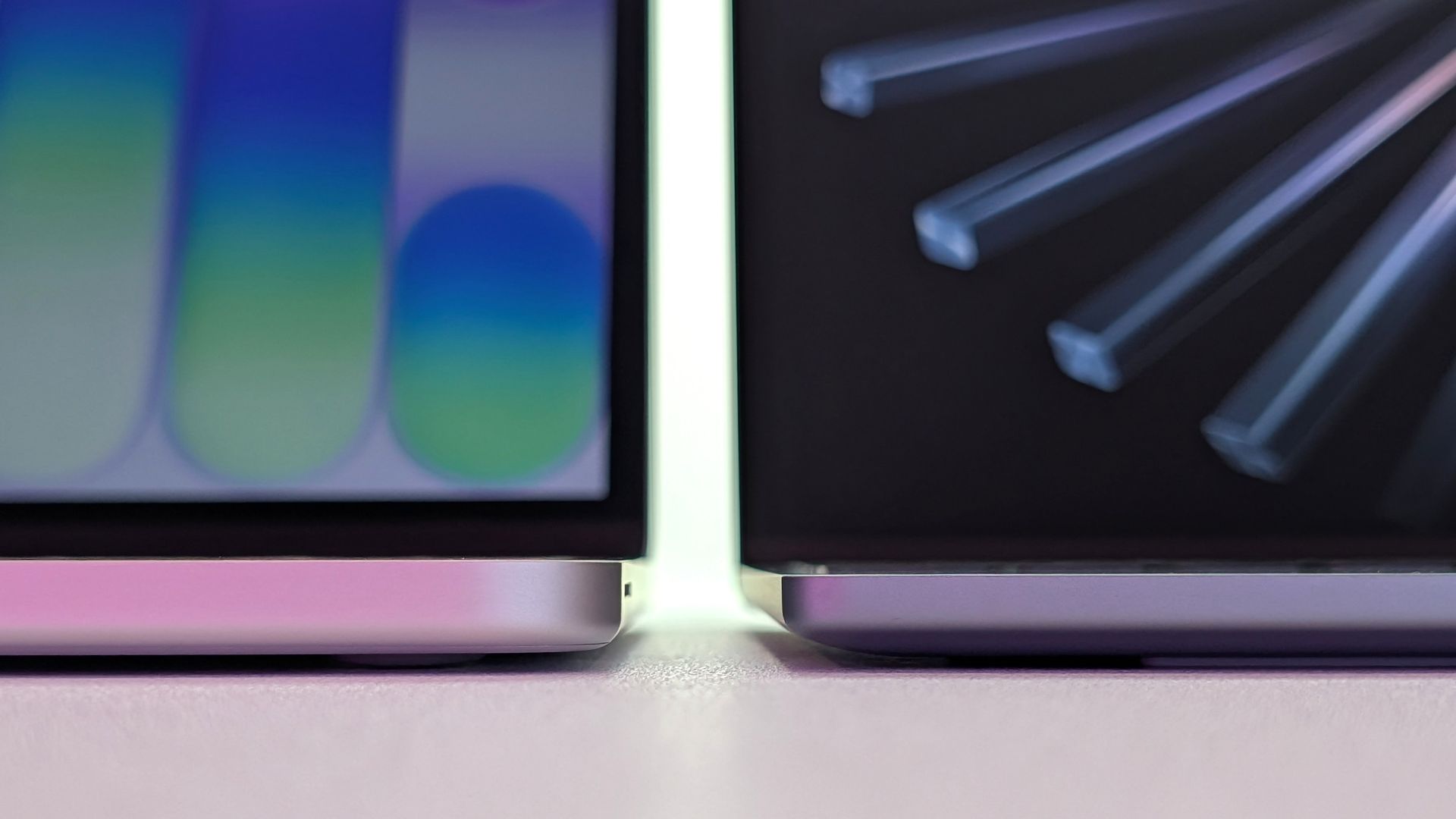
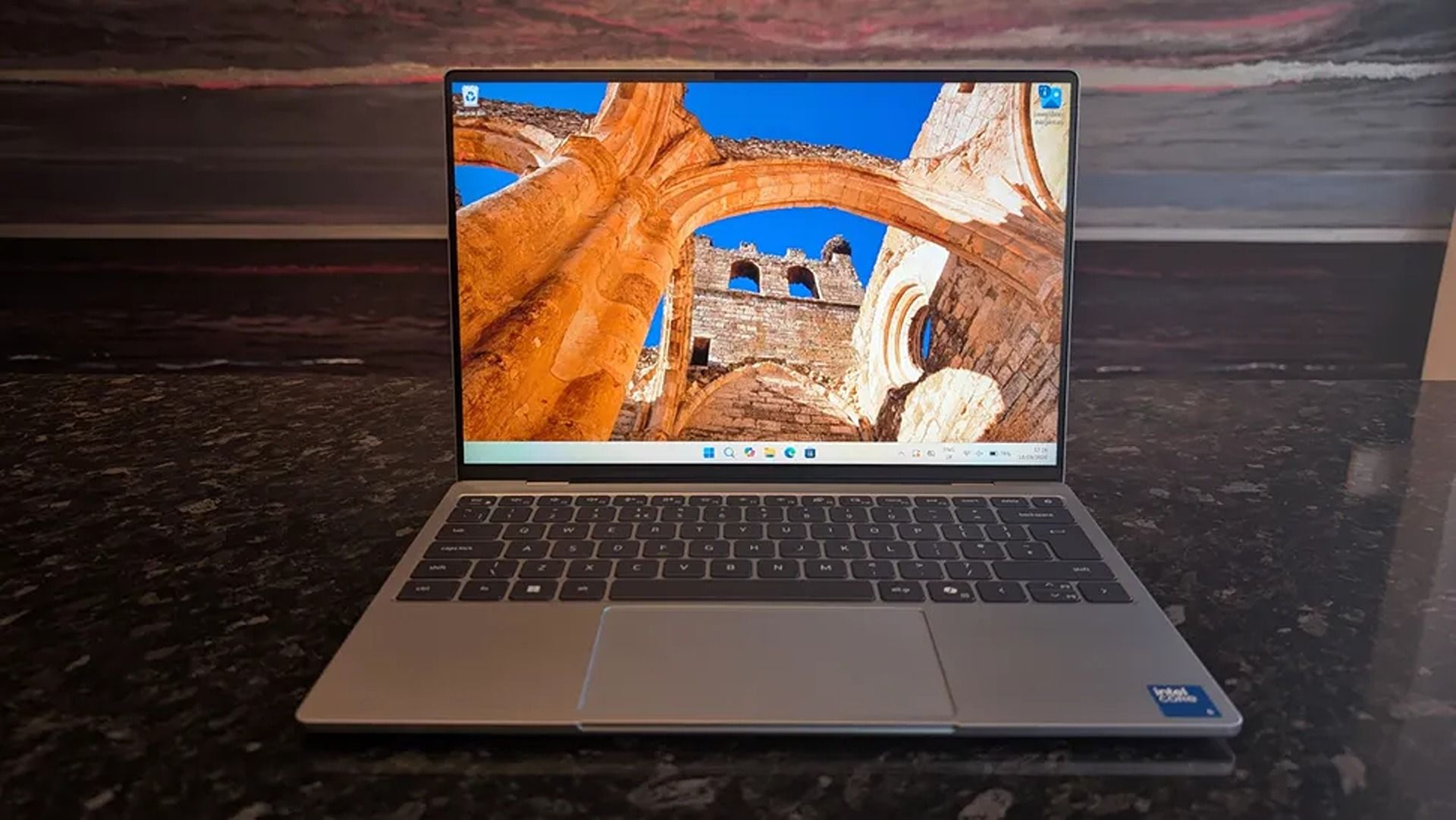
Dell's thinner XPS 13 (2026) on the right, Apple's thicker MacBook Neo on the left. (Image credit: Zac Bowden / Windows Central)
Companies like Dell, Acer, and HP have all recently launched 8GB laptops that cost somewhere around $699, with student and regular discounts frequently dropping those numbers lower.
If you were hesitant to shop for an 8GB laptop before, the recent Windows 11 updates should have you reconsidering, especially when prices are this reasonable. Here are my three favorite 8GB laptops right now.
Dell's awesome XPS 13 starts at $699.99 (or $599.99 if you're a student) and includes an Intel Core 5 320 CPU, 8GB of LPDDR5x RAM, a 256GB M.2 PCIe 4.0 NVMe SSD, and a 13.4-inch touch display with 2560x1600 resolution
It's a laptop with many premium features despite its price, including a higher-res 2560x1600 (QHD+) display with a 120Hz refresh rate, an IR camera for Windows Hello facial recognition, capable speakers, and a comfortable keyboard/touchpad combo.
It does not, however, offer USB-A or 3.5mm audio ports. Its display does not use an OLED panel; it uses IPS instead. And the $599 price is only available for students.
Still, $699 for everyone else is not bad at all in this economy, and most users should have no issues with the XPS 13.
HP's 14-inch OmniBook 5 is currently on sale for $599.99. It has an Intel Core 5 320 CPU, 8GB of LPDDR5x RAM, a 256GB M.2 PCIe 4.0 NVMe SSD, and a 14-inch OLED touch display with 1920x1200 resolution.
HP's OmniBook 5 14 comes with the same Intel Core 5 320 CPU as the other laptops in this roundup, so don't expect any major performance changes.
The OmniBook 5 includes an OLED panel for deeper contrast and more vivid color than IPS. The tradeoff is a lower 1920x1200 resolution and lower 60Hz refresh rate compared to the XPS 13.
HP's laptop also includes HDMI and 3.5mm audio ports alongside dual USB-C at 10Gbps. It's nice to have native video, but the lack of Thunderbolt is a letdown.
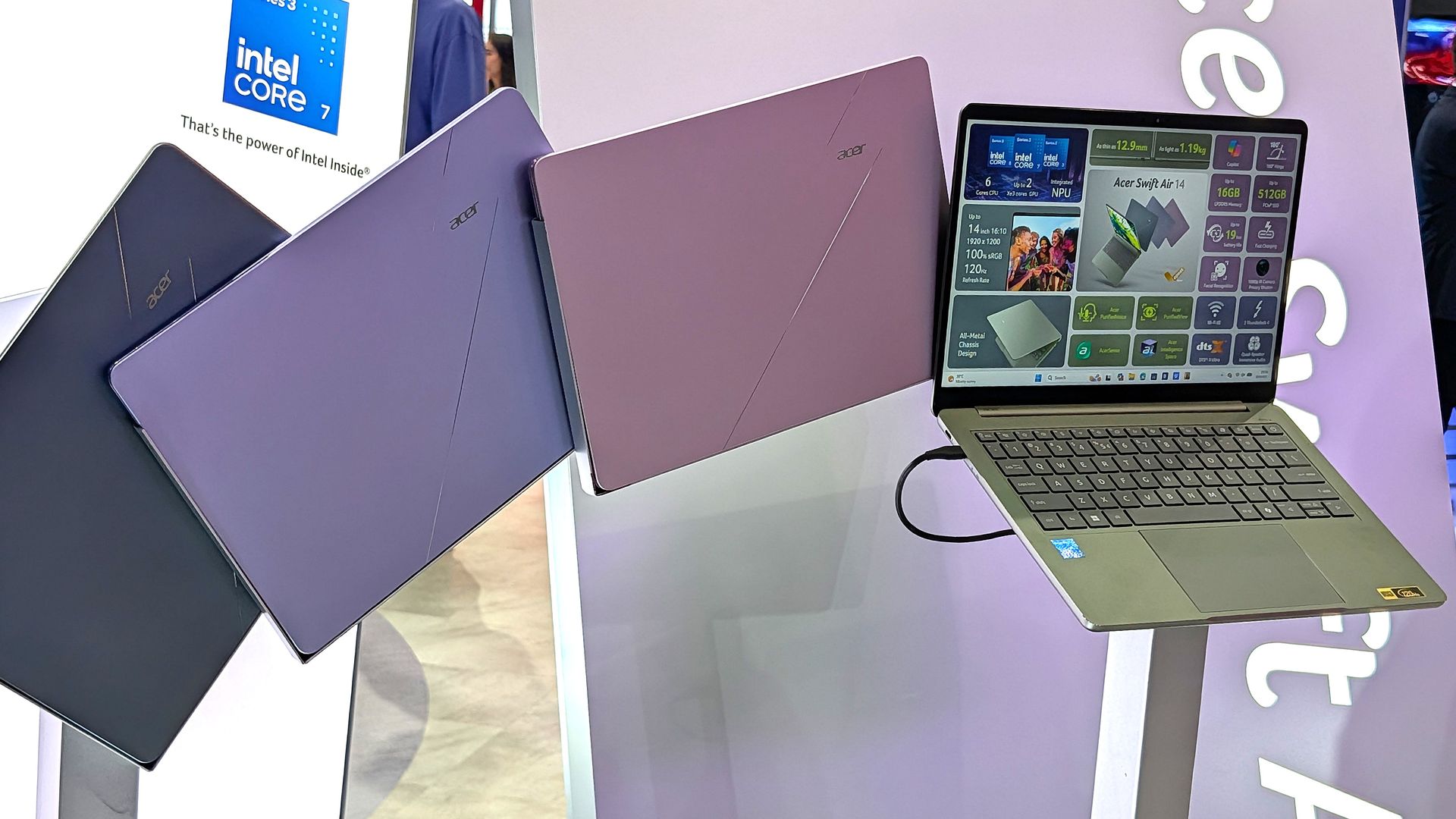
Acer's Swift Air 14 costs $699.99 and comes with an Intel Core 5 320 CPU, 8GB of LPDDR5x RAM, a 512GB M.2 PCIe 4.0 NVMe SSD, and a 14-inch non-touch display at 1920x1200.
Acer's Swift Air 14 immediately makes an argument for itself with twice as much storage (512GB) as the Dell and HP laptops. For those who prefer to store locally, this could be the deciding factor. However, it does drop down to PCIe 3.0 speeds.
Performance is largely the same thanks to it having the Intel Core 5 320 chip inside, with 8GB of LPDDR5x RAM.
The display hits a 1920x1200 resolution; it doesn't have touch, but it does hit a smoother 120Hz refresh rate. You're definitely giving up some screen quality to land that extra storage.
While the keyboard is great, the touchpad leaves something to be desired. Your experience may vary.
Why is Microsoft concerned with reducing Windows 11 RAM usage?
Acer's new Swift Air 14 is available in four different colors. (Image credit: Zac Bowden / Windows Central)
Sure, Windows 11 could always be more streamlined, but this big push for more RAM efficiency is also a result of the ongoing memory and storage crisis.
See, AI data centers are eating up many of the foundational components of PCs, making the consumer side far more expensive.
RAM in particular has exploded in price; the same 32GB kit of DDR5 I bought for my gaming PC a few years ago, for example, is roughly 600% more expensive today. Storage isn't much better.
This is forcing PC makers to reevaluate their product lineups, as many consumers can no longer afford PCs with 16GB or more of RAM.
Cutting RAM in half is a huge cost saver and won't likely stop anytime soon (the RAM crisis could last for years to come), so it's great to see Microsoft taking user complaints about Windows 11's responsiveness (or lack thereof) seriously.
Join us on Reddit at r/WindowsCentral to share your insights and discuss our latest news, reviews, and more.
TrendForce expects Apple to ship up to 1.5 million OLED touchscreen MacBook Pros in 2027 as premium pricing and Samsung Display's supply role shape adoption.
The post Apple’s $2,899 OLED MacBook Pro Could Ship 1.5 Million Units in 2027 appeared first on TechRepublic.
TrendForce expects Apple to ship up to 1.5 million OLED touchscreen MacBook Pros in 2027 as premium pricing and Samsung Display's supply role shape adoption.
November is finally here, which means it's time for an onslaught of early Black Friday discounts to give your favorite or most desirable laptops a much-needed price cut from all the rising costs caused by AI lately.One of these lucky devices is the Microsoft Surface Laptop 8, which is currently on sale for $1,249.99 at Amazon (was $1,699.99). This beauty is Microsoft's latest flagship laptop, equipped with a state-of-the-art Snapdragon X2 Elite CPU for improved p
November is finally here, which means it's time for an onslaught of early Black Friday discounts to give your favorite or most desirable laptops a much-needed price cut from all the rising costs caused by AI lately.
One of these lucky devices is the Microsoft Surface Laptop 8, which is currently on sale for $1,249.99 at Amazon (was $1,699.99).
This beauty is Microsoft's latest flagship laptop, equipped with a state-of-the-art Snapdragon X2 Elite CPU for improved performance, all-day battery life, and an exclusive new advanced haptics feature to give you improved feedback, just to name a few features.
The Surface Laptop 8 will blaze through productivity workloads with its Snapdragon X2 Elite CPU, 16GB RAM, and advanced haptics feedback.View Deal
Why buy this laptop?
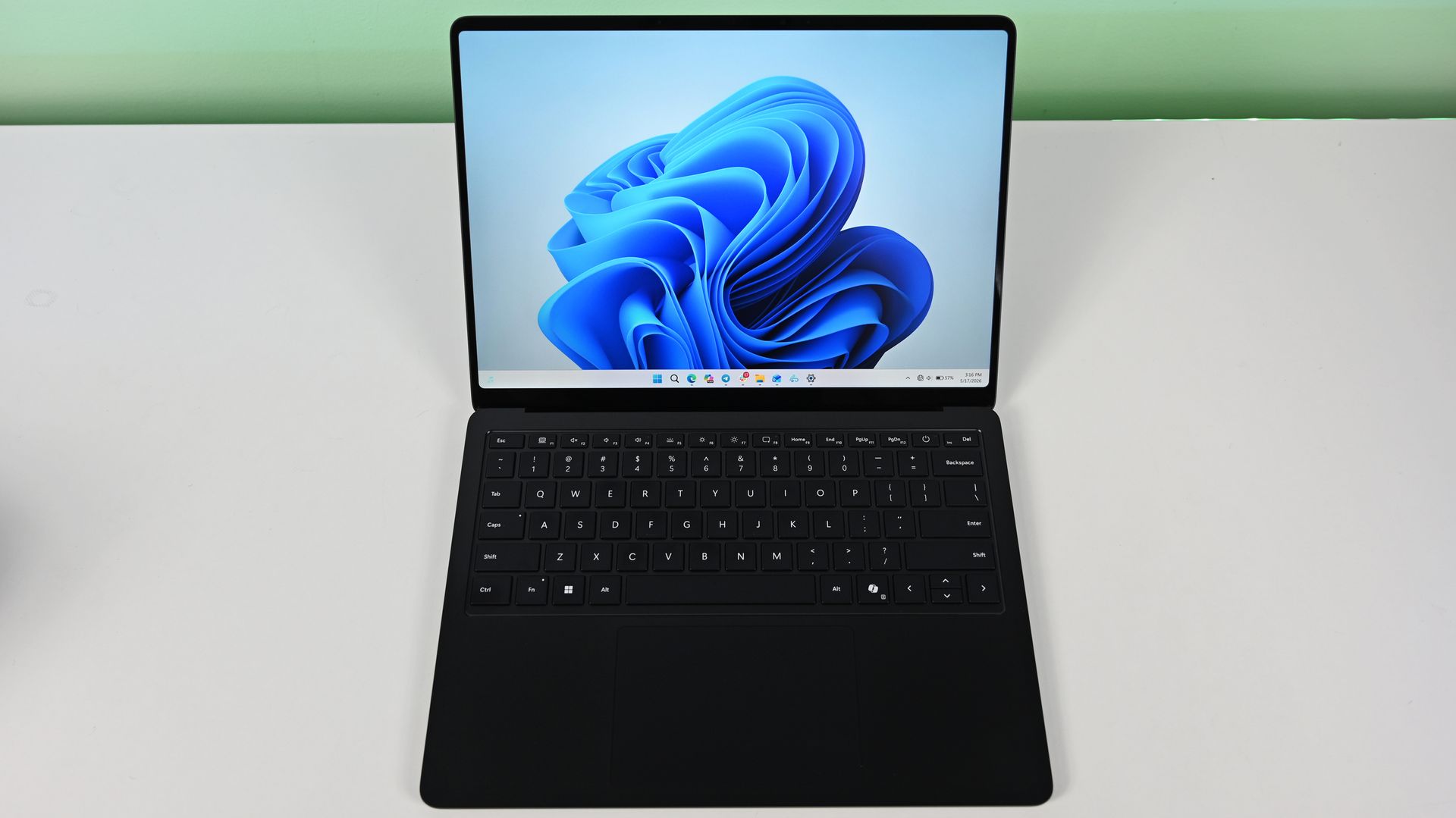
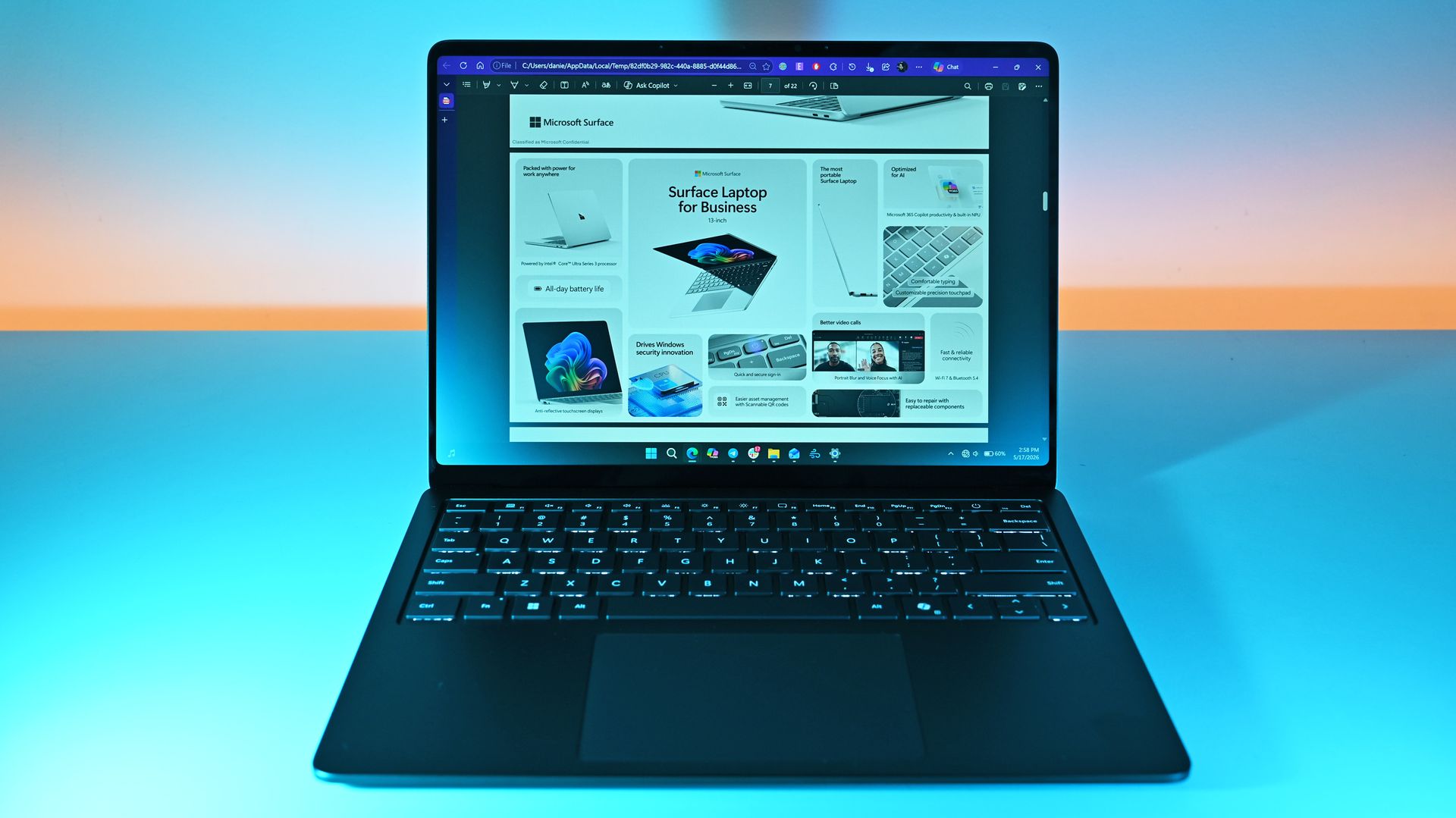
The Microsoft Surface 8 in action. (Image credit: Daniel Rubino)
The Microsoft Surface Laptop 8 is a highly dependable, fast, and durable laptop for IT users and students. This is because it comes equipped with a Snapdragon X2 Elite CPU paired with a turbocharged NPU with 80 TOPS, boosting the laptop's performance significantly when tackling mountains of productivity workloads while multitasking.
It also comes with a 13.8-inch LCD touchscreen display with 600 nits of brightness to fend off annoying daylight glare, Wi-Fi 7 compatibility for strong and stable wireless internet connections, and a massive battery life of 20 hours on a single charge.
On top of that, the Microsoft Surface Laptop 8 features an advanced haptic feedback system, which sends subtle vibrations when using its keyboard, stylus pen, or mouse when performing specific tasks like dragging files in File Explorer or rearranging app windows.
It's a small but enjoyable addition that makes this laptop more polished and responsive to use. Even our Editor-in-Chief Daniel Rubino praised this feature during his Surface Laptop 8 (Business Model) review when he said, "The new advanced haptic touchpad is a joy to use. It provides subtle tactile cues that confirm your actions."
Can I upgrade its RAM and SSD?
No, you can't upgrade the Microsoft Surface 8 laptop's RAM because it's permanently soldered to the motherboard. However, you can swap the SSD for a 1TB or 2TB unit if the default 512GB isn't enough.
Can I use it for gaming?
No, the Microsoft Surface 8 laptop isn't a good laptop for gaming because its integrated graphics and ARM architecture aren't enough to run graphically demanding games or games built with heavy anti-cheat systems without chugging its performance.
Should I wait for Black Friday for a better deal?
It depends on whether you're desperate for a new casual/workhorse laptop and can't wait for a better deal, or if you're willing to wait until Black Friday for a greater discount. Either way, just know that it's a good price for its specs, especially since this is the lowest price drop the Microsoft Surface 8 laptop has had yet (according to CamelCamelCamel).
Join us on Reddit at r/WindowsCentral to share your insights and discuss our latest news, reviews, and more.
The new Acer Predator Atlas 8 gaming handheld, featuring Intel's latest G Series chips, finally went up for pre-sale in the US on October 23, with full launch slated for November 1.This is the new handheld I tested at Computex this year alongside the MSI Claw 8 EX AI+. Both are premium devices landing in a market turned upside down on account of RAM and storage shortages. MSI's new Claw with Intel's Arc G3 Extreme chip inside, for example, launched at $1,799.99.H
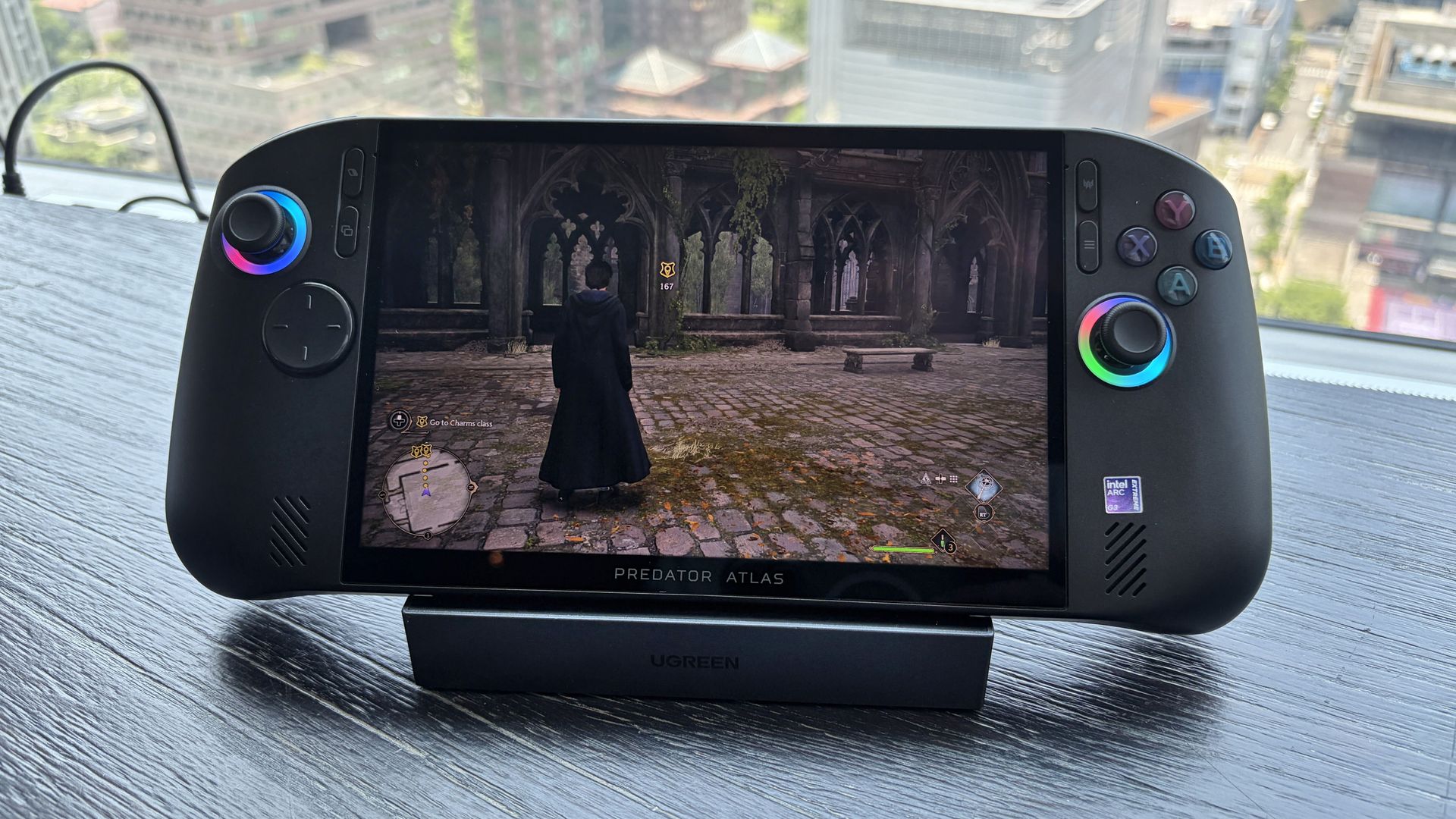
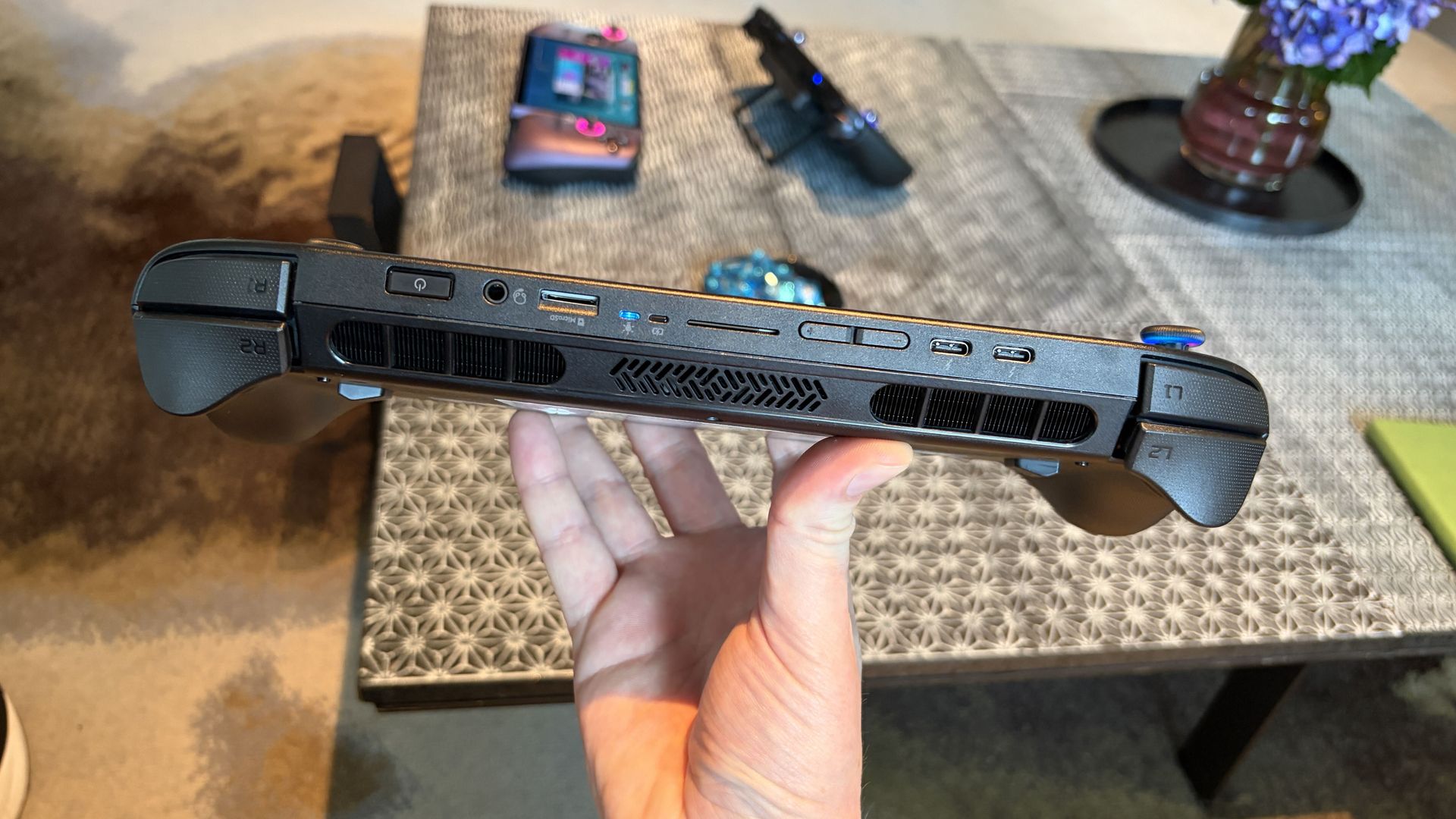
The new Acer Predator Atlas 8 gaming handheld, featuring Intel's latest G Series chips, finally went up for pre-sale in the US on October 23, with full launch slated for November 1.
Here's where Acer's new handheld packing the same Intel G3 Extreme chip offers a big surprise for shoppers. It's priced at $1,299.99 at Best Buy. Or at least it was, for the Best Buy page preorder has since been removed. I'm not exactly sure why — maybe Acer is reconsidering the post-launch price now that preorders are in.
In any case, seeing a handheld with the same powerful mobile chip inside as the MSI Claw 8 EX AI+ launch for $500 less should be on every gamer's radar. But how is Acer undercutting the competition by so much?
How does Acer charge $500 less for its Intel Arc G3 Extreme gaming handheld?
Intel's new mobile chips are designed specifically for handhelds, delivering considerably improved performance and efficiency compared to the AMD Ryzen Z2 Extreme chips so common to the form factor.
On paper, the Acer and MSI devices are quite similar. Both feature the flagship Intel Arc G3 Extreme chip, with 14 cores, a 4.7GHz top clock speed, and a faster Arc B390 integrated GPU compared to the standard Arc G3 chip.
Both devices use an 8-inch IPS display with 1920x1200 resolution, 120Hz variable refresh rate, 500 nits brightness, and 100% sRGB color reproduction.
Both have Thunderbolt 4 ports and Wi-Fi 7. Both have Hall Effect triggers and joysticks. Both use an 80Wh battery. So what's the deal?
Based on my (limited) time with the Predator Atlas 8, it looks like the big price difference comes down to build quality and configuration specs.
Let me get the biggest difference out of the way first: the $1,799.99 MSI Claw 8 EX AI+ ships with 32GB of RAM and a 1TB SSD. The Acer Predator Atlas 8 pares that back to 24GB of RAM and a 512GB SSD.
Considering the price of storage and memory these days, this difference likely helps make up a huge chunk of the difference.
Otherwise, as I noted in my Intel Arc G3 Extreme hands-on piece, Acer's device has triggers that don't feel quite as snappy as MSI. The reverse can be said for the joysticks, where I believe Acer has MSI beat.
Audio from both devices was good, and although Acer's Predator Atlas 8 is smaller and ultimately more portable, I found both handhelds to be comfortable to hold.
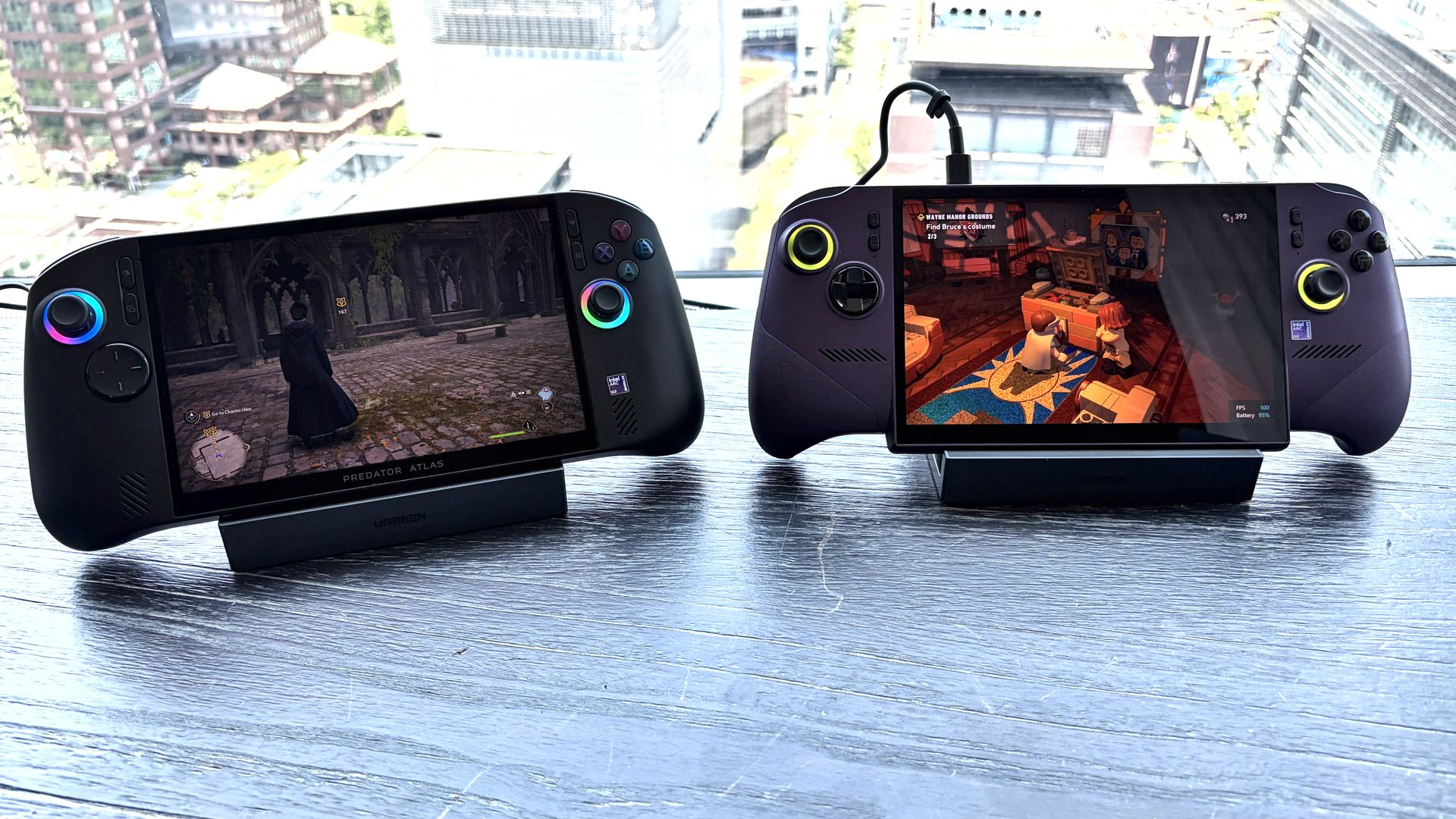
In terms of performance, the Predator Atlas 8 was running demanding games like Hogwarts Legacy and LEGO Batman: Legacy of the Dark Knight at a cool, smooth clip.
I'll have to do more testing once Acer's handheld actually arrives here for testing, but I don't expect it to perform any worse than MSI's new Claw.
Bottom line? It's the disparity in RAM and SSD configurations at launch that's helping keep Acer's gaming handheld at a much more reasonable price.
Is Acer's $1,299.99 Predator Atlas 8 actually cheap?
The Predator Atlas 8 feels good to hold and features many similar high-end features as the MSI Claw 8 EX AI+. (Image credit: Future)
That's not quite the case for Acer's Predator Atlas 8, especially with console prices on the rise, but that doesn't make it affordable.
Keep in mind that the Steam Deck, which kicked off the gaming handheld craze, launched at just $399 in 2022.
No, the Steam Deck isn't nearly as powerful as the new Arc G3 devices, but it was priced to sell. Is Acer's Predator Atlas 8 affordable relative to today's overall market? Absolutely.
As mentioned, the Predator Atlas 8 Best Buy preorder page is down at the time of writing this piece. Check back soon, especially after November 1, when the handheld actually launches, to see if prices have changed.
Join us on Reddit at r/WindowsCentral to share your insights and discuss our latest news, reviews, and more.
Not everyone needs a premium Windows laptop with flagship performance. Sometimes, all it takes is a PC to handle email, Office apps, web browsing, and video calls with strong battery life and a crisp display to get the job done.Some modern mid-range laptops have become a tougher sell as prices continue to climb from the ongoing memory crisis. Thankfully, Amazon's time-limited deal has dropped HP's OmniBook 5 laptop to $789.99 after its price has fluctuated over t
Not everyone needs a premium Windows laptop with flagship performance. Sometimes, all it takes is a PC to handle email, Office apps, web browsing, and video calls with strong battery life and a crisp display to get the job done.
Some modern mid-range laptops have become a tougher sell as prices continue to climb from the ongoing memory crisis. Thankfully, Amazon's time-limited deal has dropped HP's OmniBook 5 laptop to $789.99 after its price has fluctuated over the past year. While it isn't a lowest-ever drop, it's certainly a fairer price.
The HP OmniBook 5 is a commendable laptop for everyday and work-heavy use with its 16-inch 2K OLED display, Snapdragon X CPU, 16GB of RAM, 512GB SSD, and Qualcomm Wi-Fi 6E and Bluetooth 5.3 connectivity.View Deal
Why buy this laptop?
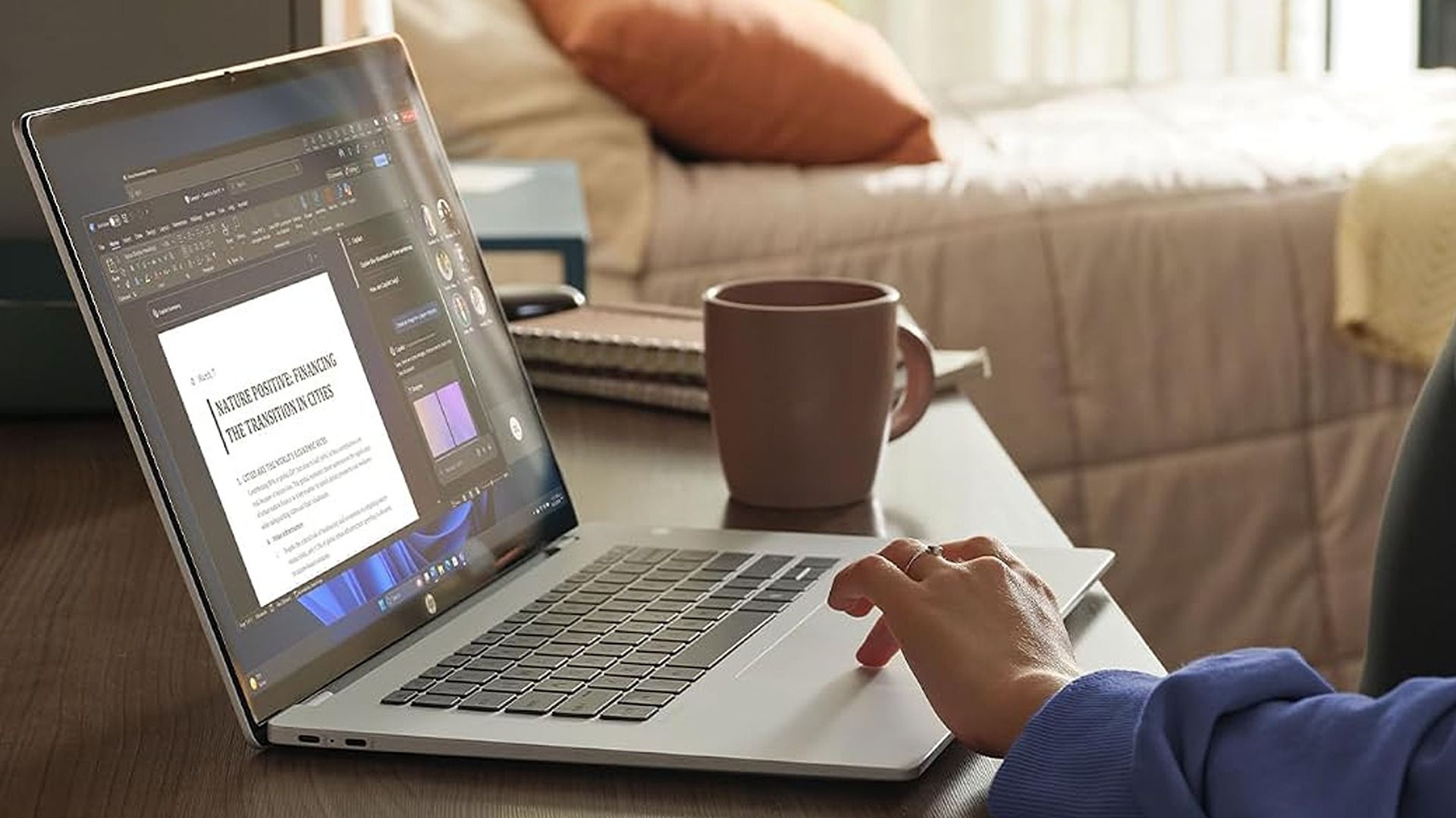
Spec highlights for the HP OmniBook 5 16-inch laptop. (Image credit: HP)
This laptop features Qualcomm's Snapdragon X processor and 16GB of RAM. Pair that with an NPU capable of 45 TOPS, and the HP OmniBook 5 can handle web browsing, mid-level productivity tasks like typing reports, and local AI-empowered tasks.
It also features a 512GB SSD to store data, a thin design that's able to keep itself cool, a 2K OLED display capable of rendering images with sharp images and vibrant colors to give your work greater clarity, and best of all, a massive battery life of up to 34 hours and 45 minutes before needing a recharge.
So if you need a laptop that will last you all day at the office and doesn't require heavy-duty engineering, the HP OmniBook 5 should be on your list for your next choice.
Can I upgrade its RAM?
No, you can't upgrade the HP OmniBook 5 16-inch laptop's RAM as it's soldered in place.
Can I run everyday apps on it?
Mainstream apps like Microsoft Office, Google Chrome, and Zoom will run on the Windows on ARM-based HP OmniBook 5 with no issues. However, advanced Adobe apps like Premiere Pro and After Effects, legacy printer drivers, and older, niche enterprise software or corporate-specific VPN clients may need extra effort.
Should I wait for Black Friday for a better deal?
It depends on whether you're willing to wait until Black Friday for a bigger discount or if you're in need of a new laptop for work/casual use right now and don't have time to wait for a killer deal. Nevertheless, this is a fair price for its specs.
Join us on Reddit at r/WindowsCentral to share your insights and discuss our latest news, reviews, and more.
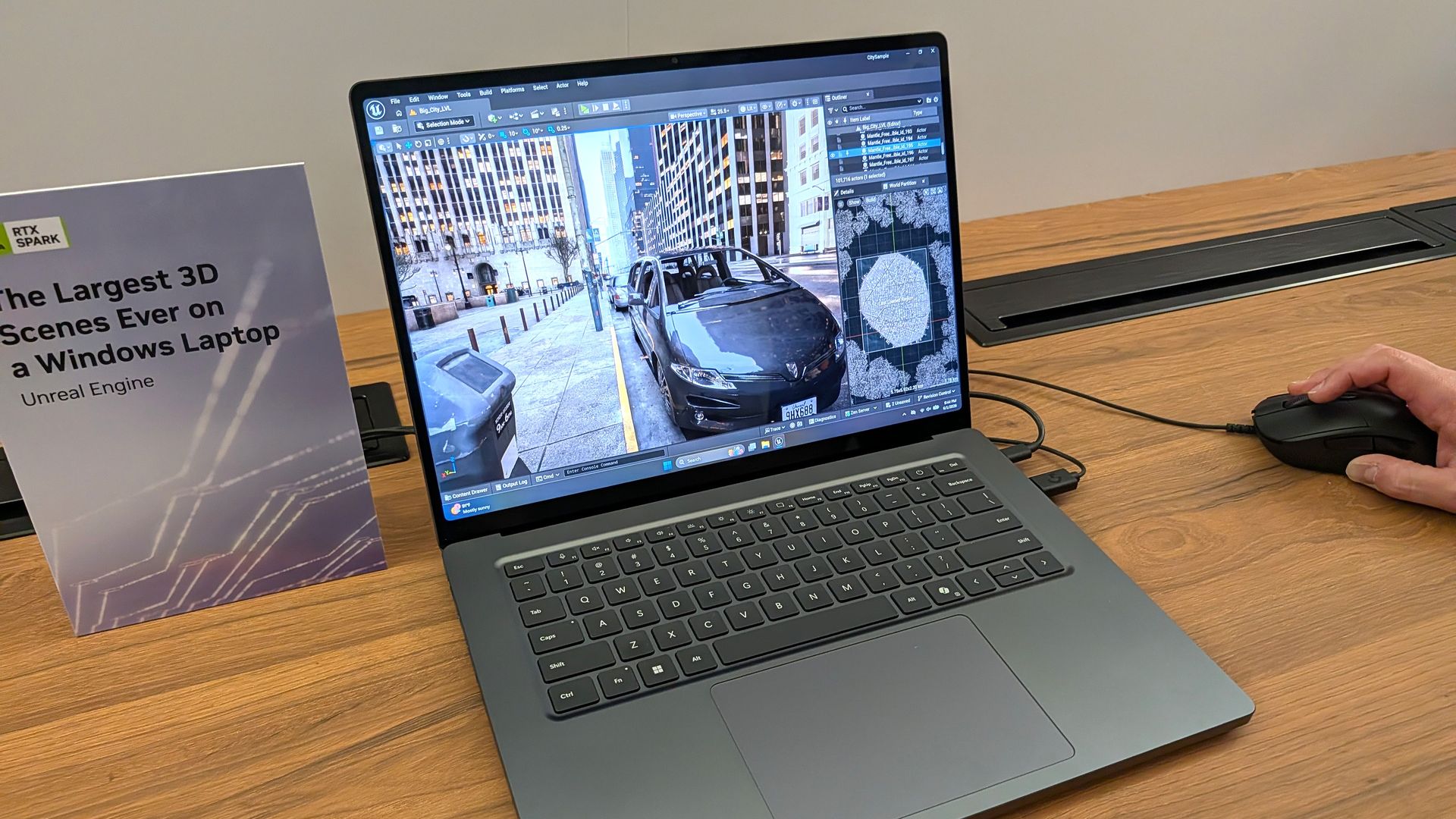
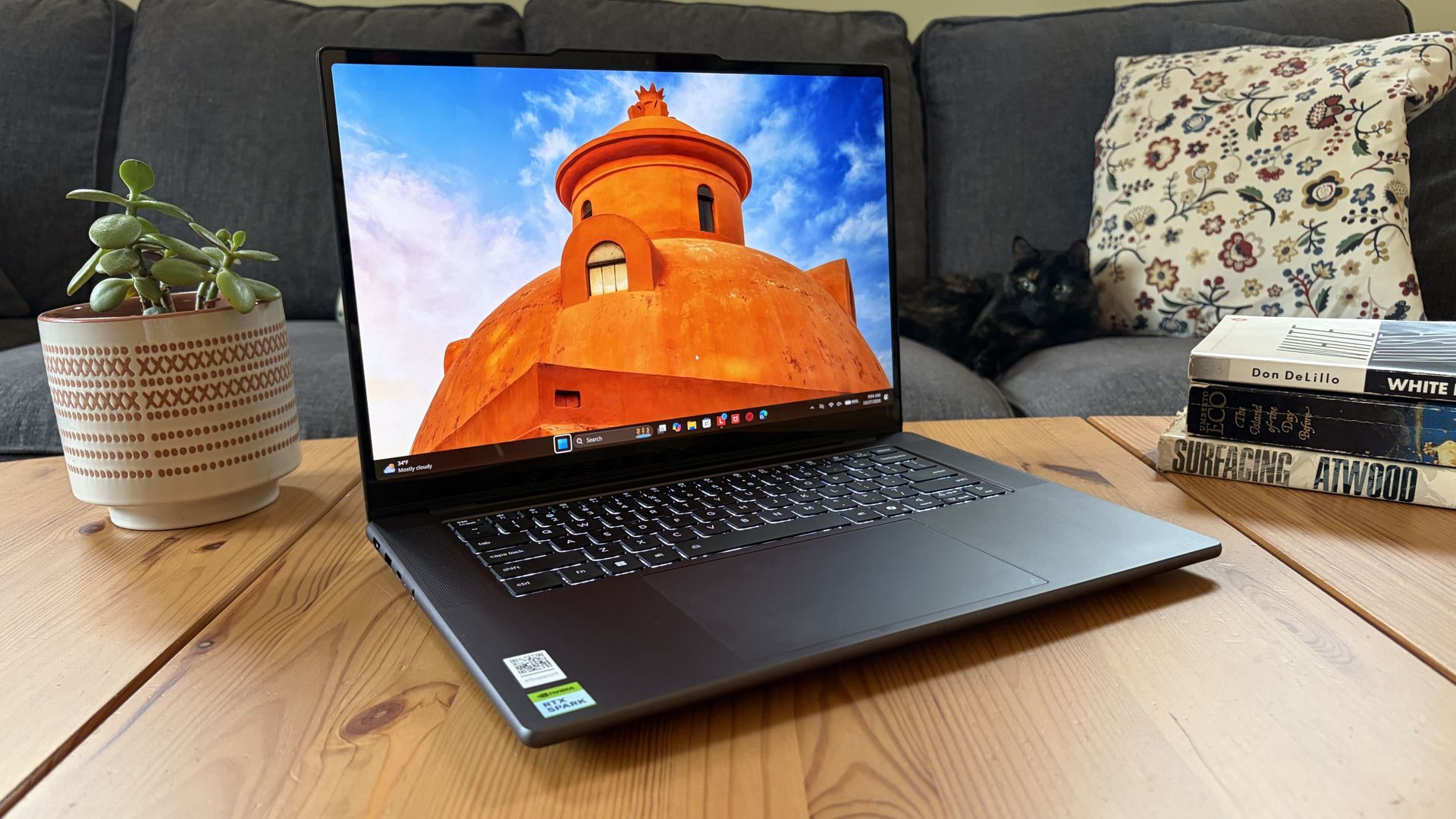
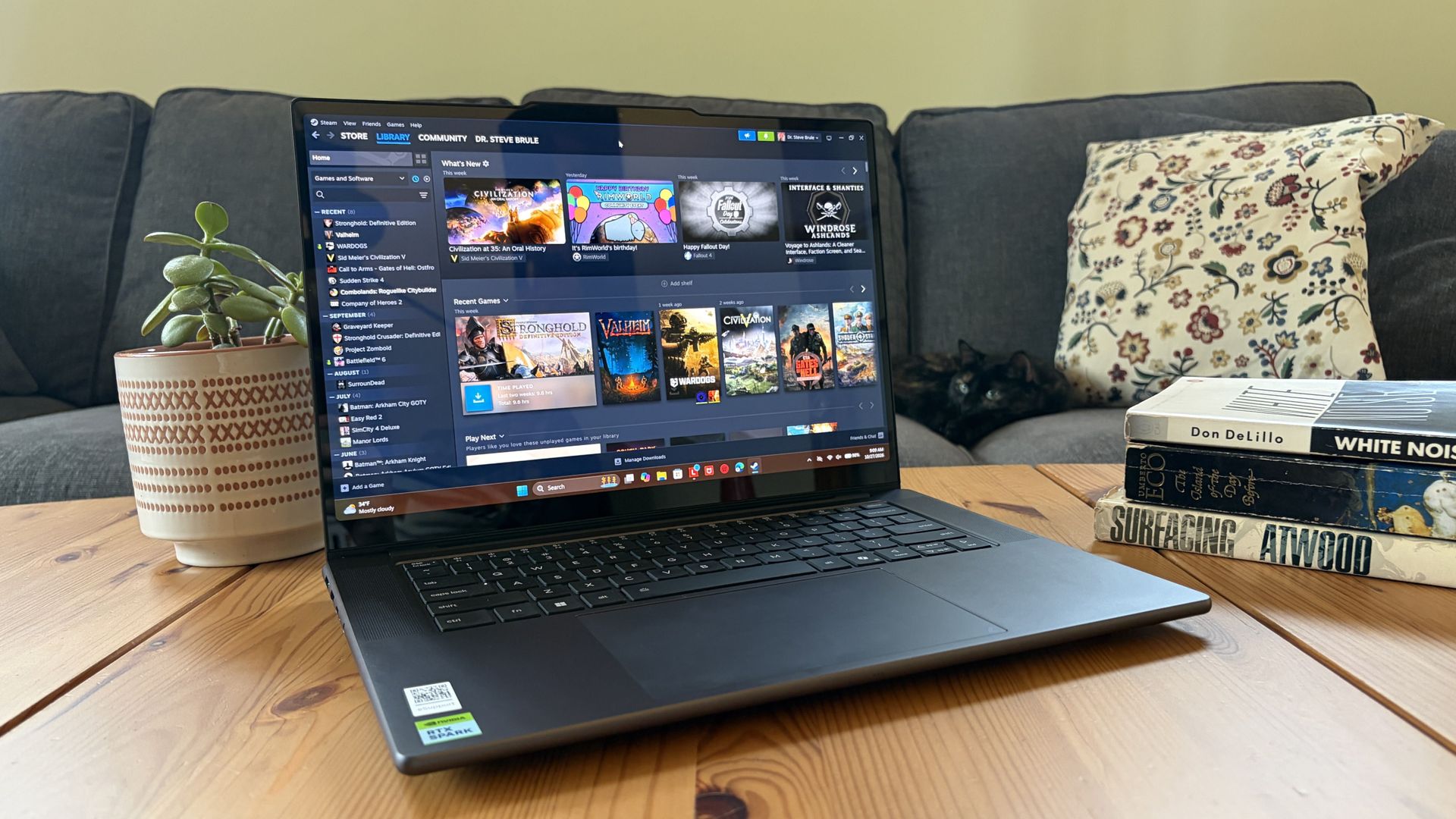
Lenovo's Pro 9n landed on my desk roughly three weeks ago, and it's been my daily work PC since then. It's also been my gaming handheld replacement, my home base for local AI testing, my sketchpad to practice digital drawing, and my entertainment hub. This pricey Lenovo Pro 9n isn't for everyone despite its broad versatility. That's true about any of the new RTX Spark laptops. I'm looking to see how Lenovo's offering differs from the others — including the Surfac
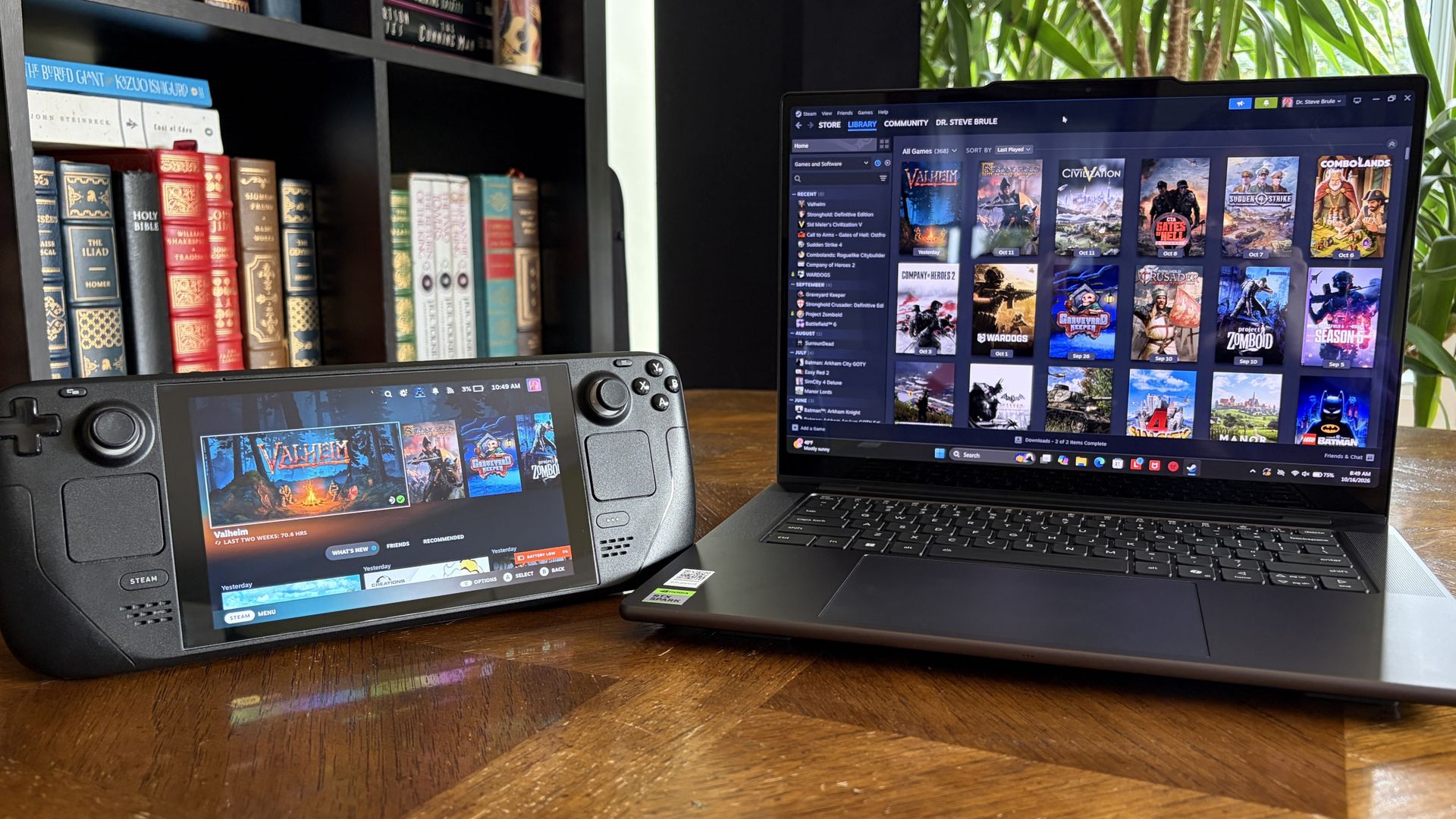
It's also been my gaming handheld replacement, my home base for local AI testing, my sketchpad to practice digital drawing, and my entertainment hub.
This pricey Lenovo Pro 9n isn't for everyone despite its broad versatility. That's true about any of the new RTX Spark laptops.
I'm looking to see how Lenovo's offering differs from the others — including the Surface Laptop Ultra and ASUS ProArt P16 we reviewed — in terms of features, design, and performance.
Lenovo sent Windows Central a review unit on loan for testing. It had no input, nor saw the contents of this review, prior to publication.
Lenovo Pro 9n: Price and specifications
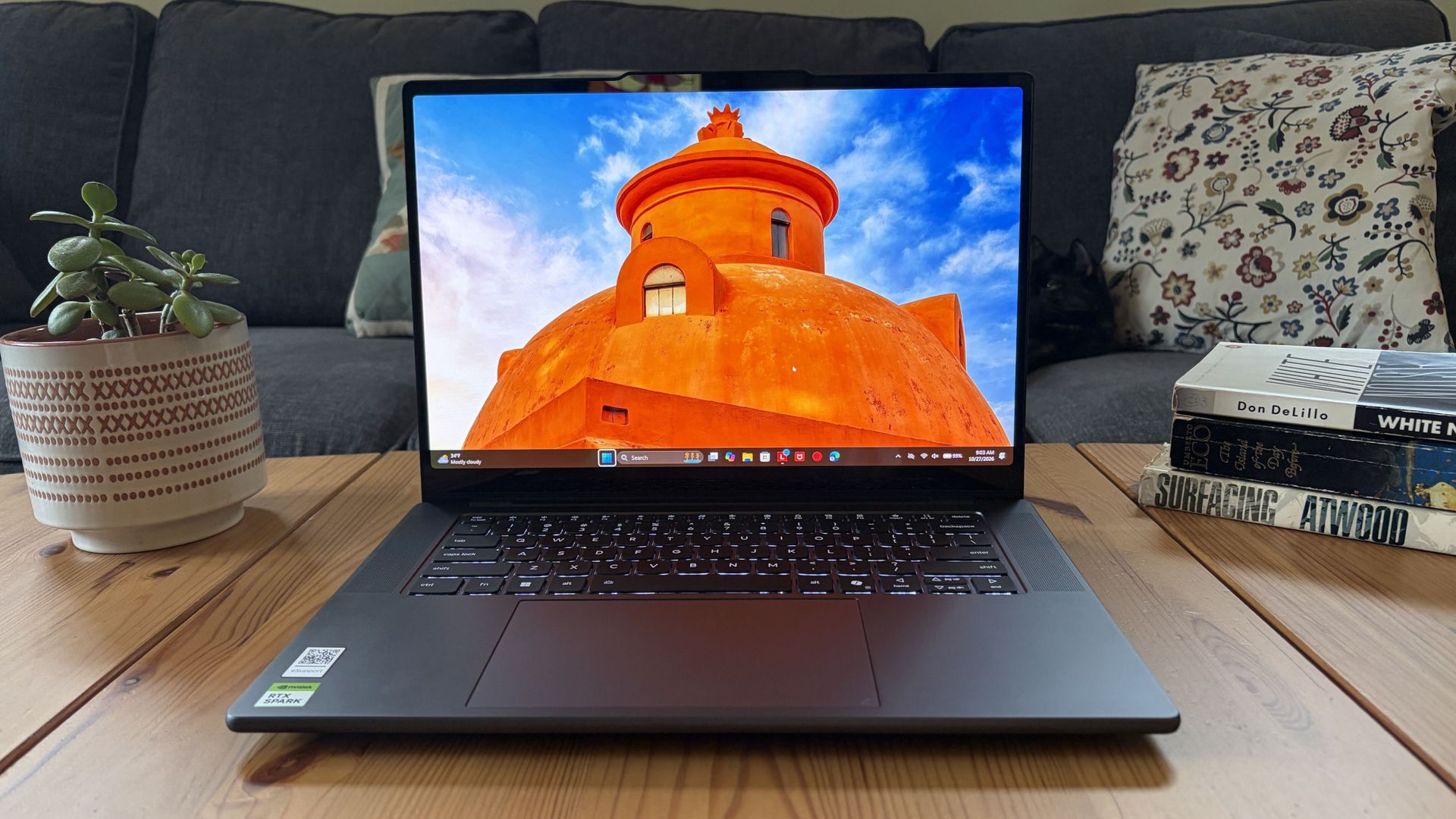
You'd never know the level of power contained within this sleek chassis. (Image credit: Future)
Lenovo's Pro 9n starts at $2,999.99, putting it near the middle of the RTX Spark lineup.
For this price, you get an 18-core NVIDIA N1X CPU, integrated RTX Blackwell GPU with 5,120 cores, 32GB of LPDDR5x unified RAM, a 512GB M.2PCIe 4.0 NVMe SSD, and a 15.3-inch OLED touch display at a 2560x1600 resolution.
Lenovo offers configuration options for CPU, RAM, and storage. The top spec with a 20-core N1X CPU, 6144-core GPU, 128GB RAM, and 2TB PCIe 5.0 SSD balloons to $6,099.99, with several stops along the way.
13.66 x 9.53 x 0.66 inches (347mm x 242mm x 16.7mm)
Weight
From 3.64 pounds (1.65kg)
New designs and updated features for the RTX Spark platform
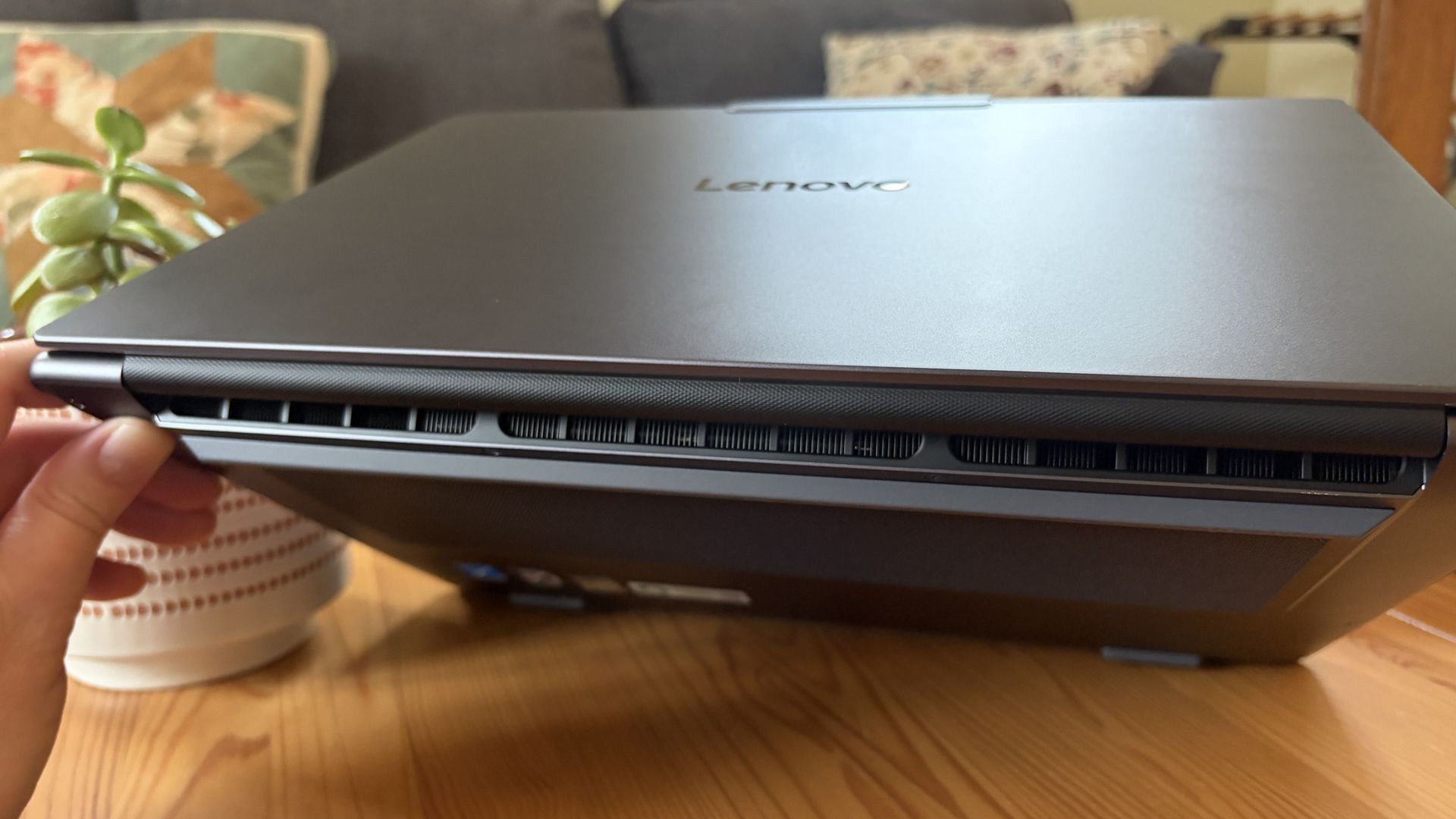
A look at the rear exhaust behind the lid hinge. (Image credit: Future)
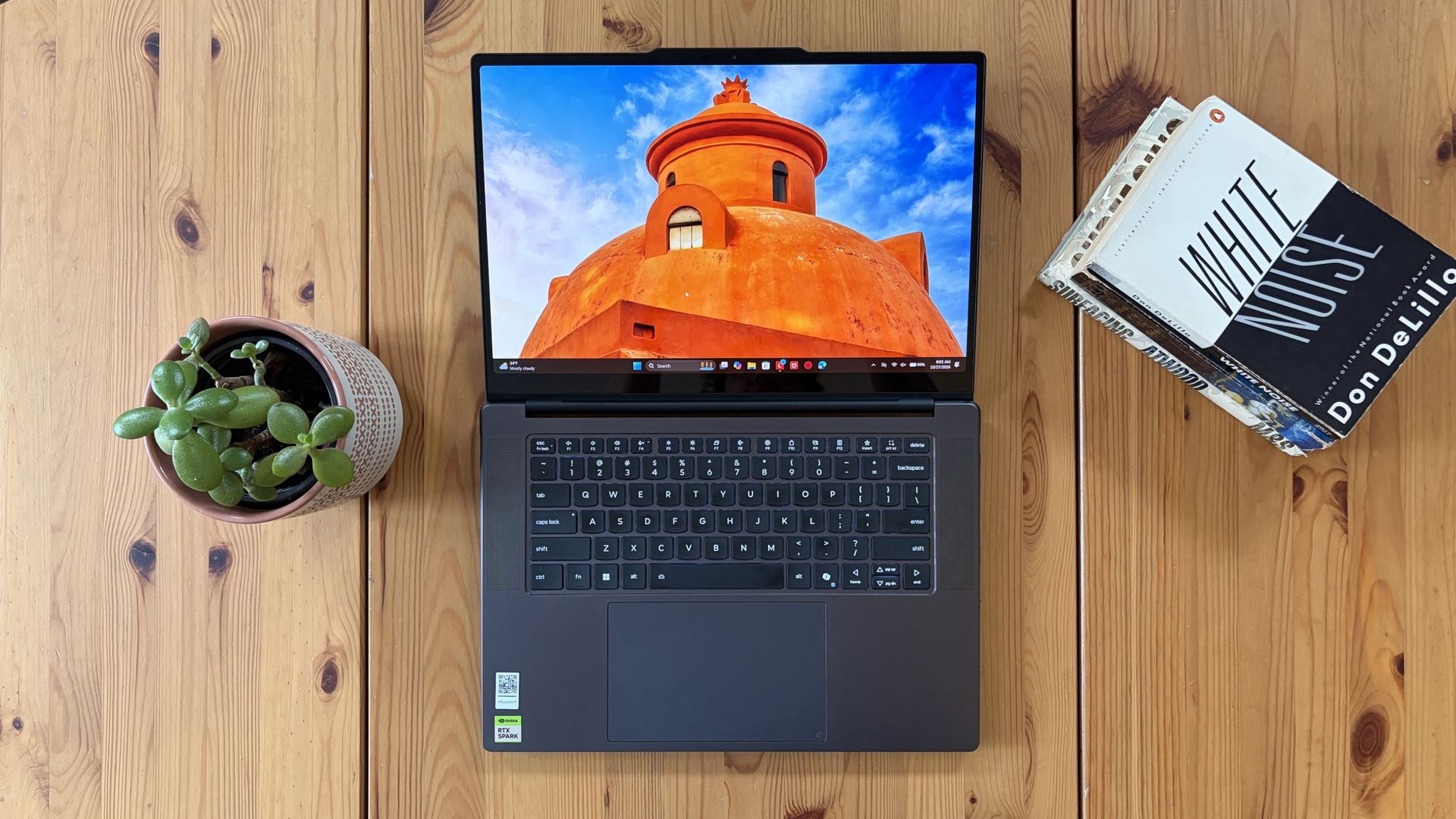
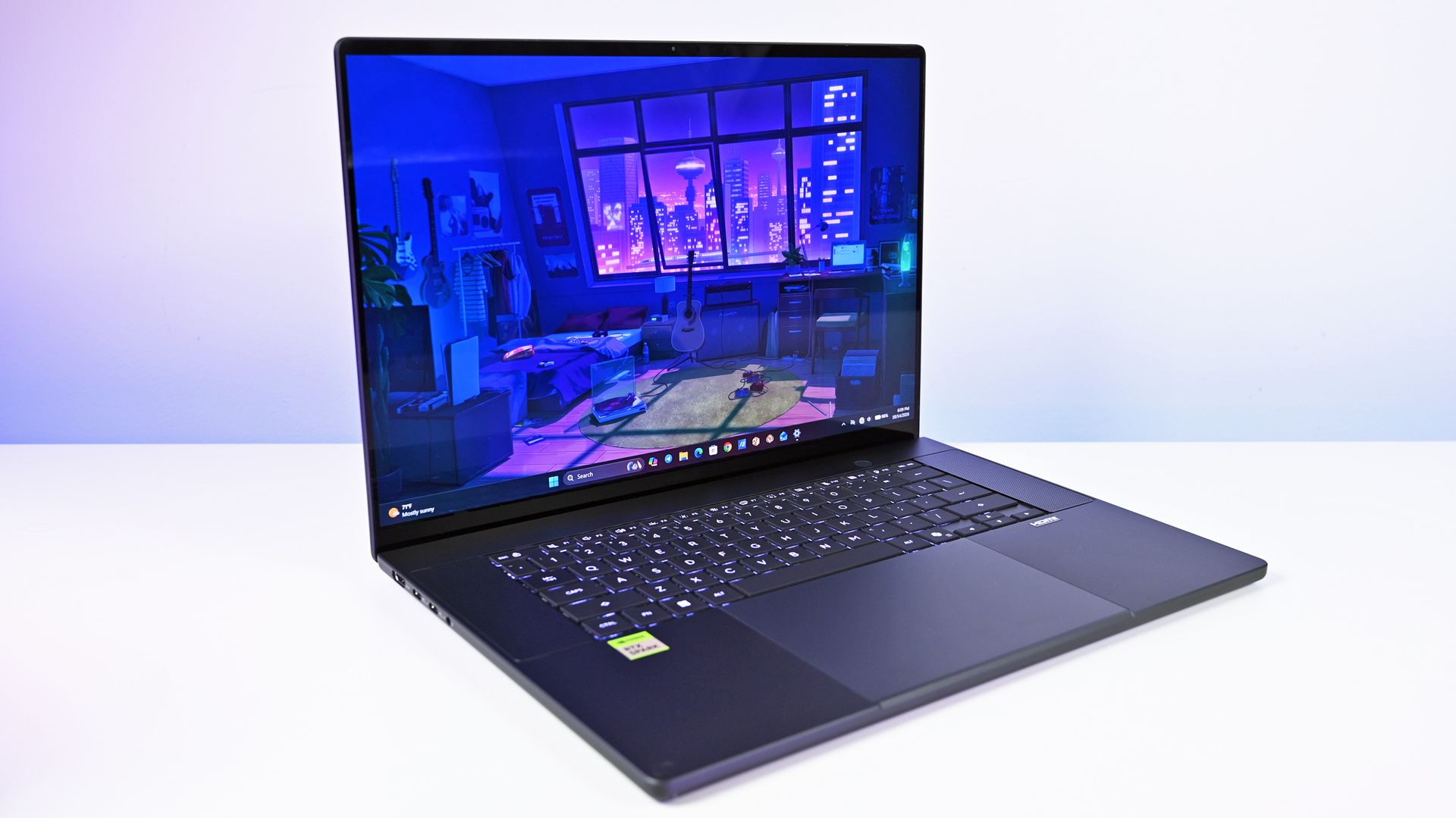
The design of Lenovo's Pro 9n has grown on me over the weeks. What I first saw as uninspired has morphed into something that's sleek, relatively lightweight, and ultimately perfect for a professional setting.
With an aluminum top and bottom that add rigidity and a more premium feel than plastic, the PC still manages to slide in at 3.64 pounds (1.65kg) while measuring just 0.66 inches (1.67cm) thin.
The 15.3-inch display translates to a smaller footprint than a full 16-inch PC, and I found it to be an apt size for working in the passenger seat of a car. It should also translate well to airplane trays or train seats.
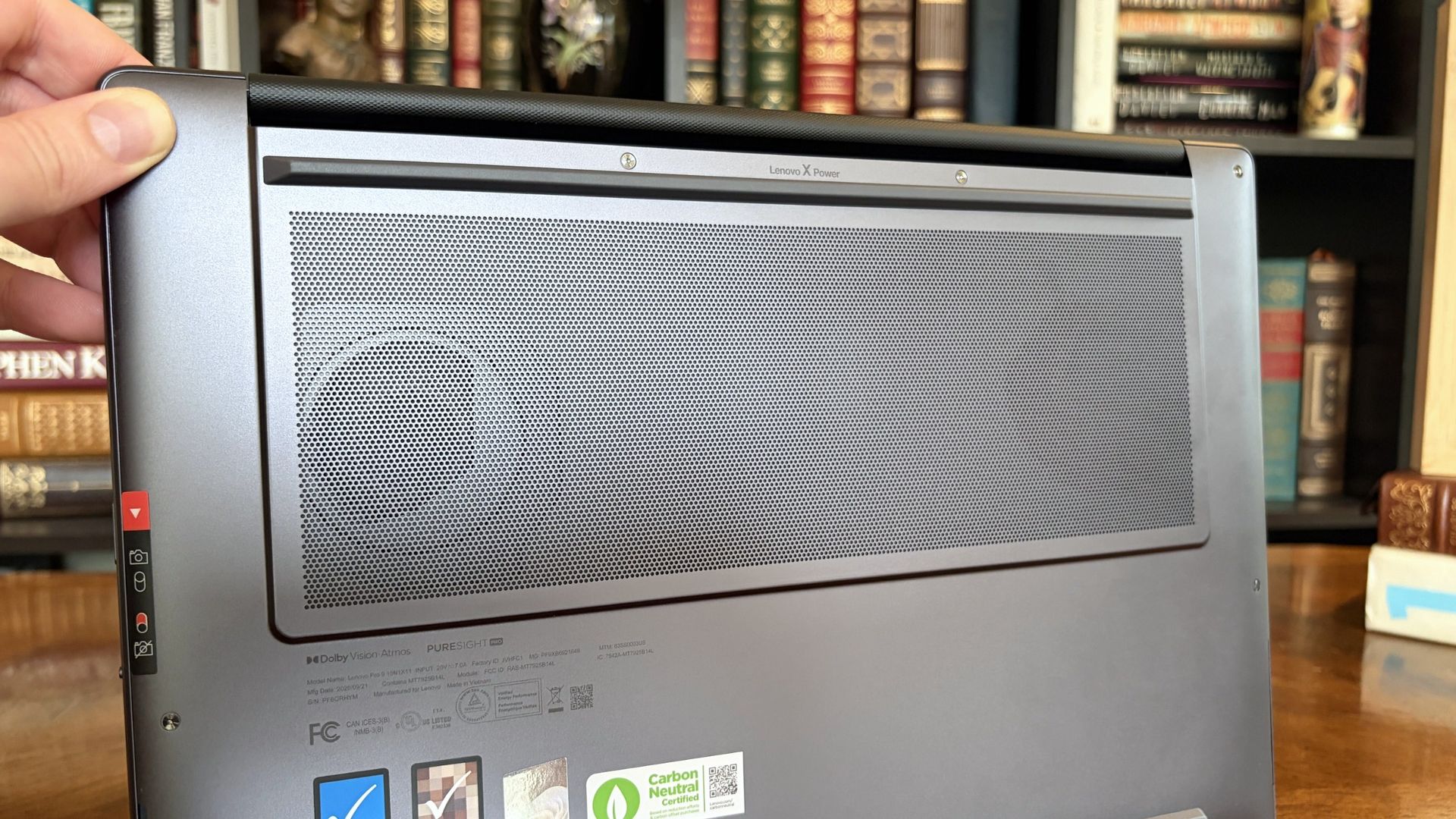
The bottom of the Pro 9n has a massive air intake to feed the two fans. (Image credit: Future)
The thermal layout has been redesigned for the new RTX Spark chip (which I explore below), resulting in a massive air intake on the bottom of the PC and larger vents on the rear edge for exhaust.
This setup keeps hot air directed away from the user and, as you'll see below, it does a decent job of keeping the PC cool under load.
Ports on the left include HDMI, USB-A, USB4, and 3.5mm audio.FuturePorts on the right include USB-A, USB4, and UHS-II SD card reader.Future
This leaves plenty of space along the sides for ports. On the left are HDMI 2.1, USB-A 3.2 (always on), USB4, and a 3.5mm audio jack. On the right side are another USB-A 3.2, USB4, and a UHS-II SD card reader.
At no time did I feel the need to grab a dongle for an accessory, especially with Bluetooth 5.4 on board, and the native HDMI port makes it easy to plug into an external display without a docking station.
On the note of wireless, cutting-edge Wi-Fi 7 is on board for excellent throughput and future-proofing.
Lenovo's keyboard and haptic touchpad are among the best
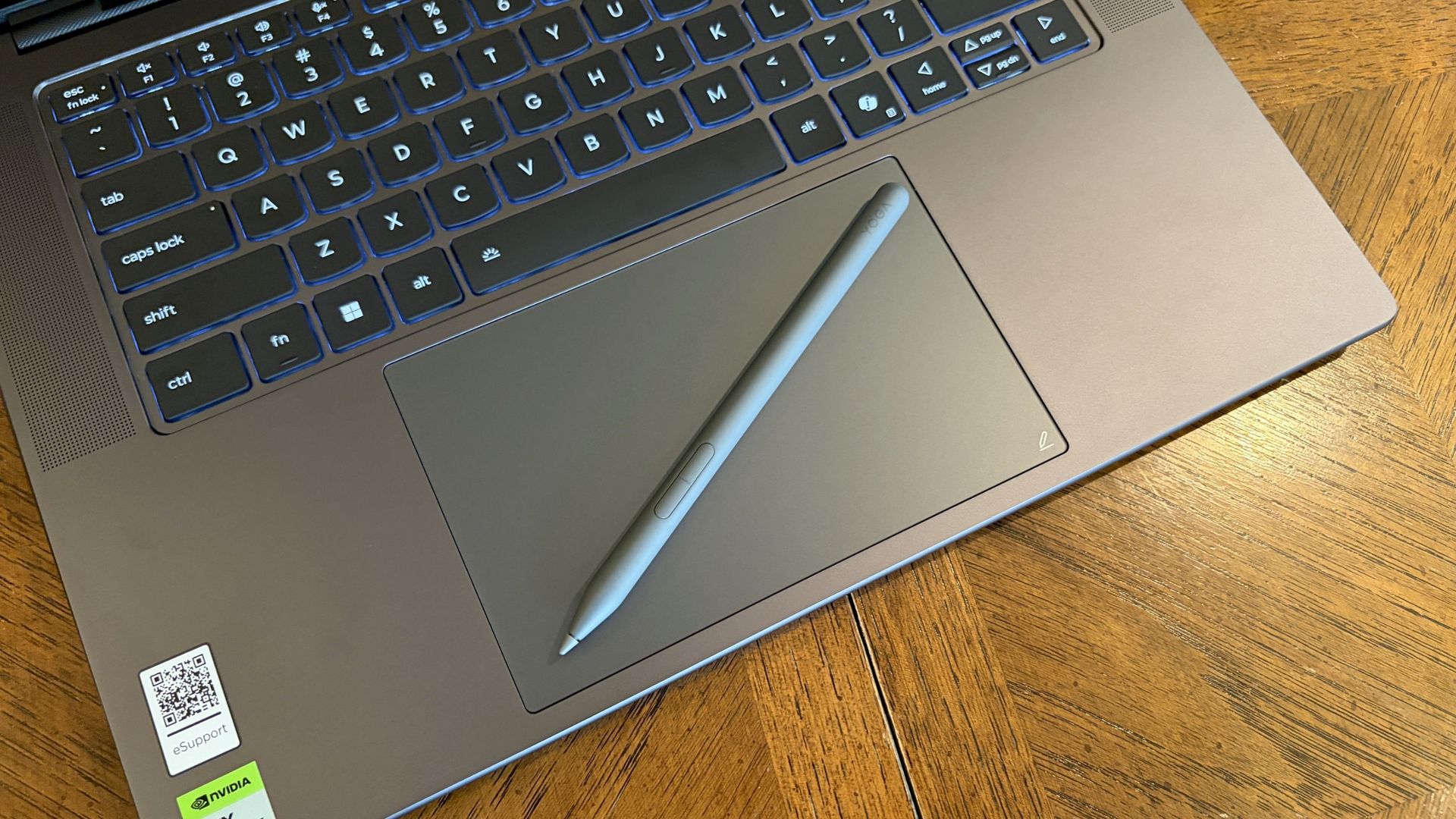
The Lenovo Pro 9n's oversized haptic touchpad and active pen turn the laptop into a makeshift drawing tablet. (Image credit: Future)
The Pro 9n is the first Lenovo laptop to receive its new haptic touchpad with inking compatibility. Paired with the bundled Yoga Pen (Gen 2), it turns the PC into a creative tablet of sorts.
I'm no artist, but I was able to get down some rough sketches using the awesome Krita drawing app. I found the touchpad's 3.74 x 3.94-inch dimensions were large enough to comfortably write and draw, and the inking feel is outstanding.
My only gripes are likely from me reading too much into the feature. Drawing on the pad often left my hand hanging off the edge (not comfortable), and it was sometimes difficult to line up my pen on the touchpad with where I wanted it on my screen.
Approach it from a rough sketch viewpoint, and you should find it to be quite useful. As for actual pointing and clicking, I had no issues. The haptics underpinning the pad are spot on.
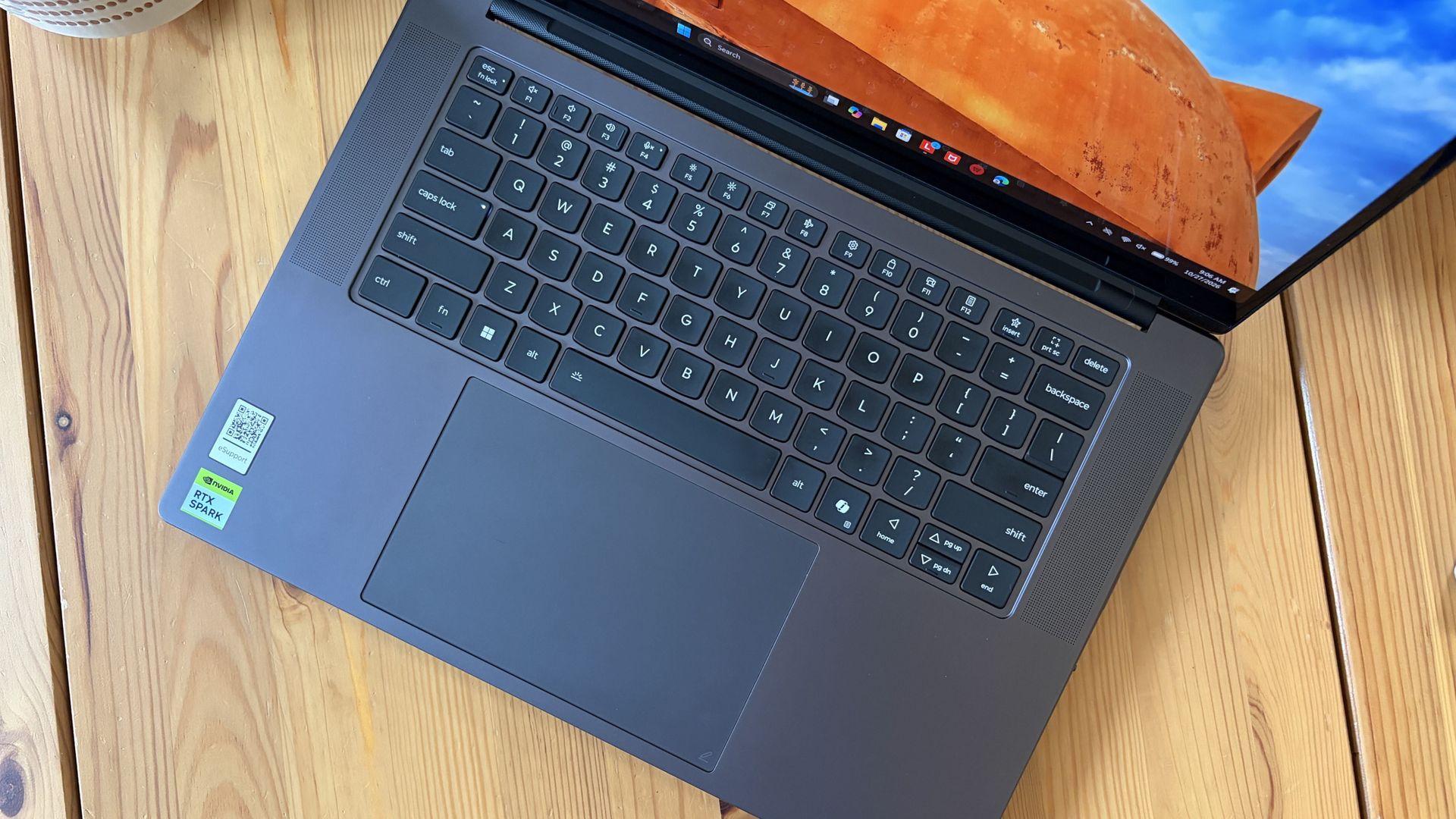
1.5mm key travel makes for comfy typing no matter what. (Image credit: Future)
The keyboard, which arrives flanked by a couple of speakers, offers deep 1.5mmkey travel, three-stage backlight, and perfect spacing. This might be the best keyboard that Lenovo's non-ThinkPads have ever received, and I enjoyed every word I typed on it.
Circling back to the speakers, the two that flank the keys are each 2W tweeters, and they're accompanied by two 2W woofers on the bottom of the PC.
Sound gets loud without breaking. There's lots of bass. The highs are clean, even before adding any onboard Dolby Atmos tuning. The laptop is just as good for watching TV and movies as it is for handling creative work or jumping into video meetings.
A crisp webcam handles meetings on the move
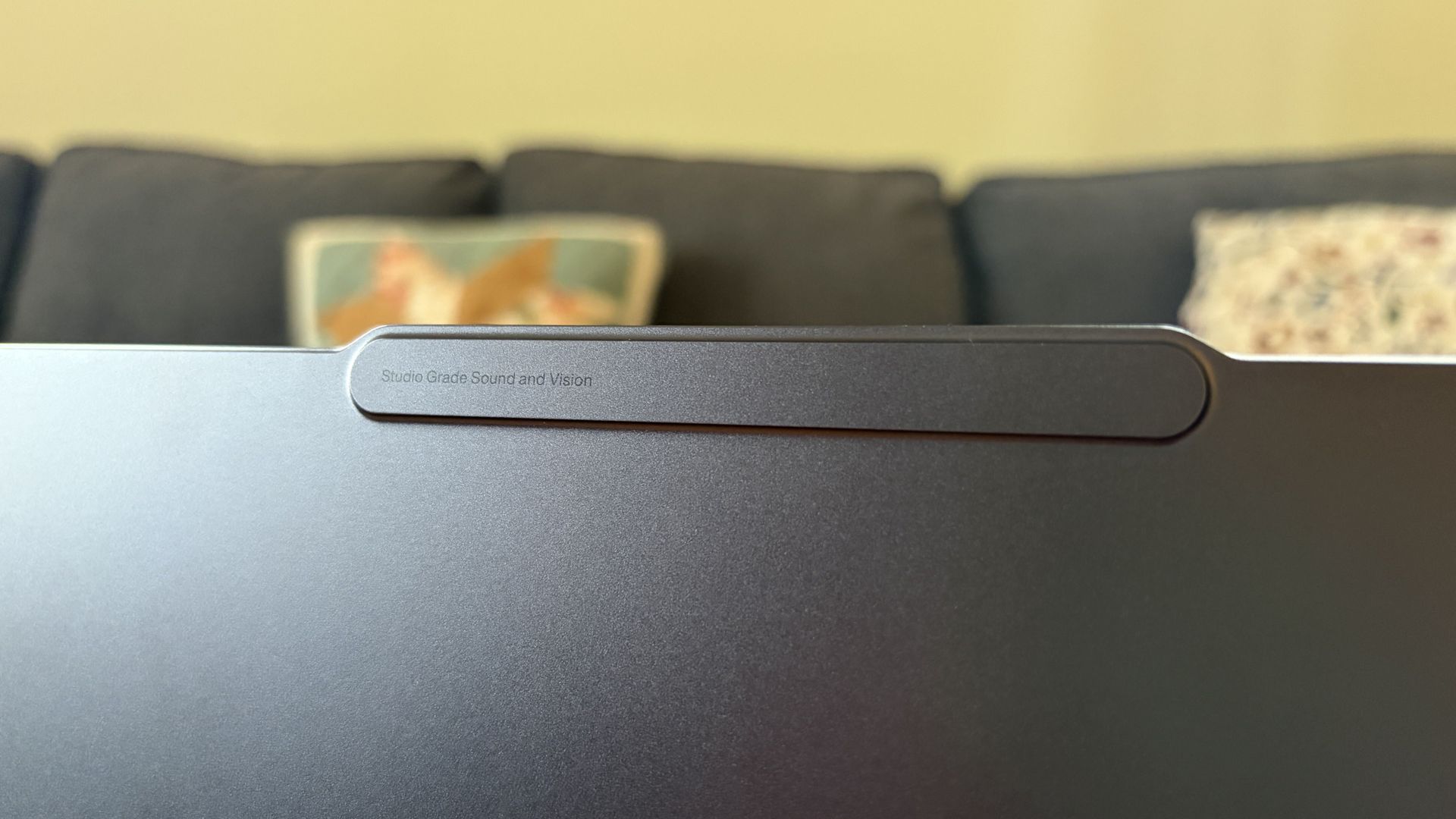
The raised comms bar has space for a 9.2MP camera and IR sensor. (Image credit: Future)
Lenovo's raised communications bar located above the display adds a bit of space for camera hardware, and the company made good use of it here.
The Pro 9n comes with a 9.2MP camera, easily trumping the ASUS ProArt P16's 2.1MP and the Surface Laptop Ultra's 1.6MP cameras.
It's crisp and handles lighting quite well even without any Windows Studio Effects in play, and I'd say it's a definite upgrade for anyone who often finds themselves in video meetings and collaborations.
The IR sensor built into the camera handles facial recognition via Windows Hello. Unfortunately, it doesn't appear to go the extra step to offer human presence detection. This doesn't seem to be a lock for the new RTX Spark PCs — the Surface Laptop Ultra doesn't have it either, but the ProArt P16 does.
An OLED display with color profiles for any job
The OLED display delivers color for specialized work and speed for gaming. (Image credit: Future)
Lenovo ships the Pro 9n with a 15.3-inch PureSight Pro OLED display. This is basically Lenovo's top-of-the-line screen for creators and pros, coming at you with X-Rite Pantone calibration and X-Rite SkinTone validation out of the box.
It hits Delta E, tops out at a 165Hz refresh rate (which can be set to variable for better battery life and eye comfort), and has Dolby Vision support.
Something I learned quickly was that the display presets in Lenovo's Vantage app are actually important. The Default mode in which the laptop ships favors sRGB reproduction. There are presets for AdobeRGB and sRGB (which pump up those sections), as well as P3-D65, REC709, and DCI-P3.
I was able to hit 100% across all color gamuts in my testing, but not all at once. You'll just have to be sure that you select the right config depending on the work you're doing.
I was able to hit 100% across all color gamuts in my testing, but not all at once.
I also measured 476 nits of peak brightness in SDR content, which pushes past 1,000 nits when HDR is enabled. I was able to work in a brightly lit room with only a bit of glare, but I imagine an anti-reflective instead of glossy finish would have gone a long way to eliminating glare entirely.
The screen is available in touch or non-touch, and the specs are otherwise the same. Note that the pen only works on the laptop's touchpad, whether or not the screen is touch-enabled.
The Pro 9n's OLED display is vivid and bright. (Image credit: Future)
The inclusion of NVIDIA G-Sync tech really props up the gaming aspect, reducing screen tearing and ultimately making everything feel much smoother, as you'd expect from a premium laptop that can game.
My only complaint is that Lenovo doesn't offer a higher-res panel. The 2.5K default is great for everyday work and gaming, but 4K would probably go a long way for some creators.
Comparing the 18-core and 20-core RTX Spark chips
I gave the Pro 9n some games to chew on to see if it can replace my gaming handheld. Short answer: it can. (Image credit: Future)
Power tip
Lenovo allows for up to 80W of overall power for the chip, putting it in line with the other RTX Spark laptops we've tested.
As it turns out, quite well. You get the same pool of unified LPDDR5x memory to pull from for the system and GPU, albeit in smaller quantities (32GB for my review unit).
You get the coveted CUDA cores (with 5120 in my unit compared to 6144 in the premier chip) to handle local AI inference. And you still get about 26 TFLOPs of graphics performance.
The following graphs show how the 18-core RTX Spark in the Lenovo Pro 9n compares to the 20-core RTX Spark chips we've already tested in other laptops.
FutureFutureFutureFutureFutureFuture
As you can see, synthetic Geekbench 7 and Cinebench 2026 CPU scores fall accordingly compared to the 20-core Spark. Not by a lot, but it is noticeable.
The SSD looks comparatively slow, but keep in mind that most of these laptops have a mix of PCIe 4.0 and PCIe 5.0. In my test case, it's the former, but you can get the latter, faster drive in a 2TB config.
FutureFutureFuture
The weaker RTX GPU also showed a drop-off in Geekbench 7's GPU test, but it put up a strong fight in 3DMark's Steel Nomad and Speed Way tests.
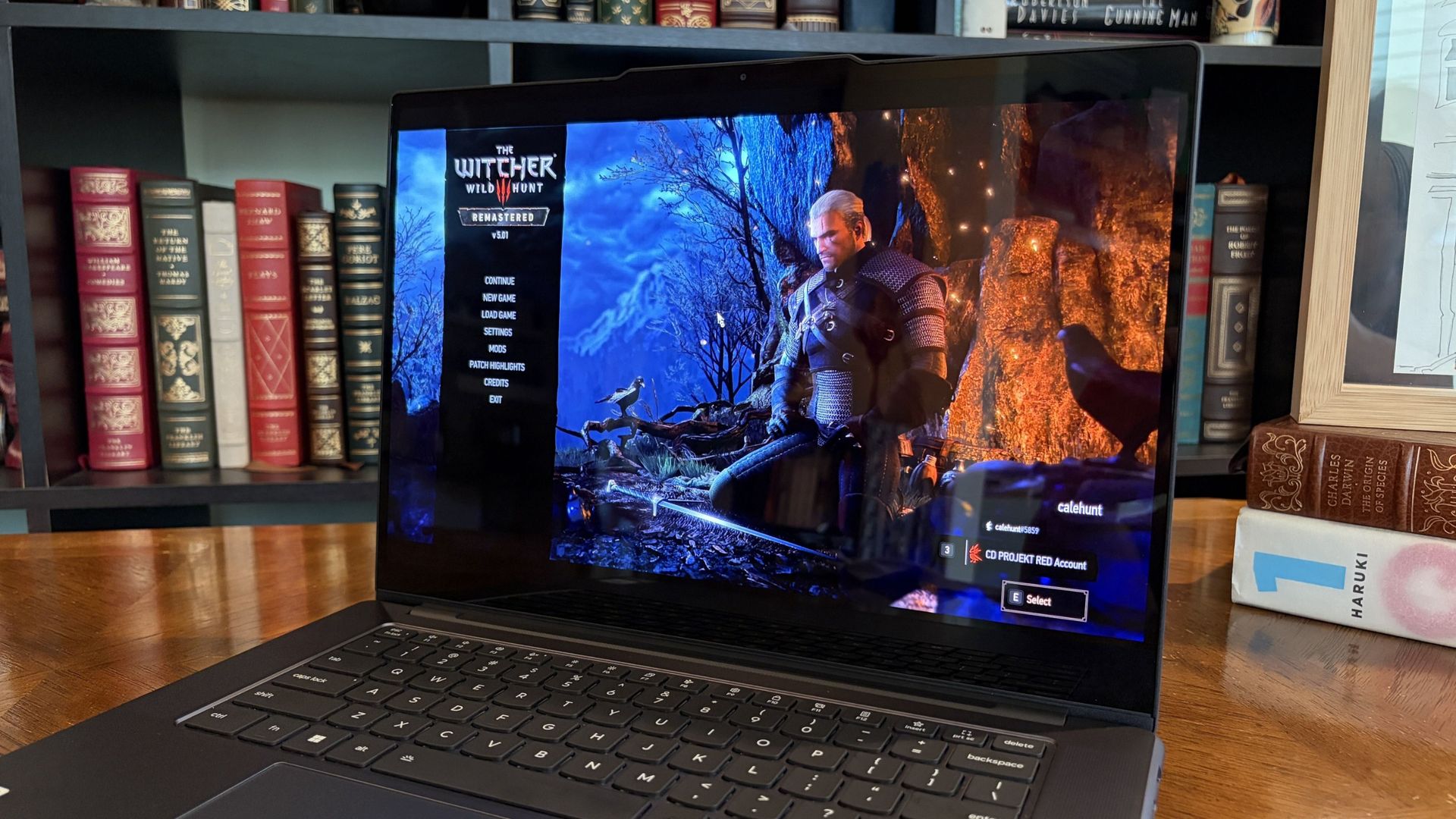
Considering I was playing The Witcher 3: The Wild Hunt Remastered at a smooth frame rate with ray tracing cranked up, there should be no denying the Pro 9n can game. Just don't buy it if that's all you want from your laptop.
There should be no denying the Pro 9n can game.
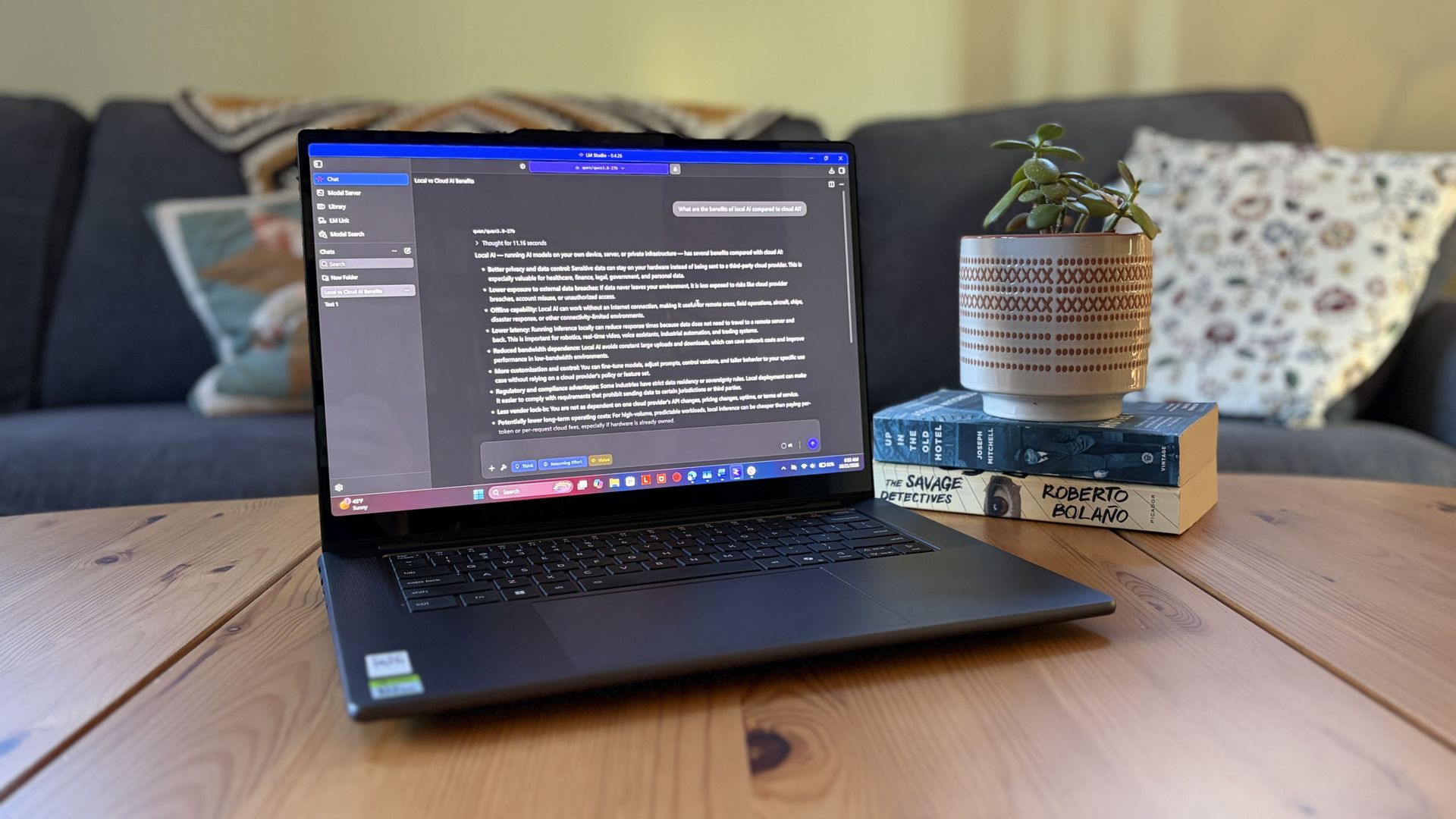
I also began a journey with local AI agents on the Lenovo Pro 9n. I set up LM Studio on it and downloaded a hefty Qwen model, which runs surprisingly well on the system despite only having 32GB of unified RAM.
Lenovo's Pro 9n running LM Studio, allowing me to chat locally with AI agents. (Image credit: Future)
The unit I was sent to test is more geared toward creators who don't need the ultimate 20-core CPU and 128GB of RAM coveted by AI specialists, so I'm pleased that it's proving to be a capable local AI base.
I ran a few AI-focused tests in Procyon to see how the weaker RTX Spark chip in my Lenovo Pro 9n compares to the 20-core option we already reviewed.
Procyon Image Generation
RTX Spark (18-core)
RTX Spark (20-core)
Stable Diffusion 1.5 score (FP16, higher is better)
1,430
1,380
Seconds / Image (lower is better)
4.36
4.22
Total duration (lower is better)
69.9
67.5
Procyon Text Generation
RTX Spark (18-core)
RTX Spark (20-core)
Phi-3.5-mini (higher is better)
2,383
2,615
Seconds to first token (lower is better)
0.31
0.27
Tokens / Second (higher is better)
68.31
72.21
Load time / Seconds (lower is better)
0.73
0.66
Procyon AI Computer Vision 2.0
RTX Spark (18-core)
RTX Spark (20-core)
Score (higher is better)
3,658
3,997
There's clearly a drop-off with the 18-core Spark chip in terms of AI performance, and I'd recommend that any AI specialists out there opt for the 20-core option.
For creators, part-time gamers, and professionals without a direct focus on AI, I think the 18-core chip should do just fine.
Does Lenovo's Pro 9n get too hot?
Playing demanding games on the Lenovo Pro 9n is entirely possible. Just expect there to be a little heat. (Image credit: Future)
The Lenovo Pro 9n's upgraded cooling system does a good job of managing thermal limits, and fan noise isn't bad, either. This is all with the system managing power automatically, which I found quite convenient.
During a lengthy system stress test, I never clocked the fan noise any higher than 43dB. They're audible in a quiet room, but they'd go unnoticed in a busy office.
My trusty FLIR camera is in the shop, but I did a surface temp test with my lap. During the stress run, it remained comfortable to hold. The keyboard side got a bit hotter, but nothing that gave me pause.
How is the Pro 9n's battery life?
Battery life has been quite good, especially for everyday tasks, but Snapdragon X2 is still the champ. (Image credit: Future)
Battery life is not as good as I was hoping, and Qualcomm's Snapdragon chips are not in any threat of being dethroned in terms of efficiency.
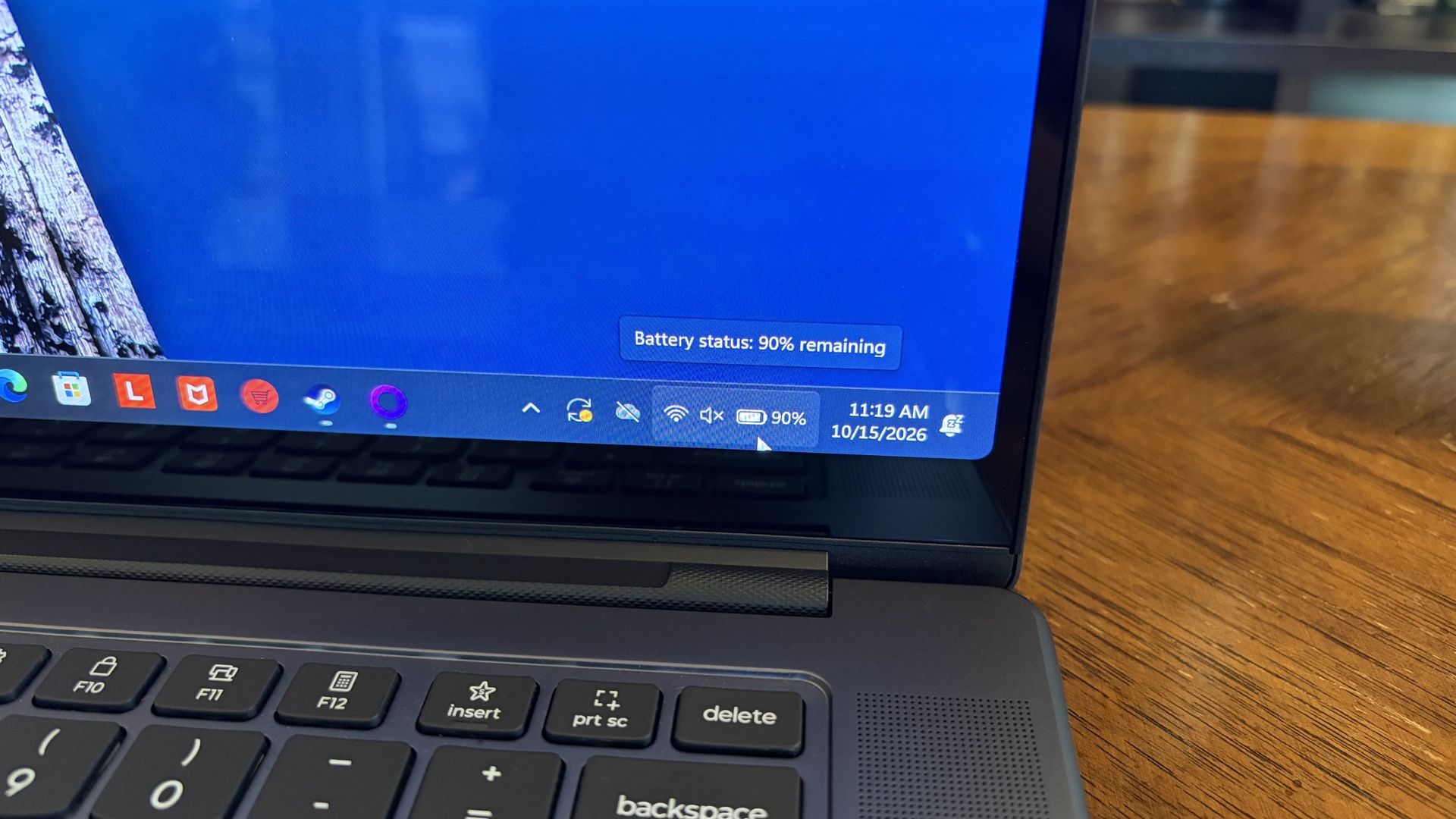
My Windows Battery report shows roughly 8 to 10 hours of real-world life on a charge. Keep in mind that I was doing a decent amount of gaming on battery life, which brought that number down. Still, that's in line with the other RTX Spark laptops we've tested.
If you are gaming on battery power and have settings cranked up with ray tracing enabled, know that I was seeing about 10 minutes of runtime for every 10% of battery life.
Indie titles that aren't as demanding don't sap the battery nearly as much, and you can enjoy a few hours of gaming without worrying about power.
Should you buy Lenovo's Pro 9n?
The Lenovo Pro 9n's lid pulls back to about a 180-degree flex. (Image credit: Future)
You should buy this if ...
✅ You want an RTX Spark laptop with a 15.3-inch OLED display at 2.5K.
✅ You dabble in drawing, sketching, and writing with a pen.
✅ You're a professional or a creator who wants one PC to handle local AI, demanding apps, and gaming.
You should not buy this if ...
❌ You want the most affordable RTX Spark laptop possible.
❌ You prefer a mini-LED display (go with the Surface Laptop Ultra).
Lenovo's first notebook RTX Spark laptop has been a ton of fun to use over the past few weeks, and admittedly, I regret that I soon have to give it up.
It's not perfect. I wish there were human presence detection. I wish there were an extra high-res display option. I wish battery life were a lot better. And I wish it didn't cost as much (which is an effect of the ongoing RAM and storage crisis, not some Lenovo decision).
But for what it is — a specialized portable AI workstation using the first generation of a new NVIDIA computing platform — it's among the most exciting and promising Windows PCs I've used in recent memory.
If you're a general creator who just wants to see the latest chip technology in an ultra-premium package, the 32GB model could be ideal for you, just as long as you can stomach the price.
Otherwise, it's mainly going to appeal to a fairly small set of users, but those who can take full advantage of the RTX Spark chip should love what Lenovo has put together here.
RTX Spark
Lenovo
Pro 9n
Lenovo's Pro 9n delivers high-end features and cutting-edge AI performance for the Windows ecosystem. It's a great PC for creators with deeper pockets, but its true usefulness is seen in the hands of AI pros who need a ton of unified memory and a beefy RTX Blackwell GPU. It's all wrapped up in a sleek, portable package.
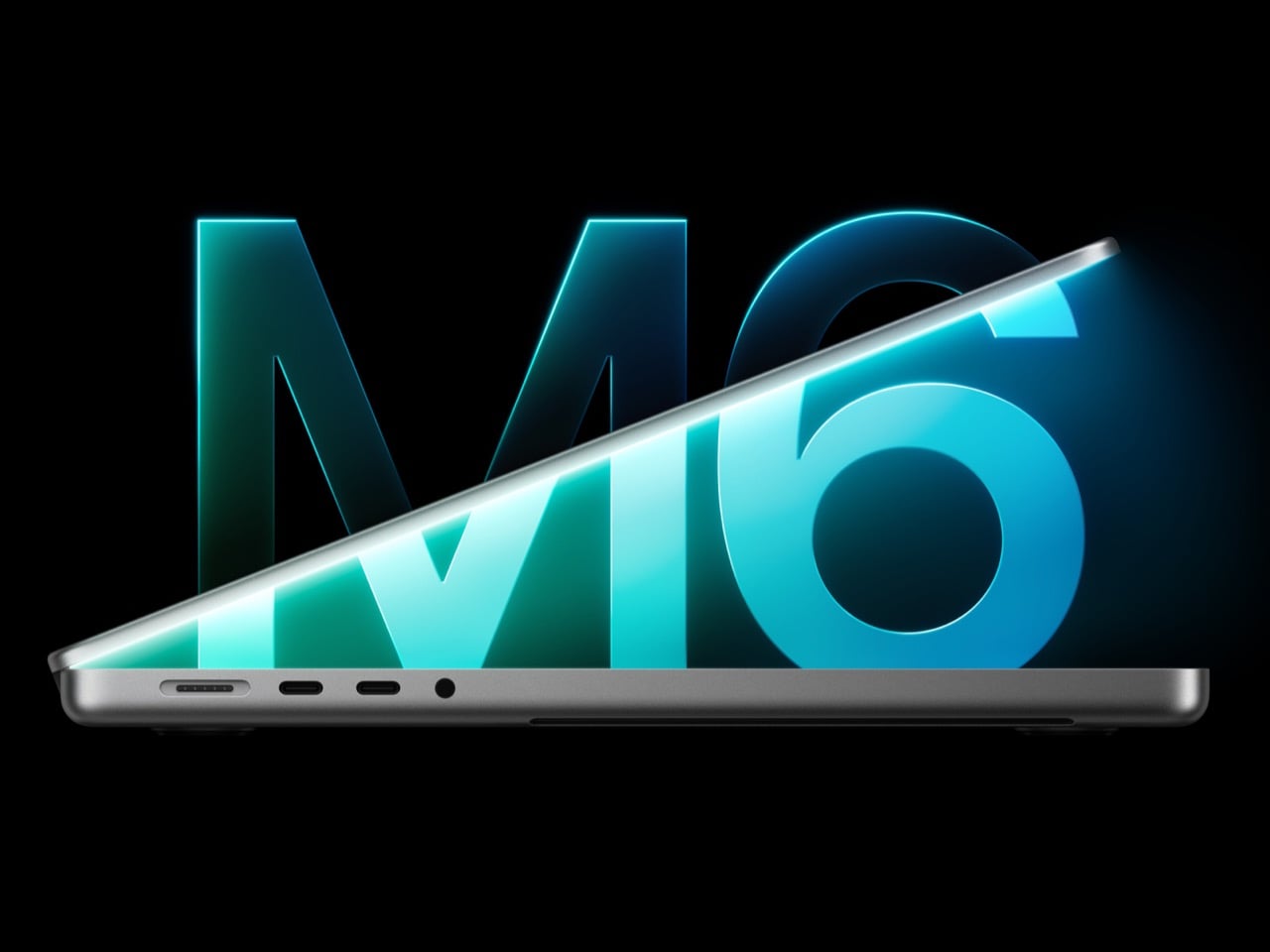
On Monday, the day the new iPad mini landed, I begged John Ternus to take a break. On Tuesday morning, Apple responded by dropping a brand-new 14-inch MacBook Pro with the M6 chip, roughly 24 hours before its Pro and Tell event in Los Angeles. That’s the event literally named after the MacBook Pro, by the way. It’s like a band releasing a single the night before the album drops, if the single cost $1,999. At this point I’ve stopped asking for rest and started stretching before I open my inbox.
On Monday, the day the new iPad mini landed, I begged John Ternus to take a break. On Tuesday morning, Apple responded by dropping a brand-new 14-inch MacBook Pro with the M6 chip, roughly 24 hours before its Pro and Tell event in Los Angeles. That’s the event literally named after the MacBook Pro, by the way. It’s like a band releasing a single the night before the album drops, if the single cost $1,999. At this point I’ve stopped asking for rest and started stretching before I open my inbox.
The new MacBook Pro starts at $1,999 with 16GB of unified memory and 1TB of storage, the same price the M5 model has carried since Apple’s June price hike. Inside sits the M6, a 2nm chip with a 12-core CPU and 12-core GPU, two more cores apiece than before. Apple claims up to 30 percent faster graphics than M5, with Wi-Fi 7 and Bluetooth 6 arriving through its own N1 chip. Pre-orders open October 28, with deliveries starting November 6 in silver and space black. Even funnier, Wednesday’s rumored touchscreen MacBook Pros reportedly run M5 Pro and M5 Max chips, so the cheapest Pro in the lineup now has the newest silicon.
Designer: Apple
Two more cores, 2nm silicon, and a reshuffled CPU
The M6 is built on TSMC’s first-generation 2nm process, and it first showed up in the Mac mini back in August. It swaps the old FinFET transistors for gate-all-around nanosheets, which wrap the gate around the channel on every side so less power leaks away at these tiny sizes. The CPU layout changes too, from four super cores and six efficiency cores to two super, four performance, and six efficiency cores. The GPU climbs to 12 cores, each with its own Neural Accelerator, while the Neural Engine doubles up to a dual 16-core setup totaling 32 cores. Apple claims up to 1.3 times faster Blender ray tracing and Xcode builds than the M5 model.
Apple ditched the M5 model’s Broadcom wireless chip for its own N1, which brings Wi-Fi 7, Bluetooth 6, and Thread support. Thread is the low-power mesh network a lot of Matter smart home gear runs on, which fits neatly with the HomeView push Apple kicked off earlier this month. External displays get a bump as well, with two 4K monitors now running at up to 165Hz instead of 144Hz. Memory bandwidth rises to 170GB/s, though only on the 24GB and 32GB configurations. The base 16GB model stays at 153GB/s, so if you plan on running local AI models, spring for the extra memory.
Same $1,999 price tag, same body, same 24 hours
The M5 model launched at $1,599 with 512GB of storage last October, jumped to $1,699 in March when 1TB became standard, then hit $1,999 in June when Apple raised prices across the Mac lineup. Apple blamed AI data centers hoovering up the world’s memory supply, saying it had never seen component costs climb so far so fast. So the M6 costs exactly what the M5 did yesterday, while sitting $400 above where the 14-inch Pro started a year ago. That 1TB base is generous at this tier, though it also means there’s no 512GB option to save a few bucks. Students and educators can knock the price down to $1,899.
Everything outside the chip carries over from the M5 model. The Liquid Retina XDR mini-LED display still peaks at 1,600 nits in HDR, with a nano-texture option for anyone working beside a sunny window. The 12MP Center Stage camera, six-speaker sound system, HDMI port, MagSafe 3, SDXC slot, headphone jack, and three Thunderbolt 4 ports all return untouched. Battery life holds at up to 24 hours, matching the M5, so Apple’s “longest ever in a Mac” line describes a tie. Coming from a 13-inch M1 MacBook Pro, though, that’s up to four extra hours, plus up to 13 times faster AI prompt processing.
The cheapest MacBook Pro now has the newest chip
According to Bloomberg’s Mark Gurman, Wednesday’s 14-inch and 16-inch MacBook Pros will bring OLED touchscreens, a Dynamic Island in place of the notch, and a lighter build. They’ll also reportedly stick with M5 Pro and M5 Max chips, which means the $1,999 model you can’t touch has a newer chip generation than the flagships you can. Gurman says the mini-LED models stay on sale for now before eventually being phased out. Apple announced the M6 model on October 27, exactly ten years after it unveiled the Touch Bar, its last attempt at putting touch on a MacBook Pro. I refuse to believe that timing is an accident.
For an M5 owner, the M6 is an easy skip, since the design, display, and battery are identical. For anyone still hanging onto an Intel MacBook or an early M1 machine, this is the most sensible Pro you can buy, and it costs $500 less than the $2,499 M5 Pro model. Pre-orders for the 14-inch MacBook Pro with M6 open October 28 at 10:10 a.m. Pacific, with deliveries starting November 6. That’s an iPad mini, an iMac, and a MacBook Pro in two days from the guy I asked to take a break, with touchscreen Macs queued up next. At this rate we’ll get that Apple Car announcement by the end of the week.
Does the Mini LED display on Surface Laptop Ultra support local dimming? Many reviewers have noted the Mini LED display on Laptop Ultra is somewhat underwhelming, with ghosting issues and poor color contrast (albeit with great color accuracy) compared to other Mini LED screens on the market, and especially OLEDs.I said in my Surface Laptop Ultra review that its display features 1,344 local dimming zones, which is significantly lower than the dimming zones you'll
Does the Mini LED display on Surface Laptop Ultra support local dimming? Many reviewers have noted the Mini LED display on Laptop Ultra is somewhat underwhelming, with ghosting issues and poor color contrast (albeit with great color accuracy) compared to other Mini LED screens on the market, and especially OLEDs.
I said in my Surface Laptop Ultra review that its display features 1,344 local dimming zones, which is significantly lower than the dimming zones you'll find on a MacBook Pro with the same display tech. That results in a lot more ghosting and blooming, which can make the display feel stuttery and not smooth at times.
I reached out to Microsoft again to see if it could clarify how the display works. The company told me that Surface Laptop Ultra does feature local dimming by default, with 5,400 LEDs across 1,344 dimming zones.
Much like any other Mini LED display, these zones adjust backlight brightness based on the content in that area. If a bright window is being displayed on a black background, the dark areas of the screen will be dimmed.
This behavior is what causes the ghosting and blooming effect on Surface Laptop Ultra, and is a side effect of Mini LEDs, especially ones with a low local dimming zone count. On my Surface Laptop Ultra in SDR, I can see the local dimming zones brightening and darkening as I move around a white window on a black background.
The Mini LED display on Surface Laptop Ultra does support local dimming. It's just not very good local dimming.
So, the display definitely does have local dimming capabilities. But it must be said that its performance isn't amazing compared to other Mini LEDs on the market. Whether local dimming is even working also depends entirely on your PCs settings.
The local dimming behavior is controlled by a setting in Windows Settings under System > Display > Brightness. With "Change brightness based on content" enabled, and the "Enhanced" display profile set, the local dimming support should function.
I've also found that you should turn off HDR for local dimming to be most effective. When HDR is on, the backlight is much more noticeable on dark backgrounds, likely because HDR requires much more brightness. A positive side effect of this is that this pretty much fixes the ghosting issue at the expense of local dimming performance.
So, the TL:DR is Surface Laptop Ultra does feature local dimming capabilities. You should have HDR disabled, with "Change brightness based on content" enabled and the "Enhanced" display profile set in Windows Settings for it to be most effective. On the flipside, enabling HDR reduces the ghosting and blooming issues, but decreases local dimming performance.
It must be said that the Mini LED display on Surface Laptop Ultra is somewhat disappointing. It certainly isn't as good as the Mini LED panel in a MacBook Pro, and I'm just left wondering why Microsoft didn't opt for OLED given that's what all the next-gen laptops are going with, including the upcoming MacBook Pro with touch.
Maybe, hopefully, a future firmware update can adjust and improve the performance of the local dimming behavior on Surface Laptop UItra. The most recent firmware update did fix flickering issues that people were having with the display, so anything is possible.
Join us on Reddit at r/WindowsCentral to share your insights and discuss our latest news, reviews, and more.
Mini-LED Microsoft Surface Laptop Ultra The Surface Laptop Ultra costs less to start, but it lacks pen support, its mini-LED isn't as impressive, it's thicker and heavier, and it lacks some features compared to the ASUS Pr
The Surface Laptop Ultra costs less to start, but it lacks pen support, its mini-LED isn't as impressive, it's thicker and heavier, and it lacks some features compared to the ASUS ProArt P16. Regardless, many will appreciate its speedy SSD, its superior webcam, its smaller footprint, and its magnetic USB-C port.
The ASUS ProArt P16 scored higher in our review thanks to its OLED display, deeper key travel, outstanding audio, cooler thermals, and thinner/lighter design. It does cost more to start, and it has louder fans, but these are easy trade-offs for those who don't mind spending a little bit more.
Pros
Gorgeous OLED display with inking support
Deeper 1.7mm key travel and haptic touchpad
Top-firing speakers
Cooler thermals
Oleophobic coating and anti-glare 4K display finish
Cons
Slower 1TB/2TB SSDs
Costs more to start
Louder fans
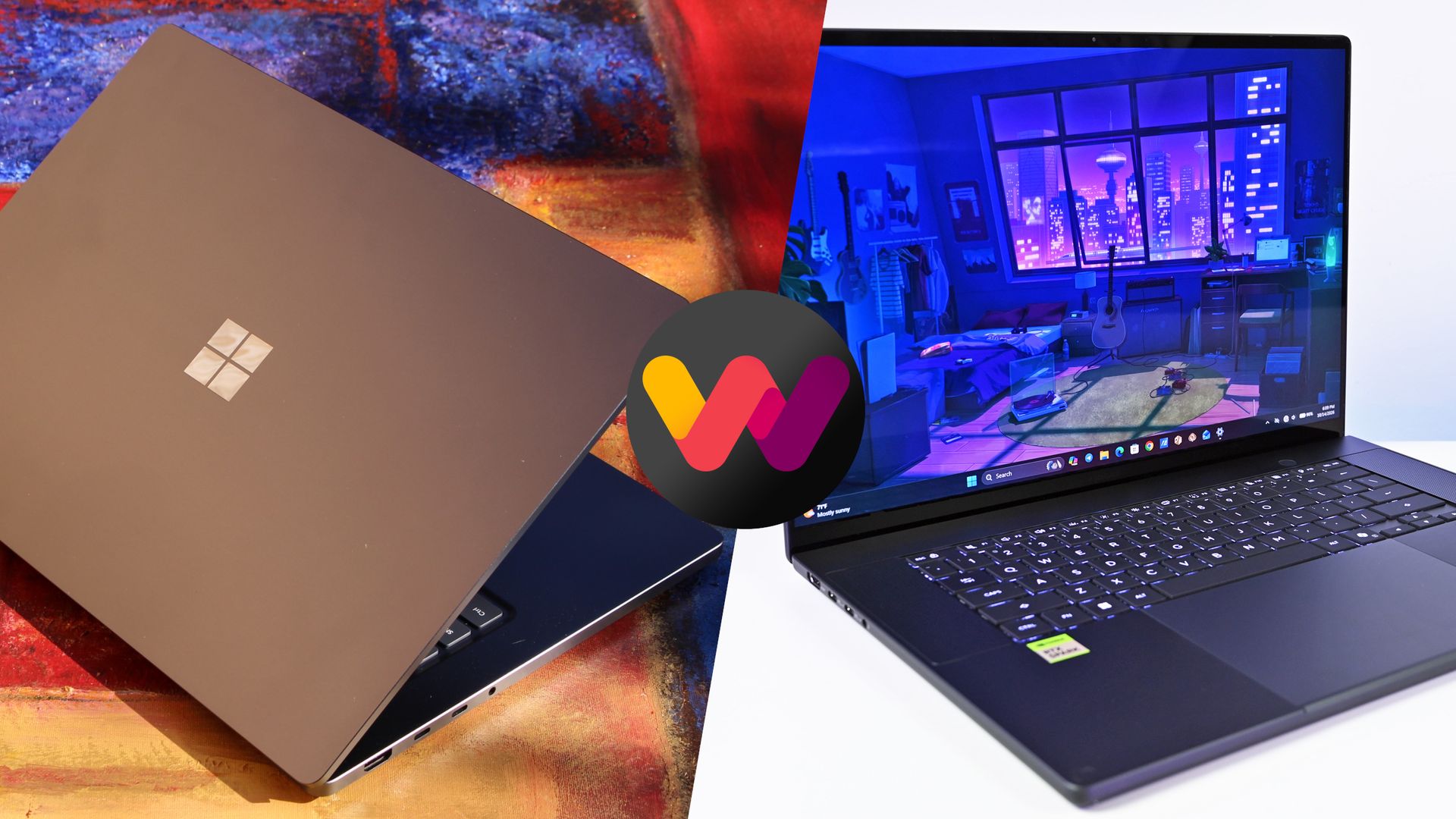
The Windows Central team has had time to digest some of the new NVIDIA RTX Spark laptops that recently launched, and thanks to our in-depth reviews, I'm here to offer some insights as to which PC might be best for you.
Here's why the ProArt PC gained a bit of extra score over the Surface Laptop Ultra (and why that doesn't necessarily mean it's the right RTX Spark laptop for you).
Surface Laptop Ultra vs. ASUS ProArt P16: Specifications
Before I get too deep into my comparison between the Surface Laptop Ultra and ASUS ProArt P16, I put together this table for easy reference.
Standout differences at this point should be the display size and type, the port selection, and the dimensions, which I cover and explain in more depth below.
12.95 x 9.40 x 0.71-0.75 inches (328.8mm x 238.7mm x 17.99-19.16mm)
13.94 x 9.57 x 0.51-0.63 inches (354.1mm x 243mm x 12.9-15.9mm)
Weight
4.41 pounds (2kg)
3.9 pounds (1.77kg)
Colors
Platinum, Nightfall
Nano Black, Neo White
Pro-grade designs and features available in both laptops
The ASUS ProArt P16 (pictured here) is thinner and weighs less than the Surface Laptop Ultra. (Image credit: Daniel Rubino)
The ProArt P16 is larger than the Surface Laptop Ultra. That's a given considering it has a larger 16-inch display. The overall footprint is a bit larger, but otherwise, the ProArt P16 comes out ahead.
The P16 weighs just 3.9 pounds (1.77kg) compared to the Surface Laptop Ultra's 4.41 pounds (2kg), and it's also quite a bit thinner, starting at 0.51 inches (12.9mm) compared to 0.71 inches (17.9mm).
The neat thing is that ASUS really doesn't make you regret that upsizing. As Windows Central Editor-in-Chief Daniel Rubino says in his ProArt P16 review:
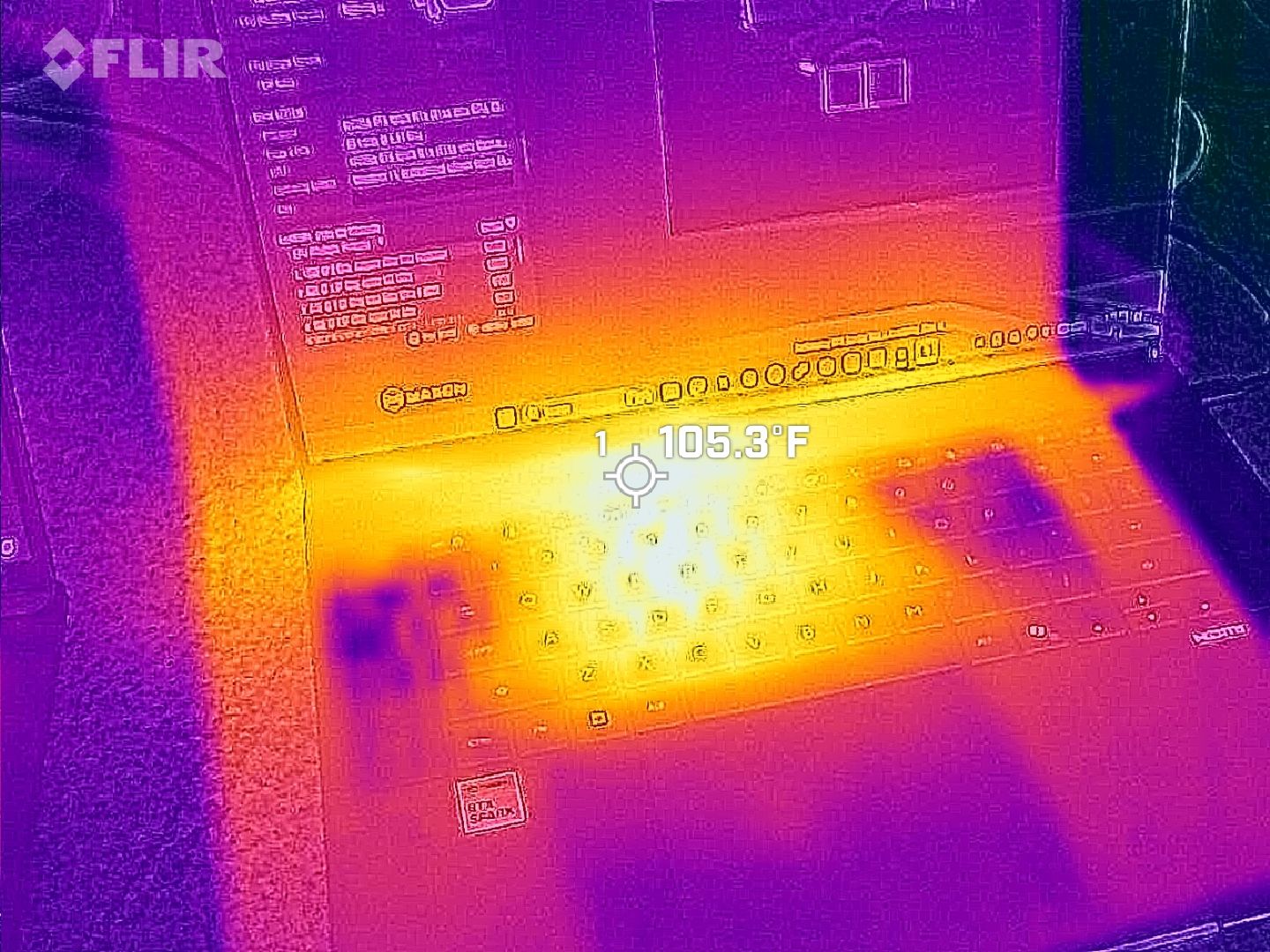
Thermals are even more impressive. Under sustained heavy workloads, my thermal camera recorded around 105°F across the keyboard deck and approximately 120°F near the rear exhaust. That's a few degrees cooler than both the Surface Laptop Ultra and HP OmniBook Ultra 16 RTX Spark in my testing. Fan noise never exceeded 50dB under extreme workloads.
Rubino does give Surface a nod for its "pure premium feel," although I'm sure some will love the ProArt P16's fingerprint-resistant coating that reduces smudges.
Which laptop offers better ports?
The left-side ports on the Surface Laptop Ultra.Zac Bowden / Windows CentralThe Surface Laptop Ultra's magnetic charging cable.Zac Bowden / Windows Central
This first wave of RTX Spark laptops is fairly unified across brands in terms of port selection. Both laptops offer three USB4 hookups (using the USB-C form factor), but only the Surface Laptop Ultra has the nifty Magnetic Connect feature on one of them.
Magnetic Connect allows a connected USB-C cable to pull away from the PC instead of dragging it off a table, much like Apple's MagSafe. It's a great feature to have, especially with a laptop at this price.
You're otherwise getting USB-A, HDMI, an SD card reader, and a 3.5mm audio jack across both PCs.
Is the keyboard and touchpad different across PCs?
A look at the ProArt P16's haptic touchpad, keyboard, and top-firing speakers.Daniel RubinoA look at the Surface Laptop Ultra's haptic touchpad and keyboard.Windows Central / Zac Bowden
Speaking on the Surface Laptop Ultra'skeyboard and touchpad,Windows Central Senior Editor Zac Bowden said, "This is probably the best keyboard and trackpad experience I've ever had on a Windows laptop to date."
Digging into that statement, Bowden clearly appreciated the 1.4mm tactile key travel that he called "incredibly satisfying and not at all fatiguing." The Surface's haptic touchpad is the largest ever in Microsoft's lineup, and Bowden says it "makes a huge difference in how easy it is to use."
Not to be outdone, the ASUS ProArt P16 offers deeper 1.7mm key travel and an equally enormous haptic touchpad.
Which laptop has a better webcam and speakers?
The bottom two speakers are joined by two speakers flanking the ProArt P16's keyboard. (Image credit: Daniel Rubino)
On the spec sheet, both laptops offer an FHD (1080p) front-facing webcam with IR capabilities for facial recognition.
Rubino states that "Microsoft still wins this category with Surface" and notes how HP's OmniBook Ultra with a 5MP webcam trumps both ASUS and Microsoft.
The big deal? The ProArt P16 includes human presence detection for increased security and convenience, whereas the Surface Laptop Ultra does not.
As for audio, each laptop comes with four speakers and Dolby Atmos support. Both laptops deliver some of the best sound we've ever heard, but only the ProArt P16 has top-firing speakers flanking the keyboard.
Mini-LED or OLED? Our reviewers prefer the latter
The Surface Laptop Ultra's mini-LED is plenty bright, but OLED is probably better for many users. (Image credit: Windows Central / Zac Bowden)
Display tech is where these two laptops really show a difference. Most noticeable is the Surface's taller 3:2 aspect ratio compared to the P16's 16:10 aspect ratio. The differences don't stop here.
The Surface Laptop Ultra has a 15-inch mini-LED screen at a 3270x2180 resolution, with 1,344 dimming zones, 1000-nit SDR brightness, and 2000-nit HDR peak brightness. It packs in a 120Hz dynamic refresh rate and Dolby Vision IQ support.
Though it's brighter than the ProArt's screen, Bowden says the mini-LED tech results in "a bit of blooming around bright elements on a dark background."
He adds that the backlight doesn't always keep up with what's on your screen, causing a slight ghosting effect in dark mode.
The ProArt P16's OLED display provides vivid color and perfect contrast, with no backlight bleed apparent. (Image credit: Daniel Rubino)
The ProArt P16 has a larger 16-inch OLED screen with a 120Hz dynamic refresh rate, and it's available in either a 3840x2400 (4K) or 2880x1800 (2.8K) resolution.
The 4K version is the primary option for models with 128GB of RAM, though Best Buy seems to offer a 4K version with 32GB of RAM. Despite a lower resolution, you still get 500 nits of SDR brightness and 1,100 nits of peak HDR brightness.
The 4K version hits 700-nit peak SDR brightness, climbing to 1,600 nits with HDR. An anti-reflective coating is included.
None of the mini-LED issues discovered in the Surface Laptop Ultra's mini-LED screen are apparent here, and you get the standard OLED perks of perfect contrast and vivid color no matter how you're using it.
It's worth noting that the P16 display offers pen support for inking. The Surface Laptop Ultra has no pen support.
NVIDIA's RTX Spark chip keeps performance close
The new NVIDIA RTX Spark chips offer similar performance across laptop models. (Image credit: Daniel Rubino)
A neat aspect we're discovering as we test RTX Spark laptops is how performance is quite similar. That's not surprising. These laptops use the same NVIDIA N1X chips in either 18- or 20-core CPU and 5120- or 6144-core GPU configs.
We tested both with the 20-core CPU and 6144-core GPU, and the Surface Laptop Ultra and ProArt P16 trade blows across benchmarks. For example, CPU performance is close enough that I wouldn't spend much time worrying about it.
The Laptop Ultra does great in lighter graphics benchmarks, though the ProArt P16 takes over in more demanding tests. Considering the ASUS laptop is thinner and lighter than the Laptop Ultra, that's a real achievement.
FutureFutureFutureFutureFutureFutureFuture
One area where the Surface Laptop Ultra pulls ahead is with its 1TB and 2TB M.2 PCIe 5.0 NVMe SSDs that are way faster than the PCIe 4.0 options in the ProArt P16. Microsoft does drop back to PCIe 4.0 with a 512GB capacity.
Which laptop has better battery life?
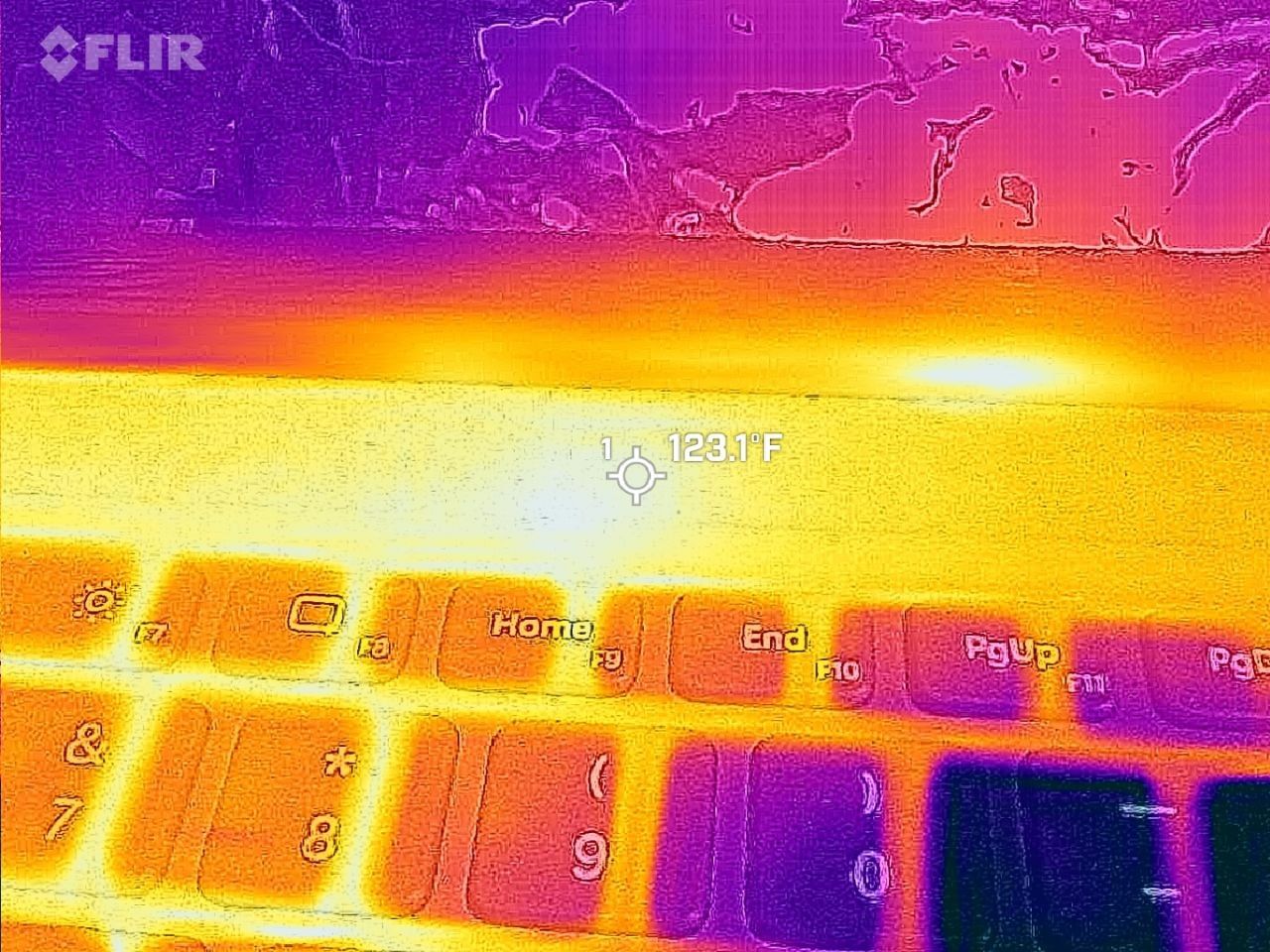
FLIR imagining reveals a 123F temp on the Surface Laptop Ultra. (Image credit: Zac Bowden / Windows Central)
The ProArt P16 has a larger 99.9Wh battery capacity compared to the Laptop Ultra's 92Wh, but that matters less than you might expect.
Both Rubino and Bowden were able to get around 10 hours of real-world use when not leaning heavily on the GPU. Both the ProArt P16 and Laptop Ultra struggle to put up strong efficiency numbers when that GPU is in demand, and in both cases, an AC charger should be kept nearby.
The same spot measured for heat on the ProArt P16. (Image credit: Daniel Rubino)
As for heat and noise, the Surface Laptop Ultra hit about 123 degrees Fahrenheit just above the keyboard. That's very hot, but at least the fans don't exceed 42 decibels.
Using the same FLIR imaging, we measured 105 degrees Fahrenheit in the same spot on the ProArt P16. That's quite a bit cooler, although the fans did climb closer to 50 decibels.
Surface Laptop Ultra vs. ASUS ProArt P16: Which should you buy?
The ASUS ProArt P16 comes out ahead of the Surface Laptop Ultra in several key areas. (Image credit: Daniel Rubino)
Microsoft's Surface Laptop Ultra starts at $2,599.99 for a model with an 18-core CPU, 24GB of RAM, and a 512GB SSD. The ASUS ProArt P16 starts at $2,799.99 for a model with an 18-core CPU, 24GB of RAM, and a 512GB SSD.
If they're so similar, why the price difference?
I'm pointing to the ProArt P16's superior OLED display with pen support, its thinner and lighter design, its cooler thermals, its deeper key travel, its human presence detection, its top-firing speakers, and its larger battery.
These are all noticeable benefits, and whether or not they're worth a $200 upcharge (to start) is really up to you.
I can confidently say that the Surface Laptop Ultra is a great PC regardless of how well ASUS put together its ProArt P16, and perks like a smaller footprint, a better FHD webcam, a cheaper starting price, a magnetic USB-C port, and quieter fans could weigh heavier on your shopping list.
It's worth noting that ASUS also makes a 14-inch ProArt P14 with many of the same benefits, all in a more portable package. Starting at $2,599, it might be the perfect third option for shoppers.
Mini-LED
Microsoft
Surface Laptop Ultra
The Surface Laptop Ultra costs less to start, but it lacks pen support, its mini-LED isn't as impressive, it's thicker and heavier, and it lacks some features compared to the ASUS ProArt P16. Regardless, many will appreciate its speedy SSD, its superior webcam, its smaller footprint, and its magnetic USB-C port.
OLED
ASUS
ProArt P16
The ASUS ProArt P16 scored higher in our review thanks to its OLED display, deeper key travel, outstanding audio, cooler thermals, and thinner/lighter design. It does cost more to start, and it has louder fans, but these are easy trade-offs for those who don't mind spending a little bit more.
Join us on Reddit at r/WindowsCentral to share your insights and discuss our latest news, reviews, and more.
Microsoft has released its first firmware update for the new Surface Laptop Ultra that fixes a number of issues that users and reviewers have reported since launch day a few weeks ago. Namely, issues with the display and long reboot times are finally being addressed.According to the changelog, this firmware update was released on October 22, 6 days after the Surface Laptop Ultra launched. It appears under the name "Microsoft Corporation System Hardware Update (20
Microsoft has released its first firmware update for the new Surface Laptop Ultra that fixes a number of issues that users and reviewers have reported since launch day a few weeks ago. Namely, issues with the display and long reboot times are finally being addressed.
According to the changelog, this firmware update was released on October 22, 6 days after the Surface Laptop Ultra launched. It appears under the name "Microsoft Corporation System Hardware Update (200.0.7.0)" in Windows Update, and includes the following fixes:
Resolves an issue that could cause extended reboot times.
Resolves an issue that could cause screen flickering.
Resolves an issue that could cause unexpected restarts.
Includes additional bug fixes and general performance improvements.
Reviewers (myself included) had noted that the Surface Laptop Ultra's Mini-LED screen was disappointing as the display suffered from ghosting and flickering. Microsoft says the flickering issue should now be fixed with this latest update, though the ghosting issue is still present.
I also mentioned in my review that the Surface Laptop Ultra suffered from really long reboot times, which made installing Windows updates and drivers a pain as it made the process take twice as long. That issue is now also fixed as of this latest firmware update.
Other fixes include performance improvements and a reduction in unexpected restarts (BSODs,) something I am yet to encounter on Surface Laptop Ultra anyway. It's good to see Microsoft moving so quickly to improve the Surface Laptop Ultra, which is expected to get firmware updates for 6 years, until 2032.
Surface Laptop Ultra is on sale now starting at $2,599. It's Microsoft's first RTX Spark powered Surface PC, which explains why there have been some teething problems with the platform. I expect Microsoft to issue more bug fixes and improvements via firmware updates over the coming weeks.
Join us on Reddit at r/WindowsCentral to share your insights and discuss our latest news, reviews, and more.
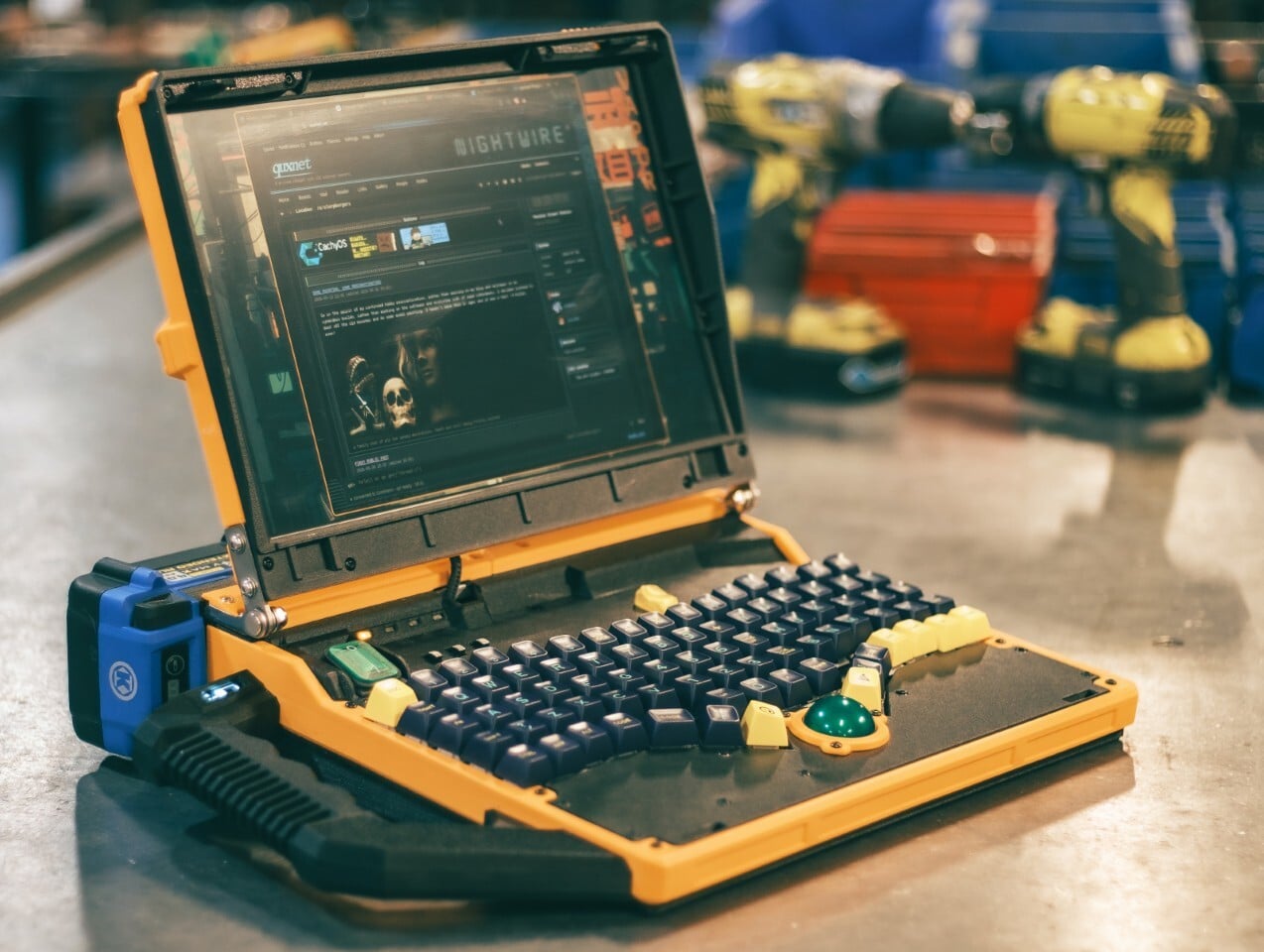
The Slurptop borrows its battery from the toolbox, and its body doesn’t bother pretending otherwise. This homemade cyberdeck wraps mini PC hardware in a chunky yellow-and-black clamshell, complete with an integrated carry handle and mechanical keys. It’s a completed personal project rather than a retail laptop, designed around coding, light design work, and controls that don’t apologize for taking up some extra space.
The angular, 3D-printed enclosure takes its cues from power tools, with simil
The Slurptop borrows its battery from the toolbox, and its body doesn’t bother pretending otherwise. This homemade cyberdeck wraps mini PC hardware in a chunky yellow-and-black clamshell, complete with an integrated carry handle and mechanical keys. It’s a completed personal project rather than a retail laptop, designed around coding, light design work, and controls that don’t apologize for taking up some extra space.
The angular, 3D-printed enclosure takes its cues from power tools, with similarly conspicuous controls. The yellow frame uses glass-fiber-filled plastic, while black components use carbon-fiber-filled filaments. An aluminum bar reinforces the hinge area, with shared bolts securing several structural layers. The handle fits between sections of the case, so assembling the housing locks it into position before its own mounting screws are added.
Open the lid, and the keyboard immediately takes over. Its 82 mechanical keys sit in angled groups rather than the straight rows you’d expect on a laptop, leaving a green trackball near the front center. That ball runs on three ceramic bearings above a sensor salvaged from a gaming mouse. You can move the pointer without clearing desk space for a separate mouse.
The display keeps things relatively conventional, pairing a 14-inch panel with a 1920-by-1200 resolution and a 16:10 aspect ratio. Behind the custom shell is hardware from a GMKtec M5 Ultra mini PC, including an AMD Ryzen 7 7730U processor, 64GB of RAM, and a 500GB SSD. CachyOS supplies the familiar Linux desktop, so there’s a recognizable computing environment beneath all that workshop character.
An XP-Pen drawing tablet also gets its own holder behind the display, adding pen input without displacing the keyboard or trackball. Connected beside the laptop, it provides a separate surface for sketching or editing artwork, leaving the main display free to show what you’re working on. That keeps everything together for travel, although actually drawing still calls for some extra desk space.
The power arrangement follows the same willingness to borrow useful parts. A 24V Kobalt tool battery supplies the machine through a converter that adjusts its output to the PC’s required 19V. A separate cutoff board guards against draining the pack too far. The battery remains an obvious external attachment, making its removal part of the operating routine instead of a repair procedure.
That decision comes with a catch, naturally. The Slurptop doesn’t charge the battery itself, so the pack has to visit its tool charger. Wall power can run the computer independently, and a switching module transfers between the adapter and battery. Keeping it plugged in lets the owner change packs without shutting down, but there’s no uninterrupted battery swap away from an outlet.
The builder reports more than four hours of writing and coding on a 4Ah battery, with some charge remaining. That’s a useful reference, not an independently measured endurance rating. The power-tool styling doesn’t come with a documented weatherproofing or drop rating, either. You can carry this homemade workstation by its handle, but treating it like a drill would be an unfortunate misunderstanding.
The ASUS ProArt P16 with RTX Spark is one of the best Windows laptops I've ever used. It's also one of the easiest to recommend to the wrong person.That distinction matters when laptops start at $2,799.99 and go up to nearly $7,000, but I have a good reason for this caveat.ASUS has designed this new ProArt P16 (H7607) primarily for people who create more than they consume: developers, engineers, AI enthusiasts, 3D artists, video editors, and professionals experim
The ASUS ProArt P16 with RTX Spark is one of the best Windows laptops I've ever used. It's also one of the easiest to recommend to the wrong person.
That distinction matters when laptops start at $2,799.99 and go up to nearly $7,000, but I have a good reason for this caveat.
ASUS has designed this new ProArt P16 (H7607) primarily for people who create more than they consume: developers, engineers, AI enthusiasts, 3D artists, video editors, and professionals experimenting with increasingly sophisticated local AI and agentic workflows.
Indeed, NVIDIA's RTX Spark N1X combines a 20-core Grace CPU, 6,144-core Blackwell RTX GPU, native CUDA support, and up to 128GB of unified LPDDR5X memory. ASUS says the latter configuration can even run LLMs with up to 120 billion parameters.
If CUDA, local inference, LLMs, agentic workflows, GPU memory, or ComfyUI mean absolutely nothing to you, there are better laptops for your money.
If those terms interest you, even if you're just starting to learn about them, things get much more interesting, and you'll want to read on.
ASUS and NVIDIAhad no input, nor did it see the contents of this review, prior to publication.
ASUS ProArt P16: Price and specifications
(Image credit: Daniel Rubino)
I focused on two configurations for this review. My 3K Nano Black unit packs 64GB RAM and a 1TB SSD for $4,399.99, while the top model jumps to 128GB RAM, 2TB storage, and a 4K OLED for $6,999.99.
ASUS also offers Nano Black and Neo White, although configuration choices are strangely interdependent. Changing color can alter the display and Windows edition, so pay attention when ordering. ASUS currently lists Windows 11 Home and Pro, 3K and 4K OLED options, and memory capacities reaching 128GB.
But you can go even lower, as Best Buy's $2,799 model still has that 4K OLED, but 512GB of storage (you can add more later) and 24GB of RAM (obviously, RAM is the cost multiplier here in late 2026).
And don't confuse this H7607 model with the existing (and slightly older) AMD-powered ProArt P16 H7606. RTX Spark makes the H7607 a fundamentally different computer.
ASUS ProArt P16: Design and hardware
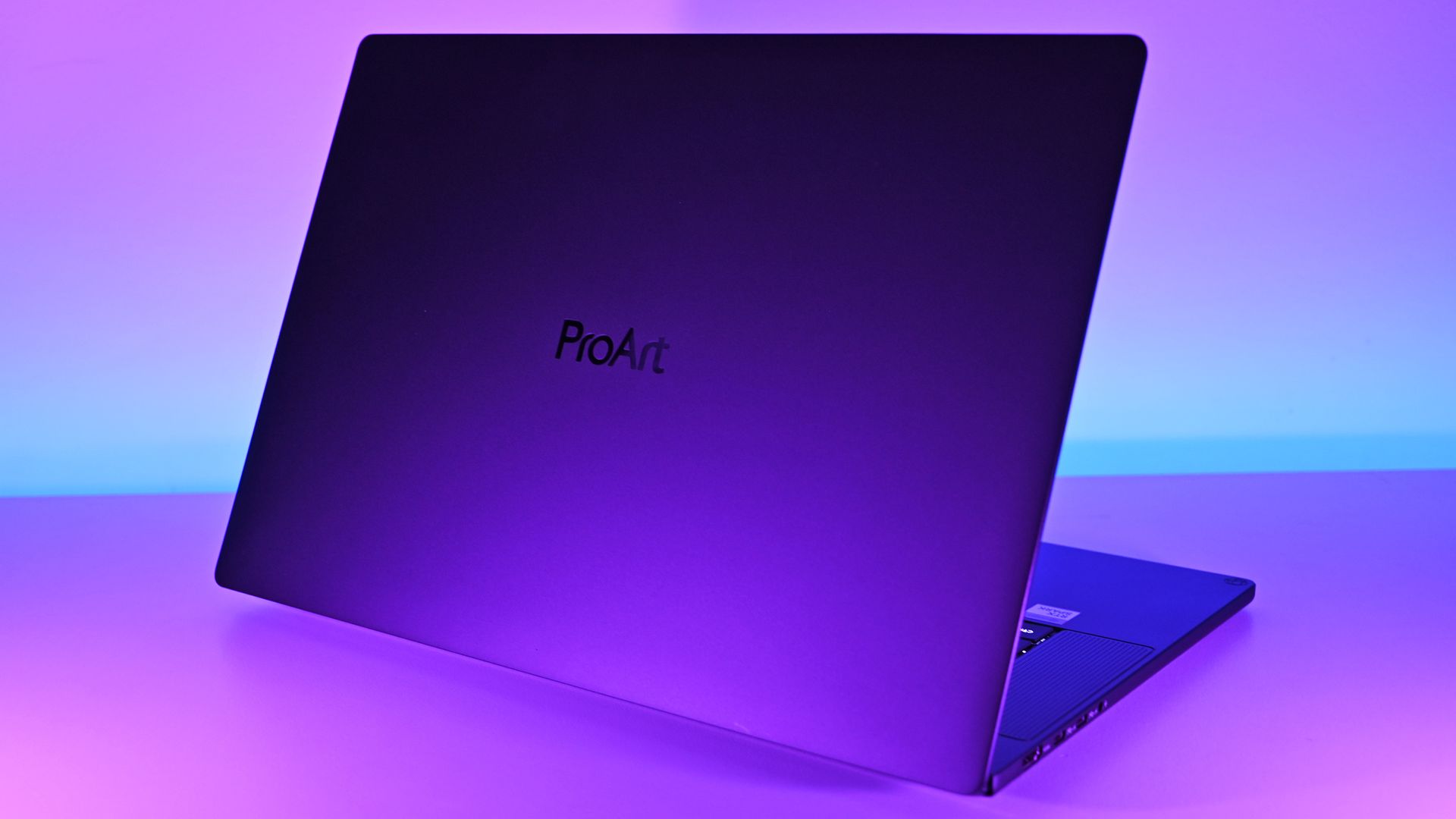
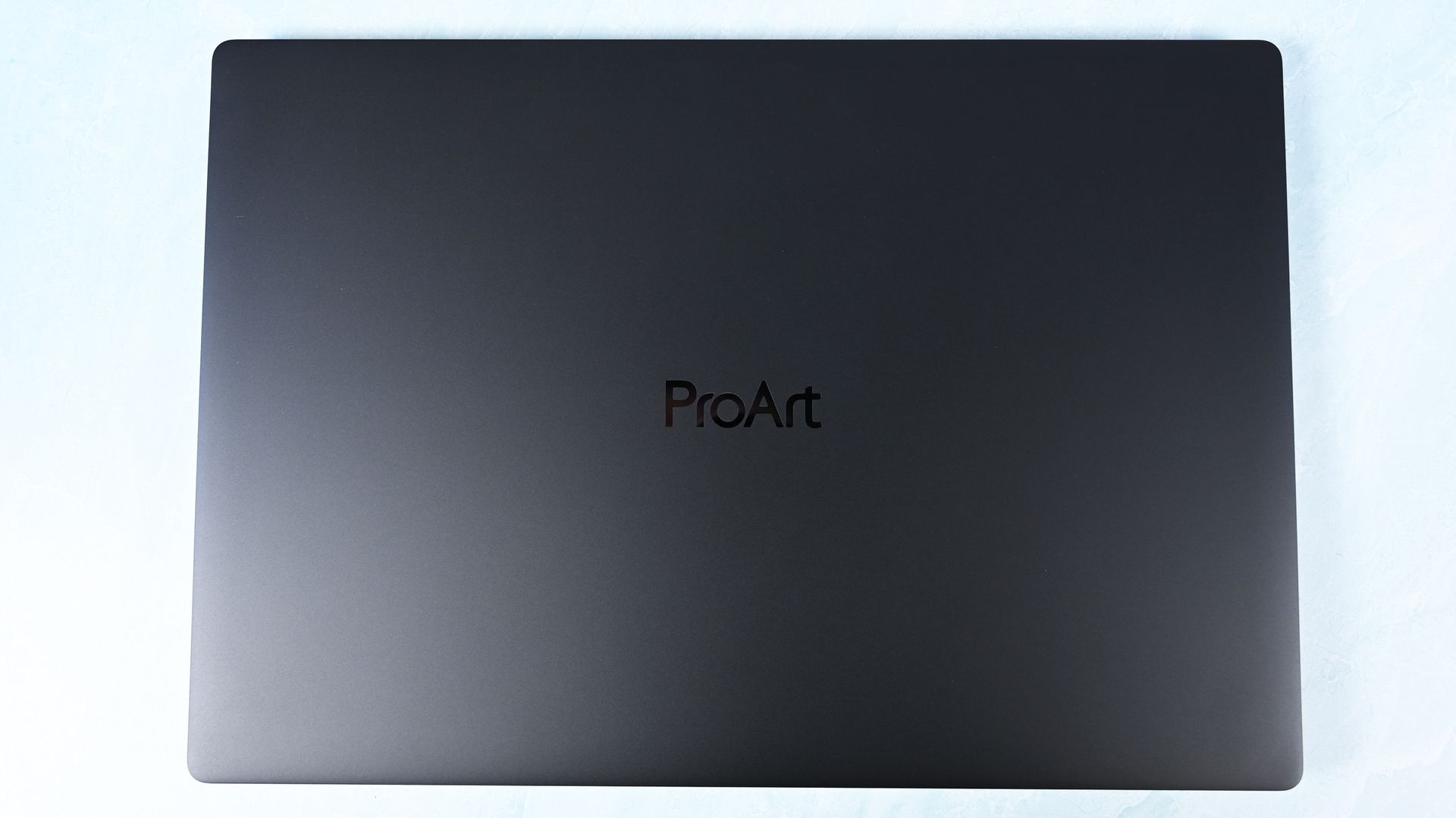
ASUS keeps it simple for the lid. (Image credit: Daniel Rubino)
This may be ASUS's greatest achievement with the ProArt P16.
At just 3.9 pounds, it's remarkably light for a 16-inch workstation, undercutting the 4.5-pound Surface Laptop Ultra, 4.7-pound 16-inch MacBook Pro, and especially HP's surprisingly hefty 4.9-pound OmniBook Ultra 16 RTX Spark.
You absolutely feel the difference.
The ProArt measures just 0.51 to 0.63 inches thick, yet ASUS still squeezes in an enormous 99.9Wh battery.
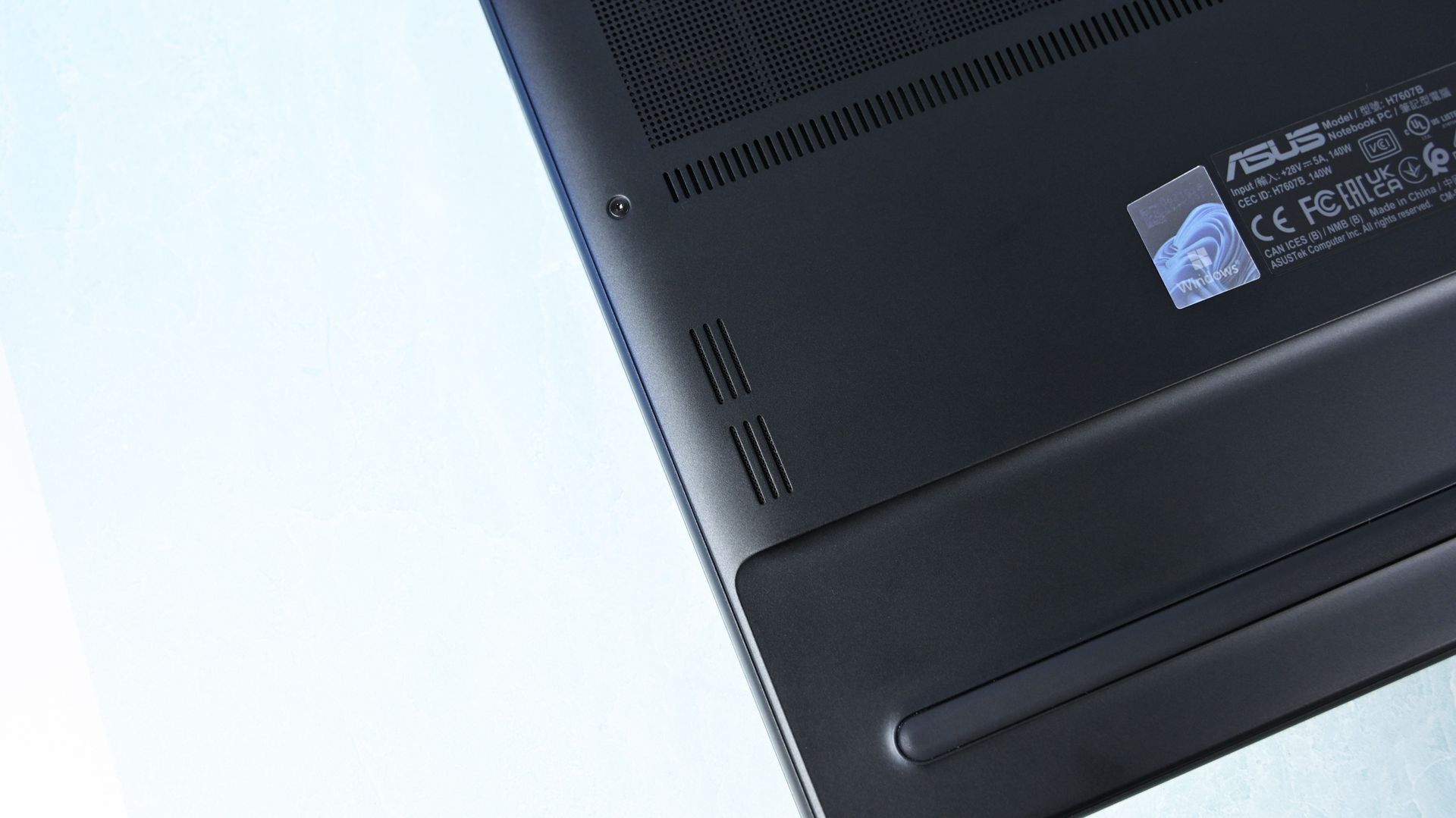
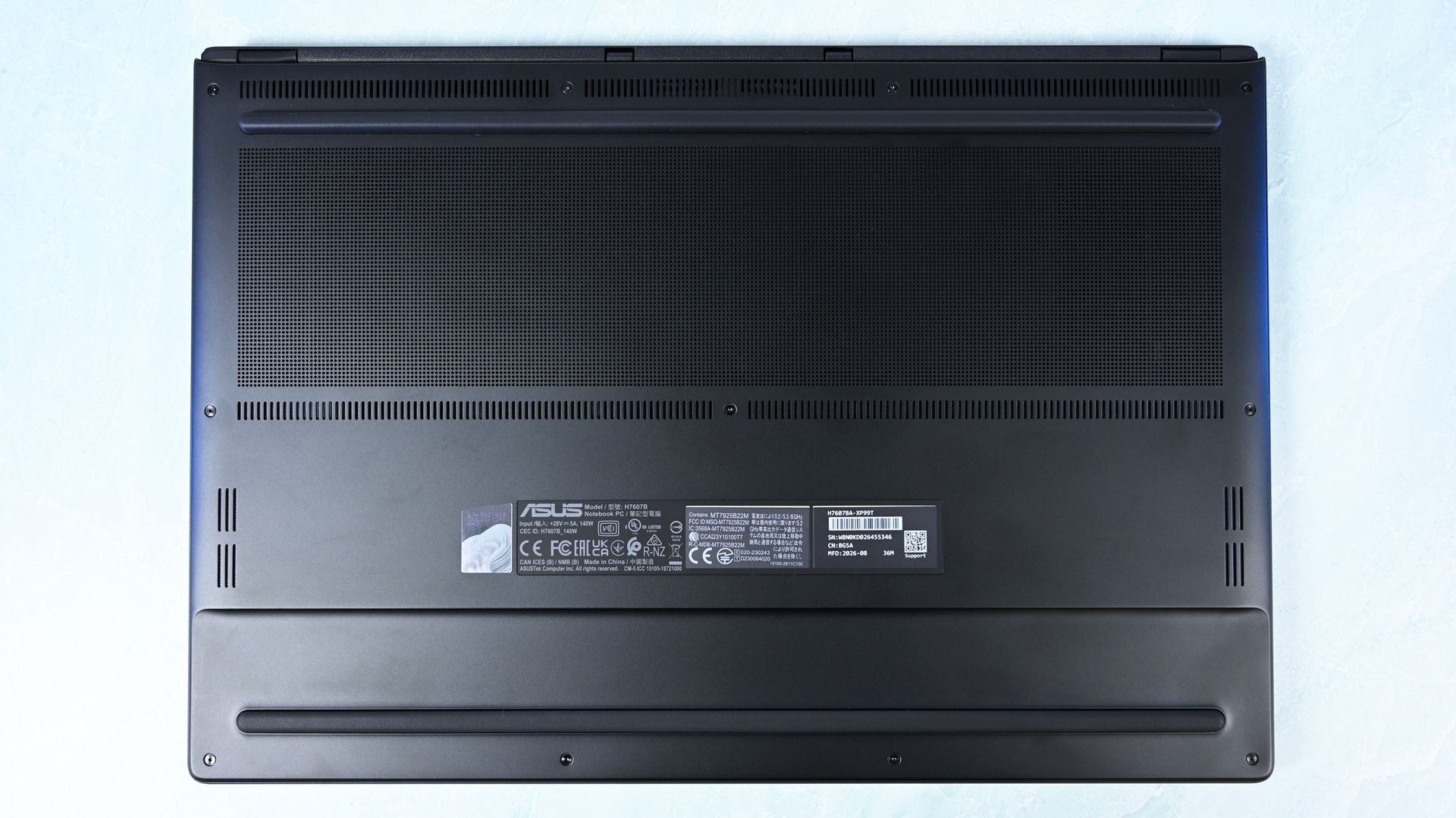
There's one giant grill on the bottom of the ProArt P16 for ventilation, followed by some smaller areas. (Image credit: Daniel Rubino)
Build quality is excellent. I'd give Microsoft and HP a very slight advantage for pure premium feel, but ASUS wins enough other categories that I hardly care. For instance, Nano Black's fingerprint-resistant coating also works surprisingly well. As someone who despises smudgy black laptops, I appreciate details like this.
Thermals are even more impressive. Under sustained heavy workloads, my thermal camera recorded around 105°F across the keyboard deck and approximately 120°F near the rear exhaust. That's a few degrees cooler than both the Surface Laptop Ultra and HP OmniBook Ultra 16 RTX Spark in my testing. Fan noise never exceeded 50dB under extreme workloads.
For something this thin, that's outstanding, since I expected sacrifices in both areas, not the opposite.
Daniel RubinoDaniel Rubino
Connectivity is arguably best-in-class for RTX Spark laptops. It has three USB4 Type-C ports, with two on the left and one on the right, so I can charge from either direction, plus USB-A, HDMI 2.1b, a headphone jack, and a full-size SD card reader. To me, this is the right port configuration for this demographic on an RTX Spark laptop. I wish more companies would split Type-C ports on either side for easier charging, but some still don't.
All these small conveniences add up.
ASUS ProArt P16: Display, keyboard, touchpad, and audio
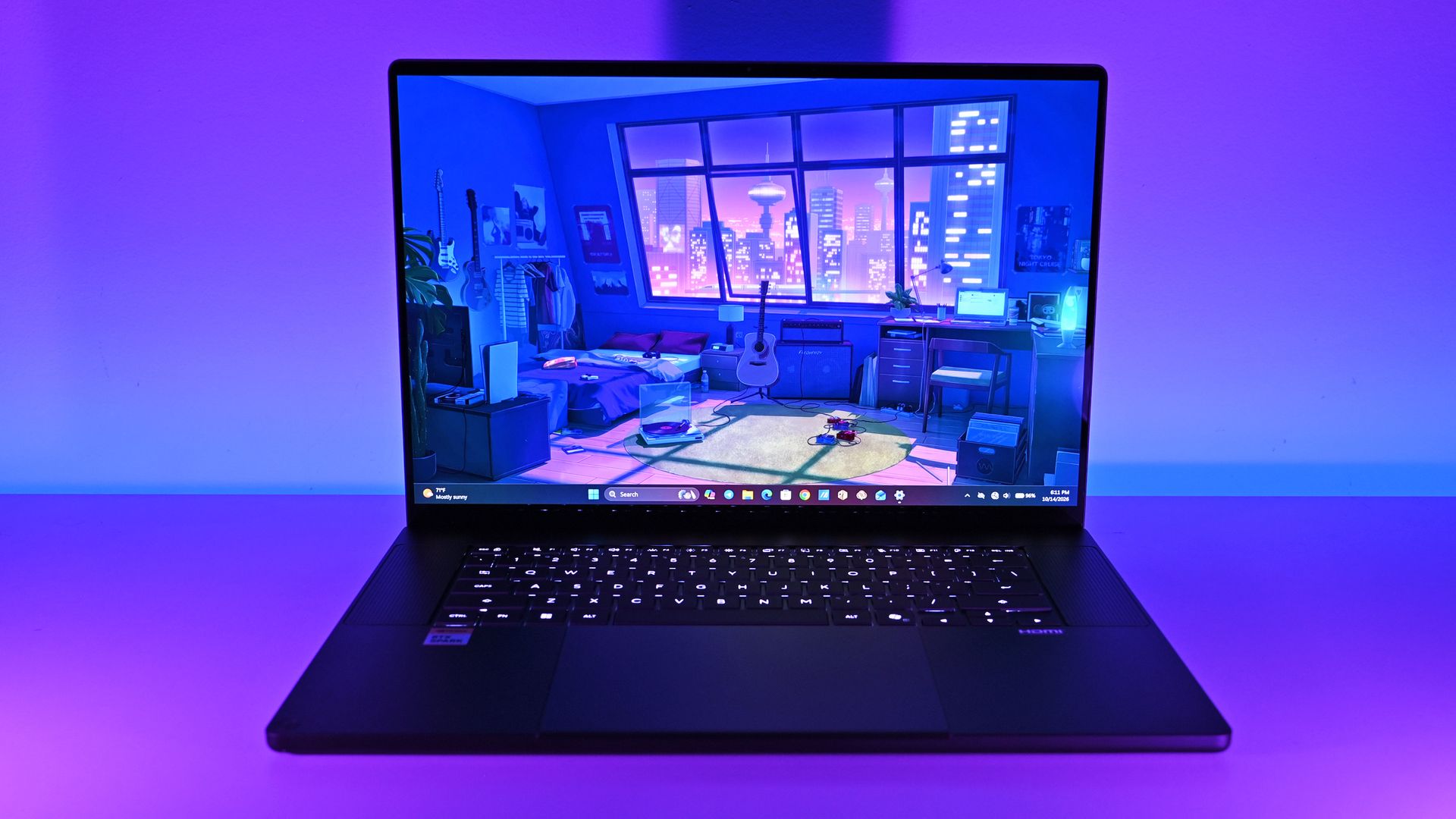
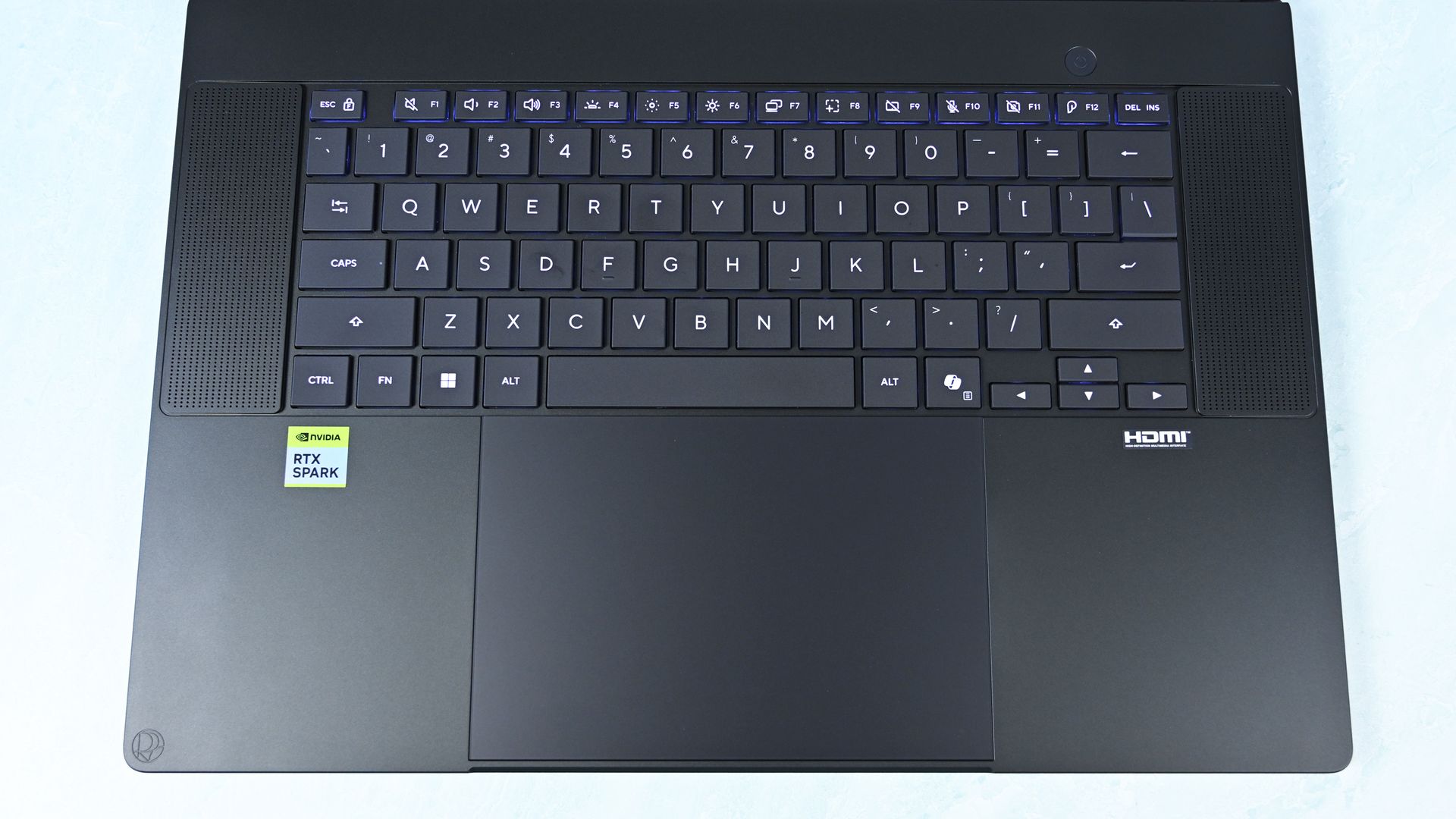
Top-down view of the ProArt 16's basic but solid keyboard deck showing flanking speaker grilles, power button, and huge touchpad. (Image credit: Daniel Rubino)
Both displays are gorgeous 16-inch OLED touchscreens with 100% DCI-P3 coverage, HDR support, and variable refresh rate from 30 to 120Hz. The 3K panel runs at 2880 x 1800 and peaks at 1,100 nits for HDR, while the 4K panel runs at 3840 x 2400, peaks at 1,600 nits for HDR, and adds ASUS's excellent anti-reflection treatment.
It's also worth noting that you get presence detection, an auto-brightness sensor, and adaptive (ambient) color, which are extra bonus display features I like to see at this price point.
Here's my controversial advice: I'd get the 3K display.
Placing both laptops together, I routinely guessed incorrectly when trying to identify them by resolution alone. Pixel peeping exposes the difference, but at normal viewing distances, 3K is plenty for 16 inches.
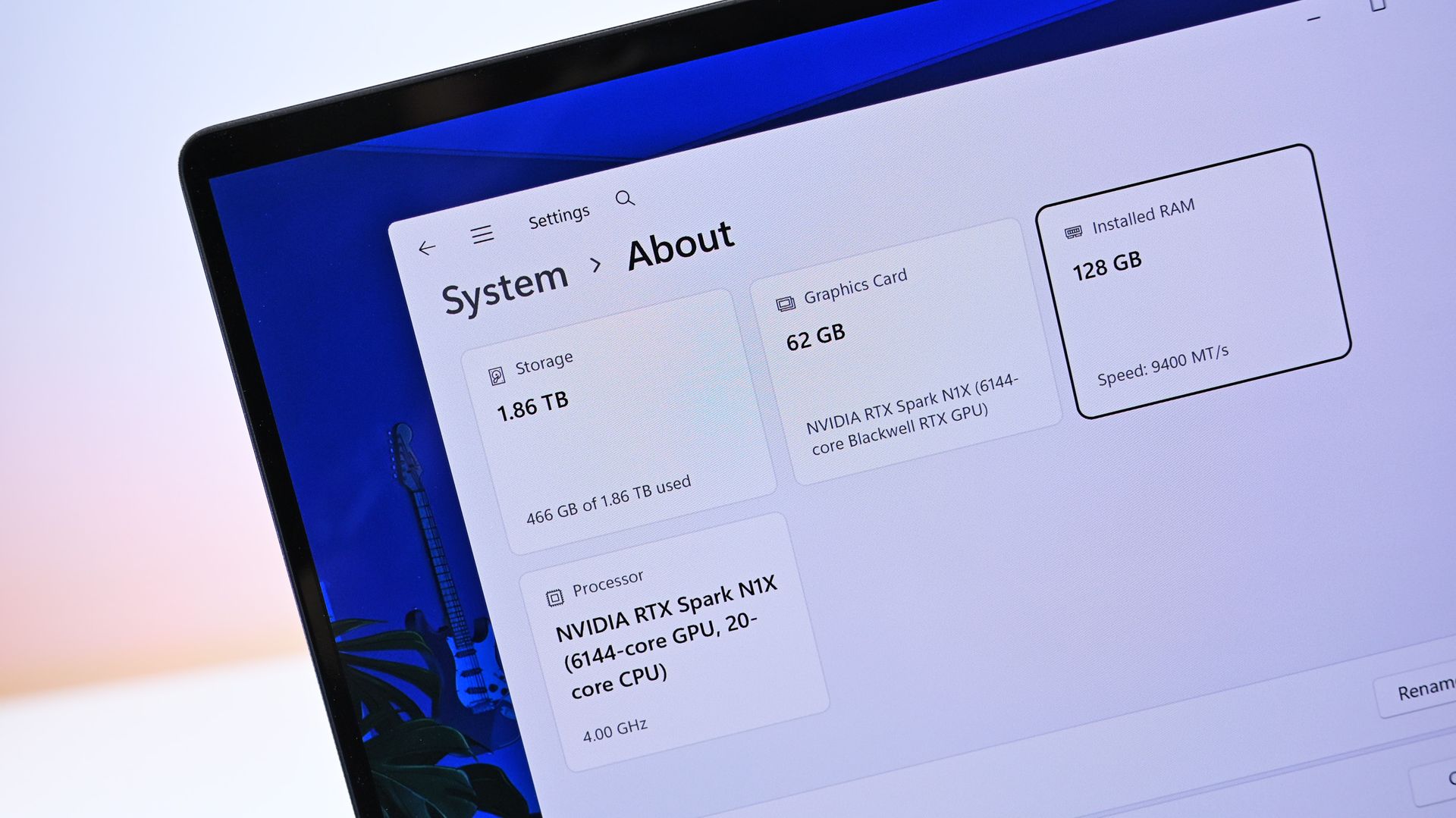
Close-up of Windows system specs showing 128 GB RAM in the $6,999 model. (Image credit: Daniel Rubino)
Unfortunately, ASUS forces the 4K configuration if you want 128GB RAM (unless you go through Best Buy, which has a 32GB model). I wish there were a 3K anti-reflective, 128GB option. That said, as someone who is a stickler for glossy displays, the 3K one is pretty good for glare, considering how much it bothers me.
I've also encountered extremely subtle flickering on my 4K unit. ASUS tells me a fix is coming, but I could also have a bum unit, so I have to have a chat with them about it.
Daniel RubinoDaniel Rubino
ASUS deserves enormous credit for its display controls, though. MyASUS (its main control and configuration app) provides profiles, color gamut controls, OLED flicker-free dimming, pixel refresh, burn-in mitigation, and other OLED Care options. You can even directly adjust memory allocation to the integrated GPU, which is particularly relevant on a unified-memory machine.
Daniel RubinoDaniel RubinoDaniel Rubino
Overall, I think ASUS has the best out-of-the-box software, at least compared to HP and Microsoft, with the most configuration options for audio, connectivity, display, gestures, and more, not to mention direct driver updates from ASUS, warranty info, etc. I rarely praise OEM apps, but this is the way to do it.
This is also the part where I lament some pre-installed junkware, except I didn't find any on either laptop. These are relatively clean installs (except for whatever you dislike about Microsoft's inbox apps).
3-stage, timed backlight for the keyboard is excellent. (Image credit: Daniel Rubino)
The keyboard is similarly excellent, with springy keys, 1.7mm travel, and a three-stage backlight with automatic sensing.
The enormous haptic touchpad might be even better. Haptic feedback feels superb; it supports Windows Haptic Signals, and ASUS adds gestures for brightness, volume, playback, and ScreenXpert. Those gestures are quirky, but also completely optional.
Close-up of the laptop underside corner showing downward-firing speaker cutouts. (Image credit: Daniel Rubino)
The four-speaker Dolby Atmos system is outstanding, and among the best I've heard from a Windows laptop. The 2.1MP webcam is less impressive on paper, particularly against HP's 5MP camera, but ASUS's processing produces a surprisingly sharp picture. Microsoft still wins this category with Surface.
There's even support for the optional $129 ASUS Pen 2.0. Using a pen on a traditional clamshell laptop remains awkward, but it's surprisingly handy for signing documents, marking up images, or quickly diagramming something.
ASUS ProArt P16: RTX Spark and performance
(Image credit: Daniel Rubino)
Unified memory allows the CPU and GPU to access the same large pool rather than dividing system RAM and dedicated GPU VRAM into much smaller fixed buckets. With up to 128GB available, that changes what can realistically be done locally with large AI models, complex 3D scenes, development workloads, high-resolution video, and anything else that can consume enormous amounts of GPU memory.
Then there's CUDA, NVIDIA's massively established parallel computing platform and ecosystem. For developers and creators, CUDA acceleration is fundamental to everything from AI frameworks and local inference to scientific computing and applications like Blender. Having massive unified memory alongside a CUDA-capable Blackwell RTX GPU is what makes RTX Spark particularly interesting.
I've already been experimenting with Osaurus and Hermes, combining models including Gemma 4 26B A4B, GPT-OSS-20B, Qwen3VL-8B, and Raptor 0.6 4B. I'm still learning local AI and agentic computing myself, and I'll be updating this review and writing more about that journey as I figure out what works, what doesn't, and what you can realistically accomplish locally.
FutureFuture
Looking across all my benchmarks, however, there's another interesting conclusion: which RTX Spark laptop you buy matters considerably less for raw performance than you might expect.
The ProArt P16, Surface Laptop Ultra, and HP OmniBook Ultra 16 (review forthcoming) trade places depending on the benchmark, but they're generally clustered surprisingly close together. In Geekbench 7, for instance, the ASUS actually posts the best multi-core result of the three, while single-core performance is separated by barely anything. CUDA testing is essentially a three-way tie. The 4K ASUS scored 187,547 against HP's 187,569, a difference so tiny it is meaningless.
That's good evidence of how consistent NVIDIA's N1X platform is between manufacturers.
FutureFutureFutureFutureFuture
Graphics benchmarks reveal somewhat more variation. The ProArt P16's 11,840 result in 3DMark Time Spy trails the Surface Laptop Ultra's 12,771 and HP's 13,080 by around 7% and 9%, respectively. Speed Way and Steel Nomad tell roughly the same story, with ASUS usually sitting a few percentage points behind Microsoft and HP.
Yet even that isn't universal. In the heavier Time Spy Extreme test, the ProArt P16 actually beats both of them, scoring 6,006 compared to 5,857 for Surface and 5,492 for HP.
In other words, I wouldn't declare any of these RTX Spark laptops the definitive performance winner. We're talking about variations of the same extraordinarily powerful NVIDIA platform, and the rankings shift depending on the workload.
It's also worth remembering what ASUS has achieved physically. At 3.9 pounds and as little as 0.51 inches thick, the ProArt P16 is substantially lighter than its RTX Spark rivals while still maintaining excellent temperatures and relatively restrained fan noise. Some performance variation could plausibly be the consequence of fitting N1X into a thinner, lighter thermal envelope, but ASUS certainly hasn't compromised performance enough that I'd choose a much heavier laptop based on these benchmark differences alone.
(Image credit: Future)
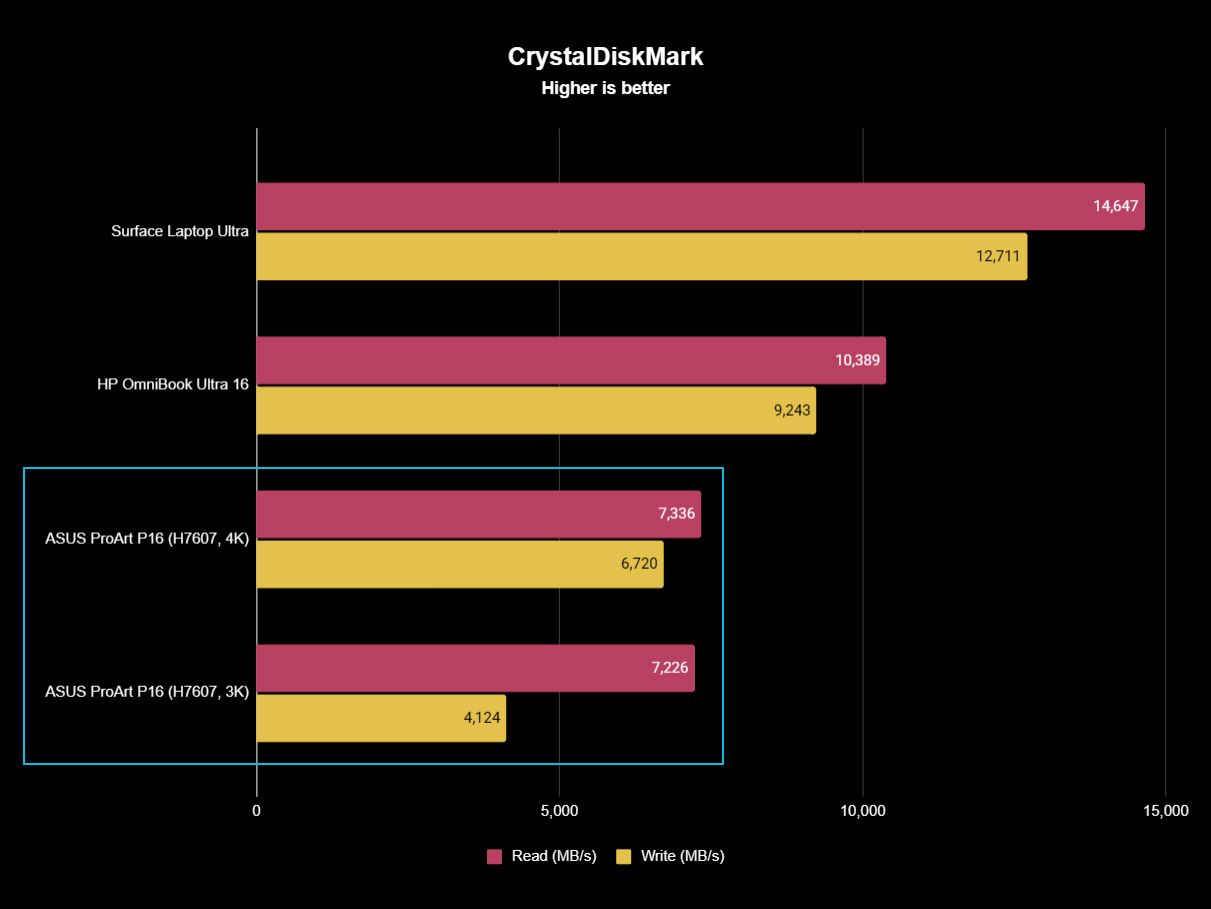
The one performance result I would criticize is the SSD.
Both ASUS configurations are well behind the competition. Sequential reads hover around 7,300 MB/s, compared with 10,389 MB/s on the HP and a massive 14,647 MB/s on the Surface Laptop Ultra. Writes vary considerably between my ASUS configurations, too, from 4,124 MB/s on the 3K model to 6,720 MB/s on the 4K machine. Microsoft reached 12,711 MB/s.
Those ASUS numbers aren't slow in isolation, and Windows still feels exceptionally responsive, but this is a $2,800 to $7,000 workstation. Faster storage should come with the territory. At least ASUS provides a second PCIe 5.0 M.2 slot for expansion, so you can add a seriously fast SSD later.
Daniel RubinoDaniel Rubino
Gaming performance is also surprisingly good. I've played Gears of War: E-Day at maximum settings without issue, while Minecraft Dungeons II looked and played fantastic aside from occasional frustrating stutters. NVIDIA's latest Game Ready Driver appears to have fixed the latter on my machine, which suggests some of RTX Spark's early gaming quirks may improve as drivers mature.
And RTX Spark is legitimately fast here. Time Spy places the ProArt P16 ahead of the RTX 5070-equipped Dell 16 Premium, while Steel Nomad and Speed Way put it comfortably ahead of an RTX 5050 Laptop GPU. A conventional gaming laptop remains the smarter purchase if gaming is your priority, but RTX Spark owners certainly don't need a second computer just to play PC games.
FutureFutureFutureFuture
Ultimately, that's the performance story of the ProArt P16: ASUS gives up remarkably little despite building one of the lightest and thinnest RTX Spark laptops I've tested. Its N1X CPU and CUDA performance are right up there with Surface and HP; GPU performance is sometimes a little behind and sometimes ahead, and the only consistent disappointment is the SSD.
For a machine that's almost a full pound lighter than HP's OmniBook Ultra 16, I'll happily make that trade.
ASUS ProArt P16: Battery life
(Image credit: Daniel Rubino)
Battery life is good given what's inside (a 99.9 WHr battery, the legal limit), though Apple and Qualcomm still have an obvious efficiency advantage here, and I expect NVIDIA to improve over the coming years.
The Windows Battery Report recorded 9 hours and 58 minutes of real-world usage averaged over several weeks, including web browsing, video, messaging, and lighter creative work, basically standard laptop work with more focus on multimedia production and some lighter local AI work.
Hammer the GPU continuously with rendering, AI, or gaming and expect substantially less. Physics eventually wins.
Still, I can't say I've ever had a Windows laptop this powerful, this capable, and this thin/ligyht, and still get that kind of "regular" battery life.
Standby performance is exceptional. Leaving the ProArt P16 overnight resulted in less than 1% battery loss over 14 hours, finally making this Windows laptop behave the way I expect a modern premium portable PC to.
The included 140W USB-C charger is slightly bigger than HP's, though still compact, and ASUS gets bonus points for the excellent thick braided cable.
ASUS ProArt P16: Should you buy it?
(Image credit: Daniel Rubino)
✅You should buy this if ...
You know the benefits of unified memory and CUDA
You want the best RTX Spark laptop
You want to learn about cutting-edge agentic AI workflows
You need a light, very capable workstation for 3D creation, video editing, or coding
❌You should not buy this if ...
You think this is just a gaming laptop in disguise
You don't know what agentic AI is and don't care to learn about it
You spend most of your time consuming content instead of creating it
So, should you buy the ASUS ProArt P16 with RTX Spark? Probably not.
And I mean that as a compliment.
The ProArt P16 H7607 is a specialized workstation for people operating near the frontier of what portable Windows computers can do. Someone mainly browsing the web, writing documents, editing the occasional photo, or even gaming can get an excellent laptop for dramatically less money.
But developers, creators, 3D professionals, AI researchers, and people seriously experimenting with local models and agentic workflows finally have what Windows has desperately needed: a thin, premium laptop that combines massive unified memory with NVIDIA RTX graphics and CUDA.
That's a really big deal.
Both ASUS ProArt P16 models in 3K and 4K variations. (Image credit: Daniel Rubino)
ASUS then wraps that technology in what is arguably the best RTX Spark chassis on the market. And I mean that. ASUS has been killing it on design and features over the last 3 years.
At 3.9 pounds, the laptop almost feels impossibly light (for its class). The OLED display is beautiful, the keyboard and haptic touchpad are excellent, the speakers are outstanding, the ports are plentiful, the thermals are exceptional, and ASUS offers a level of hardware customization through MyASUS that competitors should copy.
Even the weird stuff is charming. My $4,399 3K review unit included ASUS's excellent $99 ProArt MD301 mouse and a protective sleeve, while the $6,999 128GB machine inexplicably included neither. ASUS notes that bundled accessories vary by country and territory, so your experience may differ.
Left: HP OmniBook Ultra 16. Right: ASUS ProArt P16. (Image credit: Daniel Rubino)
One caveat: Those 24GB and 32GB Best Buy models are, I think, perfect, more general laptops for creators whowant a premium Windows 11 experience with the latest technology. That's an easy recommendation if you can afford it.
The SSD should be faster, battery life can't match the best Snapdragon X2 or Apple Silicon laptops, and $7,000 is still an extraordinary amount of money for any laptop (though about $150 cheaper than a similarly spec'd MacBook Pro 16).
Yet none of those complaints change my overall impression.
The ASUS ProArt P16 is one of the best laptops I've ever used. For the relatively small group of people who can actually exploit everything RTX Spark offers, it may also be one of the most exciting Windows PCs in years.
And if you're simply curious about local AI and want to learn where personal computing may be heading next, the ProArt P16 deserves a spot very near the top of your shortlist.
RTX Spark
ASUS
ProArt P16 (h7607)
The ASUS ProArt P16 combines NVIDIA's powerful RTX Spark platform with up to 128GB of unified memory, outstanding OLED displays, superb thermals, and a remarkably thin 3.9-pound chassis. It's an extraordinary Windows workstation, but most people shouldn't buy one.
Join us on Reddit at r/WindowsCentral to share your insights and discuss our latest news, reviews, and more.
Black Friday is inching closer, but that doesn't mean you should wait for bargains on Windows laptops built for productivity before then. Dell is offering a selection of its laptops featuring 16GB of RAM for reliable performance under load, 1TB SSDs for plenty of storage space, and a range of portable sizes to suit you.That includes the Dell 15 ($1,099.99 at Dell, was $1,149.99), Dell 16 ($1,199.99 at Dell, was $1,349.99), and Dell 14 Plus ($1,399.99 at Dell, was
Black Friday is inching closer, but that doesn't mean you should wait for bargains on Windows laptops built for productivity before then. Dell is offering a selection of its laptops featuring 16GB of RAM for reliable performance under load, 1TB SSDs for plenty of storage space, and a range of portable sizes to suit you.
The Dell 14 Plus is the most expensive but best portable laptop in this roundup thanks to its thin and light form factor. It also comes with a crisp 14-inch non-touch QHD+ display (2560x1600), an Intel CPU, 16GB RAM, and a 1TB SSD to crush work assignments.View Deal
The Dell 16 will give you the most screen space of all the highlighted laptops with its 16" FHD+ Touchscreen display (1920x1200) while handling creative tasks with ease using its Intel Core 7 CPU, 16GB RAM, and 1TB SSD.View Deal
The Dell 15 handles workflows efficiently with its Intel CPU, 16GB RAM, a 15.6" non-touch FHD (1920x1080) display, and 1TB SSD, while keeping a respectable mid-range price compared to its upper-tier siblings.View Deal
Which of these Dell laptops is best for you?
The Dell 14 Plus laptop on display (Image credit: Future / John Loeffler)
If you're looking for an affordable yet capable laptop, the Dell 15 offers the best value compared to the other laptops in this roundup.
It's equipped with a 15.6" (Non-Touch) FHD display with 1920x1080 resolution and a 120Hz refresh rate to render images, videos, and writing with sharp details, so you don't have to squint at your work when typing or worry about blurry video feed when hosting stream meetings.
It comes with an AMD Ryzen 7000 7730U CPU and 16GB RAM that will make short work of Office, web browsing, and other productivity tasks while offering a ton of space to back up your precious files with its 1TB SSD.
However, if you've got the budget for more processing power, then go for the Dell 14 Plus Laptop.
It's won high praise from our friends at TechRadar for its 13+ hour battery, great portability due to its ultra-thin design, and 14-inch non-touch QHD+ display with 120Hz and Anti-glare protection.
Best of all, the Dell 14 Plus offers the best single-core performance for everyday use and heavy workloads thanks to its Intel Core Ultra 7 256V CPU, 16GB, and 1TB SSD.
Can these laptops have their RAM and SSDs replaced?
Only the Dell 15 laptop can have its RAM replaced, as it isn't soldered like the ones in the Dell 14 Plus and Dell 16 laptops. All of these laptops can have their SSDs swapped out and replaced with larger ones.
Are they good for gaming?
The Dell 15, Dell 16, and Dell 14 Plus aren't designed for gaming due to their integrated graphics cards, so they will struggle to run most games beyond extremely light titles like Minecraft. Stick to cloud gaming.
Should I wait for Black Friday for a better deal?
It depends on whether you're willing to wait until Black Friday for a bigger discount or if you're in need of a new laptop for work/casual use right now and don't have time to wait for a killer deal.
Join us on Reddit at r/WindowsCentral to share your insights and discuss our latest news, reviews, and more.
Apple finally "invented" the folding phone, bringing flexibility and multitasking to the masses. iPhone Duo reviews are in, and I couldn't help but feel a sense of déjà vu.All the talk of passport-shaped phones, mobile multitasking, and optimized apps sent me back to the days of Microsoft's Surface Duo. A lot of the phrasing in iPhone Duo reviews could have been copied and pasted from reviews of the Surface Duo.So, I put together a quiz to see if people can ident
Apple finally "invented" the folding phone, bringing flexibility and multitasking to the masses. iPhone Duo reviews are in, and I couldn't help but feel a sense of déjà vu.
All the talk of passport-shaped phones, mobile multitasking, and optimized apps sent me back to the days of Microsoft's Surface Duo. A lot of the phrasing in iPhone Duo reviews could have been copied and pasted from reviews of the Surface Duo.
So, I put together a quiz to see if people can identify if a quote is from an iPhone Duo review or a Surface Duo review.
I've changed all of the quotes in this quiz as little as possible and all changes are noted with brackets. I only altered a quote if it includes something that's a giveaway like iPhone Duo, Surface Duo, Apple, or Microsoft.
I sent this quiz to a few friends and colleagues before publishing it. No one got a perfect score, and many only got 50% correct. I'm curious to see if that trend continues as more people take the quiz. Please let me know how you did in the comments!
Below are all of the reviews I used to create this quiz.
Every once in a while, Best Buy will host a lucrative deal on a reliable, mid-range laptop during its "Deal of the Day" sale, and that's especially true now, as the HP Omnibook 3 laptop is available for $599.99 at Best Buy (was $799.99), but only for today.This laptop is a great mid-range choice for students and office workers alike, with its above-average performance, battery life, and high-contrast OLED display that will help you get through the day.OmniBook 3
Every once in a while, Best Buy will host a lucrative deal on a reliable, mid-range laptop during its "Deal of the Day" sale, and that's especially true now, as the HP Omnibook 3 laptop is available for $599.99 at Best Buy (was $799.99), but only for today.
This laptop is a great mid-range choice for students and office workers alike, with its above-average performance, battery life, and high-contrast OLED display that will help you get through the day.
The HP OmniBook 3 is a well-made mid-range laptop that will power through homework, casual tasks, and office work with its performance-boosting Snapdragon X CPU and 16GB RAM, long-lasting battery life of 32 hours, and detailed 2K OLED touchscreen.View Deal
Why buy the HP Omnibook 3?
The spec highlights for the HP Omnibook 3 laptop. (Image credit: HP)
Our friends at TechRadar have praised and recommended the HP Omnibook 3 in their coverage a couple of times, and it's easy to agree with them. It's a well-made laptop for school learners or desk workers who need a reliable solution for daily homework, assignments, research, creative tasks, and casual use without breaking the bank.
This laptop is equipped with Qualcomm's (8-core) Snapdragon X CPU to give it faster and more responsive performance when running apps, 16GB of RAM to help it multitask multiple apps without slowing it down, and a 512GB SSD to store precious data.
The HP Omnibook 3 also features a 14-inch 2K OLED touchscreen that displays images, videos, and livestreams with crisp and vibrant details, and a massive battery life of potentially up to 41 hours so you won't have to worry about it shutting down during work.
Is it's RAM and SSD upgradeable?
The HP Omnibook 3's RAM is soldered, so it can't be upgraded, but its SSD can be removed via its M.2 NVMe SSD slot and replaced with a larger one up to 1TB.
Is it an AI laptop?
Yes, the HP Omnibook 3 is an AI laptop as it features Copilot+ PC integration with an NPU capable of 45 TOPS for boosted performance rates while performing local AI-related tasks.
Is it worth waiting until Black Friday?
It depends on your situation and needs. If you're not in a hurry and are willing to wait for a better price, then waiting until Black Friday on November 27, 2026, is a valid option.
However, if you desperately need a new, high-quality laptop and are concerned that laptop prices are going to get worse thanks to the RAM crisis, then we recommend taking advantage of Best Buy's 25% discount on the HP Omnibook 3, as this deal is only available for today.
Join us on Reddit at r/WindowsCentral to share your insights and discuss our latest news, reviews, and more.
2026 saw the release of the familiar Dell XPS 13, a 'new' laptop designed to be the ultimate, affordable gateway for first-time PC users thanks to its respectable performance, long-lasting battery life, high-quality build, and general reliability.The XPS 13's work-focused 16GB configuration normally sells for $999.99 at Dell, but Best Buy now has a cheaper alternative for $799.99, thanks to a limited-time 20% discount.XPS 13 (Intel Core 5 Series 3 320, 16GB RAM,
2026 saw the release of the familiar Dell XPS 13, a 'new' laptop designed to be the ultimate, affordable gateway for first-time PC users thanks to its respectable performance, long-lasting battery life, high-quality build, and general reliability.
"The Dell XPS 13 returns as an excellent Windows-based answer to the MacBook Neo. It’s an excellent option for students or mainstream users who don’t need more CPU or GPU muscle." — Matt Safford, Managing Editor, Tom's Hardware
They don't make those comments lightly because the Dell XPS 13 has plenty of features to help it live up to the hype and make it an easy recommendation for beginner PC users, students, and workers.
These include a strong battery life of nearly 15 hours per charge, a 13.4" 3K Touchscreen with 2560x1600 resolution and a 120Hz refresh rate to provide crisp and detailed images and videos, and a solid, thin 0.5 inches thick chassis weighing in at 2.2lb for easy portability.
On top of that, the Dell XPS 13 has a solid and responsive keyboard, a pair of Thunderbolt 4 ports to plug in useful accessories, an IR sensor for facial recognition, great-sounding speakers, Wi-Fi 7 support for faster and more stable internet connections, and decent performance for casual use and mid-level intensive workflows thanks to its Intel Core 5 Series 3 320 CPU and 16GB of RAM.
Can it's RAM and SSD be swapped with different ones?
The Dell XPS 13 laptop's RAM can't be removed and swapped for a different one due to being soldered, so you will need to decide how much RAM it gets during checkout.
Its SSD, however, can be swapped out with a different one, and the Dell XPS 13 supports up to 4TB of storage.
Is it worth waiting until Black Friday?
In the past, we'd recommend waiting until Black Friday for a chance at a better discount, as laptops are usually discounted to their lowest by then.
However, with the ongoing RAM crisis hiking the prices of laptops further and further, who's to say that the Dell XPS 13 won't have a good price by then, even with a Black Friday discount?
With that in mind, it's still worth using Best Buy's 26% discount for the Dell XPS 13 now in case things get worse, especially if you're in a hurry for a high-quality, beginner-friendly laptop.
Join us on Reddit at r/WindowsCentral to share your insights and discuss our latest news, reviews, and more.
There have been few laptops that have completely blown us away with exceptional design, long battery life, and a smooth Windows experience quite like ASUS' Zenbook A14, and it saw a massive upgrade this year with a refresh outfitted with Qualcomm's Snapdragon X2 Elite processor.Normally, the ASUS Zenbook A14 with its $1,349.99 price tag can seem like a hard sell compared to its cheaper (yet very capable) Snapdragon X Plus predecessor (usually $939.00 — $969.99),
There have been few laptops that have completely blown us away with exceptional design, long battery life, and a smooth Windows experience quite like ASUS' Zenbook A14, and it saw a massive upgrade this year with a refresh outfitted with Qualcomm's Snapdragon X2 Elite processor.
Normally, the ASUS Zenbook A14 with its $1,349.99 price tag can seem like a hard sell compared to its cheaper (yet very capable) Snapdragon X Plus predecessor (usually $939.00 — $969.99), and its premium-grade Zenbook A16 sibling with its powerful X2 Elite Extreme CPU ($1,599.99 — $1,899.99).
Thankfully, with this 26% discount, the Zenbook A14 with Snapdragon X2 Elite is now at a smarter price of $999.99 at Best Buy, compared its siblings.
"At a glance, it might feel like the Zenbook A14 didn't change at all, but upgrading to the Snapdragon X2 Elite gave it a massive CPU performance bump." — Ben Wilson, Senior Editor
The Snapdragon X2 Elite logo on the ASUS Zenbook A14. (Image credit: Ben Wilson | Windows Central)
For starters, ASUS' Zenbook A14 laptop with Snapdragon X2 Eliteoffers vastly superior performance for casual use and heavy workloads compared to its 2025 Snapdragon X Plus predecessor, while also outperforming Apple's M5 chip.
Additionally, this laptop also earned high praise from us for its exceptional battery life of 17 hours per charge, crisp 14-inch OLED display that runs at 1920x1200 resolution with a max refresh rate of 60Hz, and vast selection of USB4, HDMI 2.1, and USB-A ports.
Plus, this version of the ASUS Zenbook A14 laptop also has Wi-Fi 7 support for faster and more stable wireless internet connections.
So, if you're looking for a lightweight, compact Windows laptop that will make mincemeat out of CPU-heavy apps and workflows, then the ASUS Zenbook A14 laptop with the Snapdragon X2 Elite CPU will serve you well in the office or school.
Will my everyday apps and old devices work with it?
Most everyday apps will function on the ASUS Zenbook A14, but older devices like legacy printers or scanners may have compatibility issues with the laptop's Qualcomm Snapdragon ARM-based processor. So make sure you check these older devices before using them on the ASUS Zenbook A14.
Is the RAM and SSD upgradeable?
The ASUS Zenbook A14's 16GB RAM is soldered, so it can't be removed and swapped with a larger one. You will need to select how much RAM it will have during checkout (16GB or 32GB). Its 512GB SSD, on the other hand, can be swapped out with a larger one up to 4TB of space.
Is it worth waiting until Black Friday for a better deal on this laptop?
It depends on your situation and wants. If you can hold out for a few weeks for a chance at a better discount, I'd recommend waiting until Black Friday.
However, if you're in a hurry for a new premium-level laptop for work and are afraid the ongoing RAM crisis will drive the price of this laptop to unaffordable levels in the future, then I'd say take the Asus Zenbook A14 now while its 26% discount is hot (and making its price slightly more on par with the 2025 model).
Join us on Reddit at r/WindowsCentral to share your insights and discuss our latest news, reviews, and more.
Linux support is progressing for Snapdragon X2 laptops, but missing drivers and hardware limitations mean buyers should check exact models before switching.
The post Snapdragon X2 Linux Laptop Support: What Works, What Doesn’t appeared first on TechRepublic.
Linux support is progressing for Snapdragon X2 laptops, but missing drivers and hardware limitations mean buyers should check exact models before switching.
Xbox turns 25 this year, and if you're going to commemorate a quarter-century of one of gaming's most recognizable brands, slapping a green logo onto some existing hardware isn't going to cut it.Thankfully, Razer didn't phone it in.The new Razer | XBOX 25 Anniversary Collection (now available) takes three existing Razer products, the BlackWidow V4 75%, Basilisk V3 Pro 35K, and Hammerhead V3 X HyperSpeed, and transforms them with translucent green shells, Xbox det
Xbox turns 25 this year, and if you're going to commemorate a quarter-century of one of gaming's most recognizable brands, slapping a green logo onto some existing hardware isn't going to cut it.
Thankfully, Razer didn't phone it in.
The new Razer | XBOX 25 Anniversary Collection (now available) takes three existing Razer products, the BlackWidow V4 75%, Basilisk V3 Pro 35K, and Hammerhead V3 X HyperSpeed, and transforms them with translucent green shells, Xbox detailing, and some fantastic use of RGB lighting. Razer officially announced the limited-edition collection in August, describing it as a collaboration with Xbox celebrating 25 years of the brand.
I've now spent some time with all three, and there's one product that immediately stands above the rest.
The keyboard is ridiculously good.
The BlackWidow V4 75% is the star of the show
Top-down view of the Razer BlackWidow V4 75% Xbox 25th Anniversary keyboard and wrist rest. (Image credit: Daniel Rubino)
If I could only buy one thing from this collection, it would unquestionably be the BlackWidow V4 75%.
It's absolutely awesome-looking in person.
The translucent green chassis and keycaps make exceptionally good use of Razer's Chroma lighting because you're not simply seeing RGB through the legends. The light spills through the translucent structure of the keyboard itself, illuminating the switches and keys and giving the whole thing this glowing, almost radioactive Xbox-green appearance.
My photos don't really do it justice. I've generally kept mine predominantly green for obvious reasons, but you aren't locked into the Xbox color scheme. Razer Chroma gives you full RGB customization, including per-key lighting, while the keyboard also has two-sided underglow.
Even the bottom of this keyboard looks great. (Image credit: Daniel Rubino)
There are some lovely smaller touches, too. The spacebar carries the XBOX 25 branding; there are Xbox-inspired symbols scattered across the keycaps, and the familiar ABXY colors appear around the arrow cluster. Razer has even included a dedicated Xbox key for opening Game Bar.
But perhaps my favorite finishing touch is sitting in front of the keyboard.
Sure, you can customize the RGB using Synapse, but out of the box, I love the default color profile. (Image credit: Daniel Rubino)
The included magnetic wrist rest has Razer and XBOX 25 branding prominently printed on it in green, and that's the type of detail that pushes this beyond feeling like a basic special-edition colorway. It completes the look.
Even the wrist rest gets some branding love. (Image credit: Daniel Rubino)
Razer uses its Orange Tactile Switches Gen-3 here, while retaining the BlackWidow V4 75%'s hot-swappable design.
At $209.99 on Razer.com, it's admittedly not cheap. But if I'm buying something specifically because it's a limited Xbox 25th-anniversary edition, I want it to actually feel special. This does.
BLACKWIDOW V4 75%: $209.99 If you’re looking for more customization and immersion, meet your XBOX enthusiast needs with a compact, hot-swappable mechanical keyboard featuring Razer Chroma RGB and Razer Orange Tactile Mechanical Switches Gen‑3.View Deal
The Basilisk V3 Pro 35K completes the look
Arguably one of the best combo gaming and ergo mice around, the Basilisk V3 Pro 35K in translucent green looks superb. (Image credit: Daniel Rubino)
I'm already a fan of the Basilisk line, and underneath the translucent green makeover, this remains a very capable wireless gaming mouse. You get Razer's Focus Pro 35K Optical Sensor Gen-2, HyperScroll Tilt Wheel, 13 customizable controls, HyperSpeed Wireless connectivity, and Chroma RGB.
Razer lists up to 140 hours of battery life over HyperSpeed Wireless as well.
However, once again, it's the execution of the anniversary design that makes the difference.
(Image credit: Future)
The translucent green upper shell lets you see hints of the mouse's internal structure, while XBOX 25 branding runs down the side. RGB lighting beneath the mouse creates a bright green glow that makes it look fantastic beside the BlackWidow.
Honestly, if you're getting the keyboard, you really should just get the mouse too (sorry about your wallet).
Close-up top view of the Razer Basilisk V3 Pro 35K Xbox 25th Anniversary gaming mouse featuring a translucent green shell and Xbox 25 branding. (Image credit: Future)
There's even a translucent green 2.4GHz wireless dongle! Nobody needed to do that. Razer did it anyway, and that's precisely my point about this collection. Everywhere I look, there's another little bit of attention to detail.
This was completely unecessary, but Razer really went all out for the theme here🫡. (Image credit: Daniel Rubino)
The Basilisk costs $179.99 on Razer.com. Yes, Razer has subsequently moved the Basilisk family forward, so you're not buying the newest generation simply because this is a new Xbox edition. But considering what you're really paying for here, namely an excellent mouse transformed into a collectible anniversary design, I'm not going to complain too much.
BASILISK V3 PRO 35K: $179.99 Packed with cutting-edge technology, unleash your full potential with an XBOX-themed RGB gaming mouse that redefines the boundaries of performance, customization, connectivity, and control.View Deal
The Hammerhead V3 X HyperSpeed does exactly what it needs to
(Image credit: Daniel Rubino)
Finally, there are the Hammerhead V3 X HyperSpeed earbuds.
I've been using these with my ASUS Xbox Ally X, where they've made a great little companion for handheld gaming. They sound great, and the transparent green design is wonderfully nostalgic without looking cheap.
The earbuds themselves are translucent right down through the stems, while the charging case gets the same treatment with a large XBOX 25 logo across the front. It's distinctive without Razer needing to reinvent the product underneath.
(Image credit: Daniel Rubino)
To be clear, I'm not sure what else Razer could have done here.
These support both Razer HyperSpeed Wireless over 2.4GHz and Bluetooth 5.3, including Razer SmartSwitch, alongside up to 35 hours of total battery life. They're also IPX4-rated, and Razer lists surround-sound support across Xbox and PC.
At$119.99 on Razer.com, they're also the least expensive route into the collection.
HAMMERHEAD V3 X HYPERSPEED: $119.99 Experience seamless audio with the ultimate wireless gaming earbuds. Equipped with Razer HyperSpeed Wireless, Razer SmartSwitch Dual Wireless, and THX Spatial Audio, stay connected, competitive, and fully immersed on Xbox and beyond.View Deal
This is how you do an anniversary collection
(Image credit: Future)
The three anniversary models carry roughly a $10 to $20 premium over their standard counterparts, depending on the product. That's the sort of "special edition tax" I can live with when I'm actually getting something special in return.
And, in my opinion, Razer really went over the top here.
There's a consistency across all three products that makes them feel like an actual collection, rather than three unrelated products that happen to share a logo and color. Put the BlackWidow and Basilisk together on a desk, and they look fantastic.
The translucent green plastic immediately evokes Xbox, while the XBOX 25 logos, custom keycaps, ABXY colors, wrist-rest embroidery, RGB implementation, and even that ridiculous little green wireless dongle demonstrate that somebody cared about sweating the details.
🤌It's so cool looking! (Image credit: Daniel Rubino)
And that's ultimately why I like these so much.
Razer started with some of its best hardware rather than using Xbox's anniversary to dress up cheaper peripherals, and then went far enough with the aesthetic changes that they feel genuinely unique.
The Razer | XBOX 25 Anniversary Collection is available to order from October 20, with the BlackWidow V4 75% at $209.99, Basilisk V3 Pro 35K at $179.99, and Hammerhead V3 X HyperSpeed at $119.99.
These are limited edition, so don't be shocked if they sell out.
If I were choosing only one, I'd take the BlackWidow without hesitation. (But let's be honest: the keyboard and mouse belong together.)
A+ from me, Razer. This is how you do anniversary hardware.
Hit me up in the comments if you have any questions while I still have these on hand! And you can follow the rest of our XBOX 25 coverage as we round out 2026.
Join us on Reddit at r/WindowsCentral to share your insights and discuss our latest news, reviews, and more.

 Connexion