Connexion


If you use Magnifier across multiple screens, this Windows 11 update could make a huge difference
Windows Insiders have a bunch of new builds to check out. Microsoft released five Insider builds to wrap up the week, and they include everything from tiny changes and fixes to a massive update to Magnifier.
Rather than stretching a single magnified view across all of your displays, Magnifier will remember distinct zoom percentages to each monitor.
Magnifier also has a new contrast theme to reduce glare. This is different from the color inversion. Magnifier's contrast theme leaves photos, charts, and videos untouched.
This release of Windows Insider builds also serve as a reminder that Microsoft is reducing that amount of storage that comes with a Microsoft 365 Family plan. Of course, Microsoft does not phrase it that way, but it's true.
The build shipping to Beta channel Insiders adds a section in the Settings app that shows how much shared storage is used across your Microsoft 365 Family plan. That plan currently includes up to 6TB of OneDrive storage spread across six users. That will soon be reduced to 2TB of OneDrive storage shared across the entire family.
Windows Update (Beta)
- With this update, the Beta channel moves to Windows 11, version 26H2, with the build number increasing to Build 26320. You shouldn't expect any significant change from this build number increase alone, as it's delivered via an enablement package (eKB) update.
Windows Search (Beta, Beta (26H1))
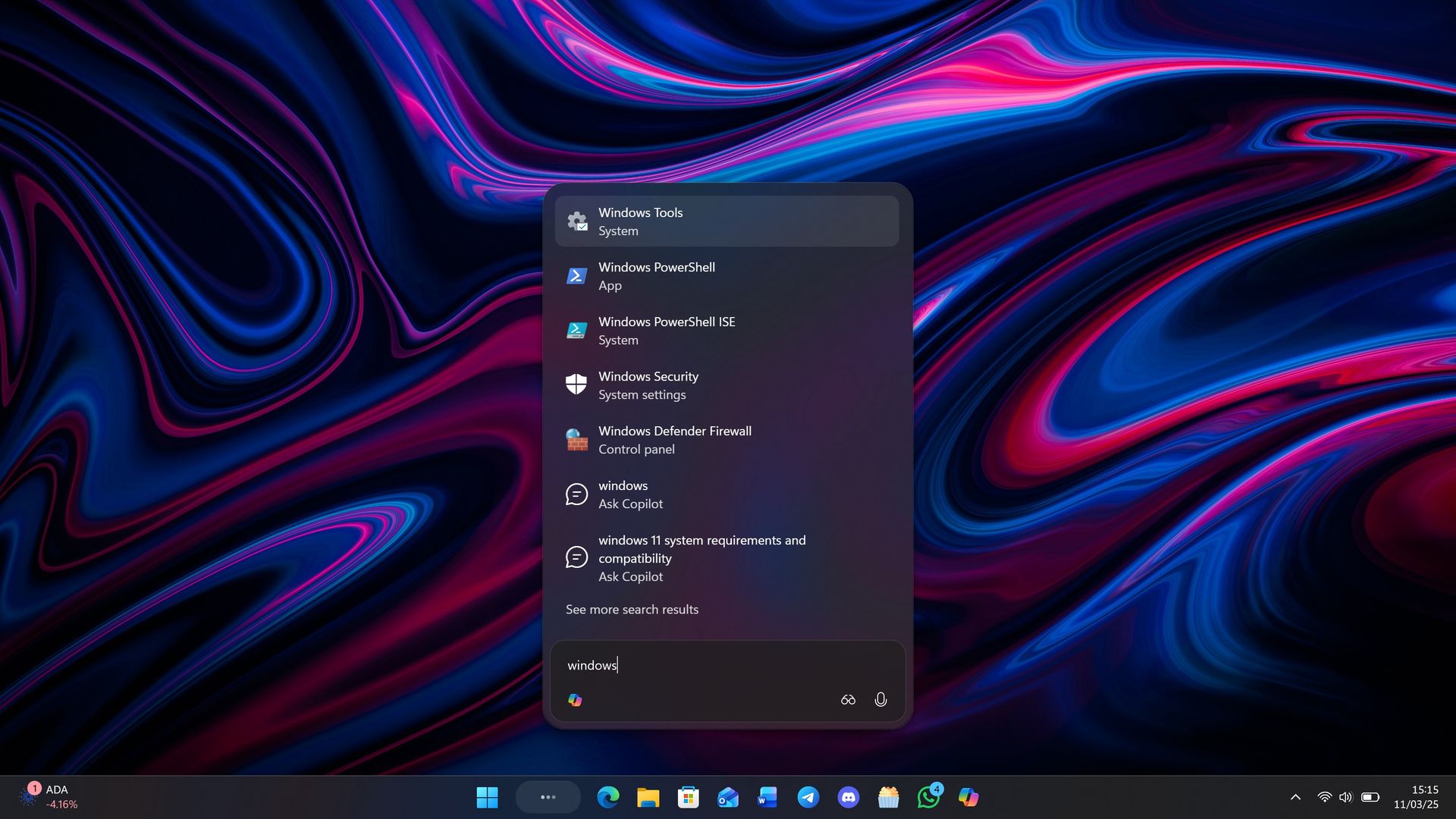
- New Windows Search experience with inline actions: A new Windows Search experience built on WinUI 3 is beginning to roll out. It's faster, more efficient, and features a streamlined design that makes results easier to scan. Inline actions let you quickly complete tasks directly. Turn on dark mode or Bluetooth, adjust your screen brightness, mute your device, or arrange windows from Windows Search.
- Windows Search is improving how it understands what you're looking for, including better matching for typos and synonyms. These improvements will continue to be fine-tuned over the coming weeks. For more information about the changes, check out the Windows Insider Blog.
- English is the only supported language for this initial release.
Live captions (Beta, Experimental)
- Live captions now gives you control over what gets transcribed. Previously, captions used system audio, with an option to add your microphone. Now you can choose system audio, your microphone, or both, so captions follow the sound you care about. Caption an in-person conversation without picking up system audio, or follow audio from your PC during a meeting or while watching a video.
Gaming (Beta)
- Quick settings is coming to the Gaming Task View navigation bar in XBOX mode, giving you access to the full set of Quick settings available on the Windows taskbar without having to leave XBOX mode.
Web sign-in (Beta)
- Web sign-in now works on Microsoft Entra hybrid joined devices. Before this update, it was only available on Microsoft Entra joined devices. You can sign in to Windows at the lock screen with a passwordless credential: a FIDO2 security key, a passkey on your phone, or a Temporary Access Pass (TAP). You don't need a password. Once you're signed in, Windows gets a Kerberos ticket, so on-premises file shares and internal sites keep working. For more information, see Use web sign-in to enable passwordless sign-in in Windows.
Windows Hello (Beta, Experimental (26H1)))
- Windows Hello facial recognition can temporarily brighten your screen to help you sign in when you're in a dark or dimly lit room.
- To turn on this feature, go to Settings > Accounts > Sign-in options > Facial recognition (Windows Hello) and turn on Automatically adjust screen brightness during face recognition.
Windows Hello (Experimental)
- Sign-in and unlock now behave more consistently and give clearer guidance. You no longer have to wait for face or fingerprint recognition to finish before entering your PIN. Use whichever method works first. At certain times, such as after a restart, you'll need your PIN first. After that, biometrics work as usual.
- New Windows Hello events let IT admins see how users sign in. The sign-in experience doesn't change. In Event Viewer > Windows Logs > Security, event 4628 records the Windows Hello methods a user has set up and which method they used to sign in (PIN, face, fingerprint, or no Windows Hello). Event 4629 records failed Windows Hello sign-in attempts. Both events use the existing Audit Logon policy.
- For troubleshooting, events 5010 and 7010 in Event Viewer > Applications and Services Logs > Microsoft > Windows > HelloForBusiness > Operational record each Windows Hello sign-in and unlock, along with the result.
Input (Beta)
- The dialogs that ask whether you'd like to turn on Sticky Keys or Filter Keys are being updated, making it easier to dismiss these prompts permanently. If you don't use these keyboard features, you can choose not to be asked again directly from the dialog, helping you continue what you're doing with fewer interruptions.
Input (Experimental)
- Live captions now gives you control over what gets transcribed. Previously, captions used system audio, with an option to add your microphone. In Live captions settings, you can now choose system audio, your microphone, or both, so captions follow the sound you care about. Caption an in-person conversation without picking up system audio, or follow audio from your PC during a meeting or while watching a video.
Settings (Beta)
- Windows Settings now contains shared storage usage across Microsoft 365 Family subscriptions. A breakdown for each family member is coming soon. If your subscription was purchased after October 8, 2026, you can check the view by going to Settings > Accounts > Cloud storage. If your subscription was purchased before October 8, 2026, this view will be available for you after the first subscription renewal on or after May 2, 2027. Learn more about the changes to Microsoft 365 storage.
Settings (Experimental)
- Discover your account benefits in Settings. It's now easier to discover the benefits and services available with your Microsoft account, right in Windows Settings.
File Explorer
- The Address Bar now supports ~, making it quicker to navigate directly to your user profile folder and subfolders, for example, ~\AppData.
File Explorer (Beta (26H1))
- PDF and non-HTML files downloaded from the web can now be previewed automatically in the Preview pane.
Math equations in Braille with Narrator (Experimental)
- Building on Narrator's math reading and navigation support, the experience is expanding to refreshable Braille displays. When Narrator reads supported equations in Microsoft Word, PowerPoint, Edge, or Google Chrome, Narrator Math is now shown on your connected Braille display, letting you explore them by touch while listening to Narrator.
- Math is at the heart of STEM education and learning, and this update helps students and professionals independently read, understand, and explore equations, formulas, and scientific notation with confidence.
- You can choose a math format in Braille without changing your default Braille output table. Supported math output formats include Nemeth (default), UEB, CMU, Vietnamese, Swedish, LaTeX, and ASCIIMath. In Narrator Math settings, you can also customize the reading language, speech behavior, and navigation preferences.
Magnifier (Beta (26H1))
- More and more of the work people do happens across more than one screen. You draft on one display and keep source material open on another. You fill in a form while a reference document sits beside it. Those extra displays can be more helpful when each one can do its own job, and now Magnifier supports exactly that.
- To use this update, set your monitors to Extend in System > Display, not Duplicate, so Windows treats each screen as its own space.
- Every screen keeps its own view at its own zoom. In earlier versions of Magnifier, zooming in stretched a single magnified view across all of your displays, so one screen's zoom followed you everywhere and screen edges blurred together. With this update, each monitor's boundary is respected, and each monitor can have its own zoom percentage. Your writing screen can be at 300% while your reference screen stays at 150%, and the magnified view no longer spills from one display into the next. This behavior matters because different tasks and screen resolutions often require different levels of magnification to remain comfortable to read.
Setting the zoom on each screen is easy. Choose whichever method feels natural:
- Move your mouse pointer onto the screen you want to adjust, then press Windows key + Plus (+) or Windows key + Minus (-), or hold Ctrl + Alt and rotate your mouse wheel.
- Set the percentages directly in Accessibility > Magnifier.
- Drag the Magnifier toolbar onto a specific screen to adjust that screen from its on-screen controls.
- Per-monitor zoom is turned on by default. If you prefer the classic behavior where a single zoom spans all of your displays, you can turn per-monitor zoom off at any time from either the Magnifier toolbar or Accessibility > Magnifier. You can turn it back on whenever you like.
- As you move your mouse from screen to screen, the magnified view naturally follows your pointer. Sometimes this might cause you to lose sight of the content that you're actively working on.
- Viewport locking keeps that view in place. For example, you might be drafting an email based on a section of a document open on another display. Position that display so the paragraph you need is in view, press Ctrl + Windows key + K, and the screen holds its view steady while you move your cursor over to write. The locked screen stays fully live and interactive, so you can glance back, click, or copy from it whenever you need to, and its view stays put until you release it.
- A message appears on the screen when it's locked, so you always know what's being held. To lock or unlock a screen, point your mouse at that screen and press Ctrl + Windows key + K again. To release everything at once, press Windows key + Esc to dismiss all locks. To use a different key combination, you can switch the lock shortcut to Ctrl + Alt + P in Accessibility > Magnifier.
Magnifier new contrast theme
- A new contrast theme toggle for a lower-glare screen. If bright screens are uncomfortable, many people use color inversion to reduce glare. However, inversion changes everything on screen, including photos, charts, and videos. With this update, Magnifier introduces a new contrast theme toggle.
- Reduce glare with a single toggle. Turn on a contrast theme directly from the Magnifier toolbar for a more comfortable viewing experience.
- Choose the contrast theme that works best for you. The dark theme is applied by default, and you can choose which contrast theme the toggle uses under Settings > Accessibility > Magnifier.
- Photos, videos, and charts keep their original colors. Unlike color inversion, the contrast theme recolors the interface without touching your photos, charts, or videos, so they keep their real colors.
- Color inversion is still here. This isn't a replacement. If you use inversion today, it works exactly as it always has. The contrast theme is a separate, purpose-built option to reduce glare when you want a darker interface without inverting colors.
Manage camera, microphone, and location access for desktop apps (Experimental (Future Platforms)
- Windows Insiders can now manage camera, microphone, and location permissions for individual desktop apps. Previously, access for traditional desktop applications was managed through a single device-wide setting.
- With this update, you can review and control access on an app-by-app basis, giving you greater visibility into which apps are requesting access to sensitive resources and more control over your privacy choices. These controls make privacy permissions easier to understand and manage across the wide range of desktop apps you use every day.
What's changing
- Allow or deny access for each desktop app individually.
- Go to Settings > Privacy & security > Camera, Microphone, or Location to review and manage permissions.
- Apps that haven't yet accessed a resource prompt for permission the first time access is requested.
What stays the same
- Existing app permission decisions are preserved.
- Apps previously granted access continue to have access.
- Apps previously denied access remain denied.
- No action is required, and no settings are reset.
- Existing enterprise policies continue to function as designed. We're exploring additional management capabilities.
Notes
- Most desktop apps appear with clear app attribution. However, some apps that rely on shared system components, browser-hosted experiences, or similar technologies might appear under a different name than expected.
- Some desktop apps might appear as Unsigned if Windows can't verify publisher information. Only grant access to apps you recognize and trust.

Join us on Reddit at r/WindowsCentral to share your insights and discuss our latest news, reviews, and more.