Vue normale

Il y a de nouveaux articles disponibles, cliquez pour rafraîchir la page.
Aujourd’hui — 11 juillet 2026Flux principal

As physical media fades, Windows 11’s Cloud rebuild shows how tech giants should handle user choice

With Sony planning to stop making discs for games and revoke access to movies and TV shows people paid for, physical media is more important than ever. Xbox is considering a disc-to-digital program for Project Helix, proving Microsoft weighs the importance of physical media when making decisions.

But the physical media debate isn't really about discs; it's about control. People want to control the content and devices they've purchased. Microsoft's newly expanded options for resetting PCs showcase how choice and control can be given to consumers.

Like many, I've spoken out against Sony's plans and advocated for physical media to be preserved. So, it might come as a surprise to hear that I'm happy about the new option to reset a Windows 11 PC that relies entirely on the cloud and does not use a USB drive.

While I advocate for physical media to preserve ownership of games and movies, when it comes to the pure utility of fixing a broken PC, convenience wins.

A new feature called Cloud rebuild is in testing on Windows 11. It lets you restore a PC to a clean state without needing an external drive.

What is Cloud rebuild on Windows 11?

Windows 11 Recovery Drive

Microsoft has added a new option to reset your PC by using the cloud, but the previous options remain in place. (Image credit: Daniel Rubino / Windows Central)

Cloud rebuild is a feature that lets you reinstall Windows and your PC's drivers by using the internet. Rather than requiring a USB drive that's been set up, you can reset your PC entirely through the cloud.

Microsoft explained Cloud rebuild recently when the feature shipped to Insiders:

"Unlike Reset this PC, Cloud rebuild downloads both the target Windows image and the device's drivers from Windows Update, so the device comes back fully functional without USB media, without a custom image, and without depending on the health of the currently installed OS."

While Reset this PC and Cloud rebuild both let you recover your PC, they differ in important ways apart from the fact that one uses a USB drive and the other uses the cloud.

Reset this PC gives you the option to retain your personal files, which could save vital content from being lost. But even if you have an external USB install drive ready to go, you can only use Reset this PC if Windows is bootable.

The feature also requires you to have manually created a USB installer ahead of time on a working computer.

In contrast, Cloud rebuild works even if your PC refuses to boot. The downside is that it does not provide an option to maintain apps and files.

Blank Pixel

Cloud rebuild brings your PC to a clean slate with Windows working and device drivers in place.

The biggest advantage of Cloud rebuild is reliability. Cloud rebuild doesn't rely on a tool you've set up in advance or ensured was formatted correctly. It just pulls a fresh image and drivers through Windows Update.

All my files are stored on OneDrive and backed up elsewhere, so I don't need the option to retain my files. It would save a bit of time after a reset, but it's not essential.

Cloud rebuild does depend on having an internet connection, so a USB installer is still the safer option for people in low‑connectivity environments.

Let the people decide

Of course, having the option to use a USB drive or the cloud is best. While I personally prefer Cloud rebuild for restoring my PC, I want both options to be available. Many people prefer to have physical tools they know are reliable and that can run locally.

That's what the current debate about physical media comes down to: choice and control. The vast majority of game sales are digital, but people want the option to own physical media.

Windows 11 management is the same way. Some will rely on the cloud while others will have USB drives to reset their PC and SSDs stored away to back up files.

Cloud rebuild is the better option for my workflow, but the point isn’t to replace USB recovery. It’s to give people the choice and control. Just like physical media, recovery tools shouldn’t be taken away; they should coexist.

Click to join us on r/WindowsCentral

Join us on Reddit at r/WindowsCentral to share your insights and discuss our latest news, reviews, and more.
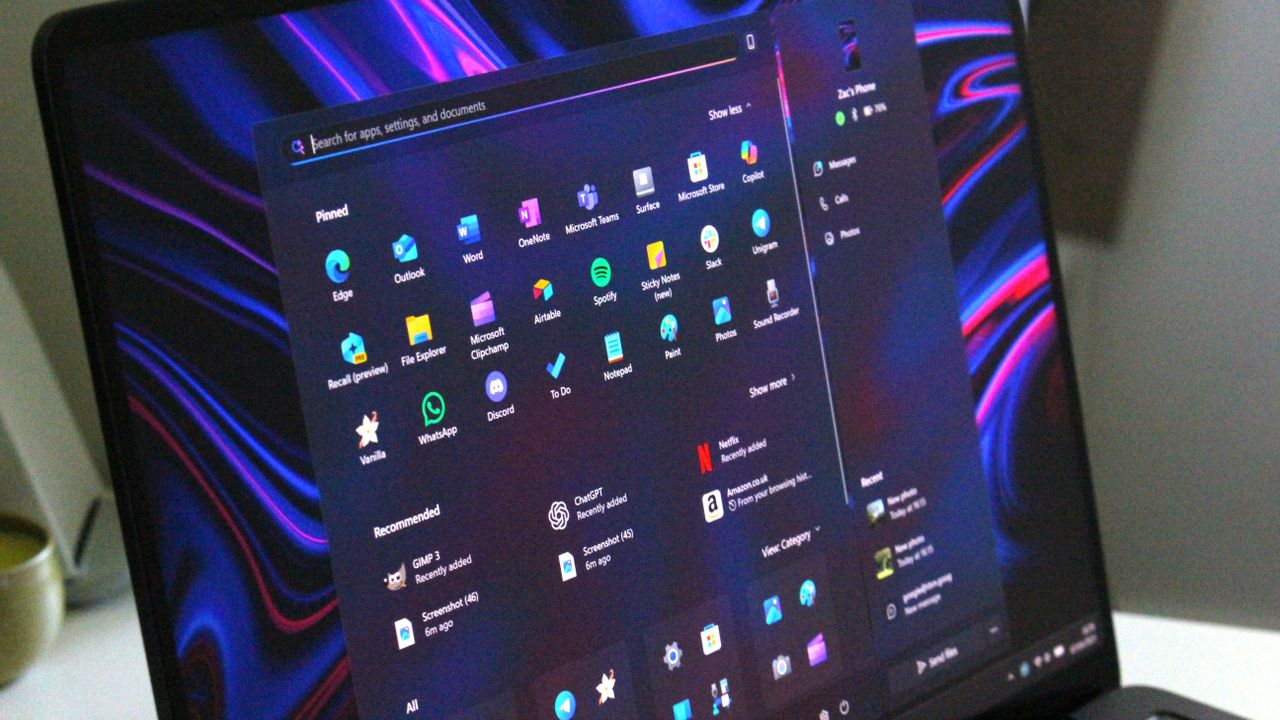
Windows 11 reset to factory settings

Windows 11 is testing a new Cloud rebuild feature to reset your PC without a USB drive.

Windows now uses AI to find and help fix vulnerabilities, but it's not replacing humans

Microsoft is using AI to protect Windows against attackers. The development represents an arms race because AI is also being used increasingly to find vulnerabilities modern tech, as highlighted by The Hacker News.

Hackers can use AI to find and take advantage of vulnerabilities that could then be weaponized. It's not just discovery that's been sped up, reverse engineering security flaws is now a quicker process because of AI. That means attackers can find flaws and quickly take advantage of them before traditional methods of protection could take effect.

To combat those malicious actors and evolving tactics, Microsoft is deploying MDASH (Multi-Model Agentic Scanning Harness) at scale across Windows.

Pavan Davuluri, EVP of Windows and Devices at Microsoft, shared a blog post about the new methods the company is using to protect Windows.

"The fastest way to reduce customer exposure is to find issues before attackers can use them," said Davuluri. "Windows is expanding its ability across the platform to find issues earlier, accelerate the engineering work to fix them, strengthen validation, and deliver timely, high-quality updates that keep customers protected."

Using AI to identify potential flaws, prioritize fixes, and scale discovery across the codebase of Windows lets Microsoft quickly roll out protection to customers.

To scale MDASH to Windows, a dedicated cloud infrastructure was set up for scanning for potential flaws. A separate prove pipeline then is used to eliminate false positives. The Windows engineering team can then act on the most likely candidates that need addressing.

Microsoft will expand its use of AI for scanning and proving to other parts of the company.

Using AI to improve work

When Microsoft announced 4,800 layoffs across the company, its leaders emphasized that the eliminated roles are not being replaced by AI. People across a wide range of sectors are concerned about automation taking human jobs.

The approach Microsoft is using to scan for issues and streamline the selection process of candidates to address represents AI helping people rather than replacing workers.

When speaking of improving internal systems and practices, Davuluri said, "That means using AI to help identify potential issues earlier in the development process, while relying on human expertise to evaluate findings, make risk-based decisions and ensure fixes meet the quality bar customers expect."

The end result is that more security updates will be included in each security release, which should protect PCs from the growing number of attacks.

Click to join us on r/WindowsCentral

Join us on Reddit at r/WindowsCentral to share your insights and discuss our latest news, reviews, and more.
Suface Laptop for Business 8th Edition with a black keyboard and a modern design, displaying a blue abstract swirl on its screen, set against a light gradient background.

Suface Laptop for Business 8th Edition with a black keyboard and a modern design, displaying a blue abstract swirl on its screen, set against a light gradient background.

Microsoft is making Windows 11's search box 4 whole pixels taller for some reason

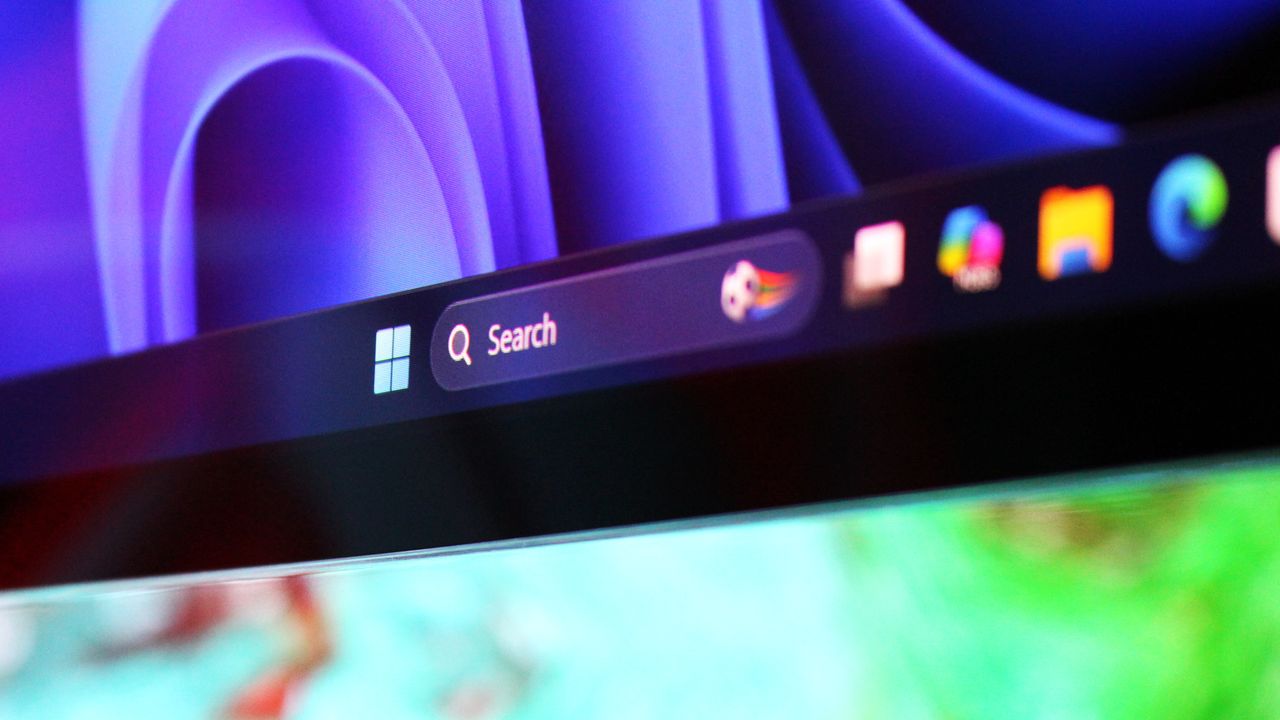
It looks like Microsoft is planning to make a small but interesting (ok, maybe not that interesting) change to Windows 11 in the coming weeks, one that has us scratching our heads a bit. The company has revealed (albeit accidentally) that it's making the search box that appears on the Taskbar and in the Start menu a little taller, by 4 whole pixels.

4 pixels doesn't sound like much of a change, but it is a noticeable difference, if you can believe it. The change makes the search box appear chunkier, taking up more visible space above and below it, and bringing it closer to the top edge of the Taskbar itself and slightly pushing content down in Start.

Here's a before and after of the Start menu and Taskbar, in gif format so that it loops making the difference very easy to identify:

Comparing the new search box to the old search box.

Notice how things shift slightly when the thicker search box is enabled. (Image credit: Zac Bowden / Windows Central)

Microsoft hasn't explained why it's making this change, but if I had to guess, I'd say the change is being made to align it with the Ask Copilot search box appearance, which differs from the existing Windows Search search box.

Ask Copilot is an alternative search experience coming soon to the Taskbar on Windows 11 that incorporates Copilot chat directly into the user interface. It's currently aimed at commercial customers, and includes a thicker but narrower search box that appears on the Taskbar when enabled.

Ask Copilot is a separate UI to the standard Windows Search experience, and needs to be manually enabled before you can use it. That's why I think Microsoft is making the default search box 4 pixels taller, as the company likes the look of Ask Copilot and would like that appearance to apply to the default search box too.

Here's a closer look at the search box on the Taskbar comparing the new height to the old height. See, it is a noticeable difference! Investigative journalism at its finest on display here.

Comparing the new search box to the old search box.

Top: The new taller search box. Bottom: The current search box. (Image credit: Zac Bowden / Windows Central)

Either way, you can likely expect to see the search box in the Start menu and on the Taskbar get slightly bigger in the coming months, as Microsoft begins rolling out the change to Insiders before making it generally available to all. The change was unveiled in a changelog for a recent Windows 11 preview build, but a Microsoft engineer has since confirmed to me that the change isn't yet being previewed.

Thanks phantomofearth!

Click to join us on r/WindowsCentral

Join us on Reddit at r/WindowsCentral to share your insights and discuss our latest news, reviews, and more.
Semantic Search coming to Windows 11.

Semantic Search coming to Windows 11.

Windows 11 cleanup is finally simple with this powerful open‑source tool that strips bloat, boosts speed, and gives you real control

Windows 11 includes several built-in tools to help keep storage usage under control on your computer. Features like Storage Sense, the Temporary Files settings page, and Storage Recommendation can help you reclaim storage with ease, making third-party cleanup utilities less essential than they once were.

However, those features don't clean everything. If you want more control over temporary files, browser data, app caches, and privacy-related files, BleachBit is one tool you have to try. It's free, open source, and, unlike many PC "optimizer" apps, it focuses on cleaning unnecessary files rather than promising unrealistic performance improvements.

In this how-to guide, I'll explain what BleachBit does, how to use it on Windows 11, which settings I recommend, and which features you should avoid unless you understand exactly what they do.

What is BleachBit?

BleachBit is a free and open-source cleanup utility for Windows 11 that removes temporary files, caches, logs, browsing data, and other unnecessary files created by the operating system and many third-party apps.

Unlike many commercial cleanup tools, BleachBit doesn't include advertisements, bundled tools, or premium features. Instead, it gives you complete control over what gets removed and explains every cleaning option before you run it.

Rather than replacing the built-in cleanup tools available on Windows 11, I see BleachBit as an additional utility for users who want more control over what gets cleaned.

Why use BleachBit?

Although Windows 11 already provides several storage management tools, BleachBit adds several more capabilities.

For example, cleaning the system's temporary files as well as those junk files created by third-party apps. You can also use the tool to clean temporary browser data, such as cache, history, and downloads.

In addition, BleachBit provides secure file shredding to make recovery more difficult and wipes free storage space on supported drives.

Finally, the tool offers command-line support for scripting and automation, and there's a portable version that you can use without installation.

The biggest advantage is flexibility. Instead of cleaning everything automatically, BleachBit lets you decide exactly what should (and shouldn't) be removed.

Install BleachBit on Windows 11

Installing BleachBit is straightforward. You can download either the standard installer or the portable version, then launch the application. However, the quickest way to install the app is by running the winget install --id BleachBit.BleachBit command in Command Prompt (admin).

Command Prompt showing the winget command installing the BleachBit tool on Windows 11.

(Image credit: Mauro Huculak)

For most cleanup tasks, running it in normal mode is enough. Some system cleaning options may require administrator privileges.

Once opened, you'll notice a list of apps and cleaning categories on the left, along with a brief description of each option as you select it.

Always run Preview first

One feature I recommend using every time is Preview. Instead of immediately deleting files, the "Preview" option scans your system, estimates how much storage space can be reclaimed, and shows exactly what BleachBit intends to remove.

BleachBit for Windows 11 show preview results.

(Image credit: Mauro Huculak)

Even if you've used BleachBit before, I still recommend running the Preview option first.

Recommended cleanup options

For routine maintenance, I recommend starting with categories that are generally safe to remove.

For example, from the "System" section, some good choices include:

  • Temporary files.
  • Logs.
  • Clipboard.
  • Recycle Bin.
  • Update uninstallers.

BleachBit with recommended settings selected.

(Image credit: Mauro Huculak)

Usually, these items consume storage over time without affecting your daily workflow.

For browser cleaning, I suggest being more selective. Clearing cached files occasionally is perfectly reasonable, but deleting cookies will sign you out of websites, and removing session data will close saved browsing sessions.

Unless you're troubleshooting a browser issue or intentionally clearing your browsing activity, I usually leave those options unchecked.

The same advice applies to app caches. While they're generally safe to clear, some apps may take longer to launch the next time because they'll need to recreate those files.

BleachBit showing the General tab and highlighting the

(Image credit: Mauro Huculak)

As mentioned above, cleaning actions may require using the tool in Expert mode. If you receive the prompt, open the BleachBit main menu, select "Preferences," and choose the "Expert mode" option located in the "General" tab.

Securely delete sensitive files

BleachBit includes a built-in file shredder for permanently deleting sensitive files (and folders).

Unlike sending a file to the Recycle Bin (or even deleting it permanently with the "Shift + Delete" shortcut), secure shredding overwrites the file's contents before removing it, making recovery using standard data recovery tools much more difficult.

If you want to use this feature, open the BleachBit menu (the first icon at the top-left), choose the "Shred Files" option, then select the file to delete.

BleachBit tool with the main menu opened and the Shred Files option selected.

(Image credit: Mauro Huculak)

This feature is useful when you're deleting confidential content, financial records, or other sensitive files you don't want recovered later.

Wipe free disk space

The open-source tool can also overwrite unused space on a drive to remove traces of files that were previously deleted through the Recycle Bin.

This feature is intended primarily for drives before selling, donating, or retiring a computer, or for secondary drives.

The feature is available from the BleachBit main menu by selecting the "Wipe Empty Space" option and choosing the drive you want to clean.

BleachBit with the Wipe Empty Space option select in the main menu.

(Image credit: Mauro Huculak)

I don't recommend running free-space wiping as part of regular maintenance because it takes time and provides little benefit for everyday use.

If you're preparing a device for resale, the Reset this PC feature is generally the better approach.

One feature you won't find

One thing that BleachBit doesn't offer is a Registry cleaner.

I actually consider that an advantage. For years, Registry cleaners have been marketed as a way to improve performance in the operating system, but in practice, they rarely provide measurable benefits. Worse, removing the wrong Registry entries can cause apps or the system itself to behave unexpectedly.

Microsoft doesn't include a Registry cleaner on Windows 11, and I don't think most users should use one.

By focusing on cleaning unnecessary files instead of modifying the Registry, BleachBit avoids one of the biggest sources of risk associated with older computer optimization suites.

Does BleachBit make Windows 11 faster?

Not directly. When you delete temporary files, you can free up storage space and occasionally resolve issues caused by bad caches, but it won't make your computer faster.

If Windows 11 feels sluggish because your drive is nearly full, cleanup may help. However, performance issues are usually caused by factors such as not enough memory, older hardware, too many startup apps, malware, or software conflicts, not because your temporary files folder is too large (at least not the majority of the time).

Should you use BleachBit?

If you're comfortable with the built-in cleanup tools available on Windows 11, you may never need another maintenance utility.

However, if you want additional control over browser data, temporary files, app caches, privacy-related cleanup, secure file shredding, and other advanced maintenance tasks, you may benefit from BleachBit.

The open-source nature, easy-to-use interface, and decision to avoid questionable features like Registry cleaning make it one of the few utilities for cleaning up Windows 11 and one of the few alternatives to CCleaner.

Windows Central's Take

In the many years I've used the desktop version of Windows, I've tested and relied on countless cleanup utilities. Some of them were genuinely useful at the time, but many were eventually discontinued, acquired by other companies, or changed so much that they no longer offered the same experience.

Over time, I've become much more selective about the tools I recommend, especially when it comes to software that makes changes to the operating system.

Blank Pixel

More often than not, I recommend learning and using the built-in tools. However, BleachBit takes a different approach, and that's why I think it stands out. It focuses on cleaning files, not "fixing" the operating system, and I appreciate that it skips gimmicks like Registry cleaning that can do more harm than good.

If you decide to use it, my advice is not to treat it like a one-click optimization tool. Take advantage of the Preview feature, understand what each option does, and only clean what you actually need. If you use it that way, I think BleachBit is one of the few maintenance utilities that still deserve a spot in your toolkit.

What are your thoughts about BleachBit? Do you prefer Windows 11's built-in cleanup tools, or do you use a third-party utility? Let me know in the comments.

More resources

Explore more in-depth how-to guides, troubleshooting advice, and essential tips to get the most out of Windows 11 and 10. Start browsing here:

Click to join us on r/WindowsCentral

Join us on Reddit at r/WindowsCentral to share your insights and discuss our latest news, reviews, and more.
Windows 11 desktop and the BleachBit tool opened.

Windows 11 desktop and the BleachBit tool opened.

Download official Windows 11 Insider ISO builds 26220.8764, 26300.8782, 2820.2380 & 28120.2387

Par : Nayan
9 juillet 2026 à 04:32
Microsoft has officially updated its lineup of Windows 11 Insider Preview ISO images. This new release spans multiple development tracks, making it easier for enthusiasts, developers, and IT administrators to try out the latest feature configurations from scratch. Whether you want to perform a completely clean installation, test compatibility in a virtual machine, or fix […]

Windows 11 Experimental 26H1 Builds Reportedly Missing the Feature Flags Page for Some Testers

Par : Nisha
8 juillet 2026 à 06:44
A curious issue has surfaced among Windows Insider testers running the latest Windows 11 Experimental 26H1 builds. Several users have reported that the Feature Flags page has disappeared entirely after updating to Build 28120.2387 or Build 28120.2374. While the issue does not appear to affect everyone, it has generated discussion across the Insider community as […]

Microsoft Edge now allows you to sign in with a Google account

8 juillet 2026 à 16:00

Microsoft Edge allows sign in with Google accountMicrosoft has added a useful feature to Microsoft Edge. Microsoft Edge now allows you to sign in with a Google account. The “Profiles” feature in a web browser is important because it saves users’ browsing data, bookmarks, and extensions to the cloud. Like Chrome and Firefox, Microsoft Edge also has this feature. Previously, this feature […]

The post Microsoft Edge now allows you to sign in with a Google account appeared first on TheWindowsClub News.

À partir d’avant-hierFlux principal

Microsoft Fixes One of Windows 11’s Biggest Update Annoyances, Introduces Screen Tint and More

Par : Nisha
27 juin 2026 à 15:37
Microsoft has released Windows 11 Insider Experimental (Future Platforms) Preview Build 29617.1000 for Windows Insiders in the Canary 29600 series as part of the transition to the newly restructured Windows Insider Program. While this isn’t a feature-packed consumer release, it introduces several meaningful improvements that could eventually make their way into future versions of Windows […]

Windows Taskbar Customization Gets a Major Upgrade with New Dedicated Taskbar Size Setting

Par : Nisha
27 juin 2026 à 04:46
Microsoft is continuing its steady push to improve the Windows user experience, and one of the latest enhancements focuses on an area that millions of users interact with every day—the Taskbar. Building upon the Taskbar improvements introduced in recent preview builds, Microsoft has now unveiled a dedicated Taskbar Size setting that makes customizing the desktop […]

BioPass - Déverrouiller son Linux avec sa tronche et son doigt

Par : Korben ✨
26 juin 2026 à 09:08

Contrairement à ce que dit Yann Barthès, on n'est pas tous égaux face à la canicule. Et l'autre truc face auquel on n'est pas tous égaux non plus, c'est le déverrouillage biométrique de son ordi. On les connaît les Linuxiens qui regardent avec jalousie leur collègue sous Windows qui déverrouille sa machine d'un simple coup d'œil à la webcam. Eux, ils sont obligés de taper leur mot de passe de 56 caractères et ça leur fout la rage, alors ils vont sur Reddit pour dire du mal de tous ceux qui n'ont pas de restes de frites collés dans la barbe.

Mais je vais apaiser cette haine en vous parlant aujourd'hui de BioPass , un projet open source signé thaitran24 et phucvinh57, deux devs réunis sous la bannière TickLabVN.

Ce qu'ils veulent faire, c'est amener enfin sous Linux l'équivalent de Windows Hello. BioPass vous connecte à votre session, à un sudo ou à tout service qui passe par PAM avec votre visage ET votre empreinte digitale.

Jusqu'ici la référence sur Linux c'était Howdy , qui fait du visage uniquement, en ligne de commande, et que les développeurs eux-mêmes décrivent comme un peu à l'abandon (sur openSUSE le paquet n'est carrément plus maintenu). C'était chiant à configurer en plus, alors que BioPass lui, propose une vraie interface graphique pour gérer tout ça.

Le module qui parle à PAM est écrit en C++17 et fait tourner trois modèles en local via ONNX Runtime : YOLO pour détecter le visage, EdgeFace pour le reconnaître, et MobileNetV3 pour l'anti-spoofing. Les devs ont d'ailleurs viré les grosses dépendances type PyTorch et OpenCV au profit d'ONNX, histoire de garder un truc léger.

Au moment où votre OS réclame une authentification, BioPass le voit et démarre un processus isolé nommé biopass-helper qui s'occupe de la capture de votre minois et de l'inférence derrière pour vous reconnaître.

Et puis surtout, le point qui compte vraiment quand on parle biométrie c'est que tout reste en local. Y'a vraiment aucune empreinte de votre doigt ou cartographie de nos tronches de cakes qui partent faire du tourisme chez AWS ou Azure.

BioPass gère bien la détection de fausse présence avec une caméra infrarouge (supportée depuis la version 1.1), et la dernière mouture exige même que toutes les méthodes anti-spoofing activées valident, mais sans caméra IR, en se reposant sur le seul modèle d'IA, un visage peut potentiellement se laisser amadouer par une photo bien placée.

Ça reste le talon d'Achille classique de la biométrie, et on a déjà vu pire ailleurs, genre Windows Hello dont le visage devenait copiable sur une clé USB , ou ce laptop Dell qu'on déverrouillait avec un oignon , donc prenez-le plutôt comme un outil de confort plutôt que pour quelque chose qui renforce la sécu de votre Linux.

Pour tester, il y a des paquets .deb et .rpm sur les releases GitHub, et un paquet AUR biopass-bin pour les gens sous Arch. Ah et il vous faudra un capteur d'empreintes pour la partie doigt. Une webcam classique suffit pour la reconnaissance faciale, mais sans caméra infrarouge l'anti-spoofing reste encore une fois, fragile donc gardez ça en tête.

Le projet est sous licence MIT, et la prochaine grosse étape annoncée c'est carrément l'authentification vocale.

Critics on Microsoft extending Windows 10 support for free through 2027: "Are they admitting Windows 11 isn't good enough 5 years later?"

On October 14, 2025, Microsoft officially ended support for Windows 10, despite widespread pleas from millions of users still relying on the operating system. The move risked leaving nearly 400 million PCs without updates, effectively rendering them obsolete. However, Microsoft ultimately extended Windows 10’s lifespan through its Extended Security Updates (ESU) program, giving users continued access to critical patches beyond the end-of-support date.

The Restart Project group, which helped co-develop the "End of 10" toolkit to support Windows 10 users who can't upgrade to Windows 11, claimed that Microsoft's move to continue pushing security updates to Windows 10 beyond its end-of-support feels like a last-minute snooze button, which only acts as a band-aid on a bleeding system.

It's no secret that Microsoft has been pushing users to upgrade to Windows 11, but soaring RAM prices have driven hardware costs sky-high, making the transition even more difficult. This is on top of the operating system's strict hardware requirements and arguments of flawed design elements.

In France, critics even staged a symbolic “funeral” for Windows 10, protesting Microsoft’s push toward Windows 11 and what they see as planned obsolescence. Yet, as recent developments suggest, the company may finally be listening.

Microsoft quietly extended Windows 10's ESU program by another year. As a result, users enrolled in the program will continue receiving support until October 14, 2027. The extension is free for those who sign in to Windows 10 with a Microsoft account, ensuring critical updates remain available beyond the original cutoff.

What does the community think about Windows 10's extended lifeline?

The Windows 10 Start Menu

(Image credit: Windows Central)

"People might start switching to Linux and using open source software for replacements if this RAM/storage issue doesn't get resolved in the next year," a Windows Central reader indicated.

Groups like End of 10 have been pushing users to transition to Linux following Windows 10's end-of-life. The campaign encourages steadfast Windows 10 users to ditch the Windows ecosystem entirely and switch to a version of Linux on any outdated devices, using a lack of ads and telemetry tracking as the key selling points to get users to switch camps.

"I said a year ago that this was going to happen, and I'll say it again, it's going to happen next year too," another reader added. "Windows 10 will be supported till October 2028. This has nothing to do with prices. This was planned since the beginning. But like last year, Microsoft did not say until late this was happening for free, so that people did not plan accordingly and as many as possible move to 11. Same this time. Same next year."

"Windows 10 to Windows 11 is like when you need new running shoes, but Nike discontinued the kind you’ve been buying new versions of for years, and the other kinds are fine but don’t measure up," another user commented in the r/technology subreddit on Reddit. "So you’re like “f*** it, I’ll just wear these until they fall apart.”

For context, a recent HP survey found that 3 out of 10 HP PCs are still running Windows 10. This was a slight decrease from September 2025, when HP and Dell indicated that up to 50% of PCs were still running on the operating system, prompting the PC makers to suggest that users won't upgrade to Windows 11 overnight, and the process could even roll over into 2026.

Some even claimed that Microsoft's decision to extend Windows 10's support beyond 2026 is an outright admission that it's better than Windows 11. "So are they finally admitting that Windows 11 isn't good enough almost 5 years later?"

To that end, it remains unclear how Microsoft extending support for Windows 10 via its ESU program to 2027 will impact Windows 11's market share. The operating system had just started gaining some momentum and even surpassed Windows 10 as the most dominant desktop operating system in the world in July, 2025.

In the interim, you can take advantage of Microsoft's extended support for Windows 11 by enrolling in the ESU program for free by signing in with a Microsoft account, or pay for access via 1,000 Microsoft reward points or $30.

Click to join us on r/WindowsCentral

Join us on Reddit at r/WindowsCentral to share your insights and discuss our latest news, reviews, and more.
Former Microsoft Executive Vice President Terry Myerson stands in front of a presentation about Windows 10

Former Microsoft Executive Vice President Terry Myerson stands in front of a presentation about Windows 10

Windows 11’s huge July 14 update is loaded with new features — these are the 13 that matter most

Microsoft plans to begin the Windows 11 July 2026 Security Update on Tuesday, July 14, 2026. In this seventh month of the year, the company is rolling out several new features and improvements for existing features. In addition, this update is expected to deliver a number of bug fixes.

In this new quality update, Microsoft will be introducing brand new features, including the Point-in-time Restore recovery feature and the Screen tint accessibility feature.

This release also introduces the new Windows Update changes that allow users to pause updates indefinitely. The Widgets feature receives a few changes to make the experience quieter and less distracting.

Furthermore, in this release, users will also find changes to the Windows Magnifier, a new default for installing printers using Windows Ready Print support, as well as improvements to the Settings app, File Explorer, Bluetooth, network virtualization, touchpad, and much more.

In this guide, I'll highlight the most significant changes in the July 2026 Security Update for Windows 11 versions 25H2 and 24H2, since both are identical.

Windows 11's new features arriving in July

As per usual, the company uses the Controlled Feature Rollout (CFR) technology to roll out new improvements gradually, so it may take some time before you see them.

Point-in-time Restore recovery feature

Starting with the July 2026 Security Update, Microsoft is introducing Point-in-time Restore, a new recovery feature designed to quickly roll back a system to a previous good working state.

The feature works automatically and creates restore points that include settings, files, and apps using the Volume Shadow Copy Service (VSS), allowing you to recover your computer when an issue arises.

Point-in-time Restore comes enabled by default in the Home and Pro editions of the operating system. However, the system must have at least 200GB of storage.

You can always control the feature in Settings > System > Recovery by using the "View or edit" button. On the page, you can turn the recovery feature on or off, configure the restore point frequency and retention, and decide how much storage the feature uses.

Windows 11 Settings with Point-in-time Restore configuration.

(Image credit: Mauro Huculak)

At the bottom, the feature will also notice the most recent restore points.

If something is working correctly, you can always access the feature from the Windows Recovery Environment (WinRE), and from the "Point-in-time Restore" page, select the restore point to recover your device.

Screen tint accessibility feature

In this update, the company is also rolling out Screen tint. This accessibility feature applies an overlay color on the screen designed to reduce eye strain and improve viewing comfort.

The feature is available in Settings > Accessibility > Screen tint. Once enabled, you can choose from one of the six preset color overlays or create a custom color.

Windows 11 Settings app showing the Screen tint configuration options.

(Image credit: Mauro Huculak)

In addition, there is a slider to control the overlay strength.

While the Screen tint feature seems similar to the Night Light feature, they are different, and they can work alongside each other. However, this feature automatically turns off Color filters and vice versa.

Windows Update new controls

Windows Update is getting a major upgrade. In this release, Microsoft is adding the ability to pause updates indefinitely, which seems to be the closest we'll get to completely turning off automatic updates.

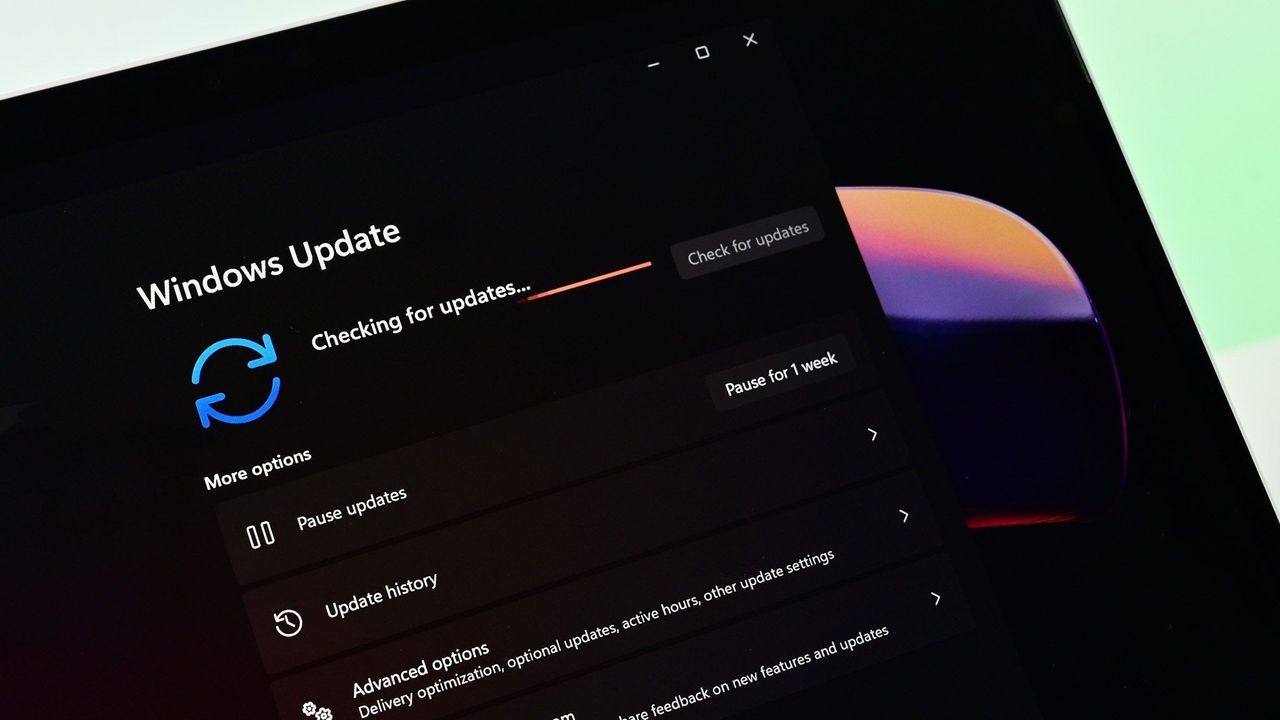
As part of the changes, the "Pause updates" option now includes a calendar view that lets you pause automatic updates for up to 35 days. However, you can re-pause updates as many times as you want.

Windows 11 Settings showing the Windows Update settings page with the new calendar-based pause feature.

(Image credit: Mauro Huculak)

The only caveat is that if you want to postpone updates for more than 35 days, you'll need to manually pause them again. Otherwise, the system will download and install updates automatically as soon as the scheduled expiration expires.

Widgets with less distracting defaults

The company is trying to make the experience quieter and less distracting.

Windows 11 desktop with the Widgets board open in the settings section.

(Image credit: Mauro Huculak)

Widgets now open directly to the dashboard on first use, with hover activation disabled and notifications and Taskbar badges minimized by default.

The experience also offers more control over notifications and personalization settings, allowing users to customize Widgets from the Settings menu.

The dashboard icons can display the number of alerts, while badges clear automatically after leaving the dashboard. Microsoft notes that some settings will continue to adapt based on usage patterns to help limit interruptions.

This update also includes improvements to reliability, responsiveness, and overall visual quality across the Widgets experience.

Windows Magnifier improvements

In a continued effort to improve accessibility features, the software giant is also updating the Magnifier with more granular controls, allowing you to enter exact percentage values rather than having to use the zoom buttons to increase or decrease the zoom level.

Windows 11 desktop with the Magnifier UI with new changes.

(Image credit: Mauro Huculak)

Also, in the settings flyout, the zoom adjustment now allows users to set increments up to 400 percent.

Printer default changes

Starting with the quality update for July 2026, the operating system will install printers by default using the Internet Printing Protocol (IPP), provided the device is supported.

Windows 11 Settings showing printer settings and highlighting the

(Image credit: Mauro Huculak)

If you prefer to revert this configuration, open Settings > Bluetooth & devices > Printers & scanners, and turn off the "Default install printer using Windows Ready Print" option.

Location settings improvements

Microsoft is making location settings easier to understand in Settings > Privacy & Security > Location.

Windows 11 Settings in the Location section highlighting new default behavior when the feature is disabled.

(Image credit: Mauro Huculak)

When location services are turned off, options such as "Default location" and "Allow location override" no longer appear active, since apps and services cannot access location data.

As a result, these settings will now be greyed out until location services are enabled, helping clarify when the options are available and reducing confusion.

File Explorer improvements

After installing this quality update, you'll notice that File Explorer will launch faster thanks to new speed improvements.

Also, on the Home page, when hovering over files, users who are logged in with a work or school account should now see options like "Open file location" and "Ask Copilot."

File Explorer in Home showing hover buttons for file location and Copilot.

(Image credit: Mauro Huculak)

In addition, the address bar now supports paths with double backslashes and quotation marks, making it easier to paste or type folder paths from different sources.

Continuing with the improvements to the address bar, the experience now closes more reliably after selecting an option. Finally, File Explorer improves its ability to rename files.

Bluetooth changes

Microsoft is rolling out a series of Bluetooth improvements focused on reliability, compatibility, and audio performance.

For example, Windows 11 now keeps the microphone mute status synchronized between the system audio controls and Bluetooth headphones that include dedicated mute buttons or indicators, providing a more consistent experience during calls.

The update also improves compatibility with certain audio accessories. For instance, AirPods should enter pairing mode faster, and Beats Studio Pro headphones should offer more reliable microphone performance.

Voice calls on devices that support the Hands-Free Profile (HFP) should be more reliable. LE Audio accessories can begin playing audio faster while the microphone is active, and Windows 11 stability has been improved for some systems affected by Bluetooth-related driver issues.

The operating system will no longer incorrectly display a "Remove failed" message when a Bluetooth device cannot be removed because the Bluetooth radio is unavailable or has changed since the device was paired.

In addition, the "Bluetooth & devices" settings page has been updated to provide a more stable and consistent experience.

Connection reliability has also been enhanced. Classic Bluetooth audio devices can reconnect more quickly after a computer resumes from hibernation. At the same time, LE Audio accessories should maintain more reliable connections when switching between devices and recover more smoothly from temporary disconnections.

Phone Link improvements

Microsoft is improving how phone calls are handled between Windows 11 and a connected smartphone through Phone Link.

When you place a call from your paired phone, the audio will stay on the phone while it rings, then switch to the computer only after you answer the call on Windows 11.

This change helps prevent audio from switching between devices unexpectedly before the call connects.

The update also improves the "Do Not Disturb" experience. When Do Not Disturb is enabled, incoming calls from a connected phone will no longer ring through the computer, reducing interruptions while you're working.

Voice Typing and Voice Access

As you speak, Voice Typing and Voice Access can now refine the text in real time. In addition, the feature improves its capability to adapt to background noise. However, this is only available for Copilot+ PCs.

Furthermore, Voice Access and Voice Typing are now available in German, Spanish, and French.

Networking changes

The software giant is introducing several networking improvements focused on reliability, performance, and virtualization.

For virtualized environments, Confidential Virtual Machines (CVMs) now use SR-IOV hardware acceleration by default to improve network performance. At the same time, a networking configuration issue affecting nested Hyper-V setups has been fixed to ensure virtual machines are provisioned correctly.

The update also enhances the reliability of the networking stack. It reduces some Wi-Fi-related blue screen errors, improves cellular (WWAN) connectivity, and adds better support for IPv6-based VPN connections.

In addition, Microsoft has improved compatibility with certain third-party VPN solutions and server configurations that use SR-IOV networking. Network adapter settings and bindings are now also preserved during operating system upgrades, helping prevent networking configurations from being reset after an operating system update.

Touchpad changes

If you use a compatible touchpad, there's a touchpad customization option that lets you adjust the size of the bottom-right right-click area.

In Settings > Bluetooth & devices > Touchpad, you can choose between "Default," "Small," "Medium," or "Large" to control how much of the touchpad responds to a one-finger right-click.

This feature is available only on devices with a pressable touchpad surface. If your computer manufacturer provides touchpad customization through its own software, the system will display a "Custom" option to reflect those settings.

Windows Central's Take

I find it interesting that one of the biggest additions in this update is a feature designed to help when Windows 11 breaks rather than when everything is working perfectly.

Microsoft has spent the last few years talking a lot about AI, Copilot, and new experiences, but Point-in-time Restore addresses a much more fundamental problem. Every user eventually runs into a bad update, problematic driver, or software conflict. When that happens, recovery tools suddenly become far more important than whatever new feature was added to the Start menu.

The Windows Update changes also stand out to me because they give users a little more breathing room. The software giant clearly isn't interested in letting people permanently turn off updates, but repeatedly extending the pause period feels like a practical compromise between security and user control.

As for the rest of the update, I see it as evidence that Microsoft is continuing to chip away at long-standing annoyances. Faster File Explorer performance, Bluetooth reliability improvements, and less intrusive Widgets aren't headline-grabbing changes. However, they're often the updates that have the biggest impact on how the system feels after months of daily use.

Which feature in the July 2026 update are you most looking forward to trying on Windows 11? Let me know in the comments.

More resources

Explore more in-depth how-to guides, troubleshooting advice, and essential tips to get the most out of Windows 11 and 10. Start browsing here:

Click to join us on r/WindowsCentral

Join us on Reddit at r/WindowsCentral to share your insights and discuss our latest news, reviews, and more.
Windows 11 desktop showing the Point-in-time Restore feature settings.

Windows 11 desktop showing the Point-in-time Restore feature settings.

Microsoft quietly extends Windows 10's extra security updates program for free: Users can now stay on Windows 10 until October 2027 securely

Microsoft has quietly announced that Windows 10's extended support updates program will continue for an extra year, now until October 2027 for free if you sign-in to Windows 10 with a Microsoft account.

Originally, Windows 10's extended support program was only supposed to last one year, until October 2026 for consumers. However, a new support page published by Microsoft today has confirmed that the Windows 10 ESU program will now last until October 2027 instead.

"Windows 10 support has ended. You can enroll in ESU any time until the programme ends on 12 October, 2027. If you’re already enrolled, your coverage will automatically continue through that date—no action needed," says the support page.

All Windows 10 users that are already enrolled in the ESU program will get this extended year of updates automatically. You can enroll in the program for free by signing in with a Microsoft account, or pay for access via 1,000 Microsoft reward points or $30 USD.

Microsoft has likely extended support for Windows 10 by an extra year due to the ongoing RAM crisis, which has pushed new PC prices through the roof making them difficult to justify financially, especially if you already have a working Windows 10 PC.

There are still hundreds of millions of PCs running Windows 10, and with extended support originally ending this October, many people would have been without the latest security patches keeping their devices secure.

The Windows 10 ESU program is vital to ensuring a PC that is connected to the internet is secure. Microsoft is still updating Windows 10 with security patches through the ESU program, and not being enrolled leaves your device open to attackers that might be trying to exploit vulnerabilities in the Windows 10 OS.

The good news is if you're already enrolled in the program, there's nothing you need to do to remain supported until October 2027. Your PC will keep getting security updates automatically until that date.

Click to join us on r/WindowsCentral

Join us on Reddit at r/WindowsCentral to share your insights and discuss our latest news, reviews, and more.
Windows 10 ESU program displayed on an ASUS Zenbook laptop screen

Windows 10 ESU program displayed on an ASUS Zenbook laptop screen

Windows 11 is finally rethinking the Start menu and Taskbar, and it might win back people who gave up on it

Windows 11 brings major changes to the Start menu and Taskbar in 2026, finally giving users more control over customization.

Microsoft spent the first years of Windows 11 simplifying the Start menu and Taskbar, often at the expense of features that users had relied on for years. In 2026, the company is correcting its direction.

In recent preview builds, the operating system has revealed a growing list of improvements that bring more customization and control back to the experience. From Taskbar positioning and resizing to Start menu layouts and recommendation controls, the software giant is restoring capabilities that many users have been complaining about since the original release of Windows 11.

However, the company's approach isn't about recreating Windows 10. Instead, Microsoft is rebuilding these experiences around the design principles of Windows 11 while giving users more flexibility than they have today.

Microsoft is giving users more control over the Taskbar

The biggest change is the reversal of positioning controls. Users will once again be able to place the Taskbar to the top, left, right, or bottom edge of the screen.

Windows 11 desktop with the Taskbar positioned at the top of the screen.

(Image credit: Mauro Huculak)

For many users, this feature never should have disappeared in the first place. The ability to place the Taskbar where it works best has been part of the operating system for decades.

At the same time, the company isn't restoring the exact Windows 10 experience. Previously, users could unlock the Taskbar and drag it directly to a different edge of the screen, or change its position through the Settings app. On Windows 11, changing the position requires using the option available through the Settings app, more specifically in the Taskbar settings under the "Taskbar behaviors" section.

Settings app on the Taskbar page highlighting the Taskbar position settings.

(Image credit: Mauro Huculak)

Taskbar sizing is also making a comeback. However, the company is updating the "Show smaller taskbar buttons" option so that enabling it makes the buttons and Taskbar smaller, not just the buttons.

Windows 11 desktop with the smaller Taskbar configured in the Settings app.

(Image credit: Mauro Huculak)

The feature improves flexibility, but it still doesn't offer the same freedom available on Windows 10, where users could manually resize the Taskbar and even create multi-row layouts.

The Start menu is finally becoming more customizable

The Start menu is being updated with some of the most significant improvements since the operating system's launch.

One of the biggest additions is support for different Start menu sizes. Instead of relying entirely on the automatic layout, users will be able to choose between different menu configurations based on their preferences.

Windows 11 desktop showing the small version of the Start menu.

(Image credit: Mauro Huculak)

You will find these settings on the updated "Start" page from the Settings app.

Microsoft is also introducing dedicated controls to show or hide sections such as Pinned, Recommended, and All apps. These changes address one of the most common complaints about the Start menu, which has often felt too limited compared to previous versions of the operating system.

Windows 11 Settings app showing the options from the Start menu.

(Image credit: Mauro Huculak)

The company is also separating recommendation settings from recent files and activity history. As a result, users will gain more granular control over what appears in the Start menu without affecting other parts of the operating system.

Start settings highlighting the Hide your name and profile picture on Start option.

(Image credit: Mauro Huculak)

Privacy is also receiving attention, with a new option that lets users hide their account name and profile picture from the Start menu.

These changes reflect a broader shift in Microsoft's strategy

The Start menu and Taskbar updates are part of Microsoft's wider Windows K2 initiative, an effort focused on improving performance, reliability, and usability across Windows 11.

While much of that work happens behind the scenes, the Start menu and Taskbar provide visible evidence that Microsoft's priorities have evolved since 2021.

When this version of Windows launched, the company emphasized simplicity and consistency, even when it meant removing long-standing customization features. A lot of users felt those decisions made the operating system less flexible than Windows 10.

The changes expected to roll out in 2026 suggest Microsoft is rethinking and taking a more balanced approach. Rather than limiting customization in the name of simplicity, the company is finding ways to offer more control while preserving the modern design introduced on Windows 11.

Windows 11 is becoming a more flexible operating system

Microsoft's reinstatement of Taskbar positioning and sizing, Start menu layouts, and recommendation controls may not seem revolutionary on their own. However, these changes represent one of the most notable shifts.

The company is not abandoning its vision for Windows 11, nor is it trying to turn the operating system into Windows 10. Instead, the company is acknowledging that flexibility remains one of the operating system's greatest strengths.

For years, many of the conversations around Windows 11 focused on features that were removed. In 2026, the conversation is increasingly focused on the features Microsoft is bringing back and what that says about the operating system's future direction.

Windows Central's Take

I think the most interesting part of these Start menu and Taskbar changes isn't any individual feature. It's what they reveal about Microsoft's evolving approach to Windows 11.

When the operating system launched in 2021, the software giant removed a noticeable amount of customization in favor of simplicity. The Taskbar lost positioning and resizing controls, and the Start menu became significantly more limited compared to Windows 10. At the time, those choices felt deliberate, almost like a firm design reset.

In 2026, that direction looks less fixed. The reintroduction of Taskbar positioning and resizing options, along with more granular Start menu controls, suggests Microsoft is recalibrating how much flexibility the operating system should offer without undoing its modern design language.

What are your thoughts on the Start menu and Taskbar changes coming to Windows 11? Let me know in the comments.

More resources

Explore more in-depth how-to guides, troubleshooting advice, and essential tips to get the most out of Windows 11 and 10. Start browsing here:

Click to join us on r/WindowsCentral

Join us on Reddit at r/WindowsCentral to share your insights and discuss our latest news, reviews, and more.
Windows 11 desktop with Taskbar docked at the top, smaller Start menu, and Settings app.

Windows 11 desktop with Taskbar docked at the top, smaller Start menu, and Settings app.

Windows 11 just got a major upgrade to PC recovery, and it finally protects your personal files

Recovering your Windows 11 PC just got easier. This week, Microsoft rolled out point-in-time restore for Windows 11 to general users. The feature creates restore points automatically that you can revert to if there's an issue with your computer.

Point-in-time restore is available to Enterprise, Pro, and Home users of Windows 11. According to Microsoft, the feature can recover a PC in minutes rather than hours.

When you have Point-in-time restore enabled, the feature automatically captures the system state of your PC, including Windows, installed apps, system and app configurations, settings, and your local files.

By default, restore points are captured every 24 hours, but you can configure that to a different cadence if you're an Enterprise user.

The feature is on by default on Windows Home and Windows Pro devices as long as they are not under enterprise management. Point-in-time restore is off by default for some enterprise-managed systems until Windows 11 version 26H2 is installed.

If a PC has an OS volume size under 200GB, point-in-time restore will be disabled by default.

Microsoft already had other features that are somewhat similar, such as System Restore and point-in-time restore for Windows 365 Enterprise. But both of those have key differences when compared to point-in-time restore for Windows 11.

System Restore requires manual capture of an image and does not include user files as part of the restore point. It's also accessible through the Control Panel rather than system settings and takes up more space on your PC.

Point-in-time restore for Windows 11 also provides benefits to IT admins, since the feature can be remotely managed with a wide set of controls.

Point-in-time for Windows 365 Enterprise is for Cloud PCs. It's also limited to Enterprise users.

Over two million devices had point-in-time restore enabled while the feature was in public preview. Microsoft said it used the time in preview to improve the feature based on feedback.

Click to join us on r/WindowsCentral

Join us on Reddit at r/WindowsCentral to share your insights and discuss our latest news, reviews, and more.

Windows 11 Start menu dark

Windows 11 Start menu dark

Microsoft confirms Windows 11 version 26H2 is coming soon: Reveals some devices won't be eligible

Microsoft has confirmed that the next Windows 11 version coming this year will be Windows 11 version 26H2, keeping with the usual annual format of releasing a new OS version in the second half of the year.

Just like Windows 11 version 25H2 and version 24H2 before it, version 26H2 will be based on the same 2024 platform release. That means the version 25H2 update won't be a big one, sharing the same featureset as version 25H2 and the same platform improvements as 24H2.

"Windows 11, version 26H2 continues the move toward a more predictable and efficient servicing model. This model helps reduce disruption while helping your organization stay secure and up to date. By building on a shared platform and delivering innovation continuously, Windows enables you to focus less on large upgrade projects and more on delivering value to your users."

As 26H2 is based on the same platform release as 25H2 and 24H2, the 26H2 release will share:

  • The same source code base
  • The same security and quality updates
  • The same compatibility validation

That means it will be easy for individuals as enterprises to upgrade to the new version this fall, as there won't be any validation or compatibility concerns to be worried about. If it works on 25H2 or 24H2, it'll work on 26H2.

Microsoft has confirmed that 26H2 won't be made available to all Windows 11 users, however. If you're running Windows 11 version 26H1, you won't be able to upgrade to version 26H2 this fall. This is because version 26H1 is a special offshoot version of Windows 11 built specifically for Qualcomm Snapdragon X2 and NVIDIA RTX Spark devices.

Version 26H1 is based on a newer platform release than the one that powers 24H2, 25H2, and 26H2, which means 26H1 is technically on a newer codebase than the upcoming 26H2. That's why users on 26H1 won't be offered an upgrade to 26H2 this fall.

Microsoft does say that those on 26H1 will be offered an upgrade to a newer OS version in the future, but it's yet to confirm when that will be. I suspect those on 26H1 will be offered an upgrade to 27H2 towards the end of next year instead.

The company has confirmed that version 26H2 is coming soon, but is yet to provide an actual date for release. I expect we'll see rollout begin towards the end of September or into the month of October, as has historically been the case.

Click to join us on r/WindowsCentral

Join us on Reddit at r/WindowsCentral to share your insights and discuss our latest news, reviews, and more.
Windows 11 Start button

Windows 11 Start button

❌
❌