Vue normale

Reçu — 19 juillet 2026 Windows Central - News, Forums, Reviews, Help for Windows 10 and all things Microsoft.

Windows 11's big 2026 update is almost here, and these 10 things you need to know before upgrading could save you time and frustration

Microsoft is expected to roll out the 2026 Update for Windows 11 (version 26H2) later this year, marking the fifth feature update for the desktop version of the operating system. However, this release isn't a full operating system swap, but it's still important not to skip it.

In this guide, I'll walk you through 10 interesting facts about Windows 11 version 26H2 to know before upgrading once it becomes available.

Facts to know about Windows 11 version 26H2

These are some facts about the new version for Windows 11.

1. Same operating system platform

Although the company will market Windows 11 version 26H2 as a new release, it shares the same platform as version 25H2, meaning both operating systems are identical under the hood. This is exactly the same case as versions 24H2 and 25H2.

2. Same set of features and improvements

ASUS Zenbook 14 OLED laptop displaying Windows 11 with Windows Update screen

Windows 11 version 26H2 includes the same features and improvements already available in version 25H2. Microsoft isn't introducing a separate feature set for this release because both versions share the same platform.

Perhaps the most noticeable differences between Windows 11 versions 26H2 and 25H2 are their version and build numbers, along with their support lifecycle.

For example, version 26H2 uses build numbers in the 26300 series, while version 25H2 uses the 26200 series. Now, despite the different build numbers, updates for both versions typically share the same cumulative update (KB) number because they are based on the same code and include the same features and improvements.

Microsoft is expected to continue servicing both versions with the same features and improvements for the foreseeable future. As a result, version 26H2 is not expected to introduce major new capabilities at launch. Instead, it serves as another enablement package release that activates a new version number while preserving the same experience users already have on version 25H2.

3. Enablement Package-based installation

Similar to Windows 11 version 25H2, version 26H2 is expected to be rolled out as an Enablement Package (eKB). This means that if you're already running version 25H2, upgrading to 26H2 will be similar to installing a regular monthly cumulative update, without requiring a complete reinstallation of the operating system.

An Enablement Package is a small update that acts as a switch to activate features already included in the operating system but kept dormant. Once installed, it simply changes the version number from 25H2 to 26H2 while enabling the new release (if applicable).

Because version 26H2 shares the same platform and feature set as version 25H2, the installation process is expected to be quick and require only a single restart. As with previous enablement package releases, Microsoft will likely offer the update as an optional installation at first before making it available automatically to eligible devices as version 25H2 approaches the end of its support lifecycle.

4. Full reinstallation upgrade

Although Windows 11 version 26H2 is virtually identical to version 25H2, the upgrade path depends on the version currently installed on your computer.

If you're already running Windows 11 version 25H2 (or 24H2), you can upgrade through the Enablement Package without reinstalling the operating system. However, devices running an older release (such as version 23H2) will need to perform a full feature update to move to version 26H2.

5. Upgrade from Windows 10

If your computer is still running Windows 10, upgrading to Windows 11 version 26H2 requires a full feature update. Compatible devices will receive the latest supported version of Windows 11 directly through Windows Update, so you won't have to install 24H2 or 25H2 first.

If your computer doesn't receive the upgrade through Windows Update, you can also perform an in-place upgrade using Microsoft's installation media.

6. Direct upgrade from older versions

Windows Update settings window on a computer screen with a dark theme. The calendar is open, showing May 2025. The background is a gradient of blue, yellow, and purple.

(Image credit: Mauro Huculak)

You can upgrade directly to Windows 11 version 26H2 from version 23H2, 22H2, or an earlier release, as well as from Windows 10, using the ISO file or other Microsoft installation media.

These methods perform a standard in-place feature update, allowing you to keep your files, apps, and settings while installing the latest version of the operating system.

7. Upgrade tools trigger a full feature update

Although upgrading from Windows 11 versions 24H2 or 25H2 to version 26H2 through Windows Update only requires installing a small Enablement Package, using the official ISO file or other installation media will perform a full in-place upgrade instead.

The installation still preserves your files, apps, and settings, but it reinstalls the operating system rather than simply activating the new version with the Enablement Package. This results in an unnecessarily longer installation process compared to upgrading through Windows Update.

8. Reasons to upgrade to version 26H2

Since the last three releases of the operating system are virtually identical, the primary reason to upgrade is to extend your device's support lifecycle rather than gain access to new features.

Windows 11 version 25H2 remains supported through October 2027, but upgrading to version 26H2 extends support for another year. As with previous releases, Microsoft is expected to provide 24 months of support for the Home and Pro editions and 36 months for Enterprise and Education editions.

This also means there won't be any urgency to upgrade as soon as version 26H2 becomes available. Because these releases offer the same features and improvements, you can continue using version 25H2 until you're ready to switch. However, you should plan to install version 26H2 before version 25H2 reaches the end of its support lifecycle to continue receiving security updates and bug fixes.

It's worth pointing out that version 24H2 is set to retire on October 13, 2026, and it's recommended to upgrade as soon as possible to the next supported version.

9. Same hardware requirements

Windows 11 Update Settings

(Image credit: Future)

Windows 11 version 26H2 does not introduce new hardware requirements compared to version 25H2. The same requirements for supported processors, TPM 2.0, and other system components remain in place.

These are the minimum requirements to install or upgrade to Windows 11:

  • CPU: 1GHz or faster processor, or System on a Chip (SoC) with at least two cores.
  • RAM: 4GB or more.
  • Storage: 64GB or larger storage device.
  • Firmware: UEFI firmware with Secure Boot capability.
  • TPM: Trusted Platform Module (TPM) version 2.0.
  • Graphics: Compatible with DirectX 12 or later with a WDDM 2.0 driver.
  • Display: High-definition (720p) display larger than 9 inches diagonally, with 8 bits per color channel.

This means that if your device can already run Windows 11 version 25H2, it will also be compatible with version 26H2 without requiring any hardware changes.

10. Rollout strategy will be gradual

Although the Enablement Package that upgrades Windows 11 from version 25H2 to 26H2 is a small update, Microsoft will likely follow the same gradual rollout strategy used in previous releases.

The company typically uses the Controlled Feature Rollout (CFR) system to monitor the update experience, check for potential compatibility issues, and expand availability over time. As a result, not every device will receive the Windows 11 2026 Update immediately through the Windows Update settings page.

Availability will gradually expand over several weeks or months as the company confirms that the update is ready for a wider range of hardware configurations. If your device doesn't see the update right away, it doesn't necessarily mean there's a problem. It simply means the rollout has not reached your hardware configuration yet.

Windows Central's Take

Windows 11 Update page in Settings app

(Image credit: Future)

I think the Windows 11 2026 Update is a good example of how the software giant is changing how it delivers upgrades. A new version number no longer automatically means a major redesign or a long installation process. Instead, the company is leaning more toward smaller transitions that keep computers current with less disruption.

From my experience covering the operating system, I think this approach makes a lot of sense. Full feature updates have historically been among the most complicated parts of maintaining the operating system, often leading to compatibility issues, driver problems, and upgrade failures. By using an Enablement Package model, Microsoft can accelerate the transition, reduce the risk of errors, and make it easier for more users to move to the latest supported version.

Blank Pixel

This strategy also benefits the company because a simpler upgrade experience could encourage more people to stay on newer versions instead of delaying updates for months or years. When an upgrade takes only a few minutes instead of requiring a complete operating system installation, users are more likely to accept it.

That said, I don't see 26H2 as an update users need to install immediately. If you're already running 25H2, the main reason to move will be support rather than new features. However, I think this is a better direction for the operating system. Making upgrades faster and more reliable could help reduce the problems that have caused many users to delay installing new versions.

What are your thoughts about Windows 11 version 26H2 following the same path as 25H2? Do you prefer smaller, smoother updates, or do you want major new features with every release? Let me know in the comments.

More resources

Explore more in-depth how-to guides, troubleshooting advice, and essential tips to get the most out of Windows 11 and 10. Start browsing here:

Click to join us on r/WindowsCentral

Join us on Reddit at r/WindowsCentral to share your insights and discuss our latest news, reviews, and more.

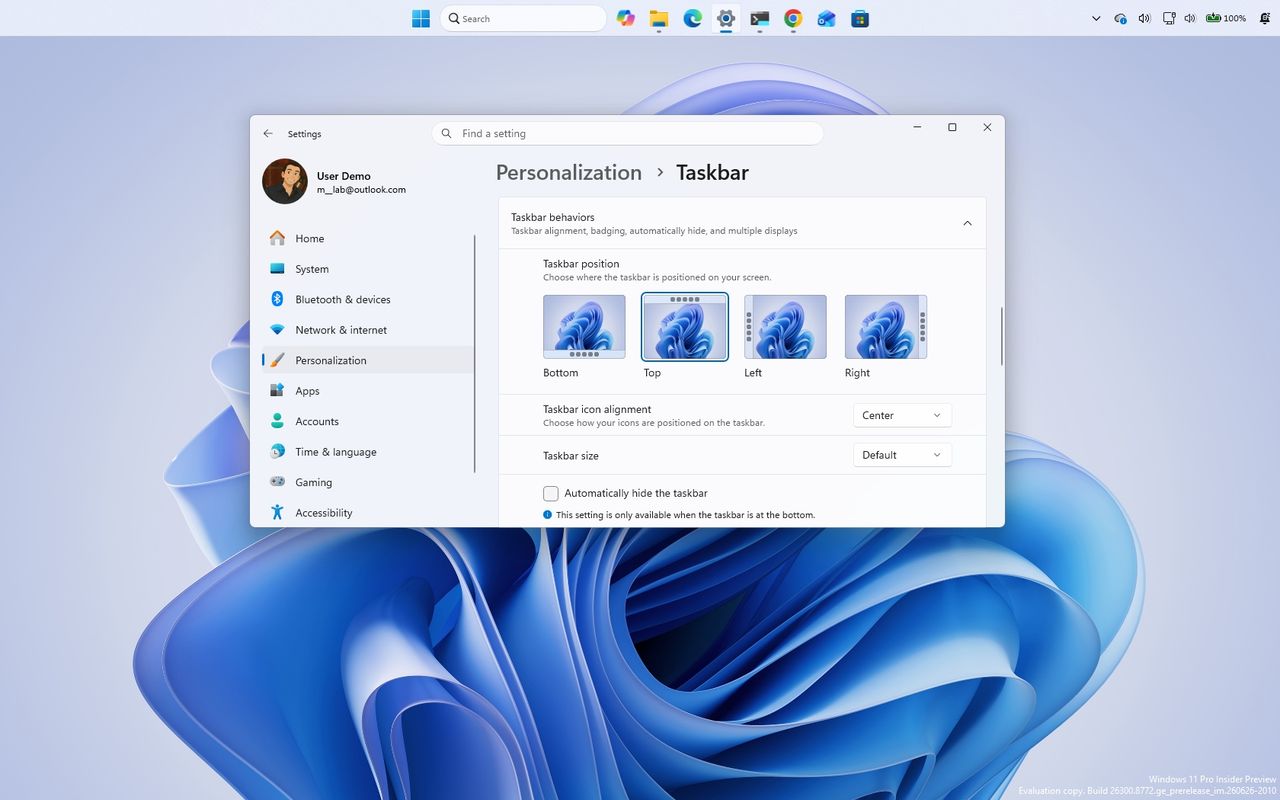
Windows 11 desktop with the Settings app opened and the Taskbar located at the top of the screen.
Windows 11 desktop with the Settings app opened and the Taskbar located at the top of the screen.
Windows 11’s massive July 2026 update fixes 570 vulnerabilities and shows how AI is quietly reshaping Patch Tuesday itself

Microsoft's July 2026 Patch Tuesday update for Windows 11 is one of the largest security releases we've ever seen, fixing 570 vulnerabilities across Microsoft's products, according to Action1's analysis.

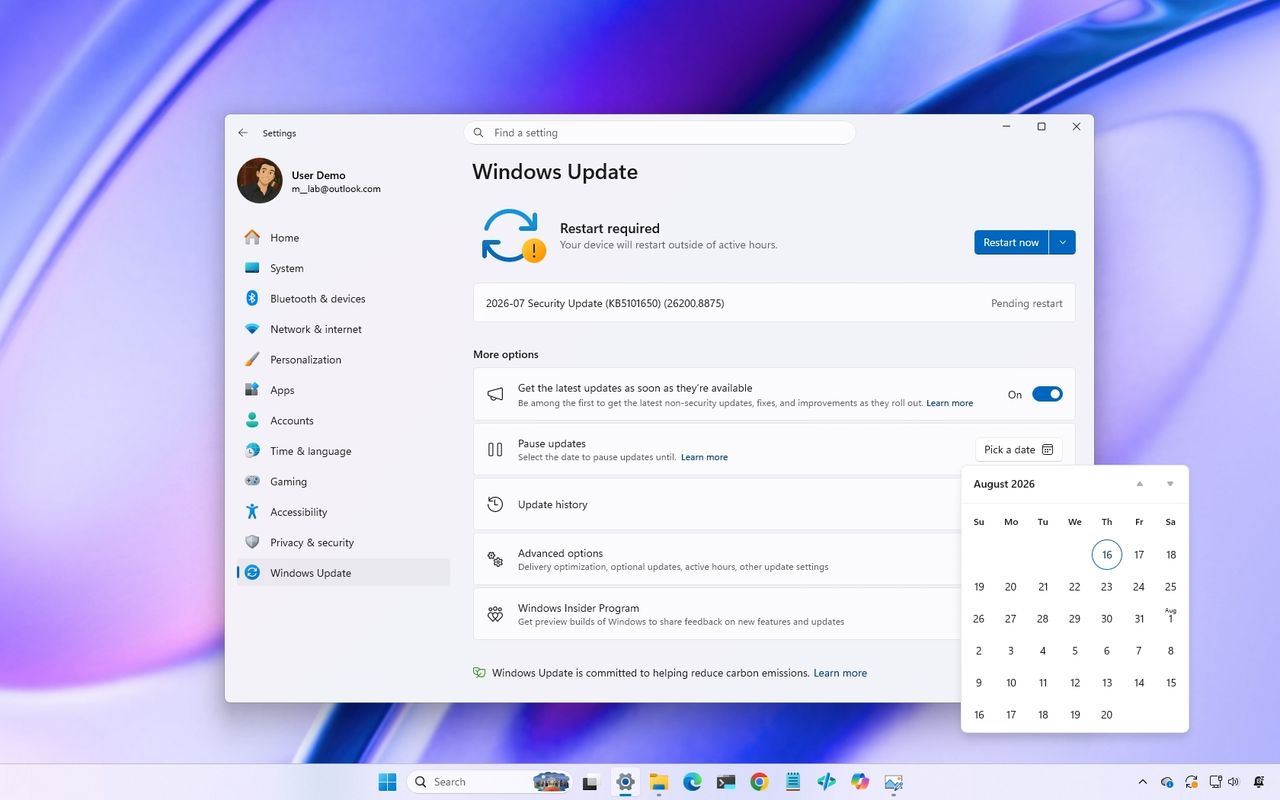
For users, the update arrives as KB5101650, bringing version 25H2 to build 26200.8875 and version 24H2 to build 26100.8875.

The number is certainly eye-catching. Microsoft fixed more than four times the number of security issues compared with July 2025, when the company addressed 137 vulnerabilities.

However, the bigger story is not simply that the company patched hundreds of security flaws. The July 2026 security update is an early example of a major shift Microsoft has already warned about. AI is changing vulnerability discovery, and Windows 11 updates are expected to become larger as a result.

The software giant says that as AI helps security researchers find more issues across more code, customers will see a higher volume of security fixes included in future security releases.

In other words, larger Patch Tuesday updates are not necessarily a sign that Windows is becoming less secure. They are also a sign that Microsoft is finding and addressing more problems before attackers can use them.

Why Windows 11's July 2026 update is so large

The July 2026 update addresses vulnerabilities across many core areas of Windows, including the Windows Kernel, Win32k, NTFS, Remote Desktop, Secure Boot, BitLocker, File Explorer, and more.

Several of these fixes address vulnerabilities that could allow remote code execution, where an attacker could potentially run malicious code on a system remotely.

The scale of the release follows a sharp increase in security fixes throughout 2026.

Here's a comparison based on vulnerability counts reported by Windows Latest and security-tracking data, showing how the number of fixes has increased since 2025.

Month

Vulnerabilities fixed in 2025

Vulnerabilities fixed in 2026

January

159

114

February

55

58

March

57

79

April

134

167

May

72

120

June

66

200

July

137

570

January–July total

680

1,308

However, Microsoft says the growing number of fixes should not be interpreted as the operating system becoming less secure. Instead, the company says AI is helping identify vulnerabilities earlier and at a larger scale.

Microsoft is using AI to find Windows vulnerabilities faster

Windows Update on a Dell XPS laptop

(Image credit: Screenshot: Windows Central / Laptop: Edited with Gemini)

The company has been investing in AI-powered security tools to reduce the time between discovering a vulnerability and protecting customers.

One of those tools is MDASH, Microsoft's multi-model agentic security scanning harness.

MDASH uses multiple AI models and more than 100 specialized AI agents to analyze code, identify potential vulnerabilities, debate findings, and validate whether issues are real.

Unlike a traditional scanner that simply reports possible problems, Microsoft's system is designed to reduce false positives by using multiple stages of analysis and validation.

The company notes that MDASH helped security researchers discover 16 vulnerabilities in networking and authentication components, including critical remote code execution flaws affecting areas such as the TCP/IP stack and IKEv2 service on Windows 11.

Those findings demonstrate how AI can help uncover complex security issues that may be difficult to identify through traditional approaches.

Microsoft has not said that MDASH discovered all 570 vulnerabilities included in the July 2026 update. Instead, the technology represents part of a larger effort to expand the company's vulnerability research capabilities.

Microsoft expects Windows 11 security updates to get bigger

The biggest takeaway from the new approach is that larger security updates are becoming expected. In a recent explanation of its vulnerability management strategy, Microsoft said: "As AI helps defenders discover more issues, customers will see a higher volume of security updates included in each security release."

The company says AI is being integrated into the entire security process, from finding vulnerabilities to helping engineers understand issues, develop fixes, and identify possible regressions.

Microsoft is also using additional validation systems to make sure faster security fixes do not come at the cost of update quality.

The goal is to shorten the time between vulnerability discovery and customer protection while maintaining reliability.

Why users should install updates faster on PCs

Windows 11 update in Settings app

(Image credit: Future)

As security updates grow larger, Microsoft is also pushing users and organizations to reduce delays before installing them, because attackers are also benefiting from AI.

Microsoft says attackers can now exploit newly discovered vulnerabilities much faster than before, leaving users and organizations with less time to install security updates.

For users, that means monthly updates are becoming more important. While temporarily pausing updates can still make sense if a release causes compatibility problems, leaving security fixes uninstalled for long periods creates unnecessary risk.

The July 2026 update also includes non-security improvements, including Point-in-time restore, Screen Tint, improved Bluetooth reliability, File Explorer improvements, and much more. However, the security changes are the main reason users should prioritize installing it.

Windows Central's Take

When I first saw that Microsoft had patched 570 vulnerabilities in a single Patch Tuesday release, I didn't immediately think Windows 11 had become less secure. Instead, my first thought was that this was exactly the kind of update the company had been preparing users for when it said AI would dramatically increase the number of vulnerabilities it could discover.

I actually think this changes how we should judge Patch Tuesday updates. For years, I've looked at the size of a security release as a rough indication of how much could potentially go wrong after installing it. In the future, that assumption may no longer hold true. A bigger update could only mean that the software giant is finding and fixing more issues before attackers have the chance to exploit them.

Blank Pixel

That said, Microsoft still has something to prove. Discovering more vulnerabilities is only half the equation. Users will judge this new approach by whether these larger updates remain reliable and don't introduce new issues of their own. If the company can consistently deliver both better security and stable updates, I think that's a tradeoff most users will gladly accept.

Do you think larger Patch Tuesday updates are a good sign for Windows 11 security, or do they make you more cautious about installing updates? Let me know in the comments.

More resources

Explore more in-depth how-to guides, troubleshooting advice, and essential tips to get the most out of Windows 11 and 10. Start browsing here:

Click to join us on r/WindowsCentral

Join us on Reddit at r/WindowsCentral to share your insights and discuss our latest news, reviews, and more.

Windows 11 desktop showing the Windows Update settings installing the July 2026 Security Update.

Windows 11 desktop showing the Windows Update settings installing the July 2026 Security Update.

Microsoft rolls out 6 helpful new Windows 11 Insider features for early July, including one built to protect your PC from disaster

As part of the Windows Insider Program, Microsoft released several preview builds of Windows 11 in early July 2026, some of which introduced new features and others only improvements for existing experiences.

In the first two weeks of July, the company began the public test of the Cloud rebuild recovery feature, revealed a new design update for the account manager available through the Start menu, and made other improvements for version 26H2

In addition, Microsoft is continuing to expand previously announced features to more Insider channels, including the ability to upgrade from Windows 11 Home to Pro Education for K-12 environments. The company is also rolling out Taskbar position and size options, along with Windows Update improvements designed to reduce the number of required restarts each month.

In the Experimental track, we've seen builds 26300.8772 and 28120.2387, and builds 28020.2380 and 26220.8764 have been released in the Beta channel.

In this recap, I'll highlight the latest and most noteworthy changes available through the Windows Insider Program.

Biggest improvements from the Windows Insider Program in July 2026

In this recap, I'll highlight the latest and most noteworthy changes available through the Windows Insider Program since my last roundup.

Cloud rebuild new feature

Starting with build 26300.8772, Windows 11 introduces a new recovery feature known as "Cloud rebuild," which has been designed to make it easier to reinstall the operating system when the computer is unable to start, or you're looking for a fresh install.

Windows Recovery Environment in the Troubleshoot page highlighting Cloud rebuild option.

(Image credit: Mauro Huculak)

If this feature sounds familiar, it's because it's similar to the Cloud download option in Reset this PC. However, Cloud rebuild introduces a new workflow that downloads the Windows 11 installation files and drivers and performs a clean installation without requiring a bootable USB drive, a custom recovery image, or access to the desktop environment.

Cloud rebuild can be accessed from the Windows Recovery Environment (WinRE) by going to the "Troubleshoot" page and using the "Cloud rebuild" option.

Before you can use the feature, the computer must be running Windows 11 on compatible hardware, and the device must be connected to the internet using a wireless or wired connection.

Once you confirm the Windows 11 version, edition, and language, click "Install," and the system will erase the hard drive and reinstall the operating system and drivers.

Account Control flyout redesign

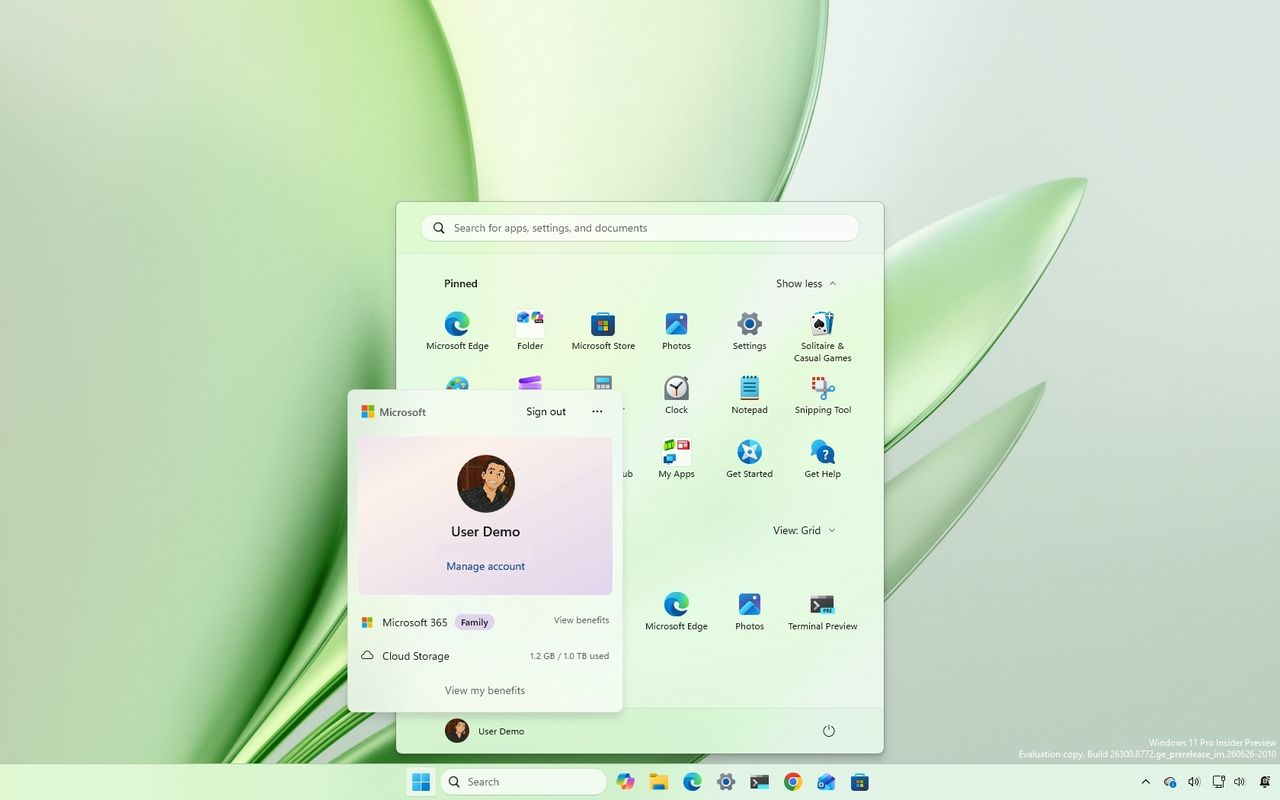
In the Start menu, Microsoft is also updating the Account Control flyout with build 26300.8772. The new design offers a more modern style that highlights your account information and picture.

Windows 11 desktop showing the new Account Control menu in the Start menu.

(Image credit: Mauro Huculak)

It also highlights your Microsoft 365 subscription, cloud storage, and access to your benefits.

Backup and restore default settings

In commercial computers, starting with the preview build 26300.8772, Windows 11 is enabling the backup and restore feature policy by default for devices enrolled in a Microsoft Entra ID or Entra hybrid-joined environment.

The idea is to start the device with backup protection to make recovery smoother. For example, when a device is reset or replaced, users can quickly return to their personalized desktop without extra steps.

Of course, network administrators can always control this experience, and Microsoft notes that existing policies will remain in effect, and manually configured settings always take priority over the default behavior.

Taskbar position settings

The company is also bringing back the ability to change the Taskbar location with the release of build 28120.2387 in the Experimental channel.

This change allows users to place the Taskbar at the top of the screen, as well as at the left or right edges, rather than being limited to the bottom.

The setting appears on Settings > Personalization > Taskbar, under the "Taskbar behaviors" section. The setting is called "Taskbar position."

Windows 11 Settings in the Taskbar page showing the Taskbar position settings.

(Image credit: Mauro Huculak)

The company notes that flyouts, tooltips, and animations will follow the Taskbar orientation regardless of the position.

Also, most existing features will continue to work, including the option to ungroup and show labels for apps.

Furthermore, the company is updating the "Show smaller taskbar button" option to make the Taskbar smaller instead of just the buttons. (As we have already seen in other tracks, the company is expected to create a separate option to make the Taskbar smaller.)

Windows Update with fewer reboots

As part of Windows 11 build 26220.8764, the company is introducing a new unified Windows Update experience that coordinates monthly quality updates with driver, .NET, and firmware updates.

By bundling these updates into a single installation cycle whenever possible, Microsoft aims to reduce the number of restarts users experience each month, with the long-term goal of requiring just one monthly reboot.

Windows 11 Pro Education for K-12 free upgrade

Microsoft is changing the installation requirements to allow devices running Windows 11 Home to upgrade to Windows 11 Pro Education at no additional cost for K-12 education.

This change aims to give schools more flexibility when acquiring new devices. However, the company says that this is one-way only. After the upgrade, the only way to roll back to the Home edition is by performing a clean installation of the operating system.

Windows Search upgrades

Outside its regular download schedule, Microsoft recently began rolling out a slew of improvements to the Windows Search experience on devices enrolled in the Experimental channel.

First, the company is decluttering the home screen and focusing on the search experience. As part of this rollout, the Windows Search home screen only includes your recent searches, ditching the visual clutter, including those annoying advertisements.

Windows 11 desktop with the Search home screen showing recent queries.

(Image credit: Mauro Huculak)

In addition, when performing a search and a web result is more relevant, the experience will now prioritize the answer rather than products and promotions.

Microsoft is also introducing design tweaks to better indicate where each result comes from. For example, you'll find better spacing between items and interface changes when selecting a result, including thumbnail previews.

Second, you'll now have more control over search results with the options to disable web searches and Microsoft Store apps from appearing in the Windows Search experience.

However, by default, search will work as always. It's up to you to customize your search experience from Settings > Privacy & Security > Search.

Windows 11 Settings on the Search page showing the options to disable web searches and Microsoft store suggestions.

(Image credit: Mauro Huculak)

Third, the search experience now improves local content and rankings, meaning local results are given higher priority in apps, settings, and files, instead of web and Microsoft Store results showing up first when there are better results.

Windows 11 desktop showing the new search prioritizing Settings.

(Image credit: Mauro Huculak)

As part of the ranking tweaks, you'll notice that searches for settings now appear higher in the results.

Fourth, Microsoft is also focusing on improving search accuracy through two specific changes. For instance, Windows Search has been updated to better handle typos, missing or extra letters, and partial words.

In addition, the feature will now show results for local files using two-character file search, and more accurately surface cloud and connected files when they're the best match.

Windows Central's Take

I think these Insider builds show Microsoft focusing on what Windows 11 has needed for a while, improving the experience instead of simply adding more features. Cloud rebuild could make recovery much less stressful, while the Windows Search changes address one of the operating system's biggest frustrations by prioritizing useful local results over web content.

Blank Pixel

The reappearance of Taskbar positioning is also a welcome change. It shows Microsoft is still paying attention to feedback and bringing back flexibility that many users have missed since Windows 11 launched.

What are your thoughts on these latest Windows 11 Insider changes? Let me know in the comments.

More resources

Explore more in-depth how-to guides, troubleshooting advice, and essential tips to get the most out of Windows 11 and 10. Start browsing here:

Click to join us on r/WindowsCentral

Join us on Reddit at r/WindowsCentral to share your insights and discuss our latest news, reviews, and more.

Windows 11 desktop with the Start menu open and showing the new Account Control design.

Windows 11 desktop with the Start menu open and showing the new Account Control design.

Windows 11 has more recovery options than ever, and here’s exactly when I would use each one to fix a broken PC

If you've been using Windows as long as I have, you probably remember when a serious problem often meant backing up your files and reinstalling the operating system from scratch. Whether it was a bad driver, a failed update, or corrupted system files, a clean install was frequently the fastest way to rescue your computer.

I don't think that's the case anymore. Over the past several years, Microsoft has quietly transformed Windows 11 into a much more resilient operating system. Instead of relying on a single recovery option, the operating system now bundles a collection of tools designed to solve different types of problems. Some can repair Windows 11 while minimizing changes to your data. Others can roll back a problematic update, recover a computer that won't boot, or completely rebuild the system from the cloud.

The downside is that all these options can be confusing. Microsoft doesn't always make it clear which recovery feature you should use first, and many of them sound similar even though they solve different problems.

A lot of the recovery features discussed in this guide are available through the Windows Recovery Environment (WinRE). This separate recovery workspace runs outside the normal installation and provides access to tools that can repair, reset, or troubleshoot the operating system when the computer cannot start normally.

In this guide, I'll outline the recovery features available on Windows 11 and when I would actually use them.

Important: The right recovery option depends mostly on what went wrong. A broken update, a damaged driver, and a corrupted installation all require different approaches.

Fix problems using Windows Update

If the computer still starts normally but something doesn't feel right, I'd try the "Fix problems using Windows Update" recovery option first.

Windows 11 Settings on the Recovery page, highlighting the Fix problems using Windows Update option.

(Image credit: Mauro Huculak)

This feature repairs the operating system by downloading the same version of Windows 11 installed on your computer through Windows Update and reinstalling it over your existing installation. Unlike resetting your computer, it preserves your personal files, installed apps, user accounts, and settings.

If system files have become corrupted, built-in features have stopped working, or you're seeing unusual behavior after an update, this repair process can often restore the operating system without forcing you to reinstall your apps afterward.

I like this approach because it's the least disruptive recovery option Microsoft offers. If it solves the problem, you save yourself the time of reinstalling software and reconfiguring the system.

Best for:

  • Corrupted system files.
  • Missing or broken features.
  • General system instability.
  • Repairing Windows 11 while keeping apps, files, and settings.

Reset This PC

When repairing Windows 11 isn't enough, "Reset This PC" is usually the next step.

This feature reinstalls the operating system and lets you choose between two options.

Windows 11 Settings on the Recovery section, highlighting the Reset this PC settings.

(Image credit: Mauro Huculak)

Keep my files reinstalls Windows 11 while preserving your personal files, pictures, and videos, but it removes installed applications and resets system settings.

Remove everything wipes the computer completely before installing a fresh copy of Windows 11, making it a good choice if you're selling the device or want to start over.

You'll also choose between "Local reinstall," which uses recovery files already stored on the computer, or "Cloud download," which downloads a fresh copy of Windows directly from Microsoft's servers.

Personally, I almost always recommend Cloud Download. It takes longer because it downloads several gigabytes of data, but it also avoids problems caused by damaged local recovery files.

Best for:

  • Severe software problems.
  • Persistent performance issues.
  • Malware cleanup after backing up your data.
  • Preparing to sell or give away the computer.

Cloud rebuild

Cloud rebuild is one of Microsoft's newest recovery tools, and I think it fills an important gap in Windows recovery.

Windows Recovery Environment in the Troubleshoot page highlighting Cloud rebuild option.

(Image credit: Mauro Huculak)

Available through the Windows Recovery Environment (WinRE), Cloud rebuild reformats the operating system partition, downloads a fresh Windows 11 image and compatible drivers from Windows Update, and restores the computer to the out-of-box setup experience.

Unlike Reset This PC, it doesn't depend on the recovery image already stored on your computer, and more importantly, it also includes the device drivers.

To me, this feature sits somewhere between Reset This PC and creating a bootable USB installer. It gives you a completely fresh installation without requiring installation media or another computer to download the setup files.

Best for:

  • Severely corrupted installations.
  • Failed Reset This PC attempts.
  • Damaged recovery files.
  • Rebuilding Windows 11 from scratch.

Go Back (rollback)

The upgrade process to a new version doesn't always go smoothly, and that's exactly why "Go Back" exists.

Windows 11 Settings on the Recovery section highlighting the rollback option.

(Image credit: Mauro Huculak)

After upgrading to a new version of the operating system on top of an existing setup, Windows 11 temporarily stores your previous installation in the "Windows.old" folder. If the new version introduces compatibility problems, driver issues, or poor performance, you can roll back to the earlier version with just a few clicks.

The only catch is that this option is temporary. The system typically removes the previous installation files after about 10 days to free up storage.

If you notice problems immediately after installing a feature update, don't wait too long before deciding whether to roll back.

Best for:

  • Performance problems after upgrading.
  • Driver incompatibilities.
  • Software compatibility issues.
  • Bugs introduced by a feature update.

Uninstall Updates

Not every system update improves the experience. Sometimes a cumulative update can introduce startup problems, driver conflicts, or unexpected bugs.

When that happens, Windows 11 includes an option in the Windows Recovery Environment that lets you remove the latest update without resetting the entire computer.

WinRe Uninstall Updates option

(Image credit: Mauro Huculak)

Using this experience, you can uninstall the latest quality updates (monthly cumulative updates) and feature updates (major version upgrades).

The first option is usually the one you'll use after Patch Tuesday problems.

Best for:

  • Device problems after installing an update.
  • Boot issues caused by a recent update.
  • Update-related stability problems.

System Restore

Some people think System Restore is outdated, but I still think it's one of the most underrated recovery features in the operating system.

Windows 11 desktop showing the System Restore settings.

(Image credit: Mauro Huculak)

System Restore creates restore points that save system files, drivers, registry settings, and installed applications. If something goes wrong after installing a driver or application, you can return Windows to an earlier working state without affecting your personal files.

It's often much faster than resetting the computer and can solve problems in just a few minutes.

Best for:

  • Bad driver installations.
  • Faulty software.
  • Registry changes.
  • Recent system configuration problems.

Startup Repair

If Windows 11 won't boot, Startup Repair remains one of the built-in recovery tools designed to fix common startup problems.

WinRE in Advanced options highlighting the Startup Repair setting.

(Image credit: Mauro Huculak)

Available through the Windows Recovery Environment (WinRE), the tool scans the system for damaged startup files, corrupted Boot Configuration Data (BCD), missing system files, and other issues preventing the operating system from loading correctly. If it finds a problem it knows how to fix, it attempts the repair automatically.

Depending on your recovery configuration, Windows 11 may first attempt newer recovery mechanisms, such as Quick Machine Recovery, before Startup Repair becomes available.

It won't solve every startup issue, but when it works, it can save you from more drastic recovery options like resetting or reinstalling the operating system.

Best for:

  • Windows 11 stuck during boot.
  • Endless restart loops.
  • Missing or damaged boot files.
  • Startup-related errors.

Safe Mode

Sometimes Windows 11 itself isn't the problem. Safe Mode starts the system with only the essential drivers and services needed for the operating system to run. That makes it much easier to remove a problematic graphics driver, uninstall recently installed apps, or troubleshoot malware that's preventing Windows 11 from working normally.

Windows 11 desktop in Safe Mode.

(Image credit: Mauro Huculak)

If Windows 11 works as expected in Safe Mode but crashes at startup, it's usually a sign that a third-party app or driver is causing conflicts.

Best for:

  • Troubleshooting driver problems.
  • Removing incompatible software.
  • Malware cleanup.
  • Diagnosing startup crashes.

Quick Machine Recovery

Quick Machine Recovery is one of the newest additions to Windows 11, and I think it's a direct response to lessons Microsoft learned from major outages like the CrowdStrike incident.

Windows 11 Settings in the Recovery section showing the Quick machine recovery settings.

(Image credit: Mauro Huculak)

If a bad update or driver prevents Windows 11 from starting, the feature can automatically enter the Windows Recovery Environment, connect to Microsoft's recovery service, download a remediation package, and attempt to repair the problem before you ever reach the desktop.

Ideally, you'll never have to think about this feature because it works automatically behind the scenes. If the automated recovery isn't successful, you can continue troubleshooting using the other recovery options available through the Windows Recovery Environment.

Best for:

  • Startup failures caused by updates.
  • Driver-related boot issues.
  • Automatic recovery without user intervention.

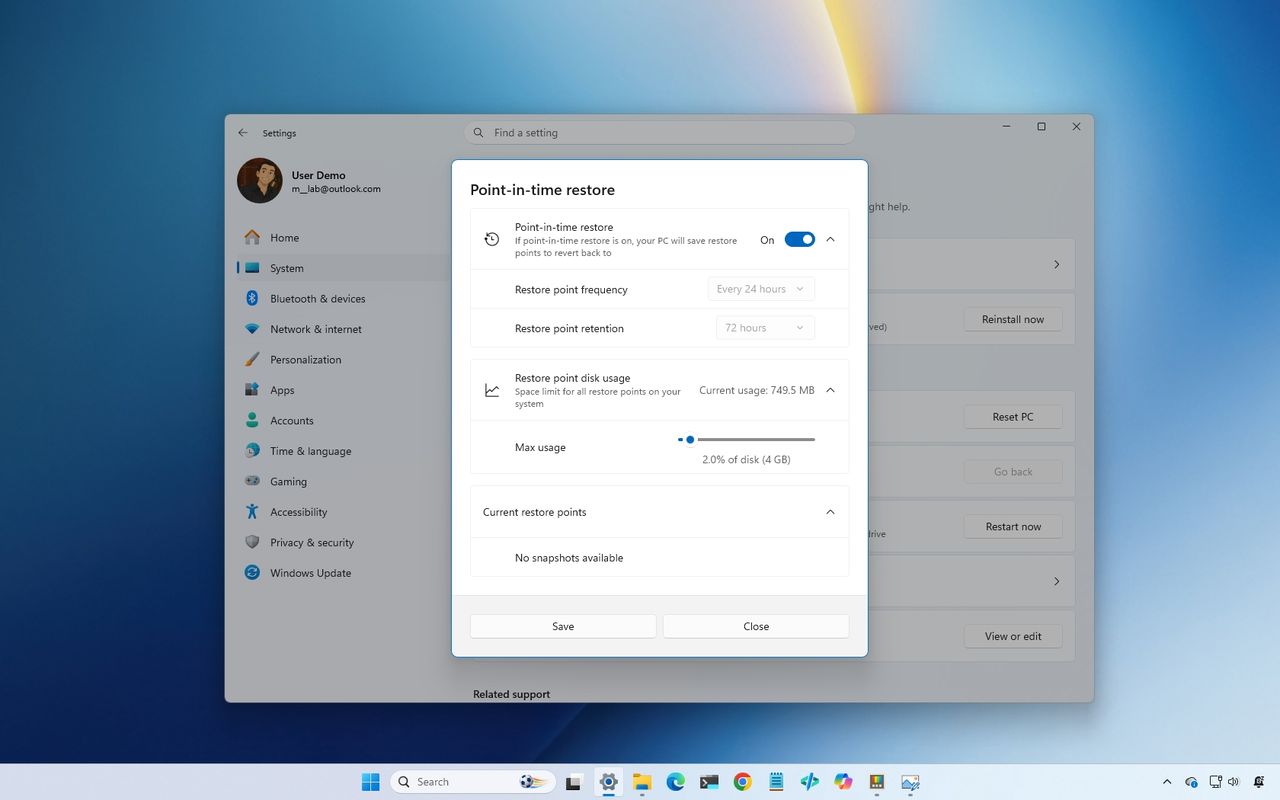
Point-in-time Restore

Point-in-time Restore is another piece of Microsoft's evolving recovery strategy.

Rather than asking users to troubleshoot a failed Windows Update manually, Point-in-time Restore is part of Microsoft's effort to make Windows Update failures easier to recover from automatically.

A lot of people may never notice it working, but that's exactly the goal. The more the system can recover automatically, the less often users need to search for recovery guides or perform clean installations.

Best for:

  • Failed system updates.
  • Rolling back to a previous working update state.
  • Automatic update recovery.

Other details

This guide focuses on Windows 11 features that can restore the operating system to a known working state or help troubleshoot problems preventing the system from working correctly. However, the operating system also includes other recovery-related tools that serve a different purpose.

The Windows Recovery Environment (WinRE) is the workspace where many of these options are available, including Startup Repair, Reset This PC, System Restore, Cloud rebuild, and other troubleshooting tools. It does not repair Windows 11 by itself. Instead, it provides access to the features that can recover the operating system.

The Recovery Drive works in a similar way. It does not fix the setup directly. Instead, it creates a bootable USB drive that lets you access WinRE if the built-in recovery options are unavailable.

Other tools, such as Command Prompt, Startup Settings, and UEFI settings, are designed for advanced troubleshooting. They can help diagnose and manually repair problems, but they do not automatically restore the operating system.

Also, the Windows Backup app is part of the recovery experience, but it serves a different purpose. Instead of repairing a broken installation, it helps restore settings, credentials, Microsoft Store apps, and files stored in OneDrive after reinstalling Windows 11 or moving to a new computer.

The legacy Backup and Restore (Windows 7) tool is still available on Windows 11 and can create file backups and full system images. Unlike newer recovery features such as Reset This PC or Cloud rebuild, it relies on a backup created ahead of time. If you have a system image available, you can use it to restore the computer to a previous state, including the operating system, apps, settings, and drivers.

However, Microsoft has shifted toward newer recovery experiences that rely more on Windows Update, cloud services, and automatic repairs.

Windows Central's Take

After covering the operating system for more than two decades, I think Microsoft has finally addressed one of the biggest weaknesses: recovery.

The company has built a much more complete safety net into Windows 11. However, these tools only matter if they work when users need them most. A failed update, broken driver, or corrupted system file can still leave people searching for answers because the recovery experience isn't always predictable.

What I find interesting is that Microsoft didn't replace older tools like System Restore or Safe Mode. Instead, it kept building on top of them with newer experiences such as Cloud rebuild and automatic recovery features. The result is a layered recovery system that makes Windows 11 far more resilient than previous versions.

The next challenge isn't creating another recovery feature. It's making the existing ones easier to understand. If the operating system can better recognize what's wrong and automatically recommend the right recovery path, most people may never have to wonder whether to use System Restore, Reset This PC, or Cloud rebuild.

That's the direction recovery should continue moving toward, with less troubleshooting, fewer reinstalls, and more automatic repairs that keep people productive.

Have you ever had to use one of these Windows recovery features? Which one helped you get your device back up and running? Let me know in the comments.

More resources

Explore more in-depth how-to guides, troubleshooting advice, and essential tips to get the most out of Windows 11 and 10. Start browsing here:

Click to join us on r/WindowsCentral

Join us on Reddit at r/WindowsCentral to share your insights and discuss our latest news, reviews, and more.

Windows 11 desktop showing the Point-in-time Restore settings.

Windows 11 desktop showing the Point-in-time Restore settings.

❌