Vue normale

Reçu — 11 juillet 2026 Windows Central - News, Forums, Reviews, Help for Windows 10 and all things Microsoft.

Windows 11 cleanup is finally simple with this powerful open‑source tool that strips bloat, boosts speed, and gives you real control

Windows 11 includes several built-in tools to help keep storage usage under control on your computer. Features like Storage Sense, the Temporary Files settings page, and Storage Recommendation can help you reclaim storage with ease, making third-party cleanup utilities less essential than they once were.

However, those features don't clean everything. If you want more control over temporary files, browser data, app caches, and privacy-related files, BleachBit is one tool you have to try. It's free, open source, and, unlike many PC "optimizer" apps, it focuses on cleaning unnecessary files rather than promising unrealistic performance improvements.

In this how-to guide, I'll explain what BleachBit does, how to use it on Windows 11, which settings I recommend, and which features you should avoid unless you understand exactly what they do.

What is BleachBit?

BleachBit is a free and open-source cleanup utility for Windows 11 that removes temporary files, caches, logs, browsing data, and other unnecessary files created by the operating system and many third-party apps.

Unlike many commercial cleanup tools, BleachBit doesn't include advertisements, bundled tools, or premium features. Instead, it gives you complete control over what gets removed and explains every cleaning option before you run it.

Rather than replacing the built-in cleanup tools available on Windows 11, I see BleachBit as an additional utility for users who want more control over what gets cleaned.

Why use BleachBit?

Although Windows 11 already provides several storage management tools, BleachBit adds several more capabilities.

For example, cleaning the system's temporary files as well as those junk files created by third-party apps. You can also use the tool to clean temporary browser data, such as cache, history, and downloads.

In addition, BleachBit provides secure file shredding to make recovery more difficult and wipes free storage space on supported drives.

Finally, the tool offers command-line support for scripting and automation, and there's a portable version that you can use without installation.

The biggest advantage is flexibility. Instead of cleaning everything automatically, BleachBit lets you decide exactly what should (and shouldn't) be removed.

Install BleachBit on Windows 11

Installing BleachBit is straightforward. You can download either the standard installer or the portable version, then launch the application. However, the quickest way to install the app is by running the winget install --id BleachBit.BleachBit command in Command Prompt (admin).

Command Prompt showing the winget command installing the BleachBit tool on Windows 11.

(Image credit: Mauro Huculak)

For most cleanup tasks, running it in normal mode is enough. Some system cleaning options may require administrator privileges.

Once opened, you'll notice a list of apps and cleaning categories on the left, along with a brief description of each option as you select it.

Always run Preview first

One feature I recommend using every time is Preview. Instead of immediately deleting files, the "Preview" option scans your system, estimates how much storage space can be reclaimed, and shows exactly what BleachBit intends to remove.

BleachBit for Windows 11 show preview results.

(Image credit: Mauro Huculak)

Even if you've used BleachBit before, I still recommend running the Preview option first.

Recommended cleanup options

For routine maintenance, I recommend starting with categories that are generally safe to remove.

For example, from the "System" section, some good choices include:

  • Temporary files.
  • Logs.
  • Clipboard.
  • Recycle Bin.
  • Update uninstallers.

BleachBit with recommended settings selected.

(Image credit: Mauro Huculak)

Usually, these items consume storage over time without affecting your daily workflow.

For browser cleaning, I suggest being more selective. Clearing cached files occasionally is perfectly reasonable, but deleting cookies will sign you out of websites, and removing session data will close saved browsing sessions.

Unless you're troubleshooting a browser issue or intentionally clearing your browsing activity, I usually leave those options unchecked.

The same advice applies to app caches. While they're generally safe to clear, some apps may take longer to launch the next time because they'll need to recreate those files.

BleachBit showing the General tab and highlighting the

(Image credit: Mauro Huculak)

As mentioned above, cleaning actions may require using the tool in Expert mode. If you receive the prompt, open the BleachBit main menu, select "Preferences," and choose the "Expert mode" option located in the "General" tab.

Securely delete sensitive files

BleachBit includes a built-in file shredder for permanently deleting sensitive files (and folders).

Unlike sending a file to the Recycle Bin (or even deleting it permanently with the "Shift + Delete" shortcut), secure shredding overwrites the file's contents before removing it, making recovery using standard data recovery tools much more difficult.

If you want to use this feature, open the BleachBit menu (the first icon at the top-left), choose the "Shred Files" option, then select the file to delete.

BleachBit tool with the main menu opened and the Shred Files option selected.

(Image credit: Mauro Huculak)

This feature is useful when you're deleting confidential content, financial records, or other sensitive files you don't want recovered later.

Wipe free disk space

The open-source tool can also overwrite unused space on a drive to remove traces of files that were previously deleted through the Recycle Bin.

This feature is intended primarily for drives before selling, donating, or retiring a computer, or for secondary drives.

The feature is available from the BleachBit main menu by selecting the "Wipe Empty Space" option and choosing the drive you want to clean.

BleachBit with the Wipe Empty Space option select in the main menu.

(Image credit: Mauro Huculak)

I don't recommend running free-space wiping as part of regular maintenance because it takes time and provides little benefit for everyday use.

If you're preparing a device for resale, the Reset this PC feature is generally the better approach.

One feature you won't find

One thing that BleachBit doesn't offer is a Registry cleaner.

I actually consider that an advantage. For years, Registry cleaners have been marketed as a way to improve performance in the operating system, but in practice, they rarely provide measurable benefits. Worse, removing the wrong Registry entries can cause apps or the system itself to behave unexpectedly.

Microsoft doesn't include a Registry cleaner on Windows 11, and I don't think most users should use one.

By focusing on cleaning unnecessary files instead of modifying the Registry, BleachBit avoids one of the biggest sources of risk associated with older computer optimization suites.

Does BleachBit make Windows 11 faster?

Not directly. When you delete temporary files, you can free up storage space and occasionally resolve issues caused by bad caches, but it won't make your computer faster.

If Windows 11 feels sluggish because your drive is nearly full, cleanup may help. However, performance issues are usually caused by factors such as not enough memory, older hardware, too many startup apps, malware, or software conflicts, not because your temporary files folder is too large (at least not the majority of the time).

Should you use BleachBit?

If you're comfortable with the built-in cleanup tools available on Windows 11, you may never need another maintenance utility.

However, if you want additional control over browser data, temporary files, app caches, privacy-related cleanup, secure file shredding, and other advanced maintenance tasks, you may benefit from BleachBit.

The open-source nature, easy-to-use interface, and decision to avoid questionable features like Registry cleaning make it one of the few utilities for cleaning up Windows 11 and one of the few alternatives to CCleaner.

Windows Central's Take

In the many years I've used the desktop version of Windows, I've tested and relied on countless cleanup utilities. Some of them were genuinely useful at the time, but many were eventually discontinued, acquired by other companies, or changed so much that they no longer offered the same experience.

Over time, I've become much more selective about the tools I recommend, especially when it comes to software that makes changes to the operating system.

Blank Pixel

More often than not, I recommend learning and using the built-in tools. However, BleachBit takes a different approach, and that's why I think it stands out. It focuses on cleaning files, not "fixing" the operating system, and I appreciate that it skips gimmicks like Registry cleaning that can do more harm than good.

If you decide to use it, my advice is not to treat it like a one-click optimization tool. Take advantage of the Preview feature, understand what each option does, and only clean what you actually need. If you use it that way, I think BleachBit is one of the few maintenance utilities that still deserve a spot in your toolkit.

What are your thoughts about BleachBit? Do you prefer Windows 11's built-in cleanup tools, or do you use a third-party utility? Let me know in the comments.

More resources

Explore more in-depth how-to guides, troubleshooting advice, and essential tips to get the most out of Windows 11 and 10. Start browsing here:

Click to join us on r/WindowsCentral

Join us on Reddit at r/WindowsCentral to share your insights and discuss our latest news, reviews, and more.

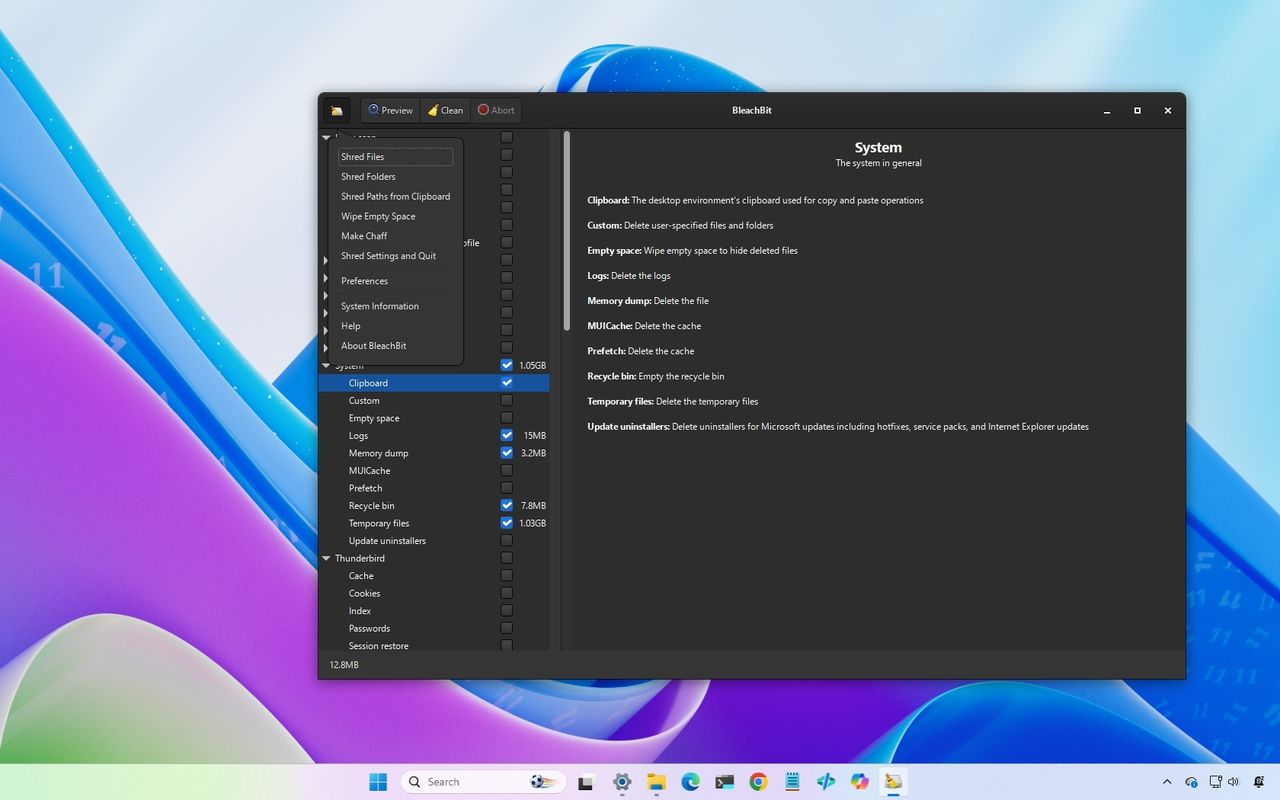
Windows 11 desktop and the BleachBit tool opened.

Windows 11 desktop and the BleachBit tool opened.
Reçu — 27 juin 2026 Windows Central - News, Forums, Reviews, Help for Windows 10 and all things Microsoft.

Windows 11’s huge July 14 update is loaded with new features — these are the 13 that matter most

Microsoft plans to begin the Windows 11 July 2026 Security Update on Tuesday, July 14, 2026. In this seventh month of the year, the company is rolling out several new features and improvements for existing features. In addition, this update is expected to deliver a number of bug fixes.

In this new quality update, Microsoft will be introducing brand new features, including the Point-in-time Restore recovery feature and the Screen tint accessibility feature.

This release also introduces the new Windows Update changes that allow users to pause updates indefinitely. The Widgets feature receives a few changes to make the experience quieter and less distracting.

Furthermore, in this release, users will also find changes to the Windows Magnifier, a new default for installing printers using Windows Ready Print support, as well as improvements to the Settings app, File Explorer, Bluetooth, network virtualization, touchpad, and much more.

In this guide, I'll highlight the most significant changes in the July 2026 Security Update for Windows 11 versions 25H2 and 24H2, since both are identical.

Windows 11's new features arriving in July

As per usual, the company uses the Controlled Feature Rollout (CFR) technology to roll out new improvements gradually, so it may take some time before you see them.

Point-in-time Restore recovery feature

Starting with the July 2026 Security Update, Microsoft is introducing Point-in-time Restore, a new recovery feature designed to quickly roll back a system to a previous good working state.

The feature works automatically and creates restore points that include settings, files, and apps using the Volume Shadow Copy Service (VSS), allowing you to recover your computer when an issue arises.

Point-in-time Restore comes enabled by default in the Home and Pro editions of the operating system. However, the system must have at least 200GB of storage.

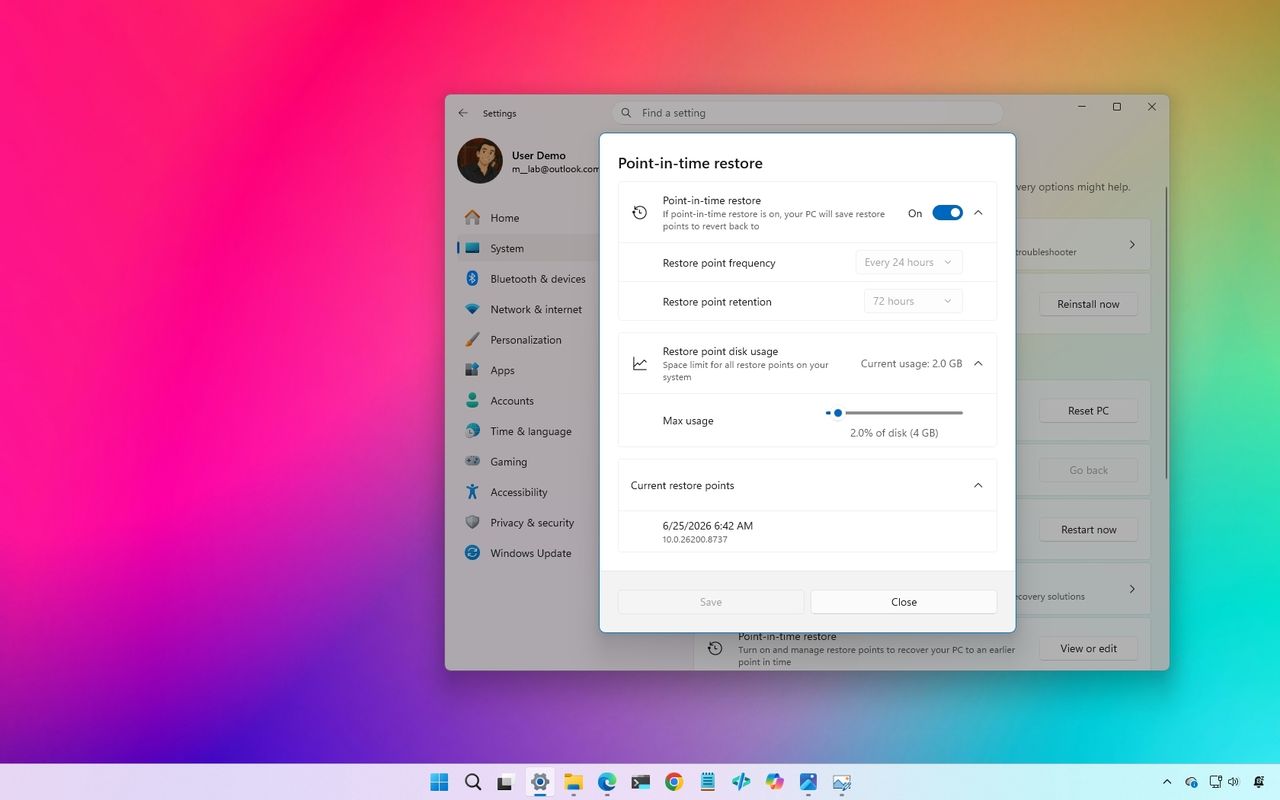
You can always control the feature in Settings > System > Recovery by using the "View or edit" button. On the page, you can turn the recovery feature on or off, configure the restore point frequency and retention, and decide how much storage the feature uses.

Windows 11 Settings with Point-in-time Restore configuration.

(Image credit: Mauro Huculak)

At the bottom, the feature will also notice the most recent restore points.

If something is working correctly, you can always access the feature from the Windows Recovery Environment (WinRE), and from the "Point-in-time Restore" page, select the restore point to recover your device.

Screen tint accessibility feature

In this update, the company is also rolling out Screen tint. This accessibility feature applies an overlay color on the screen designed to reduce eye strain and improve viewing comfort.

The feature is available in Settings > Accessibility > Screen tint. Once enabled, you can choose from one of the six preset color overlays or create a custom color.

Windows 11 Settings app showing the Screen tint configuration options.

(Image credit: Mauro Huculak)

In addition, there is a slider to control the overlay strength.

While the Screen tint feature seems similar to the Night Light feature, they are different, and they can work alongside each other. However, this feature automatically turns off Color filters and vice versa.

Windows Update new controls

Windows Update is getting a major upgrade. In this release, Microsoft is adding the ability to pause updates indefinitely, which seems to be the closest we'll get to completely turning off automatic updates.

As part of the changes, the "Pause updates" option now includes a calendar view that lets you pause automatic updates for up to 35 days. However, you can re-pause updates as many times as you want.

Windows 11 Settings showing the Windows Update settings page with the new calendar-based pause feature.

(Image credit: Mauro Huculak)

The only caveat is that if you want to postpone updates for more than 35 days, you'll need to manually pause them again. Otherwise, the system will download and install updates automatically as soon as the scheduled expiration expires.

Widgets with less distracting defaults

The company is trying to make the experience quieter and less distracting.

Windows 11 desktop with the Widgets board open in the settings section.

(Image credit: Mauro Huculak)

Widgets now open directly to the dashboard on first use, with hover activation disabled and notifications and Taskbar badges minimized by default.

The experience also offers more control over notifications and personalization settings, allowing users to customize Widgets from the Settings menu.

The dashboard icons can display the number of alerts, while badges clear automatically after leaving the dashboard. Microsoft notes that some settings will continue to adapt based on usage patterns to help limit interruptions.

This update also includes improvements to reliability, responsiveness, and overall visual quality across the Widgets experience.

Windows Magnifier improvements

In a continued effort to improve accessibility features, the software giant is also updating the Magnifier with more granular controls, allowing you to enter exact percentage values rather than having to use the zoom buttons to increase or decrease the zoom level.

Windows 11 desktop with the Magnifier UI with new changes.

(Image credit: Mauro Huculak)

Also, in the settings flyout, the zoom adjustment now allows users to set increments up to 400 percent.

Printer default changes

Starting with the quality update for July 2026, the operating system will install printers by default using the Internet Printing Protocol (IPP), provided the device is supported.

Windows 11 Settings showing printer settings and highlighting the

(Image credit: Mauro Huculak)

If you prefer to revert this configuration, open Settings > Bluetooth & devices > Printers & scanners, and turn off the "Default install printer using Windows Ready Print" option.

Location settings improvements

Microsoft is making location settings easier to understand in Settings > Privacy & Security > Location.

Windows 11 Settings in the Location section highlighting new default behavior when the feature is disabled.

(Image credit: Mauro Huculak)

When location services are turned off, options such as "Default location" and "Allow location override" no longer appear active, since apps and services cannot access location data.

As a result, these settings will now be greyed out until location services are enabled, helping clarify when the options are available and reducing confusion.

File Explorer improvements

After installing this quality update, you'll notice that File Explorer will launch faster thanks to new speed improvements.

Also, on the Home page, when hovering over files, users who are logged in with a work or school account should now see options like "Open file location" and "Ask Copilot."

File Explorer in Home showing hover buttons for file location and Copilot.

(Image credit: Mauro Huculak)

In addition, the address bar now supports paths with double backslashes and quotation marks, making it easier to paste or type folder paths from different sources.

Continuing with the improvements to the address bar, the experience now closes more reliably after selecting an option. Finally, File Explorer improves its ability to rename files.

Bluetooth changes

Microsoft is rolling out a series of Bluetooth improvements focused on reliability, compatibility, and audio performance.

For example, Windows 11 now keeps the microphone mute status synchronized between the system audio controls and Bluetooth headphones that include dedicated mute buttons or indicators, providing a more consistent experience during calls.

The update also improves compatibility with certain audio accessories. For instance, AirPods should enter pairing mode faster, and Beats Studio Pro headphones should offer more reliable microphone performance.

Voice calls on devices that support the Hands-Free Profile (HFP) should be more reliable. LE Audio accessories can begin playing audio faster while the microphone is active, and Windows 11 stability has been improved for some systems affected by Bluetooth-related driver issues.

The operating system will no longer incorrectly display a "Remove failed" message when a Bluetooth device cannot be removed because the Bluetooth radio is unavailable or has changed since the device was paired.

In addition, the "Bluetooth & devices" settings page has been updated to provide a more stable and consistent experience.

Connection reliability has also been enhanced. Classic Bluetooth audio devices can reconnect more quickly after a computer resumes from hibernation. At the same time, LE Audio accessories should maintain more reliable connections when switching between devices and recover more smoothly from temporary disconnections.

Phone Link improvements

Microsoft is improving how phone calls are handled between Windows 11 and a connected smartphone through Phone Link.

When you place a call from your paired phone, the audio will stay on the phone while it rings, then switch to the computer only after you answer the call on Windows 11.

This change helps prevent audio from switching between devices unexpectedly before the call connects.

The update also improves the "Do Not Disturb" experience. When Do Not Disturb is enabled, incoming calls from a connected phone will no longer ring through the computer, reducing interruptions while you're working.

Voice Typing and Voice Access

As you speak, Voice Typing and Voice Access can now refine the text in real time. In addition, the feature improves its capability to adapt to background noise. However, this is only available for Copilot+ PCs.

Furthermore, Voice Access and Voice Typing are now available in German, Spanish, and French.

Networking changes

The software giant is introducing several networking improvements focused on reliability, performance, and virtualization.

For virtualized environments, Confidential Virtual Machines (CVMs) now use SR-IOV hardware acceleration by default to improve network performance. At the same time, a networking configuration issue affecting nested Hyper-V setups has been fixed to ensure virtual machines are provisioned correctly.

The update also enhances the reliability of the networking stack. It reduces some Wi-Fi-related blue screen errors, improves cellular (WWAN) connectivity, and adds better support for IPv6-based VPN connections.

In addition, Microsoft has improved compatibility with certain third-party VPN solutions and server configurations that use SR-IOV networking. Network adapter settings and bindings are now also preserved during operating system upgrades, helping prevent networking configurations from being reset after an operating system update.

Touchpad changes

If you use a compatible touchpad, there's a touchpad customization option that lets you adjust the size of the bottom-right right-click area.

In Settings > Bluetooth & devices > Touchpad, you can choose between "Default," "Small," "Medium," or "Large" to control how much of the touchpad responds to a one-finger right-click.

This feature is available only on devices with a pressable touchpad surface. If your computer manufacturer provides touchpad customization through its own software, the system will display a "Custom" option to reflect those settings.

Windows Central's Take

I find it interesting that one of the biggest additions in this update is a feature designed to help when Windows 11 breaks rather than when everything is working perfectly.

Microsoft has spent the last few years talking a lot about AI, Copilot, and new experiences, but Point-in-time Restore addresses a much more fundamental problem. Every user eventually runs into a bad update, problematic driver, or software conflict. When that happens, recovery tools suddenly become far more important than whatever new feature was added to the Start menu.

The Windows Update changes also stand out to me because they give users a little more breathing room. The software giant clearly isn't interested in letting people permanently turn off updates, but repeatedly extending the pause period feels like a practical compromise between security and user control.

As for the rest of the update, I see it as evidence that Microsoft is continuing to chip away at long-standing annoyances. Faster File Explorer performance, Bluetooth reliability improvements, and less intrusive Widgets aren't headline-grabbing changes. However, they're often the updates that have the biggest impact on how the system feels after months of daily use.

Which feature in the July 2026 update are you most looking forward to trying on Windows 11? Let me know in the comments.

More resources

Explore more in-depth how-to guides, troubleshooting advice, and essential tips to get the most out of Windows 11 and 10. Start browsing here:

Click to join us on r/WindowsCentral

Join us on Reddit at r/WindowsCentral to share your insights and discuss our latest news, reviews, and more.

Windows 11 desktop showing the Point-in-time Restore feature settings.

Windows 11 desktop showing the Point-in-time Restore feature settings.

Windows 11 is finally rethinking the Start menu and Taskbar, and it might win back people who gave up on it

Windows 11 brings major changes to the Start menu and Taskbar in 2026, finally giving users more control over customization.

Microsoft spent the first years of Windows 11 simplifying the Start menu and Taskbar, often at the expense of features that users had relied on for years. In 2026, the company is correcting its direction.

In recent preview builds, the operating system has revealed a growing list of improvements that bring more customization and control back to the experience. From Taskbar positioning and resizing to Start menu layouts and recommendation controls, the software giant is restoring capabilities that many users have been complaining about since the original release of Windows 11.

However, the company's approach isn't about recreating Windows 10. Instead, Microsoft is rebuilding these experiences around the design principles of Windows 11 while giving users more flexibility than they have today.

Microsoft is giving users more control over the Taskbar

The biggest change is the reversal of positioning controls. Users will once again be able to place the Taskbar to the top, left, right, or bottom edge of the screen.

Windows 11 desktop with the Taskbar positioned at the top of the screen.

(Image credit: Mauro Huculak)

For many users, this feature never should have disappeared in the first place. The ability to place the Taskbar where it works best has been part of the operating system for decades.

At the same time, the company isn't restoring the exact Windows 10 experience. Previously, users could unlock the Taskbar and drag it directly to a different edge of the screen, or change its position through the Settings app. On Windows 11, changing the position requires using the option available through the Settings app, more specifically in the Taskbar settings under the "Taskbar behaviors" section.

Settings app on the Taskbar page highlighting the Taskbar position settings.

(Image credit: Mauro Huculak)

Taskbar sizing is also making a comeback. However, the company is updating the "Show smaller taskbar buttons" option so that enabling it makes the buttons and Taskbar smaller, not just the buttons.

Windows 11 desktop with the smaller Taskbar configured in the Settings app.

(Image credit: Mauro Huculak)

The feature improves flexibility, but it still doesn't offer the same freedom available on Windows 10, where users could manually resize the Taskbar and even create multi-row layouts.

The Start menu is finally becoming more customizable

The Start menu is being updated with some of the most significant improvements since the operating system's launch.

One of the biggest additions is support for different Start menu sizes. Instead of relying entirely on the automatic layout, users will be able to choose between different menu configurations based on their preferences.

Windows 11 desktop showing the small version of the Start menu.

(Image credit: Mauro Huculak)

You will find these settings on the updated "Start" page from the Settings app.

Microsoft is also introducing dedicated controls to show or hide sections such as Pinned, Recommended, and All apps. These changes address one of the most common complaints about the Start menu, which has often felt too limited compared to previous versions of the operating system.

Windows 11 Settings app showing the options from the Start menu.

(Image credit: Mauro Huculak)

The company is also separating recommendation settings from recent files and activity history. As a result, users will gain more granular control over what appears in the Start menu without affecting other parts of the operating system.

Start settings highlighting the Hide your name and profile picture on Start option.

(Image credit: Mauro Huculak)

Privacy is also receiving attention, with a new option that lets users hide their account name and profile picture from the Start menu.

These changes reflect a broader shift in Microsoft's strategy

The Start menu and Taskbar updates are part of Microsoft's wider Windows K2 initiative, an effort focused on improving performance, reliability, and usability across Windows 11.

While much of that work happens behind the scenes, the Start menu and Taskbar provide visible evidence that Microsoft's priorities have evolved since 2021.

When this version of Windows launched, the company emphasized simplicity and consistency, even when it meant removing long-standing customization features. A lot of users felt those decisions made the operating system less flexible than Windows 10.

The changes expected to roll out in 2026 suggest Microsoft is rethinking and taking a more balanced approach. Rather than limiting customization in the name of simplicity, the company is finding ways to offer more control while preserving the modern design introduced on Windows 11.

Windows 11 is becoming a more flexible operating system

Microsoft's reinstatement of Taskbar positioning and sizing, Start menu layouts, and recommendation controls may not seem revolutionary on their own. However, these changes represent one of the most notable shifts.

The company is not abandoning its vision for Windows 11, nor is it trying to turn the operating system into Windows 10. Instead, the company is acknowledging that flexibility remains one of the operating system's greatest strengths.

For years, many of the conversations around Windows 11 focused on features that were removed. In 2026, the conversation is increasingly focused on the features Microsoft is bringing back and what that says about the operating system's future direction.

Windows Central's Take

I think the most interesting part of these Start menu and Taskbar changes isn't any individual feature. It's what they reveal about Microsoft's evolving approach to Windows 11.

When the operating system launched in 2021, the software giant removed a noticeable amount of customization in favor of simplicity. The Taskbar lost positioning and resizing controls, and the Start menu became significantly more limited compared to Windows 10. At the time, those choices felt deliberate, almost like a firm design reset.

In 2026, that direction looks less fixed. The reintroduction of Taskbar positioning and resizing options, along with more granular Start menu controls, suggests Microsoft is recalibrating how much flexibility the operating system should offer without undoing its modern design language.

What are your thoughts on the Start menu and Taskbar changes coming to Windows 11? Let me know in the comments.

More resources

Explore more in-depth how-to guides, troubleshooting advice, and essential tips to get the most out of Windows 11 and 10. Start browsing here:

Click to join us on r/WindowsCentral

Join us on Reddit at r/WindowsCentral to share your insights and discuss our latest news, reviews, and more.

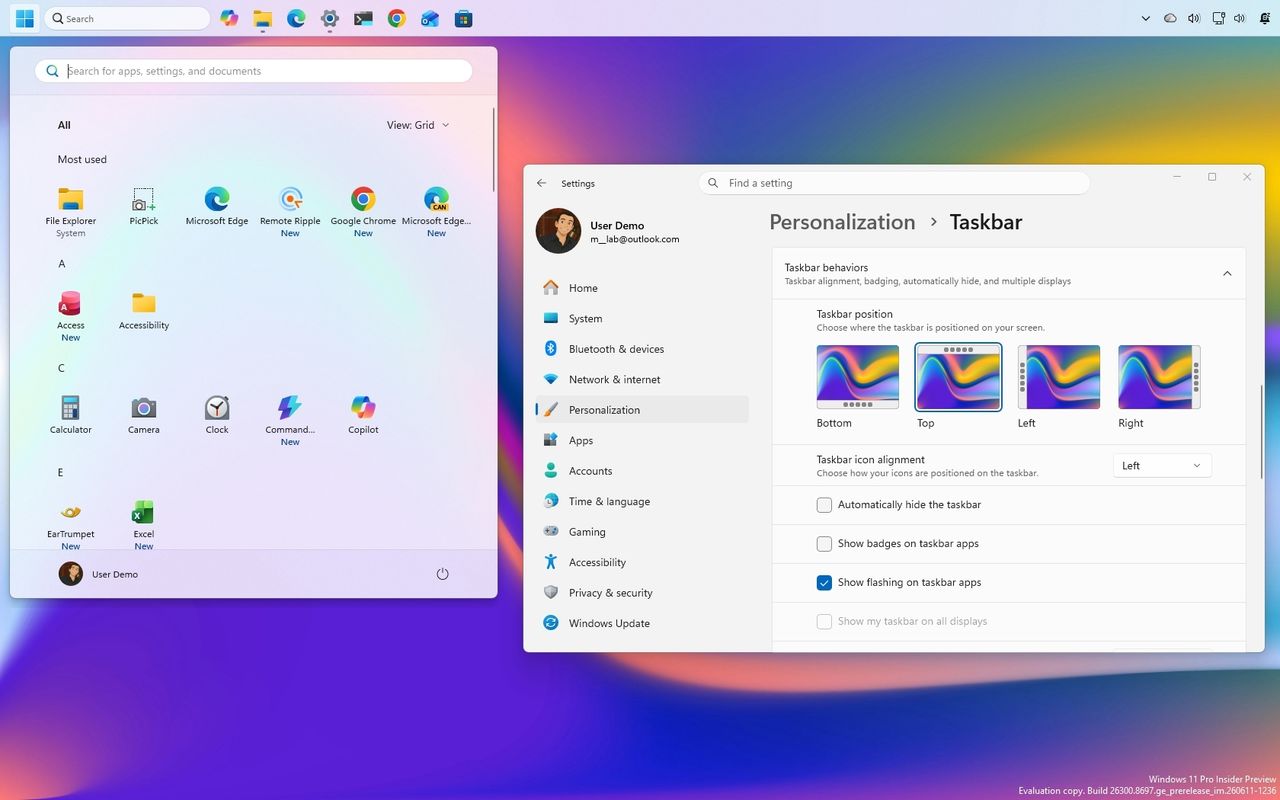
Windows 11 desktop with Taskbar docked at the top, smaller Start menu, and Settings app.

Windows 11 desktop with Taskbar docked at the top, smaller Start menu, and Settings app.

Reçu — 28 mai 2026 Windows Central - News, Forums, Reviews, Help for Windows 10 and all things Microsoft.

4 Start menu changes are coming to Windows 11, and they will shape how you use your PC

Microsoft is finally fixing the Windows 11 Start menu with resizing, section toggles, and improved recommendation controls. Here's all you need to know.

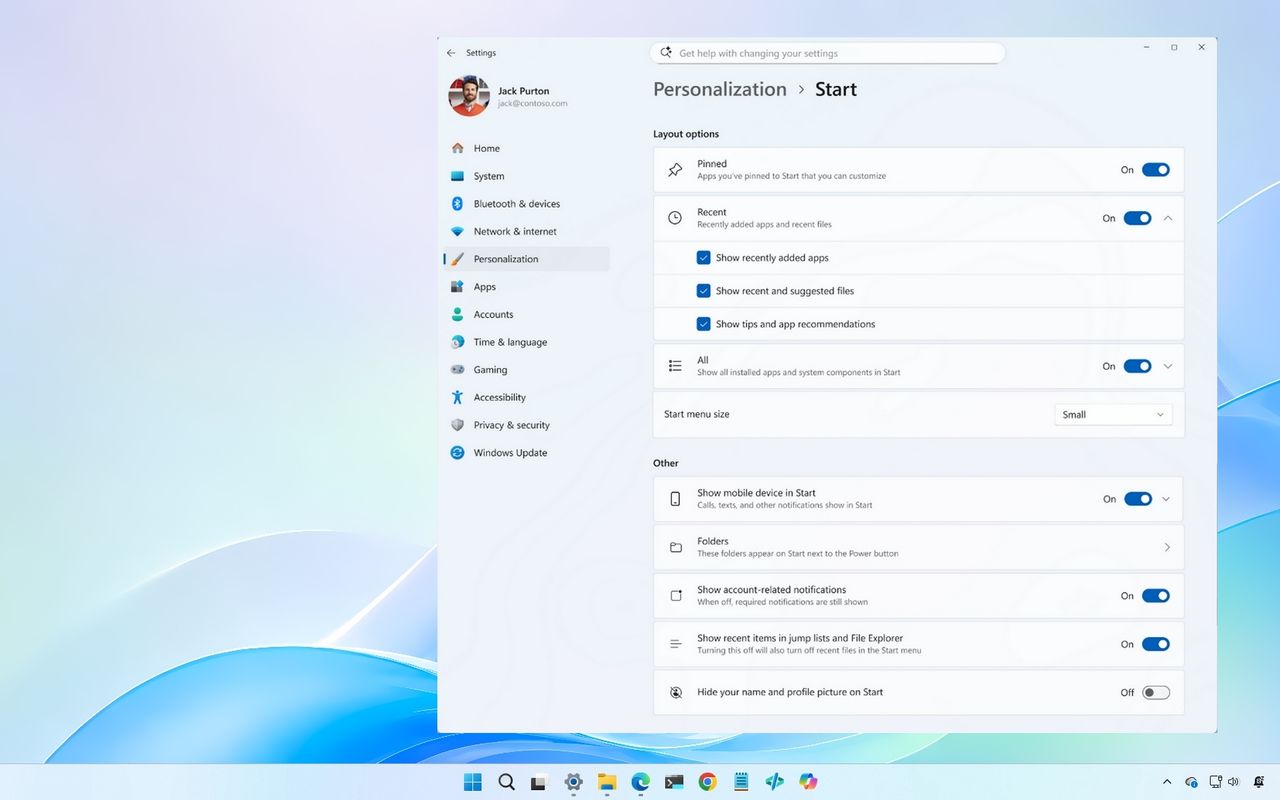
Windows 11 Start menu new settings

Windows 11 Start menu new settings

I tested Windows 11’s return of taskbar positioning and resizing, and it’s not the classic Windows 10 experience

Microsoft brings back Taskbar positioning and smaller Taskbar options on Windows 11, though some Windows 10 features remain missing.

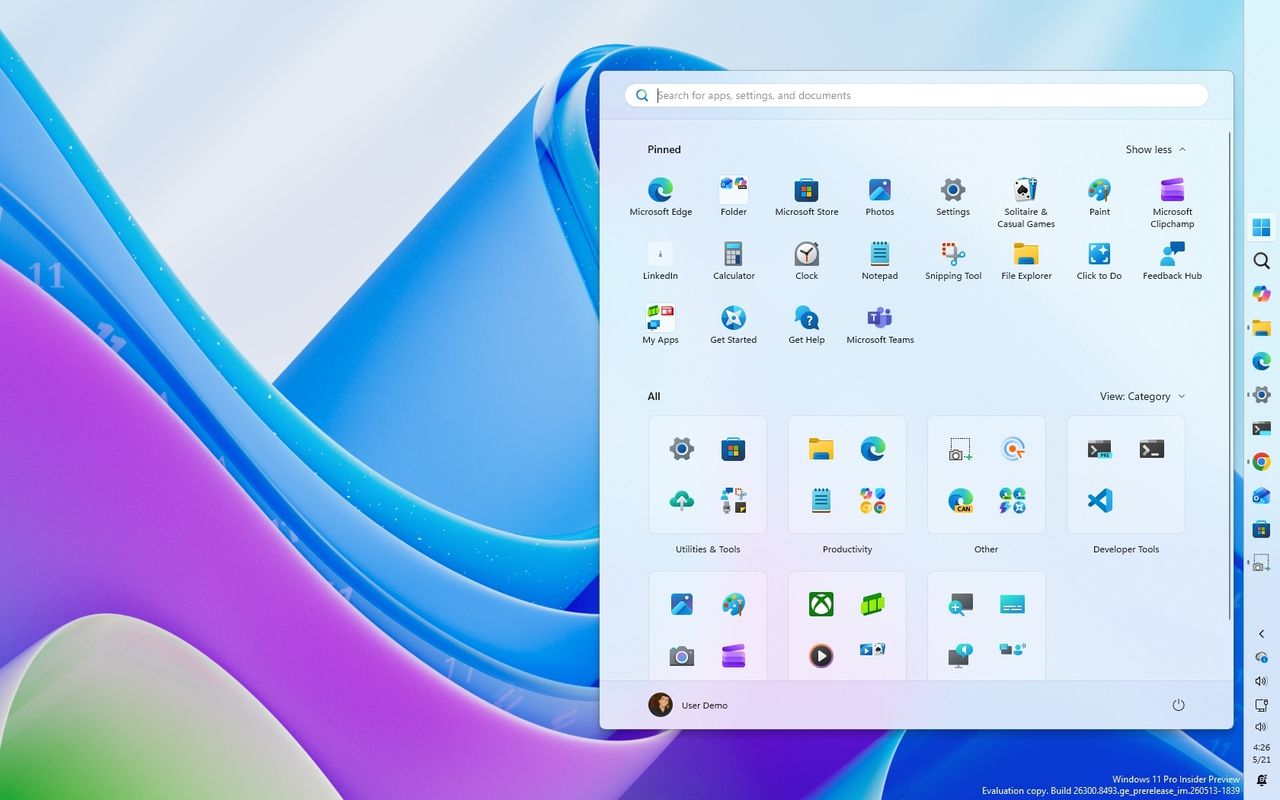
Windows 11 desktop with colorful wave background. A Start menu overlay shows pinned apps like Microsoft Edge and Teams, organized by category in a grid layout.

Windows 11 desktop with colorful wave background. A Start menu overlay shows pinned apps like Microsoft Edge and Teams, organized by category in a grid layout.

Reçu — 16 mai 2026 Windows Central - News, Forums, Reviews, Help for Windows 10 and all things Microsoft.

Windows 11’s May update is causing install failures and slow internet — here’s what we know

Windows 11 update KB5089549 is reportedly failing to install for some users, while others say the May 2026 update slows internet speeds.

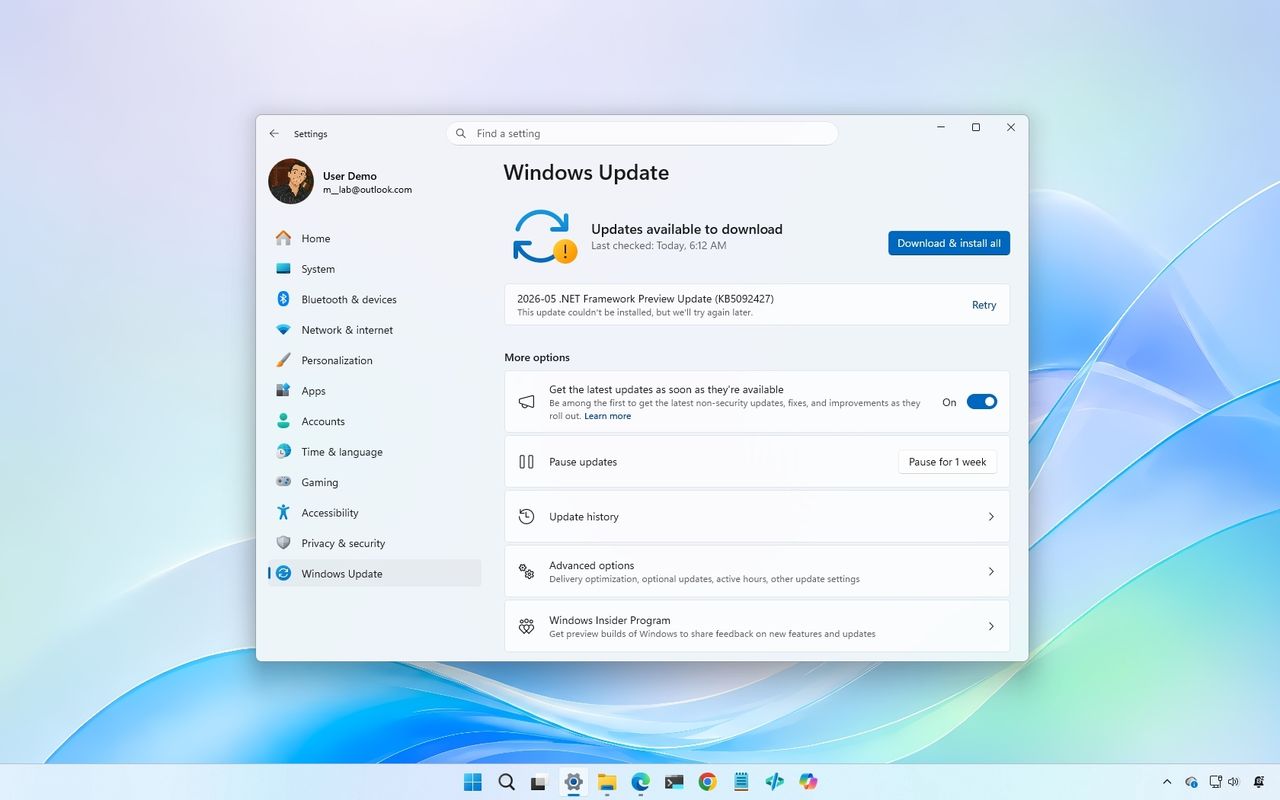
Windows Update settings showing available updates, with a download button highlighted. Light blue desktop background and taskbar visible.

Windows Update settings showing available updates, with a download button highlighted. Light blue desktop background and taskbar visible.

Dell SupportAssist is crashing some Windows 11 PCs, causing them to enter reboot loops. Here's how to stop it.

Dell SupportAssist is causing BSOD reboot loops on some Windows 11 PCs. Here’s how to disable or remove the crashing service.

Side profile of the new Dell XPS 14 (2026) with LCD and latest Intel Core Ultra 3 processor.

Dell's XPS 14 (2026) is one of the latest PCs that may be affected by this Dell SupportAssist app issue.

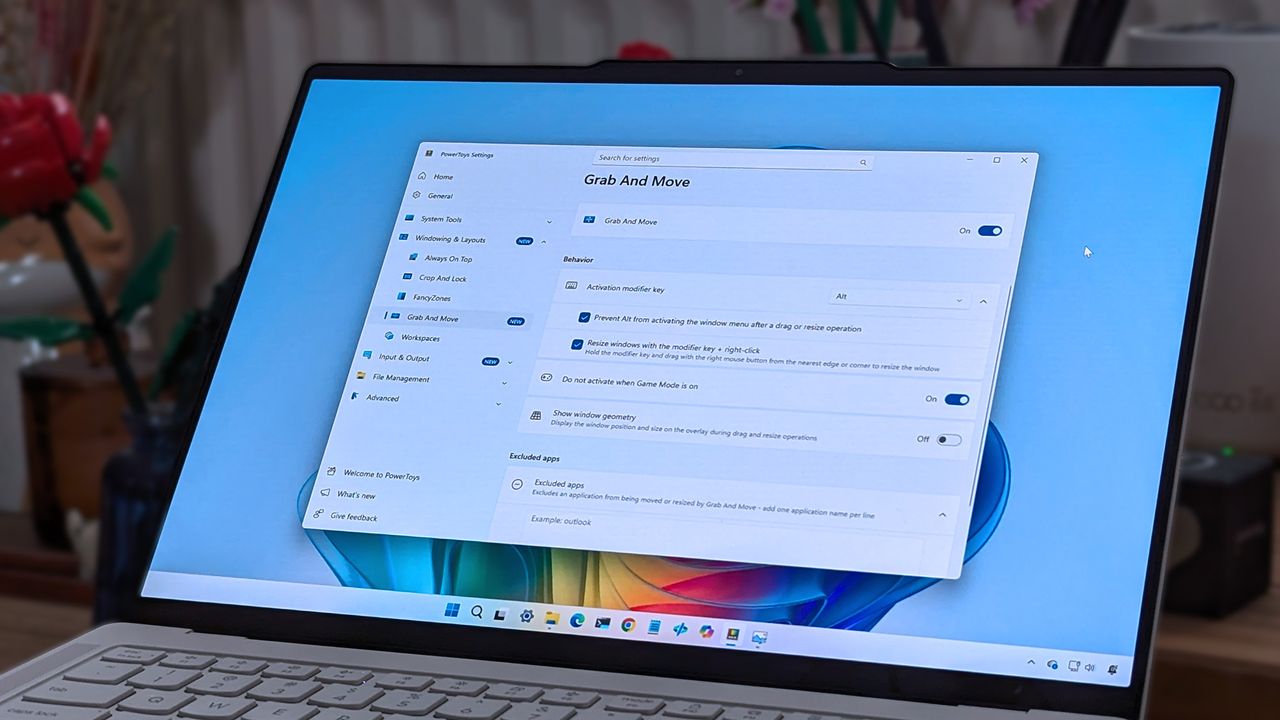
“Dragging windows is finally easier”: I break down the Windows 11 tweak that quietly improves daily use

PowerToys adds Grab And Move to Windows 11, letting you drag and resize windows from anywhere using simple shortcuts.

A laptop screen displaying Windows 11, featuring the "Grab And Move" settings window of PowerToys. The desktop background is colorful and vibrant.

A laptop screen displaying Windows 11, featuring the "Grab And Move" settings window of PowerToys. The desktop background is colorful and vibrant.

Reçu — 12 mai 2026 Windows Central - News, Forums, Reviews, Help for Windows 10 and all things Microsoft.

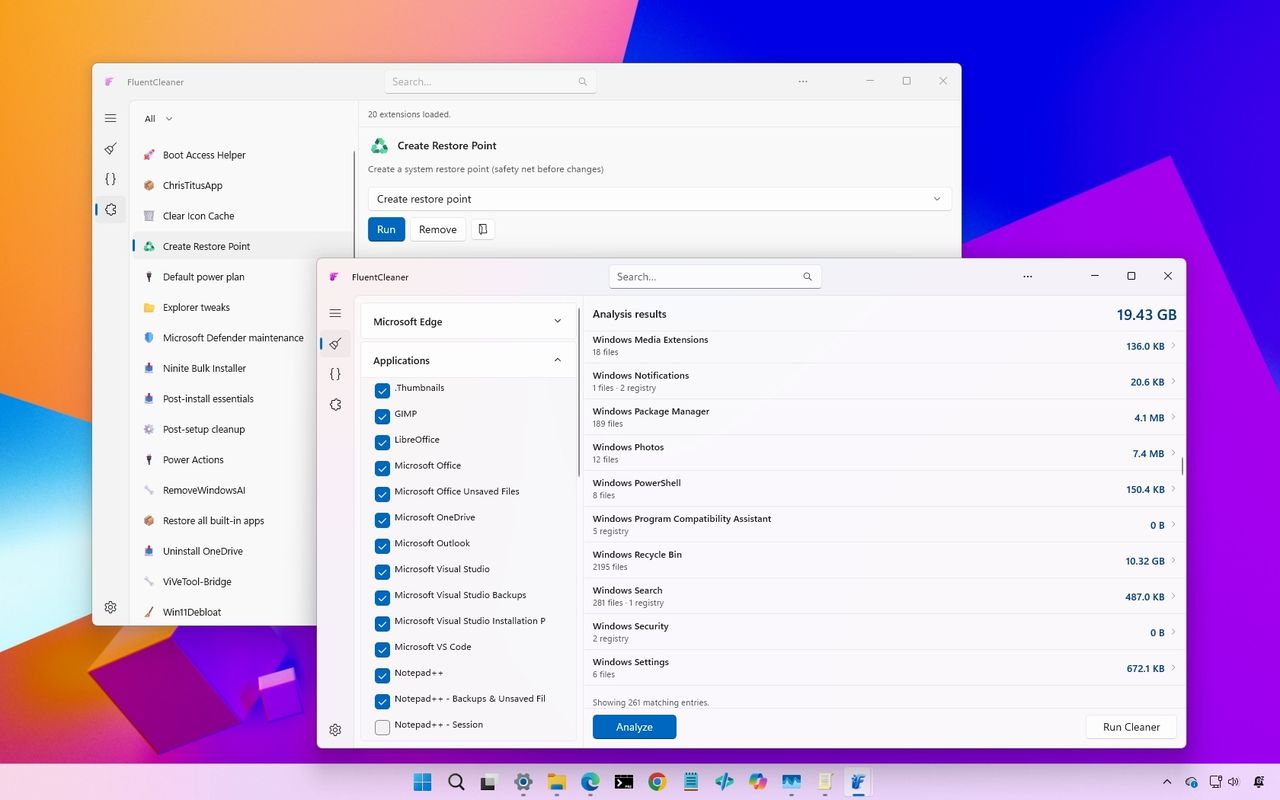
Why Windows 11 users are switching to Fluent Cleaner, the sleek CCleaner alternative that actually feels native

Fluent Cleaner is a modern open-source alternative to CCleaner with deeper Windows 11 cleanup tools, extensions, and a native WinUI design.

The image shows a desktop interface with two overlapping software windows. Both windows feature lists of files and options, with a colorful gradient background.

The image shows a desktop interface with two overlapping software windows. Both windows feature lists of files and options, with a colorful gradient background.

Reçu — 10 mai 2026 Windows Central - News, Forums, Reviews, Help for Windows 10 and all things Microsoft.

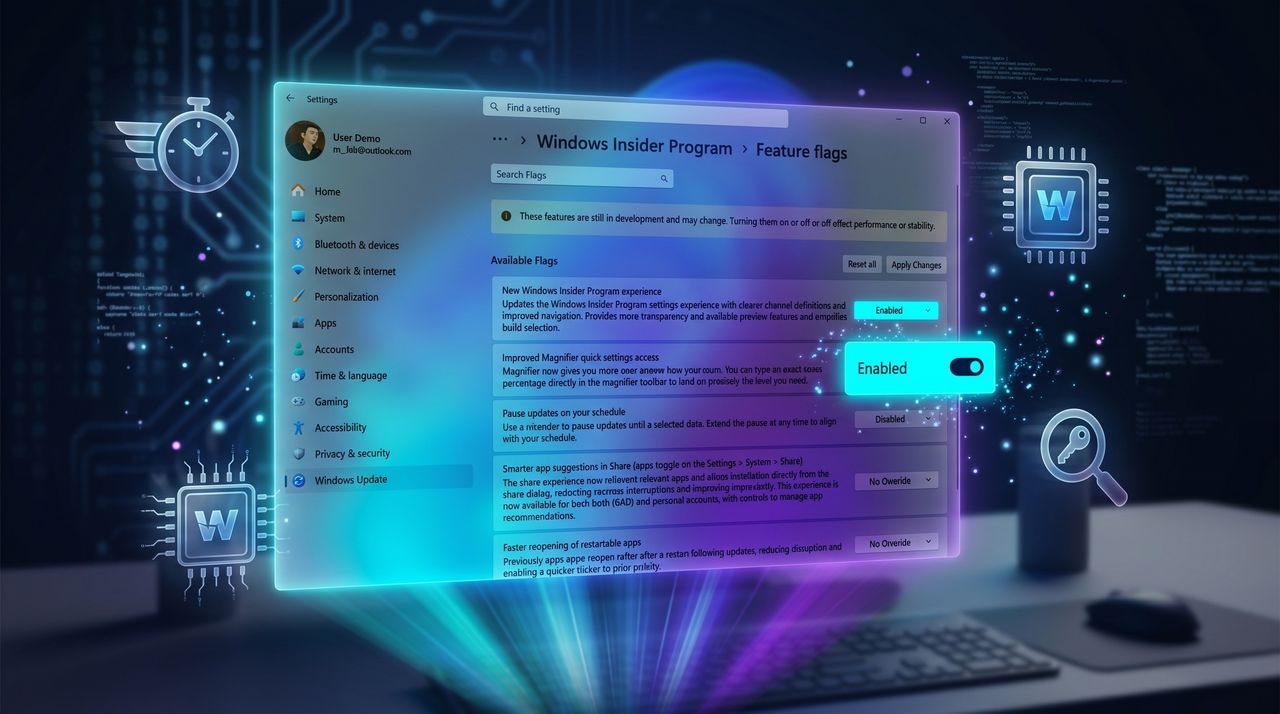
You can enable Windows 11’s experimental features right now and the process is easier than you think

Windows 11 now lets Insider users enable experimental features from Settings without ViveTool. Here's how "Feature flags" works.

Windows Insider Program settings screen with feature flags. A highlighted toggle labeled 'Pause updates on your schedule' is switched on, set against a blue, futuristic background.

Windows Insider Program settings screen with feature flags. A highlighted toggle labeled 'Pause updates on your schedule' is switched on, set against a blue, futuristic background.

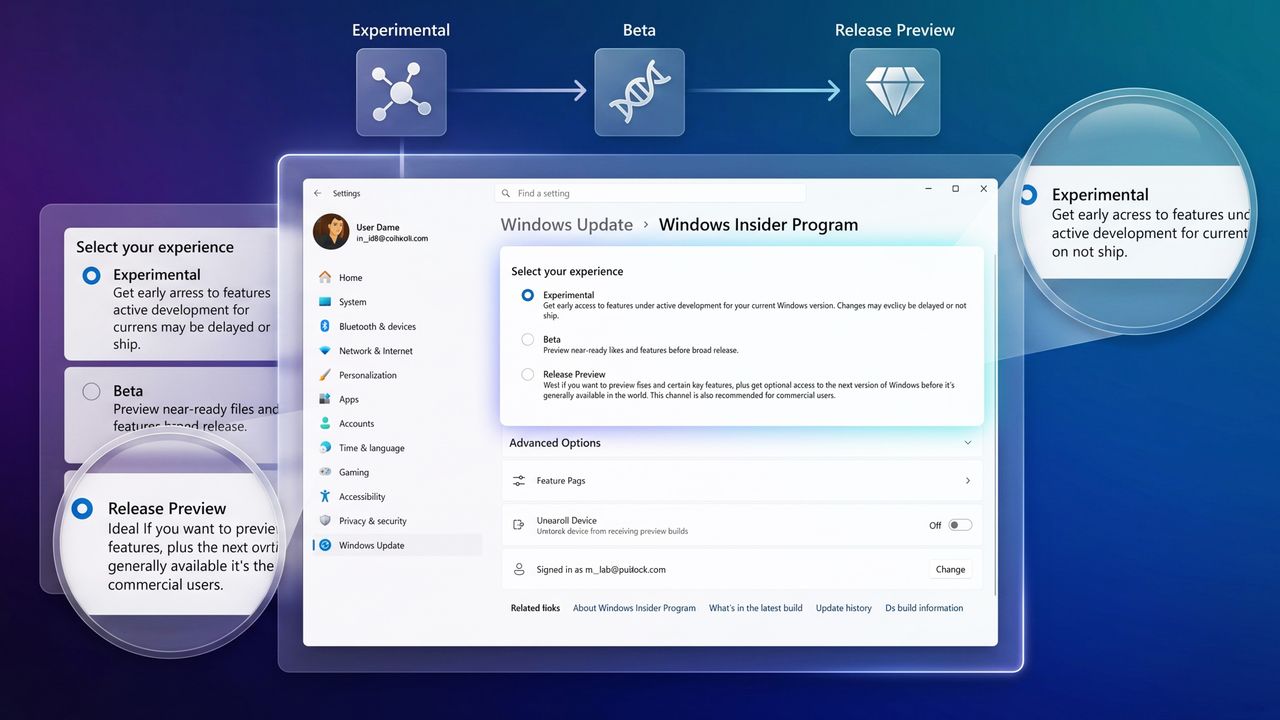
“I like where the program is going”: Microsoft’s Insider overhaul finally gives us a simpler path, but I had to dig in to understand what really changes next

Microsoft revamps the Windows Insider Program with fewer channels, built-in feature flags, and simpler testing for Windows 11 previews.

Settings interface for Windows Insider Program, showing options: Experimental, Beta, and Release Preview. Highlighted Experimental option offers early access.

Settings interface for Windows Insider Program, showing options: Experimental, Beta, and Release Preview. Highlighted Experimental option offers early access.

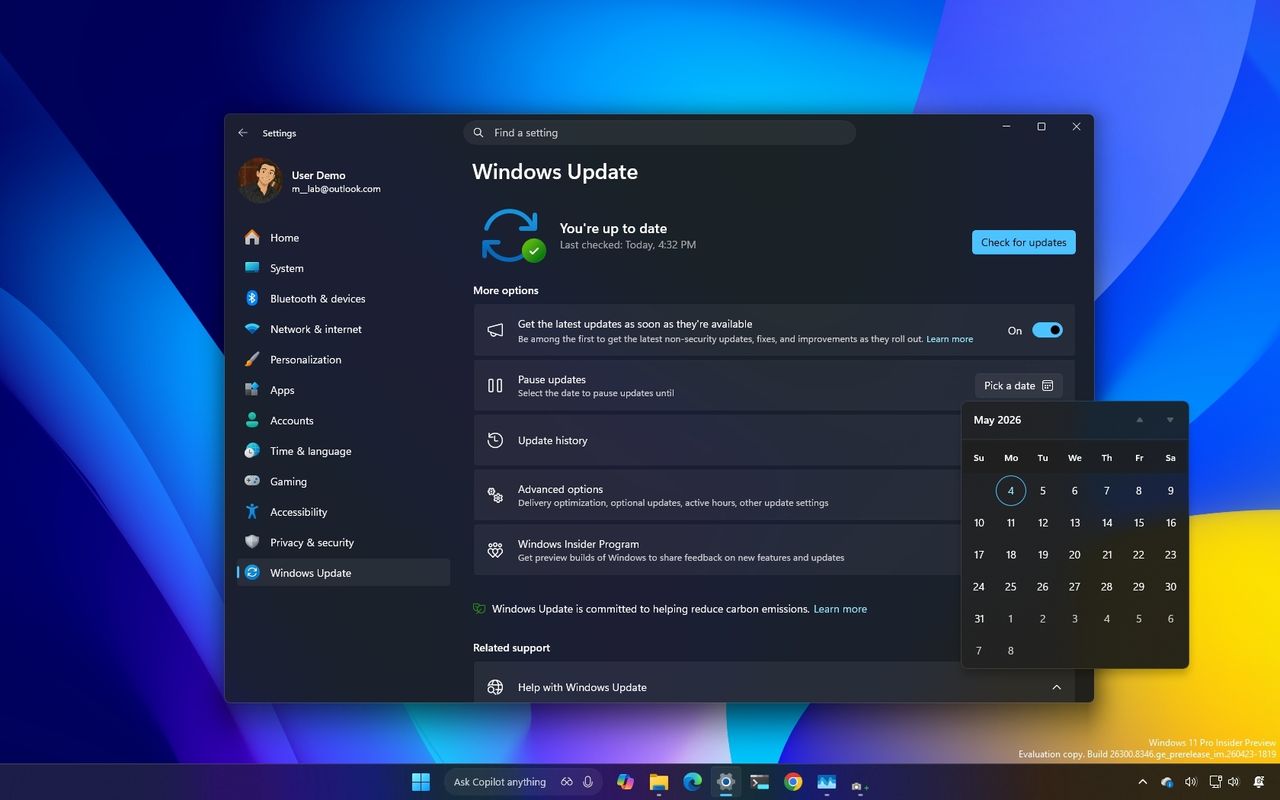
I dug into the new Windows Update rules coming to Windows 11, and these are the 5 things you need to know

Windows 11 is getting major Windows Update changes with fewer restarts, better controls, and smarter fixes. Here's what you need to know.

Windows Update settings window on a computer screen with a dark theme. The calendar is open, showing May 2025. The background is a gradient of blue, yellow, and purple.

Windows Update settings window on a computer screen with a dark theme. The calendar is open, showing May 2025. The background is a gradient of blue, yellow, and purple.

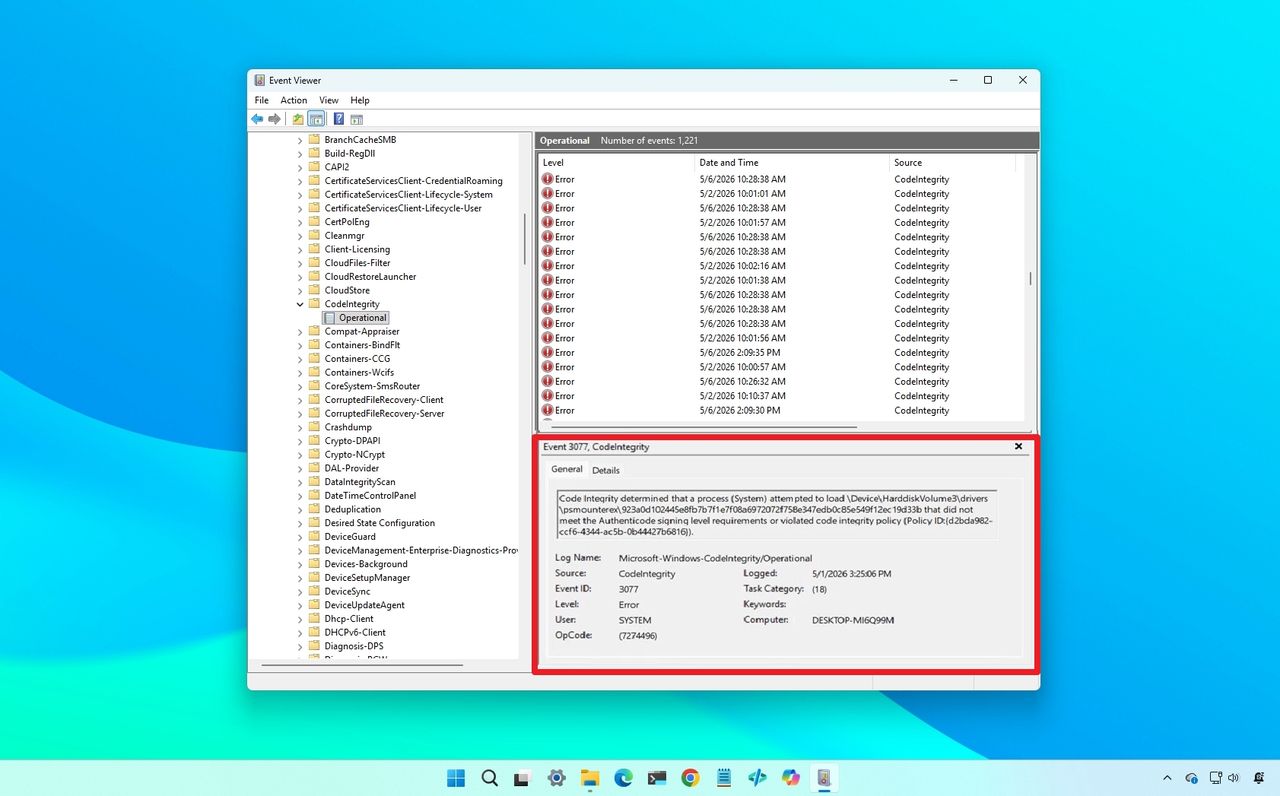
My Windows 11 backup broke after KB5083769 — Microsoft says this simple fix might save your files

Windows 11 update KB5083769 may break backups due to blocked drivers. Microsoft says it's not a bug and recommends updating your backup software.

Windows Event Viewer on a blue desktop background, showing a list of "Code Integrity" errors highlighted in red, indicating driver blocked.

Windows Event Viewer on a blue desktop background, showing a list of "Code Integrity" errors highlighted in red, indicating driver blocked.

Reçu — 3 mai 2026 Windows Central - News, Forums, Reviews, Help for Windows 10 and all things Microsoft.

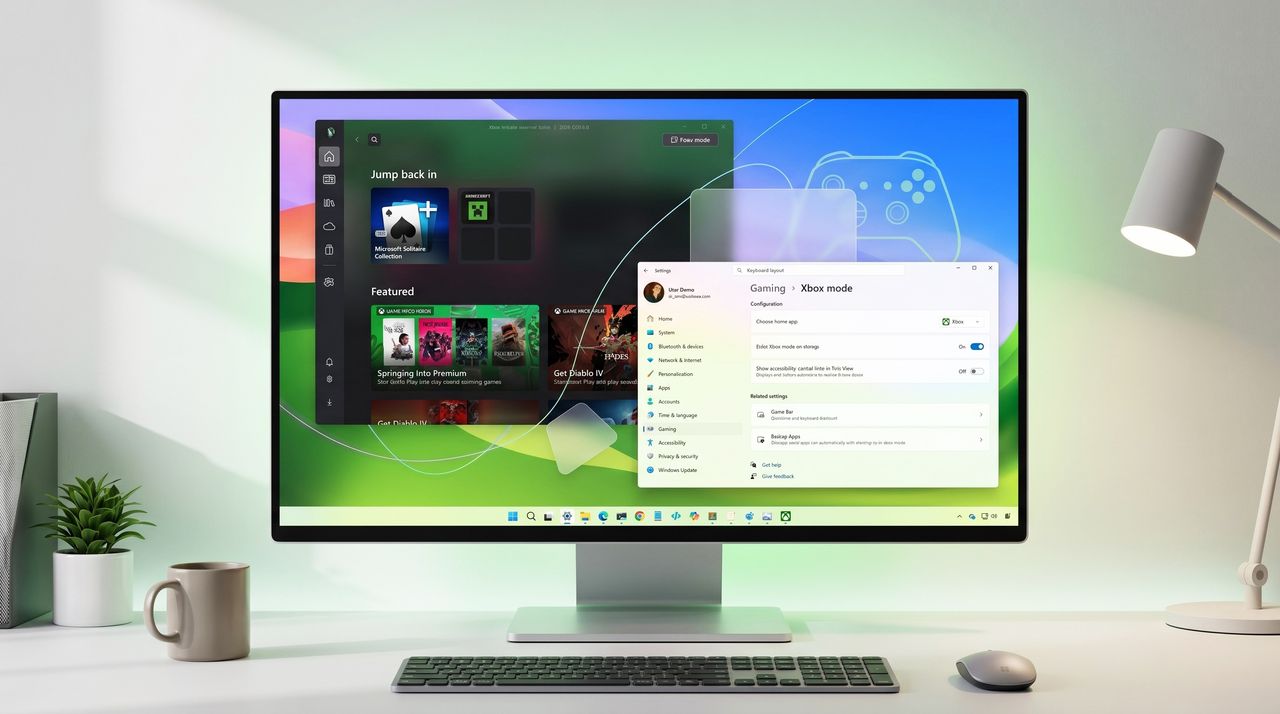
“Xbox mode is easily the headline feature”: In May’s Windows 11 update, I walk through the 11 upgrades that change how we use the OS, and why some of them surprised me

The May 2026 Windows 11 update adds Xbox mode, AI Taskbar support, and security changes you shouldn't ignore. Here's all you need to know.

A modern desktop screen displays a gaming interface with dashboards, icons, and game selections, set on a sleek desk with a plant, lamp, and keyboard.

Windows 11’s May update adds 11 meaningful improvements across settings, security, and usability.

We’ve tested the April 2026 Windows 11 update, and its 11 improvements genuinely make the OS feel better

Windows 11 Insider builds for the last half of April 2026 introduce major updates, including Windows Update overhaul, Xbox mode, and Point-in-time Restore.

Futuristic Windows 11 interface with floating translucent panels displaying icons like a check mark, eye, gears, and graphs, conveying a tech-savvy theme.

Windows 11’s April 2026 update delivers 11 improvements focused on performance, polish, and everyday usability.

Reçu — 8 avril 2026 Windows Central - News, Forums, Reviews, Help for Windows 10 and all things Microsoft.

“Wait, Windows uses less?”: I break down the surprising requirement that flips the Linux vs. Windows script

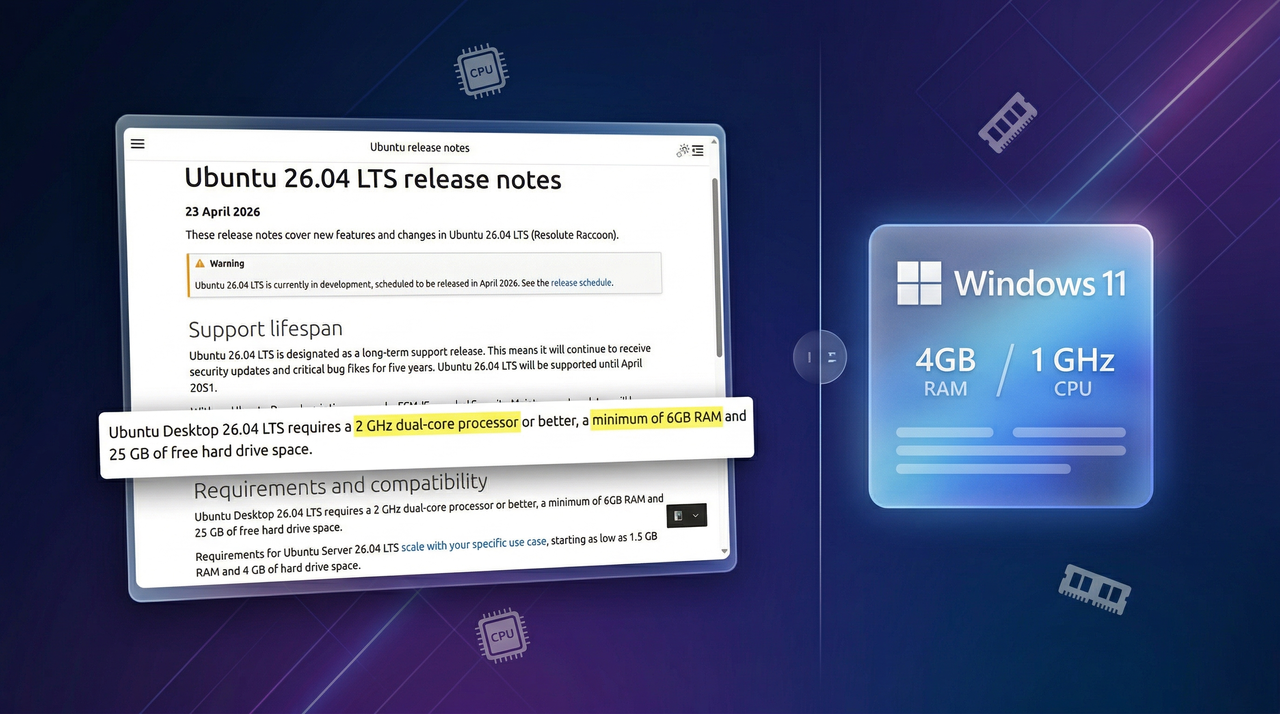
Ubuntu 26.04 LTS raises hardware requirements beyond those of Windows 11, and here's why this is happening.

Screenshot and mockup of Ubuntu's new RAM requirements comparing it to Windows 11

Screenshot and mockup of Ubuntu's new RAM requirements comparing it to Windows 11

Reçu — 7 avril 2026 Windows Central - News, Forums, Reviews, Help for Windows 10 and all things Microsoft.

“I finally found something that just works”: I explain the open‑source screenshot tool that beat Snipping Tool and ShareX for me — and why it might become your new default

Replace Snipping Tool with Yoink. Using this tool, you can capture, edit, record, translate, and share your content seamlessly on Windows 11.

Abstract image featuring a screenshot tool for Windows 11

Abstract image featuring a screenshot tool for Windows 11

Reçu — 6 avril 2026 Windows Central - News, Forums, Reviews, Help for Windows 10 and all things Microsoft.

“These mods completely changed how I use Windows 11”: As I walk through the 7 Windhawk tweaks that transformed my desktop, I’m surprised by which ones made the biggest difference

Discover the 7 best Windhawk mods to customize Windows 11, from Taskbar tweaks to Start menu styling and classic features restoration.

7 best Windhawk mods for Windows 11 collage

7 best Windhawk mods for Windows 11 collage

Windows 11’s April update packs 8 (mostly) meaningful improvements you won’t want to skip. Here's what you'll be getting.

Microsoft is expected to roll out the Windows 11 April 2026 update with new features, better performance, and usability improvements across the system.

Collage of new Windows 11 April 2026 Patch Tuesday features coming April 14.

Collage of new Windows 11 April 2026 Patch Tuesday features coming April 14.

The March Windows 11 Insider Update adds 9 fresh features and improvements worth knowing

Windows 11 Insider builds for late March add Administrator Protection, NPU insights, shared audio upgrades, and accessibility features.

Windows 11 March 2026 update

Windows 11 March 2026 update

❌