
❌

Vue normale

Microsoft rethinks Windows 11 as Apple rethinks the MacBook Pro | Windows Central Podcast

In this episode of the Windows Central Podcast, Daniel Rubino and Zac Bowden break down the latest wave of Windows 11 Insider preview builds and major industry hardware shifts.

The episode begins with an overview of incoming Windows 11 quality-of-life updates, including File Explorer context menu overhauls, controller-friendly Xbox Quick Settings for gaming handhelds, deeper Phone Link integration in the taskbar, native speed tests, and rich, actionable search results. Zac also details controversial security adjustments to Windows Hello that force screen-brightening in low-light environments.

From there, we dissect Apple’s sudden embrace of touchscreen technology and OLED displays on the M5 MacBook Pro, comparing Apple’s historical messaging to current market demands. We follow up on the ongoing display debates surrounding the Surface Laptop Ultra's Mini-LED implementation (addressing local dimming claims and ghosting fixes), before examining Big Tech’s massive AI capital expenditure trends, market adjustments, and live audience Q&A questions.

This episode of the Windows Central Podcast is sponsored by Surfshark VPN. Unlimited devices, access your content from anywhere, and auto-block malware on Windows, Edge, and other platforms from $2.50/mo, with 3 months extra FREE. Sign up today!

  • TIMESTAMPS:
  • 00:00 Pre-show Setup & Tech Checks
  • 02:13 Welcome to Episode 409 & Agenda Overview
  • 03:51 Testing $699–$799 Budget Windows Laptops
  • 06:24 File Explorer Context Menu Overhaul & Quick Turnaround
  • 07:26 Windows 11 Insider Updates: Gaming Task View & Handheld Quick Settings
  • 08:23 Phone Link Quick Settings Integration & Native Speed Test
  • 09:46 Rich Results & Inline Controls in Windows Search
  • 11:28 Windows Hello Security Shift & Screen Brightness Fallback
  • 13:17 Upcoming WinUI Components & OOBE Overhaul Hopes
  • 16:08 Insider Channels: Experimental vs. Beta vs. Feature Platform
  • 18:17 Critique of Modern Windows Setup & Account Upsells
  • 22:14 Microsoft Edge App Launch Acceleration & UI Bloat
  • 24:18 Sponsor Break
  • 25:50 Apple Touchscreen MacBook Pro (M5 Pro) Reaction
  • 28:18 Steve Jobs' Legacy, Clamshell Touch, and 2-in-1s
  • 35:20 Brand Rhetoric, Eat-Your-Words Tech Shifts & iPhone Duo Hinge Issues
  • 44:38 MacBook Pro OLED vs. Surface Laptop Ultra Mini-LED
  • 47:55 Surface Laptop Ultra Display Controversy: Local Dimming, HDR & Ghosting
  • 52:19 Big Tech Earnings, AI CapEx Spending & Dot-Com Parallels
  • 01:00:10 Live Audience Q&A: Laptop Ultra vs. Surface Laptop 8, RAM Prices & Taskbar Alignment

Have a question you want us to answer on the podcast? Send it to us at [email protected]

Hosts:

Subscribe to the Windows Central Podcast

If you like the show, please let us know by give us a rating on your podcast platform of choice. It really helps us!

LIVE Video Podcast

You can watch the live, uncut version of the Windows Central Podcast on our YouTube channel!

Click to join us on r/WindowsCentral

Join us on Reddit at r/WindowsCentral to share your insights and discuss our latest news, reviews, and more.
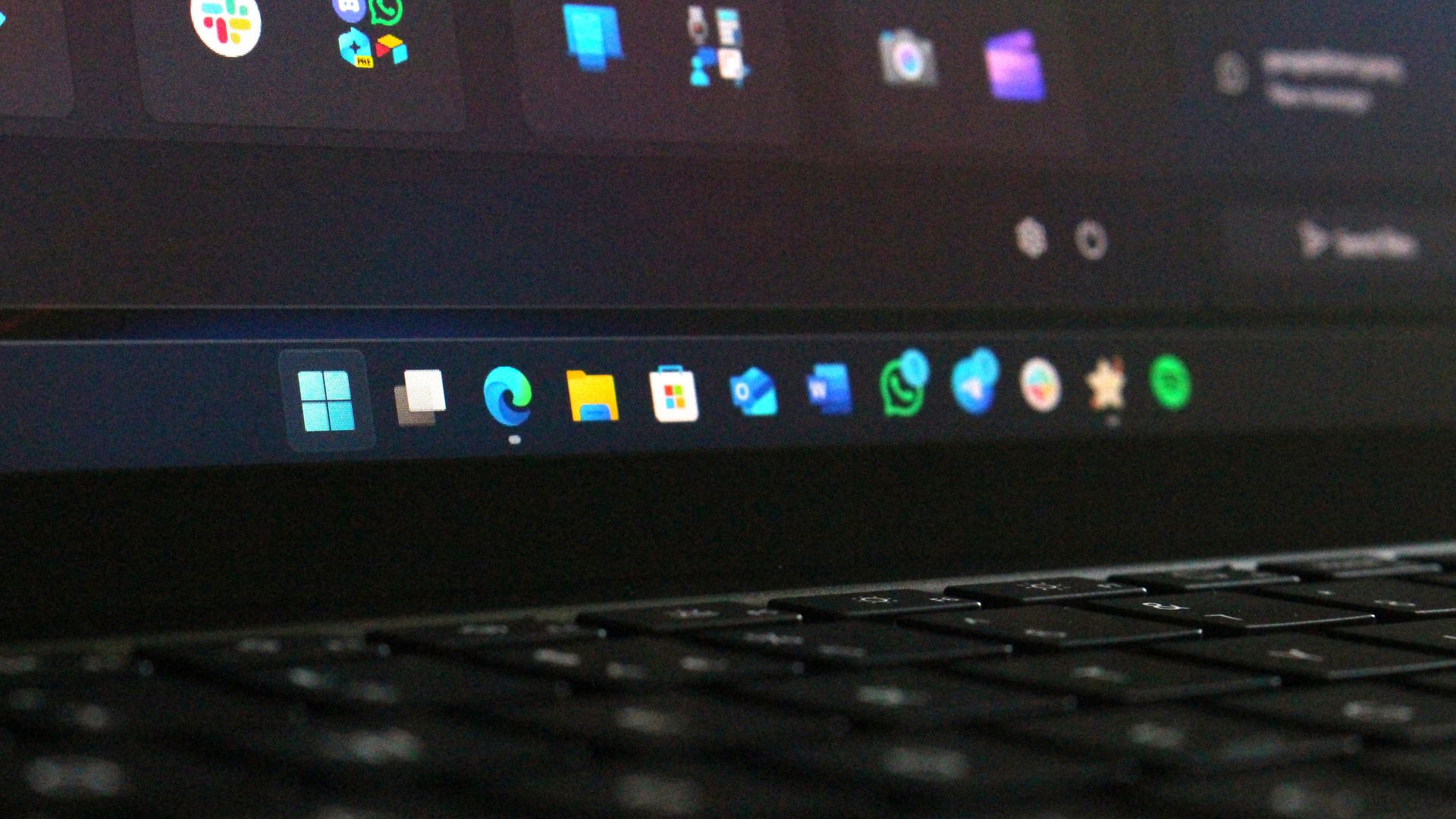
Microsoft explains why Windows 11 users cannot drag the taskbar to reposition it

Microsoft has explained why you cannot drag the new movable Taskbar on Windows 11, a feature that was present on Windows 10 but failed to make the move to Windows 11 when it gained the ability to move the Taskbar earlier this year.

Vice President of Design at Microsoft, Diego Baca, explains that the inability to drag the Taskbar to move it is a "deliberate design decision," confirming that such behavior will not be coming to Windows 11 any time soon.

"From our research, dragging the taskbar to reposition it can lead to accidental movements, which is one of the reasons “Lock the taskbar” existed in previous versions of Windows," Baca said. "We also found that changing the taskbar position isn’t something people do frequently."

Baca continues: "We felt that providing a discoverable setting, just one right-click away, was a more intentional and predictable experience. It’s a deliberate design decision, not a missing capability."

Windows 11 Taskbar position options in Settings

The options for repositioning the Taskbar on Windows 11. (Image credit: Zac Bowden / Windows Central)

Microsoft is making it clear that the ability to drag and drop the Taskbar to move and resize it isn't coming to Windows 11, which I'm sure some long-time Windows users will be sad to hear. Baca says that most people don't move the Taskbar once they have placed it where they like, and so the ability to drag it to move it on the fly doesn't make much sense.

On Windows 10, moving the Taskbar was as simple as right-clicking it, unchecking "Lock the taskbar" and then dragging the Taskbar to your desired location. On Windows 11, it requires right-clicking the Taskbar, opening Windows Settings, then selecting your desired location within an app.

While not as straight forward as before, I agree that this method is tidier and reduces accidental movement that could sometimes occur when users unlocked the Taskbar on Windows 10 and forgot about it. You could also resize Windows 10's Taskbar by dragging the top of it, another feature that hasn't made the jump to Windows 11, likely for the same reasons.

It's good to see Microsoft being more open about why certain features aren't available on Windows 11. The company has made strides to be more transparent with fans and Insiders about design decisions and processes, and we love to see it.

Click to join us on r/WindowsCentral

Join us on Reddit at r/WindowsCentral to share your insights and discuss our latest news, reviews, and more.

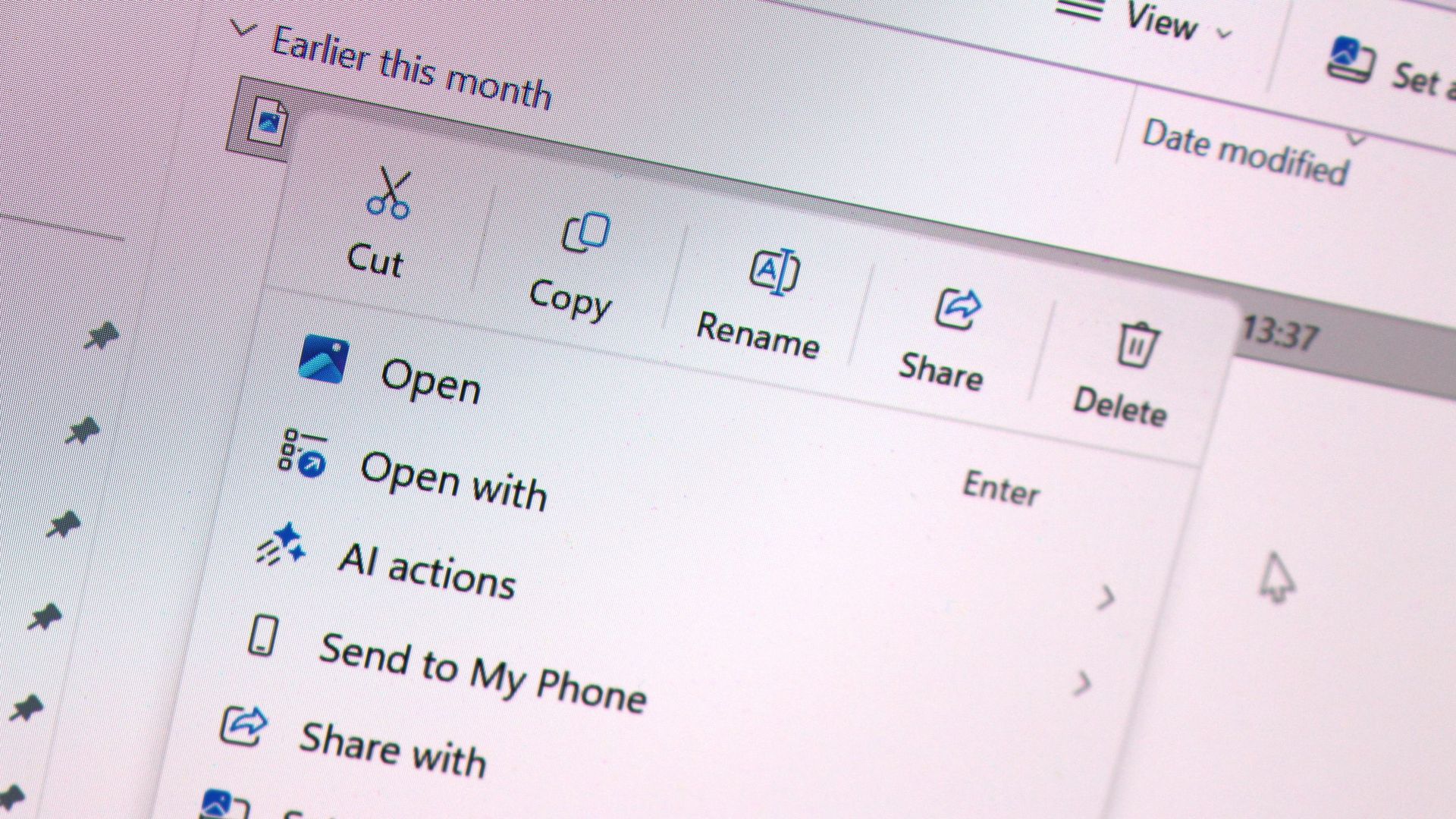
Windows 11's new faster and customizable context menus are now rolling out

Microsoft has started rolling out its overhauled context menus for Windows 11 as part of this month's non-security feature update that was made available today. The update, known as KB5127936, is now generally available as an optional release.

"This update introduces an updated context menu that is faster, simpler, and more customizable," Microsoft says. "The updated menu opens more quickly, reduces clutter, and gives you more control over the commands and app extensions that appear when you right-click."

These improvements are part of the company's ongoing "Windows K2" effort, which focuses on making core OS improvements that address complaints and issues from users. For a long time, context menus of Windows 11 have been slow, cluttered, and confusing, but today's update changes that.

Now, context menus open instantly, and they can also be customized by the user. Microsoft outlines the following customization options being added to Windows 11 with this new update:

  • Turn built-in Windows commands, such as Send to and Create shortcut, on or off.
  • Add commands such as Print to the context menu.
  • Choose which app extensions appear in the main menu or a submenu or hide the app extensions submenu.
  • Display Cut, Copy, Paste, Rename, Delete, and Share directly in the menu instead of as a row of icons.
  • Move Properties to the bottom of the context menu.

These new context menus also appeal to Windows 10 users, as they enable the ability to restore common actions such as cut, copy, and paste in the vertical list view instead of horizontally along the top of the menu. You can also turn off apps that might appear within the context menu.

Today's update includes more than just an overhauled context menu system, too. The new Xbox task view interface is also rolling out, along with updates to File Explorer and Windows Settings. Be sure to check out the changelog for the full list of changes.

Unfortunately, all of these new features are rolling out gradually, which means you likely won't see them right away. You need to ensure the "Get the latest updates as soon as they're available" toggle is enabled in Windows Settings to get them quicker, but you'll still have to wait before they appear.

Click to join us on r/WindowsCentral

Join us on Reddit at r/WindowsCentral to share your insights and discuss our latest news, reviews, and more.

❌