Vue normale

Windows 11’s September update reshapes key parts of the OS, and these 3 customizations instantly make the new release feel faster, cleaner, and more personal to use

As part of the September 2026 update, Microsoft is giving users more control over some of Windows 11's most visible features. The update introduces several customization options that let you change how the desktop works and make some of the default experiences less intrusive.

Once you install the update on your computer, you'll be able to move the Taskbar to the top of the screen, adjust the size of the Start menu, and disable web results from Windows Search. The options are part of Microsoft's ongoing Windows K2 work to make the desktop more customizable, and they're available through the Settings app.

In this how-to guide, I'll show you the easy steps to customize your desktop with features that are coming back to Windows 11.

Important: Starting with the September update, Microsoft is expected to begin gradually rolling out these features, meaning not every device will get them right away.

1. Place the Taskbar at the top of the screen

Starting with this release, the company begins a gradual rollout of changes that let you change the position and size of the Taskbar.

To change the Taskbar position, use these steps:

  1. Open Settings.
  2. Click on Personalization.
  3. Click the Taskbar page on the right side.
  4. Select the Taskbar position (including Bottom, Top, Left, and Right) under the new "Taskbar position" setting.

Windows 11 Settings showing the Taskbar position options.

(Image credit: Mauro Huculak)
  1. (Optional) Choose the Small option in the "Taskbar size" option to make the Taskbar and icons smaller and free up screen space on your desktop.

Once you complete the steps, the Taskbar will apply your current configuration, and flyouts, tooltips, and animations will continue to appear as expected based on the position.

Windows 11 desktop with the Taskbar at the top of the screen.

(Image credit: Mauro Huculak)

However, I've noticed that docking the Taskbar on the left side also slides the Notification Center to the left, which many people find not ideal.

2. Change the Start menu size

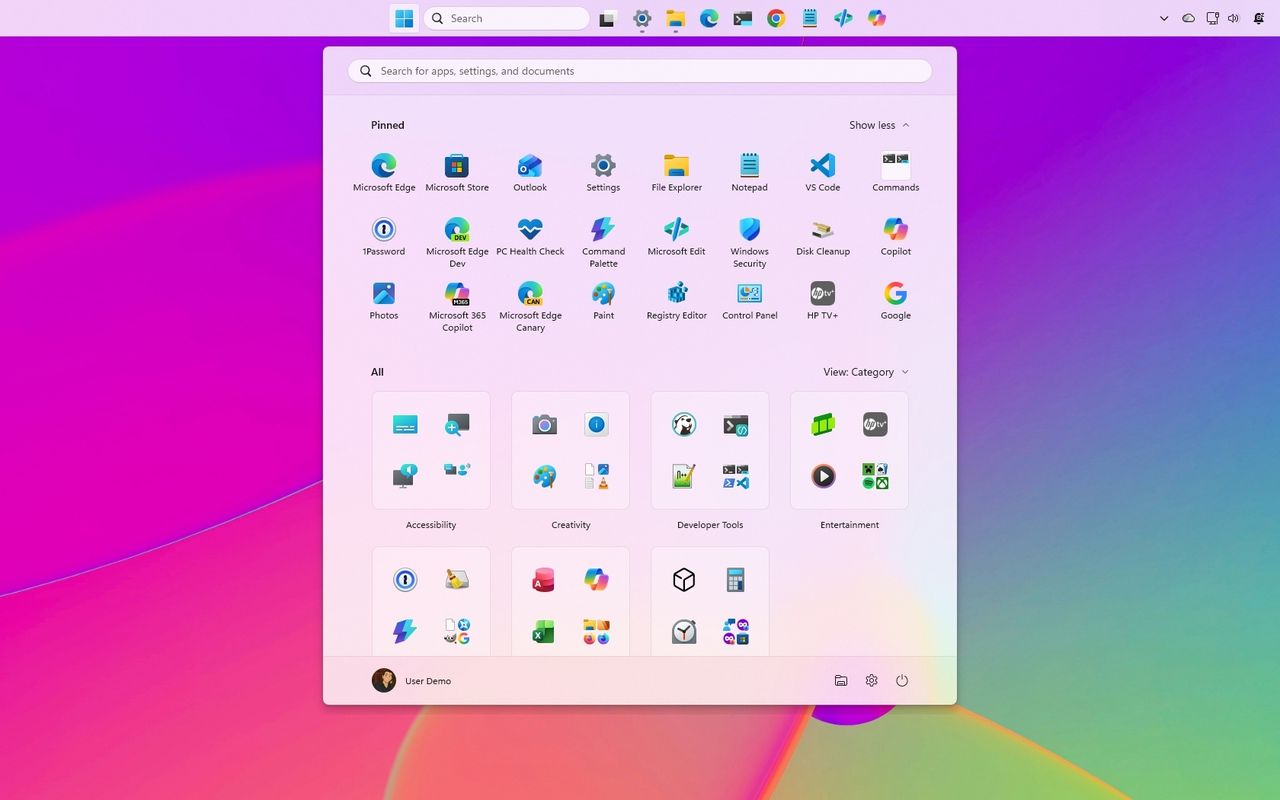
Microsoft also lets users further customize the Start menu. As part of the new changes, you can finally change the Start menu sides, decide what sections appear in the menu, and hide your profile name and picture from the experience.

To resize the Start menu on Windows 11, use these steps:

  1. Open Settings.
  2. Click on Personalization.
  3. Click the Start page on the right side.
  4. Turn off the toggle switches for the sections you don't want to see in the Start menu.
  5. (Optional) Choose whether the Recent section (formerly Recommended) shows recently added apps, recent and suggested files, and tips and app recommendations.
  • Quick tip: The "Show recent and suggested files" option works independently from the File Explorer file history.
  1. Choose the Small or Large option in the "Start menu size" setting to change the menu size.

Windows 11 Settings showing the new Start menu settings.

(Image credit: Mauro Huculak)
  1. (Optional) Turn on the "Hide your name and profile picture on Start" toggle switch.

After you complete the steps, the new customization settings will apply to the Start menu for a more personalized experience.

Windows 11 desktop with the new Start menu open.

(Image credit: Mauro Huculak)

3. Disable web results from Windows Search

Finally, Microsoft is also improving the Windows Search experience with several interface tweaks and, more importantly, with the ability to disable web results as well as Microsoft Store app suggestions.

To disable web results from Windows Search, use these steps:

  1. Open Settings.
  2. Click on Privacy & security.
  3. Click the Search page on the right side.
  4. Turn off the Web Searches toggle switch to prevent Bing results from appearing in searches under the "Show suggested search results" setting.

Windows 11 Settings shows the Search options.

(Image credit: Mauro Huculak)
  1. Turn off the Microsoft Store toggle switch to prevent app suggestions from the Store when performing a search.

Once you complete the steps, when performing a search, the results will focus on files, settings, and apps.

Windows 11 desktop Search Home showing the new UI.

(Image credit: Future)

Windows Search also gets several usability improvements with the September update. The Search home experience is being simplified to reduce clutter and make recent searches easier to access.

Also, search results will make it clearer whether an item is an app, setting, file, web result, or Microsoft Store suggestion.

Finally, the operating system will additionally be able to automatically index frequently used folders, helping files from those locations appear more quickly in future searches.

Windows Central's Take

I like this update because it addresses a few of the areas where Windows 11 has felt unnecessarily restrictive since its original release. Being able to move the Taskbar, change the Start menu size, and finally remove web and Store suggestions from Search gives me more control over how I actually use the desktop instead of being forced into specific defaults.

The Taskbar change is probably the biggest deal for long-time users. I still think the ability to move it should have been there from the beginning, but bringing back that flexibility is better than continuing to defend the original Windows 11 design decision. The same goes for Search. If I'm looking for a file, app, or setting, I don't always want Bing or Store suggestions mixed into those results.

I wouldn't call these revolutionary changes, but that's exactly why I think they are important. A lot of people use the operating system differently, and these small controls can make the experience feel much more personal. I recommend changing them to fit your workflow. Microsoft is rolling them out gradually, so they may not appear immediately after installing the update.

What are your thoughts about these new customization options on Windows 11? Let me know in the comments.

More resources

Explore more in-depth how-to guides, troubleshooting advice, and essential tips to get the most out of Windows 11 and 10. Start browsing here:

Click to join us on r/WindowsCentral

Join us on Reddit at r/WindowsCentral to share your insights and discuss our latest news, reviews, and more.

Windows 11 new feature for September 2026

Windows 11 new feature for September 2026
I think Microsoft is finally fixing the customization problems that held Windows 11 back

Windows 11 is finally starting to look less like the operating system Microsoft wanted everyone to use, and more like the experience users have been asking for.

It might sound like an overstatement, but look at what the company has been changing lately.

Microsoft is giving users more control over the context menu. It's bringing back the ability to move and resize the Taskbar. It's giving users more control over the Start menu. And across the experience, the company continues to modernize legacy tools without stripping away the functionality that made them useful in the first place.

These changes are part of the company's Windows K2 initiative, which is focused on improving Windows 11's performance, reliability, responsiveness, and overall experience. However, there's another theme running through some of these changes that deserves more attention.

Microsoft is giving users back some of the control it took away when it launched Windows 11. And frankly, it's about time.

Windows 11's biggest problem was never the new design

When Windows 11 first became available, Microsoft wanted the desktop to feel simpler, cleaner, and more approachable. That meant redesigning major parts of the shell, simplifying menus, and reducing what the company considered "unnecessary" complexity.

The problem wasn't that Windows 11 looked different. The problem was that Microsoft sometimes confused simplification with removing choices.

Windows 11 desktop with the new context menu open.

(Image credit: Mauro Huculak)

The redesigned context menu is probably the best example. Microsoft created a simpler menu that left out many existing commands, forcing users to open the classic menu to access them. However, over time, the modern menu started becoming cluttered again as more commands and app integrations were added, weakening the simplicity that was one of the reasons for the redesign in the first place.

Windows 11 Settings showing the Context menu options.

(Image credit: Mauro Huculak)

The Taskbar lost several customization options. Users could no longer move it to the top or sides of the screen. The Start menu became more rigid. A lot of familiar pieces of the operating system were redesigned around the company's preferred workflow rather than the different ways people had used the desktop for years.

Microsoft's intentions were understandable, but the results weren't always convincing. For an operating system built around flexibility, Windows 11 sometimes felt surprisingly restrictive.

Now Microsoft is giving users more control again

That's why the latest context menu changes are more interesting than they initially appear. Microsoft isn't simply making the context menu faster and easier to use. It's giving users more control over how it works.

Users will be able to customize which actions appear, manage entries from apps separately, and control how certain commands show up in the experience. The development team is also working on an option to restore a more traditional vertical arrangement for primary actions, such as Cut, Paste, and Delete.

Windows 11 Settings shows Arrange primary actions inline option.

(Image credit: Mauro Huculak)

That's a significant change in how Microsoft is approaching the design of Windows 11. Instead of deciding exactly how everyone should use the context menu, the company is giving users more control over the experience.

We've seen similar changes across the operating system. Microsoft is bringing back Taskbar positioning and sizing options. The company continues to rethink the Start menu. It's also modernizing older components without necessarily throwing away the functionality users depend on.

Windows 11 Settings in the new Start settings.

(Image credit: Mauro Huculak)

The context menu isn't the only example, since the company is also giving users more control in other parts of the experience.

Microsoft is learning users don't all use the OS the same way

This is where I think the software giant got Windows 11 wrong. There is no single correct way to use the operating system.

For instance, some people want a clean desktop with as little clutter as possible. Others want every option available at their fingertips.

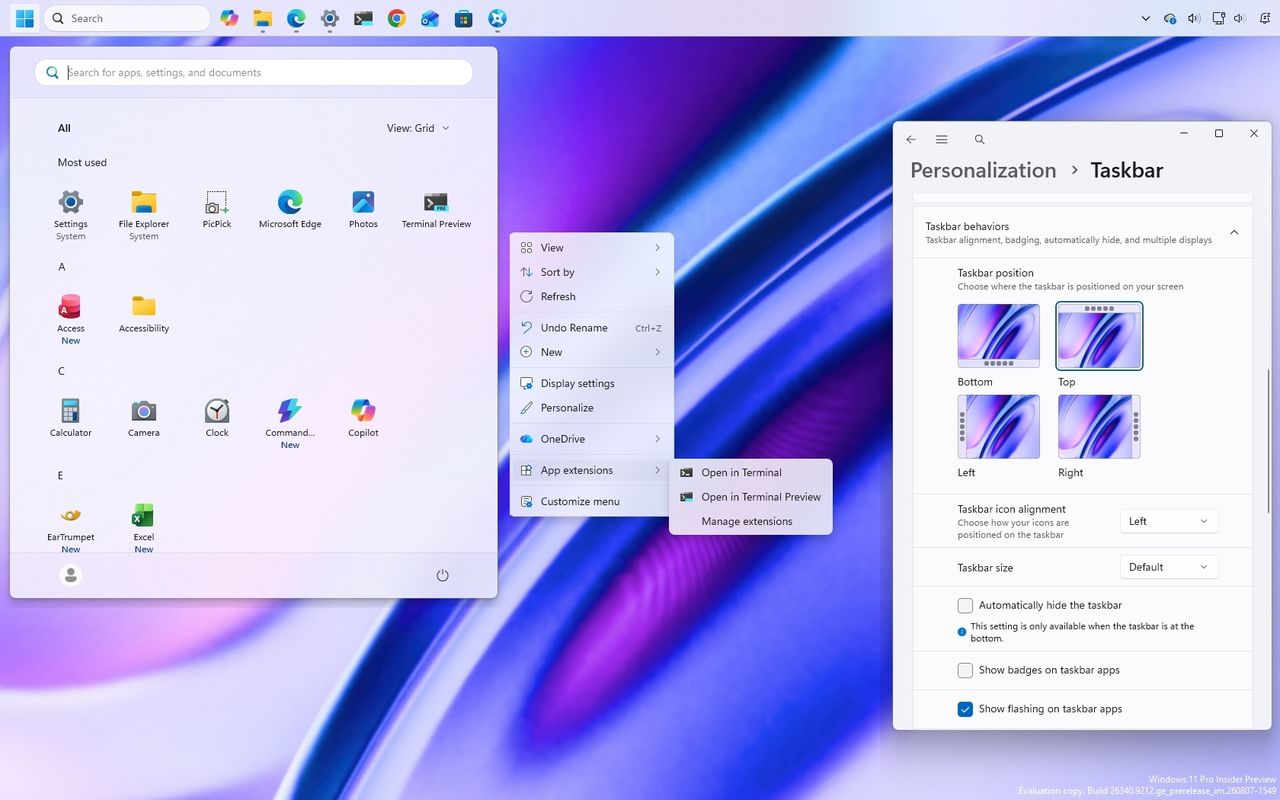
Some people want the Taskbar at the bottom. Others prefer it at the top or along the side.

Windows 11 desktop with the Taskbar at the top and the Settings app opened in the Taskbar settings.

(Image credit: Mauro Huculak)

Some users rarely use the context menu. Power users can depend on it dozens or even hundreds of times a day.

The operating system has always been able to accommodate those differences. That's one of the reasons the platform became so successful.

Microsoft doesn't need to force everyone into the same workflow to make the desktop easier to use. It can provide reasonable defaults while still letting people change the experience when they want to.

Microsoft shouldn't get too much credit for restoring what it removed

There is an important caveat here. I like where Windows 11 is heading, but Microsoft shouldn't get a free pass simply because it's restoring functionality that didn't necessarily need to disappear in the first place.

The Taskbar didn't need to lose its positioning options, and the context menu didn't need to become so restrictive. And that makes the current changes somewhat frustrating.

The company spent years moving Windows 11 toward a more controlled experience. Now, several years into the operating system's life, it's gradually bringing some of that flexibility back.

I'd rather Microsoft learn from this and not make the same mistake again.

Windows 11 doesn't need fewer choices

I don't think the company needs to turn Windows 11 into Windows 10 again. Windows 11 should look like Windows 11.

It should have its modern interface, new architecture, and new capabilities. Microsoft should keep improving the entire experience and continue modernizing older parts of the operating system.

However, modernization shouldn't mean reducing functionality. A modern component should ideally be better than the old one without being less capable. That's the standard Microsoft should stick to, and the context menu is a surprisingly good example.

If the company can give Windows 11 a cleaner, more modern context menu while also letting users decide which commands they want and how they want to access them, that's a much better solution than forcing everyone into the same interface.

The same principle should apply throughout Windows 11. The operating system should be easy to use by default while still giving users the flexibility to make it work the way they want.

Windows Central's Take

The most interesting thing happening to Windows 11 right now isn't another visual redesign or another collection of new features. It's that Microsoft appears to be reconsidering how much control it should take away from users.

That matters even more as the Windows K2 initiative continues pushing broader improvements to the operating system. Better performance, reliability, design, and responsiveness are important, but the way people interact with the elements and features matters just as much.

A faster operating system that makes people work around unnecessary restrictions isn't necessarily better.

What I appreciate about these changes is that Microsoft isn't simply trying to make Windows 11 look different. It's addressing some of the decisions that made the operating system feel less flexible than previous versions. The movable and resizable Taskbar, a more customizable Start menu, and now a context menu that users can configure all point in the same direction.

Microsoft is starting to recognize that Windows 11's problem wasn't that it gave users too many choices. It was that it sometimes took too many choices away.

That's the lesson I hope the company keeps in mind as the Windows K2 project continues. Make the operating system easy to use out of the box, but still give users the freedom to customize it and make it work the way they want.

More resources

Explore more in-depth how-to guides, troubleshooting advice, and essential tips to get the most out of Windows 11 and 10. Start browsing here:

Click to join us on r/WindowsCentral

Join us on Reddit at r/WindowsCentral to share your insights and discuss our latest news, reviews, and more.

Windows 11 desktop with Taskbar at the top, new Start menu, and customizable context menu.

Windows 11 desktop with Taskbar at the top, new Start menu, and customizable context menu.

I spent time with the August Windows 11 Insider builds, and these 8 changes reveal Microsoft’s next phase for the OS

In early August, Insiders didn't get off to a good start with previews, as the company didn't release any Windows 11 builds in the main testing channels, including Experimental and Beta, for more than 15 days. However, on August 17, Microsoft made five preview builds available across different channels and testing versions, with new features and changes.

In this latest wave of previews, the company began public testing of a new fully customizable context menu. It also rolled out improvements for the background image experience, Magnifier, Camera Roll, and Get Started app.

Also, the company announced that starting with this wave of updates, the operating system will no longer ship the Windows Management Instrumentation Command-line (WMIC) and the Drag Tray feature.

In the Experimental track, we've seen builds 29648, 28120.2738, and 26340.9212, while in the Beta channel, the company announced 28020.2731 and 26220.9202.

In this recap, I'll highlight the latest and most noteworthy changes available through the Windows Insider Program.

Biggest improvements from the Windows Insider Program in August 2026

In this recap, I'll highlight the latest and most noteworthy changes available through the Windows Insider Program since my last roundup.

Redesigned context menu

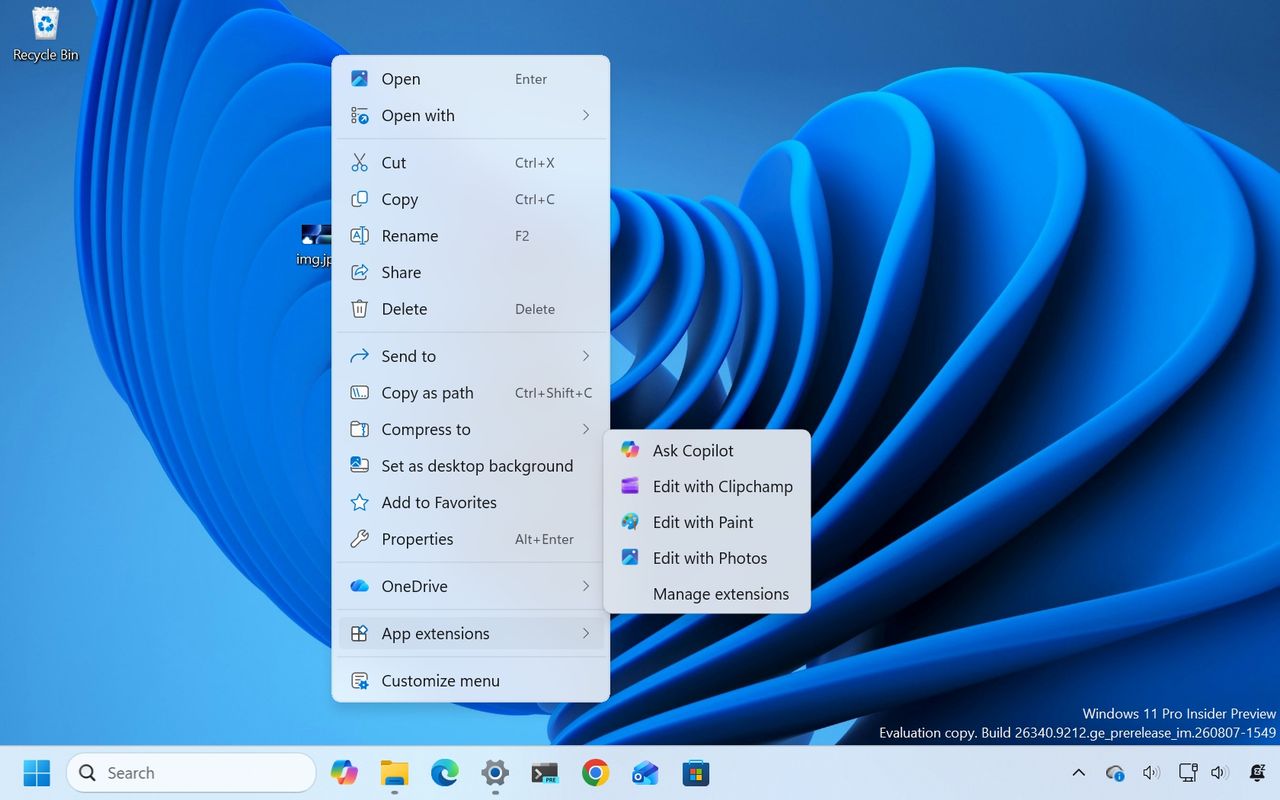
So far in August, perhaps the biggest change is the redesigned context menu, which is now fully customizable, simpler, and faster.

Windows 11 desktop with the new right-context menu design.

(Image credit: Mauro Huculak)

The new design reduces the clutter as we have never seen in the menu while keeping common actions easy to access. When you right-click a file or folder to invoke the menu, you'll notice a new "App extensions" submenu that now houses those extra entry points from applications you have installed on your computer.

Also, there's a new "Customize menu" option that opens the new Context menu page in Settings > Personalization.

Under the "File actions" section, you can choose the options that you want to appear in the main context menu, such as "Send to," Print, Create shortcut, Copy as path, and Rotate image.

Windows 11 Settings Context menu page showing the file actions settings.

(Image credit: Mauro Huculak)

One thing to point out here is that the "Send to" and Print options are new to the modern menu design.

When you open the "App extensions" section, you can decide whether this submenu appears in the main menu. Also, you can choose which extensions from apps appear in the main menu.

Windows 11 Settings Context menu app extensions.

(Image credit: Mauro Huculak)

Microsoft notes that it understands that many people have accumulated years of muscle memory from Windows 10. As a result, the new menu adds options to make it easier for those users by letting them arrange primary actions (such as cut and paste) vertically, instead of in the new horizontal view.

Windows 11 Settings Context menu Arrange primary actions inline option.

(Image credit: Mauro Huculak)

Also, you can place the "Properties" option at the bottom of the list, like in older versions of Windows.

Finally, it's also possible to restore the "Show more options" entry, or you can continue accessing the classic menu using the "Shift + Right-click" shortcut.

The new context menu options are available on build 26340.9212 for version 26H2 in the Experimental channel.

Personalization improvements

On Windows 11 build 26340.9212, the company is also polishing the desktop background experience with several fixes and improvements.

For example, on Settings > Personalization > Background, the page should now be more reliable, previews now render at higher resolution and display better on portrait monitors, and desktop slideshow transitions are more dependable, including on newly created accounts.

Windows 11 Settings showing the Background page.

(Image credit: Mauro Huculak)

The system can now also improve the process of changing wallpaper quickly, use Device-Independent Bitmap (DIB) image files as backgrounds, and keep slideshow wallpapers enabled across multiple desktops instead of automatically switching back to Picture.

Camera Roll backup

Also, on build 26340.9212, Microsoft is making it easier to protect your pictures by adding new entry points in Settings > Home and Accounts that let you set up Camera Roll backup, which automatically backs up photos and videos from your mobile device to OneDrive.

Magnifier interface update

Magnifier is getting a cleaner look without changing how the accessibility tool works.

Windows 11 desktop with Magnifier new UI changes.

(Image credit: Mauro Huculak)

Microsoft has refreshed the toolbar icons to better match the operating system's visual design and refined the spacing and padding for a more polished layout.

This update is currently available only in version 26H2, starting with the release of build 26340.9212.

Windows Recovery Environment changes

Windows Recovery Environment (WinRE) is getting a useful networking upgrade that can automatically reuse eligible Wi-Fi profiles saved in the operating system, including supported certificate-based networks.

In the past, this recovery mode could automatically connect to wired unauthenticated Ethernet or separately preconfigured Wi-Fi, while other WPA2/WPA3 networks required manually entering a password.

In this update, recovery workflows such as Quick Machine Recovery or cloud rebuilds can get online without manual interaction, without having to reconfigure Wi-Fi credentials.

The behavior is enabled by default, although technical users can disable it if needed.

Windows 11 features removed

In this wave of updates across all channels, Microsoft is no longer shipping Windows Management Instrumentation Command-line (WMIC) and the Drag Tray feature.

In this release, the legacy Windows Management Instrumentation Command-line (WMIC) tool is no longer included as Microsoft continues its broader effort to phase out WMIC from the operating system, pushing users toward newer management tools.

One thing to point out about WMIC is that Microsoft isn't removing WMI. Only the "wmic.exe" command-line utility will no longer be included in the operating system. WMI remains available through PowerShell and other supported utilities.

Windows 11 Settings Drop Tray feature.

(Image credit: Mauro Huculak)

Microsoft is also pulling the plug on the Drop Tray experience from this build after hearing feedback from users. The company says it'll continue exploring improvements in this area and plans to share more about a future replacement in a later update.

File Explorer improvements

In Windows 11 build 26220.9202 for version 25H2 (Beta), File Explorer gets a small but noticeable usability boost.

For example, the "Home" page now launches faster and feels more responsive, while the "Recommended" section supports touch scrolling, making it easier to browse files in the carousel.

Microsoft also fixed an issue that caused previews to display an unexpectedly thick band across the middle.

Windows Security app changes

Finally, the company is making small visual adjustments to Windows Security to better align the app with the other Windows 11 experiences.

Windows Security app from build 29648

(Image credit: Mauro Huculak)

On Windows 11 build 29648, testers may notice subtle differences as more changes roll out. However, after installing this update on my machine, I failed to notice anything different in the app.

On managed devices with Microsoft Defender for Endpoint enabled, information about the protection will now appear at the top of the "Virus & threat protection" page.

Windows Central's Take

Although Microsoft kept Insiders without preview builds for the first half of August, the latest updates are still worth the wait because the company is finally giving users more control over parts of the experience it previously tried to simplify. The customizable context menu is the most significant change, especially because it acknowledges that users don't necessarily want the company's preferred layout forced on them.

I'm also glad the improvements aren't limited to interface changes. The improvements to desktop backgrounds, File Explorer, and WinRE address small frustrations that can make the experience feel inconsistent over time.

I wouldn't rush to install an Insider build just for these changes, but the direction is encouraging. Microsoft is giving Windows 11 more flexibility while continuing to modernize the parts of the operating system that have fallen behind.

What are your thoughts about these latest Windows 11 changes? Let me know in the comments.

More resources

Explore more in-depth how-to guides, troubleshooting advice, and essential tips to get the most out of Windows 11 and 10. Start browsing here:

Click to join us on r/WindowsCentral

Join us on Reddit at r/WindowsCentral to share your insights and discuss our latest news, reviews, and more.

Windows 11 desktop with the new context menu

Windows 11 desktop with the new context menu

❌